navigation system MERCEDES-BENZ CL-Class 2012 C216 Service Manual
[x] Cancel search | Manufacturer: MERCEDES-BENZ, Model Year: 2012, Model line: CL-Class, Model: MERCEDES-BENZ CL-Class 2012 C216Pages: 488, PDF Size: 21.88 MB
Page 163 of 488
Displaying real-time traffic reportsXIf necessary, switch to navigation mode
and show the menu ( Y page 136).XSelect Traffic in the navigation system
menu bar by turning cVd the COMAND
controller and press W to confirm.
If you see the No traffic messages.
message:
This means that:
R no traffic reports have been received yet.
R no traffic reports are available.
XTo cancel the search: select Cancel .XTo close the message window: select
OK .
If there are any traffic reports, a list is shown.
The content of the list varies depending on
whether route guidance is active or not.
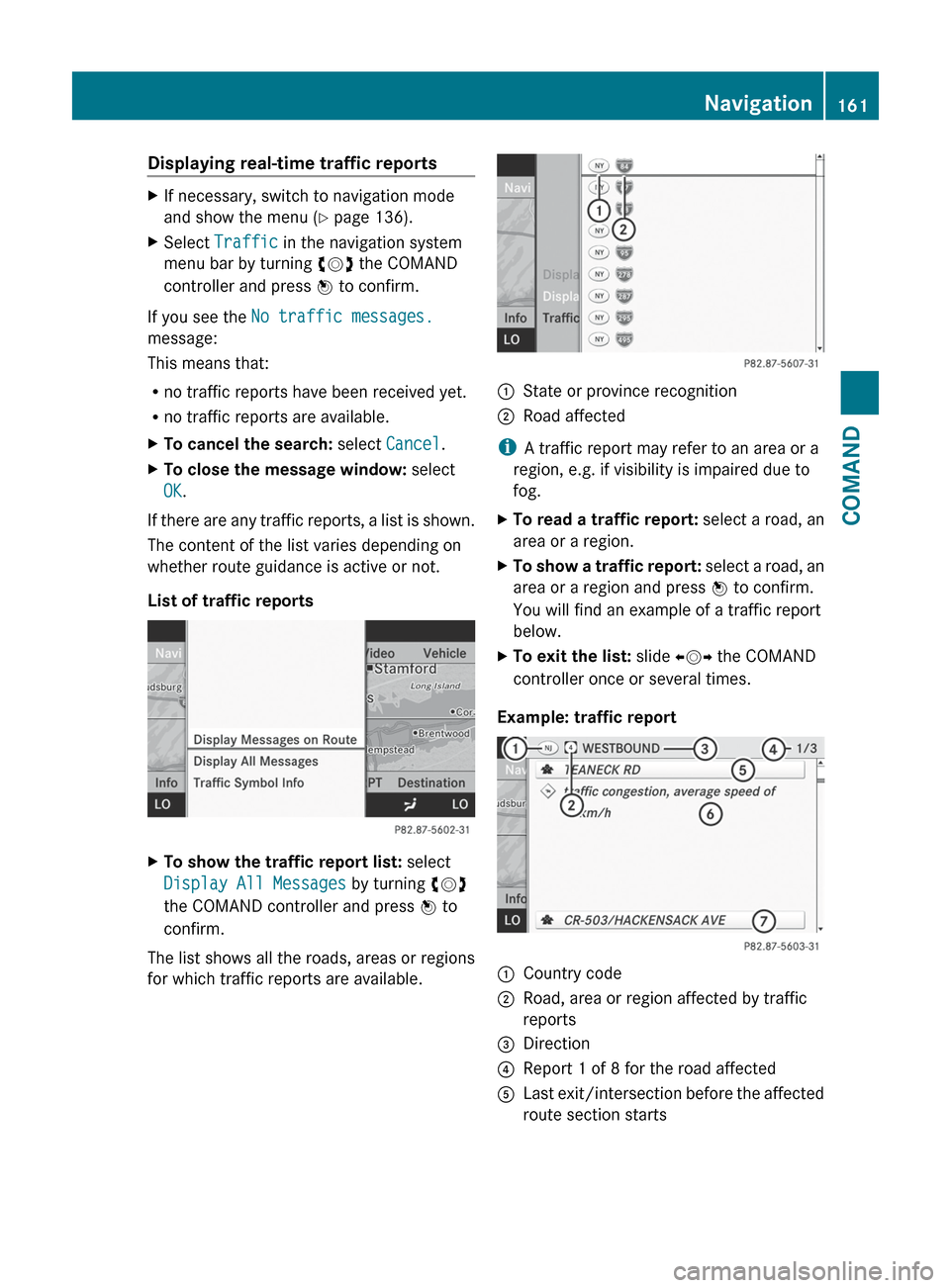
List of traffic reports
XTo show the traffic report list: select
Display All Messages by turning cVd
the COMAND controller and press W to
confirm.
The list shows all the roads, areas or regions
for which traffic reports are available.
1State or province recognition2Road affected
i A traffic report may refer to an area or a
region, e.g. if visibility is impaired due to
fog.
XTo read a traffic report: select a road, an
area or a region.XTo show a traffic report: select a road, an
area or a region and press W to confirm.
You will find an example of a traffic report
below.XTo exit the list: slide XVY the COMAND
controller once or several times.
Example: traffic report
1Country code2Road, area or region affected by traffic
reports3Direction4Report 1 of 8 for the road affected5Last exit/intersection before the affected
route section startsNavigation161COMANDZ
Page 164 of 488
6Report textCFirst exit/intersection after the affected
route section endsXTo scroll within a report or to access
the next report: turn cVd the COMAND
controller.XTo return to the list of messages: press
W or slide XVY the COMAND controller.
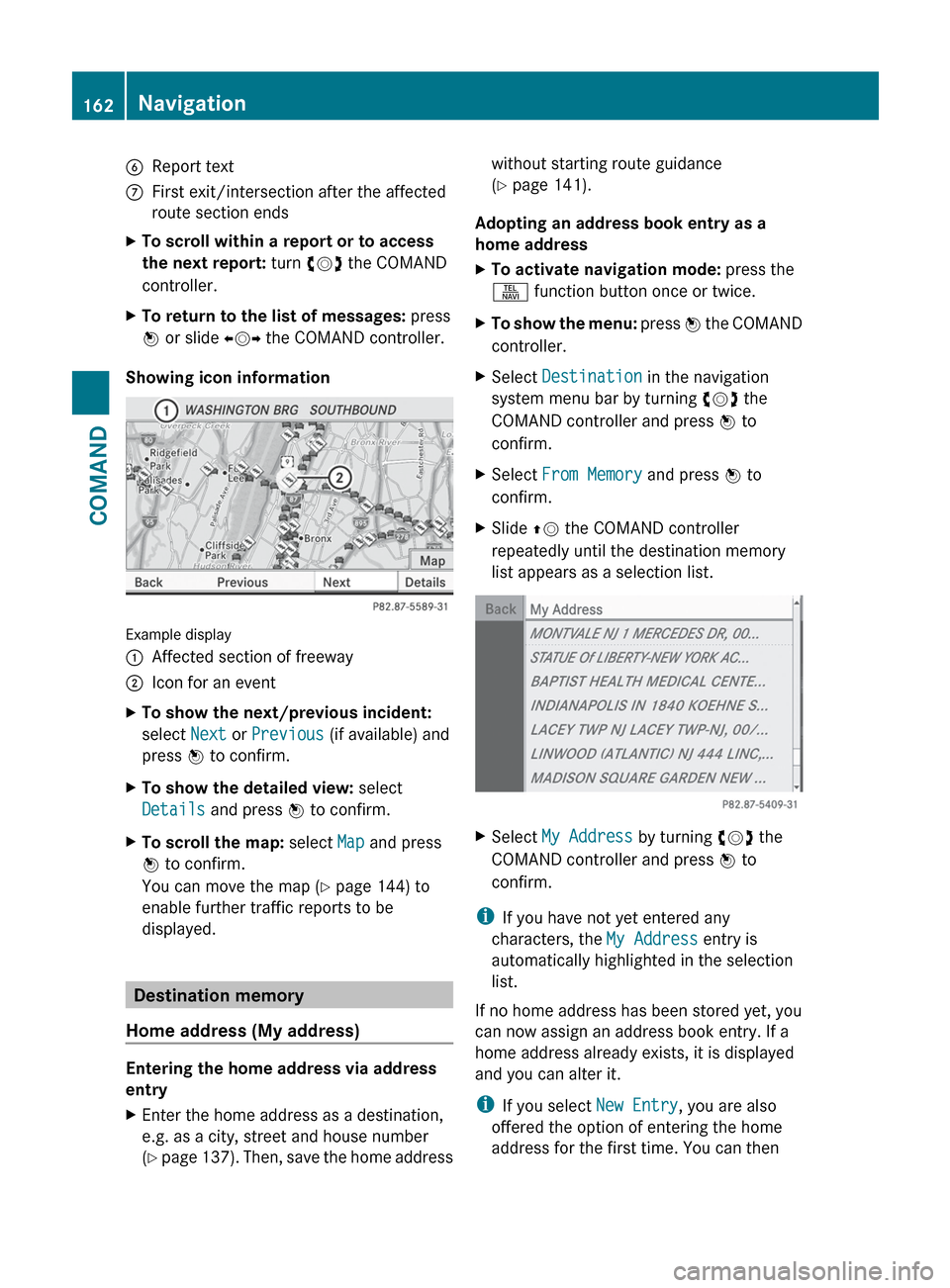
Showing icon information
Example display
:Affected section of freeway;Icon for an eventXTo show the next/previous incident:
select Next or Previous (if available) and
press W to confirm.XTo show the detailed view: select
Details and press W to confirm.XTo scroll the map: select Map and press
W to confirm.
You can move the map ( Y page 144) to
enable further traffic reports to be
displayed.
Destination memory
Home address (My address)
Entering the home address via address
entry
XEnter the home address as a destination,
e.g. as a city, street and house number
( Y page 137). Then, save the home addresswithout starting route guidance
( Y page 141).
Adopting an address book entry as a
home address
XTo activate navigation mode: press the
S function button once or twice.XTo show the menu: press W the COMAND
controller.XSelect Destination in the navigation
system menu bar by turning cVd the
COMAND controller and press W to
confirm.XSelect From Memory and press W to
confirm.XSlide ZV the COMAND controller
repeatedly until the destination memory
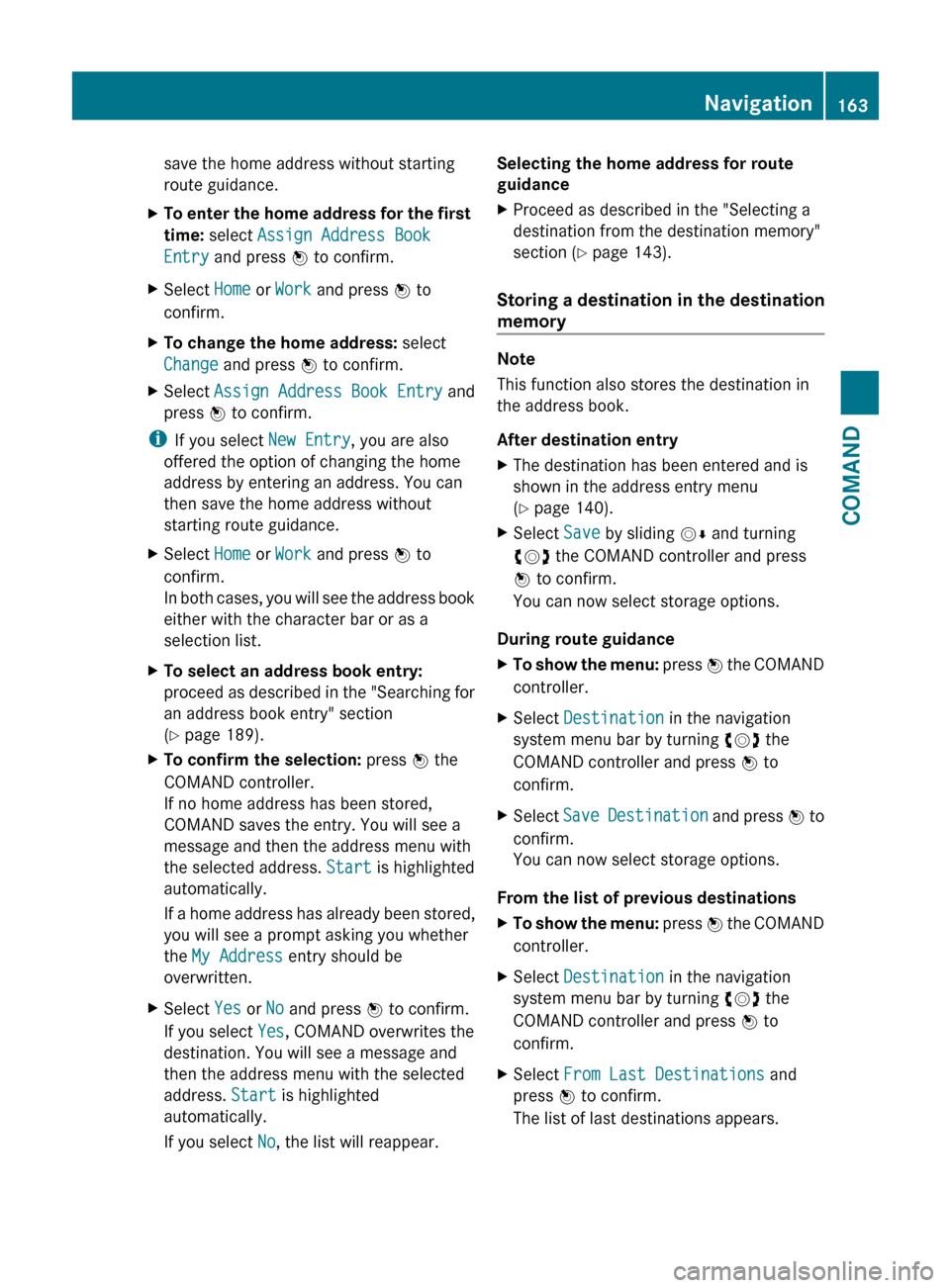
list appears as a selection list.XSelect My Address by turning cVd the
COMAND controller and press W to
confirm.
i If you have not yet entered any
characters, the My Address entry is
automatically highlighted in the selection
list.
If no home address has been stored yet, you
can now assign an address book entry. If a
home address already exists, it is displayed
and you can alter it.
i If you select New Entry, you are also
offered the option of entering the home
address for the first time. You can then
162NavigationCOMAND
Page 165 of 488
save the home address without starting
route guidance.XTo enter the home address for the first
time: select Assign Address Book
Entry and press W to confirm.XSelect Home or Work and press W to
confirm.XTo change the home address: select
Change and press W to confirm.XSelect Assign Address Book Entry and
press W to confirm.
i
If you select New Entry, you are also
offered the option of changing the home
address by entering an address. You can
then save the home address without
starting route guidance.
XSelect Home or Work and press W to
confirm.
In both cases, you will see the address book
either with the character bar or as a
selection list.XTo select an address book entry:
proceed as described in the "Searching for
an address book entry" section
( Y page 189).XTo confirm the selection: press W the
COMAND controller.
If no home address has been stored,
COMAND saves the entry. You will see a
message and then the address menu with
the selected address. Start is highlighted
automatically.
If a home address has already been stored,
you will see a prompt asking you whether
the My Address entry should be
overwritten.XSelect Yes or No and press W to confirm.
If you select Yes, COMAND overwrites the
destination. You will see a message and
then the address menu with the selected
address. Start is highlighted
automatically.
If you select No, the list will reappear.Selecting the home address for route
guidanceXProceed as described in the "Selecting a
destination from the destination memory"
section ( Y page 143).
Storing a destination in the destination
memory
Note
This function also stores the destination in
the address book.
After destination entry
XThe destination has been entered and is
shown in the address entry menu
( Y page 140).XSelect Save by sliding VÆ and turning
cVd the COMAND controller and press
W to confirm.
You can now select storage options.
During route guidance
XTo show the menu: press W the COMAND
controller.XSelect Destination in the navigation
system menu bar by turning cVd the
COMAND controller and press W to
confirm.XSelect Save Destination and press W to
confirm.
You can now select storage options.
From the list of previous destinations
XTo show the menu: press W the COMAND
controller.XSelect Destination in the navigation
system menu bar by turning cVd the
COMAND controller and press W to
confirm.XSelect From Last Destinations and
press W to confirm.
The list of last destinations appears.Navigation163COMANDZ
Page 167 of 488
will appear asking whether you wish to
overwrite the existing data.XSelect Yes or No and press W to confirm.
If you select Yes, COMAND stores the data.
Deleting a destination or the home
address from the destination memory
XTo activate navigation mode: press the
S function button once or twice.XTo show the menu: press W the COMAND
controller.XSelect Destination in the navigation
system menu bar by turning cVd the
COMAND controller and press W to
confirm.XSelect From Memory and press W to
confirm.
You will see the destination memory list
either with the character bar (option 1) or
as a selection list (option 2).XOption 1: destination memory list with
character bar: proceed as described in the
"Entering characters using the character
bar" section ( Y page 119).XOption 2: destination memory list as
selection list: select a destination by
turning cVd the COMAND controller and
press W to confirm.
You see the address data of the selected
entry.XSelect Delete and press W to confirm.
A prompt appears asking whether you wish
to delete the destination.XSelect Yes or No and press W to confirm.
If you select Yes, COMAND deletes the
destination. You will see a message to this
effect.
If you select No, the process is aborted.
i
If the navigable address data for the
destination being deleted is also assigned
to an address book entry, COMAND will
also delete this data from there. If the
corresponding address book entry does
not contain any further data, such as
telephone numbers, COMAND deletes the
entire address book entry.
Previous destinations
Introduction
COMAND automatically stores the previous
destinations for which the route calculation
has been started. If the memory is full,
COMAND deletes the oldest destination. You
can also save a destination from the list of
previous destinations in the destination
memory. It will be stored there permanently.
Storing a destination permanently in
the destination memory
XProceed as described in the "From the list
of previous destinations" section
( Y page 163).
Storing the vehicle position in the list of
previous destinations
XTo activate navigation mode: press the
S function button once or twice.XTo show the menu: press W the COMAND
controller.XSelect Position in the navigation system
menu bar by turning cVd the COMAND
controller and press W to confirm.XSelect Store Vehicle Position and
press W to confirm.
COMAND stores the current vehicle
position as a destination in the list of
previous destinations.Navigation165COMANDZ
Page 168 of 488
Storing the crosshair position in the list
of previous destinations
Route guidance not active
A crosshair appears on the map if you have
moved the map manually. You can store the
crosshair position as a destination in the list
of previous destinations.
XTo show the menu: press W the COMAND
controller.XSelect Position in the navigation system
menu bar by turning cVd the COMAND
controller and press W to confirm.XSelect Save Crosshair Position and
press W to confirm.
Route guidance is active
XSelect Destination in the navigation
system menu bar by turning cVd the
COMAND controller and press W to
confirm.XSelect Save Destination and press W to
confirm.
Deleting one of the previous
destinations
XTo activate navigation mode: press the
S function button once or twice.XTo show the menu: press W the COMAND
controller.XSelect Destination in the navigation
system menu bar by turning cVd the
COMAND controller and press W to
confirm.XSelect From Last Destinations and
press W to confirm.
The list of last destinations appears.XSelect the desired destination and press
W to confirm.
The destination address appears.XSelect Delete and press W to confirm.
A prompt appears asking whether the entry
should be deleted.XSelect Yes or No and press W to confirm.
If you select Yes, the entry is deleted.
If you select No, the process is aborted.
Map operation and settings
Note
Company logos displayed on the map are
trademarks of the respective companies and
used solely for the purpose of indicating the
location of these companies. The use of such
logos on the map does not indicate approval
of, support of or advertising by these
companies for the navigation system itself.
Setting the map scale
XTo hide the menu: slide ZV the COMAND
controller and, when the Full screen
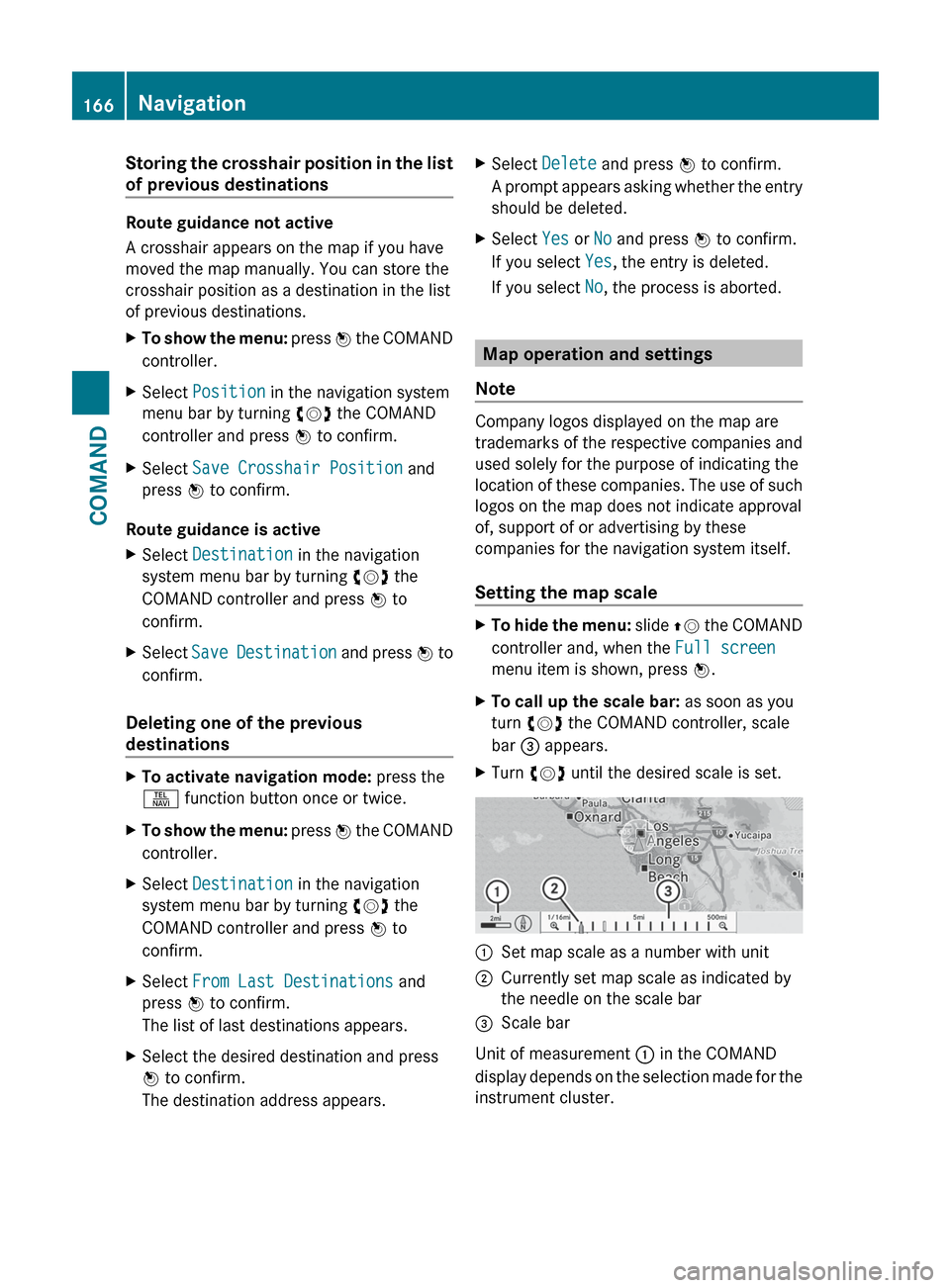
menu item is shown, press W.XTo call up the scale bar: as soon as you
turn cVd the COMAND controller, scale
bar = appears.XTurn cVd until the desired scale is set.:Set map scale as a number with unit;Currently set map scale as indicated by
the needle on the scale bar=Scale bar
Unit of measurement : in the COMAND
display depends on the selection made for the
instrument cluster.
166NavigationCOMAND
Page 169 of 488
Moving the map
Showing the crosshair
XTo hide the menu: slide ZV the COMAND
controller and, when the Full screen
menu item is shown, press W.XTo move the map: slide XVY, ZV Æ or
aVb the COMAND controller.
A crosshair appears on the map. If you slide
it again, the map moves in the
corresponding direction under the
crosshair.
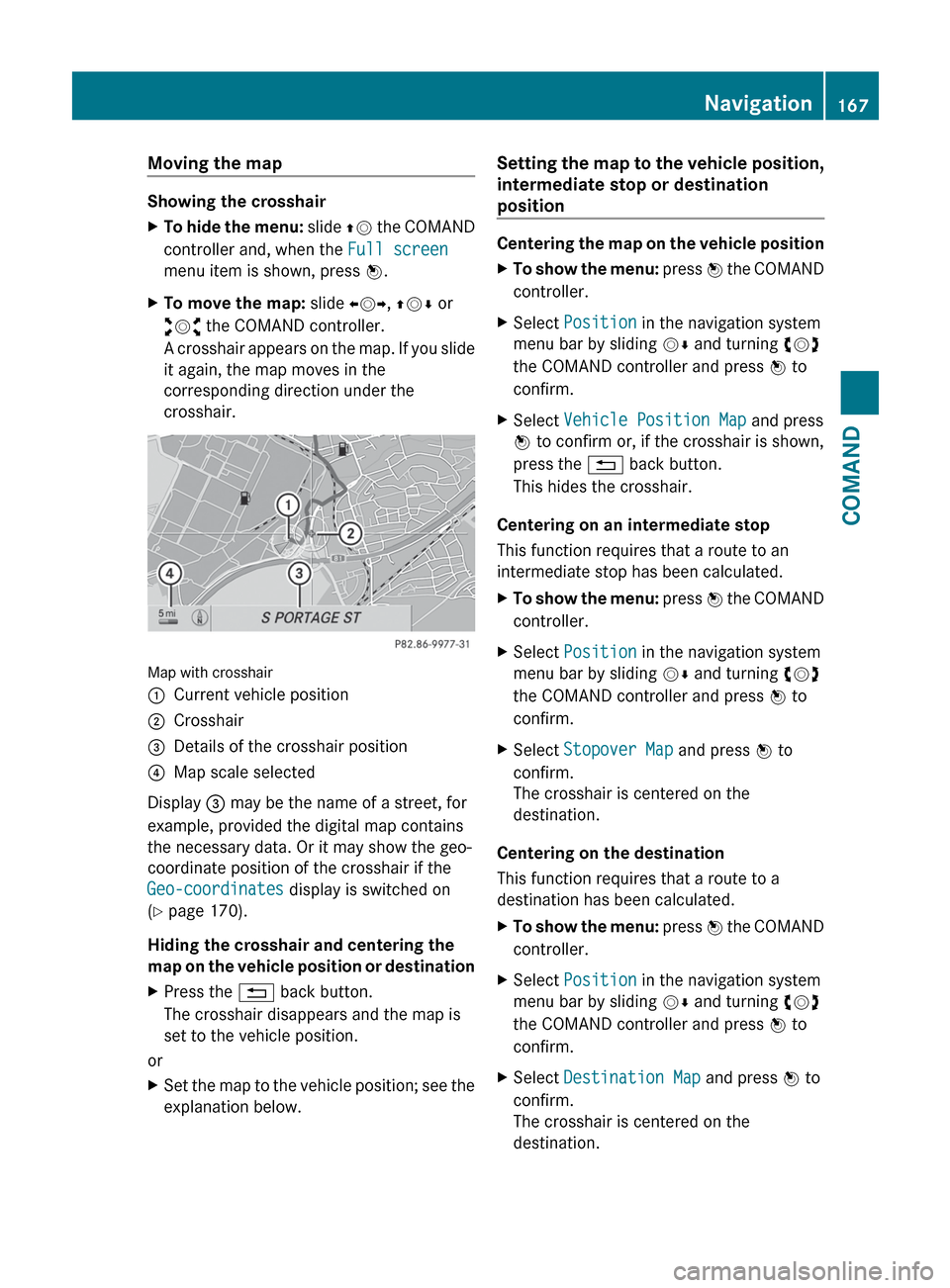
Map with crosshair
:Current vehicle position;Crosshair=Details of the crosshair position?Map scale selected
Display = may be the name of a street, for
example, provided the digital map contains
the necessary data. Or it may show the geo-
coordinate position of the crosshair if the
Geo-coordinates display is switched on
( Y page 170).
Hiding the crosshair and centering the
map on the vehicle position or destination
XPress the % back button.
The crosshair disappears and the map is
set to the vehicle position.
or
XSet the map to the vehicle position; see the
explanation below.Setting the map to the vehicle position,
intermediate stop or destination
position
Centering the map on the vehicle position
XTo show the menu: press W the COMAND
controller.XSelect Position in the navigation system
menu bar by sliding VÆ and turning cVd
the COMAND controller and press W to
confirm.XSelect Vehicle Position Map and press
W to confirm or, if the crosshair is shown,
press the % back button.
This hides the crosshair.
Centering on an intermediate stop
This function requires that a route to an
intermediate stop has been calculated.
XTo show the menu: press W the COMAND
controller.XSelect Position in the navigation system
menu bar by sliding VÆ and turning cVd
the COMAND controller and press W to
confirm.XSelect Stopover Map and press W to
confirm.
The crosshair is centered on the
destination.
Centering on the destination
This function requires that a route to a
destination has been calculated.
XTo show the menu: press W the COMAND
controller.XSelect Position in the navigation system
menu bar by sliding VÆ and turning cVd
the COMAND controller and press W to
confirm.XSelect Destination Map and press W to
confirm.
The crosshair is centered on the
destination.Navigation167COMANDZ
Page 172 of 488
Geo-coordinate display
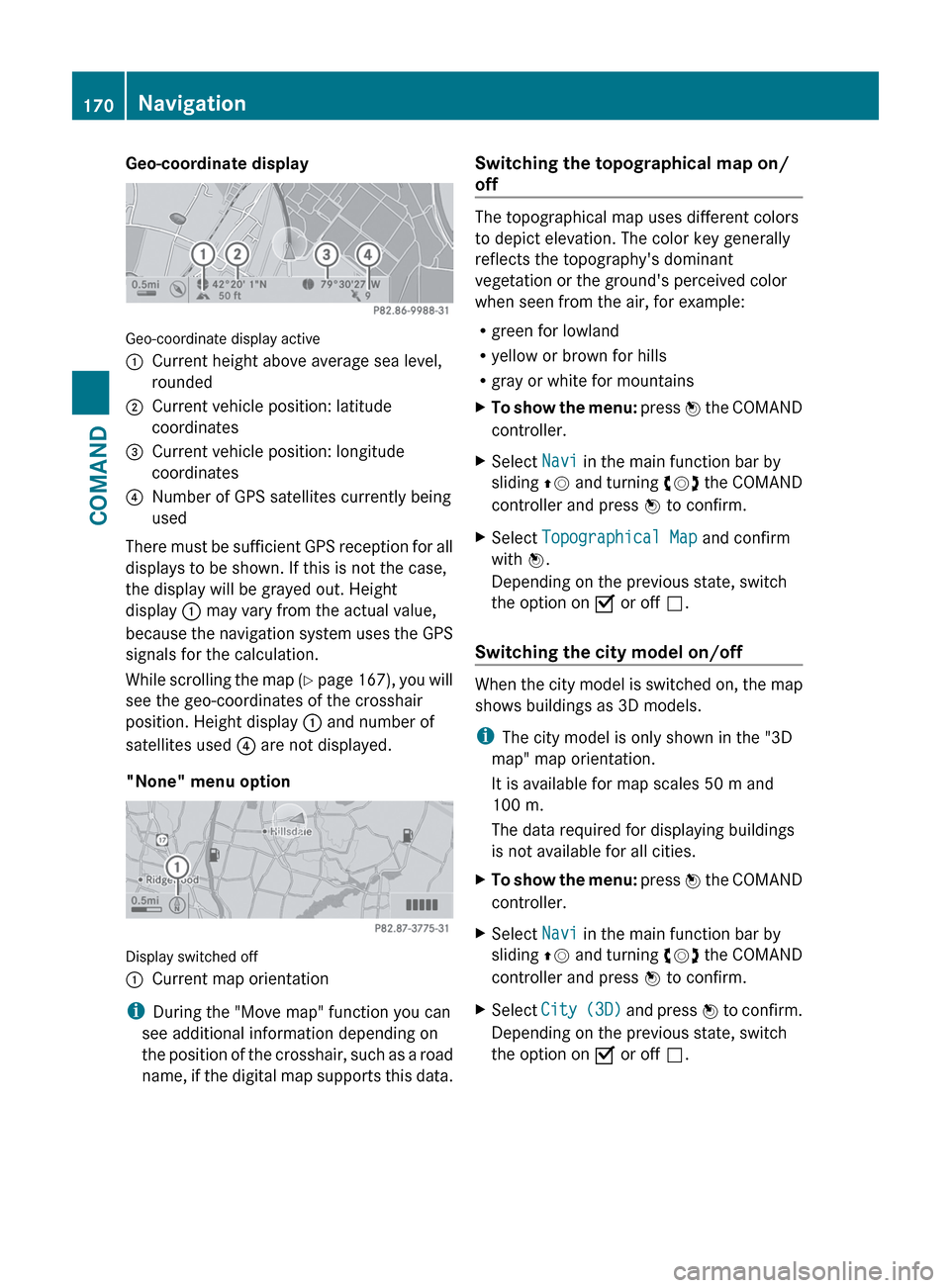
Geo-coordinate display active
:Current height above average sea level,
rounded;Current vehicle position: latitude
coordinates=Current vehicle position: longitude
coordinates?Number of GPS satellites currently being
used
There must be sufficient GPS reception for all
displays to be shown. If this is not the case,
the display will be grayed out. Height
display : may vary from the actual value,
because the navigation system uses the GPS
signals for the calculation.
While scrolling the map (Y page 167), you will
see the geo-coordinates of the crosshair
position. Height display : and number of
satellites used ? are not displayed.
"None" menu option
Display switched off
:Current map orientation
i During the "Move map" function you can
see additional information depending on
the position of the crosshair, such as a road
name, if the digital map supports this data.
Switching the topographical map on/
off
The topographical map uses different colors
to depict elevation. The color key generally
reflects the topography's dominant
vegetation or the ground's perceived color
when seen from the air, for example:
R green for lowland
R yellow or brown for hills
R gray or white for mountains
XTo show the menu: press W the COMAND
controller.XSelect Navi in the main function bar by
sliding ZV and turning cVd the COMAND
controller and press W to confirm.XSelect Topographical Map and confirm
with W.
Depending on the previous state, switch
the option on O or off ª.
Switching the city model on/off
When the city model is switched on, the map
shows buildings as 3D models.
i The city model is only shown in the "3D
map" map orientation.
It is available for map scales 50 m and
100 m.
The data required for displaying buildings
is not available for all cities.
XTo show the menu: press W the COMAND
controller.XSelect Navi in the main function bar by
sliding ZV and turning cVd the COMAND
controller and press W to confirm.XSelect City (3D) and press W to confirm.
Depending on the previous state, switch
the option on O or off ª.170NavigationCOMAND
Page 174 of 488
XSelect Navi in the main function bar by
sliding ZV and turning cVd the COMAND
controller and press W to confirm.XSelect Highway Information and press
W to confirm.
Depending on the previous state, switch
the option on O or off ª.
SIRIUS XM service
Displaying SIRIUS XM service information
You can display the SIRIUS XM service
information.
XTo show the menu: press W the COMAND
controller.XSelect Navi in the main function bar by
sliding ZV and turning cVd the COMAND
controller and press W to confirm.XSelect SIRIUS Service and press W to
confirm.
Registering for the SIRIUS XM traffic
report service
XCall the traffic report provider's phone
number shown on the screen.
i You can also have the satellite service
activated online. To do so, visit the SIRIUS
XM Radio website at
http://www.sirius.com (USA) or
http://www.siriuscanada.com
(Canada).
Once the connection has been established:
XFollow the instructions of the operator.
The activation process may take up to ten
minutes.
If registration is not included when
purchasing the system, your credit card
details will be required to activate your
account.
Compass function
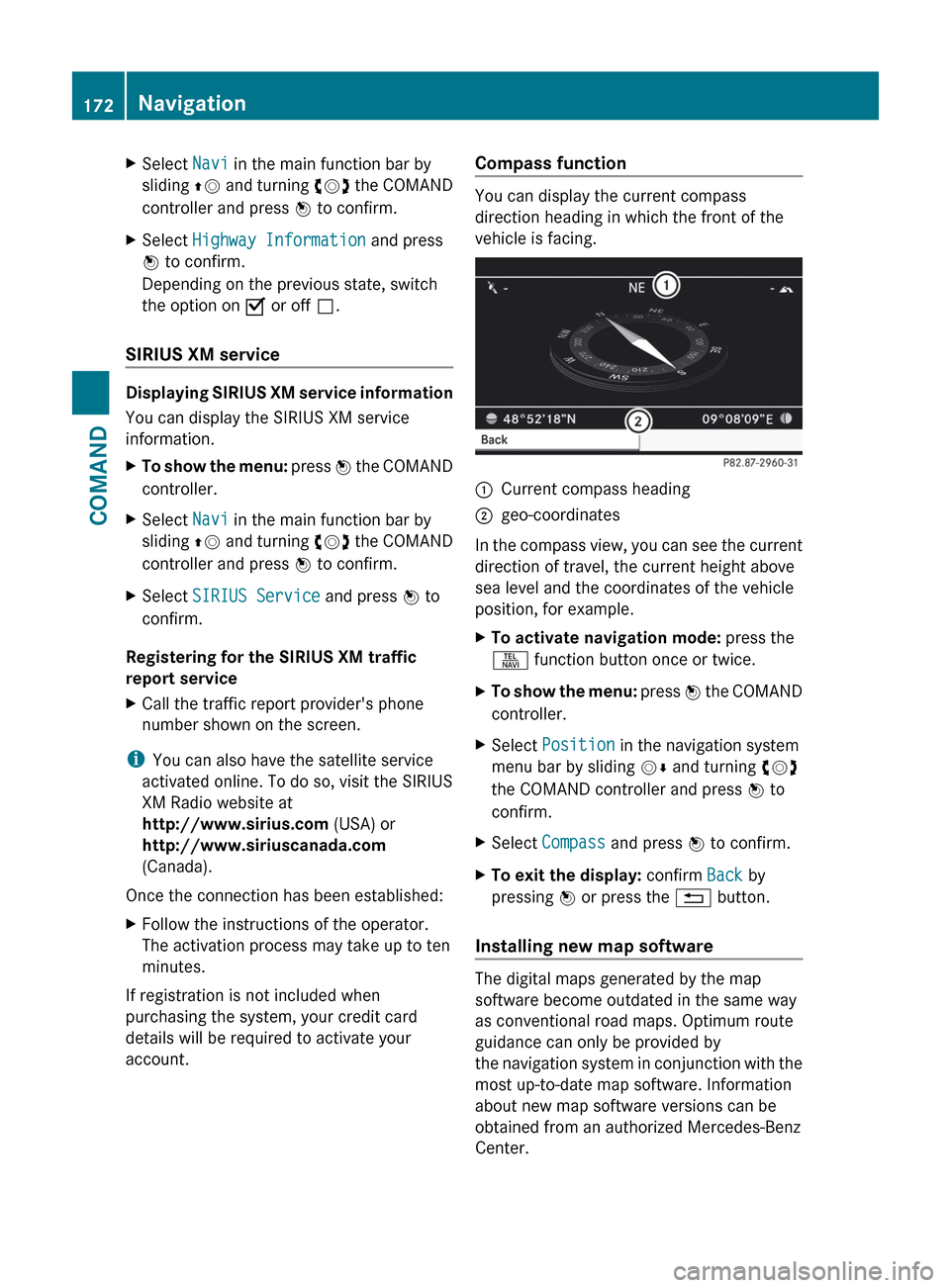
You can display the current compass
direction heading in which the front of the
vehicle is facing.
:Current compass heading;geo-coordinates
In the compass view, you can see the current
direction of travel, the current height above
sea level and the coordinates of the vehicle
position, for example.
XTo activate navigation mode: press the
S function button once or twice.XTo show the menu: press W the COMAND
controller.XSelect Position in the navigation system
menu bar by sliding VÆ and turning cVd
the COMAND controller and press W to
confirm.XSelect Compass and press W to confirm.XTo exit the display: confirm Back by
pressing W or press the % button.
Installing new map software
The digital maps generated by the map
software become outdated in the same way
as conventional road maps. Optimum route
guidance can only be provided by
the navigation system in conjunction with the
most up-to-date map software. Information
about new map software versions can be
obtained from an authorized Mercedes-Benz
Center.
172NavigationCOMAND
Page 175 of 488
You can install new map software yourself
which, depending on the scope, may consist
of one or more DVDs.
The installation process can take between
10 and 120 minutes, depending on the scope
of the map software. If the radio is switched
on before you start the installation process,
you can still adjust the volume. You can also
use COMAND to operate automatic climate
control and to cancel the process. Other
functions are not operational. If possible,
carry out the installation when the vehicle is
stationary. The DVD read speed is higher
when the vehicle is stationary than when it is
in motion, so less time is required. If the
starter battery is not sufficiently charged,
COMAND may end the process automatically
in order to protect the battery. Therefore, let
the engine idle during the installation
process.GWARNING
Never leave the engine running in enclosed
spaces. The exhaust gases contain toxic
carbon monoxide. Breathing in exhaust fumes
is a health hazard and can lead to
unconsciousness or death.
Displaying information on the map
version currently in use
XTo activate navigation mode: press the
S function button once or twice.XTo show the menu: press W the COMAND
controller.XSelect Navi in the main function bar by
sliding VÆ and turning cVd the COMAND
controller and press W to confirm.XSelect Map Version and press W to
confirm.
Notes on handling DVDs
R Only hold DVDs by the edge.
R Handle DVDs carefully to prevent reading
errors.
R Avoid getting scratches, fingerprints and
dust on DVDs.
R Use a commercially-available cleaning
cloth to clean discs. When cleaning CDs,
you should wipe in straight lines from the
center outwards rather than in a circular
motion.
R Place DVDs back in their cases after use.
R Protect DVDs from heat and direct sunlight.
Map software copy protection
Map software for COMAND is subject to a
charge. The map software has just one
activation code which is usable in one vehicle
only, and is not transferable. You can obtain
the six-digit activation code from your
authorized Mercedes-Benz Center. If you
have lost the activation code, or if COMAND
does not accept the activation code that you
have received, contact your authorized
Mercedes-Benz Center.
Your vehicle is supplied with map software at
the factory. Depending on the country, map
software for your region is either pre-installed
(Europe/USA) or the map software is
supplied as a DVD (all other countries). You
do not require an activation code for the map
software that is provided with your vehicle.
If the map software on your vehicle has been
installed at the factory and you wish to
reinstall it, this also does not necessitate
entry of the activation code.
Installation processXLoad the map software DVD in the DVD
drive ( Y page 204).
COMAND checks the DVD and shows a
corresponding message in the display.
Map software is not compatible with the
navigation system
You will see a message that the map software
cannot be installed.
XTo confirm the message: press W.
COMAND ejects the DVD.XTake the DVD out of the slot.XInsert a DVD which is compatible with the
vehicle’s navigation system.Navigation173COMANDZ
Page 176 of 488
Map software is not compatible with the
current system software
You will see a message that the system
software and the map software are not
compatible.XTo confirm the message: press W.
COMAND ejects the DVD.XTake the DVD out of the slot.XHave the system software updated at an
authorized Mercedes-Benz Center.
The map software cannot be installed until
the system software has been updated.
Map software compatible with the
navigation system and the current
system software
COMAND checks whether the map data on
the DVD is already installed.
Map data is already installed
You will see a message that the map data is
already installed and a prompt will appear
asking you whether you wish to continue with
the map software installation.
XSelect Yes or No.
If you select Yes, the existing map data is
overwritten.
If you select No, COMAND automatically
ejects the DVD and the installation of the
map software is canceled.XTake the DVD out of the slot.
Map data is not installed yet
In the display, you will see a comparison of
the version statuses of the map software DVD
and the map software installed in COMAND.
A prompt then appears asking whether the
map software installation should be carried
out.
XSelect Yes or No.
If you select Yes, the map data is installed.
If you select No, COMAND automatically
ejects the DVD and the installation of the
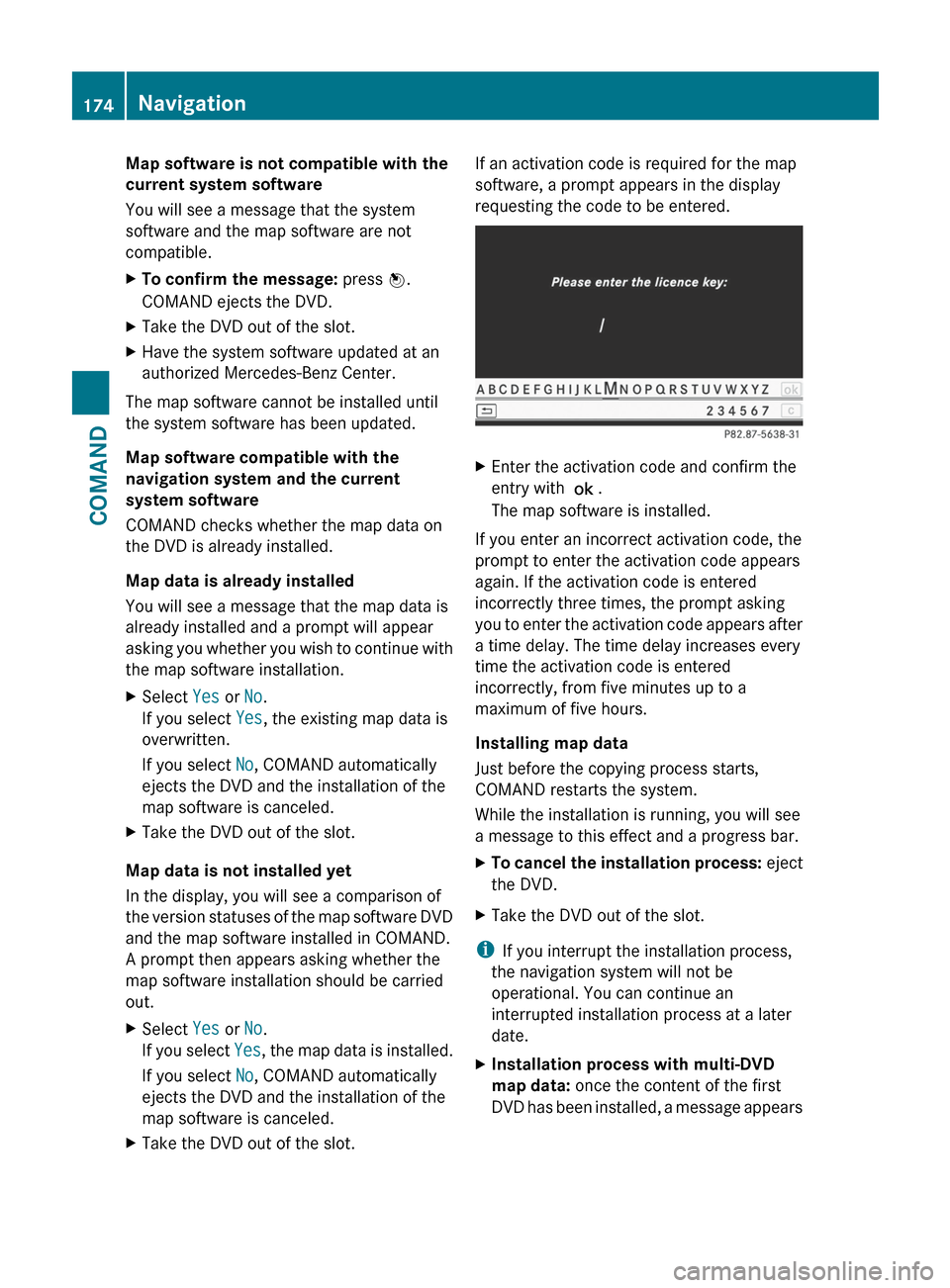
map software is canceled.XTake the DVD out of the slot.If an activation code is required for the map
software, a prompt appears in the display
requesting the code to be entered.XEnter the activation code and confirm the
entry with !.
The map software is installed.
If you enter an incorrect activation code, the
prompt to enter the activation code appears
again. If the activation code is entered
incorrectly three times, the prompt asking
you to enter the activation code appears after
a time delay. The time delay increases every
time the activation code is entered
incorrectly, from five minutes up to a
maximum of five hours.
Installing map data
Just before the copying process starts,
COMAND restarts the system.
While the installation is running, you will see
a message to this effect and a progress bar.
XTo cancel the installation process: eject
the DVD.XTake the DVD out of the slot.
i If you interrupt the installation process,
the navigation system will not be
operational. You can continue an
interrupted installation process at a later
date.
XInstallation process with multi-DVD
map data: once the content of the first
DVD has been installed, a message appears174NavigationCOMAND