bluetooth MERCEDES-BENZ CL-Class 2012 C216 Owner's Manual
[x] Cancel search | Manufacturer: MERCEDES-BENZ, Model Year: 2012, Model line: CL-Class, Model: MERCEDES-BENZ CL-Class 2012 C216Pages: 488, PDF Size: 21.88 MB
Page 2 of 488
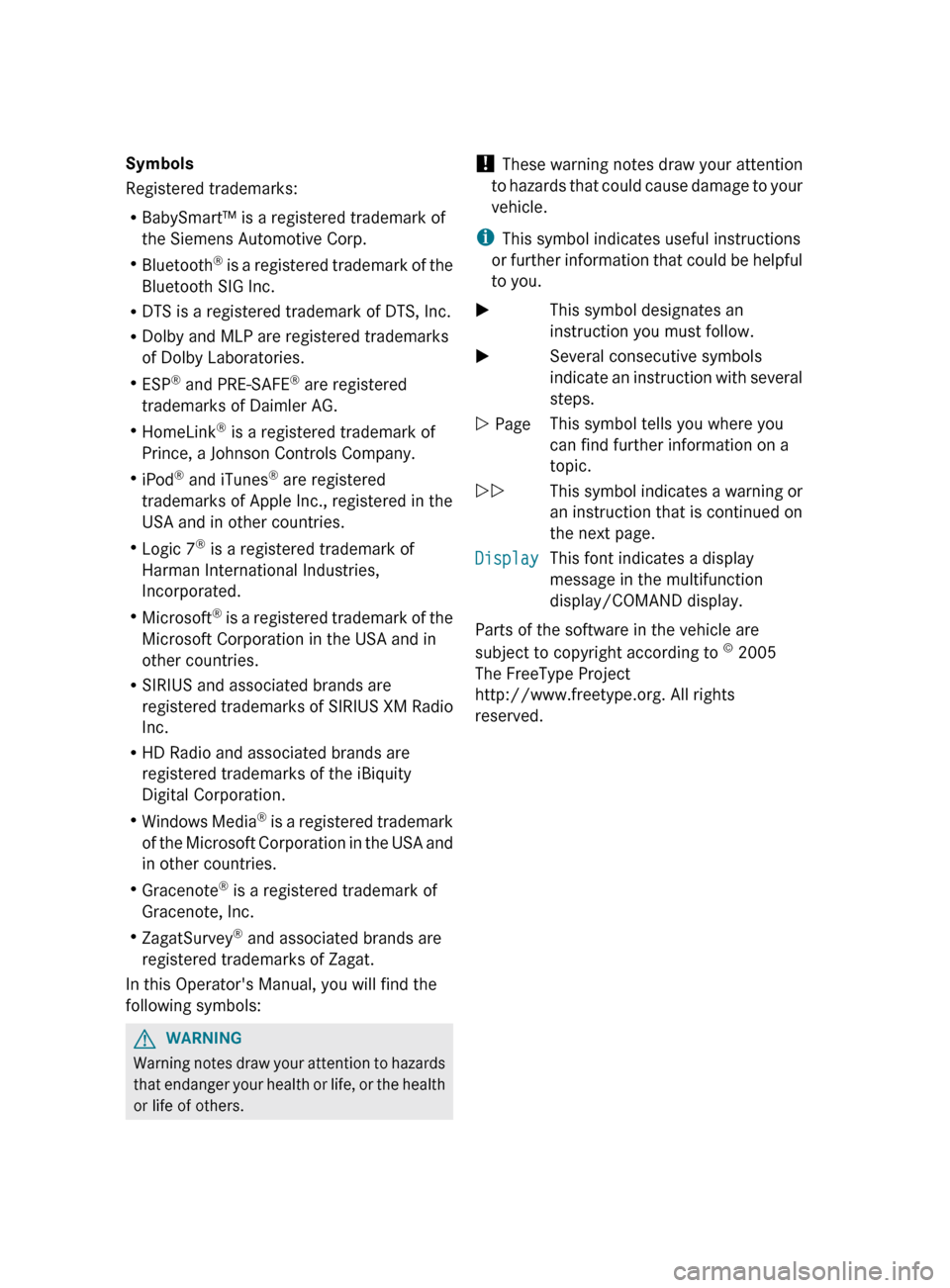
Symbols
Registered trademarks:
R BabySmart™ is a registered trademark of
the Siemens Automotive Corp.
R Bluetooth ®
is a registered trademark of the
Bluetooth SIG Inc.
R DTS is a registered trademark of DTS, Inc.
R Dolby and MLP are registered trademarks
of Dolby Laboratories.
R ESP ®
and PRE-SAFE ®
are registered
trademarks of Daimler AG.
R HomeLink ®
is a registered trademark of
Prince, a Johnson Controls Company.
R iPod ®
and iTunes ®
are registered
trademarks of Apple Inc., registered in the
USA and in other countries.
R Logic 7 ®
is a registered trademark of
Harman International Industries,
Incorporated.
R Microsoft ®
is a registered trademark of the
Microsoft Corporation in the USA and in
other countries.
R SIRIUS and associated brands are
registered trademarks of SIRIUS XM Radio
Inc.
R HD Radio and associated brands are
registered trademarks of the iBiquity
Digital Corporation.
R Windows Media ®
is a registered trademark
of the Microsoft Corporation in the USA and
in other countries.
R Gracenote ®
is a registered trademark of
Gracenote, Inc.
R ZagatSurvey ®
and associated brands are
registered trademarks of Zagat.
In this Operator's Manual, you will find the
following symbols:GWARNING
Warning notes draw your attention to hazards
that endanger your health or life, or the health
or life of others.
! These warning notes draw your attention
to hazards that could cause damage to your
vehicle.
i This symbol indicates useful instructions
or further information that could be helpful
to you.XThis symbol designates an
instruction you must follow.XSeveral consecutive symbols
indicate an instruction with several
steps.Y PageThis symbol tells you where you
can find further information on a
topic.YYThis symbol indicates a warning or
an instruction that is continued on
the next page.DisplayThis font indicates a display
message in the multifunction
display/COMAND display.
Parts of the software in the vehicle are
subject to copyright according to ©
2005
The FreeType Project
http://www.freetype.org. All rights
reserved.
Page 8 of 488
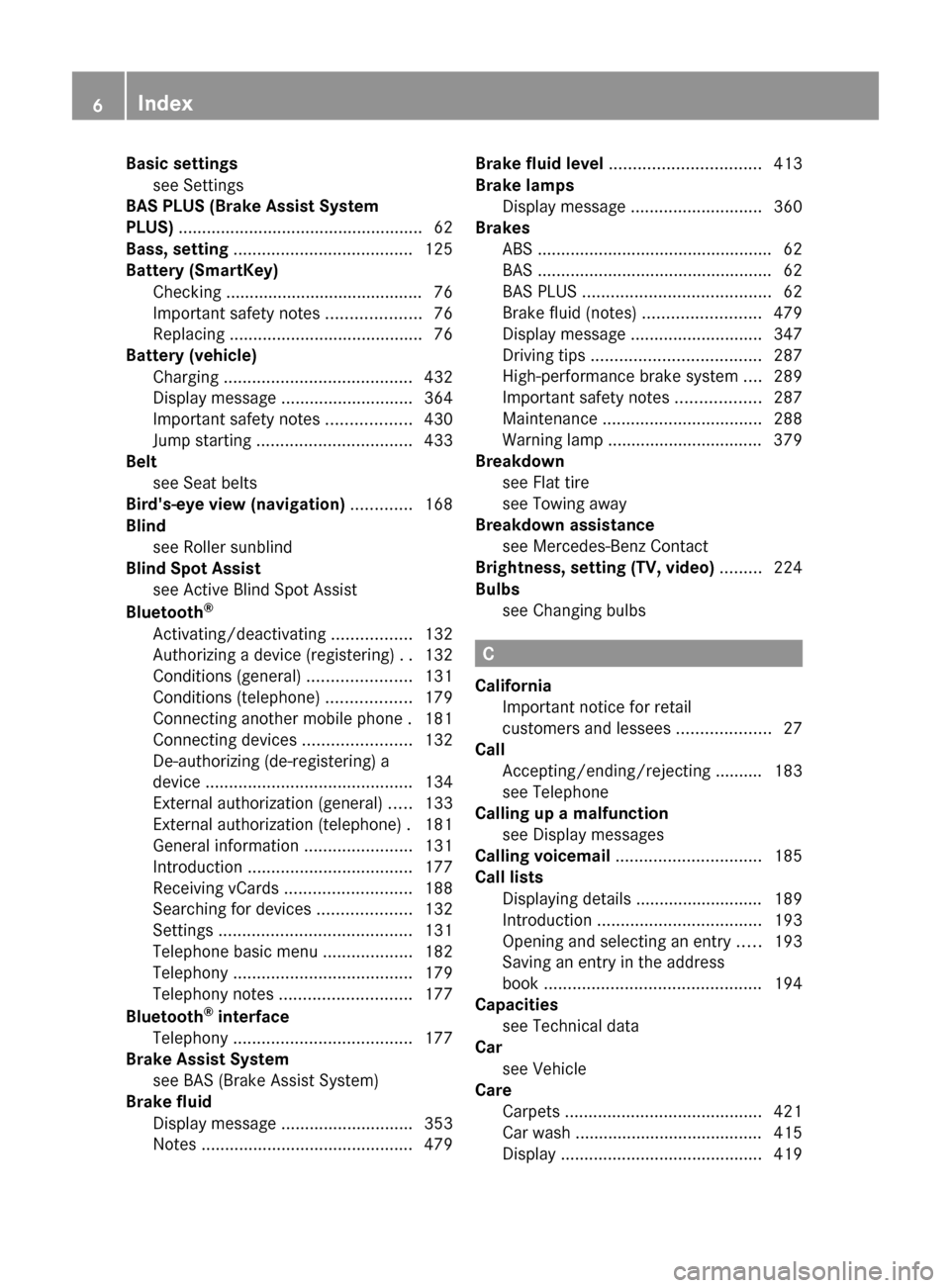
Basic settingssee Settings
BAS PLUS (Brake Assist System
PLUS) .................................................... 62
Bass, setting ...................................... 125
Battery (SmartKey) Checking .......................................... 76
Important safety notes ....................76
Replacing ......................................... 76
Battery (vehicle)
Charging ........................................ 432
Display message ............................ 364
Important safety notes ..................430
Jump starting ................................. 433
Belt
see Seat belts
Bird's-eye view (navigation) ............. 168
Blind see Roller sunblind
Blind Spot Assist
see Active Blind Spot Assist
Bluetooth ®
Activating/deactivating .................132
Authorizing a device (registering) ..132
Conditions (general) ......................131
Conditions (telephone) ..................179
Connecting another mobile phone . 181
Connecting devices .......................132
De-authorizing (de-registering) a
device ............................................ 134
External authorization (general) .....133
External authorization (telephone) . 181
General information .......................131
Introduction ................................... 177
Receiving vCards ........................... 188
Searching for devices ....................132
Settings ......................................... 131
Telephone basic menu ...................182
Telephony ...................................... 179
Telephony notes ............................ 177
Bluetooth ®
interface
Telephony ...................................... 177
Brake Assist System
see BAS (Brake Assist System)
Brake fluid
Display message ............................ 353
Notes ............................................. 479Brake fluid level ................................ 413
Brake lamps Display message ............................ 360
Brakes
ABS .................................................. 62
BAS .................................................. 62
BAS PLUS ........................................ 62
Brake fluid (notes) .........................479
Display message ............................ 347
Driving tips .................................... 287
High-performance brake system ....289
Important safety notes ..................287
Maintenance .................................. 288
Warning lamp ................................. 379
Breakdown
see Flat tire
see Towing away
Breakdown assistance
see Mercedes-Benz Contact
Brightness, setting (TV, video) ......... 224
Bulbs see Changing bulbs
C
California Important notice for retail
customers and lessees ....................27
Call
Accepting/ending/rejecting .......... 183
see Telephone
Calling up a malfunction
see Display messages
Calling voicemail ............................... 185
Call lists Displaying details ........................... 189
Introduction ................................... 193
Opening and selecting an entry .....193
Saving an entry in the address
book .............................................. 194
Capacities
see Technical data
Car
see Vehicle
Care
Carpets .......................................... 421
Car wash ........................................ 415
Display ........................................... 419
6Index
Page 23 of 488

Buttons (on-board
computer) ...................................... 331
Important safety notes ....................98
Paddle shifters ............................... 277
Steering wheel heating ....................99
Storing settings (memory
function) ........................................ 102
Steering wheel (cleaning
instructions) ...................................... 420
Steering wheel heating Switching on/off .............................. 99
Steering wheel paddle shifters ........ 277
Stop function Audio DVD ..................................... 207
Video DVD ..................................... 227
Stopwatch (RACETIMER) ................... 338
Storing stations Manually ........................................ 197
Storing stations (radio)
Automatically ................................. 197
Stowage compartments
Armrest (under) ............................. 389
Cup holders ................................... 391
Eyeglasses compartment ...............389
Glove box ....................................... 388
Important safety information .........388
Parcel net ...................................... 390
Rear ............................................... 389
Rear seat backrest ......................... 390
Rear seats (between) .....................390
Stowage well beneath the trunk
floor .................................................... 391
Summer opening see Convenience opening feature
Summer tires ..................................... 444
Sun visor ............................................ 392
Supplemental Restraint System see SRS (Supplemental Restraint
System)
Surround sound
see 3D sound (Harman Kardon ®
surround sound system)
Surround sound (harman/
kardon ®
surround sound system)
Notes ............................................. 126
Switching on/off ........................... 126Suspension tuning
Active Body Control .......................305
AIRMATIC ...................................... 304
Switching air-recirculation mode
on/off ................................................. 260
Switching between picture
formats (TV, video) ............................ 224
Switching between summer time
and standard time ............................. 129
Switching off the alarm (ATA) ............ 68
Switching the hands-free
microphone on/off ............................ 185
Switching wavebands (radio) ........... 196
System settings
Bluetooth ®
..................................... 131
Date ............................................... 128
Language ....................................... 134
Programmable button (COMAND) ..109
Text reader speed ..........................129
Time ............................................... 128
Time zone ...................................... 129
Voice Control System ....................129
T
TA (Traffic Announcements) see Traffic announcements
Tachometer ........................................ 331
Tail lamps Display message ............................ 360
Tank
see Fuel tank
Tank content
Fuel gauge ....................................... 33
Technical data
Notes ............................................. 472
Tires/wheels ................................. 466
Vehicle data ................................... 480
TELEAID
Automatic retrieval of vehicle data
(service due date) ..........................401
Call priority .................................... 399
Display message ............................ 354
Downloading destinations
(COMAND) ..................................... 399
Emergency call .............................. 396
Important safety notes ..................395
Locating a stolen vehicle ...............402
Index21
Page 24 of 488
MB info call button ........................398
Remote vehicle locking ..................401
Roadside Assistance button ..........397
Search & Send ............................... 400
Self-test ......................................... 396
System .......................................... 395
Vehicle remote unlocking ..............401
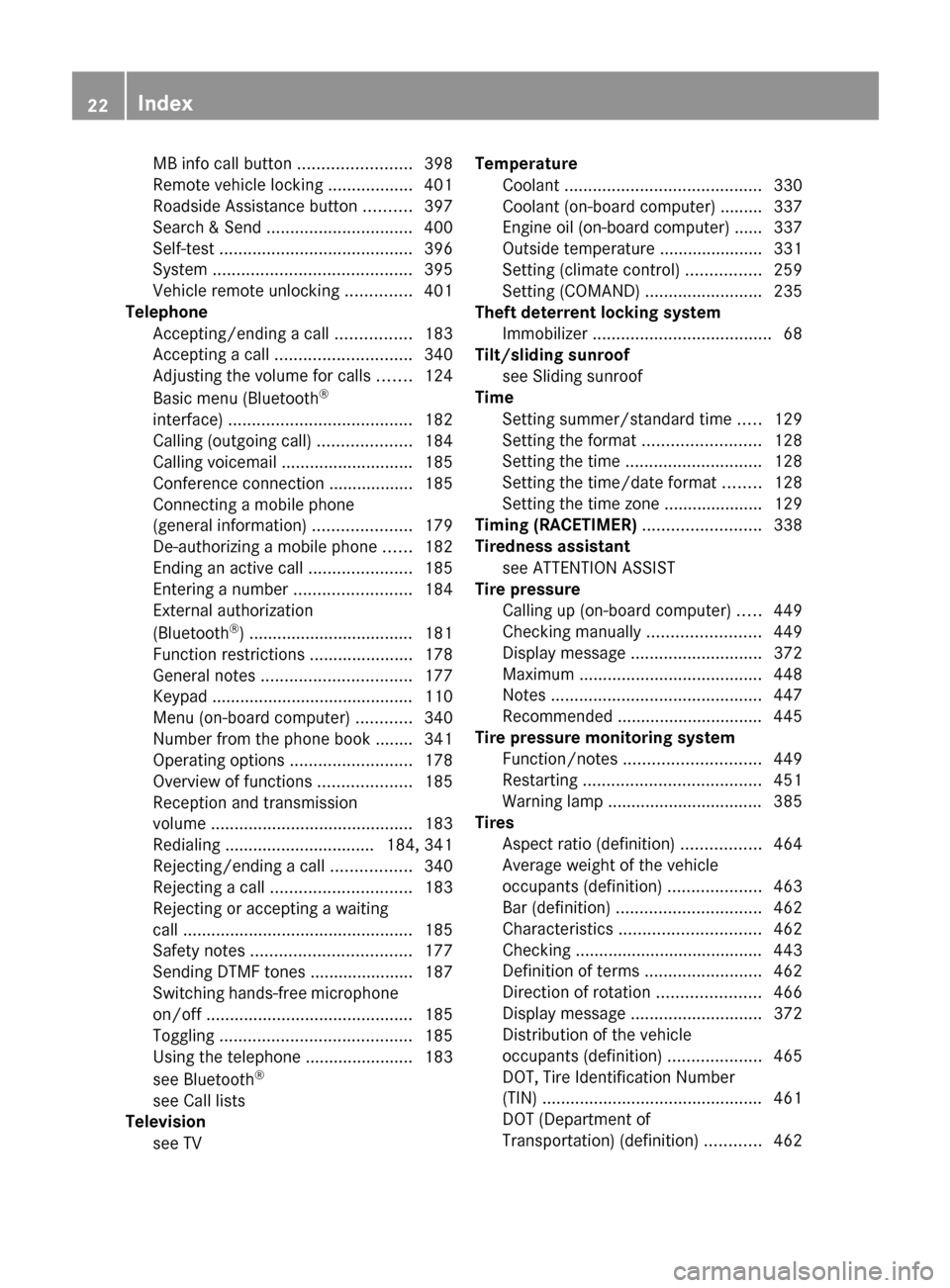
Telephone
Accepting/ending a call ................183
Accepting a call ............................. 340
Adjusting the volume for calls .......124
Basic menu (Bluetooth ®
interface) ....................................... 182
Calling (outgoing call) ....................184
Calling voicemail ............................ 185
Conference connection .................. 185
Connecting a mobile phone
(general information) .....................179
De-authorizing a mobile phone ......182
Ending an active call ......................185
Entering a number .........................184
External authorization
(Bluetooth ®
) ................................... 181
Function restrictions ......................178
General notes ................................ 177
Keypad ........................................... 110
Menu (on-board computer) ............340
Number from the phone book ........ 341
Operating options ..........................178
Overview of functions ....................185
Reception and transmission
volume ........................................... 183
Redialing ................................ 184, 341
Rejecting/ending a call .................340
Rejecting a call .............................. 183
Rejecting or accepting a waiting
call ................................................. 185
Safety notes .................................. 177
Sending DTMF tones ...................... 187
Switching hands-free microphone
on/off ............................................ 185
Toggling ......................................... 185
Using the telephone ....................... 183
see Bluetooth ®
see Call lists
Television
see TV Temperature
Coolant .......................................... 330
Coolant (on-board computer) ......... 337
Engine oil (on-board computer) ...... 337
Outside temperature ...................... 331
Setting (climate control) ................259
Setting (COMAND) .........................235
Theft deterrent locking system
Immobilizer ...................................... 68
Tilt/sliding sunroof
see Sliding sunroof
Time
Setting summer/standard time .....129
Setting the format .........................128
Setting the time ............................. 128
Setting the time/date format ........128
Setting the time zone ..................... 129
Timing (RACETIMER) ......................... 338
Tiredness assistant see ATTENTION ASSIST
Tire pressure
Calling up (on-board computer) .....449
Checking manually ........................449
Display message ............................ 372
Maximum ....................................... 448
Notes ............................................. 447
Recommended ............................... 445
Tire pressure monitoring system
Function/notes ............................. 449
Restarting ...................................... 451
Warning lamp ................................. 385
Tires
Aspect ratio (definition) .................464
Average weight of the vehicle
occupants (definition) ....................463
Bar (definition) ............................... 462
Characteristics .............................. 462
Checking ........................................ 443
Definition of terms .........................462
Direction of rotation ......................466
Display message ............................ 372
Distribution of the vehicle
occupants (definition) ....................465
DOT, Tire Identification Number
(TIN) ............................................... 461
DOT (Department of
Transportation) (definition) ............46222Index
Page 133 of 488
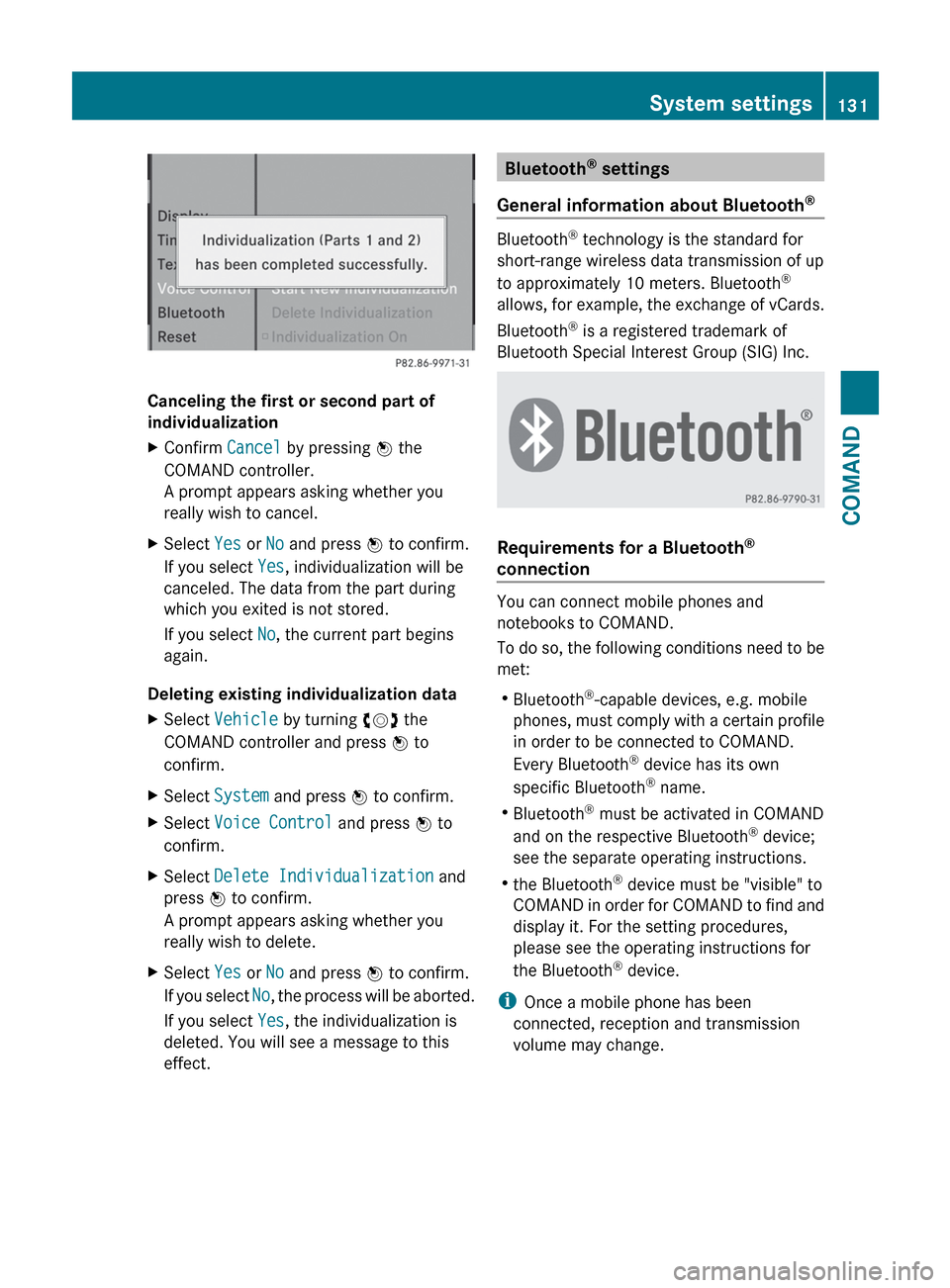
Canceling the first or second part of
individualization
XConfirm Cancel by pressing W the
COMAND controller.
A prompt appears asking whether you
really wish to cancel.XSelect Yes or No and press W to confirm.
If you select Yes, individualization will be
canceled. The data from the part during
which you exited is not stored.
If you select No, the current part begins
again.
Deleting existing individualization data
XSelect Vehicle by turning cVd the
COMAND controller and press W to
confirm.XSelect System and press W to confirm.XSelect Voice Control and press W to
confirm.XSelect Delete Individualization and
press W to confirm.
A prompt appears asking whether you
really wish to delete.XSelect Yes or No and press W to confirm.
If you select No, the process will be aborted.
If you select Yes, the individualization is
deleted. You will see a message to this
effect.Bluetooth ®
settings
General information about Bluetooth ®
Bluetooth
®
technology is the standard for
short-range wireless data transmission of up
to approximately 10 meters. Bluetooth ®
allows, for example, the exchange of vCards.
Bluetooth ®
is a registered trademark of
Bluetooth Special Interest Group (SIG) Inc.
Requirements for a Bluetooth ®
connection
You can connect mobile phones and
notebooks to COMAND.
To do so, the following conditions need to be
met:
R Bluetooth ®
-capable devices, e.g. mobile
phones, must comply with a certain profile
in order to be connected to COMAND.
Every Bluetooth ®
device has its own
specific Bluetooth ®
name.
R Bluetooth ®
must be activated in COMAND
and on the respective Bluetooth ®
device;
see the separate operating instructions.
R the Bluetooth ®
device must be "visible" to
COMAND in order for COMAND to find and
display it. For the setting procedures,
please see the operating instructions for
the Bluetooth ®
device.
i Once a mobile phone has been
connected, reception and transmission
volume may change.
System settings131COMANDZ
Page 134 of 488
Activating/deactivating Bluetooth®XSelect
Vehicle in the main function bar by
turning cVd the COMAND controller and
press W to confirm.XSelect System by turning cVd the
COMAND controller and press W to
confirm.XSelect Bluetooth by turning cVd the
COMAND controller and press W to
confirm.XSelect Bluetooth activated and press
W to confirm.
This switches Bluetooth ®
on O or off ª.
Connecting Bluetooth ®
devices
General information
Before using your Bluetooth ®
device with
COMAND for the first time, you will need to
connect it.
Connecting comprises:
R searching for a Bluetooth ®
device
R subsequently authorizing it
i A maximum of 15 devices can be available
for selection from the device list.
More detailed information on suitable mobile
phones and on connecting Bluetooth ®
-
capable mobile phones to COMAND can be
found on the Internet at http://
www.mbusa-mobile.com . Or call the
Mercedes-Benz Customer Assistance Center
on 1-800-FOR-MERCedes(1-800-367-6372)
(for the USA) or Customer Relations on
1-800-387-0100 (for Canada).
Searching for Bluetooth ®
devices
XActivate Bluetooth ®
(Y page 132).XSelect Vehicle in the main function bar by
turning cVd the COMAND controller and
press W to confirm.XSelect System by turning cVd the
COMAND controller and press W to
confirm.XSelect Bluetooth by turning cVd the
COMAND controller and press W to
confirm.XSelect Search for Bluetooth Devices
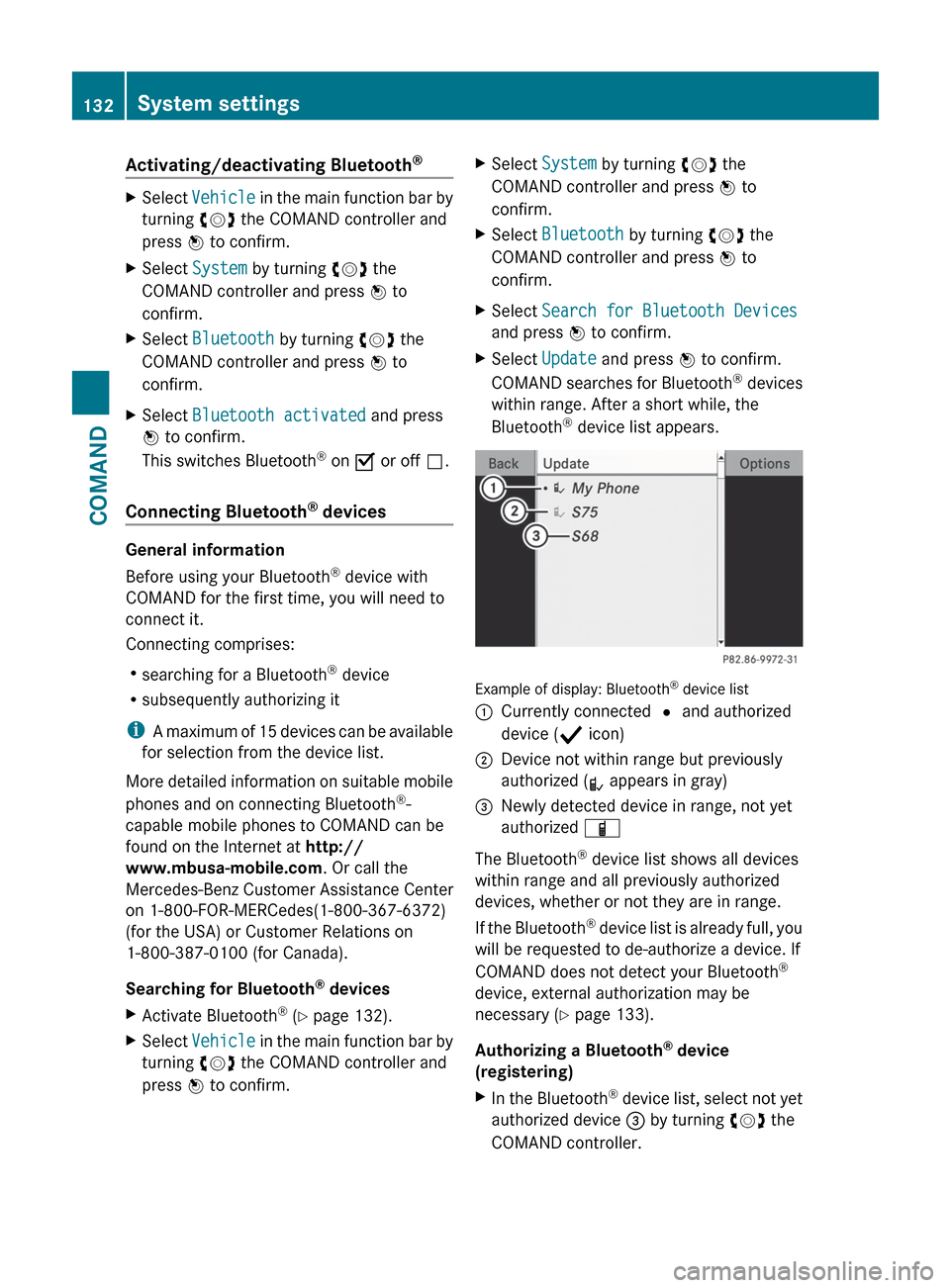
and press W to confirm.XSelect Update and press W to confirm.
COMAND searches for Bluetooth ®
devices
within range. After a short while, the
Bluetooth ®
device list appears.
Example of display: Bluetooth ®
device list
:Currently connected # and authorized
device ( Y icon);Device not within range but previously
authorized ( L appears in gray)=Newly detected device in range, not yet
authorized Ï
The Bluetooth ®
device list shows all devices
within range and all previously authorized
devices, whether or not they are in range.
If the Bluetooth ®
device list is already full, you
will be requested to de-authorize a device. If
COMAND does not detect your Bluetooth ®
device, external authorization may be
necessary ( Y page 133).
Authorizing a Bluetooth ®
device
(registering)
XIn the Bluetooth ®
device list, select not yet
authorized device = by turning cVd the
COMAND controller.132System settingsCOMAND
Page 135 of 488
XSelect Options by sliding VY the
COMAND controller and press W to
confirm.XSelect Authorize and press W to confirm.
or
XPress W to confirm the selected device.
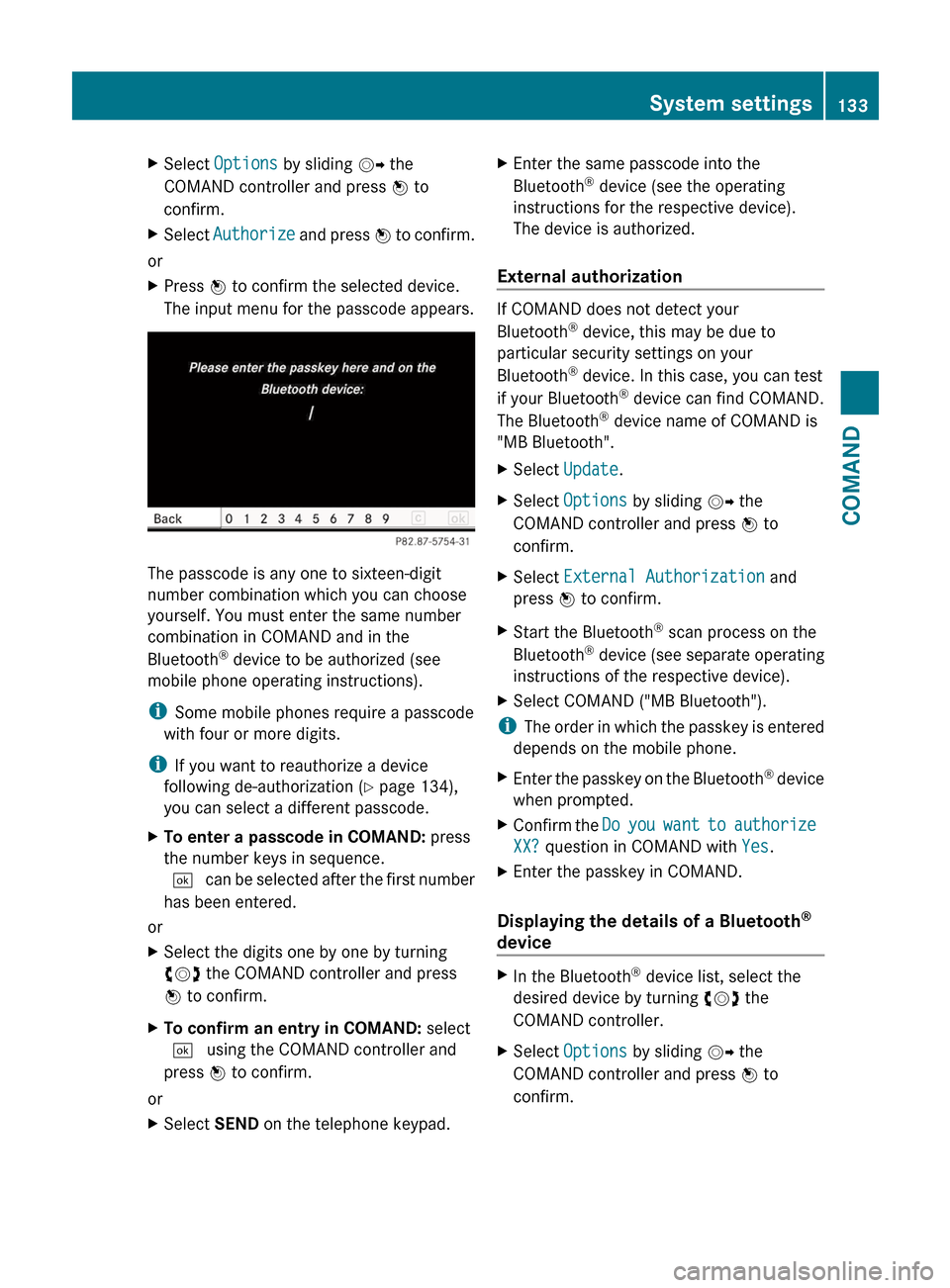
The input menu for the passcode appears.
The passcode is any one to sixteen-digit
number combination which you can choose
yourself. You must enter the same number
combination in COMAND and in the
Bluetooth ®
device to be authorized (see
mobile phone operating instructions).
i Some mobile phones require a passcode
with four or more digits.
i If you want to reauthorize a device
following de-authorization ( Y page 134),
you can select a different passcode.
XTo enter a passcode in COMAND: press
the number keys in sequence.
¬ can be selected after the first number
has been entered.
or
XSelect the digits one by one by turning
cVd the COMAND controller and press
W to confirm.XTo confirm an entry in COMAND: select
¬ using the COMAND controller and
press W to confirm.
or
XSelect SEND on the telephone keypad.XEnter the same passcode into the
Bluetooth ®
device (see the operating
instructions for the respective device).
The device is authorized.
External authorization
If COMAND does not detect your
Bluetooth ®
device, this may be due to
particular security settings on your
Bluetooth ®
device. In this case, you can test
if your Bluetooth ®
device can find COMAND.
The Bluetooth ®
device name of COMAND is
"MB Bluetooth".
XSelect Update .XSelect Options by sliding VY the
COMAND controller and press W to
confirm.XSelect External Authorization and
press W to confirm.XStart the Bluetooth ®
scan process on the
Bluetooth ®
device (see separate operating
instructions of the respective device).XSelect COMAND ("MB Bluetooth").
i The order in which the passkey is entered
depends on the mobile phone.
XEnter the passkey on the Bluetooth ®
device
when prompted.XConfirm the Do you want to authorize
XX? question in COMAND with Yes.XEnter the passkey in COMAND.
Displaying the details of a Bluetooth ®
device
XIn the Bluetooth ®
device list, select the
desired device by turning cVd the
COMAND controller.XSelect Options by sliding VY the
COMAND controller and press W to
confirm.System settings133COMANDZ
Page 136 of 488
XSelect Details and press W to confirm.
The detailed display for this device
appears.XTo close the detailed view: turn cVd or
slide XVY the COMAND controller.
De-authorizing (de-registering) a
Bluetooth ®
device
Mercedes-Benz USA, LLC recommends de-
authorization in both COMAND and the
Bluetooth ®
device, e.g. the mobile phone.
Subsequent authorization may otherwise fail.
XIn the Bluetooth ®
device list, select the
authorized device by turning cVd the
COMAND controller.XSelect Options by sliding VY the
COMAND controller and press W to
confirm.XSelect De-authorize and press W to
confirm.
A prompt appears asking whether you
really wish to de-authorize this device.XSelect Yes or No and press W to confirm.
If you select Yes, the authorization for the
device will be revoked.
If you select No, the process will be aborted.
i
If a Bluetooth ®
device has been de-
authorized and is out of range, when a new
search is carried out it will not appear in the
Bluetooth ®
device list.
System language settings
This function allows you to determine the
language for the menu displays and the
navigation messages. The selected language
affects the characters available for entry.
When you set the system language, the
language of the Voice Control System will
change accordingly. If the selected language
is not supported by the Voice Control System,
"English" will be selected.
XSelect Vehicle by turning cVd the
COMAND controller and press W to
confirm.XSelect System and press W to confirm.XSelect Language and press W to confirm.
The list of languages appears. The # dot
indicates the current setting.XSelect the language by turning cVd the
COMAND controller and press W to
confirm.
COMAND loads the selected language and
sets it.
Reset function
You can reset COMAND to the factory
settings. Amongst other things, this will
delete all personal data (e.g. station presets,
address book entries, entries in the
destination memory and in the list of previous
destinations in the navigation system).
Resetting is recommended before selling or
transferring ownership of your vehicle, for
example.
XSelect Vehicle in the main function bar by
turning cVd the COMAND controller and
press W to confirm.XSelect System by turning cVd the
COMAND controller and press W to
confirm.XSelect Reset and press W to confirm.
A prompt appears asking whether you wish
to reset.XSelect Yes or No and press W to confirm.
If you select No, the process will be aborted.
If you select Yes, another prompt appears
asking whether you really wish to reset.XSelect Yes or No and press W to confirm.
If you select Yes, a message will be shown.
COMAND is reset and restarted.
If you select No, the process will be aborted.134System settingsCOMAND
Page 179 of 488
ProblemPossible causes/consequences and M SolutionsYou see a message
informing you that the
DVD containing the
digital map is
incompatible with the
system software.The DVD containing the digital map cannot be used for the update.XTo confirm the message: press W the COMAND controller.XEject the DVD.XHave the system software updated at an authorized Mercedes-
Benz Center.The installation of the
map software has
failed.The DVD is dirty or scratched.XClean the DVD.XRestart installation.There is overheating due to excessive temperatures in the vehicle
interior.XWait until the vehicle interior has cooled down.XRestart installation.COMAND's integral hard drive is faulty.XConsult an authorized Mercedes-Benz Center.Telephone
General notes
Introduction
COMAND, in conjunction with a Bluetooth ®
-
capable mobile phone, enables you to make
calls via the Bluetooth ®
interface.
Using the Bluetooth ®
interface and a suitable
mobile phone, you can use the hands-free
system, import contacts from the mobile
phone and receive vCards.
More detailed information on suitable mobile
phones and on connecting Bluetooth ®
-
capable mobile phones to COMAND can be
found on the Internet at
http://www.mbusa-mobile.com . Or call
the Mercedes-Benz Customer Assistance
Center on
1-800-FOR-MERCedes(1-800-367-6372) for
the USA or on 1-800-387-0100 for Canada.
Safety notesGWARNING
A driver's attention to the road must always
be his/her primary focus when driving. For
your safety and the safety of others, we
recommend that you pull over to a safe
location and stop before placing or taking a
telephone call. If you choose to use the mobile
phone while driving, please use the handsfree
device and only use the mobile phone when
weather, road, and traffic conditions permit.
Some jurisdictions prohibit the driver from
using a cellular mobile phone while driving a
vehicle.
Bear in mind that at a speed of just 30 mph
(approximately 50 km/h), your vehicle is
covering a distance of 44 feet (approximately
14 m) every second.
Telephone177COMANDZ
Page 180 of 488
Call disconnection while the vehicle is
in motion
A call may be disconnected if:
R there is insufficient network coverage in
certain areas.
R you move from one transmitter/receiver
area (cell) into another and no channels are
free.
R you use a SIM card which is not compatible
with the network available.
R you are using a mobile phone with
"Twincard" and the mobile phone with the
second SIM card is already logged into the
network.
Operating options
You can operate the telephone by:
R using the COMAND controller:
turn cVd .
slide XVY or ZV Æ.
press W.
R the 6 or ~ button on the telephone
keypad on the center console
R the 6 or ~ button on the
multifunction steering wheel
R using the Voice Control System (see the
separate Voice Control System operating
instructions)
Unless otherwise indicated, the descriptions
and illustrations in this section refer to
COMAND and the telephone keypad. This
also means that to carry out the functions
described here, you must always be in the
Telephone menu. The fastest way to access
the Telephone menu is to press the S
function button.
Function restrictions
You will not be able to use the telephone, will
no longer be able to use the telephone, or you
may have to wait before using it, in the
following situations:
R when the mobile phone is switched off
R when the "Bluetooth ®
" function is switched
off in COMAND
R when the "Bluetooth ®
" function is switched
off on the mobile phone
R if the mobile phone is not logged into a
mobile phone network
i The telephone automatically tries to log
on to a network. If no network is available,
you will not be able to make a " 911"
emergency call. If you attempt to make an
outgoing call, the NO SERVICE message will
appear for a short while.
R if you remove the SmartKey from the
ignition lock during an active conversation
in hands-free mode, the conversation may
be continued for up to 30 minutes. After
that time, it will be interrupted.
You can prevent this interruption by switching
to "private call" ("private mode") on the
mobile phone before deactivating COMAND
(see mobile phone operating instructions).
If you wish to switch off COMAND during an
active conversation in hands-free mode, the
following message will appear: You cannot
shut off COMAND until you have
finished your telephone call
911 emergency call
GWARNING
The 911 emergency call system is a public
service. Using it without due cause is a
criminal offense.
The following requirements must be fulfilled
for a 911 emergency call:
R the mobile phone must be switched on.
R a network must be available.
178TelephoneCOMAND