ad blue MERCEDES-BENZ CL CLASS 2013 User Guide
[x] Cancel search | Manufacturer: MERCEDES-BENZ, Model Year: 2013, Model line: CL CLASS, Model: MERCEDES-BENZ CL CLASS 2013Pages: 496, PDF Size: 7.5 MB
Page 158 of 496
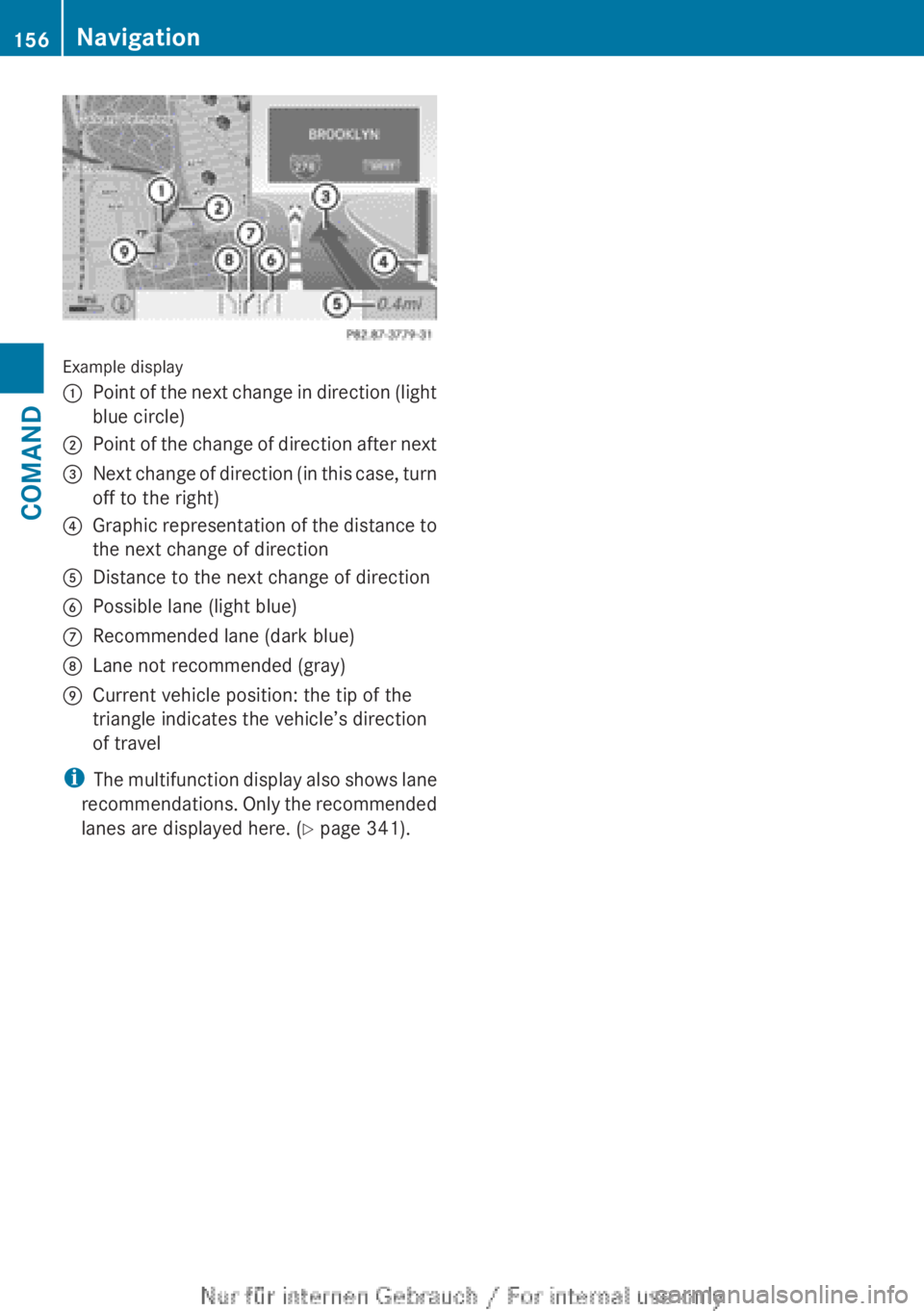
Example display
:Point of the next change in direction (light
blue circle);Point of the change of direction after next=Next change of direction (in this case, turn
off to the right)?Graphic representation of the distance to
the next change of directionADistance to the next change of directionBPossible lane (light blue)CRecommended lane (dark blue)DLane not recommended (gray)ECurrent vehicle position: the tip of the
triangle indicates the vehicle’s direction
of travel
i The multifunction display also shows lane
recommendations. Only the recommended
lanes are displayed here. ( Y page 341).
156NavigationCOMAND
Page 159 of 496
Display and description of lane recommendations
The colors used in the lane recommendation display vary depending on whether day or night
design is switched on.LaneDay designNight designRecommended lane C
In this lane, you will be able to complete the
next two changes of direction without
changing lanes.Dark blueLight bluePossible lane B
In this lane, you will only be able to complete
the next change of direction without
changing lanes.Light blueDark blueLane not recommended D
In this lane, you will not be able to complete
the next change of direction without
changing lane.GrayGrayDisplay in the multifunction display
The lane recommendations are also shown in
the multifunction display. You will find further
information in the "On-board computer"
section ( Y page 341).
Using car pool lanes
COMAND displays car pool lanes if you have
selected this option in the route options
( Y page 139).
If this is the case, COMAND checks whether
there are any car pool lanes on the route. If
there are, they are taken into account during
route calculation. Route guidance will then
include car pool lanes.
Car pool lanes may only be used under certain
conditions. Please observe the relevant legal
requirements.
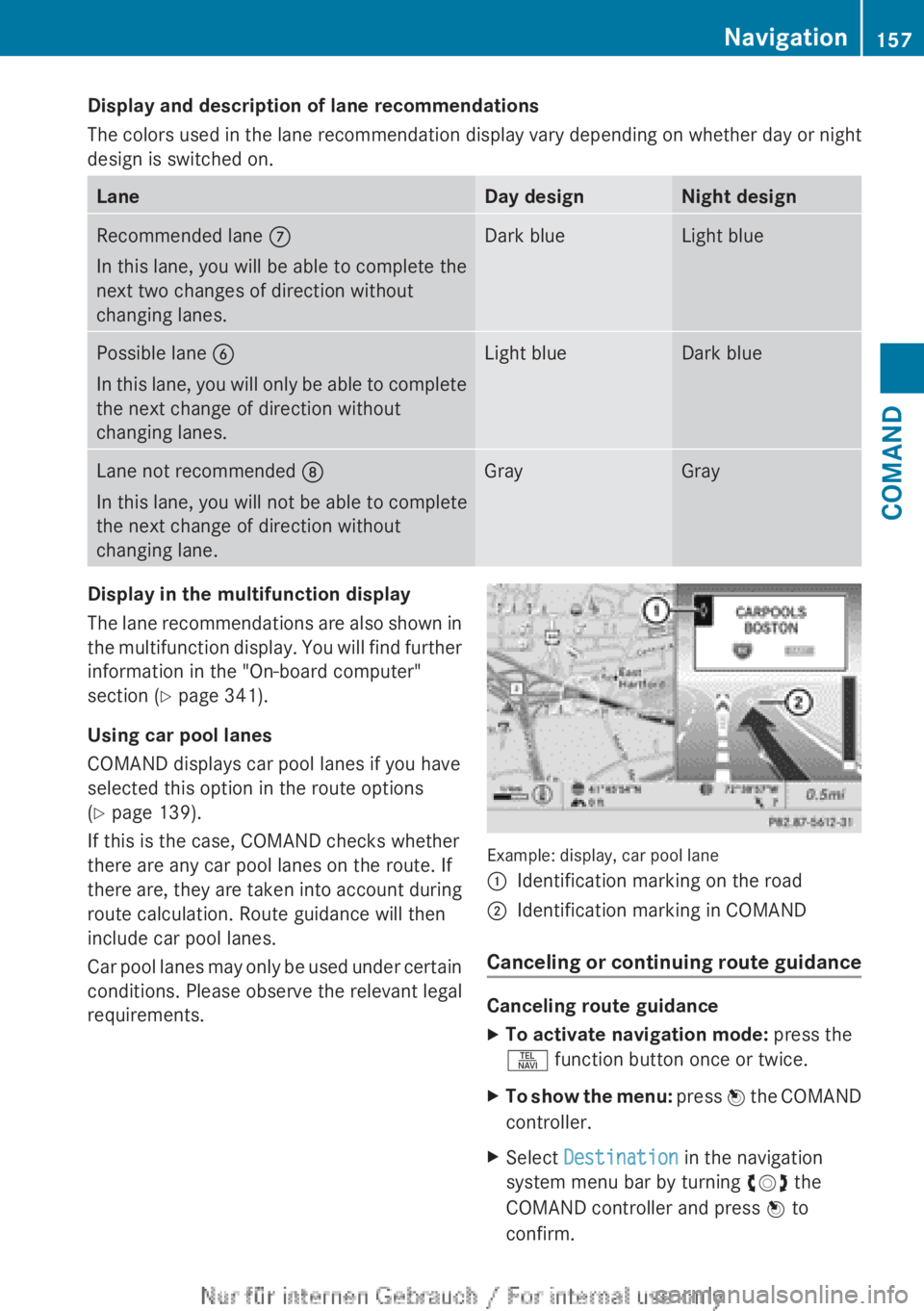
Example: display, car pool lane
:Identification marking on the road;Identification marking in COMAND
Canceling or continuing route guidance
Canceling route guidance
XTo activate navigation mode: press the
S function button once or twice.XTo show the menu: press W the COMAND
controller.XSelect Destination in the navigation
system menu bar by turning cVd the
COMAND controller and press W to
confirm.Navigation157COMANDZ
Page 161 of 496
Avoiding a section of the route blocked
by a traffic jam
This function blocks a section of the route
ahead of you. You can set the length of the
blocked route section. If possible, COMAND
calculates a detour around the blocked
section of the route.
XTo activate navigation mode: press the
S function button once or twice.XTo show the menu: press W the COMAND
controller.XSelect Route in the navigation system
menu bar by turning cVd the COMAND
controller and press W to confirm.XSelect Detour and press W to confirm.XTo block a section of the route: select
More or Less repeatedly and confirm using
W until the desired section has been
selected.
i The total length of the section that can be
blocked is defined by the digital map. The
menu items are available accordingly.
XTo start route calculation: select Start
and press W to confirm.XTo delete the blocked section: select
Delete while the message is shown and
press W to confirm.
COMAND calculates the route without the
block.
Selecting an alternative route
With the "Alternative route" function, routes
other than the original one can be calculated.
XTo activate navigation mode: press the
S function button once or twice.XTo show the menu: press W the COMAND
controller.XSelect Route in the navigation system
menu bar by turning cVd the COMAND
controller and press W to confirm.XSelect Alternative Route and press W
to confirm.
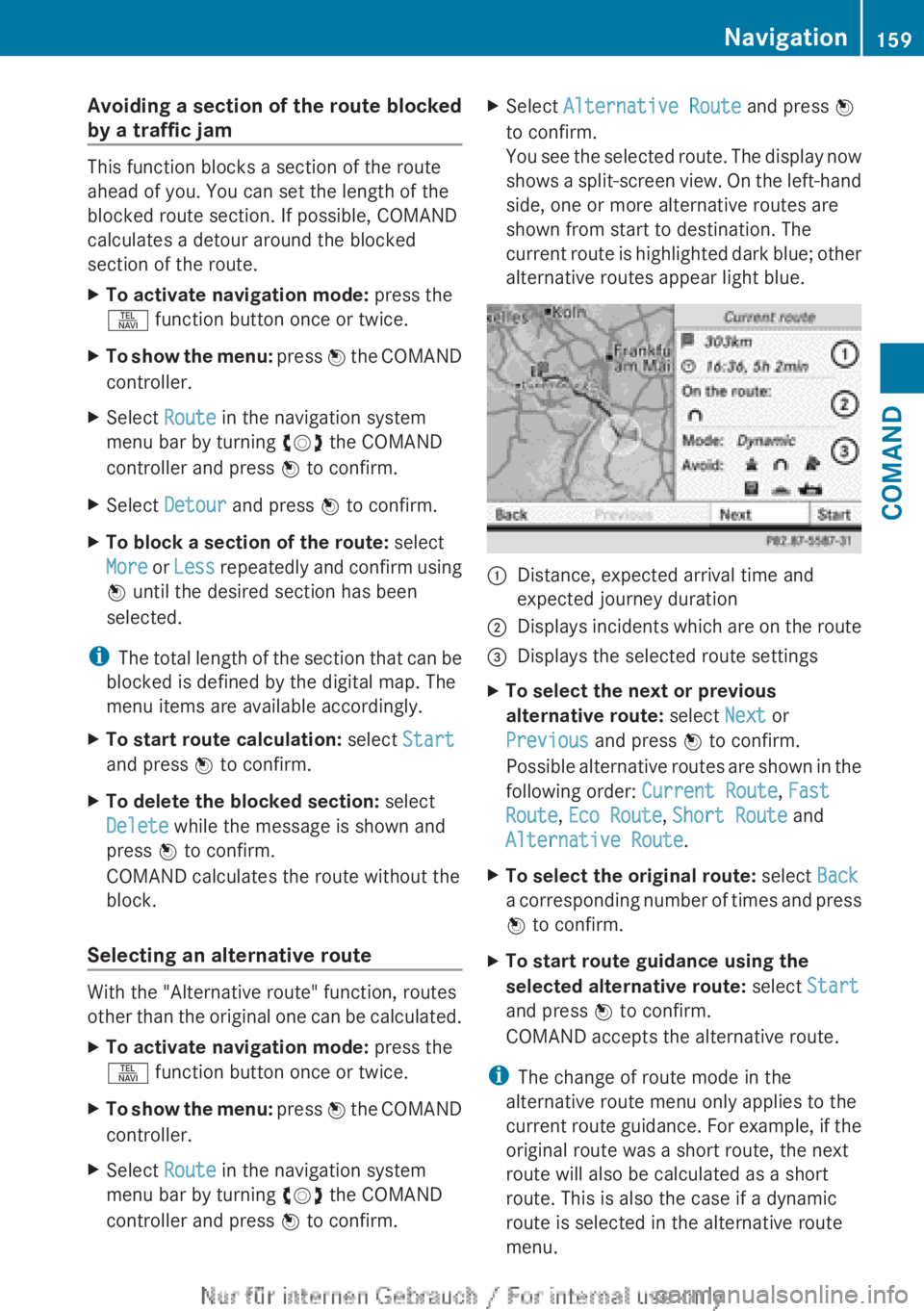
You see the selected route. The display now
shows a split-screen view. On the left-hand
side, one or more alternative routes are
shown from start to destination. The
current route is highlighted dark blue; other
alternative routes appear light blue.:Distance, expected arrival time and
expected journey duration;Displays incidents which are on the route=Displays the selected route settingsXTo select the next or previous
alternative route: select Next or
Previous and press W to confirm.
Possible alternative routes are shown in the
following order: Current Route, Fast
Route , Eco Route , Short Route and
Alternative Route .XTo select the original route: select Back
a corresponding number of times and press
W to confirm.XTo start route guidance using the
selected alternative route: select Start
and press W to confirm.
COMAND accepts the alternative route.
i The change of route mode in the
alternative route menu only applies to the
current route guidance. For example, if the
original route was a short route, the next
route will also be calculated as a short
route. This is also the case if a dynamic
route is selected in the alternative route
menu.
Navigation159COMANDZ
Page 163 of 496
iIf the first or last route section is
highlighted, you cannot select Previous or
Next .XTo zoom in or out of the map: select N
or M and press W to confirm.XTo close the route overview: select
Back and press W to confirm.
Where am I?
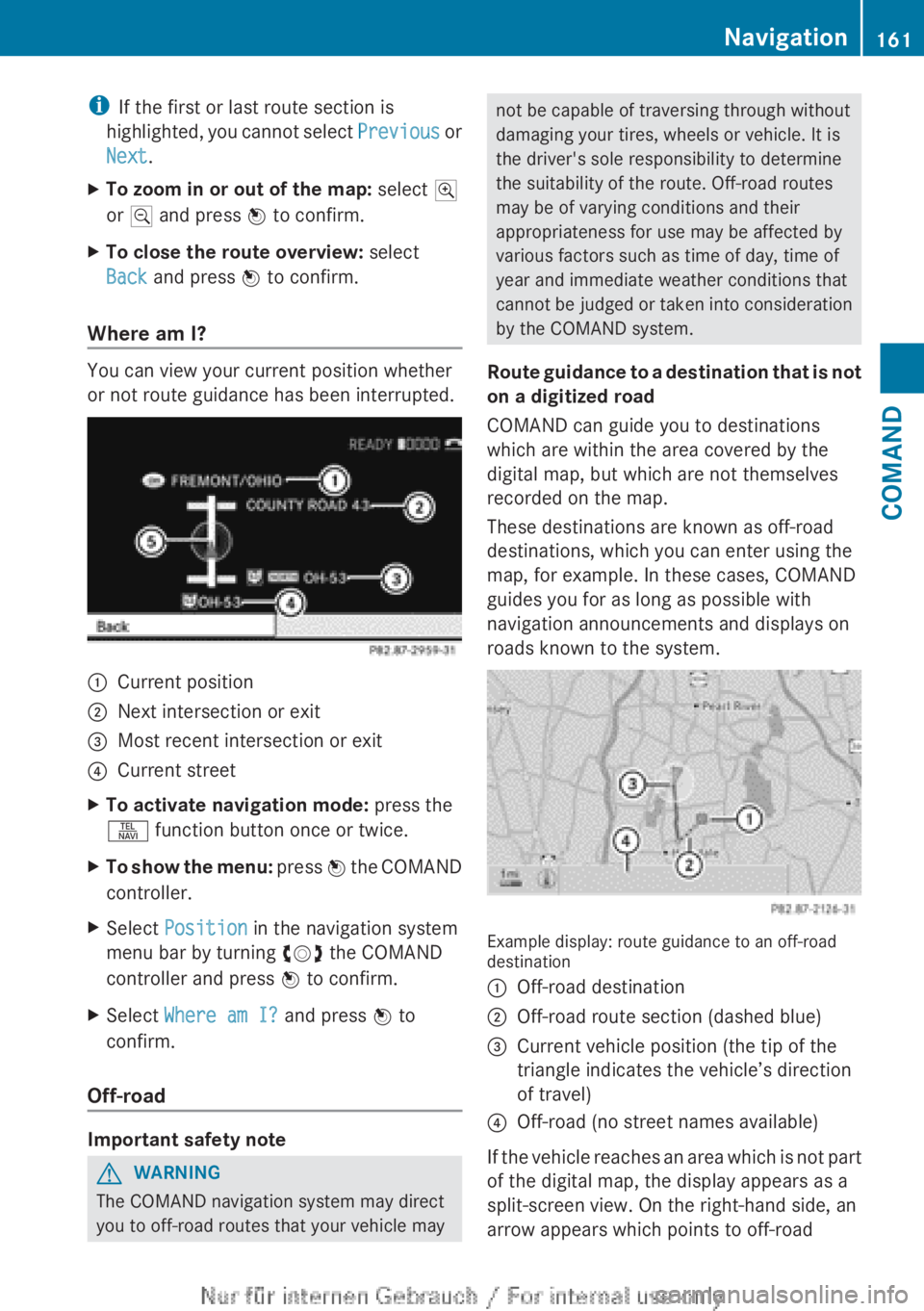
You can view your current position whether
or not route guidance has been interrupted.
:Current position;Next intersection or exit=Most recent intersection or exit?Current streetXTo activate navigation mode: press the
S function button once or twice.XTo show the menu: press W the COMAND
controller.XSelect Position in the navigation system
menu bar by turning cVd the COMAND
controller and press W to confirm.XSelect Where am I? and press W to
confirm.
Off-road
Important safety note
GWARNING
The COMAND navigation system may direct
you to off-road routes that your vehicle may
not be capable of traversing through without
damaging your tires, wheels or vehicle. It is
the driver's sole responsibility to determine
the suitability of the route. Off-road routes
may be of varying conditions and their
appropriateness for use may be affected by
various factors such as time of day, time of
year and immediate weather conditions that
cannot be judged or taken into consideration
by the COMAND system.
Route guidance to a destination that is not
on a digitized road
COMAND can guide you to destinations
which are within the area covered by the
digital map, but which are not themselves
recorded on the map.
These destinations are known as off-road
destinations, which you can enter using the
map, for example. In these cases, COMAND
guides you for as long as possible with
navigation announcements and displays on
roads known to the system.
Example display: route guidance to an off-road
destination
:Off-road destination;Off-road route section (dashed blue)=Current vehicle position (the tip of the
triangle indicates the vehicle’s direction
of travel)?Off-road (no street names available)
If the vehicle reaches an area which is not part
of the digital map, the display appears as a
split-screen view. On the right-hand side, an
arrow appears which points to off-road
Navigation161COMANDZ
Page 164 of 496
destination :. You will hear the
announcement: "Please follow the arrow on
the display".
Route guidance from an off-road location
to a destination
If the vehicle position is within the area
covered by the digital map, but the map does
not contain any information about that
location, the vehicle is in an off-road location.
COMAND is also able to guide you to a
destination even from an off-road location.
At the start of the route guidance, you will see
the Street unknown message, an arrow and
the distance to the destination. The direction
arrow shows the linear direction to the actual
destination.
The continuous blue line on the map starts at
the street which you left last.
As soon as the vehicle is back on a road
known to the system, route guidance
continues in the usual way.
Off-road during route guidance
Due to roadworks, for example, there may be
differences between the data on the digital
map and the actual course of the road.
In such cases, the system will temporarily be
unable to locate the vehicle position on the
digital map and thus considers the vehicle to
be in an off-road position.
In the display, you will see the Street
unknown message, an arrow and the distance
to the destination. The arrow shows the
compass heading to the last road you were
driving on.
As soon as the system can assign the vehicle
position to the map again, route guidance
continues in the usual way.
Route guidance on roads that are not
completely digitalized
COMAND attempts to avoid roads that have
not been completely digitalized. If the
vehicle's position or the destination is located
in an area that has not been completelydigitalized, then no active route guidance is
performed. Instead, the map shows a dashed
route along the roads and the target direction
is shown with an arrow. You hear the
announcement: "You will enter an area,
where turn-by-turn guidance can not be
provided. Please follow the arrow on the
display". Once these roads have been left,
regular route guidance is resumed.
Traffic reports
Prerequisite
i The SatRadio mode described below
requires optional satellite radio equipment
and a subscription to SIRIUS XM Satellite
Radio Traffic Message Service. Further
details on SatRadio are available in the
"SatRadio" section ( Y page 205).
COMAND can receive traffic reports via
SatRadio and incorporate them in the
navigation system. Traffic messages and map
symbols can then be shown in the COMAND
display.
COMAND uses high quality traffic data.
Nevertheless, there may be differences
between the traffic reports received and the
actual road and traffic conditions.
Switching traffic reports on/off
XTo switch on: set the route type to
Dynamic Route 6
(Y page 139).XTo switch off: select the Fast Route or
Short Route route type (Y page 139).
i
COMAND calculates a new route if you
change the route type setting with route
guidance active. If you change the route
type setting when route guidance is
inactive, COMAND uses the new setting for
the next route guidance.
6 Traffic reports are not available in all countries.162NavigationCOMAND
Page 183 of 496
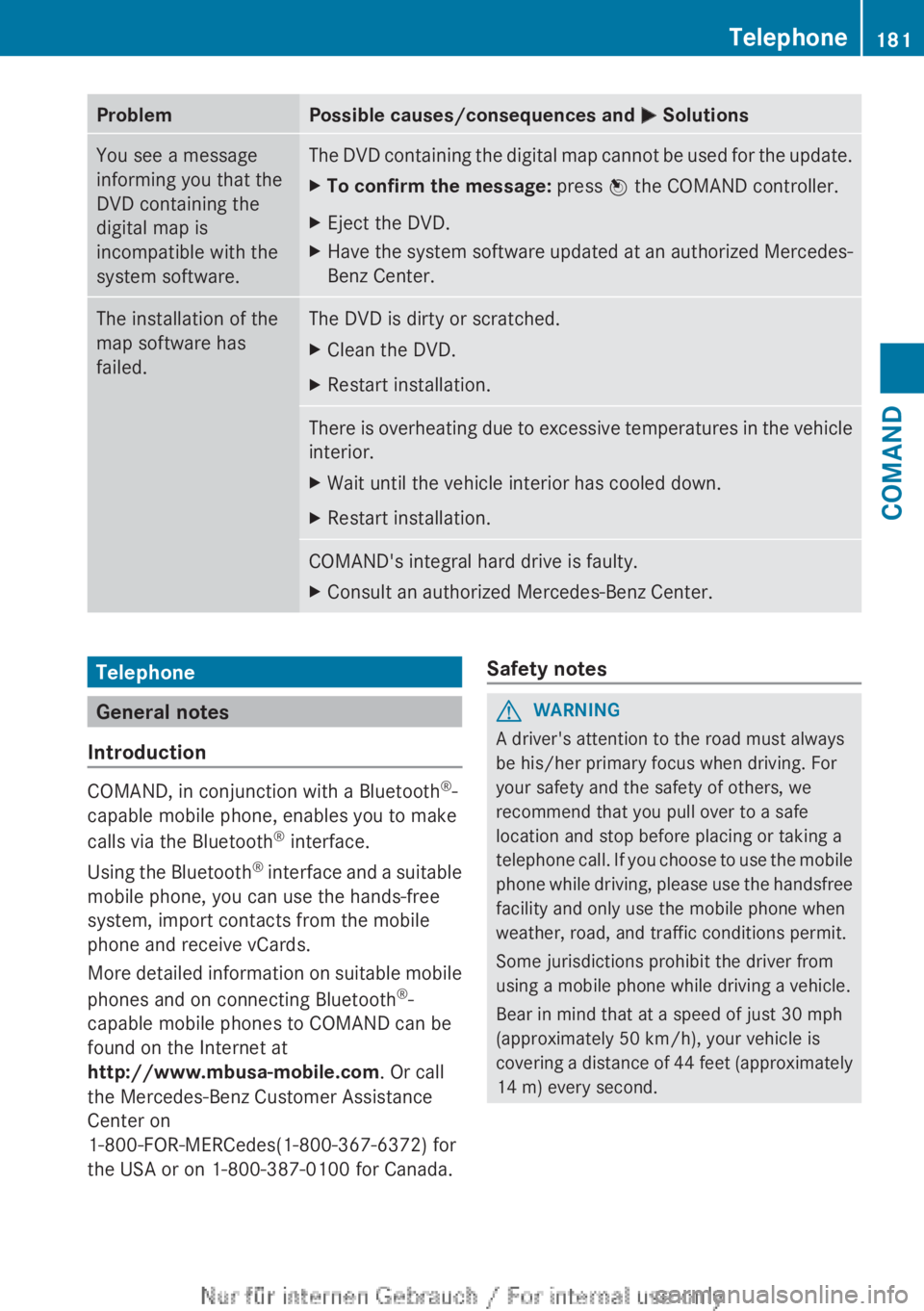
ProblemPossible causes/consequences and M SolutionsYou see a message
informing you that the
DVD containing the
digital map is
incompatible with the
system software.The DVD containing the digital map cannot be used for the update.XTo confirm the message: press W the COMAND controller.XEject the DVD.XHave the system software updated at an authorized Mercedes-
Benz Center.The installation of the
map software has
failed.The DVD is dirty or scratched.XClean the DVD.XRestart installation.There is overheating due to excessive temperatures in the vehicle
interior.XWait until the vehicle interior has cooled down.XRestart installation.COMAND's integral hard drive is faulty.XConsult an authorized Mercedes-Benz Center.Telephone
General notes
Introduction
COMAND, in conjunction with a Bluetooth ®
-
capable mobile phone, enables you to make
calls via the Bluetooth ®
interface.
Using the Bluetooth ®
interface and a suitable
mobile phone, you can use the hands-free
system, import contacts from the mobile
phone and receive vCards.
More detailed information on suitable mobile
phones and on connecting Bluetooth ®
-
capable mobile phones to COMAND can be
found on the Internet at
http://www.mbusa-mobile.com . Or call
the Mercedes-Benz Customer Assistance
Center on
1-800-FOR-MERCedes(1-800-367-6372) for
the USA or on 1-800-387-0100 for Canada.
Safety notesGWARNING
A driver's attention to the road must always
be his/her primary focus when driving. For
your safety and the safety of others, we
recommend that you pull over to a safe
location and stop before placing or taking a
telephone call. If you choose to use the mobile
phone while driving, please use the handsfree
facility and only use the mobile phone when
weather, road, and traffic conditions permit.
Some jurisdictions prohibit the driver from
using a mobile phone while driving a vehicle.
Bear in mind that at a speed of just 30 mph
(approximately 50 km/h), your vehicle is
covering a distance of 44 feet (approximately
14 m) every second.
Telephone181COMANDZ
Page 184 of 496
Call disconnection while the vehicle is
in motion
A call may be disconnected if:
R there is insufficient network coverage in
certain areas.
R you move from one transmitter/receiver
area (cell) into another and no channels are
free.
R you use a SIM card which is not compatible
with the network available.
R you are using a mobile phone with
"Twincard" and the mobile phone with the
second SIM card is already logged into the
network.
Operating options
You can operate the telephone by:
R using the COMAND controller:
turn cVd .
slide XVY or ZV Æ.
press W.
R the 6 or ~ button on the telephone
keypad on the center console
R the 6 or ~ button on the
multifunction steering wheel
R using the Voice Control System (see the
separate Voice Control System operating
instructions)
Unless otherwise indicated, the descriptions
and illustrations in this section refer to
COMAND and the telephone keypad. This
also means that to carry out the functions
described here, you must always be in the
Telephone menu. The fastest way to access
the Telephone menu is to press the S
function button.
Function restrictions
You will not be able to use the telephone, will
no longer be able to use the telephone, or you
may have to wait before using it, in the
following situations:
R when the mobile phone is switched off
R when the "Bluetooth ®
" function is switched
off in COMAND
R when the "Bluetooth ®
" function is switched
off on the mobile phone
R if the mobile phone is not logged into a
mobile phone network
i The telephone automatically tries to log
on to a network. If no network is available,
you will not be able to make a " 911"
emergency call. If you attempt to make an
outgoing call, the NO SERVICE message will
appear for a short while.
R if you remove the SmartKey from the
ignition lock during an active conversation
in hands-free mode, the conversation may
be continued for up to 30 minutes. After
that time, it will be interrupted.
You can prevent this interruption by switching
to "private call" ("private mode") on the
mobile phone before deactivating COMAND
(see mobile phone operating instructions).
If you wish to switch off COMAND during an
active conversation in hands-free mode, the
following message will appear: You cannot
shut off COMAND until you have
finished your telephone call
911 emergency call
GWARNING
The 911 emergency call system is a public
service. Using it without due cause is a
criminal offense.
The following requirements must be fulfilled
for a 911 emergency call:
R the mobile phone must be switched on.
R a network must be available.
182TelephoneCOMAND
Page 185 of 496
Ra valid and operational SIM card must be
inserted in the mobile phone.
R the mobile phone is connected to COMAND
via Bluetooth ®
.
If you cannot make an emergency call, you
must arrange rescue measures yourself.XEnter numbers using the number keypad
( Y page 188).XPress the 6 button.
The telephone makes the connection.XWait for the emergency call center to
respond and then describe the emergency.
i If no SIM card has been inserted in a GSM
phone or if there is no service available for
a CDMA phone, the NO SERVICE message
appears in COMAND. In this case, an
emergency call can only be transmitted via
the mobile phone itself and not via
COMAND.
Telephony via the Bluetooth ®
interface
Conditions
On the mobile phone
For telephony via COMAND's Bluetooth ®
interface, a Bluetooth ®
-capable mobile
phone is required.
i Not all mobile phones available on the
market are equally suitable. More detailed
information on suitable mobile phones and
on connecting Bluetooth ®
-capable mobile
phones with COMAND can be found on the
Internet at
http://www.mbusa-mobile.com . Or call
the Mercedes-Benz Customer Assistance
Center on
1-800-FOR-MERCedes(1-800-367-6372)
(for the USA) or Customer Relations on
1-800-387-0100 (for Canada).
The battery of the mobile phone should
always be kept sufficiently charged in order
to prevent malfunctions.
In preparation for telephoning via the
Bluetooth ®
interface, you should check the
following items on your mobile phone (see the
mobile phone operating instructions):XHands-Free Profile
The mobile phone must support Hands-
Free Profile 1.0 or above.
i Certain displays and functions (e.g. signal
strength display, conference connection)
are available, depending on the supported
version of the Hands-Free Profile.
XBluetooth ®
visibility
On certain mobile phones, the device itself
must be made "visible" for other devices,
as well as activating the Bluetooth ®
function (see the mobile phone operating
instructions).XBluetooth ®
device name
Every Bluetooth ®
device has its own
Bluetooth ®
device name. This device name
is freely definable, but can be identical for
all devices from the same manufacturer. It
is therefore recommended that you change
this name so that you can easily recognize
your mobile phone (see the mobile phone
operating instructions).XSwitch on the mobile phone and enter the
PIN when prompted to do so (see the
mobile phone operating instructions).XActivate Bluetooth ®
functions and, where
necessary, Bluetooth ®
visibility on the
mobile phone (see the mobile phone
operating instructions).
In COMAND
XActivate the Bluetooth ®
function in
COMAND ( Y page 135).
Connecting a mobile phone
General information
Before using your mobile phone with
COMAND for the first time, you will need to
connect it.
Telephone183COMANDZ
Page 186 of 496
When you authorize a new mobile phone, it is
connected automatically.
Connecting comprises:
R searching for a Bluetooth ®
-capable mobile
phone
R subsequently authorizing it
You can connect up to 15 mobile phones.
Searching for a mobile phoneXTo call up the telephone menu: press the
S function button once or twice.XSelect Data/Connections in the
telephone basic menu by sliding VÆ and
turning cVd the COMAND controller and
press W to confirm.XSelect Bluetooth Telephones and press
W to confirm.XSelect Update and press W to confirm.
COMAND searches for Bluetooth ®
telephones within range and adds them to
the Bluetooth ®
telephone list.
The duration of the search depends on the
number of Bluetooth ®
telephones within
range and their characteristics.
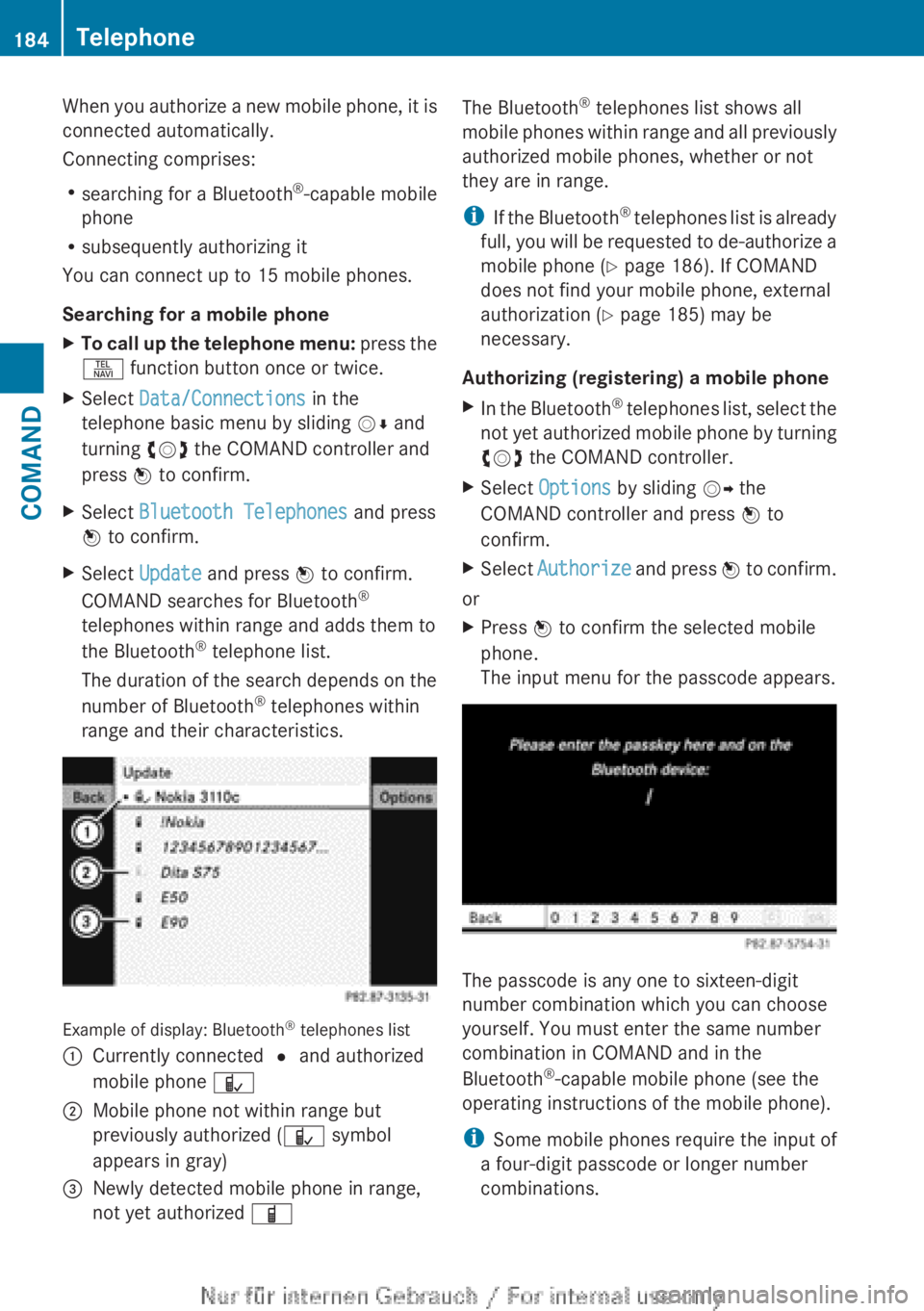
Example of display: Bluetooth ®
telephones list
:Currently connected # and authorized
mobile phone Ñ;Mobile phone not within range but
previously authorized ( Ñ symbol
appears in gray)=Newly detected mobile phone in range,
not yet authorized ÏThe Bluetooth®
telephones list shows all
mobile phones within range and all previously
authorized mobile phones, whether or not
they are in range.
i If the Bluetooth ®
telephones list is already
full, you will be requested to de-authorize a
mobile phone ( Y page 186). If COMAND
does not find your mobile phone, external
authorization ( Y page 185) may be
necessary.
Authorizing (registering) a mobile phoneXIn the Bluetooth ®
telephones list, select the
not yet authorized mobile phone by turning
cVd the COMAND controller.XSelect Options by sliding VY the
COMAND controller and press W to
confirm.XSelect Authorize and press W to confirm.
or
XPress W to confirm the selected mobile
phone.
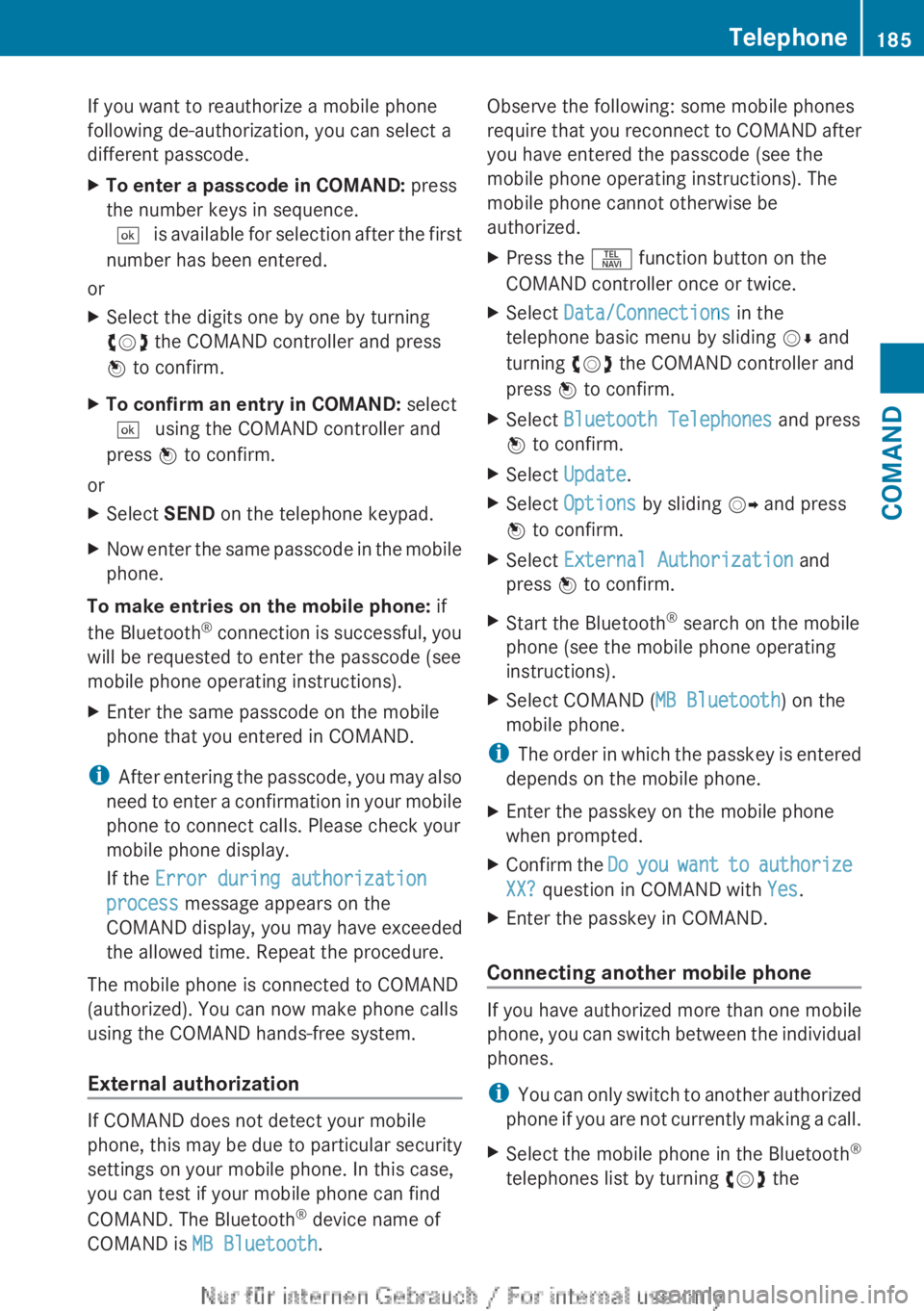
The input menu for the passcode appears.
The passcode is any one to sixteen-digit
number combination which you can choose
yourself. You must enter the same number
combination in COMAND and in the
Bluetooth ®
-capable mobile phone (see the
operating instructions of the mobile phone).
i Some mobile phones require the input of
a four-digit passcode or longer number
combinations.
184TelephoneCOMAND
Page 187 of 496
If you want to reauthorize a mobile phone
following de-authorization, you can select a
different passcode.XTo enter a passcode in COMAND: press
the number keys in sequence.
¬ is available for selection after the first
number has been entered.
or
XSelect the digits one by one by turning
cVd the COMAND controller and press
W to confirm.XTo confirm an entry in COMAND: select
¬ using the COMAND controller and
press W to confirm.
or
XSelect SEND on the telephone keypad.XNow enter the same passcode in the mobile
phone.
To make entries on the mobile phone: if
the Bluetooth ®
connection is successful, you
will be requested to enter the passcode (see
mobile phone operating instructions).
XEnter the same passcode on the mobile
phone that you entered in COMAND.
i After entering the passcode, you may also
need to enter a confirmation in your mobile
phone to connect calls. Please check your
mobile phone display.
If the Error during authorization
process message appears on the
COMAND display, you may have exceeded
the allowed time. Repeat the procedure.
The mobile phone is connected to COMAND
(authorized). You can now make phone calls
using the COMAND hands-free system.
External authorization
If COMAND does not detect your mobile
phone, this may be due to particular security
settings on your mobile phone. In this case,
you can test if your mobile phone can find
COMAND. The Bluetooth ®
device name of
COMAND is MB Bluetooth .
Observe the following: some mobile phones
require that you reconnect to COMAND after
you have entered the passcode (see the
mobile phone operating instructions). The
mobile phone cannot otherwise be
authorized.XPress the S function button on the
COMAND controller once or twice.XSelect Data/Connections in the
telephone basic menu by sliding VÆ and
turning cVd the COMAND controller and
press W to confirm.XSelect Bluetooth Telephones and press
W to confirm.XSelect Update .XSelect Options by sliding VY and press
W to confirm.XSelect External Authorization and
press W to confirm.XStart the Bluetooth ®
search on the mobile
phone (see the mobile phone operating
instructions).XSelect COMAND ( MB Bluetooth) on the
mobile phone.
i The order in which the passkey is entered
depends on the mobile phone.
XEnter the passkey on the mobile phone
when prompted.XConfirm the Do you want to authorize
XX? question in COMAND with Yes.XEnter the passkey in COMAND.
Connecting another mobile phone
If you have authorized more than one mobile
phone, you can switch between the individual
phones.
i You can only switch to another authorized
phone if you are not currently making a call.
XSelect the mobile phone in the Bluetooth ®
telephones list by turning cVd theTelephone185COMANDZ