buttons MERCEDES-BENZ CL CLASS 2013 User Guide
[x] Cancel search | Manufacturer: MERCEDES-BENZ, Model Year: 2013, Model line: CL CLASS, Model: MERCEDES-BENZ CL CLASS 2013Pages: 496, PDF Size: 7.5 MB
Page 114 of 496
At a glance
COMAND operating system
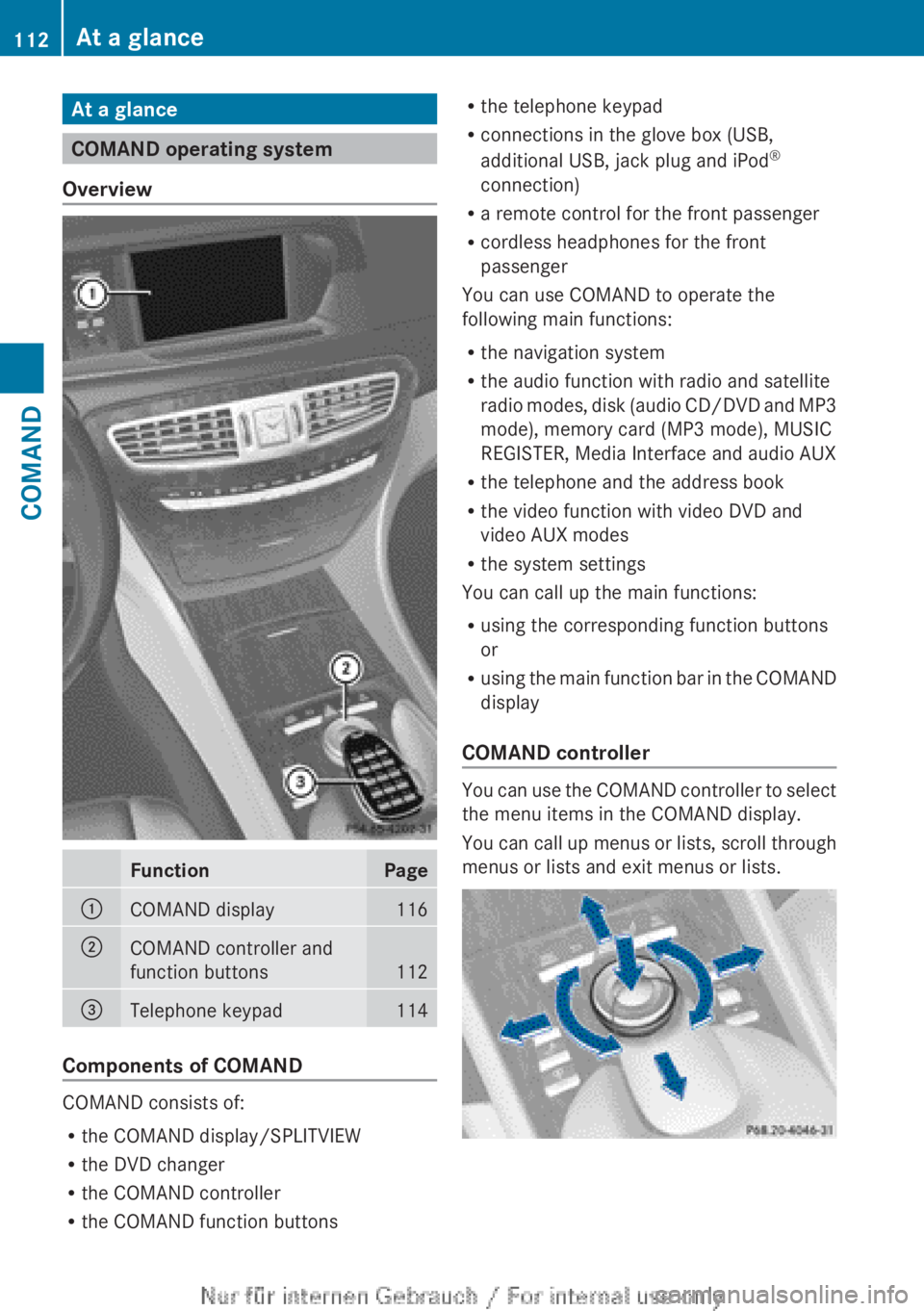
Overview
FunctionPage:COMAND display116;COMAND controller and
function buttons
112
=Telephone keypad114
Components of COMAND
COMAND consists of:
R the COMAND display/SPLITVIEW
R the DVD changer
R the COMAND controller
R the COMAND function buttons
R
the telephone keypad
R connections in the glove box (USB,
additional USB, jack plug and iPod ®
connection)
R a remote control for the front passenger
R cordless headphones for the front
passenger
You can use COMAND to operate the
following main functions:
R the navigation system
R the audio function with radio and satellite
radio modes, disk (audio CD/DVD and MP3
mode), memory card (MP3 mode), MUSIC
REGISTER, Media Interface and audio AUX
R the telephone and the address book
R the video function with video DVD and
video AUX modes
R the system settings
You can call up the main functions:
R using the corresponding function buttons
or
R using the main function bar in the COMAND
display
COMAND controller
You can use the COMAND controller to select
the menu items in the COMAND display.
You can call up menus or lists, scroll through
menus or lists and exit menus or lists.
112At a glanceCOMAND
Page 115 of 496
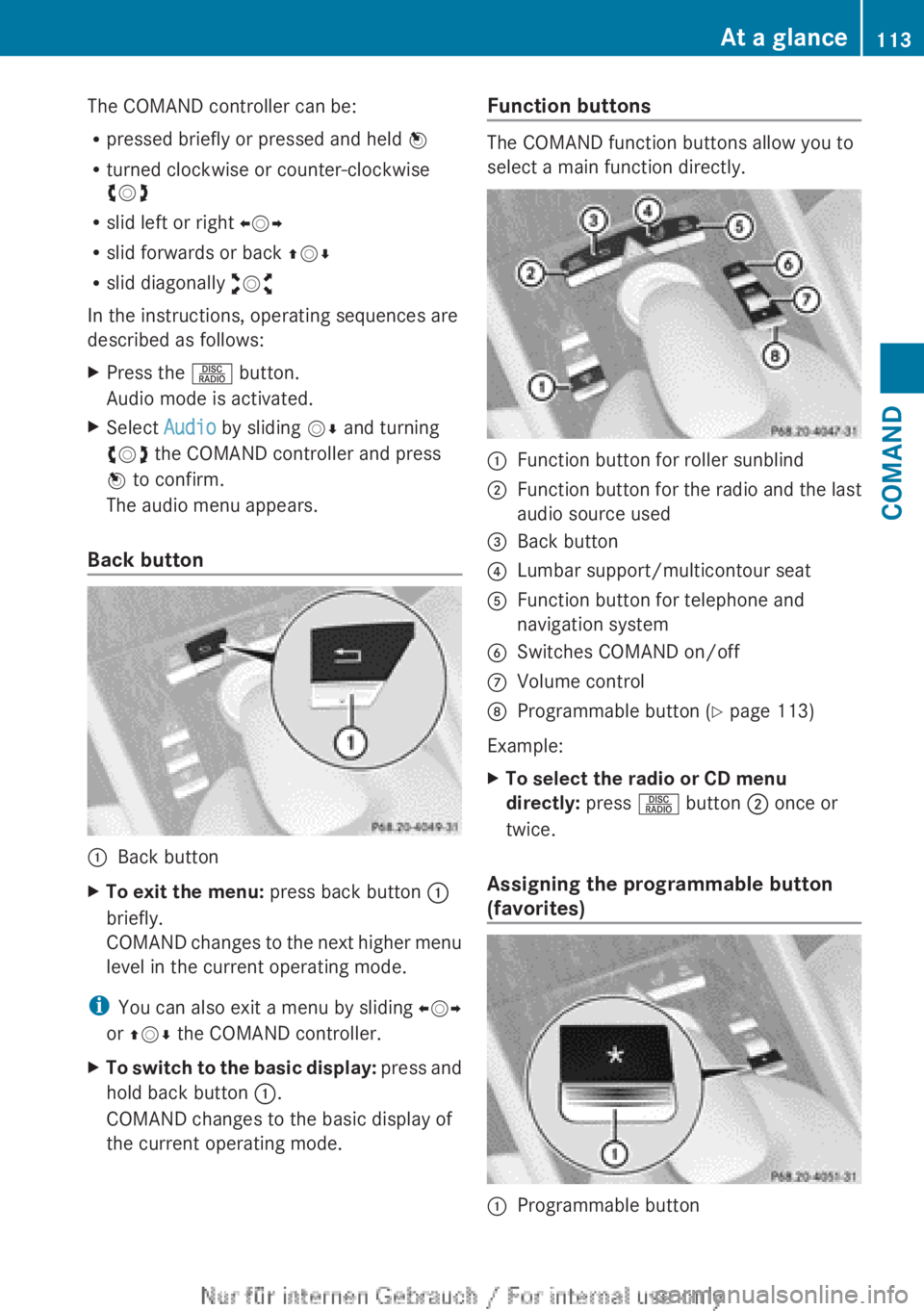
The COMAND controller can be:
R pressed briefly or pressed and held W
R turned clockwise or counter-clockwise
cVd
R slid left or right XVY
R slid forwards or back ZVÆ
R slid diagonally aVb
In the instructions, operating sequences are
described as follows:XPress the R button.
Audio mode is activated.XSelect Audio by sliding VÆ and turning
cVd the COMAND controller and press
W to confirm.
The audio menu appears.
Back button
:Back buttonXTo exit the menu: press back button :
briefly.
COMAND changes to the next higher menu
level in the current operating mode.
i You can also exit a menu by sliding XVY
or ZV Æ the COMAND controller.
XTo switch to the basic display: press and
hold back button :.
COMAND changes to the basic display of
the current operating mode.Function buttons
The COMAND function buttons allow you to
select a main function directly.
:Function button for roller sunblind;Function button for the radio and the last
audio source used=Back button?Lumbar support/multicontour seatAFunction button for telephone and
navigation systemBSwitches COMAND on/offCVolume controlDProgrammable button ( Y page 113)
Example:
XTo select the radio or CD menu
directly: press R button ; once or
twice.
Assigning the programmable button
(favorites)
:Programmable buttonAt a glance113COMANDZ
Page 120 of 496
switch SPLITVIEW on and off
( Y page 119).
The SPLITVIEW screen remains on for
approximately 30 minutes after the SmartKey
has been turned to position 0 in the ignition
lock. After this time or after the SmartKey has
been removed, the settings on the front-
passenger side are saved for approximately
30 minutes longer. After this period,
reactivation on the front-passenger side
means that the settings from the driver's side
will be used.
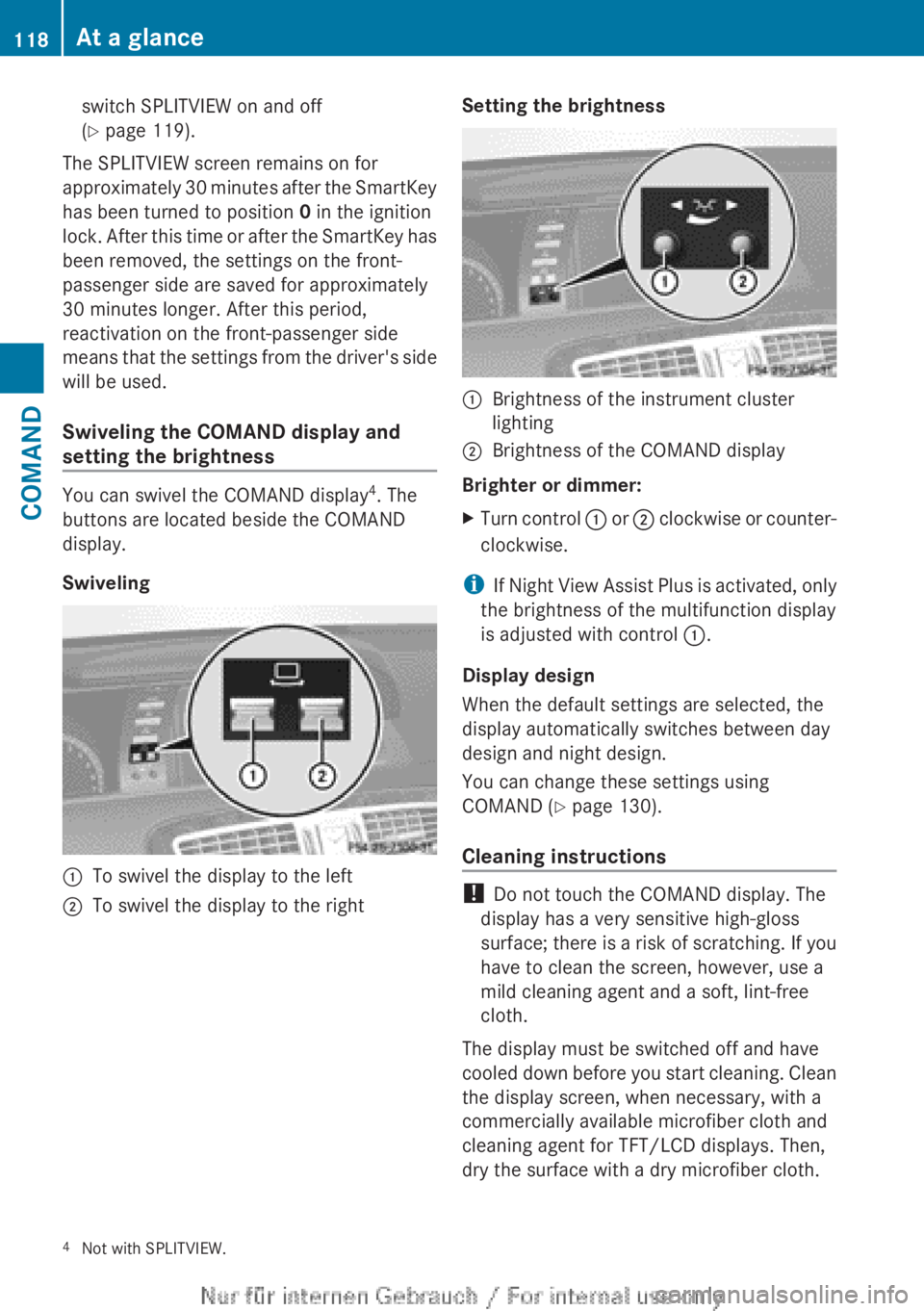
Swiveling the COMAND display and
setting the brightness
You can swivel the COMAND display 4
. The
buttons are located beside the COMAND
display.
Swiveling
:To swivel the display to the left;To swivel the display to the rightSetting the brightness:Brightness of the instrument cluster
lighting;Brightness of the COMAND display
Brighter or dimmer:
XTurn control : or ; clockwise or counter-
clockwise.
i If Night View Assist Plus is activated, only
the brightness of the multifunction display
is adjusted with control :.
Display design
When the default settings are selected, the
display automatically switches between day
design and night design.
You can change these settings using
COMAND ( Y page 130).
Cleaning instructions
! Do not touch the COMAND display. The
display has a very sensitive high-gloss
surface; there is a risk of scratching. If you
have to clean the screen, however, use a
mild cleaning agent and a soft, lint-free
cloth.
The display must be switched off and have
cooled down before you start cleaning. Clean
the display screen, when necessary, with a
commercially available microfiber cloth and
cleaning agent for TFT/LCD displays. Then,
dry the surface with a dry microfiber cloth.
4 Not with SPLITVIEW.118At a glanceCOMAND
Page 121 of 496
Avoid using alcoholic thinners, gasoline or
abrasive cleaning agents. These could
damage the display surface. Do not apply
pressure to the display surface when cleaning
it, as this could cause irreversible damage.
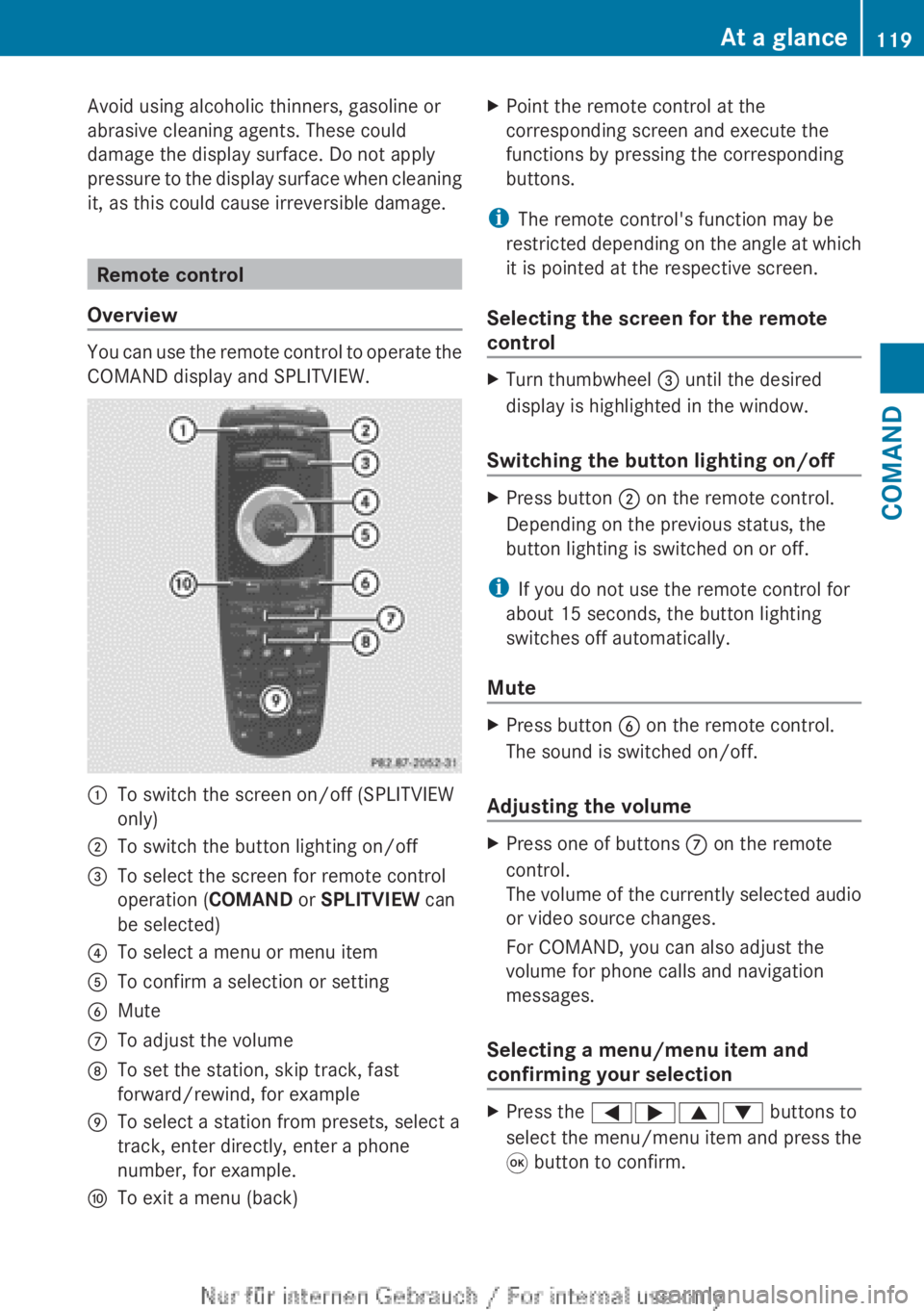
Remote control
Overview
You can use the remote control to operate the
COMAND display and SPLITVIEW.
:To switch the screen on/off (SPLITVIEW
only);To switch the button lighting on/off=To select the screen for remote control
operation ( COMAND or SPLITVIEW can
be selected)?To select a menu or menu itemATo confirm a selection or settingBMuteCTo adjust the volumeDTo set the station, skip track, fast
forward/rewind, for exampleETo select a station from presets, select a
track, enter directly, enter a phone
number, for example.FTo exit a menu (back)XPoint the remote control at the
corresponding screen and execute the
functions by pressing the corresponding
buttons.
i The remote control's function may be
restricted depending on the angle at which
it is pointed at the respective screen.
Selecting the screen for the remote
control
XTurn thumbwheel = until the desired
display is highlighted in the window.
Switching the button lighting on/off
XPress button ; on the remote control.
Depending on the previous status, the
button lighting is switched on or off.
i If you do not use the remote control for
about 15 seconds, the button lighting
switches off automatically.
Mute
XPress button B on the remote control.
The sound is switched on/off.
Adjusting the volume
XPress one of buttons C on the remote
control.
The volume of the currently selected audio
or video source changes.
For COMAND, you can also adjust the
volume for phone calls and navigation
messages.
Selecting a menu/menu item and
confirming your selection
XPress the =;9: buttons to
select the menu/menu item and press the
9 button to confirm.At a glance119COMANDZ
Page 128 of 496
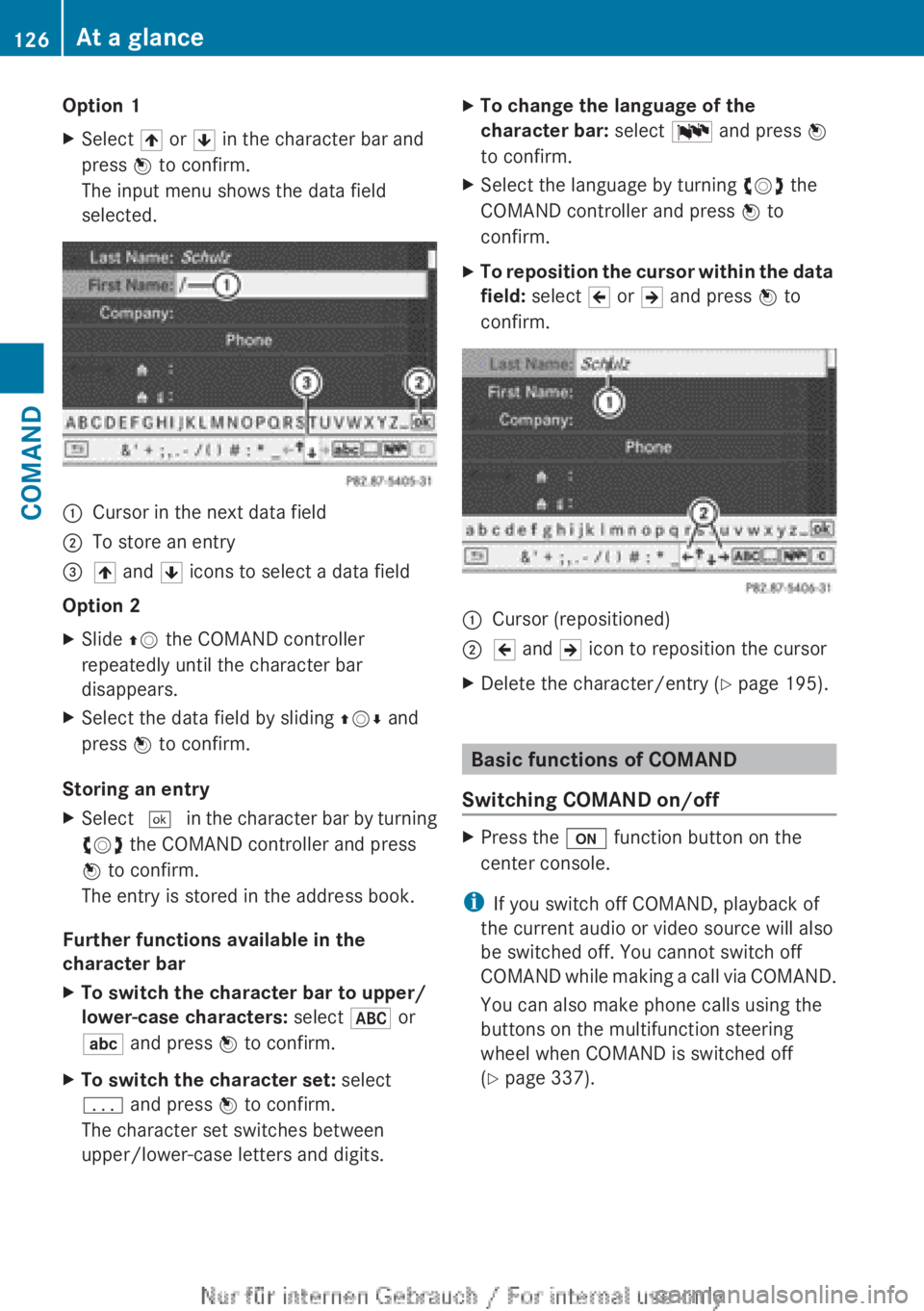
Option 1XSelect 4 or 5 in the character bar and
press W to confirm.
The input menu shows the data field
selected.:Cursor in the next data field;To store an entry=4 and 5 icons to select a data field
Option 2
XSlide ZV the COMAND controller
repeatedly until the character bar
disappears.XSelect the data field by sliding ZVÆ and
press W to confirm.
Storing an entry
XSelect ¬ in the character bar by turning
cVd the COMAND controller and press
W to confirm.
The entry is stored in the address book.
Further functions available in the
character bar
XTo switch the character bar to upper/
lower-case characters: select * or
E and press W to confirm.XTo switch the character set: select
p and press W to confirm.
The character set switches between
upper/lower-case letters and digits.XTo change the language of the
character bar: select B and press W
to confirm.XSelect the language by turning cVd the
COMAND controller and press W to
confirm.XTo reposition the cursor within the data
field: select 2 or 3 and press W to
confirm.:Cursor (repositioned);2 and 3 icon to reposition the cursorXDelete the character/entry ( Y page 195).
Basic functions of COMAND
Switching COMAND on/off
XPress the u function button on the
center console.
i If you switch off COMAND, playback of
the current audio or video source will also
be switched off. You cannot switch off
COMAND while making a call via COMAND.
You can also make phone calls using the
buttons on the multifunction steering
wheel when COMAND is switched off
( Y page 337).
126At a glanceCOMAND
Page 241 of 496
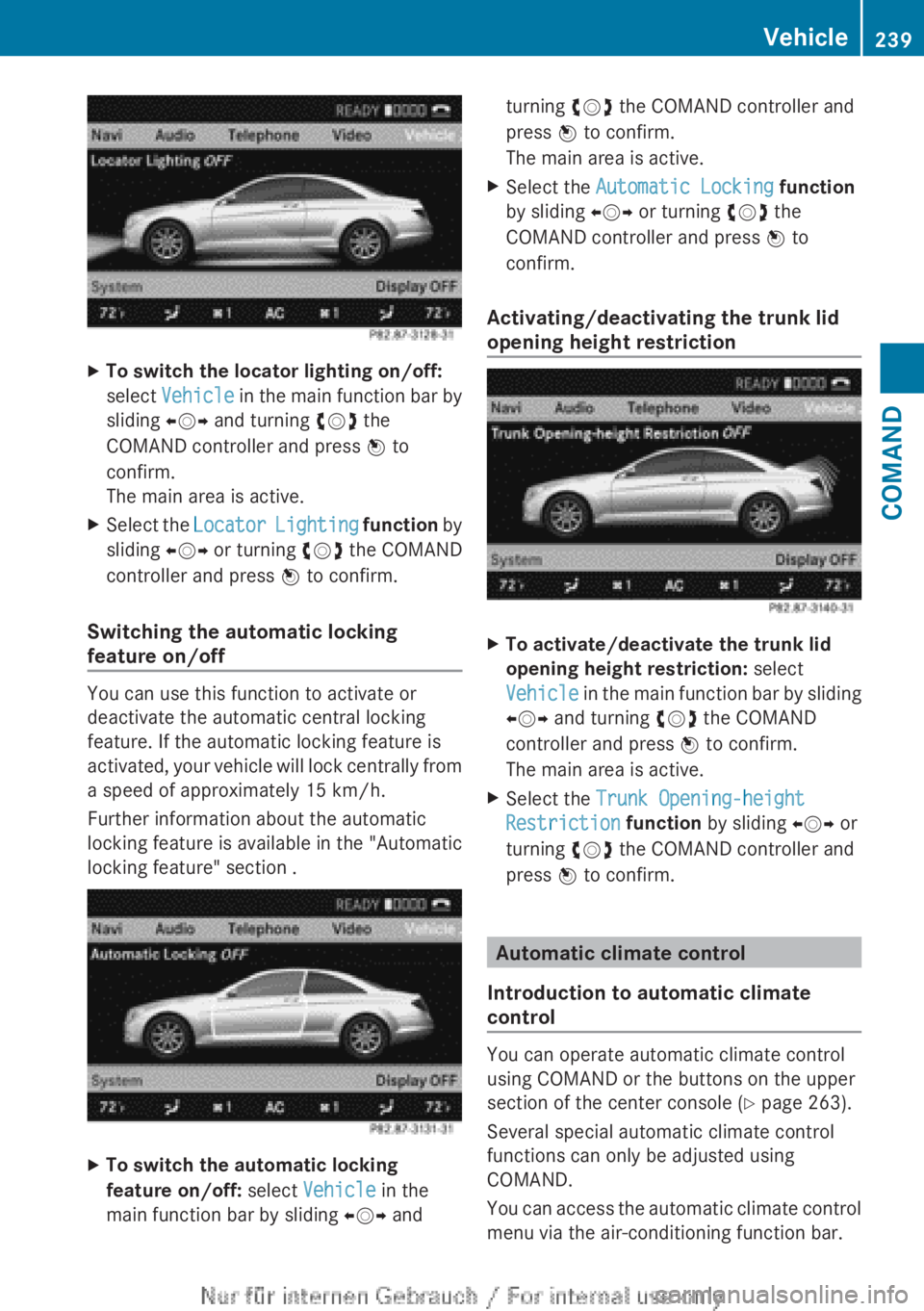
XTo switch the locator lighting on/off:
select Vehicle in the main function bar by
sliding XVY and turning cVd the
COMAND controller and press W to
confirm.
The main area is active.XSelect the Locator Lighting function by
sliding XVY or turning cVd the COMAND
controller and press W to confirm.
Switching the automatic locking
feature on/off
You can use this function to activate or
deactivate the automatic central locking
feature. If the automatic locking feature is
activated, your vehicle will lock centrally from
a speed of approximately 15 km/h.
Further information about the automatic
locking feature is available in the "Automatic
locking feature" section .
XTo switch the automatic locking
feature on/off: select Vehicle in the
main function bar by sliding XVY andturning cVd the COMAND controller and
press W to confirm.
The main area is active.XSelect the Automatic Locking function
by sliding XVY or turning cVd the
COMAND controller and press W to
confirm.
Activating/deactivating the trunk lid
opening height restriction
XTo activate/deactivate the trunk lid
opening height restriction: select
Vehicle in the main function bar by sliding
XVY and turning cVd the COMAND
controller and press W to confirm.
The main area is active.XSelect the Trunk Opening-height
Restriction function by sliding XVY or
turning cVd the COMAND controller and
press W to confirm.
Automatic climate control
Introduction to automatic climate
control
You can operate automatic climate control
using COMAND or the buttons on the upper
section of the center console ( Y page 263).
Several special automatic climate control
functions can only be adjusted using
COMAND.
You can access the automatic climate control
menu via the air-conditioning function bar.
Vehicle239COMANDZ
Page 326 of 496
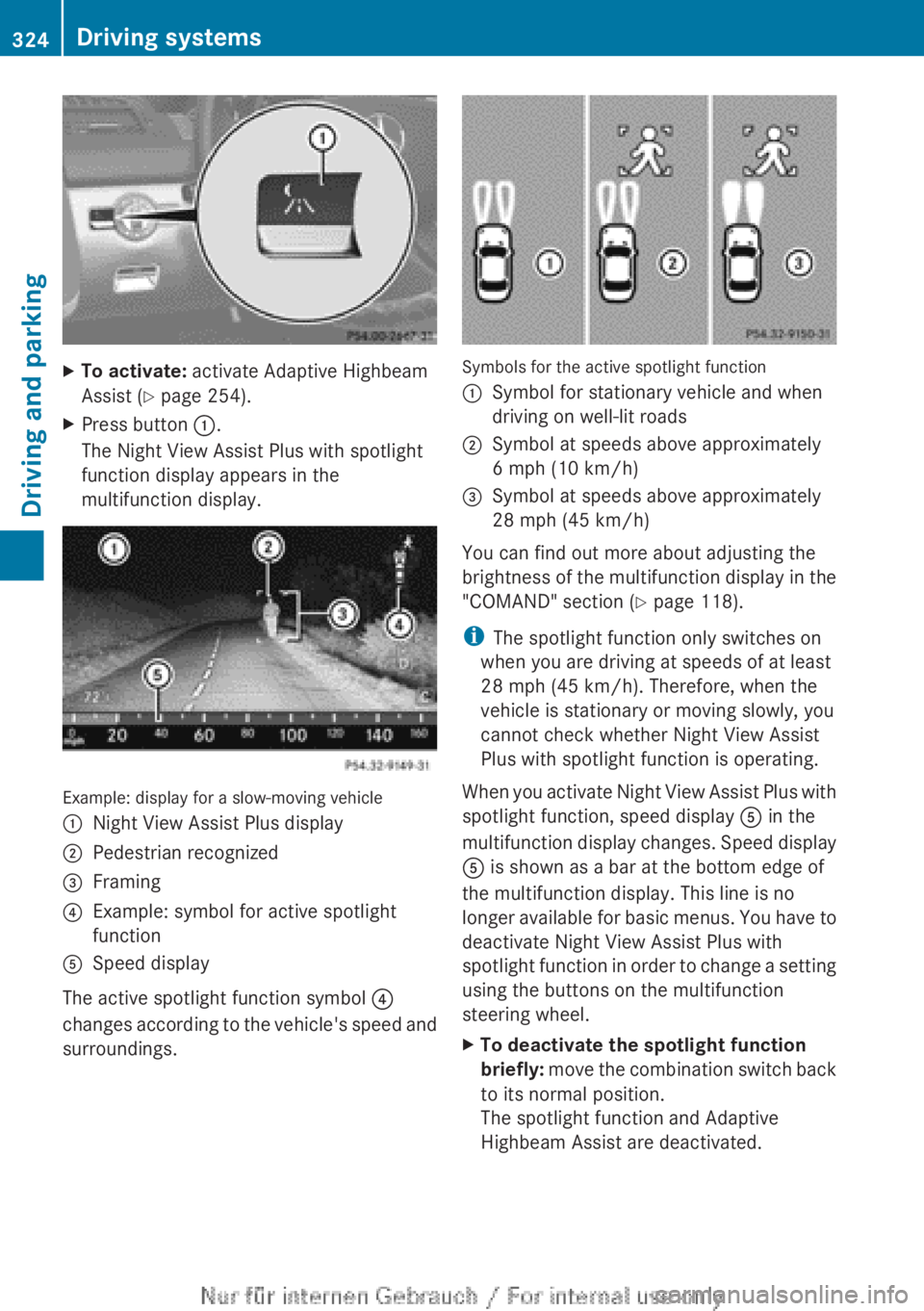
XTo activate: activate Adaptive Highbeam
Assist ( Y page 254).XPress button :.
The Night View Assist Plus with spotlight
function display appears in the
multifunction display.
Example: display for a slow-moving vehicle
:Night View Assist Plus display;Pedestrian recognized=Framing?Example: symbol for active spotlight
functionASpeed display
The active spotlight function symbol ?
changes according to the vehicle's speed and
surroundings.
Symbols for the active spotlight function
:Symbol for stationary vehicle and when
driving on well-lit roads;Symbol at speeds above approximately
6 mph (10 km/h)=Symbol at speeds above approximately
28 mph (45 km/h)
You can find out more about adjusting the
brightness of the multifunction display in the
"COMAND" section ( Y page 118).
i The spotlight function only switches on
when you are driving at speeds of at least
28 mph (45 km/h). Therefore, when the
vehicle is stationary or moving slowly, you
cannot check whether Night View Assist
Plus with spotlight function is operating.
When you activate Night View Assist Plus with
spotlight function, speed display A in the
multifunction display changes. Speed display
A is shown as a bar at the bottom edge of
the multifunction display. This line is no
longer available for basic menus. You have to
deactivate Night View Assist Plus with
spotlight function in order to change a setting
using the buttons on the multifunction
steering wheel.
XTo deactivate the spotlight function
briefly: move the combination switch back
to its normal position.
The spotlight function and Adaptive
Highbeam Assist are deactivated.324Driving systemsDriving and parking
Page 327 of 496
If you push the combination switch forward
beyond the point of resistance again, both
systems are reactivated.XTo deactivate: press button : again.XDeactivate Adaptive Highbeam Assist
( Y page 254).
i
If you do not wish to use the spotlight
function, you first need to deactivate Night
View Assist Plus and then activate it again
without the spotlight function
( Y page 325).
Activating/deactivating Night View
Assist Plus without spotlight function
You can only activate Night View Assist Plus
without spotlight function if:
R the SmartKey is in position 2 in the ignition
lock.
R it is dark.
R the light switch is in the c or L
position.
R reverse gear has not been engaged.
XTo activate: press and hold button : until
the active spotlight function symbol goes
out in the Night View Assist Plus display in
the multifunction display.
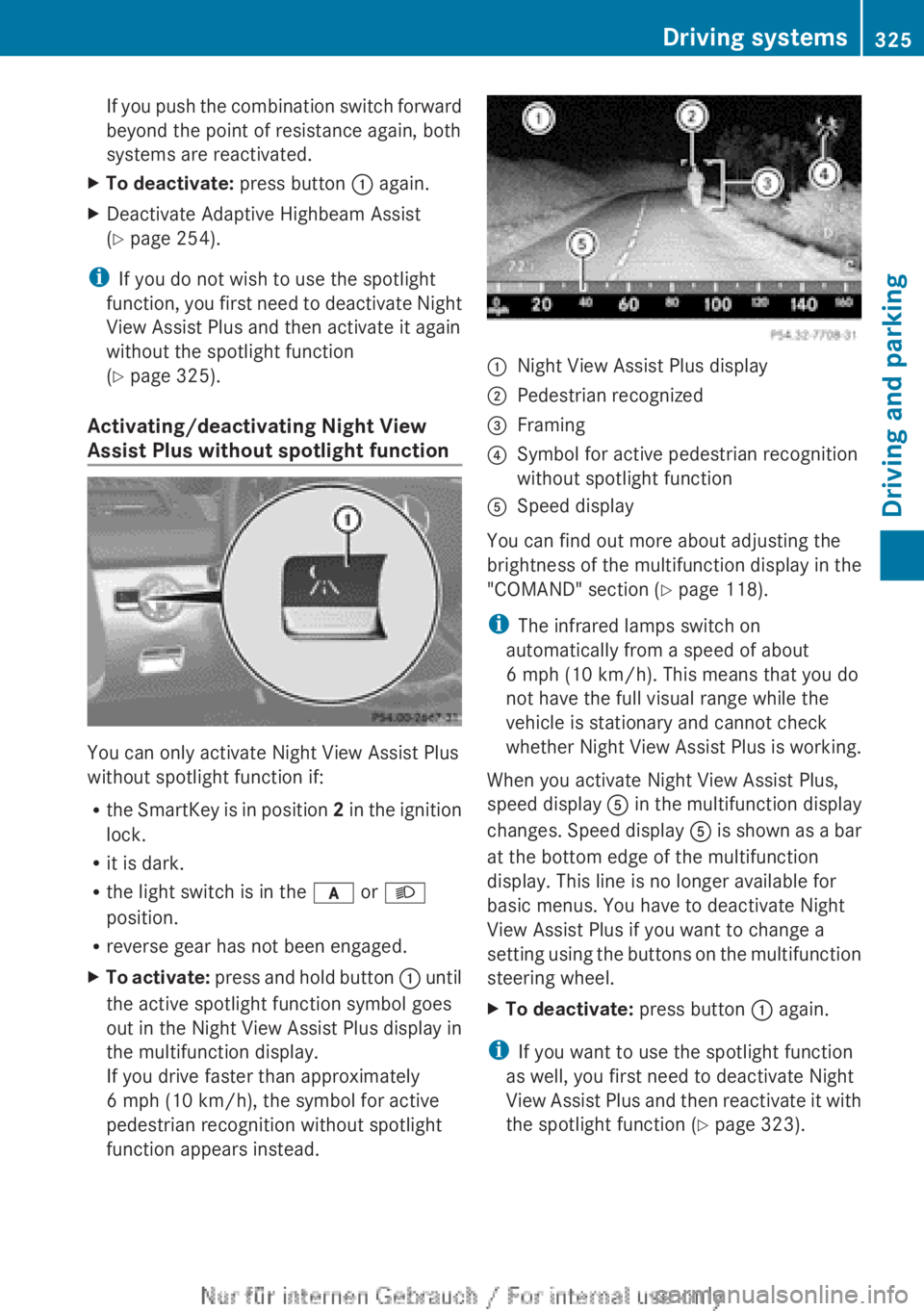
If you drive faster than approximately
6 mph (10 km/h), the symbol for active
pedestrian recognition without spotlight
function appears instead.:Night View Assist Plus display;Pedestrian recognized=Framing?Symbol for active pedestrian recognition
without spotlight functionASpeed display
You can find out more about adjusting the
brightness of the multifunction display in the
"COMAND" section ( Y page 118).
i The infrared lamps switch on
automatically from a speed of about
6 mph (10 km/h). This means that you do
not have the full visual range while the
vehicle is stationary and cannot check
whether Night View Assist Plus is working.
When you activate Night View Assist Plus,
speed display A in the multifunction display
changes. Speed display A is shown as a bar
at the bottom edge of the multifunction
display. This line is no longer available for
basic menus. You have to deactivate Night
View Assist Plus if you want to change a
setting using the buttons on the multifunction
steering wheel.
XTo deactivate: press button : again.
i
If you want to use the spotlight function
as well, you first need to deactivate Night
View Assist Plus and then reactivate it with
the spotlight function ( Y page 323).
Driving systems325Driving and parkingZ
Page 339 of 496
! A display message is shown if the coolant
temperature is too high.
If the coolant temperature is over
248 ‡(120 †), do not continue driving. The
engine will otherwise be damaged.
Tachometer
The red band in the tachometer indicates the
engine's overrevving range.
! Do not drive in the overrevving range, as
this could damage the engine.
The fuel supply is interrupted to protect the
engine when the red band is reached.
Outside temperature display
The outside temperature display is in the
multifunction display ( Y page 338).
GWARNING
The outside temperature indicator is not
designed to serve as an ice-warning device
and is therefore unsuitable for that purpose.
Indicated temperatures just above the
freezing point do not guarantee that the road
surface is free of ice. The road may still be icy,
especially in wooded areas or on bridges.
Changes in the outside temperature are
displayed after a short delay.
Operating the on-board computer
The on-board computer is activated as soon
as you turn the SmartKey to position 2 in the
ignition lock.
You can control the multifunction display and
the settings in the on-board computer using
the buttons on the multifunction steering
wheel.
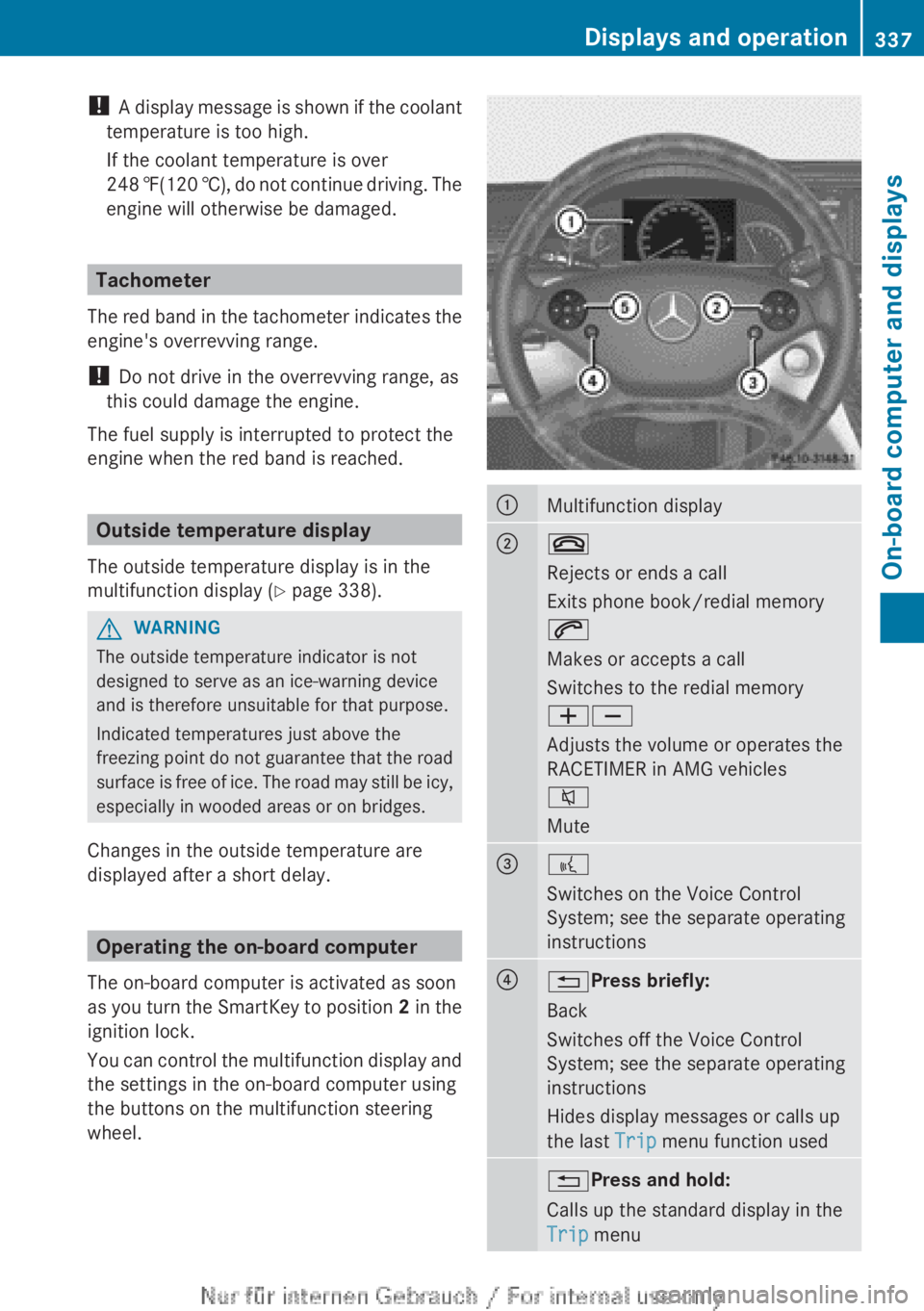
:Multifunction display;~
Rejects or ends a call
Exits phone book/redial memory
6
Makes or accepts a call
Switches to the redial memory
WX
Adjusts the volume or operates the
RACETIMER in AMG vehicles
8
Mute=?
Switches on the Voice Control
System; see the separate operating
instructions?% Press briefly:
Back
Switches off the Voice Control
System; see the separate operating
instructions
Hides display messages or calls up
the last Trip menu function used% Press and hold:
Calls up the standard display in the
Trip menuDisplays and operation337On-board computer and displaysZ
Page 346 of 496
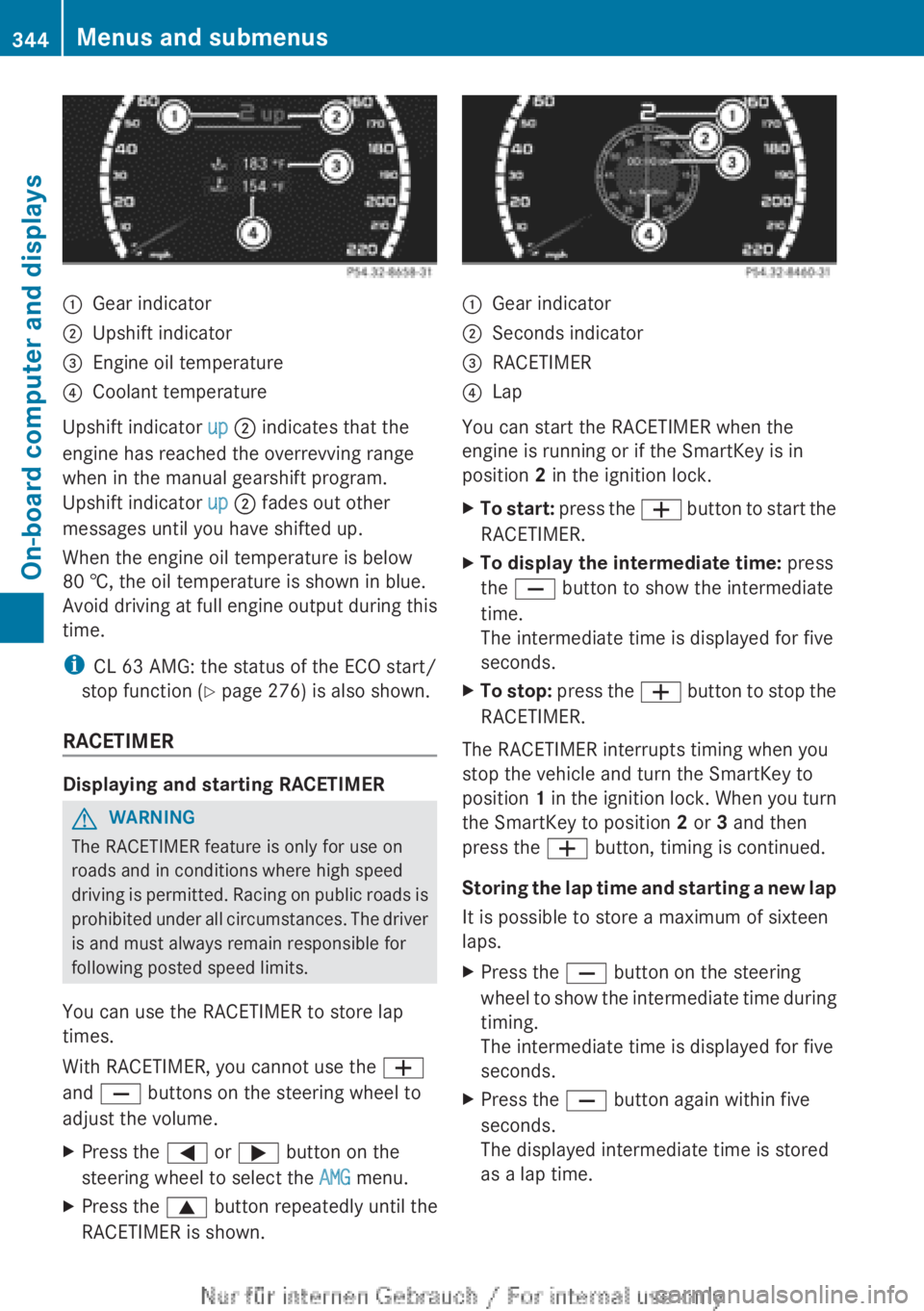
:Gear indicator;Upshift indicator=Engine oil temperature?Coolant temperature
Upshift indicator up ; indicates that the
engine has reached the overrevving range
when in the manual gearshift program.
Upshift indicator up ; fades out other
messages until you have shifted up.
When the engine oil temperature is below
80 †, the oil temperature is shown in blue.
Avoid driving at full engine output during this
time.
i CL 63 AMG: the status of the ECO start/
stop function ( Y page 276) is also shown.
RACETIMER
Displaying and starting RACETIMER
GWARNING
The RACETIMER feature is only for use on
roads and in conditions where high speed
driving is permitted. Racing on public roads is
prohibited under all circumstances. The driver
is and must always remain responsible for
following posted speed limits.
You can use the RACETIMER to store lap
times.
With RACETIMER, you cannot use the W
and X buttons on the steering wheel to
adjust the volume.
XPress the = or ; button on the
steering wheel to select the AMG menu.XPress the 9 button repeatedly until the
RACETIMER is shown.:Gear indicator;Seconds indicator=RACETIMER?Lap
You can start the RACETIMER when the
engine is running or if the SmartKey is in
position 2 in the ignition lock.
XTo start: press the W button to start the
RACETIMER.XTo display the intermediate time: press
the X button to show the intermediate
time.
The intermediate time is displayed for five
seconds.XTo stop: press the W button to stop the
RACETIMER.
The RACETIMER interrupts timing when you
stop the vehicle and turn the SmartKey to
position 1 in the ignition lock. When you turn
the SmartKey to position 2 or 3 and then
press the W button, timing is continued.
Storing the lap time and starting a new lap
It is possible to store a maximum of sixteen
laps.
XPress the X button on the steering
wheel to show the intermediate time during
timing.
The intermediate time is displayed for five
seconds.XPress the X button again within five
seconds.
The displayed intermediate time is stored
as a lap time.344Menus and submenusOn-board computer and displays