audio MERCEDES-BENZ CL CLASS 2013 Owner's Manual
[x] Cancel search | Manufacturer: MERCEDES-BENZ, Model Year: 2013, Model line: CL CLASS, Model: MERCEDES-BENZ CL CLASS 2013Pages: 496, PDF Size: 7.5 MB
Page 124 of 496
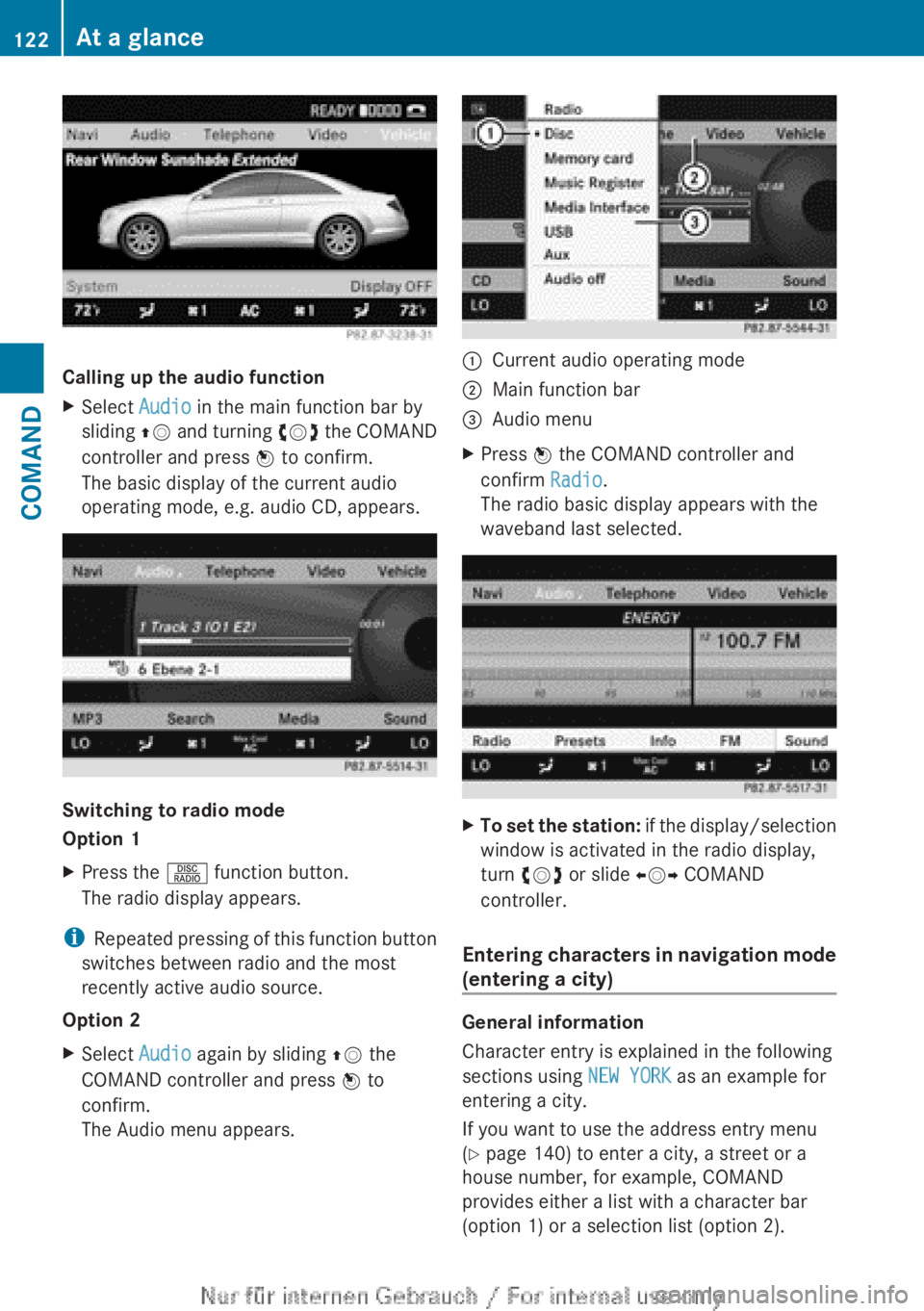
Calling up the audio function
XSelect Audio in the main function bar by
sliding ZV and turning cVd the COMAND
controller and press W to confirm.
The basic display of the current audio
operating mode, e.g. audio CD, appears.
Switching to radio mode
Option 1
XPress the R function button.
The radio display appears.
i Repeated pressing of this function button
switches between radio and the most
recently active audio source.
Option 2
XSelect Audio again by sliding ZV the
COMAND controller and press W to
confirm.
The Audio menu appears.:Current audio operating mode;Main function bar=Audio menuXPress W the COMAND controller and
confirm Radio.
The radio basic display appears with the
waveband last selected.XTo set the station: if the display/selection
window is activated in the radio display,
turn cVd or slide XVY COMAND
controller.
Entering characters in navigation mode
(entering a city)
General information
Character entry is explained in the following
sections using NEW YORK as an example for
entering a city.
If you want to use the address entry menu
( Y page 140) to enter a city, a street or a
house number, for example, COMAND
provides either a list with a character bar
(option 1) or a selection list (option 2).
122At a glanceCOMAND
Page 128 of 496
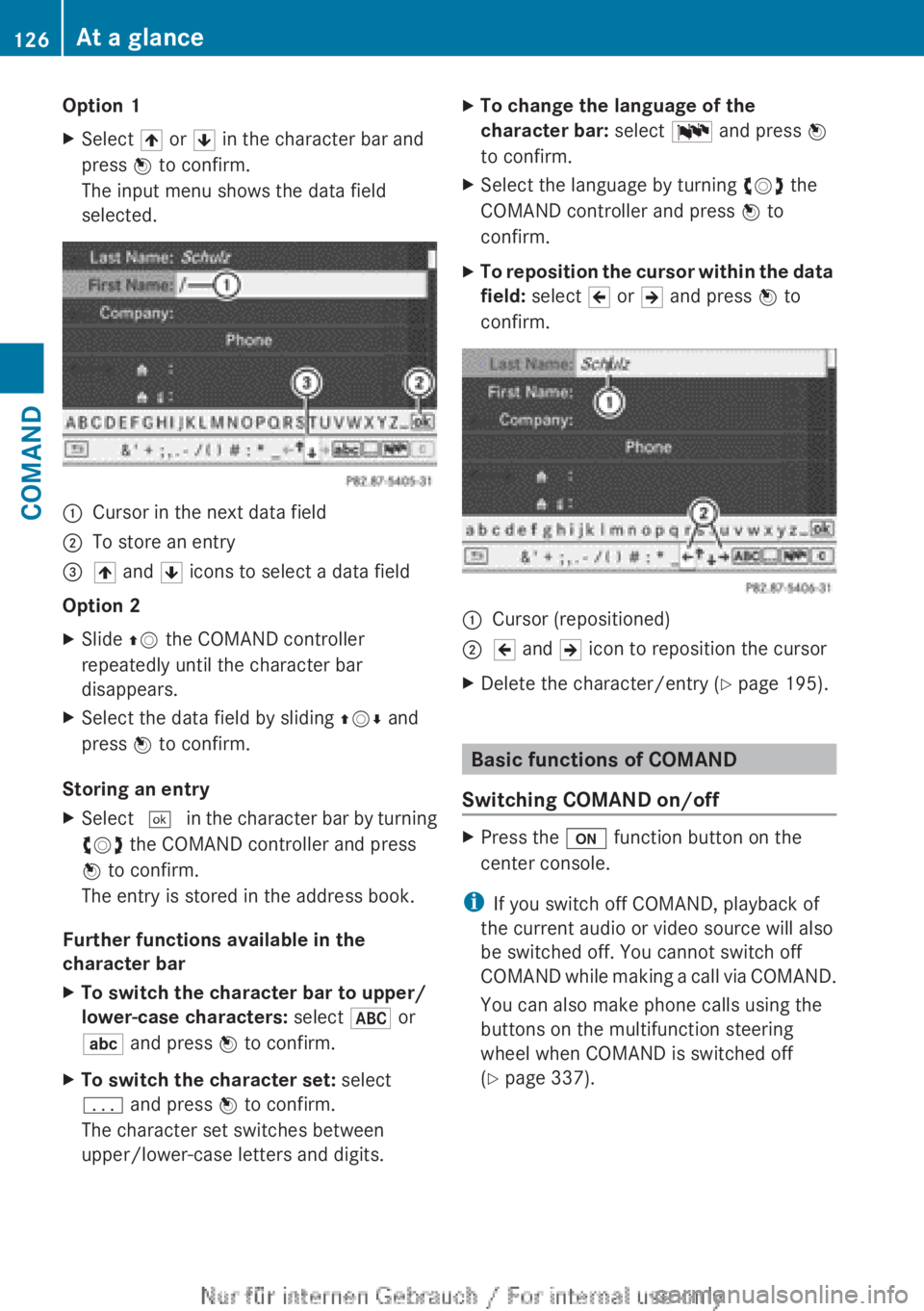
Option 1XSelect 4 or 5 in the character bar and
press W to confirm.
The input menu shows the data field
selected.:Cursor in the next data field;To store an entry=4 and 5 icons to select a data field
Option 2
XSlide ZV the COMAND controller
repeatedly until the character bar
disappears.XSelect the data field by sliding ZVÆ and
press W to confirm.
Storing an entry
XSelect ¬ in the character bar by turning
cVd the COMAND controller and press
W to confirm.
The entry is stored in the address book.
Further functions available in the
character bar
XTo switch the character bar to upper/
lower-case characters: select * or
E and press W to confirm.XTo switch the character set: select
p and press W to confirm.
The character set switches between
upper/lower-case letters and digits.XTo change the language of the
character bar: select B and press W
to confirm.XSelect the language by turning cVd the
COMAND controller and press W to
confirm.XTo reposition the cursor within the data
field: select 2 or 3 and press W to
confirm.:Cursor (repositioned);2 and 3 icon to reposition the cursorXDelete the character/entry ( Y page 195).
Basic functions of COMAND
Switching COMAND on/off
XPress the u function button on the
center console.
i If you switch off COMAND, playback of
the current audio or video source will also
be switched off. You cannot switch off
COMAND while making a call via COMAND.
You can also make phone calls using the
buttons on the multifunction steering
wheel when COMAND is switched off
( Y page 337).
126At a glanceCOMAND
Page 129 of 496
Switching the sound on or off
Switching audio and video sources on/off
XPress the 8 button on the multifunction
steering wheel.
The sound from the respective audio or
video source is switched on or off.
i When the sound is off, the system
displays the , symbol in the status line.
When you change the audio or video
source, or adjust the volume, sound
automatically switches on again.
i Even if the sound is switched off, you will
still hear traffic and navigation system
announcements.
Switching off traffic and navigation
announcements completely
XTraffic announcements: press the 8
button until the . message disappears
from the status bar of the display.
A confirmation tone sounds.XNavigation announcements: during an
announcement, press the 8 button on
the multifunction steering wheel.
Switching traffic and navigation
announcements on again
XTraffic announcements: press and hold
down the 8 button until the . display
appears in the status bar.
A confirmation tone sounds.XNavigation announcements: select the
y symbol in the navigation menu bar
and press W to confirm.
i
The navigation announcements are
activated again if you switch COMAND off
and on again or start a new route guidance.
Adjusting the volume
Adjusting the volume for the audio or
video source
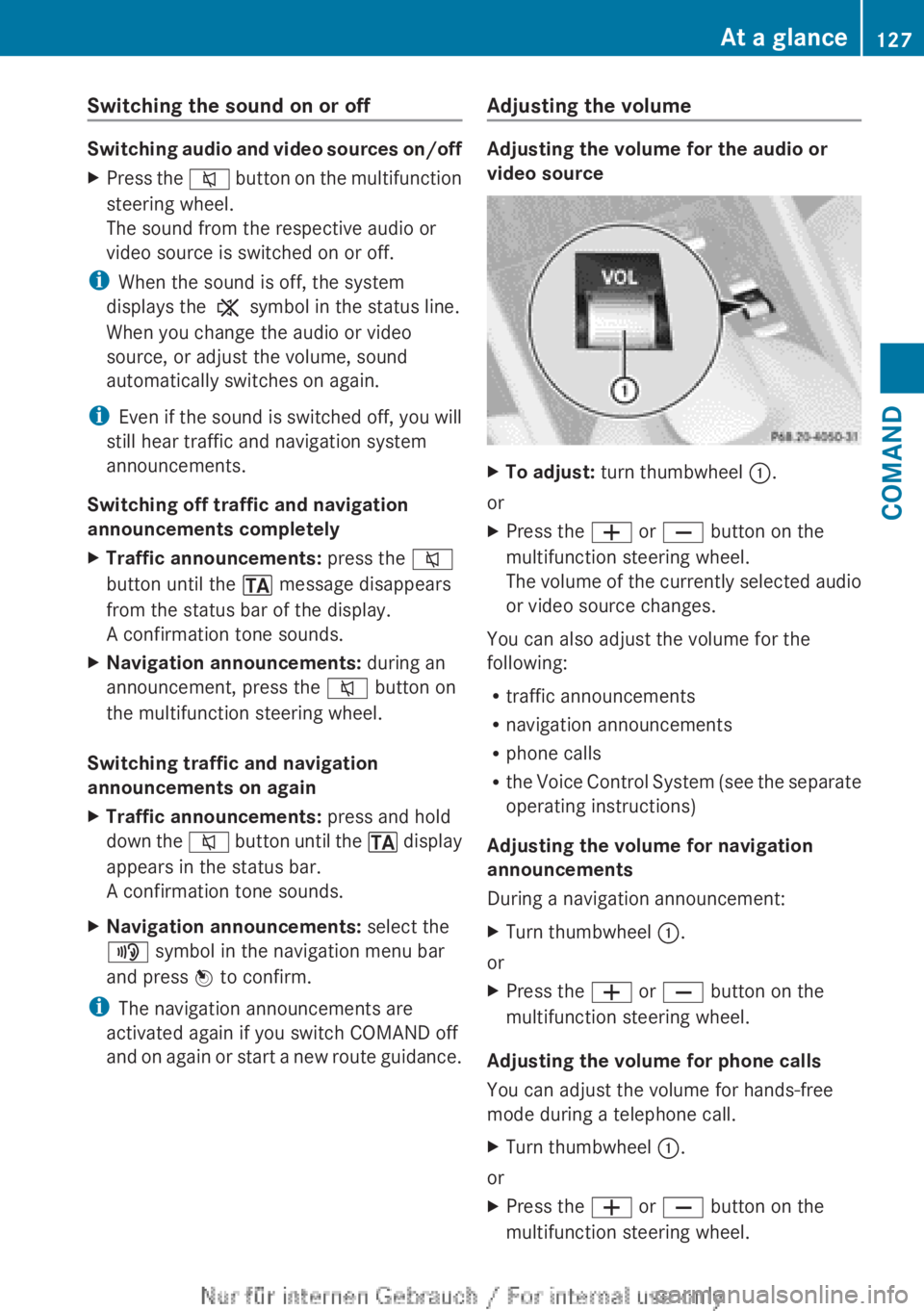
XTo adjust: turn thumbwheel :.
or
XPress the W or X button on the
multifunction steering wheel.
The volume of the currently selected audio
or video source changes.
You can also adjust the volume for the
following:
R traffic announcements
R navigation announcements
R phone calls
R the Voice Control System (see the separate
operating instructions)
Adjusting the volume for navigation
announcements
During a navigation announcement:
XTurn thumbwheel :.
or
XPress the W or X button on the
multifunction steering wheel.
Adjusting the volume for phone calls
You can adjust the volume for hands-free
mode during a telephone call.
XTurn thumbwheel :.
or
XPress the W or X button on the
multifunction steering wheel.At a glance127COMANDZ
Page 130 of 496
Adjusting the sound settings
Calling up the sound menu
You can make various sound settings for the
different audio and video sources. This means
that it is possible to set more bass for radio
mode than for audio CD mode, for example.
You can call up the respective sound menu
from the menu of the desired mode.
The example describes how to call up the
sound menu in radio mode.
XPress the R function button.
The radio display appears. You will hear the
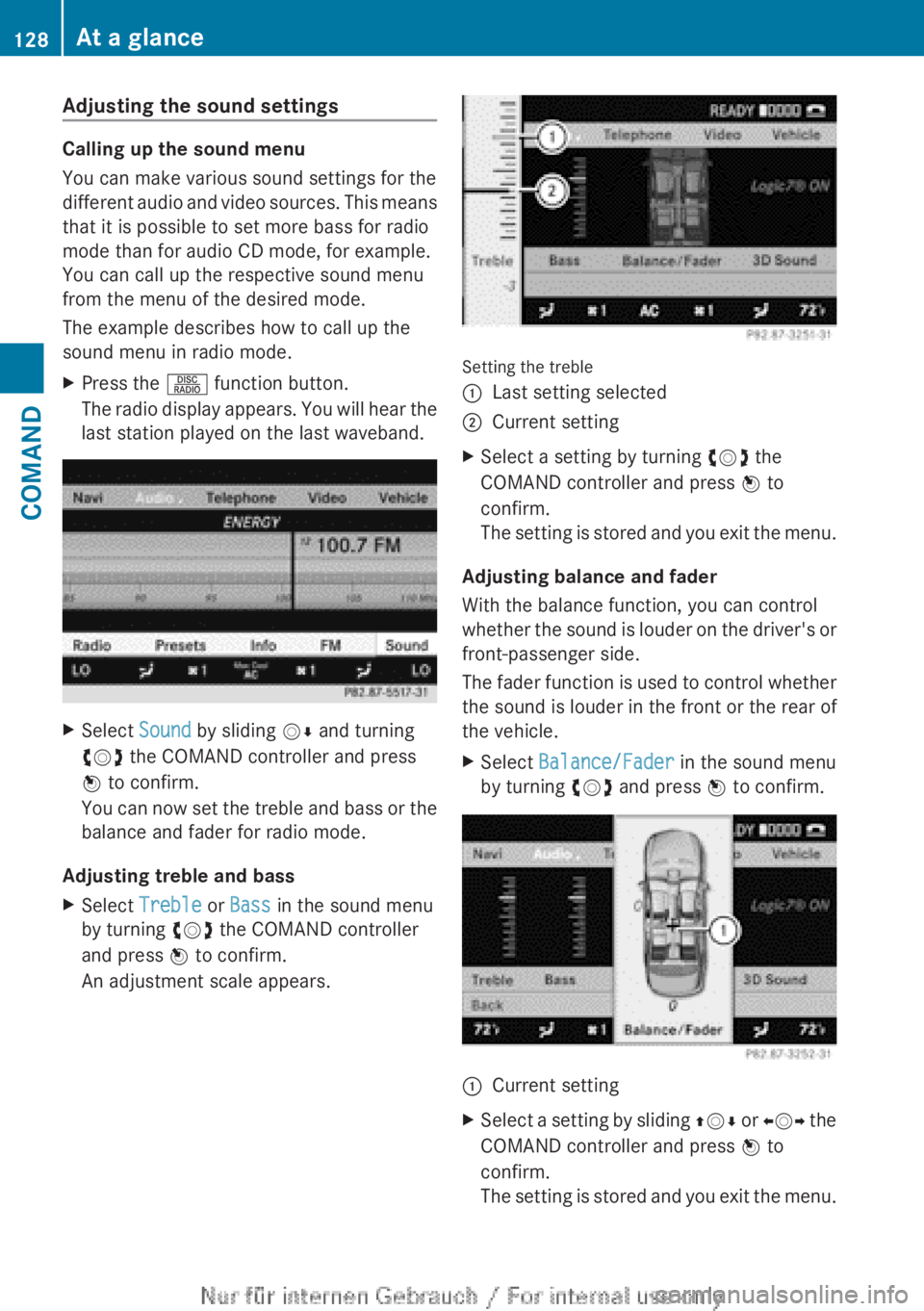
last station played on the last waveband.XSelect Sound by sliding VÆ and turning
cVd the COMAND controller and press
W to confirm.
You can now set the treble and bass or the
balance and fader for radio mode.
Adjusting treble and bass
XSelect Treble or Bass in the sound menu
by turning cVd the COMAND controller
and press W to confirm.
An adjustment scale appears.
Setting the treble
:Last setting selected;Current settingXSelect a setting by turning cVd the
COMAND controller and press W to
confirm.
The setting is stored and you exit the menu.
Adjusting balance and fader
With the balance function, you can control
whether the sound is louder on the driver's or
front-passenger side.
The fader function is used to control whether
the sound is louder in the front or the rear of
the vehicle.
XSelect Balance/Fader in the sound menu
by turning cVd and press W to confirm.:Current settingXSelect a setting by sliding ZVÆ or XVY the
COMAND controller and press W to
confirm.
The setting is stored and you exit the menu.128At a glanceCOMAND
Page 131 of 496
Surround sound
General information
If your vehicle is equipped with the harman/
kardon ®
Logic 7 ®
surround sound system,
you can provide the optimum sound
experience for every passenger.
The harman/kardon ®
Logic7 ®
surround
sound system is available for the following
operating modes:
R radio (FM only)
R satellite radio
R audio CD
R audio DVD (MLP™, dts™, PCM and
Dolby ®
Digital audio formats)
R MP3
R Media Interface
R video DVD (PCM, dts™ and Dolby ®
Digital
audio formats)
R AUX
Because some DVDs contain both stereo and
multichannel audio formats, it may be
necessary to set the audio format
( Y page 216).
i The Logic7 ®
ON function enables
playback of stereo recordings, for instance,
with a surround sound experience for every
passenger. It enables optimum playback of
music and films on CDs, audio DVDs or
video DVDs with multichannel audio
formats, such as MLP™, dts™ or Dolby ®
Digital. This results in sound
characteristics like those intended by the
sound engineer when the original was
recorded.
i If you select Logic7®
OFF , the sound
system plays all playable formats as stored
on the medium. Due to the design of the
passenger compartment, an optimum
audio experience cannot be guaranteed for
all passengers.
i Discs which support the audio formats
mentioned have the following logos:
Dolby ®
Digital
dts™
Switching surround sound on/off
Example: switching on surround sound for
radio mode
XPress the R function button.
The radio display appears. You will hear the
last station played on the last waveband.XSelect Sound by sliding VÆ and turning
cVd the COMAND controller and press
W to confirm.XSelect 3D Sound and press W to confirm.At a glance129COMANDZ
Page 132 of 496
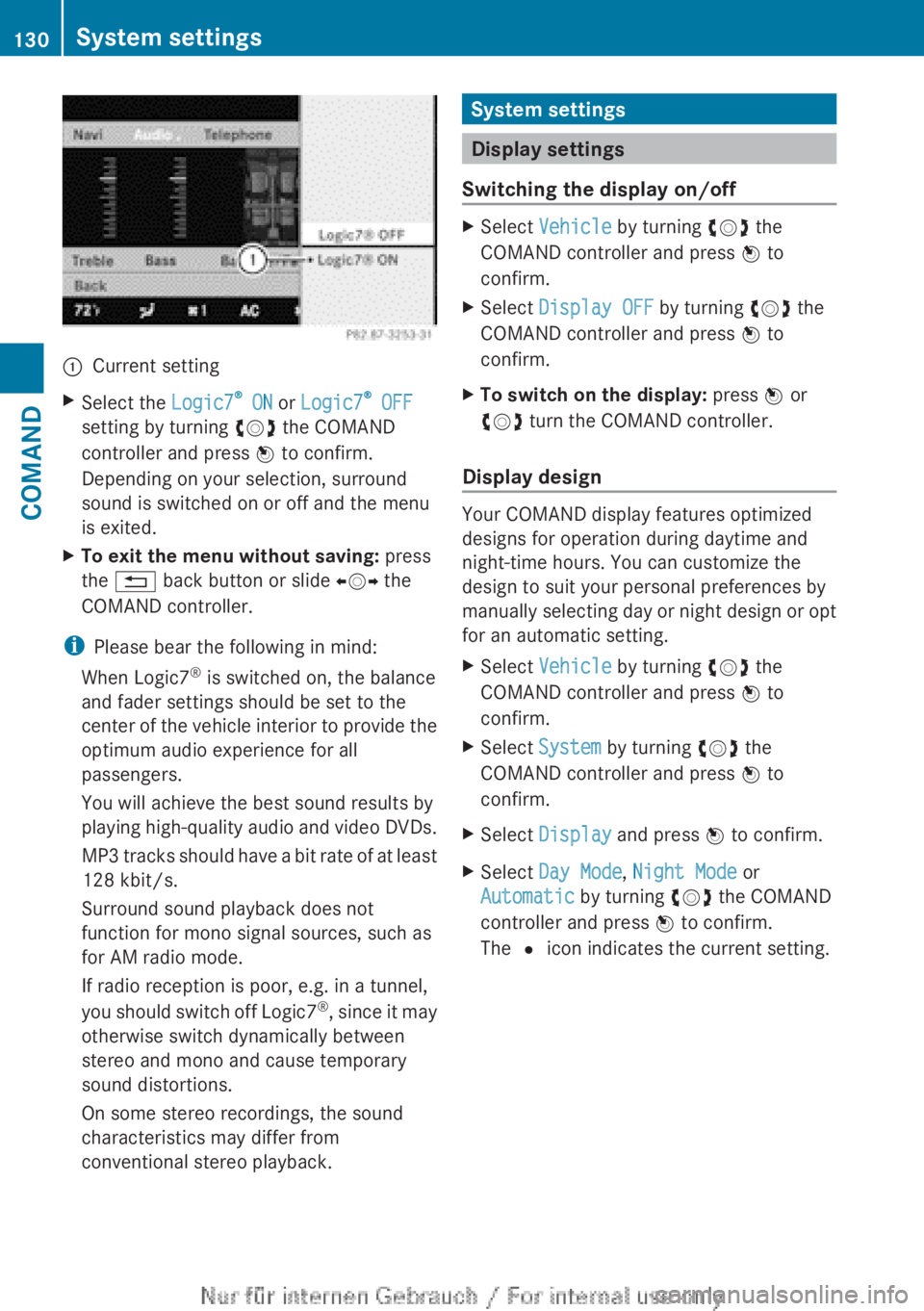
:Current settingXSelect the Logic7®
ON or Logic7 ®
OFF
setting by turning cVd the COMAND
controller and press W to confirm.
Depending on your selection, surround
sound is switched on or off and the menu
is exited.XTo exit the menu without saving: press
the % back button or slide XVY the
COMAND controller.
i Please bear the following in mind:
When Logic7 ®
is switched on, the balance
and fader settings should be set to the
center of the vehicle interior to provide the
optimum audio experience for all
passengers.
You will achieve the best sound results by
playing high-quality audio and video DVDs.
MP3 tracks should have a bit rate of at least
128 kbit/s.
Surround sound playback does not
function for mono signal sources, such as
for AM radio mode.
If radio reception is poor, e.g. in a tunnel,
you should switch off Logic7®
, since it may
otherwise switch dynamically between
stereo and mono and cause temporary
sound distortions.
On some stereo recordings, the sound
characteristics may differ from
conventional stereo playback.
System settings
Display settings
Switching the display on/off
XSelect Vehicle by turning cVd the
COMAND controller and press W to
confirm.XSelect Display OFF by turning cVd the
COMAND controller and press W to
confirm.XTo switch on the display: press W or
cVd turn the COMAND controller.
Display design
Your COMAND display features optimized
designs for operation during daytime and
night-time hours. You can customize the
design to suit your personal preferences by
manually selecting day or night design or opt
for an automatic setting.
XSelect Vehicle by turning cVd the
COMAND controller and press W to
confirm.XSelect System by turning cVd the
COMAND controller and press W to
confirm.XSelect Display and press W to confirm.XSelect Day Mode , Night Mode or
Automatic by turning cVd the COMAND
controller and press W to confirm.
The # icon indicates the current setting.130System settingsCOMAND
Page 160 of 496
XSelect Cancel Route Guidance and press
W to confirm.
Continuing route guidance
XTo activate navigation mode: press the
S function button once or twice.XTo show the menu: press W the COMAND
controller.XSelect Destination in the navigation
system menu bar by turning cVd the
COMAND controller and press W to
confirm.XSelect Continue Route Guidance and
press W to confirm.
COMAND calculates the route.
Destination or area of destination
reached
When you reach your destination, COMAND
displays a checkered flag and route guidance
is automatically ended.
For certain points of interest (e.g. airports),
the Destination Reached display is shown
as well as the checkered flag.
Navigation announcements
Repeating navigation announcements
GWARNING
Navigation announcements are intended to
direct you while driving without diverting your
attention from the road and driving.
Please always use this feature instead of
consulting the map display for directions.
Looking at the icons or map display can
distract you from traffic conditions and
driving, and increase the risk of an accident.
i Audible navigation announcements are
muted during a telephone call.
If you have missed an announcement, you can
call up the current announcement at any
time.
XTo show the menu: press W the COMAND
controller.XIn the navigation menu bar, confirm RPT
with W.
Switching navigation announcements
on/off
XTo switch off: during the announcement,
press the 8 button on the multifunction
steering wheel.
You will briefly see the message: The
driving instructions have been
muted .XTo switch on: press W the COMAND
controller.XIn the + navigation menu bar, press W
to confirm.
i COMAND automatically switches the
navigation announcements back on when:
R you have a new route calculated.
R you start the engine again after having
left the vehicle.
Reducing volume during a navigation
announcement
The volume of an active audio or video source
can be automatically reduced during a
navigation announcement.
XSelect Navi in the main function bar by
sliding ZV and turning cVd the COMAND
controller and press W to confirm.XSelect Audio Fadeout and press W to
confirm.
The function is switched on O or off ª,
depending on the previous status.
Setting the volume manually
XSet the volume during a navigation
announcement.
or
XIn the map display when the menu is
shown, select + and adjust the volume.158NavigationCOMAND
Page 201 of 496
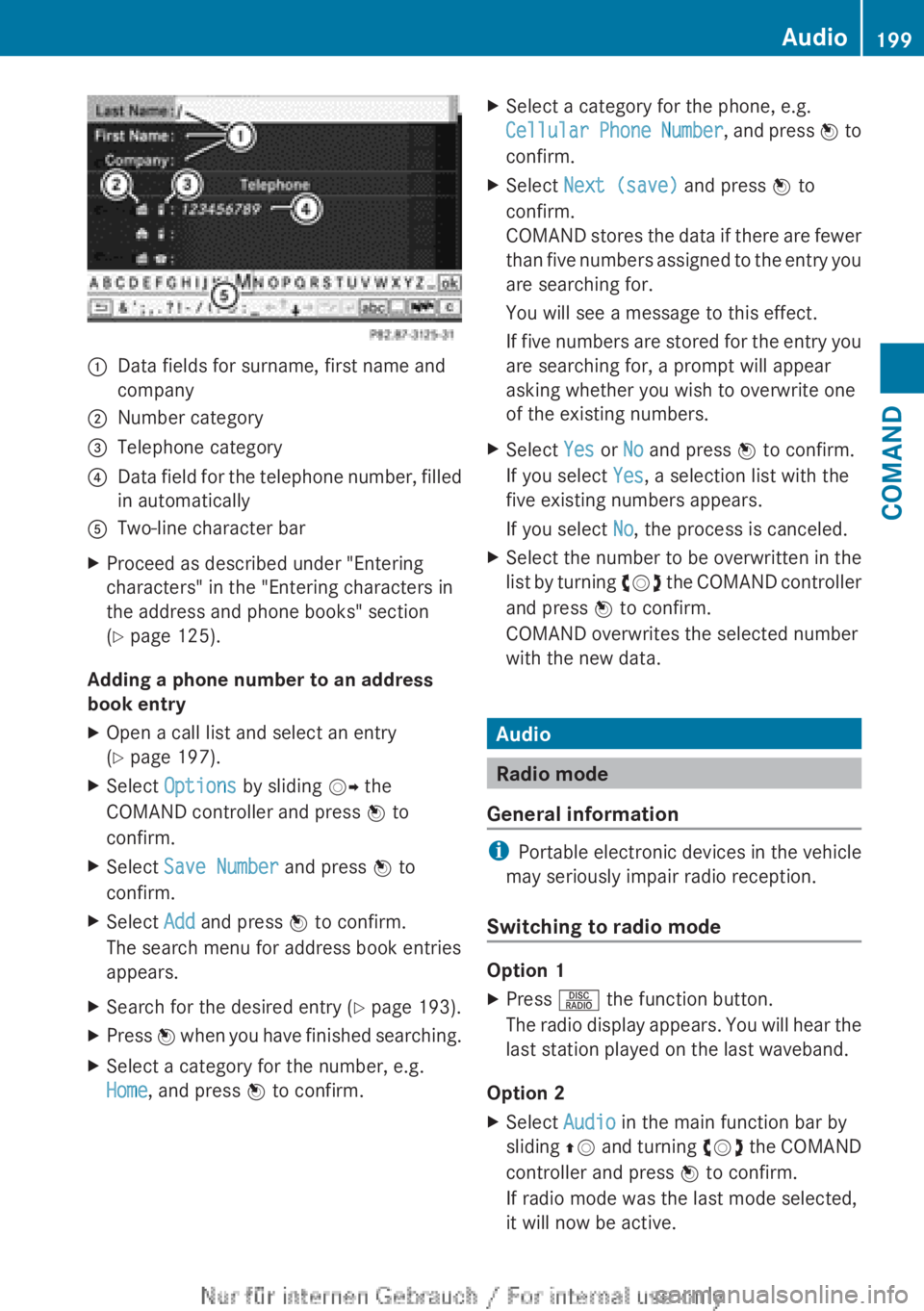
:Data fields for surname, first name and
company;Number category=Telephone category?Data field for the telephone number, filled
in automaticallyATwo-line character barXProceed as described under "Entering
characters" in the "Entering characters in
the address and phone books" section
( Y page 125).
Adding a phone number to an address
book entry
XOpen a call list and select an entry
( Y page 197).XSelect Options by sliding VY the
COMAND controller and press W to
confirm.XSelect Save Number and press W to
confirm.XSelect Add and press W to confirm.
The search menu for address book entries
appears.XSearch for the desired entry ( Y page 193).XPress W when you have finished searching.XSelect a category for the number, e.g.
Home , and press W to confirm.XSelect a category for the phone, e.g.
Cellular Phone Number , and press W to
confirm.XSelect Next (save) and press W to
confirm.
COMAND stores the data if there are fewer
than five numbers assigned to the entry you
are searching for.
You will see a message to this effect.
If five numbers are stored for the entry you
are searching for, a prompt will appear
asking whether you wish to overwrite one
of the existing numbers.XSelect Yes or No and press W to confirm.
If you select Yes, a selection list with the
five existing numbers appears.
If you select No, the process is canceled.XSelect the number to be overwritten in the
list by turning cVd the COMAND controller
and press W to confirm.
COMAND overwrites the selected number
with the new data.
Audio
Radio mode
General information
i Portable electronic devices in the vehicle
may seriously impair radio reception.
Switching to radio mode
Option 1
XPress R the function button.
The radio display appears. You will hear the
last station played on the last waveband.
Option 2
XSelect Audio in the main function bar by
sliding ZV and turning cVd the COMAND
controller and press W to confirm.
If radio mode was the last mode selected,
it will now be active.Audio199COMANDZ
Page 202 of 496
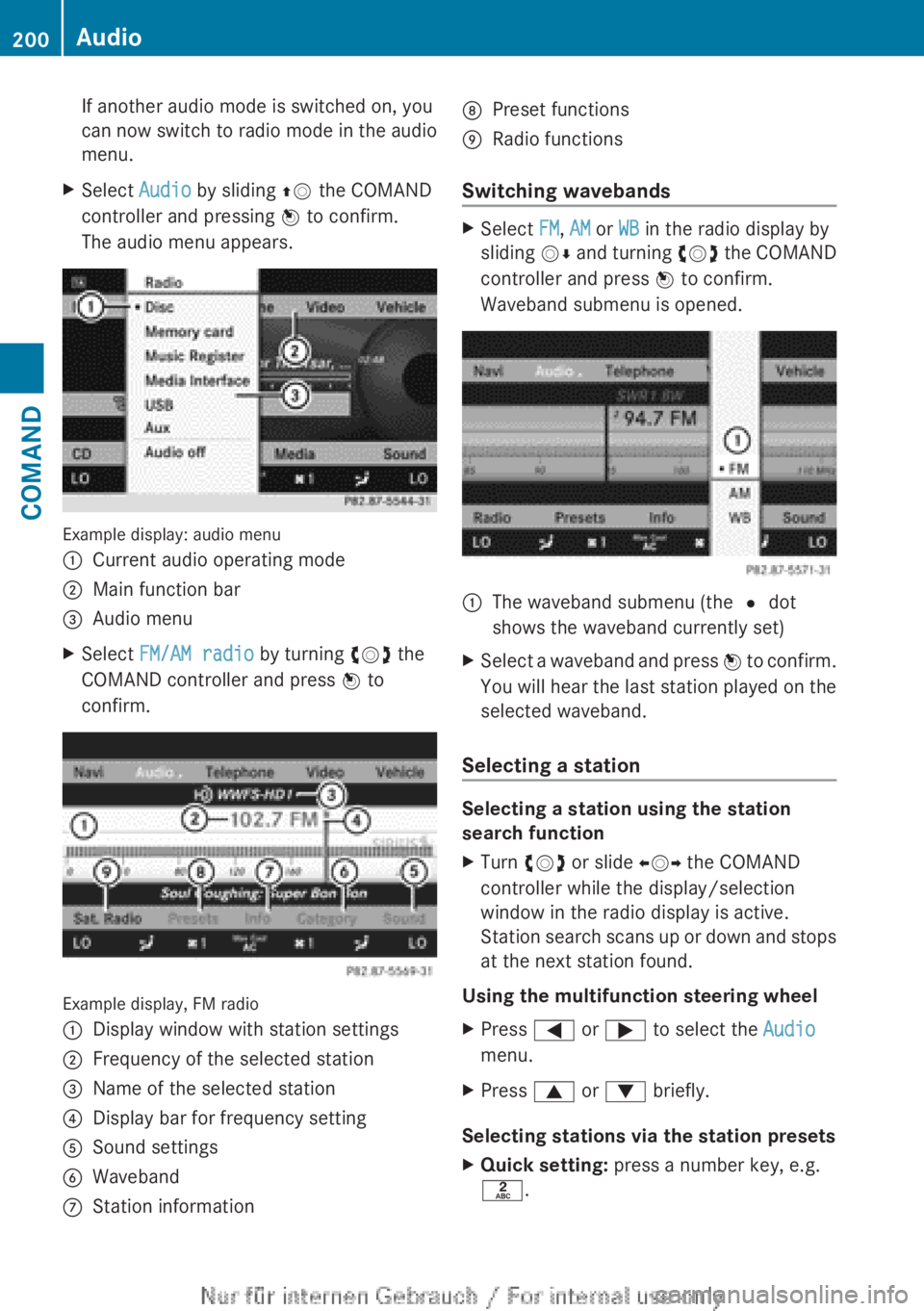
If another audio mode is switched on, you
can now switch to radio mode in the audio
menu.XSelect Audio by sliding ZV the COMAND
controller and pressing W to confirm.
The audio menu appears.
Example display: audio menu
:Current audio operating mode;Main function bar=Audio menuXSelect FM/AM radio by turning cVd the
COMAND controller and press W to
confirm.
Example display, FM radio
:Display window with station settings;Frequency of the selected station=Name of the selected station?Display bar for frequency settingASound settingsBWavebandCStation informationDPreset functionsERadio functions
Switching wavebands
XSelect FM, AM or WB in the radio display by
sliding VÆ and turning cVd the COMAND
controller and press W to confirm.
Waveband submenu is opened.1The waveband submenu (the # dot
shows the waveband currently set)XSelect a waveband and press W to confirm.
You will hear the last station played on the
selected waveband.
Selecting a station
Selecting a station using the station
search function
XTurn cVd or slide XVY the COMAND
controller while the display/selection
window in the radio display is active.
Station search scans up or down and stops
at the next station found.
Using the multifunction steering wheel
XPress = or ; to select the Audio
menu.XPress 9 or : briefly.
Selecting stations via the station presets
XQuick setting: press a number key, e.g.
l .200AudioCOMAND
Page 203 of 496
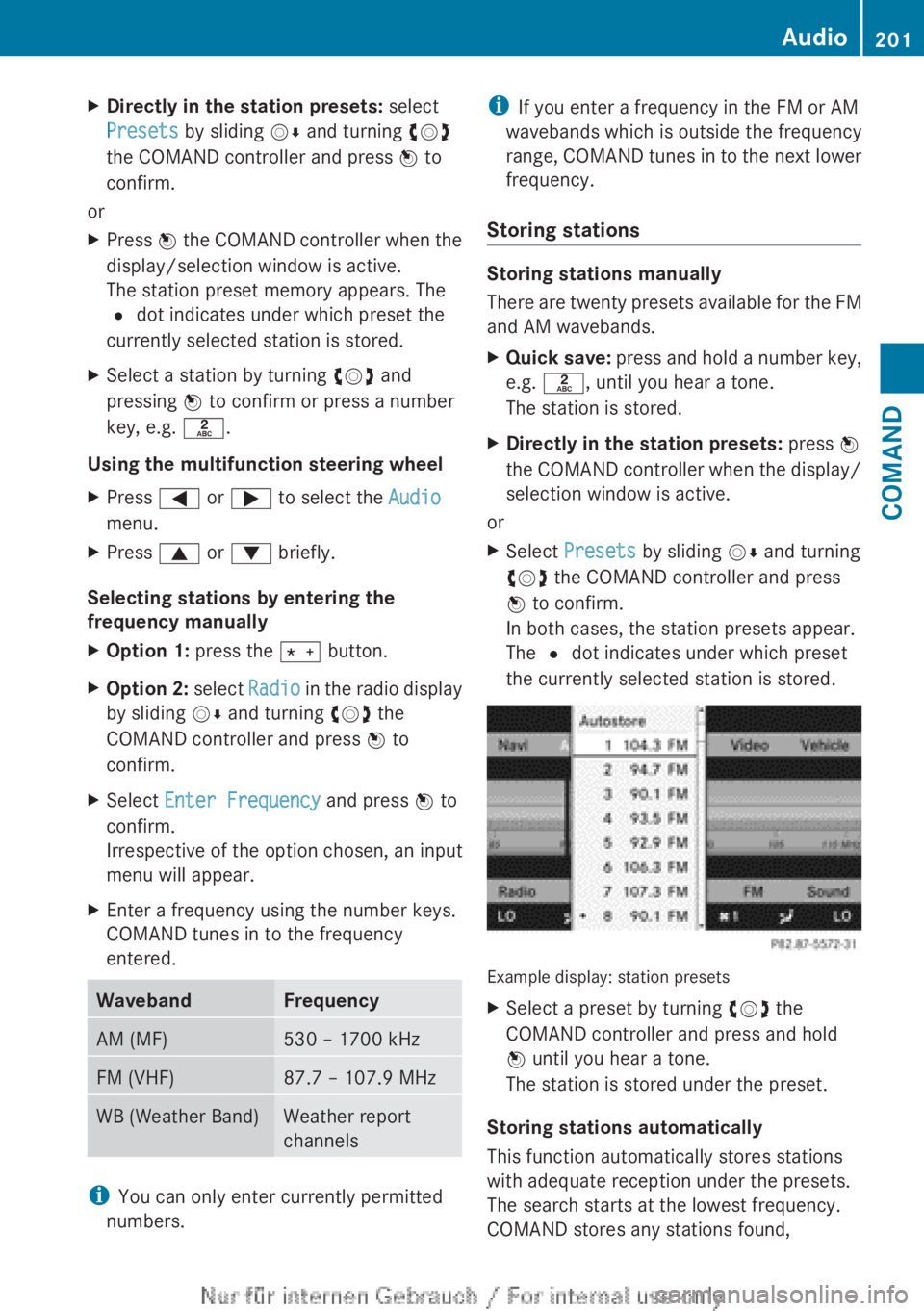
XDirectly in the station presets: select
Presets by sliding VÆ and turning cVd
the COMAND controller and press W to
confirm.
or
XPress W the COMAND controller when the
display/selection window is active.
The station preset memory appears. The
# dot indicates under which preset the
currently selected station is stored.XSelect a station by turning cVd and
pressing W to confirm or press a number
key, e.g. l.
Using the multifunction steering wheel
XPress = or ; to select the Audio
menu.XPress 9 or : briefly.
Selecting stations by entering the
frequency manually
XOption 1: press the Ä button.XOption 2: select Radio in the radio display
by sliding VÆ and turning cVd the
COMAND controller and press W to
confirm.XSelect Enter Frequency and press W to
confirm.
Irrespective of the option chosen, an input
menu will appear.XEnter a frequency using the number keys.
COMAND tunes in to the frequency
entered.WavebandFrequencyAM (MF)530 – 1700 kHzFM (VHF)87.7 – 107.9 MHzWB (Weather Band)Weather report
channels
i You can only enter currently permitted
numbers.
i If you enter a frequency in the FM or AM
wavebands which is outside the frequency
range, COMAND tunes in to the next lower
frequency.
Storing stations
Storing stations manually
There are twenty presets available for the FM
and AM wavebands.
XQuick save: press and hold a number key,
e.g. l , until you hear a tone.
The station is stored.XDirectly in the station presets: press W
the COMAND controller when the display/
selection window is active.
or
XSelect Presets by sliding VÆ and turning
cVd the COMAND controller and press
W to confirm.
In both cases, the station presets appear.
The # dot indicates under which preset
the currently selected station is stored.
Example display: station presets
XSelect a preset by turning cVd the
COMAND controller and press and hold
W until you hear a tone.
The station is stored under the preset.
Storing stations automatically
This function automatically stores stations
with adequate reception under the presets.
The search starts at the lowest frequency.
COMAND stores any stations found,
Audio201COMANDZ