light MERCEDES-BENZ CL CLASS 2013 Workshop Manual
[x] Cancel search | Manufacturer: MERCEDES-BENZ, Model Year: 2013, Model line: CL CLASS, Model: MERCEDES-BENZ CL CLASS 2013Pages: 496, PDF Size: 7.5 MB
Page 121 of 496
Avoid using alcoholic thinners, gasoline or
abrasive cleaning agents. These could
damage the display surface. Do not apply
pressure to the display surface when cleaning
it, as this could cause irreversible damage.
Remote control
Overview
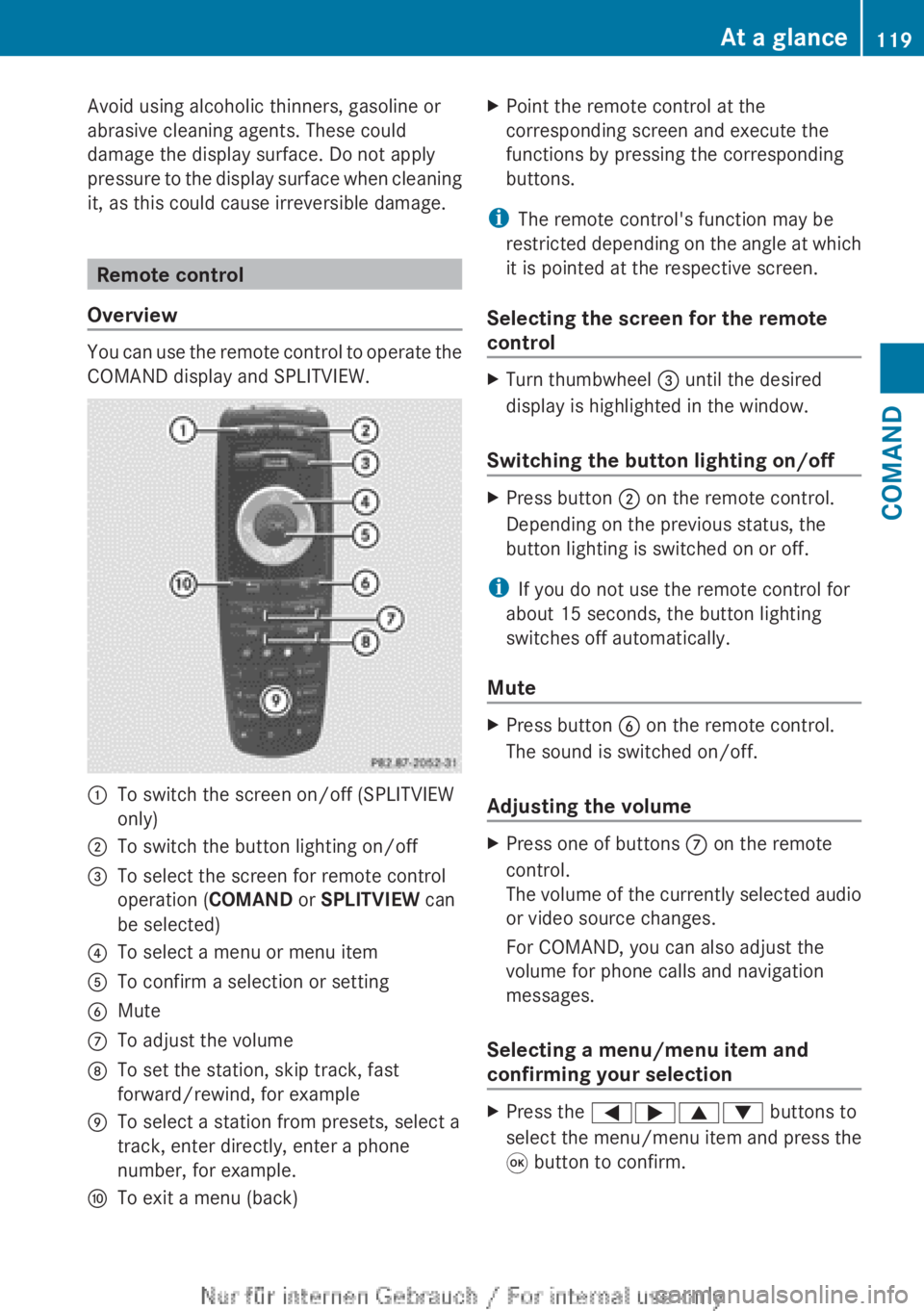
You can use the remote control to operate the
COMAND display and SPLITVIEW.
:To switch the screen on/off (SPLITVIEW
only);To switch the button lighting on/off=To select the screen for remote control
operation ( COMAND or SPLITVIEW can
be selected)?To select a menu or menu itemATo confirm a selection or settingBMuteCTo adjust the volumeDTo set the station, skip track, fast
forward/rewind, for exampleETo select a station from presets, select a
track, enter directly, enter a phone
number, for example.FTo exit a menu (back)XPoint the remote control at the
corresponding screen and execute the
functions by pressing the corresponding
buttons.
i The remote control's function may be
restricted depending on the angle at which
it is pointed at the respective screen.
Selecting the screen for the remote
control
XTurn thumbwheel = until the desired
display is highlighted in the window.
Switching the button lighting on/off
XPress button ; on the remote control.
Depending on the previous status, the
button lighting is switched on or off.
i If you do not use the remote control for
about 15 seconds, the button lighting
switches off automatically.
Mute
XPress button B on the remote control.
The sound is switched on/off.
Adjusting the volume
XPress one of buttons C on the remote
control.
The volume of the currently selected audio
or video source changes.
For COMAND, you can also adjust the
volume for phone calls and navigation
messages.
Selecting a menu/menu item and
confirming your selection
XPress the =;9: buttons to
select the menu/menu item and press the
9 button to confirm.At a glance119COMANDZ
Page 125 of 496
You can enter the characters using either the
character bar or the number keypad. In the
selection list, you select an entry to copy it to
the address entry menu.
Option 1: city list with character barXCall up the city list with character bar
( Y page 140).
The alphabetically sorted city list shows the
first available entries.
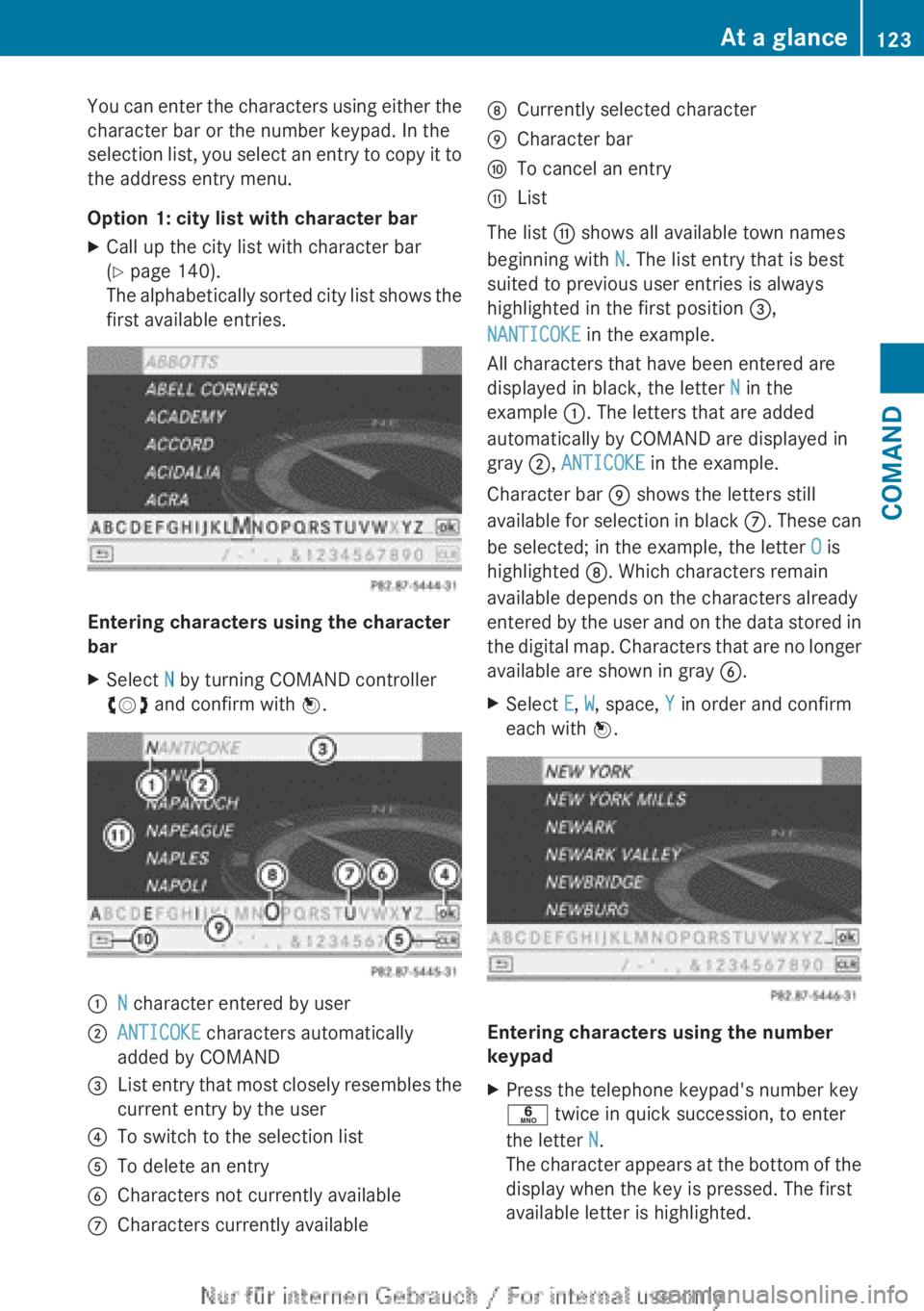
Entering characters using the character
bar
XSelect N by turning COMAND controller
cVd and confirm with W.:N character entered by user;ANTICOKE characters automatically
added by COMAND=List entry that most closely resembles the
current entry by the user?To switch to the selection listATo delete an entryBCharacters not currently availableCCharacters currently availableDCurrently selected characterECharacter barFTo cancel an entryGList
The list G shows all available town names
beginning with N. The list entry that is best
suited to previous user entries is always
highlighted in the first position =,
NANTICOKE in the example.
All characters that have been entered are
displayed in black, the letter N in the
example :. The letters that are added
automatically by COMAND are displayed in
gray ;, ANTICOKE in the example.
Character bar E shows the letters still
available for selection in black C. These can
be selected; in the example, the letter O is
highlighted D. Which characters remain
available depends on the characters already
entered by the user and on the data stored in
the digital map. Characters that are no longer
available are shown in gray B.
XSelect E, W , space, Y in order and confirm
each with W.
Entering characters using the number
keypad
XPress the telephone keypad's number key
p twice in quick succession, to enter
the letter N.
The character appears at the bottom of the
display when the key is pressed. The first
available letter is highlighted.At a glance123COMANDZ
Page 126 of 496
You see which characters you can enter with
that key. Each time the key is pressed, the
next character is selected.
Example: key p:
R press once = M
R press twice = N
R press three times = OXWait until the character display goes out.
The entries matching your input are shown
in the list.XEnter E, W , space, Y with the corresponding
keys.
i The space is entered using number key
9 .
Further functions in the list with
character bar
XTo delete characters: select F by sliding
V Æ and turning cVd the COMAND
controller and press W to confirm.XTo delete an entry: select F and press
and hold W the COMAND controller until
the entire entry has been deleted.XTo switch the character set: select
B and press W to confirm.XTo cancel an entry: select the & symbol
in the bottom left of the character bar and
press W to confirm.
or
XPress the % back button.
The address entry menu appears.XTo accept the first list entry: press and
hold W the COMAND controller until the
address entry menu appears.
The accepted list entry is shown there.
Calling up the list as a selection list
Select the desired city from the selection list.
If there are several entries for a city or if
several cities of the same name are stored,
then ¬ is highlighted in the character bar.
XPress W the COMAND controller.It is also possible to switch the city list to the
selection list at any time during character
input.XSlide W the COMAND controller
repeatedly until the city list appears as a
selection list.
or
XSelect ¬ in the character bar by turning
cVd the COMAND controller and press
W to confirm.
Option 2: city list as selection list
COMAND either shows the selection list
automatically or you can call up the selection
list from the list with character bar.
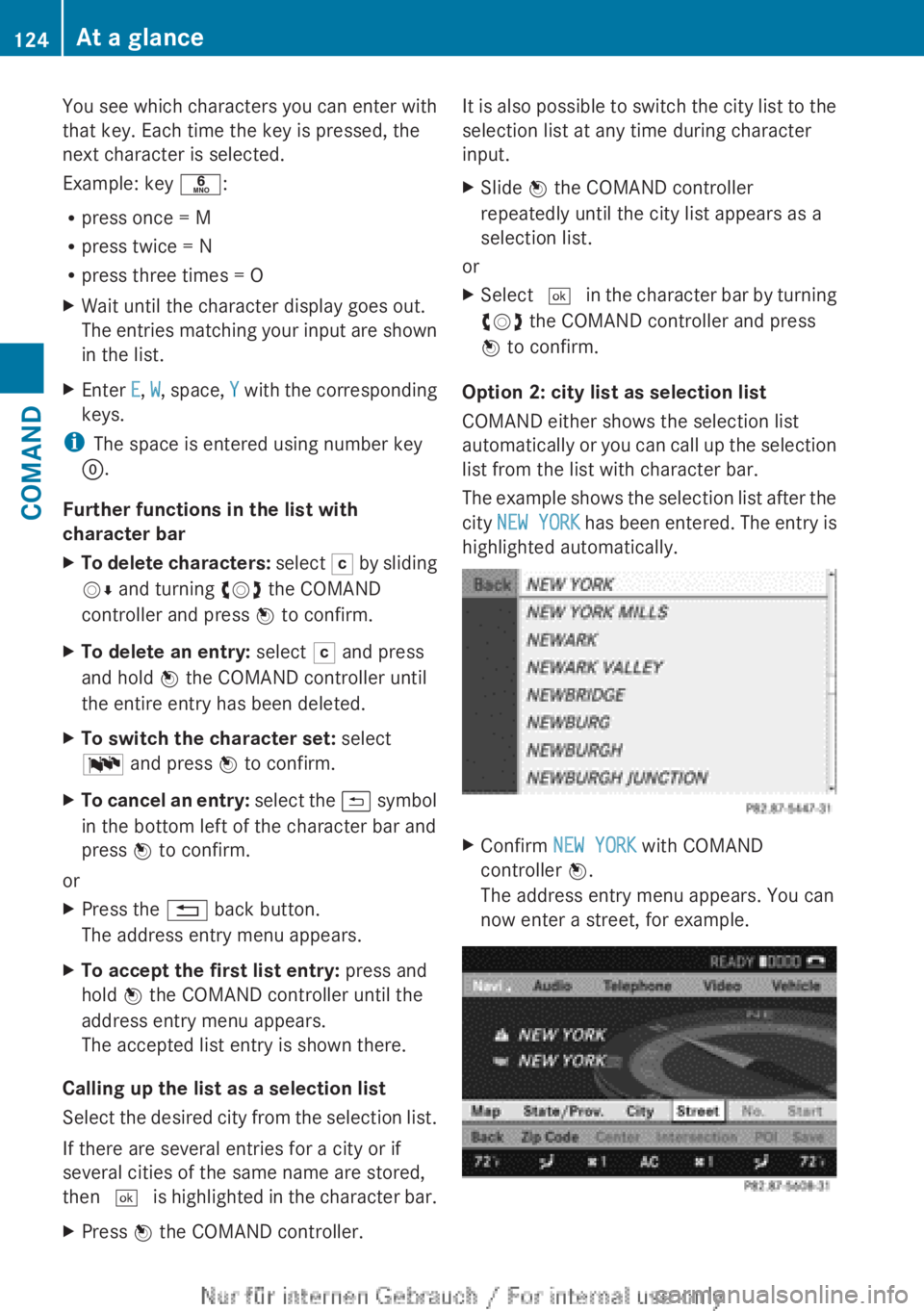
The example shows the selection list after the
city NEW YORK has been entered. The entry is
highlighted automatically.
XConfirm NEW YORK with COMAND
controller W.
The address entry menu appears. You can
now enter a street, for example.124At a glanceCOMAND
Page 133 of 496
DesignExplanationDay ModeThe display is set
permanently to day
design.Night ModeThe display is set
permanently to night
design.AutomaticThe display design
changes depending on
the brightness around
the vehicle.
i In the Automatic setting, COMAND
evaluates the readings from the automatic
vehicle light sensor and switches between
the display designs automatically.
Time settings
General information
If COMAND is equipped with a navigation
system and has GPS reception, COMAND
automatically sets the time and date. You can
also adjust the time yourself in 30-minute
increments, but the date cannot be changed.
i If you set the time in 30-minute
increments, any time zone settings and
settings for changing between summer and
standard time are lost ( Y page 132).
i The following navigation system functions
require the time, time zone and summer/
standard time to be set correctly in order
to work properly:
R route guidance on routes with time-
dependent traffic guidance
R calculation of expected time of arrival
Setting the timeXSelect Vehicle in the main function bar by
turning cVd the COMAND controller and
press W to confirm.XSelect System by turning cVd the
COMAND controller and press W to
confirm.XSelect Time by turning cVd the COMAND
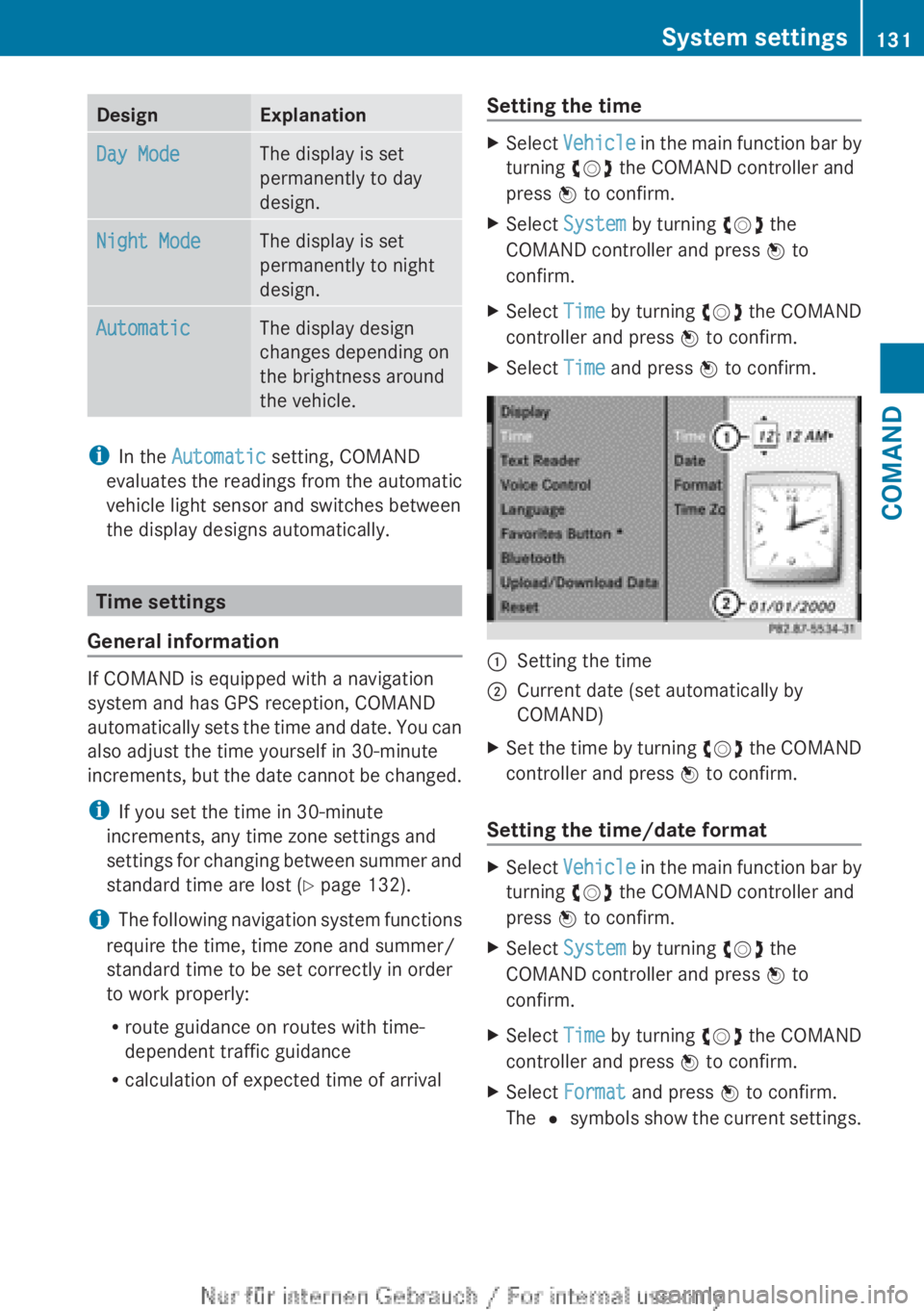
controller and press W to confirm.XSelect Time and press W to confirm.:Setting the time;Current date (set automatically by
COMAND)XSet the time by turning cVd the COMAND
controller and press W to confirm.
Setting the time/date format
XSelect Vehicle in the main function bar by
turning cVd the COMAND controller and
press W to confirm.XSelect System by turning cVd the
COMAND controller and press W to
confirm.XSelect Time by turning cVd the COMAND
controller and press W to confirm.XSelect Format and press W to confirm.
The # symbols show the current settings.System settings131COMANDZ
Page 134 of 496
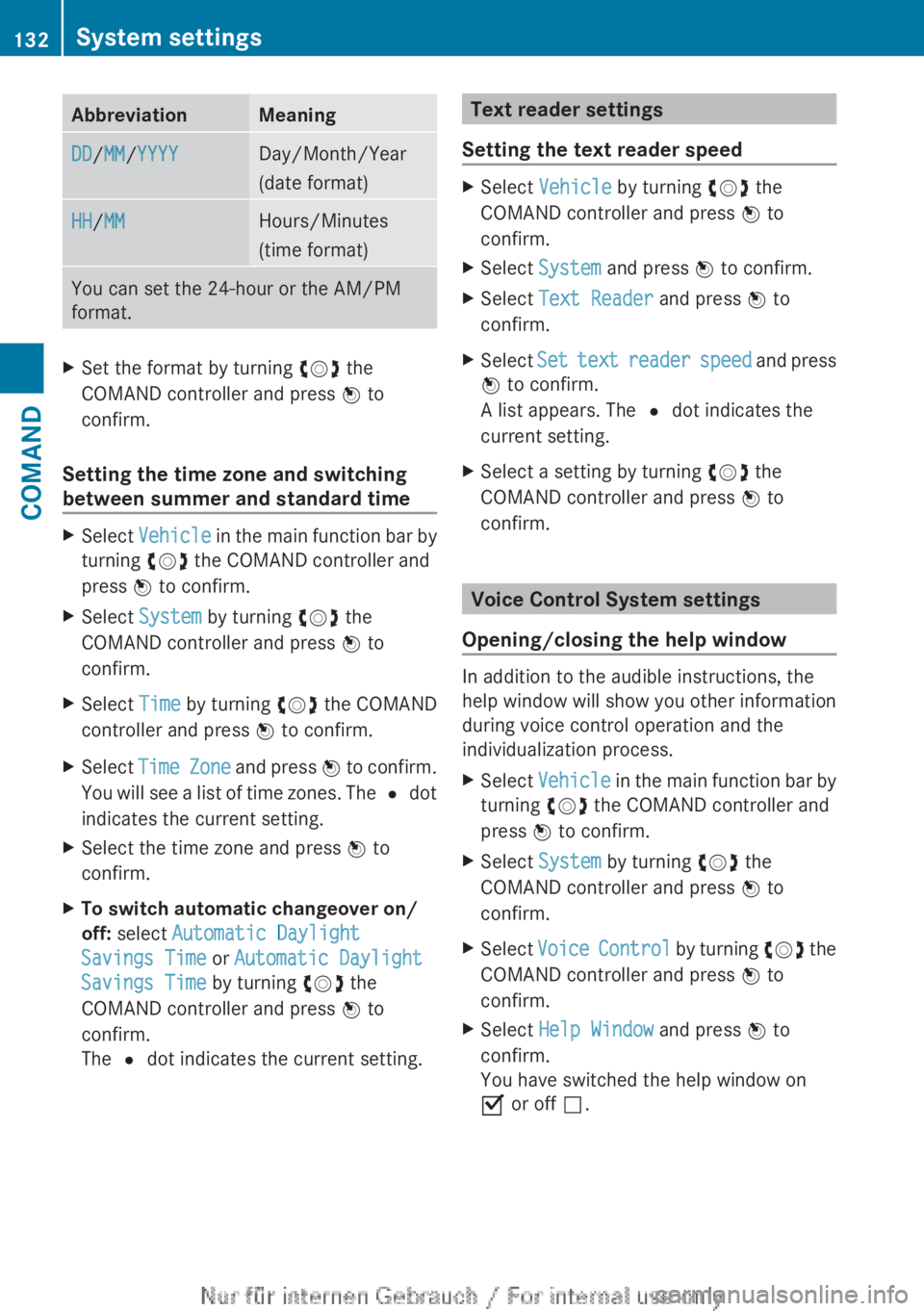
AbbreviationMeaningDD/MM /YYYYDay/Month/Year
(date format)HH /MMHours/Minutes
(time format)You can set the 24-hour or the AM/PM
format.XSet the format by turning cVd the
COMAND controller and press W to
confirm.
Setting the time zone and switching
between summer and standard time
XSelect Vehicle in the main function bar by
turning cVd the COMAND controller and
press W to confirm.XSelect System by turning cVd the
COMAND controller and press W to
confirm.XSelect Time by turning cVd the COMAND
controller and press W to confirm.XSelect Time Zone and press W to confirm.
You will see a list of time zones. The # dot
indicates the current setting.XSelect the time zone and press W to
confirm.XTo switch automatic changeover on/
off: select Automatic Daylight
Savings Time or Automatic Daylight
Savings Time by turning cVd the
COMAND controller and press W to
confirm.
The # dot indicates the current setting.Text reader settings
Setting the text reader speedXSelect Vehicle by turning cVd the
COMAND controller and press W to
confirm.XSelect System and press W to confirm.XSelect Text Reader and press W to
confirm.XSelect Set text reader speed and press
W to confirm.
A list appears. The # dot indicates the
current setting.XSelect a setting by turning cVd the
COMAND controller and press W to
confirm.
Voice Control System settings
Opening/closing the help window
In addition to the audible instructions, the
help window will show you other information
during voice control operation and the
individualization process.
XSelect Vehicle in the main function bar by
turning cVd the COMAND controller and
press W to confirm.XSelect System by turning cVd the
COMAND controller and press W to
confirm.XSelect Voice Control by turning cVd the
COMAND controller and press W to
confirm.XSelect Help Window and press W to
confirm.
You have switched the help window on
O or off ª.132System settingsCOMAND
Page 140 of 496
Navigation
Introduction
Safety notes
GWARNING
For safety reasons, only enter a destination
when the vehicle is stationary. When the
vehicle is in motion, a passenger should enter
the destination. Study manual and select
route before driving.
Bear in mind that at a speed of just 30 mph
(approximately 50 km/h), your vehicle is
covering a distance of 44 feet (approximately
14 m) every second.
COMAND calculates the route to the
destination without taking account of the
following:
R Traffic lights
R Stop and right-of-way-signs
R Lane merging
R Parking or stopping prohibited areas
R Other road and traffic rules and regulations
R Narrow bridges
GWARNING
COMAND may give incorrect navigation
commands if the data in the digital map does
not correspond with the actual road/traffic
situation. Digital maps do not cover all areas
nor all routes within an area. For example, if
the traffic routing has been changed or the
direction of a one-way road has been
reversed.
For this reason, you must always observe
applicable road and traffic rules and
regulations during your journey. Road and
traffic rules and regulations always have
priority over the navigation commands
generated by the system.
GWARNING
Navigation announcements are intended to
direct you while driving without diverting your
attention from the road and driving.
Please always use this feature instead of
consulting the map display for directions.
Looking at the icons or map display can
distract you from traffic conditions and
driving, and increase the risk of an accident.
General information
Operational readiness of the navigation
system
The navigation system must determine the
position of the vehicle before first use or
whenever operational status is restored.
Therefore, you may have to drive for a while
before precise route guidance is possible.
GPS reception
Correct functioning of the navigation system
depends, amongst other things, on GPS
reception. In certain situations, GPS
reception may be impaired, there may be
interference or there may be no reception at
all, e.g. in tunnels or parking garages.
Entry restriction
On vehicles for certain countries, there is a
restriction on entering data.
The restriction is active from a vehicle speed
of over approximately 3 mph (5 km/h). As
soon as speed falls below approximately
2 mph (3 km/h), the restriction becomes
inactive.
When the restriction is active, certain entries
cannot be made. This will be indicated by the
fact that certain menu items are grayed out
and cannot be selected.
The following functions, for example, may
therefore not be available while the vehicle is
in motion:
R entering the destination city and street
R entering a destination via the map
R entering points of interest in the vicinity of
a city or via a name search
R editing entries
R using the number keypad for direct entry
138NavigationCOMAND
Page 151 of 496
XTo select a category: select a category by
turning cVd the COMAND controller and
pressing W to confirm.
COMAND first searches in the selected
category for destinations along the route.
If there are no destinations available there,
COMAND searches for destinations within
a radius of up to 100 km of the vehicle
position.
If COMAND finds destinations, a list
appears on the right-hand side of the
display. The currently selected point of
interest is highlighted on the left-hand side
of the map.
The intermediate stops are listed according
to increasing distance from the current
vehicle position. They are displayed in the
form of a name and their position in relation
to the route and your direction of travel.
If COMAND does not find any destinations,
you will see a message to this effect.
XConfirm OK by pressing W.XSelect a different category.XSelect the intermediate stop by turning
cVd the COMAND controller and pressing
W to confirm.XTo start route calculation: select Start
and press W to confirm.
Entering another destination as an
intermediate stop
XTo activate navigation mode: press the
S function button once or twice.XTo show the menu: press W the COMAND
controller.XSelect Destination in the navigation
system menu bar by turning cVd the
COMAND controller and pressing W to
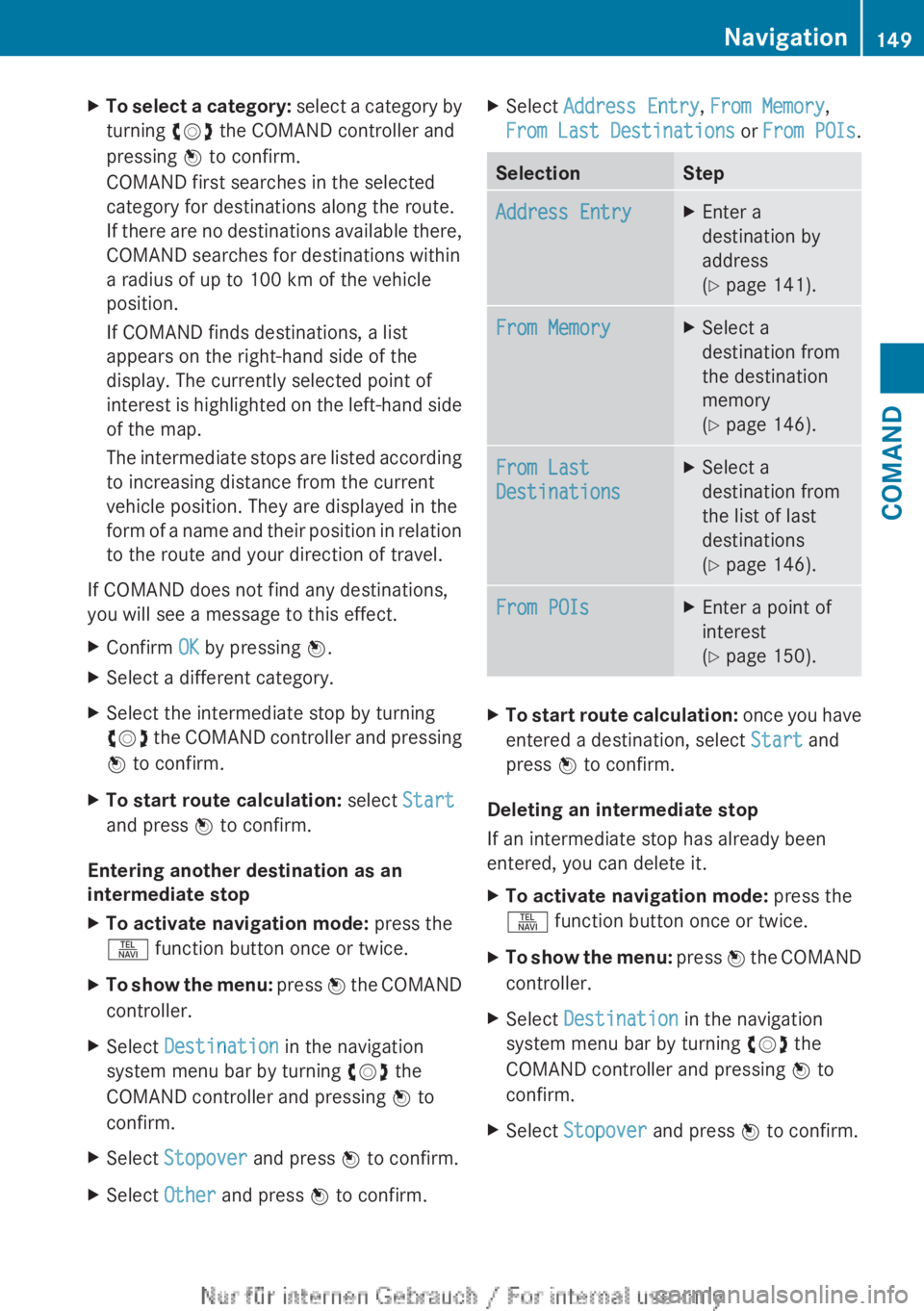
confirm.XSelect Stopover and press W to confirm.XSelect Other and press W to confirm.XSelect Address Entry , From Memory ,
From Last Destinations or From POIs .SelectionStepAddress EntryXEnter a
destination by
address
( Y page 141).From MemoryXSelect a
destination from
the destination
memory
( Y page 146).From Last
DestinationsXSelect a
destination from
the list of last
destinations
( Y page 146).From POIsXEnter a point of
interest
( Y page 150).XTo start route calculation: once you have
entered a destination, select Start and
press W to confirm.
Deleting an intermediate stop
If an intermediate stop has already been
entered, you can delete it.
XTo activate navigation mode: press the
S function button once or twice.XTo show the menu: press W the COMAND
controller.XSelect Destination in the navigation
system menu bar by turning cVd the
COMAND controller and pressing W to
confirm.XSelect Stopover and press W to confirm.Navigation149COMANDZ
Page 155 of 496
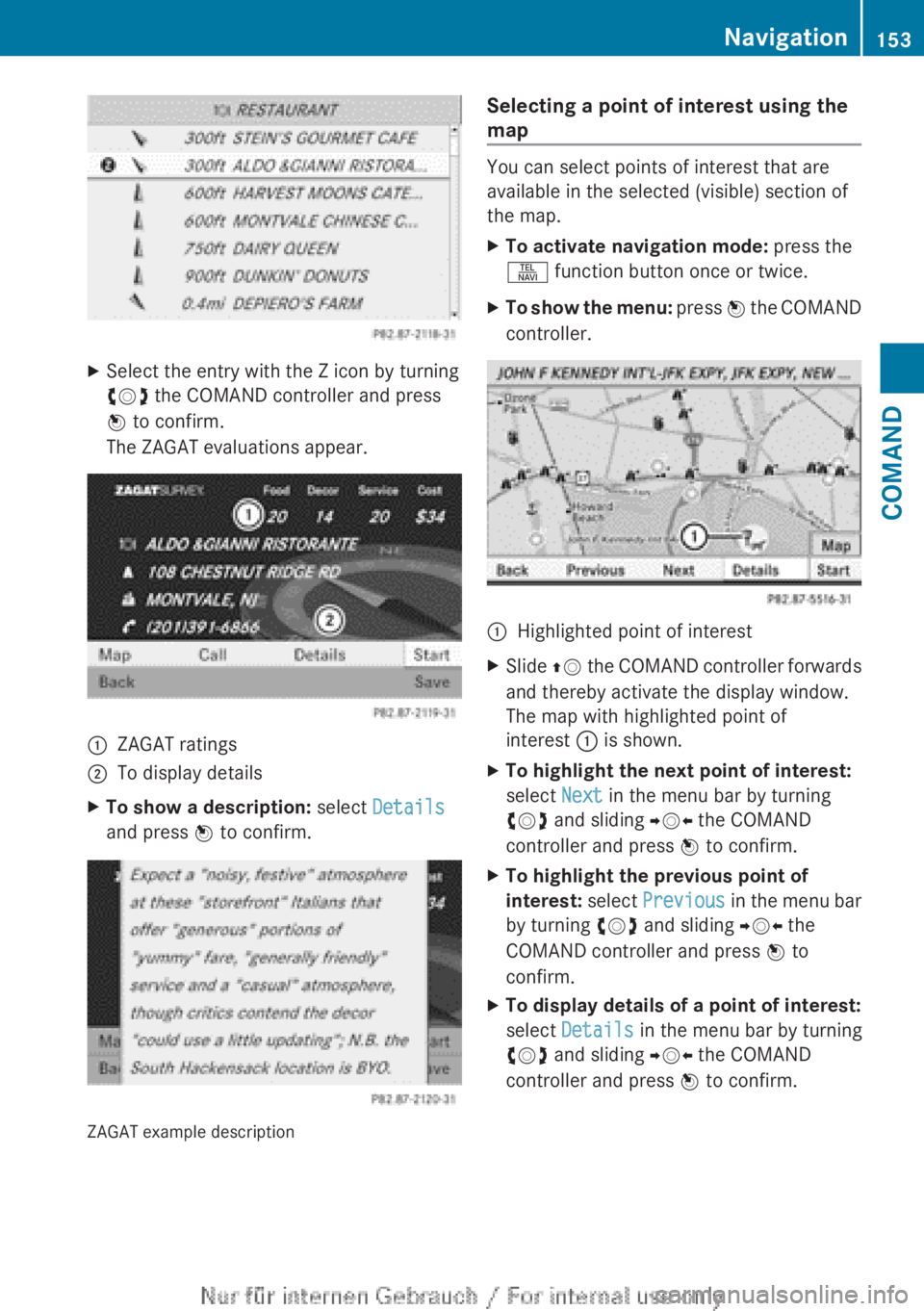
XSelect the entry with the Z icon by turning
cVd the COMAND controller and press
W to confirm.
The ZAGAT evaluations appear.1ZAGAT ratings2To display detailsXTo show a description: select Details
and press W to confirm.
ZAGAT example description
Selecting a point of interest using the
map
You can select points of interest that are
available in the selected (visible) section of
the map.
XTo activate navigation mode: press the
S function button once or twice.XTo show the menu: press W the COMAND
controller.:Highlighted point of interestXSlide ZV the COMAND controller forwards
and thereby activate the display window.
The map with highlighted point of
interest : is shown.XTo highlight the next point of interest:
select Next in the menu bar by turning
cVd and sliding YVX the COMAND
controller and press W to confirm.XTo highlight the previous point of
interest: select Previous in the menu bar
by turning cVd and sliding YVX the
COMAND controller and press W to
confirm.XTo display details of a point of interest:
select Details in the menu bar by turning
cVd and sliding YVX the COMAND
controller and press W to confirm.Navigation153COMANDZ
Page 156 of 496
Route guidance
General notesGWARNING
COMAND calculates the route to the
destination without taking into account the
following, for example:
R Traffic lights
R Stop and right-of-way signs
R Lane merging
R Parking or stopping prohibited areas
R Other road and traffic rules and regulations
R Narrow bridges
COMAND may give incorrect navigation
commands if the data in the digital map does
not correspond with the actual road/ traffic
situation. For example, if the traffic routing
has been changed or the direction of a one-
way road has been reversed.
For this reason, you must always observe
applicable road and traffic rules and
regulations during your journey. Road and
traffic rules and regulations always have
priority over the navigation commands
generated by the system.
Route guidance begins once a route has been
calculated ( Y page 143).
COMAND guides you to your destination by
means of navigation commands in the form
of audible navigation announcements and
route guidance displays.
The route guidance displays can only be seen
if the display is switched to navigation mode.
If you do not follow the navigation
announcements or if you leave the calculated
route, COMAND automatically calculates a
new route to the destination.
If the digital map contains the corresponding
information, the following applies:
R when selecting a route, COMAND tries to
avoid roads that only have limited access,
e.g. roads closed to through traffic and non-
residents.
R roads that have time restrictions (e.g.
closed on Sundays and public holidays) are
avoided for route guidance.
Change of direction
Introduction
Changes of direction have three phases:
R preparation phase
R announcement phase
R change-of-direction phase
Preparation phase
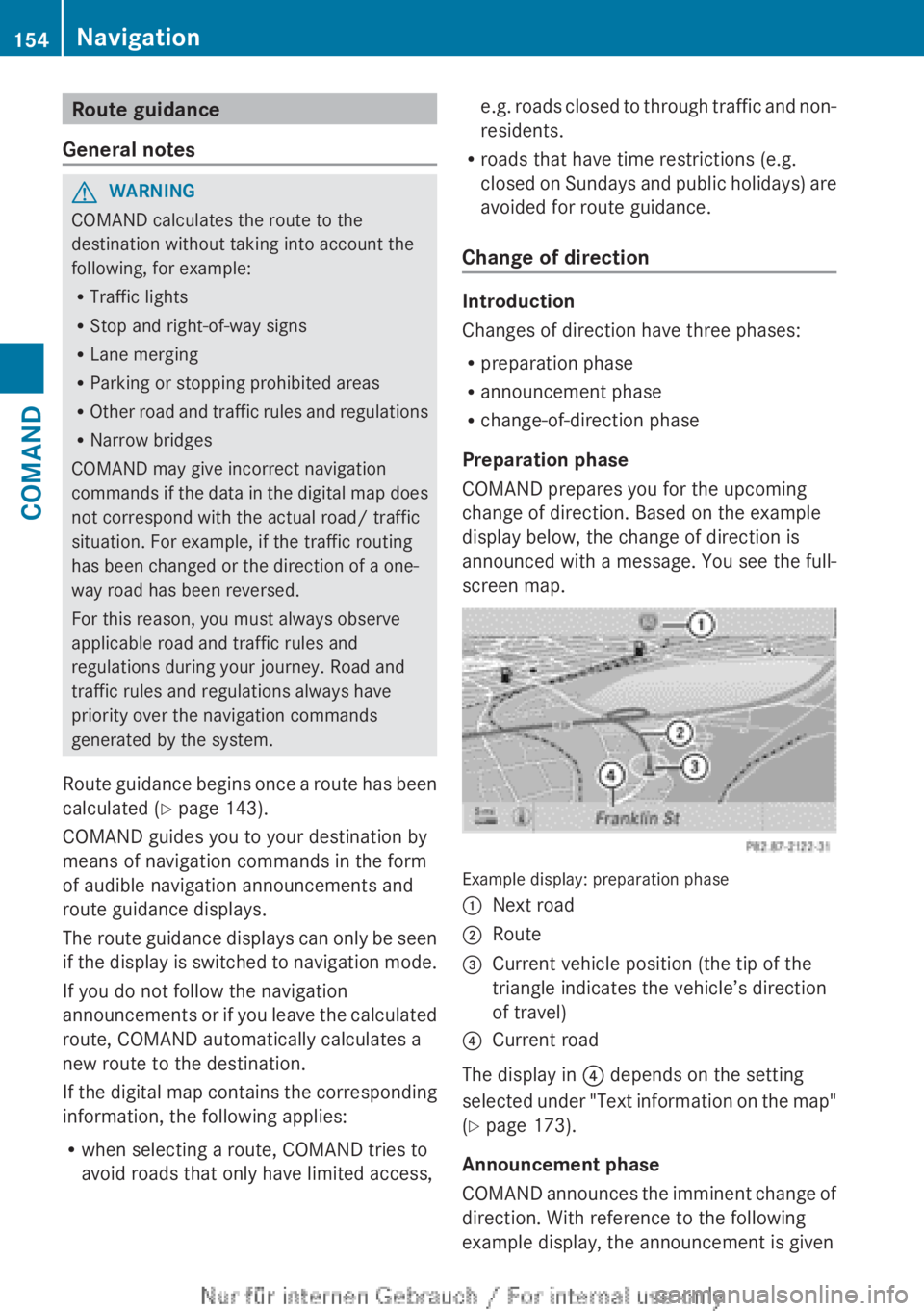
COMAND prepares you for the upcoming
change of direction. Based on the example
display below, the change of direction is
announced with a message. You see the full-
screen map.
Example display: preparation phase
:Next road;Route=Current vehicle position (the tip of the
triangle indicates the vehicle’s direction
of travel)?Current road
The display in ? depends on the setting
selected under "Text information on the map"
( Y page 173).
Announcement phase
COMAND announces the imminent change of
direction. With reference to the following
example display, the announcement is given
154NavigationCOMAND
Page 157 of 496
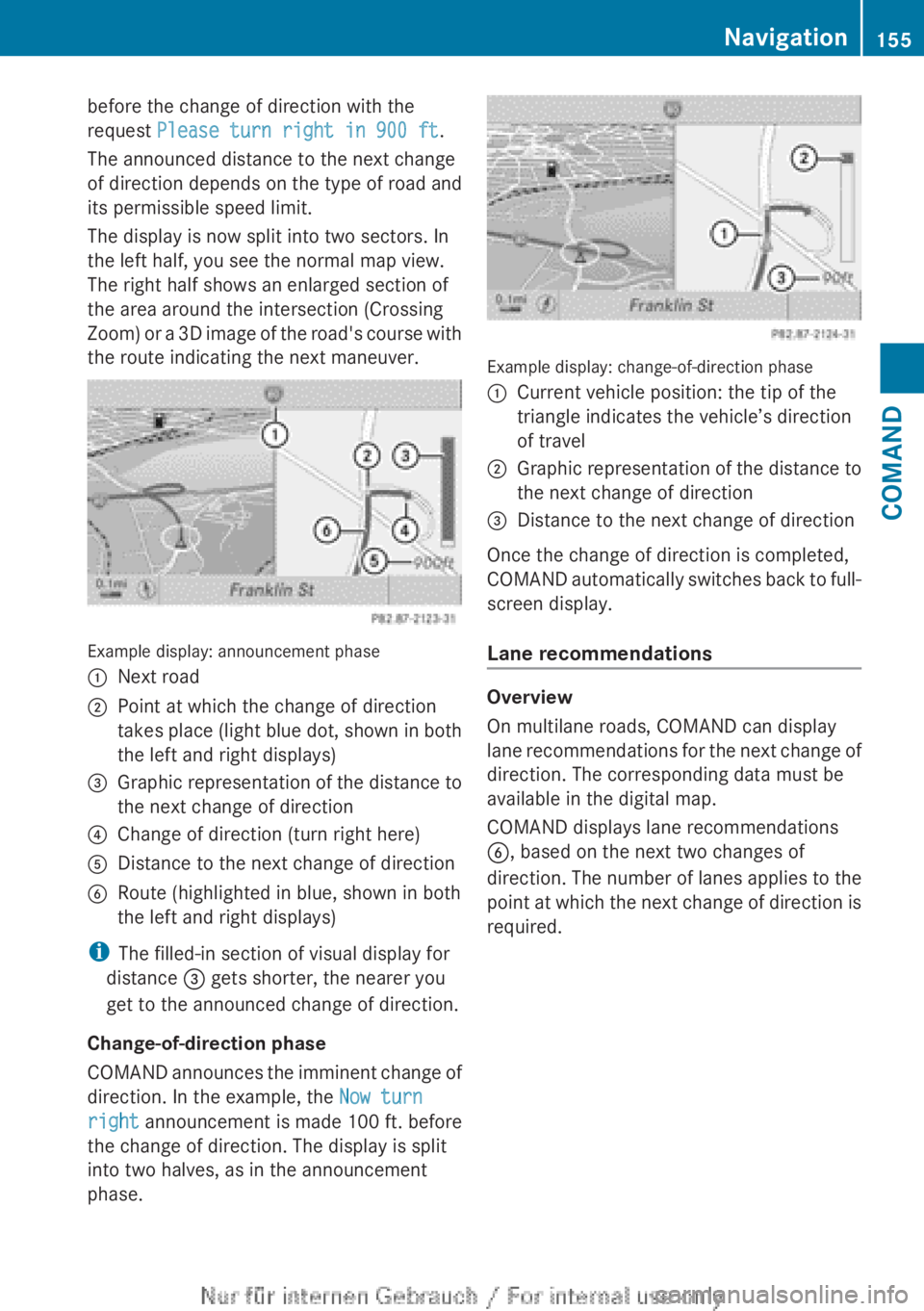
before the change of direction with the
request Please turn right in 900 ft .
The announced distance to the next change
of direction depends on the type of road and
its permissible speed limit.
The display is now split into two sectors. In
the left half, you see the normal map view.
The right half shows an enlarged section of
the area around the intersection (Crossing
Zoom) or a 3D image of the road's course with
the route indicating the next maneuver.
Example display: announcement phase
:Next road;Point at which the change of direction
takes place (light blue dot, shown in both
the left and right displays)=Graphic representation of the distance to
the next change of direction?Change of direction (turn right here)ADistance to the next change of directionBRoute (highlighted in blue, shown in both
the left and right displays)
i The filled-in section of visual display for
distance = gets shorter, the nearer you
get to the announced change of direction.
Change-of-direction phase
COMAND announces the imminent change of
direction. In the example, the Now turn
right announcement is made 100 ft. before
the change of direction. The display is split
into two halves, as in the announcement
phase.
Example display: change-of-direction phase
:Current vehicle position: the tip of the
triangle indicates the vehicle’s direction
of travel;Graphic representation of the distance to
the next change of direction=Distance to the next change of direction
Once the change of direction is completed,
COMAND automatically switches back to full-
screen display.
Lane recommendations
Overview
On multilane roads, COMAND can display
lane recommendations for the next change of
direction. The corresponding data must be
available in the digital map.
COMAND displays lane recommendations
B , based on the next two changes of
direction. The number of lanes applies to the
point at which the next change of direction is
required.
Navigation155COMANDZ