navigation system MERCEDES-BENZ CL CLASS 2013 Workshop Manual
[x] Cancel search | Manufacturer: MERCEDES-BENZ, Model Year: 2013, Model line: CL CLASS, Model: MERCEDES-BENZ CL CLASS 2013Pages: 496, PDF Size: 7.5 MB
Page 195 of 496
RBluetooth ®
must be activated in COMAND
and on the Bluetooth ®
device ( N operating
instructions of the device).
R the Bluetooth ®
device must be able to send
vCards via Bluetooth ®
(N operating
instructions of the device).
R the Bluetooth ®
device in the vehicle must
be switched on.
i If you switch to another main function,
e.g. navigation, while receiving vCards, the
reception of vCards will be terminated.XSelect Data/Connections in the
telephone basic menu by sliding VÆ and
turning cVd the COMAND controller and
press W to confirm.XSelect Download Contacts and press W
to confirm.XSelect Via Bluetooth and press W to
confirm.
This interrupts the Bluetooth ®
connection
between COMAND and your active mobile
phone. In turn, COMAND is ready to receive
vCards from another Bluetooth ®
device.XStart data transfer on the external
Bluetooth device ( N operating instructions
of the device).
The data on the vCards is automatically
transferred to the address book. The
number of vCards received is displayed.XTo cancel reception: press W.
or
XPress the % back button on the center
console.
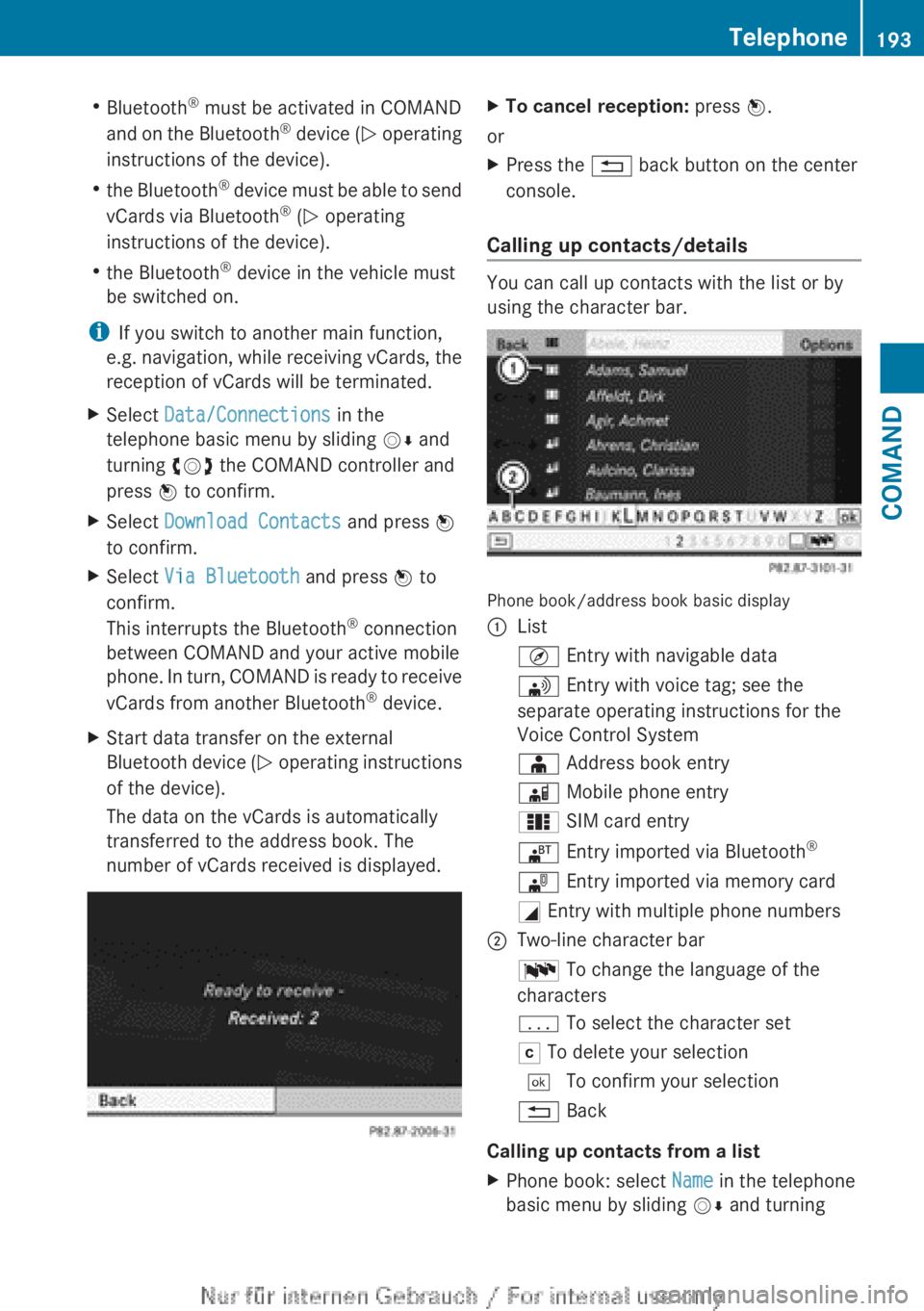
Calling up contacts/details
You can call up contacts with the list or by
using the character bar.
Phone book/address book basic display
:ListÇ Entry with navigable data\ Entry with voice tag; see the
separate operating instructions for the
Voice Control SystemÆ Address book entryà Mobile phone entry0 SIM card entry® Entry imported via Bluetooth ®¯
Entry imported via memory cardG Entry with multiple phone numbers;Two-line character barB To change the language of the
charactersp To select the character setF To delete your selection¬ To confirm your selection% Back
Calling up contacts from a list
XPhone book: select Name in the telephone
basic menu by sliding VÆ and turningTelephone193COMANDZ
Page 198 of 496
XTo delete an individual contact: select
the entry ( Y page 193).XSelect Options by sliding VY the
COMAND controller and press W to
confirm.XSelect Delete and press W to confirm.
A prompt appears asking whether the data
should be deleted.XSelect Yes and press W to confirm.
i
Automatically imported contacts cannot
be deleted ( Y page 192).
Calling a number stored in an entry
Using the phone book
XSelect Name in the telephone basic menu
by sliding VY and turning cVd the
COMAND controller and press W to
confirm.XCall up the contact ( Y page 193).XContact with multiple telephone
numbers (with the G symbol): press
W .
or
XPress SEND on the telephone keypad.
A list of all telephone numbers is opened.XSelect the desired number by turning
cVd the COMAND controller.XPress W.
or
XPress SEND on the telephone keypad.
The number is dialed.XContact with one telephone number
(without the G symbol): press W.
or
XPress SEND on the telephone keypad.
The number is dialed.
i You can also use the phone book in the
on-board computer to make a call
( Y page 346).
Using the address bookXSelect Data/Connections in the
telephone basic menu by sliding VÆ and
turning cVd the COMAND controller and
press W to confirm.XSelect Address Book and press W to
confirm.XCall contact ( Y page 193) and press W to
confirm.XSelect the telephone number by turning
cVd the COMAND controller and press
W to confirm.
Starting route guidance to an entry
i
This function is available as soon as you
have stored a destination in the destination
memory ( Y page 167). COMAND also
stores the destination in the address book
with the complete navigable address data.
In this case, navigation can be started
without any further data input.
If the contact entry contains a postal
address, e.g. as a result of importing a
vCard, the system can also navigate to this
address. If the data is incomplete or
unclear, COMAND asks the user to enter
the relevant address data. After the entry
has been completed and navigation has
been started, COMAND replaces the
existing address with the navigable
address if necessary.
XSearch for an address book entry using the
¤ symbol.XConfirm the entry by pressing W.
Telephone numbers and addresses are
displayed.XSelect the address data field.XPress the COMAND controller.
or
XSelect Options by sliding VY the
COMAND controller and press W to
confirm.196TelephoneCOMAND
Page 218 of 496
XSwitch on audio CD mode (Y page 210).XSelect CD by sliding VÆ and turning cVd
the COMAND controller and press W to
confirm.XSelect Gracenote Media Database by
turning cVd the COMAND controller and
press W to confirm.
Switch the function on O or off ª.
Updating Gracenote ®
music recognition
technology and the Gracenote Media
Database
The digital data on the Gracenote Media
Database becomes obsolete due to the
release of new CDs. Optimum functionality
can only be attained with up-to-date
Gracenote ®
music recognition technology.
Information about new versions can be
obtained from an authorized Mercedes-Benz
Center.
You can have your music recognition
software updated there with a DVD, or you
can update it yourself.
i The Gracenote Media Database is
updated in conjunction with the navigation
system's digital map ( Y page 176).
Setting the audio format
You can only set the audio format in audio
DVD mode. The number of audio formats
available depends on the DVD. The content of
an audio DVD is called an "album", and this
can be divided into up to nine groups. A group
can contain music in different sound qualities
(stereo and multichannel formats, for
example), or bonus tracks. Each group can
contain up to 99 tracks. If an audio DVD only
contains one audio format, the "Group" menu
item(s) cannot be selected.
XSwitch on audio DVD mode ( Y page 210).XSelect DVD-A by sliding VÆ and turning
cVd the COMAND controller and press
W to confirm.XSelect Group by turning cVd and press
W to confirm.
The list of available groups appears. The
# dot indicates the group currently
selected.XTo exit the menu: slide XVY the COMAND
controller or press the % button.
Playback options
The following options are available to you:
R Normal Track Sequence
The tracks are played in the normal order
(e.g. track 1, 2, 3, etc.).
In MP3 mode, the track order is determined
by the order in which the tracks are written
to the MP3 data carrier when it is created.
Alphabetical order is the most common.
Once all the tracks in a folder have been
played, the tracks in the next folder are
played.
R Medium Mix
All the tracks on the medium are played in
random order (e.g. track 3, 8, 5 etc.).
R Track List Mix (MP3 mode only)
All the tracks that are listed in the current
track list are played in random order.
XTo select options: switch on audio CD/
DVD or MP3 mode ( Y page 210).XSelect CD, DVD-A or MP3 by sliding VÆ and
turning cVd the COMAND controller and
press W to confirm.
The options list appears. The # dot
indicates the option selected.XSelect an option by turning cVd and press
W to confirm.
The option is switched on. For all options
except "Normal track sequence", you will
see a corresponding display in the display/
selection window. See the example of the
display in audio CD mode ( Y page 210).
i
The "Normal track sequence" option is
automatically selected when you change
the medium you are currently listening to
216AudioCOMAND
Page 230 of 496
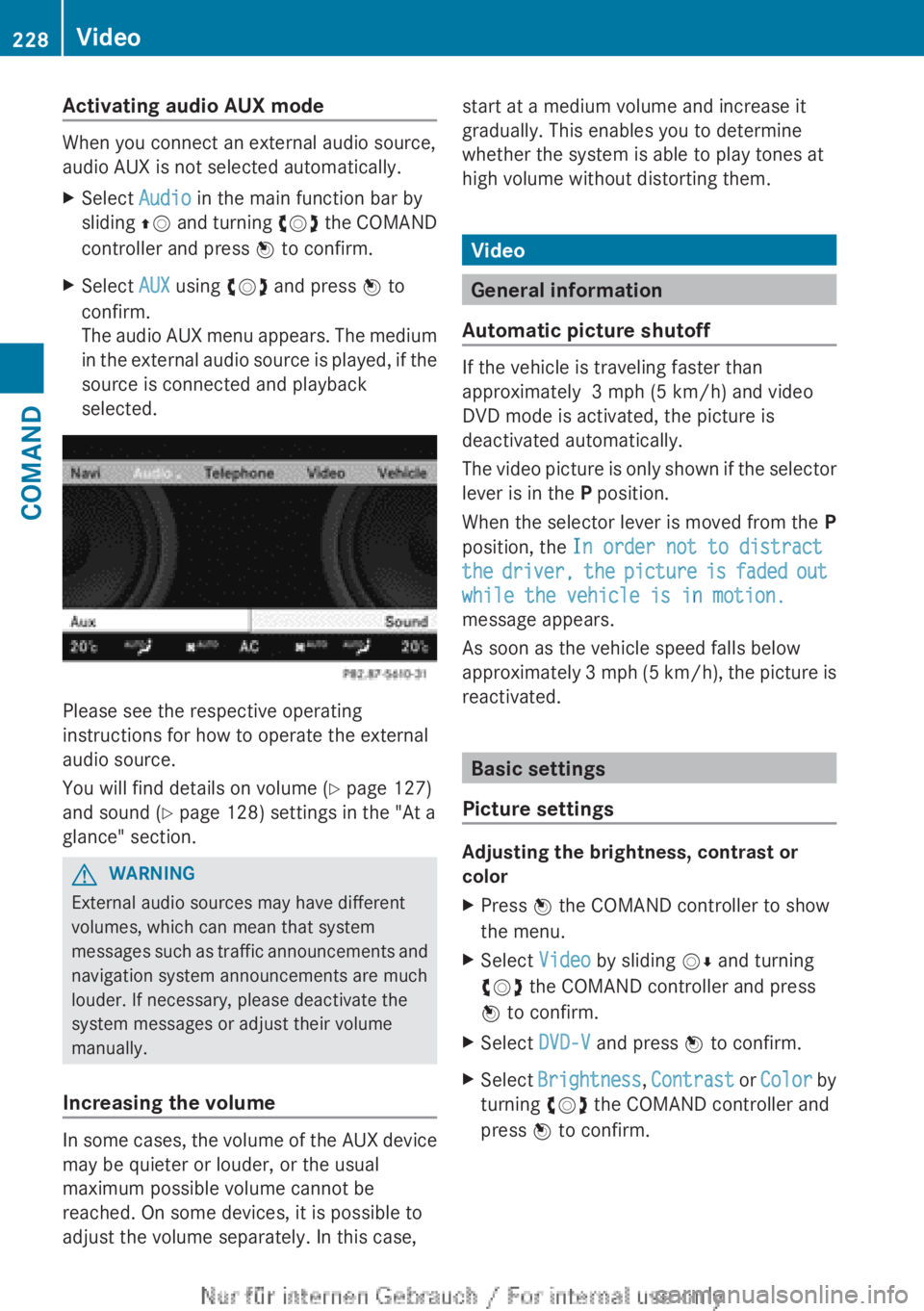
Activating audio AUX mode
When you connect an external audio source,
audio AUX is not selected automatically.
XSelect Audio in the main function bar by
sliding ZV and turning cVd the COMAND
controller and press W to confirm.XSelect AUX using cVd and press W to
confirm.
The audio AUX menu appears. The medium
in the external audio source is played, if the
source is connected and playback
selected.
Please see the respective operating
instructions for how to operate the external
audio source.
You will find details on volume ( Y page 127)
and sound ( Y page 128) settings in the "At a
glance" section.
GWARNING
External audio sources may have different
volumes, which can mean that system
messages such as traffic announcements and
navigation system announcements are much
louder. If necessary, please deactivate the
system messages or adjust their volume
manually.
Increasing the volume
In some cases, the volume of the AUX device
may be quieter or louder, or the usual
maximum possible volume cannot be
reached. On some devices, it is possible to
adjust the volume separately. In this case,
start at a medium volume and increase it
gradually. This enables you to determine
whether the system is able to play tones at
high volume without distorting them.
Video
General information
Automatic picture shutoff
If the vehicle is traveling faster than
approximately 3 mph (5 km/h) and video
DVD mode is activated, the picture is
deactivated automatically.
The video picture is only shown if the selector
lever is in the P position.
When the selector lever is moved from the P
position, the In order not to distract
the driver, the picture is faded out
while the vehicle is in motion.
message appears.
As soon as the vehicle speed falls below
approximately 3 mph (5 km/h), the picture is
reactivated.
Basic settings
Picture settings
Adjusting the brightness, contrast or
color
XPress W the COMAND controller to show
the menu.XSelect Video by sliding VÆ and turning
cVd the COMAND controller and press
W to confirm.XSelect DVD-V and press W to confirm.XSelect Brightness , Contrast or Color by
turning cVd the COMAND controller and
press W to confirm.228VideoCOMAND
Page 236 of 496
XSelect DVD Functions and press W to
confirm.XSelect Subtitles or Camera angle and
press W to confirm.
In both cases, a menu appears. The # dot
in front of an entry indicates the current
setting.XSelect a setting by turning cVd the
COMAND controller and press W to
confirm.XTo exit the menu: slide XVY the COMAND
controller.
Interactive content
DVDs can contain interactive content (e.g. a
video game). In a video game, for example,
you may be able to influence events by
selecting and triggering actions. The type and
number of actions depend on the DVD.
XSelect an action by sliding ZVÆ or XVY the
COMAND controller and press W to
execute it.
A menu appears and the first entry,
Select , is highlighted.XPress W the COMAND controller.
AUX video mode
AUX jacks
An external video source (video AUX) can be
connected to COMAND via the media
interface (Y page 222) using the AUX jacks in
the glove box.
i In vehicles with a rear view camera, the
video AUX jack cannot be used for external
video sources.
Switching to video AUX modeXSelect Video in the main function bar by
sliding ZV and turning cVd the COMAND
controller and press W to confirm.
If video AUX mode was the last mode
selected, it will now be active.
If another video source is switched on, you
can now switch to video AUX mode in the
video menu.XSelect Video and press W to confirm.XSelect AUX and press W to confirm.
The video AUX menu appears. You will hear
and see the content of the external video
source if it is connected and switched to
playback.
For details on how to operate the external
video source, see the respective device's
operating instructions.
Showing/hiding the menu
XTo show: press W the COMAND
controller.XTo hide: slide ZV the COMAND controller
and confirm Full screen by pressing W.
Volume and sound settings
You will find details on volume ( Y page 127)
and sound ( Y page 128) settings in the "At a
glance" section.
GWARNING
External video sources may have different
volumes, which can mean that system
messages such as traffic announcements and
navigation system announcements are much
louder. If necessary, please deactivate the
system messages or adjust their volume
manually.
i In some cases, the volume of the AUX
device may be quieter or louder, or the
usual maximum possible volume cannot be
reached. On some devices, it is possible to
adjust the volume separately. In this case,
start at a medium volume and increase it
234VideoCOMAND
Page 248 of 496
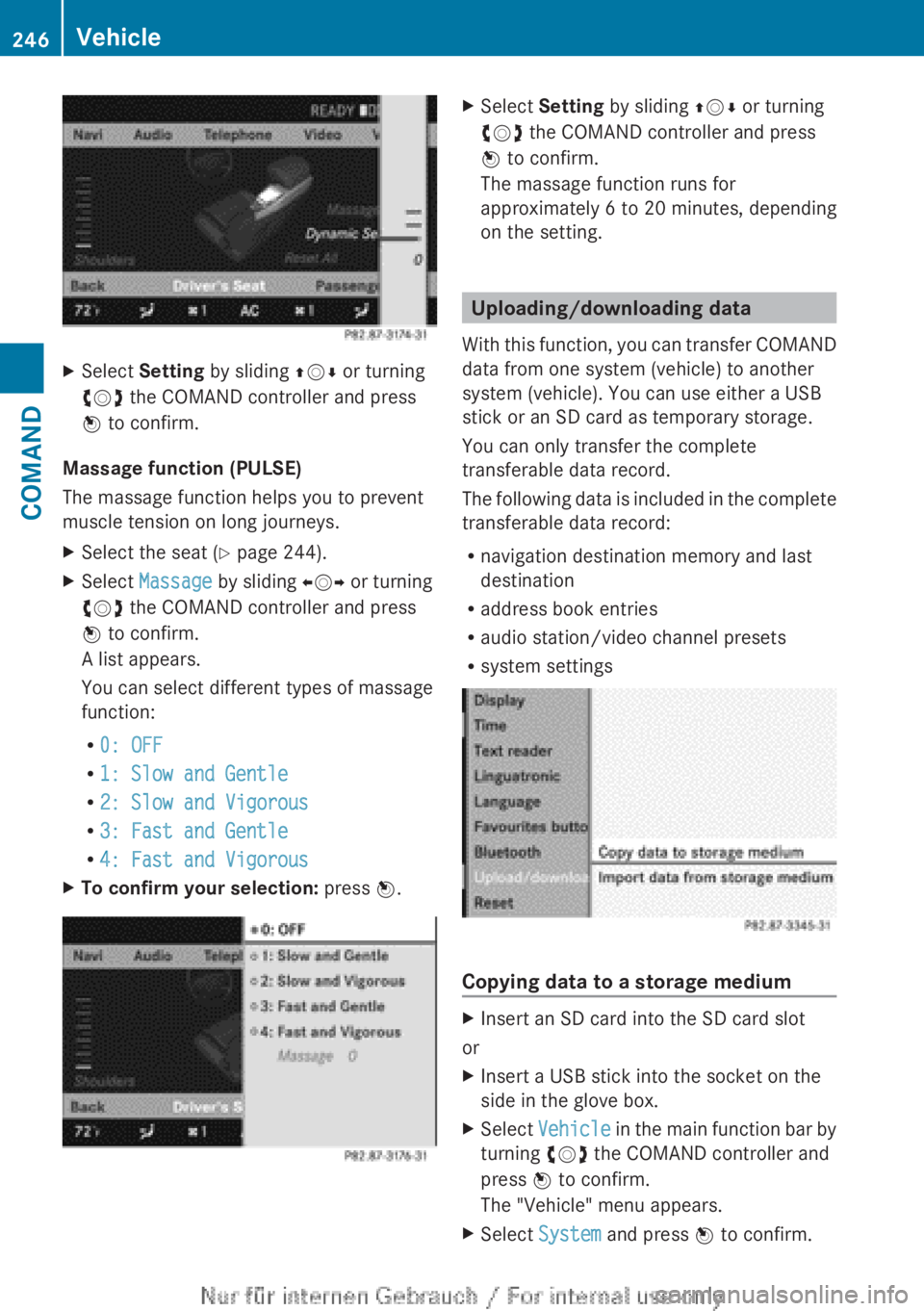
XSelect Setting by sliding ZVÆ or turning
cVd the COMAND controller and press
W to confirm.
Massage function (PULSE)
The massage function helps you to prevent
muscle tension on long journeys.
XSelect the seat ( Y page 244).XSelect Massage by sliding XVY or turning
cVd the COMAND controller and press
W to confirm.
A list appears.
You can select different types of massage
function:
R 0: OFF
R 1: Slow and Gentle
R 2: Slow and Vigorous
R 3: Fast and Gentle
R 4: Fast and VigorousXTo confirm your selection: press W.XSelect Setting by sliding ZVÆ or turning
cVd the COMAND controller and press
W to confirm.
The massage function runs for
approximately 6 to 20 minutes, depending
on the setting.
Uploading/downloading data
With this function, you can transfer COMAND
data from one system (vehicle) to another
system (vehicle). You can use either a USB
stick or an SD card as temporary storage.
You can only transfer the complete
transferable data record.
The following data is included in the complete
transferable data record:
R navigation destination memory and last
destination
R address book entries
R audio station/video channel presets
R system settings
Copying data to a storage medium
XInsert an SD card into the SD card slot
or
XInsert a USB stick into the socket on the
side in the glove box.XSelect Vehicle in the main function bar by
turning cVd the COMAND controller and
press W to confirm.
The "Vehicle" menu appears.XSelect System and press W to confirm.246VehicleCOMAND
Page 344 of 496
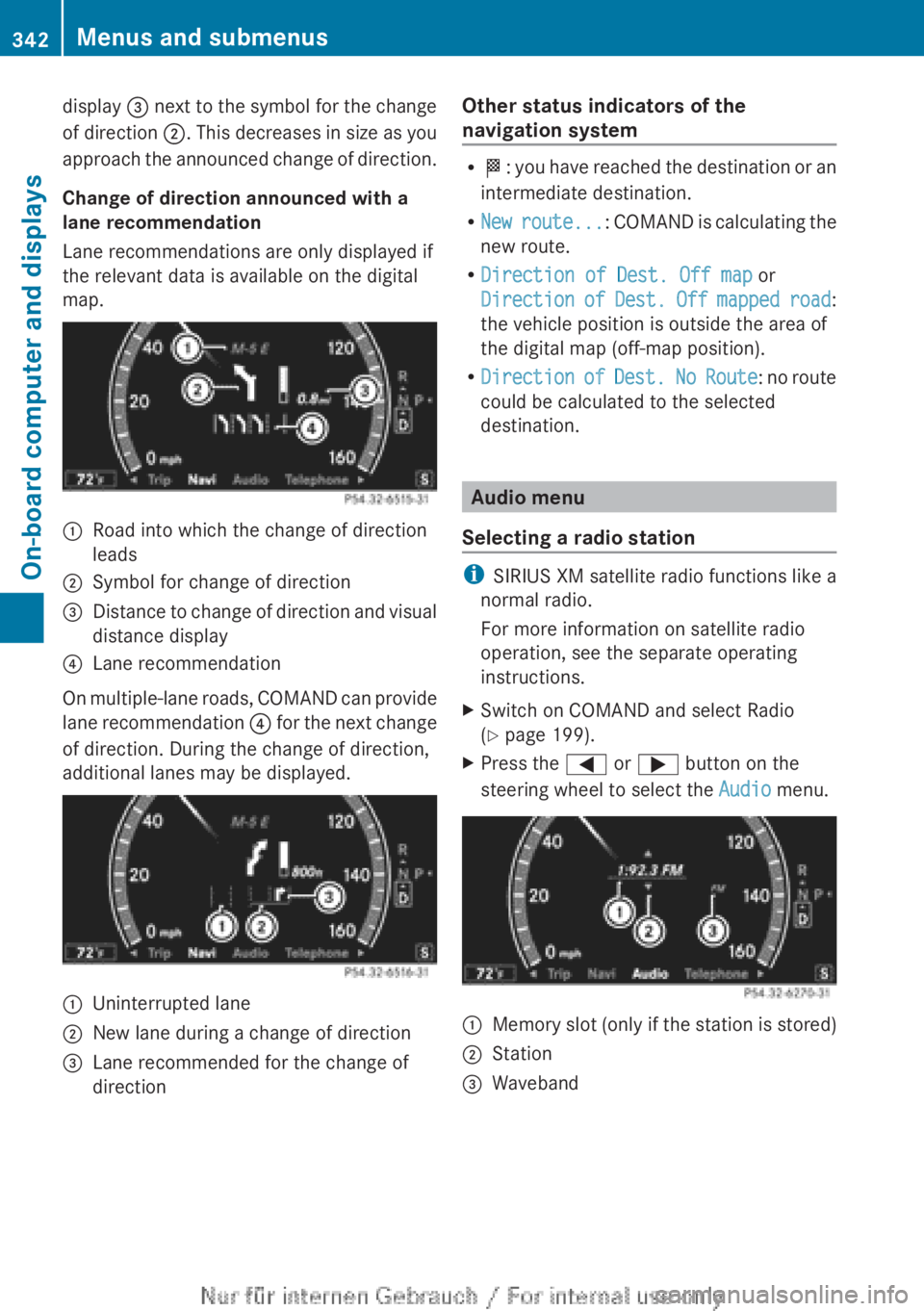
display = next to the symbol for the change
of direction ;. This decreases in size as you
approach the announced change of direction.
Change of direction announced with a
lane recommendation
Lane recommendations are only displayed if
the relevant data is available on the digital
map.:Road into which the change of direction
leads;Symbol for change of direction=Distance to change of direction and visual
distance display?Lane recommendation
On multiple-lane roads, COMAND can provide
lane recommendation ? for the next change
of direction. During the change of direction,
additional lanes may be displayed.
:Uninterrupted lane;New lane during a change of direction=Lane recommended for the change of
directionOther status indicators of the
navigation system
R O : you have reached the destination or an
intermediate destination.
R New route ...: COMAND is calculating the
new route.
R Direction of Dest. Off map or
Direction of Dest. Off mapped road :
the vehicle position is outside the area of
the digital map (off-map position).
R Direction of Dest. No Route : no route
could be calculated to the selected
destination.
Audio menu
Selecting a radio station
i SIRIUS XM satellite radio functions like a
normal radio.
For more information on satellite radio
operation, see the separate operating
instructions.
XSwitch on COMAND and select Radio
( Y page 199).XPress the = or ; button on the
steering wheel to select the Audio menu.:Memory slot (only if the station is stored);Station=Waveband342Menus and submenusOn-board computer and displays
Page 352 of 496
Switching Adaptive Highbeam Assist
on/offXPress the = or ; button on the
steering wheel to select the Settings
menu.XPress the : or 9 button to select
Adapt. High-beam Asst. .XPress the a button to confirm.XTo activate/deactivate: press a
again.
Switching the additional speedometer
on/off
An additional digital speedometer can be
shown in the multifunction display.
Vehicles with a kilometer speedometer: the
digital speedometer has mph units.
Vehicles with a miles speedometer: the digital
speedometer has km/h units.
XPress the = or ; button on the
steering wheel to select the Settings
menu.XPress 9 or : to select Add.
Speedometer .XPress the a button to confirm.XPress the a button to save the setting.
Selecting the unit of measurement for
distance
The Display Unit Speed-/Odometer:
function allows you to choose whether
certain displays appear in kilometers or miles.
The selected unit of measurement for
distance applies to:
R analog speedometers
R digital speedometers in the Trip menu
R odometer and the trip odometer
R Trip computer
R navigation instructions in the Navi menu
R DISTRONIC PLUS
R ASSYST PLUS service interval display
The digital speedometer shows alternative
speed units ( Y page 350).XPress the = or ; button on the
steering wheel to select the Settings
menu.XPress 9 or : to select Units.XPress a to confirm.XPress the a button to save the setting.
The unit switches km/h and mph.
Activating/deactivating the acoustic
locking verification signal
If you activate the Acoustic Lock Feedb.
function, an audible signal sounds depending
on the vehicle's date of manufacture:
R when locking
or
R once when unlocking and three times when
locking
XPress the = or ; button on the
steering wheel to select the Settings
menu.XPress the 9 or : button to select
Acoustic Lock Feedb.XPress the a button to confirm.XTo activate/deactivate: press a
again.
Activating/deactivating the radar
sensor system
The following systems are switched off when
the radar sensor system is deactivated:
R DISTRONIC PLUS ( Y page 298)
R BAS PLUS ( Y page 66)
R PRE-SAFE ®
Brake ( Y page 68)
R Active Blind Spot Assist ( Y page 327)
XPress the = or ; button on the
steering wheel to select the Settings
menu.XPress 9 or : to select Radar
Sensors .350Menus and submenusOn-board computer and displays
Page 412 of 496
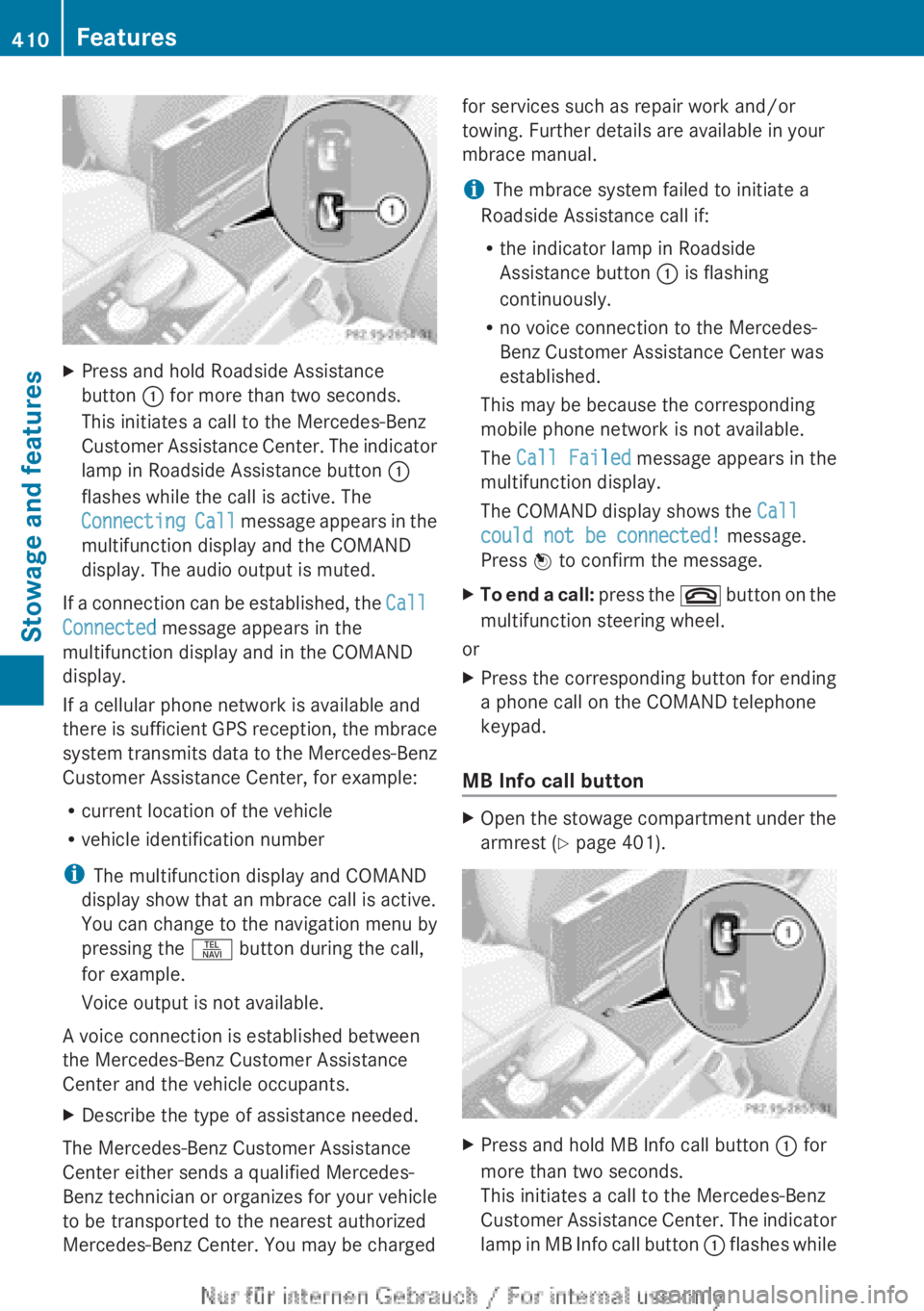
XPress and hold Roadside Assistance
button : for more than two seconds.
This initiates a call to the Mercedes-Benz
Customer Assistance Center. The indicator
lamp in Roadside Assistance button :
flashes while the call is active. The
Connecting Call message appears in the
multifunction display and the COMAND
display. The audio output is muted.
If a connection can be established, the Call
Connected message appears in the
multifunction display and in the COMAND
display.
If a cellular phone network is available and
there is sufficient GPS reception, the mbrace
system transmits data to the Mercedes-Benz
Customer Assistance Center, for example:
R current location of the vehicle
R vehicle identification number
i The multifunction display and COMAND
display show that an mbrace call is active.
You can change to the navigation menu by
pressing the S button during the call,
for example.
Voice output is not available.
A voice connection is established between
the Mercedes-Benz Customer Assistance
Center and the vehicle occupants.
XDescribe the type of assistance needed.
The Mercedes-Benz Customer Assistance
Center either sends a qualified Mercedes-
Benz technician or organizes for your vehicle
to be transported to the nearest authorized
Mercedes-Benz Center. You may be charged
for services such as repair work and/or
towing. Further details are available in your
mbrace manual.
i The mbrace system failed to initiate a
Roadside Assistance call if:
R the indicator lamp in Roadside
Assistance button : is flashing
continuously.
R no voice connection to the Mercedes-
Benz Customer Assistance Center was
established.
This may be because the corresponding
mobile phone network is not available.
The Call Failed message appears in the
multifunction display.
The COMAND display shows the Call
could not be connected! message.
Press W to confirm the message.XTo end a call: press the ~ button on the
multifunction steering wheel.
or
XPress the corresponding button for ending
a phone call on the COMAND telephone
keypad.
MB Info call button
XOpen the stowage compartment under the
armrest ( Y page 401).XPress and hold MB Info call button : for
more than two seconds.
This initiates a call to the Mercedes-Benz
Customer Assistance Center. The indicator
lamp in MB Info call button : flashes while410FeaturesStowage and features
Page 413 of 496
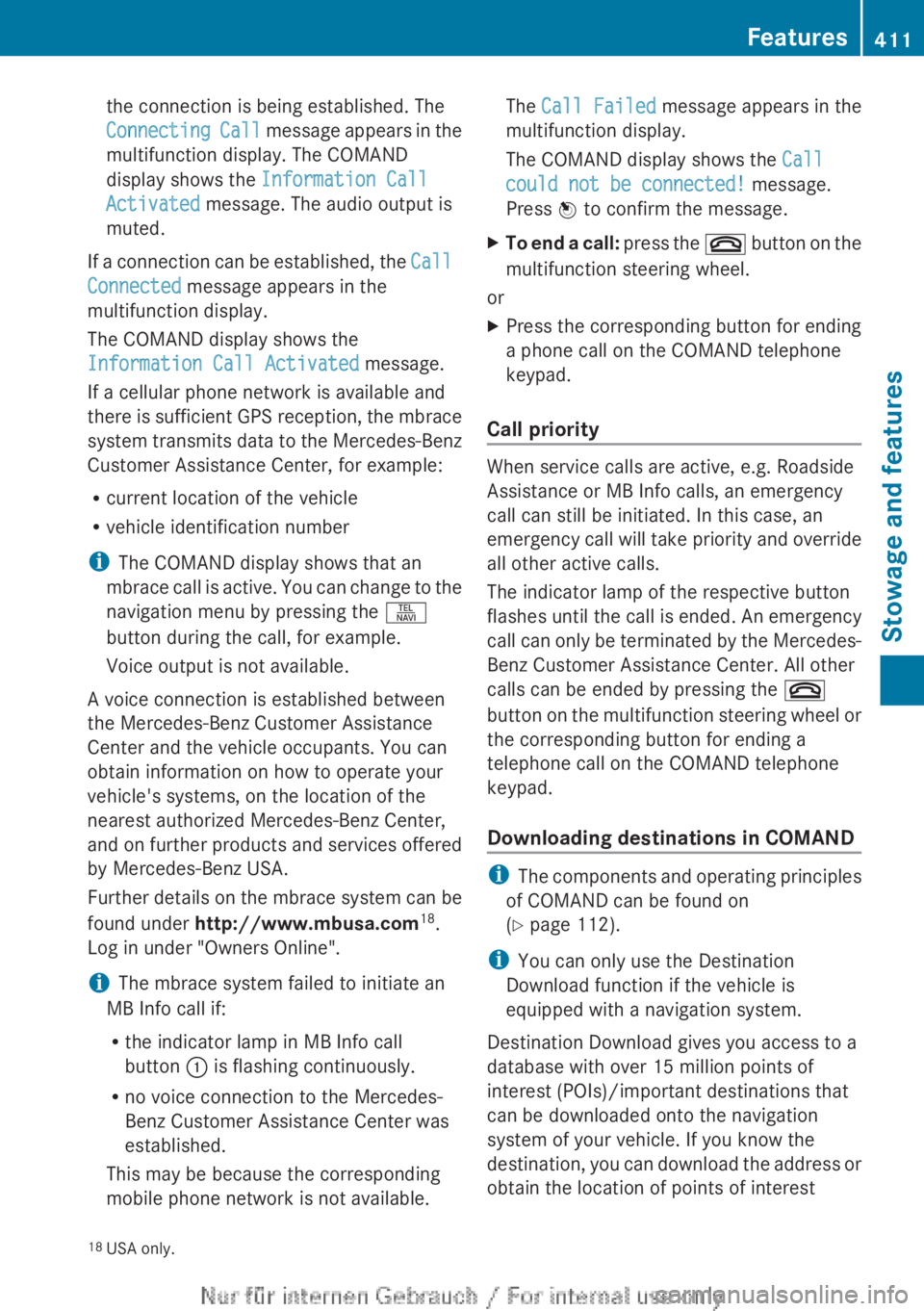
the connection is being established. The
Connecting Call message appears in the
multifunction display. The COMAND
display shows the Information Call
Activated message. The audio output is
muted.
If a connection can be established, the Call
Connected message appears in the
multifunction display.
The COMAND display shows the
Information Call Activated message.
If a cellular phone network is available and
there is sufficient GPS reception, the mbrace
system transmits data to the Mercedes-Benz
Customer Assistance Center, for example:
R current location of the vehicle
R vehicle identification number
i The COMAND display shows that an
mbrace call is active. You can change to the
navigation menu by pressing the S
button during the call, for example.
Voice output is not available.
A voice connection is established between
the Mercedes-Benz Customer Assistance
Center and the vehicle occupants. You can
obtain information on how to operate your
vehicle's systems, on the location of the
nearest authorized Mercedes-Benz Center,
and on further products and services offered
by Mercedes-Benz USA.
Further details on the mbrace system can be
found under http://www.mbusa.com 18
.
Log in under "Owners Online".
i The mbrace system failed to initiate an
MB Info call if:
R the indicator lamp in MB Info call
button : is flashing continuously.
R no voice connection to the Mercedes-
Benz Customer Assistance Center was
established.
This may be because the corresponding
mobile phone network is not available.
The Call Failed message appears in the
multifunction display.
The COMAND display shows the Call
could not be connected! message.
Press W to confirm the message.XTo end a call: press the ~ button on the
multifunction steering wheel.
or
XPress the corresponding button for ending
a phone call on the COMAND telephone
keypad.
Call priority
When service calls are active, e.g. Roadside
Assistance or MB Info calls, an emergency
call can still be initiated. In this case, an
emergency call will take priority and override
all other active calls.
The indicator lamp of the respective button
flashes until the call is ended. An emergency
call can only be terminated by the Mercedes-
Benz Customer Assistance Center. All other
calls can be ended by pressing the ~
button on the multifunction steering wheel or
the corresponding button for ending a
telephone call on the COMAND telephone
keypad.
Downloading destinations in COMAND
i The components and operating principles
of COMAND can be found on
( Y page 112).
i You can only use the Destination
Download function if the vehicle is
equipped with a navigation system.
Destination Download gives you access to a
database with over 15 million points of
interest (POIs)/important destinations that
can be downloaded onto the navigation
system of your vehicle. If you know the
destination, you can download the address or
obtain the location of points of interest
18 USA only.Features411Stowage and featuresZ