ECO mode MERCEDES-BENZ CL COUPE 2009 User Guide
[x] Cancel search | Manufacturer: MERCEDES-BENZ, Model Year: 2009, Model line: CL COUPE, Model: MERCEDES-BENZ CL COUPE 2009Pages: 421, PDF Size: 10.78 MB
Page 87 of 421
Video DVD functions
Automatic picture shutoff
The picture automatically switches off on the
driver's side if the vehicle is travelling faster
than approximately 6 km/h when in video
DVD mode. The following message appears
in the display:
As soon as the vehicle speed drops below
about 3 km/h, the picture switches back on
again. Notes about handling DVDs
There may be playback problems when play-
ing copied discs. There are a large variety of
discs, DVD authoring software, disc writing
software and writers available. This variety
means that Mercedes-Benz cannot guarantee
that the system will be able to play discs that
you have copied yourself.
! Do not affix stickers or labels to the discs,
as they could peel off and damage
COMAND. Stickers can also cause the disc
to bend, which can result in read errors and
disc recognition problems.
COMAND is designed to hold discs which
comply with the EN 60908 standard. There-
fore, you can only use discs with a maxi-
mum thickness of 1.3 mm. If you insert
thicker discs, e.g. those that contain data
on both sides (DVD on one side and audio
data on the other), they cannot be ejected
and can damage COMAND.
Do not use discs with a diameter of 8 cm,
even with an adapter. Only use round discs
with a diameter of 12 cm.
R Only hold discs by the edge.
R Handle discs carefully to prevent reading
errors.
R Avoid getting scratches, fingerprints and
dust on discs.
R Clean discs from time to time with a com-
mercially available cleaning cloth. Do not wipe them with a circular motion, but only
in straight lines from the centre outwards.
R To label discs, only use a pen designed for
such a purpose.
R Place discs back in their cases after use.
R Protect discs from heat and direct sunlight. DVD playback conditions
It is possible to buy video DVDs which do not
conform to the current standard. Such DVDs
may have picture, sound or other playback
problems.
COMAND can play back video DVDs pro-
duced according to the following standards:
R region code 2 or region code 0
R PAL or NTSC TV standard
You will generally find the relevant details
either on the DVD itself or on the DVD case.
COMAND is set to region code 2 at the fac-
tory. This setting can be changed a maximum
of five times by a Mercedes-Benz Service
Centre. This will allow you to play video DVDs
with a different region code, provided that
they are produced in accordance with the PAL
or NTSC TV standard. Function restrictions
Depending on the DVD, it is possible that cer-
tain functions or actions will be temporarily
blocked or may not function at all. As soon as
you try to activate these functions or actions,
you will see the Ksymbol in the display. Inserting and ejecting DVDs
X Proceed as described in the "Inserting CDs
and DVDs" section ( Ypage 77). 84
Video DVD functionsCOMAND
216_AKB; 2; 3, en-GB
bjanott,
Version: 2.11.7.7 2009-02-27T14:54:17+01:00 - Seite 84
Dateiname: 6515230602_buchblock.pdf; erzeugt am 04. Mar 2009 11:15:00; WK
Page 88 of 421
Overview of the video DVD menu
DVD-V II/M
M ¯
¯ Changer (for
DVD changer*
only) Sound
DVD functions Pauses play-
back
II Stops playback
¯ Media selection Treble
Brightness Continues play-
back
M Bass
Contrast Balance/fader
Colour Surround
sound*
16:9 optimised
4:3
Widescreen
Switching to video DVD mode
X Insert a DVD.
or
X Select VideoQDVD-Video.
or
X Press the Rfunction button once or
twice.
The number of times you have to press the
R function button depends on the oper-
ating mode currently selected. The function
button takes you directly to the previously set
disc mode (audio CD, audio DVD*, MP3 CD
or video DVD). Hiding or showing the control menu
X To show: slideZVÆ.
X To hide: slideZVÆ.
or
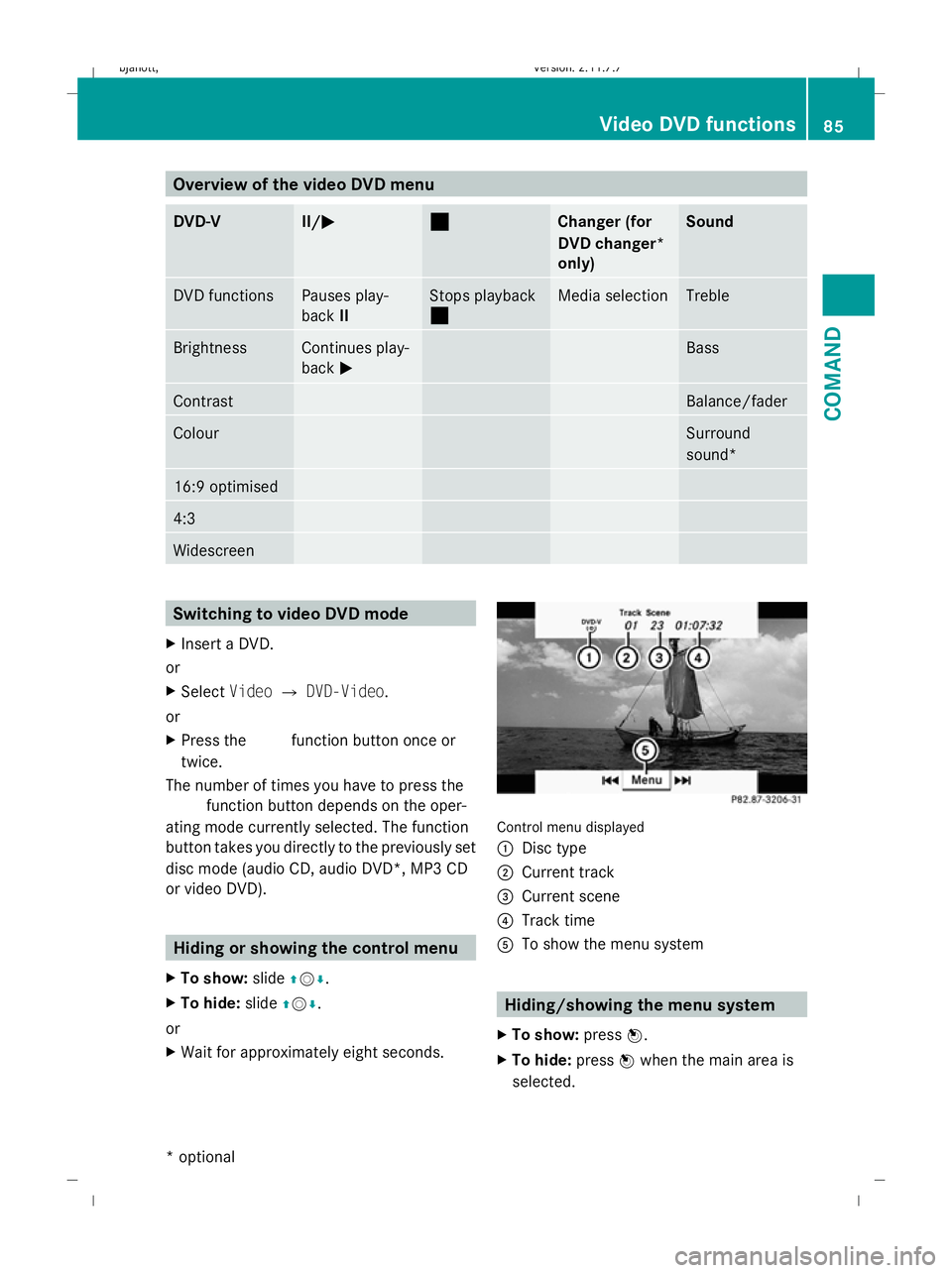
X Wait for approximately eight seconds. Control menu displayed
:
Disc type
; Current track
= Current scene
? Track time
A To show the menu system Hiding/showing the menu system
X To show: pressW.
X To hide: pressWwhen the main area is
selected. Video DVD functions
85COMAND
* optional
216_AKB; 2; 3, en-GB
bjanott,V
ersion: 2.11.7.7
2009-02-27T14:54:17+01:00 - Seite 85 Z
Dateiname: 6515230602_buchblock.pdf; erzeugt am 04. Mar 2009 11:15:01; WK
Page 92 of 421
X
To save the setting: pressW.
X To exit the menu: slideXVY. Interactive content
DVDs can contain interactive content (e.g. a
video game). In a video game, you may be able
to influence events by selecting and trigger-
ing actions. The type and number of actions
depend on the DVD.
X To select an action: slideZVÆ orXVY .
X To trigger an action: pressW. TV*
General notes
The TV tuner is designed to receive analogue
terrestrial TV channels (all standards) and
digital TV channels conforming to the DVB-T
standard 8
.
Automatic picture shutoff If the vehicle is travelling faster than approx-
imately 6 km/h, the picture and teletext in TV
mode on the driver's side automatically
switch off. The following message appears in
the display:
In order not to distract
the driver, the picture is faded out
while the vehicle is in motion . As
soon as the vehicle speed drops below about
3 km/h, the picture switches back on again.
Switching off the picture and sound The constantly changing reception conditions
while the vehicle is in motion can interrupt the
signal. If the reception is too poor, COMAND
may switch off the sound and freeze or hide
the picture. In this case, you will see the
respective symbol in the display. TV menu overview
The following menus are available:
R TV Q Station, Save station, Channel
input, Brightness, Contrast, Colour, Auto,
16:9 optimised, 4:3, Widescreen, Channel
fix, TV standard, Audio 1, Audio 2
R Memory QAutostore, Channel preset list
R Info QInformation on current programme
(digital stations only)
R Teletext QSwitch on teletext
R Sound QTrebles, basses, balance/fader,
surround sound* Switching to TV mode
X Select VideoQTV. Hiding or showing the control menu
X To show: slideZVÆ.
X To hide: slideZVÆ.
or
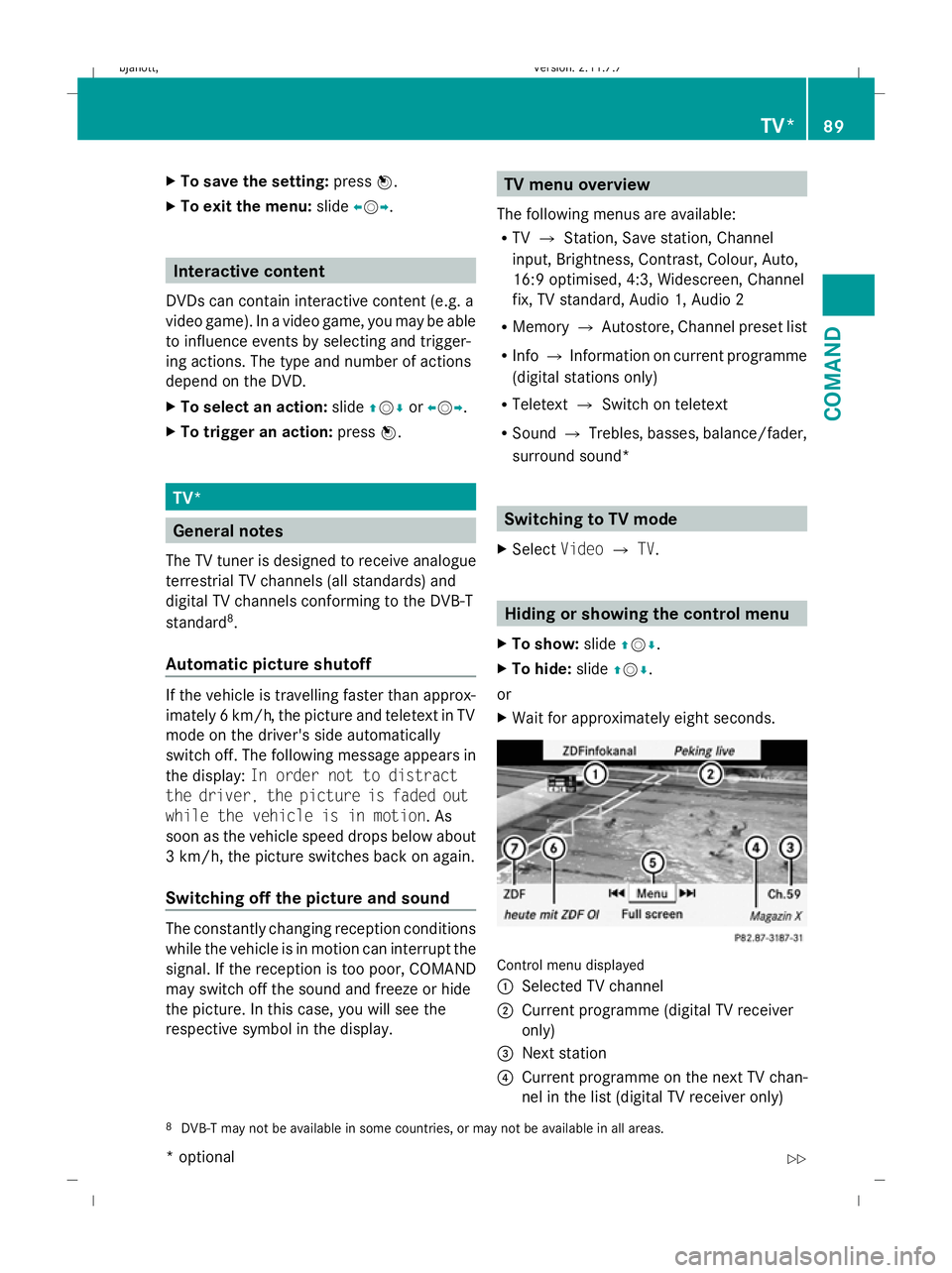
X Wait for approximately eight seconds. Control menu displayed
:
Selected TV channel
; Current programme (digital TV receiver
only)
= Next station
? Current programme on the next TV chan-
nel in the list (digital TV receiver only)
8 DVB-T may not be available in some countries, or may not be available in all areas. TV*
89COMAND
* optional
216_AKB; 2; 3, en-GB
bjanott,
Version: 2.11.7.7
2009-02-27T14:54:17+01:00 - Seite 89 Z
Dateiname: 6515230602_buchblock.pdf; erzeugt am 04. Mar 2009 11:15:02; WK
Page 101 of 421
Media Interface* mode
Information on operating with Media
Interface
Connection options i
Stow the equipment in a secure location.
Use only genuine Mercedes-Benz connect-
ing cables.
You can connect the following data carriers
to COMAND via the Media Interface:
R iPod ®9
R USB devices
For more details and a comprehensive list of
supported devices, please contact a
Mercedes-Benz Service Centre or visit
http://www.mercedes-benz.com/connect
and proceed as described under "Media Inter-
face".
Supported iPod ®
variants
The following are examples of supported
iPod ®
variants:
R iPod ®
mini
R iPod ®
nano
R iPod ®
classic
R iPod ®
touch
Supported USB devices
The following USB devices are supported:
R USB sticks (flash memory)
R USB hard drives (1-inch, 1.8-inch and 2.5-
inch drives) with a starting/continuous cur-
rent of up to 800 mA (a separate power
supply may be necessary)
R certain MP3 players
i The Media Interface supports USB stor-
age media of USB Device Subclass 6. Infor-
mation concerning USB Device Subclass 6 is available from the equipment manufac-
turer.
Supported data formats (USB devices) The following data types are supported:
R
MP3: CBR, VBR (up to 320 kbit/s)
R WMA: CBR, VBR (up to 320 kbit/s)
Notes on USB devices
R Avoid storing data other than music data on
the USB device so that the start-up time is
not extended unnecessarily.
R Up to eight directory levels with up to 1,000
tracks are supported.
R Do not use a USB extension cable or
adapter. These may impair functionality.
R A background search of the USB device is
performed and any playlists found are pro-
vided in a separate category in addition to
the folders. Initialisation of larger USB
mass storage devices containing a high
number of files can take up to several
minutes.
i Files protected with DRM (Digital Rights
Management) are not supported by the
Media Interface. Connecting external devices
Device-specific adapter cables are needed to
connect external equipment to the Media
Interface. These cables are included in the
Media Interface scope of delivery.
You will find the connection sockets in the
glove compartment.
Never connect more than one device at a
time. You will otherwise not be able to play
back from the external device. Please consult
a Mercedes-Benz Service Centre for further
information.
9 iPod ®
is a registered trademark of Apple Inc., Cupertino, California, USA. 98
Media Interface* modeCOMAND
* optional
216_AKB; 2; 3, en-GB
bjanott,
Version: 2.11.7.7 2009-02-27T14:54:17+01:00 - Seite 98
Dateiname: 6515230602_buchblock.pdf; erzeugt am 04. Mar 2009 11:15:04; WK
Page 103 of 421
X
Confirm your entry with W.
COMAND activates the connected device.
You will see a message to this effect. The
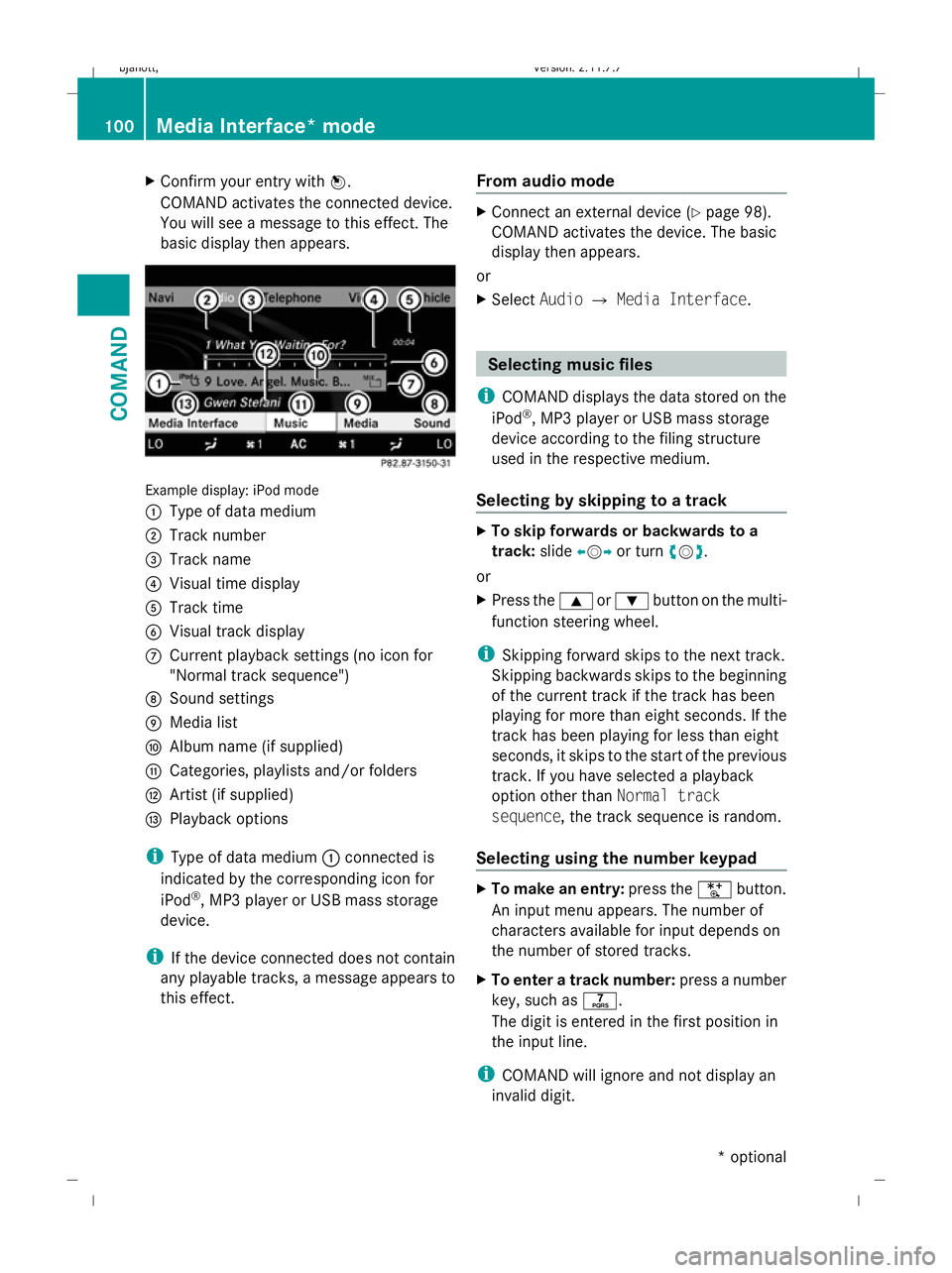
basic display then appears. Example display: iPod mode
:
Type of data medium
; Track number
= Track name
? Visual time display
A Track time
B Visual track display
C Current playback settings (no icon for
"Normal track sequence")
D Sound settings
E Media list
F Album name (if supplied)
G Categories, playlists and/or folders
H Artist (if supplied)
I Playback options
i Type of data medium :connected is
indicated by the corresponding icon for
iPod ®
, MP3 player or USB mass storage
device.
i If the device connected does not contain
any playable tracks, a message appears to
this effect. From audio mode X
Connect an external device (Y page 98).
COMAND activates the device. The basic
display then appears.
or
X Select AudioQMedia Interface . Selecting
music files
i COMAND displays the data stored on the
iPod ®
, MP3 player or USB mass storage
device according to the filing structure
used in the respective medium.
Selecting by skipping to a track X
To skip forwards or backwards to a
track: slideXVY or turn cVd.
or
X Press the 9or: button on the multi-
function steering wheel.
i Skipping forward skips to the next track.
Skipping backwards skips to the beginning
of the current track if the track has been
playing for more than eight seconds. If the
track has been playing for less than eight
seconds, it skips to the start of the previous
track. If you have selected a playback
option other than Normal track
sequence, the track sequence is random.
Selecting using the number keypad X
To make an entry: press theUbutton.
An input menu appears. The number of
characters available for input depends on
the number of stored tracks.
X To enter a track number: press a number
key, such as q.
The digit is entered in the first position in
the input line.
i COMAND will ignore and not display an
invalid digit. 100
Media Interface* modeCOMAND
* optional
216_AKB; 2; 3, en-GB
bjanott
,V ersion: 2.11.7.7
2009-02-27T14:54:17+01:00 - Seite 100
Dateiname: 6515230602_buchblock.pdf; erzeugt am 04. Mar 2009 11:15:05; WK
Page 105 of 421
X
To select a category/folder: slideZVÆ
or turn cVdand confirm with W.
You will see the content of the selected
category or selected folder.
i If the data still has to be read from the
connected device, you will see the Please
wait... message.
X If necessary, repeat this operating step
until the tracks in the desired folder/album
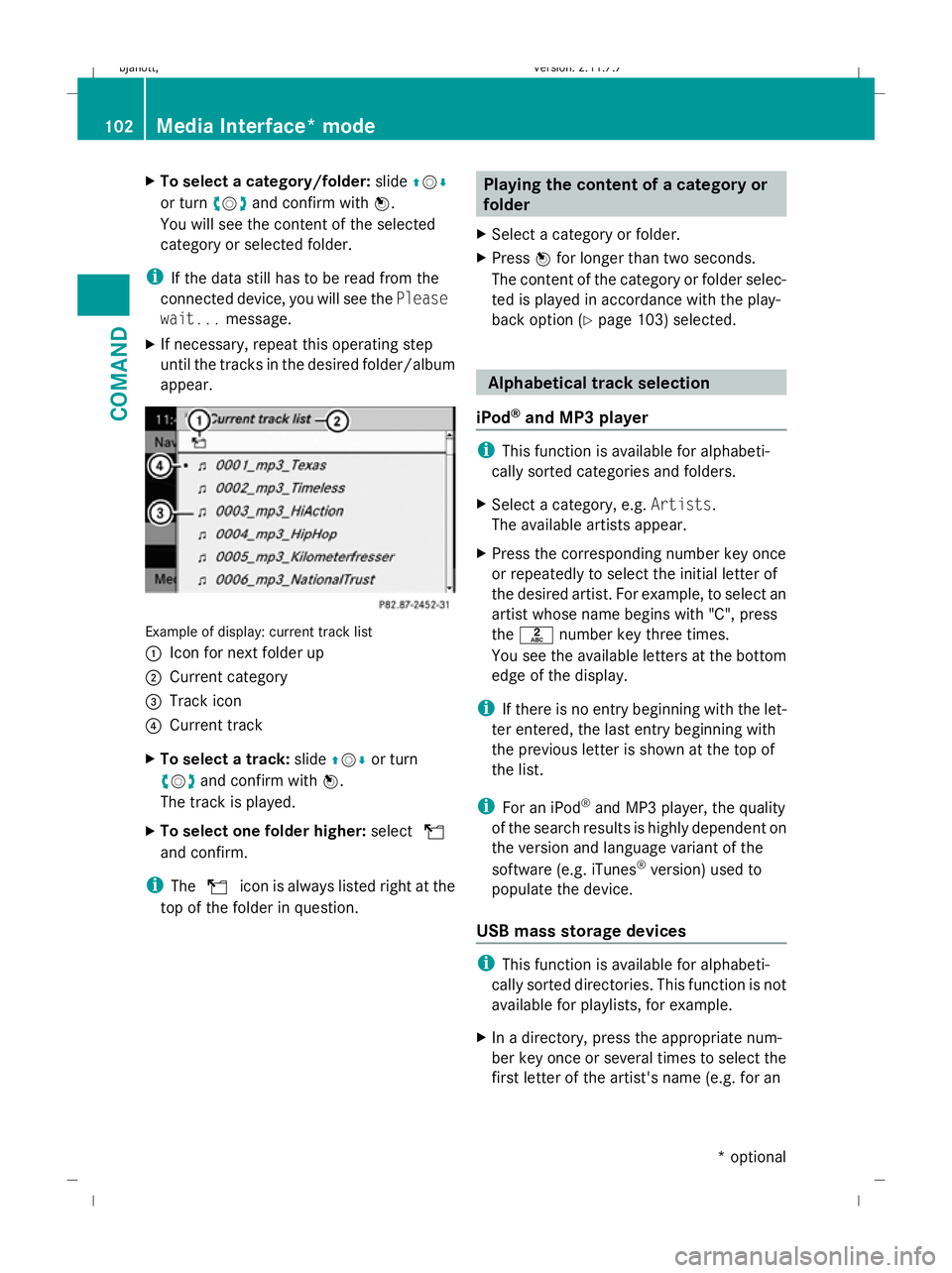
appear. Example of display: current track list
:
Icon for next folder up
; Current category
= Track icon
? Current track
X To select a track: slideZVÆor turn
cV dand confirm with W.
The track is played.
X To select one folder higher: selectU
and confirm.
i The U icon is always listed right at the
top of the folder in question. Playing the content of a category or
folder
X Select a category or folder.
X Press Wfor longer than two seconds.
The content of the category or folder selec-
ted is played in accordance with the play-
back option (Y page 103) selected. Alphabetical track selection
iPod ®
and MP3 player i
This function is available for alphabeti-
cally sorted categories and folders.
X Select a category, e.g. Artists.
The available artists appear.
X Press the corresponding number key once
or repeatedly to select the initial letter of
the desired artist. For example, to select an
artist whose name begins with "C", press
the l number key three times.
You see the available letters at the bottom
edge of the display.
i If there is no entry beginning with the let-
ter entered, the last entry beginning with
the previous letter is shown at the top of
the list.
i For an iPod ®
and MP3 player, the quality
of the search results is highly dependent on
the version and language variant of the
software (e.g. iTunes ®
version) used to
populate the device.
USB mass storage devices i
This function is available for alphabeti-
cally sorted directories. This function is not
available for playlists, for example.
X In a directory, press the appropriate num-
ber key once or several times to select the
first letter of the artist's name (e.g. for an 102
Media Interface* modeCOMAND
* optional
216_AKB; 2; 3, en-GB
bjanott,
Version: 2.11.7.7 2009-02-27T14:54:17+01:00 - Seite 102
Dateiname: 6515230602_buchblock.pdf; erzeugt am 04. Mar 2009 11:15:05; WK
Page 119 of 421
Calling additional parties
You can call a second person while on the
phone with someone else. This action puts
the previous call on hold.
X Select NEWfrom the telephone basic menu
and press W.
or
X Select SENDon the telephone keypad.
X Enter the phone number manually
(Y page 113) or using the phone book
(Y page 119).
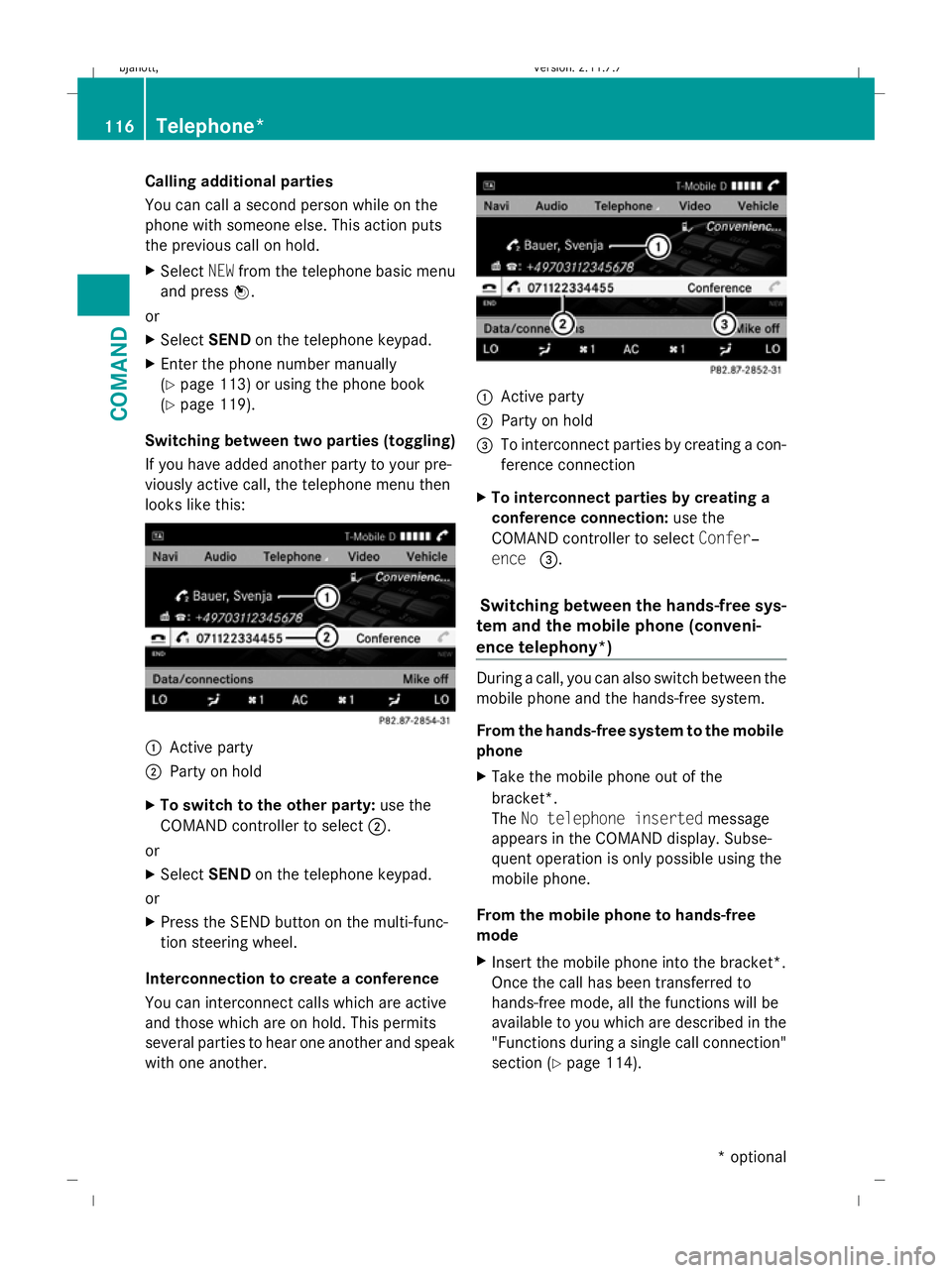
Switching between two parties (toggling)
If you have added another party to your pre-
viously active call, the telephone menu then
looks like this: :
Active party
; Party on hold
X To switch to the other party: use the
COMAND controller to select ;.
or
X Select SENDon the telephone keypad.
or
X Press the SEND button on the multi-func-
tion steering wheel.
Interconnection to create a conference
You can interconnect calls which are active
and those which are on hold. This permits
several parties to hear one another and speak
with one another. :
Active party
; Party on hold
= To interconnect parties by creating a con-
ference connection
X To interconnect parties by creating a
conference connection: use the
COMAND controller to select Confer‐
ence =.
Switching between the hands-free sys-
tem and the mobile phone (conveni-
ence telephony*) During a call, you can also switch between the
mobile phone and the hands-free system.
From the hands-free system to the mobile
phone
X
Take the mobile phone out of the
bracket*.
The No telephone inserted message
appears in the COMAND display. Subse-
quent operation is only possible using the
mobile phone.
From the mobile phone to hands-free
mode
X Insert the mobile phone into the bracket*.
Once the call has been transferred to
hands-free mode, all the functions will be
available to you which are described in the
"Functions during a single call connection"
section (Y page 114). 116
Telephone*COMAND
* optional
216_AKB; 2; 3, en-GB
bjanott
,V ersion: 2.11.7.7
2009-02-27T14:54:17+01:00 - Seite 116
Dateiname: 6515230602_buchblock.pdf; erzeugt am 04. Mar 2009 11:15:08; WK
Page 130 of 421
Units of measurement
The units of measurement in navigation mode
are identical to those displayed in the instru-
ment cluster. The units of measurement may
only be changed via the instrument cluster.
Input restrictions
On vehicles for certain countries, there is a
restriction on entering data.
The restriction is active above a vehicle speed
of about 5 km/h. The restriction is deactiva-
ted as soon as the vehicle speed drops below
about 3 km/h.
When the restriction is active it is not possible
to enter specific items, e.g. a town or street
name. You will recognise this because certain
menu items cannot be selected.
Switching to navigation mode
X Press the Sfunction button once or
twice.
or
X Select Naviin the main function bar.
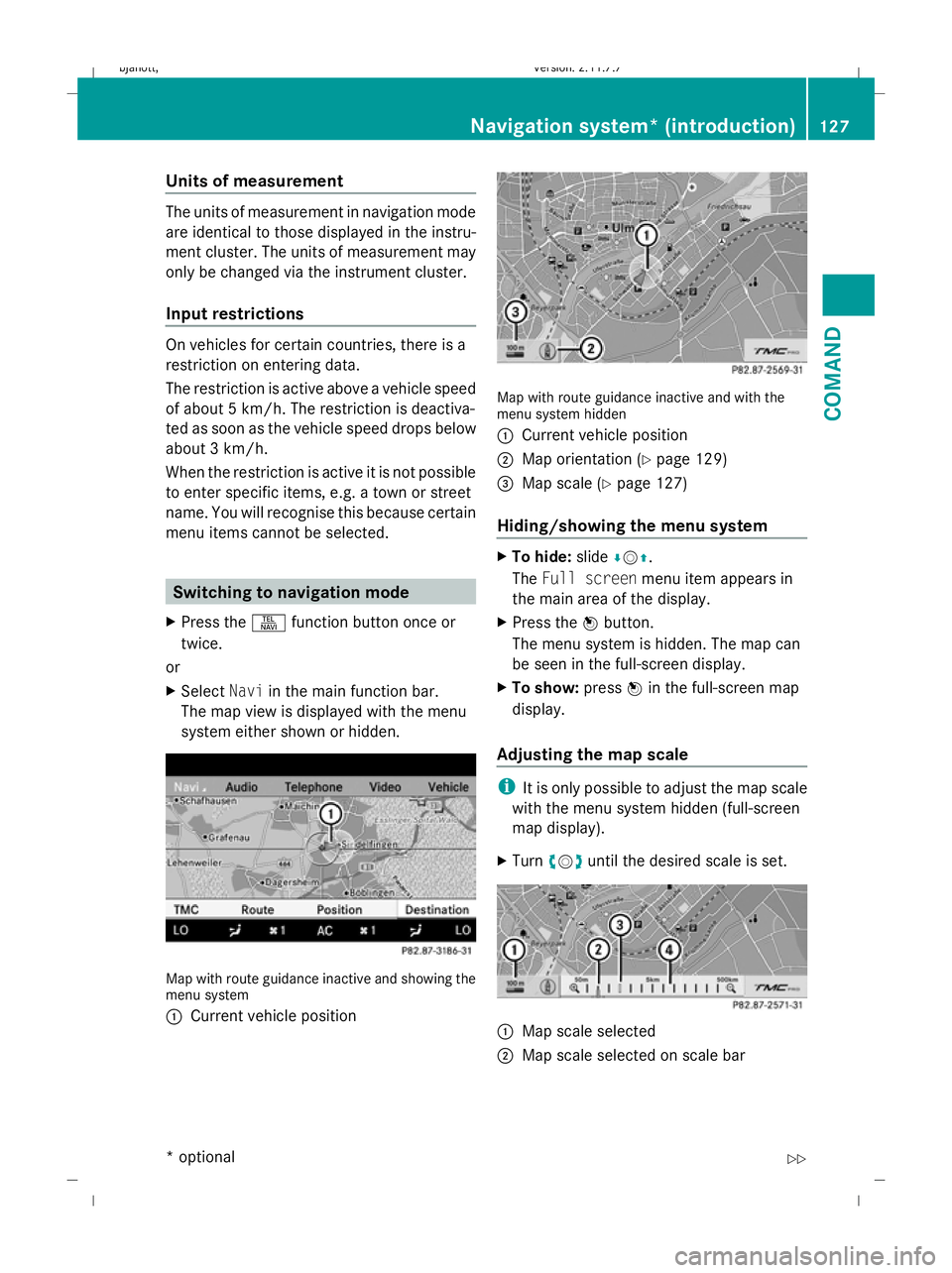
The map view is displayed with the menu
system either shown or hidden. Map with route guidance inactive and showing the
menu system
:
Current vehicle position Map with route guidance inactive and with the
menu system hidden
:
Current vehicle position
; Map orientation (Y page 129)
= Map scale (Y page 127)
Hiding/showing the menu system X
To hide: slideÆVZ.
The Full screen menu item appears in
the main area of the display.
X Press the Wbutton.
The menu system is hidden. The map can
be seen in the full-screen display.
X To show: pressWin the full-screen map
display.
Adjusting the map scale i
It is only possible to adjust the map scale
with the menu system hidden (full-screen
map display).
X Turn cVd until the desired scale is set. :
Map scale selected
; Map scale selected on scale bar Navigation system* (introduction)
127COMAND
* optional
216_AKB; 2; 3, en-GB
bjanott
,V ersion: 2.11.7.7
2009-02-27T14:54:17+01:00 - Seite 127 Z
Dateiname: 6515230602_buchblock.pdf; erzeugt am 04. Mar 2009 11:15:12; WK
Page 135 of 421
jam, for example. If a quicker route is deter-
mined due to a received RDS-TMC traffic
announcement, the navigation system
changes the route. If possible, it will bypass
blockages.
R Short route: COMAND calculates a route
with the shortest possible (minimised) dis-
tance regarding distance and driving time.
X Select NaviQMode:
The mode list appears.
The current setting is indicated by a #dot.
X To make a setting: selectFastest
route orDynamic route orShort
route.
X To exit the menu: slideXVY.
i COMAND calculates a new route if you
change the route type setting with route
guidance active. If you change the route
type setting when route guidance is inac-
tive, COMAND uses the new setting for the
next route guidance.
Setting route options This function allows you to set the following
options for route guidance:
R Avoid motorways
R Avoid toll roads
R Avoid routes requiring special
toll sticker
R Avoid tunnels
R Avoid ferries
R Avoid motorail trains
X Select NaviQMode:
The mode list appears.
The selected option is indicated by a O
tick. It is possible to select more than one
option.
X To activate or deactivate an option:
select the desired option.
The option is selected or deselected,
depending on the previous status. X
To exit the menu: slideXVY.
COMAND will verify whether it can imple-
ment the options if you have selected them
with route guidance active. If it can,
COMAND calculates a new route while
implementing the options selected. If it
cannot, you will see and hear a correspond-
ing message.
X Select OK.
COMAND calculates a new route. Only
those options which can be implemented
are considered. Installing map software
The digital maps generated by the map soft-
ware become outdated in the same way as
conventional road maps. Optimum route
guidance can only be provided by the naviga-
tion system in conjunction with the most up-
to-date map software. Information about new
map software versions can be obtained from
a Mercedes-Benz Service Centre.
You can install new map software, which may
consist of one of more DVDs (depending on
the scope), yourself.
The installation process can take between
10 and 120 minutes, depending on the scope
of the map software. If the radio is switched
on before you start the installation process,
you can still adjust the volume. You can also
use COMAND to operate the automatic air-
conditioning system and to cancel the proc-
ess. Other functions are not operational. If
possible, carry out the installation process
when the vehicle is stationary. The DVD read
speed is higher when the vehicle is stationary
than when it is in motion, so less time is
required. If the starter battery is not suffi-
ciently charged, COMAND may end the proc-
ess automatically, in order to protect the bat-
tery. Therefore, let the engine idle during the
installation process. 132
Navigation system* (introduction)COMAND
* optional
216_AKB; 2; 3, en-GB
bjanott,
Version: 2.11.7.7 2009-02-27T14:54:17+01:00 - Seite 132
Dateiname: 6515230602_buchblock.pdf; erzeugt am 04. Mar 2009 11:15:14; WK
Page 186 of 421
i
If you press Start/Stop button :in this
position once and the driver's door is open,
the power supply is disconnected again.
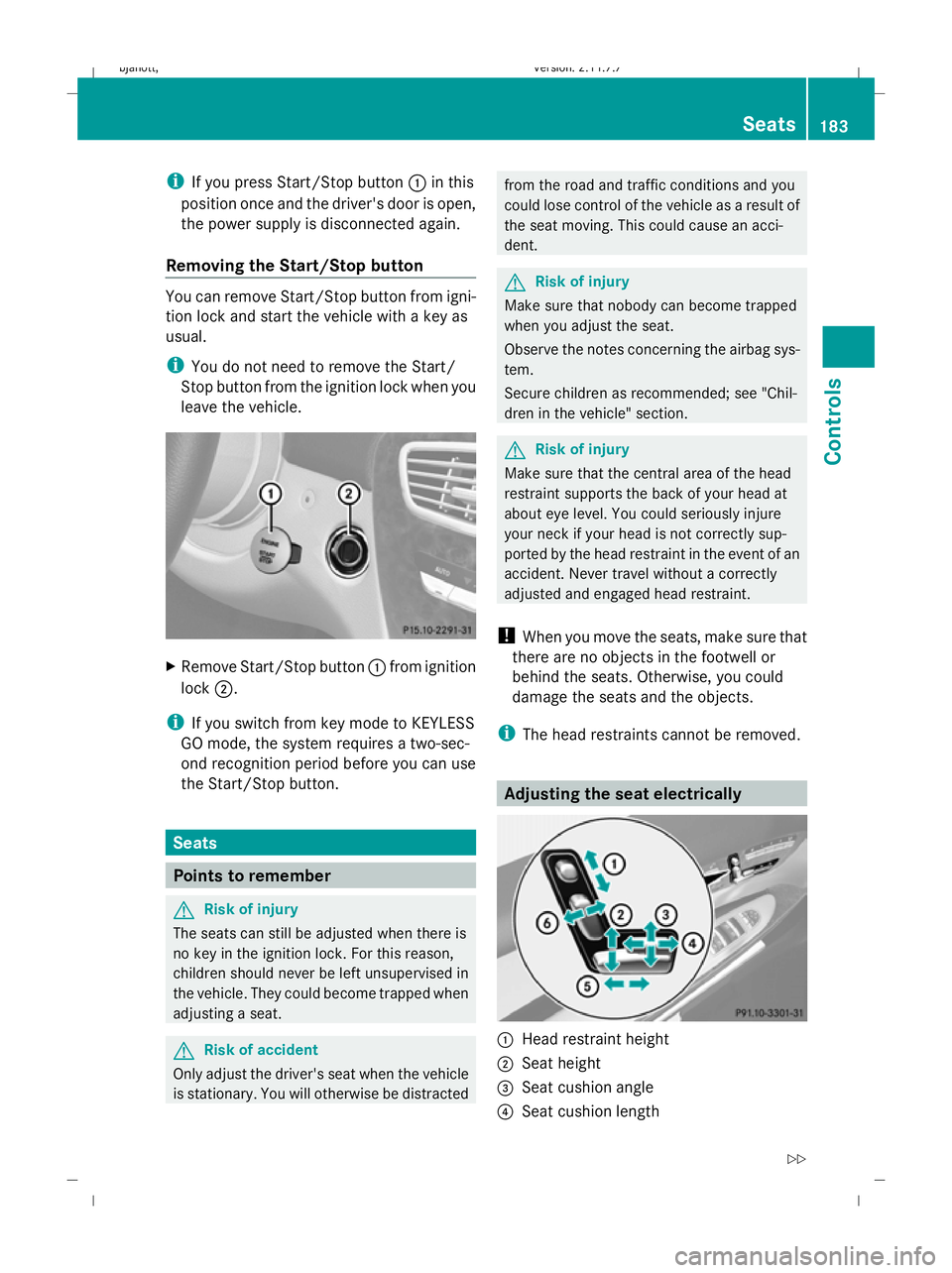
Removing the Start/Stop button You can remove Start/Stop button from igni-
tion lock and start the vehicle with a key as
usual.
i
You do not need to remove the Start/
Stop button from the ignition lock when you
leave the vehicle. X
Remove Start/Stop button :from ignition
lock ;.
i If you switch from key mode to KEYLESS
GO mode, the system requires a two-sec-
ond recognition period before you can use
the Start/Stop button. Seats
Points to remember
G
Risk of injury
The seats can still be adjusted when there is
no key in the ignition lock. For this reason,
children should never be left unsupervised in
the vehicle. They could become trapped when
adjusting a seat. G
Risk of accident
Only adjust the driver's seat when the vehicle
is stationary. You will otherwise be distracted from the road and traffic conditions and you
could lose control of the vehicle as a result of
the seat moving. This could cause an acci-
dent. G
Risk of injury
Make sure that nobody can become trapped
when you adjust the seat.
Observe the notes concerning the airbag sys-
tem.
Secure children as recommended; see "Chil-
dren in the vehicle" section. G
Risk of injury
Make sure that the central area of the head
restraint supports the back of your head at
about eye level. You could seriously injure
your neck if your head is not correctly sup-
ported by the head restraint in the event of an
accident. Never travel without a correctly
adjusted and engaged head restraint.
! When you move the seats, make sure that
there are no objects in the footwell or
behind the seats. Otherwise, you could
damage the seats and the objects.
i The head restraints cannot be removed. Adjusting the seat electrically
:
Head restraint height
; Seat height
= Seat cushion angle
? Seat cushion length Seats
183Controls
216_AKB; 2; 3, en-GB
bjanott, Version: 2.11.7.7 2009-02-27T14:54:17+01:00 - Seite 183 Z
Dateiname: 6515230602_buchblock.pdf; erzeugt am 04. Mar 2009 11:15:38; WK