USB MERCEDES-BENZ CL COUPE 2009 User Guide
[x] Cancel search | Manufacturer: MERCEDES-BENZ, Model Year: 2009, Model line: CL COUPE, Model: MERCEDES-BENZ CL COUPE 2009Pages: 421, PDF Size: 10.78 MB
Page 104 of 421
X
If desired, enter further digits.
X To confirm your entry: pressW.
or
X Press and hold the number key for the last
number of the desired track number.
The selected track is played.
Fast forward/rewind X
If the display/selection window is
active: slideXVY and hold until you reach
the desired position.
i On an iPod ®
, the fast rewind function can
only be used within the currently playing
track. Selecting a category/playlist/folder
iPod ®
and selected MP3 players You can select tracks for an iPod
®
and MP3
player according to categories and folders.
Categories can include:
R Current track list
R Playlists
R Artists
R Albums
R Tracks
R Podcasts
R Genres
R Composers
R Audiobooks
i Some playback categories contain the
All entry. When this entry has been selec-
ted, the entire content of the category
selected will be played.
USB devices For USB mass storage devices, you can select
folders and also playlists (if available). When
playing back from playlists, COMAND can also display the respective album and artist
name (metadata), if these have been uploa-
ded to the system.
Playlists are indicated in the display by a spe-
cial icon. When you open the playlist, the cor-
responding tracks are opened and playback
begins when you select a track.
For USB mass storage devices, you can
choose to display the metadata contained in
the tags of the encoded music data, or to dis-
play the file and directory names during play-
back.
X
To display album and artist name: select
Media Interface QDisplay Meta‐
data.
Selecting a category and opening a
folder X
To open a category list/folder: pressW
when the display/selection window is
active.
or
X Select Music.
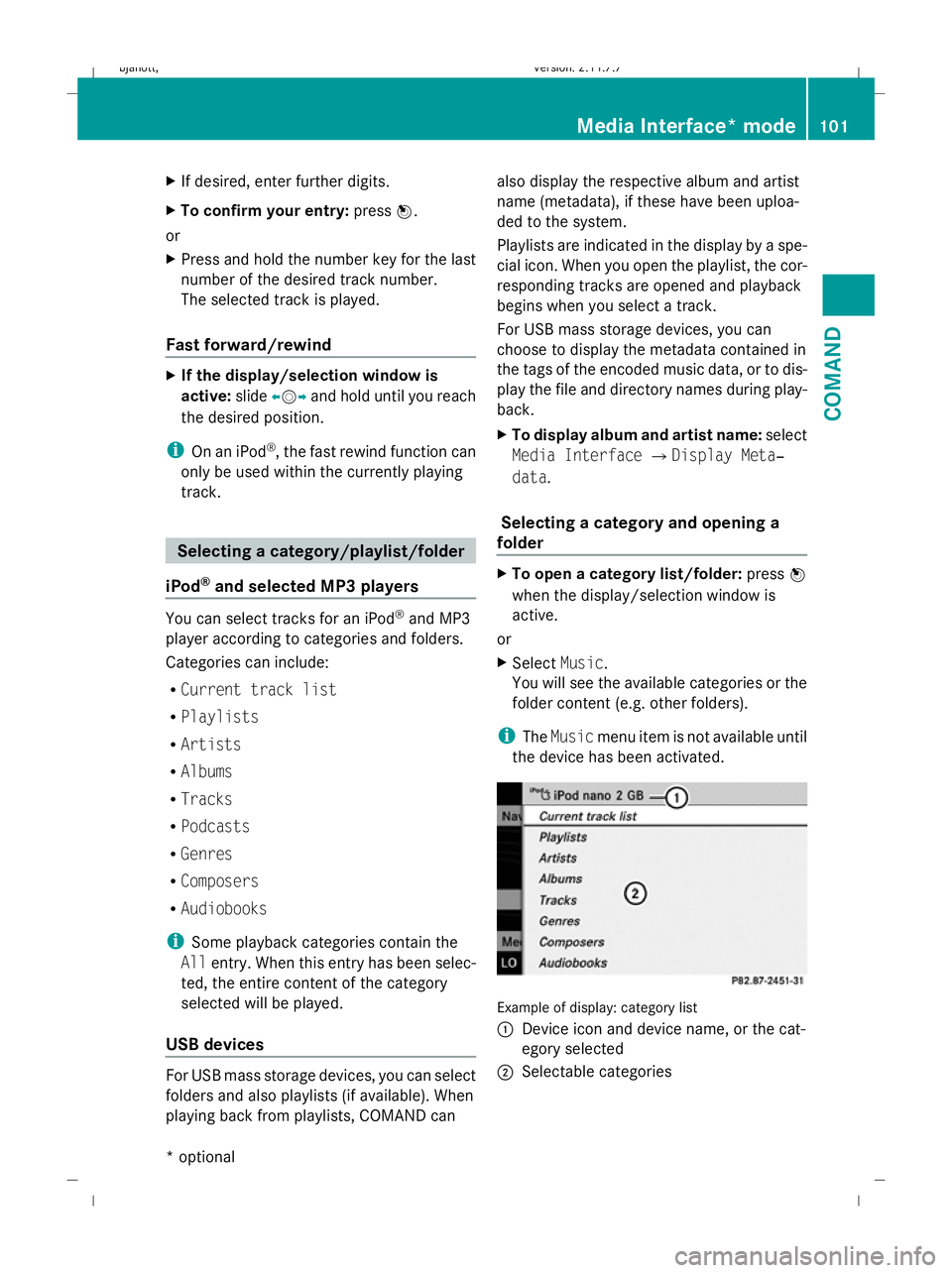
You will see the available categories or the
folder content (e.g. other folders).
i The Music menu item is not available until
the device has been activated. Example of display: category list
:
Device icon and device name, or the cat-
egory selected
; Selectable categories Media Interface* mode
101COMAND
* optional
216_AKB; 2; 3, en-GB
bjanott,
Version: 2.11.7.7 2009-02-27T14:54:17+01:00 - Seite 101 Z
Dateiname: 6515230602_buchblock.pdf; erzeugt am 04. Mar 2009 11:15:05; WK
Page 105 of 421
X
To select a category/folder: slideZVÆ
or turn cVdand confirm with W.
You will see the content of the selected
category or selected folder.
i If the data still has to be read from the
connected device, you will see the Please
wait... message.
X If necessary, repeat this operating step
until the tracks in the desired folder/album
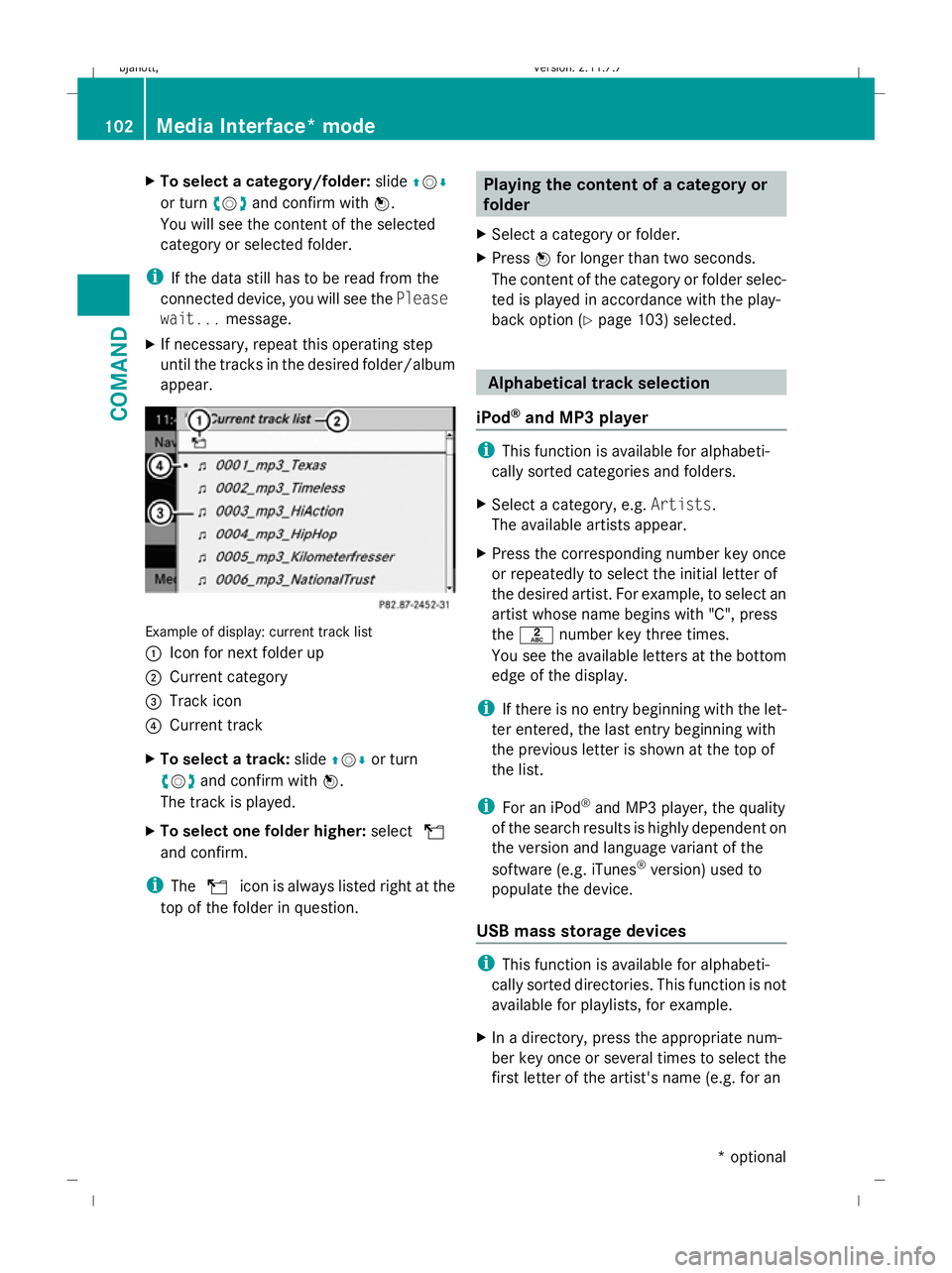
appear. Example of display: current track list
:
Icon for next folder up
; Current category
= Track icon
? Current track
X To select a track: slideZVÆor turn
cV dand confirm with W.
The track is played.
X To select one folder higher: selectU
and confirm.
i The U icon is always listed right at the
top of the folder in question. Playing the content of a category or
folder
X Select a category or folder.
X Press Wfor longer than two seconds.
The content of the category or folder selec-
ted is played in accordance with the play-
back option (Y page 103) selected. Alphabetical track selection
iPod ®
and MP3 player i
This function is available for alphabeti-
cally sorted categories and folders.
X Select a category, e.g. Artists.
The available artists appear.
X Press the corresponding number key once
or repeatedly to select the initial letter of
the desired artist. For example, to select an
artist whose name begins with "C", press
the l number key three times.
You see the available letters at the bottom
edge of the display.
i If there is no entry beginning with the let-
ter entered, the last entry beginning with
the previous letter is shown at the top of
the list.
i For an iPod ®
and MP3 player, the quality
of the search results is highly dependent on
the version and language variant of the
software (e.g. iTunes ®
version) used to
populate the device.
USB mass storage devices i
This function is available for alphabeti-
cally sorted directories. This function is not
available for playlists, for example.
X In a directory, press the appropriate num-
ber key once or several times to select the
first letter of the artist's name (e.g. for an 102
Media Interface* modeCOMAND
* optional
216_AKB; 2; 3, en-GB
bjanott,
Version: 2.11.7.7 2009-02-27T14:54:17+01:00 - Seite 102
Dateiname: 6515230602_buchblock.pdf; erzeugt am 04. Mar 2009 11:15:05; WK
Page 106 of 421
artist beginning with the letter "C", press
number key
lthree times).
You see the available letters at the bottom
edge of the display.
If the directory only contains folders,
COMAND searches for folders. Selecting an active partition (for USB
mass storage devices only)
You can select this function for USB mass
storage devices when the storage device is
partitioned. Up to four partitions (primary or
logical and FAT-formatted) are supported.
i The Windows formatting program sup-
ports FAT partitions of up to 32 GB as
standard.
X Select Media Interface QSelect
active partition . Playback options
The following options are available to you:
R Normal track sequence
The tracks are played in the normal order
(e.g. sorted by number or by title).
R Random tracks
All the tracks on the medium are played in
random order.
R Random categories orRandom folder
(in the case of USB devices when Folder
has been selected):
The tracks in the currently active category
or folder, including any sub-folders, are
played in random order.
X To select a playback option: select
Media Interface in the basic display.
The options list appears. A #dot indicates
the option selected.
X Select an option. Telephone*
Safety notes
G
Risk of accident
Observe the legal requirements of the country
in which you are currently driving regarding
operating mobile communications equipment
in a vehicle.
If it is permitted by law to operate communi-
cations equipment while the vehicle is in
motion, you may only do so when the traffic
situation allows. Otherwise, you could be dis-
tracted from the traffic conditions, cause an
accident and injure yourself and others.
Two-way radios and fax equipment used with-
out low-reflection exterior aerials can inter-
fere with the vehicle's electronics and,
thereby, jeopardise the operating safety of
the vehicle and your safety. Therefore, you
must only use this equipment if it is correctly
connected to a separate, reflection-free, exte-
rior aerial. G
Risk of accident
For reasons of safety, only use hands-free
mode if you use the telephone when driving.
If you use hands-free mode to make a call, you
must continue to drive carefully, close all the
windows and prevent any disruptive noises. General notes
Bluetooth ®
interface and convenience
telephony* COMAND offers you dual-level telephone
functions.
The basic set-up offers you Bluetooth
®
inter-
face telephony when used with a Bluetooth ®
-
capable mobile phone. With suitable mobile
phones, the Bluetooth ®
interface can be used
for the following functions:
R hands-free system
R phone book Telephone*
103COMAND
* optional
216_AKB; 2; 3, en-GB
bjanott
,V ersion: 2.11.7.7
2009-02-27T14:54:17+01:00 - Seite 103 Z
Dateiname: 6515230602_buchblock.pdf; erzeugt am 04. Mar 2009 11:15:05; WK
Page 279 of 421
Sharp-edged and fragile objects must not be
carried in the luggage net.
Do not carry hard objects in the ruffled pock-
ets. Objects must not protrude over the top
of the ruffled pockets.
Glove compartment i
Depending on the vehicle's equipment,
you will find the following installed in the
glove compartment: an audio and video
AUX jack, a USB socket or Media Inter-
face*, a universal interface for mobile
audio equipment, e.g. for an iPod, USB devi-
ces, and a bracket for a remote control *.
The glove compartment can be cooled
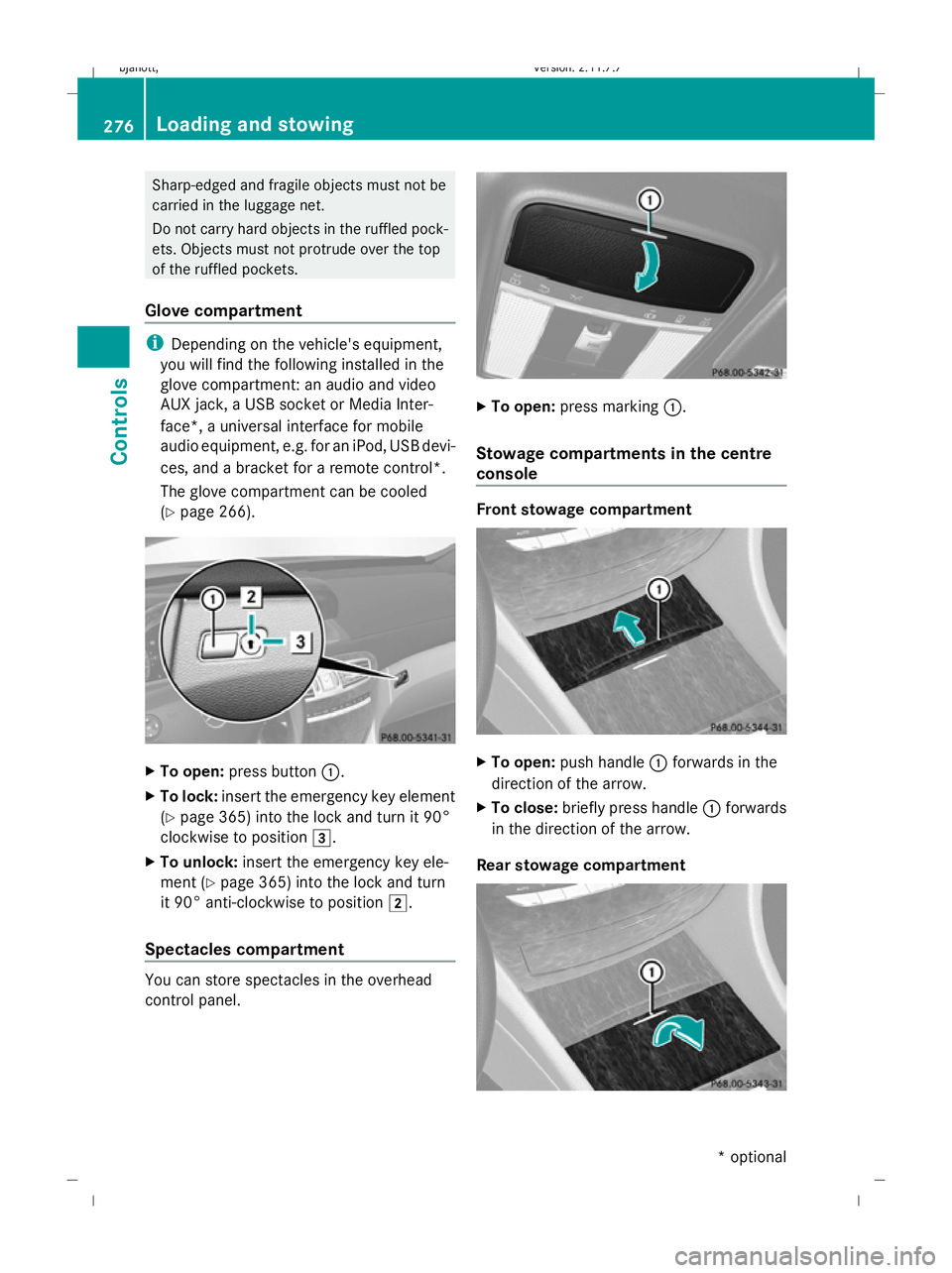
(Y page 266). X
To open: press button :.
X To lock: insert the emergency key element
(Y page 365) into the lock and turn it 90°
clockwise to position 3.
X To unlock: insert the emergency key ele-
ment ( Ypage 365) into the lock and turn
it 90° anti-clockwise to position 2.
Spectacles compartment You can store spectacles in the overhead
control panel. X
To open: press marking :.
Stowage compartments in the centre
console Front stowage compartment
X
To open: push handle :forwards in the
direction of the arrow.
X To close: briefly press handle :forwards
in the direction of the arrow.
Rear stowage compartment 276
Loading and stowingControls
* optional
216_AKB; 2; 3, en-GB
bjanott,
Version: 2.11.7.7 2009-02-27T14:54:17+01:00 - Seite 276
Dateiname: 6515230602_buchblock.pdf; erzeugt am 04. Mar 2009 11:16:15; WK