language MERCEDES-BENZ CL COUPE 2009 User Guide
[x] Cancel search | Manufacturer: MERCEDES-BENZ, Model Year: 2009, Model line: CL COUPE, Model: MERCEDES-BENZ CL COUPE 2009Pages: 421, PDF Size: 10.78 MB
Page 161 of 421
Entering an address manually
X
To assign data to My address for the
first time: selectSave with name.
or
X To edit My address: selectEditQ
Save with name.
In both cases, the address input menu
appears.
X Enter the address. Proceed in the same way
as you would enter a destination as descri-
bed in the "Entering a destination by
address" section (Y page 135).
X Select Saveafter you have entered the
address.
Your address is stored.
Using an address book entry for My
address
X To assign data to My address for the
first time: selectAssign address book
entry.
or
X To edit My address: selectChange Q
Assign to address book entry.
In both cases, the menu for searching for
an address book entry appears.
X Select the desired address book entry. Pro-
ceed as described in the "Calling up con-
tacts/details" section (Y page 120).
i The name of the town and of the street in
the address book entry must be spelled in
the same way as in the destination entry so
that the information matches the data on
the digital map. The country in the address
book can be written as follows so that it
matches the data on the digital map:
R Country name spelled in the language of
that country
R Country name spelled in the language set
as the system language
R Country name as an international coun-
try abbreviation for vehicles (e.g. D for Germany, E for Spain, F for France, I for
Italy, etc.)
X COMAND stores the entry as My address
in the destination memory if the address
data is complete and matches the digital
map data.
If address data is missing or if it does not
match the data on the digital map, a mes-
sage will be displayed informing you that
the address is incomplete.
X To close the message: selectOK.
Depending on which data is missing or does
not correspond with the digital map data, you
must now:
R select a country (Y page 136)
R enter a town (Y page 136)
R enter a street (Y page 138)
R enter a house number (Y page 140)
If the data is complete and it matches the
digital map data, COMAND stores the entry. Storing a destination in the destina-
tion memory
This function also stores the destination in
the address book. COMAND creates an
address book entry that contains the com-
plete, navigable address data. You can then
select this entry in the address book and start
route guidance to the address from there.
After the address has been entered X
Select Saveafter you have entered the
address ( Ypage 135).
During route guidance X
Select Destination QSave destina‐
tion during route guidance.
You can now select storage options. 158
Navigation system* (destination memory)COMAND
* optional
216_AKB; 2; 3, en-GB
bjanott,
Version: 2.11.7.7 2009-02-27T14:54:17+01:00 - Seite 158
Dateiname: 6515230602_buchblock.pdf; erzeugt am 04. Mar 2009 11:15:24; WK
Page 163 of 421
i
If the navigable address data for the des-
tination being deleted is also assigned to
an address book entry, COMAND will also
delete this data from there. If the corre-
sponding address book entry does not con-
tain any further data, such as telephone
numbers, COMAND deletes the entire
address book entry. Navigation system* (previous desti-
nations) General notes
COMAND automatically stores the previous
destinations for which the route calculation
was launched. If the memory is full, COMAND
deletes the oldest destination.
You can also store one destination from the
list of previous destinations in the destination
memory. It will be stored there permanently. Storing a destination permanently in
the destination memory
X Proceed as described in the "From the list
of previous destinations" section
(Y page 159) Storing the vehicle position in the list
of previous destinations
X To set the map to the vehicle position:
select NaviQPosition QVehicle
position map.
X To save: selectNaviQPosition Q
Save crosshair position. Storing the crosshair position in the
list of previous destinations
i A crosshair appears on the map if you
have moved the map manually. You can
store the crosshair position as a destina-
tion in the list of previous destinations. X
If necessary, display the menu system:
press W.
X Select PositionQSave crosshair
position. Deleting a previous destination
X Select NaviQDestination QFrom
last destinations .
The list of previous destinations appears.
X Select the desired destination.
The address of the destination appears.
X Select Delete. System
Menu overview
You will not be able to use the system settings
in the following menus:
R Display QDay design, Night design, Auto-
matic
R Time QClock, Date, Format, Time zone
R LINGUATRONIC* QHelp window, New
individualisation, Delete individualisation
R Language QLanguage selection
R Favourites button QAssign programma-
ble button
R Reset QReset COMAND to factory set-
tings
R Text reader QSet read-aloud speed
R Bluetooth ®
Q Search for Bluetooth ®
devi-
ces, activate Bluetooth ®
R Data upload/download QCopy data to
storage medium, import data from storage
medium 160
SystemCOMAND
* optional
216_AKB; 2; 3, en-GB
bjanott,
Version: 2.11.7.7 2009-02-27T14:54:17+01:00 - Seite 160
Dateiname: 6515230602_buchblock.pdf; erzeugt am 04. Mar 2009 11:15:25; WK
Page 166 of 421
Deleting existing individualisation data
X
Select Vehicle QSystem QLingua‐
tronic QDelete individualisation .
A prompt appears asking whether you
really wish to delete.
X Select YesorNo.
The individualisation data will either be
deleted or not, depending on your selec-
tion. Language settings
X Select Vehicle QSystem QLan‐
guage.
The language list appears. The #dot indi-
cates the current setting.
X To change the setting: select the desired
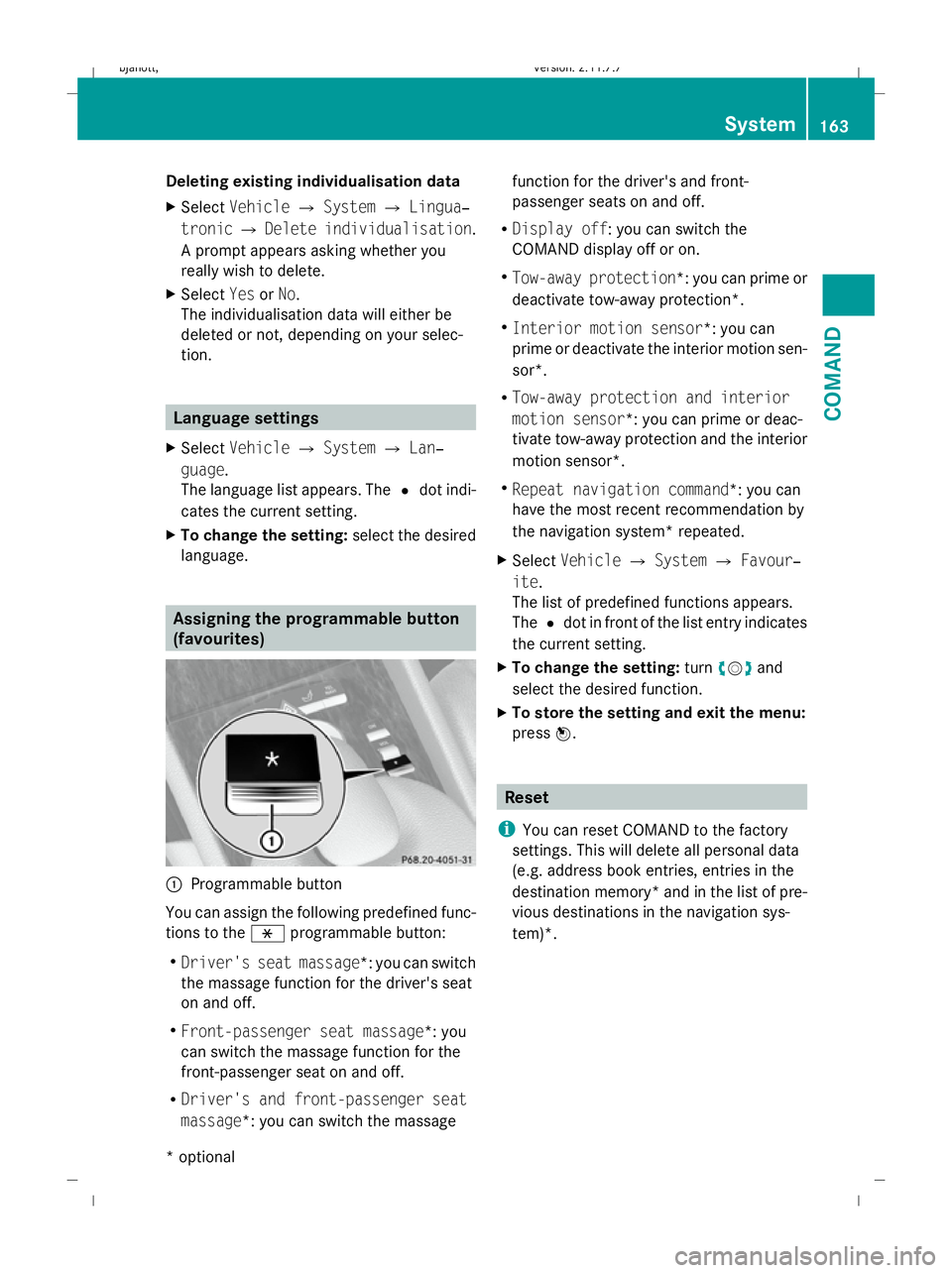
language. Assigning the programmable button
(favourites)
:
Programmable button
You can assign the following predefined func-
tions to the hprogrammable button:
R Driver's seat massage*: you can switch
the massage function for the driver's seat
on and off.
R Front-passenger seat massage*: you
can switch the massage function for the
front-passenger seat on and off.
R Driver's and front-passenger seat
massage*: you can switch the massage function for the driver's and front-
passenger seats on and off.
R Display off : you can switch the
COMAND display off or on.
R Tow-away protection *: you can prime or
deactivate tow-away protection*.
R Interior motion sensor *: you can
prime or deactivate the interior motion sen-
sor*.
R Tow-away protection and interior
motion sensor *: you can prime or deac-
tivate tow-away protection and the interior
motion sensor*.
R Repeat navigation command*: you can
have the most recent recommendation by
the navigation system* repeated.
X Select Vehicle QSystem QFavour‐
ite .
The list of predefined functions appears.
The #dot in front of the list entry indicates
the current setting.
X To change the setting: turncVd and
select the desired function.
X To store the setting and exit the menu:
press W. Reset
i You can reset COMAND to the factory
settings. This will delete all personal data
(e.g. address book entries, entries in the
destination memory* and in the list of pre-
vious destinations in the navigation sys-
tem)*. System
163COMAND
* optional
216_AKB; 2; 3, en-GB
bjanott
,V ersion: 2.11.7.7
2009-02-27T14:54:17+01:00 - Seite 163 Z
Dateiname: 6515230602_buchblock.pdf; erzeugt am 04. Mar 2009 11:15:26; WK