language MERCEDES-BENZ CL COUPE 2009 Owners Manual
[x] Cancel search | Manufacturer: MERCEDES-BENZ, Model Year: 2009, Model line: CL COUPE, Model: MERCEDES-BENZ CL COUPE 2009Pages: 421, PDF Size: 10.78 MB
Page 1 of 421
Disclaimer
Das folgen de PDF -Doku ment für die ses Fahrze ugmodell be zieht sich in allen
Sprachver sionen nur auf die Fahrz euge, d ie fü r den deutsche n Markt best immt
sind und die den deutschen Vorschriften entsprechen. Bitte wenden Sie sich an
Ihr en autorisierten Mer cedes-Benz Services tützpunkt, um ein gedruckt es Exem plar
für andere Fahrzeugmodelle und Fahrzeugmodelljahre zu erhalten.
Dieses PDF -Dokume nt stellt die aktuelle Version dar . Mögliche Abweic hungen zu
Ihrem konkreten Fahrzeug könnten nicht berücksichtigt sein, da Mercedes-Benz
seine Fahrzeuge st ändig dem neuest en Stand d er Technik anp asst, so wie
Änderungen in Form und Ausstattung vornimmt. Bitte beachten Sie daher, dass
dieses PDF-Dokument in keinem Fall das gedruckte Exemplar ersetzt, das mit
dem Fahrzeug ausgeliefert wurde.
Internal use only
Disclaimer
All language versions of the following PD\f document for this vehicle model
relate solel\b to vehicles intended for sale on the German market and which
correspond to German regulations.
Please contact \bour authorised Mercedes-Benz Service Centre to obtain
a printed version for other vehicle models and vehicle model \bears. This PD\f
document is the latest version. Possible variations to \bour vehicle ma\b not
be taken into account as Mercedes-Benz constantl\b updates their vehicles to
the state of the art and introduces changes in design and e\Dquipment. Please
therefore note that this PD\f document in no wa\b replaces the printed version
which was delivered with \bour vehicle.
Internal use only
Disclaimer
The following version of the Owner‘s Manual describes all models, series and
special equipment of your vehicle. Country-specific language variations are
possible. Please note that your vehicle might not be equipped with all the
described functions. This also affects safety-relevant systems and functions.
Please contact your authorised Mercedes-Benz dealership if you would like
to receive a printed Owner‘s Manual for other vehicle models and vehicle
model years.
The online Owner‘s Manual is the current and valid version. It is possible that
deviations affecting your specific vehicle could not be taken into account
as Mercedes-Benz constantly adapts its vehicles according to the latest
technology and makes changes to the form and the equipment.
Please also read the printed Owner‘s Manual, supplementary documents and
the digital Owner‘s Manual in the vehicle.
Copyright
All rights reserved. All texts, images and graphics are subject to copyright
and other laws for the protection of intellectual property. They may not be
copied or changed for any commercial use or for the purpose of being passed
on nor used on other webistes.
Page 14 of 421

Display message . . . . . . . . . . . . .
.340
Locking . . . . . . . . . . . . . . . . . . . . .178
Malfunction . . . . . . . . . . . . . . . . . .362
Starting the engine . . . . . . . . . . . .203
Unlocking . . . . . . . . . . . . . . . . . . . .178
Key positions
Key . . . . . . . . . . . . . . . . . . . . . . . . .182
KEYLESS GO . . . . . . . . . . . . . . . . .182
Kickdown . . . . . . . . . . . . . . . . . .209, 212 L
Lamp see Indicator and warning lamp . . .351
Lane-change assistant
see Blind Spot Assist . . . . . . . . . . .260
Lane recommendation . . . . . . . . . ..149
Language . . . . . . . . . . . . . . . . . . . . . .163
Licence plate lamp Display message . . . . . . . . . . . . . .345
Lighting
see Lights
Lights
Active light function . . . . . . . . . . . .197
Automatic headlamp mode . . . . . .195
Cornering light function . . . . . . . . .197
Daytime driving lights . . . . . . . . . .195
Dipped-beam headlamps . . . . . . . .195
Display messages . . . . . . . . . . . . .343
Foglamps . . . . . . . . . . . . . . . .195, 198
Hazard warning lamps . . . . . . . . . .196
Headlamp flasher . . . . . . . . . . . . . .196
Light switch . . . . . . . . . . . . . . . . . .194
Main-beam headlamps . . . . . . . . . .196
Motorway mode . . . . . . . . . . . . . . .198
Rear foglamp . . . . . . . . . . . . . . . . .196
Switching off (display message) . . .345
Switching the daytime driving
lights on/off (on-board computer) .225
Switching the Intelligent Light
System on/off (on-board com-
puter) . . . . . . . . . . . . . . . . . . . . . . .225
Turn signals . . . . . . . . . . . . . . . . . .196
LIM indicator lamp
Cruise control . . . . . . . . . . . . . . . .228
Distronic . . . . . . . . . . . . . . . . . . . .231
Distronic Plu s.. . . . . . . . . . . . . . . .236
Variable Speedtronic . . . . . . . . . . .243 Linguatronic
. . . . . . . . . . . . . . . . . . . .162
Locator lighting Adjusting (COMAND) . . . . . . . . . . .167
Locking
Automatic . . . . . . . . . . . . . . . . . . .180
Emergency locking . . . . . . . . . . . . .366
From the inside (central locking
button) . . . . . . . . . . . . . . . . . . . . . .179
Setting to automatic (COMAND) . .167
Luggage compartment
Power closing feature . . . . . . . . . .180
Luggage compartment load, maximum
see Technical data
Luggage net . . . . . . . . . . . . . . . . . . . .278
Lumbar support . . . . . . . . . . . . . . . . .185
COMAND . . . . . . . . . . . . . . . . . . . .173 M
Main-beam headlamps Display message . . . . . . . . . . . . . .344
Maintenance
Battery . . . . . . . . . . . . . . . . . . . . . .382
Making calls
On-board computer . . . . . . . . . . . .222
Manual drive program . . . . . . . . . . ..211
Massage function (PULSE) . . . . . . ..176
Matt paintwork Cleaning . . . . . . . . . . . . . . . . . . . . .308
Media Interface
Active partition . . . . . . . . . . . . . . . .103
Basic menu . . . . . . . . . . . . . . . . . .100
Connection options . . . . . . . . . . . . .98
iPod ®
. . . . . . . . . . . . . . . . . . . . . . . .98
Metadata . . . . . . . . . . . . . . . . . . . .101
Mode . . . . . . . . . . . . . . . . . . . . . . . .98
MP3 player . . . . . . . . . . . . . . . . . . . .98
Selecting categorie s.. . . . . . . . ..101
Selecting folders . . . . . . . . . . . . . .101
Selecting music file s.. . . . . . . . ..100
Selecting playlists . . . . . . . . . . . . .101
Switching to . . . . . . . . . . . . . . . . . . .99
USB mass storage device . . . . . . . .98
Memory card
Operation (on-board computer) . . .219
Memory function . . . . . . . . . . . . . . . .190 Index
11 216_AKB; 2; 3, en-GB
bjanott,
Version: 2.11.7.7 2009-02-27T14:54:17+01:00 - Seite 11Dateiname: 6515230602_buchblock.pdf; erzeugt am 04. Mar 2009 11:14:35; WK
Page 18 of 421
Sensors
Cleaning . . . . . . . . . . . . . . . . . . . . .310
Service indicator
see Service interval display . . . . . .306
Service products . . . . . . . . . . . . . . . .396
Brake fluid . . . . . . . . . . . . . . . . . . .400
Coolant . . . . . . . . . . . . . . . . . . . . .399
Engine oil . . . . . . . . . . . . . . . . . . . .398
Fuel . . . . . . . . . . . . . . . . . . . . . . . .397
Settings
Calling up a stored setting . . . . . . .190
On-board computer . . . . . . . . . . . .225
Setting the air distribution
COMAND . . . . . . . . . . . . . . . . . . . .169
Shift ranges
Automatic transmission . . . . . . . . .209
Sidebag . . . . . . . . . . . . . . . . . . . . . . . . .41
Side windows Convenience closing . . . . . . . . . . .201
Convenience opening . . . . . . . . . . .201
Fault . . . . . . . . . . . . . . . . . . . . . . . .361
Opening/closing . . . . . . . . . . . . . .200
Skibag . . . . . . . . . . . . . . . . . . . . . . . . .278
Sliding/tilting sunroof . . . . . . . . . ..274
Convenience closing . . . . . . . . . . .201
Convenience opening . . . . . . . . . . .201
Rain closing feature . . . . . . . . . . . .275
Resetting . . . . . . . . . . . . . . . . . . . .275
Sliding sunroof
see Sliding/tilting sunroof
Snow chains . . . . . . . . . . . . . . . . . . . .303
Socket . . . . . . . . . . . . . . . . . . . . . . . . .282
Cockpit . . . . . . . . . . . . . . . . . . . . . .282
Sound settings . . . . . . . . . . . . . . . . . . .63
Spare wheel Fitting. . . . . . . . . . . . . . . . . . . . . . .378
Technical data . . . . . . . . . . . . . . . .407
Special destination
Entry . . . . . . . . . . . . . . . . . . . . . . . .147
Spectacles compartment . . . . . . . ..276
Speed limiter Speedtronic . . . . . . . . . . . . . . . . . .242
Speedometer
Additional speedometer (on-
board computer) . . . . . . . . . .216, 226
Selecting the display unit (on-
board computer) . . . . . . . . . . . . . .226 Speedtronic
. . . . . . . . . . . . . . . . . . . .242
Display message . . . . . . . . . .320, 329
Permanent . . . . . . . . . . . . . . . . . . .245
Variabl e.. . . . . . . . . . . . . . . . . . . .243
SRS (Supplemental Restraint Sys-
tem) . . . . . . . . . . . . . . . . . . . . . . . . . . . .37
Display message . . . . . . . . . . . . . .338
Warning lamp . . . . . . . . . . . . . .37, 353
Steering wheel
Adjusting . . . . . . . . . . . . . . . . . . . .188
Buttons (on-board computer) . . . . .213
Storing settings . . . . . . . . . . . . . . .190
Steering wheel boss
Cleaning . . . . . . . . . . . . . . . . . . . . .310
Steering wheel heating . . . . . . . . . ..188
Stowage compartments . . . . . . . . ..275
Armrest (under) . . . . . . . . . . . . . . .277
Centre console . . . . . . . . . . . . . . . .276
Cup holder . . . . . . . . . . . . . . . . . . .277
Glove compartment . . . . . . . . . . . .276
Rea r.. . . . . . . . . . . . . . . . . . . . . . .277
Rear seat armrest . . . . . . . . . . . . .277
Rear seats (between) . . . . . . . . . . .277
Stowage well
Boot floor (underneath) . . . . . . . . .280
Summer opening
see Convenience opening
Sun visor . . . . . . . . . . . . . . . . . . . . . . .280
Supplemental Restraint System See SRS . . . . . . . . . . . . . . . . . . . . . .37
Suspension tuning . . . . . . . . ..247, 248
Switching off the alarm ATA . . . . . . . . . . . . . . . . . . . . . . . . . .55
System settings (COMAND)
Display . . . . . . . . . . . . . . . . . . . . . .161
Linguatronic settings . . . . . . . . . . .162
Menu overview . . . . . . . . . . . . . . . .160
Programmable button . . . . . . . . . .163
Reset . . . . . . . . . . . . . . . . . . . . . . .163
Setting the system language . . . . .163
Time settings . . . . . . . . . . . . . . . . .161 T
Tail pipes Cleaning . . . . . . . . . . . . . . . . . . . . .310
Tank
see Fuel tank Index
15 216_AKB; 2; 3, en-GB
bjanott,
Version: 2.11.7.7 2009-02-27T14:54:17+01:00 - Seite 15Dateiname: 6515230602_buchblock.pdf; erzeugt am 04. Mar 2009 11:14:35; WK
Page 91 of 421
X
To stop a film: selectStop:from the
menu.
X To skip to the end of a scene: select
F ;from the menu.
X To skip to the beginning of a scene:
select =E from the menu.
i Depending on the DVD, the ;and =
menu items may not function at all or may
not function at certain points in the DVD
menu.
Moving up one level in the DVD menu X
Press the %button.
or
X Select the corresponding menu item in the
DVD menu.
or
X Select any menu item from the DVD menu.
X Select Go upfrom the menu.
i Depending on the DVD, the Go upmenu
item or the back button may not function
in general or may not function at certain
points in the DVD menu.
Going back to the movie X
Press the %button repeatedly until you
see the film.
or
X Select the corresponding menu item in the
DVD menu.
or
X Select any menu item from the DVD menu.
X Select Back (to the movie) from the
menu.
i Depending on the DVD, the Back (to
the movie) menu item or the back button
may not have a function. Setting the language and audio for-
mat
This function is not available on all DVDs. If it
is available, you can set the DVD menu lan-
guage, the audio language or the audio for-
mat. The number of settings is determined by
the DVD content. It is possible that the set-
tings may also be accessed in the DVD menu
(Y page 87).
X Select VideoQDVD-Video.
X Display the menu system if necessary
(Y page 85).
X Select DVD-VQDVD functions.
X Select Menu language orAudio lan‐
guage.
Both of these will call up a menu. The #
dot in front of a list entry indicates the cur-
rently selected language.
X To change the setting: slideZVÆ or turn
cVd until the desired setting is reached.
X To save the setting: pressW.
X To exit the menu: slideXVY. Subtitles and camera angle
These functions are not available on all DVDs.
The number of subtitle languages and camera
angles available depends on the content of
the DVD. It is possible that the settings may
also be accessed in the DVD menu
(Y page 87).
X Select VideoQDVD-Video.
X Display the menu system if necessary
(Y page 85).
X Select DVD-VQDVD functions.
X Select Subtitles orCamera angle.
Both of these will call up a menu. The #
dot in front of a list entry indicates the cur-
rent setting.
X To change the setting: slideZVÆ or turn
cVd until the desired setting is reached. 88
Video DVD functionsCOMAND
216_AKB; 2; 3, en-GB
bjanott,
Version: 2.11.7.7 2009-02-27T14:54:17+01:00 - Seite 88
Dateiname: 6515230602_buchblock.pdf; erzeugt am 04. Mar 2009 11:15:02; WK
Page 105 of 421
X
To select a category/folder: slideZVÆ
or turn cVdand confirm with W.
You will see the content of the selected
category or selected folder.
i If the data still has to be read from the
connected device, you will see the Please
wait... message.
X If necessary, repeat this operating step
until the tracks in the desired folder/album
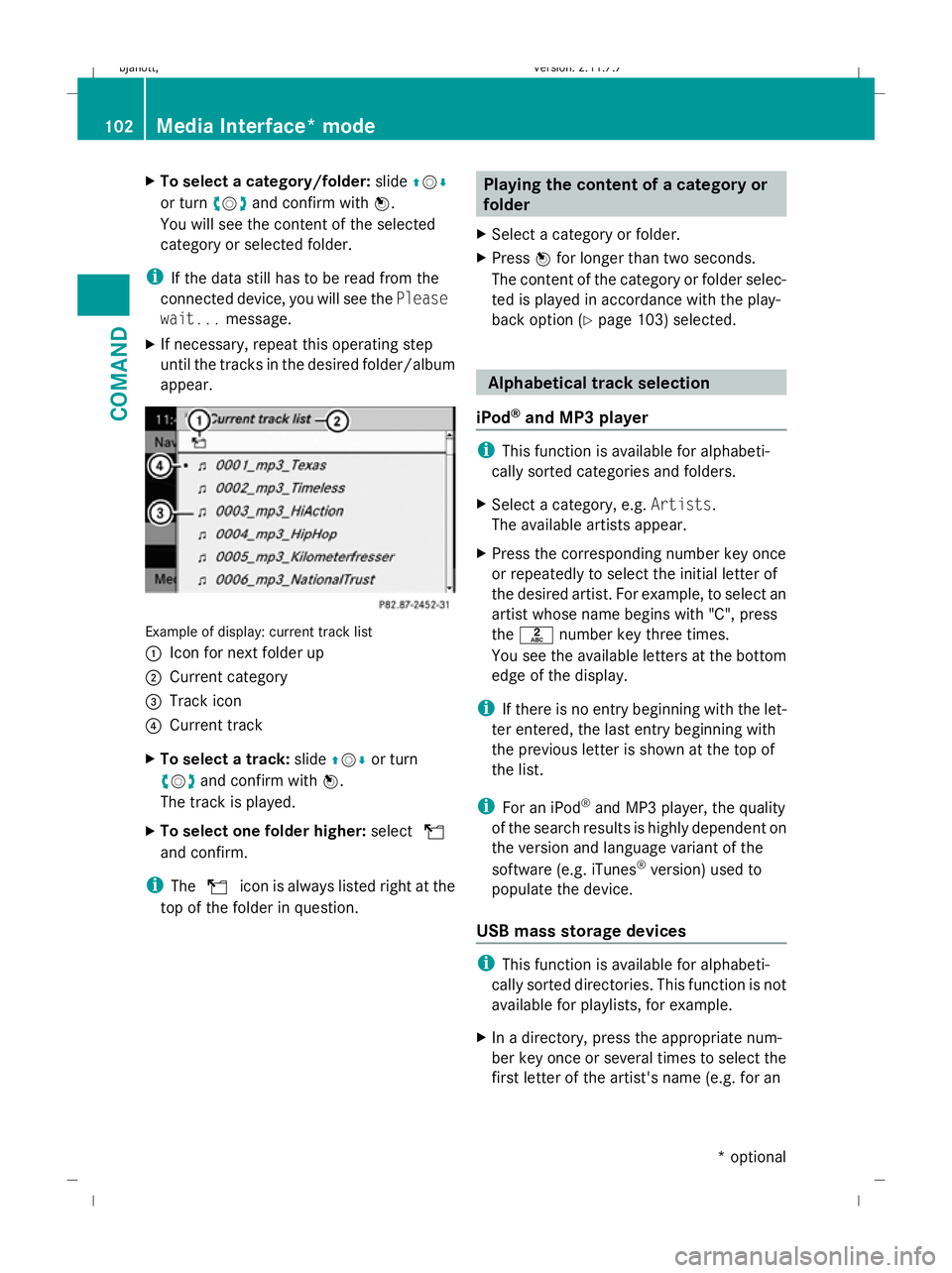
appear. Example of display: current track list
:
Icon for next folder up
; Current category
= Track icon
? Current track
X To select a track: slideZVÆor turn
cV dand confirm with W.
The track is played.
X To select one folder higher: selectU
and confirm.
i The U icon is always listed right at the
top of the folder in question. Playing the content of a category or
folder
X Select a category or folder.
X Press Wfor longer than two seconds.
The content of the category or folder selec-
ted is played in accordance with the play-
back option (Y page 103) selected. Alphabetical track selection
iPod ®
and MP3 player i
This function is available for alphabeti-
cally sorted categories and folders.
X Select a category, e.g. Artists.
The available artists appear.
X Press the corresponding number key once
or repeatedly to select the initial letter of
the desired artist. For example, to select an
artist whose name begins with "C", press
the l number key three times.
You see the available letters at the bottom
edge of the display.
i If there is no entry beginning with the let-
ter entered, the last entry beginning with
the previous letter is shown at the top of
the list.
i For an iPod ®
and MP3 player, the quality
of the search results is highly dependent on
the version and language variant of the
software (e.g. iTunes ®
version) used to
populate the device.
USB mass storage devices i
This function is available for alphabeti-
cally sorted directories. This function is not
available for playlists, for example.
X In a directory, press the appropriate num-
ber key once or several times to select the
first letter of the artist's name (e.g. for an 102
Media Interface* modeCOMAND
* optional
216_AKB; 2; 3, en-GB
bjanott,
Version: 2.11.7.7 2009-02-27T14:54:17+01:00 - Seite 102
Dateiname: 6515230602_buchblock.pdf; erzeugt am 04. Mar 2009 11:15:05; WK
Page 121 of 421

X
Select the desired text message from the
text message inbox.
X Select Options QDetails.
The detailed view appears.
X To close the detailed view: slideXVY.
Reading a text message X
Select the desired text message from the
text message inbox.
X Press W.
X To scroll through the display or to
select telephone numbers in the text:
slide ZVÆ.
The display scrolls up or down line by line,
or skips to the next or previous telephone
number and automatically highlights it.
X To return to the list: slideXVY.
Listening to a text message*
You can set the language (Y page 163) and
the speed of the read-aloud func-
tion* (Y page 160).
X Select and open the desired text message
from the text message inbox.
X Press Wand select Read aloud.
X To end reading aloud: pressWand select
End reading aloud.
Writing a new text message X
Select Newfrom the "SMS" menu. Entering the recipient
:
Recipient of the new text message
; To enter a telephone number using the
address book
= Input speller
X To enter the text message recipient
from the phone book: select;using the
COMAND controller.
X Select the desired recipient from the phone
book (Y page 120).
X To enter the recipient's phone number
manually: use the COMAND controller to
select the desired digits with input speller
=.
or
X Use the telephone keypad to enter the
desired digits.
i You can also respond directly to a text
message; the recipient will then be auto-
matically accepted. To do so, simply select
OptionsQReply in the text message
inbox. 118
Telephone*COMAND
* optional
216_AKB; 2; 3, en-GB
bjanott,
Version: 2.11.7.7 2009-02-27T14:54:17+01:00 - Seite 118
Dateiname: 6515230602_buchblock.pdf; erzeugt am 04. Mar 2009 11:15:09; WK
Page 122 of 421
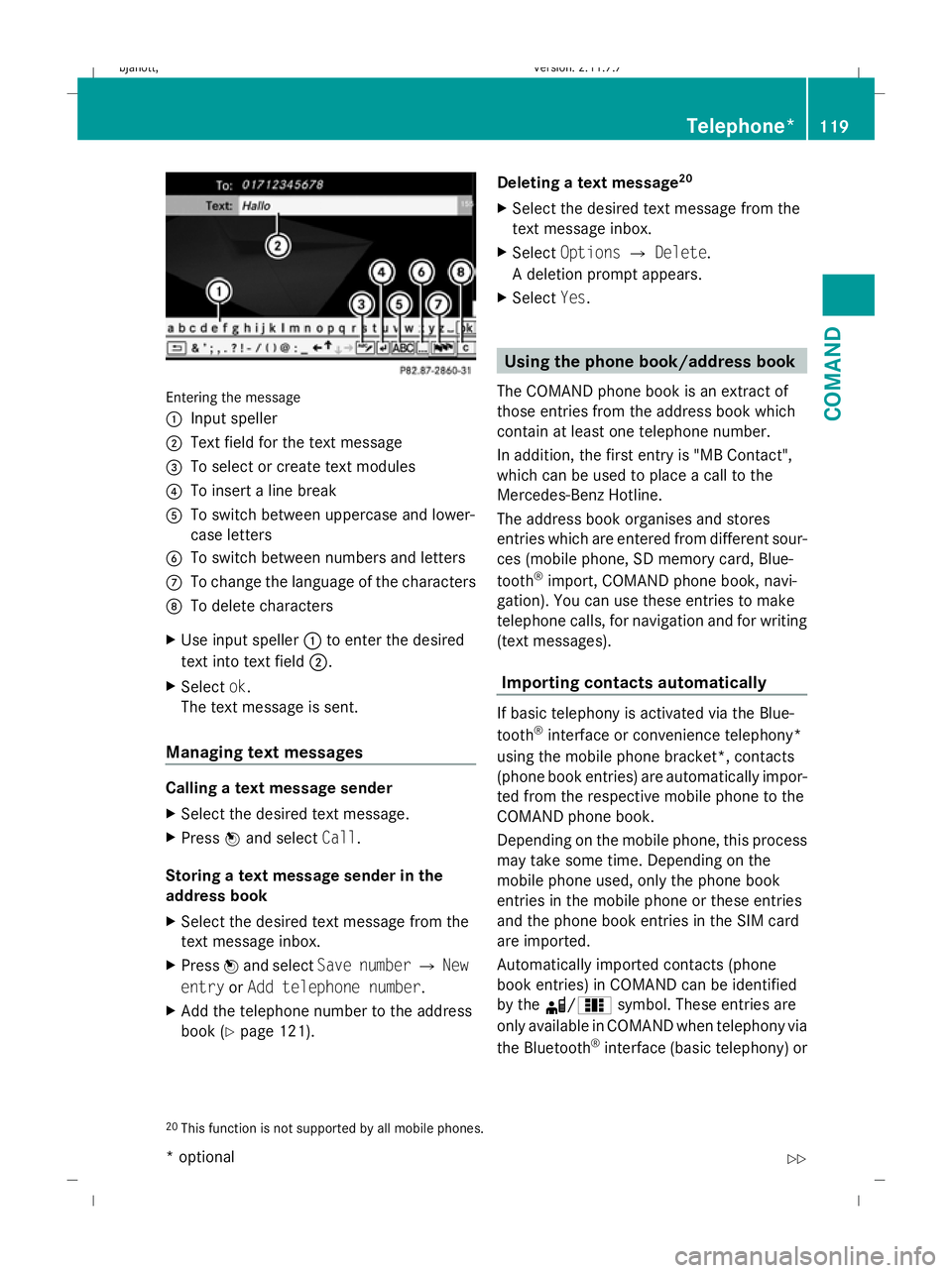
Entering the message
: Input speller
; Text field for the text message
= To select or create text modules
? To insert a line break
A To switch between uppercase and lower-
case letters
B To switch between numbers and letters
C To change the language of the characters
D To delete characters
X Use input speller :to enter the desired
text into text field ;.
X Select ok.
The text message is sent.
Managing text messages Calling a text message sender
X
Select the desired text message.
X Press Wand select Call.
Storing a text message sender in the
address book
X Select the desired text message from the
text message inbox.
X Press Wand select Save number QNew
entry orAdd telephone number .
X Add the telephone number to the address
book (Y page 121). Deleting a text message
20
X Select the desired text message from the
text message inbox.
X Select Options QDelete .
A deletion prompt appears.
X Select Yes. Using the phone book/address book
The COMAND phone book is an extract of
those entries from the address book which
contain at least one telephone number.
In addition, the first entry is "MB Contact",
which can be used to place a call to the
Mercedes-Benz Hotline.
The address book organises and stores
entries which are entered from different sour-
ces (mobile phone, SD memory card, Blue-
tooth ®
import, COMAND phone book, navi-
gation). You can use these entries to make
telephone calls, for navigation and for writing
(text messages).
Importing contacts automatically If basic telephony is activated via the Blue-
tooth
®
interface or convenience telephony*
using the mobile phone bracket*, contacts
(phone book entries) are automatically impor-
ted from the respective mobile phone to the
COMAND phone book.
Depending on the mobile phone, this process
may take some time. Depending on the
mobile phone used, only the phone book
entries in the mobile phone or these entries
and the phone book entries in the SIM card
are imported.
Automatically imported contacts (phone
book entries) in COMAND can be identified
by the d/0 symbol. These entries are
only available in COMAND when telephony via
the Bluetooth ®
interface (basic telephony) or
20 This function is not supported by all mobile phones. Telephone*
119COMAND
* optional
216_AKB; 2; 3, en-GB
bjanott,
Version: 2.11.7.7
2009-02-27T14:54:17+01:00 - Seite 119 Z
Dateiname: 6515230602_buchblock.pdf; erzeugt am 04. Mar 2009 11:15:09; WK
Page 123 of 421
using the mobile phone bracket* (conveni-
ence telephony*) is activated.
Importing contacts manually i
Manually imported contacts are always
available. Automatically imported contacts
are available only when basic telephony via
the Bluetooth ®
interface or convenience
telephony* using the mobile phone
bracket* is activated.
You can import existing data manually:
R from the memory card
R via the Bluetooth ®
interface (e.g. Blue-
tooth ®
telephone, Bluetooth ®
PC)
X To import data: load the memory card or
activate Bluetooth ®
in COMAND
(Y page 106) and on the Bluetooth ®
tele-
phone or PC (see operating instructions of
the respective mobile phone/PC).
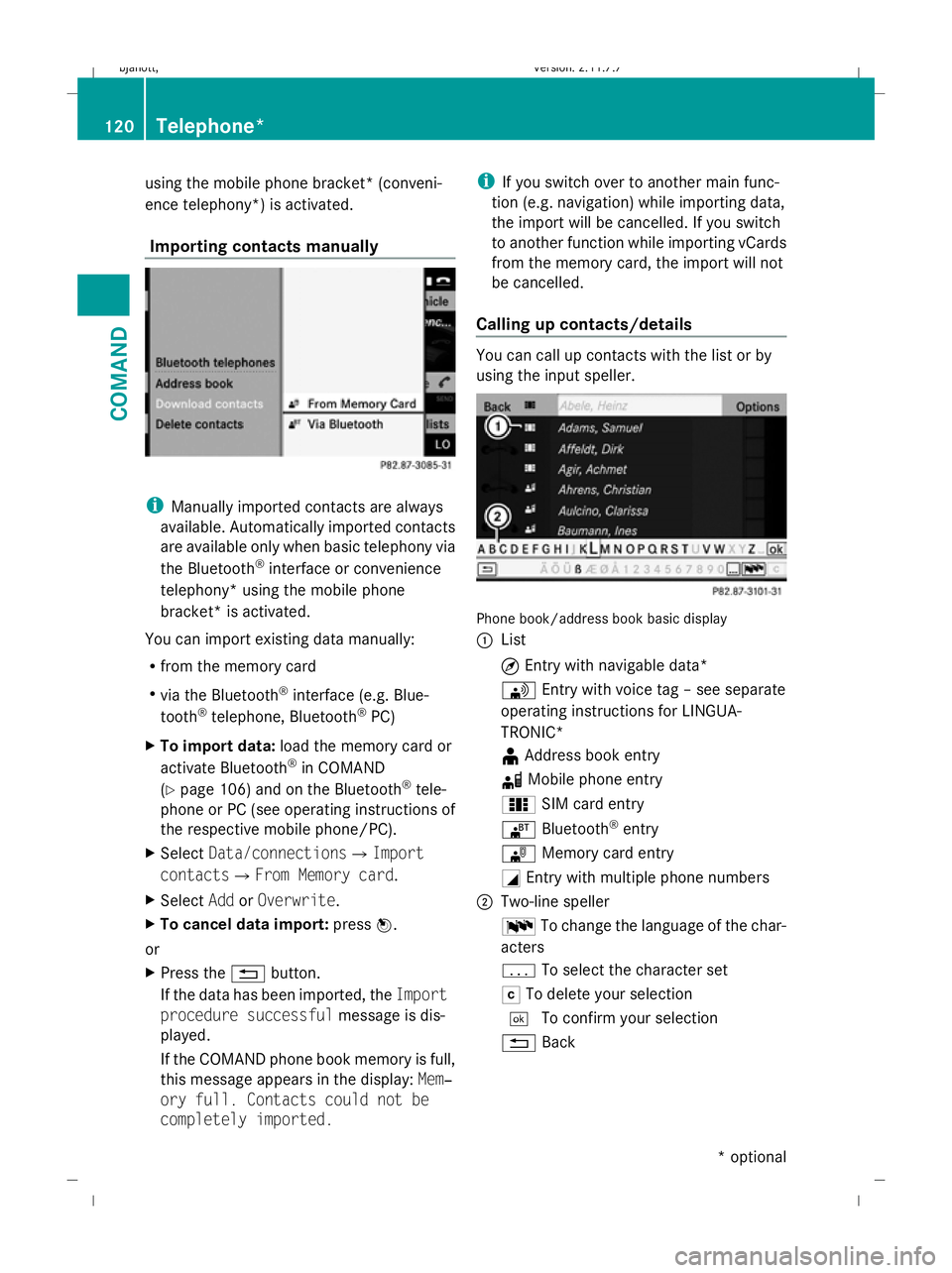
X Select Data/connectionsQImport
contactsQ From Memory card.
X Select AddorOverwrite .
X To cancel data import: pressW.
or
X Press the %button.
If the data has been imported, the Import
procedure successful message is dis-
played.
If the COMAND phone book memory is full,
this message appears in the display: Mem‐
ory full. Contacts could not be
completely imported. i
If you switch over to another main func-
tion (e.g. navigation) while importing data,
the import will be cancelled. If you switch
to another function while importing vCards
from the memory card, the import will not
be cancelled.
Calling up contacts/details You can call up contacts with the list or by
using the input speller.
Phone book/address book basic display
:
List
¤Entry with navigable data*
\ Entry with voice tag – see separate
operating instructions for LINGUA-
TRONIC*
¥ Address book entry
d Mobile phone entry
0 SIM card entry
® Bluetooth ®
entry
¯ Memory card entry
G Entry with multiple phone numbers
; Two-line speller
B To change the language of the char-
acters
p To select the character set
F To delete your selection
¬ To confirm your selection
% Back 120
Telephone*COMAND
* optional
216_AKB; 2; 3, en-GB
bjanott
,V ersion: 2.11.7.7
2009-02-27T14:54:17+01:00 - Seite 120
Dateiname: 6515230602_buchblock.pdf; erzeugt am 04. Mar 2009 11:15:10; WK
Page 125 of 421
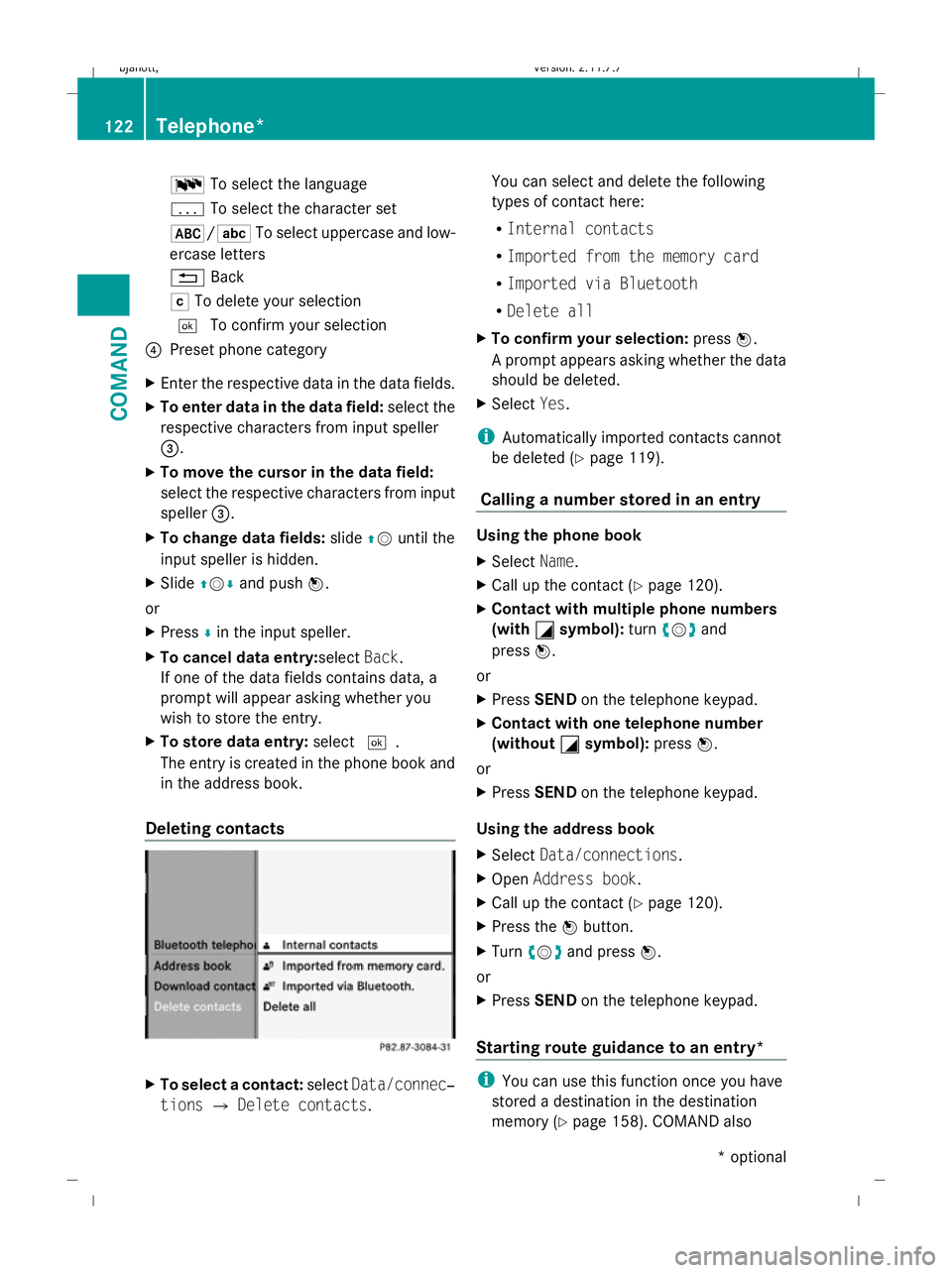
B
To select the language
p To select the character set
*/E To select uppercase and low-
ercase letters
% Back
F To delete your selection
¬ To confirm your selection
? Preset phone category
X Enter the respective data in the data fields.
X To enter data in the data field: select the
respective characters from input speller
=.
X To move the cursor in the data field:
select the respective characters from input
speller =.
X To change data fields: slideZVuntil the
input speller is hidden.
X Slide ZVÆ and push W.
or
X Press Æin the input speller.
X To cancel data entry:select Back.
If one of the data fields contains data, a
prompt will appear asking whether you
wish to store the entry.
X To store data entry: select¬.
The entry is created in the phone book and
in the address book.
Deleting contacts X
To select a contact: selectData/connec‐
tions QDelete contacts. You can select and delete the following
types of contact here:
R
Internal contacts
R Imported from the memory card
R Imported via Bluetooth
R Delete all
X To confirm your selection: pressW.
A prompt appears asking whether the data
should be deleted.
X Select Yes.
i Automatically imported contacts cannot
be deleted (Y page 119).
Calling a number stored in an entry Using the phone book
X
Select Name.
X Call up the contact (Y page 120).
X Contact with multiple phone numbers
(with G
G symbol): turncVd and
press W.
or
X Press SEND on the telephone keypad.
X Contact with one telephone number
(without G
G symbol): pressW.
or
X Press SEND on the telephone keypad.
Using the address book
X Select Data/connections.
X Open Address book.
X Call up the contact (Y page 120).
X Press the Wbutton.
X Turn cVd and press W.
or
X Press SEND on the telephone keypad.
Starting route guidance to an entry* i
You can use this function once you have
stored a destination in the destination
memory (Y page 158). COMAND also 122
Telephone*COMAND
* optional
216_AKB; 2; 3, en-GB
bjanott,
Version: 2.11.7.7 2009-02-27T14:54:17+01:00 - Seite 122
Dateiname: 6515230602_buchblock.pdf; erzeugt am 04. Mar 2009 11:15:10; WK
Page 146 of 421
While route calculation is in progress, an
arrow will indicate the direction to your
destination. Below this, you will see a cor-
responding message in the display. Once
the route has been calculated, route guid-
ance begins.
Route calculation takes a certain amount
of time. The time depends on the distance
from the destination, for example. COMAND
calculates the route using the digital map
data. The calculated route may differ from the
actual road situation, e.g. due to road works
or incomplete map data. Please make sure
that you observe the notes about the digital
map (Y page 132). Entering a destination from the desti-
nation memory
X Select NaviQDestination QFrom
memory.
The destination memory list appears either
with or without the input speller. Whether
or not the input speller is displayed
depends on the number of entries in the
destination memory.
i The destination memory always contains
an entry named My address. You may wish
to assign your home address to this entry,
for example (Y page 157). Like any other
entry, the My address entry can be selec-
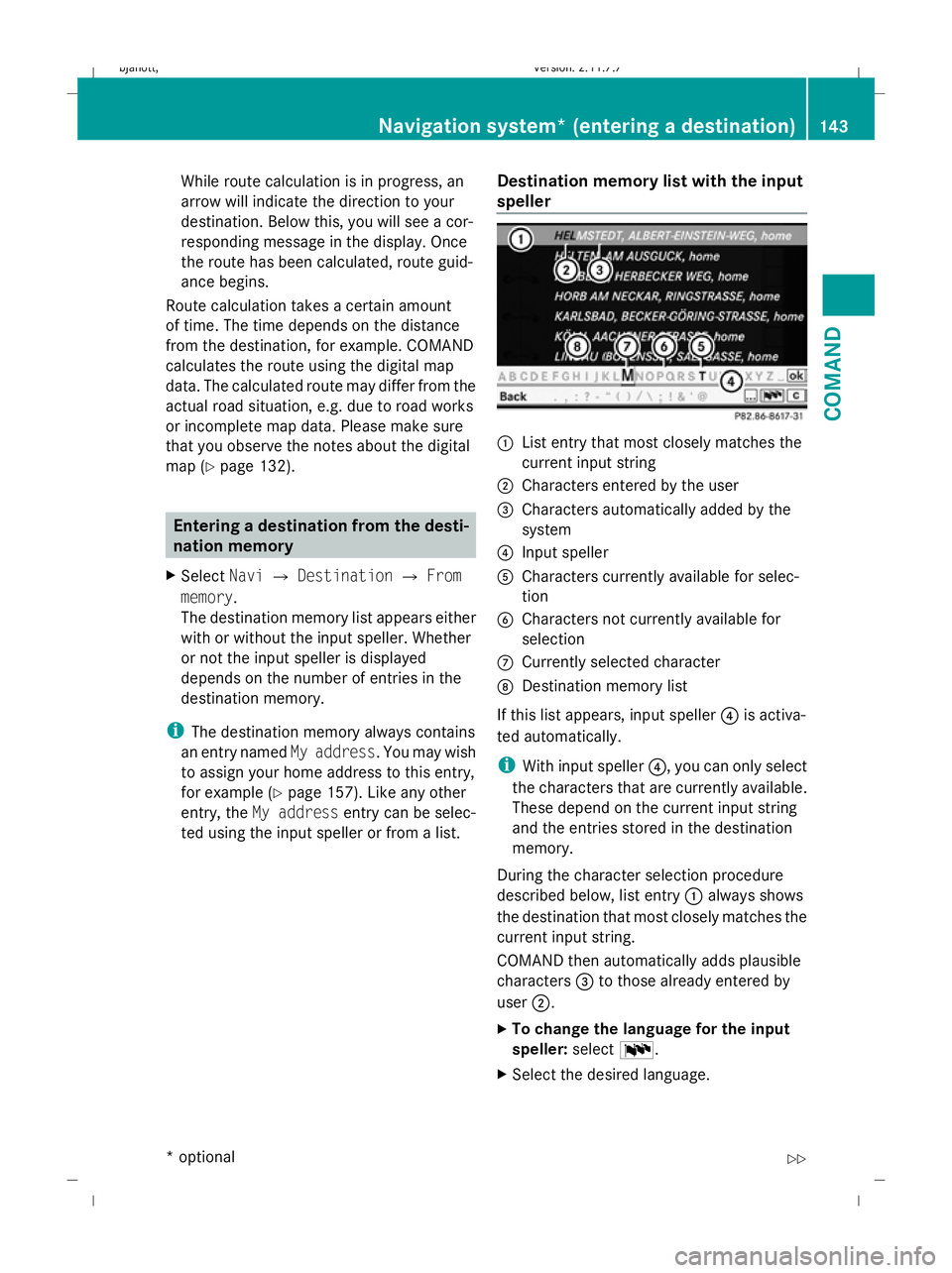
ted using the input speller or from a list. Destination memory list with the input
speller :
List entry that most closely matches the
current input string
; Characters entered by the user
= Characters automatically added by the
system
? Input speller
A Characters currently available for selec-
tion
B Characters not currently available for
selection
C Currently selected character
D Destination memory list
If this list appears, input speller ?is activa-
ted automatically.
i With input speller ?, you can only select
the characters that are currently available.
These depend on the current input string
and the entries stored in the destination
memory.
During the character selection procedure
described below, list entry :always shows
the destination that most closely matches the
current input string.
COMAND then automatically adds plausible
characters =to those already entered by
user ;.
X To change the language for the input
speller: selectB.
X Select the desired language. Navigation system* (entering a destination)
143COMAND
* optional
216_AKB; 2; 3, en-GB
bjanott,
Version: 2.11.7.7 2009-02-27T14:54:17+01:00 - Seite 143 Z
Dateiname: 6515230602_buchblock.pdf; erzeugt am 04. Mar 2009 11:15:17; WK