lock MERCEDES-BENZ CL COUPE 2009 Owners Manual
[x] Cancel search | Manufacturer: MERCEDES-BENZ, Model Year: 2009, Model line: CL COUPE, Model: MERCEDES-BENZ CL COUPE 2009Pages: 421, PDF Size: 10.78 MB
Page 214 of 421
R
comfort-oriented engine and suspension
settings.
R optimal fuel consumption resulting from
the automatic transmission shifting up
sooner.
R the vehicle pulling away more gently in
forward and reverse gears, unless the
accelerator pedal is depressed fully.
R increased sensitivity. This improves the
driving stability of the vehicle on slippery
road surfaces, for example.
R the automatic transmission shifting up
sooner, resulting in the vehicle maintaining
lower engine speeds and thereby consum-
ing less fuel.
Drive program Sis characterised by the fol-
lowing:
R sporty engine and suspension configura-
tion.
R the vehicle pulling away in first gear.
R the automatic transmission shifting up
later.
R the late shift point of the automatic trans-
mission can lead to higher fuel consump-
tion.
Manual drive program !
Warm up the engine quickly. Do not use
the engine's full performance until it has
reached operating temperature.
Only set the automatic transmission to the
respective drive positions when the vehicle
is stationary.
Where possible, avoid spinning the drive
wheels when pulling away on slippery
roads. Otherwise, you could damage the
drive train.
You can change gear yourself by using the
steering wheel gearshift paddles in manual
drive program M. As in drive program S, the
engine, transmission and suspension settings
are dynamic. Manual gearshift program Mcan be selected by using the program selec-
tor button.
X
To activate: press program selector but-
ton :repeatedly until Mappears in the
multi-function display.
The automatic transmission changes to
manual drive program M. Automatic gear-
shifting is deactivated.
If the automatic transmission is in position
D, you can shift up or down through the gears.
The gear currently selected and engaged is
shown in the multi-function display
(Y page 208).
X To deactivate: press program selector
button :repeatedly until Cor Sappears
in the multi-function display.
or
X Restart the engine.
The automatic transmission then switches
to drive program C.
Upshifting
X Pull the right-hand steering wheel gearshift
paddle (Y page 209).
The automatic transmission shifts up to the
next gear.
Vehicles with AMG engines
! In manual gearshift program M, the auto-
matic transmission does not shift up auto-
matically even when the engine limiting
speed for the current gear is reached.
When the engine limiting speed is reached,
the fuel supply is cut to prevent the engine
from overrevving. You must make sure that
the engine speed does not reach the red
area of the rev counter. Otherwise, there is
a risk of engine damage.
Downshifting G
Risk of accident
Do not change down for additional engine
braking on a slippery road surface. This could
cause the drive wheels to lose their grip and
the vehicle could skid. Automatic transmission
211Controls
216_AKB; 2; 3, en-GB
bjanott, Version: 2.11.7.7 2009-02-27T14:54:17+01:00 - Seite 211 Z
Dateiname: 6515230602_buchblock.pdf; erzeugt am 04. Mar 2009 11:15:49; WK
Page 215 of 421
X
Pull the left-hand steering wheel gearshift
paddle (Y page 210).
The automatic transmission shifts down to
the next gear.
i If you slow down or stop without shifting
down, the automatic transmission auto-
matically shifts down.
Kickdown
i Vehicles with an AMG engine: it is not
possible to use kickdown in manual drive
program M.
You can also use kickdown for maximum
acceleration in manual drive program M.
X Depress the accelerator pedal beyond the
pressure point.
The transmission shifts to a lower gear
depending on the engine speed.
X Shift back up once the desired speed is
reached.
i Vehicles without an AMG engine: if you
apply full throttle, the automatic transmis-
sion shifts up to the next gear at maximum
engine speed. This prevents the engine
from overrevving. Instrument cluster
Points to remember
You will find an illustration of the instrument
cluster in the "At a glance" section
(Y page 27). G
Risk of accident
If the instrument cluster or the multi-function
display fails, it can no longer show any display
messages.
You will not then be able to see information
about the vehicle status, such as speed, out-
side temperature, warning and indicator
lamps, display messages or the failure of sys-
tems. Handling characteristics may be affec-
ted. Adjust your driving style and speed
accordingly. Immediately consult a qualified specialist
workshop which has the necessary specialist
knowledge and tools to carry out the work
required. Mercedes-Benz recommends that
you use a Mercedes-Benz Service Centre for
this purpose. In particular, work relevant to
safety or on safety-related systems must be
carried out at a qualified specialist workshop. Coolant temperature display
The coolant temperature gauge is in the
instrument cluster on the left-hand side.
Under normal operating conditions and with
the specified coolant level, the coolant tem-
perature may rise to 120 †. Rev counter
The red band in the rev counter indicates the
engine's overrevving range. The fuel supply is
interrupted to protect the engine when the
red band is reached.
! Do not drive in the overrevving range.
Doing so will damage the engine. Outside temperature display
G
Risk of accident
If the temperature is slightly above freezing,
the road may be icy, especially in wooded
areas or on bridges. If you do not adjust your
driving style, the vehicle may start to skid. For
this reason, you should always adjust your
driving style and speed to the weather condi-
tions.
Changes in the outside temperature are dis-
played after a short delay. 212
Instrument clusterControls
216_AKB; 2; 3, en-GB
bjanott,
Version: 2.11.7.7 2009-02-27T14:54:17+01:00 - Seite 212
Dateiname: 6515230602_buchblock.pdf; erzeugt am 04. Mar 2009 11:15:50; WK
Page 216 of 421
On-board computer
Points to remember
The on-board computer is activated as soon
as you turn the key to position 2in the ignition
lock. G
Risk of accident
Only use the on-board computer when road
and traffic conditions permit. You would oth-
erwise be distracted and unable to concen-
trate properly on driving, and could cause an
accident. Multifunction steering wheel
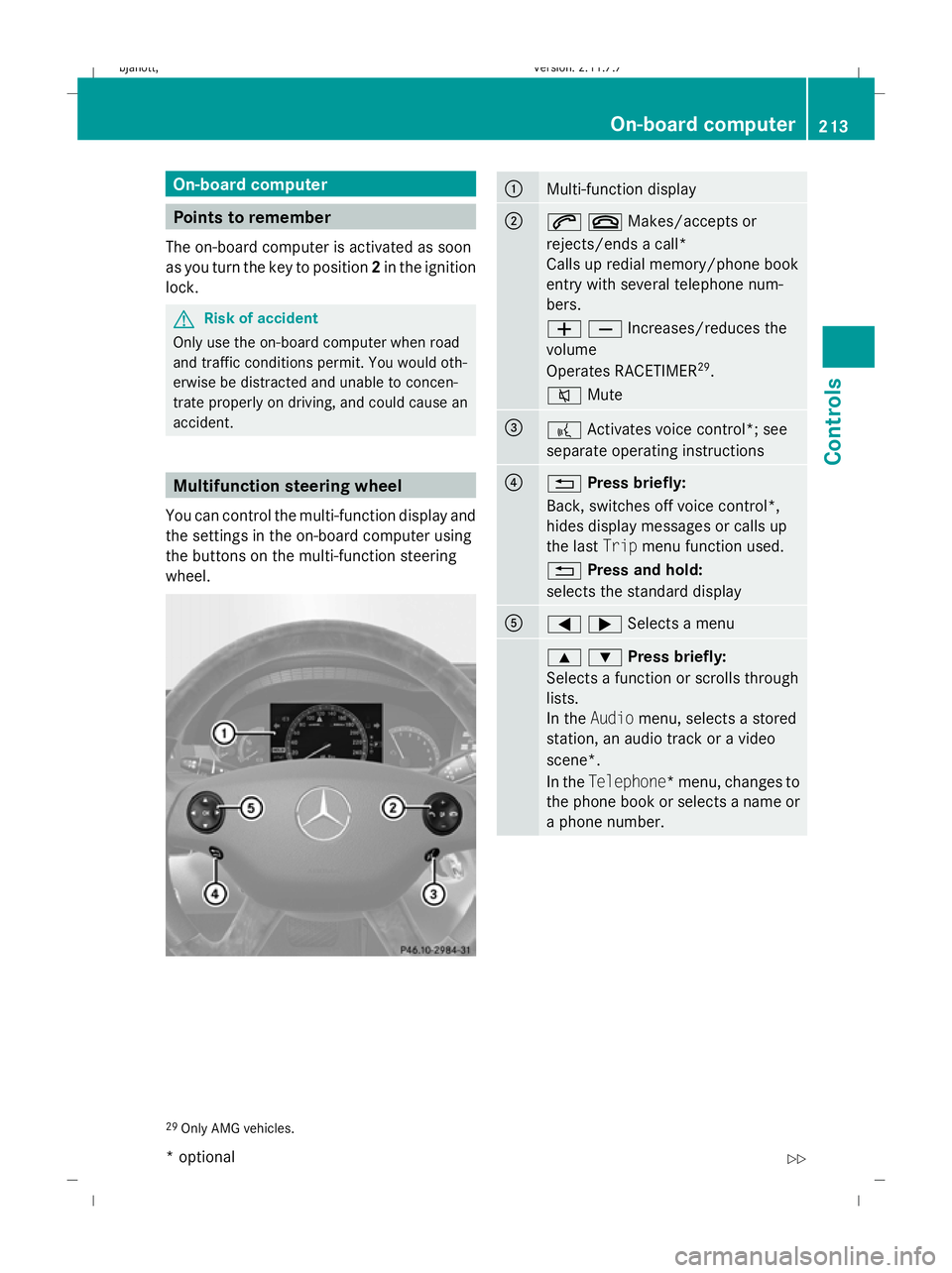
You can control the multi-function display and
the settings in the on-board computer using
the buttons on the multi-function steering
wheel. :
Multi-function display
;
6~Makes/accepts or
rejects/ends a call*
Calls up redial memory/phone book
entry with several telephone num-
bers.
WXIncreases/reduces the
volume
Operates RACETIMER 29
.
8 Mute =
?
Activates voice control*; see
separate operating instructions ?
%
Press briefly:
Back, switches off voice control*,
hides display messages or calls up
the last Tripmenu function used.
% Press and hold:
selects the standard display A
=;Selects a menu
9:Press briefly:
Selects a function or scrolls through
lists.
In the
Audio menu, selects a stored
station, an audio track or a video
scene*.
In the Telephone*m enu, changes to
the phone book or selects a name or
a phone number. 29
Only AMG vehicles. On-board computer
213Controls
* optional
216_AKB; 2; 3, en-GB
bjanott,
Version: 2.11.7.7
2009-02-27T14:54:17+01:00 - Seite 213 Z
Dateiname: 6515230602_buchblock.pdf; erzeugt am 04. Mar 2009 11:15:50; WK
Page 217 of 421
9:Press and hold:
In the Audio selects a station from
the alphabetical list of stations,
starts rapid scrolling through an
audio/video disc*.
In the Telephone* menu, starts
rapid scrolling through the telephone
book. a
Confirms selections and hides
display messages
In the Telephone* menu, switches
to the phone book and starts dialling.
In the Audio menu, stops the station
search function at the desired sta-
tion. Multi-function display
To activate the multi-function display:
R switch on the ignition.
R switch on the lights.
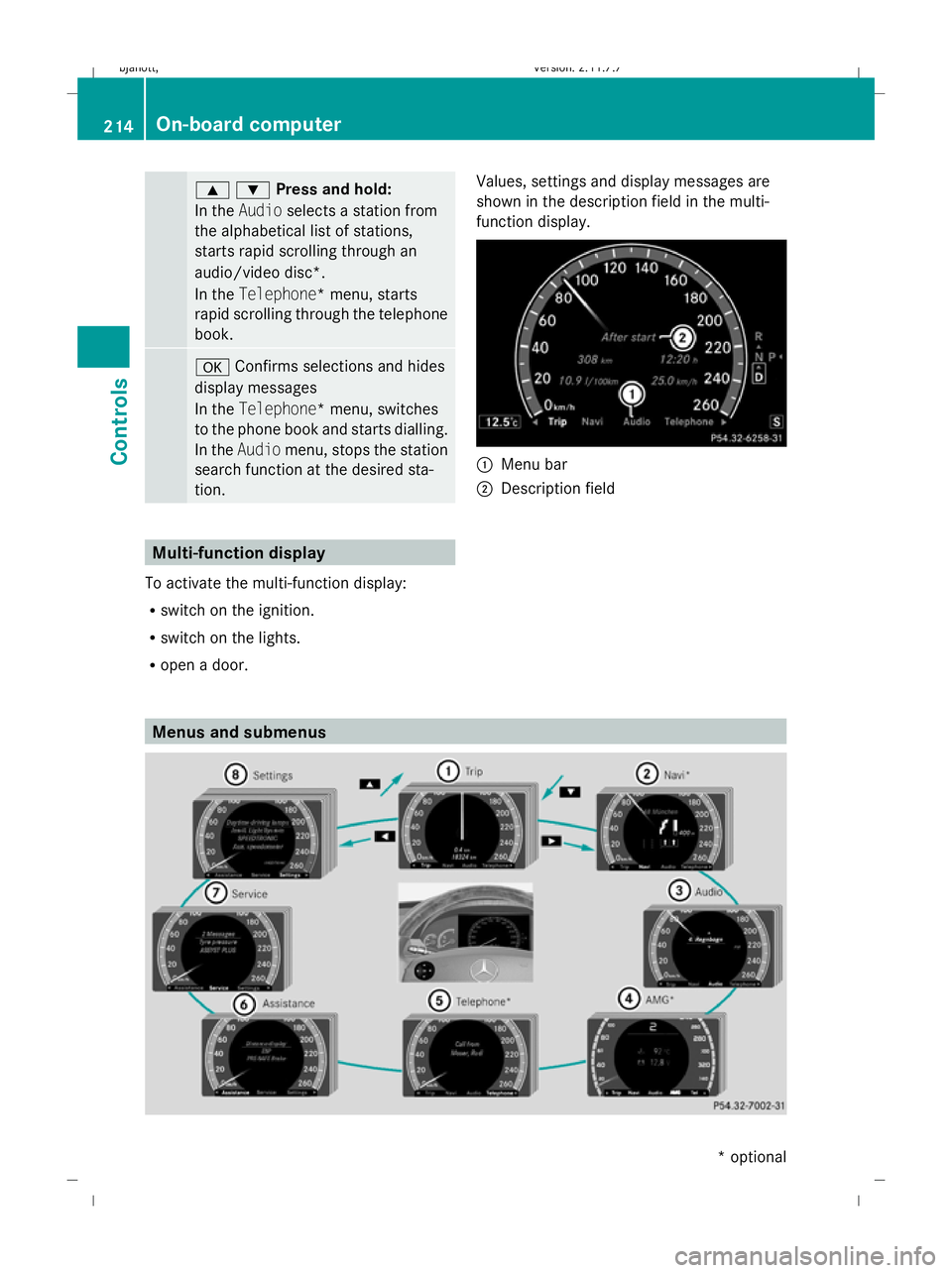
R open a door. Values, settings and display messages are
shown in the description field in the multi-
function display. :
Menu bar
; Description field Menus and submenus214
On-board computerControls
* optional
216_AKB; 2; 3, en-GB
bjanott,
Version: 2.11.7.7 2009-02-27T14:54:17+01:00 - Seite 214
Dateiname: 6515230602_buchblock.pdf; erzeugt am 04. Mar 2009 11:15:51; WK
Page 218 of 421
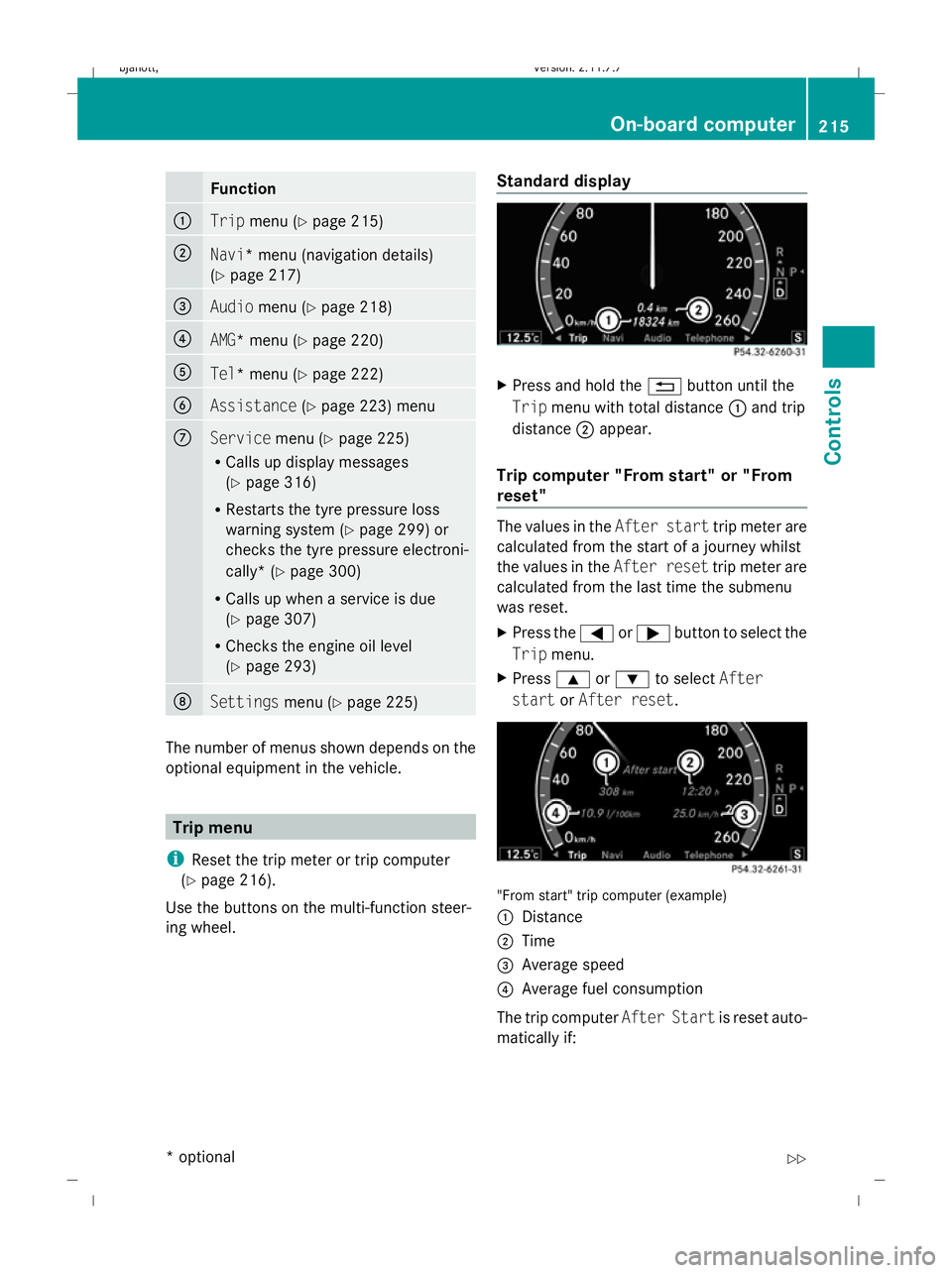
Function
:
Trip
menu (Y page 215) ;
Navi
* menu (navigation details)
(Y page 217) =
Audio
menu (Y page 218) ?
AMG* menu (Y
page 220) A
Tel* menu (Y
page 222) B
Assistance
(Ypage 223) menu C
Service
menu (Ypage 225)
R Calls up display messages
(Y page 316)
R Restarts the tyre pressure loss
warning system (Y page 299) or
checks the tyre pressure electroni-
cally* (Y page 300)
R Calls up when a service is due
(Y page 307)
R Checks the engine oil level
(Y page 293) D
Settings
menu (Ypage 225) The number of menus shown depends on the
optional equipment in the vehicle. Trip menu
i Reset the trip meter or trip computer
(Y page 216).
Use the buttons on the multi-function steer-
ing wheel. Standard display X
Press and hold the %button until the
Trip menu with total distance :and trip
distance ;appear.
Trip computer "From start" or "From
reset" The values in the
After starttrip meter are
calculated from the start of a journey whilst
the values in the After resettrip meter are
calculated from the last time the submenu
was reset.
X Press the =or; button to select the
Trip menu.
X Press 9or: to select After
start orAfter reset. "From start" trip computer (example)
:
Distance
; Time
= Average speed
? Average fuel consumption
The trip computer After Startis reset auto-
matically if: On-board computer
215Controls
* optional
216_AKB; 2; 3, en-GB
bjanott
,V ersion: 2.11.7.7
2009-02-27T14:54:17+01:00 - Seite 215 Z
Dateiname: 6515230602_buchblock.pdf; erzeugt am 04. Mar 2009 11:15:51; WK
Page 219 of 421
R
the ignition has been switched off for more
than 4 hours.
R 999 hours have been exceeded.
R 9,999 kilometres/miles have been excee-
ded.
The trip computer After resetis automati-
cally reset if the value exceeds 9,999 hours
or 99,999 kilometres/miles.
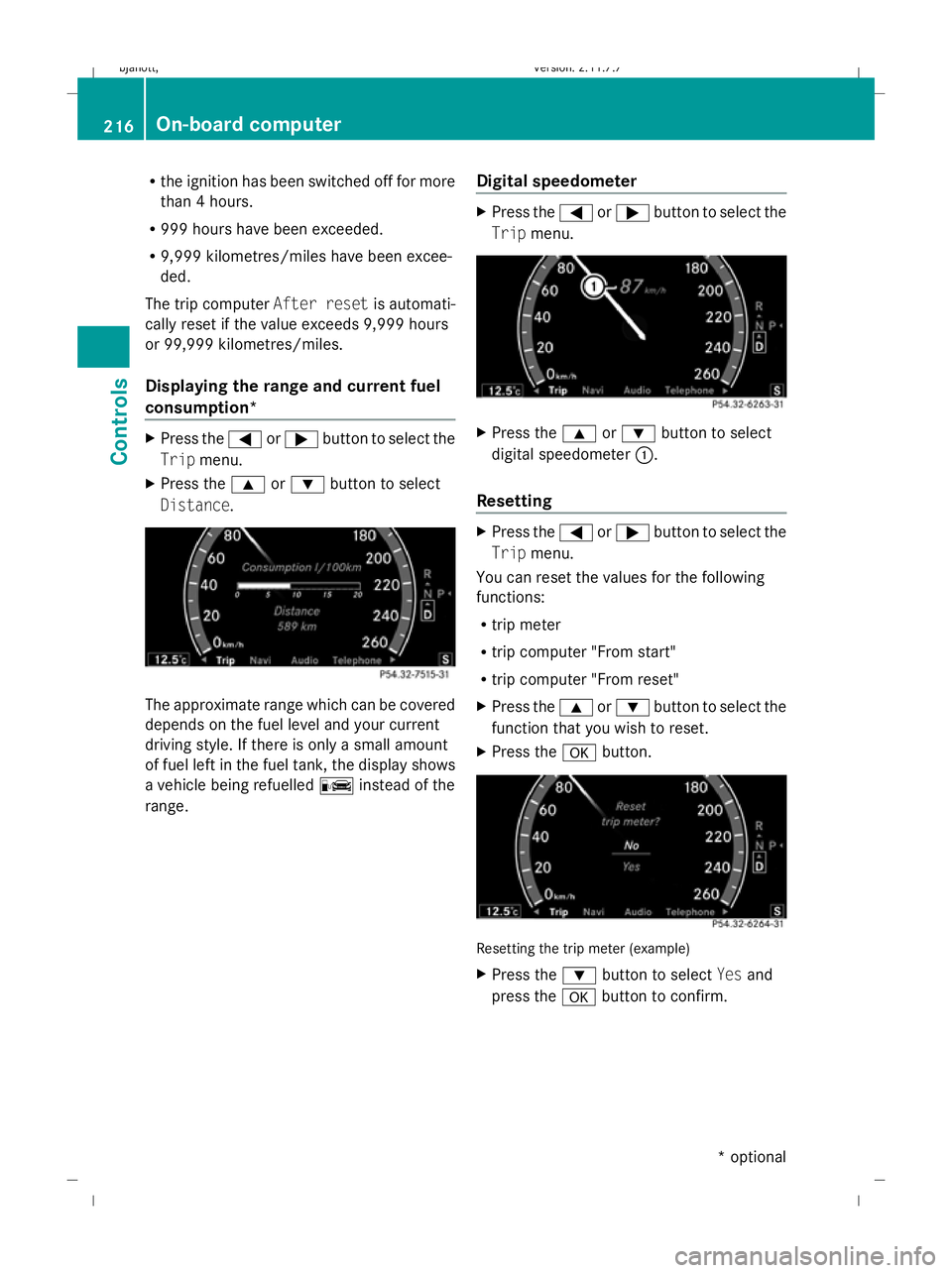
Displaying the range and current fuel
consumption* X
Press the =or; button to select the
Trip menu.
X Press the 9or: button to select
Distance. The approximate range which can be covered
depends on the fuel level and your current
driving style. If there is only a small amount
of fuel left in the fuel tank, the display shows
a vehicle being refuelled Cinstead of the
range. Digital speedometer X
Press the =or; button to select the
Trip menu. X
Press the 9or: button to select
digital speedometer :.
Resetting X
Press the =or; button to select the
Trip menu.
You can reset the values for the following
functions:
R trip meter
R trip computer "From start"
R trip computer "From reset"
X Press the 9or: button to select the
function that you wish to reset.
X Press the abutton. Resetting the trip meter (example)
X
Press the :button to select Yesand
press the abutton to confirm. 216
On-board
computerControls
* optional
216_AKB; 2; 3, en-GB
bjanott,
Version: 2.11.7.7 2009-02-27T14:54:17+01:00 - Seite 216
Dateiname: 6515230602_buchblock.pdf; erzeugt am 04. Mar 2009 11:15:51; WK
Page 220 of 421
Navigation* menu
The multi-function display shows the
COMAND navigation instructions in the
Navi menu.
Use the buttons on the multi-function steer-
ing wheel.
X Press the =or; button to select the
Navi menu.
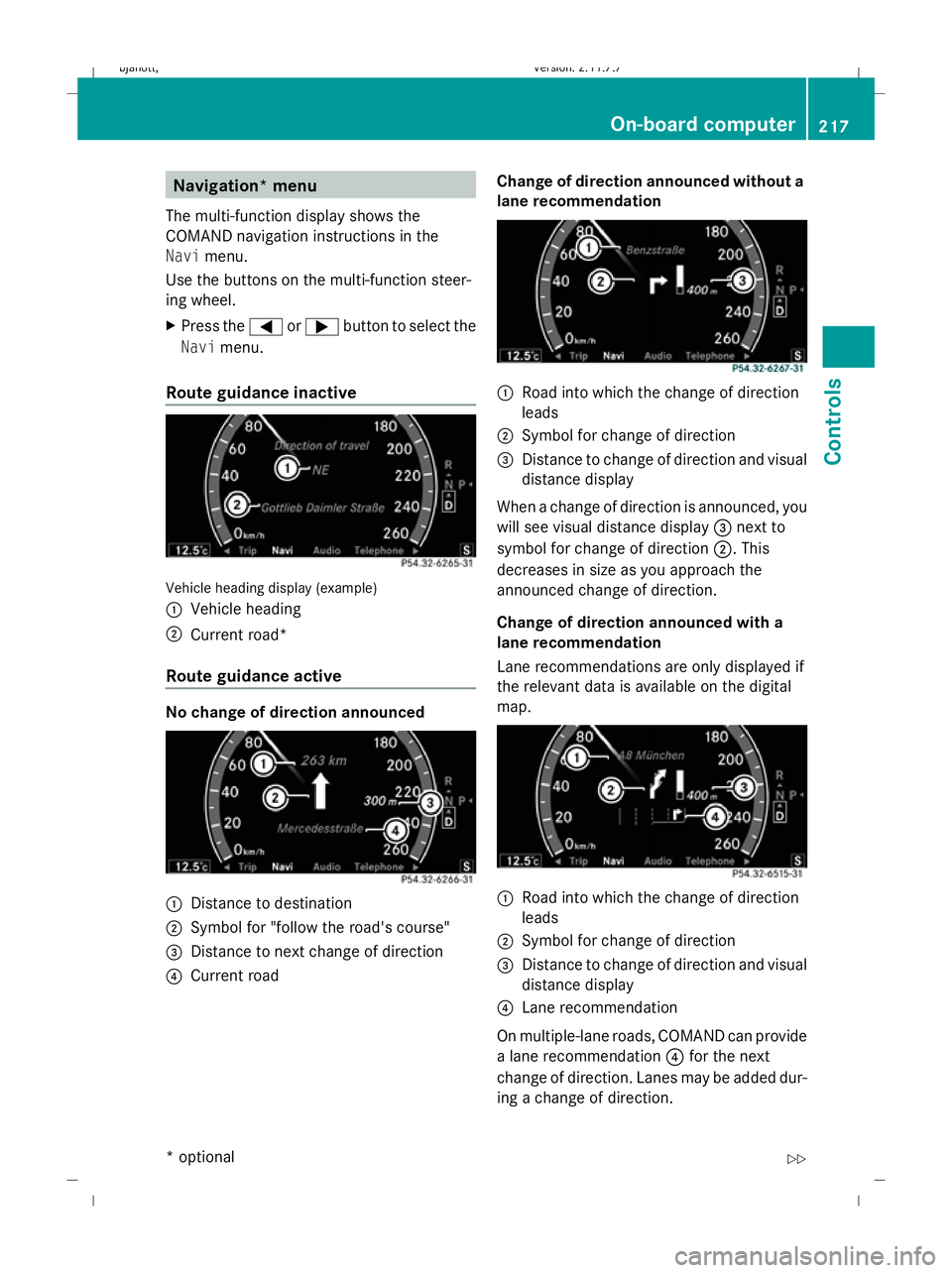
Route guidance inactive Vehicle heading display (example)
:
Vehicle heading
; Current road*
Route guidance active No change of direction announced
:
Distance to destination
; Symbol for "follow the road's course"
= Distance to next change of direction
? Current road Change of direction announced without a
lane recommendation :
Road into which the change of direction
leads
; Symbol for change of direction
= Distance to change of direction and visual
distance display
When a change of direction is announced, you
will see visual distance display =next to
symbol for change of direction ;. This
decreases in size as you approach the
announced change of direction.
Change of direction announced with a
lane recommendation
Lane recommendations are only displayed if
the relevant data is available on the digital
map. :
Road into which the change of direction
leads
; Symbol for change of direction
= Distance to change of direction and visual
distance display
? Lane recommendation
On multiple-lane roads, COMAND can provide
a lane recommendation ?for the next
change of direction. Lanes may be added dur-
ing a change of direction. On-board
computer
217Controls
* optional
216_AKB; 2; 3, en-GB
bjanott,
Version: 2.11.7.7 2009-02-27T14:54:17+01:00 - Seite 217 Z
Dateiname: 6515230602_buchblock.pdf; erzeugt am 04. Mar 2009 11:15:52; WK
Page 221 of 421
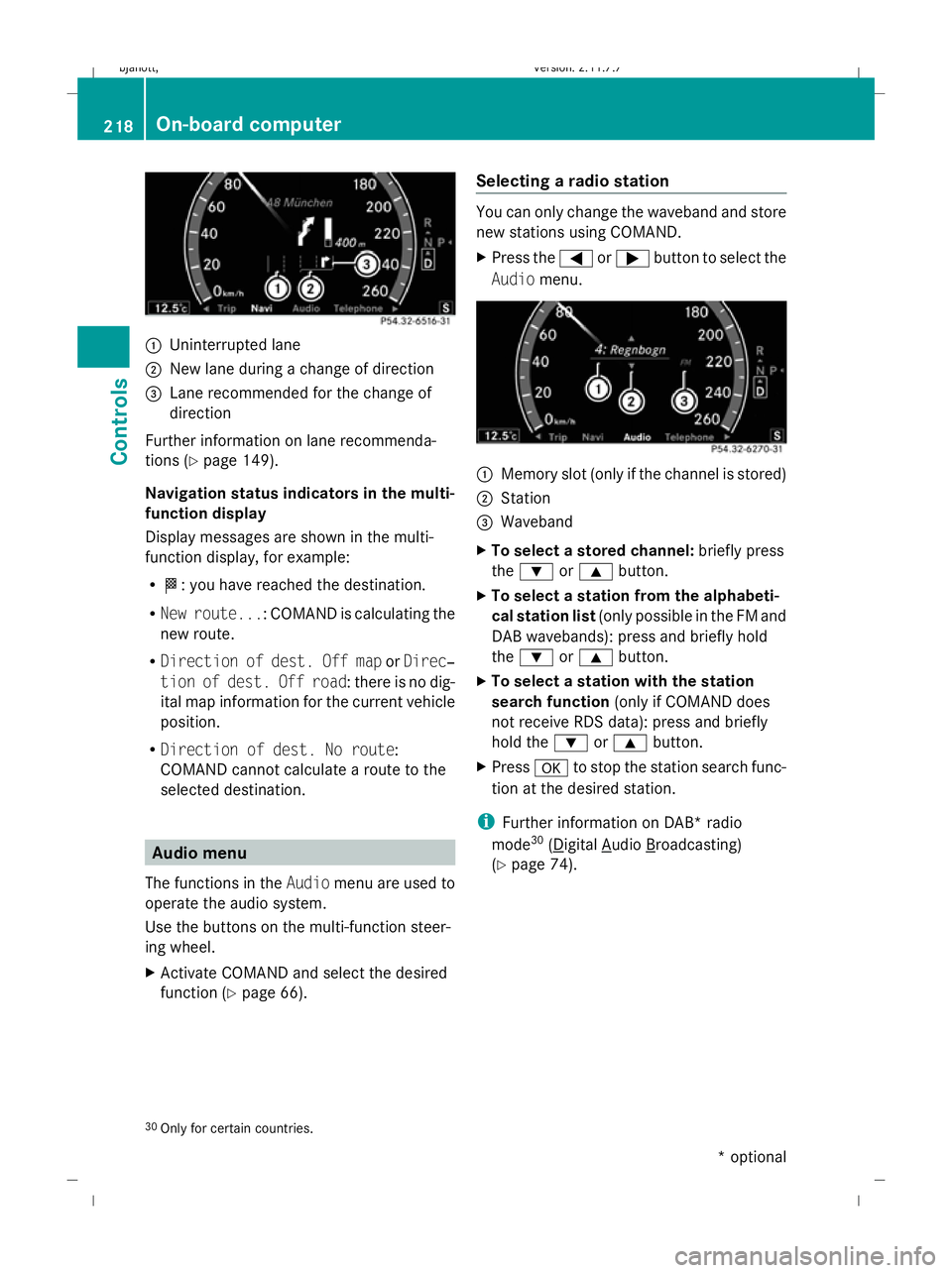
:
Uninterrupted lane
; New lane during a change of direction
= Lane recommended for the change of
direction
Further information on lane recommenda-
tions (Y page 149).
Navigation status indicators in the multi-
function display
Display messages are shown in the multi-
function display, for example:
R O: you have reached the destination.
R New route...: COMAND is calculating the
new route.
R Direction of dest. Off map orDirec‐
tion of dest. Off road: there is no dig-
ital map information for the current vehicle
position.
R Direction of dest. No route:
COMAND cannot calculate a route to the
selected destination. Audio menu
The functions in the Audiomenu are used to
operate the audio system.
Use the buttons on the multi-function steer-
ing wheel.
X Activate COMAND and select the desired
function (Y page 66). Selecting a radio station You can only change the waveband and store
new stations using COMAND.
X
Press the =or; button to select the
Audio menu. :
Memory slot (only if the channel is stored)
; Station
= Waveband
X To select a stored channel: briefly press
the : or9 button.
X To select a station from the alphabeti-
cal station list (only possible in the FM and
DAB wavebands): press and briefly hold
the : or9 button.
X To select a station with the station
search function (only if COMAND does
not receive RDS data): press and briefly
hold the :or9 button.
X Press ato stop the station search func-
tion at the desired station.
i Further information on DAB* radio
mode 30
( Digital Audio Broadcasting)
(Y page 74).
30 Only for certain countries. 218
On-board computerControls
* optional
216_AKB; 2; 3, en-GB
bjanott,
Version: 2.11.7.7 2009-02-27T14:54:17+01:00 - Seite 218
Dateiname: 6515230602_buchblock.pdf; erzeugt am 04. Mar 2009 11:15:52; WK
Page 222 of 421
Operating the audio player or audio
media
X
Press the =or; button to select the
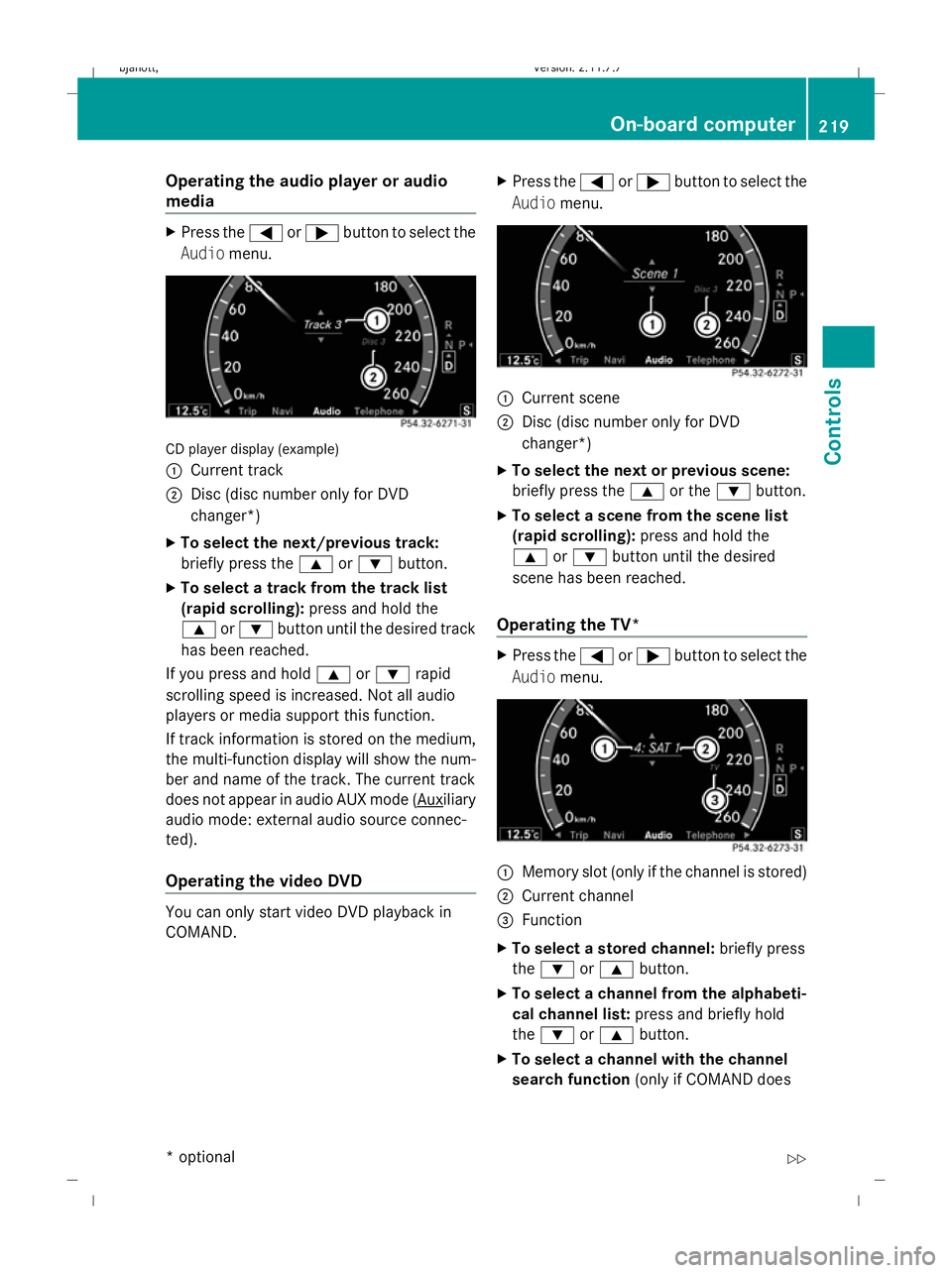
Audio menu. CD player display (example)
:
Current track
; Disc (disc number only for DVD
changer*)
X To select the next/previous track:
briefly press the 9or: button.
X To select a track from the track list
(rapid scrolling): press and hold the
9 or: button until the desired track
has been reached.
If you press and hold 9or: rapid
scrolling speed is increased. Not all audio
players or media support this function.
If track information is stored on the medium,
the multi-function display will show the num-
ber and name of the track. The current track
does not appear in audio AUX mode ( Auxiliary
audio mode: external audio source connec-
ted).
Operating the video DVD You can only start video DVD playback in
COMAND. X
Press the =or; button to select the
Audio menu. :
Current scene
; Disc (disc number only for DVD
changer*)
X To select the next or previous scene:
briefly press the 9or the :button.
X To select a scene from the scene list
(rapid scrolling): press and hold the
9 or: button until the desired
scene has been reached.
Operating the TV* X
Press the =or; button to select the
Audio menu. :
Memory slot (only if the channel is stored)
; Current channel
= Function
X To select a stored channel: briefly press
the : or9 button.
X To select a channel from the alphabeti-
cal channel list: press and briefly hold
the : or9 button.
X To select a channel with the channel
search function (only if COMAND does On-board computer
219Controls
* optional
216_AKB; 2; 3, en-GB
bjanott
,V ersion: 2.11.7.7
2009-02-27T14:54:17+01:00 - Seite 219 Z
Dateiname: 6515230602_buchblock.pdf; erzeugt am 04. Mar 2009 11:15:53; WK
Page 223 of 421
not receive channel lists): press and briefly
hold the :or9 button.
X Press ato stop the station search func-
tion at the desired station. AMG* menu
Use the buttons on the multi-function steer-
ing wheel.
X Press the =or; button to select the
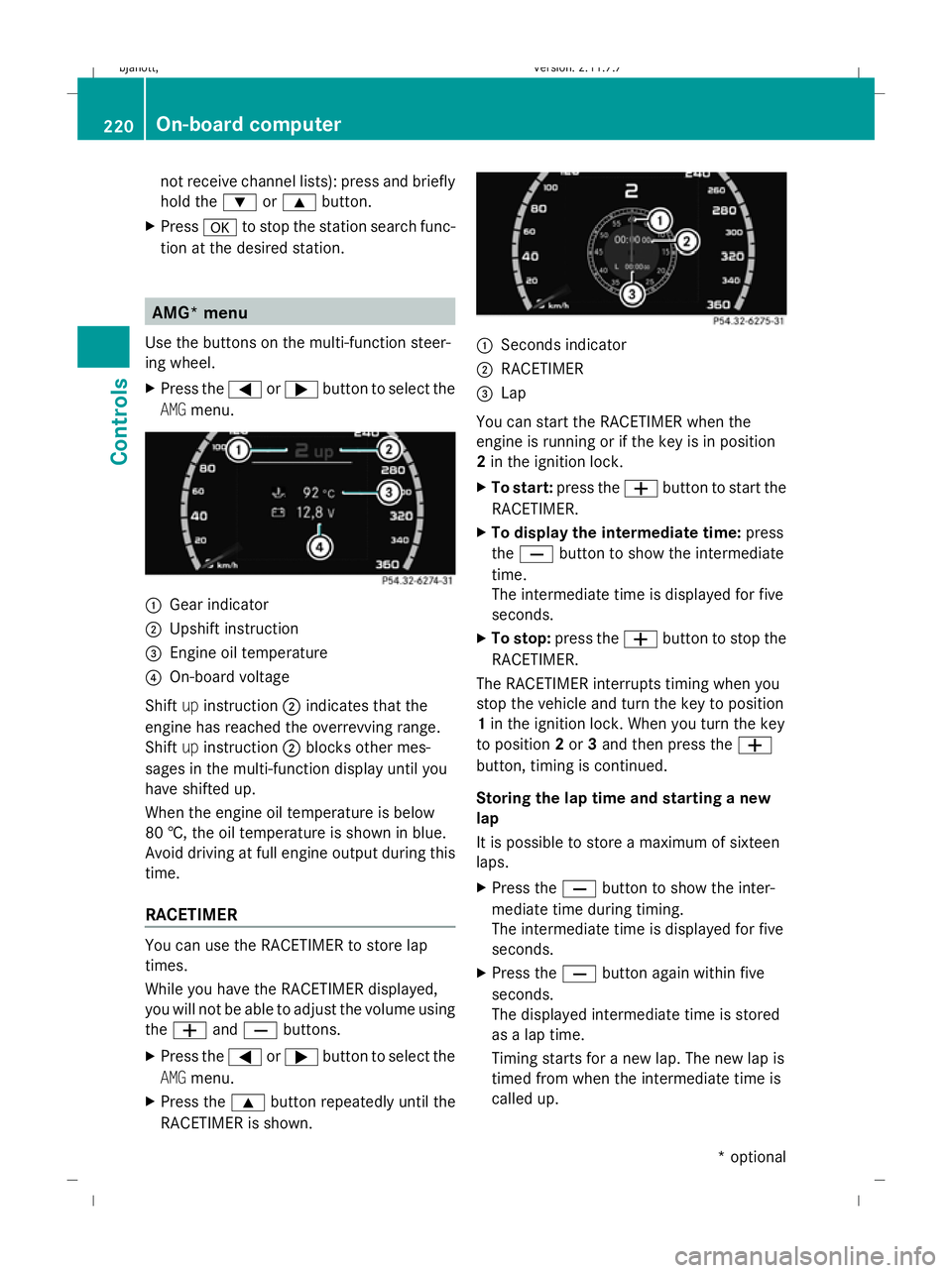
AMG menu. :
Gear indicator
; Upshift instruction
= Engine oil temperature
? On-board voltage
Shift upinstruction ;indicates that the
engine has reached the overrevving range.
Shift upinstruction ;blocks other mes-
sages in the multi-function display until you
have shifted up.
When the engine oil temperature is below
80 †, the oil temperature is shown in blue.
Avoid driving at full engine output during this
time.
RACETIMER You can use the RACETIMER to store lap
times.
While you have the RACETIMER displayed,
you will not be able to adjust the volume using
the W andX buttons.
X Press the =or; button to select the
AMG menu.
X Press the 9button repeatedly until the
RACETIMER is shown. :
Seconds indicator
; RACETIMER
= Lap
You can start the RACETIMER when the
engine is running or if the key is in position
2 in the ignition lock.
X To start: press the Wbutton to start the
RACETIMER.
X To display the intermediate time: press
the X button to show the intermediate
time.
The intermediate time is displayed for five
seconds.
X To stop: press the Wbutton to stop the
RACETIMER.
The RACETIMER interrupts timing when you
stop the vehicle and turn the key to position
1 in the ignition lock. When you turn the key
to position 2or 3and then press the W
button, timing is continued.
Storing the lap time and starting a new
lap
It is possible to store a maximum of sixteen
laps.
X Press the Xbutton to show the inter-
mediate time during timing.
The intermediate time is displayed for five
seconds.
X Press the Xbutton again within five
seconds.
The displayed intermediate time is stored
as a lap time.
Timing starts for a new lap. The new lap is
timed from when the intermediate time is
called up. 220
On-board computerControls
* optional
216_AKB; 2; 3, en-GB
bjanott,
Version: 2.11.7.7 2009-02-27T14:54:17+01:00 - Seite 220
Dateiname: 6515230602_buchblock.pdf; erzeugt am 04. Mar 2009 11:15:53; WK