change time MERCEDES-BENZ CL COUPE 2009 Owner's Manual
[x] Cancel search | Manufacturer: MERCEDES-BENZ, Model Year: 2009, Model line: CL COUPE, Model: MERCEDES-BENZ CL COUPE 2009Pages: 421, PDF Size: 10.78 MB
Page 146 of 421
While route calculation is in progress, an
arrow will indicate the direction to your
destination. Below this, you will see a cor-
responding message in the display. Once
the route has been calculated, route guid-
ance begins.
Route calculation takes a certain amount
of time. The time depends on the distance
from the destination, for example. COMAND
calculates the route using the digital map
data. The calculated route may differ from the
actual road situation, e.g. due to road works
or incomplete map data. Please make sure
that you observe the notes about the digital
map (Y page 132). Entering a destination from the desti-
nation memory
X Select NaviQDestination QFrom
memory.
The destination memory list appears either
with or without the input speller. Whether
or not the input speller is displayed
depends on the number of entries in the
destination memory.
i The destination memory always contains
an entry named My address. You may wish
to assign your home address to this entry,
for example (Y page 157). Like any other
entry, the My address entry can be selec-
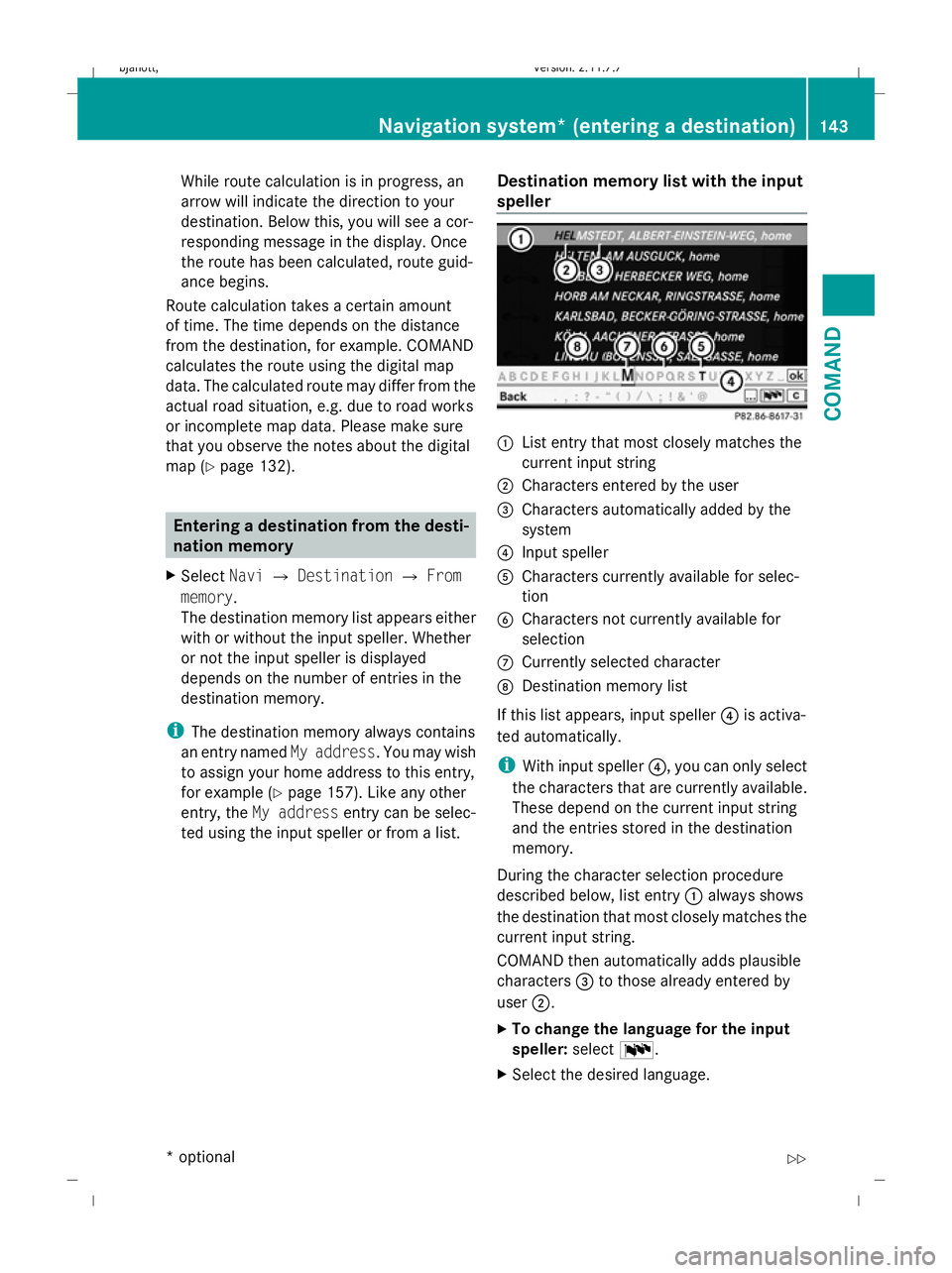
ted using the input speller or from a list. Destination memory list with the input
speller :
List entry that most closely matches the
current input string
; Characters entered by the user
= Characters automatically added by the
system
? Input speller
A Characters currently available for selec-
tion
B Characters not currently available for
selection
C Currently selected character
D Destination memory list
If this list appears, input speller ?is activa-
ted automatically.
i With input speller ?, you can only select
the characters that are currently available.
These depend on the current input string
and the entries stored in the destination
memory.
During the character selection procedure
described below, list entry :always shows
the destination that most closely matches the
current input string.
COMAND then automatically adds plausible
characters =to those already entered by
user ;.
X To change the language for the input
speller: selectB.
X Select the desired language. Navigation system* (entering a destination)
143COMAND
* optional
216_AKB; 2; 3, en-GB
bjanott,
Version: 2.11.7.7 2009-02-27T14:54:17+01:00 - Seite 143 Z
Dateiname: 6515230602_buchblock.pdf; erzeugt am 04. Mar 2009 11:15:17; WK
Page 147 of 421
X
To change the character set for the
input speller: selectC.
Depending on the previous setting, you will
change to letters with special characters or
to numbers with special characters.
X To select a character: slideXVY or turn
cVd .
X To confirm the character selection:
press W.
X To delete individual characters: select
F on the lower bar and press W.
X To delete an entire entry: selectFon
the lower bar and press and hold Wuntil
the entire entry has been deleted.
X To accept the first list entry: press and
hold Wuntil the destination list is displayed
without the input speller.
X To cancel an entry: selectBackon the
lower bar and press W.
or
X Press the %button.
Input speller ?disappears if COMAND is
able to unambiguously assign the characters
entered to one destination. The list of desti-
nations is shown without the input speller.
Here you can make another selection.
i It is also possible to change manually to
the destination memory list without the
input speller at any time during character
input.
X To change manually to the destination
list without the input speller: slideZV.
or
X Select !on the second lowest bar and
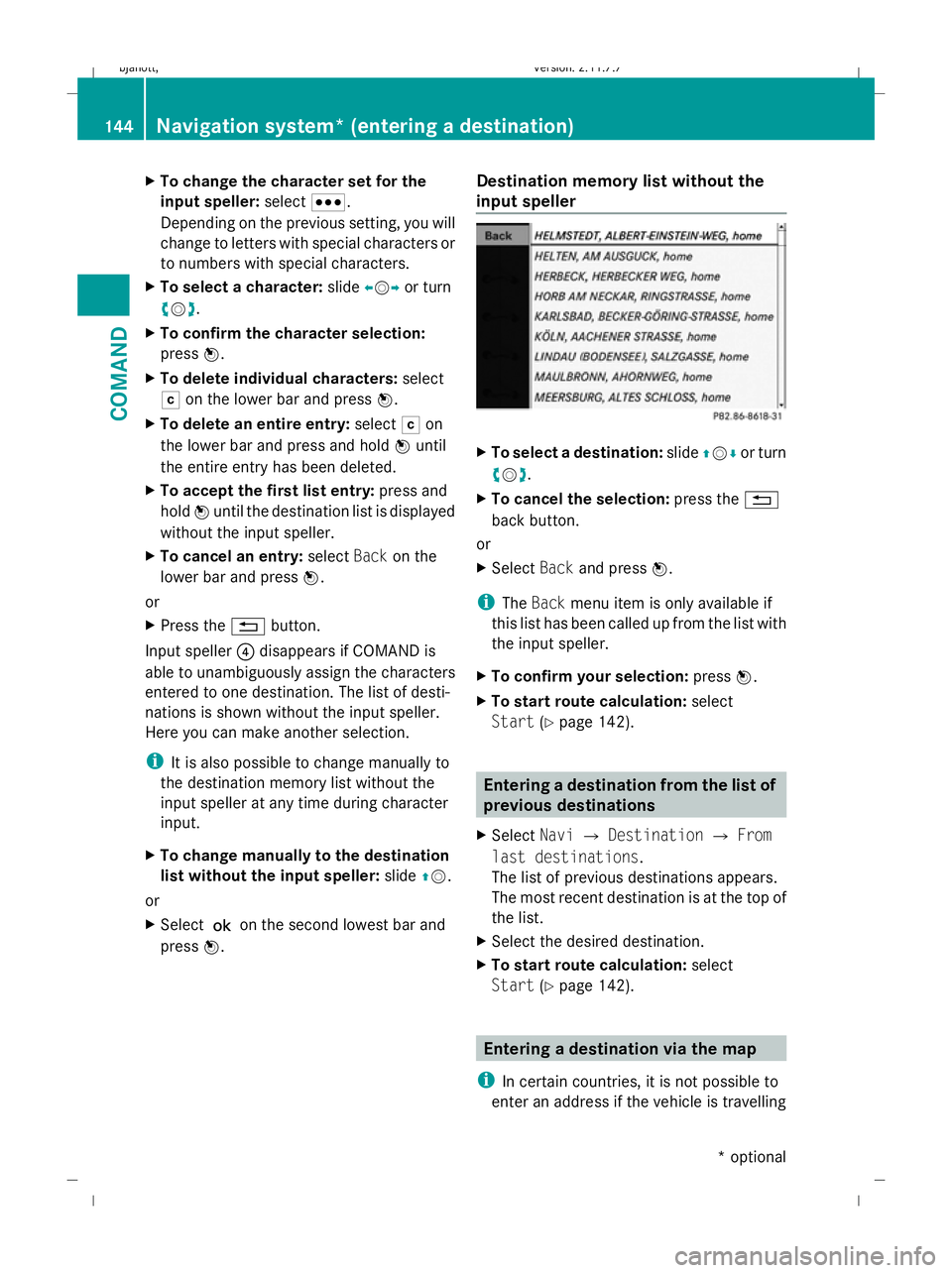
press W. Destination memory list without the
input speller X
To select a destination: slideZVÆ or turn
cVd .
X To cancel the selection: press the%
back button.
or
X Select Backand press W.
i The Back menu item is only available if
this list has been called up from the list with
the input speller.
X To confirm your selection: pressW.
X To start route calculation: select
Start (Ypage 142). Entering a destination from the list of
previous destinations
X Select NaviQDestination QFrom
last destinations .
The list of previous destinations appears.
The most recent destination is at the top of
the list.
X Select the desired destination.
X To start route calculation: select
Start (Ypage 142). Entering a destination via the map
i In certain countries, it is not possible to
enter an address if the vehicle is travelling 144
Navigation system* (entering a destination)COMAND
* optional
216_AKB; 2; 3, en-GB
bjanott,
Version: 2.11.7.7 2009-02-27T14:54:17+01:00 - Seite 144
Dateiname: 6515230602_buchblock.pdf; erzeugt am 04. Mar 2009 11:15:17; WK
Page 161 of 421
Entering an address manually
X
To assign data to My address for the
first time: selectSave with name.
or
X To edit My address: selectEditQ
Save with name.
In both cases, the address input menu
appears.
X Enter the address. Proceed in the same way
as you would enter a destination as descri-
bed in the "Entering a destination by
address" section (Y page 135).
X Select Saveafter you have entered the
address.
Your address is stored.
Using an address book entry for My
address
X To assign data to My address for the
first time: selectAssign address book
entry.
or
X To edit My address: selectChange Q
Assign to address book entry.
In both cases, the menu for searching for
an address book entry appears.
X Select the desired address book entry. Pro-
ceed as described in the "Calling up con-
tacts/details" section (Y page 120).
i The name of the town and of the street in
the address book entry must be spelled in
the same way as in the destination entry so
that the information matches the data on
the digital map. The country in the address
book can be written as follows so that it
matches the data on the digital map:
R Country name spelled in the language of
that country
R Country name spelled in the language set
as the system language
R Country name as an international coun-
try abbreviation for vehicles (e.g. D for Germany, E for Spain, F for France, I for
Italy, etc.)
X COMAND stores the entry as My address
in the destination memory if the address
data is complete and matches the digital
map data.
If address data is missing or if it does not
match the data on the digital map, a mes-
sage will be displayed informing you that
the address is incomplete.
X To close the message: selectOK.
Depending on which data is missing or does
not correspond with the digital map data, you
must now:
R select a country (Y page 136)
R enter a town (Y page 136)
R enter a street (Y page 138)
R enter a house number (Y page 140)
If the data is complete and it matches the
digital map data, COMAND stores the entry. Storing a destination in the destina-
tion memory
This function also stores the destination in
the address book. COMAND creates an
address book entry that contains the com-
plete, navigable address data. You can then
select this entry in the address book and start
route guidance to the address from there.
After the address has been entered X
Select Saveafter you have entered the
address ( Ypage 135).
During route guidance X
Select Destination QSave destina‐
tion during route guidance.
You can now select storage options. 158
Navigation system* (destination memory)COMAND
* optional
216_AKB; 2; 3, en-GB
bjanott,
Version: 2.11.7.7 2009-02-27T14:54:17+01:00 - Seite 158
Dateiname: 6515230602_buchblock.pdf; erzeugt am 04. Mar 2009 11:15:24; WK
Page 165 of 421
Setting the time/date format
X
Select Vehicle QSystem QTime Q
Format.
The format list appears. The #dots in
front of the list entries indicate the current
setting.
X To change the format settings: select the
desired format.
X To store the setting and exit the menu:
slide XVY. Linguatronic* settings
Switching the help window on or off X
Select Vehicle QSystem QLingua‐
tronic.
X Select Help window.
You have switched the help window on or
off. A tick appears when the help window
is switched on.
Individualisation Using voice training, you can fine tune Lin-
guatronic* to your own voice and thus
improve voice recognition. The ability of the
system to recognise the commands of other
users does not deteriorate as a result.
Voice training comprises two parts. You train
the system to recognise digits in the first part
and specific commands in the second part.
Starting new individualisation
i It is only possible to start individualisation
when the vehicle is stationary. After start-
ing the session, the system guides you
through the training with spoken instruc-
tions. X
Select Vehicle QSystem QLingua‐
tronic QStart new individualisa‐
tion.
A prompt appears asking whether you
would like further information.
X Select YesorNo.
If you select No, the first part of individual-
isation begins.
If you select Yes, a message will be shown.
X To close the list: selectOK.
The first part of individualisation begins.
At the end of the first part, you will see a
prompt asking whether you wish to begin
the second part.
X Select YesorNo.
If you select No, individualisation will be
cancelled. The data from the first part is
stored automatically.
If you select Yes, the second part will begin.
Individualisation is completed at the end of
the second part. You will see a message to
this effect. The data from the second part is
stored automatically.
Cancelling the first or second part of indi-
vidualisation
X Select Cancel.
A prompt appears asking whether you
really do wish to cancel.
X Select YesorNo.
If you select Yes, individualisation will be
cancelled. The data from the part cancelled
is not stored.
If you select No, the part during which you
stopped begins again. 162
SystemCOMAND
* optional
216_AKB; 2; 3, en-GB
bjanott,
Version: 2.11.7.7 2009-02-27T14:54:17+01:00 - Seite 162
Dateiname: 6515230602_buchblock.pdf; erzeugt am 04. Mar 2009 11:15:25; WK
Page 173 of 421
X
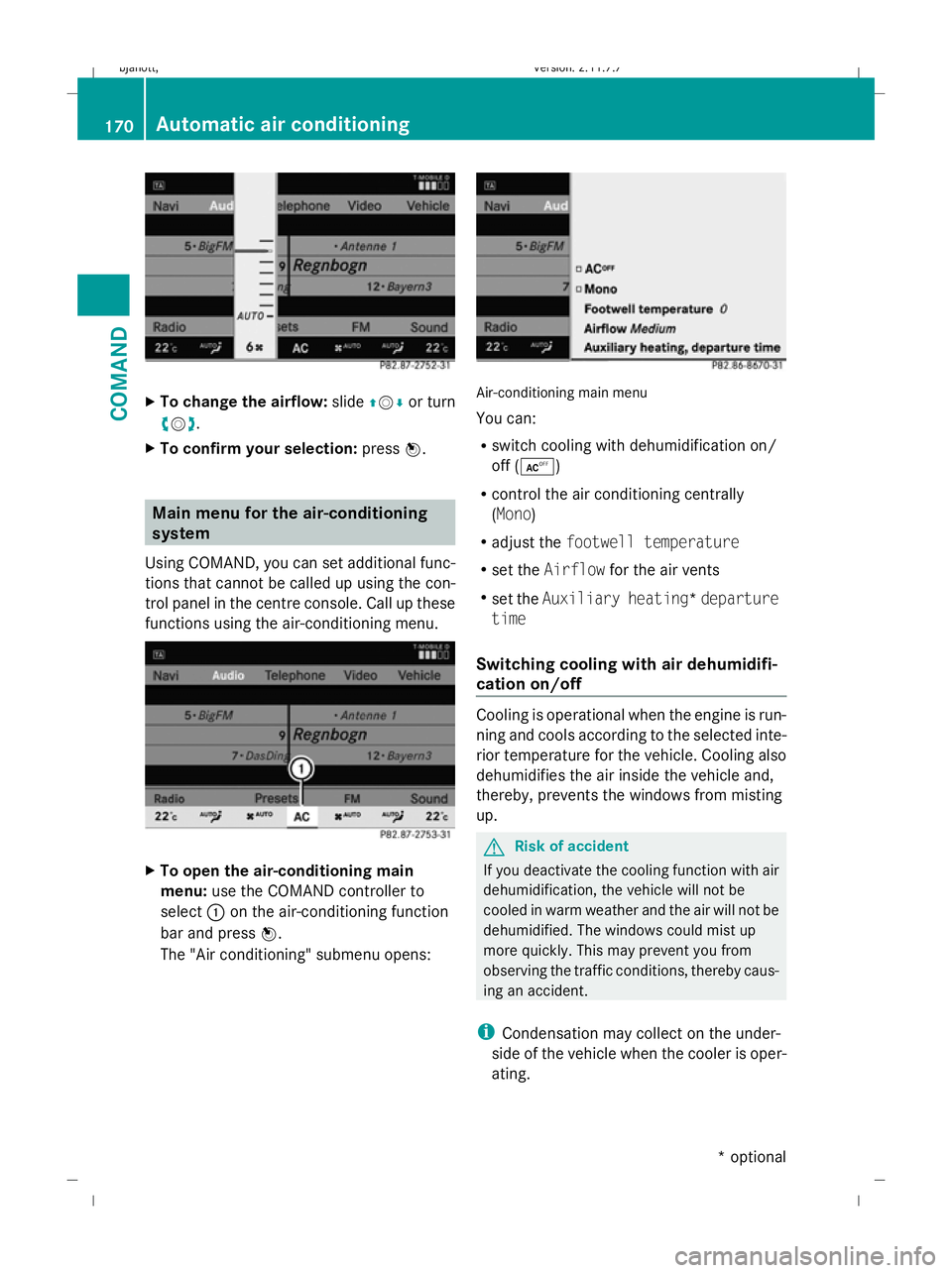
To change the airflow: slideZVÆor turn
cV d.
X To confirm your selection: pressW. Main menu for the air-conditioning
system
Using COMAND, you can set additional func-
tions that cannot be called up using the con-
trol panel in the centre console. Call up these
functions using the air-conditioning menu. X
To open the air-conditioning main
menu: use the COMAND controller to
select :on the air-conditioning function
bar and press W.
The "Air conditioning" submenu opens: Air-conditioning main menu
You can:
R
switch cooling with dehumidification on/
off (Æ)
R control the air conditioning centrally
(Mono)
R adjust the footwell temperature
R set the Airflow for the air vents
R set the Auxiliary heating* departure
time
Switching cooling with air dehumidifi-
cation on/off Cooling is operational when the engine is run-
ning and cools according to the selected inte-
rior temperature for the vehicle. Cooling also
dehumidifies the air inside the vehicle and,
thereby, prevents the windows from misting
up. G
Risk of accident
If you deactivate the cooling function with air
dehumidification, the vehicle will not be
cooled in warm weather and the air will not be
dehumidified. The windows could mist up
more quickly. This may prevent you from
observing the traffic conditions, thereby caus-
ing an accident.
i Condensation may collect on the under-
side of the vehicle when the cooler is oper-
ating. 170
Automatic air conditioningCOMAND
* optional
216_AKB; 2; 3, en-GB
bjanott,
Version: 2.11.7.7 2009-02-27T14:54:17+01:00 - Seite 170
Dateiname: 6515230602_buchblock.pdf; erzeugt am 04. Mar 2009 11:15:32; WK
Page 175 of 421
If the vehicle has become very warm and the
automatic air-conditioning system is cooling
the interior, the blower settings are briefly
suspended.
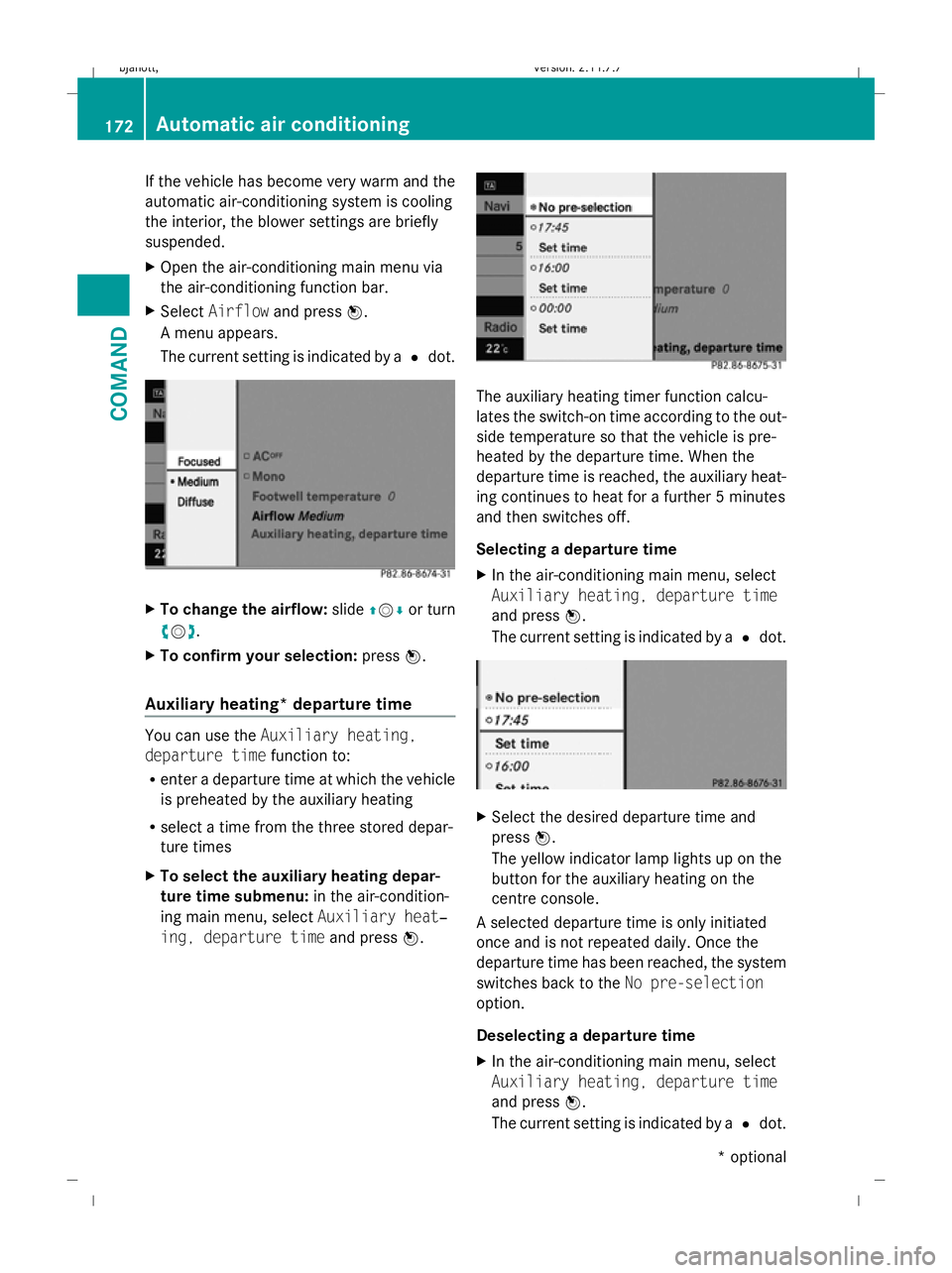
X Open the air-conditioning main menu via
the air-conditioning function bar.
X Select Airflow and press W.
A menu appears.
The current setting is indicated by a #dot. X
To change the airflow: slideZVÆ or turn
cVd.
X To confirm your selection: pressW.
Auxiliary heating* departure time You can use the
Auxiliary heating,
departure time function to:
R enter a departure time at which the vehicle
is preheated by the auxiliary heating
R select a time from the three stored depar-
ture times
X To select the auxiliary heating depar-
ture time submenu: in the air-condition-
ing main menu, select Auxiliary heat‐
ing, departure time and pressW. The auxiliary heating timer function calcu-
lates the switch-on time according to the out-
side temperature so that the vehicle is pre-
heated by the departure time. When the
departure time is reached, the auxiliary heat-
ing continues to heat for a further 5 minutes
and then switches off.
Selecting a departure time
X In the air-conditioning main menu, select
Auxiliary heating, departure time
and press W.
The current setting is indicated by a #dot. X
Select the desired departure time and
press W.
The yellow indicator lamp lights up on the
button for the auxiliary heating on the
centre console.
A selected departure time is only initiated
once and is not repeated daily. Once the
departure time has been reached, the system
switches back to the No pre-selection
option.
Deselecting a departure time
X In the air-conditioning main menu, select
Auxiliary heating, departure time
and press W.
The current setting is indicated by a #dot. 172
Automatic air conditioningCOMAND
* optional
216_AKB; 2; 3, en-GB
bjanott,
Version: 2.11.7.7 2009-02-27T14:54:17+01:00 - Seite 172
Dateiname: 6515230602_buchblock.pdf; erzeugt am 04. Mar 2009 11:15:32; WK
Page 176 of 421
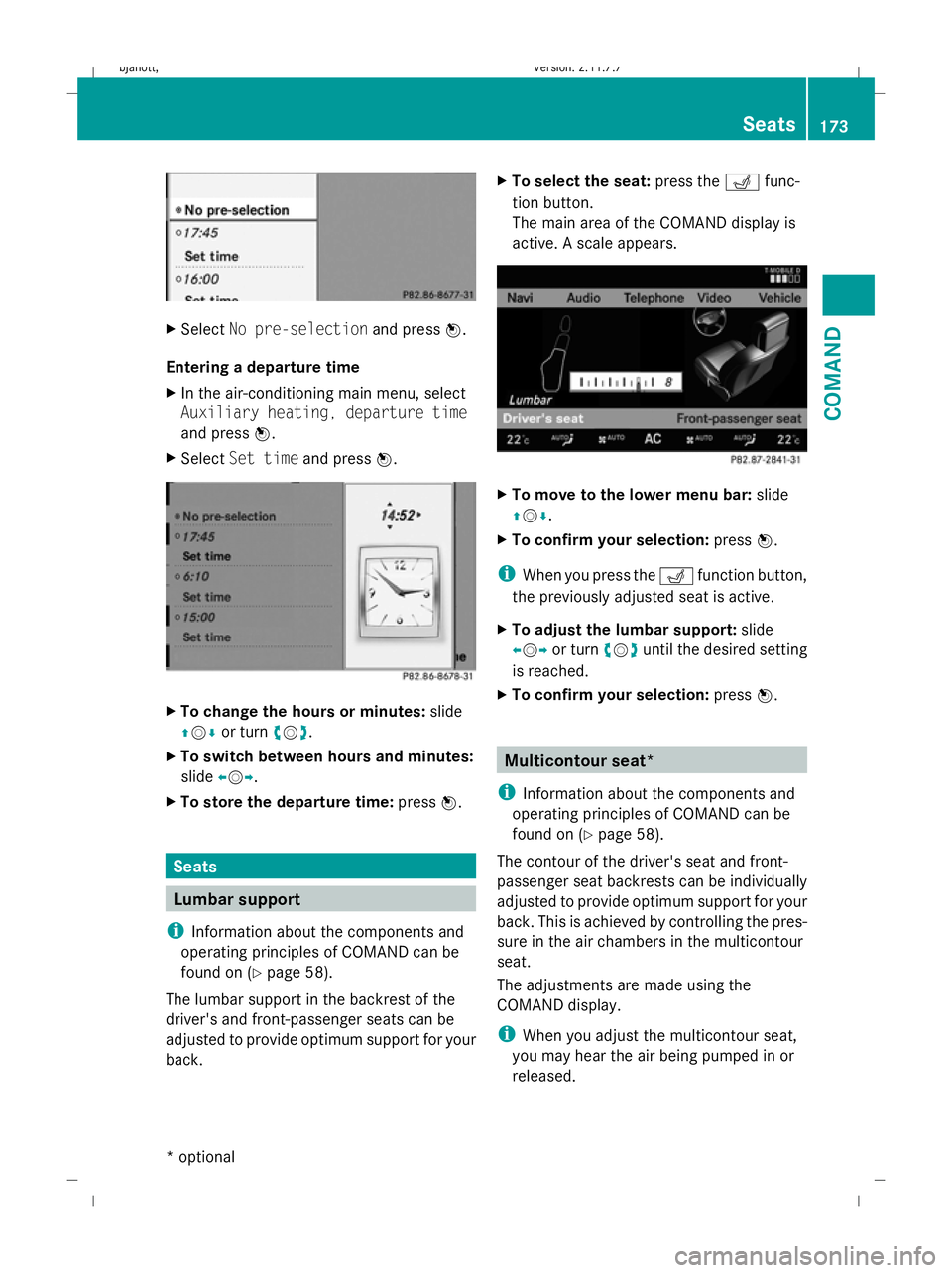
X
Select No pre-selection and pressW.
Entering a departure time
X In the air-conditioning main menu, select
Auxiliary heating, departure time
and press W.
X Select Set time and pressW. X
To change the hours or minutes: slide
ZVÆ or turn cVd.
X To switch between hours and minutes:
slide XVY.
X To store the departure time: pressW. Seats
Lumbar support
i Information about the components and
operating principles of COMAND can be
found on (Y page 58).
The lumbar support in the backrest of the
driver's and front-passenger seats can be
adjusted to provide optimum support for your
back. X
To select the seat: press theTfunc-
tion button.
The main area of the COMAND display is
active. A scale appears. X
To move to the lower menu bar: slide
ZVÆ .
X To confirm your selection: pressW.
i When you press the Tfunction button,
the previously adjusted seat is active.
X To adjust the lumbar support: slide
XVY or turn cVduntil the desired setting
is reached.
X To confirm your selection: pressW. Multicontour seat*
i Information about the components and
operating principles of COMAND can be
found on (Y page 58).
The contour of the driver's seat and front-
passenger seat backrests can be individually
adjusted to provide optimum support for your
back. This is achieved by controlling the pres-
sure in the air chambers in the multicontour
seat.
The adjustments are made using the
COMAND display.
i When you adjust the multicontour seat,
you may hear the air being pumped in or
released. Seats
173COMAND
* optional
216_AKB; 2; 3, en-GB
bjanott,
Version: 2.11.7.7 2009-02-27T14:54:17+01:00 - Seite 173 Z
Dateiname: 6515230602_buchblock.pdf; erzeugt am 04. Mar 2009 11:15:33; WK
Page 195 of 421
Make sure that all occupants – in particular,
pregnant women – wear their seat belt cor-
rectly at all times.
R The seat belt must pass closely over your
body and must not be twisted. Therefore,
you should avoid wearing bulky clothing
(e.g. a winter coat). The shoulder belt sec-
tion must be routed across the middle of
your shoulder – on no account across your
neck or under your arm – and pulled tight
against your upper body. The lap belt must
always pass across your lap as low down as
possible, i.e. over your hip joints – not
across your abdomen. If necessary, push
down the belt strap slightly and then
retighten it in the roll-up direction.
R Do not route the belt strap across sharp or
fragile objects, especially if these are loca-
ted on or in your clothing, e.g. spectacles,
pens, keys, etc. The seat belt strap could
be damaged and tear in an accident, and
you or other vehicle occupants could be
injured.
R Only one person should use each seat belt
at any one time. Children must never travel
sitting on the lap of other occupants. It
would not be possible to restrain the child
in the event of a sudden change in direc-
tion, braking or an accident. This could
result in severe or even fatal injuries to the
child and other occupants.
R Persons less than 1.50 m tall cannot wear
the seat belts correctly. For this reason,
secure persons less than 1.50 m tall in spe-
cially designed, suitable restraint systems.
R Children less than 1.50 m tall or under
12 years of age cannot wear the seat belts
properly. Therefore, they always should be
secured in a suitable child restraint system
on a suitable vehicle seat. You can find
more information under "Children in the
vehicle" in the "Safety" section of the Own-
er's Manual. Follow the manufacturer's installation instructions when fitting the
child restraint system.
R Do not secure any objects with a seat belt
if the seat belt is also being used by one of
the vehicle's occupants. G
Risk of injury
If the backrest is not almost vertical, the seat
belt does not offer the intended level of pro-
tection. Under certain circumstances, this
could cause severe or even fatal injuries.
Before starting a journey, make sure that the
seat is properly adjusted and that the back-
rest is almost vertical. G
Risk of injury
A dirty or damaged seat belt or a seat belt that
has been subjected to a load in an accident
or which has been modified no longer offers
the intended level of protection. Under certain
circumstances, this could cause severe or
even fatal injuries.
For this reason, check regularly that the seat
belts are not damaged or dirty.
Always have damaged seat belts or seat belts
that have been subjected to a load in an acci-
dent replaced at a qualified specialist work-
shop. Consult a qualified specialist workshop
which has the necessary specialist knowledge
and tools to carry out the work required.
Mercedes-Benz recommends that you use a
Mercedes-Benz Service Centre for this pur-
pose.
For safety reasons, Mercedes-Benz recom-
mends that you only use seat belts which have
been approved by Mercedes-Benz for your
vehicle. 192
Seat beltsControls
216_AKB; 2; 3, en-GB
bjanott,V
ersion: 2.11.7.7
2009-02-27T14:54:17+01:00 - Seite 192
Dateiname: 6515230602_buchblock.pdf; erzeugt am 04. Mar 2009 11:15:42; WK
Page 197 of 421

G
Risk of accident
Only adjust the steering wheel when the vehi-
cle is stationary and do not pull away until the
steering wheel adjustment mechanism is
locked in position. Otherwise, you might drive
without the steering wheel adjustment mech-
anism being locked in position and be distrac-
ted from road and traffic conditions by an
unexpected movement of the steering wheel
and cause an accident.
However, the steerability of the vehicle is not
affected.
X Check whether seat =and the head
restraint are adjusted properly
(Y page 183).
Make sure that:
R you are as far away from the driver's front
airbag as possible.
R you are sitting in a normal upright posi-
tion.
R you can fasten the seat belt properly.
R you have moved the backrest to an
almost vertical position.
R you have set the seat angle so that your
thighs are gently supported.
R you can depress the pedals properly.
R you have adjusted the head restraint so
that the back of your head is supported
at eye level by the central area of the
head restraint.
X Check whether steering wheel :is adjus-
ted properly (Y page 187).
Make sure that:
R you can hold the steering wheel with your
arms slightly bent.
R you can move your legs freely.
R you can see all the displays in the instru-
ment cluster clearly.
X Check whether you have fastened seat
belt ;properly (Y page 191). It should:
R
fit snugly across your body.
R be routed across the middle of your
shoulder.
R be routed in your pelvic area across the
hip joints. Lights
Light switch
For safety reasons, Mercedes-Benz recom-
mends that you drive with the lights switched
on even during the daytime. In some coun-
tries, daytime operation of headlamps varies
due to legal and voluntary requirements. In
these countries, daytime driving lights are
automatically switched on when the engine is
started.
i If you drive in countries in which traffic
drives on the opposite side of the road to
the country where the vehicle is registered,
oncoming traffic may be dazzled by the
asymmetrical dipped-beam headlamps.
Have the headlamps changed to symmet-
rical dipped beam when driving in these
countries. You can obtain information
about this from any Mercedes-Benz Service
Centre. 1
W
Left-hand parking lamp
2 X
Right-hand parking lamp
3 $
Lights off/daytime driving lights 194
LightsControls
216_AKB; 2; 3, en-GB
bjanott,
Version: 2.11.7.7 2009-02-27T14:54:17+01:00 - Seite 194
Dateiname: 6515230602_buchblock.pdf; erzeugt am 04. Mar 2009 11:15:43; WK
Page 199 of 421
X
Pull the light switch out to the first detent.
The N green indicator lamp on the light
switch lights up.
X To switch off: press the light switch in as
far as it will go.
The N green indicator lamp on the light
switch goes out.
Rear foglamp X
Turn the key to position 2in the ignition
lock.
X To switch on: turn the light switch to
L orT. When the light switch is set
to c, you cannot switch on the rear fog-
lamp.
X Pull the light switch out to the second stop.
The R yellow indicator lamp on the light
switch lights up.
X To switch off: press the light switch in as
far as it will go.
The R yellow indicator lamp on the light
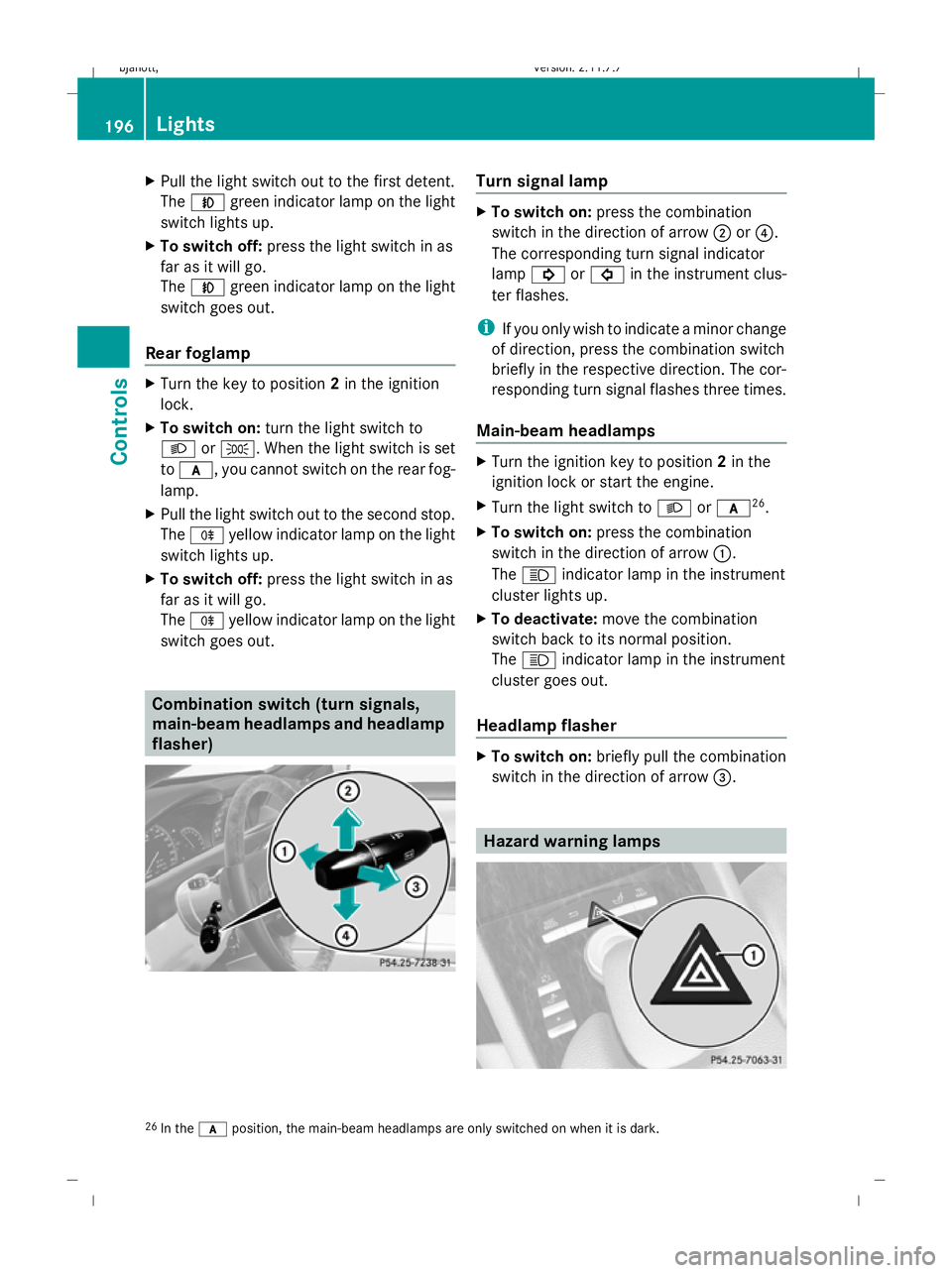
switch goes out. Combination switch (turn signals,
main-beam headlamps and headlamp
flasher) Turn signal lamp
X
To switch on: press the combination
switch in the direction of arrow ;or?.
The corresponding turn signal indicator
lamp ! or# in the instrument clus-
ter flashes.
i If you only wish to indicate a minor change
of direction, press the combination switch
briefly in the respective direction. The cor-
responding turn signal flashes three times.
Main-beam headlamps X
Turn the ignition key to position 2in the
ignition lock or start the engine.
X Turn the light switch to Lorc 26
.
X To switch on: press the combination
switch in the direction of arrow :.
The K indicator lamp in the instrument
cluster lights up.
X To deactivate: move the combination
switch back to its normal position.
The K indicator lamp in the instrument
cluster goes out.
Headlamp flasher X
To switch on: briefly pull the combination
switch in the direction of arrow =. Hazard warning lamps
26
In the cposition, the main-beam headlamps are only switched on when it is dark. 196
LightsControls
216_AKB; 2; 3, en-GB
bjanott,
Version: 2.11.7.7 2009-02-27T14:54:17+01:00 - Seite 196
Dateiname: 6515230602_buchblock.pdf; erzeugt am 04. Mar 2009 11:15:44; WK