phone MERCEDES-BENZ CLA 2019 Owner's Manual
[x] Cancel search | Manufacturer: MERCEDES-BENZ, Model Year: 2019, Model line: CLA, Model: MERCEDES-BENZ CLA 2019Pages: 330, PDF Size: 23.57 MB
Page 236 of 330
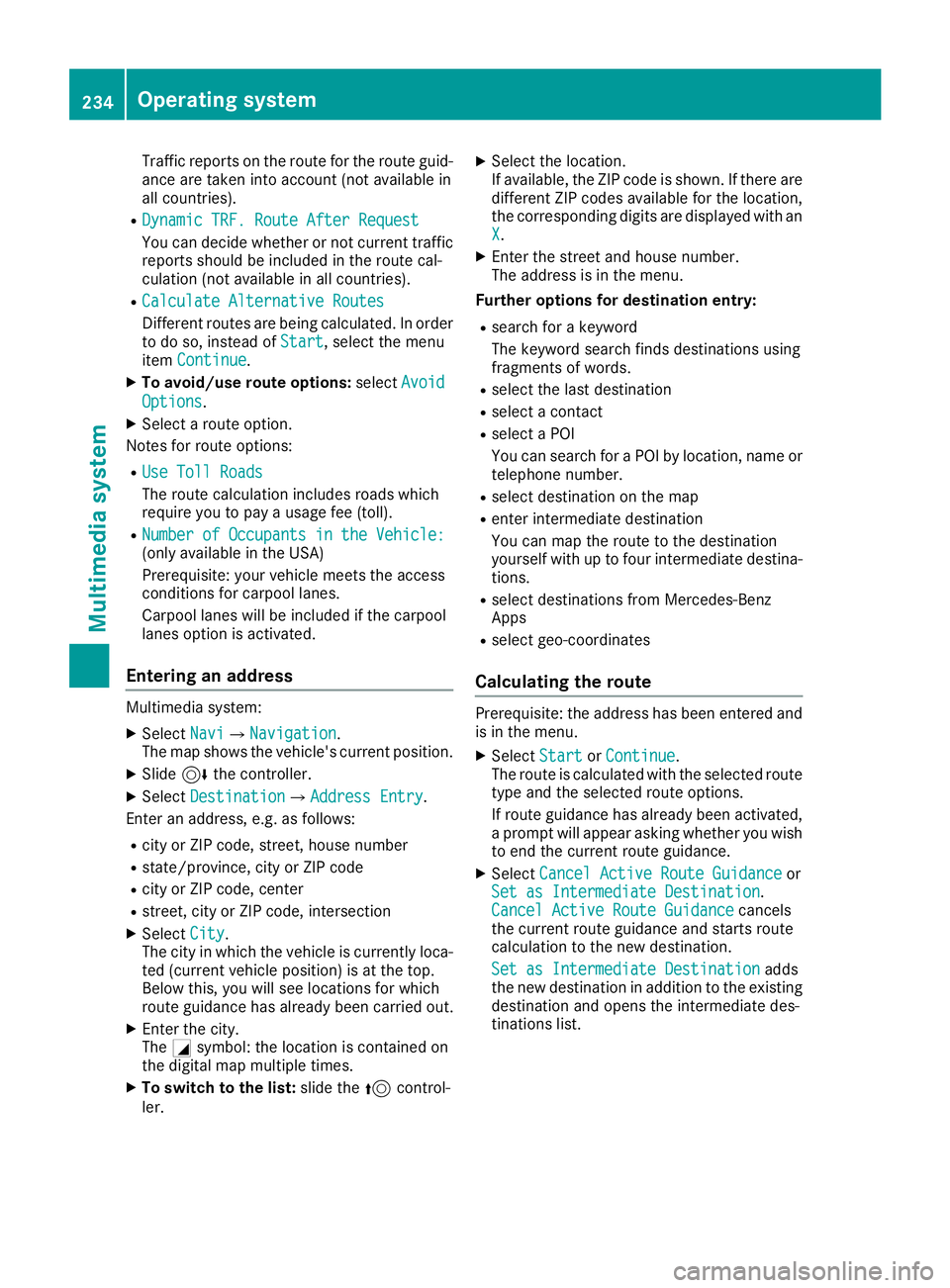
Traffic reports on the route for the route guid-ance are taken into account (not available inall countries).
RDynamic TRF. Route After RequestDynamic TRF. Route After Request
You can decide whether or not current trafficreports should be included in the route cal-culation (not available in all countries).
RCalculate Alternative RoutesCalculate Alternative Routes
Different routes are being calculated. In orderto do so, instead ofStartStart, select the menuitemContinueContinue.
XTo avoid/use route options:selectAvoidAvoid
OptionsOptions.
XSelect a route option.
Notes for route options:
RUse Toll RoadsUse Toll Roads
The route calculation includes roads whichrequire you to pay a usage fee (toll).
RNumber of Occupants in the Vehicle:Number of Occupants in the Vehicle:(only available in the USA)
Prerequisite: your vehicle meets the accessconditions for carpool lanes.
Carpool lanes will be included if the carpoollanes option is activated.
Entering an address
Multimedia system:
XSelectNaviNavi{NavigationNavigation.The map shows the vehicle's current position.
XSlide6the controller.
XSelectDestinationDestination{Address EntryAddress Entry.
Enter an address, e.g. as follows:
Rcity or ZIP code, street, house number
Rstate/province, city or ZIP code
Rcity or ZIP code, center
Rstreet, city or ZIP code, intersection
XSelectCityCity.The city in which the vehicle is currently loca-ted (current vehicle position) is at the top.Below this, you will see locations for whichroute guidance has already been carried out.
XEnter the city.TheCsymbol: the location is contained onthe digital map multiple times.
XTo switch to the list:slide the5control-ler.
XSelect the location.If available, the ZIP code is shown. If there aredifferent ZIP codes available for the location,the corresponding digits are displayed with anXX.
XEnter the street and house number.The address is in the menu.
Further options for destination entry:
Rsearch for a keyword
The keyword search finds destinations usingfragments of words.
Rselect the last destination
Rselect a contact
Rselect a POI
You can search for a POI by location, name ortelephone number.
Rselect destination on the map
Renter intermediate destination
You can map the route to the destinationyourself with up to four intermediate destina-tions.
Rselect destinations from Mercedes-BenzApps
Rselect geo-coordinates
Calculating the route
Prerequisite: the address has been entered andis in the menu.
XSelectStartStartorContinueContinue.The route is calculated with the selected routetype and the selected route options.
If route guidance has already been activated,a prompt will appear asking whether you wishto end the current route guidance.
XSelectCancel Active Route GuidanceCancel Active Route GuidanceorSet as Intermediate DestinationSet as Intermediate Destination.Cancel Active Route GuidanceCancel Active Route Guidancecancelsthe current route guidance and starts routecalculation to the new destination.
Set as Intermediate DestinationSet as Intermediate Destinationaddsthe new destination in addition to the existingdestination and opens the intermediate des-tinations list.
234Operating system
Multimedia system
Page 237 of 330
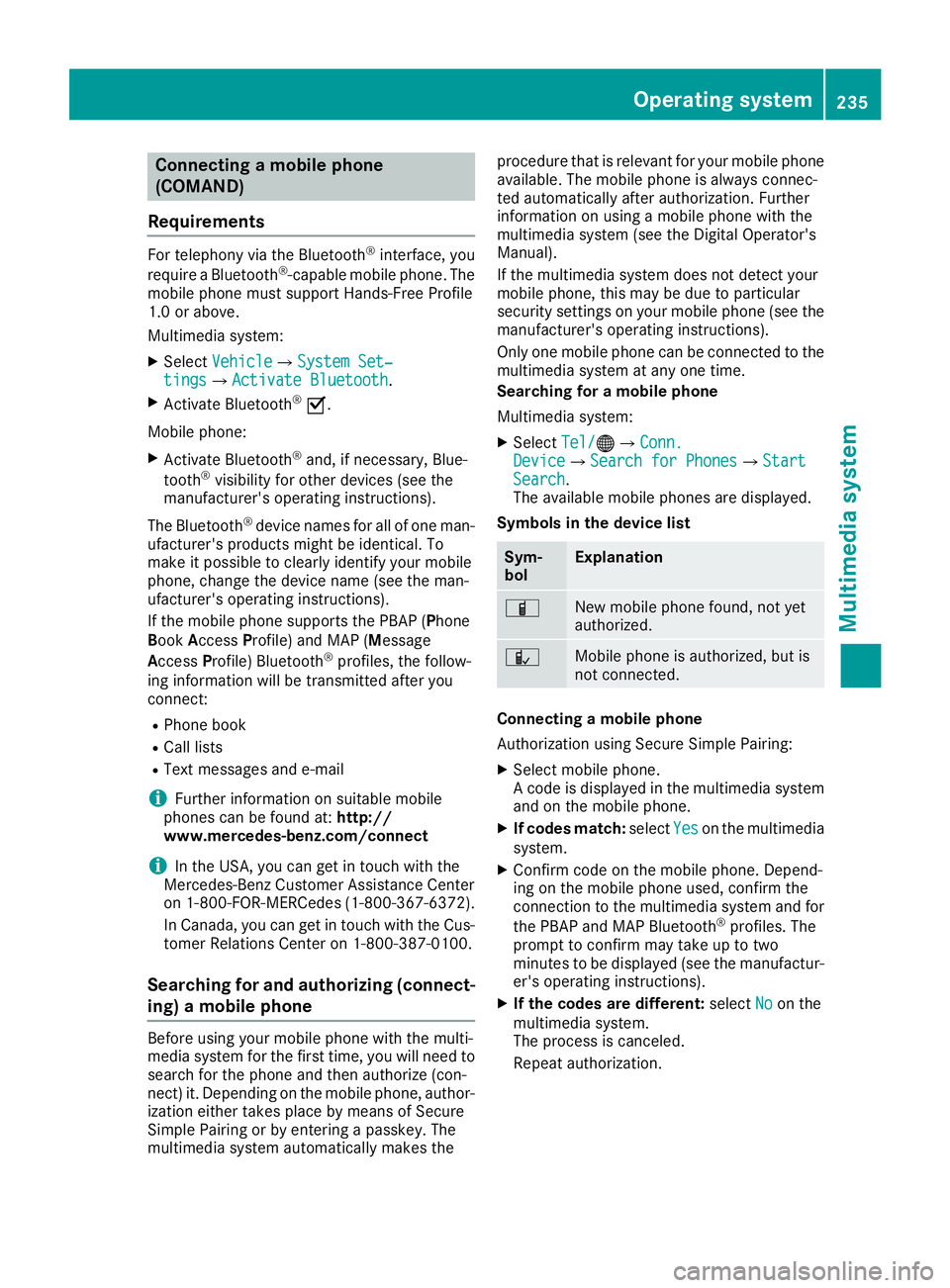
Connecting a mobile phone
(COMAND)
Requirements
For telephony via the Bluetooth®interface, you
require a Bluetooth®-capable mobile phone. Themobile phone must support Hands-Free Profile1.0 or above.
Multimedia system:
XSelectVehicleVehicle{System Set‐System Set‐tingstings{Activate BluetoothActivate Bluetooth.
XActivate Bluetooth®s.
Mobile phone:
XActivate Bluetooth®and, if necessary, Blue-
tooth®visibility for other devices (see themanufacturer's operating instructions).
The Bluetooth®device names for all of one man-ufacturer's products might be identical. Tomake it possible to clearly identify your mobilephone, change the device name (see the man-ufacturer's operating instructions).
If the mobile phone supports the PBAP (PhoneBookAccessProfile) and MAP (Message
AccessProfile) Bluetooth®profiles, the follow-ing information will be transmitted after youconnect:
RPhone book
RCall lists
RText messages and e-mail
iFurther information on suitable mobilephones can be found at:http://www.mercedes-benz.com/connect
iIn the USA, you can get in touch with theMercedes-Benz Customer Assistance Centeron 1-800-FOR-MERCedes (1-800-367-6372).
In Canada, you can get in touch with the Cus-tomer Relations Center on 1-800-387-0100.
Searching for and authorizing (connect-
ing) a mobile phone
Before using your mobile phone with the multi-media system for the first time, you will need tosearch for the phone and then authorize (con-nect) it. Depending on the mobile phone, author-ization either takes place by means of SecureSimple Pairing or by entering a passkey. Themultimedia system automatically makes the
procedure that is relevant for your mobile phoneavailable. The mobile phone is always connec-ted automatically after authorization. Furtherinformation on using a mobile phone with themultimedia system (see the Digital Operator'sManual).
If the multimedia system does not detect yourmobile phone, this may be due to particularsecurity settings on your mobile phone (see themanufacturer's operating instructions).
Only one mobile phone can be connected to themultimedia system at any one time.
Searching for a mobile phone
Multimedia system:
XSelectTel/Tel/
Page 238 of 330
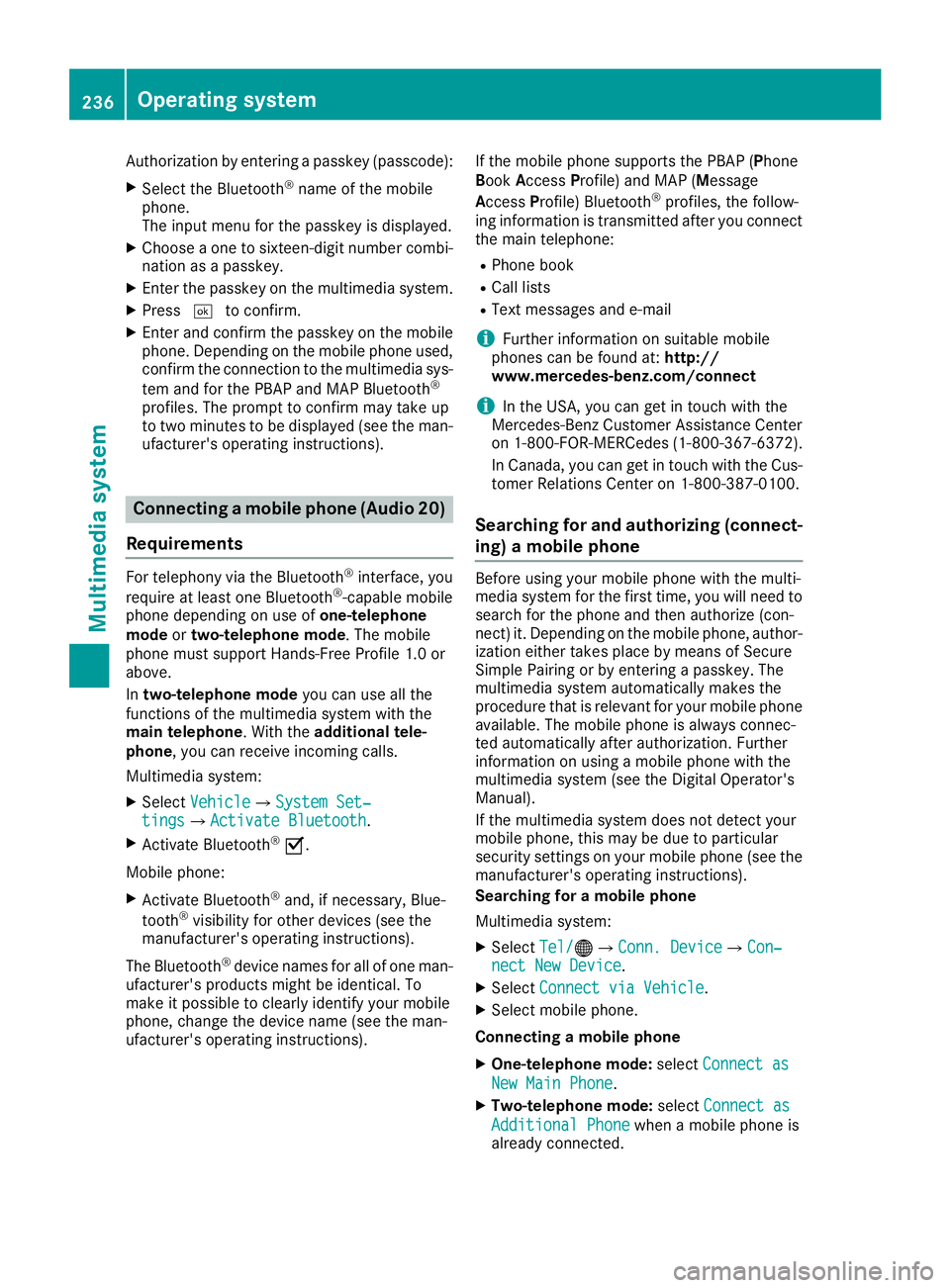
Authorization by entering a passkey (passcode):
XSelect the Bluetooth®name of the mobilephone.The input menu for the passkey is displayed.
XChoose a one to sixteen-digit number combi-nation as a passkey.
XEnter the passkey on the multimedia system.
XPressTto confirm.
XEnter and confirm the passkey on the mobilephone. Depending on the mobile phone used,confirm the connection to the multimedia sys-
tem and for the PBAP and MAP Bluetooth®
profiles. The prompt to confirm may take upto two minutes to be displayed (see the man-ufacturer's operating instructions).
Connecting a mobile phone (Audio 20)
Requirements
For telephony via the Bluetooth®interface, you
require at least one Bluetooth®-capable mobilephone depending on use ofone-telephonemodeortwo-telephone mode. The mobilephone must support Hands-Free Profile 1.0 orabove.
Intwo-telephone modeyou can use all thefunctions of the multimedia system with themain telephone. With theadditional tele-phone, you can receive incoming calls.
Multimedia system:
XSelectVehicleVehicle{System Set‐System Set‐tingstings{Activate BluetoothActivate Bluetooth.
XActivate Bluetooth®s.
Mobile phone:
XActivate Bluetooth®and, if necessary, Blue-
tooth®visibility for other devices (see themanufacturer's operating instructions).
The Bluetooth®device names for all of one man-ufacturer's products might be identical. Tomake it possible to clearly identify your mobilephone, change the device name (see the man-ufacturer's operating instructions).
If the mobile phone supports the PBAP (PhoneBookAccessProfile) and MAP (Message
AccessProfile) Bluetooth®profiles, the follow-ing information is transmitted after you connectthe main telephone:
RPhone book
RCall lists
RText messages and e-mail
iFurther information on suitable mobilephones can be found at:http://www.mercedes-benz.com/connect
iIn the USA, you can get in touch with theMercedes-Benz Customer Assistance Centeron 1-800-FOR-MERCedes (1-800-367-6372).
In Canada, you can get in touch with the Cus-tomer Relations Center on 1-800-387-0100.
Searching for and authorizing (connect-
ing) a mobile phone
Before using your mobile phone with the multi-media system for the first time, you will need tosearch for the phone and then authorize (con-nect) it. Depending on the mobile phone, author-ization either takes place by means of SecureSimple Pairing or by entering a passkey. Themultimedia system automatically makes theprocedure that is relevant for your mobile phoneavailable. The mobile phone is always connec-ted automatically after authorization. Furtherinformation on using a mobile phone with themultimedia system (see the Digital Operator'sManual).
If the multimedia system does not detect yourmobile phone, this may be due to particularsecurity settings on your mobile phone (see themanufacturer's operating instructions).
Searching for a mobile phone
Multimedia system:
XSelectTel/Tel/
Page 239 of 330
XAuthorization using Secure Simple Pair-ing:
A code is displayed in the multimedia systemand on the mobile phone.
XConfirm code on the mobile phone. Depend-ing on the mobile phone used, confirm theconnection to the multimedia system and for
the PBAP and MAP Bluetooth®profiles. Theprompt to confirm may take up to twominutes to be displayed (see the manufactur-er's operating instructions).
XIf the codes are different: selectNoNoon themultimedia system.The process is canceled.
Repeat authorization.
or
XAuthorization by entering a passkey(passcode):enter any one- to sixteen-digitnumber sequence which you have chosenyourself into the passkey input menu.
XPressTto confirm.
XEnter and confirm the passkey on the mobilephone. Depending on the mobile phone used,confirm the connection to the multimedia sys-
tem and for the PBAP and MAP Bluetooth®
profiles. The prompt to confirm may take upto two minutes to be displayed (see the man-ufacturer's operating instructions).
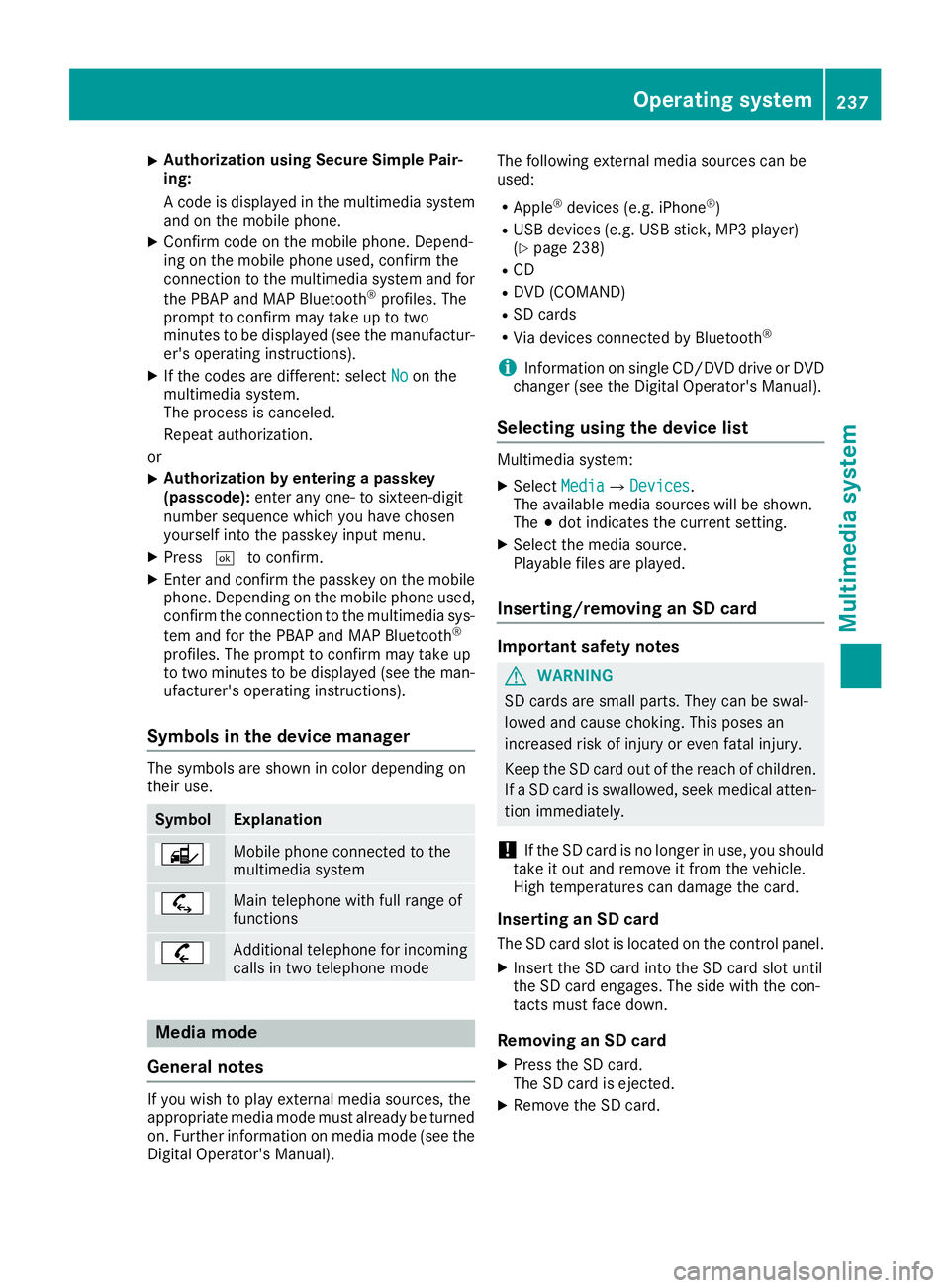
Symbols in the device manager
The symbols are shown in color depending ontheir use.
SymbolExplanation
Mobile phone connected to themultimedia system
Main telephone with full range offunctions
Additional telephone for incomingcalls in two telephone mode
Media mode
General notes
If you wish to play external media sources, theappropriate media mode must already be turnedon. Further information on media mode (see theDigital Operator's Manual).
The following external media sources can beused:
RApple®devices (e.g. iPhone®)
RUSB devices (e.g. USB stick, MP3 player)(Ypage 238)
RCD
RDVD (COMAND)
RSD cards
RVia devices connected by Bluetooth®
iInformation on single CD/DVD drive or DVDchanger (see the Digital Operator's Manual).
Selecting using the device list
Multimedia system:
XSelectMediaMedia{DevicesDevices.The available media sources will be shown.The;dot indicates the current setting.
XSelect the media source.Playable files are played.
Inserting/removing an SD card
Important safety notes
GWARNING
SD cards are small parts. They can be swal-
lowed and cause choking. This poses an
increased risk of injury or even fatal injury.
Keep the SD card out of the reach of children.
If a SD card is swallowed, seek medical atten-
tion immediately.
!If the SD card is no longer in use, you shouldtake it out and remove it from the vehicle.High temperatures can damage the card.
Inserting an SD card
The SD card slot is located on the control panel.
XInsert the SD card into the SD card slot untilthe SD card engages. The side with the con-tacts must face down.
Removing an SD card
XPress the SD card.The SD card is ejected.
XRemove the SD card.
Operating system237
Multimedia system
Z
Page 241 of 330
Loading guidelines
GWARNING
If objects, luggage or loads are not secured or
not secured sufficiently, they could slip, tip
over or be flung around and thereby hit vehicle
occupants. There is a risk of injury, particu-
larly in the event of sudden braking or a sud-
den change in direction.
Always store objects so that they cannot be
flung around. Secure objects, luggage or
loads against slipping or tipping before the
journey.
GWARNING
Combustion engines emit poisonous exhaust
gases such as carbon monoxide. Exhaust
gases can enter the vehicle interior if the
trunk lid is open when the engine is running,
especially if the vehicle is in motion. There is a
risk of poisoning.
Always switch off the engine before opening
the trunk lid. Never drive with the trunk lid
open.
GWARNING
The exhaust tail pipe and tail pipe trim can
become very hot. If you come into contact
with these parts of the vehicle, you could burn
yourself. There is a risk of injury.
Always be particularly careful around the
exhaust tail pipe and the tail pipe trim. Allow
these components to cool down before touch-
ing them.
The handling characteristics of a laden vehicleare dependent on the distribution of the loadwithin the vehicle.
Observe the following notes when loading andtransporting a load:
RNever exceed the maximum permissiblegross vehicle mass or the gross axle weightrating for the vehicle (including occupants).The values are specified on the vehicle iden-
tification plate on the B-pillar of the driver'sdoor.
RThe trunk is the preferred place to carryobjects.
RPosition heavy loads as far forwards as pos-sible and as low down in the trunk as possible.
RThe load must not protrude above the upperedge of the seat backrests.
RAlways place the load against the rear or frontseat backrests. Make sure that the seatbackrests are securely locked into place.
RAlways place the load behind unoccupiedseats if possible.
RUse the cargo tie-down rings and the parcelnets to transport loads and luggage.
RUse cargo tie-down rings and fastening mate-rials appropriate for the weight and size of theload.
RSecure the load with sufficiently strong andwear-resistant tie-downs. Pad sharp edges forprotection.
Stowage areas
Stowage spaces
Important safety notes
GWARNING
If objects in the passenger compartment are
stowed incorrectly, they can slide or be
thrown around and hit vehicle occupants. In
addition, cup holders, open stowage spaces
and mobile phone brackets cannot always
retain all objects they contain. There is a risk
of injury, particularly in the event of sudden
braking or a sudden change in direction.
RAlways stow objects so that they cannot be
thrown around in such situations.
RAlways make sure that objects do not pro-
trude from stowage spaces, parcel nets or
stowage nets.
RClose the lockable stowage spaces before
starting a journey.
RAlways stow and secure heavy, hard, poin-
ted, sharp-edged, fragile or bulky objects in
the trunk.
Observe the loading guidelines (Ypage 239).
Stowage areas239
Stowage and features
Z
Page 243 of 330
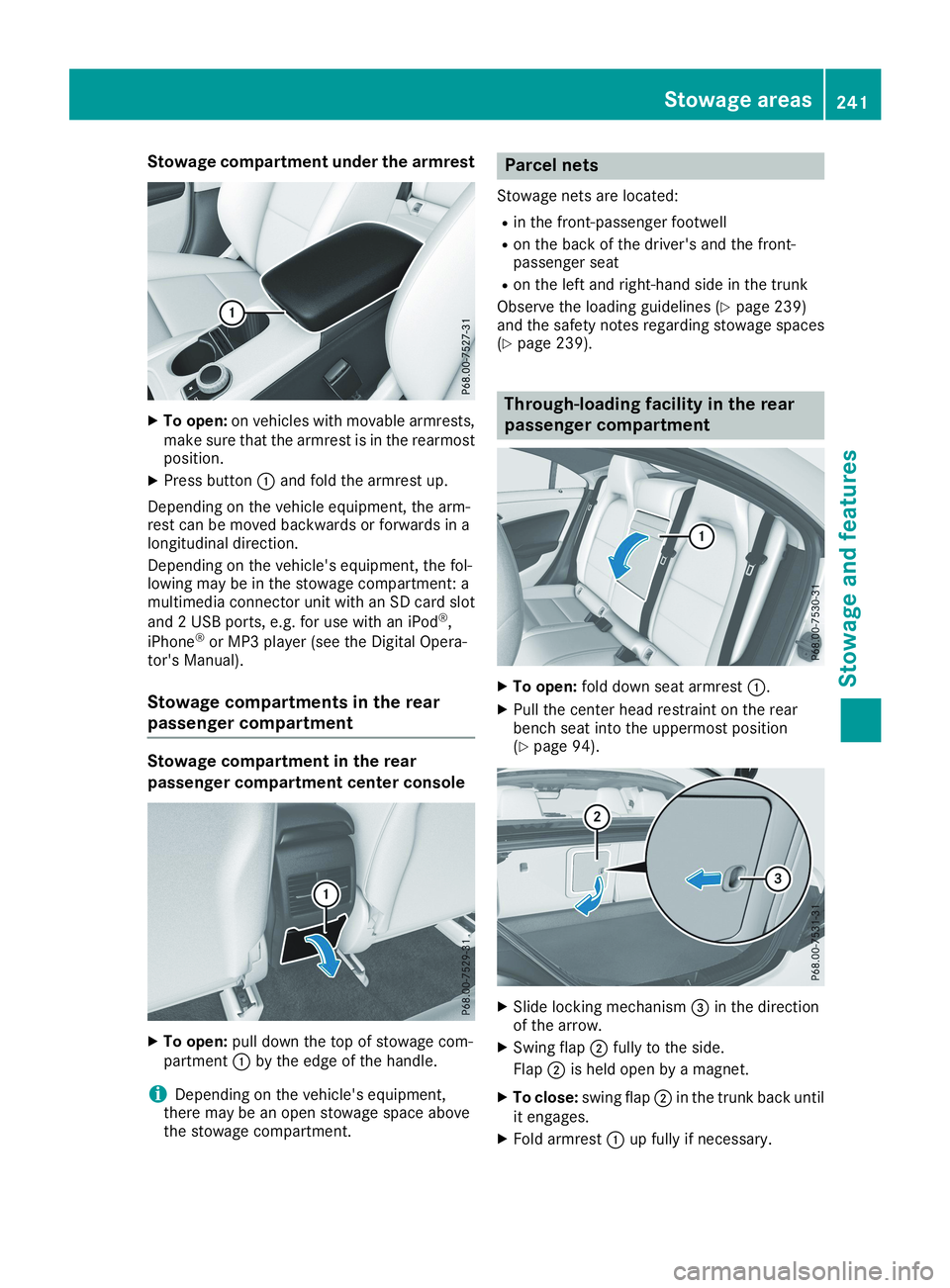
Stowage compartment under the armrest
XTo open:on vehicles with movable armrests,make sure that the armrest is in the rearmostposition.
XPress buttonCand fold the armrest up.
Depending on the vehicle equipment, the arm-rest can be moved backwards or forwards in alongitudinal direction.
Depending on the vehicle's equipment, the fol-lowing may be in the stowage compartment: amultimedia connector unit with an SD card slot
and 2 USB ports, e.g. for use with an iPod®,
iPhone®or MP3 player (see the Digital Opera-tor's Manual).
Stowage compartments in the rear
passenger compartment
Stowage compartment in the rear
passenger compartment center console
XTo open:pull down the top of stowage com-partmentCby the edge of the handle.
iDepending on the vehicle's equipment,there may be an open stowage space abovethe stowage compartment.
Parcel nets
Stowage nets are located:
Rin the front-passenger footwell
Ron the back of the driver's and the front-passenger seat
Ron the left and right-hand side in the trunk
Observe the loading guidelines (Ypage 239)and the safety notes regarding stowage spaces(Ypage 239).
Through-loading facility in the rear
passenger compartment
XTo open:fold down seat armrestC.
XPull the center head restraint on the rearbench seat into the uppermost position(Ypage 94).
XSlide locking mechanism
Page 247 of 330
Do not touch the hot heating elements of the
cup holder. Always make sure that children
cannot access the hot heating elements of the
cup holder. Never leave children unsuper-
vised in the vehicle.
GWARNING
If objects in the passenger compartment are
stowed incorrectly, they can slide or be
thrown around and hit vehicle occupants. In
addition, cup holders, open stowage spaces
and mobile phone brackets cannot always
retain all objects they contain. There is a risk
of injury, particularly in the event of sudden
braking or a sudden change in direction.
RAlways stow objects so that they cannot be
thrown around in such situations.
RAlways make sure that objects do not pro-
trude from stowage spaces, parcel nets or
stowage nets.
RClose the lockable stowage spaces before
starting a journey.
RAlways stow and secure heavy, hard, poin-
ted, sharp-edged, fragile or bulky objects in
the trunk.
!Only use the cup holders for containers ofthe right size and which have lids. The drinkscould otherwise spill.
Observe the loading guidelines (Ypage 239).
The stowage compartments in the doors providespace for bottles:
Rfront: capacity up to 34 fl. oz. (1.0l)
Rrear: capacity up to 17 fl. oz. (0.5 l)
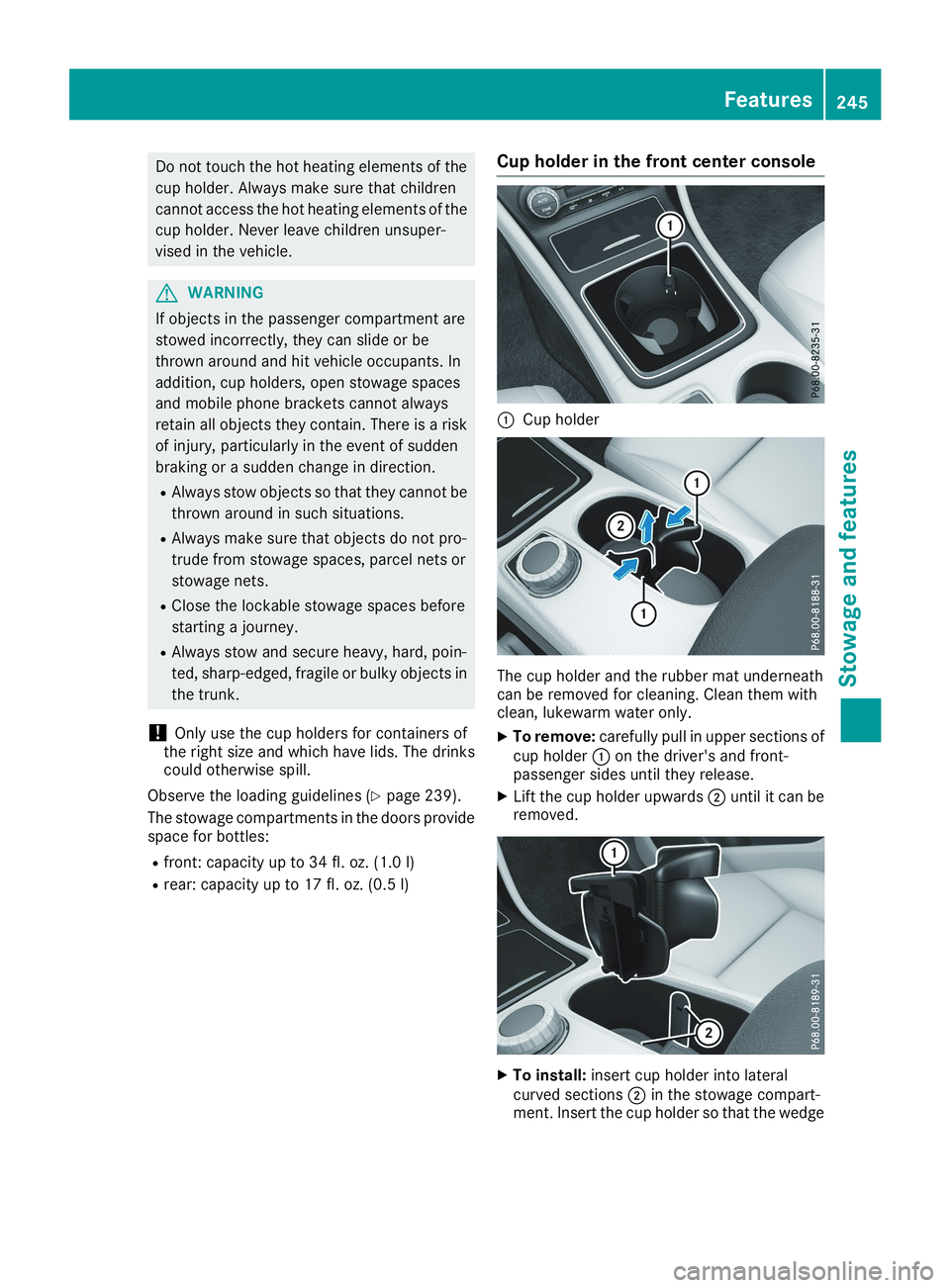
Cup holder in the front center console
CCup holder
The cup holder and the rubber mat underneathcan be removed for cleaning. Clean them withclean, lukewarm water only.
XTo remove:carefully pull in upper sections ofcup holderCon the driver's and front-passenger sides until they release.
XLift the cup holder upwardsDuntil it can beremoved.
XTo install:insert cup holder into lateralcurved sectionsDin the stowage compart-ment. Insert the cup holder so that the wedge
Features245
Stowage and features
Z
Page 251 of 330
Have the system checked at the nearestMercedes-Benz Service Center or contact thefollowing service hotlines:
Mercedes-Benz Customer Assistance Center at1-800-FOR-MERCedes (1-800-367-6372) or1-866-990-9007
Emergency call
Important safety notes
GWARNING
It can be dangerous to remain in the vehicle,
even if you have pressed the SOS button in an
emergency if:
Ryou see smoke inside or outside of the vehi-
cle, e.g. if there is a fire after an accident
Rthe vehicle is on a dangerous section of
road
Rthe vehicle is not visible or cannot easily be
seen by other road users, particularly when
dark or in poor visibility conditions
There is a risk of an accident and injury.
Leave the vehicle immediately in this or simi-
lar situations as soon as it is safe to do so.
Move to a safe location along with other vehi-
cle occupants. In such situations, secure the
vehicle in accordance with national regula-
tions, e. g. with a warning triangle.
General notes
Observe the notes on system activation(Ypage 248).
An emergency call is dialed automatically if anair bag or Emergency Tensioning Device is trig-gered. You cannot end an automatically trig-gered emergency call yourself.
An emergency call can also be initiated man-ually.
As soon as the emergency call has been initi-ated, the indicator lamp in the SOS buttonflashes. TheConnecting CallConnecting Callmessageappears in the multifunction display.
The audio output is muted.
Once the connection has been made, theCallCallConnectedConnectedmessage appears in the multifunc-tion display.
All important information on the emergency istransmitted, for example:
RCurrent location of the vehicle (as determinedby the GPS system)
RVehicle identification number
RInformation on the severity of the accident
Shortly after the emergency call has been initi-ated, a voice connection is automatically estab-lished between the Customer Assistance Centerand the vehicle occupants.
RIf the vehicle occupants are responsive, theMercedes-Benz Customer Assistance Centerattempts to get more information on theemergency.
RIf there is no response from the vehicle occu-pants, an ambulance is immediately sent tothe vehicle
If no voice connection can be established to theMercedes-Benz Customer Assistance Center,the system has been unable to initiate an emer-gency call.
This can occur, for example, if the relevantmobile phone network is not available. The indi-cator lamp in the SOS button flashes continu-ously.
TheCall FailedCall Failedmessage appears in the mul-tifunction display and must be confirmed.
In this case, summon assistance by othermeans.
Making an emergency call
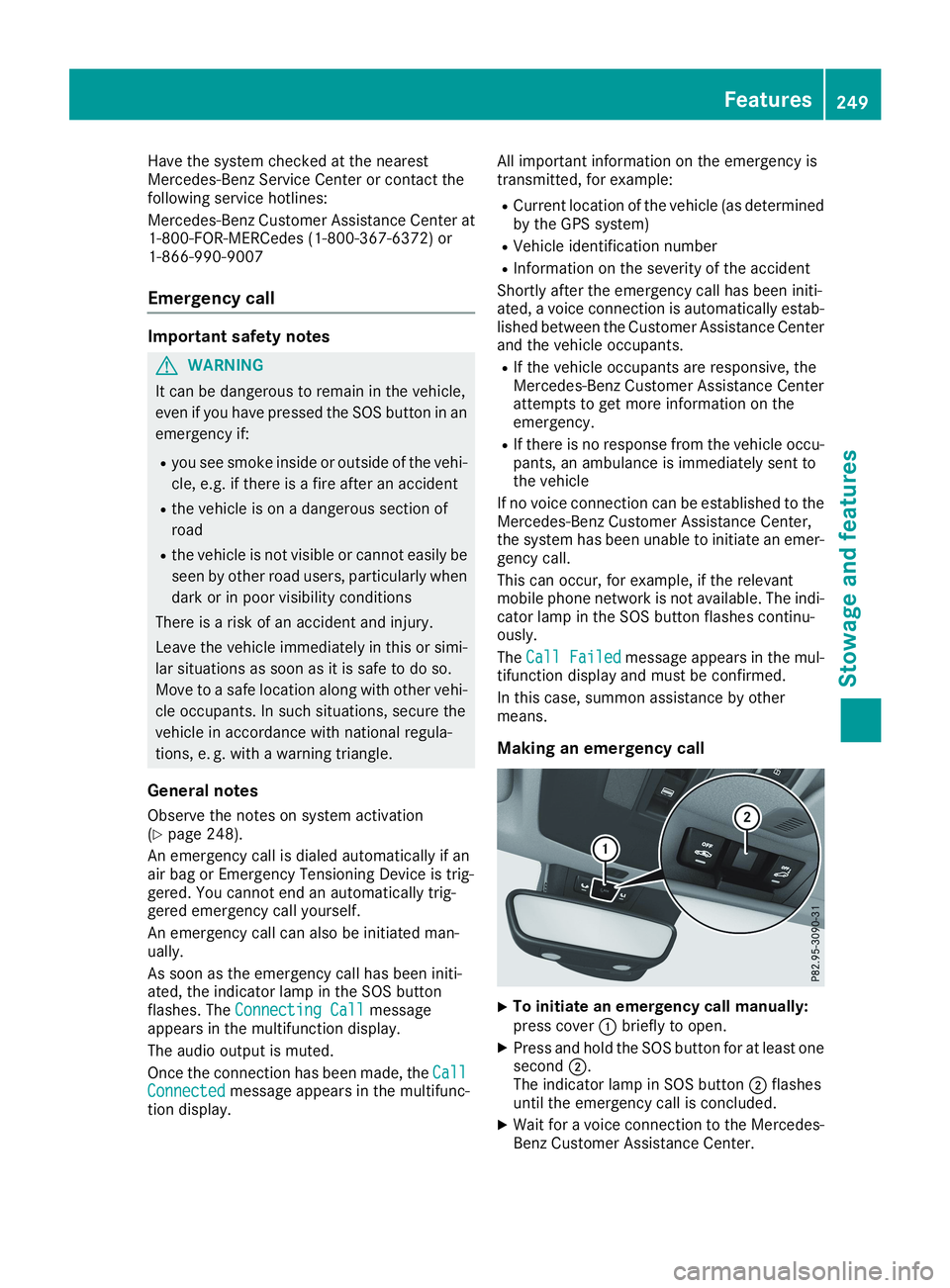
XTo initiate an emergency call manually:press coverCbriefly to open.
XPress and hold the SOS button for at least onesecondD.The indicator lamp in SOS buttonDflashesuntil the emergency call is concluded.
XWait for a voice connection to the Mercedes-Benz Customer Assistance Center.
Features249
Sto wage an d features
Z
Page 252 of 330
XTo end a call:press thevbutton on themultifunction steering wheel.
or
XPress the corresponding multimedia systembutton for ending a phone call.
XAfter the emergency call, close coverC.
If the mobile phone network is unavailable,Mercedes me connect is not able to make anemergency call. If you leave the vehicle imme-diately after pressing the SOS buttonD, you donot know if Mercedes me connect has success-fully made the emergency call. In this case,always summon assistance by other means.
Roadside Assistance button
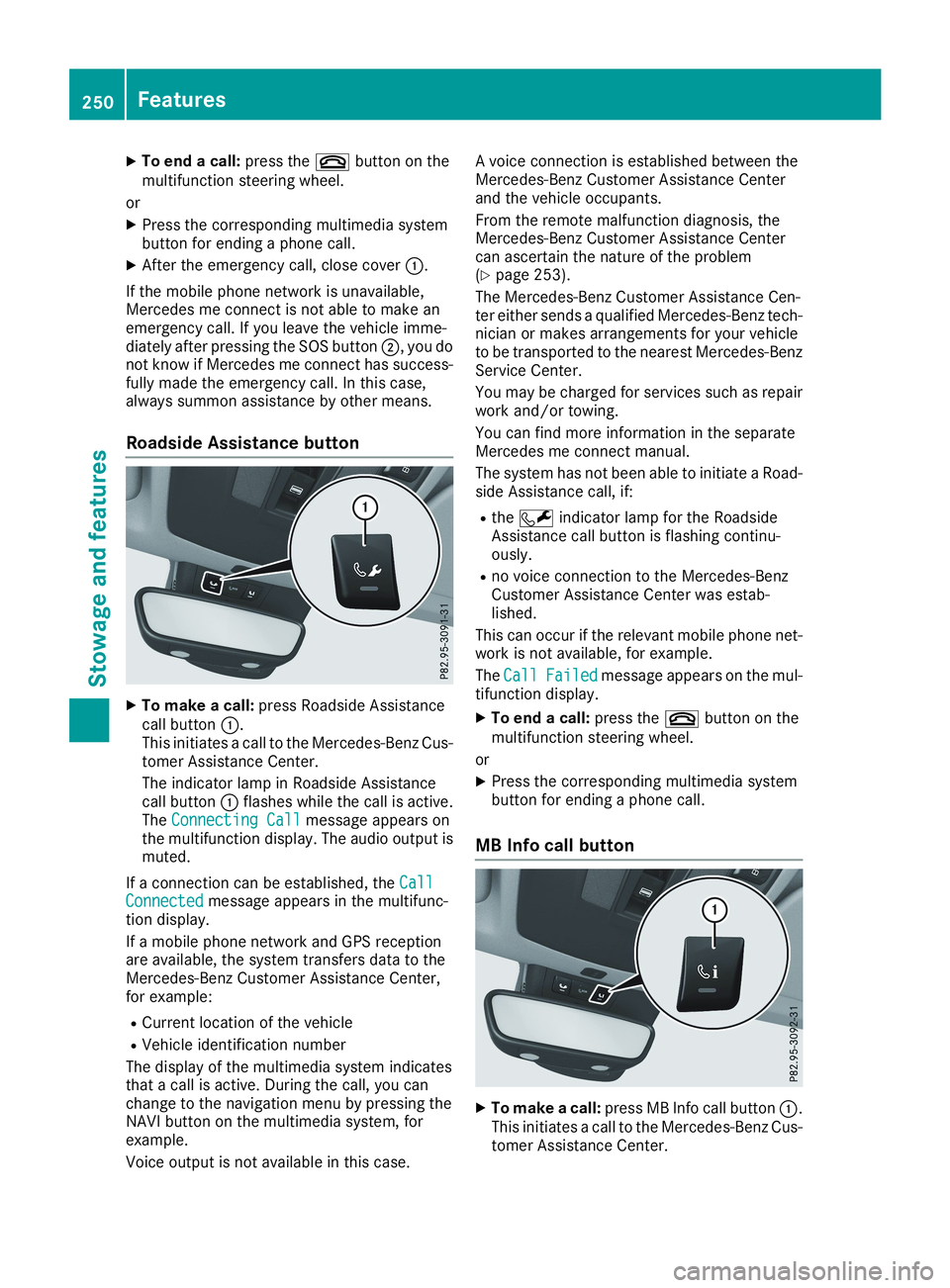
XTo make a call:press Roadside Assistancecall buttonC.This initiates a call to the Mercedes-Benz Cus-tomer Assistance Center.
The indicator lamp in Roadside Assistancecall buttonCflashes while the call is active.TheConnecting CallConnecting Callmessage appears onthe multifunction display. The audio output ismuted.
If a connection can be established, theCallCallConnectedConnectedmessage appears in the multifunc-tion display.
If a mobile phone network and GPS receptionare available, the system transfers data to theMercedes-Benz Customer Assistance Center,for example:
RCurrent location of the vehicle
RVehicle identification number
The display of the multimedia system indicatesthat a call is active. During the call, you canchange to the navigation menu by pressing theNAVI button on the multimedia system, forexample.
Voice output is not available in this case.
A voice connection is established between theMercedes-Benz Customer Assistance Centerand the vehicle occupants.
From the remote malfunction diagnosis, theMercedes-Benz Customer Assistance Centercan ascertain the nature of the problem(Ypage 253).
The Mercedes-Benz Customer Assistance Cen-ter either sends a qualified Mercedes-Benz tech-nician or makes arrangements for your vehicleto be transported to the nearest Mercedes-BenzService Center.
You may be charged for services such as repairwork and/or towing.
You can find more information in the separateMercedes me connect manual.
The system has not been able to initiate a Road-side Assistance call, if:
RtheRindicator lamp for the RoadsideAssistance call button is flashing continu-ously.
Rno voice connection to the Mercedes-BenzCustomer Assistance Center was estab-lished.
This can occur if the relevant mobile phone net-work is not available, for example.
TheCallCallFailedFailedmessage appears on the mul-tifunction display.
XTo end a call:press thevbutton on themultifunction steering wheel.
or
XPress the corresponding multimedia systembutton for ending a phone call.
MB Info call button
XTo make a call:press MB Info call buttonC.This initiates a call to the Mercedes-Benz Cus-tomer Assistance Center.
250Features
Sto wage an d features
Page 253 of 330
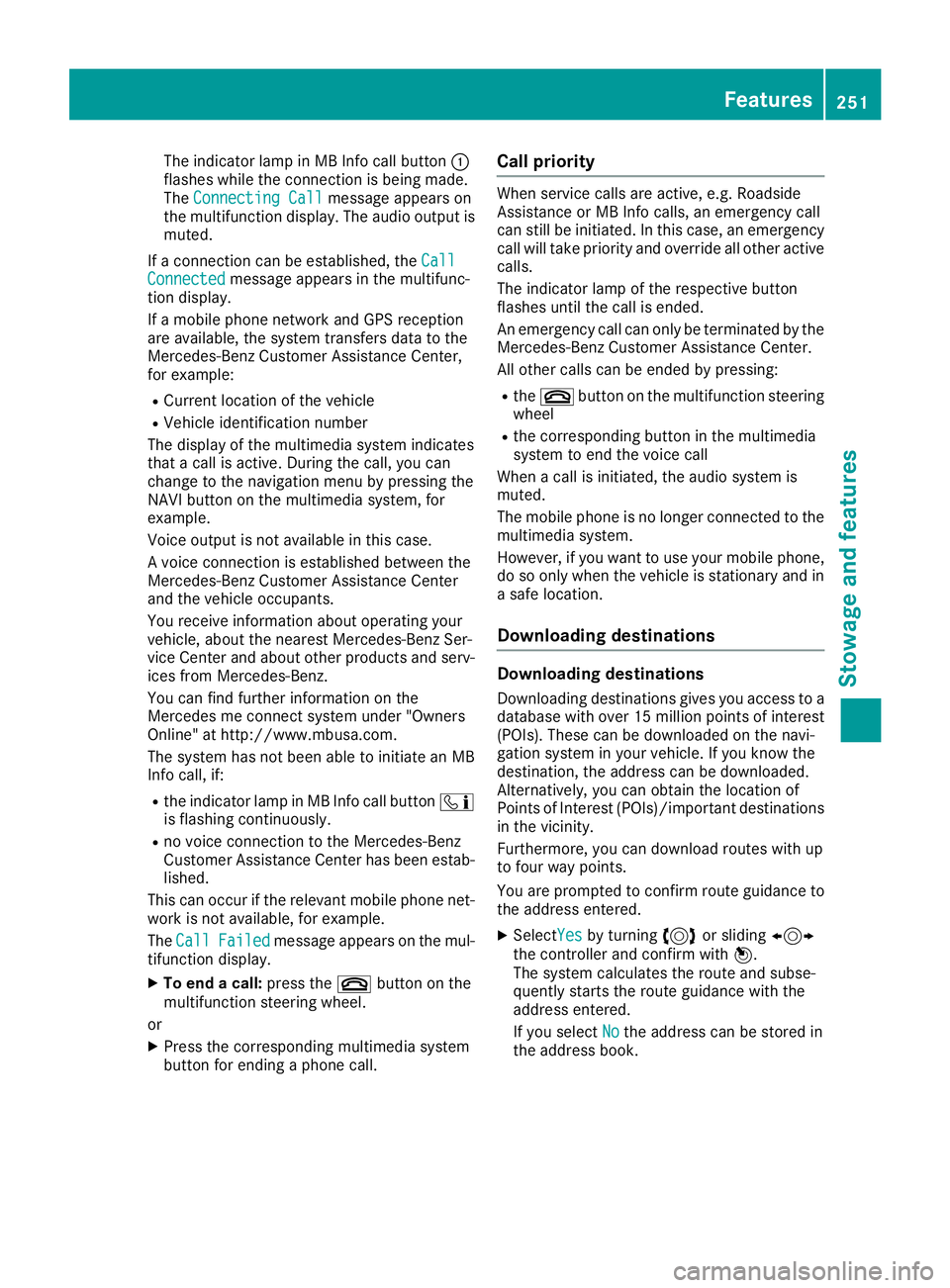
The indicator lamp in MB Info call buttonCflashes while the connection is being made.TheConnecting CallConnecting Callmessage appears onthe multifunction display. The audio output ismuted.
If a connection can be established, theCallCallConnectedConnectedmessage appears in the multifunc-tion display.
If a mobile phone network and GPS receptionare available, the system transfers data to theMercedes-Benz Customer Assistance Center,for example:
RCurrent location of the vehicle
RVehicle identification number
The display of the multimedia system indicatesthat a call is active. During the call, you canchange to the navigation menu by pressing theNAVI button on the multimedia system, forexample.
Voice output is not available in this case.
A voice connection is established between theMercedes-Benz Customer Assistance Centerand the vehicle occupants.
You receive information about operating yourvehicle, about the nearest Mercedes-Benz Ser-vice Center and about other products and serv-ices from Mercedes-Benz.
You can find further information on theMercedes me connect system under "OwnersOnline" at http://www.mbusa.com.
The system has not been able to initiate an MBInfo call, if:
Rthe indicator lamp in MB Info call button