wheel MERCEDES-BENZ CLA-CLASS 2013 Repair Manual
[x] Cancel search | Manufacturer: MERCEDES-BENZ, Model Year: 2013, Model line: CLA-CLASS, Model: MERCEDES-BENZ CLA-CLASS 2013Pages: 352, PDF Size: 5.64 MB
Page 202 of 352
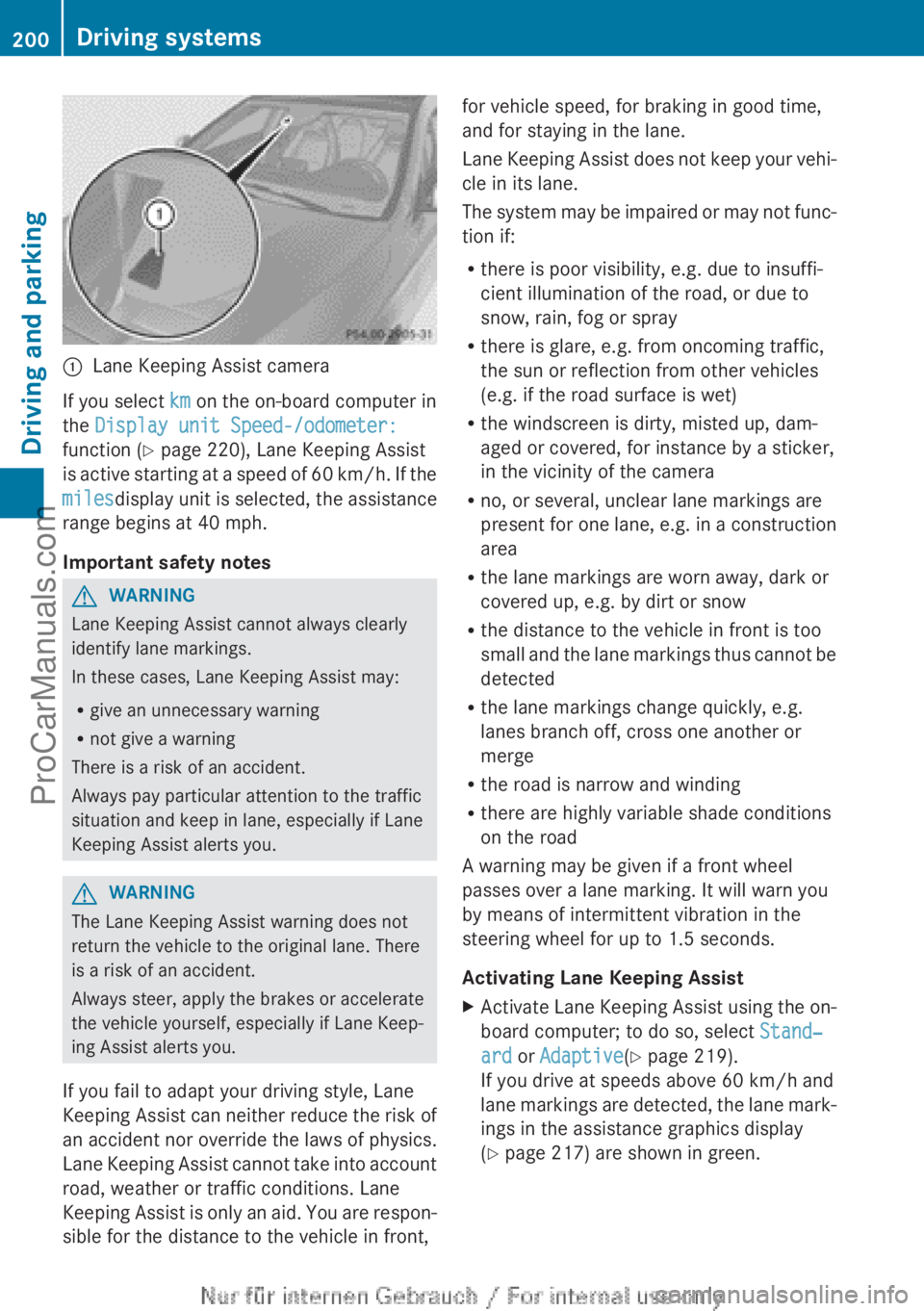
:Lane Keeping Assist camera
If you select km on the on-board computer in
the Display unit Speed-/odometer:
function ( Y page 220), Lane Keeping Assist
is active starting at a speed of 60 km/h. If the
miles display unit is selected, the assistance
range begins at 40 mph.
Important safety notes
GWARNING
Lane Keeping Assist cannot always clearly
identify lane markings.
In these cases, Lane Keeping Assist may:
R give an unnecessary warning
R not give a warning
There is a risk of an accident.
Always pay particular attention to the traffic
situation and keep in lane, especially if Lane
Keeping Assist alerts you.
GWARNING
The Lane Keeping Assist warning does not
return the vehicle to the original lane. There
is a risk of an accident.
Always steer, apply the brakes or accelerate
the vehicle yourself, especially if Lane Keep-
ing Assist alerts you.
If you fail to adapt your driving style, Lane
Keeping Assist can neither reduce the risk of
an accident nor override the laws of physics.
Lane Keeping Assist cannot take into account
road, weather or traffic conditions. Lane
Keeping Assist is only an aid. You are respon-
sible for the distance to the vehicle in front,
for vehicle speed, for braking in good time,
and for staying in the lane.
Lane Keeping Assist does not keep your vehi-
cle in its lane.
The system may be impaired or may not func-
tion if:
R there is poor visibility, e.g. due to insuffi-
cient illumination of the road, or due to
snow, rain, fog or spray
R there is glare, e.g. from oncoming traffic,
the sun or reflection from other vehicles
(e.g. if the road surface is wet)
R the windscreen is dirty, misted up, dam-
aged or covered, for instance by a sticker,
in the vicinity of the camera
R no, or several, unclear lane markings are
present for one lane, e.g. in a construction
area
R the lane markings are worn away, dark or
covered up, e.g. by dirt or snow
R the distance to the vehicle in front is too
small and the lane markings thus cannot be
detected
R the lane markings change quickly, e.g.
lanes branch off, cross one another or
merge
R the road is narrow and winding
R there are highly variable shade conditions
on the road
A warning may be given if a front wheel
passes over a lane marking. It will warn you
by means of intermittent vibration in the
steering wheel for up to 1.5 seconds.
Activating Lane Keeping AssistXActivate Lane Keeping Assist using the on-
board computer; to do so, select Stand‐
ard or Adaptive (Y page 219).
If you drive at speeds above 60 km/h and
lane markings are detected, the lane mark-
ings in the assistance graphics display
( Y page 217) are shown in green.200Driving systemsDriving and parking
ProCarManuals.com
Page 206 of 352
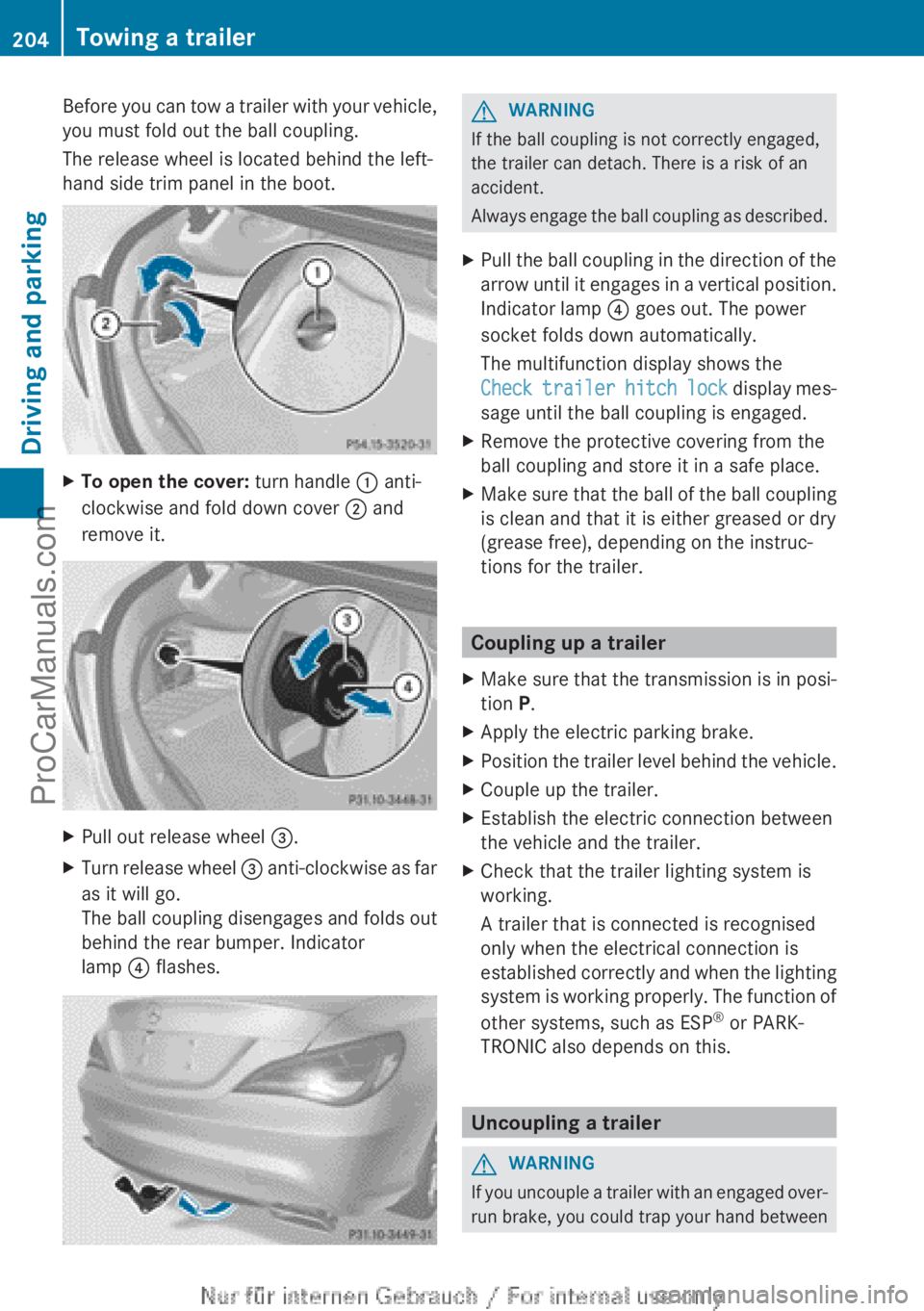
Before you can tow a trailer with your vehicle,
you must fold out the ball coupling.
The release wheel is located behind the left-
hand side trim panel in the boot.XTo open the cover: turn handle : anti-
clockwise and fold down cover ; and
remove it.XPull out release wheel =.XTurn release wheel = anti-clockwise as far
as it will go.
The ball coupling disengages and folds out
behind the rear bumper. Indicator
lamp ? flashes.GWARNING
If the ball coupling is not correctly engaged,
the trailer can detach. There is a risk of an
accident.
Always engage the ball coupling as described.
XPull the ball coupling in the direction of the
arrow until it engages in a vertical position.
Indicator lamp ? goes out. The power
socket folds down automatically.
The multifunction display shows the
Check trailer hitch lock display mes-
sage until the ball coupling is engaged.XRemove the protective covering from the
ball coupling and store it in a safe place.XMake sure that the ball of the ball coupling
is clean and that it is either greased or dry
(grease free), depending on the instruc-
tions for the trailer.
Coupling up a trailer
XMake sure that the transmission is in posi-
tion P.XApply the electric parking brake.XPosition the trailer level behind the vehicle.XCouple up the trailer.XEstablish the electric connection between
the vehicle and the trailer.XCheck that the trailer lighting system is
working.
A trailer that is connected is recognised
only when the electrical connection is
established correctly and when the lighting
system is working properly. The function of
other systems, such as ESP ®
or PARK-
TRONIC also depends on this.
Uncoupling a trailer
GWARNING
If you uncouple a trailer with an engaged over-
run brake, you could trap your hand between
204Towing a trailerDriving and parking
ProCarManuals.com
Page 207 of 352
the vehicle and the trailer drawbar. This poses
a risk of injury.
Do not uncouple a trailer with an engaged
overrun brake.
! Do not disconnect a trailer with an
engaged overrun brake. Otherwise, your
vehicle could be damaged by the rebound-
ing of the overrun brake.
! Remove the installed adapter cable
before folding in the ball coupling. Other-
wise, damage may occur to the rear
bumper and the adapter cable.XMake sure that the transmission is in posi-
tion P.XApply the electric parking brake.XSecure the trailer against rolling away.XRemove the trailer cable and decouple the
trailer.
Folding in the ball coupling
GWARNING
If you release the ball coupling or it does not
engage correctly when folding in, it will swing
out. Within pivoting range of the ball coupling,
there is an increased risk of an accident and
injury.
Only release the ball coupling if the pivoting
range is unobstructed. Always make sure that
the ball coupling engages when folding in.
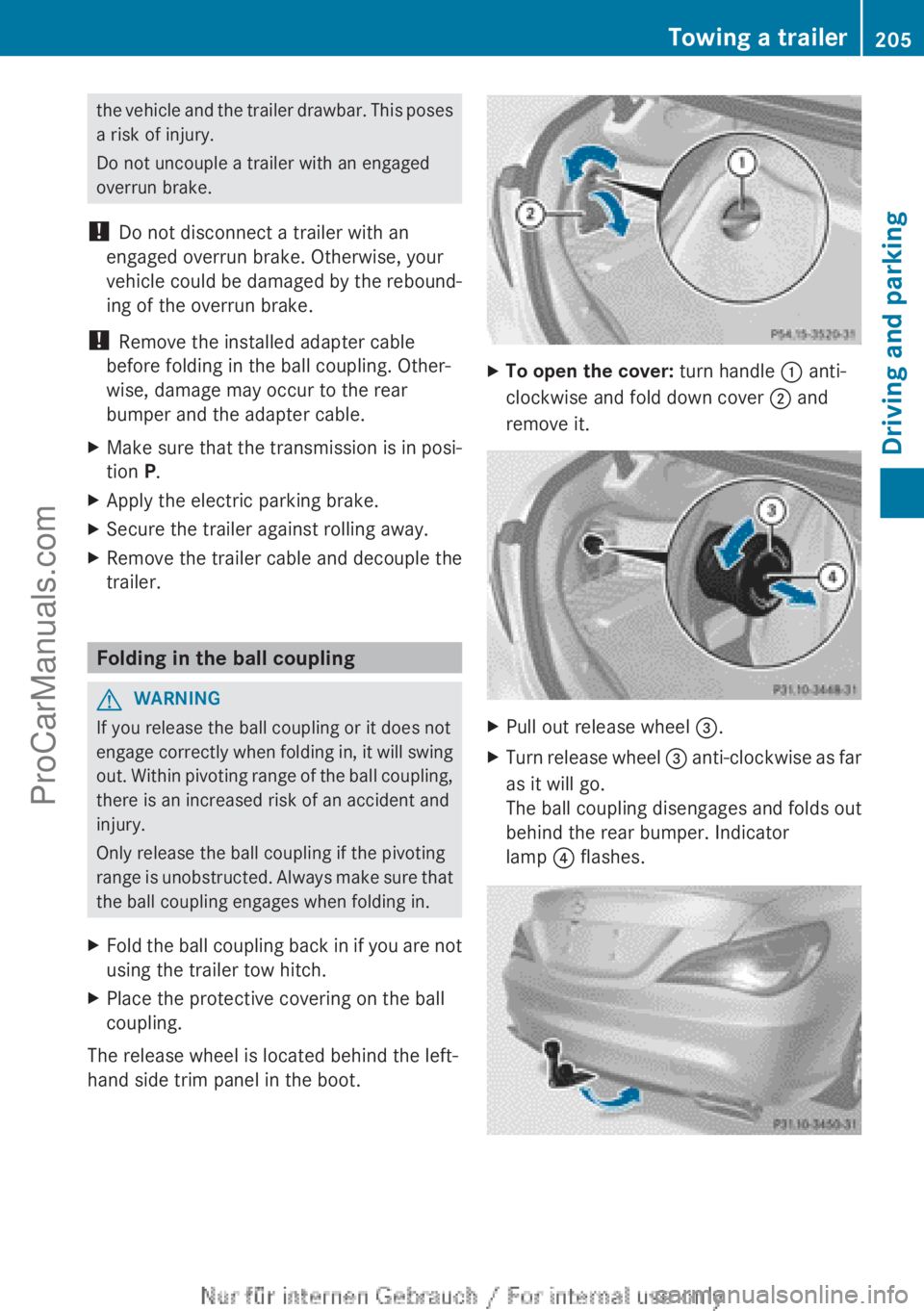
XFold the ball coupling back in if you are not
using the trailer tow hitch.XPlace the protective covering on the ball
coupling.
The release wheel is located behind the left-
hand side trim panel in the boot.
XTo open the cover: turn handle : anti-
clockwise and fold down cover ; and
remove it.XPull out release wheel =.XTurn release wheel = anti-clockwise as far
as it will go.
The ball coupling disengages and folds out
behind the rear bumper. Indicator
lamp ? flashes.Towing a trailer205Driving and parkingZProCarManuals.com
Page 211 of 352
At high outside temperatures and when driv-
ing uphill, the coolant temperature may rise
to the end of the scale.
Rev counter
! Do not drive in the overrevving range.
Doing so will damage the engine.
The red band in the rev counter indicates the
engine's overrevving range.
The fuel supply is interrupted to protect the
engine when the red band is reached.
Outside temperature display
You should pay special attention to road con-
ditions when temperatures are around the
freezing point.
The outside temperature display is in the mul-
tifunction display.
Changes in the outside temperature are dis-
played after a short delay.
Speedometer with segments
The speedometer is divided into segments on
vehicles with DISTRONIC PLUS.
The segments in the speedometer indicate
which speed range is available.
R Cruise control activated ( Y page 168):
The segments light up from the stored
speed to the maximum speed.
R Variable SPEEDTRONIC activated
( Y page 171):
The segments light up from the start of the
scale to the selected limit speed.
R DISTRONIC PLUS activated ( Y page 173):
One or two segments in the set speed
range light up.
R DISTRONIC PLUS detects a vehicle in front:
The segments between the speed of the
vehicle in front and the stored speed light
up.
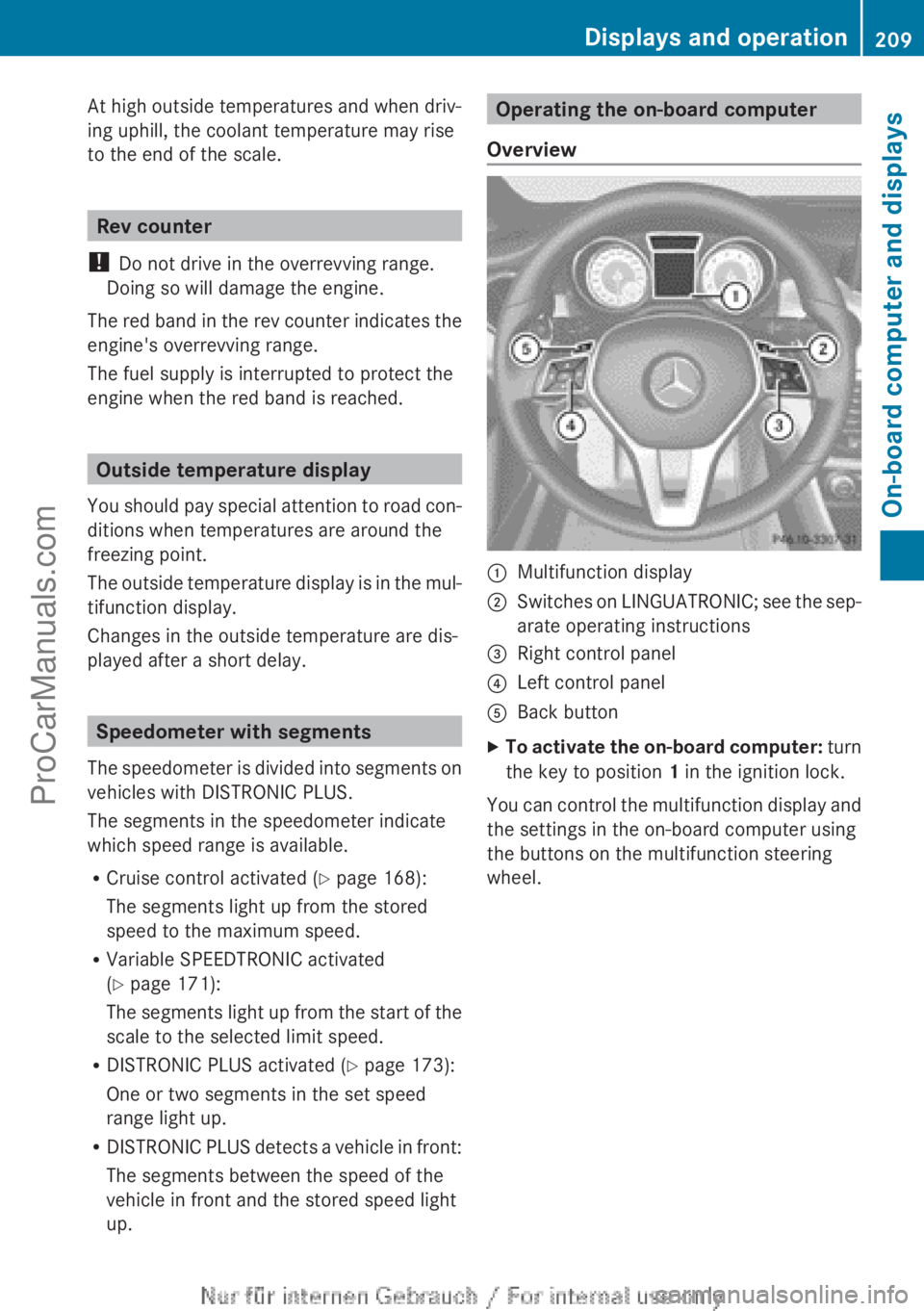
Operating the on-board computer
Overview:Multifunction display;Switches on LINGUATRONIC; see the sep-
arate operating instructions=Right control panel?Left control panelABack buttonXTo activate the on-board computer: turn
the key to position 1 in the ignition lock.
You can control the multifunction display and
the settings in the on-board computer using
the buttons on the multifunction steering
wheel.
Displays and operation209On-board computer and displaysZProCarManuals.com
Page 213 of 352
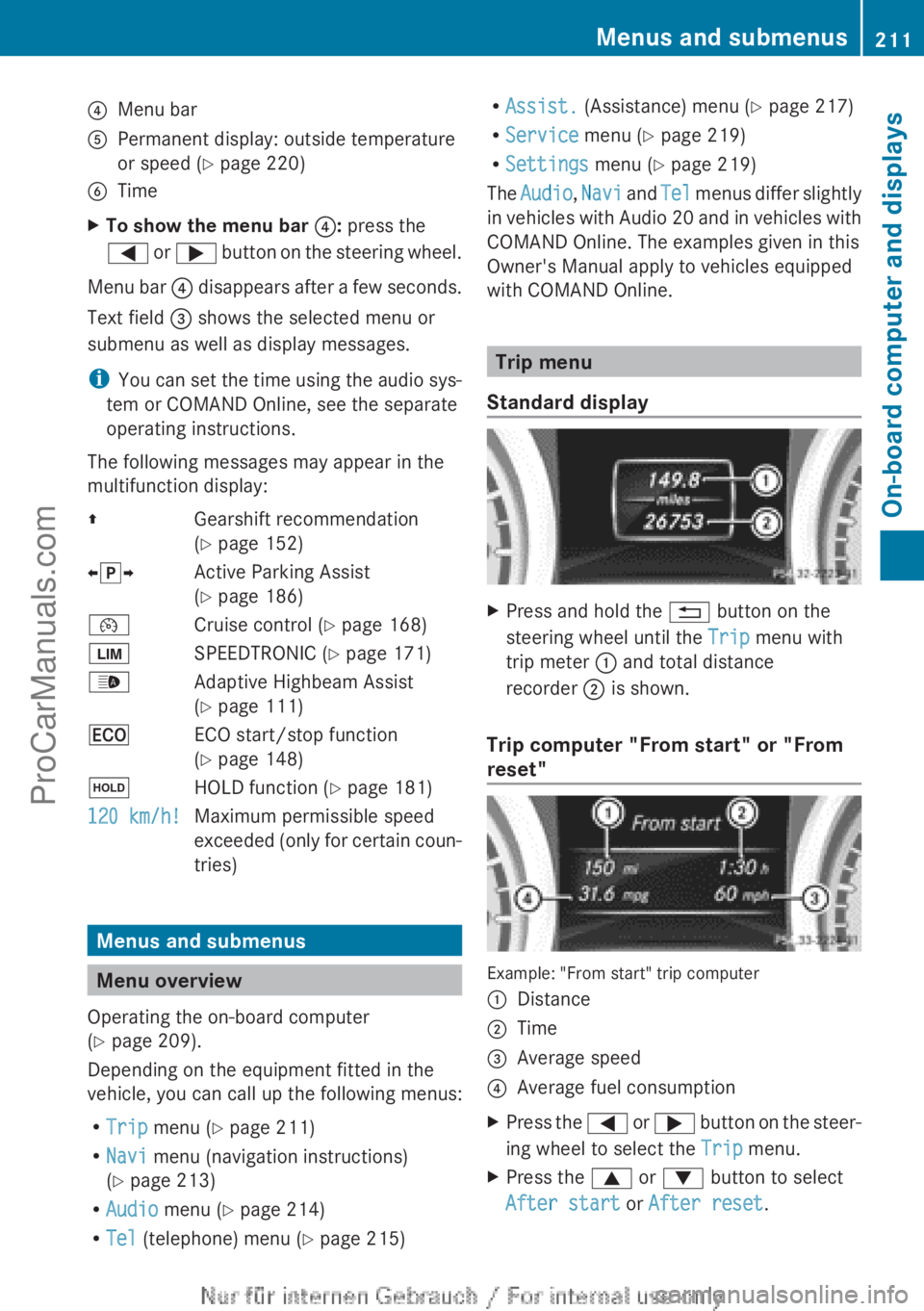
?Menu barAPermanent display: outside temperature
or speed ( Y page 220)BTimeXTo show the menu bar ?: press the
= or ; button on the steering wheel.
Menu bar ? disappears after a few seconds.
Text field = shows the selected menu or
submenu as well as display messages.
i You can set the time using the audio sys-
tem or COMAND Online, see the separate
operating instructions.
The following messages may appear in the
multifunction display:
ZGearshift recommendation
( Y page 152)Xj YActive Parking Assist
( Y page 186)¯Cruise control ( Y page 168)ÈSPEEDTRONIC ( Y page 171)_Adaptive Highbeam Assist
( Y page 111)¤ECO start/stop function
( Y page 148)ëHOLD function ( Y page 181)120 km/h!Maximum permissible speed
exceeded (only for certain coun-
tries)
Menus and submenus
Menu overview
Operating the on-board computer
( Y page 209).
Depending on the equipment fitted in the
vehicle, you can call up the following menus:
R Trip menu ( Y page 211)
R Navi menu (navigation instructions)
( Y page 213)
R Audio menu ( Y page 214)
R Tel (telephone) menu ( Y page 215)
R
Assist. (Assistance) menu ( Y page 217)
R Service menu (Y page 219)
R Settings menu (Y page 219)
The Audio , Navi and Tel menus differ slightly
in vehicles with Audio 20 and in vehicles with
COMAND Online. The examples given in this
Owner's Manual apply to vehicles equipped
with COMAND Online.
Trip menu
Standard display
XPress and hold the % button on the
steering wheel until the Trip menu with
trip meter : and total distance
recorder ; is shown.
Trip computer "From start" or "From
reset"
Example: "From start" trip computer
:Distance;Time=Average speed?Average fuel consumptionXPress the = or ; button on the steer-
ing wheel to select the Trip menu.XPress the 9 or : button to select
After start or After reset .Menus and submenus211On-board computer and displaysZProCarManuals.com
Page 214 of 352
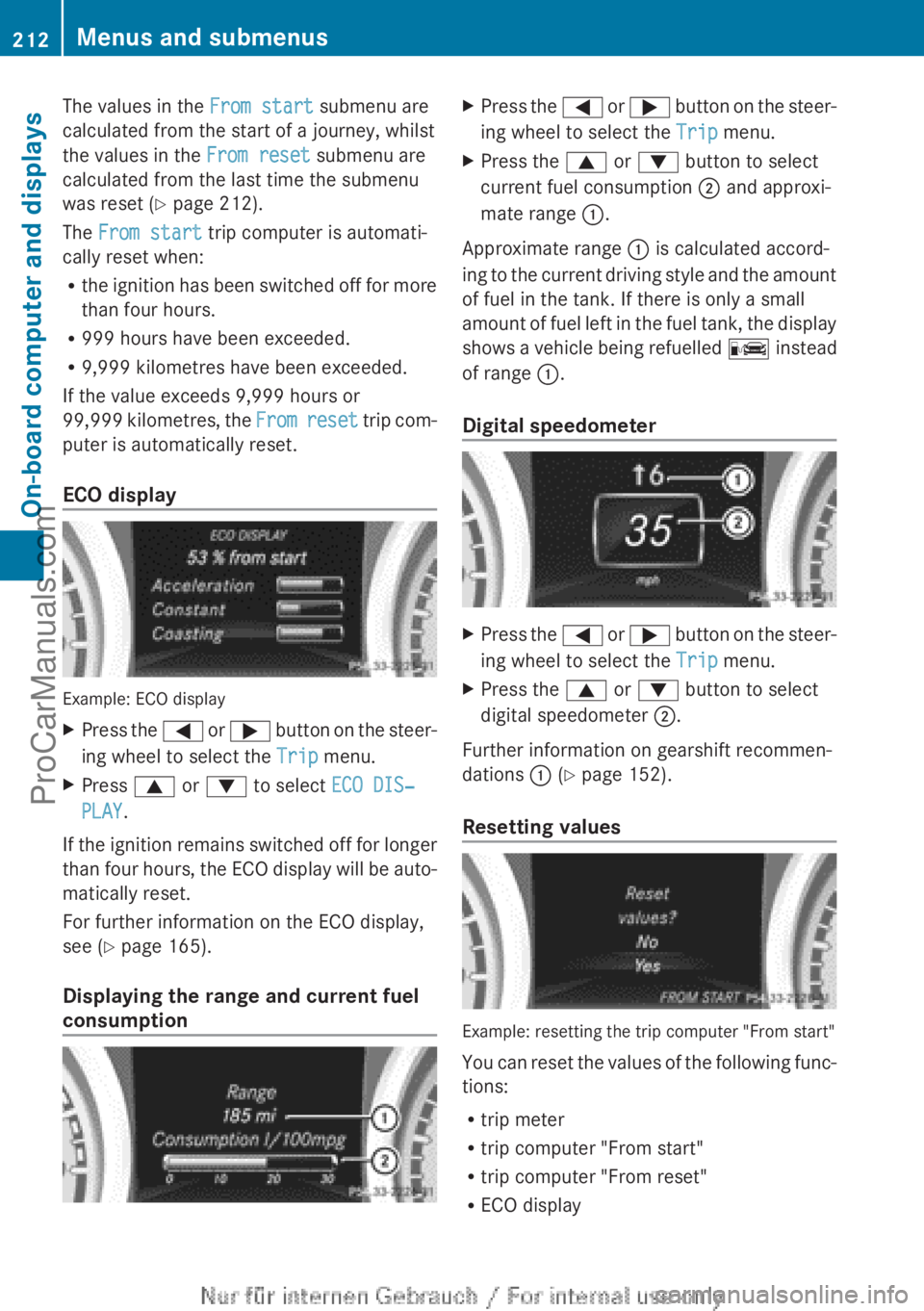
The values in the From start submenu are
calculated from the start of a journey, whilst
the values in the From reset submenu are
calculated from the last time the submenu
was reset ( Y page 212).
The From start trip computer is automati-
cally reset when:
R the ignition has been switched off for more
than four hours.
R 999 hours have been exceeded.
R 9,999 kilometres have been exceeded.
If the value exceeds 9,999 hours or
99,999 kilometres, the From reset trip com-
puter is automatically reset.
ECO display
Example: ECO display
XPress the = or ; button on the steer-
ing wheel to select the Trip menu.XPress 9 or : to select ECO DIS‐
PLAY .
If the ignition remains switched off for longer
than four hours, the ECO display will be auto-
matically reset.
For further information on the ECO display,
see ( Y page 165).
Displaying the range and current fuel
consumption
XPress the = or ; button on the steer-
ing wheel to select the Trip menu.XPress the 9 or : button to select
current fuel consumption ; and approxi-
mate range :.
Approximate range : is calculated accord-
ing to the current driving style and the amount
of fuel in the tank. If there is only a small
amount of fuel left in the fuel tank, the display
shows a vehicle being refuelled C instead
of range :.
Digital speedometer
XPress the = or ; button on the steer-
ing wheel to select the Trip menu.XPress the 9 or : button to select
digital speedometer ;.
Further information on gearshift recommen-
dations : (Y page 152).
Resetting values
Example: resetting the trip computer "From start"
You can reset the values of the following func-
tions:
R trip meter
R trip computer "From start"
R trip computer "From reset"
R ECO display
212Menus and submenusOn-board computer and displays
ProCarManuals.com
Page 215 of 352
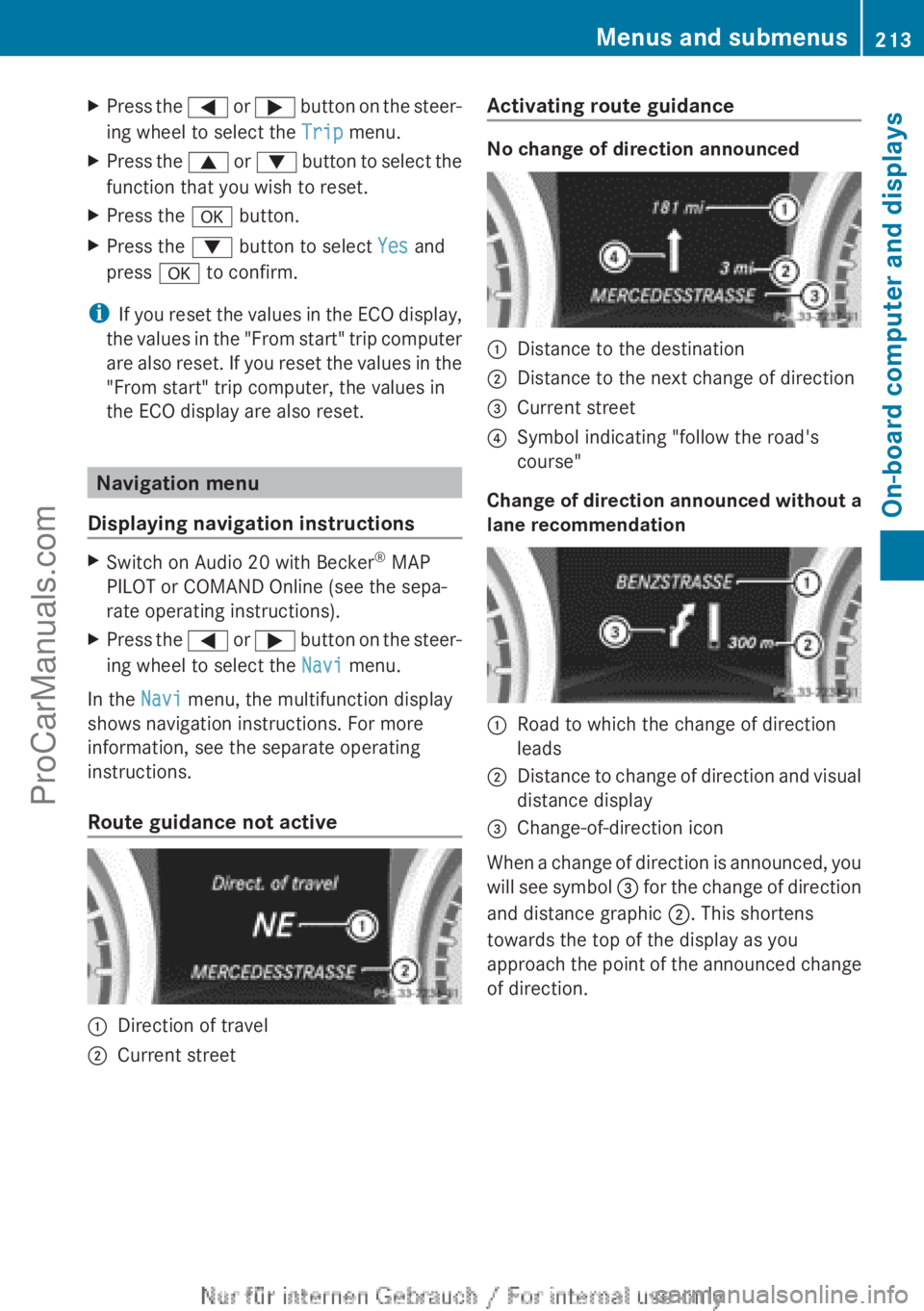
XPress the = or ; button on the steer-
ing wheel to select the Trip menu.XPress the 9 or : button to select the
function that you wish to reset.XPress the a button.XPress the : button to select Yes and
press a to confirm.
i
If you reset the values in the ECO display,
the values in the "From start" trip computer
are also reset. If you reset the values in the
"From start" trip computer, the values in
the ECO display are also reset.
Navigation menu
Displaying navigation instructions
XSwitch on Audio 20 with Becker ®
MAP
PILOT or COMAND Online (see the sepa-
rate operating instructions).XPress the = or ; button on the steer-
ing wheel to select the Navi menu.
In the Navi menu, the multifunction display
shows navigation instructions. For more
information, see the separate operating
instructions.
Route guidance not active
:Direction of travel;Current streetActivating route guidance
No change of direction announced
:Distance to the destination;Distance to the next change of direction=Current street?Symbol indicating "follow the road's
course"
Change of direction announced without a
lane recommendation
:Road to which the change of direction
leads;Distance to change of direction and visual
distance display=Change-of-direction icon
When a change of direction is announced, you
will see symbol = for the change of direction
and distance graphic ;. This shortens
towards the top of the display as you
approach the point of the announced change
of direction.
Menus and submenus213On-board computer and displaysZProCarManuals.com
Page 216 of 352
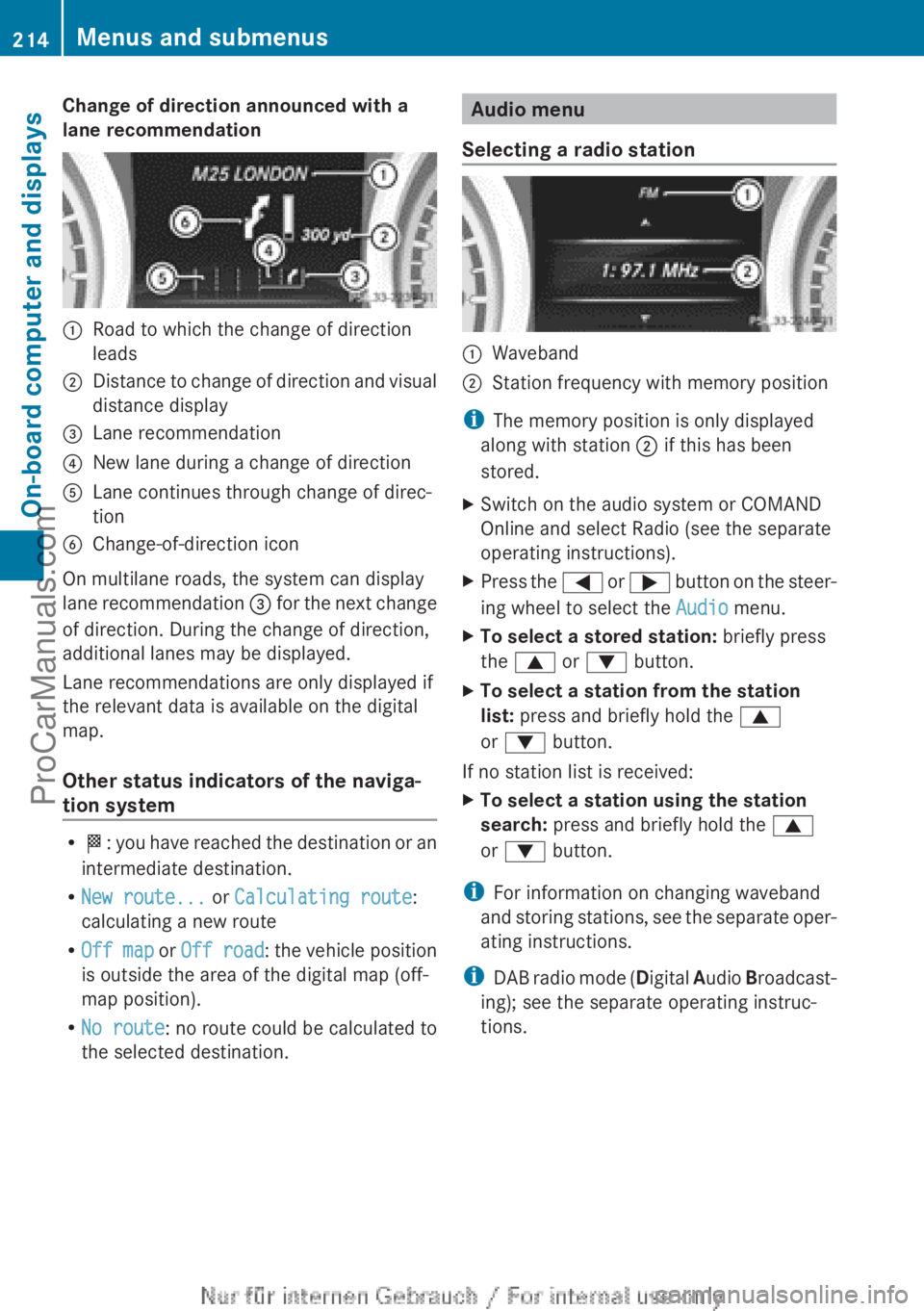
Change of direction announced with a
lane recommendation:Road to which the change of direction
leads;Distance to change of direction and visual
distance display=Lane recommendation?New lane during a change of directionALane continues through change of direc-
tionBChange-of-direction icon
On multilane roads, the system can display
lane recommendation = for the next change
of direction. During the change of direction,
additional lanes may be displayed.
Lane recommendations are only displayed if
the relevant data is available on the digital
map.
Other status indicators of the naviga-
tion system
R O : you have reached the destination or an
intermediate destination.
R New route... or Calculating route :
calculating a new route
R Off map or Off road : the vehicle position
is outside the area of the digital map (off-
map position).
R No route : no route could be calculated to
the selected destination.
Audio menu
Selecting a radio station:Waveband;Station frequency with memory position
i The memory position is only displayed
along with station ; if this has been
stored.
XSwitch on the audio system or COMAND
Online and select Radio (see the separate
operating instructions).XPress the = or ; button on the steer-
ing wheel to select the Audio menu.XTo select a stored station: briefly press
the 9 or : button.XTo select a station from the station
list: press and briefly hold the 9
or : button.
If no station list is received:
XTo select a station using the station
search: press and briefly hold the 9
or : button.
i
For information on changing waveband
and storing stations, see the separate oper-
ating instructions.
i DAB radio mode ( Digital Audio Broadcast-
ing); see the separate operating instruc-
tions.
214Menus and submenusOn-board computer and displays
ProCarManuals.com
Page 217 of 352
Audio player or audio media operation
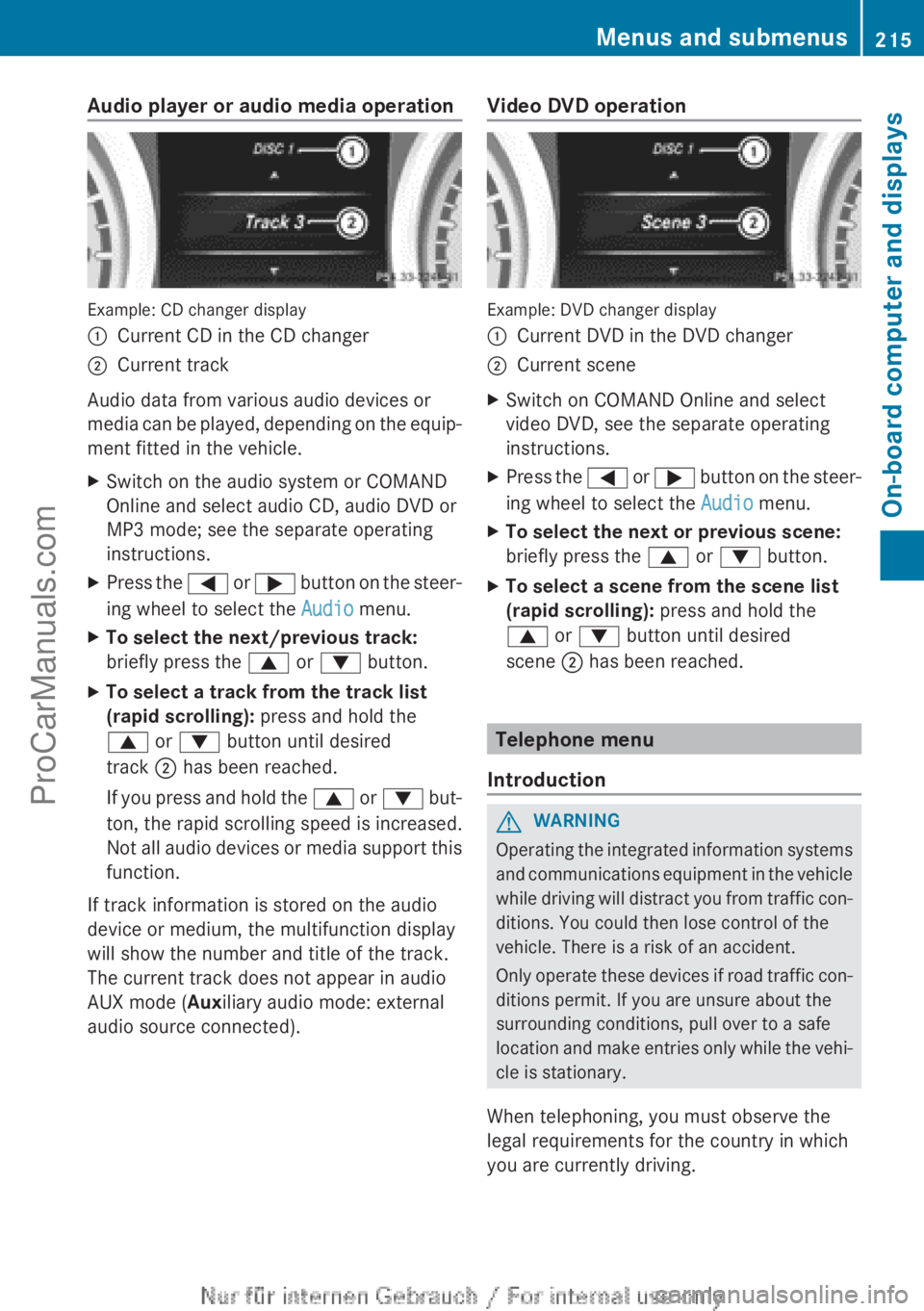
Example: CD changer display
:Current CD in the CD changer;Current track
Audio data from various audio devices or
media can be played, depending on the equip-
ment fitted in the vehicle.
XSwitch on the audio system or COMAND
Online and select audio CD, audio DVD or
MP3 mode; see the separate operating
instructions.XPress the = or ; button on the steer-
ing wheel to select the Audio menu.XTo select the next/previous track:
briefly press the 9 or : button.XTo select a track from the track list
(rapid scrolling): press and hold the
9 or : button until desired
track ; has been reached.
If you press and hold the 9 or : but-
ton, the rapid scrolling speed is increased.
Not all audio devices or media support this
function.
If track information is stored on the audio
device or medium, the multifunction display
will show the number and title of the track.
The current track does not appear in audio
AUX mode ( Auxiliary audio mode: external
audio source connected).
Video DVD operation
Example: DVD changer display
:Current DVD in the DVD changer;Current sceneXSwitch on COMAND Online and select
video DVD, see the separate operating
instructions.XPress the = or ; button on the steer-
ing wheel to select the Audio menu.XTo select the next or previous scene:
briefly press the 9 or : button.XTo select a scene from the scene list
(rapid scrolling): press and hold the
9 or : button until desired
scene ; has been reached.
Telephone menu
Introduction
GWARNING
Operating the integrated information systems
and communications equipment in the vehicle
while driving will distract you from traffic con-
ditions. You could then lose control of the
vehicle. There is a risk of an accident.
Only operate these devices if road traffic con-
ditions permit. If you are unsure about the
surrounding conditions, pull over to a safe
location and make entries only while the vehi-
cle is stationary.
When telephoning, you must observe the
legal requirements for the country in which
you are currently driving.
Menus and submenus215On-board computer and displaysZProCarManuals.com
Page 218 of 352
XSwitch on your mobile phone and audio
system or COMAND Online, see the sepa-
rate operating instructions.XPlace a mobile phone in the mobile phone
bracket ( Y page 278), or establish a Blue-
tooth ®
connection with the audio system
or COMAND Online (see the separate oper-
ating instructions).XPress the = or ; button on the steer-
ing wheel to select the Tel menu.
You will see one of the following display mes-
sages in the multifunction display:
R Please enter PIN: the mobile phone has
been placed in the mobile phone bracket
and the PIN has not been entered.
When you enter your PIN via the mobile
phone, LINGUATRONIC, the audio system
or COMAND Online, the mobile phone
searches for a network.
R Telephone ready or the name of the net-
work provider: the mobile phone has found
a network and is ready to receive.
R Telephone No service : there is no net-
work available or the mobile phone is
searching for a network.
i You can obtain further information about
suitable mobile phones and connecting
mobile phones via Bluetooth ®
:
R from any Mercedes Benz Service Centre
R on the Internet at: http://
www.mercedes-benz.com/connect
Accepting a call
Example: incoming call
XPress the 6 button on the steering
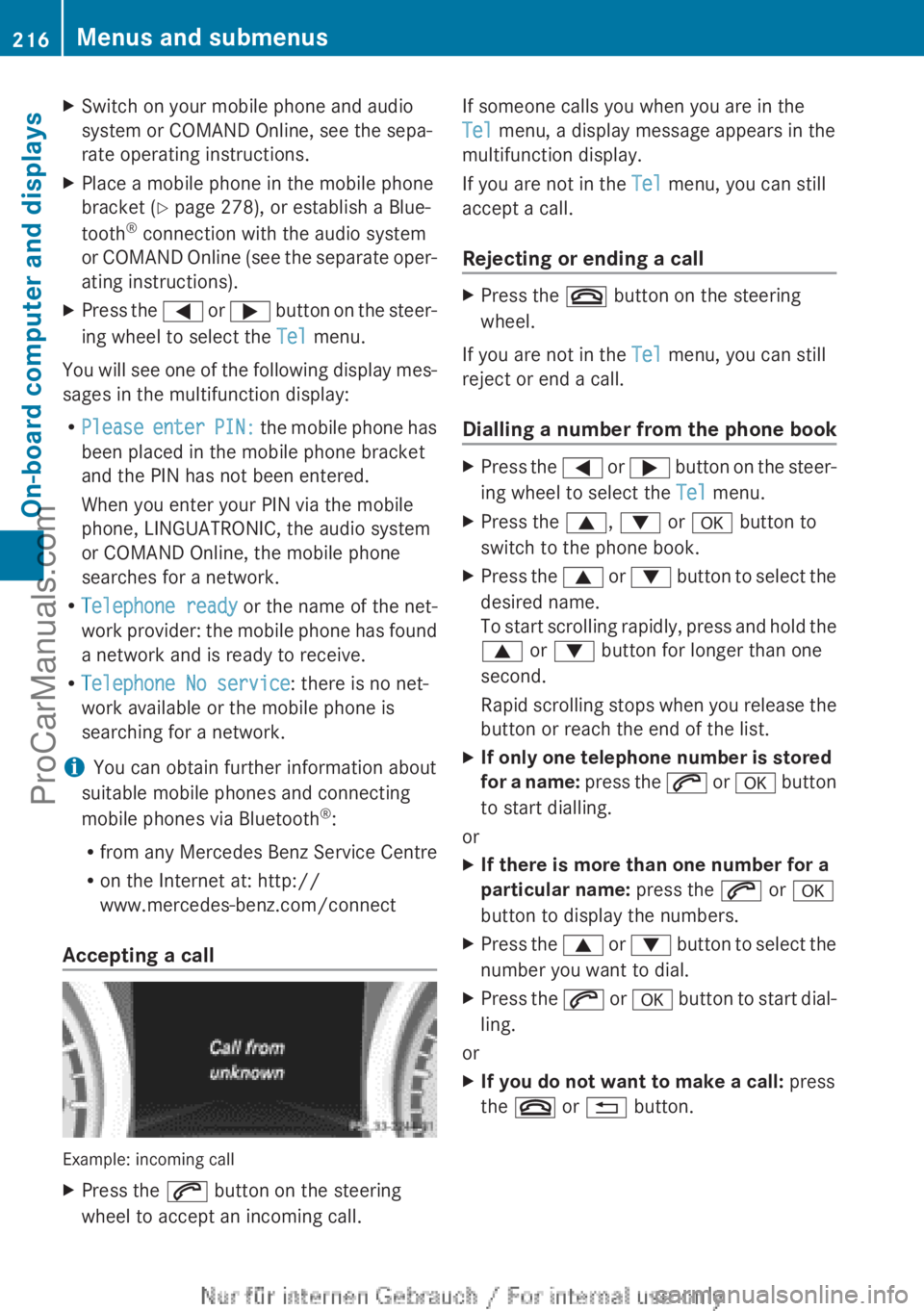
wheel to accept an incoming call.If someone calls you when you are in the
Tel menu, a display message appears in the
multifunction display.
If you are not in the Tel menu, you can still
accept a call.
Rejecting or ending a callXPress the ~ button on the steering
wheel.
If you are not in the Tel menu, you can still
reject or end a call.
Dialling a number from the phone book
XPress the = or ; button on the steer-
ing wheel to select the Tel menu.XPress the 9, : or a button to
switch to the phone book.XPress the 9 or : button to select the
desired name.
To start scrolling rapidly, press and hold the
9 or : button for longer than one
second.
Rapid scrolling stops when you release the
button or reach the end of the list.XIf only one telephone number is stored
for a name: press the 6 or a button
to start dialling.
or
XIf there is more than one number for a
particular name: press the 6 or a
button to display the numbers.XPress the 9 or : button to select the
number you want to dial.XPress the 6 or a button to start dial-
ling.
or
XIf you do not want to make a call: press
the ~ or % button.216Menus and submenusOn-board computer and displays
ProCarManuals.com