phone MERCEDES-BENZ CLA-Class 2014 C117 Comand Manual
[x] Cancel search | Manufacturer: MERCEDES-BENZ, Model Year: 2014, Model line: CLA-Class, Model: MERCEDES-BENZ CLA-Class 2014 C117Pages: 270, PDF Size: 5.76 MB
Page 17 of 270
Declarations of conformity
Vehicle components which receive
and/or transmit radio waves
i USA only: The wireless devices of this
vehicle comply with Part 15 of the FCC
Rules. Operation is subject to the following
two conditions:
1) These devices may not cause interfer-
ence, and
2) These devices must accept any interfer-
ence, including interference that may
cause undesired operation of the device.
Changes or modifications not expressly
approved by the party responsible for com-
pliance could void the user's authority to
operate the equipment.
i Canada only: The wireless devices of this
vehicle comply with Industry Canada
license-exempt RSS standard(s). Operation
is subject to the following two conditions:
1) These devices may not cause interfer-
ence, and
2) These devices must accept any interfer-
ence, including interference that may
cause undesired operation of the device. Correct use
Observe the following information when using
COMAND:
R the safety notes in this manual
R traffic rules and regulations
R laws and safety standards pertaining to
motor vehicles
i Work improperly carried out on electronic
components or systems (e.g. radio, DVD
changer) and associated software could
cause them to cease functioning. Even sys-
tems that have not been modified could be
affected because the electronic systems
are connected. Electronic malfunctions
can seriously jeopardize the operational
safety of your vehicle. i
Roof antenna functionality (telephone,
satellite radio, GPS) can be affected by the
use of roof carrier systems.
Attaching metalized retrofit film to the
windshield may affect radio reception and
have a negative impact on all other anten-
nas (e.g. emergency antenna) in the vehicle
interior.
i Therefore, have all work on or modifica-
tions to electronic components carried out
at a qualified specialist workshop. This
workshop should have the necessary spe-
cialist knowledge and tools to carry out the
work required. Mercedes-Benz recom-
mends that you use an authorized
Mercedes-Benz Center for this purpose. In
particular, work relevant to safety or on
safety-related systems must be carried out
at a qualified specialist workshop.
i Protection against theft: this device is
equipped with technical provisions to pro-
tect it against theft. Further information on
protection against theft can be obtained
from an authorized Mercedes-Benz Center. Data stored in the vehicle
A wide range of electronic components in
your vehicle contain data memories.
These data memories temporarily or perma-
nently store technical information about:
R The vehicle's operating state
R Incidents
R Malfunctions
In general, this technical information docu-
ments the state of a component, a module, a
system or the surroundings.
These include, for example:
R operating conditions of system compo-
nents, e.g. fluid levels
R the vehicle's status messages and those of
its individual components, e.g. number of
wheel revolutions/speed, deceleration in Operating safety
15 Z
Page 22 of 270
Your COMAND equipment
These operating instructions describe all the
standard and optional equipment for your
COMAND system, as available at the time of
going to print. Country-specific differences
are possible. Please note that your
COMAND system may not be equipped with
all the features described. COMAND operating system
Overview
0043
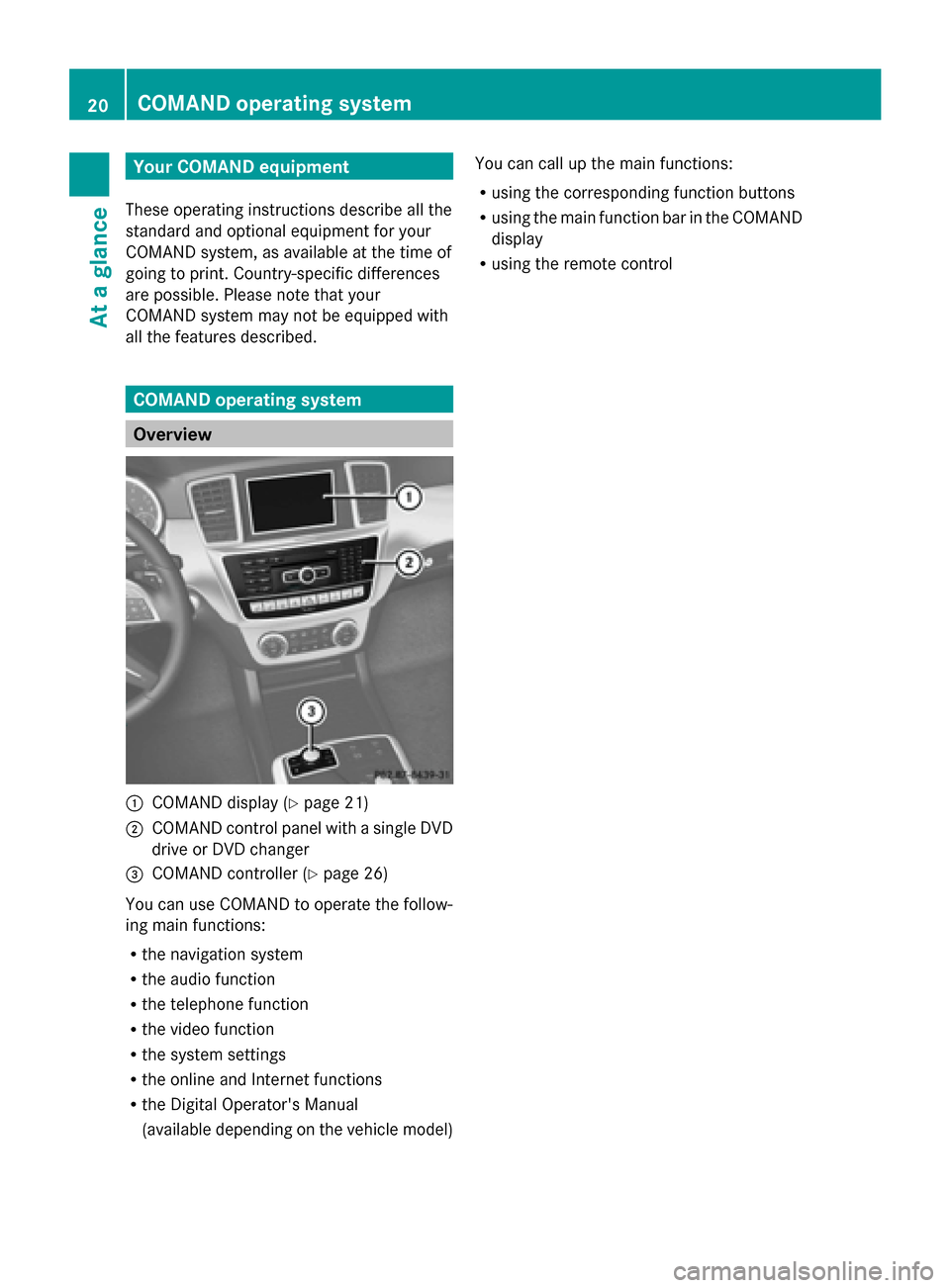
COMAND display (Y page 21)
0044 COMAND control panel with a single DVD
drive or DVD changer
0087 COMAND controller (Y page 26)
You can use COMAND to operate the follow-
ing main functions:
R the navigation system
R the audio function
R the telephone function
R the video function
R the system settings
R the online and Internet functions
R the Digital Operator's Manual
(available depending on the vehicle model) You can call up the main functions:
R
using the corresponding function buttons
R using the main function bar in the COMAND
display
R using the remote control 20
COMAND ope
rating systemAt a glance
Page 23 of 270
COMAND display
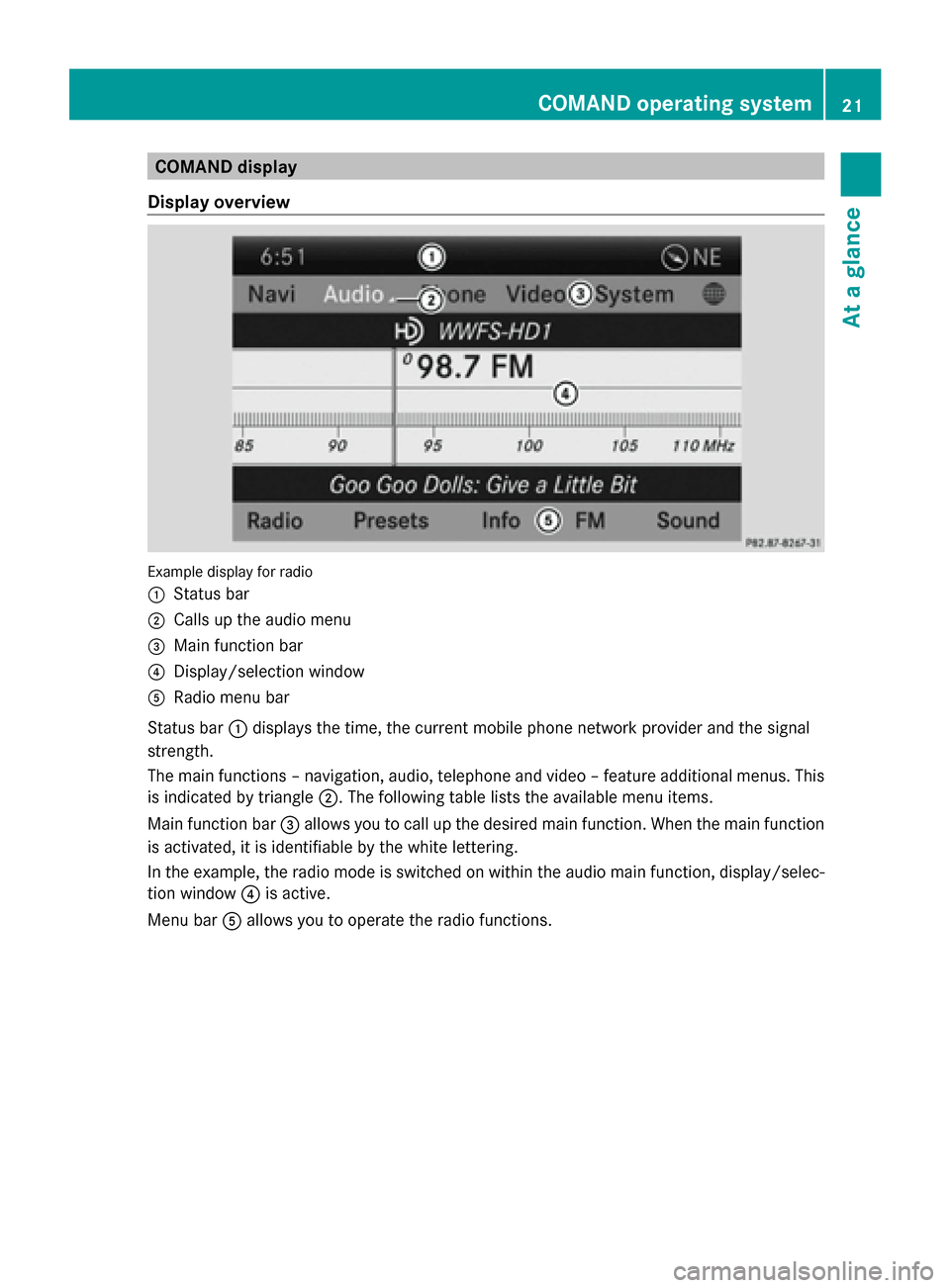
Display overview Example display for radio
0043
Status bar
0044 Calls up the audio menu
0087 Main function bar
0085 Display/selection window
0083 Radio menu bar
Status bar 0043displays the time, the current mobile phone network provider and the signal
strength.
The main functions – navigation, audio, telephone and video – feature additional menus. This
is indicated by triangle 0044. The following table lists the available menu items.
Main function bar 0087allows you to call up the desired main function. When the main function
is activated, it is identifiable by the white lettering.
In the example, the radio mode is switched on within the audio main function, display/selec-
tion window 0085is active.
Menu bar 0083allows you to operate the radio functions. COMAND operating system
21At a glance
Page 24 of 270
Menu overview
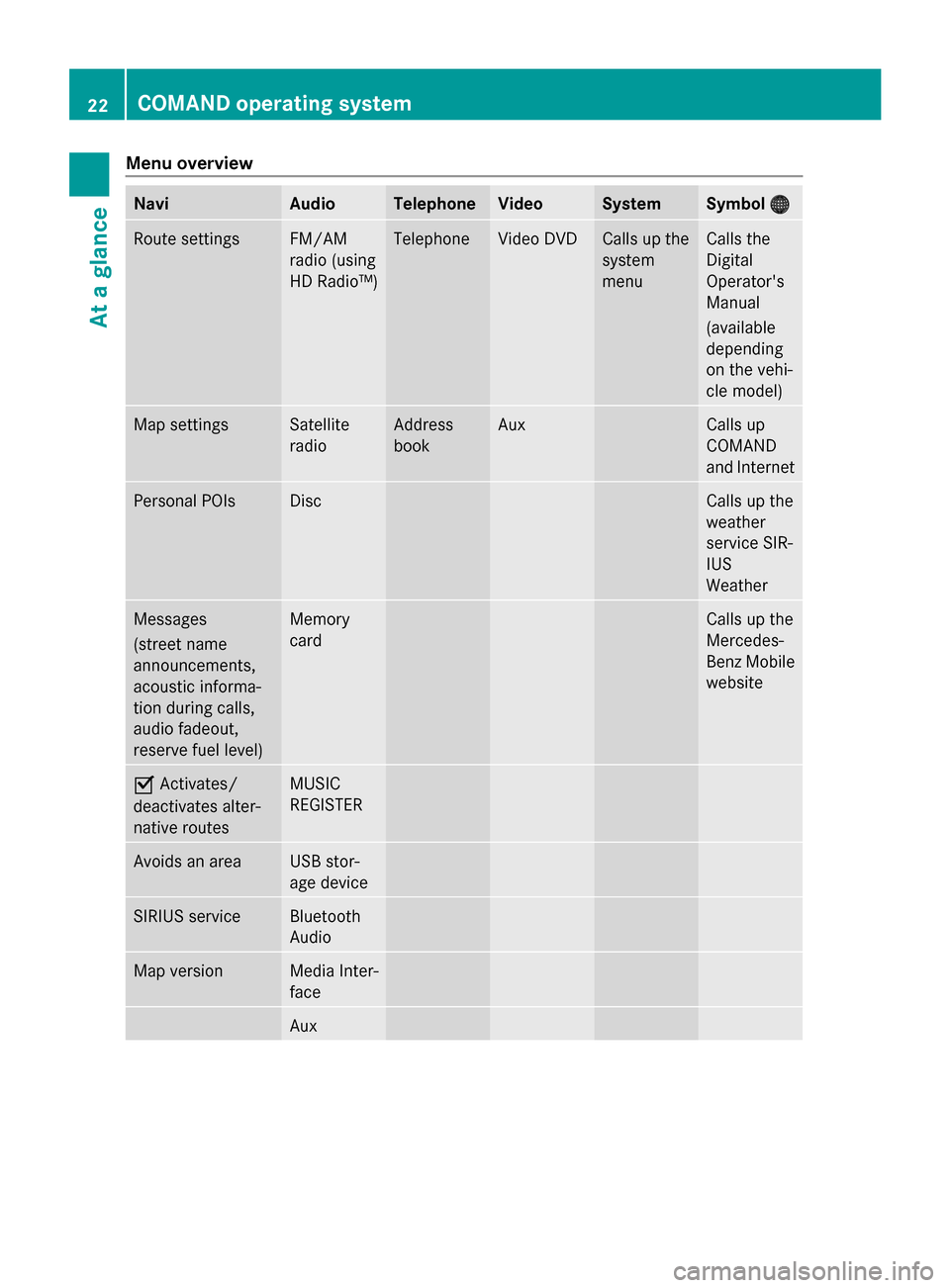
Navi Audio Telephone Video System Symbol
00A7
00A7 Route settings FM/AM
radio (using
HD Radio™) Telephone Video DVD Calls up the
system
menu Calls the
Digital
Operator's
Manual
(available
depending
on the vehi-
cle model)
Map settings Satellite
radio Address
book Aux Calls up
COMAND
and Internet
Personal POIs Disc Calls up the
weather
service SIR-
IUS
Weather
Messages
(street name
announcements,
acoustic informa-
tion during calls,
audio fadeout,
reserve fuel level) Memory
card Calls up the
Mercedes-
Benz Mobile
website
0073
Activates/
deactivates alter-
native routes MUSIC
REGISTER
Avoids an area USB stor-
age device
SIRIUS service Bluetooth
Audio
Map version Media Inter-
face
Aux22
COMAND operating systemAt a glance
Page 27 of 270
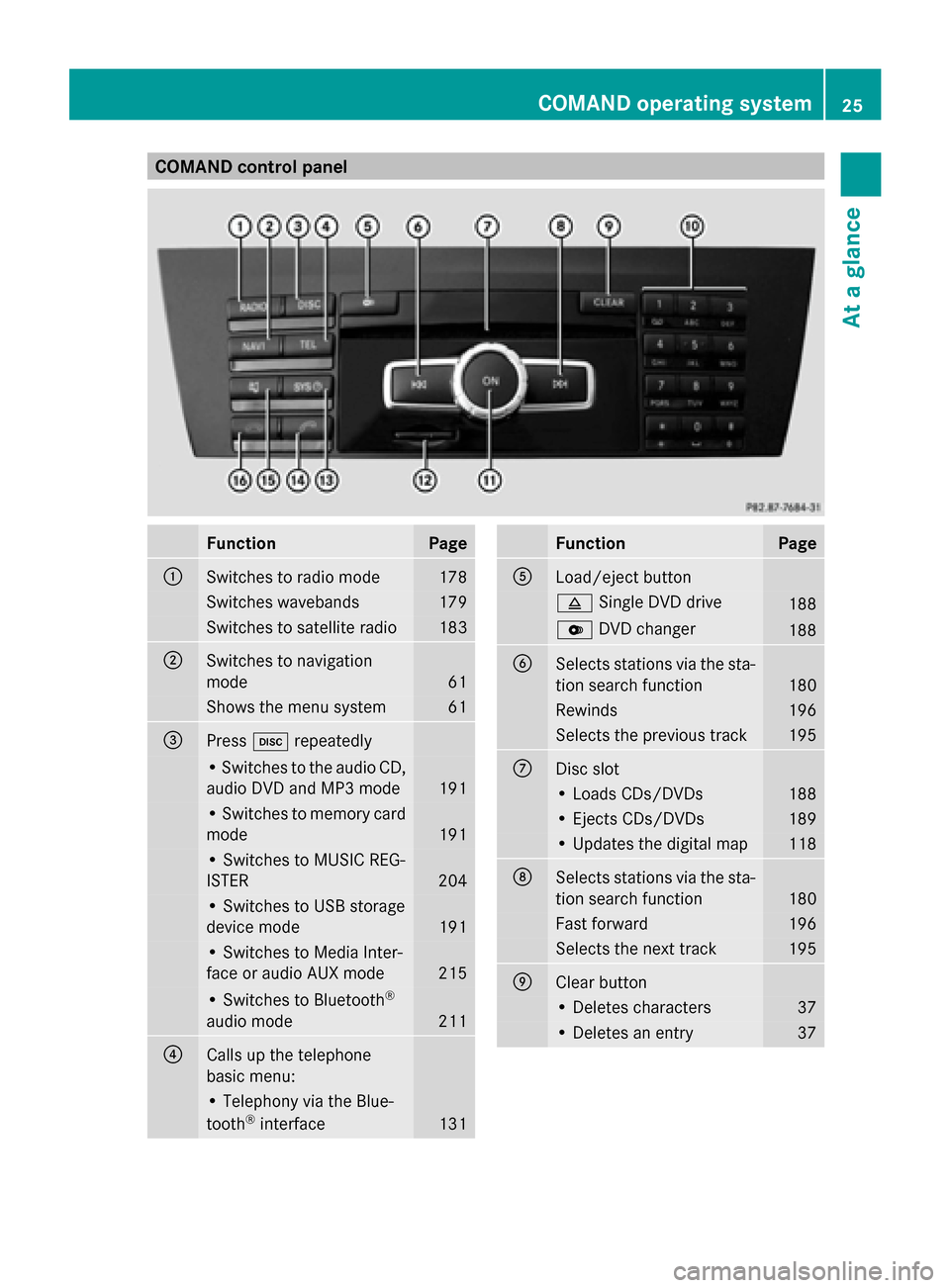
COMAND control panel
Function Page
0043
Switches to radio mode 178
Switches wavebands 179
Switches to satellite radio 183
0044
Switches to navigation
mode 61
Shows the menu system 61
0087
Press
003Arepeatedly • Switches to the audio CD,
audio DVD and MP3 mode
191
• Switches to memory card
mode
191
• Switches to MUSIC REG-
ISTER
204
• Switches to USB storage
device mode
191
• Switches to Media Inter-
face or audio AUX mode
215
• Switches to Bluetooth
®
audio mode 211
0085
Calls up the telephone
basic menu: • Telephony via the Blue-
tooth ®
interface 131 Function Page
0083
Load/eject button
0062
Single DVD drive 188
0065
DVD changer 188
0084
Selects stations via the sta-
tion search function
180
Rewinds 196
Selects the previous track 195
006B
Disc slot
• Loads CDs/DVDs 188
• Ejects CDs/DVDs 189
• Updates the digital map 118
006C
Selects stations via the sta-
tion search function
180
Fast forward 196
Selects the next track 195
006D
Clear button
• Deletes characters 37
• Deletes an entry 37COMAND operating system
25At a glance
Page 28 of 270
Function Page
006E
Number pad
• Selects stations via the
station presets
180
• Stores stations manually 180
• Mobile phone authoriza-
tion 128
• Telephone number entry 132
• Sends DTMF tones 134
• Character entry 36
• Selects a location for the
weather forecast from the
memory 259
0090
Displays the current
track being played 197
007D
Selects stations by
entering the frequency
manually 180
007D
Selects a track 195
006F
Switches COMAND on/off 29
Adjusts the volume
29 Function Page
0070
SD memory card slot 191
0071
Calls up the system menu 42
0072
Accepts a call 132
Dials a number 132
Redials 133
Accepts a waiting call 134
0073
Switches the sound on or
off
29
Switches the hands-free
microphone on/off
134
Cancels the text message
read-aloud function
145
Switches off navigation
announcements
29
0074
Rejects a call 132
Ends an active call 135
Rejects a waiting call 134
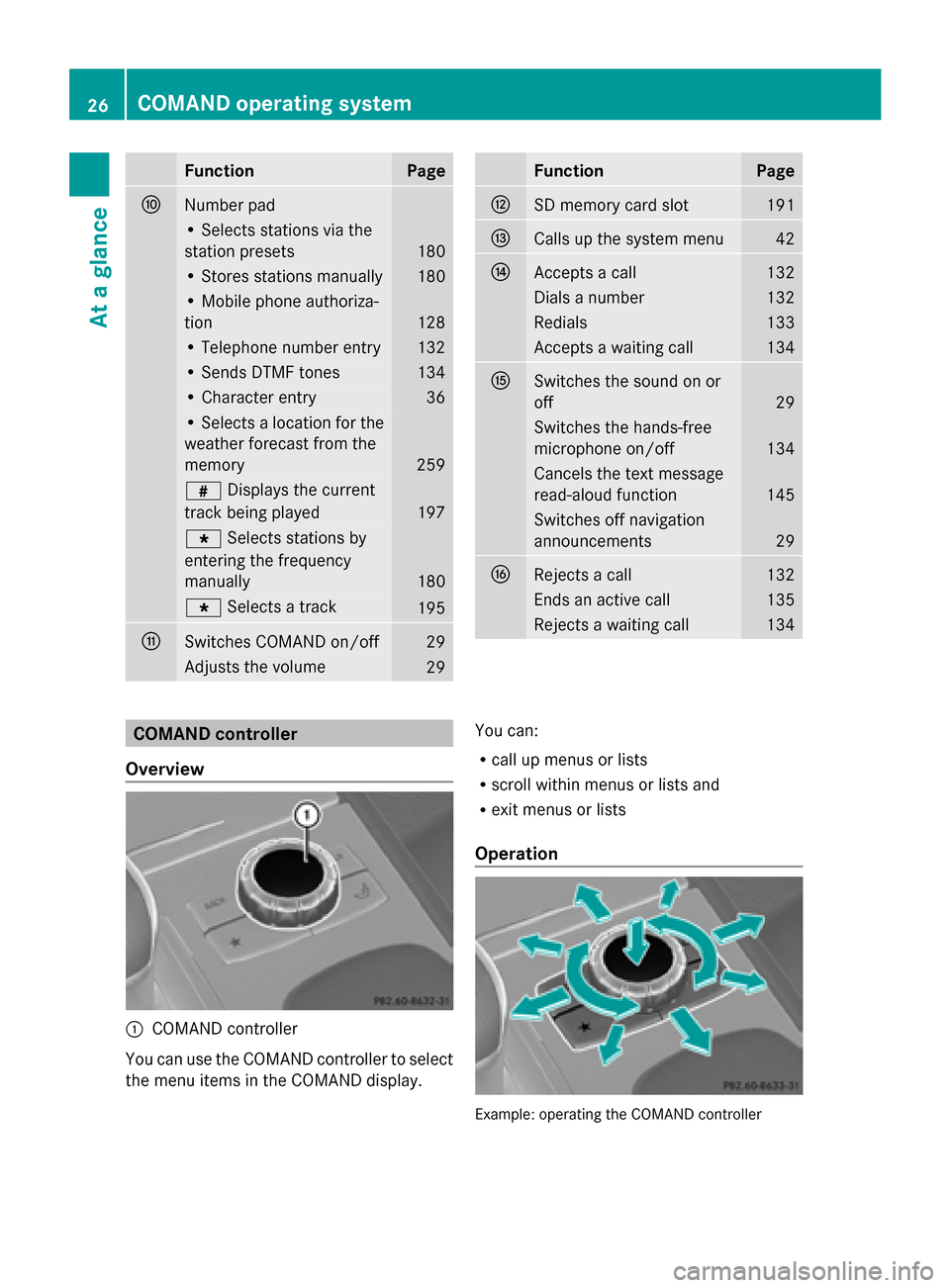
COMAND controller
Overview 0043
COMAND controller
You can use the COMAND controller to select
the menu items in the COMAND display. You can:
R
call up menus or lists
R scroll within menus or lists and
R exit menus or lists
Operation Example: operating the COMAND controller26
COMAND operating systemAt a glance
Page 30 of 270
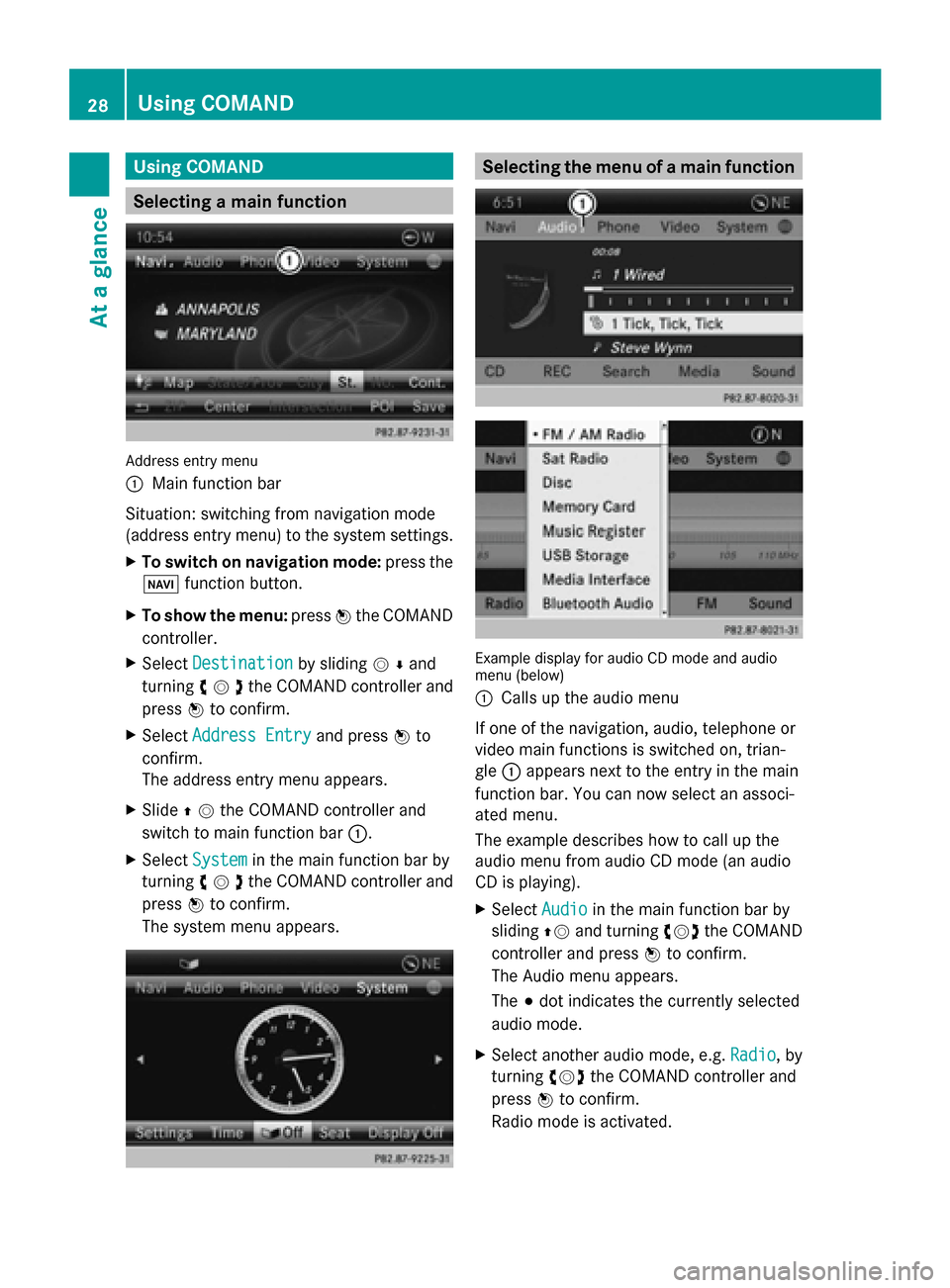
Using COMAND
Selecting a main function
Address entry menu
0043
Main function bar
Situation: switching from navigation mode
(address entry menu) to the system settings.
X To switch on navigation mode: press the
00BE function button.
X To show the menu: press0098the COMAND
controller.
X Select Destination
Destination by sliding00520064and
turning 00790052007Athe COMAND controller and
press 0098to confirm.
X Select Address Entry
Address Entry and press0098to
confirm.
The address entry menu appears.
X Slide 00970052the COMAND controller and
switch to main function bar 0043.
X Select System
System in the main function bar by
turning 00790052007Athe COMAND controller and
press 0098to confirm.
The system menu appears. Selecting the menu of a main function
Example display for audio CD mode and audio
menu (below)
0043
Calls up the audio menu
If one of the navigation, audio, telephone or
video main functions is switched on, trian-
gle 0043appears next to the entry in the main
function bar. You can now select an associ-
ated menu.
The example describes how to call up the
audio menu from audio CD mode (an audio
CD is playing).
X Select Audio Audioin the main function bar by
sliding 00970052and turning 00790052007Athe COMAND
controller and press 0098to confirm.
The Audio menu appears.
The 003Bdot indicates the currently selected
audio mode.
X Select another audio mode, e.g. Radio Radio, by
turning 00790052007Athe COMAND controller and
press 0098to confirm.
Radio mode is activated. 28
Using COMANDAt a glance
Page 31 of 270
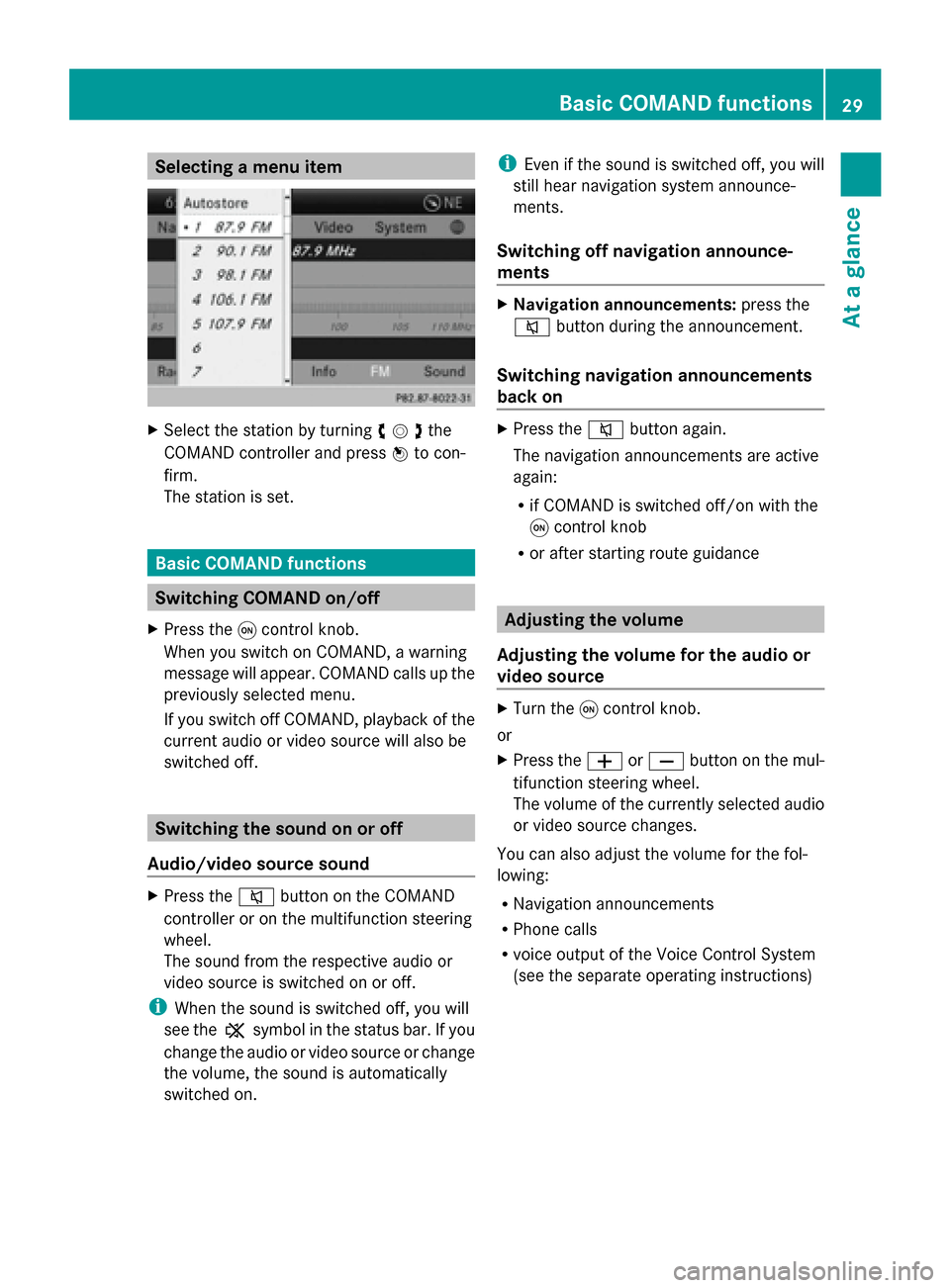
Selecting a menu item
X
Select the station by turning 00790052007Athe
COMAND controller and press 0098to con-
firm.
The station is set. Basic COMAND functions
Switching COMAND on/off
X Press the 0043control knob.
When you switch on COMAND, a warning
message will appear. COMAND calls up the
previously selected menu.
If you switch off COMAND, playback of the
current audio or video source will also be
switched off. Switching the sound on or off
Audio/video source sound X
Press the 0063button on the COMAND
controller or on the multifunction steering
wheel.
The sound from the respective audio or
video source is switched on or off.
i When the sound is switched off, you will
see the 006Bsymbol in the status bar. If you
change the audio or video source or change
the volume, the sound is automatically
switched on. i
Even if the sound is switched off, you will
still hear navigation system announce-
ments.
Switching off navigation announce-
ments X
Navigation announcements: press the
0063 button during the announcement.
Switching navigation announcements
back on X
Press the 0063button again.
The navigation announcements are active
again:
R if COMAND is switched off/on with the
0043 control knob
R or after starting route guidance Adjusting the volume
Adjusting the volume for the audio or
video source X
Turn the 0043control knob.
or
X Press the 0081or0082 button on the mul-
tifunction steering wheel.
The volume of the currently selected audio
or video source changes.
You can also adjust the volume for the fol-
lowing:
R Navigation announcements
R Phone calls
R voice output of the Voice Control System
(see the separate operating instructions) Basic COMAND functions
29At a glance
Page 32 of 270
Adjusting the volume for navigation
announcements During a navigation announcement:
X Turn the 0043control knob.
or
X Press the 0081or0082 button on the mul-
tifunction steering wheel.
Adjusting the volume for phone calls You can adjust the volume for hands-free
mode during a telephone call.
X Turn the 0043control knob.
or
X Press the 0081or0082 button on the mul-
tifunction steering wheel. Adjusting the sound settings
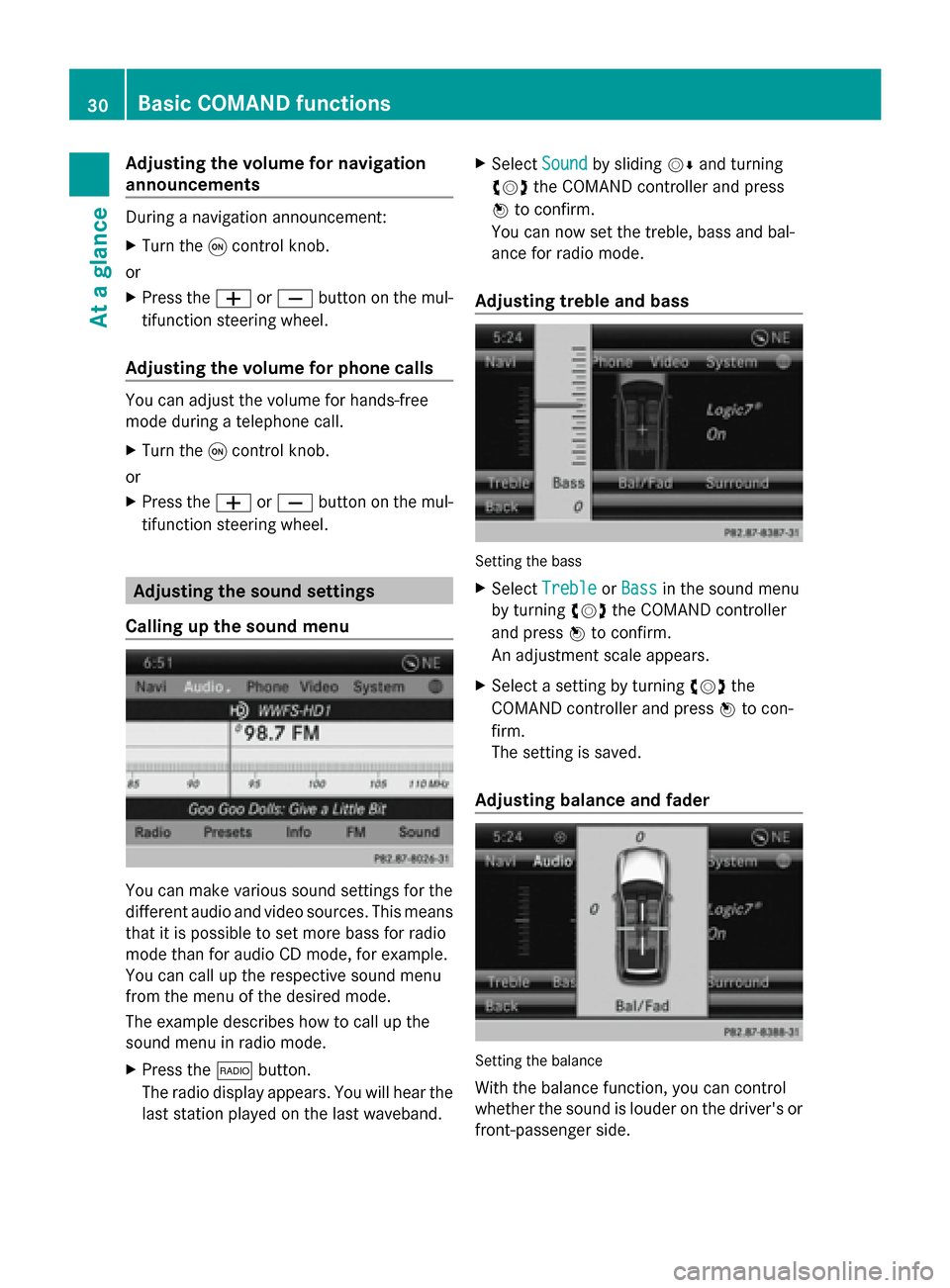
Calling up the sound menu You can make various sound settings for the
different audio and video sources. This means
that it is possible to set more bass for radio
mode than for audio CD mode, for example.
You can call up the respective sound menu
from the menu of the desired mode.
The example describes how to call up the
sound menu in radio mode.
X Press the 002Abutton.
The radio display appears. You will hear the
last station played on the last waveband. X
Select Sound
Sound by sliding 00520064and turning
00790052007A the COMAND controller and press
0098 to confirm.
You can now set the treble, bass and bal-
ance for radio mode.
Adjusting treble and bass Setting the bass
X Select Treble Treble orBass
Bass in the sound menu
by turning 00790052007Athe COMAND controller
and press 0098to confirm.
An adjustment scale appears.
X Select a setting by turning 00790052007Athe
COMAND controller and press 0098to con-
firm.
The setting is saved.
Adjusting balance and fader Setting the balance
With the balance function, you can control
whether the sound is louder on the driver's or
front-passenger side. 30
Basic COMAND functionsAt a glance
Page 36 of 270
When playing using an iPod
®
, the bit rate
should also be at least 224 kbit/s.
For optimum playback quality:
XDeactivate the “EQ” setting on the
iPod ®
.
Surround-sound playback does not func-
tion for mono signal sources, such as the
medium wave range (MW) in radio mode.
On some stereo recordings, the sound
characteristics may differ from conven-
tional stereo playback. Character entry (telephony)
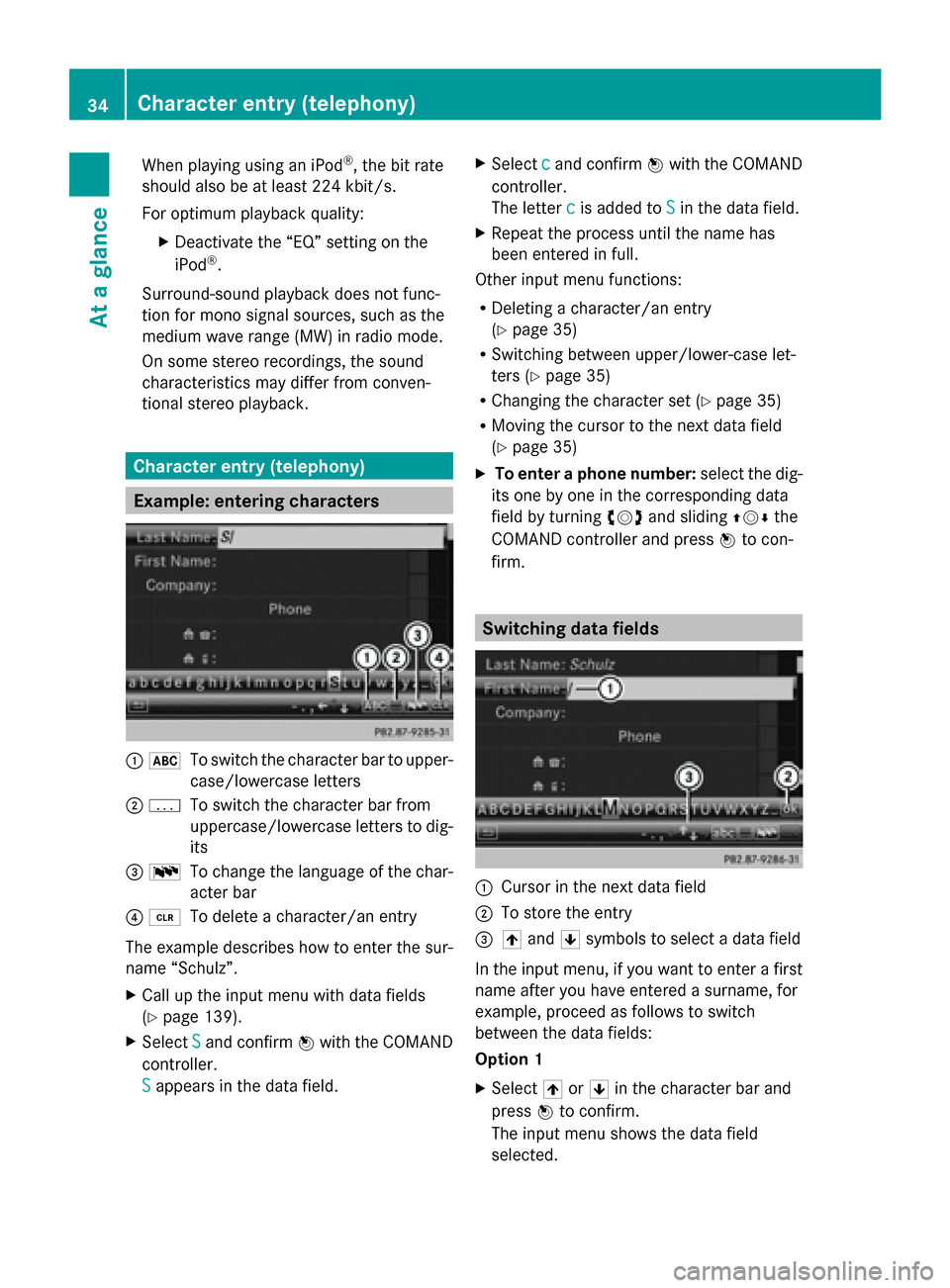
Example: entering characters
0043
0069
To switch the character bar to upper-
case/lowercase letters
0044 0042
To switch the character bar from
uppercase/lowercase letters to dig-
its
0087 0054
To change the language of the char-
acter bar
0085 0084
To delete a character/an entry
The example describes how to enter the sur-
name “Schulz”.
X Call up the input menu with data fields
(Y page 139).
X Select S Sand confirm 0098with the COMAND
controller.
S S appears in the data field. X
Select c cand confirm 0098with the COMAND
controller.
The letter c cis added to S
Sin the data field.
X Repeat the process until the name has
been entered in full.
Other input menu functions:
R Deleting a character/an entry
(Y page 35)
R Switching between upper/lower-case let-
ters (Y page 35)
R Changing the character set (Y page 35)
R Moving the cursor to the next data field
(Y page 35)
X To enter a phone number: select the dig-
its one by one in the corresponding data
field by turning 00790052007Aand sliding 009700520064the
COMAND controller and press 0098to con-
firm. Switching data fields
0043
Cursor in the next data field
0044 To store the entry
0087 005F and 0060symbols to select a data field
In the input menu, if you want to enter a first
name after you have entered a surname, for
example, proceed as follows to switch
between the data fields:
Option 1
X Select 005For0060 in the character bar and
press 0098to confirm.
The input menu shows the data field
selected. 34
Character entry (telephony)At a glance