display MERCEDES-BENZ CLA-Class 2016 C117 Manual PDF
[x] Cancel search | Manufacturer: MERCEDES-BENZ, Model Year: 2016, Model line: CLA-Class, Model: MERCEDES-BENZ CLA-Class 2016 C117Pages: 374, PDF Size: 8.19 MB
Page 207 of 374
XIf necessary, take a break.
XConfirm the message by pressing thea
button on the steering wheel.
On long journeys, take regular breaks in good
time to allow yourself to rest properly. If you
do not take a break and ATTENTION ASSIST
still detects increasing lapses in concentra-
tion, you will be warned again after
15 minutes at the earliest. This will only hap-
pen if ATTENTION ASSIST still detects typical
indicators of fatigue or increasing lapses in
concentration.
If a warning is output in the multifunction dis-
play, a service station search is performed in
COMAND. You can select a service station
and navigation to this service station will then
begin. This function can be activated and
deactivated in COMAND.
Lane Tracking package
General notes
The Lane Tracking package consists of Blind
Spot Assist (
Ypage 205) and Lane Keeping
Assist (
Ypage 207).
Blind Spot Assist
General notes
Blind Spot Assist monitors the areas on either
side of the vehicle that are not visible to the
driver with two lateral, rear-facing radar sen-
sors. A warning display in the exterior mirrors
draws your attention to vehicles detected in
the monitored area. If you then switch on the
corresponding turn signal to change lane, you
will also receive an optical and audible warn-
ing.
Blind Spot Assist supports you from a speed
of approximately 20 mph (30 km/h). Important safety notes
GWARNING
Blind Spot Assist does not react to:
Rvehicles overtaken too closely on the side,
placing them in the blind spot area
Rvehicles which approach with a large speed
differential and overtake your vehicle
As a result, Blind Spot Assist may not give
warnings in such situations. There is a risk of
an accident.
Always observe the traffic conditions care-
fully, and maintain a safe lateral distance.
Blind Spot Assist is only an aid. It may fail to
detect some vehicles and is no substitute for
attentive driving. Always ensure that there is
sufficient distance to the side for other road
users and obstacles.
iUSA only:
This device has been approved by the FCC
as a "Vehicular Radar System". The radar
sensor is intended for use in an automotive
radar system only. Removing, tampering
with, or altering the device will void any
warranties, and is not permitted by the
FCC. Do not tamper with, alter, or use in
any non-approved way.
Any unauthorized modification to this
device could void the user’s authority to
operate the equipment.
Radar sensors
The radar sensors for Blind Spot Assist are
integrated into the rear bumper. Make sure
that the bumpers are free from dirt, ice or
slush. The sensors must not be covered, for
example by cycle racks or overhanging loads.
Following a severe impact or in the event of
damage to the bumpers, have the function of
the radar sensors checked at a qualified spe-
cialist workshop. Blind Spot Assist may no
longer work properly.
Driving systems205
Driving and parking
Z
Page 208 of 374
Monitoring range of the sensors
In particular, the detection of obstacles can
be impaired if:
Rthere is dirt on the sensors or anything elsecovering the sensors
Rthere is poor visibility, e.g. due to fog, heavy
rain or snow
Ra narrow vehicle traveling in front, e.g. a
motorbike or bicycle
Rthe road has very wide lanes
Rthe road has narrow lanes
Ryou are not driving in the middle of the lane
Rthere are barriers or similar lane borders
Vehicles in the monitoring range are then not
indicated.
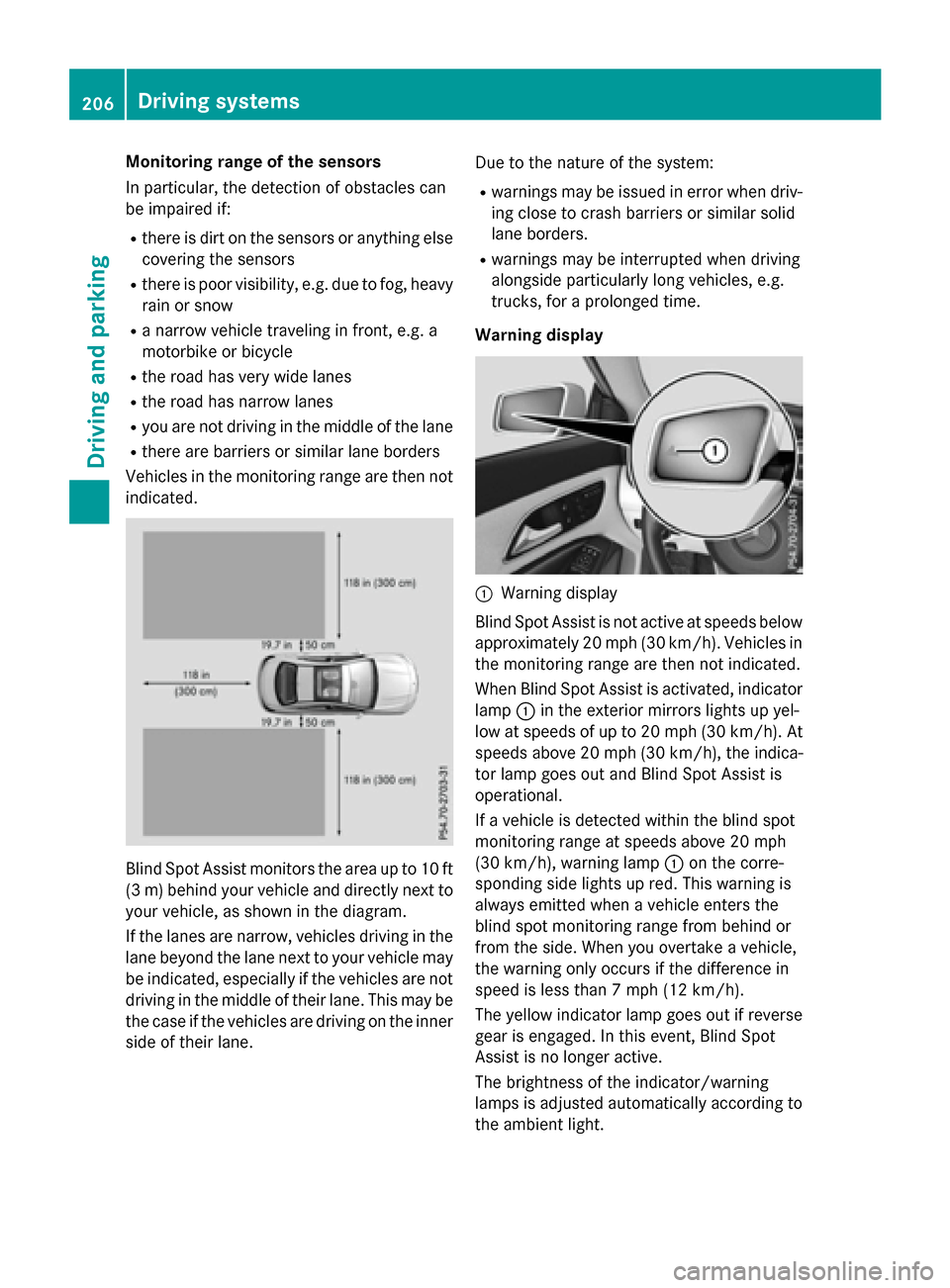
Blind Spot Assist monitors the area up to 10 ft
(3 m) behind your vehicle and directly next to
your vehicle, as shown in the diagram.
If the lanes are narrow, vehicles driving in the
lane beyond the lane next to your vehicle may
be indicated, especially if the vehicles are not
driving in the middle of their lane. This may be
the case if the vehicles are driving on the inner
side of their lane. Due to the nature of the system:
Rwarnings may be issued in error when driv-
ing close to crash barriers or similar solid
lane borders.
Rwarnings may be interrupted when driving
alongside particularly long vehicles, e.g.
trucks, for a prolonged time.
Warning display
:Warning display
Blind Spot Assist is not active at speeds below
approximately 20 mph (30 km/h). Vehicles in
the monitoring range are then not indicated.
When Blind Spot Assist is activated, indicator
lamp :in the exterior mirrors lights up yel-
low at speeds of up to 20 mph (30 km/h). At
speeds above 20 mph (30 km/h), the indica-
tor lamp goes out and Blind Spot Assist is
operational.
If a vehicle is detected within the blind spot
monitoring range at speeds above 20 mph
(30 km/h), warning lamp :on the corre-
sponding side lights up red. This warning is
always emitted when a vehicle enters the
blind spot monitoring range from behind or
from the side. When you overtake a vehicle,
the warning only occurs if the difference in
speed is less than 7 mph (12 km/h).
The yellow indicator lamp goes out if reverse
gear is engaged. In this event, Blind Spot
Assist is no longer active.
The brightness of the indicator/warning
lamps is adjusted automatically according to
the ambient light.
206Driving systems
Driving and parking
Page 210 of 374
Rthe lane markings are worn away, dark or
covered up, e.g. by dirt or snow
Rthe distance to the vehicle in front is too
small and the lane markings thus cannot be
detected
Rthe lane markings change quickly, e.g.
lanes branch off, cross one another or
merge
Rthe road is narrow and winding
Rthere are strong shadows cast on the road
Switching on Lane Keeping Assist
XActivate Lane Keeping Assist using the on-
board computer; to do so, select Standard
orAdaptive(Ypage 220).
If you drive at speeds above 40 mph
(60 km/h) and lane markings are detected, the lines in the assistance graphics display
(
Ypage 219) are shown in green. Lane
Keeping Assist is ready for use.
When Standard
is selected, no warning vibra-
tion occurs if:
Ryou have switched on the turn signal. In this
event, the warnings are suppressed for a
certain period of time.
Ra driving safety system intervenes, such as
ABS, BAS or ESP®.
When Adaptive
is selected, no warning vibra-
tion occurs if:
Ryou have switched on the turn signal. In this
event, the warnings are suppressed for a
certain period of time.
Ra driving safety system intervenes, e.g.
ABS, BAS or ESP®.
Ryou accelerate hard, e.g. kickdown.
Ryou brake hard.
Ryou steer actively, e.g. swerve to avoid an
obstacle or change lanes quickly.
Ryou cut the corner on a sharp bend.
In order that you are warned only when nec-
essary and in good time if you cross the lane
marking, the system recognizes certain con-
ditions and warns you accordingly. The warning vibration occurs earlier if:
Ryou approach the outer lane marking on a
bend.
Rthe road has very wide lanes, e.g. a free-
way.
Rthe system recognizes solid lane markings.
The warning vibration occurs later if:
Rthe road has narrow lanes.
Ryou cut the corner on a bend.
208Driving system s
Driving an d parking
Page 211 of 374
Useful information............................210
Important safety notes .....................210
Displays and operation .....................210
Menus and submenus ......................213
Display messages ............................. 227
Warning and indicator lamps in the
instrument cluster ............................258
209
On-board computer and displays
Page 212 of 374
Useful information
i
This Operator's Manual describes all
models and all standard and optional equip-
ment of your vehicle available at the time of
publication of the Operator's Manual.
Country-specific differences are possible.
Please note that your vehicle may not be
equipped with all features described. This
also applies to safety-related systems and
functions.
iRead the information on qualified special-
ist workshops (
Ypage 25).
Important safety notes
GWARNING
If you operate information systems and com-
munication equipment integrated in the vehi-
cle while driving, you will be distracted from
traffic conditions. You could also lose control
of the vehicle. There is a risk of an accident.
Only operate the equipment when the traffic
situation permits. If you are not sure that this
is possible, park the vehicle paying attention
to traffic conditions and operate the equip-
ment when the vehicle is stationary.
You must observe the legal requirements for
the country in which you are currently driving
when operating the on-board computer.
GWARNING
If the instrument cluster has failed or mal-
functioned, you may not recognize function
restrictions in systems relevant to safety. The
operating safety of your vehicle may be
impaired. There is a risk of an accident.
Drive on carefully. Have the vehicle checked
at a qualified specialist workshop immedi-
ately.
The on-board computer only shows messages
or warnings from certain systems in the mul-
tifunction display. You should therefore make sure your vehicle is operating safely at all
times.
If the operating safety of your vehicle is
impaired, pull over as soon as it is safe to do
so. Contact a qualified specialist workshop.
For an overview, see the instrument panel
illustration (
Ypage 31).
Displays and operation
Instrument cluster lighting
The light sensor in the instrument cluster
automatically controls the brightness of the
multifunction display. In daylight, the displays
in the instrument cluster are not illuminated.
The lighting in the instrument cluster, in the
displays and the controls in the vehicle inte-
rior can be adjusted using the brightness con-
trol knob.
The brightness control knob is located on the
bottom left of the instrument cluster
(
Ypage 31).
XTurn the brightness control knob clockwise
or counter-clockwise.
If the light switch is set to the
Ã,Tor
L position, the brightness is dependent
upon the brightness of the ambient light.
Speedometer with segments
The speedometer is divided into segments
only on vehicles with DISTRONIC PLUS.
The segments in the speedometer indicate
which speed range is available.
RDISTRONIC PLUS activated (Ypage 180):
One or two segments in the set speed
range light up.
RDISTRONIC PLUS detects a vehicle in front
that is driving at a slower speed than the
stored speed:
The segments between the speed of the
vehicle in front and the stored speed light
up.
210Displays and operation
On-board computer and displays
Page 213 of 374
Tachometer
!
Do not drive in the overrevving range, as
this could damage the engine.
The red band in the tachometer indicates the
engine's overrevving range.
The engine is limited within a range to protect
the engine when the red band is reached.
Outside temperature display
You should pay special attention to road con-
ditions when temperatures are around freez-
ing point.
Bear in mind that the outside temperature
display indicates the temperature measured
and does not record the road temperature.
The outside temperature display is in the mul-
tifunction display (
Ypage 213).
There is a short delay before a change in out-
side temperature appears in the multifunc-
tion display.
Coolant temperature display
GWARNING
Opening the hood when the engine is over-
heated or when there is a fire in the engine
compartment could expose you to hot gases
or other service products. There is a risk of
injury.
Let an overheated engine cool down before
opening the hood. If there is a fire in the
engine compartment, keep the hood closed
and contact the fire department.
!A display message is shown if the coolant
temperature is too high.
If the coolant temperature is over 248 ‡
(120 †), do not continue driving. The
engine will otherwise be damaged.
The coolant temperature gage is in the instru-
ment cluster on the right-hand side
(
Ypage 31). Under normal operating conditions and with
the specified coolant level, the coolant tem-
perature may rise to 248 ‡ (120 †).
Operating the on-board computer
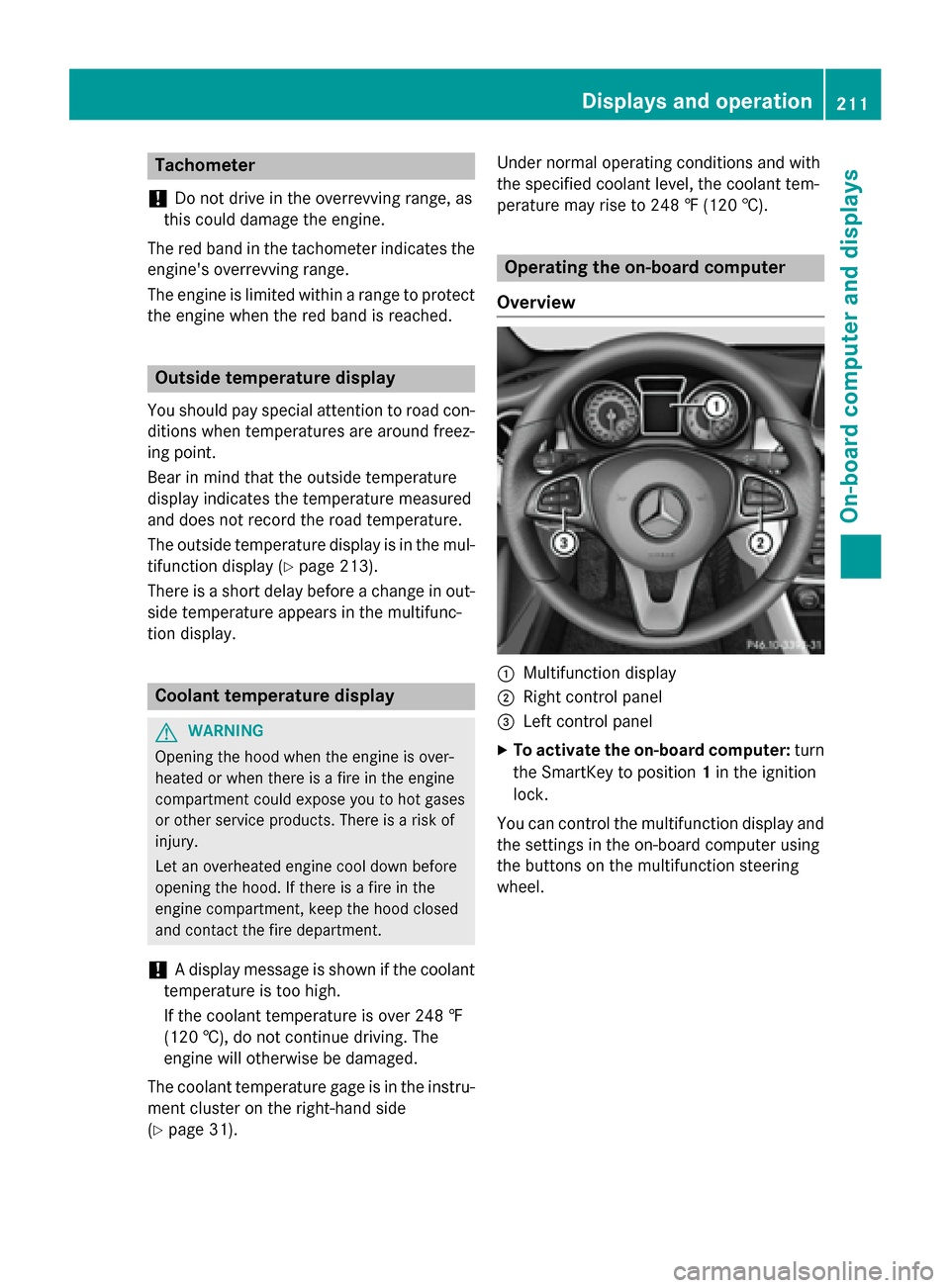
Overview
:Multifunction display
;Right control panel
=Left control panel
XTo activate the on-board computer: turn
the SmartKey to position 1in the ignition
lock.
You can control the multifunction display and
the settings in the on-board computer using
the buttons on the multifunction steering
wheel.
Displays an doperation211
On-boa rd computer and displays
Z
Page 214 of 374
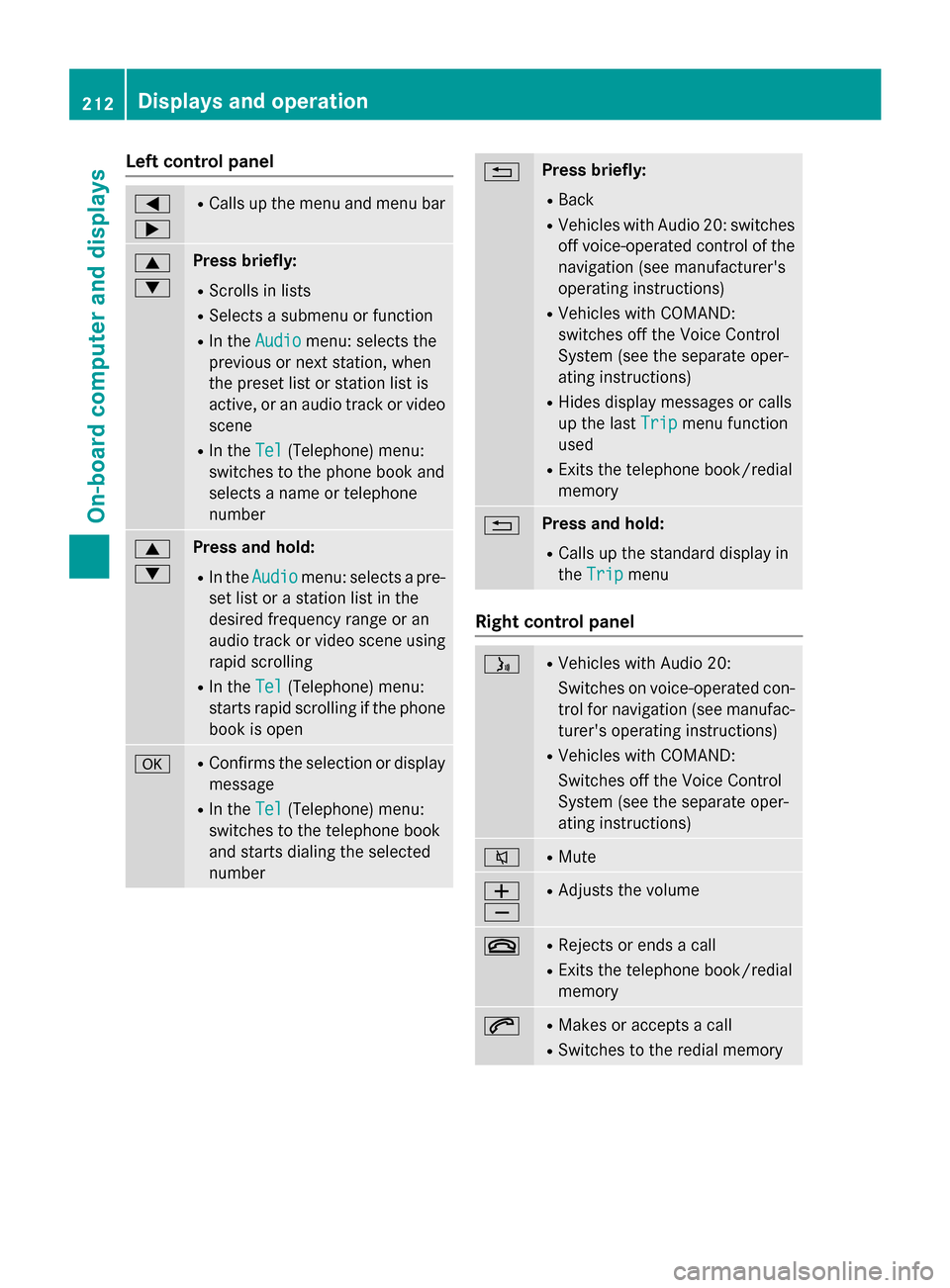
Left control panel
=
;RCalls up the menu and menu bar
9
:Press briefly:
RScrolls in lists
RSelects a submenu or function
RIn theAudiomenu: selects the
previous or next station, when
the preset list or station list is
active, or an audio track or video
scene
RIn the Tel(Telephone) menu:
switches to the phone book and
selects a name or telephone
number
9
:Press and hold:
RIn the Audiomenu: selects a pre-
set list or a station list in the
desired frequency range or an
audio track or video scene using
rapid scrolling
RIn the Tel(Telephone) menu:
starts rapid scrolling if the phone
book is open
aRConfirms the selection or display
message
RIn the Tel(Telephone) menu:
switches to the telephone book
and starts dialing the selected
number
%Press briefly:
RBack
RVehicles with Audio 20: switches
off voice-operated control of the
navigation (see manufacturer's
operating instructions)
RVehicles with COMAND:
switches off the Voice Control
System (see the separate oper-
ating instructions)
RHides display messages or calls
up the last Trip
menu function
used
RExits the telephone book/redial
memory
%Press and hold:
RCalls up the standard display in
the Trip
menu
Right control panel
óRVehicles with Audio 20:
Switches on voice-operated con-
trol for navigation (see manufac-
turer's operating instructions)
RVehicles with COMAND:
Switches off the Voice Control
System (see the separate oper-
ating instructions)
8RMute
W
XRAdjusts the volume
~RRejects or ends a call
RExits the telephone book/redial
memory
6RMakes or accepts a call
RSwitches to the redial memory
212Displays and operation
On-board computer and displays
Page 215 of 374
Multifunction display
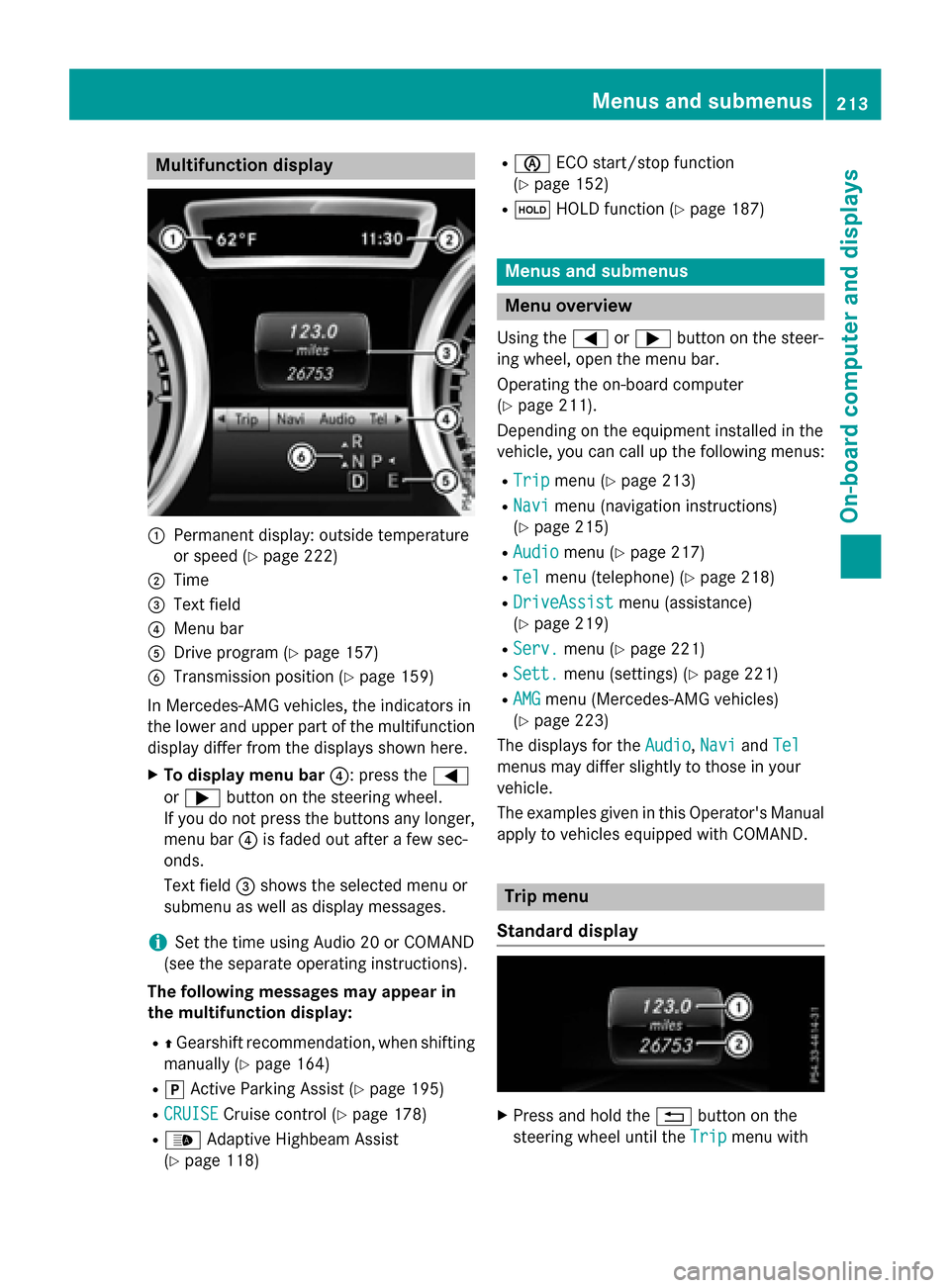
:Permanent display: outside temperature
or speed (
Ypage 222)
;Time
=Text field
?Menu bar
ADrive program (Ypage 157)
BTransmission position (Ypage 159)
In Mercedes-AMG vehicles, the indicators in
the lower and upper part of the multifunction display differ from the displays shown here.
XTo display menu bar ?: press the=
or ; button on the steering wheel.
If you do not press the buttons any longer,
menu bar ?is faded out after a few sec-
onds.
Text field =shows the selected menu or
submenu as well as display messages.
iSet the time using Audio 20 or COMAND
(see the separate operating instructions).
The following messages may appear in
the multifunction display:
RZ Gearshift recommendation, when shifting
manually (
Ypage 164)
Rj Active Parking Assist (Ypage 195)
RCRUISECruise control (Ypage 178)
R_ Adaptive Highbeam Assist
(
Ypage 118)
Rè ECO start/stop function
(
Ypage 152)
Rë HOLD function (Ypage 187)
Menus and submenus
Menu overview
Using the =or; button on the steer-
ing wheel, open the menu bar.
Operating the on-board computer
(
Ypage 211).
Depending on the equipment installed in the
vehicle, you can call up the following menus:
RTripmenu (Ypage 213)
RNavimenu (navigation instructions)
(
Ypage 215)
RAudiomenu (Ypage 217)
RTelmenu (telephone) (Ypage 218)
RDriveAssistmenu (assistance)
(
Ypage 219)
RServ.menu (Ypage 221)
RSett.menu (settings) (Ypage 221)
RAMGmenu (Mercedes-AMG vehicles)
(
Ypage 223)
The displays for the Audio
,Naviand Tel
menus may differ slightly to those in your
vehicle.
The examples given in this Operator's Manual
apply to vehicles equipped with COMAND.
Trip menu
Standard display
XPress and hold the %button on the
steering wheel until the Trip
menu with
Menus and submenus213
On-board computer and displays
Z
Page 216 of 374
trip odometer:and odometer ;
appears.
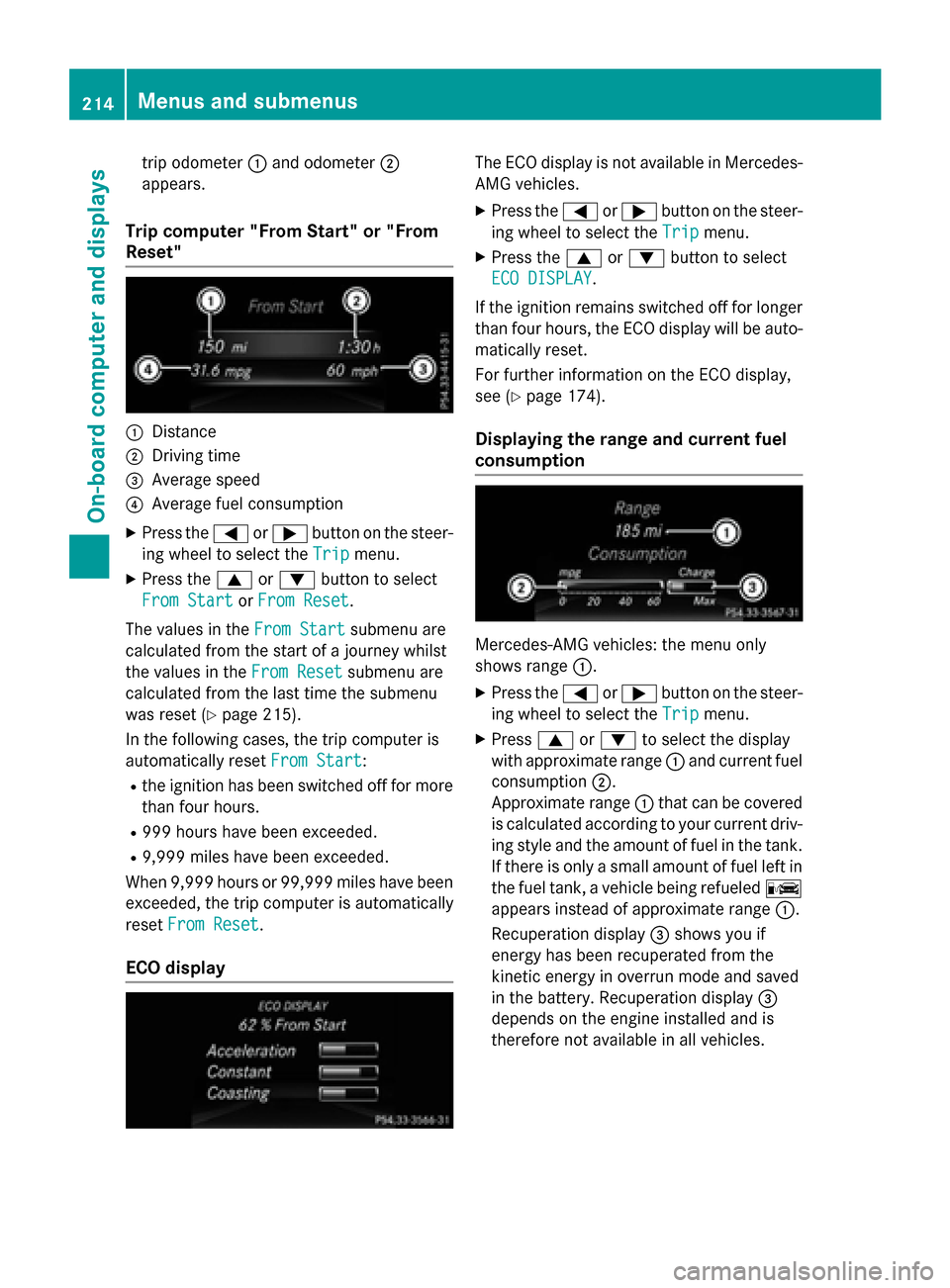
Trip computer "From Start" or "From
Reset"
:Distance
;Driving time
=Average speed
?Average fuel consumption
XPress the =or; button on the steer-
ing wheel to select the Trip
menu.
XPress the9or: button to select
From Start
or From Reset.
The values in the From Start
submenu are
calculated from the start of a journey whilst
the values in the From Reset
submenu are
calculated from the last time the submenu
was reset (
Ypage 215).
In the following cases, the trip computer is
automatically reset From Start
:
Rthe ignition has been switched off for more
than four hours.
R999 hours have been exceeded.
R9,999 miles have been exceeded.
When 9,999 hours or 99,999 mile shave been
exceeded, the trip computer is automatically
reset From Reset
.
ECO display
The ECO display is not available in Mercedes-
AMG vehicles.
XPress the =or; button on the steer-
ing wheel to select the Trip
menu.
XPress the9or: button to select
ECO DISPLAY
.
If the ignition remains switched off for longer
than four hours, the ECO display will be auto-
matically reset.
For further information on the ECO display,
see (
Ypage 174).
Displaying the range and current fuel
consumption
Mercedes-AMG vehicles: the menu only
shows range :.
XPress the=or; button on the steer-
ing wheel to select the Trip
menu.
XPress9or: to select the display
with approximate range :and current fuel
consumption ;.
Approximate range :that can be covered
is calculated according to your current driv-
ing style and the amount of fuel in the tank.
If there is only a small amount of fuel left in
the fuel tank, a vehicle being refueled C
appears instead of approximate range :.
Recuperation display =shows you if
energy has been recuperated from the
kinetic energy in overrun mode and saved
in the battery. Recuperation display =
depends on the engine installed and is
therefore not available in all vehicles.
214Menus and submenus
On-board computer and displays
Page 217 of 374
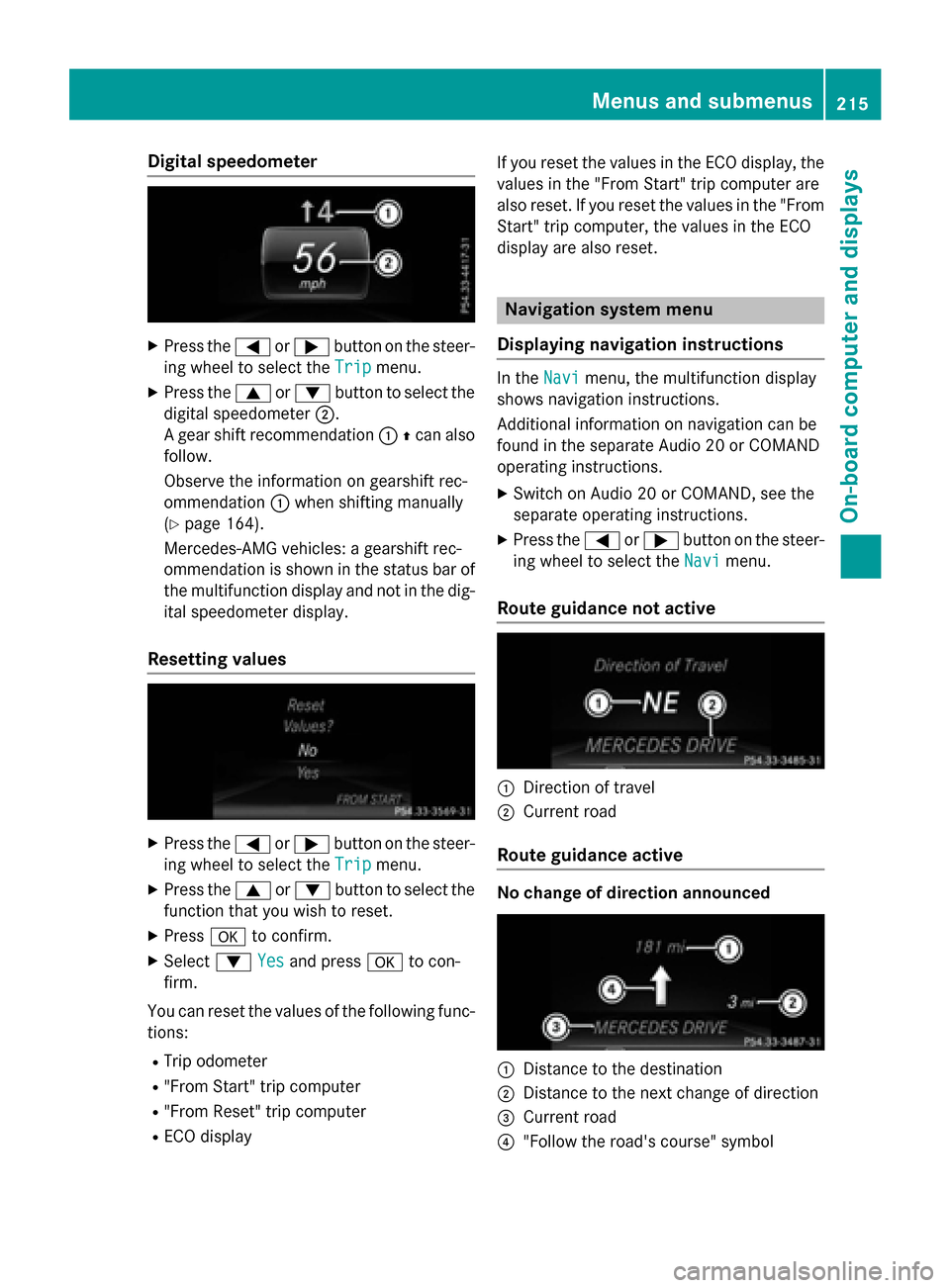
Digital speedometer
XPress the= or; buttonon th esteer -
in g whee lto selec tth eTri p
menu.
XPress th e9 or: buttonto selec tth e
digita lspeedometer ;.
A gear shift recommendation :Zcan also
follow.
Observ eth einformation on gearshift rec -
ommendation :when shiftin gmanually
(
Ypage 164).
Mercedes-AMG vehicles : agearshift rec -
ommendation is shown in th estatus bar of
th emultifunction display and no tin th edig-
ital speedometer display.
Resetting value s
XPress the= or; buttonon th esteer -
in g whee lto selec tth eTri p
menu.
XPress th e9 or: buttonto selec tth e
function that you wish to reset .
XPressato confirm .
XSelect: Yesand press ato con-
firm.
You can reset th evalues of th efollowing func-
tions:
RTrip odometer
R"From Start "trip compute r
R"From Reset" trip compute r
RECOdisplay If you reset th
evalues in th eEC Odisplay, th e
values in th e"From Start "trip compute rare
also reset .If you reset th evalues in th e"From
Start "trip computer, th evalues in th eEC O
display are also reset .
Navigation systemmenu
Displaying navigation instructions
In th eNav imenu, th emultifunction display
shows navigation instructions.
Additional information on navigation can be
found in th eseparat eAudio 20 or COMAN D
operatin ginstructions.
XSwitc hon Audio 20 or COMAND, see th e
separat eoperatin ginstructions.
XPress th e= or; buttonon th esteer -
in g whee lto selec tth eNav i
menu.
Route guidance not active
:Direction of trave l
;Currentroad
Route guidance active
No change of direction announced
:Distanc eto th edestination
;Distanc eto th enext chang eof direction
=Curren troad
?"Follow th eroad's course" symbol
Menus and submenus215
On-board computer and displays
Z