Digital MERCEDES-BENZ CLA-Class 2017 C117 Owner's Guide
[x] Cancel search | Manufacturer: MERCEDES-BENZ, Model Year: 2017, Model line: CLA-Class, Model: MERCEDES-BENZ CLA-Class 2017 C117Pages: 318, PDF Size: 8.02 MB
Page 32 of 318
Information on copyright
General information
Information on license for free and open-source
software used in your vehicl eand it selectronic
component sis available on th efollowin gweb-
site:
http://www.mercedes-benz.com/opensource
Registered trademarks
RBluetoot h®isaregistere dtrademark of Blue -
toot hSI G Inc.
RDTS™ is aregistere dtrademark of DTS, Inc.
RDolby®and MLP ™are registere dtrademark s
of DOLB YLaboratories.
RBabySmart™, ES P®and PRE-SAFE®are reg-
istere dtrademark sof Daimler AG.
RHomeLink®is aregistere dtrademark of John -
son Controls.
RiPod®and iTunes®are registere dtrademark s
of Apple Inc.
RLogic7®is aregistere dtrademark of Harman
International Industries .
RMicrosoft®and Windows media®are regis-
tered trademark sof Microsoft Corporation .
RSIRIUS®isaregistere dtrademark of Sirius
XM Radio Inc.
RHD Radio™ is aregistere dtrademark of iBiq-
uit yDigital Corporation .
RGracenote®isaregistere dtrademark of
Gracenote, Inc.
RZAGA TSurvey®and relate dbrands are regis-
tered trademark sof Zagat Survey, LLC.
30Information on copyright
Introduction
Page 35 of 318
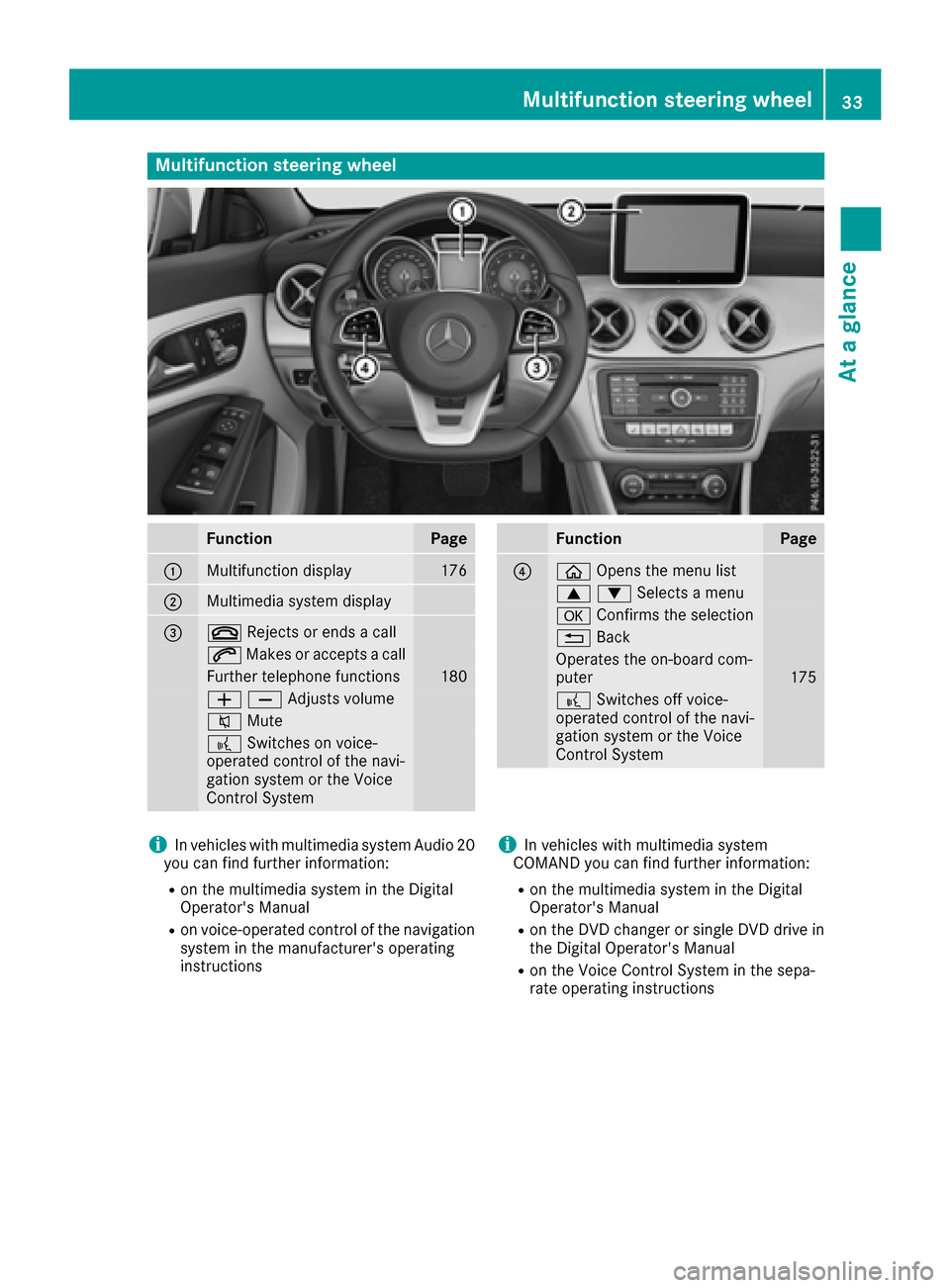
Multifunction steering wheel
FunctionPage
:Multifunction display176
;Multimedia system display
=~Rejects or ends a call
6Makes or accepts a call
Further telephone functions180
WXAdjusts volume
8 Mute
?Switches on voice-
operated control of the navi-
gation system or the Voice
Control System
FunctionPage
?ò Opens the menu list
9:Selects a menu
aConfirms the selection
%Back
Operates the on-board com-
puter175
?Switches off voice-
operated control of the navi-
gation system or the Voice
Control System
iIn vehicles with multimedia system Audio 20
you can find further information:
Ron the multimedia system in the Digital
Operator's Manual
Ron voice-operated control of the navigation
system in the manufacturer's operating
instructions
iIn vehicles with multimedia system
COMAND you can find further information:
Ron the multimedia system in the Digital
Operator's Manual
Ron the DVD changer or single DVD drive in
the Digital Operator's Manual
Ron the Voice Control System in the sepa-
rate operating instructions
Multifunction steering wheel33
At a glance
Page 136 of 318
Drive programI(Individual)
In drive progra mIth efollowing properties of th e
drive progra mcan be selected:
Rthedrive (engin eand transmissio nmanage-
ment)
Rth esuspensio n(vehicles wit hdampin gsys-
te m or AM Gadaptive sport suspensio nsys-
tem)
Rth esteerin g
Rtheavailabilit yof th eECO start/sto pfunction
Rth eclimat econtrol
Information about configurin gdrive progra mI
wit hth emultimedia system can be found in th e
Digital Operator' sManual.
iTo permanentl yselect th egear sin drive
progra mIusin gth esteerin gwhee lpaddl e
shifters ,select th eM (manual) setting fo rth e
drive.
Drive program E(Economy)
Drive progra mEis characterized by th efollow-
ing:
Rcomfort-oriented engin esettings.
Roptimal fue lconsumption resultin gfrom th e
automati ctransmissio nshiftin gup sooner.
Rth evehicl epulls away mor egentl yin forwar d
and revers egears, unless th eaccelerato r
peda lis depressed fully.
Rth evehicl ehas improved drivin gstability, fo r
exampl eon slipper yroa dsurfaces.
Rth eautomati ctransmissio nshiftin gup
sooner. This result sin th evehicl ebein gdriven
at lowe ren gin
es
peeds and th ewheels bein g
less likely to spin .
Rglidingmod eis activated automatically when
engine-internal condition sare fulfilled and
th eaccelerato ris no tdepressed. At th esam e
time th etransmission’s clutc hopens and th e
vehicl erolls freely usin gits kineti cenergy. As
a result great distances can be completed
without th eengin ebrak eand fue lconsump-
tion reduced.
iThe availabilit yof glidin gmod edepend son
various factors ,includin gth efollowing :
Rtheengin eand transmissio ntemperature
Rth edownhill gradien t
Rthevehicl espeed
Rperformin gregular adaptation function sWhe
nyou depress th ebrak epedal, glidin g
mod eis deactivated, dependin gon peda l
pressure.
Whe nyou activat ecruise control or Distanc e
Pilo tDISTRONIC, glidin gmod eis no tavaila-
ble.
Mercedes-AMG vehicles
Drive program I(Individual)
In drive progra mIth efollowing properties of th e
drive progra mcan be selected:
Rthedrive (engin emanagement)
Rth etransmissio nmanagemen t
Rthesuspensio n(vehicles wit hAM Gadaptive
sport suspensio nsystem)
RES P®
Information about configurin gdrive progra mI
wit hth emultimedia system can be found in th e
Digital Operator' sManual.
Drive program C(Comfort)
Drive progra mCis characterized by th efollow-
ing:
Rth evehicl edeliver scomfortable, economical
handlin gcharacteristics .
Rthevehicl epulls away mor egentl yin forwar d
and revers egears, unless th eaccelerato r
peda lis depressed fully.
Rth evehicl ehas improved drivin gstability, fo r
exampl eon slipper yroa dsurfaces.
Roptimal fue lconsumption resultin gfrom th e
automati ctransmissio nshiftin gup sooner.
The vehicl eis driven in th elow engin espeed
range and th ewheels are less likely to spin .
Rglidingmod eis available.
Rth eECO start/sto pfunction is available.
Drive program S(Sport)
Drive progra mSis characterized by th efollow-
ing:
Rth evehicl eexhibits sport ydrivin gcharacter-
istics .
Rtheautomati ctransmissio nshift sup later.
The fue lconsumption possibl ybein ghigher
as aresult of th elater automati ctransmissio n
shift points .
Rthesuspensio nexhibits stiff springin gand
dampin gsetting s(vehicles wit hAI R adaptive
sport suspensio nsystem) .
134Automatic transmission
Driving and parking
Page 169 of 318
Rif the camera lens is dirty or obstructed
Observe the notes on cleaning
(
Ypage 262)
Rif the rear of your vehicle is damaged. In this
case, have the camera position and setting
checked at a qualified specialist workshop
The field of vision and other functions of the rear
view camera may be restricted due to additional
accessories on the rear of the vehicle (e.g.
license plate holder, bicycle rack).
Activating/deactivating the rear view
camera
XTo activate: make sure that the SmartKey is
in position 2in the ignition lock.
XMake sure that the Activation by R gearfunction is selected in the multimedia system;
see the Digital Operator's Manual.
XEngage reverse gear.
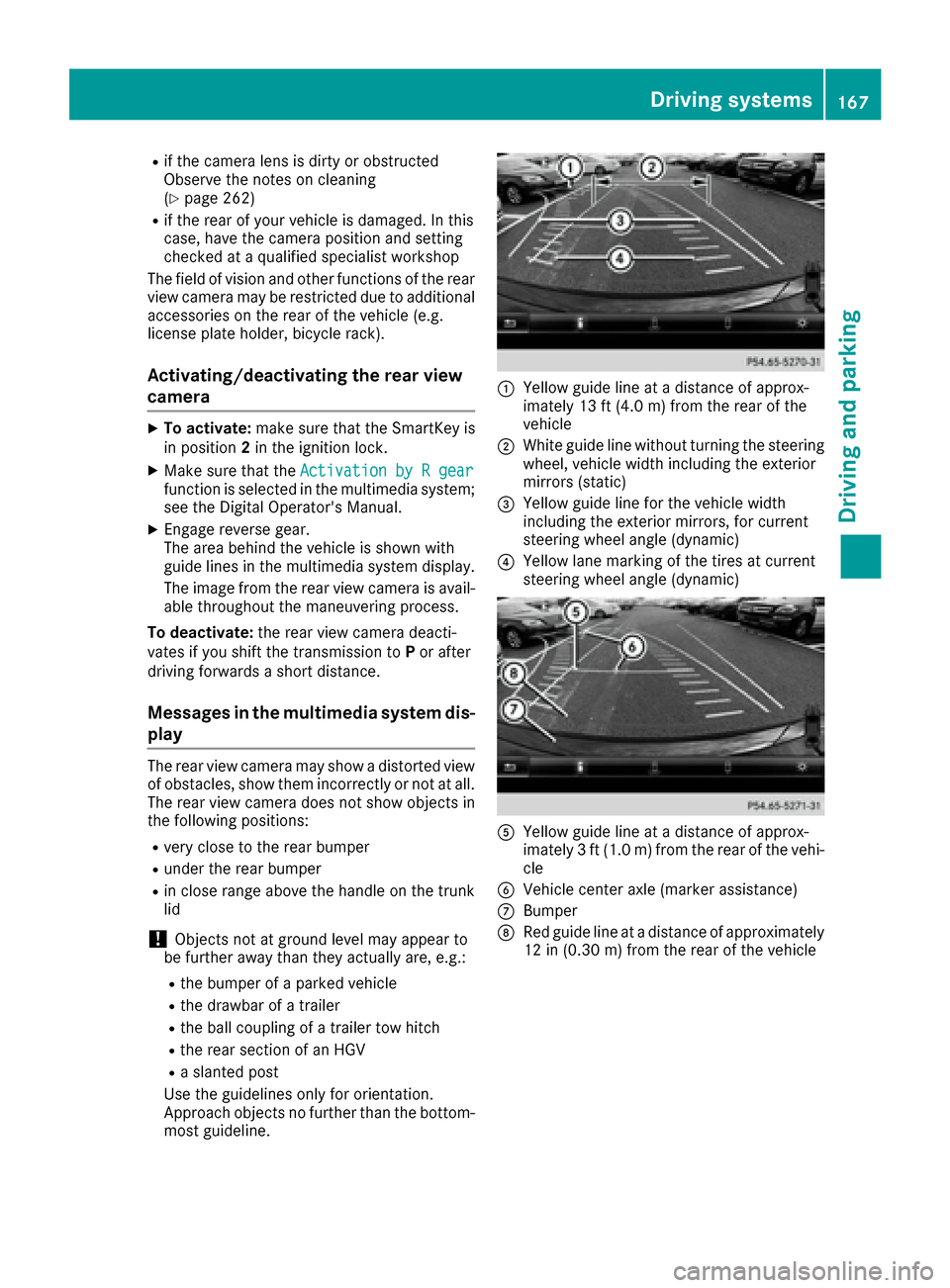
The area behind the vehicle is shown with
guide lines in the multimedia system display.
The image from the rear view camera is avail-
able throughout the maneuvering process.
To deactivate: the rear view camera deacti-
vates if you shift the transmission to Por after
driving forwards a short distance.
Messages in the multimedia system dis- play
The rear view camera may show a distorted view
of obstacles, show them incorrectly or not at all.
The rear view camera does not show objects in
the following positions:
Rvery close to the rear bumper
Runder the rear bumper
Rin close range above the handle on the trunk
lid
!Objects not at ground level may appear to
be further away than they actually are, e.g.:
Rthe bumper of a parked vehicle
Rthe drawbar of a trailer
Rthe ball coupling of a trailer tow hitch
Rthe rear section of an HGV
Ra slanted post
Use the guidelines only for orientation.
Approach objects no further than the bottom-
most guideline.
:Yellow guide line at a distance of approx-
imately 13 ft (4.0 m) from the rear of the
vehicle
;White guide line without turning the steering
wheel, vehicle width including the exterior
mirrors (static)
=Yellow guide line for the vehicle width
including the exterior mirrors, for current
steering wheel angle (dynamic)
?Yellow lane marking of the tires at current
steering wheel angle (dynamic)
AYellow guide line at a distance of approx-
imately 3 ft (1.0 m) from the rear of the vehi-
cle
BVehicle center axle (marker assistance)
CBumper
DRed guide line at a distance of approximately
12 in (0.30 m) from the rear of the vehicle
Driving systems167
Driving and parking
Z
Page 173 of 318
XIf necessary, take a break.
XConfirm the message by pressing thea
button on the steering wheel.
On long journeys, take regular breaks in good
time to allow yourself to rest properly. If you do
not take a break and ATTENTION ASSIST still
detects increasing lapses in concentration, you
will be warned again after 15 minutes at the
earliest. This will only happen if ATTEN-
TION ASSIST still detects typical indicators of
fatigue or increasing lapses in concentration.
Vehicles with the COMAND multimedia sys-
tem: if a warning is output in the multifunction
display, a service station search is performed in
the multimedia system. You can select a service
station and navigation to this service station will
then begin. This function can be activated or
deactivated in the multimedia system; see the
Digital Operator's Manual.
Lane Tracking package
General notes
The Lane Tracking package consists of Blind
Spot Assist (Ypage 171) and Lane Keeping
Assist (Ypage 172).
Blind Spot Assist
General notes
Blind Spot Assist monitors the areas on either
side of the vehicle that are not visible to the
driver with two lateral, rear-facing radar sen-
sors. A warning display in the exterior mirrors
draws your attention to vehicles detected in the
monitored area. If you then switch on the cor-
responding turn signal to change lane, you will
also receive an optical and audible warning.
Blind Spot Assist supports you from a speed of
approximately 20 mph (30 km/h).
Important safety notes
GWARNING
Blind Spot Assist does not react to:
Rvehicles overtaken too closely on the side,
placing them in the blind spot area
Rvehicles which approach with a large speed
differential and overtake your vehicle
As a result, Blind Spot Assist may not give
warnings in such situations. There is a risk of
an accident.
Always observe the traffic conditions care-
fully, and maintain a safe lateral distance.
Blind Spot Assist is only an aid. It may fail to
detect some vehicles and is no substitute for
attentive driving. Always ensure that there is
sufficient distance to the side for other road
users and obstacles.
iUSA only:
This device has been approved by the FCC as
a "Vehicular Radar System". The radar sensor
is intended for use in an automotive radar
system only. Removing, tampering with, or
altering the device will void any warranties,
and is not permitted by the FCC. Do not tam-
per with, alter, or use in any non-approved
way.
Any unauthorized modification to this device
could void the user’s authority to operate the
equipment.
Radar sensors
The radar sensors for Blind Spot Assist are inte-
grated into the rear bumper. Make sure that the
bumpers are free from dirt, ice or slush. The
sensors must not be covered, for example by
cycle racks or overhanging loads. Following a
severe impact or in the event of damage to the
bumpers, have the function of the radar sensors
checked at a qualified specialist workshop.
Blind Spot Assist may no longer work properly.
Monitoring range of the sensors
In particular, the detection of obstacles can be
impaired if:
Rthere is dirt on the sensors or anything else
covering the sensors
Rthere is poor visibility, e.g. due to fog, heavy
rain or snow
Ra narrow vehicle traveling in front, e.g. a
motorbike or bicycle
Rthe road has very wide lanes
Rthe road has narrow lanes
Ryou are not driving in the middle of the lane
Rthere are barriers or other road boundaries
Vehicles in the monitoring range are then not
indicated.
Driving systems171
Driving and parking
Z
Page 180 of 318
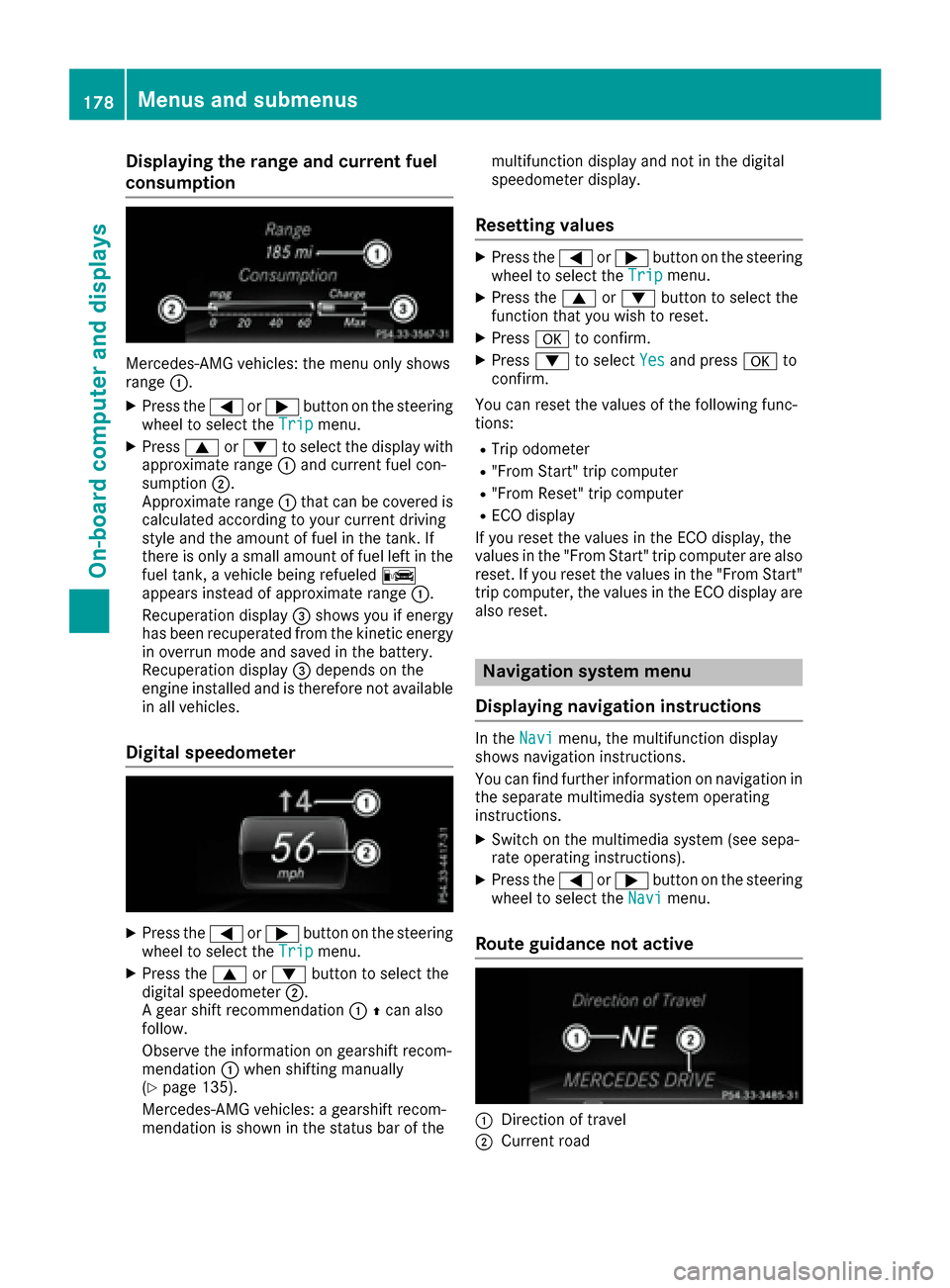
Displaying therange an dcurrent fuel
consumption
Mercedes-AMG vehicles :th emen uonly shows
range :.
XPress th e= or; buttonon th esteerin g
whee lto selec tth eTri pmenu.
XPress 9or: to selec tth edisplay wit h
approximat erange :and curren tfue lcon-
sumption ;.
Approximat erange :that can be covered is
calculated accordin gto your curren tdrivin g
style and th eamount of fue lin th etank .If
there is only asmall amount of fue llef tin th e
fue ltank , avehicle bein grefuele dC
appears instead of approximat erange :.
Recuperation display =shows you if energ y
has bee nrecuperated from th ekineti cenerg y
in overrun mode and saved in th ebattery.
Recuperation display =depend son th e
engin einstalled and is therefore no tavailable
in all vehicles .
Digital speedometer
XPress the= or; buttonon th esteerin g
whee lto selec tth eTri pmenu.
XPress th e9 or: buttonto selec tth e
digita lspeedometer ;.
A gear shift recommendation :Zcan also
follow .
Observ eth einformation on gearshift recom -
mendation :when shiftin gmanually
(
Ypage 135).
Mercedes-AMG vehicles : agearshift recom -
mendation is shown in th estatus bar of th emultifunction display and no
tin th edigita l
speedometer display.
Resetting value s
XPress the= or; buttonon th esteerin g
whee lto selec tth eTri pmenu.
XPress th e9 or: buttonto selec tth e
function that you wish to reset .
XPressato confirm .
XPress:to selec tYesand press ato
confirm .
You can reset th evalues of th efollowin gfunc-
tions:
RTrip odometer
R"From Start "trip compute r
R"From Reset" trip compute r
RECOdisplay
If you reset th evalues in th eEC Odisplay, th e
values in th e"From Start "trip compute rare also
reset .If you reset th evalues in th e"From Start "
trip computer, th evalues in th eEC Odisplay are
also reset .
Navigation syste mmenu
Displaying navigation instructions
In th eNav imenu, th emultifunction display
shows navigation instructions.
You can fin dfurther information on navigation in
th eseparat emultimedia system operatin g
instructions.
XSwitc hon th emultimedia system (se esepa-
rat eoperatin ginstructions).
XPress th e= or; buttonon th esteerin g
whee lto selec tth eNav imenu.
Route guidance not active
:Direction of trave l
;Currentroad
178Menus and submenus
On-board computer and displays
Page 181 of 318
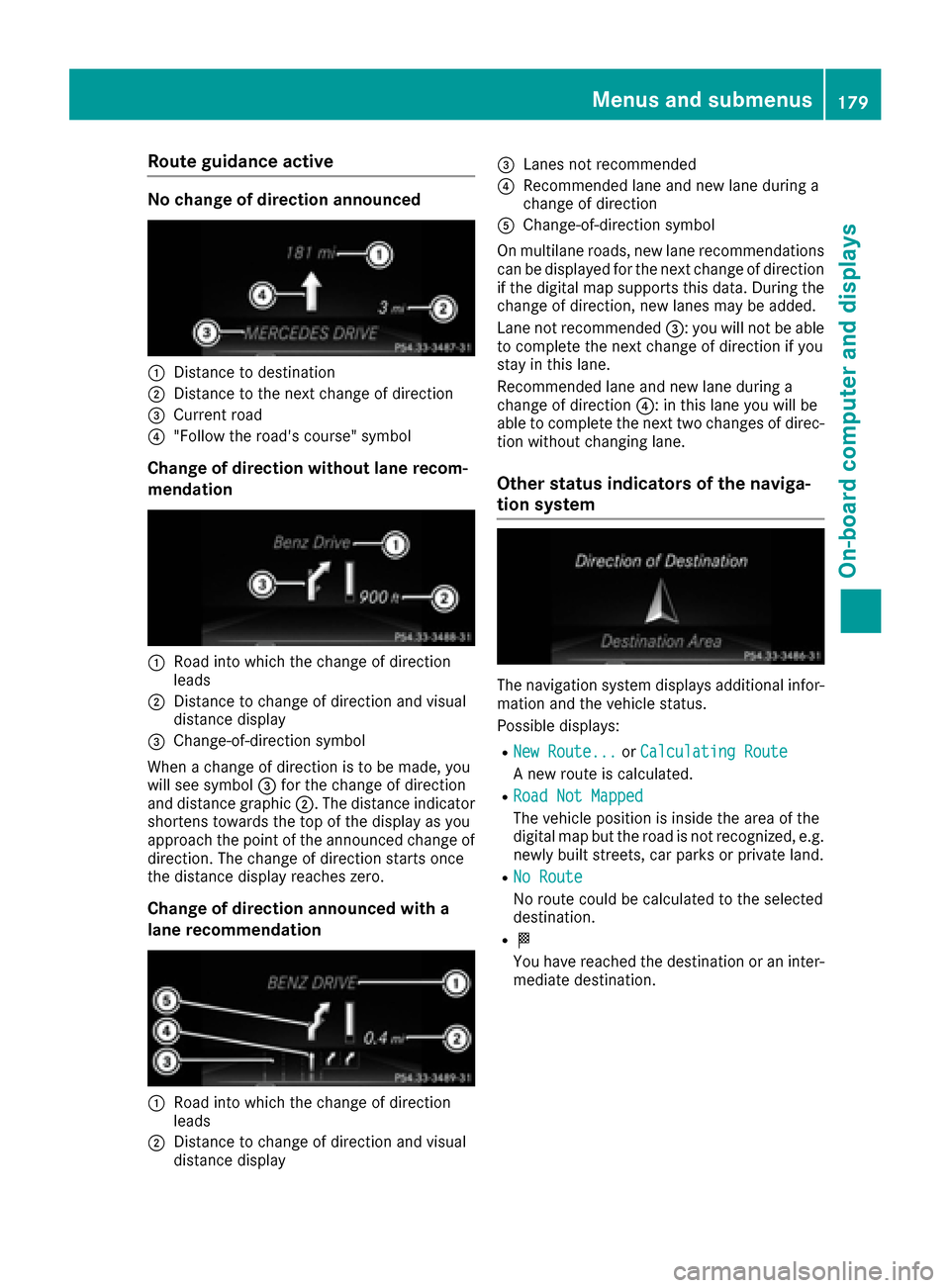
Route guidance active
No change of direction announced
:Distance to destination
;Distance to the next change of direction
=Current road
?"Follow the road's course" symbol
Change of direction without lane recom-
mendation
:Road into which the change of direction
leads
;Distance to change of direction and visual
distance display
=Change-of-direction symbol
When a change of direction is to be made, you
will see symbol =for the change of direction
and distance graphic ;. The distance indicator
shortens towards the top of the display as you
approach the point of the announced change of
direction. The change of direction starts once
the distance display reaches zero.
Change of direction announced with a
lane recommendation
:Road into which the change of direction
leads
;Distance to change of direction and visual
distance display
=Lanes not recommended
?Recommended lane and new lane during a
change of direction
AChange-of-direction symbol
On multilane roads, new lane recommendations can be displayed for the next change of direction
if the digital map supports this data. During the
change of direction, new lanes may be added.
Lane not recommended =: you will not be able
to complete the next change of direction if you
stay in this lane.
Recommended lane and new lane during a
change of direction ?: in this lane you will be
able to complete the next two changes of direc-
tion without changing lane.
Other status indicators of the naviga-
tion system
The navigation system displays additional infor-
mation and the vehicle status.
Possible displays:
RNew Route...or Calculating Route
A new route is calculated.
RRoad Not Mapped
The vehicle position is inside the area of the
digital map but the road is not recognized, e.g.
newly built streets, car parks or private land.
RNo Route
No route could be calculated to the selected
destination.
RO
You have reached the destination or an inter-
mediate destination.
Menus and submenus179
On-board computer and displays
Z
Page 186 of 318
XPress the=or; button on the steering
wheel to select the Sett.menu.
XPress the:or9 button to select the
Instrument Clustersubmenu.
XPress ato confirm.
XPress the :or9 button to select the
Display Unit Speed-/Odometerfunction.
You will see the selected setting: kmormiles.
XPress the abutton to save the setting.
The selected unit of measurement for distance
applies to:
RDigital speedometer in the Tripmenu
ROdometer and the trip odometer
RTrip computer
RCurrent fuel consumption and approximate
range
RNavigation instructions in the Navimenu
RCruise control
RDistance Pilot DISTRONIC
RASSYST PLUS service interval display
Switching the additional speedometer
on/off
If the additional speedometer is switched on,
the speed is shown in the status area of the
multifunction display instead of the outside tem-
perature.
The speed display is inverse to the speedome-
ter.
XPress the=or; button on the steering
wheel to select the Sett.menu.
XPress the:or9 button to select the
Instrument Clustersubmenu.
XPress ato confirm.
XPress the :or9 button to select the
Speedometer [km/h]or Speedometer[mph]function.
You will see the selected setting: OnorOff.
XPress the abutton to save the setting.
Selecting permanent display
ThePermanent Display:function allows you
to choose whether the multifunction display
always shows the outside temperature or the
speed.
The speed display is inverse to the speedome-
ter.
XPress the =or; button on the steering
wheel to select the Sett.menu.
XPress the:or9 button to select the
Instrument Clustersubmenu.
XPress ato confirm.
XPress the :or9 button to select the
Permanent Display:function.
The current setting Outside Temperature
orSpeedometer [km/h]/Speedometer[mph]appears.
XPress the abutton to save the setting.
Lights
Switching the daytime running lamps on/
off
This function is not available in Canada.
XPress the =or; button on the steering
wheel to select the Sett.menu.
XPress the:or9 button to select the
Lightsubmenu.
XPress ato confirm.
XPress the :or9 button to select the
Daytime Running Lightsfunction.
If the DaytimeRunningLightsfunction has
been switched on, the multifunction display
shows the cone of light and the Wsymbol
in orange.
XPress the abutton to save the setting.
Further information on daytime running lamps
(
Ypage 99).
Vehicle
Activating/deactivating the automatic
door locking mechanism
XPress the =or; button on the steering
wheel to select the Sett.menu.
XPress the:or9 button to select the
Vehiclesubmenu.
XPress ato confirm.
XPress the :or9 button to select the
Automatic Door Lockfunction.
If the Automatic Door Lockfunction is
switched on, the multifunction display shows
the doors in orange.
XPress the abutton to save the setting.
If you activate the Automatic door locks
function, the vehicle is centrally locked above a
speed of around 9 mph (15 km/h).
184Menus and submenus
On-board computer and displays
Page 187 of 318
For further information on the automatic locking
feature, see (Ypage 76).
Activating/deactivating the acoustic
locking verification signal
If you switch on theAcousticLockfunction, an
acoustic signal sounds when you lock the vehi-
cle.
XPress the =or; button on the steering
wheel to select the Sett.menu.
XPress the:or9 button to select the
Vehiclesubmenu.
XPress ato confirm.
XPress the :or9 button to select the
Acoustic Lockfunction.
If the Acoustic Lockfunction is activated,
the multifunction display shows the &
symbol in orange.
XPress the abutton to save the setting.
Convenience
Switching the fold-in mirrors when lock-
ing feature on/off
This function is only available in Canada.
This function is only available when the vehicle is
equipped with the electrical fold-in function.
When you activate the Auto.
MirrorFoldingfunction, the exterior mirrors are folded in when
the vehicle is locked. If you unlock the vehicle
and then open the driver's or front-passenger
door, the exterior mirrors fold out again.
If you have switched on the Auto. Mirror
Foldingfunction and you fold in the exterior
mirrors using the button on the door
(
Ypage 96), they will not fold out automatically.
The exterior mirrors can then only be folded out
using the button on the door.
XPress the =or; button on the steering
wheel to select the Sett.menu.
XPress the:or9 button to select the
Conveniencesubmenu.
XPress ato confirm.
XPress the :or9 button to select the
Auto. Mirror Foldingfunction.
If the Auto. Mirror Foldingfunction is
switched on, the multifunction display shows
the exterior mirror in orange.
XPress the abutton to save the setting.
Restoring the factory settings
XPress the =or; button on the steering
wheel to select the Sett.menu.
XPress the:or9 button to select the
Factory Settingsubmenu.
XPress ato confirm.
The Reset All Settings?function
appears.
XPress the :or9 button to select Noor
Yes.
XPress the abutton to confirm the selec-
tion.
If you have selected Yes
, the multifunction
display shows a confirmation message.
For safety reasons, the Daytime Running
Lightsfunction in theLightsubmenu is only
reset if the vehicle is stationary.
AMG menu (Mercedes-AMG vehicles)
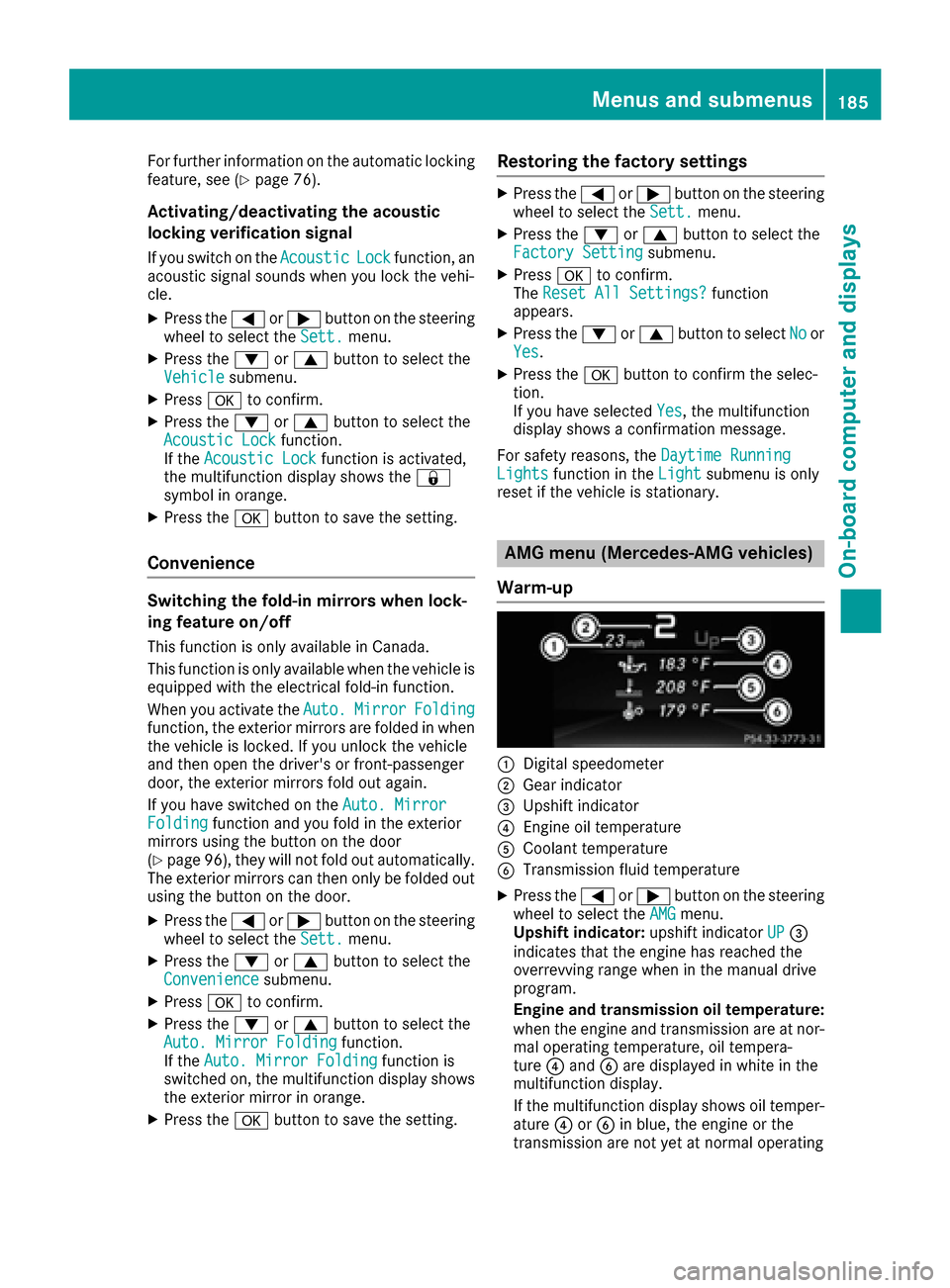
Warm-up
:Digital speedometer
;Gear indicator
=Upshift indicator
?Engine oil temperature
ACoolant temperature
BTransmission fluid temperature
XPress the =or; button on the steering
wheel to select the AMGmenu.
Upshift indicator: upshift indicatorUP=
indicates that the engine has reached the
overrevving range when in the manual drive
program.
Engine and transmission oil temperature:
when the engine and transmission are at nor- mal operating temperature, oil tempera-
ture ?and Bare displayed in white in the
multifunction display.
If the multifunction display shows oil temper-
ature ?orB in blue, the engine or the
transmission are not yet at normal operating
Menus and submenus185
On-board computer and displays
Z
Page 188 of 318
temperature. Avoid driving at full engine out-
put during this time.
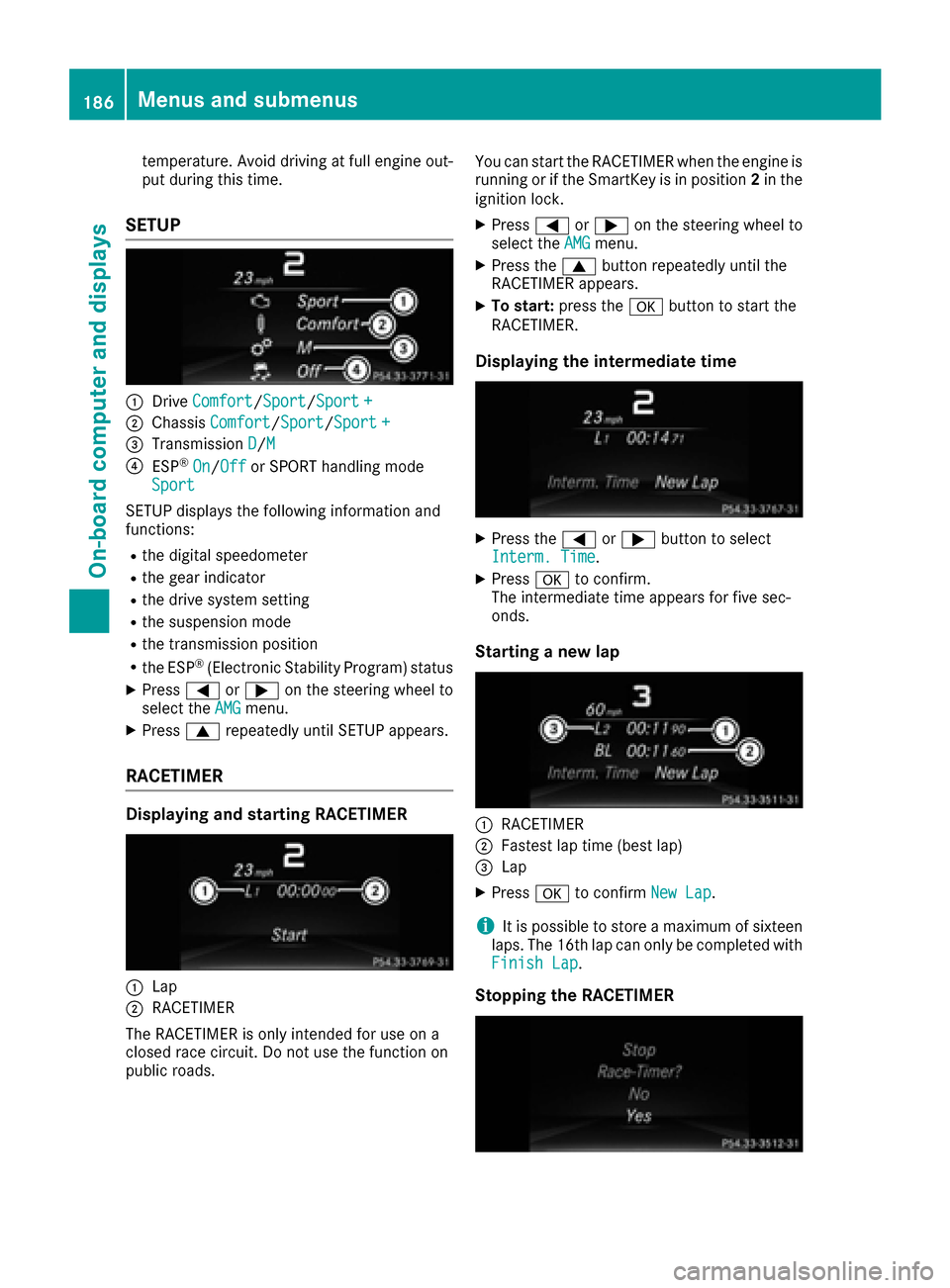
SETUP
:DriveComfort/Sport/Sport +
;Chassis Comfort/Sport/Sport +
=Transmission D/M
?ESP®On/Offor SPORT handling mode
Sport
SETUP displays the following information and
functions:
Rthe digital speedometer
Rthe gear indicator
Rthe drive system setting
Rthe suspension mode
Rthe transmission position
Rthe ESP®(Electronic Stability Program) status
XPress =or; on the steering wheel to
select the AMGmenu.
XPress9repeatedly until SETUP appears.
RACETIMER
Displaying and starting RACETIMER
:Lap
;RACETIMER
The RACETIMER is only intended for use on a
closed race circuit. Do not use the function on
public roads. You can start the RACETIMER when the engine is
running or if the SmartKey is in position
2in the
ignition lock.
XPress =or; on the steering wheel to
select the AMGmenu.
XPress the9button repeatedly until the
RACETIMER appears.
XTo start: press the abutton to start the
RACETIMER.
Displaying the intermediate time
XPress the =or; button to select
Interm. Time.
XPress ato confirm.
The intermediate time appears for five sec-
onds.
Starting a new lap
:RACETIMER
;Fastest lap time (best lap)
=Lap
XPress ato confirm New Lap.
iIt is possible to store a maximum of sixteen
laps. The 16th lap can only be completed with
Finish Lap
.
Stopping the RACETIMER
186Menus and submenus
On-board computer and displays