display MERCEDES-BENZ CLA COUPE 2019 Owners Manual
[x] Cancel search | Manufacturer: MERCEDES-BENZ, Model Year: 2019, Model line: CLA COUPE, Model: MERCEDES-BENZ CLA COUPE 2019Pages: 645, PDF Size: 10.94 MB
Page 389 of 645
#
Tostart automatic video recording: select
Automatic video recording .#
Activate Automatic video recording.
The display button is acti vated. When the
ve hicle is star ted, video recording starts
automaticall y.
% This function is not available in all countries. Te
lephone Te
lephony Note
s ontelephony &
WARNING Risk of di stra ction from oper‐
ating integrated communication equip‐
ment while theve hicle is in motion
If yo u operate communication equipment
integrated in theve hicle when driving, you will be distracted from
the tra ffic situation.
This could also cause youto lose control of
th eve hicle. #
Only operate this equipment when the
traf fic situation permits. #
Ifyo u cannot be sure of this, stop the
ve hicle whilst paying attention toroad
and traf fic conditions and ope rate the
equipment with theve hicle stationar y. &
WARNING Risk of an accident from
ope rating mobile communication equip‐
ment while theve hicle is in motion
Mobile communications devices distract the
driver from the traf fic situation. This could
also cause the driver tolose control of the
ve hicle. #
Asthe driver, only operate mobile com‐
munications devices when theve hicle is
st ationar y. #
As a vehicle occupant, only use mobile
communications devices in the areas
intended forth is purpose, e.g. in the
re ar passenger compartment. Yo
u must obse rveth e legal requirements forthe
country in whi chyou are cur rently driving when
operating mobile communication equipment in
th eve hicle.
Fu rther information can be obtained from a
Mercedes-Benz service centre or at: http://
www.mercedes-benz.com/connect. 386
MBUX multimedia sy stem
Page 394 of 645
#
Todisconnect: selectDisconnect .
If applicable, the mobile phone will be auto‐
matically reconnected when theve hicle is
next star ted. #
Tode-authorise: selectDeauthorise.
In fo rm ation on NearField Communication
(NFC)
NFC enables short- range wi reless data transfer
or (re)connection of a mobile phone with the
multimedia sy stem.
The following functions are available without
having authorised a mobile phone:
R Trans ferring a URL or a con tact to be vie wed
in the multimedia sy stem (see the manufac‐
turer's operating instructions).
R Setting up theve hicle's Wi-Fi access da tavia
th e sy stem settings (/ page 330).
Fu rther information can be obtained at: http://
www.mercedes-benz.com/connect Using
the mobile phone with NearField Com‐
munication (NFC)
Re quirements:
R NFC is activated on the mobile phone (see
th e manufacturer's operating instructions)
R The mobile phone's screen is switched on
and unloc ked (see the manufacturer's oper‐
ating instructions) #
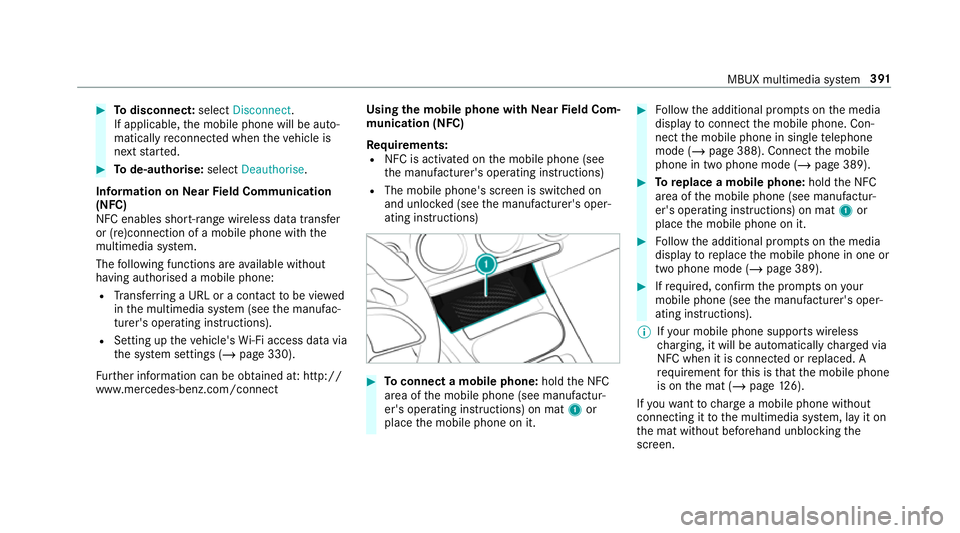
Toconnect a mobile phone: holdthe NFC
area of the mobile phone (see manufactur‐
er's operating instructions) on mat 1or
place the mobile phone on it. #
Follow the additional prom pts on the media
display toconnect the mobile phone. Con‐
nect the mobile phone in single telephone
mode (/ page 388). Connect the mobile
phone in two phone mode (/ page 389). #
Toreplace a mobile phone: holdthe NFC
area of the mobile phone (see manufactur‐
er's operating instructions) on mat 1or
place the mobile phone on it. #
Follow the additional prom pts on the media
display toreplace the mobile phone in one or
two phone mode (/ page 389). #
Ifre qu ired, con firm the prom pts on your
mobile phone (see the manufacturer's oper‐
ating instructions).
% Ifyo ur mobile phone suppo rts wireless
ch arging, it will be automatically charge d via
NFC when it is connec ted or replaced. A
re qu irement forth is is that the mobile phone
is on the mat (/ page126).
If yo uwa nttocharge a mobile phone without
connecting it tothe multimedia sy stem, lay it on
th e mat without beforehand unblocking the
screen. MBUX multimedia sy
stem 391
Page 401 of 645
#
For pr eviously stored contacts: select r
in the line of an entry.
The sear chresults are displa yed. #
For contacts who ha venot been stored:
select i.
Selecting options for sug gestions in the call
list
Re quirements:
R A profile has been created (/ page 305).
R The Allow contact suggestions setting is
switched on (/ page310).
Multimedia sy stem:
4 © 5
Phone #
Select +Call list . #
Select Vinthe line of a sugges ted ent ry.
The following options are available:
R Save as favourite
R Do not suggest #
Select an option. Deleting
the call list
Multimedia sy stem:
4 © 5
Phone 5
5 Z #
Select Contacts & call list. #
Select Delete call list. #
Select Yes.
% This function is only available if your mobile
does not suppo rtthe PBAP Blue tooth®
pro‐
fi le. Te
xt messages Overview of message functions
In
the messages menu you can recei veand send
te xt messa ges.
If th e connected mobile phone supports the
Blu etoo th®
MAP profile, the message function
can be used on the multimedia sy stem.
Yo u can obtain fur ther information about set‐
tings and suppor ted functions of Blue tooth®
-
capable mobile phones from a Mercedes-Benz service centre or at: http://www.mercedes-
benz.com/connect
Some mobile phones require fur ther settings
af te r being connected tothe multimedia sy stem
(see manufacturer's operating instructions).
Setting message displa ys
Multimedia sy stem:
4 © 5
Phone 5
5 Z #
Select Message display .
The following options are available:
R All messages
R New and unread messages
R Messages while the vehicle is in motion
R Off (The message function is no lon ger
av ailable.) #
Select a setting. 398
MBUX multimedia sy stem
Page 403 of 645
Fo
rw arding a message
Multimedia sy stem:
4 © 5
Phone 5
5 l
A message list is shown. #
Select rnexttoa con tact.
The messaging his tory with this con tact is
shown. #
Press and hold on a message. #
Toforw ard a message: selectForward.
Calling a message sender
Multimedia sy stem:
4 © 5
Phone 5
5 l
A message list is shown. #
Select rnexttoa con tact.
The messaging his tory with this con tact is
shown. #
Select Ä. #
Select Call. Using
telephone numbers or URLs from a
te xt message
Re quirements:
R An Internet connection is available tocall up
a URL.
Multimedia sy stem:
4 © 5
Phone 5
5 l
A message list is shown. #
Select rnexttoa con tact.
The messaging his tory with this con tact is
shown. #
Select a telephone number or a URL in the
messa ge.
If a URL is selected thewe b br ows er opens.
If a telephone number is selec tedth efo llow‐
ing options are available:
R Call
R Write new text message #
Select an option. Deleting a message
Multimedia sy
stem:
4 © 5
Phone 5
5 l #
Select a conta ct. #
Press and hold on a message. #
Todel eteth e message: selectDelete. In Car Of
fice In-Car Of
fice functions
Using In-Car Of fice, you can connect your online
services with the multimedia sy stem.
The following functions are available:
R Display of the upcoming appointments in the
calendar
R Selection of an appointment as a destination
inthe navigation
R Display of upcoming telephone con fere nces
R Display of pa rticipants in a telephone con fer‐
ence 400
MBUX multimedia sy stem
Page 419 of 645
R
The Mercedes-Benz emer gency call sy stem is
permanently logged in tothe mobile phone
networ k,which ensures faster placement of
th e emer gency call and faster transfer of the
accident data.
Measures forre scue, reco very or towing
aw ay can then be initiated in quickl y.
R With a Mercedes-Benz emer gency call, the
accident data is on lytrans ferred tothe pub‐
lic coordination cent rewith the appr oval of
th e cus tomer.
In theeve nt of an au tomatical lytrig gered
emer gency call in which there is no voice
con tact, the accident data is transmit ted
immediately tothe public emer gency call
centre.
R Should the Mercedes-Benz emer gency call
centre not be available, the11 2 emer gency
call is car ried out automaticall y.
Overview of emer gency call sy stems
Bo th th e Mercedes-Benz emer gency call sy stem
as well as the11 2 emer gency call sy stem (EU
eCall) can help toreduce the time between an
accident and the ar riva l of emer gency services at
the site of the accident. They help locate an
accident site in places that are dif ficult to
access.
Bo th emer gency call sy stems can initiate an
emer gency call au tomatically (/ page416) or
manually .
Only make emer gency calls if you or others are
in need of rescue. Do not make an emergency
call in theeve nt of a breakdown or a similar sit‐
uation.
Messages on the display
The following messages appear in the media dis‐
play of bo themer gency call sy stems:
R SOS NOT READY :th e ignition is not on or
th ere is a malfunction with the emer gency
call sy stem. This does not necessarily indi‐
cate comple tefailure of the emer gency call
sy stem. Emer gency calls call still be trans‐
mit ted.
The display only refers to theve hicle and
does not take account of theav ailability of
mobile phone networ ksand the Mercedes-
Benz emer gency call centre. The functional
readiness of the emer gency
call sy stem on theve hicle can be seen when
th eSOS NOT READY display disappears once
th e ignition is switched on.
R G: The icon appears in the display during
an active emer gency call.
% Ifth ere is a malfunction in the emer gency
call sy stem (e.g. a fault with the speaker,
microphone, airbag, SOS button), a cor re‐
sponding message appears inthe multifunc‐
tion display of the instrument clus ter.
Tr iggering an automatic emer gency call
Re quirements:
R The ignition is switched on.
R The star ter battery is suf ficiently charge d.
Bo th th e Mercedes-Benz emer gency call sy stem
as well as the11 2 emergency call sy stem (EU
eCall) automatically initiate an emer gency call in
th efo llowing situations:
R After activation of there stra int sy stems such
as airbags or seat belt tensioners af ter an
accident. 416
MBUX multimedia sy stem
Page 422 of 645
Fo
r accident clarification purposes, thefo llowing
measures can be take n up toan hour af terthe
emer gency call has been initia ted:
R The cur rent vehicle position can be called up.
R Avo ice connection totheve hicle occupants
can be es tablished.
R Emer gency call da taas desc ribed abo vecan
be called up.
% ForRu ssia: various functions, e.g. receiving
traf fic information, cannot be per form ed for
up totwo hou rsafte r sending an emer gency
call.
Fu nction of the emer gency call sy stem self-
diagnosis (Russia)
Yo ur car verifies the operability of the emer‐
ge ncy call sy stem each time the ignition is ON.
In case of sy stem failure, you will be informed
with text messa geon the instrument clus ter and
with red indicator SOS NOT READY onthe media
displa y.
Please, make sure, that during 30 seconds af ter
switching ignition ON there d indicator SOS
NOT READY inthe upper right corner of themedia display is switched OFF,
this means the
emer gency call sy stem passed diagnostics suc‐
cessfully. If necessar y,switch ON the media dis‐
pla y,if it was switched OFF before.
St arting/ending ERA-GLONASS test mode
(Russia)
Re quirements:
R The star ter battery is suf ficiently charge d.
R The ignition is switched on.
R The vehicle has been stationary for at least
one minute. #
Tostart thete st mode: press and hold the
~ button on the multifunction steering
wheel for at least five seconds.
The test mode is star ted and automatically
ends af terth e language test has been per‐
fo rm ed. #
Toend thete st mode manuall y:switch off
th e ignition.
The test mode is ended. Information on data processing
Processing of personal data via
the
Mercedes-Benz emer gency call sy stem
All processing of personal data via the
Mercedes-Benz emer gency call sy stem cor re‐
sponds with the specifications in the EU Regula‐
tion 20 16/79 "on the pr otection of individuals
with rega rd tothe processing of personal data
(GDPR)"
The data is solely used bythe Mercedes-Benz
emer gency call sy stem forre scue and reco very
in theeve nt of an accident.
The owner of a vehicle, that is equipped with a
Mercedes-Benz emer gency call sy stem in addi‐
tion tothe11 2 emer gency call sy stem (EU eCall),
has theright touse the11 2 emer gency call sys‐
te m ins tead of the Mercedes-Benz emer gency
call sy stem.
Contact address for car rying out deactivation of
th e Mercedes-Benz emer gency call sy stem are
th e local dealers. MBUX multimedia sy
stem 419
Page 426 of 645
R
the Blue tooth®
function is switched off on
th e mobile phone and the mobile phone is to
be connec ted via Blue tooth®
R neither the mobile phone network nor the
mobile phone allow simultaneous use of a
te lephone and an Internet connection
R the mobile phone has not been enabled for
Internet access via Blue tooth®
If a mobile phone is connected tothe multimedia
sy stem forth efirs t time via Blu etoo th®
,yo u will
be assis tedth ro ugh the process of setting up an
Internet connection.
The Internet connection can also be confi gured
manually.
Fu rther information can be obtained at http://
www.mercedes-benz.com/connect or from a
Mercedes-Benz service centre. Multimedia sy
stem:
4 © 5
Settings 5
System
5 Wi-Fi & Bluetooth 5
Internet settings
5 Connect via Bluetooth #
Select the mobile phone.
The Internet connection is es tablished.
Establishing an automatic Internet connec‐
tion
Multimedia sy stem:
4 © 5
Settings 5
System
5 Wi-Fi & Bluetooth 5
Internet settings #
Highlight the mobile phone. #
Select r. #
Activate Permanent Internet connection
D.
Cancelling In ternetaccess permission for a
mobile phone
Multimedia sy stem:
4 © 5
Settings 5
System
5 Wi-Fi & Bluetooth 5
Internet settings #
Select rinthe line of the mobile phone. #
Select Delete configuration. #
Select Yes.
Displaying mobile phone details
Multimedia sy stem:
4 © 5
Settings 5
System
5 Wi-Fi & Bluetooth 5
Internet settings #
Select rinthe line of the mobile phone. #
Select Details.
Establishing an Internet connection
Multimedia sy stem:
4 © 5
Mercedes me & Apps #
Forex ample, select zBrowser .
% The multimedia sy stem usually es tablishes
th e Internet connection automaticall y.Ifthe
multimedia sy stem is not connected tothe
Internet, the Internet connection is es tab‐
lished when an Internet application is used.
% The availability of web br ows ers is count ry-
dependent. MBUX multimedia sy
stem 423
Page 427 of 645
Setting automatic disconnection of
the Inter‐
net connection
Multimedia sy stem:
4 © 5
Settings 5
System
5 Wi-Fi & Bluetooth 5
Internet settings #
Select rinthe line of the mobile phone. #
Select Disconnect when inactive .
The following options are available:
R 5 minutes
R 10 minutes
R 20 minutes
R Unlimited #
Select an option. Connection
status Connection
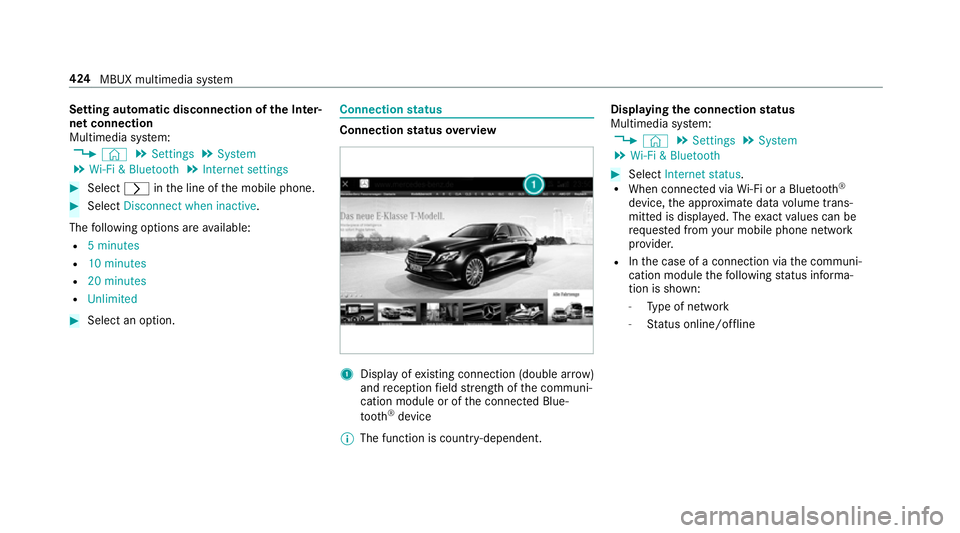
status overview 1
Display of existing connection (double ar row)
and reception field stre ngth of the communi‐
cation module or of the connected Blue‐
tooth ®
device
% The function is count ry-dependent. Displ
aying the connection status
Multimedia sy stem:
4 © 5
Settings 5
System
5 Wi-Fi & Bluetooth #
Select Internet status .
R When connected via Wi-Fi or a Blu etoo th®
device, the appr oximate data volume trans‐
mit ted is displa yed. The exact values can be
re qu ested from your mobile phone network
pr ov ider.
R Inthe case of a connection via the communi‐
cation module thefo llowing status informa‐
tion is shown:
- Type of network
- Status online/of fline 424
MBUX multimedia sy stem
Page 432 of 645
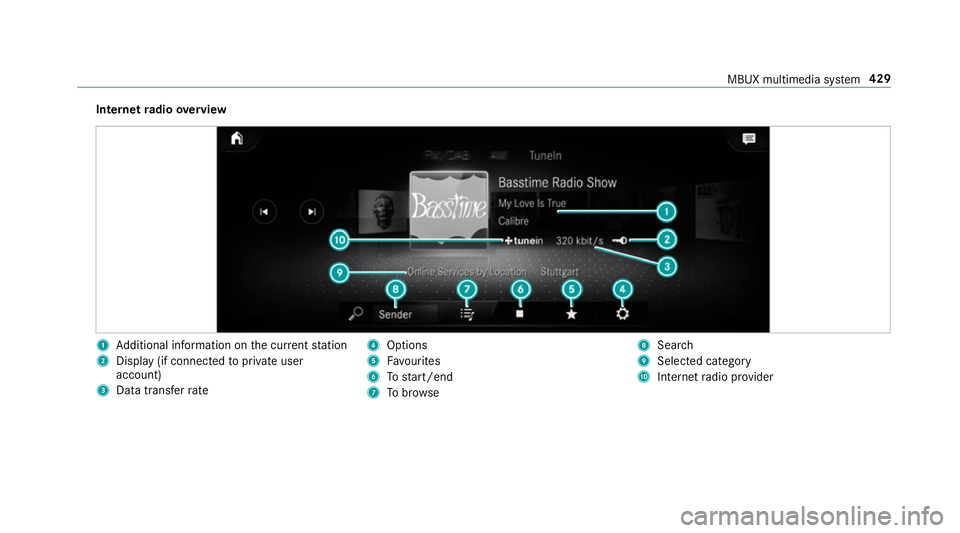
Internet
radio overview 1
Additional information on the cur rent station
2 Display (if connec tedto private user
account)
3 Data transfer rate 4
Options
5 Favourites
6 Tostart/end
7 Tobrow se 8
Sear ch
9 Selected catego ry
A Internet radio pr ovider MBUX multimedia sy
stem 429
Page 441 of 645
#
Toplay back all results found in the cate‐
gor y:select Play all.
If, forex ample, theAlbums category is
active, all albums found bythe desired artist
will be pla yed bac k. #
Tosort results alphabeticall y:select Sort
from A-Z. #
Tosort results in reve rse alphab etical
order: selectSort from Z-A.
% The available options depend on the selec‐
te d category and the connected device.
Using theke yword sear ch
Multimedia sy stem:
4 © 5
Media
Yo u can look for content using theke yword
sear chwith free text input. #
Select ª.
A ke yboard forch aracter ent ryappears. #
Enterth ete rm sear ched for.
% The sear chbegins with thefirs tch aracter
entered. The more characters entered the
more concr eteth e sear chresults become. #
Select the desired entry fromthere sult list.
If th e selected result is an album, song or a
playback list then playback is star ted. If the
selected result is a new category then this is
opened in the sear ch.
Sear ching for a track acco rding tomood
Multimedia sy stem:
4 © 5
Media 5
5
By sear ching in categories, you can find music
trac kssuitable for a mood. #
Select Mood.
A grid with thefo llowing moods appears:
R Positive
R Calm
R Dark
R Energetic #
Pull the controller tothe desired position.
The sy stem sear ches for trac ksthat are suit‐
able forth e mood entered. Making video settings
Multimedia sy
stem:
4 © 5
Media 5
Z 5
General #
Select Video settings. #
Select an aspect ratio.
Setting full sc reen #
Select G. Ra
dio Switching on the
radio Multimedia sy
stem:
4 © 5
Radio #
Alternatively: press the| button.
The radio display appears. You will hear the
last station pla yed on the last frequency
band selected. 438
MBUX multimedia sy stem