display MERCEDES-BENZ CLA COUPE 2019 Owners Manual
[x] Cancel search | Manufacturer: MERCEDES-BENZ, Model Year: 2019, Model line: CLA COUPE, Model: MERCEDES-BENZ CLA COUPE 2019Pages: 645, PDF Size: 10.94 MB
Page 321 of 645
Entering
characters Using
thech aracter input function &
WARNING Risk of di stra ction from infor‐
mation sy stems and communications
equipment
If yo u operate information and communica‐
tion equipment integ rated in theve hicle
when driving, you will be distracted from the
traf fic situation. This could also cause youto
lose control of theve hicle. #
Only operate this equipment when the
traf fic situation permits. #
Ifyo u cannot be sure of this, stop the
ve hicle whilst paying attention toroad
and traf fic conditions and ope rate the
equipment with theve hicle stationar y. Yo
u must obse rveth e legal requirements forthe
country in whi chyou are cur rently driving when
operating the multimedia sy stem. Re
quirements:
R For the handwriting recognition read-
aloud function: the multimedia sy stem is
equipped with a voice control sy stem.
R The read-aloud function is available forthe
selected sy stem language.
R The handwriting recognition read-aloud func‐
tion is activated.
Character ent rycan be car ried out with these
control elements:
R Touch Control
R Touchsc reen (media display)
R Touchpad
Character input can be star ted with a control
element and resumed with ano ther. #
When theke ypad is shown, en terth ech arac‐
te rs on the control element byswiping and
pressing or bytapping (touchscreen).
or #
Write thech aracters on theto uchpad or the
to uchsc reen. Character input on
theto uchpad is suppo rted by
th efo llowing functions:
R The handwriting recognition suppo rts ch arac‐
te r entry with character suggestions.
R Ifth ere ad aloud function is activated for
handwriting recognition then the entered
ch aracters are read aloud.
Examples of character ent ry:
R Renaming a favo urite
R Entering a de stination address in the naviga‐
tion sy stem
R Ente ring a web address
Entering characters on theto uchpad
Re quirements:
R Ifyo u wish tohave thech aracter input read
aloud: there ad aloud function of the hand‐
writing recognition is switched on
(/ page 297).
R An online connection is requiredfor some
functions. 318
MBUX multimedia sy stem
Page 323 of 645
If
av ailable, thep symbol allo wsyouto
ch ange tovoice input.
% When Touchpad tap is switched on D,
ta pping is suf ficient toselect a character or
an option (/ page 297).#
Call up thech aracter ent ryto rename a
fa vo urite, forex ample (/ page312). #
Select thech aracter byswiping and pressing.
The character is entered in input line 1.
Suggestions are shown in 2. #
Toselect a suggestion: select one ofthe
entri es. #
Ifav ailable, display additional suggestions
with q orr. #
Resume character input. #
Toenter an alternative character: press
and hold a character. #
Select thech aracter. #
Toend character input: presstheG but‐
to n.
% The available editing functions depend on
th e editing task, the language set and the
ch aracter le vel.
% Entry using theke yboard can also be com‐
ple ted using theTo uch Control. 320
MBUX multimedia sy stem
Page 325 of 645
#
Write thech aracter on theto uchpad with a
fi nger.
The character is entered in input line 1.
Suggestions are shown in 2.#
Toselect a suggestion: select one ofthe
entri es. #
Ifav ailable, display additional suggestions
with q orr. #
Resume character input. The letters can be
written next toeach other or abo veeach
ot her. #
Toend character input: presstheG but‐
to n. En
tering characters on theto uchscreen
Re quirements:
R Ifyo u wish tohave thech aracter input read
aloud: there ad aloud function of the hand‐
writing recognition is switched on
(/ page 297).
R An online connection is requiredfor some
functions. 322
MBUX multimedia sy stem
Page 327 of 645
If
av ailable, thep symbol allo wsyouto
ch ange tovoice input. #
Call up thech aracter ent ryto rename a
fa vo urite, forex ample (/ page312).
The keyboard is shown. #
Press brief lyon a character key.
The character is entered in input line 1.
Suggestions are shown in 2. #
Toselect a suggestion: select one ofthe
entri es. #
Ifav ailable, display additional suggestions
with q orr. #
Resume character input. #
Toenter an alternative character: press
and hold a character. #
Select thech aracter. #
Toend character input: presstheG but‐
to n.
% The available editing functions depend on
th e editing task, the language set and the
ch aracter le vel. 324
MBUX multimedia sy stem
Page 329 of 645
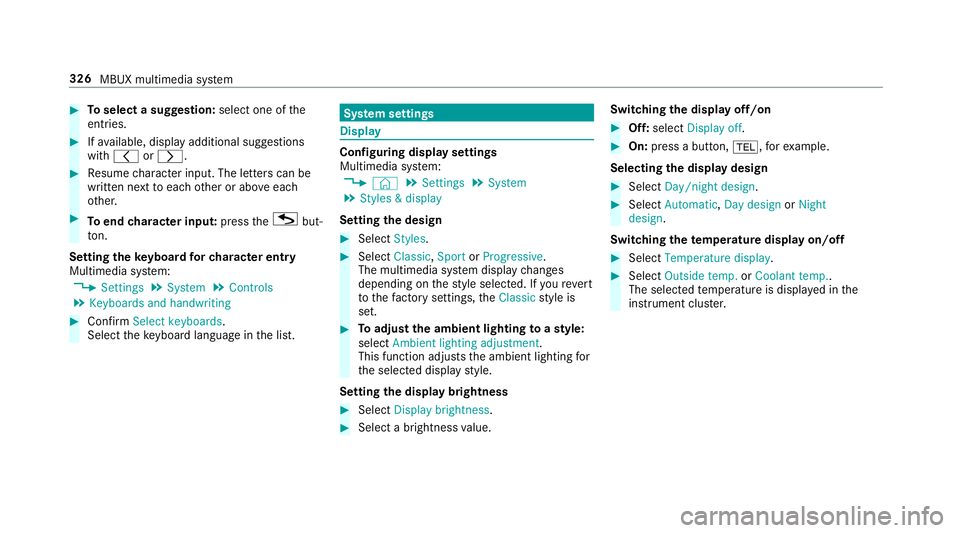
#
Toselect a suggestion: select one ofthe
entri es. #
Ifav ailable, display additional suggestions
with q orr. #
Resume character input. The letters can be
written next toeach other or abo veeach
ot her. #
Toend character input: presstheG but‐
to n.
Setting the keyboard forch aracter entry
Multimedia sy stem:
4 Settings 5
System 5
Controls
5 Keyboards and handwriting #
Confirm Select keyboards.
Select theke yboard language in the list. Sy
stem settings Display
Configuring display settings
Multimedia sy
stem:
4 © 5
Settings 5
System
5 Styles & display
Setting the design #
Select Styles. #
Select Classic ,Sport orProgressive .
The multimedia sy stem display changes
depending on thest yle selected. If youre ve rt
to thefa ctory settings, theClassic style is
set. #
Toadjust the ambient lighting toastyl e:
select Ambient lighting adjustment.
This function adjusts the ambient lighting for
th e selected display style.
Setting the display brightness #
Select Display brightness . #
Select a brightness value. Switching
the display off/on #
Off: select Display off . #
On: press a button, %,forex ample.
Selecting the display design #
Select Day/night design . #
Select Automatic, Day design orNight
design .
Switching thetemp erature display on/off #
Select Temperature display . #
Select Outside temp. orCoolant temp..
The selec tedte mp erature is displa yed in the
instrument clus ter. 326
MBUX multimedia sy stem
Page 333 of 645
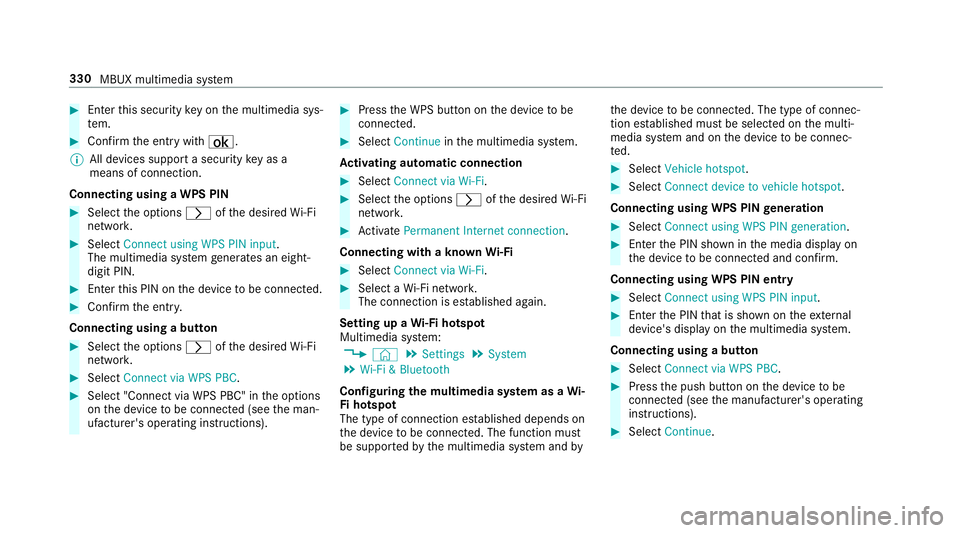
#
Enter this security key on the multimedia sys‐
te m. #
Confirm the entry with¡.
% All devices support a security key as a
means of connection.
Connecting using a WPS PIN #
Select the options rofthe desired Wi-Fi
networ k. #
Select Connect using WPS PIN input .
The multimedia sy stem generates an eight-
digit PIN. #
Enter this PIN on the device tobe connec ted. #
Confirm the entry.
Connecting using a but ton#
Select the options rofthe desired Wi-Fi
networ k. #
Select Connect via WPS PBC .#
Select "Connect via WPS PBC" in the options
on the device tobe connec ted (see the man‐
ufacturer's operating instructions). #
Press the WPS button on the device tobe
connec ted. #
Select Continue inthe multimedia sy stem.
Ac tivating automatic connection #
Select Connect via Wi-Fi . #
Select the options rofthe desired Wi-Fi
networ k. #
Activate Permanent Internet connection .
Connecting with a known Wi-Fi #
Select Connect via Wi-Fi . #
Select a Wi-Fi networ k.
The connection is es tablished again.
Setting up a Wi-Fi hotspot
Multimedia sy stem:
4 © 5
Settings 5
System
5 Wi-Fi & Bluetooth
Configuring the multimedia sy stem as a Wi-
Fi hotspot
The type of connection es tablished depends on
th e device tobe connec ted. The function must
be suppor tedby the multimedia sy stem and byth
e device tobe connec ted. The type of connec‐
tion es tablished must be selected on the multi‐
media sy stem and on the device tobe connec‐
te d. #
Select Vehicle hotspot. #
Select Connect device to vehicle hotspot .
Connecting using WPS PIN generation #
Select Connect using WPS PIN generation. #
Ente rth e PIN shown in the media display on
th e device tobe connec ted and con firm.
Connecting using WPS PIN entry #
Select Connect using WPS PIN input. #
Enterth e PIN that is shown on theex tern al
device's display on the multimedia sy stem.
Connecting using a button #
Select Connect via WPS PBC. #
Press the push button on the device tobe
connec ted (see the manufacturer's operating
instructions). #
Select Continue. 330
MBUX multimedia sy stem
Page 334 of 645
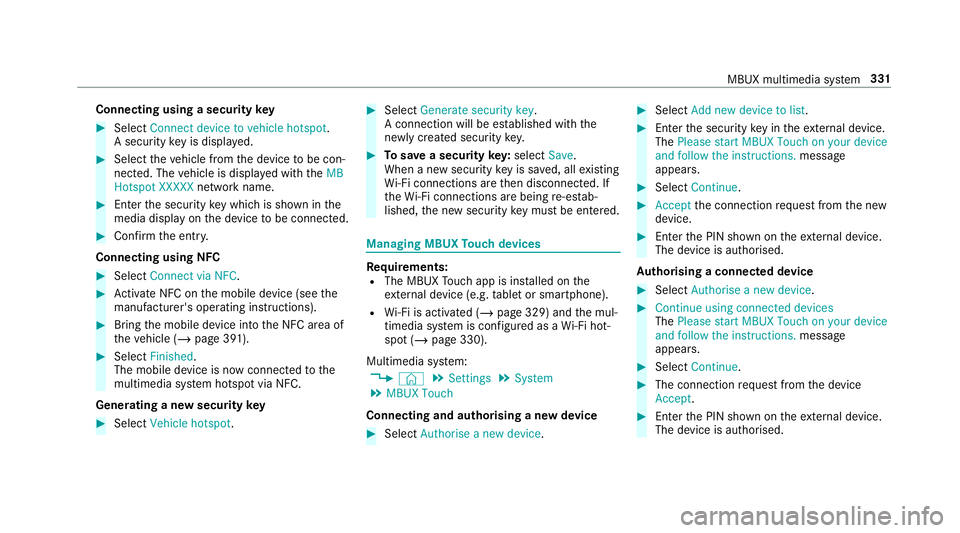
Connecting using a security
key#
Select Connect device to vehicle hotspot .
A secu rity key is displa yed. #
Select theve hicle from the device tobe con‐
nec ted. The vehicle is displa yed with theMB
Hotspot XXXXX network name. #
Ente rth e security key which is shown in the
media display on the device tobe connec ted. #
Confirm the entry.
Connecting using NFC #
Select Connect via NFC. #
Activate NFC on the mobile device (see the
manufacturer's operating instructions). #
Bring the mobile device into the NFC area of
th eve hicle (/ page 391). #
Select Finished.
The mobile device is now connected tothe
multimedia sy stem hotspot via NFC.
Generating a new security key#
Select Vehicle hotspot. #
Select Generate security key .
A connection will be es tablished with the
newly crea ted security key. #
Tosave a security key:select Save.
When a new security key is sa ved, all existing
Wi -Fi connections are then disconnected. If
th eWi -Fi connections are being re-es tab‐
lished, the new security key must be en tere d. Managing MBUX
Touch devices Re
quirements:
R The MBUX Touch app is ins talled on the
ex tern al device (e.g. tablet or smartphone).
R Wi-Fi is acti vated (/ page 329) and the mul‐
timedia sy stem is confi gured as a Wi-Fi hot‐
spot (/ page 330).
Multimedia sy stem:
4 © 5
Settings 5
System
5 MBUX Touch
Connecting and authorising a new device #
Select Authorise a new device. #
Select Add new device to list. #
Ente rth e security key in theex tern al device.
The Please start MBUX Touch on your device
and follow the instructions. message
appears. #
Select Continue. #
Accept the connection requ est from the new
device. #
Ente rth e PIN shown on theex tern al device.
The device is authorised.
Au thorising a connected device #
Select Authorise a new device. #
Continue using connected devices
The Please start MBUX Touch on your device
and follow the instructions. message
appears. #
Select Continue. #
The connection requ est from the device
Accept. #
Ente rth e PIN shown on theex tern al device.
The device is authorised. MBUX multimedia sy
stem 331
Page 344 of 645
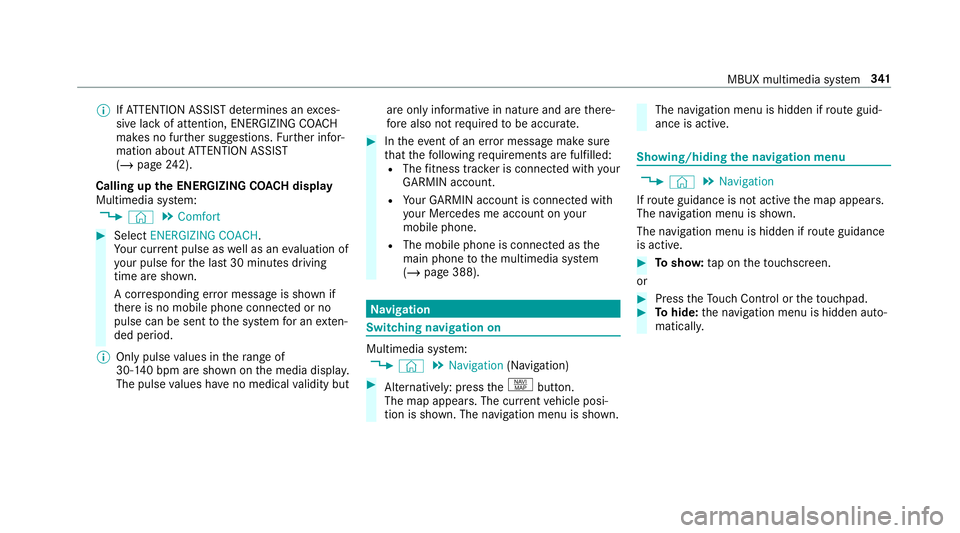
%
IfAT TENTION ASSIST de term ines an exces‐
sive lack of attention, ENERG IZINGCOACH
makes no fur ther suggestions. Further infor‐
mation about ATTENTION ASSIST
(/ page 242).
Calling up the ENERGIZING CO ACH display
Multimedia sy stem:
4 © 5
Comfort #
Select ENERGIZING COACH.
Yo ur cur rent pulse as well as an evaluation of
yo ur pulse forth e last 30 minutes driving
time are shown.
A cor responding er ror messa geis shown if
th ere is no mobile phone connected or no
pulse can be sent tothe sy stem for an exten‐
ded pe riod.
% Only pulse values in thera nge of
30‑140 bpm are shown on the media displa y.
The pulse values ha veno medical validity but are only informative in nature and are
there‐
fo re also not requ ired tobe accura te. #
Intheeve nt of an er ror messa gemake sure
th at thefo llowing requ irements are fulfilled:
R The fitness trac ker is connected with your
GARMIN account.
R Your GARMIN account is connected with
yo ur Mercedes me account on your
mobile phone.
R The mobile phone is connected as the
main phone tothe multimedia sy stem
(/ page 388). Na
vigation Switching navigation on
Multimedia sy
stem:
4 © 5
Navigation (Navigation) #
Alternatively: press thez button.
The map appears. The cur rent vehicle posi‐
tion is shown. The navigation menu is shown. The navigation menu is hidden if
route guid‐
ance is active. Showing/hiding
the navigation menu 4
© 5
Navigation
If ro ute guidance is not active the map appears.
The navigation menu is shown.
The navigation menu is hidden if route guidance
is active. #
Tosho w:tap on theto uchsc reen.
or #
Press theTo uch Control or theto uchpad. #
Tohide: the navigation menu is hidden auto‐
maticall y. MBUX multimedia sy
stem 341
Page 352 of 645
Entering
the destination as a 3 wordaddress
Re quirements:
R Sear ching for a destination using 3 word
addresses is possible in the online sear ch
( / page 343).
R The media display sho wsan In tern et connec‐
tion wi tha double-ar rowsymbol in thest atus
line.
% Sear ching for a destination using 3 word
addresses is not possible in all countries and
in all languages.
Multimedia sy stem:
4 © 5
Navigation 5
ª Where to? #
Select the count ryindicator. #
Select the pr ovider forth e online service
from the count ries list.
or #
Ifth e on-board sear chdelivers no sear ch
re sults, enter the destination address as a 3
wo rdaddress. Separate each of thewo rds
with a full stop.
The sear chresults are displa yed. #
Select the destination in the list.
The destination address is shown. The route
can be calculated.
% 3wo rdaddresses from what3words are an
alternative addressing sy stem for multilin‐
gual georeferencing of global locations with
a re solution of thre e metres. Using this grid,
locations on the Ear th's sur face are included
whi chdo not ha vea building address such
as stre et and house number, forex ample.
The Brandenburg Gate has this language
dependent 3 wordaddress:
R German: tapfer.ge bäude.verliehen
R Engl ish:that.lands.winning
R French: posteaux.bobineur.ombrant
3 wo rdaddresses are unique, easy to
re member and suf fice for most routine appli‐
cations.
Yo u can co nvertaddresses to3wo rd
addresses and back again:
R atthewe bsite http://what3words.com
R inthe what3words apps Selecting a destination on
the map
Multimedia sy stem:
4 © 5
Navigation #
Movethe map (/ page375). #
Using theto uchscreen: press and hold on
th eto uchsc reen.
The destination address is shown.
If se veral destinations are located at the
selected position, a list sho wstheav ailable
ro ads and POIs. #
Select the destination in the list.
The destination address is shown. The route
can be calculated. #
Using theto uchpad: whenthe crosshair
mar ksthe destination, press and hold on the
control element.
The destination address is shown.
If se veral destinations are located around the
crosshair, a li stsho wstheav ailable roads
and POIs. #
Select the destination in the list.
The destination address is shown. The route
can be calculated. MBUX multimedia sy
stem 349
Page 353 of 645
Showing POIs in
the vicinity of the map
If se veral destinations are located around the
crosshair, the function is available. #
Select Ä. #
Select POIs in the vicinity.
The map appears. #
Swipe left or right on the control element.
The pr evious or next POI is highligh ted on the
map. The name or the address is shown. #
Select the POI symbol.
or #
Tofilter the display according tothe POI
categor y:scroll on the control element. #
Select the POI categor y.
Selecting a destination from favo urites
Re quirements:
R Destinations are sa ved as favo urites.
Sa ve a pr evious destination or a destination
suggestion as a favo urite (/ page 366). Multimedia sy
stem:
4 © 5
Navigation 5
ª Where to?
5 FAVOURITES #
Select a favo urite.
The destination address is shown. The route
can be calculated.
The following options are available in thefa vo ur‐
ites menu:
R Saving addresses for home and work
R Creating favo urites
R Deleting favo urites #
If no address has been sa vedfo r home
and work:select HomeorWork. #
Confirm the prom ptwith Yes. #
Enterth efa vo urite as a POI or address
(/ page 343). #
Tosave afa vo urite: select Add favourites. #
Enter thefa vo urite as a POI or address
(/ page 343).
or #
If all the positions in thefa vo urites are full,
fi rs t select a favo urite which is tobe ove r‐
written (/ page311). #
Follow the instructions pr ovided. #
Todel ete a favo urite: select Vfor a des‐
tination. #
Select Delete.
or #
Press on a favo urite until theOPTIONS menu
is shown. #
Select Delete.
Selecting received destinations
Re quirements:
R There is an Internet connection.
R A destination has been sent totheve hicle.
Multimedia sy stem:
4 © 5
Navigation 5
ª Where to?
5 RECEIVED DESTINAT.
The vehicle can recei vedestinations from serv‐
ices or apps. 350
MBUX multimedia sy stem