change wheel MERCEDES-BENZ CLS 2012 User Guide
[x] Cancel search | Manufacturer: MERCEDES-BENZ, Model Year: 2012, Model line: CLS, Model: MERCEDES-BENZ CLS 2012Pages: 356, PDF Size: 14.25 MB
Page 160 of 356
conditions. Additionally, the driver must
provide the steering, braking and other driving
inputs necessary to remain in control of the
vehicle.
High-frequency sources such as toll stations,
speed measuring systems etc. can cause the
DISTRONIC PLUS system to temporarily
cease functioning.GWARNING
The DISTRONIC PLUS cannot take road and
traffic conditions into account. Only use the
DISTRONIC PLUS if the road, weather and
traffic conditions make it advisable to travel
at a constant speed.
GWARNING
Use of the DISTRONIC PLUS can be
dangerous on slippery roads. Rapid changes
in tire traction can result in wheel spin and
loss of control.
The DISTRONIC PLUS does not function in
adverse sight and distance conditions. Do not
use the DISTRONIC PLUS during conditions of
fog, heavy rain, snow or sleet.
GWARNING
The DISTRONIC PLUS cannot take weather
conditions into account. Switch off the
DISTRONIC PLUS or do not switch it on if:
R roads are slippery or covered with snow or
ice. The wheels could lose traction while
braking or accelerating, and the vehicle
could skid.
R the DISTRONIC PLUS system sensor covers
are dirty or visibility is diminished due to
snow, rain or fog, for example. The distance
control system functionality could be
impaired.
Always pay attention to surrounding traffic
conditions even while the DISTRONIC PLUS is
switched on. Otherwise, you may not be able
to recognize dangerous situations until it is
too late. This could cause an accident in which
you and/or others could be injured.
GWARNING
The "Resume" function should only be
operated if the driver is fully aware of the
previously set speed and wishes to resume
this particular preset speed.
GWARNING
Your undivided attention to street and traffic
conditions is necessary at all times whether
DISTRONIC PLUS is active or not.
The use of DISTRONIC PLUS can be
dangerous on winding roads or in heavy traffic
because conditions do not allow safe driving
at a constant speed.
DISTRONIC PLUS does not react to stationary
objects on the road (for example, a vehicle
stopped in traffic or an abandoned vehicle).
DISTRONIC PLUS likewise does not react to
oncoming vehicles.
Deactivate DISTRONIC PLUS:
R when changing to the right lane, if the
vehicles in the left lane are driving slower
R when driving into a filter lane or an
expressway exit
R in complex driving situations, for example
at roadworks on an expressway
In these situations DISTRONIC PLUS will
maintain the set speed if it is not deactivated.
DISTRONIC PLUS is intended only for
maintaining a set speed and a set distance
from the objects moving in front of the
vehicle.
GWARNING
An intermittent warning sounds and the
distance warning lamp · in the instrument
cluster is illuminated if the DISTRONIC PLUS
system calculates that the distance to the
vehicle ahead and your vehicle's current
speed indicate that the DISTRONIC PLUS will
not be capable of slowing the vehicle
sufficiently to maintain the preset following
distance, which creates a danger of a
collision.
158Driving systemsDriving and parking
Page 171 of 356
iThese changes in level are so slight that
you are hardly aware of them.
The "Normal" and "Raised" vehicle levels can
be set manually.
The "Lowered” vehicle level is set
automatically:
R at speeds above 70 mph (113 km/h)
R if you have selected "Sports tuning"
( Y page 169)
Setting the vehicle level
Select the "Normal" setting for normal road
surfaces and "Raised" for driving with snow
chains or on particularly poor road surfaces.
Your selection remains stored even if you
remove the SmartKey from the ignition lock.GWARNING
To help avoid personal injury, keep hands and
feet away from wheel housing area, and stay
away from under the vehicle when lowering
the vehicle chassis.
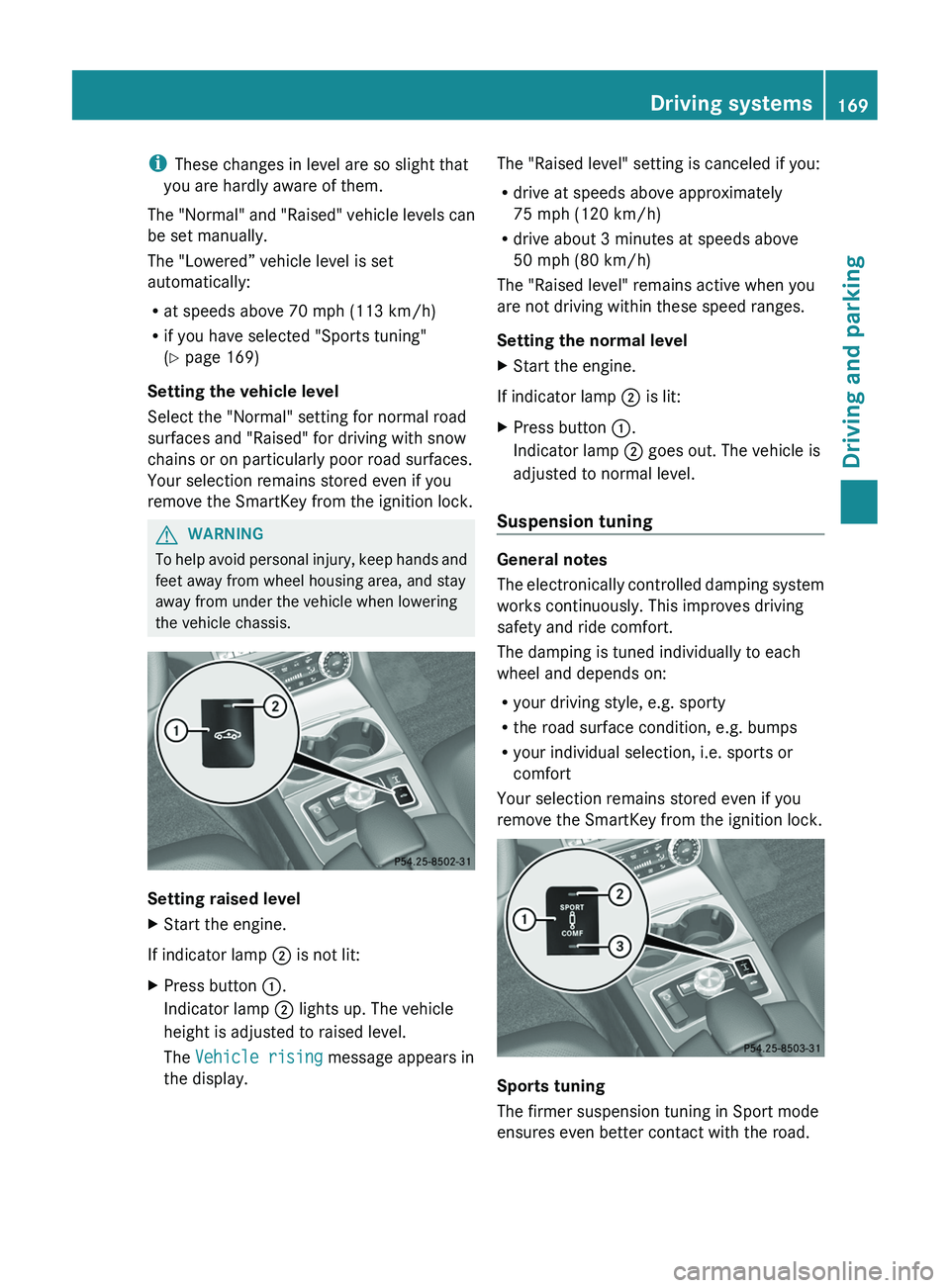
Setting raised level
XStart the engine.
If indicator lamp ; is not lit:
XPress button :.
Indicator lamp ; lights up. The vehicle
height is adjusted to raised level.
The Vehicle rising message appears in
the display.The "Raised level" setting is canceled if you:
R drive at speeds above approximately
75 mph (120 km/h)
R drive about 3 minutes at speeds above
50 mph (80 km/h)
The "Raised level" remains active when you
are not driving within these speed ranges.
Setting the normal levelXStart the engine.
If indicator lamp ; is lit:
XPress button :.
Indicator lamp ; goes out. The vehicle is
adjusted to normal level.
Suspension tuning
General notes
The electronically controlled damping system
works continuously. This improves driving
safety and ride comfort.
The damping is tuned individually to each
wheel and depends on:
R your driving style, e.g. sporty
R the road surface condition, e.g. bumps
R your individual selection, i.e. sports or
comfort
Your selection remains stored even if you
remove the SmartKey from the ignition lock.
Sports tuning
The firmer suspension tuning in Sport mode
ensures even better contact with the road.
Driving systems169Driving and parkingZ
Page 178 of 356
GWARNING
Objects located above the height range of
Active Parking Assist will not be detected
when the parking space is measured. These
are not taken into account when the parking
procedure is calculated, e.g. overhanging
loads, tail sections or loading ramps of goods
vehicles. In some circumstances, Active
Parking Assist may therefore guide you into
the parking space too early. This may lead to
a collision. For this reason, you should avoid
using Active Parking Assist in such situations.
GWARNING
The front of the vehicle will veer out in the
direction of the oncoming traffic during the
parking operation. In some cases, the vehicle
will also take you onto sections of the
oncoming lane during the parking procedure.
You are responsible for safety at all times and
must pay attention to any road users
approaching or passing. Stop the vehicle if
necessary or cancel the Active Parking Assist
parking procedure.
GWARNING
Make sure no persons or animals are in or
near the area in which you are parking/
maneuvering. Otherwise, they could be
injured.
Use Active Parking Assist for parking spaces:
R that are parallel to the direction of travel
R that are on straight roads, not bends
R that are on the same level as the road, e.g.
not on the pavement
Parking tips:
R on narrow roads, drive past the parking
space as close as possible.
R parking spaces that are littered, overgrown
or partially occupied by trailer drawbars
might be identified incorrectly or not at all.
R snowfall or heavy rain may lead to a parking
space being measured inaccurately.
R pay attention to the PARKTRONIC
( Y page 173) warning messages during the
parking procedure.
R you can intervene in the steering procedure
to correct it at any time. Active Parking
Assist will then be canceled.
R when transporting a load which protrudes
from your vehicle, you should not use
Active Parking Assist.
R never use Active Parking Assist when snow
chains or an emergency spare wheel are
mounted.
R make sure that the tire pressures are
always correct. This has a direct influence
on the parking characteristics of the
vehicle.
R the way your vehicle is positioned in the
parking space after parking is dependent
on various factors. These include the
position and shape of the vehicles parked
in front and behind it and the conditions of
the location. In some cases, Active Parking
Assist may guide you too far into a parking
space, or not far enough into it. In some
cases, it may also lead you across or onto
the curb. If necessary, you should abort the
parking procedure with Active Parking
Assist.
R you can also engage forward gear
prematurely. The vehicle redirects and
does not drive as far into the parking space.
Should the gear change occur too soon to
achieve a sensible parking position, the
parking procedure will be aborted.
! If unavoidable, you should drive over
obstacles such as curbs slowly and not at
a sharp angle. Otherwise, you may damage
the wheels or tires.
Detecting a parking space
Active Parking Assist is switched on
automatically when driving forwards. The
system is operational at speeds of up to
approximately 22 mph (35 km/h). While in
operation, the system independently locates
176Driving systemsDriving and parking
Page 189 of 356
The system may be impaired or may not
function if:
R there is poor visibility, e.g. due to
insufficient illumination of the road, or due
to snow, rain, fog or spray.
R there is glare, e.g. from oncoming traffic,
the sun, or reflection from other vehicles.
R the windshield is dirty, fogged up or
covered, for instance by a sticker, in the
vicinity of the camera.
R several or no lane markings for a single lane
are present.
R the lane markings are worn away, dark or
covered up, e.g. by dirt or snow.
R the distance to the vehicle in front is too
small and the lane markings thus cannot be
detected.
R the lane markings on the road are unclear,
e.g. near roadworks.
R the lane markings change quickly, e.g.
lanes branch off, cross one another or
merge.
R the road is narrow and winding.
Lane Keeping Assist cannot detect road and
traffic conditions. It is not a substitute for
attentive driving. You are responsible for the
vehicle's speed, braking in good time, and
steering correctly. Always adapt your driving
style to suit the prevailing road and weather
conditions. Always pay attention to traffic
conditions and your surroundings. Otherwise,
you may fail to recognize dangers in time,
cause an accident and injure yourself and
others.
A warning can be given when a front wheel
passes over a lane marking. It will warn you
by means of intermittent vibration in the
steering wheel for up to 1.5 seconds.
In order that you are warned only when
necessary and in good time if you cross the
lane marking, the system recognizes certain
conditions and warns you accordingly.The warning vibration occurs earlier if:
R you approach the outer lane marking on a
bend.
R the road has very wide lanes, e.g. a
freeway.
R the system recognizes solid lane markings.
The warning vibration occurs later if:
R the road has narrow lanes.
R you cut the corner on a bend.
No warning vibration occurs if:
R you clearly and actively steer, brake or
accelerate.
R you cut the corner on a sharp bend.
R a driving safety system intervenes, e.g.
ABS, BAS or ESP ®
.
R you switch on the turn signals. In this event,
the warnings are suppressed for a certain
period of time.
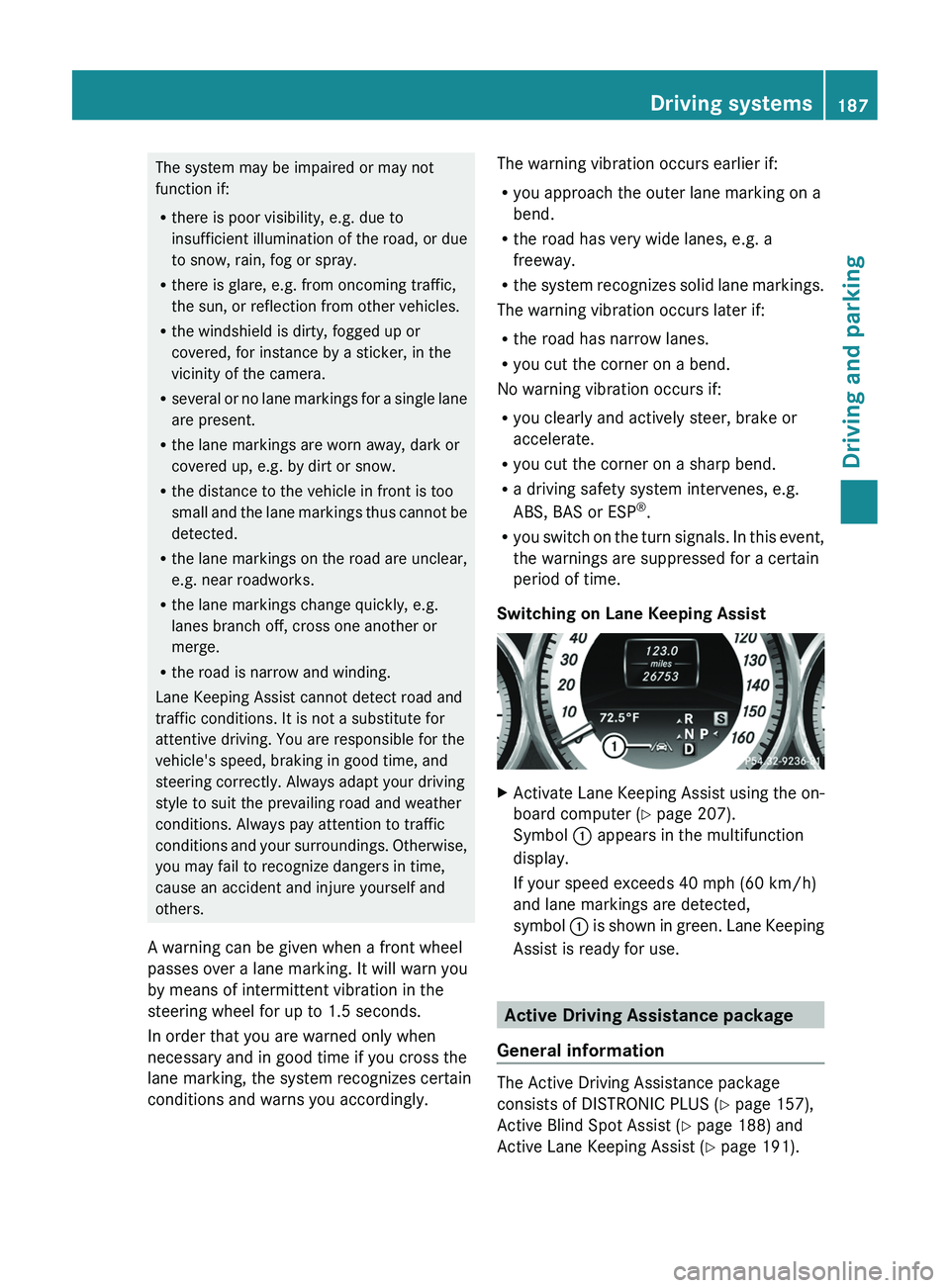
Switching on Lane Keeping AssistXActivate Lane Keeping Assist using the on-
board computer ( Y page 207).
Symbol : appears in the multifunction
display.
If your speed exceeds 40 mph (60 km/h)
and lane markings are detected,
symbol : is shown in green. Lane Keeping
Assist is ready for use.
Active Driving Assistance package
General information
The Active Driving Assistance package
consists of DISTRONIC PLUS ( Y page 157),
Active Blind Spot Assist ( Y page 188) and
Active Lane Keeping Assist ( Y page 191).
Driving systems187Driving and parkingZ
Page 193 of 356
Active Lane Keeping Assist
Important safety notes
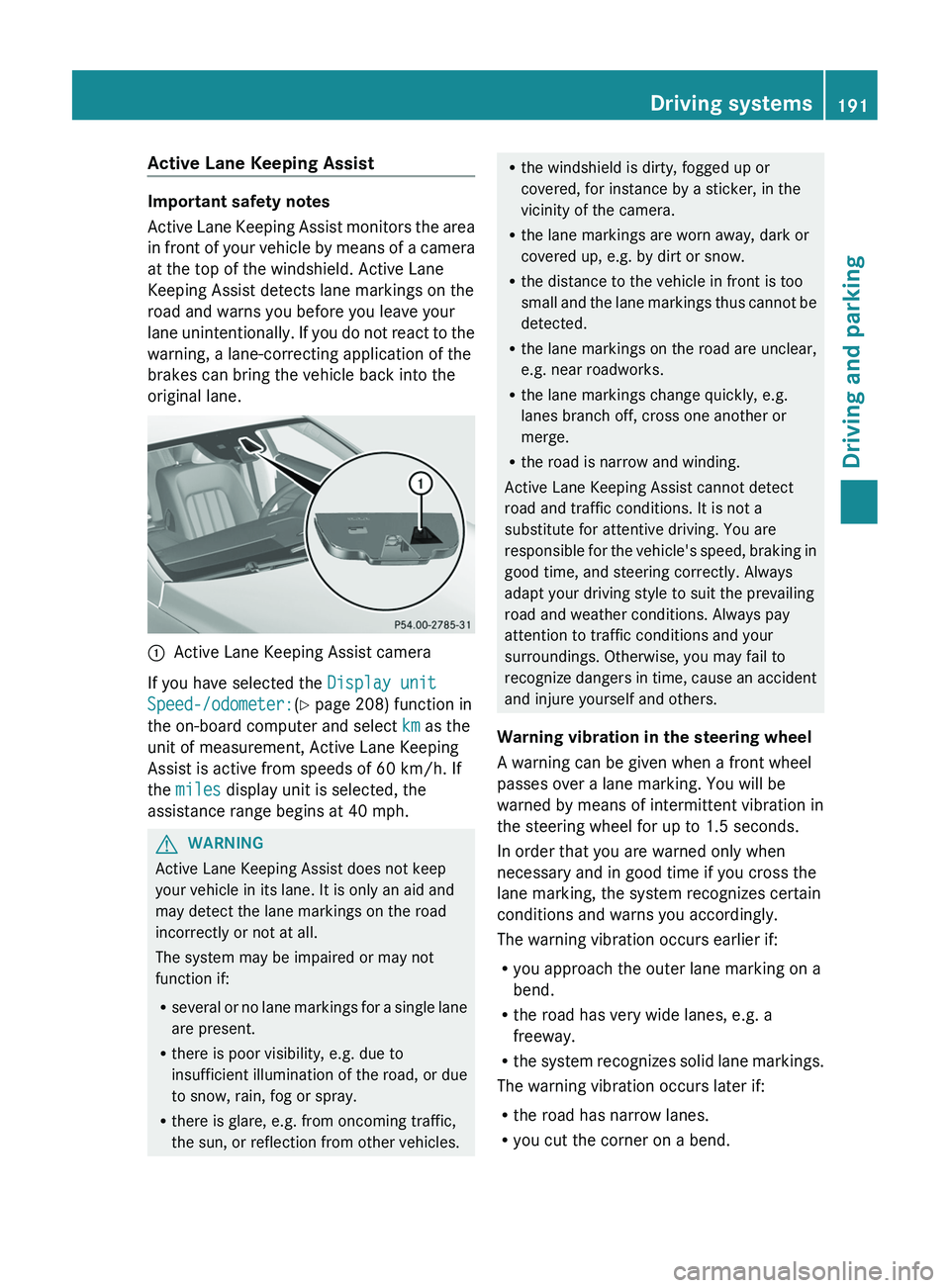
Active Lane Keeping Assist monitors the area
in front of your vehicle by means of a camera
at the top of the windshield. Active Lane
Keeping Assist detects lane markings on the
road and warns you before you leave your
lane unintentionally. If you do not react to the
warning, a lane-correcting application of the
brakes can bring the vehicle back into the
original lane.
:Active Lane Keeping Assist camera
If you have selected the Display unit
Speed-/odometer: (Y page 208) function in
the on-board computer and select km as the
unit of measurement, Active Lane Keeping
Assist is active from speeds of 60 km/h. If
the miles display unit is selected, the
assistance range begins at 40 mph.
GWARNING
Active Lane Keeping Assist does not keep
your vehicle in its lane. It is only an aid and
may detect the lane markings on the road
incorrectly or not at all.
The system may be impaired or may not
function if:
R several or no lane markings for a single lane
are present.
R there is poor visibility, e.g. due to
insufficient illumination of the road, or due
to snow, rain, fog or spray.
R there is glare, e.g. from oncoming traffic,
the sun, or reflection from other vehicles.
R the windshield is dirty, fogged up or
covered, for instance by a sticker, in the
vicinity of the camera.
R the lane markings are worn away, dark or
covered up, e.g. by dirt or snow.
R the distance to the vehicle in front is too
small and the lane markings thus cannot be
detected.
R the lane markings on the road are unclear,
e.g. near roadworks.
R the lane markings change quickly, e.g.
lanes branch off, cross one another or
merge.
R the road is narrow and winding.
Active Lane Keeping Assist cannot detect
road and traffic conditions. It is not a
substitute for attentive driving. You are
responsible for the vehicle's speed, braking in
good time, and steering correctly. Always
adapt your driving style to suit the prevailing
road and weather conditions. Always pay
attention to traffic conditions and your
surroundings. Otherwise, you may fail to
recognize dangers in time, cause an accident
and injure yourself and others.
Warning vibration in the steering wheel
A warning can be given when a front wheel
passes over a lane marking. You will be
warned by means of intermittent vibration in
the steering wheel for up to 1.5 seconds.
In order that you are warned only when
necessary and in good time if you cross the
lane marking, the system recognizes certain
conditions and warns you accordingly.
The warning vibration occurs earlier if:
R you approach the outer lane marking on a
bend.
R the road has very wide lanes, e.g. a
freeway.
R the system recognizes solid lane markings.
The warning vibration occurs later if:
R the road has narrow lanes.
R you cut the corner on a bend.Driving systems191Driving and parkingZ
Page 199 of 356
! If the coolant temperature is too high a
display message is shown.
If the coolant temperature rises above
248 ‡(120 †), do not drive any further as
this could damage the engine.
Tachometer
The red band in the tachometer indicates the
engine's overrevving range.
! Do not drive in the overrevving range, as
this could damage the engine.
The fuel supply is interrupted to protect the
engine when the red band is reached.
Outside temperature display
The outside temperature display is in the
multifunction display ( Y page 198).
GWARNING
The outside temperature indicator is not
designed to serve as an ice-warning device
and is therefore unsuitable for that purpose.
Indicated temperatures just above the
freezing point do not guarantee that the road
surface is free of ice. The road may still be icy,
especially in wooded areas or on bridges.
Changes in the outside temperature are
displayed after a short delay.
Speedometer with segments
The segments in the speedometer indicate
which speed range is available.
Cruise control ( Y page 155) activated:
The segments light up from the stored speed
to the maximum speed.
DISTRONIC PLUS ( Y page 157) activated:
One or two segments in the set speed range
light up.
DISTRONIC PLUS detects a vehicle in front:
The segments between the speed of the
vehicle in front and the stored speed light up.
Operating the on-board computer
Overview
The on-board computer is activated as soon
as you turn the SmartKey to position 1 in the
ignition lock.
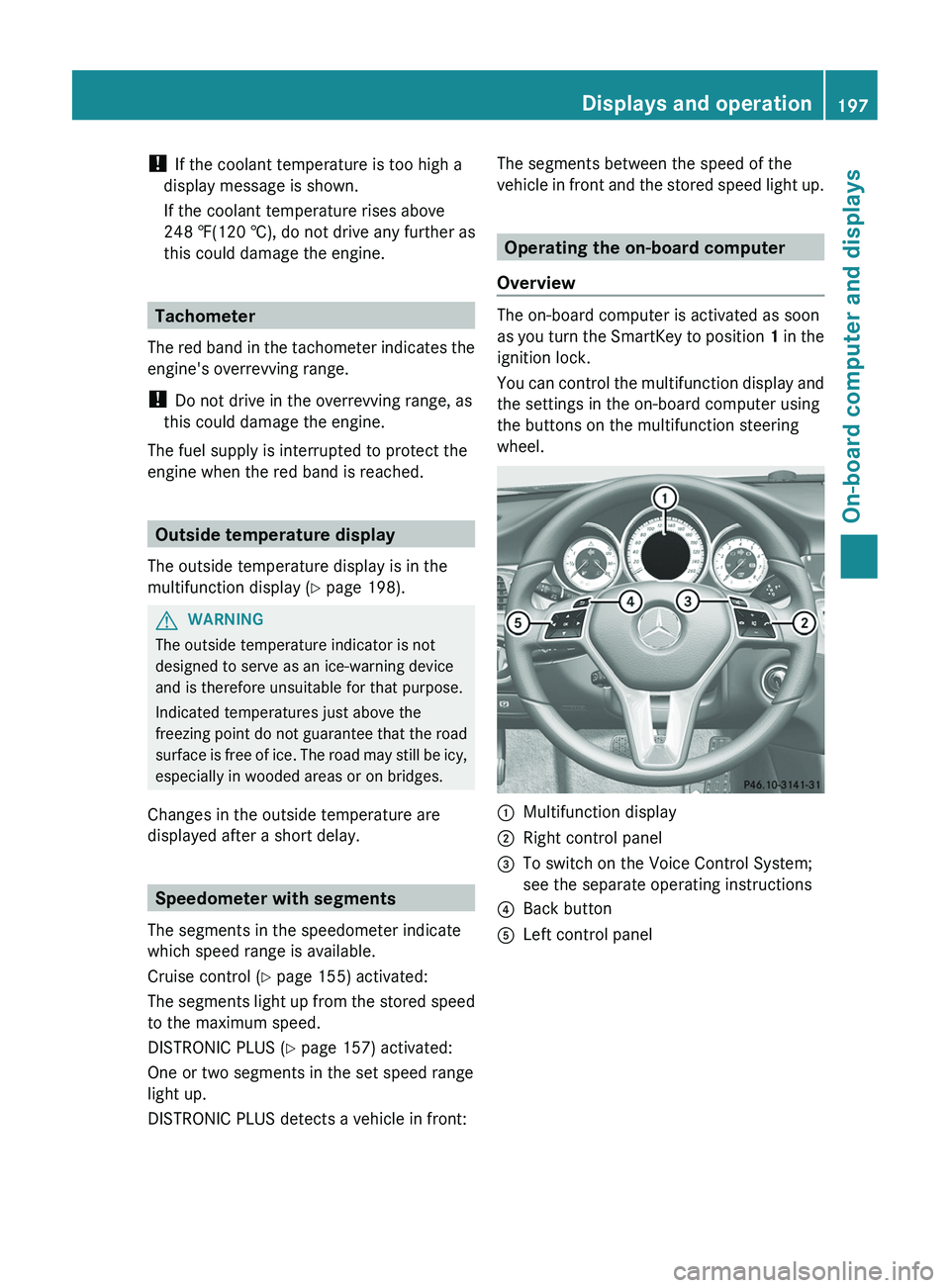
You can control the multifunction display and
the settings in the on-board computer using
the buttons on the multifunction steering
wheel.
:Multifunction display;Right control panel=To switch on the Voice Control System;
see the separate operating instructions?Back buttonALeft control panelDisplays and operation197On-board computer and displaysZ
Page 204 of 356
Resetting values
You can reset the values of the following
functions:
R Trip odometer
R Trip computer "From start"
R Trip computer "From reset"
XPress the = or ; button on the
steering wheel to select the Trip menu.XPress the 9 or : button to select the
function that you wish to reset.XPress a.
Resetting the trip computer "From start" (example)
XPress : to select Yes and press a
to confirm.
Navigation system menu
Displaying navigation instructions
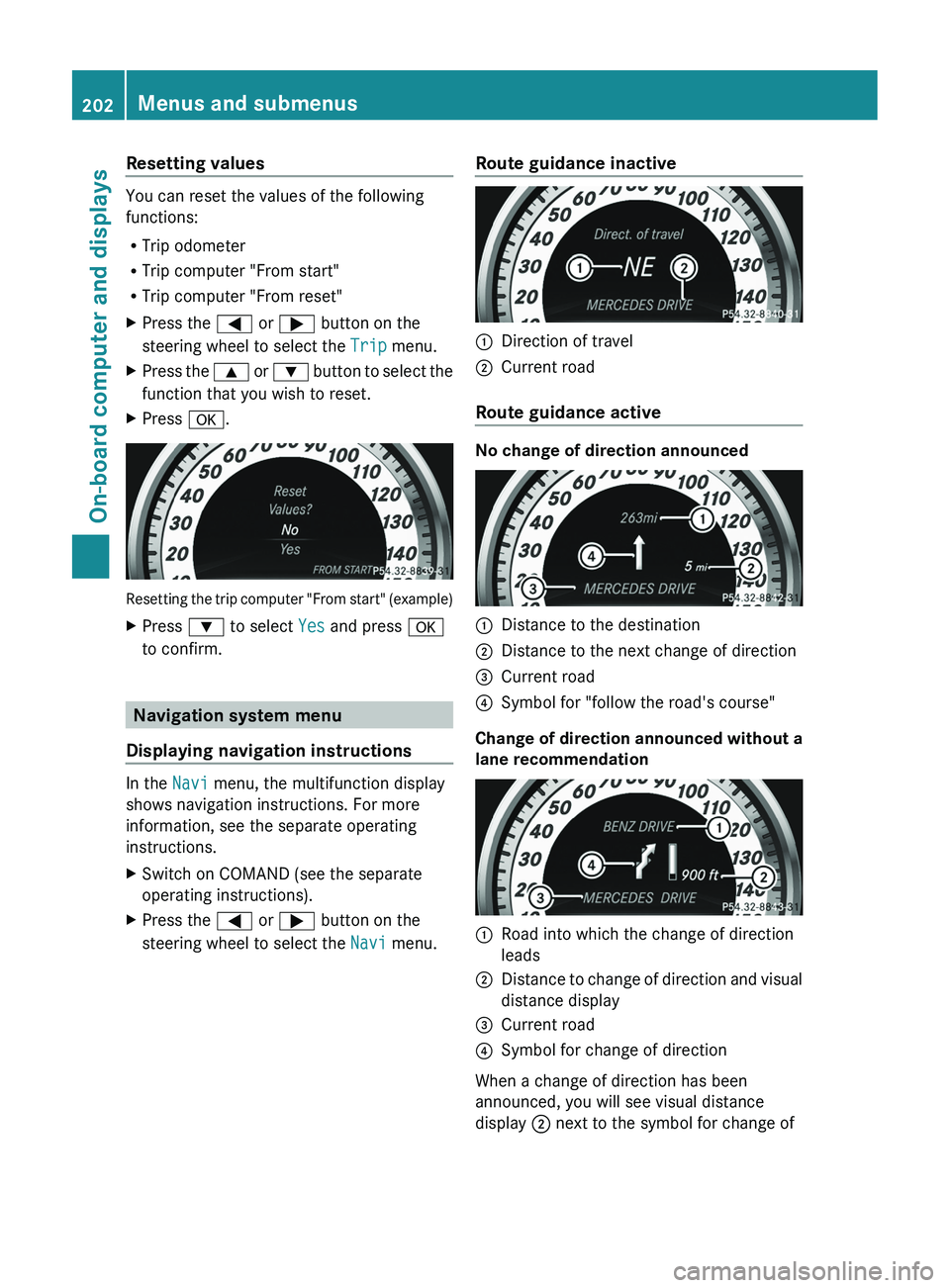
In the Navi menu, the multifunction display
shows navigation instructions. For more
information, see the separate operating
instructions.
XSwitch on COMAND (see the separate
operating instructions).XPress the = or ; button on the
steering wheel to select the Navi menu.Route guidance inactive:Direction of travel;Current road
Route guidance active
No change of direction announced
:Distance to the destination;Distance to the next change of direction=Current road?Symbol for "follow the road's course"
Change of direction announced without a
lane recommendation
:Road into which the change of direction
leads;Distance to change of direction and visual
distance display=Current road?Symbol for change of direction
When a change of direction has been
announced, you will see visual distance
display ; next to the symbol for change of
202Menus and submenusOn-board computer and displays
Page 205 of 356
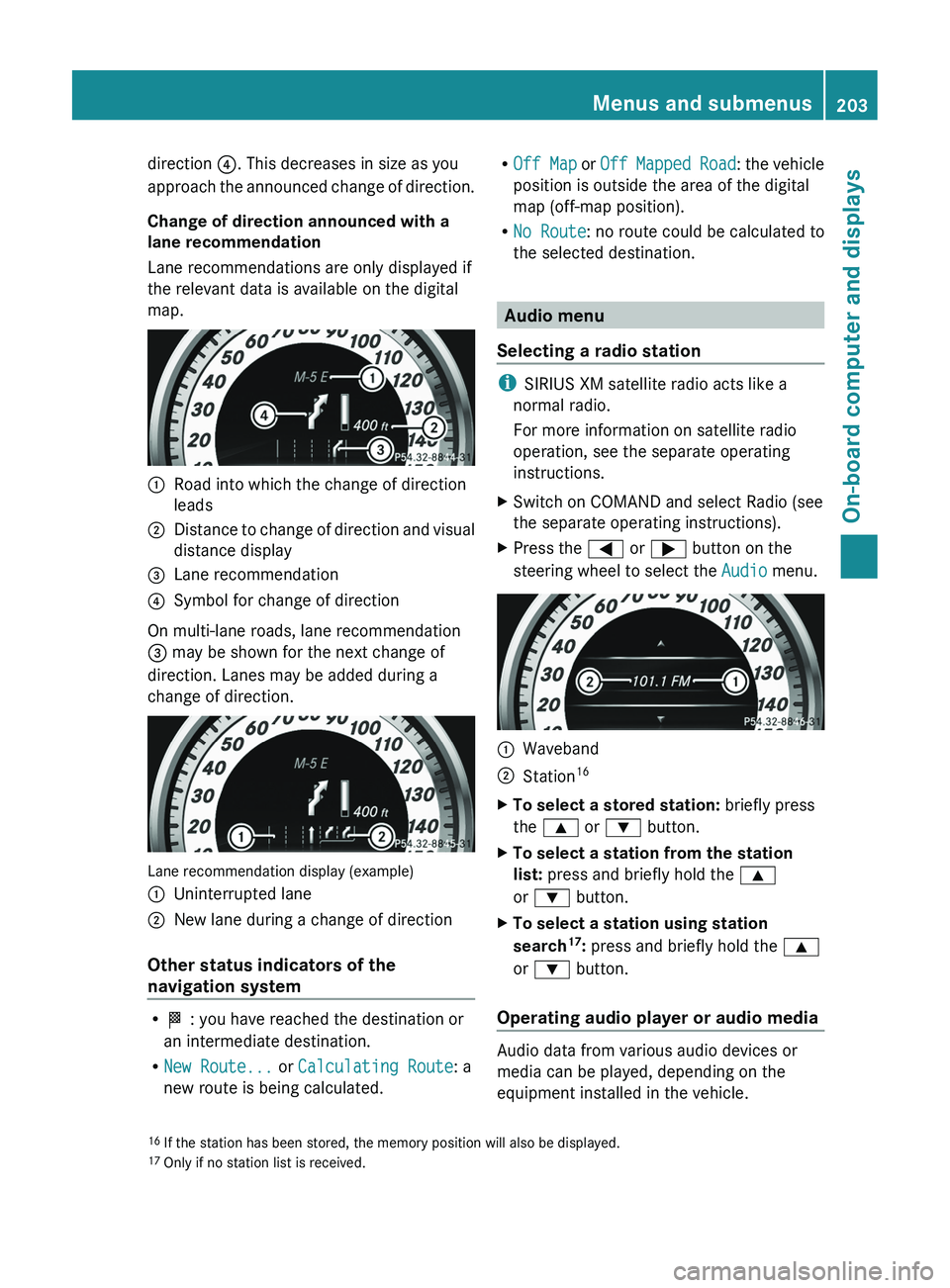
direction ?. This decreases in size as you
approach the announced change of direction.
Change of direction announced with a
lane recommendation
Lane recommendations are only displayed if
the relevant data is available on the digital
map.:Road into which the change of direction
leads;Distance to change of direction and visual
distance display=Lane recommendation?Symbol for change of direction
On multi-lane roads, lane recommendation
= may be shown for the next change of
direction. Lanes may be added during a
change of direction.
Lane recommendation display (example)
:Uninterrupted lane;New lane during a change of direction
Other status indicators of the
navigation system
R O : you have reached the destination or
an intermediate destination.
R New Route... or Calculating Route : a
new route is being calculated.
R Off Map or Off Mapped Road : the vehicle
position is outside the area of the digital
map (off-map position).
R No Route : no route could be calculated to
the selected destination.
Audio menu
Selecting a radio station
i SIRIUS XM satellite radio acts like a
normal radio.
For more information on satellite radio
operation, see the separate operating
instructions.
XSwitch on COMAND and select Radio (see
the separate operating instructions).XPress the = or ; button on the
steering wheel to select the Audio menu.:Waveband;Station 16XTo select a stored station:
briefly press
the 9 or : button.XTo select a station from the station
list: press and briefly hold the 9
or : button.XTo select a station using station
search 17
: press and briefly hold the 9
or : button.
Operating audio player or audio media
Audio data from various audio devices or
media can be played, depending on the
equipment installed in the vehicle.
16 If the station has been stored, the memory position will also be displayed.
17 Only if no station list is received.Menus and submenus203On-board computer and displaysZ
Page 206 of 356
XSwitch on COMAND and select the audio
device or medium (see the separate
operating instructions).XPress the = or ; button on the
steering wheel to select the Audio menu.
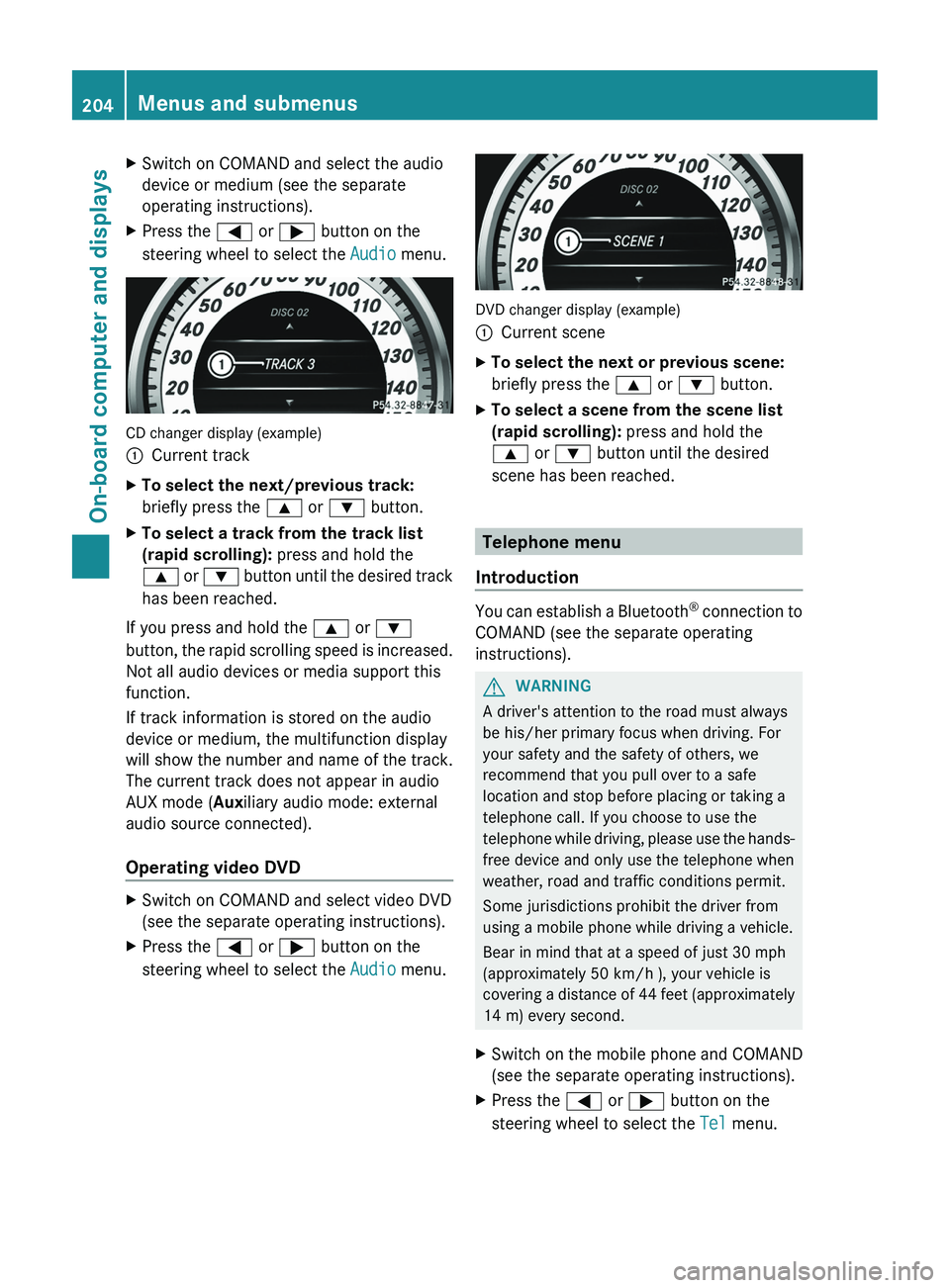
CD changer display (example)
:Current trackXTo select the next/previous track:
briefly press the 9 or : button.XTo select a track from the track list
(rapid scrolling): press and hold the
9 or : button until the desired track
has been reached.
If you press and hold the 9 or :
button, the rapid scrolling speed is increased.
Not all audio devices or media support this
function.
If track information is stored on the audio
device or medium, the multifunction display
will show the number and name of the track.
The current track does not appear in audio
AUX mode ( Auxiliary audio mode: external
audio source connected).
Operating video DVD
XSwitch on COMAND and select video DVD
(see the separate operating instructions).XPress the = or ; button on the
steering wheel to select the Audio menu.
DVD changer display (example)
:Current sceneXTo select the next or previous scene:
briefly press the 9 or : button.XTo select a scene from the scene list
(rapid scrolling): press and hold the
9 or : button until the desired
scene has been reached.
Telephone menu
Introduction
You can establish a Bluetooth ®
connection to
COMAND (see the separate operating
instructions).
GWARNING
A driver's attention to the road must always
be his/her primary focus when driving. For
your safety and the safety of others, we
recommend that you pull over to a safe
location and stop before placing or taking a
telephone call. If you choose to use the
telephone while driving, please use the hands-
free device and only use the telephone when
weather, road and traffic conditions permit.
Some jurisdictions prohibit the driver from
using a mobile phone while driving a vehicle.
Bear in mind that at a speed of just 30 mph
(approximately 50 km/h ), your vehicle is
covering a distance of 44 feet (approximately
14 m) every second.
XSwitch on the mobile phone and COMAND
(see the separate operating instructions).XPress the = or ; button on the
steering wheel to select the Tel menu.204Menus and submenusOn-board computer and displays
Page 237 of 356
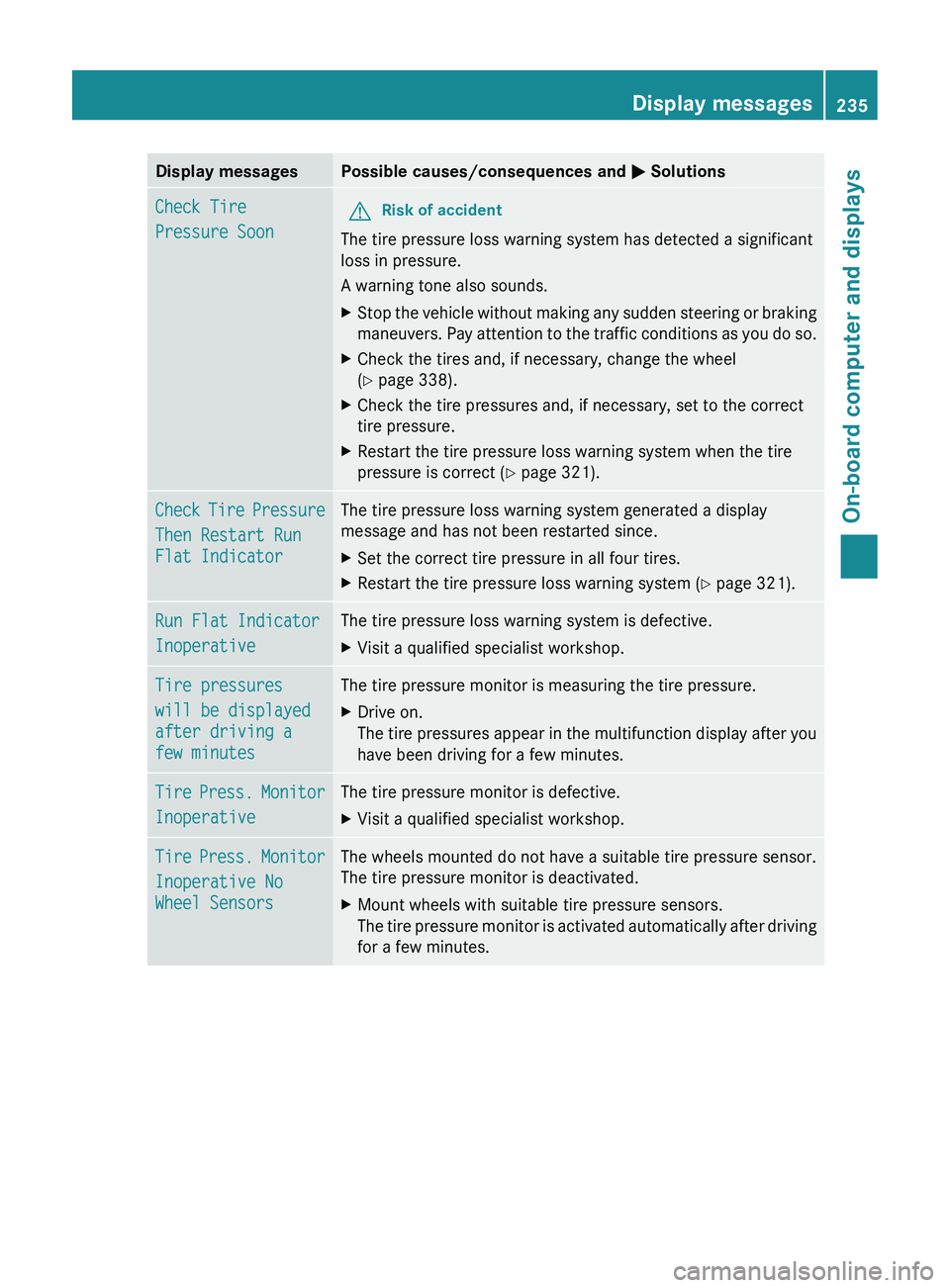
Display messagesPossible causes/consequences and M SolutionsCheck Tire
Pressure SoonGRisk of accident
The tire pressure loss warning system has detected a significant
loss in pressure.
A warning tone also sounds.
XStop the vehicle without making any sudden steering or braking
maneuvers. Pay attention to the traffic conditions as you do so.XCheck the tires and, if necessary, change the wheel
( Y page 338).XCheck the tire pressures and, if necessary, set to the correct
tire pressure.XRestart the tire pressure loss warning system when the tire
pressure is correct ( Y page 321).Check Tire Pressure
Then Restart Run
Flat IndicatorThe tire pressure loss warning system generated a display
message and has not been restarted since.XSet the correct tire pressure in all four tires.XRestart the tire pressure loss warning system ( Y page 321).Run Flat Indicator
InoperativeThe tire pressure loss warning system is defective.XVisit a qualified specialist workshop.Tire pressures
will be displayed
after driving a
few minutesThe tire pressure monitor is measuring the tire pressure.XDrive on.
The tire pressures appear in the multifunction display after you
have been driving for a few minutes.Tire Press. Monitor
InoperativeThe tire pressure monitor is defective.XVisit a qualified specialist workshop.Tire Press. Monitor
Inoperative No
Wheel SensorsThe wheels mounted do not have a suitable tire pressure sensor.
The tire pressure monitor is deactivated.XMount wheels with suitable tire pressure sensors.
The tire pressure monitor is activated automatically after driving
for a few minutes.Display messages235On-board computer and displaysZ