aux MERCEDES-BENZ CLS-Class 2012 W218 Comand Manual
[x] Cancel search | Manufacturer: MERCEDES-BENZ, Model Year: 2012, Model line: CLS-Class, Model: MERCEDES-BENZ CLS-Class 2012 W218Pages: 234, PDF Size: 6.74 MB
Page 179 of 234
Selec
tingatrac k
Th isfunctio nisnot supported byall
Bluetooth ®
audi odevices.
X To skip forwards orbackwards toa
tra ck: press theE orF button on
COMAND.
or
X Press the9 or: button brieflyon
the multifunction steeringwheel.
X Rapid scroll: pressandhold the9
or : button onthe multifunction
steering wheeluntilthedesired trackis
reached.
If you hold down the9 or: button,
the system runsthrough thelistmore
quickly. Selec
tingplayback options
If the Bluetooth ®
audi odevice supports the
corresponding function,the followi ngoptions
are avail able:
R Normal TrackSequence The
tracks areplay edinthe normal order
(e.g. track 1,2,3, etc. ).
Audio dataplayback isdetermined bythe
order inwhich thetracks arewritten tothe
data carrier. Alphabetical orderisthe most
common. Onceallthe tracks inafolder
have been played,the tracks inthe next
folder areplay ed.
R Random Tracks All
the tracks onthe medium areplay edin
random order(e.g.track 3,8, 5etc. ). X
Select BT Audio by
sliding VÆandturning
cVd theCOMAND controller andpress
W toconfirm.
The #dot indicates theoption selected.
X Select theoption byturning cVdthe
COMAND controller andpress Wto
confirm.
If you select Random Tracks ,
you willsee
a corresponding symbolinthe displa y/
selection window. Adjusting
thesound settings
The sound settings aredescribed usingradio
mode asan example inthe "Basic function s
of COMAND" section(Ypage 34). Increasin
gthe volume usingCOMAND
X Select BT Audio by
sliding VÆandturning
cVd theCOMAND controller andpress
W toconfirm.
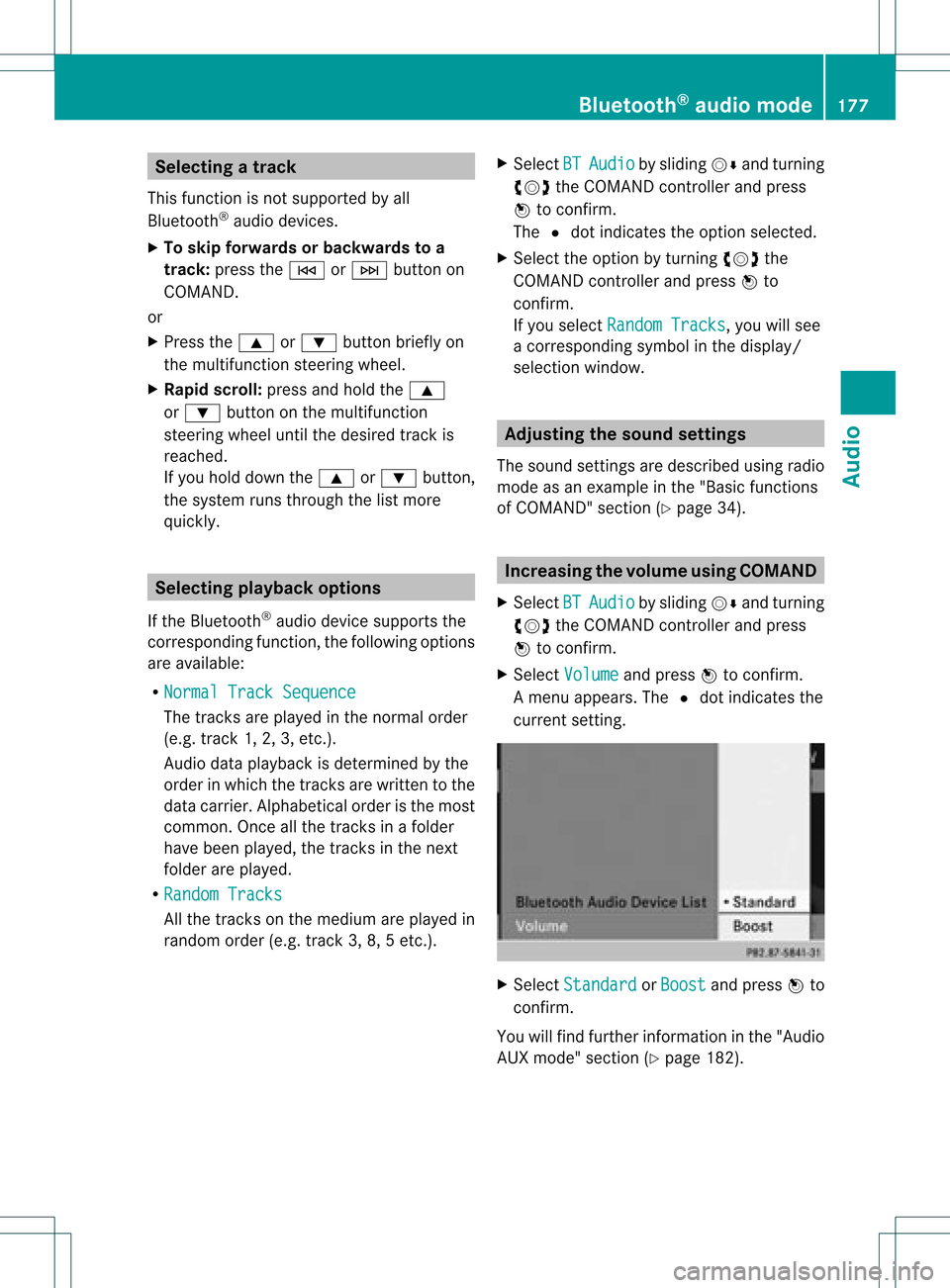
X Select Volume and
press Wtoconfirm.
Am enu appears. The#dot indicat esthe
curren tsett ing. X
Select Standar d or
Boost and
press Wto
con firm.
You willfind furth erinfor mation inthe "Audio
AUX mode" section(Ypage 182). Bluet
ooth®
aud iomod e177Audio Z
Page 181 of 234
i
The separate USBconn ection ensures
quick access andexpanded mediacontent
options.
i Consult anauthorized Mercedes-Benz
Center ifyou have further questions. Switching
toMedia Interfa cemode
General information In
extr eme cases, startingupindividual
funct ionscantake uptoseveral minutes –
this depends onthe exter naldevice andits
cont ent(e.g. video podcasts).
Only usetheoriginal software tosave fileson
iPods orMP3 players. Otherwise, someorall
funct ionsmay notbeavailab le.
Option 1 X
Connec tan exter naldevice (Ypage 178).
COMAND activatesthe device. Thebasic
display thenappears.
Option 2 The
exter naldevice isconn ected tothe Media
Int erface.
X Press theh functionbutton oneormore
times.
By pressing thefunct ionbutton repeatedly,
you can change theoperating modeinthe
following order:
R audio CD/DVD/MP3 (disc)
R memory cardmode
R MUSIC REGISTE R
R USB storage device
R Media Interface oraudio AUXmode
R Bluetoot h®
audio mode
Option 3 X
Press thei number button.
This selects theconn ected externalaudio
device directly. Option
4 X
In the media list(Ypage 159), select the
ent ryat position 0by turnin gcVd the
COMAND controller andpress Wto
conf irm.
COMAND activatesthe conn ected device.
You willsee amessage tothis effect .The
basic displa ythen appea rs.
If no device isconn ected, youwillsee the
Media Int. entr
yinstead ofadevice
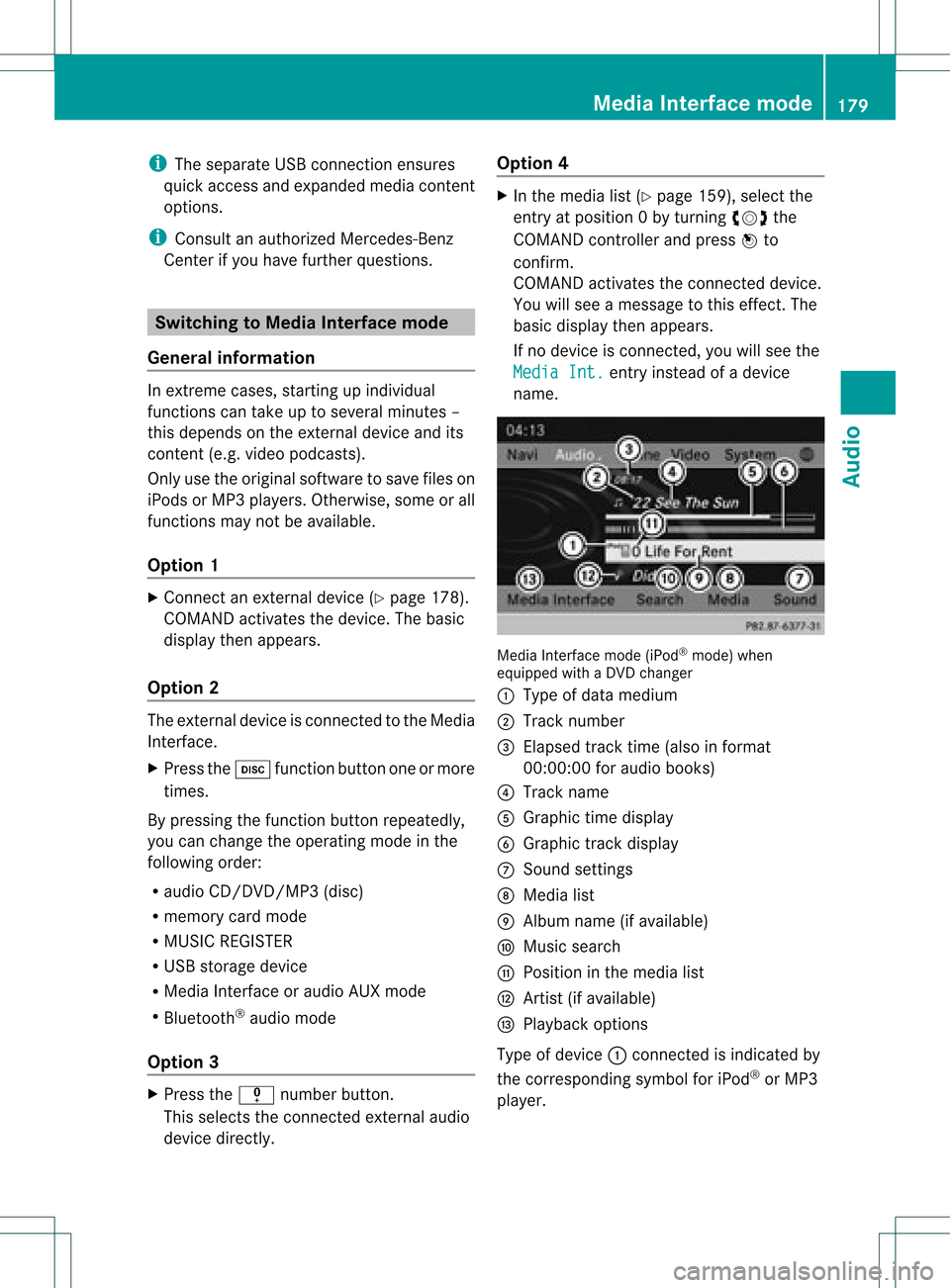
name. Media
Interface mode (iPod®
mode) when
equippe dwith aDVD changer
: Type ofdata medium
; Track number
= Elapsed tracktime(also informat
00:0 0:00 foraudi obooks)
? Track name
A Graphic timedispla y
B Graphic trackdispla y
C Sound settings
D Media list
E Album name(ifavaila ble)
F Music search
G Position inthe media list
H Artist (ifavaila ble)
I Play back options
Type ofdevice :conn ected isindicated by
the corresponding symbolforiPod ®
or MP3
play er. Media
Interface mode
179Audio Z
Page 184 of 234
If
different sortingrulesare defined (e.g.in
iTu nes ®
), the search iscanceled without
any resul t. Playbac
koptio ns
The followi ng opti ons areavailab le:
R Nor mal TrackSequence Norm
altrack sequence: youhea rthe
track sin their normal order(e.g.numerical
or alpha betical).
R Random Medium All
the track son the medium areplay edin
random order.
R Random TrackList The
track sin the current lyactive category
or folder, including anysubfolders, are
play edinrandom order.
i For MP3 players, therandom playlists
offer amaximum of300 track schosen at
random.
X To selec ta playback option:select
Media Interface in
the basic displa yby
sliding VÆandturning cVdtheCOMAND
cont roller andpress Wtoconfirm .
The options listappea rs.The #dot
indicates theoption selected.
X Select anoption andpress Wtoconfirm . MP3
player instructions
Data forma ts MP3
andWMA aresupported asdata formats
with fixed andvariable bitrates (upto
320 kbits/s ).
Special considerationswhen using MP3
players Up
toeight directory levelswithupto1000
track sper directory aresupported.
Do not use USB exten sionleads oradapters.
They canimpair functionality. i
DRM (Digital RightsManagement)
protect edfiles arenot supported bythe
Media Interface. Audio
AUXmode Notes
onaudio AUXmode
You canconn ectanextern alaudi osource
(AUX) toCOMAND. Thesocket forthis is
located inthe glove box.
If COMAND isequipp edwith aMedia
Int erface, externalaudi osources are
conn ected usingthecorresponding cableset.
An AUX socket isnot provided. The
conn ections forthe Media Interface are
located inthe stowage compartmen tint he
cent erconsole.
i You willfind further information onlineat
htt <0010002C002100210017001700170020000D00020015001300010024000D000F
00020009000C000500200003000F000DH.O rcall
th eMer cedes-Ben zCust ome rAssistance
Center at1-80 0-FOR-ME RCedes
(1-800 -367-6372)(for theUSA) or
Customer Relations at1-80 0-387-0100
(for Canada ). Activating
audioAUXmode
When youconn ectanextern alaudi osource,
audi oAUX isnot selected automaticall y.
X Select Audio in
the main function barby
sliding ZVandturning cVdtheCOMAND
cont roller andpress Wtoconfirm.
If AUX mode wasthelast mode selected, it
will now beactive.
If another audiosource isswitched on,you
can now switch toaudi oAUX mode inthe
audi omenu.
X Select Audio using
ZVandpress Wto
confirm.
The audi omenu appears. 182
Audio
AUXmodeAudio
Page 185 of 234
X
Sel ect Aux us
ing cVd andpressW to
confi rm.
The audioAUX menu appe ars .The medium
in the extern alaudi osource isplay ed,ifthe
source isconn ected andplayback
selected. Please
seetherespective operating
instruct ionsforhow tooperate theextern al
audi osource.
You willfind details onvolume (Ypage 33)
and sound (Ypage 34)settin gsinthe "Ata
glance" section. G
WARNING
Ext ernal audiosources mayhave different
volumes, whichcanmean thatsystem
messages suchastraffic announcemen tsand
navigation systemannouncemen tsare much
louder. Ifnecessary, pleasedeactivate the
system messages oradjust theirvolume
manually . Increasing
thevolume usingCOMAND
In some cases, thevolume ofthe extern al
audi odevice maybequieter orlouder, orthe
usua lmaximum possiblevolumemaybe
lower. Onsome devices, itis possible to
adjust thevolume separately. Inthis case,
start atamedium volumeandincrease it
gradua lly.This enables youtodetermine
whether thesystem isable toplay themusic
at high volume without distorting it. X
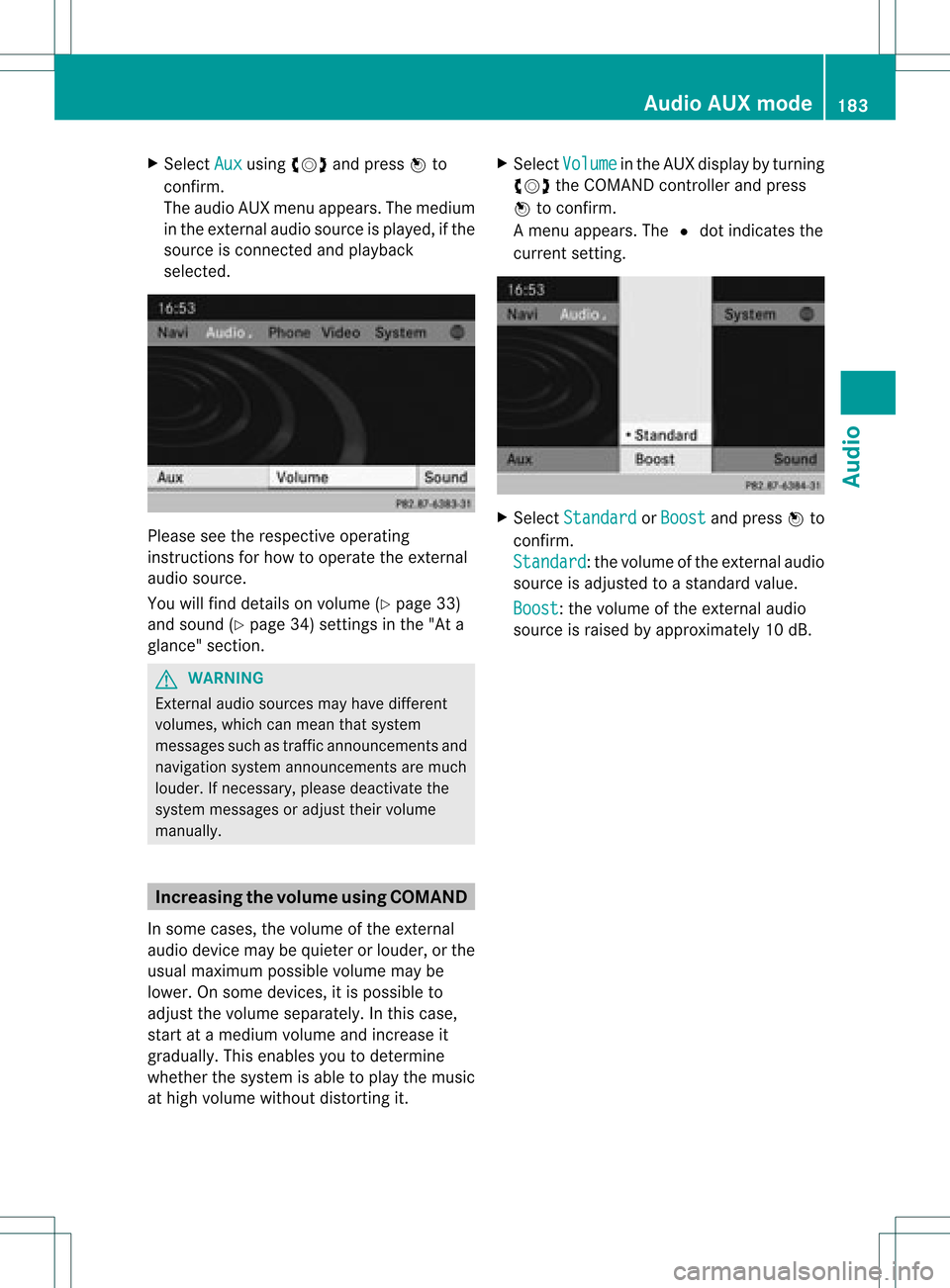
Select Volume in
the AUX displa yby turning
cVd theCOMAND controller andpress
W toconfirm .
Am enu appears. The#dot indicat esthe
curren tsett ing. X
Select Standar d or
Boost and
press Wto
con firm.
Standar d :t
he volume ofthe extern alaudi o
source isadjusted toastandard value.
Boost :t
he volume ofthe extern alaudi o
source israised byapproximately 10dB. Audio
AUXmode
183Audio Z
Page 187 of 234
COMAN
Dfea tures ........ .......... ........... 186
Gener alinfor mation <0021002100210021002100210021002100210021002100210021002100210021
002100210021002100210021002100210021V 186
Basic settings ........ .......... .................. 186
Video DVDmode <0021002100210021002100210021002100210021002100210021002100210021
002100210021002100210021002100210021002100210021002100210021V 186
AUX video mode .................. .............. 192
Pictur eviewer <0021002100210021002100210021002100210021002100210021002100210021
0021002100210021002100210021002100210021002100210021002100210021
002100210021> 193 185Vid
eo
Page 190 of 234
i
Bypre ssing this functi onbutton
rep eatedl y,yo ucan change theoperating
mod ein the follow ing order:
R au dio CD/DVD, video DVD orMP3 disc
in the DVD changer
R memo rycard mode
R MUSIC REGISTER
R USB stora gedev ice
R Med iaInterfa ceoraudio AUX mode
R Blu etoo th®
au dio mod e
X Sele ctMedi a by
sliding VÆ andturni ng
cVd theCOMAND controllerand press
W toconfir m.
X Sele ctaý video DVD from themed ialist
(Y page 190).
Optio n3 X
Sele ctVide o in
the mainfuncti onbarby
sli ding ZV andturni ngcVd theCOMAND
control lera nd pre ssW toconfi rm.
Vi de oDVD modeis sw itch edon. Hidi
ng/show ingthe navigatio nmen u
X To dis play :sl id e ZVÆ theCOMAND
contro ller.
i Thisfu nctio nisnot avail able while the
DVD's ownmenu (Ypage 190)isbeing
displa yed.
X To hide: slideZVÆ theCOMAND
cont roller.
or
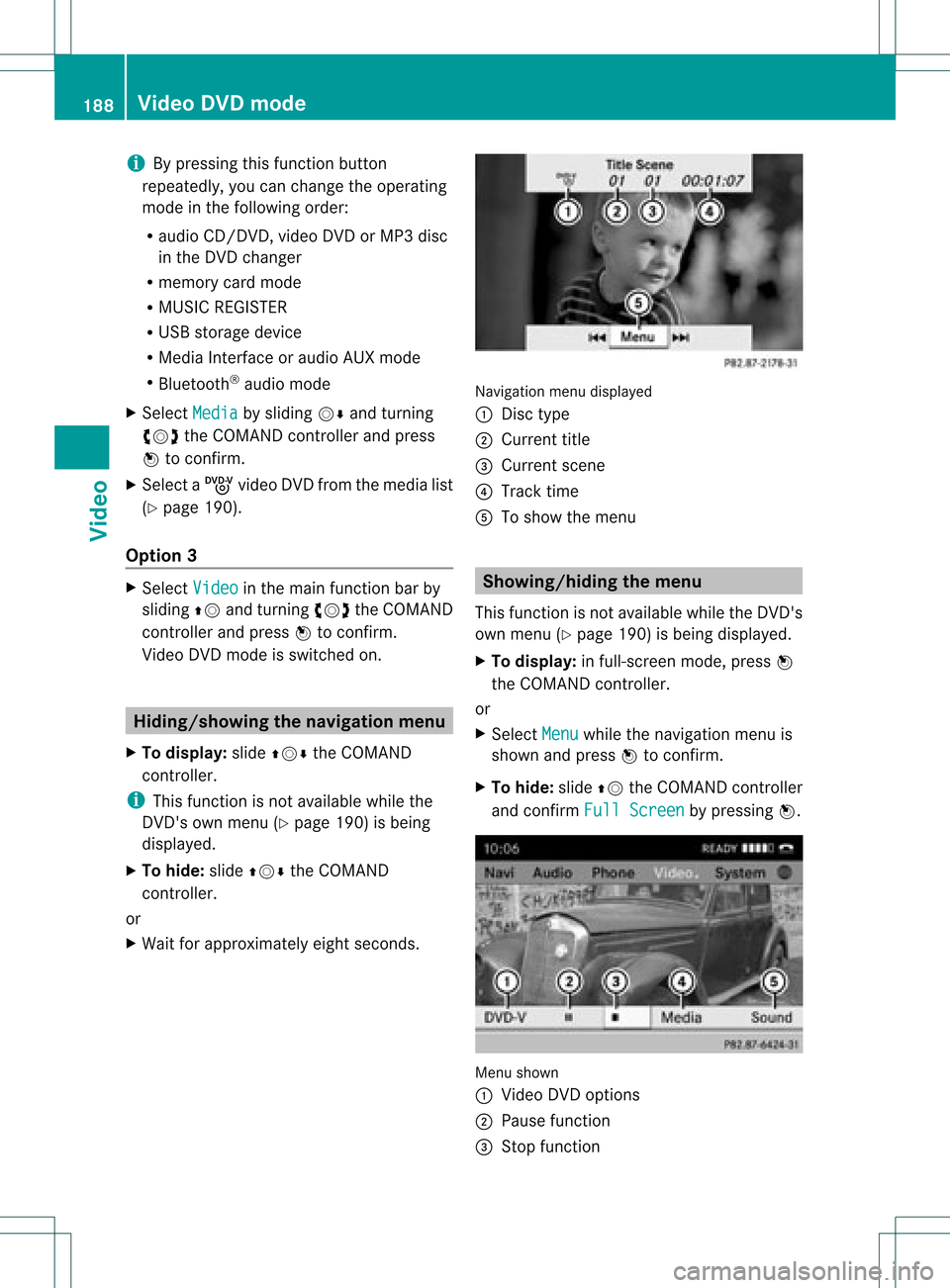
X Wait forapproximately eightseconds. Navigation
menudisplayed
: Disc type
; Current title
= Current scene
? Track time
A Toshow themenu Showin
g/hiding themenu
This function isnot avail able while theDVD's
own menu (Ypage 190)isbeing displayed.
X To display: infull-screen mode,pressW
the COMAND controller.
or
X Select Menu while
thenavigation menuis
shown andpress Wtoconfirm.
X To hide: slideZVtheCOMAND controller
and confirm FullScreen by
pressing W. Menu
shown
: Video DVDoptions
; Pause function
= Stop function 188
Video
DVDmodeVideo
Page 194 of 234
Int
era ctive cont ent
DV Ds can contain interac tive conten t(e. g.a
vide ogame ).In avide ogame ,for example ,
you may beable toinfluen ceeve ntsby
sele cting and trigge ringact ions.The typeand
num berofact ionsdepe ndontheDV D.
X Se lec tana ction bysliding ZVÆ orXVY the
CO MAND controllera nd pre ssW to
exe cute it.
A menu appe arsand thefirst entry ,
Sel ect ,
is highl ighted .
X Pre ssW the COMAND controller. AU
Xvideo mode Co
nnectin gex tern alvideo source s
If yo ur veh icleis eq uipp ed with aMed ia
Inter face (Y pa ge 178) ,yo ucan conne ctan
exte rnalvid eo sou rce (AUXvideo).
The 1/8inch audio/vi deoj ack sare inthe
cen terc onsole stowage compartment.
i Invehicles witharear view camera, the
AUX video jackcann otbe used forexter nal
video sources. Switching
toAUX video mode
X Select Video in
the main functionbar by
sliding ZVandturnin gcVd theCOMAND
cont roller andpress Wtoconf irm.
If AUX video mode wasthelast mode
selected, itwill now beactive.
If another videosource isswitched on,you
can now switch toAUX video mode inthe
video menu.
X Select Video and
press Wtoconf irm.
X Select Aux and
press Wtoconf irm.
The AUX video menu appears. Youwillhear
and seethecont entofthe exter nalvideo
source ifit is conn ected andswitched to
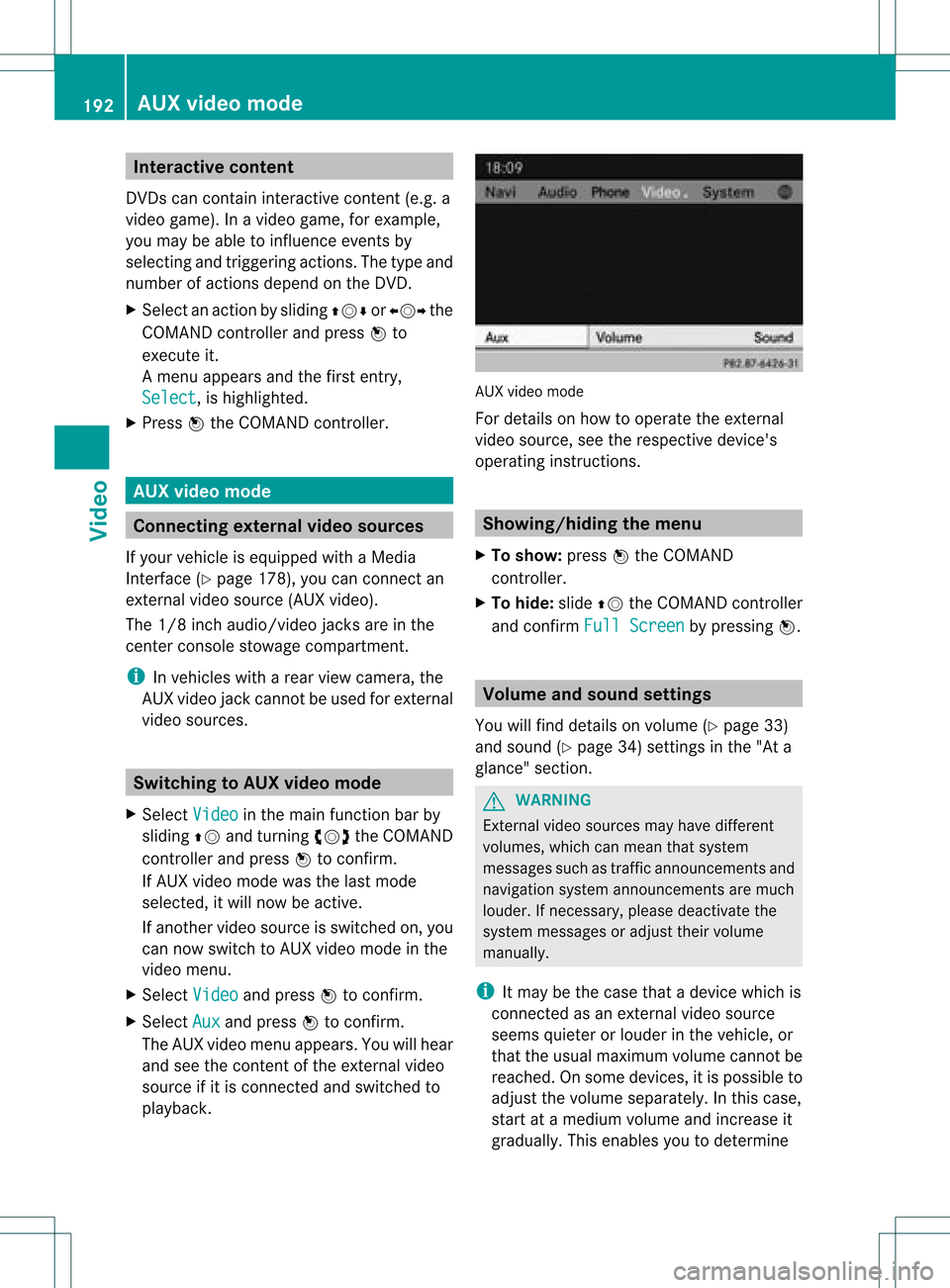
playb ack. AUX
video mode
For details onhow tooperate theexter nal
video source, seetherespect ivedevice's
operating instructions. Showing/hiding
themenu
X To show: pressWthe COMAND
cont roller.
X To hide: slideZVtheCOMAND controller
and conf irmFull Screen by
pressing W. Volume
andsound settings
You willfind details onvolume (Ypage 33)
and sound (Ypage 34)settings inthe "Ata
glance" section. G
WARNIN
G
Ext ernal video sources mayhave different
volumes, whichcanmean thatsystem
messages suchastraffic announc ementsand
navigation systemannounc ementsare much
louder. Ifnecessary, pleasedeactivate the
system messages oradjust theirvolume
manually.
i Itmay bethe case thatadevice whichis
conn ected asan exter nalvideo source
seems quieter orlouder inthe vehicle, or
that theusual maximum volumecannotbe
reached. Onsome devices, itis possible to
adjust thevolume separately. Inthis case,
start atamedium volumeandincrease it
graduall y.This enables youtodetermin e 192
AUX
video modeVideo
Page 209 of 234
COMAN
Dfea tures ........ .......... ........... 208
Gener alinfor mation <0021002100210021002100210021002100210021002100210021002100210021
002100210021002100210021002100210021V 208
Basic functions <0021002100210021002100210021002100210021002100210021002100210021
0021002100210021002100210021002100210021002100210021002100210021
0021> 213
System settings <0021002100210021002100210021002100210021002100210021002100210021
0021002100210021002100210021002100210021002100210021002100210021V 215
Audio CD/DVD andMP3 mode ........ 216
Video DVDmode <0021002100210021002100210021002100210021002100210021002100210021
002100210021002100210021002100210021002100210021002100210021V 221
Opera tionwith anactive COMAND
source <0021002100210021002100210021002100210021002100210021002100210021
0021002100210021002100210021002100210021002100210021002100210021
0021002100210021002100210021002100210021002100210021002100210021> 225
AUX mode <0021002100210021002100210021002100210021002100210021002100210021
0021002100210021002100210021002100210021002100210021002100210021
0021002100210021002100210021002100210021> 228 207Rear
SeatEntert ainmentSystem
Page 211 of 234
Rear-c
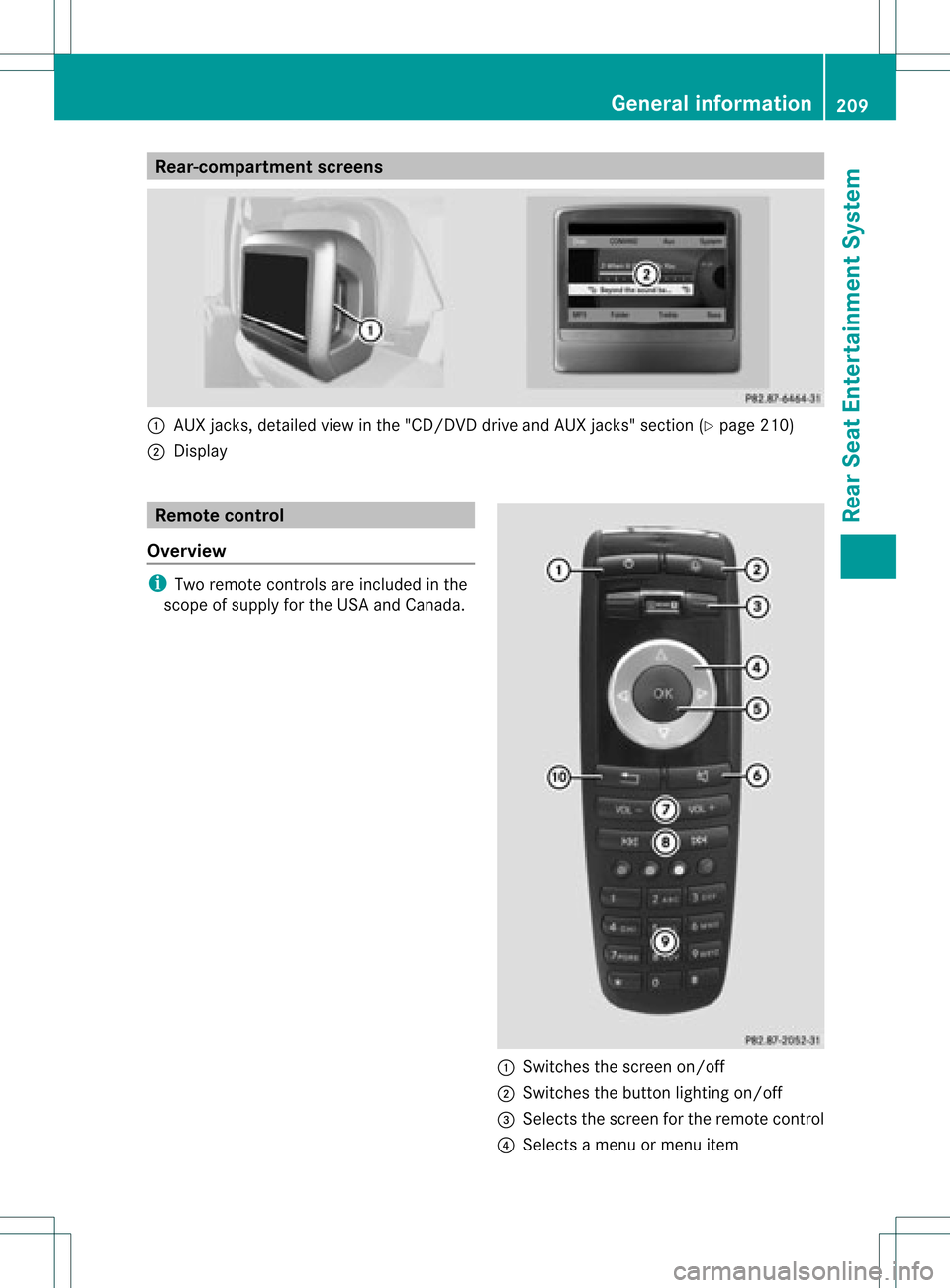
ompartmen tsc ree ns :
AUX jacks, detailed viewin the "CD/DVD drive and AUX jacks" section(Ypage 210)
; Disp lay Remo
tecontrol
Ove rview i
Tworemo tecontrol sare included inthe
scop eof supp lyfor the USA andCanad a. :
Switches thescre enon/off
; Switches thebutton lighti ngon/off
= Selects thescre enfor the remo tecontrol
? Selects amenu ormenu item Gen
eral informati on
209Rear Seat Entertain mentSys tem Z
Page 212 of 234
A
Con firms asele ction orset ting
B Swit ches soun don /o ff(fo rcorded
headphones)
C Adjust sthe volume (forcorded
headphones)
D Skips toatrack, fast-forwa rd/fast-rew ind
E Selects atrack; directentry
F Exits amenu (back)
Sel ecting thescre enfor the remote
co ntrol You
canusetheremote controltoopera te
one ofthe two rear screens atatime. Todo
so, you must switch the remote controltothe
desi redscreen.
X To sele ctthe left-hand screen:turn
thumbw heel=until "LREAR" is
high lighted inthe windo w.
X To sele ctthe right-hand screen:turn
thumbw heel=until "REAR R"is
high lighted inthe windo w.
Swi tching thescre enon/ off If
the SmartKey isin posi tion 0or 1in the
ignitio nlock (see thevehicle Operator's
Manual), orthe Smart Keyisnot insert ed,the
screen sin the rear willswitch offafter 30
minutes. Beforethescreen sswitch off,they
show amessage tothis effect .
You canswitch thescreen sback on.
How ever,this will disc harg eth est art er
bat tery.
X Poin tth erem oteco ntrol attherear -
co mpar tments cree nwhich hasbeen
selected forremote operation.
X Press button :onthe remote control.
The respective rearscreen switches onor
off.
i You canonly switch thescreens onusing
the remote controlifthe ignition is
switched on. Switching
thebutt onlighting on/off X
Press button ;onthe remote control.
Depending onthe previous status,the
button lighting isswitched onoroff.
i Ifyou donot use theremote controlfor
about 15seconds, thebutton lighting
switches offautomatically .
Switching thesound on/off(corded
headph onesonly) X
Press button Bonthe remote control.
The sound isswitched on/off.
Selec tingamenu/m enuitem and
confir mingyour select ion X
Sele ctamen u/m enuitemusin gth e
=;9 :buttonson the
rem otecon trol and pres sth e9 butt onto
con firm. CD/DVD
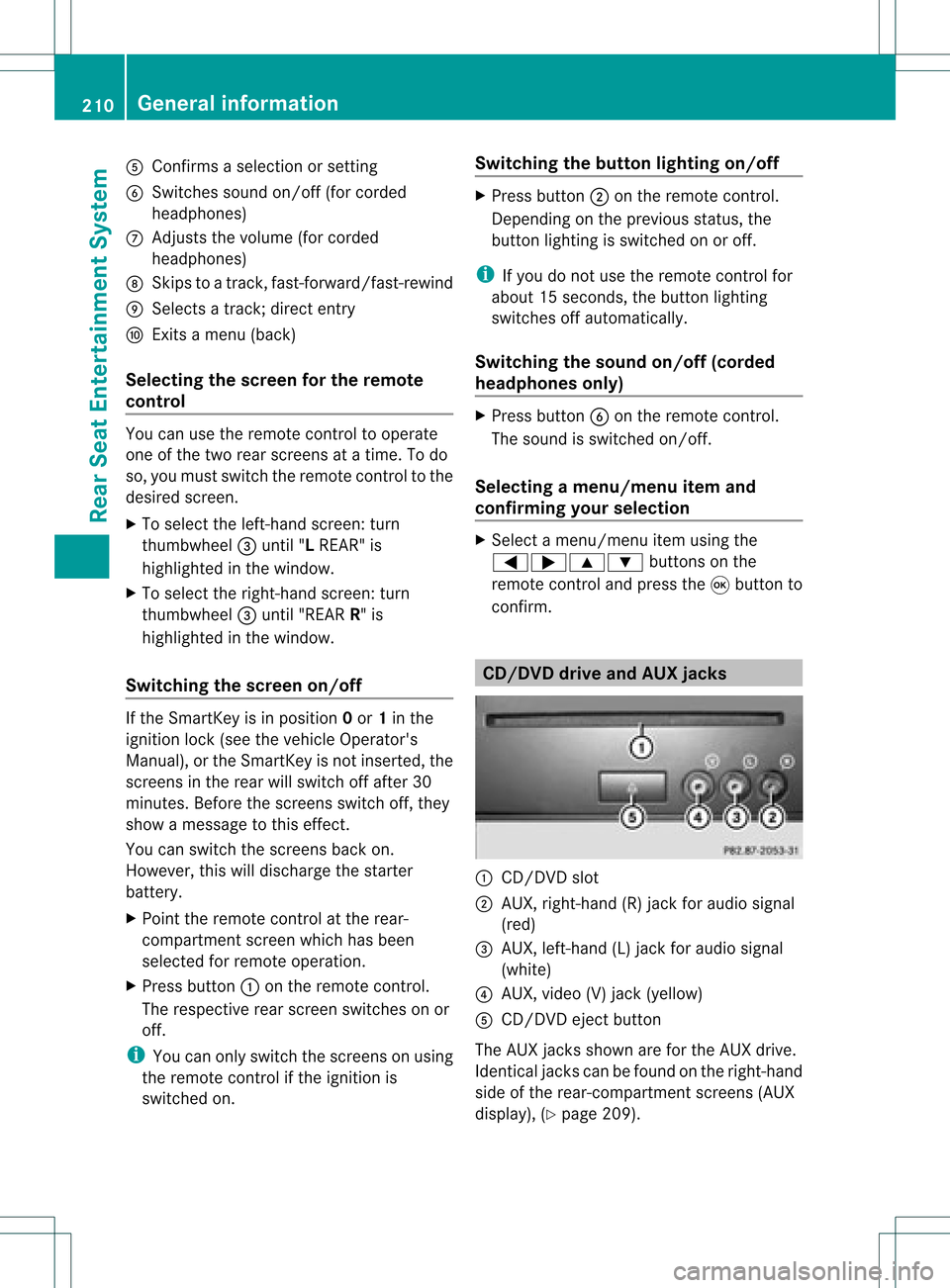
drive and AUX jacks :
CD/ DVDslot
; AUX,righ t-han d(R) jackfor audio signal
(red)
= AUX, left-hand (L)jack foraudio signal
(white)
? AUX, video (V)jack (yellow )
A CD/D VDeject button
The AUX jacksshown areforthe AUX drive.
Ident icaljack scan befound onthe right- hand
side ofthe rear-com partmentscreen s(AUX
display ),(Y page 209). 210
General
informationRearSeatEntert ainment System