navigation system MERCEDES-BENZ CLS-Class 2014 W218 Owner's Manual
[x] Cancel search | Manufacturer: MERCEDES-BENZ, Model Year: 2014, Model line: CLS-Class, Model: MERCEDES-BENZ CLS-Class 2014 W218Pages: 382, PDF Size: 5.36 MB
Page 15 of 382
Messages
see Display messages
Mirrors
see Exterior mirrors
see Vanity mirror (in the sun visor)
Mobile phone
Menu (on-board computer) ............226
Modifying the programming
(SmartKey) ........................................... 77
MOExtende dtires .............................. 321
Mounting wheels Lowerin gthe vehicle ...................... 361
Mounting anew wheel ................... 360
Raising the vehicle .........................359
Removing awheel .......................... 360
Securing the vehicle against
rolling away ................................... 358
MP3
Operation ....................................... 225
see separate operating instructions
Multicontour seat
Adjusting (on the seat) ..................102
Multifunctio ndisplay
Function/notes ............................. 221
Permanent displa y......................... 230
Multifunctio nsteering wheel
Operating the on-board computer .220
Overview .......................................... 33N
Navigation Menu (on-board computer) ............224
NECK-PRO head restraints
Operation ........................................ .53
Resettin gafter bein gtriggered ........54
NECK-PRO luxury head restraints
Operation ........................................ .53
Resettin gafter bein gtriggered ........54
Night View Assist Plus
Activating/deactivating .................205
Cleaning ......................................... 316
Function/notes ............................. 204
Problem (malfunction) ...................207
Notes on breaking-i nanew
vehicle ................................................ 146 O
Occupant Classification System
(OCS) Faults ............................................... 52
Operation ........................................ .47
System self-test ............................... 50
Occupant safety
Childre ninthe vehicle ..................... 60
Important safety notes ....................40
OCS
Faults ............................................... 52
Operation ........................................ .47
System self-test ............................... 50
Odometer ........................................... 222
see Trip odometer
Oil
see Engine oil
On-board computer
AMG menu ..................................... 234
Assistance menu ........................... 227
Audi omenu ................................... 225
Convenience submenu ..................233
Displaying aservice message ........310
Display messages ..........................237
DISTRONI CPLUS ........................... 184
Factory settings submenu .............234
Important safety notes ..................218
Instrument cluster submenu ..........229
Lighting submenu .......................... 230
Menu overview .............................. 222
Message memory .......................... 237
Navigation menu ............................ 224
Operation ....................................... 220
RACETIMER ................................... 235
Service menu ................................. 229
Settings menu ............................... 229
Standard displa y............................ 222
Telephone menu ............................ 226
Trip menu ...................................... 222
Vehicle submenu ........................... 232
Video DVD operatio n..................... 226
Operatin gsafety
Declaratio nofconformity ................ 25
Important safety notes ....................24
Operatin gsystem
see On-board computer Index
13
Page 184 of 382
vehicles and the right lane on right-hand
drive vehicles.
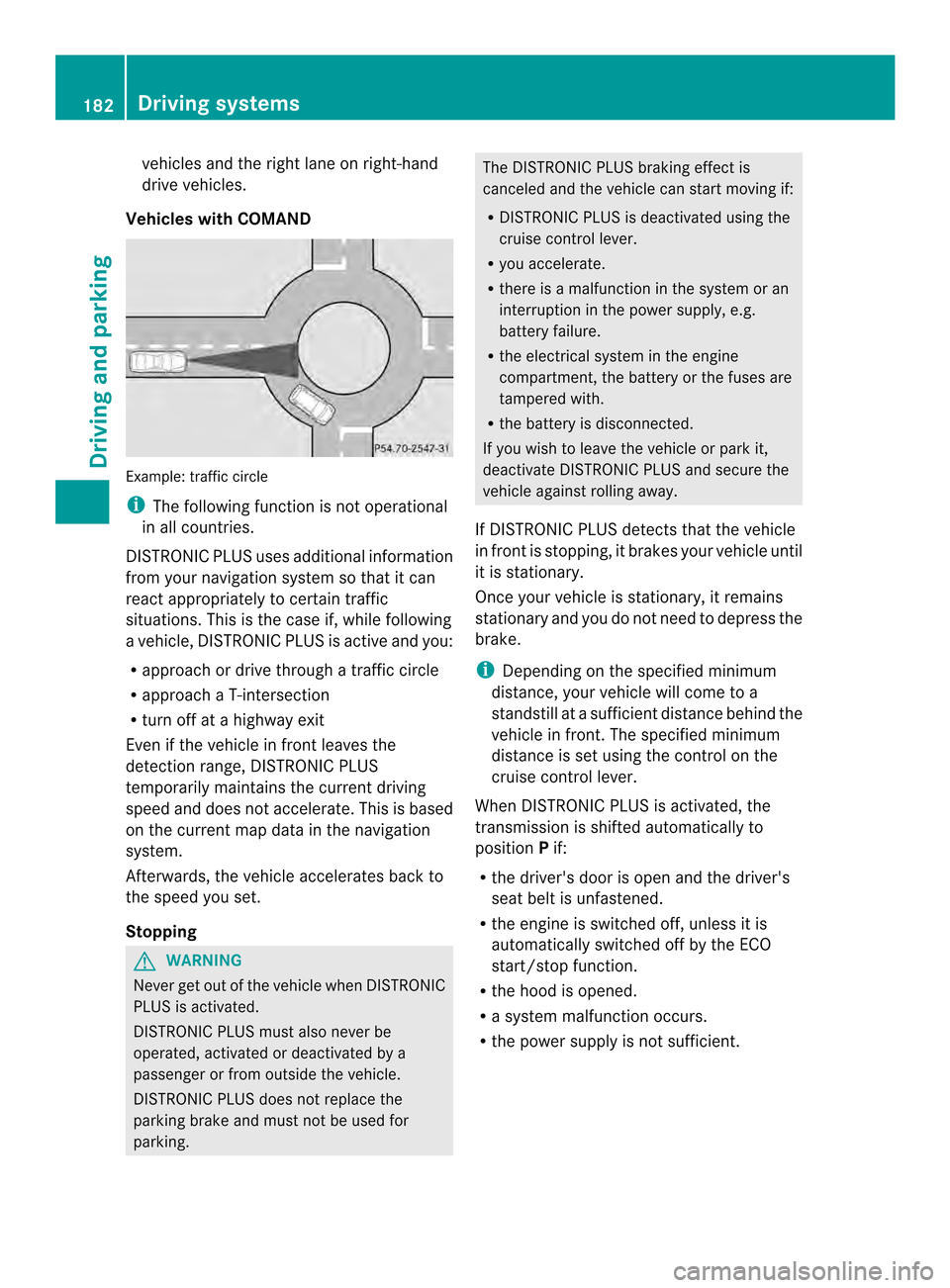
Vehicles with COMAND Example
:traffic circle
i The following function is not operational
in all countries.
DISTRONIC PLUS usesa dditionalinformation
from yourn avigation system so that it can
react appropriately to certain traffic
situations. This is the case if, while following
av ehicle, DISTRONIC PLUS is active and you:
R approach or drive through atraffic circle
R approach aT-intersection
R turn off at ahighwaye xit
Even if the vehicl einfront leaves the
detection range, DISTRONIC PLUS
temporarily maintains the current driving
spee dand does not accelerate. This is based
on the current map data in the navigation
system.
Afterwards, the vehicl eaccelerates back to
the spee dyou set.
Stopping G
WARNING
Never get out of the vehicl ewhen DISTRONIC
PLUS is activated.
DISTRONIC PLUS must alson ever be
operated, activated or deactivated by a
passenger or from outside the vehicle.
DISTRONIC PLUS does not replace the
parking brake and must not be used for
parking. The DISTRONIC PLUS braking effect is
canceled and the vehicl
ecan start moving if:
R DISTRONIC PLUS is deactivated using the
cruise control lever.
R you accelerate.
R there is amalfunction in the system or an
interruption in the power supply,e .g.
battery failure.
R the electrica lsystem in the engine
compartment, the battery or the fuses are
tampere dwith.
R the battery is disconnected.
If you wishtol eave the vehicl eorpark it,
deactivate DISTRONIC PLUS and secure the
vehicl eagainst rolling away.
If DISTRONIC PLUS detects that the vehicle
in front is stopping, it brakes yourv ehicle until
it is stationary.
Oncey our vehicle is stationary, it remains
stationary and you do not need to depress the
brake.
i Depending on the specified minimum
distance, your vehicle will come to a
standstill at asufficien tdistanc ebehin dthe
vehicle in front .The specified minimum
distance is set using the control on the
cruise control lever.
When DISTRONIC PLUS is activated, the
transmission is shifted automatically to
position Pif:
R the driver's door is open and the driver's
seat belt is unfastened.
R the engine is switched off, unless it is
automatically switched off by the ECO
start/stop function.
R the hood is opened.
R as ystem malfunction occurs.
R the power supply is not sufficient. 182
Driving systemsDriving and parking
Page 226 of 382
i
When you reset the values in the "ECO
display" ,the values in the trip computer
"From start "are likewise reset. When you
reset the values in the trip computer "From
start", the values in the "ECO display" are
likewise reset. Navigation system menu
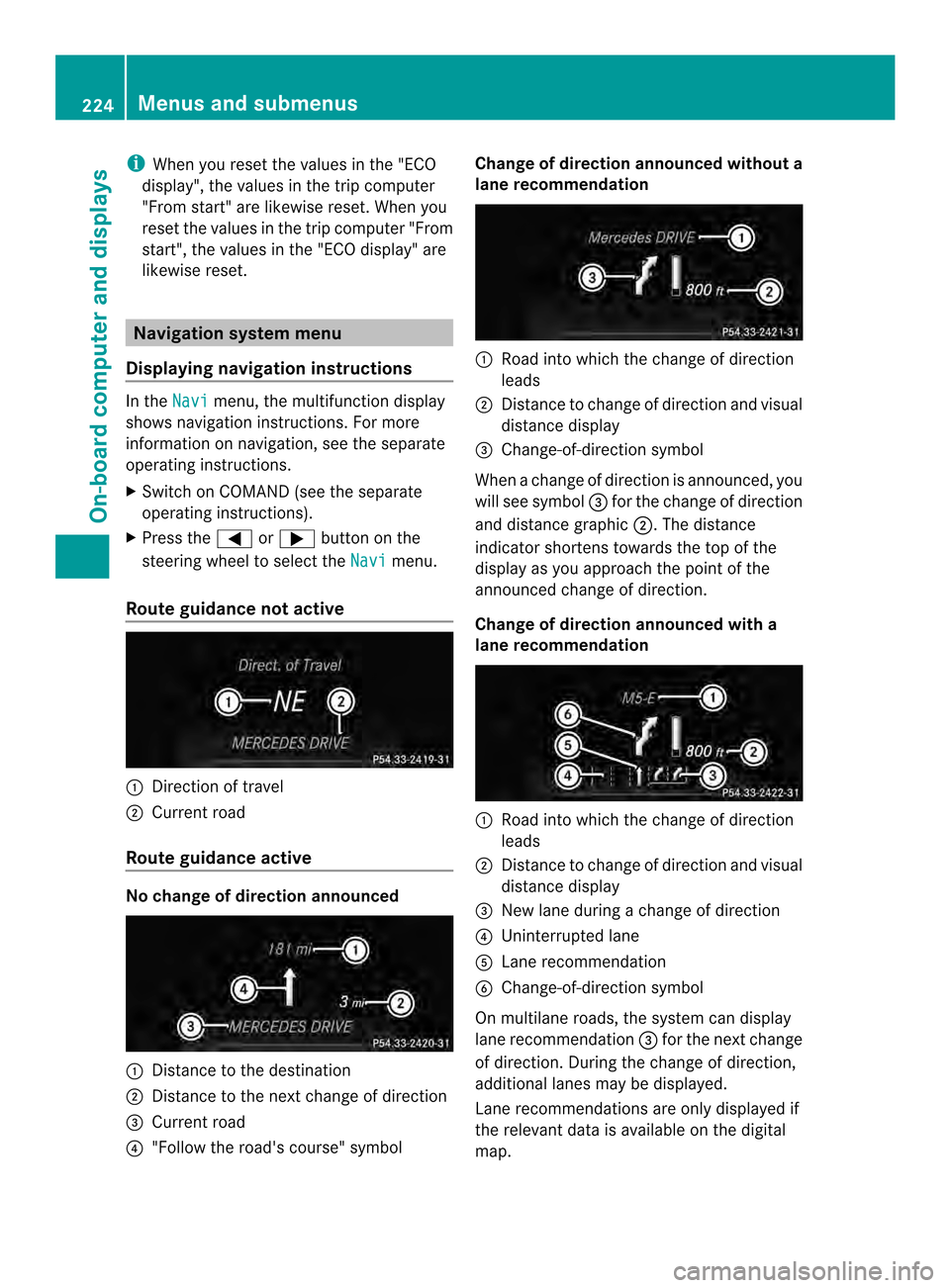
Displaying navigation instructions In the
Navi menu, the multifunction display
shows navigation instructions. For more
information on navigation ,see the separate
operatin ginstructions.
X Switc honC OMAND (see the separate
operatin ginstructions).
X Press the 000Aor0004 button on the
steering wheel to select the Navi menu.
Rout eguidance not active 001A
Direction of travel
0010 Current road
Rout eguidance active No change of direction announced
001A
Distance to the destination
0010 Distance to the nextc hange of direction
0024 Current road
0021 "Follow the road's course" symbol Change of direction announced without a
lane recommendation 001A
Road intow hich the change of direction
leads
0010 Distance to change of direction and visual
distanc edisplay
0024 Change-of-direction symbol
When achange of direction is announced, you
will see symbol 0024for the change of direction
and distanc egraphic 0010.The distance
indicator shortenst owards the top of the
displayasy ou approach the point of the
announced change of direction.
Change of direction announced with a
lane recommendation 001A
Road into which the change of direction
leads
0010 Distancetoc hange of direction and visual
distance display
0024 New lane during achange of direction
0021 Uninterrupted lane
001E Lane recommendation
0025 Change-of-direction symbol
On multilane roads, the system can display
lane recommendation 0024for the next change
of direction. During the change of direction,
additional lanes may be displayed.
Lane recommendations are only displayed if
the relevant data is available on the digital
map. 224
Menus and submenusOn-board computer and displays
Page 227 of 382
Other status indicator
softhe
navigation system R
000D:y ou have reached the destination or an
intermediate destination.
R New Route... or
Calculating Route :
calculating anew route
R Off Map or
Off Road :t
he vehicle position
is outside the area of the digital map (off-
map position).
R No Route :nor
oute could be calculated to
the selected destination. Audio menu
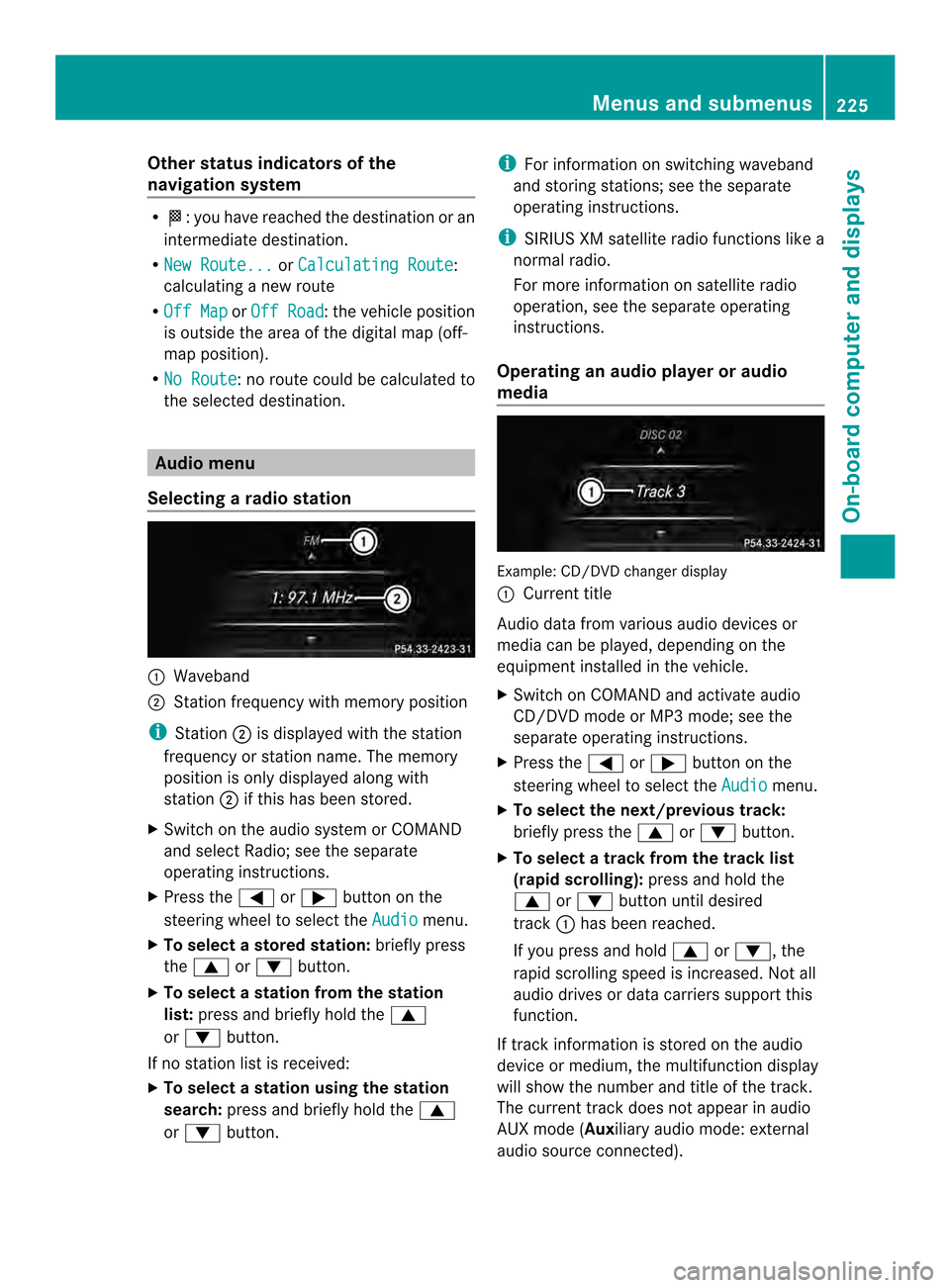
Selecting aradio station 001A
Waveband
0010 Station frequency with memory position
i Station 0010is displayedw itht he station
frequency or statio nname. The memory
position is only displayeda long with
station 0010if this has bee nstored.
X Switch on the audi osystemorC OMAND
and select Radio; see the separate
operating instructions.
X Press the 000Aor0004 button on the
steering wheel to select the Audio menu.
X To select astore dstation: brieflypress
the 0006 or0005 button.
X To select astation from the station
list: press and briefl yholdt he 0006
or 0005 button.
If no statio nlist is received:
X To select astatio nusing the station
search: press and briefl yholdt he 0006
or 0005 button. i
For informatio nonswitchin gwaveband
and storin gstations ;see th eseparate
operatin ginstructions.
i SIRIUS XM satellit eradio function slike a
normal radio.
For mor einformatio nonsatelliteradio
operation, see th eseparate operating
instructions.
Operatin ganaudio player or audio
media Example
:CD/DVD change rdisplay
001A Curren ttitle
Audio data from various audio devices or
media can be played, depending on the
equipmen tinstalled in the vehicle.
X Switch on COMAND and activate audio
CD/DV DmodeorM P3 mode; see the
separate operating instructions.
X Press the 000Aor0004 button on the
steering whee ltoselect the Audio menu.
X To select the next/previous track:
briefl ypress the 0006or0005 button.
X To select atrack from the track list
(rapi dscrolling): press and hold the
0006 or0005 buttonuntil desired
track 001Ahasb eenr eached.
If yo upress and hold 0006or0005,t he
rapi dscrolling speed is increased .Not all
audio drives or data carriers support this
function.
If track information is stored on the audio
device or medium, the multifunction display
will show the number and title of the track.
The current track does not appear in audio
AUX mode (Auxiliary audio mode: external
audio source connected). Menus and submenus
225On-board computer and displays Z
Page 269 of 382
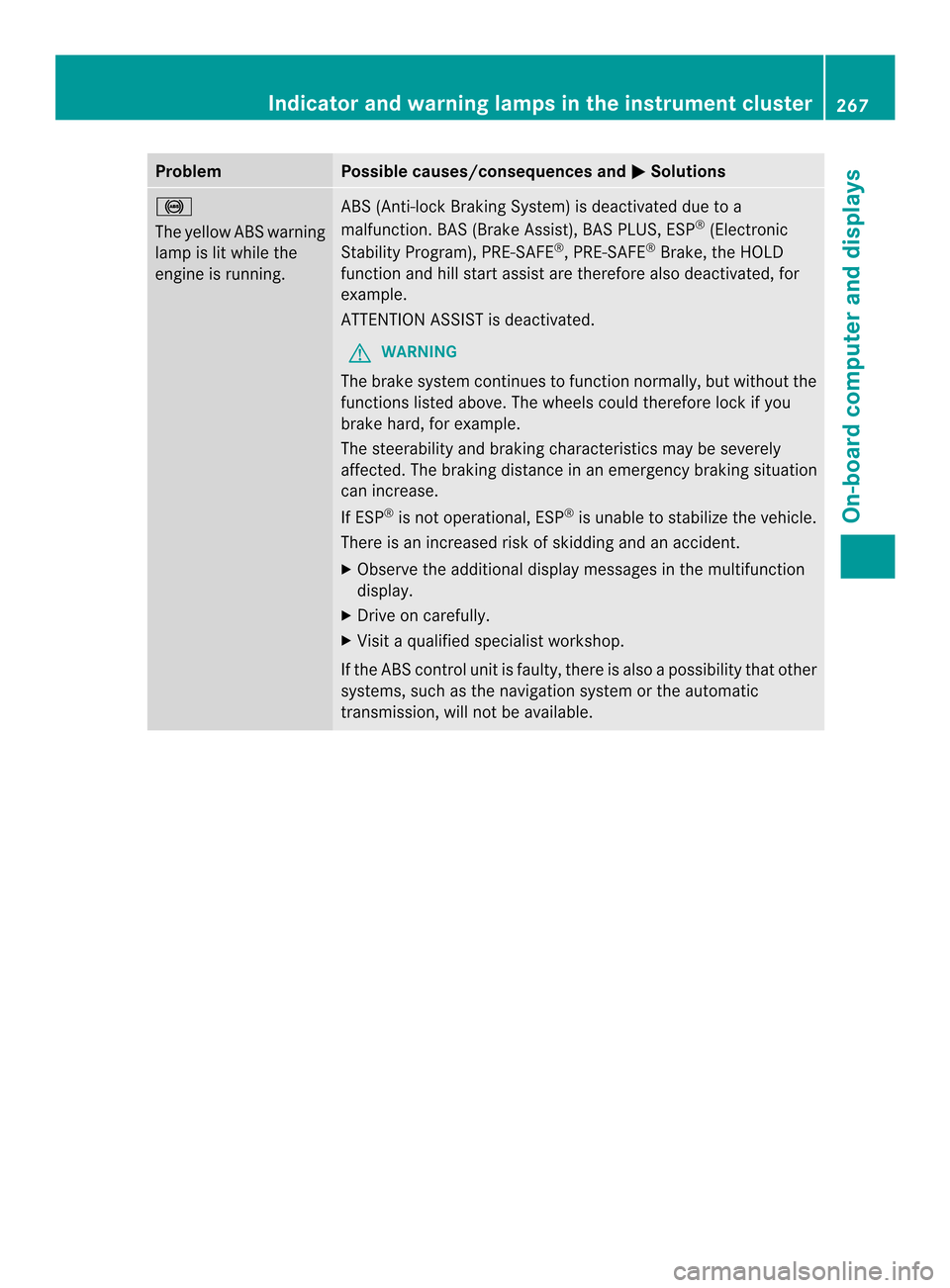
Problem Possible causes/consequences and
000B Solutions
001C
The yellowA
BS warning
lamp is lit while the
engine is running. ABS (Anti-lock Braking System) is deactivated due to a
malfunction
.BAS (Brake Assist), BAS PLUS, ESP ®
(Electronic
Stability Program), PRE-SAFE ®
,P RE-SAFE ®
Brake, the HOLD
function and hill start assist are therefore also deactivated, for
example.
ATTENTION ASSIST is deactivated.
G WARNING
The brake system continues to function normally, but without the
functions listed above. The wheels could therefore lock if you
brake hard, for example.
The steerability and braking characteristics may be severely
affected. The braking distance in an emergency braking situation
can increase.
If ESP ®
is not operational, ESP ®
is unable to stabilize the vehicle.
There is an increased risk of skidding and an accident.
X Observe the additional display messages in the multifunction
display.
X Drive on carefully.
X Visit aqualified specialist workshop.
If the ABS control unit is faulty, there is also apossibility that other
systems, such as the navigation system or the automatic
transmission, will not be available. Indicator and warning lampsint
he instrument cluster
267On-board computer and displays Z
Page 295 of 382
vehicl
eimmediatel yafter pressing the SOS
button, you willn ot know whethermbrace
placed the emergency call. In this case,
always summon assistance by other
means.
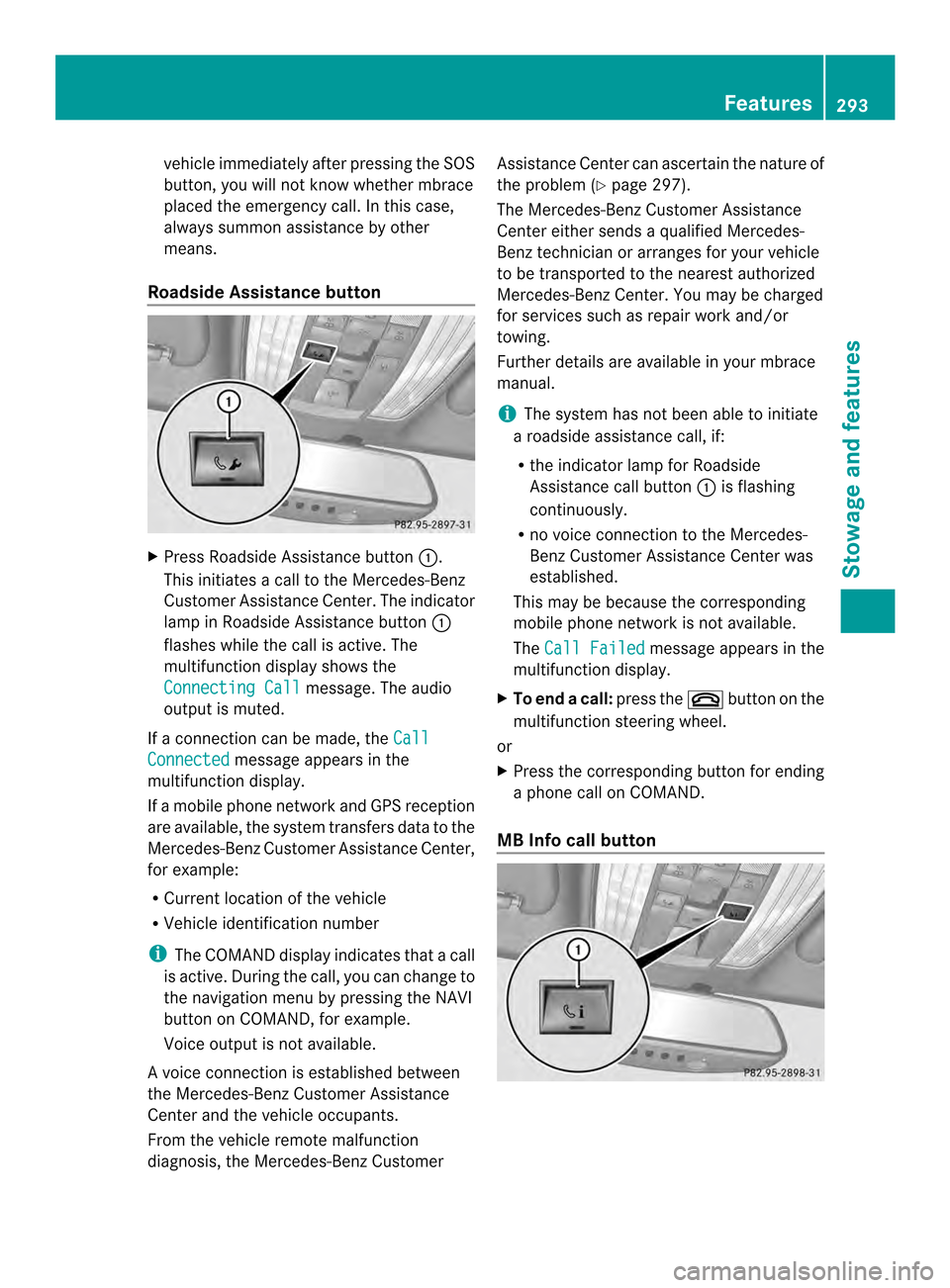
Roadside Assistance button X
Press Roadside Assistance button 001A.
This initiates acall to the Mercedes-Benz
Customer Assistance Center. The indicator
lamp in Roadside Assistance button 001A
flashes while the call is active. The
multifunction display shows the
Connecting Call message. The audio
output is muted.
If ac onnection can be made, the CallConnected message appears in the
multifunction display.
If am obile phone network and GPS reception
are available, the system transfers data to the
Mercedes-Benz Customer Assistance Center,
for example:
R Current location of the vehicle
R Vehicle identification number
i The COMAND display indicates that acall
is active. Durin gthe call, you can chang eto
the navigation menu by pressin gthe NAVI
button on COMAND ,for example.
Voice output is not available.
Av oice connection is established between
the Mercedes-Benz Customer Assistance
Center and the vehicle occupants.
From the vehicle remote malfunction
diagnosis, the Mercedes-Benz Customer Assistance Center can ascertain the nature of
the problem (Y
page 297).
The Mercedes-Benz Customer Assistance
Center either sends aqualified Mercedes-
Benz technician or arranges for your vehicle
to be transported to the nearest authorized
Mercedes-Benz Center. You may be charged
for services such as repair work and/or
towing.
Further details are available in your mbrace
manual.
i The system has not been able to initiate
ar oadside assistance call, if:
R the indicator lamp for Roadside
Assistance call button 001Ais flashing
continuously.
R no voice connection to the Mercedes-
Benz Customer Assistance Center was
established.
This may be because the corresponding
mobile phone network is not available.
The Call Failed message appears in the
multifunction display.
X To end acall: press the 0008button on the
multifunctio nsteering wheel.
or
X Press the corresponding button for ending
ap hone cal lonCOMAND.
MB Info call button Features
293Stowag eand featur es Z
Page 296 of 382
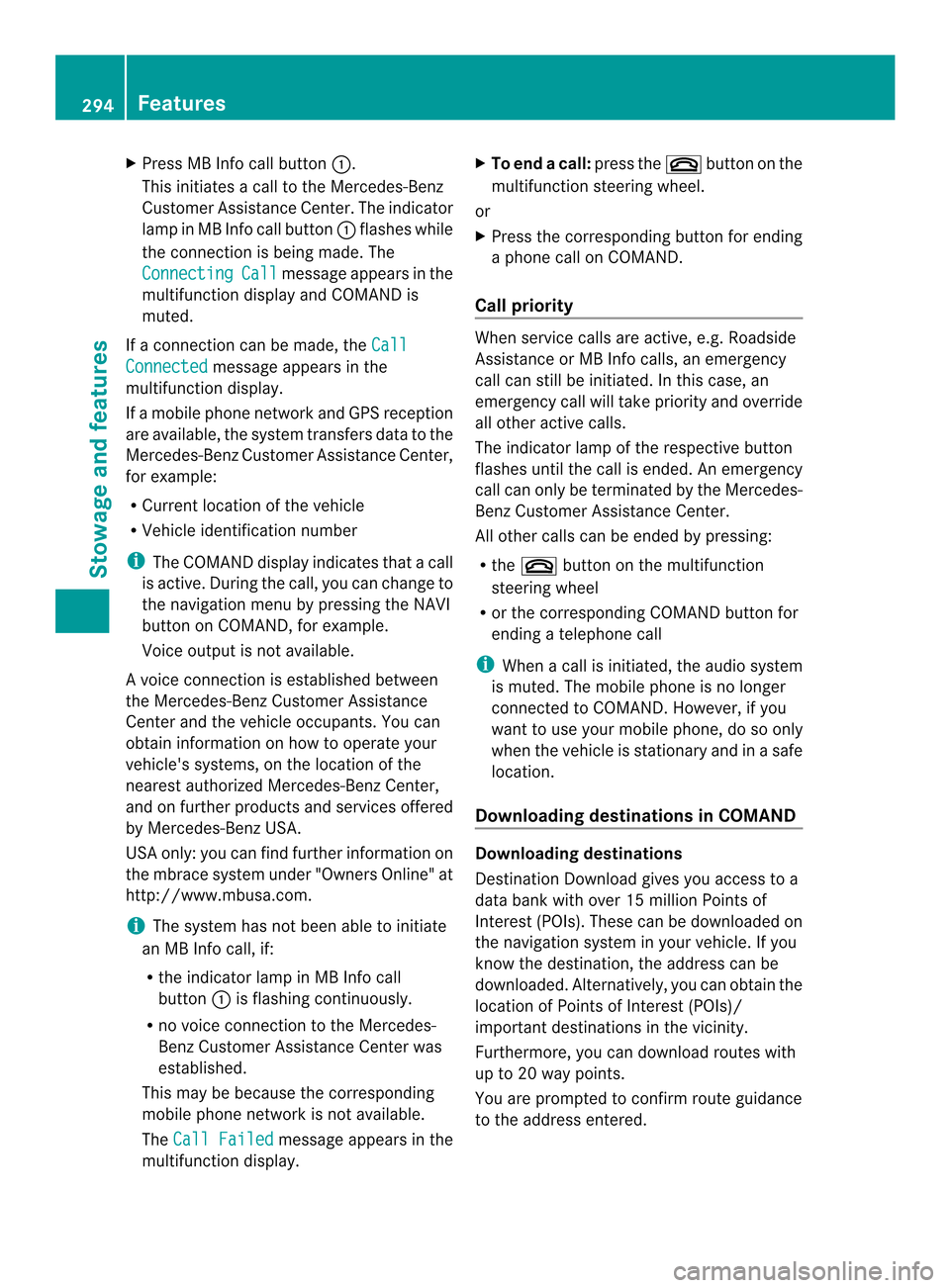
X
Press MB Infoc all button001A.
This initiates acall to the Mercedes-Benz
Customer Assistance Center. The indicator
lamp in MB Infoc all button001Aflashes while
the connection is being made. The
Connecting Call message appears in the
multifunction display and COMAND is
muted.
If ac onnection can be made, the CallConnected message appears in the
multifunction display.
If am obile phone network and GPS reception
are available, the system transfers data to the
Mercedes-Benz Customer Assistance Center,
for example:
R Current location of the vehicle
R Vehicle identification number
i The COMAND display indicates that acall
is active. During the call, you can change to
the navigation menu by pressing the NAVI
button on COMAND ,for example.
Voice output is not available.
Av oice connection is established between
the Mercedes-Benz Customer Assistance
Center and the vehicle occupants. You can
obtain information on how to operate your
vehicle's systems, on the location of the
nearest authorized Mercedes-Benz Center,
and on further products and services offered
by Mercedes-Benz USA.
USA only: you can find further information on
the mbrace system under "Owners Online" at
http://www.mbusa.com.
i The system has not been able to initiate
an MB Info call, if:
R the indicator lamp in MB Info call
button 001Ais flashing continuously.
R no voice connection to the Mercedes-
Benz Customer Assistance Center was
established.
This may be because the corresponding
mobile phone network is not available.
The Call Failed message appears in the
multifunction display. X
To end acall: press the 0008button on the
multifunctio nsteering wheel.
or
X Press the corresponding button for ending
ap hone cal lonCOMAND.
Call priority When service calls ar
eactive, e.g .Roadside
Assistance or MB Info calls, an emergency
call can still be initiated. In this case, an
emergenc ycall will take priority and override
all other active calls.
The indicator lamp of the respective button
flashes until the call is ended. An emergency
call can only be terminated by the Mercedes-
Benz Customer Assistance Center.
All other calls can be ended by pressing:
R the 0008 button on the multifunction
steerin gwheel
R or the corresponding COMAND button for
ending atelephone call
i When acall is initiated, the audio system
is muted. The mobile phone is no longer
connected to COMAND. However, if you
want to use your mobile phone, do so only
when the vehicle is stationary and in asafe
location.
Downloading destinations in COMAND Downloading destinations
Destination Download gives you access to a
data bank with over 15 million Points of
Interest (POIs). These can be downloaded on
the navigation system in your vehicle. If you
know the destination
,the address can be
downloaded. Alternatively, you can obtain the
location of Points of Interest (POIs)/
important destination sinthe vicinity.
Furthermore, you can download routes with
up to 20 way points.
You are prompted to confirm route guidance
to the address entered. 294
FeaturesStowage and features
Page 297 of 382
X
Select Yes with the
000Aor0004 buttons
on the COMAND system.
X Confirm with the 0001button on the
COMAND system.
The system calculate sthe route and
subsequently starts the route guidance with
the address entered.
i If yo uselect No ,t
he address can be saved
in the address book.
i The Destination Download function is
available if the corresponding mobile
phone network is available and data
transfer is possible.
i Youc an onl yusethe Destination
Download function if the vehicl eis
equipped with anavigation system.
Route Assistance
Thi sservice is part of the mbrace PLUS
Packag eand canno tbepurchased
separately.
i You can also use the Route Assistance
function if your vehicle is not equipped with
an avigation system.
Within the framework of this service, you
receive aprofessional and reliable form of
navigation support without having to leave
your vehicle.
The customer servic erepresentativ efinds a
suitable route depending on your vehicle's
curren tposition and the desired destination.
You will then be guided live through the
current route section.
Search &Send General notes
i
To use "Search &Send", your vehicle
must be equipped with mbrace and a
navigation system. You must also have an
mbrace servic esubscription.
"Search &Send" is adestination entry
service. Adestination address which is found
on Google Maps ®
can be transferred via mbrace directly to your vehicle's navigation
system.
Specifying and sending the destination
address
X
Go to the website http://
www.maps.google.com and enter a
destination address intot he entry field.
X To send the destination address to the
e-mail address of your mbrace
account: click on the corresponding
button.
i Example:
If you select 'Sen dtovehicle' and then
'Mercedes-Benz', the destination address
will be sent to your vehicle.
X When the "Send" dialog window appears:
In the relevant field, enter the e-mail
address which you specified when
activating your mbrace account.
X Click "Send".
i Information on specific commands such
as "Address entry" or "Send" can be found
on the website.
Calling up destination addresses
X Switc hont he ignition.
The destination address is loaded intot he
vehicle's navigation system.
Ad isplay message appears, asking
whether navigation should be started.
X Select Yes by sliding
0003000C0009and turning
0004000C000B the COMAND controller and confirm
with 000E.
The system calculates the rout eand
subsequently starts the rout eguidance
wit hthe address entered.
i If you select No ,t
he address can be saved
in th eaddress book.
i If you have sen tmoret hano ne
destination address ,eachi ndividual
destination must be confirmed separately. Features
295Stowage and featu res Z
Page 300 of 382
about various special offers at your
workshop.
R monthly status informatio ne-mail on oil
level ,air pr essure, maintenance, brakes,
etc. If applicable,y ou willreceive
information on special offers in the e-mail.
USA only :this information can alsobe
called up under "Owners Online" at http://
www.mbusa.com.
Information on the data stored in the vehicle
(Y page2 7).
Information on Roadsid eAssistance
(Y page2 3).
Downloading routes Downloading routes allows you to transfer
and save predefined routes in the navigation
system. To do this, an SD memory card must
be inserted into the COMAND system. If no
SD memory card is inserted, you must insert
the card into the card slot on the COMAND
system before saving.
Ar oute can be prepared and sent either by a
customer service representative or via the
mbrace portal on the Internet.
Each route can include up to 20 way points.
Once aroute has been received by the
navigation system, you will see the
Do you want to start route
guidance? message in the COMAND display.
The route is saved to the SD memory card.
X To startr outeguidance: selectYes .
An overview of the route is shown in the
display.
i If you select No ,t
he saved route can be
called up later via the navigation menu.
X Select Start .
Route guidance is started.
i Downloaded and saved data can be called
up again in COMAND.
You can find further information in the
separate COMAND Operating Instructions. Speed alert You can define the upper speed limit, which
must not be exceeded by the vehicle. If this
selected speed is exceeded by the vehicle, a
message will be sent to the Customer
Assistance center. The Customer Assistance
center then forwards this information to you.
You can select the way in which you receive
this information beforehand. Possible options
include text message, e-mail or an automated
call.
The data which is sent to the Customer
Assistance Center contains the following
information:
R
the location where the speed limit was
exceeded
R the time at which the speed limit was
exceeded
R the selected speed limit which was
exceeded
Geo fencing Geo fencing allows you to select areas which
the vehicle should not enter or leave. You will
be informed if the vehicle crosses the
boundaries of the selected areas. You can
select the way in which you receive this
information beforehand. Possible options
include text message, e-mail or an automated
call.
The area can be determined as either acircle
or ap olygon with amaximum of ten corners.
You can specify up to ten areas
simultaneously. Different settings are
possible for each area.
USA only: these settings can be called up
under "Owners Online" at http://
www.mbusa.com.
Alternatively, you can trigger an MB Info call
and inform the customer service
representative that you wish to activate geo
fencing.
Currently inactive areas can be activated by
text message. 298
FeaturesStowage and features
Page 326 of 382
The battery and the cover of the positive
terminal clamp must be installed securely
during operation.
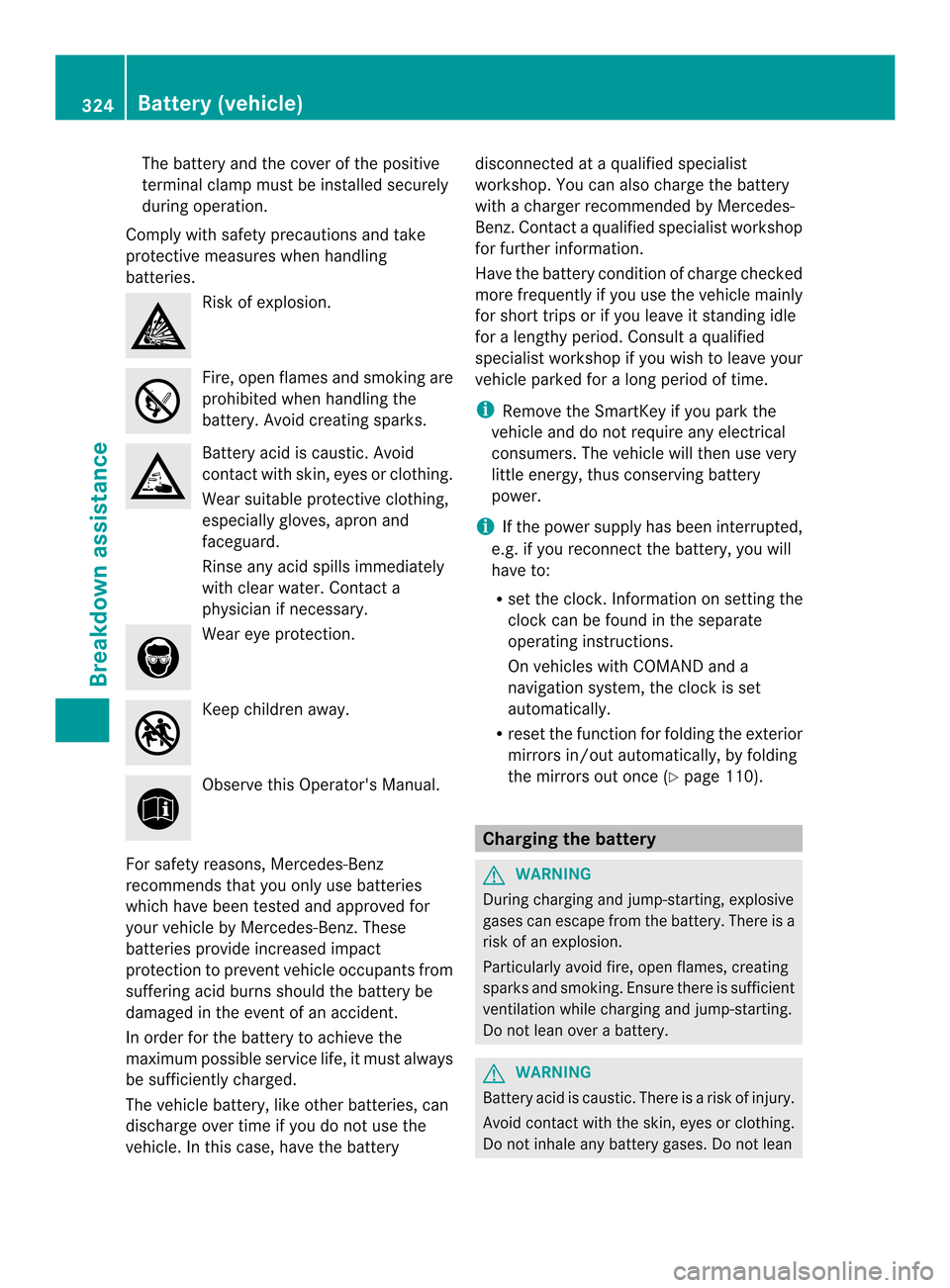
Comply with safety precautions and take
protective measures when handling
batteries. Risk of explosion.
Fire, open flames and smokin
gare
prohibited when handling the
battery. Avoid creatin gsparks. Battery acid is caustic. Avoid
contact with skin, eyes or clothing.
Wear suitable protective clothing,
especially gloves, apron and
faceguard.
Rinse any acid spills immediately
with clear water. Contact a
physician if necessary.
Wear eye protection.
Keep children away.
Observe this Operator's Manual.
For safety reasons, Mercedes-Benz
recommends that you only use batteries
which have been tested and approved for
your vehicle by Mercedes-Benz.T hese
batteries provide increased impact
protection to prevent vehicle occupants from
suffering acid burns should the battery be
damaged in the event of an accident.
In order for the battery to achieve the
maximum possible service life, it must always
be sufficiently charged.
The vehicle battery, like other batteries, can
discharge over time if you do not use the
vehicle. In this case, have the battery disconnected at
aqualified specialist
workshop. You can also charge the battery
with acharger recommended by Mercedes-
Benz.C ontactaqualified specialist workshop
for further information.
Have the battery condition of charge checked
more frequently if you use the vehicle mainly
for short trips or if you leave it standin gidle
for alengthy period. Consult aqualified
specialist workshop if you wish to leave your
vehicle parked for along period of time.
i Remove the SmartKey if you park the
vehicle and do not require any electrical
consumers. The vehicle will then use very
little energy, thus conserving battery
power.
i If the power supply has been interrupted,
e.g. if you reconnect the battery, you will
have to:
R set the clock.I nformation on setting the
clock can be found in the separate
operating instructions.
On vehicles with COMAND and a
navigation system, the clock is set
automatically.
R reset the function for folding the exterior
mirrors in/out automatically, by folding
the mirrors out once (Y page 110). Charging the battery
G
WARNING
During charging and jump-starting, explosive
gases can escape from the battery. There is a
risk of an explosion.
Particularly avoid fire, open flames, creating
sparks and smoking. Ensure there is sufficient
ventilation while charging and jump-starting.
Do not lean over abattery. G
WARNING
Battery acid is caustic. There is arisk of injury.
Avoid contact with the skin, eyes or clothing.
Do not inhale any battery gases. Do not lean 324
Battery (vehicle)Breakdown assistance