Button MERCEDES-BENZ CLS-Class 2015 W218 Owners Manual
[x] Cancel search | Manufacturer: MERCEDES-BENZ, Model Year: 2015, Model line: CLS-Class, Model: MERCEDES-BENZ CLS-Class 2015 W218Pages: 398, PDF Size: 7.43 MB
Page 239 of 398
tion display in the assistance graphics dis-
play.
For further information about ATTENTION
ASSIST, see (Y page 213).
Activating/deactivating Blind Spot
Assist X
Press the =or; button on the steer-
ing wheel to select the DriveAssist DriveAssistmenu.
X Press the 9or: button to select
Blind Spot Assist
Blind Spot Assist .
X Press the abutton.
The current selection appears.
X To activate/deactivate: press thea
button again.
For further information about Blind Spot
Assist, see (Y page 214).
For further information about Active Blind
Spot Assist, see (Y page 218).
Activating/deactivating Lane Keeping
Assist X
Press the =or; button on the steer-
ing wheel to select the DriveAssist DriveAssistmenu.
X Press the 9or: button to select
Lane Keep. Assist
Lane Keep. Assist .
X Press the abutton.
The current selection appears.
X Press ato confirm.
X Press the :or9 button to set Off
Off,
Standard
Standard orAdaptive
Adaptive.
X Press the abutton to save the setting.
For further information about Lane Keeping
Assist, see (Y page 216).
For further information about Active Lane
Keeping Assist, see (Y page 221). Service menu
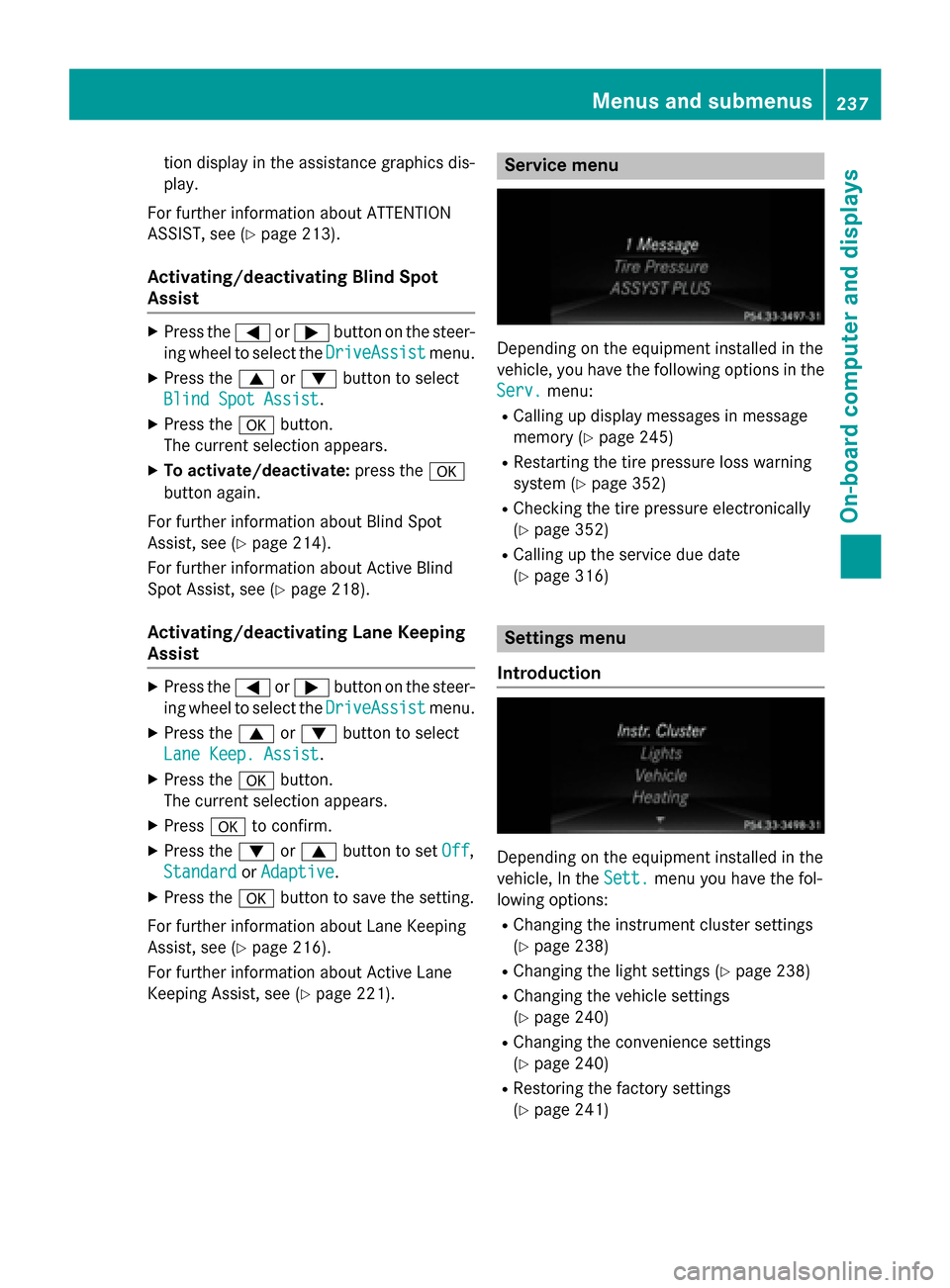
Depending on the equipment installed in the
vehicle, you have the following options in the
Serv. Serv. menu:
R Calling up display messages in message
memory (Y page 245)
R Restarting the tire pressure loss warning
system (Y page 352)
R Checking the tire pressure electronically
(Y page 352)
R Calling up the service due date
(Y page 316) Settings menu
Introduction Depending on the equipment installed in the
vehicle, In the
Sett.
Sett. menu you have the fol-
lowing options:
R Changing the instrument cluster settings
(Y page 238)
R Changing the light settings (Y page 238)
R Changing the vehicle settings
(Y page 240)
R Changing the convenience settings
(Y page 240)
R Restoring the factory settings
(Y page 241) Menus and submenus
237On-board computer and displays Z
Page 240 of 398
Instrument cluster
Selecting the unit of measurement for dis-
tance
The Display Unit Speed-/Odometer: Display Unit Speed-/Odometer:
function allows you to choose whether cer-
tain displays appear in kilometers or miles in the multifunction display.
X Press the =or; button on the steer-
ing wheel to select the Sett.
Sett. menu.
X Press the :or9 button to select the
Instr. Cluster
Instr. Cluster submenu.
X Press ato confirm.
X Press the :or9 button to select the
Display Unit Speed-/Odometer Display Unit Speed-/Odometer func-
tion.
You will see the selected setting: km kmor
miles
miles.
X Press the abutton to save the setting.
The selected unit of measurement for dis-
tance applies to: R Digital speedometer in the Trip Tripmenu
R Odometer and the trip odometer
R Trip computer
R Current consumption and the range
R Navigation instructions in the Navi
Navimenu
R Cruise control
R DISTRONIC PLUS
R ASSYST PLUS service interval display
Selecting the permanent display function
You can determine whether the multifunction display permanently shows your speed or the
outside temperature.
X Press the =or; button on the steer-
ing wheel to select the Sett
Sett menu.
X Press the :or9 button to select the
Inst. Cluster
Inst. Cluster submenu.
X Press ato confirm.
X Press the :or9 button to select the
Permanent Display
Permanent Display function.
You will see the selected setting Outside
Outside
Temperature
Temperature orAdditional Speedome‐
Additional Speedome‐ ter [km/h] ter [km/h]
/AdditionalAdditional Speedometer Speedometer
[mph]
[mph].
X Press the abutton to save the setting.
i The speed is highlighted in km/h or in
mph conversely to your speedometer.
Lights Setting the brightness of the instrument
cluster lighting and switches
The lighting in the instrument cluster, in the
displays and the controls in the vehicle inte-
rior can be adjusted with the Brightness Brightness
Display/Switches:
Display/Switches: function.
X Press the =or; button on the steer-
ing wheel to select the Sett.
Sett.menu.
X Press the :or9 button to select the
Lights
Lights submenu.
X Press ato confirm.
X Press the :or9 button to select the
Brightness Display/Switches:
Brightness Display/Switches: func-
tion.
You will see the selected setting.
X Press ato confirm.
X Press the :or9 button to adjust the
brightness to any level from Level 1
Level 1 to
Level 5 Level 5 (bright).
X Press the aor% button to save the
setting.
If the light switch is set to Ã,Tor
L, the brightness is dependent upon
the brightness of the ambient light.
i The light sensor in the instrument cluster
automatically controls the brightness of
the multifunction display.
In daylight, the displays in the instrument
cluster are not illuminated.
Switching the daytime running lamps on/ off
i This function is not available in Canada. 238
Menus and submenusOn-board computer and displays
Page 241 of 398
X
Press the =or; button on the steer-
ing wheel to select the Sett. Sett.menu.
X Press the :or9 button to select the
Lights
Lights submenu.
X Press ato confirm.
X Press :or9 to select the Day Day
Lights
Lights function.
If the Day Lights
Day Lights function has been
switched on, the cone of light and the W
symbol in the multifunction display are
shown in orange.
X Press the abutton to save the setting.
Further information on daytime running
lamps (Y page 122).
Setting the brightness of the ambient
lighting
X Press the =or; button on the steer-
ing wheel to select the Sett. Sett.menu.
X Press the :or9 button to select the
Lights
Lights submenu.
X Press ato confirm.
X Press the :or9 button to select the
Amb. Light +/-.
Amb. Light +/-. function.
You will see the selected setting.
X Press ato confirm.
X Press the :or9 button to adjust the
brightness to any level from Off
Off toLevel 5
Level 5
(bright).
X Press the aor% button to save the
setting.
Setting the ambient lighting color
X Press the =or; button on the steer-
ing wheel to select the Sett.
Sett. menu.
X Press the :or9 button to select the
Lights
Lights submenu.
X Press ato confirm.
X Press the :or9 button to select the
Amb. Light Col.
Amb. Light Col. function.
X Press ato confirm. X
Press the :or9 button to set the
color to SOLAR SOLAR,NEUTRAL NEUTRAL orPOLAR
POLAR.
X Press the aor% button to save the
setting.
Activating/deactivating surround light-
ing and exterior lighting delayed switch-
off
X Press the =or; button on the steer-
ing wheel to select the Sett. Sett.menu.
X Press the :or9 button to select the
Lights
Lights submenu.
X Press ato confirm.
X Press :or9 to select the Sur‐
Sur‐
round Lighting
round Lighting function.
If the Surround
Surround Lighting
Lightingfunction is acti-
vated, the light cone and the area around
the vehicle are displayed in orange in the
multifunction display.
X Press the abutton to save the setting.
Deactivating delayed switch-off of the exte-
rior lighting temporarily:
X Before leaving the vehicle, turn the Smart-
Key to position 0in the ignition lock.
X Turn the SmartKey to position 2in the igni-
tion lock.
The exterior lighting delayed switch-off is
deactivated.
Delayed switch-off of the exterior lighting is
reactivated the next time you start the
engine.
If you have activated the Surround Light‐
Surround Light‐
ing ing function and the light switch is set to
Ã, the following functions are activated
when it is dark:
R surround lighting: the exterior lighting
remains lit for 40 seconds after unlocking
with the SmartKey. If you start the engine,
the surround lighting is switched off and
automatic headlamp mode is activated
(Y page 122).
R exterior lighting delayed switch-off: the
exterior lighting remains lit for 60 seconds
after the engine is switched off. If you close Menus and submenus
239On-board computer and displays Z
Page 242 of 398
all the doors and the trunk lid/tailgate, the
exterior lighting goes off after 15 seconds.
i Depending on your vehicle's equipment,
when the surround lighting and delayed
switch-off exterior lighting are on, the fol-
lowing light up:
R Parking lamps
R Side marker lamps
R Surround lighting in the exterior mirrors
Activating/deactivating the interior light-
ing delayed switch-off
If you activate the Interior Lighting
Interior Lighting
Delay Delay function, the interior lighting remains
on for 20 seconds after you remove the
SmartKey from the ignition lock.
X Press the =or; button on the steer-
ing wheel to select the Sett.
Sett. menu.
X Press the :or9 button to select the
Lights
Lights submenu.
X Press ato confirm.
X Press the :or9 button to select the
Light. Delay
Light. Delay function.
If the Light. Delay Light. Delay function has been
switched on, the vehicle interior is dis-
played in orange in the multifunction dis-
play.
X Press the abutton to save the setting.
Vehicle Activating/deactivating the automatic
door locking mechanism
X Press the =or; button on the steer-
ing wheel to select the Sett.
Sett. menu.
X Press :or9 to select the Vehicle
Vehicle
submenu.
X Press ato confirm.
X Press :or9 to select the Auto.
Auto.
Door Locks
Door Locks function.
When the Auto. Door Locks
Auto. Door Locks function is
activated, the vehicle doors are displayed
in orange in the multifunction display.
X Press the abutton to save the setting. If you activate the
Auto. Door Locks Auto. Door Locks func-
tion, the vehicle is centrally locked above a
speed of around 9 mph (15 km/h).
For further information on the automatic lock-
ing feature, see (Y page 91).
Activating/deactivating the acoustic
locking verification signal
If you switch on the Acoustic AcousticLock
Lockfunction,
an acoustic signal sounds when you lock the
vehicle.
X Press the =or; button on the steer-
ing wheel to select the Sett.
Sett.menu.
X Press :or9 to select the Vehicle
Vehicle
submenu.
X Press ato confirm.
X Press the :or9 button to select the
Acoustic Lock
Acoustic Lock function.
If the Acoustic
Acoustic Lock
Lockfunction is activated,
the & symbol in the multifunction dis-
play lights up orange.
X Press the abutton to save the setting.
Convenience Activating/deactivating the EASY-
ENTRY/EXIT feature
G
WARNING
When the EASY-ENTRY/EXIT feature adjusts
the steering wheel, you and other vehicle
occupants – particularly children – could
become trapped. There is a risk of injury.
While the EASY-ENTRY/EXIT feature is mak-
ing adjustments, make sure that no one has
any body parts in the sweep of the steering
wheel.
If somebody becomes trapped:
R press one of the memory function position
buttons, or
R move the switch for steering wheel adjust-
ment in the opposite direction to that in
which the steering wheel is moving.
The adjustment process is stopped. 240
Menus and submenusOn-board computer and displays
Page 243 of 398
X
Press the =or; button on the steer-
ing wheel to select the Sett. Sett.menu.
X Press the :or9 button to select the
Convenience
Convenience submenu.
X Press ato confirm.
X Press the :or9 button to select the
Easy Entry/Exit Easy Entry/Exit function.
If the Easy Entry/Exit
Easy Entry/Exit function is activa-
ted, the vehicle steering wheel is displayed
in orange in the multifunction display.
X Press the abutton to save the setting.
Further information on the EASY-ENTRY/EXIT feature (Y page 115).
Switching the belt adjustment on/off X Press the =or; button on the steer-
ing wheel to select the Sett.
Sett. menu.
X Press the :or9 button to select the
Convenience
Convenience submenu.
X Press ato confirm.
X Press the :or9 button to select the
Belt Adjustment
Belt Adjustment function.
If the Belt Adjustment
Belt Adjustment function is activa-
ted, the vehicle seat belt is shown in orange
in the multifunction display.
X Press the abutton to save the setting.
For further information on belt adjustment,
see (Y page 49).
Switching the fold-in mirrors when lock-
ing feature on/off
This function is only available when the vehi-
cle is equipped with the electrical fold-in func- tion.
When you switch on the Auto. Mirror
Auto. Mirror
Folding Folding function, the exterior mirrors are
folded in when the vehicle is locked. If you
unlock the vehicle and then open the driver's
or front-passenger door, the exterior mirrors
fold out again.
X Press the =or; button on the steer-
ing wheel to select the Settings
Settings menu.
X Press the :or9 button to select the
Convenience Convenience submenu.
X Press ato confirm. X
Press the :or9 button to select the
Auto. Mirror Folding
Auto. Mirror Folding function.
If the Auto. Mirror Folding
Auto. Mirror Folding function is
switched on, the multifunction display
shows the vehicle's exterior mirror in
orange.
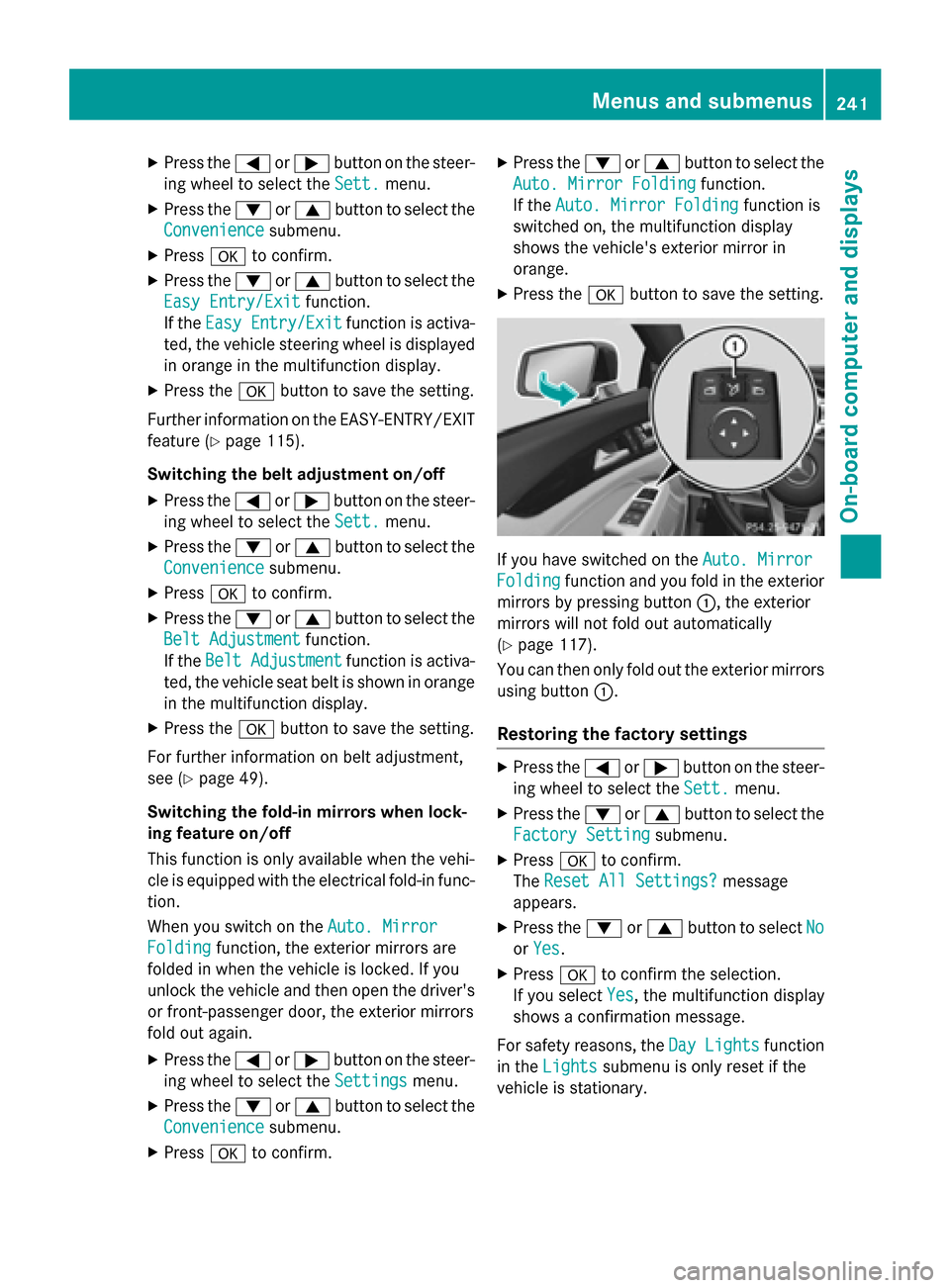
X Press the abutton to save the setting. If you have switched on the
Auto. Mirror Auto. Mirror
Folding
Folding function and you fold in the exterior
mirrors by pressing button :, the exterior
mirrors will not fold out automatically
(Y page 117).
You can then only fold out the exterior mirrors using button :.
Restoring the factory settings X
Press the =or; button on the steer-
ing wheel to select the Sett.
Sett.menu.
X Press the :or9 button to select the
Factory Setting
Factory Setting submenu.
X Press ato confirm.
The Reset All Settings?
Reset All Settings? message
appears.
X Press the :or9 button to select No
No
or Yes
Yes.
X Press ato confirm the selection.
If you select Yes
Yes, the multifunction display
shows a confirmation message.
For safety reasons, the Day Lights
Day Lightsfunction
in the Lights
Lights submenu is only reset if the
vehicle is stationary. Menus and submenus
241On-board computer and displays Z
Page 244 of 398
AMG menu in AMG vehicles
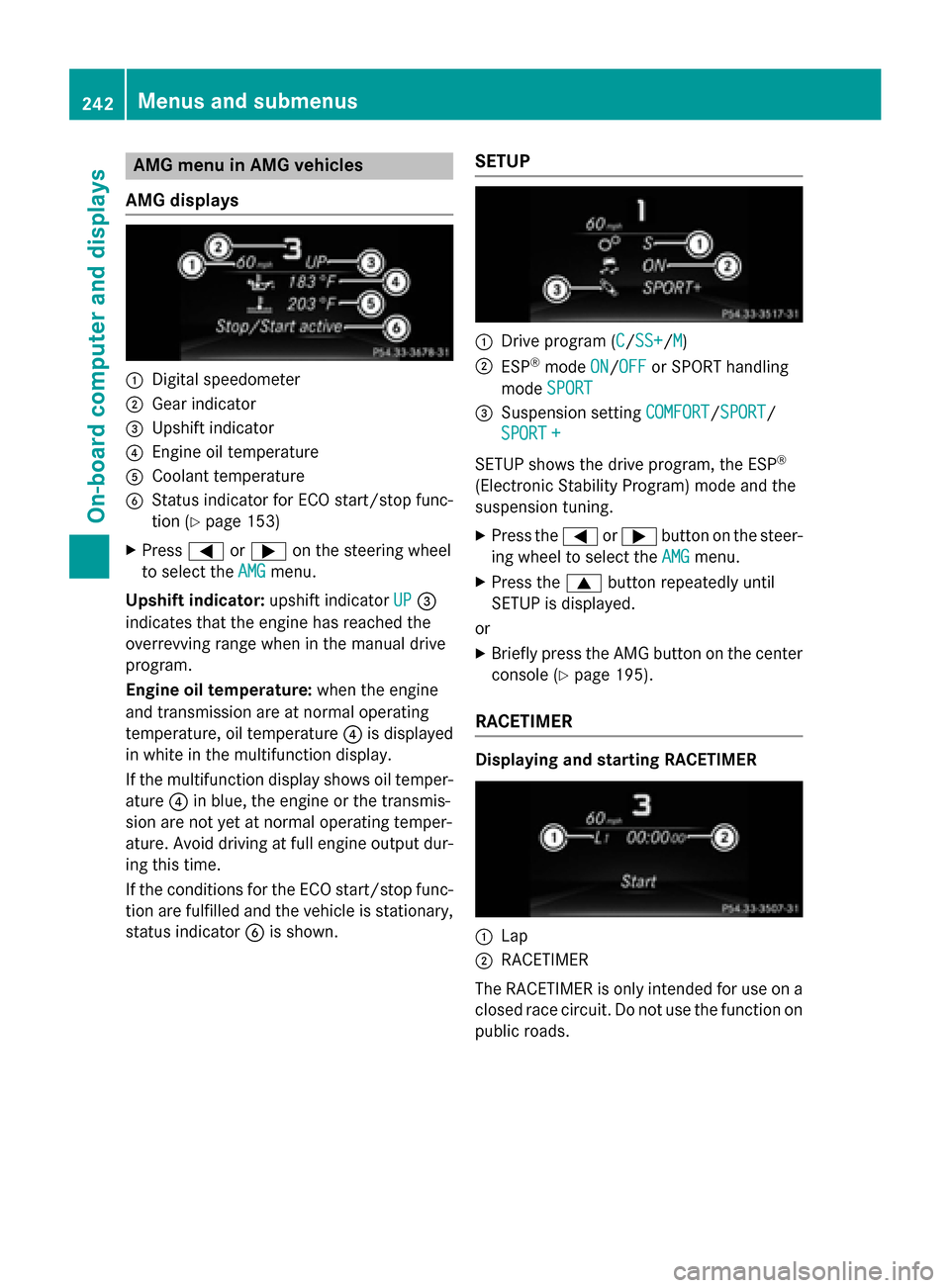
AMG displays :
Digital speedometer
; Gear indicator
= Upshift indicator
? Engine oil temperature
A Coolant temperature
B Status indicator for ECO start/stop func-
tion (Y page 153)
X Press =or; on the steering wheel
to select the AMG AMGmenu.
Upshift indicator: upshift indicatorUP
UP=
indicates that the engine has reached the
overrevving range when in the manual drive
program.
Engine oil temperature: when the engine
and transmission are at normal operating
temperature, oil temperature ?is displayed
in white in the multifunction display.
If the multifunction display shows oil temper- ature ?in blue, the engine or the transmis-
sion are not yet at normal operating temper-
ature. Avoid driving at full engine output dur-
ing this time.
If the conditions for the ECO start/stop func- tion are fulfilled and the vehicle is stationary, status indicator Bis shown. SETUP :
Drive program (C C/SS+ SS+ /MM)
; ESP ®
mode ON
ON/OFF
OFF or SPORT handling
mode SPORT
SPORT
= Suspension setting COMFORT
COMFORT/SPORT
SPORT/
SPORT +
SPORT +
SETUP shows the drive program, the ESP ®
(Electronic Stability Program) mode and the
suspension tuning.
X Press the =or; button on the steer-
ing wheel to select the AMG
AMGmenu.
X Press the 9button repeatedly until
SETUP is displayed.
or X Briefly press the AMG button on the center
console (Y page 195).
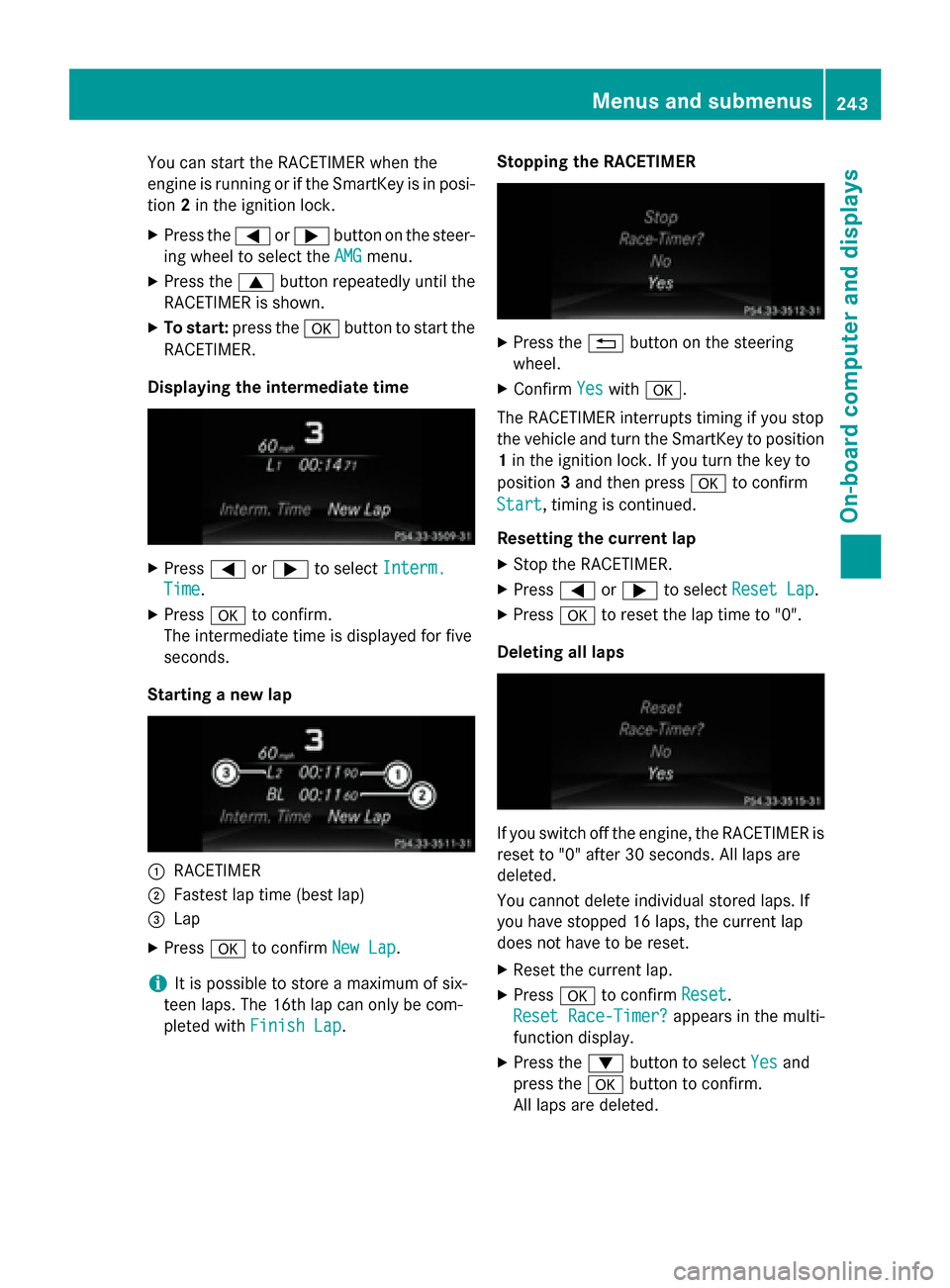
RACETIMER Displaying and starting RACETIMER
:
Lap
; RACETIMER
The RACETIMER is only intended for use on a closed race circuit. Do not use the function on
public roads. 242
Menus and sub
menusOn-board computer and displays
Page 245 of 398
You can start the RACETIMER when the
engine is running or if the SmartKey is in posi-
tion 2in the ignition lock.
X Press the =or; button on the steer-
ing wheel to select the AMG
AMGmenu.
X Press the 9button repeatedly until the
RACETIMER is shown.
X To start: press the abutton to start the
RACETIMER.
Displaying the intermediate time X
Press =or; to select Interm.
Interm.
Time
Time .
X Press ato confirm.
The intermediate time is displayed for five
seconds.
Starting a new lap :
RACETIMER
; Fastest lap time (best lap)
= Lap
X Press ato confirm New Lap
New Lap.
i It is possible to store a maximum of six-
teen laps. The 16th lap can only be com-
pleted with Finish Lap
Finish Lap. Stopping the RACETIMER X
Press the %button on the steering
wheel.
X Confirm Yes Yeswith a.
The RACETIMER interrupts timing if you stop
the vehicle and turn the SmartKey to position 1 in the ignition lock. If you turn the key to
position 3and then press ato confirm
Start Start, timing is continued.
Resetting the current lap
X Stop the RACETIMER.
X Press =or; to select Reset Lap Reset Lap.
X Press ato reset the lap time to "0".
Deleting all laps If you switch off the engine, the RACETIMER is
reset to "0" after 30 seconds. All laps are
deleted.
You cannot delete individual stored laps. If
you have stopped 16 laps, the current lap
does not have to be reset.
X Reset the current lap.
X Press ato confirm Reset
Reset.
Reset Race-Timer? Reset Race-Timer? appears in the multi-
function display.
X Press the :button to select Yes
Yesand
press the abutton to confirm.
All laps are deleted. Menus and submenus
243On-board computer and displays Z
Page 246 of 398
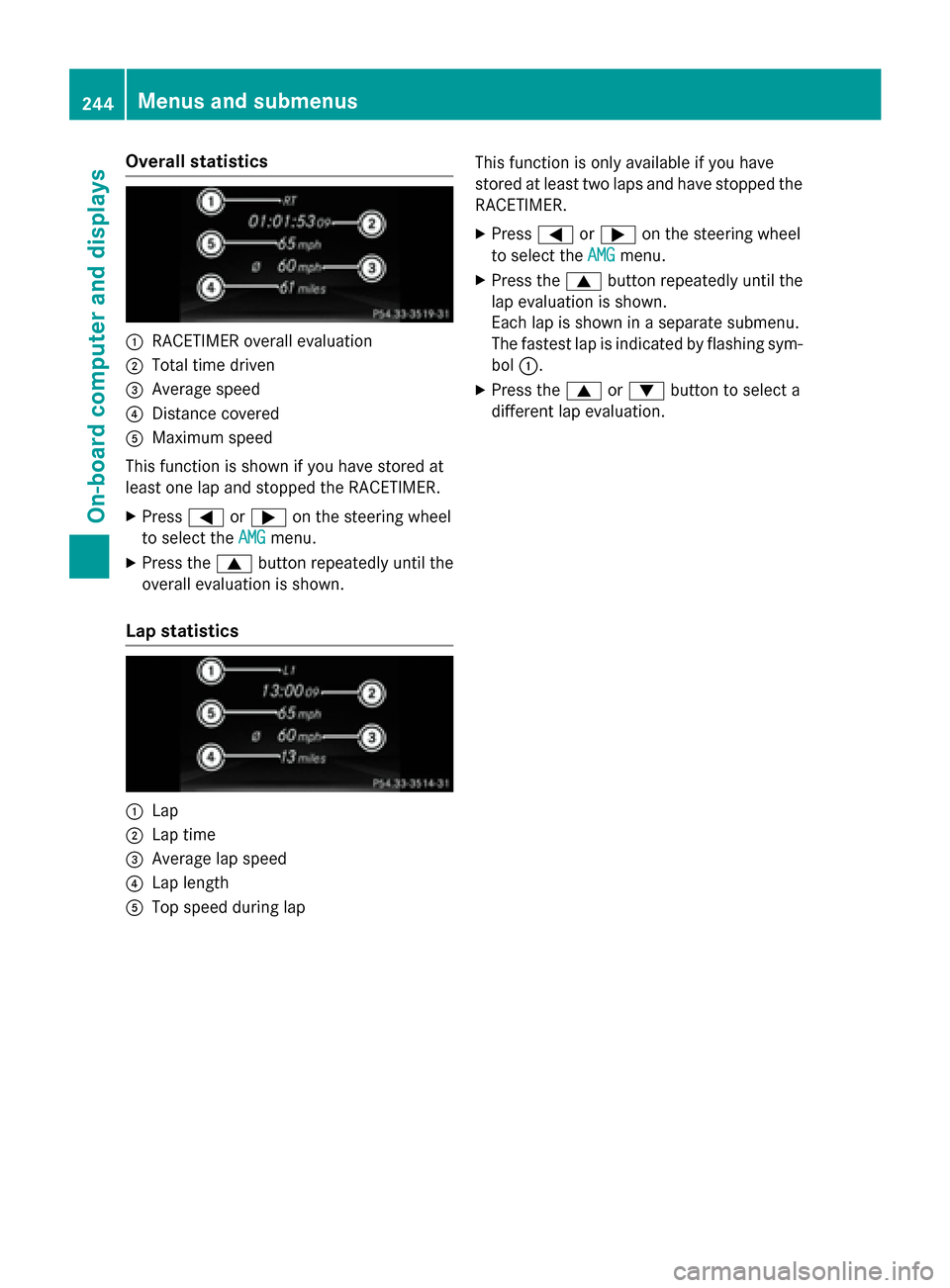
Overall statistics
:
RACETIMER overall evaluation
; Total time driven
= Average speed
? Distance covered
A Maximum speed
This function is shown if you have stored at
least one lap and stopped the RACETIMER.
X Press =or; on the steering wheel
to select the AMG
AMG menu.
X Press the 9button repeatedly until the
overall evaluation is shown.
Lap statistics :
Lap
; Lap time
= Average lap speed
? Lap length
A Top speed during lap This function is only available if you have
stored at least two laps and have stopped the
RACETIMER.
X Press =or; on the steering wheel
to select the AMG
AMG menu.
X Press the 9button repeatedly until the
lap evaluation is shown.
Each lap is shown in a separate submenu.
The fastest lap is indicated by flashing sym-
bol :.
X Press the 9or: button to select a
different lap evaluation. 244
Menus and submenusOn-board computer and displays
Page 247 of 398
Display messages
Introduction
General notes Display messages appear in the multifunction display.
Display messages with graphic displays may be shown in simplified form in the Operator's
Manual and may differ from the messages shown in the multifunction display.
Please respond in accordance with the display messages and follow the additional notes in this Operator's Manual.
Certain display messages are accompanied by an audible warning tone or a continuous tone.
When the ignition is switched off, all display messages are deleted, apart from some high-
priority display messages. Once the causes of the high-priority display messages have been
rectified, the corresponding display messages are also deleted.
When you stop and park the vehicle, please observe the notes on:
R HOLD function (Y page 191)
R Parking (Y page 170)
Hiding display messages X
Press the aor% button on the steering wheel to hide the display message.
The display message is cleared.
The multifunction display shows high-priority display messages in red. Some high-priority dis- play messages cannot be hidden.
The multifunction display shows these messages continuously until the causes for the mes-
sages have been remedied.
Message memory The on-board computer saves certain display messages in the
message memory. You can call
up the display messages:
X Press the =or; button on the steering wheel to select the Serv. Serv.menu.
If there are display messages, the multifunction display shows 2 Messages
2 Messages, for example.
X Press the 9or: button to select the entry, e.g. 2 Messages
2 Messages.
X Press ato confirm.
X Press the 9or: button to scroll through the display messages. Display
messages
245On-board computer and displays Z
Page 297 of 398
R
Always stow objects so that they cannot be
thrown around in such situations.
R Always make sure that objects do not pro-
trude from stowage spaces, parcel nets or
stowage nets.
R Close the lockable stowage spaces while
driving.
R Always stow and secure heavy, hard, poin-
ted, sharp-edged, fragile or bulky objects in
the trunk/cargo compartment.
Observe the loading guidelines (Y page 286).
! Make sure that any bottles weighing more
than 1.1 lb(0.5 kg) that are stored in the
bottle holder, rest on the vehicle floor. The bottle holder could otherwise be damaged. X
Press the outer edge of button :and slide
in the direction of the arrow until the bottle
fits into the opening.
X Insert the bottle into the bottle holder.
The bottle holder is suitable for bottles with a
capacity of 25 fl. oz. (0.7 l) to 54 fl. oz. (1.5 l).
The bo ttle holder does not secure the bottles;
it merely prevents them from tipping over. Sun visors
Overview G
WARNING
If the mirror cover of the vanity mirror is folded up when the vehicle is in motion, you could be
blinded by incident light. There is a risk of an
accident. Always keep the mirror cover folded down
while driving.
:
Mirror light
; Bracket
= Retaining clip, e.g. for a car park ticket
? Vanity mirror
A Mirror cover
Vanity mirror in the sun visor Mirror light
:only functions if the sun visor
is clipped into bracket ;and mirror cover A
has been folded up.
Glare from the side X
Fold down sun visor :.
X Pull sun visor :out of retainer ;.
X Swing sun visor :to the side.
X Slide sun visor :horizontally as required. Features
295Stowage an d features Z