display MERCEDES-BENZ CLS COUPE 2014 Owners Manual
[x] Cancel search | Manufacturer: MERCEDES-BENZ, Model Year: 2014, Model line: CLS COUPE, Model: MERCEDES-BENZ CLS COUPE 2014Pages: 417, PDF Size: 14.15 MB
Page 244 of 417
The outside temperature display is in the mul-
tifunction display (Y page 242).
Changes in the outside temperature are dis-
played after a short delay. Speedometer with segments
The segments in the speedometer indicate
which speed range is available.
R Cruise control activated (Y page 186):
The segments light up from the stored
speed to the maximum speed.
R Variable SPEEDTRONIC activated
(Y page 189):
The segments light up from the start of the
scale to the selected limit speed.
R DISTRONIC PLUS activated (Y page 191):
One or two segments in the set speed
range light up.
R DISTRONIC PLUS detects a vehicle in front:
The segments between the speed of the
vehicle in front and the stored speed light
up. Operating the on-board computer
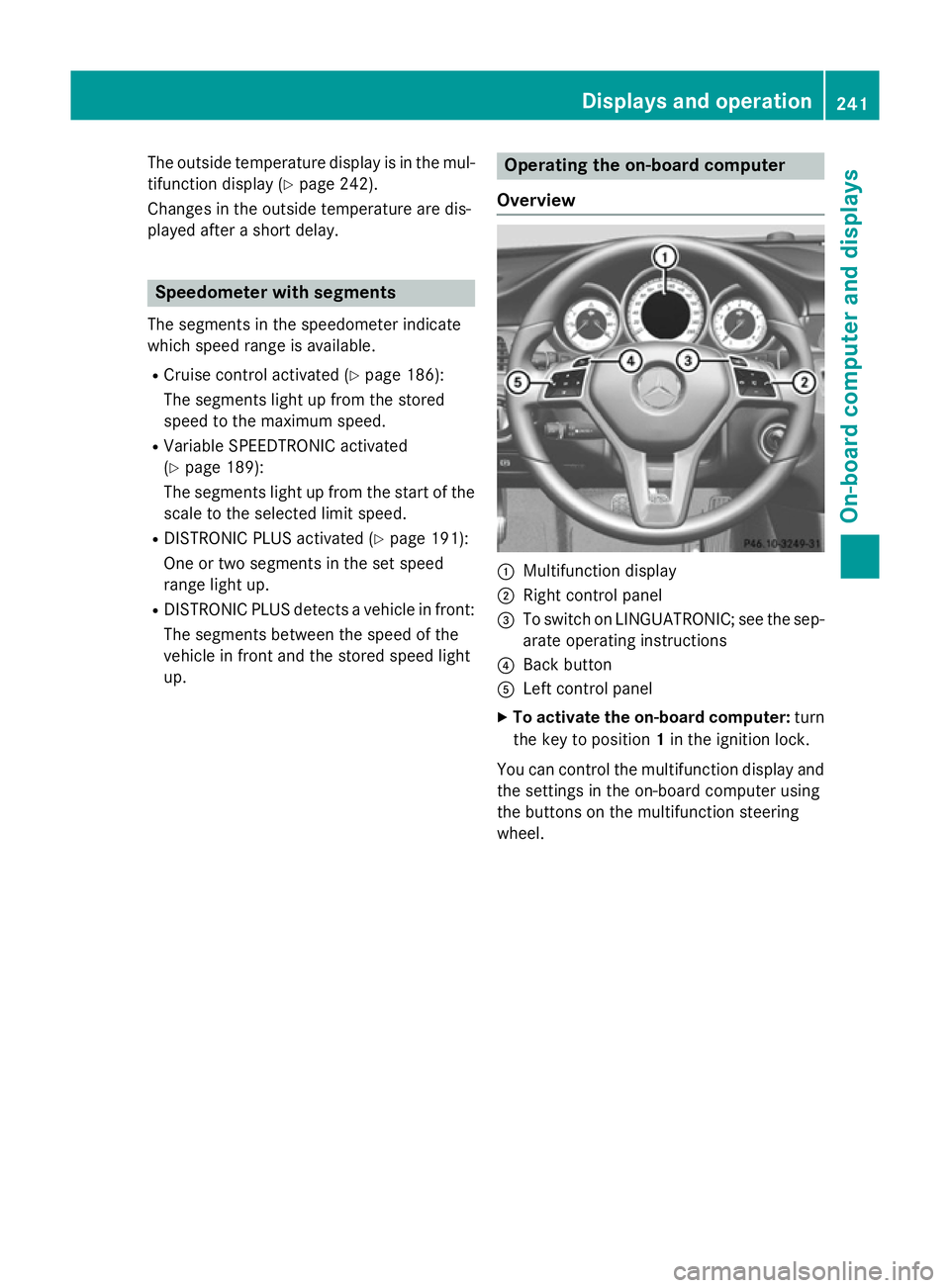
Overview :
Multifunction display
; Right control panel
= To switch on LINGUATRONIC; see the sep-
arate operating instructions
? Back button
A Left control panel
X To activate the on-board computer: turn
the key to position 1in the ignition lock.
You can control the multifunction display and the settings in the on-board computer using
the buttons on the multifunction steering
wheel. Displays and operation
241On-board computer and displays Z
Page 245 of 417
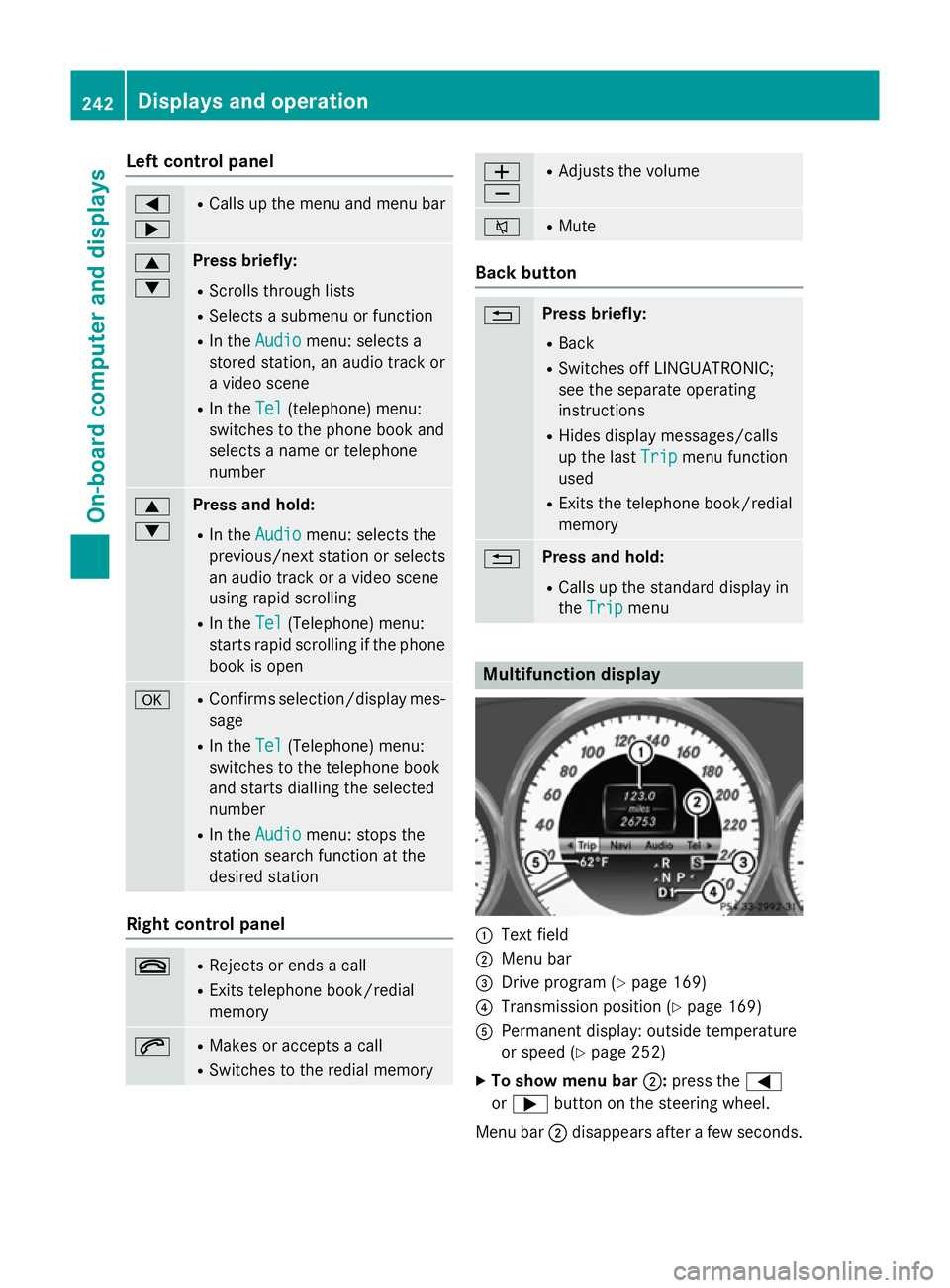
Left control panel
=
; R
Calls up the menu and menu bar 9
: Press briefly:
R Scrolls through lists
R Selects a submenu or function
R In the Audio Audio menu: selects a
stored station, an audio track or
a video scene
R In the Tel
Tel (telephone) menu:
switches to the phone book and
selects a name or telephone
number 9
: Press and hold:
R In the Audio Audio menu: selects the
previous/next station or selects
an audio track or a video scene
using rapid scrolling
R In the Tel
Tel (Telephone) menu:
starts rapid scrolling if the phone book is open a R
Confirms selection/display mes-
sage
R In the Tel Tel(Telephone) menu:
switches to the telephone book
and starts dialling the selected
number
R In the Audio Audio menu: stops the
station search function at the
desired station Right control panel
~ R
Rejects or ends a call
R Exits telephone book/redial
memory 6 R
Makes or accepts a call
R Switches to the redial memory W
X R
Adjusts the volume 8 R
Mute Back button
% Press briefly:
R Back
R Switches off LINGUATRONIC;
see the separate operating
instructions
R Hides display messages/calls
up the last Trip
Trip menu function
used
R Exits the telephone book/redial
memory % Press and hold:
R Calls up the standard display in
the Trip Trip menu Multifunction display
:
Text field
; Menu bar
= Drive program (Y page 169)
? Transmission position (Y page 169)
A Permanent display: outside temperature
or speed (Y page 252)
X To show menu bar ;:press the =
or ; button on the steering wheel.
Menu bar ;disappears after a few seconds. 242
Displays and operationOn-board computer and displays
Page 246 of 417
Text field
:shows the selected menu or
submenu as well as display messages.
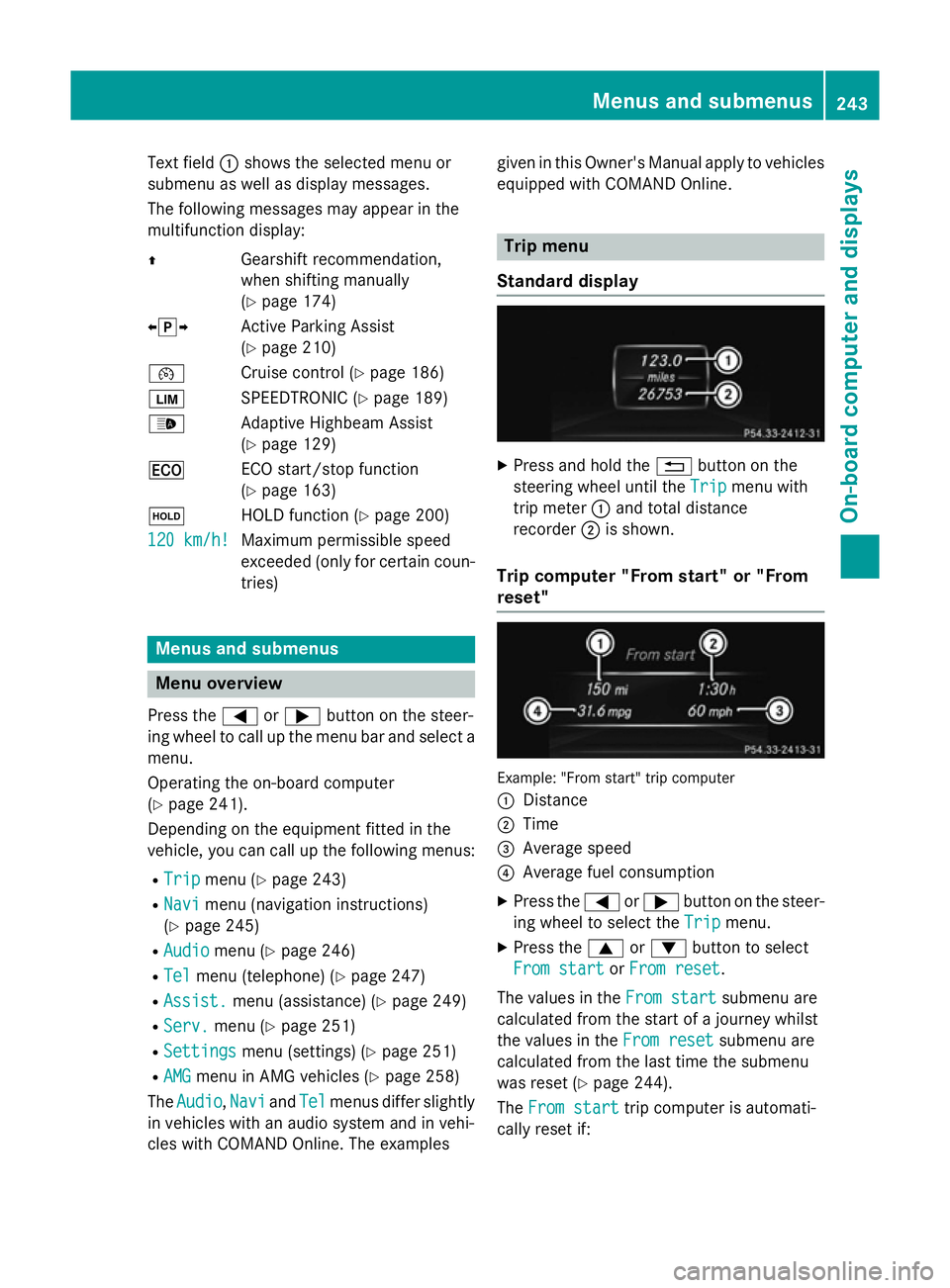
The following messages may appear in the
multifunction display:
Z Gearshift recommendation,
when shifting manually
(Ypage 174)
XjY Active Parking Assist
(Ypage 210)
¯ Cruise control (Y page 186)
È SPEEDTRONIC (Y page 189)
_ Adaptive Highbeam Assist
(Ypage 129)
¤ ECO start/stop function
(Ypage 163)
ë HOLD function (Y page 200)
120 km/h!
120 km/h! Maximum permissible speed
exceeded (only for certain coun-
tries) Menus and submenus
Menu overview
Press the =or; button on the steer-
ing wheel to call up the menu bar and select a
menu.
Operating the on-board computer
(Y page 241).
Depending on the equipment fitted in the
vehicle, you can call up the following menus:
R Trip Trip menu (Y page 243)
R Navi
Navi menu (navigation instructions)
(Y page 245)
R Audio
Audio menu (Y page 246)
R Tel
Tel menu (telephone) (Y page 247)
R Assist.
Assist. menu (assistance) (Y page 249)
R Serv.
Serv. menu (Y page 251)
R Settings
Settings menu (settings) (Y page 251)
R AMG
AMG menu in AMG vehicles (Y page 258)
The Audio
Audio, Navi
NaviandTel
Tel menus differ slightly
in vehicles with an audio system and in vehi-
cles with COMAND Online. The examples given in this Owner's Manual apply to vehicles
equipped with COMAND Online. Trip menu
Standard display X
Press and hold the %button on the
steering wheel until the Trip
Tripmenu with
trip meter :and total distance
recorder ;is shown.
Trip computer "From start" or "From
reset" Example: "From start" trip computer
:
Distance
; Time
= Average speed
? Average fuel consumption
X Press the =or; button on the steer-
ing wheel to select the Trip Tripmenu.
X Press the 9or: button to select
From start From start orFrom reset
From reset.
The values in the From start
From startsubmenu are
calculated from the start of a journey whilst
the values in the From reset From resetsubmenu are
calculated from the last time the submenu
was reset (Y page 244).
The From start From start trip computer is automati-
cally reset if: Menus and submenus
243On-board computer and displays Z
Page 247 of 417
R
the ignition has been switched off for more
than four hours
R 999 hours have been exceeded
R 9,999 kilometres have been exceeded.
The From reset
From reset trip computer is automati-
cally reset if the value exceeds 9,999 hours or 99,999 kilometres.
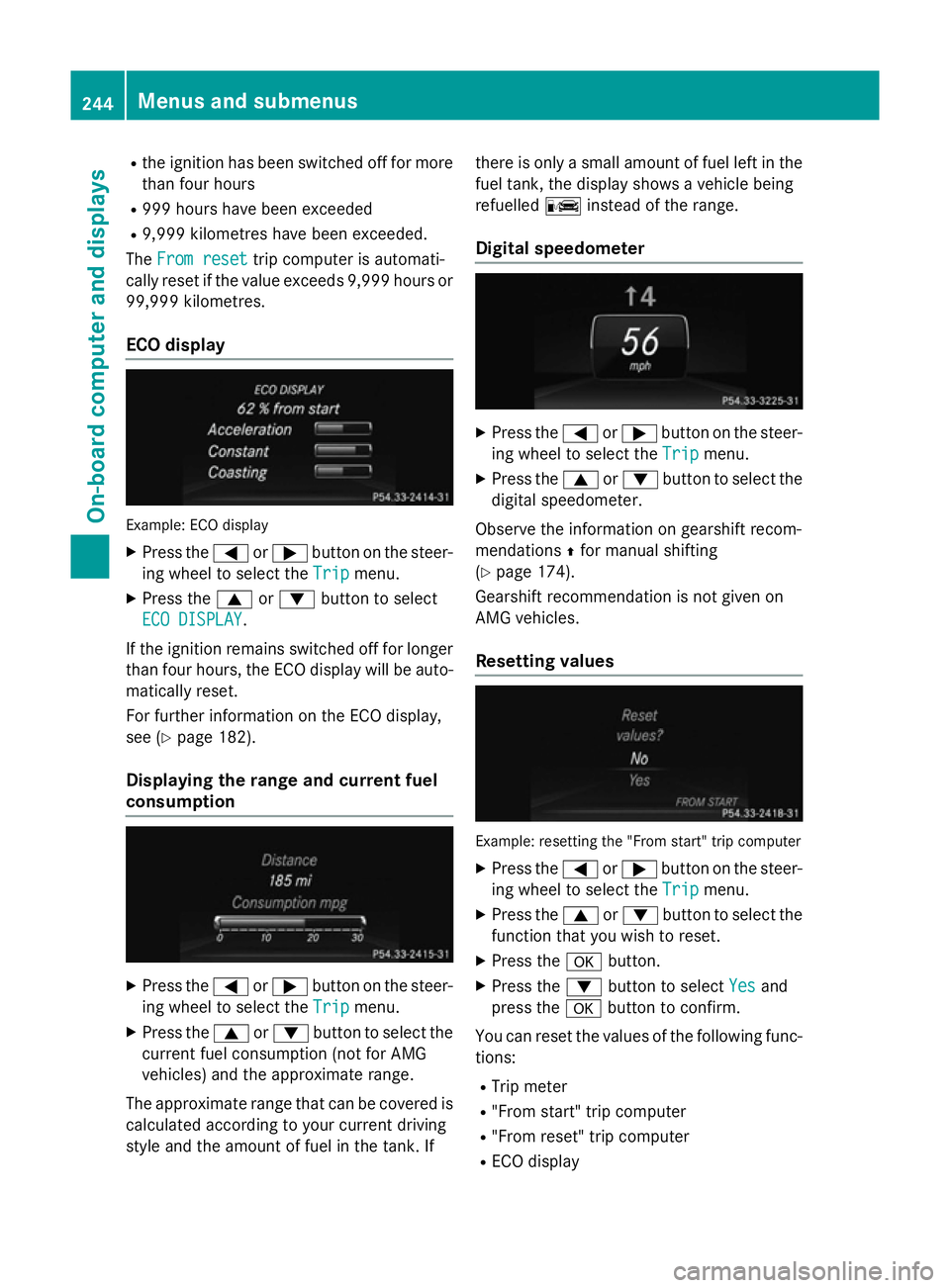
ECO display Example: ECO display
X Press the =or; button on the steer-
ing wheel to select the Trip
Tripmenu.
X Press the 9or: button to select
ECO DISPLAY
ECO DISPLAY.
If the ignition remains switched off for longer than four hours, the ECO display will be auto-
matically reset.
For further information on the ECO display,
see (Y page 182).
Displaying the range and current fuel
consumption X
Press the =or; button on the steer-
ing wheel to select the Trip Tripmenu.
X Press the 9or: button to select the
current fuel consumption (not for AMG
vehicles) and the approximate range.
The approximate range that can be covered is calculated according to your current driving
style and the amount of fuel in the tank. If there is only a small amount of fuel left in the
fuel tank, the display shows a vehicle being
refuelled Cinstead of the range.
Digital speedometer X
Press the =or; button on the steer-
ing wheel to select the Trip Tripmenu.
X Press the 9or: button to select the
digital speedometer.
Observe the information on gearshift recom-
mendations Zfor manual shifting
(Y page 174).
Gearshift recommendation is not given on
AMG vehicles.
Resetting values Example: resetting the "From start" trip computer
X Press the =or; button on the steer-
ing wheel to select the Trip Tripmenu.
X Press the 9or: button to select the
function that you wish to reset.
X Press the abutton.
X Press the :button to select Yes
Yesand
press the abutton to confirm.
You can reset the values of the following func- tions:
R Trip meter
R "From start" trip computer
R "From reset" trip computer
R ECO display 244
Menus and submenusOn-board computer and displays
Page 248 of 417
i
If you reset the values in the "ECO dis-
play", the values in the "From start" trip
computer are also reset. If you reset the
values in the "From start" trip computer,
the values in the "ECO display" are also
reset. Navigation menu
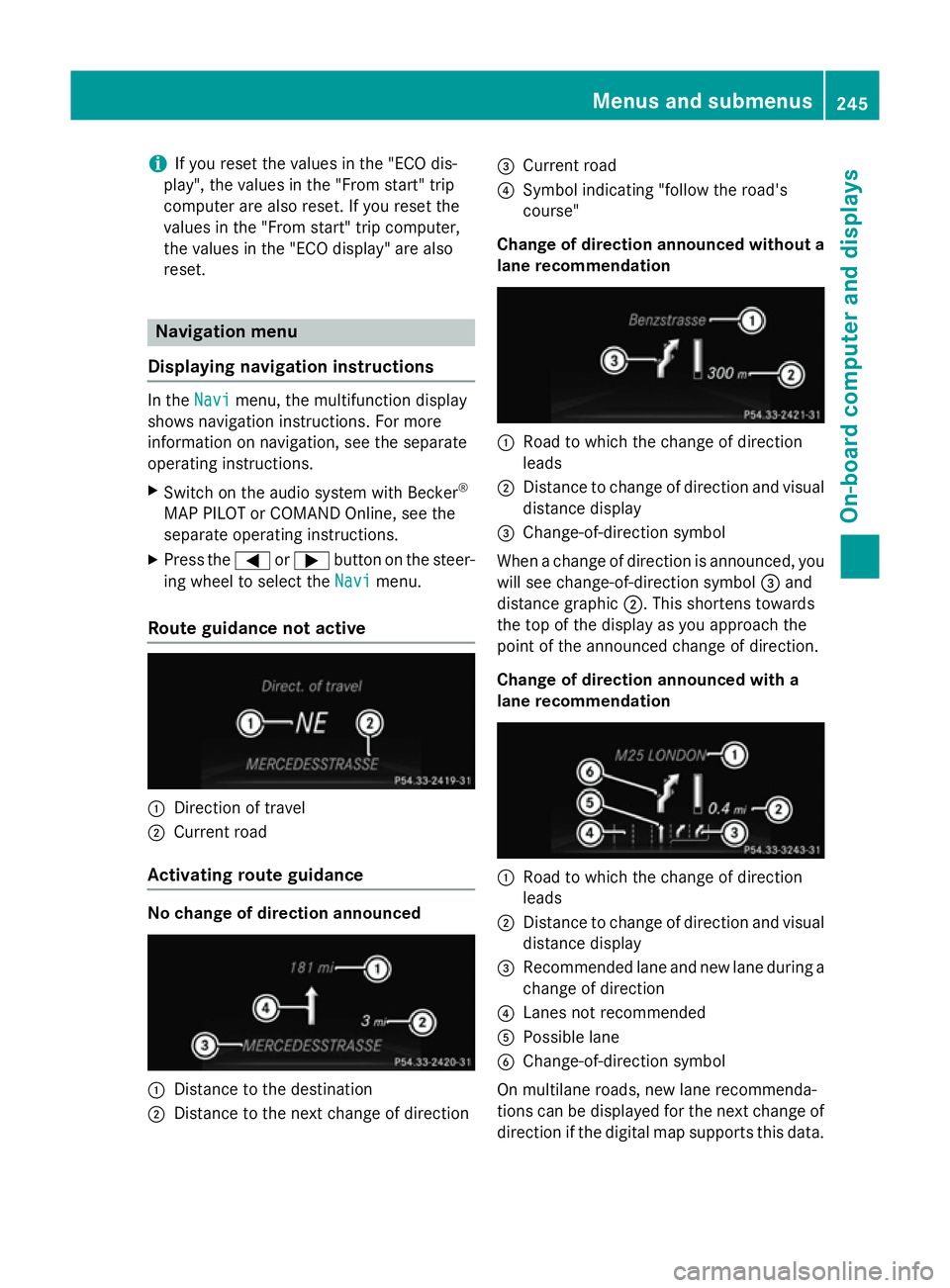
Displaying navigation instructions In the
Navi Navimenu, the multifunction display
shows navigation instructions. For more
information on navigation, see the separate
operating instructions.
X Switch on the audio system with Becker ®
MAP PILOT or COMAND Online, see the
separate operating instructions.
X Press the =or; button on the steer-
ing wheel to select the Navi
Navi menu.
Route guidance not active :
Direction of travel
; Current road
Activating route guidance No change of direction announced
:
Distance to the destination
; Distance to the next change of direction =
Current road
? Symbol indicating "follow the road's
course"
Change of direction announced without a lane recommendation :
Road to which the change of direction
leads
; Distance to change of direction and visual
distance display
= Change-of-direction symbol
When a change of direction is announced, you
will see change-of-direction symbol =and
distance graphic ;. This shortens towards
the top of the display as you approach the
point of the announced change of direction.
Change of direction announced with a
lane recommendation :
Road to which the change of direction
leads
; Distance to change of direction and visual
distance display
= Recommended lane and new lane during a
change of direction
? Lanes not recommended
A Possible lane
B Change-of-direction symbol
On multilane roads, new lane recommenda-
tions can be displayed for the next change of
direction if the digital map supports this data. Menus and submenus
245On-board computer and displays Z
Page 249 of 417
During the change of direction, new lanes
may be added.
Recommended lane =: in this lane, you will
be able to complete the next two changes of
direction without changing lane.
Lane not recommended ?: you will not be
able to complete the next change of direction
if you stay in this lane.
Possible lane A: in this lane, you will only be
able to complete the next change of direction without changing lane.
Other status indicators of the naviga-
tion system R
O: you have reached the destination or an
intermediate destination.
R New route... New route... orCalculating route
Calculating route:
calculating a new route
R Off map
Off map orOff road
Off road : the vehicle position
is outside the area of the digital map (off-
map position)
R No route
No route : no route could be calculated to
the selected destination. Audio menu
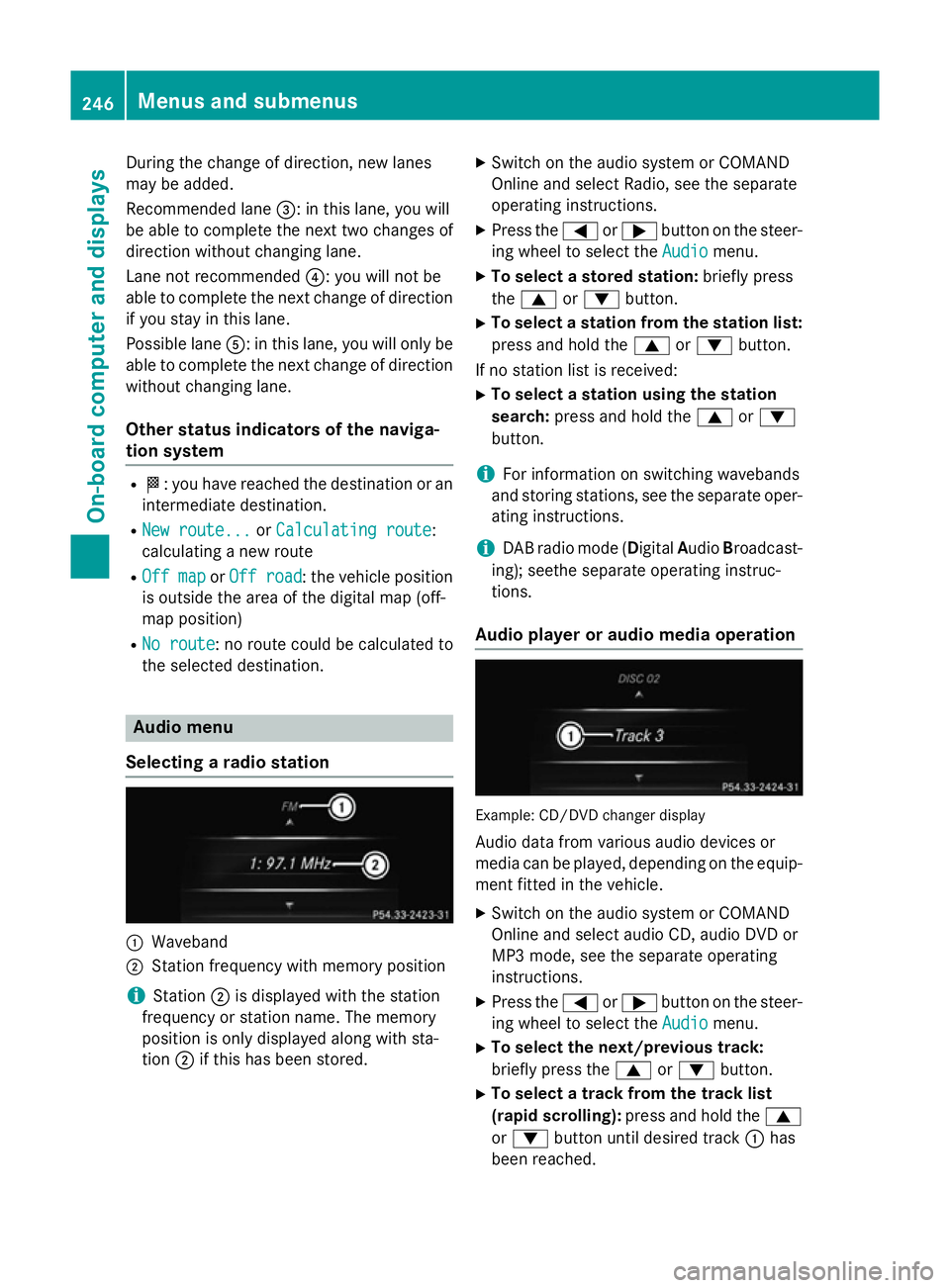
Selecting a radio station :
Waveband
; Station frequency with memory position
i Station
;is displayed with the station
frequency or station name. The memory
position is only displayed along with sta-
tion ;if this has been stored. X
Switch on the audio system or COMAND
Online and select Radio, see the separate
operating instructions.
X Press the =or; button on the steer-
ing wheel to select the Audio
Audio menu.
X To select a stored station: briefly press
the 9 or: button.
X To select a station from the station list:
press and hold the 9or: button.
If no station list is received: X To select a station using the station
search: press and hold the 9or:
button.
i For information on switching wavebands
and storing stations, see the separate oper-
ating instructions.
i DAB radio mode (D
igitalAudio Broadcast-
ing); seethe separate operating instruc-
tions.
Audio player or audio media operation Example: CD/DVD changer display
Audio data from various audio devices or
media can be played, depending on the equip- ment fitted in the vehicle.
X Switch on the audio system or COMAND
Online and select audio CD, audio DVD or
MP3 mode, see the separate operating
instructions.
X Press the =or; button on the steer-
ing wheel to select the Audio Audiomenu.
X To select the next/previous track:
briefly press the 9or: button.
X To select a track from the track list
(rapid scrolling): press and hold the 9
or : button until desired track :has
been reached. 246
Menus and submenusOn-board computer and displays
Page 250 of 417
If you press and hold the
9or:
button, the rapid scrolling speed is
increased. Not all audio devices or media
support this function.
If track information is stored on the audio
player or medium, the multifunction display
will show the number and title of the track.
The current track does not appear in audio
AUX mode (Auxiliary audio mode: external
audio source connected).
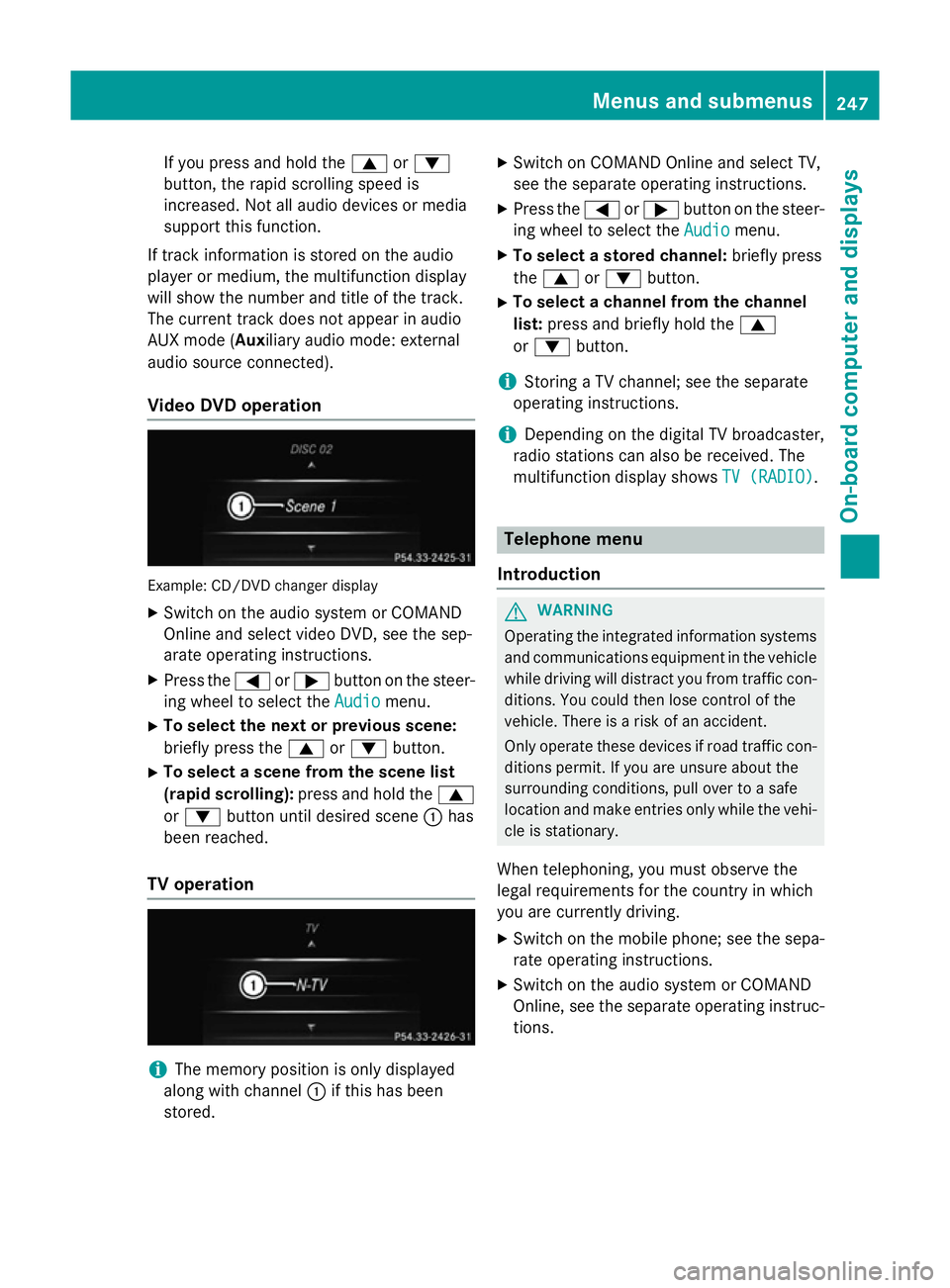
Video DVD operation Example: CD/DVD changer display
X Switch on the audio system or COMAND
Online and select video DVD, see the sep-
arate operating instructions.
X Press the =or; button on the steer-
ing wheel to select the Audio
Audio menu.
X To select the next or previous scene:
briefly press the 9or: button.
X To select a scene from the scene list
(rapid scrolling): press and hold the 9
or : button until desired scene :has
been reached.
TV operation i
The memory position is only displayed
along with channel :if this has been
stored. X
Switch on COMAND Online and select TV,
see the separate operating instructions.
X Press the =or; button on the steer-
ing wheel to select the Audio
Audio menu.
X To select a stored channel: briefly press
the 9 or: button.
X To select a channel from the channel
list: press and briefly hold the 9
or : button.
i Storing a TV channel; see the separate
operating instructions.
i Depending on the digital TV broadcaster,
radio stations can also be received. The
multifunction display shows TV (RADIO) TV (RADIO). Telephone menu
Introduction G
WARNING
Operating the integrated information systems and communications equipment in the vehicle
while driving will distract you from traffic con-
ditions. You could then lose control of the
vehicle. There is a risk of an accident.
Only operate these devices if road traffic con-
ditions permit. If you are unsure about the
surrounding conditions, pull over to a safe
location and make entries only while the vehi-
cle is stationary.
When telephoning, you must observe the
legal requirements for the country in which
you are currently driving.
X Switch on the mobile phone; see the sepa-
rate operating instructions.
X Switch on the audio system or COMAND
Online, see the separate operating instruc-
tions. Menus and submenus
247On-board computer and displays Z
Page 251 of 417
X
Insert the mobile phone into the bracket
(Y page 319).
or
X Establish a Bluetooth ®
connection to
COMAND Online, see the separate operat-
ing instructions.
X Press the =or; button on the steer-
ing wheel to select the Tel Telmenu.
You will see one of the following display mes- sages in the multifunction display:
R Please
Please enter enterPIN:
PIN:the mobile phone has
been placed in the mobile phone bracket
and the PIN has not been entered.
When you enter your PIN via the mobile
phone, LINGUATRONIC, the audio system
or COMAND Online, the mobile phone
searches for a network.
R Telephone ready
Telephone ready or the name of the net-
work provider: the mobile phone has found a network and is ready to receive.
R Telephone No service Telephone No service: there is no net-
work available or the mobile phone is
searching for a network.
i You can obtain further information about
suitable mobile phones and connecting
mobile phones via Bluetooth ®
:
R from any Mercedes-Benz Service Centre
R on the Internet at http://
www.mercedes-benz.com/connect
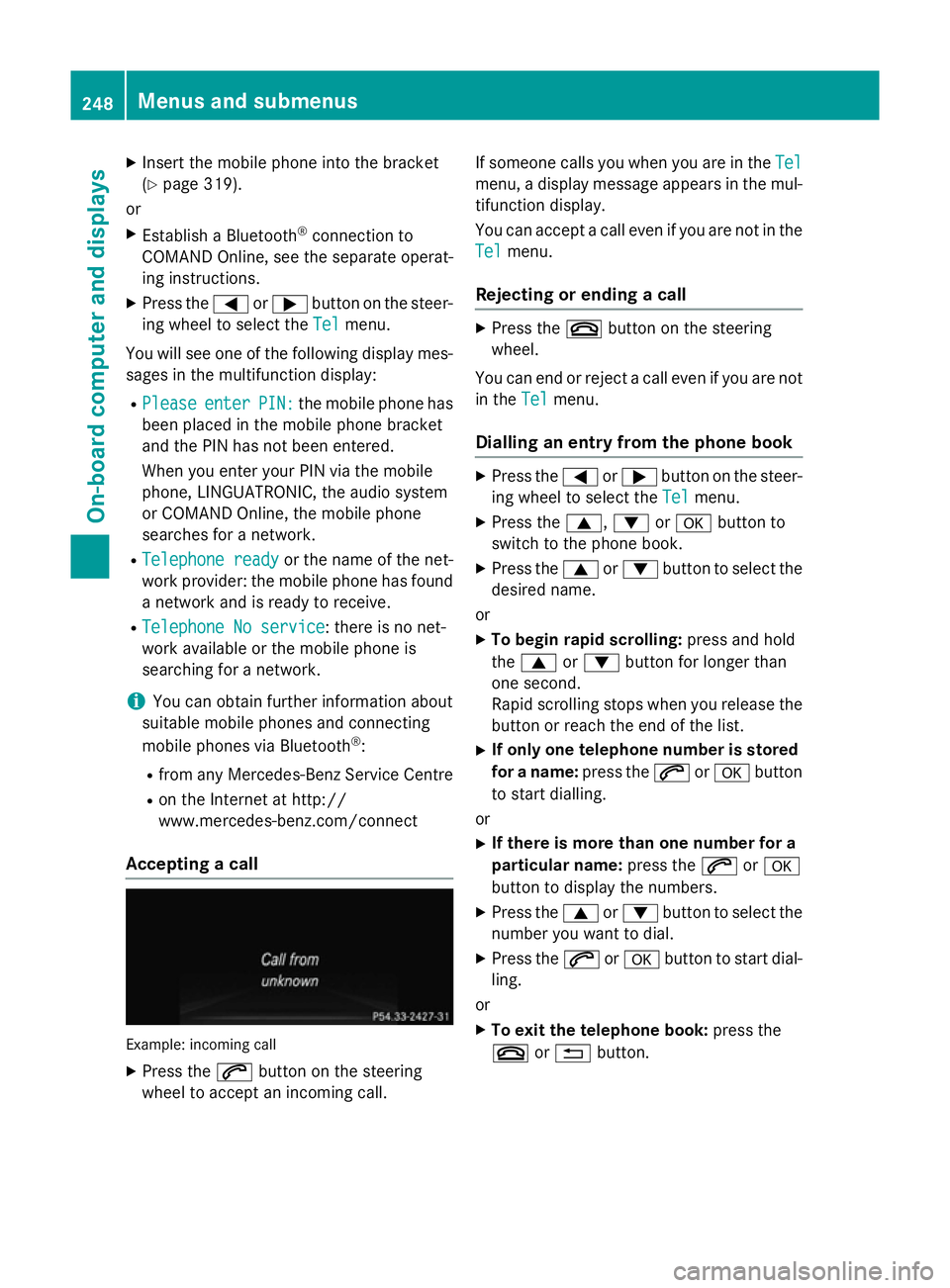
Accepting a call Example: incoming call
X Press the 6button on the steering
wheel to accept an incoming call. If someone calls you when you are in the
Tel Tel
menu, a display message appears in the mul- tifunction display.
You can accept a call even if you are not in the
Tel
Tel menu.
Rejecting or ending a call X
Press the ~button on the steering
wheel.
You can end or reject a call even if you are not
in the Tel Telmenu.
Dialling an entry from the phone book X
Press the =or; button on the steer-
ing wheel to select the Tel
Telmenu.
X Press the 9,:ora button to
switch to the phone book.
X Press the 9or: button to select the
desired name.
or X To begin rapid scrolling: press and hold
the 9 or: button for longer than
one second.
Rapid scrolling stops when you release the button or reach the end of the list.
X If only one telephone number is stored
for a name: press the6ora button
to start dialling.
or X If there is more than one number for a
particular name: press the6ora
button to display the numbers.
X Press the 9or: button to select the
number you want to dial.
X Press the 6ora button to start dial-
ling.
or X To exit the telephone book: press the
~ or% button. 248
Menus and submenusOn-board computer and displays
Page 252 of 417
Redialling
The on-board computer saves the last names
or numbers dialled in the redial memory.
X Press the =or; button on the steer-
ing wheel to select the Tel
Tel menu.
X Press the 6button to switch to the
redial memory.
X Press the 9or: button to select the
desired name or number.
X Press the 6ora button to start dial-
ling.
or
X To exit the redial memory: press the
~ or% button. Assistance menu
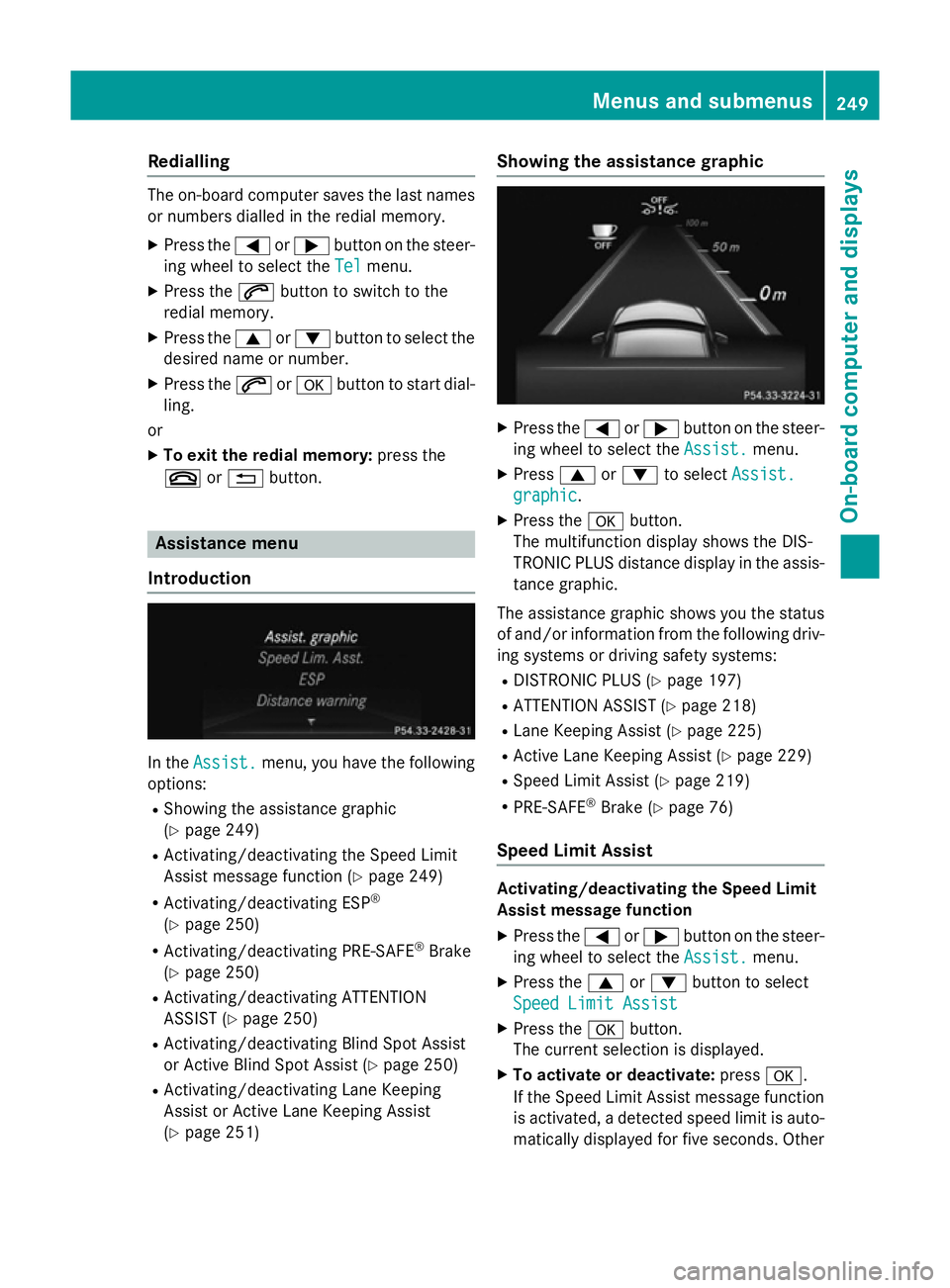
Introduction In the
Assist.
Assist. menu, you have the following
options:
R Showing the assistance graphic
(Y page 249)
R Activating/deactivating the Speed Limit
Assist message function (Y page 249)
R Activating/deactivating ESP ®
(Y page 250)
R Activating/deactivating PRE-SAFE ®
Brake
(Y page 250)
R Activating/deactivating ATTENTION
ASSIST (Y page 250)
R Activating/deactivating Blind Spot Assist
or Active Blind Spot Assist (Y page 250)
R Activating/deactivating Lane Keeping
Assist or Active Lane Keeping Assist
(Y page 251) Showing the assistance graphic
X
Press the =or; button on the steer-
ing wheel to select the Assist. Assist.menu.
X Press 9or: to select Assist.
Assist.
graphic
graphic.
X Press the abutton.
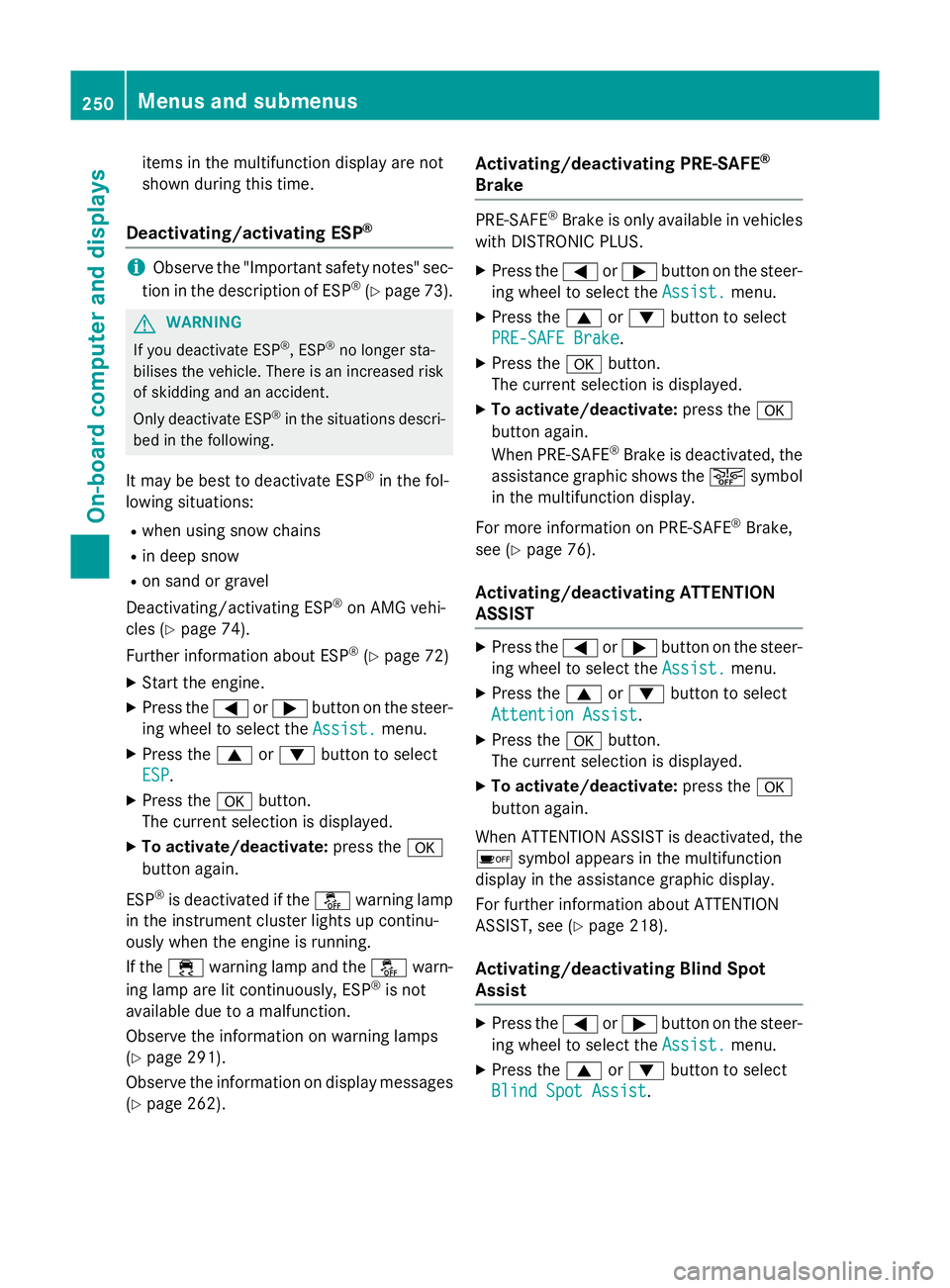
The multifunction display shows the DIS-
TRONIC PLUS distance display in the assis- tance graphic.
The assistance graphic shows you the status of and/or information from the following driv-
ing systems or driving safety systems:
R DISTRONIC PLUS (Y page 197)
R ATTENTION ASSIST (Y page 218)
R Lane Keeping Assist (Y page 225)
R Active Lane Keeping Assist (Y page 229)
R Speed Limit Assist (Y page 219)
R PRE-SAFE ®
Brake (Y page 76)
Speed Limit Assist Activating/deactivating the Speed Limit
Assist message function
X Press the =or; button on the steer-
ing wheel to select the Assist. Assist.menu.
X Press the 9or: button to select
Speed Limit Assist
Speed Limit Assist
X Press the abutton.
The current selection is displayed.
X To activate or deactivate: pressa.
If the Speed Limit Assist message function is activated, a detected speed limit is auto-
matically displayed for five seconds. Other Menus and submenus
249On-board computer and displays Z
Page 253 of 417
items in the multifunction display are not
shown during this time.
Deactivating/activating ESP ®i
Observe the "Important safety notes" sec-
tion in the description of ESP ®
(Y page 73). G
WARNING
If you deactivate ESP ®
, ESP ®
no longer sta-
bilises the vehicle. There is an increased risk
of skidding and an accident.
Only deactivate ESP ®
in the situations descri-
bed in the following.
It may be best to deactivate ESP ®
in the fol-
lowing situations:
R when using snow chains
R in deep snow
R on sand or gravel
Deactivating/activating ESP ®
on AMG vehi-
cles (Y page 74).
Further information about ESP ®
(Y page 72)
X Start the engine.
X Press the =or; button on the steer-
ing wheel to select the Assist.
Assist. menu.
X Press the 9or: button to select
ESP
ESP.
X Press the abutton.
The current selection is displayed.
X To activate/deactivate: press thea
button again.
ESP ®
is deactivated if the åwarning lamp
in the instrument cluster lights up continu-
ously when the engine is running.
If the ÷ warning lamp and the åwarn-
ing lamp are lit continuously, ESP ®
is not
available due to a malfunction.
Observe the information on warning lamps
(Y page 291).
Observe the information on display messages (Y page 262). Activating/deactivating PRE-SAFE
®
Brake PRE‑SAFE
®
Brake is only available in vehicles
with DISTRONIC PLUS.
X Press the =or; button on the steer-
ing wheel to select the Assist. Assist.menu.
X Press the 9or: button to select
PRE-SAFE Brake
PRE-SAFE Brake.
X Press the abutton.
The current selection is displayed.
X To activate/deactivate: press thea
button again.
When PRE-SAFE ®
Brake is deactivated, the
assistance graphic shows the æsymbol
in the multifunction display.
For more information on PRE‑SAFE ®
Brake,
see (Y page 76).
Activating/deactivating ATTENTION
ASSIST X
Press the =or; button on the steer-
ing wheel to select the Assist.
Assist. menu.
X Press the 9or: button to select
Attention Assist Attention Assist.
X Press the abutton.
The current selection is displayed.
X To activate/deactivate: press thea
button again.
When ATTENTION ASSIST is deactivated, the é symbol appears in the multifunction
display in the assistance graphic display.
For further information about ATTENTION
ASSIST, see (Y page 218).
Activating/deactivating Blind Spot
Assist X
Press the =or; button on the steer-
ing wheel to select the Assist. Assist.menu.
X Press the 9or: button to select
Blind Spot Assist
Blind Spot Assist. 250
Menus and submenusOn-board computer and displays