display MERCEDES-BENZ CLS COUPE 2018 Owners Manual
[x] Cancel search | Manufacturer: MERCEDES-BENZ, Model Year: 2018, Model line: CLS COUPE, Model: MERCEDES-BENZ CLS COUPE 2018Pages: 589, PDF Size: 10.95 MB
Page 286 of 589
Press brief
ly:re turns tothe pr evious display
Press and hold: calls up main functions
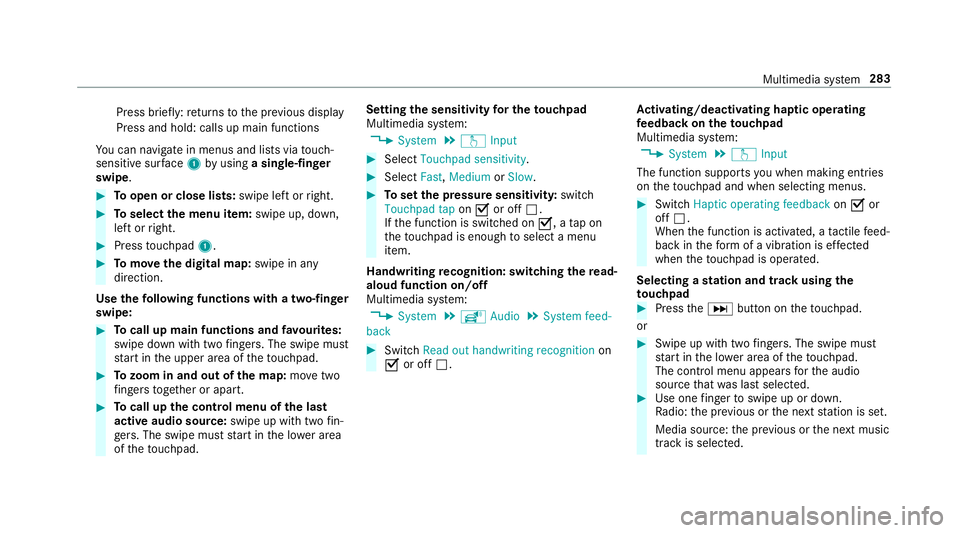
Yo u can navigate in menus and lists via touch-
sensitive sur face 1 byusing a single-finger
swipe. #
Toopen or close lists: swipe left orright. #
Toselect the menu item: swipe up, down,
left or right. #
Press touchpad 1. #
Tomo vethe digital map: swipe in any
direction.
Use thefo llowing functions with a two-finger
swipe: #
Tocall up main functions and favo urites:
swipe down with two fingers. The swipe mu st
st art in the upper area of theto uchpad. #
Tozoom in and out of the map: movetwo
fi ngers toget her or apart. #
Tocall up the control menu of the last
active audio source: swipe up with twofin‐
ge rs. The swipe must start in the lo wer area
of theto uchpad. Setting
the sensitivity for the touchpad
Multimedia sy stem:
, System .
w Input #
Select Touchpad sensitivity . #
Select Fast,Medium orSlow . #
Toset the pressure sensitivit y:switch
Touchpad tap onO or off ª.
If th e function is switched on O, atap on
th eto uchpad is enough toselect a menu
item.
Handwriting recognition: swit ching there ad-
aloud function on/off
Multimedia sy stem:
, System .
õ Audio .
System feed-
back #
Switch Read out handwriting recognition on
O or off ª. Ac
tivating/deactivating haptic ope rating
fe edba ckon theto uchpad
Multimedia sy stem:
, System .
w Input
The function supports you when making entries
on theto uchpad and when selecting menus. #
Swit chHaptic operating feedback onO or
off ª.
When the function is activated, a tactile feed‐
back in thefo rm of a vibration is ef fected
when theto uchpad is operated.
Selecting a station and track using the
to uchpad #
Press theD button on theto uchpad.
or #
Swipe up with two fingers. The swipe mu st
st art in the lo wer area of theto uchpad.
The cont rol menu appears forth e audio
source that wa s last selected. #
Use one finger toswipe up or down.
Ra dio: the pr evious or the next station is set.
Media source: the pr evious or the next music
tra ck is selec ted. Multimedia sy
stem 283
Page 292 of 589
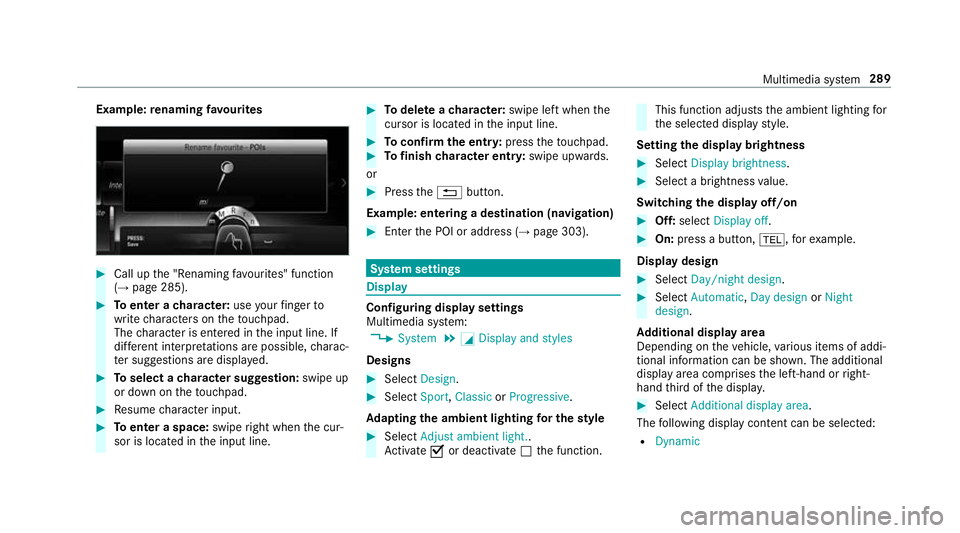
Example:
renaming favo urites #
Call up the "Renaming favo urites" function
(→ page 285). #
Toenter a character: useyour finger to
write characters on theto uchpad.
The character is entered in the input line. If
dif fere nt interpr etations are possible, charac‐
te r suggestions are displa yed. #
Toselect a character suggestion: swipe up
or down on theto uchpad. #
Resume character input. #
Toenter a space: swiperight when the cur‐
sor is located in the input line. #
Todel ete a character: swipe left when the
cursor is loca ted in the input line. #
Toconfirm the entr y:press theto uchpad. #
Tofinish character entr y:swipe upwards.
or #
Press the% button.
Example: entering a destination (navigation) #
Ente rth e POI or address (→ page 303). Sy
stem settings Display
Configuring display settings
Multimedia sy
stem:
, System .
G Display and styles
Designs #
Select Design. #
Select Sport,Classic orProgressive.
Ad apting the ambient lighting for the style #
Select Adjust ambient light. .
Ac tivate Oor deacti vate ª the function. This function adjusts
the ambient lighting for
th e selected display style.
Setting the display brightness #
Select Display brightness . #
Select a brightness value.
Switching the display off/on #
Off: select Display off . #
On: press a button, %,forex ample.
Displ aydesign #
Select Day/night design. #
Select Automatic, Day design orNight
design.
Ad ditional displ ayarea
Depending on theve hicle, various items of addi‐
tional information can be shown. The additional
display area comprises the left-hand or right-
hand third of the displa y. #
Select Additional display area .
The following display con tent can be selected:
R Dynamic Multimedia sy
stem 289
Page 296 of 589
Device has already been connected:
#
Toautomatically connect: highlight aWi-Fi
network in the list. #
Activate O¥ Connect automatically. #
Toconnect: highlight a Wi-Fi network in the
list. #
Select ¥Connect.
The connection is es tablished again. These
functions are possible when the device has
already been connected totheWi -Fi networ k.
Setting up a Wi-Fi hotspot
Multimedia sy stem:
, System .
ö Connectivity
Configuring the multimedia sy stem as a Wi-
Fi hotspot
% The availability of this function is dependent
on the count ry.
The type of connection es tablished depends on
th e device tobe connec ted. The function must
be suppor tedby the multimedia sy stem and by
th e device tobe connec ted. The type of connec‐
tion es tablished must be selected on the multi‐ media sy
stem and on the device tobe connec‐
te d. #
Select Set up hotspot. #
Highlight Connect device to vehicle hotspot.
Generating a WPS PIN #
Select ¥Connect using WPS PIN genera-
tion . #
Ente rth e PIN shown in the media display on
th e device tobe connec ted and con firm.
Connecting using a WPS PIN #
Select ¥Connect using WPS PIN input. #
Select Enter WPS PIN. #
Enterth e PIN that is shown on theex tern al
device's display on the multimedia sy stem. #
Select Continue.
Connecting using a button
Re quirements:
R This function is only available in a Wi-Fi fre‐
qu ency of 2.4 GHz. #
Select ¥Connect via WPS PBC. #
Press the WPS button on the device tobe
connec ted or select Connect. #
Select Continue inthe multimedia sy stem.
Connecting using a security key #
Select Connect device to vehicle hotspot .
A secu rity key is displa yed. #
Select theve hicle from the device tobe con‐
nec ted. The vehicle is displa yed with the
SSID MB Hotspot XXXXX . #
Enter the security key which is shown in the
media display on the device tobe connec ted. #
Confirm the entry.
Connecting using NFC #
Select Establish a connection via NFC. #
Activate NFC on the mobile device (see the
manufacturer's operating instructions). #
Bring the mobile device into the NFC area of
th eve hicle (→ page 333). #
Select Done.
The mobile device is now connected tothe
multimedia sy stem hotspot via NFC. Multimedia sy
stem 293
Page 299 of 589
originates from ano
ther vehicle, this is recog‐
nised du ring da tareading.
The multimedia sy stem is restar ted once the
data has been impor ted.
% Current vehicle settings can be edited af ter
th e import.
Exporting
If PIN pr otection is activated, your PIN is reques‐
te d. #
Ente rth efo ur-digit PIN. #
Select a data storage medium.
The data is expor ted. The data export may
ta ke several minutes. Ac
tivating/deactivating PIN pr otection Multimedia sy
stem:
, System .
PIN protection
Setting the PIN #
Select Set PIN. #
Enter a four-digit PIN. #
Enterth efo ur-digit PIN again.
If bo thPINs match, PIN pr otection is active.
Changing the PIN
Re quirements:
R A cur rent PIN mu stbe set. #
Select Change settings. #
Ente rth e cur rent PIN. #
Select Change PIN . #
Set a new PIN.
Ac tivating PIN pr otection for data export #
Select Change settings .
Confirm wi th the PIN. #
Select Protect data export.
Ac tivate Oor deacti vate ª the function.
Un blocking the PIN
Re quirements:
R There is an Internet connection.
R A Mercedes me account exists at http://
www.me rcedes.me. R
The Personalisation service is active
(→ page 297).
If th e PIN has been entered incor rectly three
times, the PIN will be bloc ked. You can ha ve a
single-use password sent to you via the
Mercedes me connect online por talto reset the
PIN pr otection. #
Select Unblock PIN. #
Ente rth e single-use password.
PIN pr otection is reset, and you can set a
new PIN.
% Alternativel y,yo u can ha vePIN pr otection
re set at a Mercedes-Benz service centre. User profile
Setting a user profile
Multimedia sy
stem:
, System .
g Personalisation
Displaying a user profile when starting
If th is function is active, a prom ptappears when
st arting the sy stem asking which user profile to
use. 296
Multimedia sy stem
Page 300 of 589
#
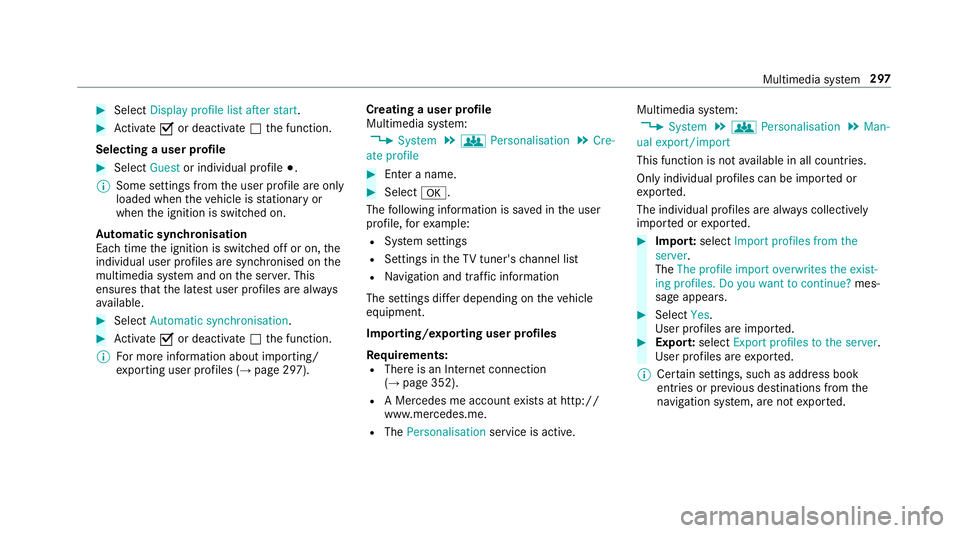
Select Display profile list after start .#
Activate Oor deacti vate ª the function.
Selecting a user profile #
Select Guestor individual profile #.
% Some settings from the user profile are only
loaded when theve hicle is stationary or
when the ignition is switched on.
Au tomatic syn chronisation
Each time the ignition is switched off or on, the
individual user profiles are synchronised on the
multimedia sy stem and on the ser ver.This
ensures that the latest user profiles are alw ays
av ailable. #
Select Automatic synchronisation. #
Activate Oor deacti vate ª the function.
% For more information about importing/
ex porting user profiles (→ page 297).Creating a user profile
Multimedia sy stem:
, System .
g Personalisation .
Cre-
ate profile #
Ente r a name. #
Select a.
The following information is sa ved in the user
profile, forex ample:
R System settings
R Settings in theTV tuner's channel list
R Navigation and traf fic information
The settings di ffer depending on theve hicle
equipment.
Importing/exporting user profiles
Requ irements:
R There is an Internet connection
(→ page 352).
R A Mercedes me account exists at http://
www.me rcedes.me.
R The Personalisation service is active. Multimedia sy
stem:
, System .
g Personalisation .
Man-
ual export/import
This function is not available in all countries.
On lyindividual profiles can be impor ted or
ex por ted.
The individual profiles are alw ays collectively
impor ted or expor ted. #
Impor t:select Import profiles from the
server.
The The profile import overwrites the exist-
ing profiles. Do you want to continue? mes‐
sage appears. #
Select Yes.
User profiles are impor ted. #
Expor t:select Export profiles to the server.
User profiles are expor ted.
% Certain settings, such as address book
ent ries or pr evious destinations from the
navigation sy stem, are not expor ted. Multimedia sy
stem 297
Page 312 of 589
Selecting a destination on
the map
Multimedia sy stem:
, Navigation .
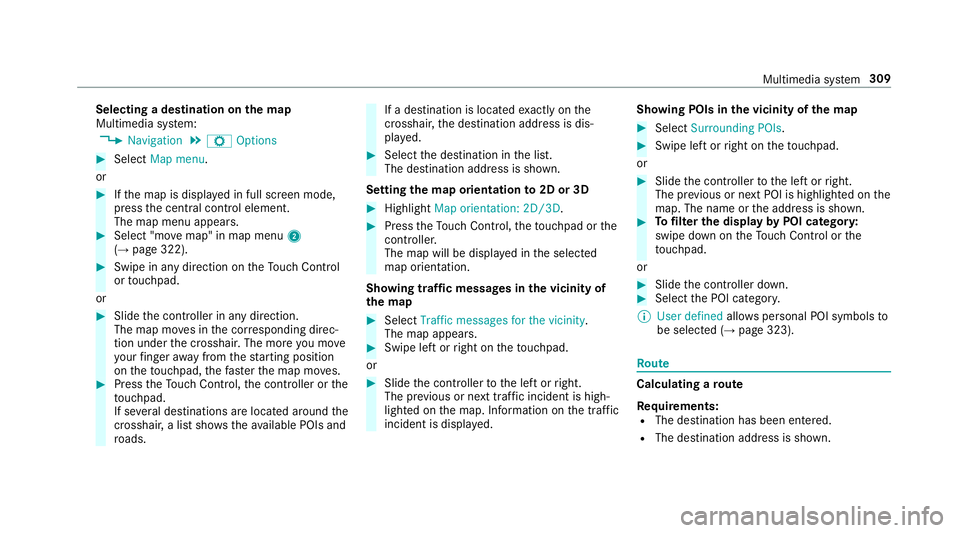
Z Options #
Select Map menu.
or #
Ifth e map is displa yed in full screen mode,
press the cent ral control element.
The map menu appears. #
Select "mo vemap" in map menu 2
(→ page 322). #
Swipe in any direction on theTo uch Control
or touchpad.
or #
Slide the controller in any direction.
The map mo ves in the cor responding direc‐
tion under the crosshair. The more you mo ve
yo ur finger away from thest arting position
on theto uchpad, thefast erthe map mo ves. #
Press theTo uch Control, the controller or the
to uchpad.
If se veral destinations are located around the
crosshair, a li stsho wstheav ailable POIs and
ro ads. If a destination is located
exact ly on the
crosshair, the destination address is dis‐
pla yed. #
Select the destination in the list.
The destination address is shown.
Setting the map orientation to2D or 3D #
Highlight Map orientation: 2D/3D. #
Press theTo uch Control, theto uchpad or the
controller.
The map will be displ ayed in the selected
map orientation.
Showing traf fic messages in the vicinity of
th e map #
Select Traffic messages for the vicinity.
The map appears. #
Swipe left or right on theto uchpad.
or #
Slide the controller tothe left or right.
The pr evious or next traf fic incident is high‐
lighted on the map. Information on the tra ffic
incident is displa yed. Showing POIs in
the vicinity of the map #
Select Surrounding POIs . #
Swipe left or right on theto uchpad.
or #
Slide the controller tothe left or right.
The pr evious or next POI is highligh ted on the
map. The name or the address is shown. #
Tofilter the display byPOI categor y:
swipe down on theTo uch Control or the
to uchpad.
or #
Slide the controller down. #
Select the POI categor y.
% User defined allowspersonal POI symbols to
be selected (→ page 323). Ro
ute Calculating a
route
Re quirements:
R The destination has been entered.
R The destination address is shown. Multimedia sy
stem 309
Page 317 of 589
Changing direction
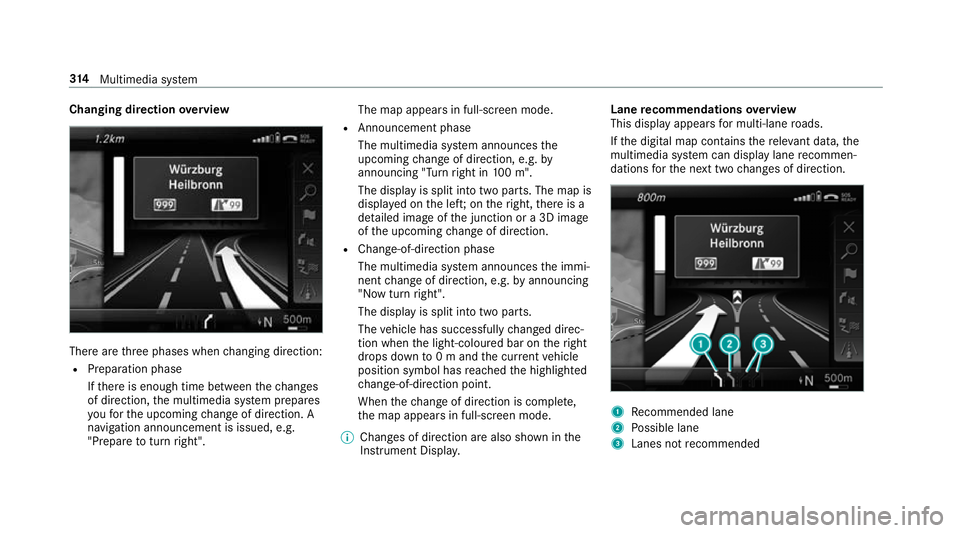
overview There are
thre e phases when changing direction:
R Preparation phase
Ifth ere is enough time between thech anges
of direction, the multimedia sy stem prepares
yo ufo rth e upcoming change of direction. A
navigation announcement is issued, e.g.
"Prepare toturn right". The map appears in full-screen mode.
R Announcement phase
The multimedia sy stem announces the
upcoming change of direction, e.g. by
announcing "Turn right in 100 m".
The display is split into two parts. The map is
displa yed on the lef t;on theright, there is a
de tailed image of the junction or a 3D image
of the upcoming change of direction.
R Chan ge-of-direction phase
The multimedia sy stem announces the immi‐
nent change of direction, e.g. byannouncing
"N ow turn right".
The display is split into two parts.
The vehicle has successfully changed direc‐
tion when the light-coloured bar on theright
drops down to0 m and the cur rent vehicle
position symbol has reached the highlighted
ch ange-of-direction point.
When thech ange of direction is comple te,
th e map appears in full-screen mode.
% Changes of direction are also shown in the
Instrument Displa y. Lane
recommendations overview
This display appears for multi-lane roads.
If th e digital map conta insthere leva nt da ta,the
multimedia sy stem can display lane recommen‐
dations forth e next two changes of direction. 1
Recommended lane
2 Possible lane
3 Lanes not recommended 314
Multimedia sy stem
Page 318 of 589
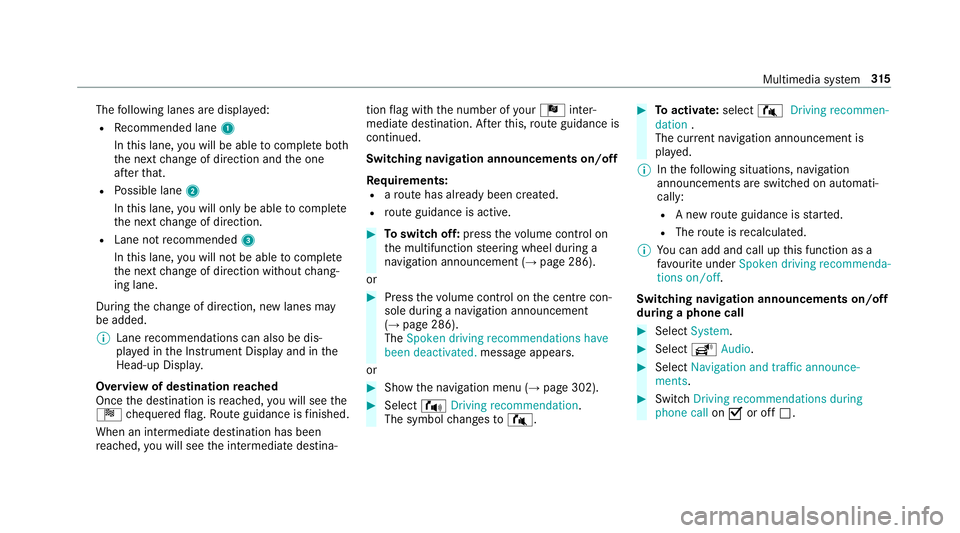
The
following lanes are displa yed:
R Recommended lane 1
In this lane, you will be able tocompl ete bo th
th e next change of direction and the one
af te rth at.
R Possible lane 2
In this lane, you will on lybe able tocompl ete
th e next change of direction.
R Lane not recommended 3
In this lane, you will not be able tocompl ete
th e next change of direction without chang‐
ing lane.
During thech ange of direction, new lanes may
be added.
% Lane recommendations can also be dis‐
pl ay ed in the Instrument Display and in the
Head-up Displa y.
Overview of destination reached
Once the destination is reached, you will see the
Í chequered flag. Route guidance is finished.
When an intermedia tedestination has been
re ached, you will see the intermediate destina‐ tion
flag with the number of your Î inter‐
mediate destination. Af terth is, route guidance is
continued.
Swit ching navigation announcements on/off
Re quirements:
R aro ute has already been created.
R route guidance is active. #
Toswitch off: pressthevo lume control on
th e multifunction steering wheel during a
navigation announcement (→ page 286).
or #
Press thevo lume control on the cent recon‐
sole du ring a navigation announcement
(→ page 286).
The Spoken driving recommendations have
been deactivated. messageappears.
or #
Show the navigation menu (→ page 302). #
Select !Driving recommendation .
The symbol changes to# . #
Toactivate: select#Driving recommen-
dation .
The cur rent navigation announcement is
pl ay ed.
% Inthefo llowing situations, navigation
announcements are switched on automati‐
cally:
R A new route guidance is star ted.
R The route is recalculated.
% You can add and call up this function as a
fa vo urite under Spoken driving recommenda-
tions on/off.
Swit ching navigation announcements on/off
during a phone call #
Select System. #
Select õAudio. #
Select Navigation and traffic announce-
ments. #
Swit chDriving recommendations during
phone call onO or off ª. Multimedia sy
stem 315
Page 324 of 589
-
free-flowing traf fic (green line)
R displ ay fo r traf fic del ays on thero ute lasting
at least one minute
R warning message symbols:
- d symbol
- additional road saf ety no tes when
approaching a traf fic incident, e.g. the
end of a tra ffic jam
If th eve hicle approaches a danger area
on thero ute, a warning message is dis‐
pla yed on the map. A warning message
may also be issued (→ page 321).
Displaying traf fic incidents
Multimedia sy stem:
, Navigation .
Z Options .
Map con-
tent #
Activate OTraffic incidents.
Ro adwor ks,ro ad bloc ks, local area reports
(e.g. fog) and warning messages are dis‐
pla yed. Ac
tivating free flow and traffic display #
Activate OFree-flowing traffic andTraffic
delays.
% The traf fic del ayis displa yedfo rth e cur rent
ro ute. Traf fic del ays lasting one minute or
longer are take n into conside ration.
Displ aying details #
Displaying the tra ffic map (→ page 320). #
Moving the map (→ page 323). #
When a tra ffic report symbol is under the
crosshair, press on the cent ral control ele‐
ment.
The traf fic re port de tails are displa yed.
or #
Press on the cent ral control element. #
Select Information on traffic reports .
The map sho ws the traf fic re port symbols in
th e vicinit y.
Tr af fic re port information is displa yed in the
st atus line:
R Traf fic re port symbol R
Reason forth e tra ffic report, e.g. tra ffic
con gestion
R Warning message (highligh ted in red) #
Toselect a traf fic re port symbol: select
Next orPrevious. #
Press on the cent ral control element.
The traf fic re port de tails are displa yed.
Issuing hazard warnings
Multimedia sy stem:
, Naviga-
tion .
Z Options .
Announcements #
Activate OAnnounce traffic warnings .
Wa rning messages are issued and tailbac ks
which pose a risk are announced. Multimedia sy
stem 321
Page 325 of 589
Map and compass
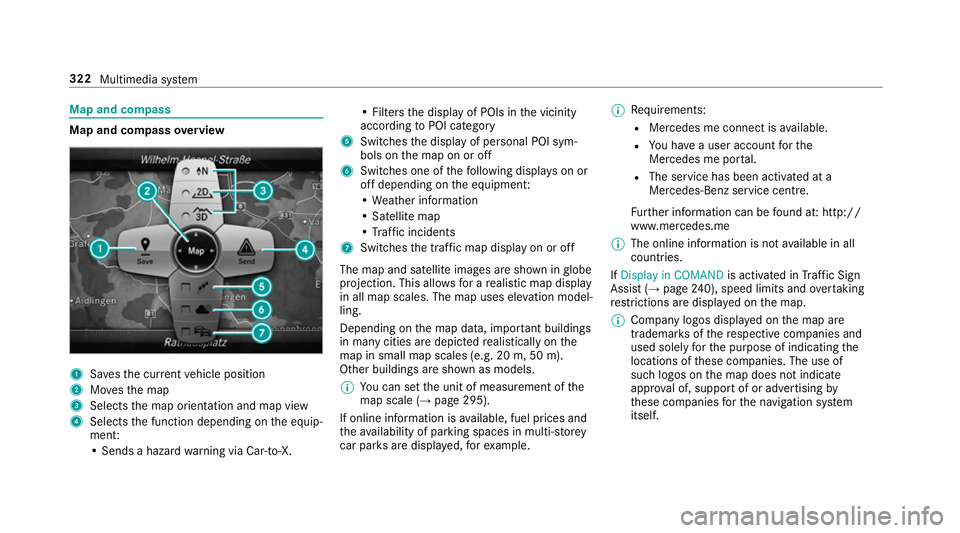
Map and compass
overview 1
Savesth e cur rent vehicle position
2 Movesth e map
3 Selects the map orientation and map view
4 Selects the function depending on the equip‐
ment:
• Sends a hazard warning via Car-to-X. • Filters
the display of POIs in the vicinity
according toPOI category
5 Switches the display of personal POI sym‐
bols on the map on or off
6 Switches one of thefo llowing displa yson or
off depending on the equipment:
• We ather information
• Satellite map
• Traf fic incidents
7 Switches the tra ffic map display on or off
The map and satellite images are shown in globe
projection. This allo wsfor a realistic map display
in all map scales. The map uses ele vation model‐
ling.
Depending on the map data, impor tant buildings
in ma nycities are depicted realistically on the
map in small map scales (e.g. 20 m, 50 m).
Other buildings are shown as models.
% You can set the unit of measurement of the
map scale (→ page 295).
If online information is available, fuel prices and
th eav ailability of parking spaces in multi-s torey
car pa rks are displa yed, forex ample. %
Requirements:
R Mercedes me connect is available.
R You ha vea user account forthe
Mercedes me por tal.
R The service has been activated at a
Mercedes-Benz service centre.
Fu rther information can be found at: http://
www.mercedes.me
% The online information is not available in all
countries.
If Display in COMAND is activated inTraf fic Sign
Assi st (→page 240), speed limits and overtaking
re strictions are displ ayed on the map.
% Company logos displa yed on the map are
trademar ksofthere spective companies and
used solely forth e purpose of indicating the
locations of these companies. The use of
such logos on the map does not indicate
appr oval of, suppo rtof or advertising by
th ese companies forth e navigation sy stem
itself. 322
Multimedia sy stem