reset MERCEDES-BENZ CLS COUPE 2018 Owner's Manual
[x] Cancel search | Manufacturer: MERCEDES-BENZ, Model Year: 2018, Model line: CLS COUPE, Model: MERCEDES-BENZ CLS COUPE 2018Pages: 589, PDF Size: 10.95 MB
Page 303 of 589
#
Select Yes.
If PIN pr otection is activated, a prom ptappears
asking if you also wish torestore this to thefa c‐
to ry settings during a reset. #
Select Yes. #
Enter the cur rent PIN.
The PIN is reset. or #
Select No.
The cur rent PIN stay sth e same af terre set‐
ting.
% Ifyo u ha veforg ottenyo ur PIN, a Mercedes-
Benz service centre can deactivate the PIN
pr otection foryo u. A prom
ptappears again asking whe ther you
re ally wish toreset. #
Select Yes.
The multimedia sy stem is reset tothefa ctory
settings. Fi
t & Healthy ENE
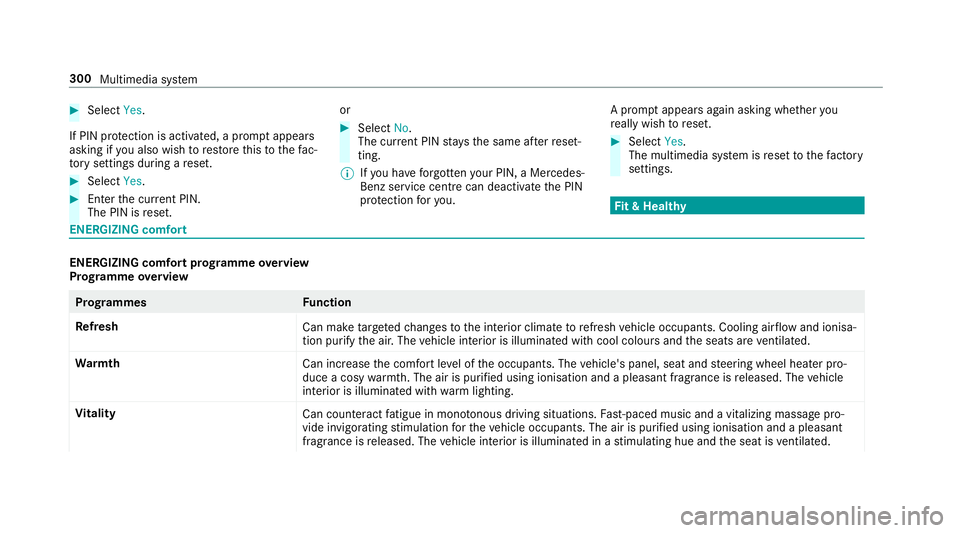
RGIZING comfort ENERGIZING comfort prog
ramme overview
Prog ramme overview Prog
rammes Function
Re fresh
Can maketargeted changes tothe interior climate torefresh vehicle occupants. Cooling air flow and ionisa‐
tion purify the air. The vehicle interior is illuminated with cool colours and the seats are ventilated.
Wa rmth
Can increase the comfort le vel of the occupants. The vehicle's panel, seat and steering wheel heater pro‐
duce a cosy warmth. The air is pu rified using ionisation and a pleasant fragrance is released. The vehicle
interior is illuminated with warm lighting.
Vi tality
Can countera ct fatigue in mono tonous driving situations. Fast-paced music and a vitalizing massa gepro‐
vide invigorating stimulation forth eve hicle occupants. The air is purified using ionisation and a pleasant
fragrance is released. The vehicle interior is illuminated in a stimulating hue and the seat is ventilated. 300
Multimedia sy stem
Page 330 of 589
In
theeve nt of thefo llowing problems, please
con tact a Mercedes-Benz service centre:
R The multimedia sy stem does not accept the
activation code
R You ha velost the activation code
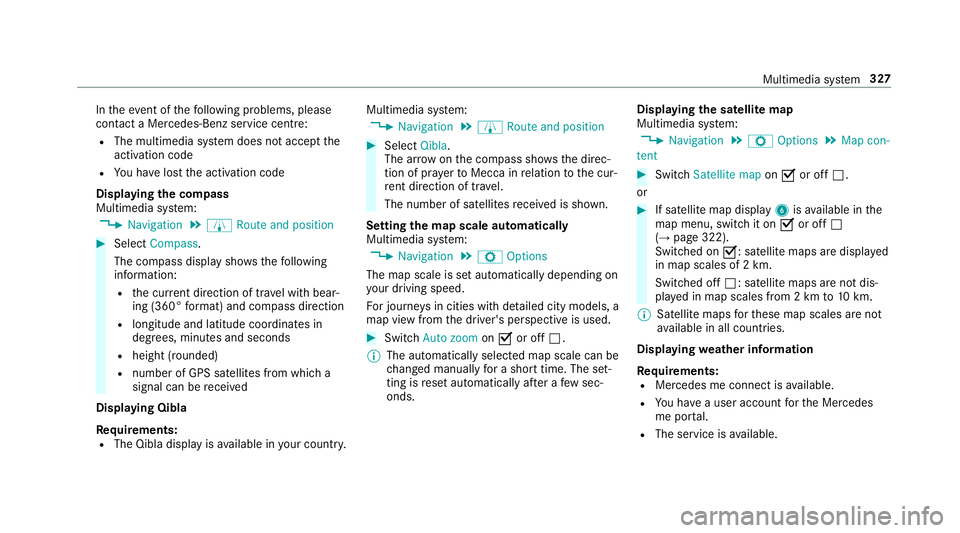
Displaying the compass
Multimedia sy stem:
, Navigation .
À Route and position #
Select Compass.
The compass display sho wsthefo llowing
information:
R the cur rent di rection of tr avel with bear‐
ing (360° form at) and compass direction
R longitude and latitude coo rdinates in
degrees, minutes and seconds
R height (rounded)
R number of GPS satellites from which a
signal can be recei ved
Displaying Qibla
Requ irements:
R The Qibla display is available in your count ry.Multimedia sy
stem:
, Navigation .
À Route and position #
Select Qibla.
The ar rowonthe compass sho wsthe direc‐
tion of pr ayer toMecca in relation tothe cur‐
re nt di rection of tr avel.
The number of satellites recei ved is shown.
Setting the map scale automatically
Multimedia sy stem:
, Navigation .
Z Options
The map scale is set automatically depending on
yo ur driving speed.
Fo r journe ysin cities with de tailed city models, a
map view from the driver's perspective is used. #
Switch Auto zoom onO or off ª.
% The automatically selected map scale can be
changed manually for a short time. The set‐
ting is reset automatically af ter a few sec‐
onds. Displaying
the satellite map
Multimedia sy stem:
, Navigation .
Z Options .
Map con-
tent #
Switch Satellite map onO or off ª.
or #
If satellite map display 6isavailable in the
map menu, switch it on Oor off ª
(→ page 322).
Switched on O: satellite maps are displa yed
in map scales of 2 km.
Swit ched off ª: satellite maps are not dis‐
pla yed in map scales from 2 km to10 km.
% Satelli temaps forth ese map scales are not
av ailable in all countries.
Displ aying weather information
Re quirements:
R Mercedes me connect is available.
R You ha vea user account forth e Mercedes
me por tal.
R The service is available. Multimedia sy
stem 327
Page 342 of 589
#
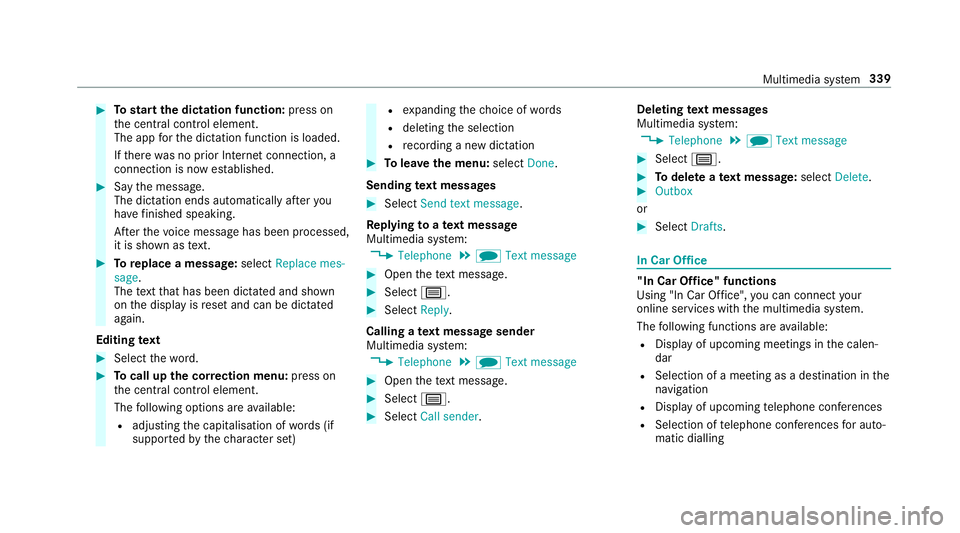
Tostart the dictation function: press on
th e cent ral control element.
The app forth e dictation function is loaded.
If th ere was no prior Internet connection, a
connection is now es tablished. #
Say the message.
The dictation ends automatically af teryou
ha ve finished speaking.
Af terth evo ice message has been processed,
it is shown as text. #
Toreplace a message: selectReplace mes-
sage.
The text that has been dictated and shown
on the display is reset and can be dictated
again.
Editing text #
Select thewo rd. #
Tocall up the cor rection menu: press on
th e cent ral control element.
The following options are available:
R adjusting the capitalisation of words (if
suppor tedby thech aracter set) R
expanding thech oice of words
R deleting the selection
R recording a new dictation #
Tolea vethe menu: selectDone.
Sending text messages #
Select Send text message .
Re plying toate xt message
Multimedia sy stem:
, Telephone .
i Text message #
Open thete xt messa ge. #
Select p. #
Select Reply.
Calling a text message sender
Multimedia sy stem:
, Telephone .
i Text message #
Open thete xt messa ge. #
Select p. #
Select Call sender. Deleting
text messages
Multimedia sy stem:
, Telephone .
i Text message #
Select p. #
Todel ete a text message: selectDelete. #
Outbox
or #
Select Drafts. In Car Of
fice "In Car Of
fice" functions
Using "In Car Of fice", you can connect your
online services with the multimedia sy stem.
The following functions are available:
R Display of upcoming meetings in the calen‐
dar
R Selection of a meeting as a destination in the
navigation
R Display of upcoming telephone con fere nces
R Selection of telephone con fere nces for auto‐
matic dialling Multimedia sy
stem 339
Page 348 of 589
Tr
ansfer redve hicle data with Android Auto
and Apple CarPlay™ Overview of transfer
redve hicle data
When using Android Autoor Apple CarPlay™,
cer tain vehicle data is transfer redto the mobile
phone. This enables youto getth e best out of
selected mobile phone services. Vehicle data is
not directly accessible.
The following sy stem information is transmit ted:
R Software release of the multimedia sy stem
R System ID (anonymised)
The transfer of this data is used tooptimise
communication between theve hicle and the
mobile phone.
To do this, and toassign se veralve hicles tothe
mobile phone, a vehicle identifier is randomly
ge nerated.
This has no connection totheve hicle identifica‐
tion number (VIN) and is dele ted when the multi‐
media sy stem is reset (→ page 299).
The following driving status data is transmitted:
R Transmission position engaged R
Distinction between par ked, standstill, rolling
and driving
R Day/night mode of the instrument clus ter
The transfer of this data is used toalter how
con tent is displ ayed tocor respond tothe driving
situation.
The following position data is transmitte d:
R Coordinates
R Speed
R Compass direction
R Acceleration di rection
This da tais only transfer red while the navigation
sy stem is active in order toimpr oveit (e.g. so it
can continue functioning when in a tunnel). Mercedes me connect
Information on Mercedes me connect
Mercedes me connect pr
ovides thefo llowing
services:
R Accident and breakdown mana gement (me
button) R
Concierge Service (when the service is acti‐
va ted), appointment requests or similar (me
button)
R Mercedes-Benz emer gency call sy stem (SOS
button)
The Mercedes-Benz Cus tomer Centre and the
Mercedes-Benz emer gency call centre are availa‐
ble foryo u around the cloc k.
The me button and the emer gency call sy stem
can be found on theve hicle's overhead control
panel (→ page 346).
Yo u can also call the Mercedes-Benz Cus tomer
Centre using the multimedia sy stem
(→ page 346).
Please no tethat Mercedes me connect is a
Mercedes-Benz service. In emer gencies, al ways
call the national emer gency services firs t using
th est andard national emer gency service phone
numbe rs. In eme rgencies, you can also use the
Mercedes-Benz emer gency call sy stem
(→ page 349).
Obser vethe conditions of use for Mercedes me
connect and other services. These can be Multimedia sy
stem 345
Page 357 of 589
Multimedia sy
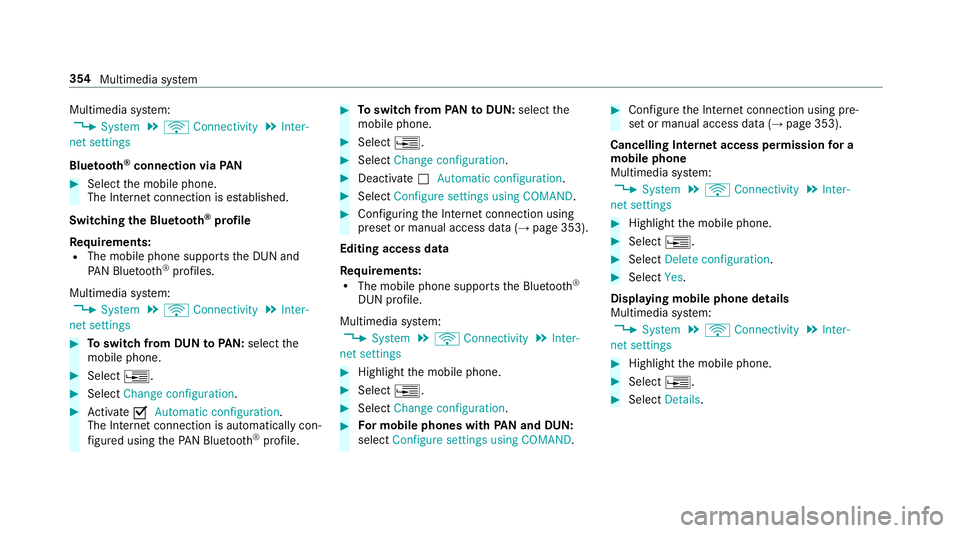
stem:
, System .
ö Connectivity .
Inter-
net settings
Blue tooth ®
connection via PAN#
Select the mobile phone.
The Internet connection is es tablished.
Switching the Blu etoo th®
pr ofile
Re quirements:
R The mobile phone supports the DUN and
PA N Blue tooth®
profiles.
Multimedia sy stem:
, System .
ö Connectivity .
Inter-
net settings #
Toswitch from DUN toPAN: select the
mobile phone. #
Select ¥. #
Select Change configuration. #
Activate OAutomatic configuration.
The Internet connection is au tomatical lycon‐
fi gured using thePA N Blue tooth®
profile. #
Toswitch from PANto DUN: select the
mobile phone. #
Select ¥. #
Select Change configuration. #
Deactivate ªAutomatic configuration. #
Select Configure settings using COMAND . #
Configuri ngthe Internet connection using
preset or manual access data (→ page 353).
Editing access data
Re quirements:
R The mobile phone supports the Blue tooth®
DUN profile.
Multimedia sy stem:
, System .
ö Connectivity .
Inter-
net settings #
Highlight the mobile phone. #
Select ¥. #
Select Change configuration . #
For mobile phones with PAN and DUN:
select Configure settings using COMAND. #
Configure the Internet connection using pre‐
set or manual access data (→ page 353).
Cancelling Internet access permission for a
mobile phone
Multimedia sy stem:
, System .
ö Connectivity .
Inter-
net settings #
Highlight the mobile phone. #
Select ¥. #
Select Delete configuration. #
Select Yes.
Displaying mobile phone details
Multimedia sy stem:
, System .
ö Connectivity .
Inter-
net settings #
Highlight the mobile phone. #
Select ¥. #
Select Details. 354
Multimedia sy stem
Page 376 of 589
Ra
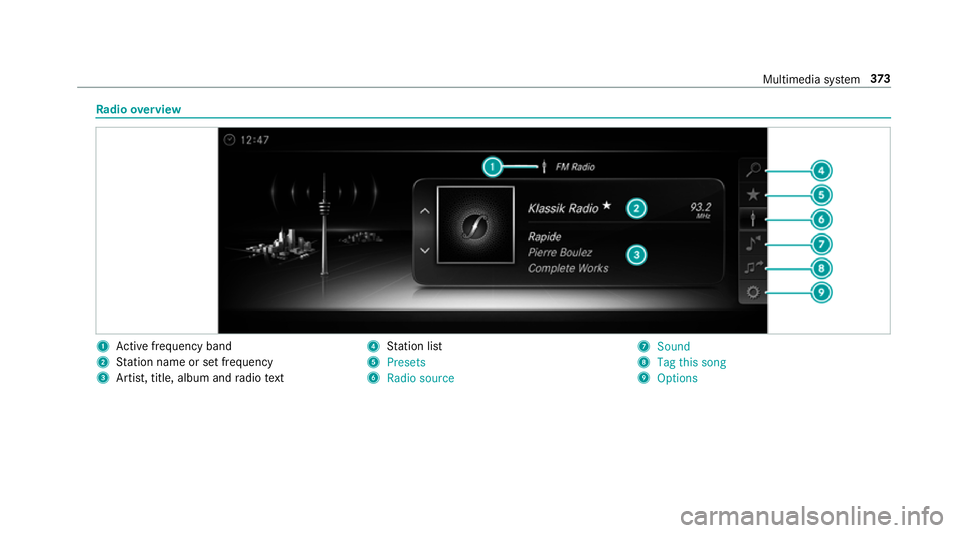
dio overview 1
Active frequency band
2 Station name or set frequency
3 Artist, title, album and radio text 4
Station list
5 Presets
6 Radio source 7
Sound
8 Tag this song
9 Options Multimedia sy
stem 373
Page 377 of 589
Setting
the frequency band Multimedia sy
stem:
, Radio .
Þ Radio source #
Select a frequency band. Selecting a
radio station Multimedia sy
stem:
, Radio #
Navigate up or down. Calling up
thera dio station list Multimedia sy
stem:
, Radio .
è #
Select a station. Sear
ching forra dio stations using station
names or direct frequency entry Multimedia sy
stem:
, Radio .
è .
è #
Ente r astation name or frequenc y. #
Select a.
The sea rchre sults are displa yed. #
Select a station. St
oring radio stations Multimedia sy
stem:
, Radio .
ß Presets #
Select Store current station in the presets . Editing
radio station presets Multimedia sy
stem:
, Radio .
ß Presets
Moving stations: #
Highlight a preset entry and navigate tothe
left. #
Select Move highlighted station. #
Select a memo rypreset.
Deleting stations: #
Highlight a preset entry and navigate tothe
left. #
Select Delete highlighted station. #
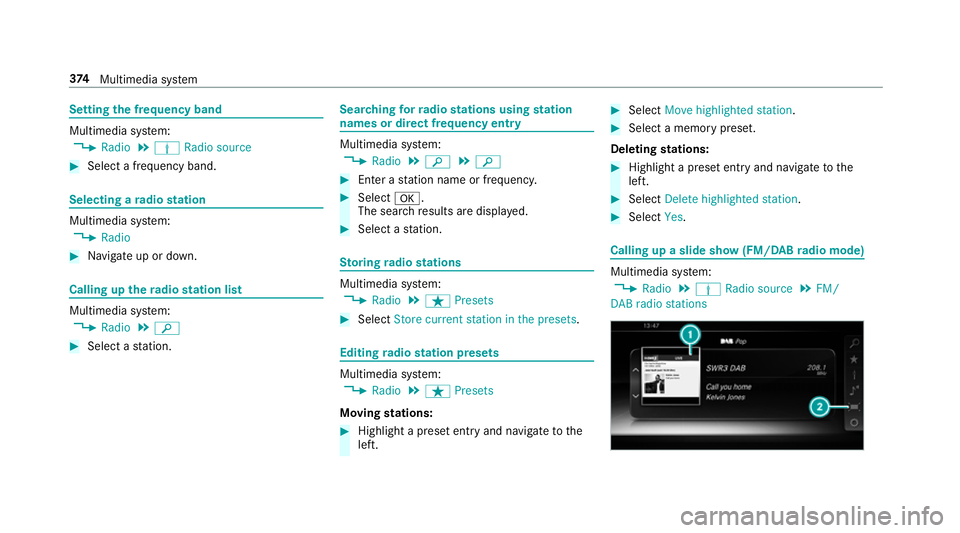
Select Yes. Calling up a slide show (FM/DAB
radio mode) Multimedia sy
stem:
, Radio .
Þ Radio source .
FM/
DAB radio stations 374
Multimedia sy stem
Page 381 of 589
TV
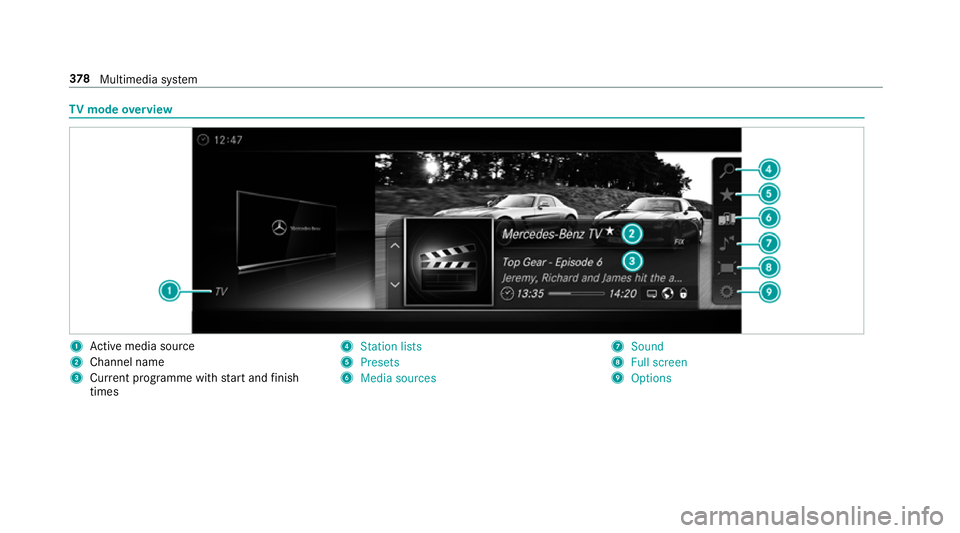
mode overview 1
Active media sou rce
2 Channel name
3 Current programme wi thstart and finish
times 4
Station lists
5 Presets
6 Media sources 7
Sound
8 Full screen
9 Options 378
Multimedia sy stem
Page 382 of 589
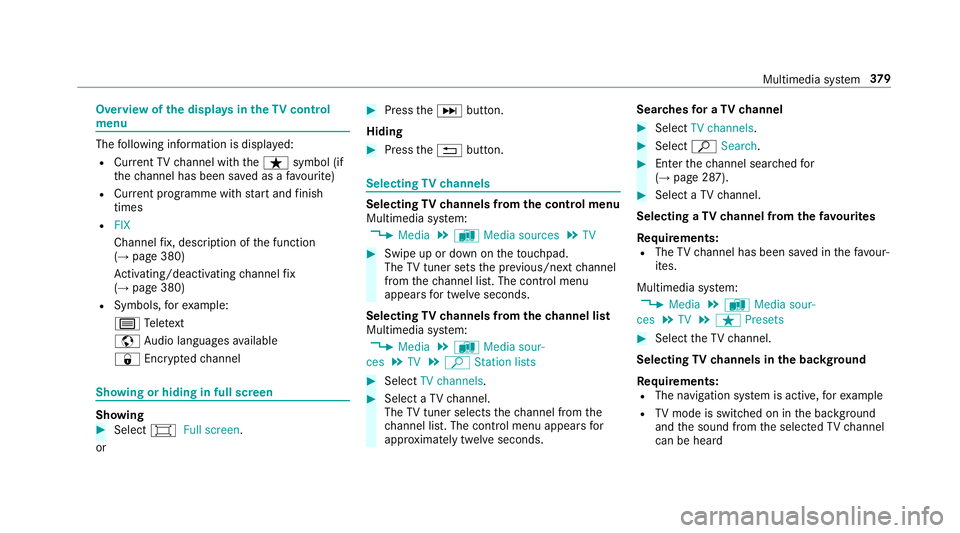
Overview of
the displa ysintheTV cont rol
menu The
following information is displa yed:
R Cur rent TV channel with theß symbol (if
th ech annel has been sa ved as a favo urite)
R Cur rent programme wi thstart and finish
times
R FIX
Channel fix, description of the function
(→ page 380)
Ac tivating/deactivating channel fix
( → page 380)
R Symbols, forex ample:
p Telete xt
z Audio languages available
r Encryp tedch annel Showing or hiding in full screen
Showing
#
Select #Full screen .
or #
Press theD button.
Hiding #
Press the% button. Selecting
TVchannels Selecting
TVchannels from the control menu
Multimedia sy stem:
, Media .
à Media sources .
TV #
Swipe up or down on theto uchpad.
The TVtuner sets the pr evious/n extch annel
from thech annel list. The control menu
appears for twelve seconds.
Selecting TVchannels from thech annel list
Multimedia sy stem:
, Media .
à Media sour-
ces .
TV .
ª Station lists #
Select TV channels. #
Select a TVchannel.
The TVtuner selects thech annel from the
ch annel list. The control menu appears for
appr oximately twelve seconds. Sear
ches for a TVchannel #
Select TV channels . #
Select ªSearch . #
Enter thech annel sear ched for
( → page 287). #
Select a TVchannel.
Selecting a TVchannel from thefa vo urites
Re quirements:
R The TVchannel has been sa ved in thefa vo ur‐
ites.
Multimedia sy stem:
, Media .
à Media sour-
ces .
TV .
ß Presets #
Select theTV channel.
Selecting TVchannels in the bac kground
Re quirements:
R The navigation sy stem is active, forex ample
R TVmode is switched on in the bac kground
and the sound from the selected TVchannel
can be heard Multimedia sy
stem 37 9
Page 384 of 589
Quic
k-saving a TVchannel
Multimedia sy stem:
, Media .
à Media sources .
TV #
In full-screen mode, press theto uchpad for
longer than thre e seconds.
The cur rent TV channel is stored in the
fa vo urites in the next available position.
St oring TVchannels
Multimedia sy stem:
, Media .
à Media sour-
ces .
TV .
ß Presets #
Select Store current station in the presets .
or #
Highlight a channel in thech annel list and
st ore as a favo urite.
The cur rent channel is stored in thefa vo ur‐
ites in the next available position.
Moving channels in thefa vo urites #
Highlight a channel in thefa vo urites. #
Select ¥Move highlighted station. #
Highlight the new position. #
Confirm the position.
Deleting channels #
Highlight a channel in thefa vo urites. #
Select ¥Delete highlighted station. #
Select Yes. TV
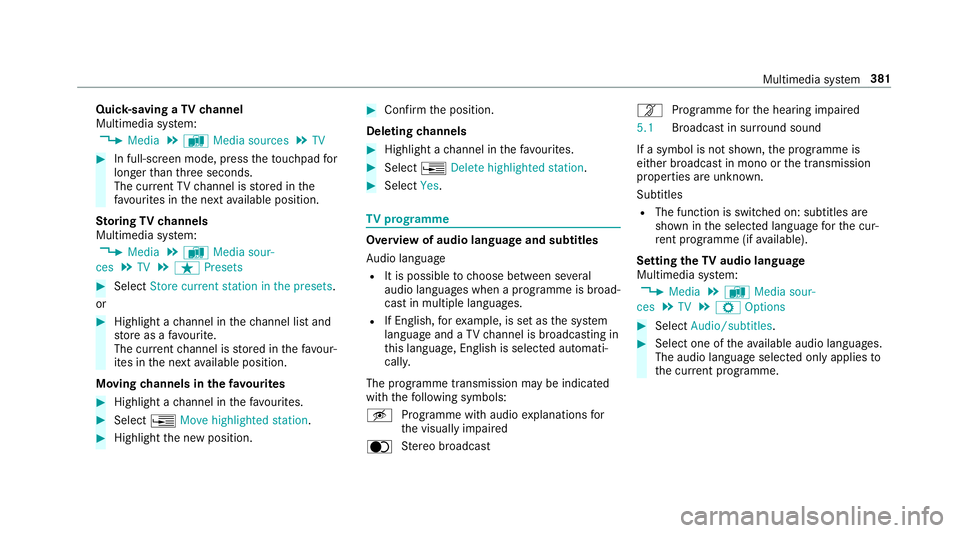
prog ramme Overvi
ewof audio language and subtitles
Au dio language
R It is possible tochoose between se veral
audio languages when a programme is broad‐
cast in multiple languages.
R If En glish, forex ample, is set as the sy stem
language and a TVchannel is broadcasting in
th is language, En glish is selec ted automati‐
cally.
The prog ramme transmission may be indica ted
with thefo llowing symbols:
m Programme with audio explanations for
th e visually impaired
o Stereo broadcast n
Programme forth e hearing impaired
5.1 Broadcast in sur
round sound
If a symbol is not shown, the prog ramme is
either broadca stin mono or the transmission
properties are unkn own.
Subtitles
R The function is switched on: subtitles are
shown in the selected language forth e cur‐
re nt programme (if available).
Setting theTV audio language
Multimedia sy stem:
, Media .
à Media sour-
ces .
TV .
Z Options #
Select Audio/subtitles. #
Select one of theav ailable audio languages.
The audio language selec ted only applies to
th e cur rent programme. Multimedia sy
stem 381