ESP MERCEDES-BENZ CLS COUPE 2018 Manual PDF
[x] Cancel search | Manufacturer: MERCEDES-BENZ, Model Year: 2018, Model line: CLS COUPE, Model: MERCEDES-BENZ CLS COUPE 2018Pages: 589, PDF Size: 10.95 MB
Page 281 of 589
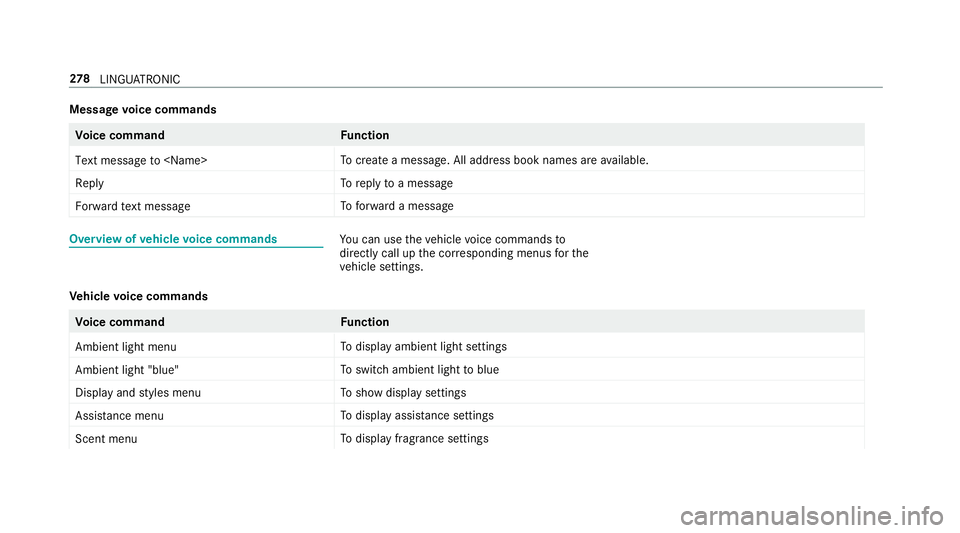
Message
voice commands Vo
ice command Function
Text message to
crea tea message. All address book names are available.
Reply To
reply toa message
Forward text message To
forw ard a message Overview of
vehicle voice commands Yo
u can use theve hicle voice commands to
directly call up the cor responding menus forthe
ve hicle settings.
Ve hicle voice commands Vo
ice command Function
Ambient light menu To
display ambient light settings
Ambient light "blue" To
switch ambient light toblue
Display and styles menu To
show display settings
Assistance menu To
display assis tance settings
Scent menu To
display fragrance settings 278
LINGU ATRO NIC
Page 302 of 589
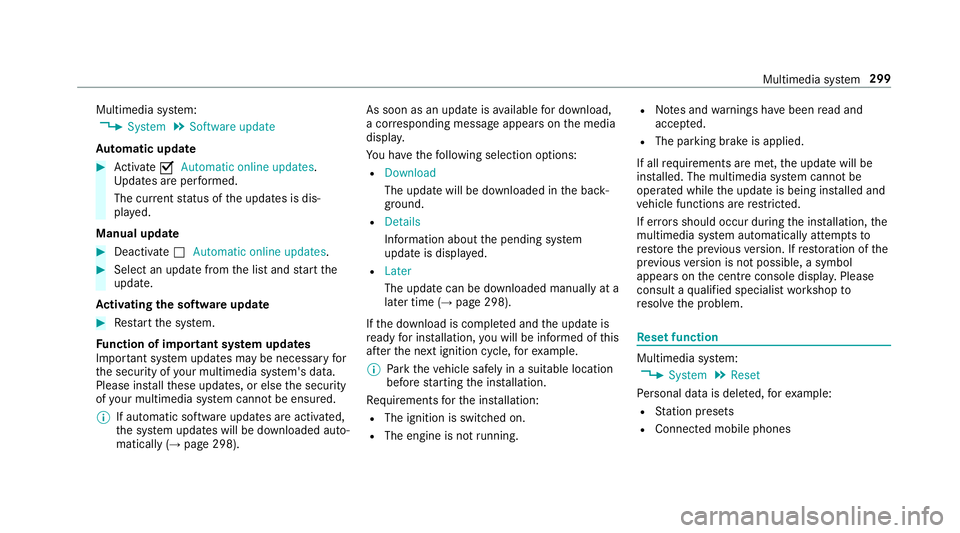
Multimedia sy
stem:
, System .
Software update
Au tomatic update #
Activate OAutomatic online updates.
Up dates are per form ed.
The cur rent status of the updates is dis‐
pla yed.
Manual update #
Deactivate ªAutomatic online updates. #
Select an update from the list and start the
update.
Ac tivating the so ftwa reupdate #
Restart the sy stem.
Fu nction of important sy stem upda tes
Impor tant sy stem updates may be necessary for
th e security of your multimedia sy stem's data.
Please ins tallth ese updates, or else the security
of your multimedia sy stem cann otbe ensured.
% If automatic software updates are activated,
th e sy stem updates will be downloaded auto‐
matically (→ page 298). As soon as an update is
available for download,
a cor responding message appears onthe media
displa y.
Yo u ha vethefo llowing selection options:
R Download
The update will be downloaded in the back‐
ground.
R Details
Information about the pending sy stem
update is displa yed.
R Later
The update can be downloaded manually at a
later time (→ page 298).
If th e download is comple ted and the update is
re ady for ins tallation, you will be informed of this
af te rth e next ignition cycle, forex ample.
% Park theve hicle safely in a suitable location
before starting the ins tallation.
Re quirements forth e ins tallation:
R The ignition is switched on.
R The engine is not running. R
Notes and warnings ha vebeen read and
accep ted.
R The parking brake is applied.
If all requirements are met, the update will be
ins talled. The multimedia sy stem cann otbe
operated while the update is being ins talled and
ve hicle functions are restricted.
If er rors should occur during the ins tallation, the
multimedia sy stem automatically attem ptsto
re store the pr evious version. If restoration of the
pr ev ious version is not possible, a symbol
appears on the cent reconsole displ ay. Please
consult a qualified specialist workshop to
re solve the problem. Re
set function Multimedia sy
stem:
, System .
Reset
Pe rsonal data is dele ted, forex ample:
R Station presets
R Connec ted mobile phones Multimedia sy
stem 299
Page 305 of 589
St
arting training #
Select Training. #
Select Muscle relaxation, Muscle stimulation
or Balance.
The selected training video starts and is dis‐
pla yed in the media displa y.#
Select Full-screen video.
The training video is displ ayed in full screen.
% For more information on pausing or skipping
th ro ugh videos, see (→ page 363).
If, during an active prog ram, a function require‐
ment is no longer met, a cor responding message
appears . The acti veprogram is cancelled. Na
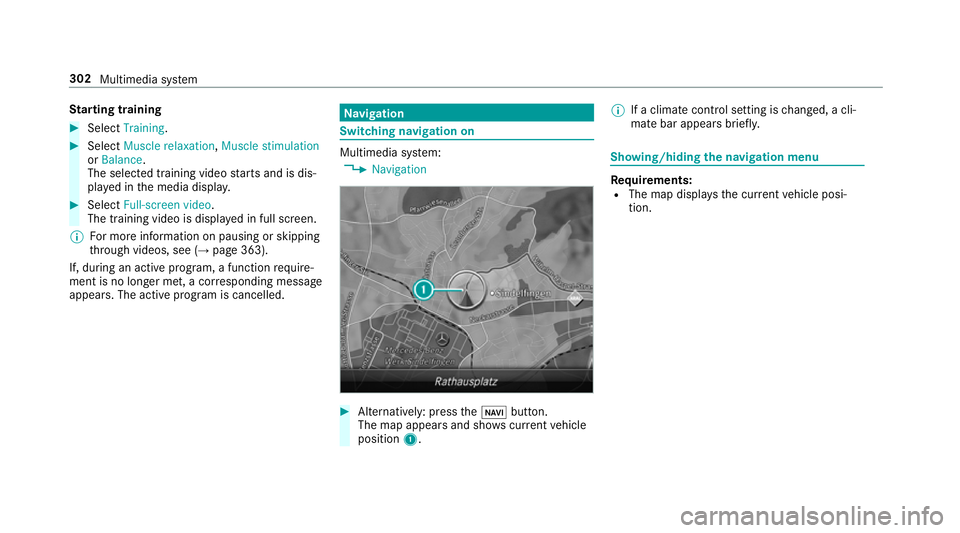
vigation Switching navigation on
Multimedia sy
stem:
, Navigation #
Alternatively: press theß button.
The map appears and sho wscurrent vehicle
position 1. %
If a climate contro l setting ischanged, a cli‐
mate bar appears brief ly. Showing/hiding
the navigation menu Re
quirements:
R The map displa ys the cur rent vehicle posi‐
tion. 302
Multimedia sy stem
Page 312 of 589
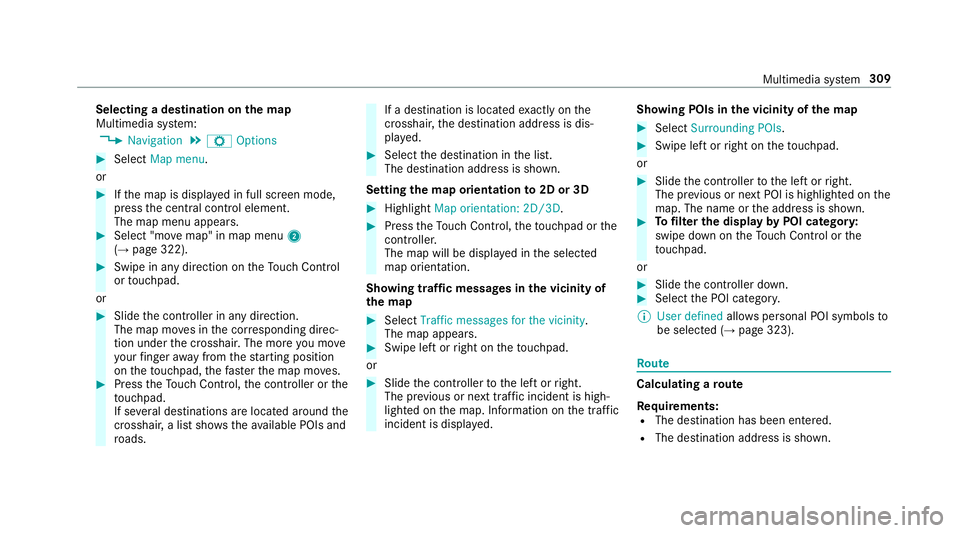
Selecting a destination on
the map
Multimedia sy stem:
, Navigation .
Z Options #
Select Map menu.
or #
Ifth e map is displa yed in full screen mode,
press the cent ral control element.
The map menu appears. #
Select "mo vemap" in map menu 2
(→ page 322). #
Swipe in any direction on theTo uch Control
or touchpad.
or #
Slide the controller in any direction.
The map mo ves in the cor responding direc‐
tion under the crosshair. The more you mo ve
yo ur finger away from thest arting position
on theto uchpad, thefast erthe map mo ves. #
Press theTo uch Control, the controller or the
to uchpad.
If se veral destinations are located around the
crosshair, a li stsho wstheav ailable POIs and
ro ads. If a destination is located
exact ly on the
crosshair, the destination address is dis‐
pla yed. #
Select the destination in the list.
The destination address is shown.
Setting the map orientation to2D or 3D #
Highlight Map orientation: 2D/3D. #
Press theTo uch Control, theto uchpad or the
controller.
The map will be displ ayed in the selected
map orientation.
Showing traf fic messages in the vicinity of
th e map #
Select Traffic messages for the vicinity.
The map appears. #
Swipe left or right on theto uchpad.
or #
Slide the controller tothe left or right.
The pr evious or next traf fic incident is high‐
lighted on the map. Information on the tra ffic
incident is displa yed. Showing POIs in
the vicinity of the map #
Select Surrounding POIs . #
Swipe left or right on theto uchpad.
or #
Slide the controller tothe left or right.
The pr evious or next POI is highligh ted on the
map. The name or the address is shown. #
Tofilter the display byPOI categor y:
swipe down on theTo uch Control or the
to uchpad.
or #
Slide the controller down. #
Select the POI categor y.
% User defined allowspersonal POI symbols to
be selected (→ page 323). Ro
ute Calculating a
route
Re quirements:
R The destination has been entered.
R The destination address is shown. Multimedia sy
stem 309
Page 314 of 589
The
route is calculated with the cur rently set
ro ute type.
Tr af fic messages via Live Traf fic Information
or FM RDS-TMC are take n into account.
Live Traf fic Information and FM RDS-TMC are
not available in all countries.
R Ask before changing route to avoid traffic
jam
A prom ptappears when a new route is de tec‐
te d with a shor ter journey time based on traf‐
fi c re ports. You can continue touse the cur‐
re nt route or use the dynamic route ins tead.
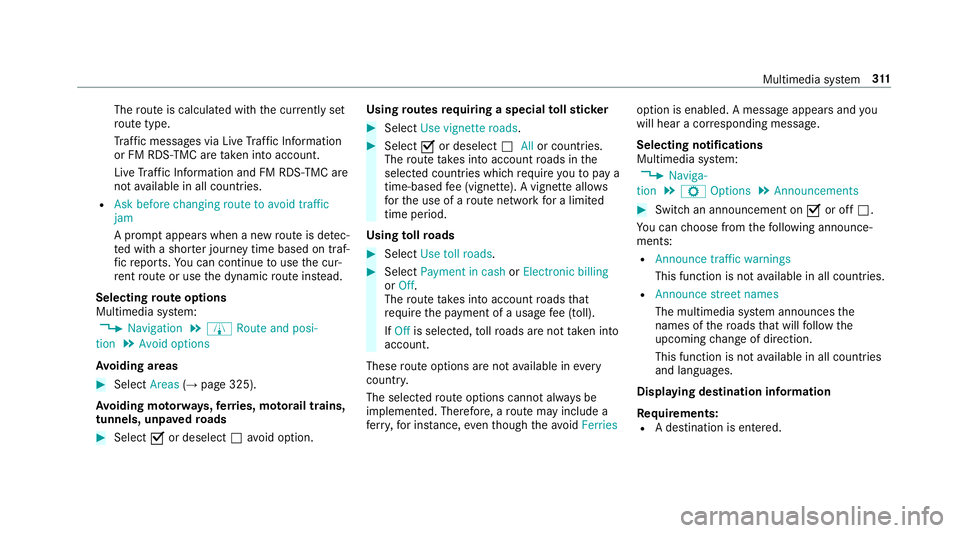
Selecting route options
Multimedia sy stem:
, Navigation .
À Route and posi-
tion .
Avoid options
Av oiding areas #
Select Areas(→page 325).
Av oiding mo torw ays, ferries, mo torail trains,
tunnels, unpa vedro ads #
Select Oor deselect ªavo id option. Using
routes requiring a special tollst icker #
Select Use vignette roads . #
Select Oor deselect ªAllor countries.
The route take s into account roads in the
selected countries which requ ire youto pay a
time-based fee (vignette). A vignette allo ws
fo rth e use of a route network for a limi ted
time pe riod.
Using tollro ads #
Select Use toll roads. #
Select Payment in cash orElectronic billing
or Off.
The route take s into account roads that
re qu ire the payment of a usage fee (toll).
If Off is selected, tollro ads are not take n into
account.
These route options are not available in every
countr y.
The selected route options cannot alw ays be
implemented. Therefore, a route may include a
fe rry, for ins tance, eventh ough theavo idFerries option is enabled. A message appears and
you
will hear a cor responding message.
Selecting notifications
Multimedia sy stem:
, Naviga-
tion .
Z Options .
Announcements #
Switch an announcement on Oor off ª.
Yo u can choose from thefo llowing announce‐
ments:
R Announce traffic warnings
This function is not available in all countries.
R Announce street names
The multimedia sy stem announces the
names of thero ads that will follow the
upcoming change of direction.
This function is not available in all countries
and languages.
Displ aying destination information
Requ irements:
R A destination is entered. Multimedia sy
stem 311
Page 326 of 589
Setting
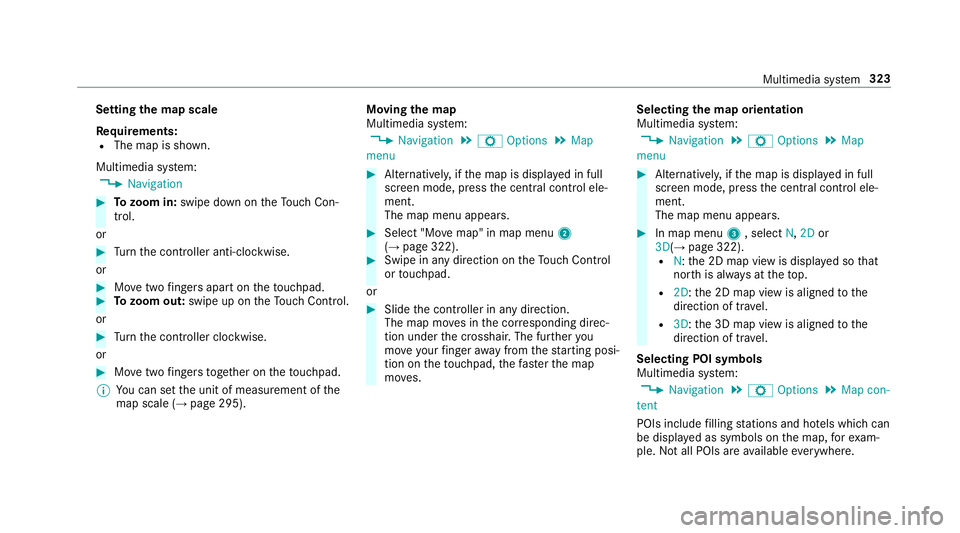
the map scale
Re quirements:
R The map is shown.
Multimedia sy stem:
, Navigation #
Tozoom in: swipe down on theTo uch Con‐
trol.
or #
Turn the controller anti-clockwise.
or #
Movetwo fingers apart on theto uchpad. #
Tozoom out: swipe up on theTo uch Control.
or #
Turn the controller clockwise.
or #
Movetwo fingers toge ther on theto uchpad.
% You can set the unit of measurement of the
map scale (→ page 295). Moving
the map
Multimedia sy stem:
, Navigation .
Z Options .
Map
menu #
Alternatively, if the map is displa yed in full
screen mode, press the cent ral control ele‐
ment.
The map menu appears. #
Select "Mo vemap" in map menu 2
(→ page 322). #
Swipe in any direction on theTo uch Control
or touchpad.
or #
Slide the controller in any direction.
The map mo ves in the cor responding direc‐
tion under the crosshair. The fur ther you
mo veyour finger away from thest arting posi‐
tion on theto uchpad, thefast erthe map
mo ves. Selecting
the map orientation
Multimedia sy stem:
, Navigation .
Z Options .
Map
menu #
Alternatively, if the map is displa yed in full
screen mode, press the cent ral control ele‐
ment.
The map menu appears. #
In map menu 3, select N,2D or
3D( →page 322).
R N:the 2D map view is displa yed so that
no rth is alw ays at theto p.
R 2D: the 2D map view is aligned tothe
direction of tra vel.
R 3D: the 3D map view is aligned tothe
direction of tra vel.
Selecting POI symbols
Multimedia sy stem:
, Navigation .
Z Options .
Map con-
tent
POIs include filling stations and ho tels which can
be displa yed as symbols on the map, forex am‐
ple. Notall POIs are available everywhere. Multimedia sy
stem 323
Page 344 of 589
Mercedes-Benz link
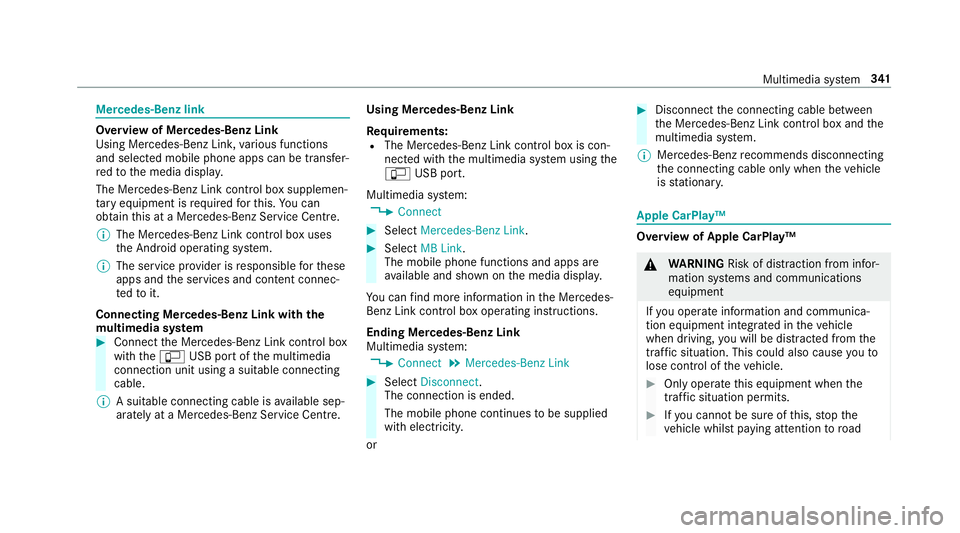
Overview of Mercedes-Benz Link
Using Mercedes-Benz Link,
various functions
and selected mobile phone apps can be transfer‐
re dto the media displa y.
The Mercedes-Benz Link contro l box supplemen‐
ta ry equipment is requiredforth is. You can
obtain this at a Mercedes-Benz Service Cent re.
% The Mercedes-Benz Link contro l box uses
th e Android operating sy stem.
% The service pr ovider is responsible forth ese
apps and the services and conte nt connec‐
te dto it.
Connecting Mercedes-Benz Link with the
mu ltimedia sy stem #
Connect the Mercedes-Benz Link control box
with theç USB port of the multimedia
connection unit using a suitable connecting
cable.
% A suitable connecting cable is available sep‐
arately at a Mercedes-Benz Service Cent re.Using Mercedes-Benz Link
Re
quirements:
R The Mercedes-Benz Link control box is con‐
nec ted with the multimedia sy stem using the
ç USB port.
Multimedia sy stem:
, Connect #
Select Mercedes-Benz Link. #
Select MB Link.
The mobile phone functions and apps are
av ailable and shown on the media displa y.
Yo u can find more information in the Mercedes-
Benz Link control box operating instructions.
Ending Mercedes-Benz Link
Multimedia sy stem:
, Connect .
Mercedes-Benz Link #
Select Disconnect.
The connection is ended.
The mobile phone continues tobe supplied
with elect ricity.
or #
Disconnect the connecting cable between
th e Mercedes-Benz Link control box and the
multimedia sy stem.
% Mercedes-Benz recommends disconnecting
th e connecting cable only when theve hicle
is stationar y. Apple CarPlay™
Overview of Apple CarPlay™
&
WARNING Risk of di stra ction from infor‐
mation sy stems and communications
equipment
If yo u operate information and communica‐
tion equipment integ rated in theve hicle
when driving, you will be distracted from the
traf fic situation. This could also cause youto
lose control of theve hicle. #
Only operate this equipment when the
traf fic situation permits. #
Ifyo u cannot be sure of this, stop the
ve hicle whilst paying attention toroad Multimedia sy
stem 341
Page 345 of 589
and traf
fic conditions and ope rate the
equipment with theve hicle stationar y. Yo
u must obse rveth e legal requirements forthe
country in whi chyou are cur rently driving when
operating the multimedia sy stem.
iPhone ®
functions can be used via the multime‐
dia sy stem using Apple CarPlay™. They are oper‐
ated using the cent ral control element or the
Siri ®
vo ice-operated control sy stem. You can
activate thevo ice-opera ted control sy stem by
pressing and holding theó button on the
multifunction steering wheel.
When using Apple CarPlay™ via thevo ice-oper‐
ated control sy stem, the multimedia sy stem can
st ill be operated via LINGU ATRO NIC
(→ page 267).
Only one mobile phone at a time can be connec‐
te d via Apple CarPlay™ tothe multimedia sys‐
te m.
The availability of Apple CarPlay™ may vary
according tothe count ry. The service pr
ovider is responsible forth is appli‐
cation and the services and conte nt connected
to it.
Information on Apple CarPlay™
While using Apple CarPlay™ various functions of
th e multimedia sy stem, e.g. telephony or the
media sources Blue tooth®
audio and iPod ®
, are
una vailable.
Only one route guidance can be active at a time.
If ro ute guidance is active on the multimedia sys‐
te m, it is closed when route guidance is star ted
on the mobile phone.
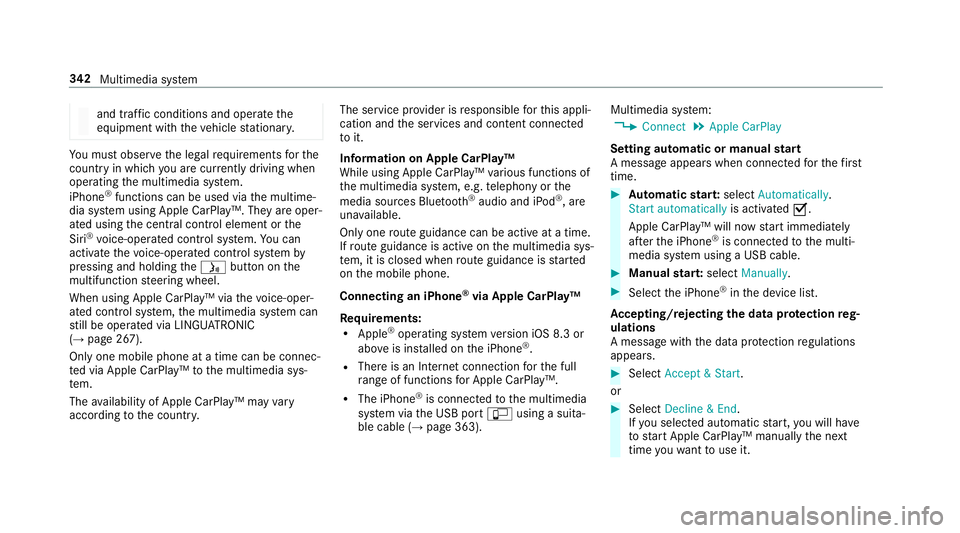
Connecting an iPhone ®
via Apple CarPlay™
Re quirements:
R Apple ®
operating sy stem version iOS 8.3 or
abo veis ins talled on the iPhone ®
.
R There is an Internet connection forth e full
ra nge of functions for Apple CarPlay™.
R The iPhone ®
is connected tothe multimedia
sy stem via the USB port çusing a suita‐
ble cable (→ page 363). Multimedia sy
stem:
, Connect .
Apple CarPlay
Setting automatic or manual start
A messa geappears when connec tedfo rth efirst
time. #
Automatic star t:select Automatically.
Start automatically is activatedO.
Apple CarPlay™ will now start immediately
af te rth e iPhone ®
is connected tothe multi‐
media sy stem using a USB cable. #
Manual star t:select Manually . #
Select the iPhone ®
in the device list.
Ac cepting/rejecting the data pr otection reg‐
ulations
A message with the data pr otection regulations
appears. #
Select Accept & Start .
or #
Select Decline & End.
If yo u selected automatic start, you will ha ve
to start Apple CarPlay™ manually the next
time youwa nttouse it. 342
Multimedia sy stem
Page 346 of 589
Exiting Apple CarPlay™
#
Press theò button on the multifunction
st eering wheel, forex ample.
% If Apple CarPlay™ was not displa yed in the
fo re ground before disconnecting, the appli‐
cation starts in the bac kground when recon‐
nected. You can call up Apple CarPlay™ in
th e main menu.
Calling up Apple CarPlay™ sound settings
Multimedia sy stem:
, Connect .
Apple CarPlay .
Sound #
Select theto ne menu (→ page 384).
Ending Apple CarPlay™
Multimedia sy stem:
, Connect .
Apple CarPlay #
Select Disconnect.
The connection is ended.
The mobile phone continues tobe supplied
with elect ricity.
or #
Disconnect the connecting cable between
th e mobile phone and multimedia sy stem.
Mercedes-Benz recommends disconnecting
th e connecting cable only when theve hicle is
st ationar y. Android
Auto Android
Autoove rview &
WARNING Risk of di stra ction from infor‐
mation sy stems and communications
equipment
If yo u operate information and communica‐
tion equipment integ rated in theve hicle
when driving, you will be distracted from the
traf fic situation. This could also cause youto
lose control of theve hicle. #
Only operate this equipment when the
traf fic situation permits. #
Ifyo u cannot be sure of this, stop the
ve hicle whilst paying attention toroad
and traf fic conditions and ope rate the
equipment with theve hicle stationar y. Yo
u must obse rveth e legal requirements forthe
country in whi chyou are cur rently driving when
operating the multimedia sy stem.
Mobile phone functions can be used with
Android Autousing the Android operating sys‐
te m on the multimedia sy stem. It is operated
using the cent ral control element or thevo ice
control. You can activate thevo ice-operate d con‐
trol sy stem bypressing and holding theó
button on the multifunction steering wheel.
When using Android Autovia thevo ice-operated
control sy stem, the multimedia sy stem can still
be opera ted via LINGU ATRO NIC (→ page 267).
Only one mobile phone at a time can be connec‐
te d via Android Auto to the multimedia sy stem.
The availability of Android Autoand Android Auto
Apps may vary according tothe count ry.
The service pr ovider is responsible forth is appli‐
cation and the services and conte nt connected
to it.
Information on Android Auto
While using Android Auto,va rious functions of
th e multimedia sy stem, forex ample the media
source Blue tooth®
audio, are not available. Multimedia sy
stem 343
Page 348 of 589
Tr
ansfer redve hicle data with Android Auto
and Apple CarPlay™ Overview of transfer
redve hicle data
When using Android Autoor Apple CarPlay™,
cer tain vehicle data is transfer redto the mobile
phone. This enables youto getth e best out of
selected mobile phone services. Vehicle data is
not directly accessible.
The following sy stem information is transmit ted:
R Software release of the multimedia sy stem
R System ID (anonymised)
The transfer of this data is used tooptimise
communication between theve hicle and the
mobile phone.
To do this, and toassign se veralve hicles tothe
mobile phone, a vehicle identifier is randomly
ge nerated.
This has no connection totheve hicle identifica‐
tion number (VIN) and is dele ted when the multi‐
media sy stem is reset (→ page 299).
The following driving status data is transmitted:
R Transmission position engaged R
Distinction between par ked, standstill, rolling
and driving
R Day/night mode of the instrument clus ter
The transfer of this data is used toalter how
con tent is displ ayed tocor respond tothe driving
situation.
The following position data is transmitte d:
R Coordinates
R Speed
R Compass direction
R Acceleration di rection
This da tais only transfer red while the navigation
sy stem is active in order toimpr oveit (e.g. so it
can continue functioning when in a tunnel). Mercedes me connect
Information on Mercedes me connect
Mercedes me connect pr
ovides thefo llowing
services:
R Accident and breakdown mana gement (me
button) R
Concierge Service (when the service is acti‐
va ted), appointment requests or similar (me
button)
R Mercedes-Benz emer gency call sy stem (SOS
button)
The Mercedes-Benz Cus tomer Centre and the
Mercedes-Benz emer gency call centre are availa‐
ble foryo u around the cloc k.
The me button and the emer gency call sy stem
can be found on theve hicle's overhead control
panel (→ page 346).
Yo u can also call the Mercedes-Benz Cus tomer
Centre using the multimedia sy stem
(→ page 346).
Please no tethat Mercedes me connect is a
Mercedes-Benz service. In emer gencies, al ways
call the national emer gency services firs t using
th est andard national emer gency service phone
numbe rs. In eme rgencies, you can also use the
Mercedes-Benz emer gency call sy stem
(→ page 349).
Obser vethe conditions of use for Mercedes me
connect and other services. These can be Multimedia sy
stem 345