telephone MERCEDES-BENZ E-Class 2012 W212 Comand Manual
[x] Cancel search | Manufacturer: MERCEDES-BENZ, Model Year: 2012, Model line: E-Class, Model: MERCEDES-BENZ E-Class 2012 W212Pages: 234, PDF Size: 6.74 MB
Page 124 of 234

Redi
aling On
COMAND
X Ca llup the telepho nebasic menu
(Y page 119).
X Sel ect °inthe characte rba rand press
W toconfi rm.
or
X Ifthe telepho nebasic menu isdispl ayed,
pre ssthe 6 button inCO MAND.
In both cases, the callsdialed list appea rs.
The most recentlydialed numb erisat the
top.
X To select ac all: turn cVd theCOM AND
controll er.
X To conne ctthe call:press Wthe
COM AND controll er.
Co nne ctin gac all toan entry inac all list
or inthe COM AND phone book X
Open acall lista nd select anentry
(Y page 129) .
or
X Ca llup the COMAND phone book and
sel ect anentry (Ypage 126) .
X To conn ectac all:press Wthe COM AND
controlle ror the 6 button.
Making acal lvia spee ddial The
spee ddia llis tc ont ains stored phone
book entries(Ypage 131).
Option 1:
X Hold down oneofthe number keysfor
longer thantwoseconds.
Option 2:
X Call upthe telephone basicmenu
(Y page 119).
X Select CallLists by
sliding VÆand
turnin gcVd theCOMAND controller and
press Wtoconf irm.
The speed diallistappears. X
Select Speed DialPreset List by
turnin gcVd theCOMAND controller and
press Wtoconf irm.
The speed diallistappears.
X Select thestorage location andpress Wto
conf irm.
Irrespect iveofthe option chosen, the
telephone basicmenu appears and
display sthe selected entry.This initiates
dialing. Functions
availableduring acall
Ove rview Tel
epho neoper ationwithasing lecall
: Perso nyou are calling
; Icon foractive telephone connection
= Toswitch hands-fr eemicrophon eon/of f
? Tosend DTMF tones(not possible withall
mobile phones)
A Toend acall
The following functions:
R acceptin gawaiting call
R making afurther call
R call waiting
are availa bleifthey aresupported bythe
network (onlypossible withaGSM network )
and your Bluetooth ®
mobile phone. 122
Telephone
operationTelephone
Page 125 of 234
Switching
thehands- freemicrophone
on/off This
funct ionisalso availa bleduring anactive
phone call.
X Call upthe telephone basicmenu
(Y page 119).
X To switch off:select MikeOff and
press
W toconf irm.
If the microphone isswitched off,the
display showstheQicon andtheThe microphone is off message
appearsfor
a short period.
X To switch on:select MikeOn and
press
W toconf irm.
The Qsymbol disappea rs.You willbriefly
see theThe microphone is on message.
Ending anactive call X
Select ¢inthe telephone basicmenu and
press Wtoconf irm.
or
X Press the~ button onCOMAND oron
the multifunct ionsteering wheel.
The callonhold isactivated.
Rejecting oraccepting awaitin gcal l The
callwaiting function mustbesup ported
by the mobi lephone network providerand be
enab led.Depending onthe mobile phone
used, thesystem behavior differswhen
accept ingacall (option 1and 2).
If yo uha ve acal lin pro gressand rece ive
ano ther call,a new windo wap pe arsin the
di spl ay.Y ou also hear aton e.You canaccept
or rejec tthe call.
X To reject: selectReject and
press Wto
conf irm.
or
X Press the~ button onCOMAND oron
the multifunct ionsteerin gwheel. X
To accept: selectAccept and
press Wto
conf irm.
or
X Press the6 button onCOMAND oron
the multifunct ionsteerin gwheel.
Option 1:ifyou accept thewaiting call,the
active callisended.
The active callwillalso beended ifyou
accept thewaiting callusing theVoice
Control System (seetheseparate
operating instructions).
Option 2:ifyou accept thewaiting call,the
active callisput onhold. Youcanthen
switch backandforthbetween bothcalls
(toggling) (Ypage 124).
i The second optionisavaila bleifyour
mobile phonesupports thetoggling
funct ion(via Bluetooth ®
).
Valid forboth options: ifyou accept the
waiting callusing themobile phone, theactive
call isput onhold. Youthen have twocalls.
The callyou have justaccepted isactive.
The COMAND displaychanges. Ifyou
cont inue tooperate functionsonthe mobile
phone, theCOMAND displaymaydiffer from
that ofthe mobile phone.
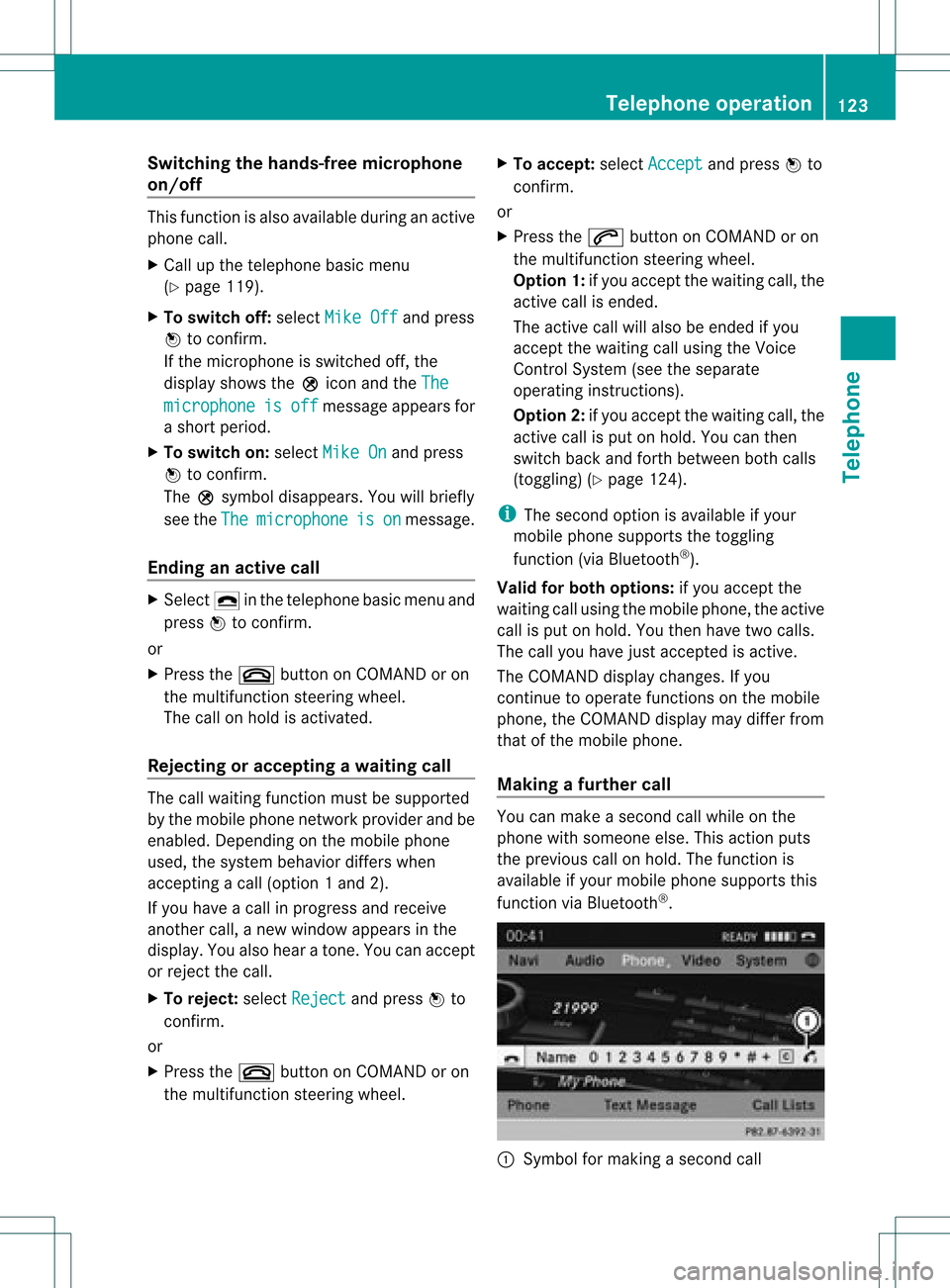
Making afur ther call You
canmake asecond callwhile onthe
phone withsomeone else.Thisaction puts
the previous callonhold. Thefunct ionis
availa bleifyour mobile phonesupports this
funct ionviaBluetooth ®
. :
Symbol formaking asecond call Telephone
operation
123Telephone Z
Page 126 of 234
X
Sel ect symbo l: byturni ngcVd the
CO MAND controllera nd pre ssW to
confi rm.
or
X Pre ssthe ; button onCOMAND.
X Enter thephone num ber:
R ma nua lly (Y page 121)
R us ing the phone book (Ypage 125)
R from thecalllists (Ypage 129)
R us ing speeddial (Y page 122)
Cal lwa iting Yo
ucan switch back and forth betwe encalls
wi th thisfu nctio n.The functio nisavail able if
your mobile phonesupports thetoggling
function (viaBluetooth ®
).
You canusethefunction ifyou areanswering
a second callormaking asecond call.
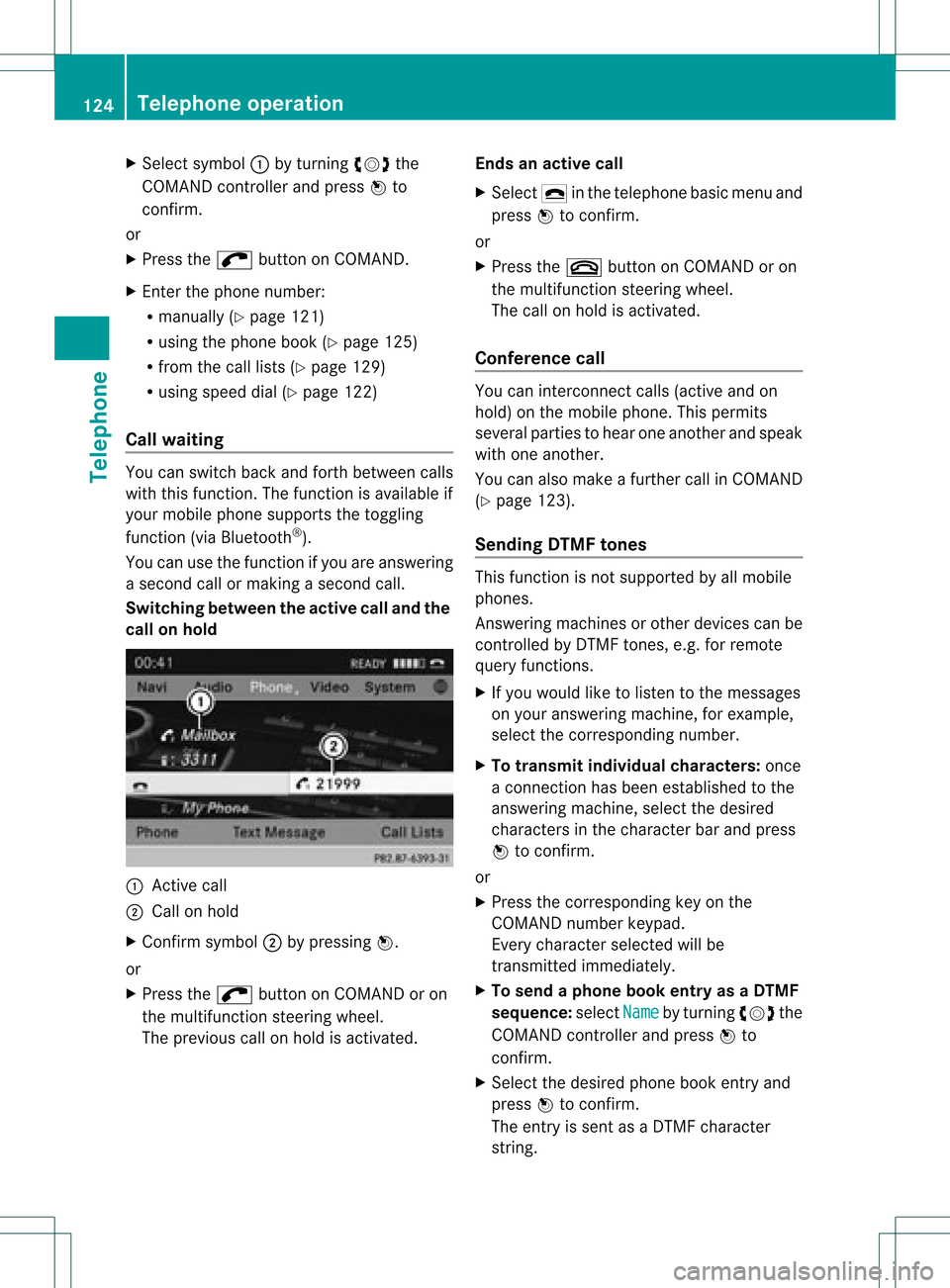
Switching betweenthe active calland the
call onhold :
Active call
; Callon hold
X Confirm symbol;bypressing W.
or
X Press the; button onCOMAND oron
the multifunction steeringwheel.
The previous callonhold isactivated. Ends
anactive call
X Select ¢inthe telephone basicmenu and
press Wtoconfirm.
or
X Press the~ button onCOMAND oron
the multifunction steeringwheel.
The callonhold isactivated.
Confe rence call You
canintercon nectcalls (active andon
hold) onthe mobile phone. Thispermits
several partiestohear oneanother andspeak
with oneanother.
You canalso make afurther callinCOMAND
(Y page 123).
Sending DTMFtones This
function isnot supported byallmobile
phones.
Answering machinesorother devices canbe
cont rolled byDTMF tones, e.g.forremote
query function s.
X Ifyou woul dlike tolisten tothe messages
on your answering machine,forexample,
select thecorresponding number.
X To transmit individual characters: once
a conn ection hasbeen established tothe
answering machine,selectthedesired
characters inthe character barand press
W toconfirm.
or
X Press thecorresponding keyonthe
COMAND numberkeypad.
Every character selectedwillbe
transmitt edimmediately .
X To send aphone bookentry asaDTMF
sequence :select Name by
turning cVdthe
COMAND controller andpress Wto
confirm.
X Select thedesired phonebookentry and
press Wtoconfirm.
The entry issent asaDTMF character
string. 124
Telephone
operationTelephone
Page 127 of 234
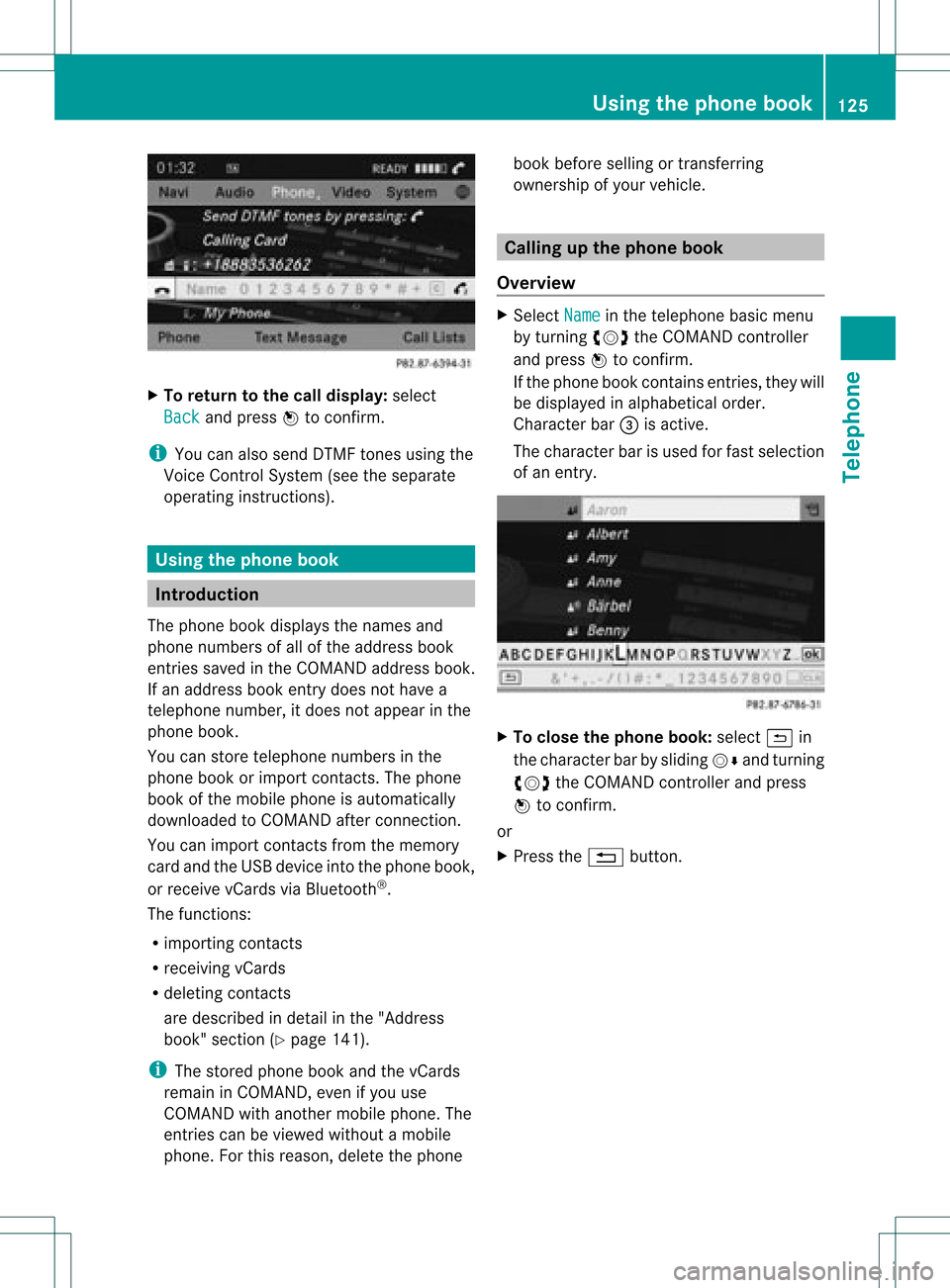
X
To return tothe calldis play :sel ect
Bac k and
pressW toconfi rm.
i Youcan also send DTMF tonesusing the
Voi ceControl System (see the separate
op era ting instructio ns). Us
ingthe phonebook In
troduc tion
The phone book displ aysthe nam esand
ph one num bers of allof the addre ssbook
entri essaved inthe COMAND addre ssbook.
If an addre ssbook entry does not have a
tel ephone number,itdo es not appe ar inthe
ph one book.
Yo ucan storetel ephone numbers inthe
ph one book orimp ortconta cts.Thephone
bo ok ofthe mob ile ph one isau toma tically
do wnl oade dto CO MAND after conne ction.
Yo ucan importconta ctsfrom themem ory
car dand theUSB devic einto thephone book,
or rece ivevCards via Bluetoo th®
.
The functio ns:
R imp ortingconta cts
R rece iving vCards
R de leting conta cts
ar ede scri bedin de tai lin the "Address
bo ok" section(Ypage 141).
i The storedphone bookandthevCards
remain inCOMAND ,even ifyou use
COMAND withanothermobile phone. The
ent ries canbeviewed without amobile
phone. Forthis reason, deletethephone book
before sellingortran sferr ing
owners hipofyour vehicle. Calling
upthe phone book
Overview X
Select Name in
the telephon ebasic menu
by turn ingcVd theCOMAND controller
and press Wtocon firm.
If the phone bookcontains entries, they will
be displayed inalphabetical order.
Character bar=isactiv e.
The charac terbar isused forfast select ion
of an ent ry. X
To close thephone book:select &in
the charac terbar bysliding VÆandturning
cVd theCOMAND controller and press
W tocon firm.
or
X Press the% button. Using
thephone book
125Telephone Z
Page 128 of 234

Symbol
overview Icon Explanation
Æ
Address
bookentrythat hasbeen entered orchanged viaCOMAND
Imported contactthat hasbeen saved inthe phone oraddress book \
Address
bookentrywith voice tag
i These entrieshave alsobeen assigned avoice tag.Voice tagsareavaila ble
in vehicles withtheVoice Control System (seetheseparate operating
instruc tions). Ã
Contact
thathasbeen imported fromamobile phonethatsupports PBAP ¯
Ent
rythat hasbeen imported fromthememory cardorUSB device ®
Ent
ryimported viathe Bluetooth ®
interf ace Searching
foraphone bookentry
Using thecharact erbar You
determine thefirst letter ofthe entr yyou
are looking forwith thefirst character you
enter.
X Select acharacter byturnin gcVd the
COMAND controller andpress Wto
conf irm.
The first entryin the listthat starts withthe
letter selected ishighlighted. Ifthere are
similar entries,thenext different character
is shown. Forexample, withentriessuch as
Christel and
Christine ,
the beginnings
of the names aresimilar. Inthis case, you
will beoffered achoice between E and
I .
X Select thecharacters ofthe entr yyou are
searching forone byone andpress Wto
conf irm.
When theselection isclear, COMAND
switches automatically tothe selection list.
X To complete thesearch: switchfromthe
phone bookwiththecharacter bartothe
selection list(Ypage 127).
The lastlistentr yis automatically
highlighted. Using
thenumber keypad Altern
atively, youcan also enter digits using
the number keypad(directentry)
(Y page 29).
Dele ting charact ers X
To delete anindividual character:select
the 2 symbol byturnin gcVd the
COMAND controller andpress Wbriefly.
or
X Briefly pressthe2 button
Each timeacharacter isdeleted, theentr y
most closely resembling theremaining
characters isshown atthe top ofthe list.
X To delete anentry: selectthe2
symbol byturnin gcVd theCOMAND
cont roller andpress Wuntil theentr yis
deleted.
or
X Press andhold the2 button untilthe
entire entryis deleted.
Changing thelanguage ofthe charact er
bar X
Select Bandpress W.
X Select thedesired language. 126
Using
thephone bookTelephone
Page 129 of 234

Cha
nging thecha racter setofthe
cha racter bar X
Sel ect p andpres sW toconfirm .
The charac ters et changes eachtimeyou
make thisselect ion.
Selecting anentry directly fromthelist You
canswitch tothe listatany time during
charact erent ry.
X Slide VZtheCOMAND controller
repeatedly orpress andhold Wuntil the
charact erbar disappears.
or
X Select ¬andpress Wtocon firm.
X To select anentry :turn cVd the
COMAND controller untilthedesired entry
is highlighted andpress Wtocon firm.
To select aphone number: theGicon
indi cates thatanentry contains morethan
one phone numbe r.
X Select aphone bookentry withtheGicon
and press Wtoconfirm.
The sub-entries appear. TheGicon
changes toI. Phone
bookentry withsevera lentries
X Select asub -entry byturning cVdand
press Wtoconfirm. X
To return tothe phone bookusin gthe
characte rbar: select& inthe listand
press Wtoconfirm.
or
X Press the% backbutton. Di
splayi ngdetails foranentry
X Select anentry inthe sele ction listby
turning cVdtheCOMAND controller.
X Select thelists ymbo lto therig ht ofthe
en try by slid ing VY theCOMA ND
co ntrol ler and pressW toconfirm .
X Se lec tDet ails and
pressW toconfirm .
The detailed viewappe ars.
X To close thedet ailed view: slideXVY
rep eatedly untilth een tryi shighlig hted
agai norpress the% backbutton. De
leti nganentry fromthephone
boo k
If the entry contains onlyphone numbers ,it
is del eted from thephone bookandaddress
book.
If there isadd itiona ldata includ edalong with
the phone number, e.g.anaviga ble
destina tion,theentry isdel eted from the
phone bookbutretained inthe add ress book.
X Select anentry inthe sele ction listby
turning cVdtheCOMAND controller.
X Select thelists ymbo lto therig ht ofthe
en try by slid ing VY theCOMA ND
co ntrol ler and pressW toconfirm .
X Se lec tDel ete and
pressW toconfirm .
Ap rompt appears asking whethe rthe entr y
should bedeleted.
X Select Yes or
No and
press Wtoconfirm .
If you select Yes ,
the entr yis deleted in
accordance withtherules described above.
If you select No ,
the process willbeaborted. Using
thephone book
127Telephone Z
Page 130 of 234

Crea
tinganew entryintheph one
book
X Slid eZV theCOMA NDcontroll er
repe atedly inthephon ebook untilth e
selec tionlist appears.
X Selec tthe list symbol onthe right inthe
selection listbysliding VYtheCOMAND
cont roller andpress Wtoconfirm .
X Select New entry and
press Wtoconfirm .
X Select acategory forthe number, e.g.
Home ,
and press Wtoconfirm .
X Select acategory forthe phone, e.g.
Mobile ,
and press Wtoconfirm . X
Select Cont. and
press Wtoconfirm .
The input menu withdata fields appea rs. :
Selected datafieldwithcursor
; Character bar
X Ent ercharacters andsave theentr y.
Proceed asdescribed undercharacter
entr yin the "Ataglance" section
(Y page 28). i
The entryis created inthe phone book
and inthe address book. Adding
telephone numberstoan
existing phonebookentry
X Select anentr yin the selection listby
turning cVdtheCOMAND controller.
X Select thelistsymbol tothe right ofthe
entr yby sliding VYtheCOMAND
cont roller andpress Wtoconfirm .
X Select AddPhone No. and
press Wto
confirm .
X Select acategory forthe number, e.g.
Home ,
and press Wtoconfirm .
X Select acategory forthe phone, e.g.
Mobile ,
and press Wtoconfirm .
X Select Continue and
press Wtoconfirm .
COMAND storesthedata ifthere arefewer
than fivenumbers assigned tothe entr yyou
are searching forinthe selected number
category.
If five numbers arestored forthe entr yin
the selected numbercategory, aprompt
will appea rasking whether youwish to
overwrite oneofthe existing numbers.
X Select Yes or
No and
press Wtoconfirm.
If you select Yes ,
a selection listwill appea r
cont aining thefive existing numbers.
If you select No ,
the process willbeaborted.
X Select thenumber tobe overwritten by
turning cVdtheCOMAND controller and
press Wtoconfirm.
An input menu appears.The data fieldfor
entering thenew phone number is
highlig hted.
X Ent ercharacters andsave theentry.
Proceed asdescribed undercharacter
entry inthe "Ataglance" section
(Y page 28). 128
Using
thephone bookTelephone
Page 131 of 234
Using
calllists Intr
oduct ion
COMAND displayslistsofcalls receiv ed
(includin gmissed calls)andmade during
phone operation .Call list sare nota vail able
unle ssamobil ephone isconnected to
COMAND.
COMAND supports thePBAP Bluetooth ®
profil e.How COMAND processescall lists
depe ndsonthe model ofthe mobil ephone
connected:
R Blue tooth ®
telep hone withPBAP
Blue tooth ®
profil e:
The calllists are dow nload edautomatical ly
from themobil ephone byCOMAND as
soon asthe mobil ephone isconnected to
COMAND.
R Blue tooth ®
telep hone withoutPBAP
Blue tooth ®
profil e:
COMAND createsthecall lists from calls
dia led and receive d(inclu dingmisse dcall s)
as soon asthe mobil ephone isconnected
with COMAND.
i For Blue tooth ®
telep hones withoutthe
PBAP Bluetooth ®
profil e,the call lists in
COMAND arenot synchronized withthose
on you rmobile phone. Thesecallsmayor
may notbelisted onyour mobile phone,
depending onthe model.
i Ifno mobile phoneisconn ected, thenthe
Call Lists menu
itemisgrayed outand
cann otbe selected. Ifyou conn ectamobile
phone otherthantheprevious oneto
COMAND, thepreviously availablecall lists
and their entrieswill bedeleted
automatically. Theyarestill availa bleonthe
mobile phoneitself.
i The respect ivemenu itemcanonly be
selected ifcalls have already beenmade or
received inCOMAND.
Displaying missedcallsinthe COMAND
display isnot supported byallmobile
phones. Opening
thecall listand selec tingan
entry
X Press the% functionbutton .
X Select CallLists in
the telephone basic
menu bysliding VÆandturnin gcVd the
COMAND controller andpress Wto
conf irm.
Am enu appears.
X Select Calls Receive d or
Calls Dialed using
cVdandpress Wto
con firm.
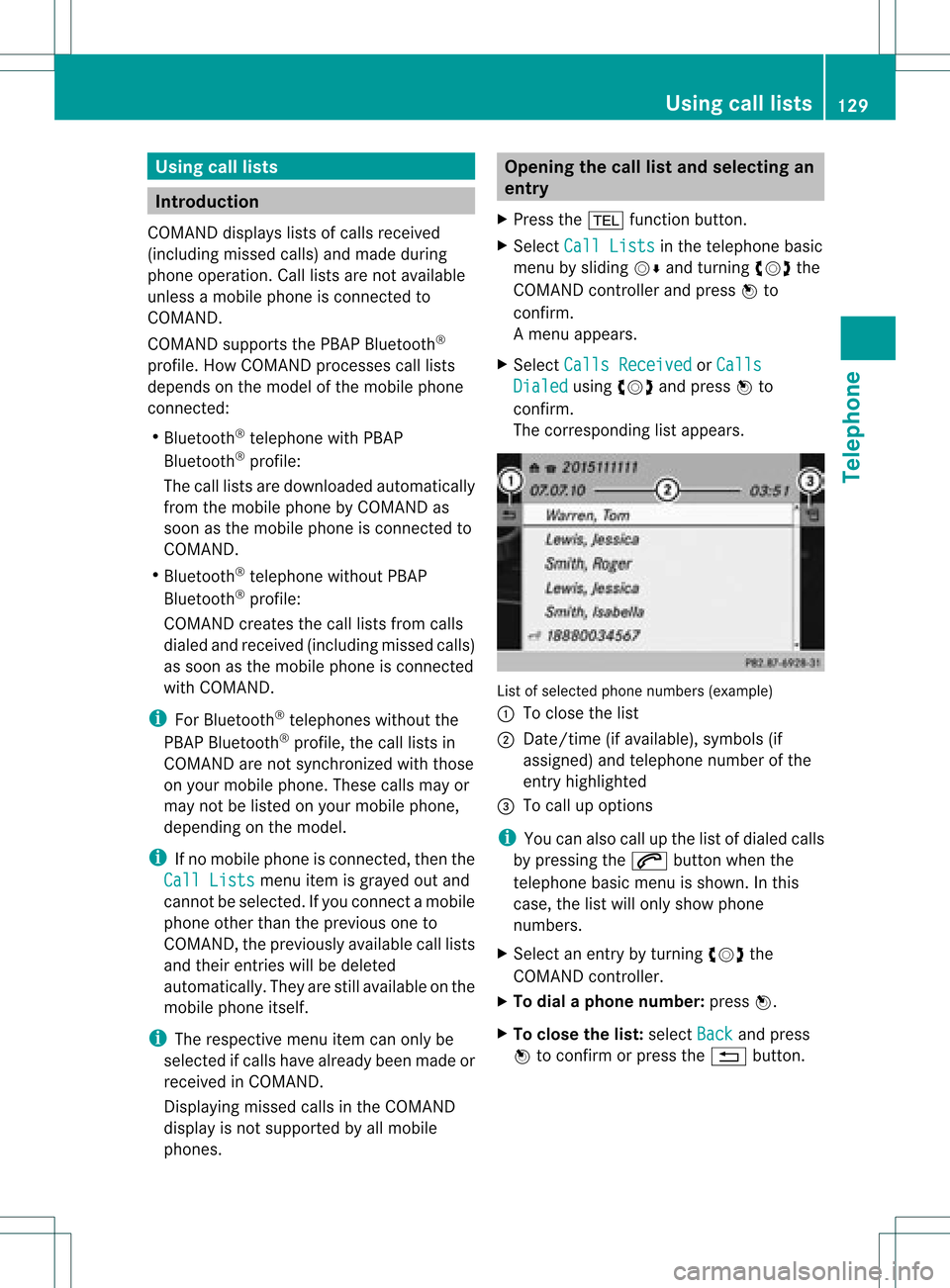
The correspondin glist appears. List
ofselect edphone numbers (example)
: Toclose thelist
; Date/ time(ifavailable), symbols(if
assigned) andtelephon enumber ofthe
ent ryhighlighted
= Tocall upoption s
i You canalso callupthe listofdialed calls
by pressing the6 button whenthe
telephon ebasic menu isshown. Inthis
case, thelistwill only show phone
numbers.
X Select anent ryby turn ingcVd the
COMAND controller .
X To dial aphone number :press W.
X To close thelist: select Back and
press
W tocon firm orpress the% button . Using
calllists
129Telephone Z
Page 132 of 234

Disp
laying detailsab out alist entr y
COMAN Dcanalso showasho rten ed list entry
in full.
X Sel ect alist entry by turnin gcVd the
COMA NDcontroll er.
X Sel ect thelist symb olto therigh tofthe
entr yby sliding VYtheCOMAND
cont roller andpress Wtoconfirm .
X Select Details and
press Wtoconfirm .
The detailed displayappea rs.
X To go back tothe list: slide XVY
repeatedly untilthelistishighlighted. Storing
aphone number whichhas
not yetbeen stored
Introduction For
incoming callsfrom aperson whoisnot
in the address book,COMAND displaysthe
phone number inthe call list. You cansave
this entry.
Storing asanew entry inthe address
book X
Open acall listand select anentr y
(Y page 129).
X Select thelistsymbol tothe right ofthe
entr yby sliding VYtheCOMAND
cont roller andpress Wtoconfirm .
X Select Save and
press Wtoconfirm .
i Save is
shown ingray ifthe selected list
entr yhas already beensaved inthe address
book.
X Select New Entry and
press Wtoconfirm .
X Select acategory forthe number, e.g.
Home ,
and press Wtoconfirm .
X Select acategory forthe phone, e.g.
Mobile Phone ,
and press Wtoconfirm . Num
bercategory Display
(phone
book andaddr ess
book) Not
Classified No
symbol Home ¸
Work ·
Phone
category Display
(phone
book andaddr ess
book) Not
classified ;
Mobile
Phone Ï
Car ´
Pager ¨
X
Select Save and
press Wtoconfirm .
An input menu withdata fields isshown.
The data fieldforthe telephone numberis
filled inautomatically . :
Data fieldwithcursor
; Telephone numberandsymbol forthe
phone category (automatically entered)
= Character bar
X Proceed asdescribed under"Entering
characters" inthe "Ent ering characters in
the address andphone books" section
(Y page 31). 130
Using
calllistsTelephone
Page 133 of 234
Add
ingaph one num bertoan address
book entry X
Open acall listand selectan entry
(Y page 129).
X Se lec tthe list symbol tothe right ofthe
entr yby sliding VYtheCOMAND
cont roller andpress Wtoconfirm .
X Select Save and
press Wtoconfirm .
i Save is
shown ingray ifthe selected list
entr yhas already beensaved.
X Select AddPhone No. and
press Wto
confirm .
X Select acategory forthe number, e.g.
Home ,
and press Wtoconfirm .
X Select acategory forthe phone, e.g.
Mobile Phone ,
and press Wtoconfirm .
X Select Save .
The search menuforaddress bookentries
appea rs.
X Search forthe desired entry.Proceed as
described under"Searching foraphone
book entry"(Y page 126).
X Press Wwhen youhave finished searching.
COMAND storesthedata ifthere arefewer
than fivenumbers assigned tothe entr yyou
are searching forinthe selected number
category.
You willsee amessage tothis effect .
If five numbers arestored forthe entr yyou
are searching for,aprompt willappea r
asking whether youwish tooverwrite one
of the existing numbers.
X Select Yes or
No and
press Wtoconfirm .
If you select Yes ,
a selection listwith the
five existing numbers isdispla yed.
If you select No ,
the process willbeaborted.
X Select thenumber tobe overwritten inthe
list byturning cVdtheCOMAND controller
and press Wtoconfirm .
COMAND overwrites theselected number
with thenew data. Dele
ting calllists
This funct ionisavaila blewhen COMAND
creates andmanages thecall lists.
This isthe case ifyou useaBluetooth ®
telephone withoutthesupport ofthe PBAP
Bluetooth ®
profile.
i Ifyou delete thecall lists from themobile
phone (separate mobilephoneoperating
instruct ions),COMAND updatesthecall list
displa ythe next time itconn ects. Thecall
lists areempty inthe case described.
X Select CallLists in
the telephone basic
menu byturning cVdtheCOMAND
cont roller andpress Wtoconfirm .
X Select Delete CallLists and
press W
to confirm .
Ap rompt appears asking whethe ryou wish
to delete allcall lists.
X Select Yes or
No and
press Wtoconf irm.
If you select Yes ,
the call lists aredeleted.
If you select No ,
the process willbeaborted. Using
thespeed diallist Storing
aphone bookentry inthe
speed diallist
You canassign tenspeed dialpresets (0–9 )
to the spee ddial list. There aretwo optio ns
av ailabl e for thispu rpo se.
Opti on1:
X Sea rchforaph one book entry inthe phone
bo ok (Ypage 126) .
X Ifan entry hasse ver alph one num bers,
se lect the desired num berb ytur ning
cVd theCOMA NDcontro ller . Usin
gth esp eed dial list
131Telepho ne Z