dome MERCEDES-BENZ E-Class CABRIOLET 2017 A207 User Guide
[x] Cancel search | Manufacturer: MERCEDES-BENZ, Model Year: 2017, Model line: E-Class CABRIOLET, Model: MERCEDES-BENZ E-Class CABRIOLET 2017 A207Pages: 322, PDF Size: 7.97 MB
Page 193 of 322
Back button
%Press briefly:
RBack
RSwitches off voice-operated navi-
gation or the Voice Control System
RHides display messages or calls up
the lastTripmenu function used
RExits the telephone book/redial
memory
%Press and hold:
RCalls up the standard display in the
Tripmenu
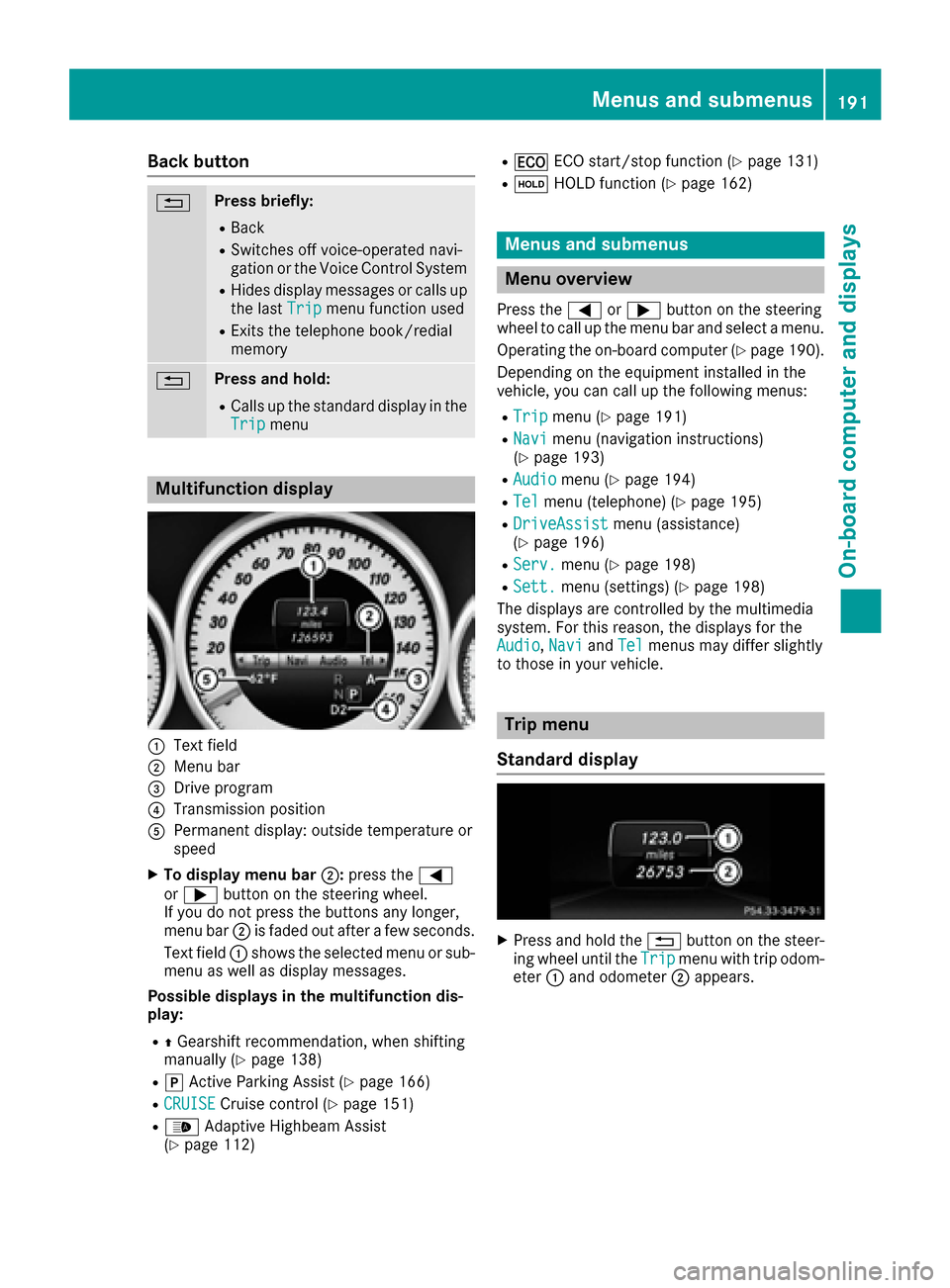
Multifunction display
:Text field
;Menu bar
=Drive program
?Transmission position
APermanent display: outside temperature or
speed
XTo display menu bar ;:press the =
or ; button on the steering wheel.
If you do not press the buttons any longer,
menu bar ;is faded out after a few seconds.
Text field :shows the selected menu or sub-
menu as well as display messages.
Possible displays in the multifunction dis-
play:
RZ Gearshift recommendation, when shifting
manually (Ypage 138)
Rj Active Parking Assist (Ypage 166)
RCRUISECruise control (Ypage 151)
R_ Adaptive Highbeam Assist
(Ypage 112)
R¤ ECO start/stop function (Ypage 131)
RëHOLD function (Ypage 162)
Menus and submenus
Menu overview
Press the =or; button on the steering
wheel to call up the menu bar and select a menu.
Operating the on-board computer (
Ypage 190).
Depending on the equipment installed in the
vehicle, you can call up the following menus:
RTripmenu (Ypage 191)
RNavimenu (navigation instructions)
(Ypage 193)
RAudiomenu (Ypage 194)
RTelmenu (telephone) (Ypage 195)
RDriveAssistmenu (assistance)
(Ypage 196)
RServ.menu (Ypage 198)
RSett.menu (settings) (Ypage 198)
The displays are controlled by the multimedia
system. For this reason, the displays for the
Audio
, Naviand Telmenus may differ slightly
to those in your vehicle.
Trip menu
Standard display
XPress and hold the %button on the steer-
ing wheel until the Tripmenu with trip odom-
eter :and odometer ;appears.
Menus and submenus191
On-board computer and displays
Z
Page 194 of 322
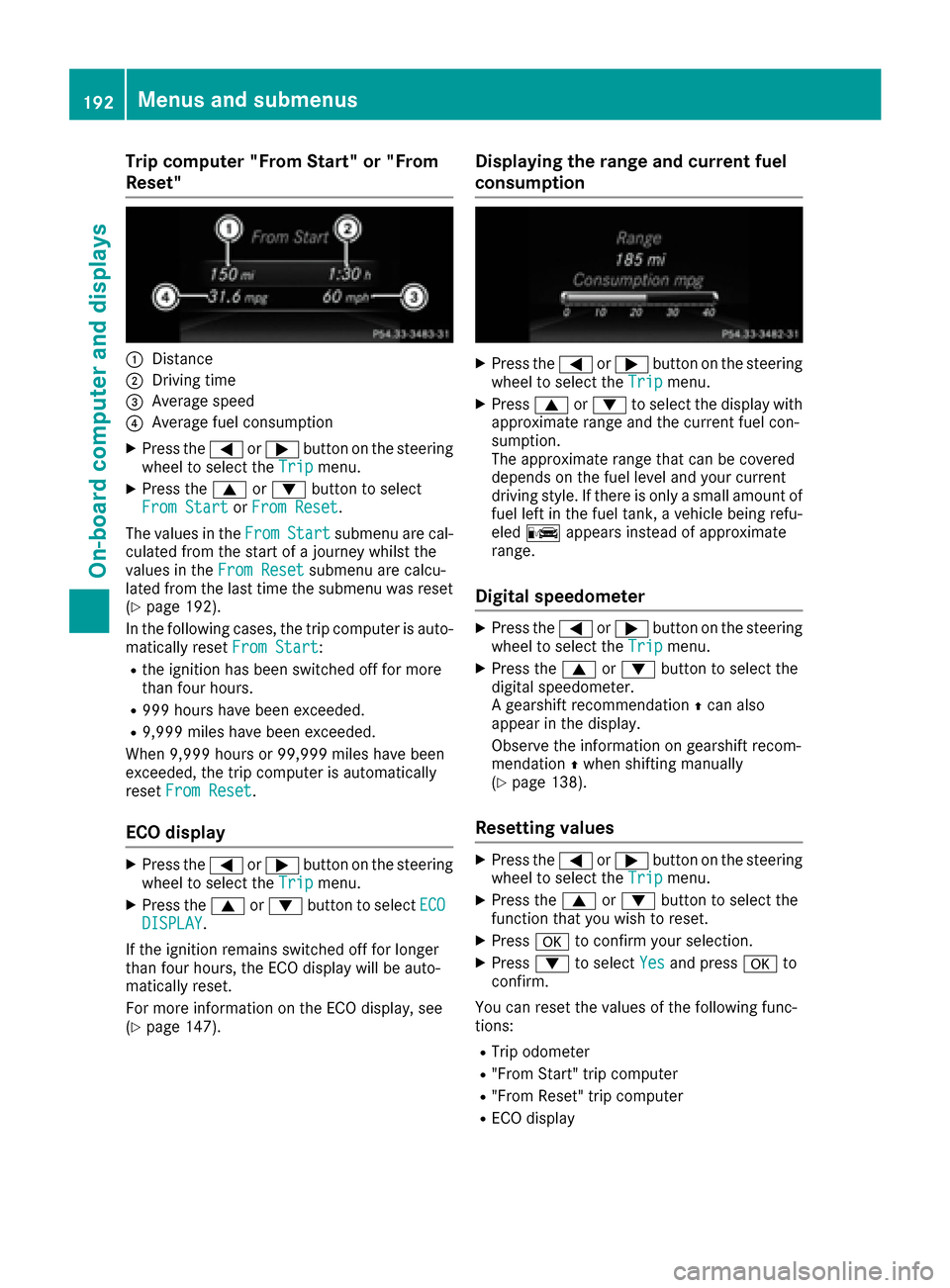
Trip computer "From Start" or "From
Reset"
:Distance
;Driving time
=Average speed
?Average fuel consumption
XPress the=or; button on the steering
wheel to select the Tripmenu.
XPress the9or: button to select
From Startor From Reset.
The values in the From
Startsubmenu are cal-
culated from the start of a journey whilst the
values in the From Reset
submenu are calcu-
lated from the last time the submenu was reset
(
Ypage 192).
In the following cases, the trip computer is auto-
matically reset From Start
:
Rthe ignition has been switched off for more
than four hours.
R999 hours have been exceeded.
R9,999 miles have been exceeded.
When 9,999 hours or 99,999 miles have been
exceeded, the trip computer is automatically
reset From Reset
.
ECO display
XPress the =or; button on the steering
wheel to select the Tripmenu.
XPress the9or: button to select ECODISPLAY.
If the ignition remains switched off for longer
than four hours, the ECO display will be auto-
matically reset.
For more information on the ECO display, see
(
Ypage 147).
Displaying the range and current fuel
consumption
XPress the =or; button on the steering
wheel to select the Tripmenu.
XPress9or: to select the display with
approximate range and the current fuel con-
sumption.
The approximate range that can be covered
depends on the fuel level and your current
driving style. If there is only a small amount of
fuel left in the fuel tank, a vehicle being refu-
eled C appears instead of approximate
range.
Digital speedometer
XPress the =or; button on the steering
wheel to select the Tripmenu.
XPress the9or: button to select the
digital speedometer.
A gearshift recommendation Zcan also
appear in the display.
Observe the information on gearshift recom-
mendation Zwhen shifting manually
(
Ypage 138).
Resetting values
XPress the =or; button on the steering
wheel to select the Tripmenu.
XPress the9or: button to select the
function that you wish to reset.
XPress ato confirm your selection.
XPress :to select Yesand press ato
confirm.
You can reset the values of the following func-
tions:
RTrip odometer
R"From Start" trip computer
R"From Reset" trip computer
RECO display
192Menus and submenus
On-board computer and displays
Page 200 of 322
Activating/deactivating Blind Spot
Assist
XPress the= or; buttonon th esteering
whee lto select th eDriveAssistmenu.
XPress th e9 or: buttonto select
Blind Spo tAssist.
XPress th ea button.
The curren tselection appears.
XTo activate/deactivate: press thea but-
to nagain .
Fo rfurther information about Blind Spot Assist,
see (
Ypage 180).
Fo rfurther information about Active Blind Spot
Assist, see (
Ypage 183).
Activating/deactivating Lane Keeping
Assist
XPress the= or; buttonon th esteering
whee lto select th eDriveAssistmenu.
XPress th e9 or: buttonto select
Lan eKeep. Assist.
XPress th ea button.
The curren tselection appears.
XPress ato confirm .
XPress the: or9 buttonto set Off,
Standardor Adaptive.
XPress th ea buttonto sav eth esetting .
When Lan eKeepin gAssis tor Active Lan e
Keepin gAssis tis activated, th emultifunction
display shows th elan emarking sas bright
lines in th eassistanc egraphic .
Fo rfurther information about Lan eKeepin g
Assist, see (
Ypage 182).
Fo rfurther information about Active Lan eKeep-
ing Assist, see (
Ypage 186).
Service menu
Dependingon th eequipmen tinstalled in th e
vehicle, you hav eth efollowin goption sin th e
Serv.
menu:
RCallin gup display message sin message
memory (Ypage 202)
RChecking th etire pressur eelectronically
(Ypage 291)
RCallin gup th eservic edue dat e
(Ypage 261)
Settings menu
Introd uction
Dependin gon th eequipmen tinstalled in th e
vehicle, you hav eth efollowin goption sin th e
Sett.
menu:
RChangin gth einstrumen tcluste rsetting s
(Ypage 198)
RChangin gth eligh tsetting s (Ypage 199)
RChangin gth evehicl esetting s (Ypage 200)
RChangin gth econvenience setting s
(Ypage 200)
RRestoring th efactory setting s (Ypage 201)
Instrument cluster
Selecting th edistance uni t
TheDispla yUni tSpeed-/Odometer :func-
tion allows you to choos ewhether certain dis-
plays appear in kilometers or mile sin th emul-
tifunction display.
XPress th e= or; buttonon th esteering
whee lto select th eSett.menu.
XPress th e: or9 buttonto select th e
Instrumen tCluste rsubmenu.
XPressato confirm .
XPress the: or9 buttonto select th e
Displa yUni tSpeed-/Odometerfunction .
You will see th eselected setting :kmor miles.
XPress th ea buttonto sav eth esetting .
The selected uni tof measuremen tfor distanc e
applie sto :
Rthedigital speedometer in th eTri pmen u
Rtheodometer and trip odometer
Rth etrip computer
Rth ecurren tconsumption and th erange
Rth enavigation instruction sin th eNav imen u
Rcruise control
RDISTRONI CPLU S
RASSYS TPLU Sservic einterval display
Selecting permanent displa y
ThePermanent Display:function allows you
to choos ewhether th emultifunction display
always shows th eoutside temperature or th e
speed.
The spee ddisplay is invers eto th espeedome-
ter.
198Menus and submenus
On-board computer and displays
Page 201 of 322
XPress the=or; button on the steering
wheel to select the Sett.menu.
XPress the:or9 button to select the
Instrument Clustersubmenu.
XPress ato confirm.
XPress the :or9 button to select the
Permanent Display:function.
The current setting, Outside Temperature
orSpeedometer [km/h]/Speedometer[mph], appears.
XPress the abutton to save the setting.
Lights
Setting the brightness of the instrument
cluster lighting and switches
The lighting in the instrument cluster, in the dis-
plays and the controls in the vehicle interior can
be adjusted with the Brightness Display/
Switches:function.
XPress the=or; button on the steering
wheel to select the Sett.menu.
XPress the:or9 button to select the
Lightssubmenu.
XPress ato confirm.
XPress the :or9 button to select the
Brightness Display/Switches:function.
The current setting appears.
XPress ato confirm.
XPress the :or9 button to adjust the
brightness to any level from Level 1to
Level 5(bright).
XPress the aor% button to save the
setting.
If the light switch is set to the Ã,Tor
L position, the brightness is dependent
upon the brightness of the ambient light.
iThe light sensor in the instrument cluster
automatically controls the brightness of the
multifunction display.
In daylight, the displays in the instrument
cluster are not illuminated.
Switching the daytime running lamps on/
off
XPress the =or; button on the steering
wheel to select the Sett.menu.
XPress the:or9 button to select the
Lightssubmenu.
XPress ato confirm.
XPress the :or9 button to select the
Day. Run. Lightsfunction.
If the Day. Run. Lightsfunction has been
switched on, the multifunction display shows
the cone of light and the Wsymbol in
orange.
XPress the abutton to save the setting.
Further information on daytime running lamps
(
Ypage 109).
Activating/deactivating surround light-
ing and exterior lighting delayed switch-
off
XPress the =or; button on the steering
wheel to select the Sett.menu.
XPress the:or9 button to select the
Lightssubmenu.
XPress ato confirm.
XUsing :or9, select the SurroundLightingfunction.
If the SurroundLightingfunction is activa-
ted, the light cone and the area around the
vehicle are displayed in orange in the multi-
function display.
XPress the abutton to save the setting.
Deactivating delayed switch-off of the exterior
lighting temporarily:
XBefore leaving the vehicle, turn the SmartKey to position 0in the ignition lock.
XTurn the SmartKey to position 2in the ignition
lock.
The exterior lighting delayed switch-off is
deactivated.
Delayed switch-off of the exterior lighting is
reactivated the next time you start the engine.
If you have activated the Surround Lighting
function and the light switch is set to the Ã
position, the following functions are activated
when it is dark:
Rsurround lighting: the exterior lighting
remains lit for 40 seconds after unlocking
with the SmartKey. If you start the engine, the
surround lighting is switched off and auto-
matic headlamp mode is activated
(
Ypage 109).
Rexterior lighting delayed switch-off: the
exterior lighting remains lit for 60 seconds
after the engine is switched off. If you close all
the doors and the trunk lid, the exterior light-
ing goes off after 15 seconds.
Menus and submenus199
On-board computer and displays
Z