warning MERCEDES-BENZ E-CLASS CABRIOLET 2017 Owners Manual
[x] Cancel search | Manufacturer: MERCEDES-BENZ, Model Year: 2017, Model line: E-CLASS CABRIOLET, Model: MERCEDES-BENZ E-CLASS CABRIOLET 2017Pages: 521, PDF Size: 10.64 MB
Page 228 of 521
Instrument display
overview &
WARNING Risk of accident due toan
instrument display malfunction
If th e instrument display has failed or mal‐
functioned, you may not recognise function
re strictions applying tosaf etyre leva nt sys‐
te ms.
The operating saf ety of your vehicle may be
impaired. #
Drive on carefull y. #
Have theve hicle checked immediately
at a qualified specialist workshop. If
th e operating saf ety of your vehicle is
impaired, park theve hicle safely as soon as pos‐
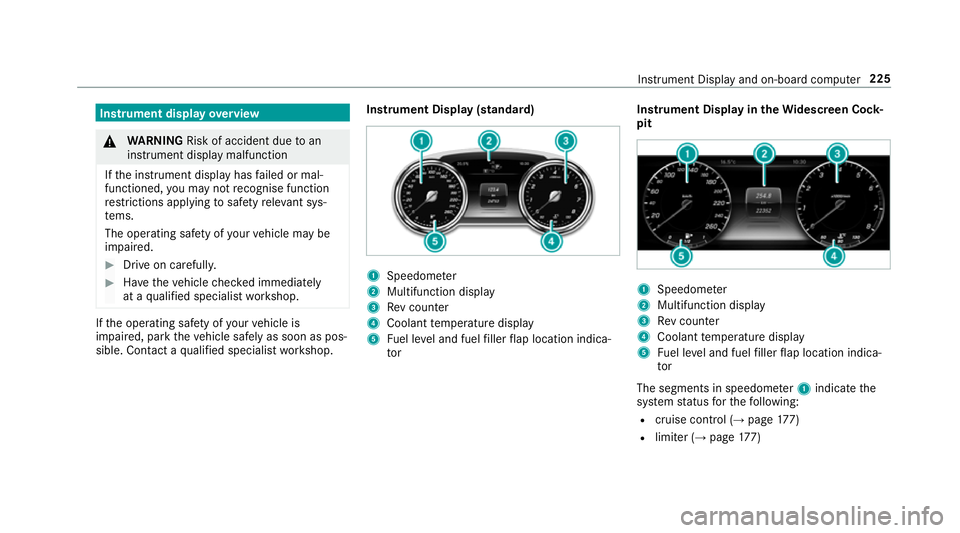
sible. Contact a qualified specialist workshop. Instrument Display (standard) 1
Speedome ter
2 Multifunction display
3 Rev counter
4 Coolant temp erature display
5 Fuel le vel and fuel filler flap location indica‐
tor Instrument Display in
theWi descreen Co ck‐
pit 1
Speedom eter
2 Multifunction display
3 Rev counter
4 Coolant temp erature display
5 Fuel le vel and fuel filler flap location indica‐
tor
The segments in speedome ter1 indica tethe
sy stem status forth efo llowing:
R cruise control (→ page177)
R limiter (→ page177) In
stru ment Display and on-board computer 225
Page 229 of 521
R
Distance Pilot DISTRONIC (→ page 180)
Ve hicles with Traf fic Sign Assist and Wide‐
sc reen Cockpit: detected instructions and traf‐
fi c signs appear in the speedome ter
( → page 210).
* NO
TEEngine damage due toexc essively
high engine speeds The engine will be damaged if
you drive with
th e engine in theov errevving range. #
Do not drive wi th the engine in theove r‐
re vving range. The fuel supply is inter
rupted toprotect the
engine when there d band in rev counter 3
(o ve rrev ving range) is reached.
During no rmal operating conditions, coolant
te mp erature display 4may rise to120 °C. &
WARNING Danger of bu rns when open‐
ing the bonn et
If yo u open the engine bonn etwhen the
engine has overheated or during a fire inthe engine compartment,
you could come into
contact with hot gases or other escaping
operating fluids. #
Before opening the bonn et, allow the
engine tocool down. #
Intheeve nt of a fire inthe engine com‐
partment, keep the engine bonn et
closed and call thefire service. Overview of
the but tons on thest eering
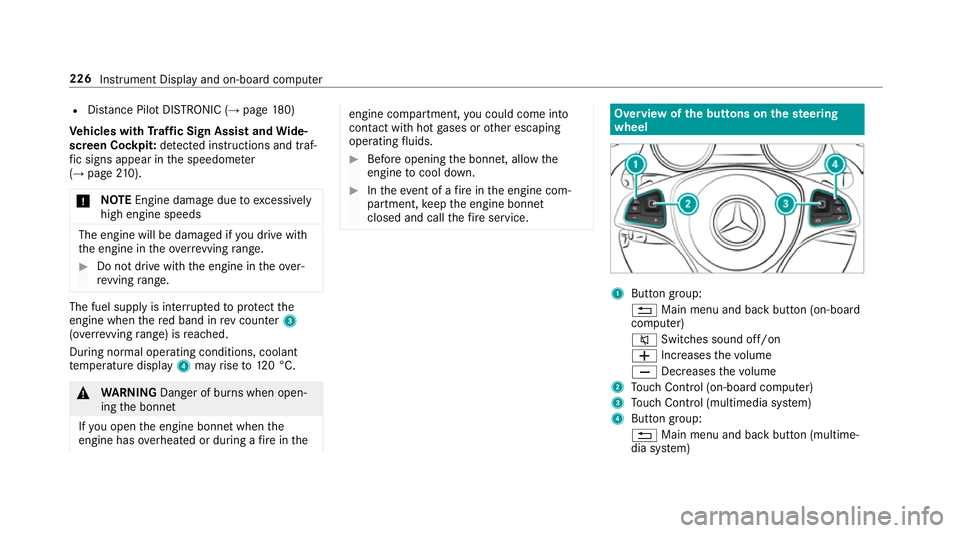
wheel 1
Button group:
% Main menu and ba ckbutton (on-board
computer)
8 Switches sound off/on
W Increases thevo lume
X Decreases thevo lume
2 Touch Control (on-board co mputer)
3 Touch Control (multimedia sy stem)
4 Button group:
% Main menu and back button (multime‐
dia sy stem) 226
Instrument Display and on-board computer
Page 230 of 521
ó
LINGU ATRO NIC or Voice Cont rol Sys‐
tem
6 Makes/accepts a call
~ Rejects/ends a call Ope
rating the on-board co mputer &
WARNING Risk of di stra ction from infor‐
mation sy stems and communications
equipment
If yo u operate information and communica‐
tions equipment integ rated in theve hicle
when driving, you will be distracted from the
traf fic situation. This could also cause youto
lose control of theve hicle. #
Only operate this equipment when the
traf fic situation permits. #
Ifyo u cannot be sure of this, stop the
ve hicle whilst paying attention toroad
and traf fic conditions and ope rate the
equipment with theve hicle stationar y. Yo
u must obse rveth e legal requirements forthe
country in whi chyou are cur rently driving when
operating the on-board computer.
% The on-board computer displa ysappear in
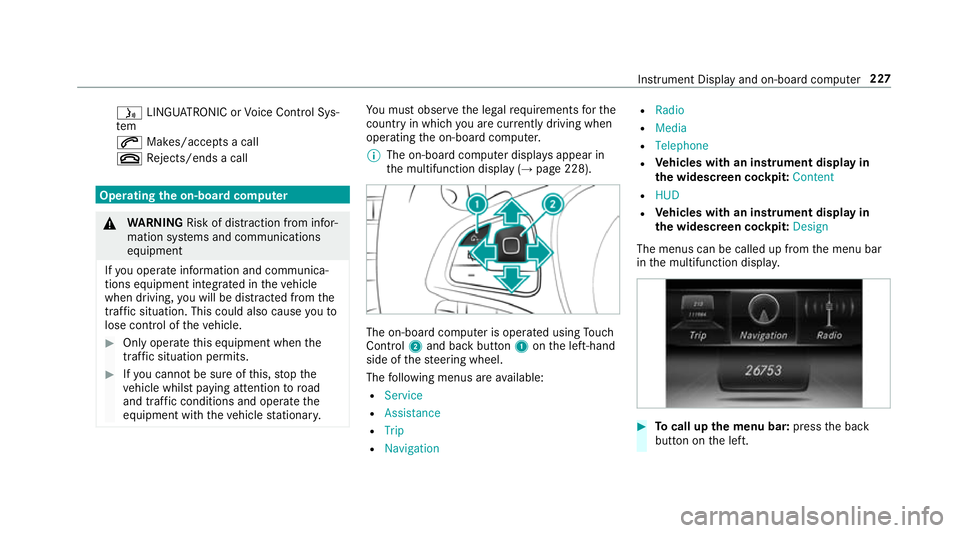
th e multifunction display (→ page 228). The on-board computer is operated using
Touch
Control 2and back but ton1 onthe left-hand
side of thesteering wheel.
The following menus are available:
R Service
R Assistance
R Trip
R Navigation R
Radio
R Media
R Telephone
R Vehicles with an instrument display in
th e widescreen cockpit: Content
R HUD
R Vehicles with an instrument display in
th e widescreen cockpit: Design
The menus can be called up from the menu bar
in the multifunction displa y. #
Tocall up the menu bar: pressthe back
button on the left. Instrument Display and on-board computer
227
Page 232 of 521
Ad
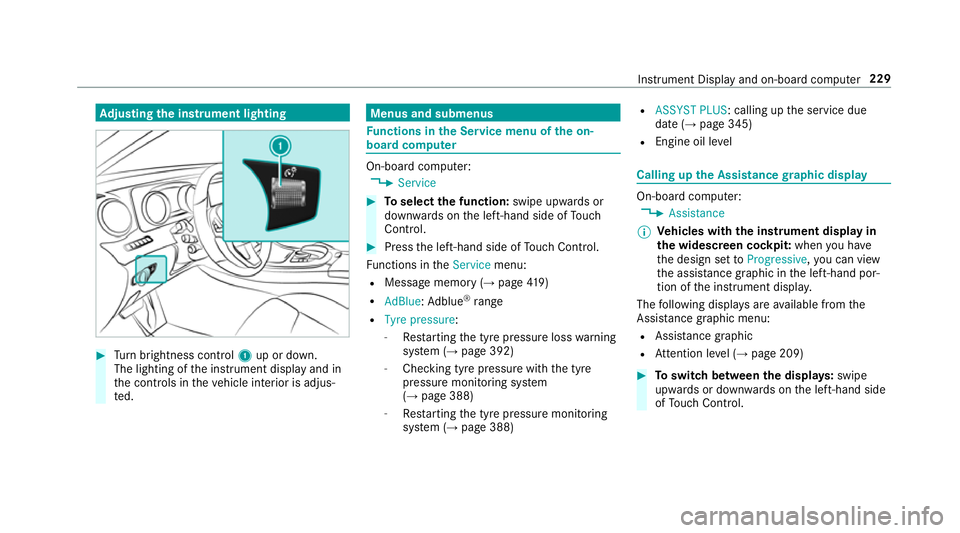
justing the in stru ment lighting #
Turn brightness control 1up or down.
The lighting of the instrument display and in
th e controls in theve hicle interior is adjus‐
te d. Menus and submenus
Fu
nctions in the Service menu of the on-
board compu ter On-board computer:
, Service #
Toselect the function: swipe upwards or
down wards on the left-hand side of Touch
Control. #
Press the left-hand side of Touch Control.
Fu nctions in theService menu:
R Message memory (→ page419)
R AdBlue: Adblue ®
ra nge
R Tyre pressure:
-Restarting the tyre pressure loss warning
sy stem (→ page 392)
- Checking tyre pressure with the tyre
pressure monitoring sy stem
(→ page 388)
- Restarting the tyre pressure monitoring
sy stem (→ page 388) R
ASSYST PLUS: calling up the service due
date (→ page 345)
R Engine oil le vel Calling up
the Assistance graphic display On-board computer:
, Assistance
% Ve
hicles with the instrument display in
th e widescreen cockpit: whenyou ha ve
th e design set toProgressive ,yo u can view
th e assis tance graphic in the left-hand por‐
tion of the instrument displa y.
The following displa ysare available from the
Assi stance graphic menu:
R Assis tance graphic
R Attention le vel (→ page 209) #
Toswitch between the displa ys:swipe
up wa rds or down wards on the left-hand side
of Touch Control. In
stru ment Display and on-board computer 229
Page 237 of 521
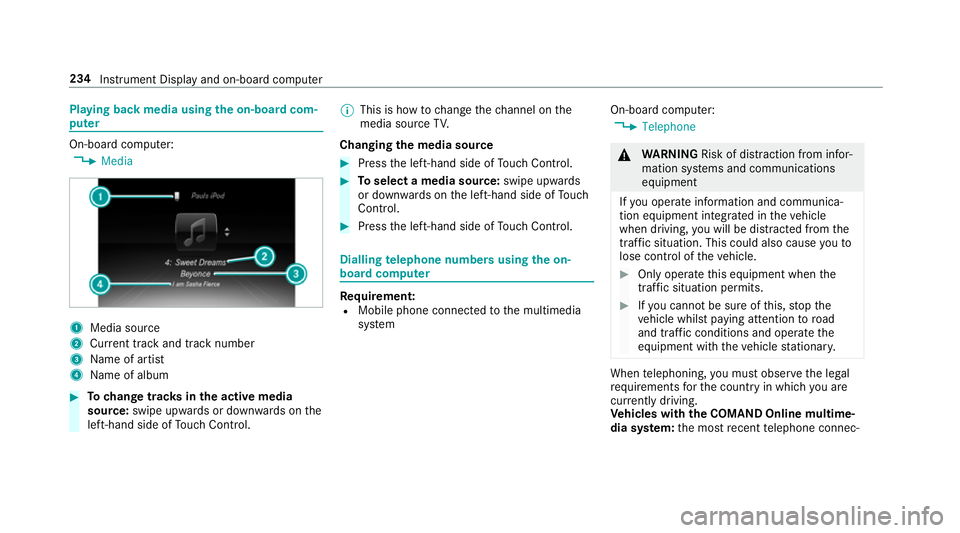
Playing back media using
the on-boa rdcom‐
pu ter On-board computer:
, Media 1
Media source
2 Current track and track number
3 Name of artist
4 Name of album #
Tochange trac ksinthe active media
source: swipe upwards or down wards on the
left-hand side of Touch Control. %
This is how tochange thech annel on the
media source TV.
Changing the media source #
Press the left-hand side of Touch Control. #
Toselect a media source: swipe upwards
or down wards on the left-hand side of Touch
Control. #
Press the left-hand side of Touch Control. Dialling
telephone numbers using the on-
board compu ter Re
quirement:
R Mobile phone connec tedto the multimedia
sy stem On-board computer:
, Telephone &
WARNING Risk of di stra ction from infor‐
mation sy stems and communications
equipment
If yo u operate information and communica‐
tion equipment integrated in theve hicle
when driving, you will be distracted from the
traf fic situation. This could also cause youto
lose control of theve hicle. #
Only operate this equipment when the
traf fic situation permits. #
Ifyo u cannot be sure of this, stop the
ve hicle whilst paying attention toroad
and traf fic conditions and ope rate the
equipment with theve hicle stationar y. When
telephoning, you must obse rveth e legal
re qu irements forth e count ryin which you are
cur rently driving.
Ve hicles with the COMAND Online multime‐
dia sy stem: the most recent telephone connec‐ 234
Instrument Display and on-board computer
Page 242 of 521
Operating saf
ety &
WARNING Risk of di stra ction from infor‐
mation sy stems and communications
equipment
If yo u operate information and communica‐
tion equipment integ rated in theve hicle
when driving, you will be distracted from the
traf fic situation. This could also cause youto
lose control of theve hicle. #
Only operate this equipment when the
traf fic situation permits. #
Ifyo u cannot be sure of this, stop the
ve hicle whilst paying attention toroad
and traf fic conditions and ope rate the
equipment with theve hicle stationar y. &
WARNING Risk of di stra ction from oper‐
ating mobile communication equipment
while theve hicle is in motion
If yo u operate communication equipment
integrated in theve hicle when driving, you
will be distracted from the tra ffic situation. This could also cause
youto lose control of
th eve hicle.
Only operate this equipment when theve hi‐
cle is stationar y. Fo
ryo ur ow n sa fety, al ways obser vethefo llow‐
ing points when operating mobile communica‐
tions equipment and especially your voice con‐
trol sy stem:
R Obser vethe legal requ irements forth e coun‐
try in which you are driving.
R While driving, on ly operate mobile communi‐
cations equipment and your voice control
sy stem when the tra ffic conditions permit it.
Yo u may otherwise be distracted from the
traf fic conditions and cause an accident,
inju ring yourself and others.
R Do not use thevo ice control sy stem in an
emer gency as your voice can change and
yo ur telephone call can be unnecessarily
dela yed.
R Familiarise yourself with thevo ice control
sy stem functions before starting the journe y. Operation
Operating
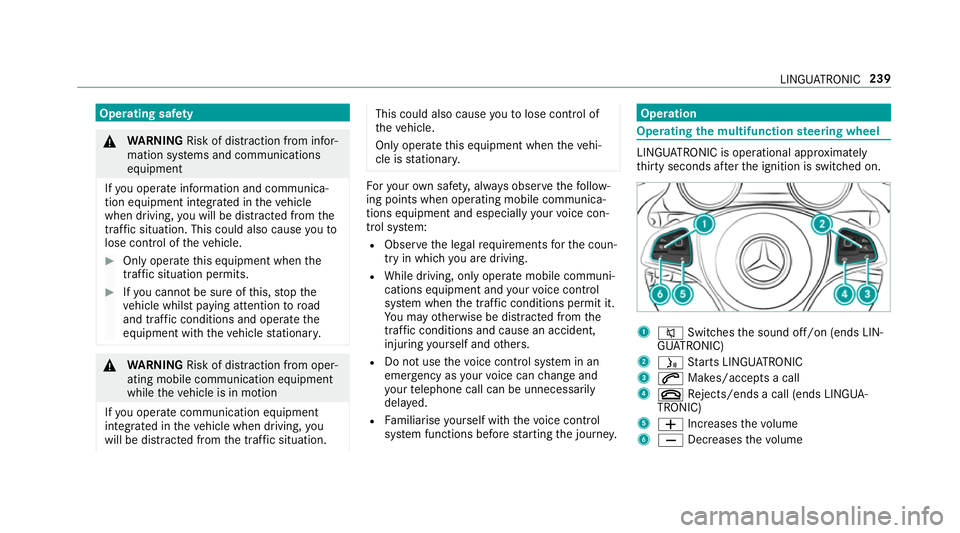
the multifunction steering wheel LINGU
ATRO NIC is operational appr oximately
th irty seconds af terth e ignition is switched on. 1
8 Switches the sound off/on (ends LIN‐
GU ATRO NIC)
2 ó Starts LINGU ATRO NIC
3 6 Makes/accepts a call
4 ~ Rejects/ends a call (ends LINGUA‐
TRONIC)
5 W Increases thevo lume
6 X Decreases thevo lume LINGU
ATRO NIC 239
Page 277 of 521
#
Select Payment in cash orElectronic billing
or Off.
The route take s into account roads that
re qu ire the payment of a usage fee (toll).
If Off is selected, tollro ads are not take n into
account.
These route options are not available in every
countr y.
The selected route options cannot alw ays be
implemented. Therefore, a route may include a
fe rry, for ins tance, eventh ough theFerries avoid
option is enabled. A message appears and you
will hear a cor responding message.
Selecting notifications
Multimedia sy stem:
, Naviga-
tion .
Z Options .
Announcements #
Switch announcements on Oor off ª.
R Announce traffic warnings
This function is not available in all coun‐
tries.
R Announce street names The multimedia sy
stem announces the
names of thero ads that will follow the
upcoming change of direction.
This function is not available in all coun‐
tries and languages.
Displ aying destination information
Re quirement:
A destination is entered. The route can also
include up tofour intermediate destinations.
Multimedia sy stem:
, Navigation .
¬ Destination #
Select Intermediate destinations.
The following information is displa yed:
R intermediate destinations and destination
R name, address
R remaining driving dis tance
R time of ar rival Selecting an alternative
route
Multimedia sy stem:
, Navigation .
À Route #
Select Alternative route.
The routes are displ ayed in accordance with
th e setting made in thero ute settings.
The cur rently selected route is shown with a
dark blue line. #
Select an alternative route.
Swit ching the automatic filling station
sear chon/off
Multimedia sy stem:
, Navigation .
Z Options #
Switch Reserve fuel level onO or off ª.
Switched on O: whenthe fuel reser velevel
is reached, a prom ptappears asking whe ther
yo uwa nttostart sear ching forfilling sta‐
tions. 274
Multimedia sy stem
Page 284 of 521
#
Enter and confirm da tes or follow the instruc‐
tions.
Re gis tering on Mercedes me
Live Traf fic Information must be regis tere d. Re g‐
istration is car ried out at a Mercedes-Benz
Service Centre.
Re quiremen t:yo u ha vea user account on the
Mercedes me website. #
Create a user account with Mercedes me
https://me.mercedes-benz.co m.#
Ava lid email address is requ ired forth is. #
Regis terth eve hicle using theve hicle identifi‐
cation number (VIN). #
Have theve hicle linked tothe Mercedes me
user account at a Mercedes-Benz Service
Centre. The vehicle registration documents
and a form of identification are requ ired for
th is. #
Accept thege neral and specific term s of use.
Extending a subscription
Re quiremen t:yo u ha vea user account on the
Mercedes me website. #
Call up the Mercedes me user account. #
Switch tothe Mercedes me connect online
st ore via the linked vehicle. #
Extend the Live Traf fic Information service. #
Select theex tension pe riod. #
Addth e product tothe shopping bask et. #
Accept thege neral and specific term s of use.
Live Traf fic Information remains activated for
th e selected extension pe riod. Activation
begins on the date of extension.
Displ aying the traf fic map
Re quirements:
R For Live Traf fic Information: theve hicle is
equipped with a communication module fea‐
turing an activated, integrated SIM card.
When theve hicle is star ted, the communica‐
tion module automatically es tablishes an
Internet connection. Traf fic information is
made available shortly af terw ards. Multimedia sy
stem:
, Navigation .
Map menu #
Alternatively: when the map is displa yed in
full-sc reen mode, press theTo uch Control,
th e controller or theto uchpad.
The map menu appears. #
Select º.
The traf fic map can show thefo llowing infor‐
mation:
R traf fic incidents, e.g.:
- roadwor ks
- road bloc ks
- warning messages
The symbols for traf fic incidents are dis‐
pl ay ed in colour (on thero ute) or grey (off
th ero ute).
R traf fic flow information:
- traf fic jam (red line)
- slow-moving traf fic (yellow line)
- free-flowing traf fic (green line) Multimedia sy
stem 281
Page 285 of 521
R
display for traf fic del ays on thero ute last‐
ing at least one minute
R warning message symbols:
- d symbol
- additional road saf ety no tewhen
approaching a traf fic incident, e.g.
approa ching tailback
If th eve hicle approaches a hazard
spot on thero ute, a warning message
is displa yed on the map. A warning
message may also be issued
(→ page 282).
Displaying traf fic incidents
Multimedia sy stem:
, Navigation .
Z Options .
Map con-
tent #
Activate OTraffic incidents.
Ro adwor ks,ro ad bloc ks, local area reports
(e.g. fog) and warning messages are dis‐
pla yed.
Ac tivating free flow and traffic delay #
Activate OFree Flow andTraffic delays. %
The traf fic del ayis displa yedfo rth e cur rent
ro ute. Traf fic del ays lasting one minute or
longer are take n into conside ration.
Displ aying details #
Display the tra ffic map (→ page 281). #
Movethe map (→ page 284). #
Variant 1: when a traf fic re port symbol is
under the crosshair, press theto uchpad or
th e controller.
The tra ffic report de tails are displa yed. #
Variant 2: press theto uchpad or the control‐
ler. #
Select Traffic messages for the vicinity.
The map sho ws the traf fic re port symbols in
th e vicinit y.
Tr af fic re port information is displa yed in the
st atus line:
R traf fic re port symbol
R reason forth e traf fic re port, e.g. tra ffic
jam
R warning message (highligh ted in red) #
Toselect a traf fic re port symbol: select
Next orPrevious. #
Press on theto uchpad or cont roller.
The traf fic re port de tails are displa yed.
Issuing hazard alerts
Multimedia sy stem:
, Naviga-
tion .
Z Options .
Announcements #
Activate OAnnounce traffic warnings .
Wa rning messages are issued and approach‐
ing tailbac kswhich pose a risk are
announced. 282
Multimedia sy stem
Page 292 of 521
Te
lephone Te
lephony Te
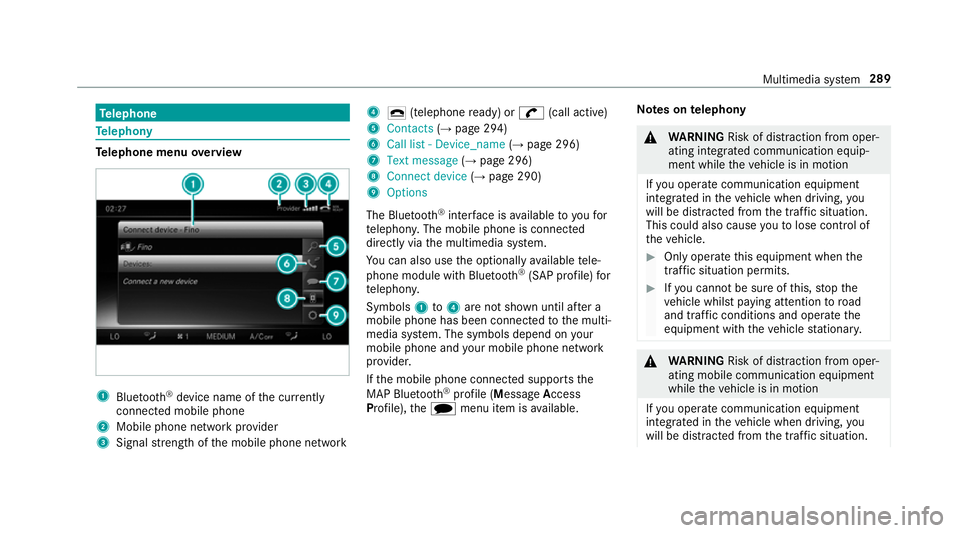
lephone menu overview 1
Blue tooth ®
device name of the cur rently
connected mobile phone
2 Mobile phone network pr ovider
3 Signal stre ngth of the mobile phone network 4
¢ (telephone ready) or w(call active)
5 Contacts (→page 294)
6 Call list - Device_name (→page 296)
7 Text message (→page 296)
8 Connect device (→page 290)
9 Options
The Blue tooth®
inter face is available toyoufor
te lephon y.The mobile phone is connected
directly via the multimedia sy stem.
Yo u can also use the optionally available tele‐
phone module with Blue tooth®
(SAP profile) for
te lephon y.
Symbols 1to4 are not shown until af ter a
mobile phone has been connected tothe multi‐
media sy stem. The symbols depend on your
mobile phone and your mobile phone network
pr ov ider.
If th e mobile phone connected supports the
MAP Blue tooth®
profile (M essageAccess
Pro file), thei menu item is available. Note
s ontelephony &
WARNING Risk of di stra ction from oper‐
ating integrated communication equip‐
ment while theve hicle is in motion
If yo u operate communication equipment
integ rated in theve hicle when driving, you
will be distracted from the tra ffic situation.
This could also cause youto lose control of
th eve hicle. #
Only operate this equipment when the
traf fic situation permits. #
Ifyo u cannot be sure of this, stop the
ve hicle whilst paying attention toroad
and traf fic conditions and ope rate the
equipment with theve hicle stationar y. &
WARNING Risk of di stra ction from oper‐
ating mobile communication equipment
while theve hicle is in motion
If yo u operate communication equipment
integrated in theve hicle when driving, you
will be distracted from the tra ffic situation. Multimedia sy
stem 289