fuel MERCEDES-BENZ E-CLASS CABRIOLET 2017 Owner's Manual
[x] Cancel search | Manufacturer: MERCEDES-BENZ, Model Year: 2017, Model line: E-CLASS CABRIOLET, Model: MERCEDES-BENZ E-CLASS CABRIOLET 2017Pages: 521, PDF Size: 10.64 MB
Page 194 of 521
The HOLD function is deactivated in
thefo llow‐
ing situations:
R If Dis tance Pilot DISTRONIC has been acti va‐
te d.
R The transmission is switched toposition j.
R When theve hicle is secured with the electric
parking brake.
In thefo llowing situations, theve hicle is held by
th e transmission position jorby the electric
parking brake:
R When the seat belt is unfas tened and the
driver's door is opened.
R When the engine is switched off.
R When there is a malfunction in the sy stem or
if th e po wer supp lyis insuf ficient. DY
NA MIC BODY CONT ROL DY
NA MIC BODY CONTROL has thefo llowing
ch aracteristics:
R Variable damping characteristics R
Continual adjustment of the damping forc es
The damping characteristics adapt tothe cur rent
operating and driving situation.
The da mping is tuned individually for each wheel
and is af fected bythefo llowing factors:
R The road sur face conditions
R Vehicle load
R The drive program selected
The drive program can be adjus ted using the
DY NA MIC SELECT switch. AIR
BODY CONT ROL AIR
BODY CONT ROL function
AIR BODY CONTROL is an air suspension sy stem
with variable damping for impr oved driving com‐
fo rt. The all-round le vel control sy stem ensures
th e best possible suspension and const ant
ground clearance, even with a laden vehicle.
When driving at speed, theve hicle is lo wered
automatically toimpr ovedriving saf ety and to re
duce fuel consum ption. The option of manually
adjusting theve hicle le vel is also available.
AIR BODY CONTROL comprises:
R Air suspension with variable spring rate
R Automatic le vel control sy stem
R Speed-dependent lo wering toreduce fuel
consum ption
R Manual le vel adjustment
R ADS PLUS (Adaptive Damping Sy stem with
const ant damping forc e adjustment)
R DYNA MIC SELECT switch and le vel button Driving and parking
191
Page 228 of 521
Instrument display
overview &
WARNING Risk of accident due toan
instrument display malfunction
If th e instrument display has failed or mal‐
functioned, you may not recognise function
re strictions applying tosaf etyre leva nt sys‐
te ms.
The operating saf ety of your vehicle may be
impaired. #
Drive on carefull y. #
Have theve hicle checked immediately
at a qualified specialist workshop. If
th e operating saf ety of your vehicle is
impaired, park theve hicle safely as soon as pos‐
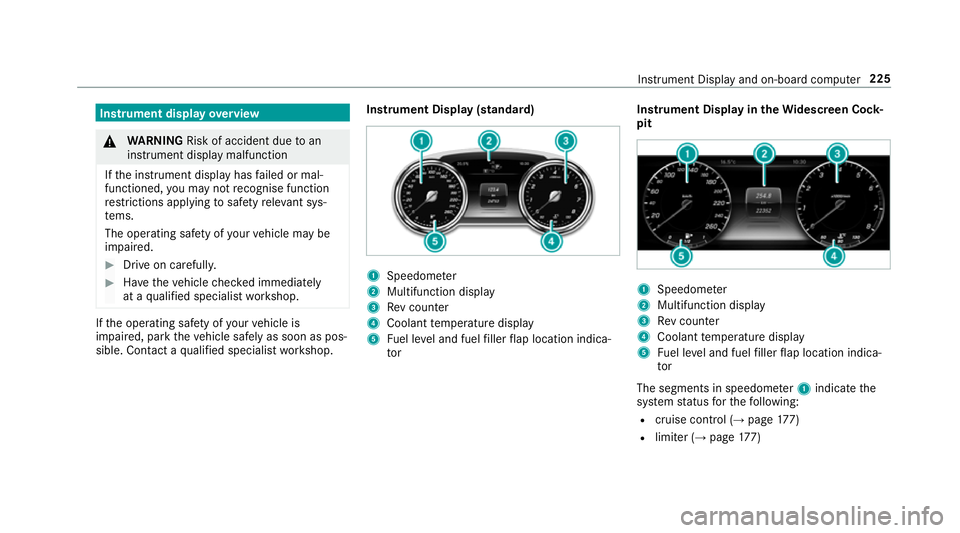
sible. Contact a qualified specialist workshop. Instrument Display (standard) 1
Speedome ter
2 Multifunction display
3 Rev counter
4 Coolant temp erature display
5 Fuel le vel and fuel filler flap location indica‐
tor Instrument Display in
theWi descreen Co ck‐
pit 1
Speedom eter
2 Multifunction display
3 Rev counter
4 Coolant temp erature display
5 Fuel le vel and fuel filler flap location indica‐
tor
The segments in speedome ter1 indica tethe
sy stem status forth efo llowing:
R cruise control (→ page177)
R limiter (→ page177) In
stru ment Display and on-board computer 225
Page 229 of 521
R
Distance Pilot DISTRONIC (→ page 180)
Ve hicles with Traf fic Sign Assist and Wide‐
sc reen Cockpit: detected instructions and traf‐
fi c signs appear in the speedome ter
( → page 210).
* NO
TEEngine damage due toexc essively
high engine speeds The engine will be damaged if
you drive with
th e engine in theov errevving range. #
Do not drive wi th the engine in theove r‐
re vving range. The fuel supply is inter
rupted toprotect the
engine when there d band in rev counter 3
(o ve rrev ving range) is reached.
During no rmal operating conditions, coolant
te mp erature display 4may rise to120 °C. &
WARNING Danger of bu rns when open‐
ing the bonn et
If yo u open the engine bonn etwhen the
engine has overheated or during a fire inthe engine compartment,
you could come into
contact with hot gases or other escaping
operating fluids. #
Before opening the bonn et, allow the
engine tocool down. #
Intheeve nt of a fire inthe engine com‐
partment, keep the engine bonn et
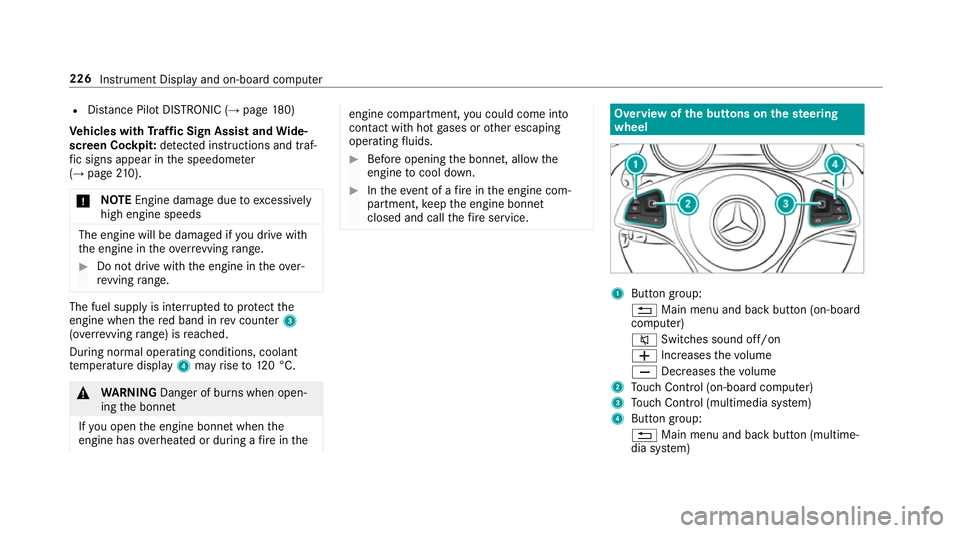
closed and call thefire service. Overview of
the but tons on thest eering
wheel 1
Button group:
% Main menu and ba ckbutton (on-board
computer)
8 Switches sound off/on
W Increases thevo lume
X Decreases thevo lume
2 Touch Control (on-board co mputer)
3 Touch Control (multimedia sy stem)
4 Button group:
% Main menu and back button (multime‐
dia sy stem) 226
Instrument Display and on-board computer
Page 233 of 521
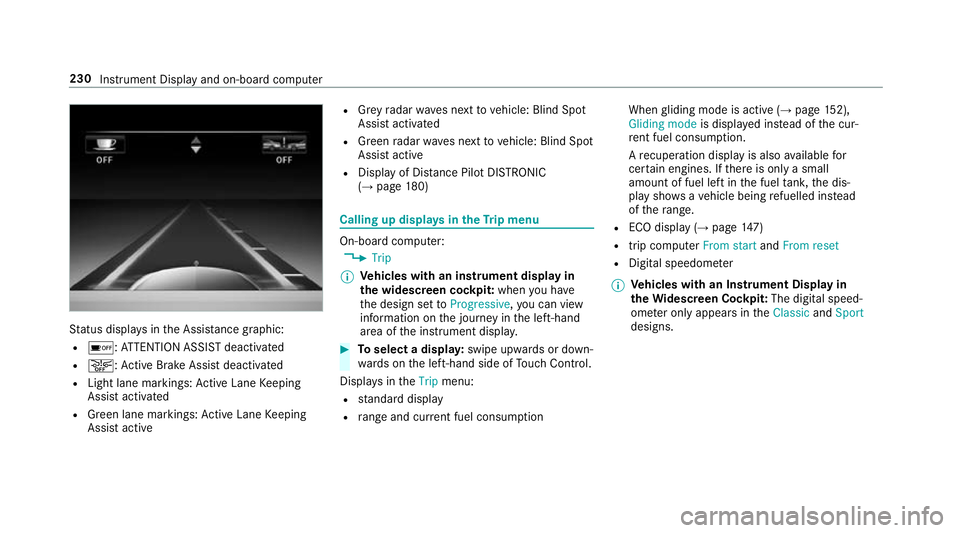
St
atus displa ysinthe Assis tance graphic:
R é: ATTENTION ASSIST deactivated
R æ: Active Brake Assi stdeactivated
R Light lane markings: Active Lane Keeping
Assist activated
R Green lane markings: Active Lane Keeping
Assist active R
Grey radar waves next tovehicle: Blind Spot
Assist activated
R Green radar waves next tovehicle: Blind Spot
Assist active
R Display of Dis tance Pilot DISTRONIC
(→ page 180) Calling up
displays in theTr ip menu On-board computer:
, Trip
% Ve
hicles with an instrument display in
th e widescreen cockpit: whenyou ha ve
th e design set toProgressive ,yo u can view
information on the journey in the left-hand
area of the instrument displa y. #
Toselect a displa y:swipe upwards or down‐
wa rds on the left-hand side of Touch Control.
Displa ysintheTrip menu:
R standard display
R range and cur rent fuel consu mption When
gliding mode is active (→ page152),
Gliding mode is displayed ins tead of the cur‐
re nt fuel consu mption.
A recuperation displ ayis also available for
cer tain engines. If there is only a small
amount of fuel left in the fuel tank, the dis‐
play sho wsave hicle being refuelled ins tead
of thera nge.
R ECO displ ay (→page 147)
R trip computer From startandFrom reset
R Digital speedome ter
% Ve
hicles with an Instrument Display in
th eWi descreen Co ckpit: The digital speed‐
ome ter only appears in theClassic andSport
designs. 230
Instrument Display and on-board computer
Page 234 of 521
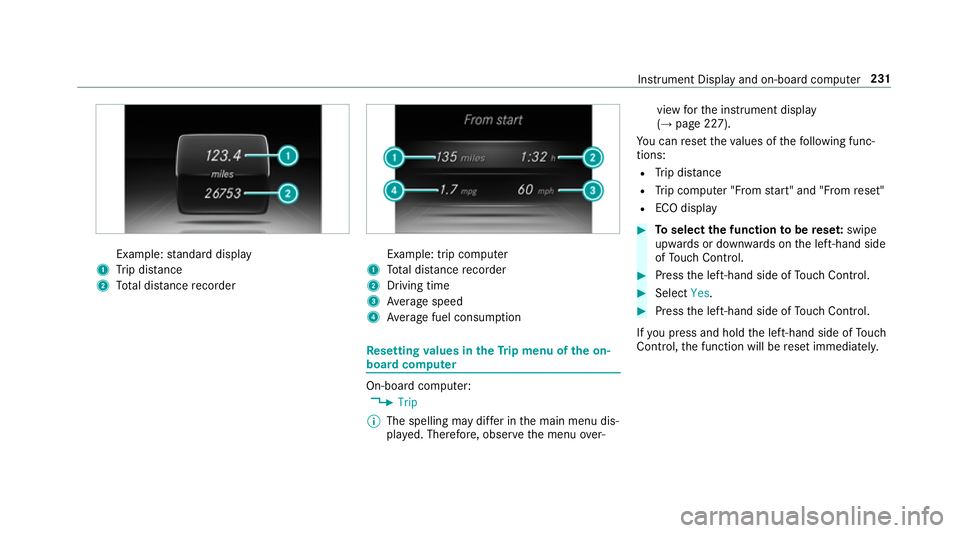
Example:
standard display
1 Trip dis tance
2 Total dis tance recorder Example: trip compu
ter
1 Total dis tance recorder
2 Driving time
3 Average speed
4 Average fuel consum ption Re
setting values in theTr ip menu of the on-
board compu ter On-board computer:
, Trip
% The spelling may dif fer in the main menu dis‐
pla yed. Therefore, obser vethe menu over‐ view
forth e instrument display
(→ page 227).
Yo u can reset theva lues of thefo llowing func‐
tions:
R Trip dis tance
R Trip computer "F rom start" and "F rom reset"
R ECO display #
Toselect the function tobe rese t:swipe
upwards or down wards on the left-hand side
of Touch Control. #
Press the left-hand side of Touch Control. #
Select Yes. #
Press the left-hand side of Touch Control.
If yo u press and hold the left-hand side of Touch
Control, the function will be reset immediately. Instrument Display and on-board computer
231
Page 274 of 521
#
Alternativel y,to filter the display byPOI
categor y:swipe down on theto uchpad.
or #
Slide the controller down. #
Select a POI categor y.#
User defined allowspersonal POI symbols to
be selected (→ page 284).
Entering an intermedia tedestination
Re quirement:
A destination is entered.
Multimedia sy stem:
, Navigation .
¬ Destination .
Inter-
mediate destinations #
Select Search for an intermediate destina-
tion . #
Ente r an intermedia tedestination.
The sear chresults are displa yed. #
Select an intermediate destination.
The address of the intermediate destination
appears. #
Select Set as destination.
The intermediate destination is set. #
Alternatively: select an intermediate destina‐
tion via ¬Destination duringroute guid‐
ance. #
Select Enter destination. #
Select Set as next intermediate destination
af te r entering the destination.
Calculating a route with intermediate desti‐
nations
Re quirement:
En terth e destination and at least one intermedi‐
ate destination.
Multimedia sy stem:
, Navigation .
¬ Destination .
Inter-
mediate destinations #
Select Start new route guidance.
The route is calculated with the set inter‐
mediate destinations.
Editing intermedia tedestinations
Re quirement:
A destination is entered. Multimedia sy
stem:
, Navigation .
¬ Destination .
Inter-
mediate destinations
Changing the order of the destinations #
Highlight the destination or intermediate des‐
tination. #
Select ¥Move. #
Movethe intermediate destination tothe
desired position. #
Press theTo uch Control, the controller or the
to uchpad.
Deleting a destination #
Highlight the destination or intermediate des‐
tination. #
Select ¥Delete.
St arting an automatic filling station sear ch
Re quirements:
The automatic filling station sear chis activated
O (→page 274).
Ro ute guidance is active. The fuel le vel in the
fuel tank reaches there ser vefuel le vel. Multimedia sy
stem 271
Page 275 of 521
The
Fuel tank reserve level Do you want to start
the search for filling stations? message is
shown. #
Select Yes.
The automatic filling station sear chbegins.
The available filling stations along thero ute
or in the vicinity of theve hicle's cur rent posi‐
tion are displ ayed. #
Select thefilling station.
The address of thefilling station is displa yed. #
Variant 1: if a route has not been calculated,
select Start route guidance.
The selected filling station is set as the desti‐
nation. Route guidance begins. #
Variant 2: if a route has been calculated,
select Start new route guidance orSet as
next intermediate destination.
Start new route guidance: the selected filling
st ation is set as a new destination. The pr evi‐
ous destinations and intermediate destina‐
tions are dele ted. Ro ute guidance tothefill‐
ing station begins. Set as next intermediate destination:
the
selected filling station is set as the next inter‐
mediate destination. Route guidance begins.
If th ere are already four intermediate desti‐
nations: #
Select Yesinthe prom pt.
The selected filling station is entered into
position 1 of the intermediate destinations
menu. Intermediate destination 4 is dele ted.
Ro ute guidance begins. Ro
ute Calculating a
route
Re quirement:
The destination is entered. The destination
address is shown. #
Variant 1: if a route has not been calculated,
select Start route guidance.
The route tothe destination is calculated.
The map sho ws thero ute. Route guidance
th en begins. #
Variant 2: if a route has been calculated,
select Start new route guidance orSet as
next intermediate destination.
Start new route guidance: the selected desti‐
nation address is set as a new destination.
The pr evious destinations and intermediate
destinations are dele ted. Ro ute guidance to
th e new destination begins.
Set as next intermediate destination: the
selected destination address is set as the
next intermedia tedestination. Route guid‐
ance begins.
Ta king alternative routes into conside ration #
Select an al tern ative route (→ page274).
Other menu functions #
Tosave the destination: select¥Store
in "Previous destinations". #
Todispl ayon the map: select¥Map. #
Tocall a telephone number: select¥
Call . #
Tocall up an Internet address: select
¥ www(ifavailable). 272
Multimedia sy stem
Page 277 of 521
#
Select Payment in cash orElectronic billing
or Off.
The route take s into account roads that
re qu ire the payment of a usage fee (toll).
If Off is selected, tollro ads are not take n into
account.
These route options are not available in every
countr y.
The selected route options cannot alw ays be
implemented. Therefore, a route may include a
fe rry, for ins tance, eventh ough theFerries avoid
option is enabled. A message appears and you
will hear a cor responding message.
Selecting notifications
Multimedia sy stem:
, Naviga-
tion .
Z Options .
Announcements #
Switch announcements on Oor off ª.
R Announce traffic warnings
This function is not available in all coun‐
tries.
R Announce street names The multimedia sy
stem announces the
names of thero ads that will follow the
upcoming change of direction.
This function is not available in all coun‐
tries and languages.
Displ aying destination information
Re quirement:
A destination is entered. The route can also
include up tofour intermediate destinations.
Multimedia sy stem:
, Navigation .
¬ Destination #
Select Intermediate destinations.
The following information is displa yed:
R intermediate destinations and destination
R name, address
R remaining driving dis tance
R time of ar rival Selecting an alternative
route
Multimedia sy stem:
, Navigation .
À Route #
Select Alternative route.
The routes are displ ayed in accordance with
th e setting made in thero ute settings.
The cur rently selected route is shown with a
dark blue line. #
Select an alternative route.
Swit ching the automatic filling station
sear chon/off
Multimedia sy stem:
, Navigation .
Z Options #
Switch Reserve fuel level onO or off ª.
Switched on O: whenthe fuel reser velevel
is reached, a prom ptappears asking whe ther
yo uwa nttostart sear ching forfilling sta‐
tions. 274
Multimedia sy stem
Page 286 of 521
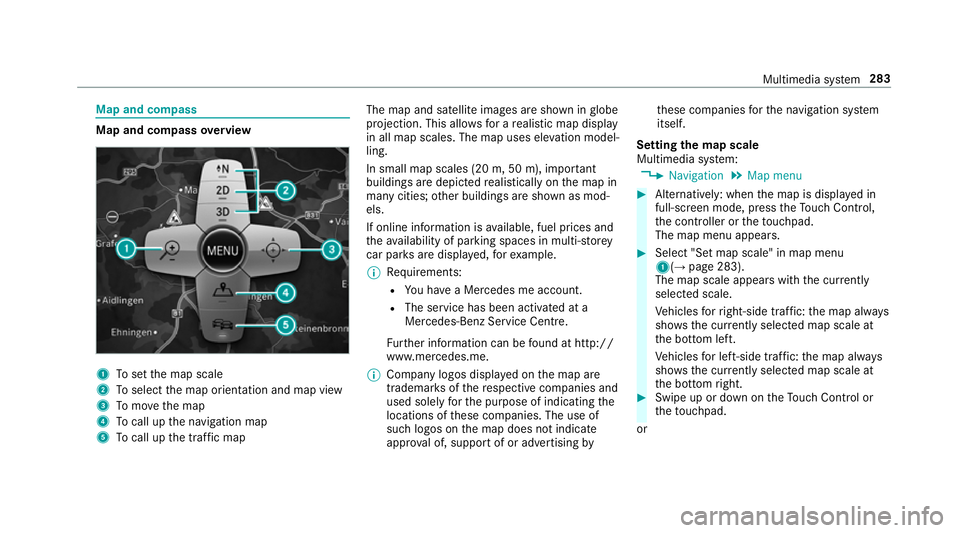
Map and compass
Map and compass
overview 1
Toset the map scale
2 Toselect the map orientation and map view
3 Tomo vethe map
4 Tocall up the navigation map
5 Tocall up the tra ffic map The map and satellite images are shown in
globe
projection. This allo wsfor a realistic map display
in all map scales. The map uses ele vation model‐
ling.
In small map scales (20 m, 50 m), impor tant
buildings are depicted realistically on the map in
many cities; other buildings are shown as mod‐
els.
If online information is available, fuel prices and
th eav ailability of parking spaces in multi-s torey
car pa rks are displa yed, forex ample.
% Requirements:
R You ha vea Mercedes me account.
R The service has been activated at a
Mercedes-Benz Service Cent re.
Fu rther information can be found at http://
www.mercedes.me.
% Company logos displ ayed on the map are
trademar ksofthere spective companies and
used solely forth e purpose of indicating the
locations of these companies. The use of
such logos on the map does not indicate
appr oval of, suppo rtof or advertising byth
ese companies forth e navigation sy stem
itself.
Setting the map scale
Multimedia sy stem:
, Navigation .
Map menu #
Alternatively: when the map is displa yed in
full-sc reen mode, press theTo uch Control,
th e controller or theto uchpad.
The map menu appears. #
Select "Set map scale" in map menu
1(→ page 283).
The map scale appears with the cur rently
selected scale.
Ve hicles forright-side traf fic: the map alw ays
sho ws th e currently selected map scale at
th e bottom left.
Ve hicles for left-side traf fic: the map alw ays
sho ws th e currently selected map scale at
th e bottom right. #
Swipe up or down on theTo uch Control or
th eto uchpad.
or Multimedia sy
stem 283
Page 350 of 521
Opening/closing
the bonnet &
WARNING Risk of accident due todriv‐
ing with the engine bonn etunlo cked
An unloc ked engine bonn etmay open up
when theve hicle is in motion and block your
vie w. #
Never unlock the engine bonn etwhen
driving. #
Before every trip, ensure that the
engine bonn etis loc ked. &
WARNING Risk of accident and inju ry
when opening and closing the engine
bonn et
When opening or closing the engine bonn et,
it may suddenly drop into the end position.
There is a risk of injury for an yone in the
engine bonn et's range of mo vement. #
Only open or close the engine bonn et
when there are no persons in the
engine bonn et's range of mo vement. &
WARNING Danger of bu rns when open‐
ing the bonn et
If yo u open the engine bonn etwhen the
engine has overheated or during a fire inthe
engine compartment, you could come into
contact with hot gases or other escaping
operating fluids. #
Before opening the bonn et, allow the
engine tocool down. #
Intheeve nt of a fire inthe engine com‐
partment, keep the engine bonn et
closed and call thefire service. &
WARNING Risk of inju rydue tomoving
parts
Cer tain components in the engine compart‐
ment may continue tomo veor suddenly
mo veagain even af terth e ignition has been
switched off, e.g. the cooler fan.
Ma kesure of thefo llowing before per form ing
ta sks in the engine compartmen t: #
Switch the ignition off. #
Neverto uch the danger zone sur round‐
ing moving co mponent parts, e.g. the
ro tation area of thefa n. #
Remo vejewe llery and watches. #
Keep items of clo thing and hair away
from moving parts. &
WARNING Risk of inju ryfrom touching
co mp onent parts under voltage
The ignition sy stem and the fuel injection
sy stem workunder high voltage. If youto uch
co mp onent parts which are under voltage,
yo u could recei vean electric shoc k. #
Neverto uch co mponents of the ignition
sy stem or the fuel injection sy stem
when the ignition is switched on. &
WARNING Danger of bu rns from hot
component parts in the engine compart‐
ment
Cer tain component parts in the engine com‐
partment may be very hot, e.g. the engine, Maintenance and care
347