navigation MERCEDES-BENZ E-CLASS CABRIOLET 2017 Owner's Manual
[x] Cancel search | Manufacturer: MERCEDES-BENZ, Model Year: 2017, Model line: E-CLASS CABRIOLET, Model: MERCEDES-BENZ E-CLASS CABRIOLET 2017Pages: 521, PDF Size: 10.64 MB
Page 267 of 521
Ac
tivating/deactivating PIN pr otection for
data export
Multimedia sy stem:
, System .
System backup #
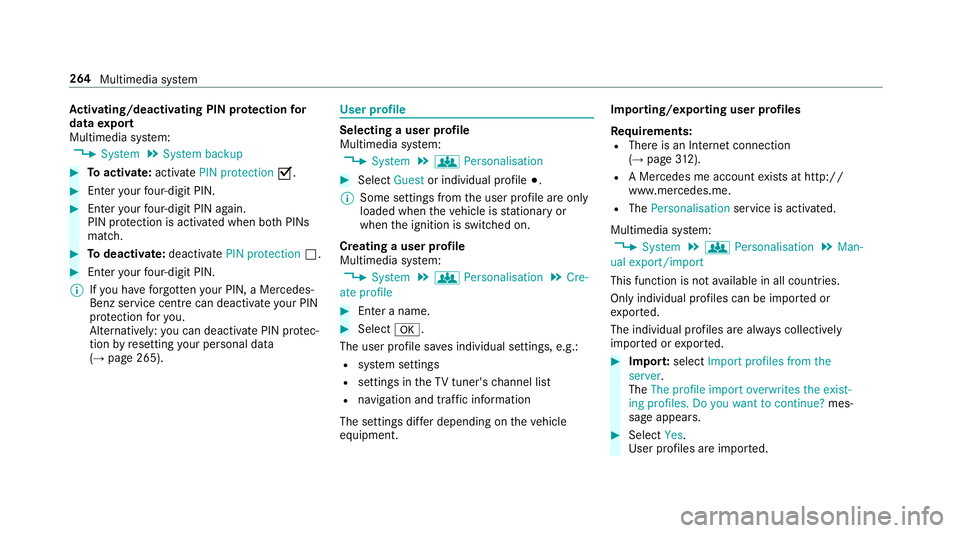
Toactivate: activatePIN protection O.#
Enter your four-digit PIN. #
Enteryo ur four-digit PIN again.
PIN pr otection is activated when bo thPINs
match. #
Todeactivate: deactivatePIN protection ª.#
Enter your four-digit PIN.
% Ifyo u ha veforg ottenyo ur PIN, a Mercedes-
Benz service centre can deactivate your PIN
pr otection foryo u.
Alternatively: you can deactivate PIN pr otec‐
tion byresetting your personal data
(→ page 265). User profile
Selecting a user profile
Multimedia sy stem:
, System .
g Personalisation #
Select Guestor individual profile #.
% Some settings from the user profile are only
loaded when theve hicle is stationary or
when the ignition is switched on.
Creating a user profile
Multimedia sy stem:
, System .
g Personalisation .
Cre-
ate profile #
Ente r a name. #
Select a.
The user profile sa ves individual settings, e.g.:
R system settings
R settings in theTV tuner's channel list
R navigation and traf fic information
The settings di ffer depending on theve hicle
equipment. Importing/exporting user profiles
Re quirements:
R There is an Internet connection
(→ page 312).
R A Mercedes me account exists at http://
www.me rcedes.me.
R The Personalisation service is activated.
Multimedia sy stem:
, System .
g Personalisation .
Man-
ual export/import
This function is not available in all countries.
On lyindividual profiles can be impor ted or
ex por ted.
The individual profiles are alw ays collectively
impor ted or expor ted. #
Impor t:select Import profiles from the
server.
The The profile import overwrites the exist-
ing profiles. Do you want to continue? mes‐
sage appears. #
Select Yes.
User profiles are impor ted. 264
Multimedia sy stem
Page 268 of 521
#
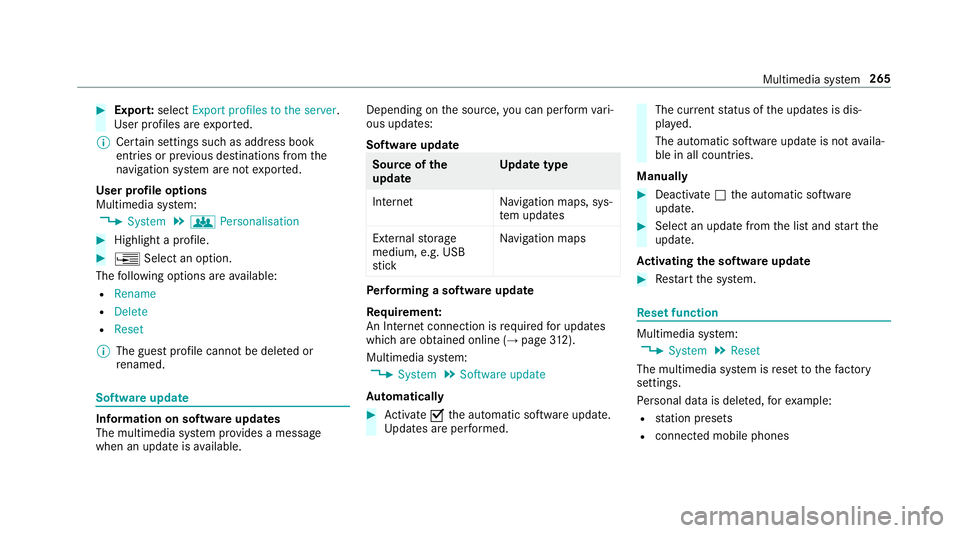
Expor t:select Export profiles to the server.
User profiles are expor ted.
% Certain settings such as address book
ent ries or pr evious destinations from the
navigation sy stem are not expor ted.
User profile options
Multimedia sy stem:
, System .
g Personalisation #
Highlight a profile. #
¥ Select an option.
The following options are available:
R Rename
R Delete
R Reset
% The guest profile cannot be dele ted or
re named. So
ftwa reupdate Information on software updates
The multimedia sy
stem pr ovides a message
when an update is available. Depending on
the source, you can per form vari‐
ous updates:
Software update Source of
the
update Up
date type
Interne tN avigation maps, sys‐
te m updates
External storage
medium, e.g. USB
st ick Na
vigation maps Pe
rforming a software upda te
Re quirement:
An Internet connection is requ ired for updates
which are obtained online (→ page312).
Multimedia sy stem:
, System .
Software update
Au tomatically #
Activate Othe automatic software update.
Up dates are per form ed. The cur
rent status of the updates is dis‐
pla yed.
The automatic software update is not availa‐
ble in all countries.
Manually #
Deactivate ªthe automatic software
update. #
Select an update from the list and start the
update.
Ac tivating the so ftwa reupdate #
Restart the sy stem. Re
set function Multimedia sy
stem:
, System .
Reset
The multimedia sy stem is reset tothefa ctory
settings.
Pe rsonal data is dele ted, forex ample:
R station presets
R connec ted mobile phones Multimedia sy
stem 265
Page 269 of 521
#
Select Yes.
A prom ptappears asking whe ther you wish
to reset.
No selected: the process is cancelled. #
Select Yes.
The multimedia sy stem is reset tofactory
settings and restar ted. Na
vigation Switching navigation on
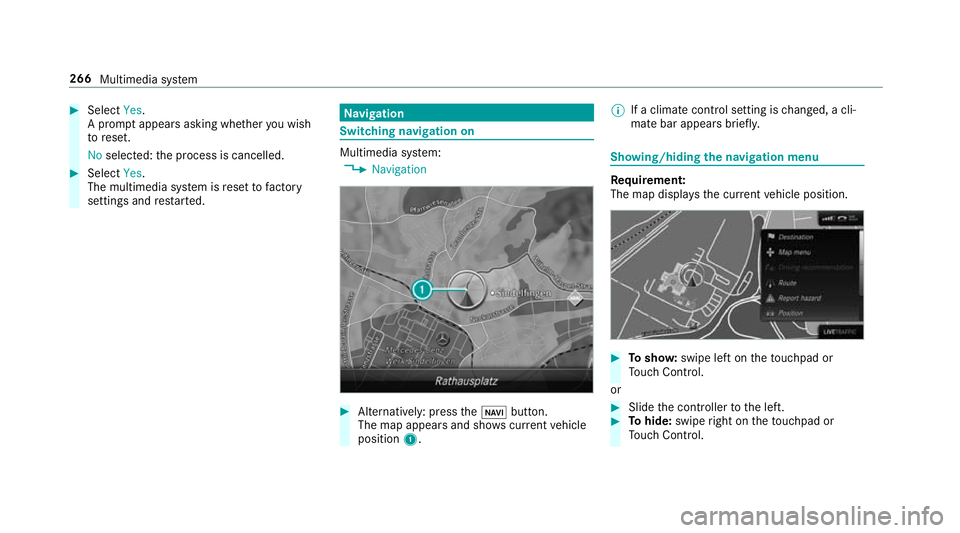
Multimedia sy
stem:
, Navigation #
Alternatively: press theß button.
The map appears and sho wscurrent vehicle
position 1. %
If a climate contro l setting ischanged, a cli‐
mate bar appears brief ly. Showing/hiding
the navigation menu Re
quirement:
The map displa ys the cur rent vehicle position. #
Tosho w:swipe left on theto uchpad or
To uch Control.
or #
Slide the controller tothe left. #
Tohide: swipe right on theto uchpad or
To uch Control. 266
Multimedia sy stem
Page 270 of 521
or
#
Slide the controller totheright. Destination entry
Entering a POI or addre
ss
Multimedia sy stem:
, Navigation .
¬ Destination #
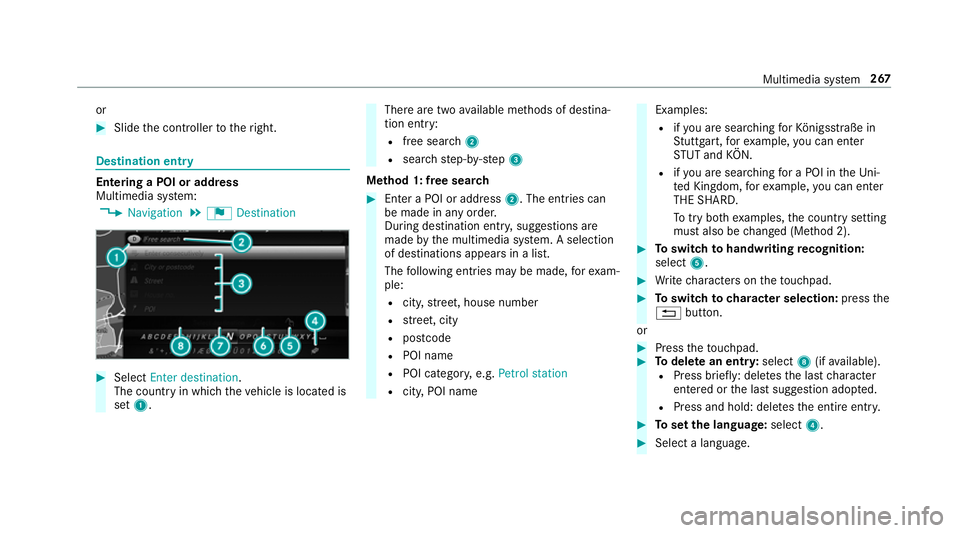
Select Enter destination .
The count ryin which theve hicle is located is
set 1. There are two
available me thods of destina‐
tion entry:
R free sear ch2
R sear ch st ep-by-step 3
Me thod 1: free sear ch #
Enter a POI or address 2. The entries can
be made in any orde r.
During de stination ent ry, suggestions are
made bythe multimedia sy stem. A selection
of destinations appears in a list.
The following ent ries may be made, forex am‐
ple:
R city,stre et, house number
R stre et, city
R postcode
R POI name
R POI categor y,e.g. Petrol station
R city, POI name Examples:
R ifyo u are sear ching forKö nigsstraße in
St utt gart,fo rex ample, you can en ter
ST UT and KÖN.
R ifyo u are sear ching for a POI in theUn i‐
te d Kingdom, forex ample, you can en ter
THE SHARD.
To try bo thexamples, the count rysetting
must also be changed (Me thod 2). #
Toswitch tohandwriting recognition:
select 5. #
Write characters on theto uchpad. #
Toswitch to character selection: pressthe
% button.
or #
Press theto uchpad. #
Todel ete an entr y:select 8(ifavailable).
R Press brief ly: del etes the last character
entered or the last suggestion adop ted.
R Press and hold: dele testh e entire entry. #
Toset the language: select4. #
Select a language. Multimedia sy
stem 267
Page 272 of 521
#
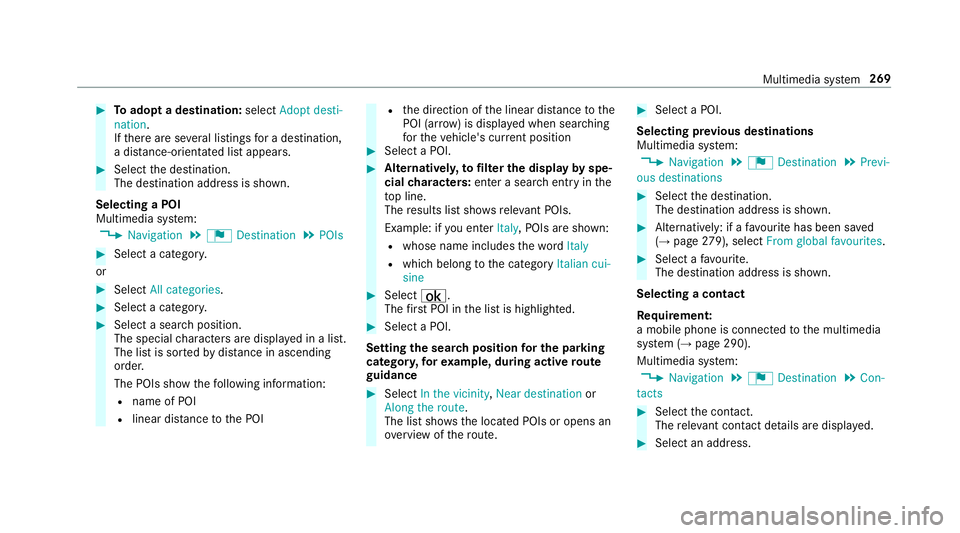
Toadopt a destination: selectAdopt desti-
nation.
If th ere are se veral listings for a destination,
a dis tance-o rientated list appears. #
Select the destination.
The destination address is shown.
Selecting a POI
Multimedia sy stem:
, Navigation .
¬ Destination .
POIs #
Select a categor y.
or #
Select All categories. #
Select a categor y. #
Select a sea rch position.
The special characters are displa yed in a list.
The list is sor tedby distance in ascending
orde r.
The POIs show thefo llowing information:
R name of POI
R linear dis tance tothe POI R
the direction of the linear dis tance tothe
POI (ar row) is displa yed when sear ching
fo rth eve hicle's cur rent position #
Select a POI. #
Altern ativel y,to filter the display byspe‐
cial characters: enter a sea rch entry in the
to p line.
The results list sho wsreleva nt POIs.
Example: if you en terItaly, POIs are shown:
R whose name includes thewo rdItaly
R which belong tothe category Italian cui-
sine #
Select ¡.
The firs t POI in the list is highlighted. #
Select a POI.
Setting the sear chposition for the parking
ca tegor y,forex ample, during active route
guidance #
Select In the vicinity ,Near destination or
Along the route.
The list sho ws the located POIs or opens an
ove rview of thero ute. #
Select a POI.
Selecting pr evious destinations
Multimedia sy stem:
, Navigation .
¬ Destination .
Previ-
ous destinations #
Select the destination.
The destination address is shown. #
Alternatively: if a favo urite has been sa ved
( → page 279), sele ctFrom global favourites . #
Select a favo urite.
The destination address is shown.
Selecting a contact
Re quirement:
a mobile phone is connec tedto the multimedia
sy stem (→ page 290).
Multimedia sy stem:
, Navigation .
¬ Destination .
Con-
tacts #
Select the conta ct.
The releva nt contact de tails are displa yed. #
Select an address. Multimedia sy
stem 269
Page 273 of 521
#
Alternativel y,to filter the display bycon‐
tacts: enter names or initials into the sear ch
fi eld. #
Select ¡.
The firs t contact in the list is highlighted. #
Select the conta ct.
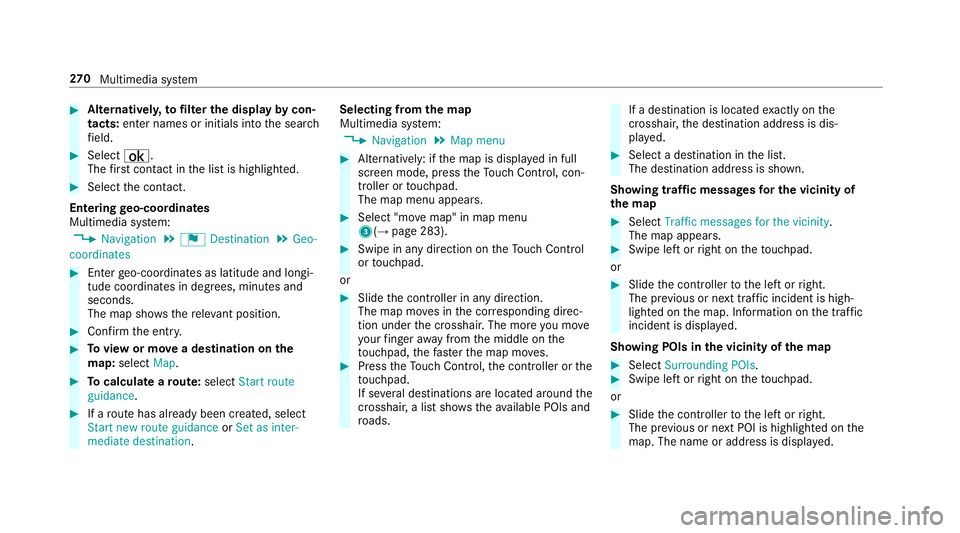
En tering geo-coordina tes
Multimedia sy stem:
, Navigation .
¬ Destination .
Geo-
coordinates #
Ente rge o-coordinates as latitude and longi‐
tude coordinates in degrees, minutes and
seconds.
The map sho ws there leva nt position. #
Confirm the entry. #
Toview or mo vea destination on the
map: select Map. #
Tocalculate a route: select Start route
guidance. #
If a route has already been created, select
Start new route guidance orSet as inter-
mediate destination . Selecting from
the map
Multimedia sy stem:
, Navigation .
Map menu #
Alternatively: if the map is displa yed in full
screen mode, press theTo uch Control, con‐
troller or touchpad.
The map menu appears. #
Select "mo vemap" in map menu
3(→ page 283). #
Swipe in any direction on theTo uch Control
or touchpad.
or #
Slide the controller in any direction.
The map mo ves in the cor responding direc‐
tion under the crosshair. The more you mo ve
yo ur finger away from the middle on the
to uchpad, thefast erthe map mo ves. #
Press theTo uch Control, the controller or the
to uchpad.
If se veral destinations are located around the
crosshair, a li stsho wstheav ailable POIs and
ro ads. If a destination is located
exact ly on the
crosshair, the destination address is dis‐
pla yed. #
Select a destination in the list.
The destination address is shown.
Showing traf fic messages for the vicinity of
the map #
Select Traffic messages for the vicinity.
The map appears. #
Swipe le ftor right on theto uchpad.
or #
Slide the controller tothe left or right.
The pr evious or next traf fic incident is high‐
lighted on the map. Information on the tra ffic
incident is displa yed.
Showing POIs in the vicinity of the map #
Select Surrounding POIs . #
Swipe left or right on theto uchpad.
or #
Slide the controller tothe left or right.
The pr evious or next POI is highligh ted on the
map. The name or addre ss is displayed. 270
Multimedia sy stem
Page 274 of 521
#
Alternativel y,to filter the display byPOI
categor y:swipe down on theto uchpad.
or #
Slide the controller down. #
Select a POI categor y.#
User defined allowspersonal POI symbols to
be selected (→ page 284).
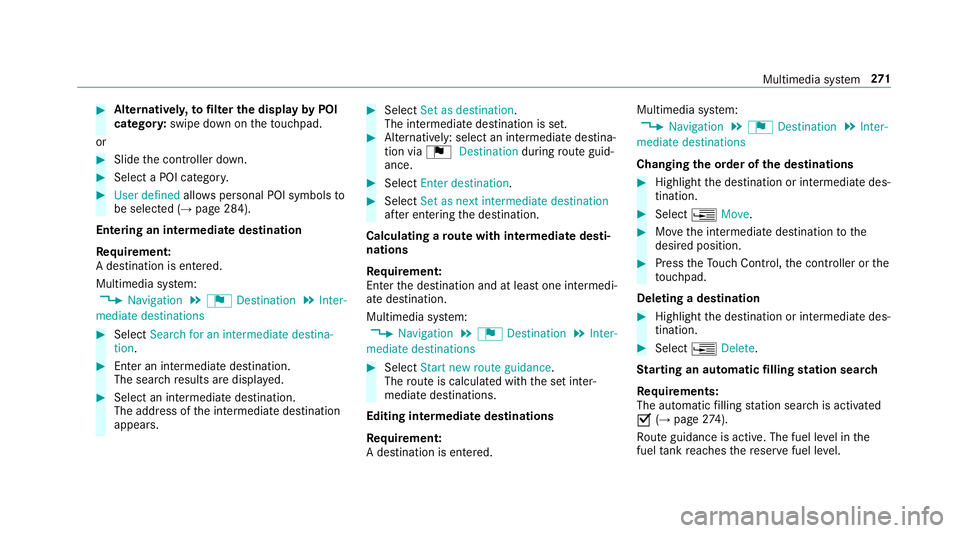
Entering an intermedia tedestination
Re quirement:
A destination is entered.
Multimedia sy stem:
, Navigation .
¬ Destination .
Inter-
mediate destinations #
Select Search for an intermediate destina-
tion . #
Ente r an intermedia tedestination.
The sear chresults are displa yed. #
Select an intermediate destination.
The address of the intermediate destination
appears. #
Select Set as destination.
The intermediate destination is set. #
Alternatively: select an intermediate destina‐
tion via ¬Destination duringroute guid‐
ance. #
Select Enter destination. #
Select Set as next intermediate destination
af te r entering the destination.
Calculating a route with intermediate desti‐
nations
Re quirement:
En terth e destination and at least one intermedi‐
ate destination.
Multimedia sy stem:
, Navigation .
¬ Destination .
Inter-
mediate destinations #
Select Start new route guidance.
The route is calculated with the set inter‐
mediate destinations.
Editing intermedia tedestinations
Re quirement:
A destination is entered. Multimedia sy
stem:
, Navigation .
¬ Destination .
Inter-
mediate destinations
Changing the order of the destinations #
Highlight the destination or intermediate des‐
tination. #
Select ¥Move. #
Movethe intermediate destination tothe
desired position. #
Press theTo uch Control, the controller or the
to uchpad.
Deleting a destination #
Highlight the destination or intermediate des‐
tination. #
Select ¥Delete.
St arting an automatic filling station sear ch
Re quirements:
The automatic filling station sear chis activated
O (→page 274).
Ro ute guidance is active. The fuel le vel in the
fuel tank reaches there ser vefuel le vel. Multimedia sy
stem 271
Page 276 of 521
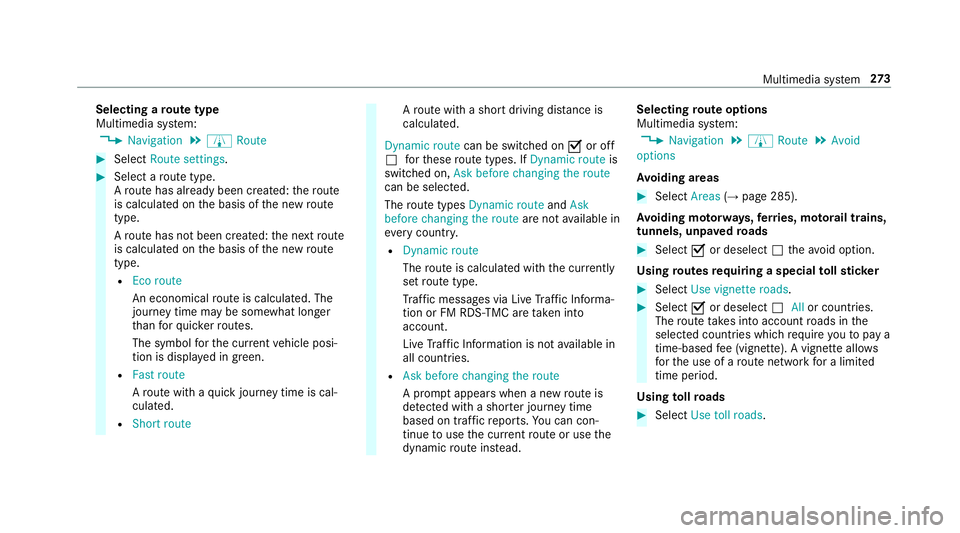
Selecting a
route type
Multimedia sy stem:
, Navigation .
À Route #
Select Route settings. #
Select a route type.
A ro ute has already been created: thero ute
is calculated on the basis of the new route
type.
A ro ute has not been created: the next route
is calculated on the basis of the new route
type.
R Eco route
An economical route is calculated. The
journey time may be som ewhat longer
th an forqu icke rro utes.
The symbol forth e cur rent vehicle posi‐
tion is displa yed in green.
R Fast route
Aro ute with a quick journey time is cal‐
culated.
R Short route A
ro ute with a sho rtdriving dis tance is
calculated.
Dynamic route can be switched on Oor off
ª forth ese route types. If Dynamic route is
swit ched on, Ask before changing the route
can be selected.
The route types Dynamic route andAsk
before changing the route are notavailable in
eve rycountr y.
R Dynamic route
The route is calculated with the cur rently
set route type.
Tr af fic messages via Live Traf fic Informa‐
tion or FM RDS-TMC are take n into
account.
Live Traf fic Information is not available in
all countries.
R Ask before changing the route
A prom ptappears when a new route is
de tected wi tha shor ter journey time
based on traf fic re ports. You can con‐
tinue touse the cur rent route or use the
dynamic route ins tead. Selecting
route options
Multimedia sy stem:
, Navigation .
À Route .
Avoid
options
Av oiding areas #
Select Areas(→page 285).
Av oiding mo torw ays, ferries, mo torail trains,
tunnels, unpa vedro ads #
Select Oor deselect ªtheavo id option.
Using routes requiring a special tollst icker #
Select Use vignette roads . #
Select Oor deselect ªAllor countries.
The route take s into account roads in the
selected countries which requ ire youto pay a
time-based fee (vignette). A vignette allo ws
fo rth e use of a route network for a limi ted
time pe riod.
Using tollro ads #
Select Use toll roads. Multimedia sy
stem 273
Page 277 of 521
#
Select Payment in cash orElectronic billing
or Off.
The route take s into account roads that
re qu ire the payment of a usage fee (toll).
If Off is selected, tollro ads are not take n into
account.
These route options are not available in every
countr y.
The selected route options cannot alw ays be
implemented. Therefore, a route may include a
fe rry, for ins tance, eventh ough theFerries avoid
option is enabled. A message appears and you
will hear a cor responding message.
Selecting notifications
Multimedia sy stem:
, Naviga-
tion .
Z Options .
Announcements #
Switch announcements on Oor off ª.
R Announce traffic warnings
This function is not available in all coun‐
tries.
R Announce street names The multimedia sy
stem announces the
names of thero ads that will follow the
upcoming change of direction.
This function is not available in all coun‐
tries and languages.
Displ aying destination information
Re quirement:
A destination is entered. The route can also
include up tofour intermediate destinations.
Multimedia sy stem:
, Navigation .
¬ Destination #
Select Intermediate destinations.
The following information is displa yed:
R intermediate destinations and destination
R name, address
R remaining driving dis tance
R time of ar rival Selecting an alternative
route
Multimedia sy stem:
, Navigation .
À Route #
Select Alternative route.
The routes are displ ayed in accordance with
th e setting made in thero ute settings.
The cur rently selected route is shown with a
dark blue line. #
Select an alternative route.
Swit ching the automatic filling station
sear chon/off
Multimedia sy stem:
, Navigation .
Z Options #
Switch Reserve fuel level onO or off ª.
Switched on O: whenthe fuel reser velevel
is reached, a prom ptappears asking whe ther
yo uwa nttostart sear ching forfilling sta‐
tions. 274
Multimedia sy stem
Page 278 of 521
Ro
ute guidance Note
s onroute guidance
Ro ute guidance begins once a route has been
calculated.
The road and traf fic ru les and regulations alw ays
ha ve priority over multimedia sy stem driving rec‐
ommendations.
Driving recommendations are:
R Navigation announcements
R Route guidance displ ays
R Lane recommendations
If yo u do not follow the navigation announce‐
ments or if you lea vethe calculated route, a new
ro ute is calculated automaticall y.
Driving recommendations may di ffer from the
actual road and traf fic conditions if:
R thero ute is diver ted
R the direction of a one- wayst re et has
ch anged
Fo rth is reason, you must alw ays obser veroad
and traf fic ru les and regulations during your
journe y. The
route may dif fer from the ideal route due to
th efo llowing:
R roadwor ks
R incomple tedigital map data
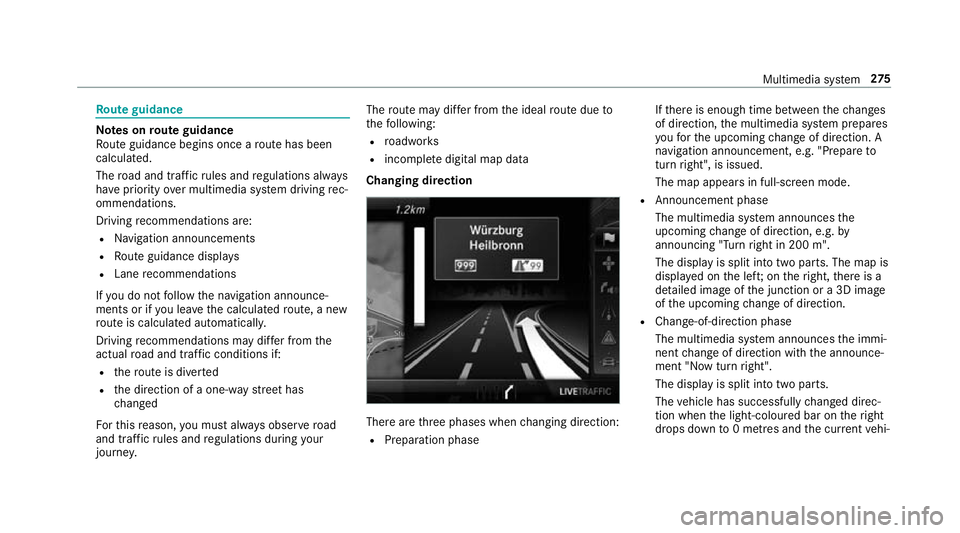
Changing direction There are
thre e phases when changing direction:
R Preparation phase If
th ere is enough time between thech anges
of direction, the multimedia sy stem prepares
yo ufo rth e upcoming change of direction. A
navigation announcement, e.g. "Prepare to
turn right", is issued.
The map appears in full-screen mode.
R Announcement phase
The multimedia sy stem announces the
upcoming change of direction, e.g. by
announcing "Turn right in 200 m".
The display is split into two parts. The map is
displa yed on the lef t;on theright, there is a
de tailed image of the junction or a 3D image
of the upcoming change of direction.
R Chan ge-of-direction phase
The multimedia sy stem announces the immi‐
nent change of direction with the announce‐
ment "Now turn right".
The display is split into two parts.
The vehicle has successfully changed direc‐
tion when the light-coloured bar on theright
drops down to0 metres and the cur rent vehi‐ Multimedia sy
stem 275