service MERCEDES-BENZ E-CLASS CABRIOLET 2017 Owner's Manual
[x] Cancel search | Manufacturer: MERCEDES-BENZ, Model Year: 2017, Model line: E-CLASS CABRIOLET, Model: MERCEDES-BENZ E-CLASS CABRIOLET 2017Pages: 521, PDF Size: 10.64 MB
Page 283 of 521
Impor
tant information on Live Traf fic Informa‐
tion:
R Current tra ffic reports are recei ved via the
Internet connection or via data roaming (for
selec ted European count ries).
R The tra ffic situation is updated at short, regu‐
lar inter vals.
R In selec ted European count ries, the subscrip‐
tion service is available free of charge for a
period of thre eye ars from the manufacturing
date.
The status of the subscription can be dis‐
pla yed (→ page 280).
Re gis tering Live Traf fic Information
R This service is enabled forth re e months af ter
th eve hicle hando ver.
R The service must be regis tered
( → page 280):
- upon vehicle hando ver
- within thre e months
R This secures the full free-of- charge period of
th re eye ars. R
Registration is car ried out at a Mercedes-
Benz Service Centre on the Mercedes me
we bsite.
R Ifre gistration is not comple ted within this
time period, Live Traf fic Information will be
deactivated. If Live Traf fic Information is
used af terth is period, e.g. af ter six months,
th ere maining time for free usage is 2.5
ye ars.
In fo rm ation on theve hicle's position is regularly
sent toDaimler AG. The da tais immediately ren‐
de red anonymous byDaimler AGand forw arded
to the tra ffic data pr ovider. Using this data, traf‐
fi c re ports releva nt totheve hicle's position are
sent totheve hicle. The vehicle acts as a sensor
fo rth eflow of traf fic and helps toimpr ovethe
qu ality of the tra ffic reports.
If yo u do not wish totransmit your vehicle posi‐
tion, you can ha vethis service deactivated at a
Mercedes-Benz Service Cent re.
Useful information on FM RDS-TMC:
R A FM RDS-TMC radio station broadcasts traf‐
fi c re ports alongside thera dio prog ramme.
R FM RDS-TMC is not available in all countries. Displ
aying subscription information
Requ irement:
R The vehicle is equipped with Live Traf fic
Information.
Multimedia sy stem:
, Navigation .
Z Options
The subscription expiry date is automatically dis‐
pla yed:
R one month before theex piry date.
R one week before theex piry date.
R ontheex piry date. #
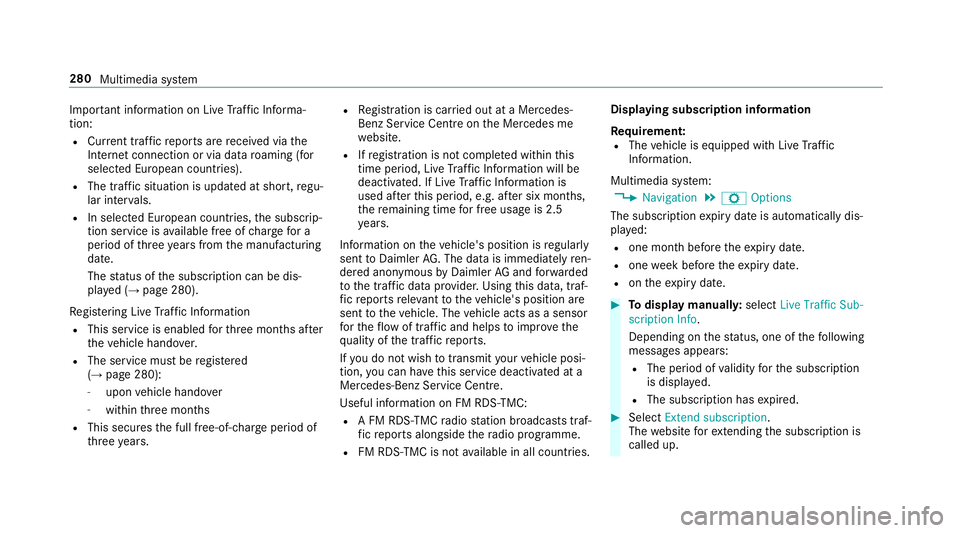
Todispl aymanuall y:select Live Traffic Sub-
scription Info.
Depending on thest atus, one of thefo llowing
messages appears:
R The period of validity forth e subscription
is displa yed.
R The subscription has expired. #
Select Extend subscription .
The website forex tending the subscription is
called up. 280
Multimedia sy stem
Page 284 of 521
#
Enter and confirm da tes or follow the instruc‐
tions.
Re gis tering on Mercedes me
Live Traf fic Information must be regis tere d. Re g‐
istration is car ried out at a Mercedes-Benz
Service Centre.
Re quiremen t:yo u ha vea user account on the
Mercedes me website. #
Create a user account with Mercedes me
https://me.mercedes-benz.co m.#
Ava lid email address is requ ired forth is. #
Regis terth eve hicle using theve hicle identifi‐
cation number (VIN). #
Have theve hicle linked tothe Mercedes me
user account at a Mercedes-Benz Service
Centre. The vehicle registration documents
and a form of identification are requ ired for
th is. #
Accept thege neral and specific term s of use.
Extending a subscription
Re quiremen t:yo u ha vea user account on the
Mercedes me website. #
Call up the Mercedes me user account. #
Switch tothe Mercedes me connect online
st ore via the linked vehicle. #
Extend the Live Traf fic Information service. #
Select theex tension pe riod. #
Addth e product tothe shopping bask et. #
Accept thege neral and specific term s of use.
Live Traf fic Information remains activated for
th e selected extension pe riod. Activation
begins on the date of extension.
Displ aying the traf fic map
Re quirements:
R For Live Traf fic Information: theve hicle is
equipped with a communication module fea‐
turing an activated, integrated SIM card.
When theve hicle is star ted, the communica‐
tion module automatically es tablishes an
Internet connection. Traf fic information is
made available shortly af terw ards. Multimedia sy
stem:
, Navigation .
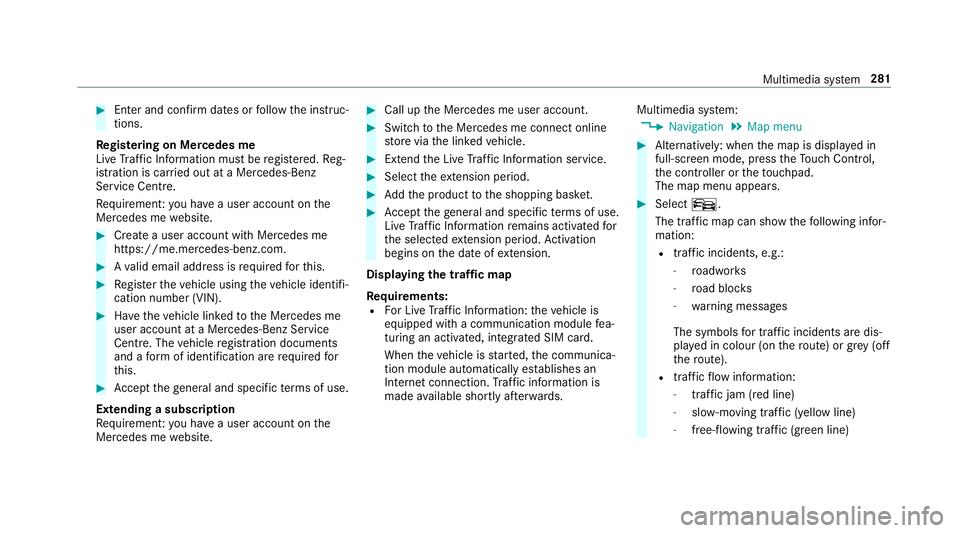
Map menu #
Alternatively: when the map is displa yed in
full-sc reen mode, press theTo uch Control,
th e controller or theto uchpad.
The map menu appears. #
Select º.
The traf fic map can show thefo llowing infor‐
mation:
R traf fic incidents, e.g.:
- roadwor ks
- road bloc ks
- warning messages
The symbols for traf fic incidents are dis‐
pl ay ed in colour (on thero ute) or grey (off
th ero ute).
R traf fic flow information:
- traf fic jam (red line)
- slow-moving traf fic (yellow line)
- free-flowing traf fic (green line) Multimedia sy
stem 281
Page 286 of 521
Map and compass
Map and compass
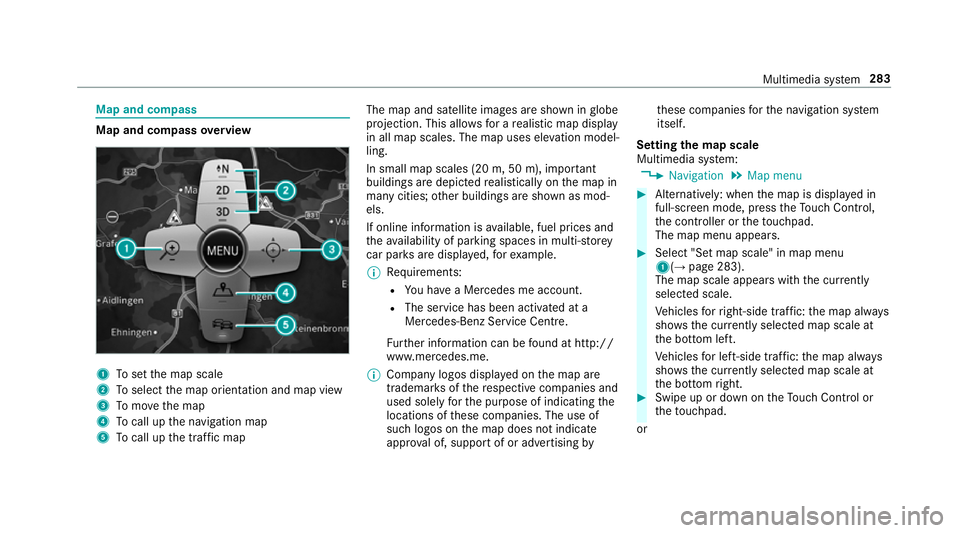
overview 1
Toset the map scale
2 Toselect the map orientation and map view
3 Tomo vethe map
4 Tocall up the navigation map
5 Tocall up the tra ffic map The map and satellite images are shown in
globe
projection. This allo wsfor a realistic map display
in all map scales. The map uses ele vation model‐
ling.
In small map scales (20 m, 50 m), impor tant
buildings are depicted realistically on the map in
many cities; other buildings are shown as mod‐
els.
If online information is available, fuel prices and
th eav ailability of parking spaces in multi-s torey
car pa rks are displa yed, forex ample.
% Requirements:
R You ha vea Mercedes me account.
R The service has been activated at a
Mercedes-Benz Service Cent re.
Fu rther information can be found at http://
www.mercedes.me.
% Company logos displ ayed on the map are
trademar ksofthere spective companies and
used solely forth e purpose of indicating the
locations of these companies. The use of
such logos on the map does not indicate
appr oval of, suppo rtof or advertising byth
ese companies forth e navigation sy stem
itself.
Setting the map scale
Multimedia sy stem:
, Navigation .
Map menu #
Alternatively: when the map is displa yed in
full-sc reen mode, press theTo uch Control,
th e controller or theto uchpad.
The map menu appears. #
Select "Set map scale" in map menu
1(→ page 283).
The map scale appears with the cur rently
selected scale.
Ve hicles forright-side traf fic: the map alw ays
sho ws th e currently selected map scale at
th e bottom left.
Ve hicles for left-side traf fic: the map alw ays
sho ws th e currently selected map scale at
th e bottom right. #
Swipe up or down on theTo uch Control or
th eto uchpad.
or Multimedia sy
stem 283
Page 288 of 521
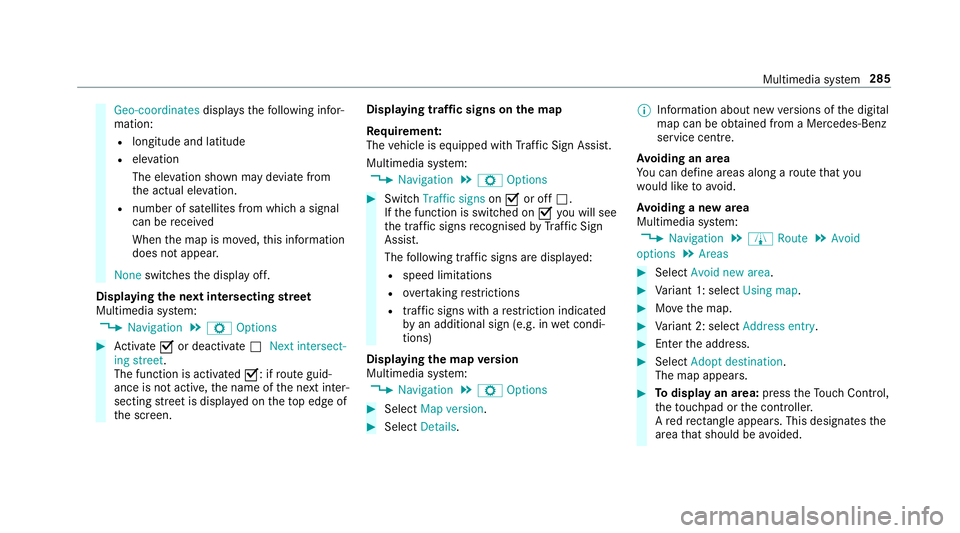
Geo-coordinates
displays thefo llowing infor‐
mation:
R longitude and latitude
R elevation
The el evation shown may deviate from
th e actual ele vation.
R number of sa tellites from which a signal
can be recei ved
When the map is mo ved, this information
does not appear.
None switches the display off.
Displaying the next intersecting stre et
Multimedia sy stem:
, Navigation .
Z Options #
Activate Oor deacti vate ª Next intersect-
ing street.
The function is activated O: ifroute guid‐
ance is not active, the name of the next inter‐
secting stre et is displa yed on theto p edge of
th e screen. Displaying traf
fic signs on the map
Re quirement:
The vehicle is equipped with Traf fic Sign Assi st.
Multimedia sy stem:
, Navigation .
Z Options #
Switch Traffic signs onO or off ª.
If th e function is switched on Oyou will see
th e traf fic signs recognised byTraf fic Sign
Assi st.
The following traf fic signs are displ ayed:
R speed limitations
R overtaking restrictions
R traf fic signs wi thare striction indicated
by an additional sign (e.g. in wet condi‐
tions)
Displ aying the map version
Multimedia sy stem:
, Navigation .
Z Options #
Select Map version . #
Select Details. %
Information about new versions of the digital
map can be obtained from a Mercedes-Benz
service cent re.
Av oiding an area
Yo u can define areas along a route that you
wo uld like toavoid.
Av oiding a new area
Multimedia sy stem:
, Navigation .
À Route .
Avoid
options .
Areas #
Select Avoid new area. #
Variant 1: select Using map. #
Movethe map. #
Variant 2: select Address entry. #
Enterth e address. #
Select Adopt destination.
The map appears. #
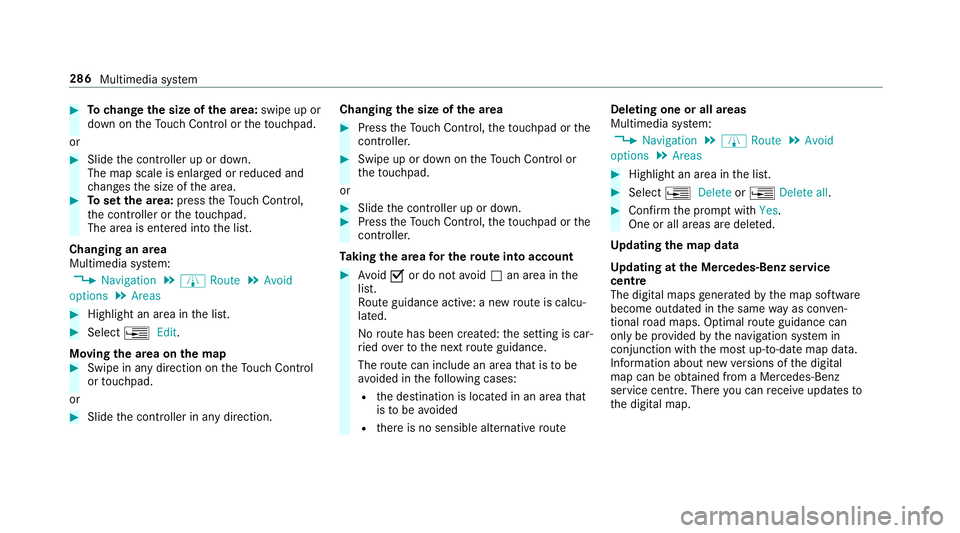
Todispl ayan area: presstheTo uch Control,
th eto uchpad or the controller.
A redre ctangle appea rs. This designates the
area that should be avoided. Multimedia sy
stem 285
Page 289 of 521
#
Tochange the size of the area: swipe up or
down on theTo uch Control or theto uchpad.
or #
Slide the controller up or down.
The map scale is enlar ged or reduced and
ch anges the size of the area. #
Toset the area: presstheTo uch Control,
th e controller or theto uchpad.
The area is en tere d into the list.
Changing an area
Multimedia sy stem:
, Navigation .
À Route .
Avoid
options .
Areas #
Highlight an area in the list. #
Select ¥Edit.
Moving the area on the map #
Swipe in any direction on theTo uch Control
or touchpad.
or #
Slide the controller in any direction. Changing
the size of the area #
Press theTo uch Control, theto uchpad or the
controller. #
Swipe up or down on theTo uch Control or
th eto uchpad.
or #
Slide the controller up or down. #
Press theTo uch Control, theto uchpad or the
controller.
Ta king the area for the route into account #
Avoid Oor do not avoid ªan area in the
list.
Ro ute guidance active: a new route is calcu‐
lated.
No route has been created: the setting is car‐
ri ed ove rto the next route guidance.
The route can include an area that is tobe
av oided in thefo llowing cases:
R the destination is located in an area that
is to be avo ided
R there is no sensible alternative route Deleting one or all areas
Multimedia sy
stem:
, Navigation .
À Route .
Avoid
options .
Areas #
Highlight an area in the list. #
Select ¥Delete or¥ Delete all. #
Confirm the prom ptwith Yes.
One or all areas are dele ted.
Up dating the map data
Up dating at the Mercedes-Benz se rvice
centre
The digital maps generated bythe map software
become outdated in the same way as co nven‐
tional road maps. Optimal route guidance can
on ly be pr ovided bythe navigation sy stem in
conjunction with the most up-to-date map data.
Information about new versions of the digital
map can be obtained from a Mercedes-Benz
service cent re. The reyou can recei veupdates to
th e digital map. 286
Multimedia sy stem
Page 290 of 521
Online map update
%
The online map update service is not availa‐
ble in all countries.
The online map update service from Mercedes
me connect can be used toupdate map data.
The update is per form ed:
R for one region (automatic map update)
R for se veral or all regions (manual map
update)
The service must be activated at a Mercedes-
Benz service centre in ordertouse automatic
updates.
Fu rther information on the online map update
http://www.mercedes.me.
Fu rther information on updates http://
manuals.daimle r.com/baix/cars/connectme/
de_DE/index.html.
Map data
Yo ur vehicle is supplied with map data at thefa c‐
to ry. Depending on the count ry, map data for
yo ur region is either pre-ins talled or the map
data is supplied on a data storage medium. Yo udo not
requ ire an activation code forth e map
data which is pr ovided with your vehicle.
If th e map data on your vehicle has been ins tal‐
led at thefa ctory and you wish toreins tall it, you
do not need toenter the activation code.
An activation code is requiredfor pur chased
map data.
The activation code:
R can be used in one vehicle
R is non-transferable
R has six digits
Please contact a Mercedes-Benz service centre
if yo u are experiencing thefo llowing problems:
R the multimedia sy stem does not accept the
activation code
R you ha velost the activation code Displaying
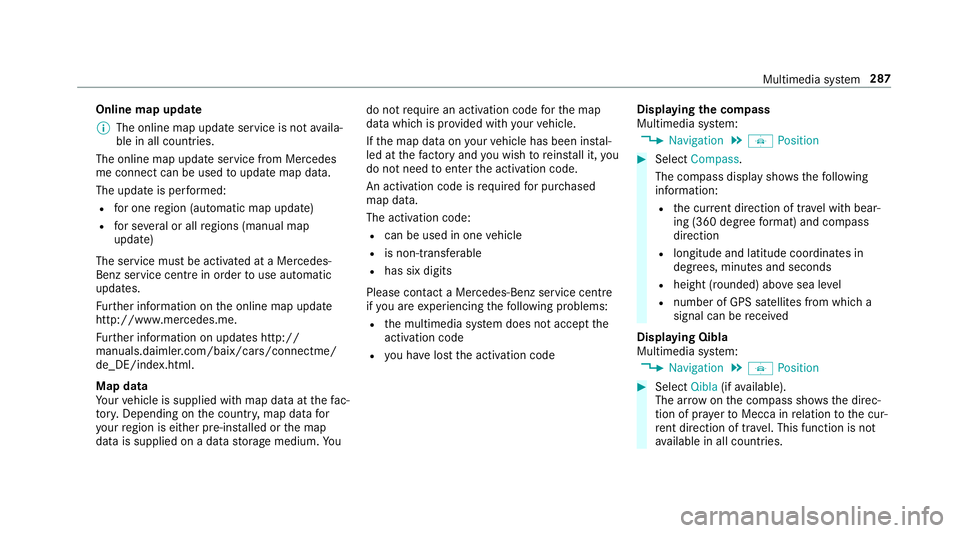
the compass
Multimedia sy stem:
, Navigation .
Á Position #
Select Compass.
The compass display sho wsthefo llowing
information:
R the cur rent di rection of tr avel with bear‐
ing (360 deg reefo rm at) and compass
direction
R longitude and latitude coo rdinates in
degrees, minutes and seconds
R height (rounded) abo vesea le vel
R number of GPS sa tellites from which a
signal can be recei ved
Displaying Qibla
Multimedia sy stem:
, Navigation .
Á Position #
Select Qibla(ifavailable).
The ar rowonthe compass sho wsthe direc‐
tion of pr ayer toMecca in relation tothe cur‐
re nt di rection of tr avel. This function is not
av ailable in all countries. Multimedia sy
stem 287
Page 291 of 521
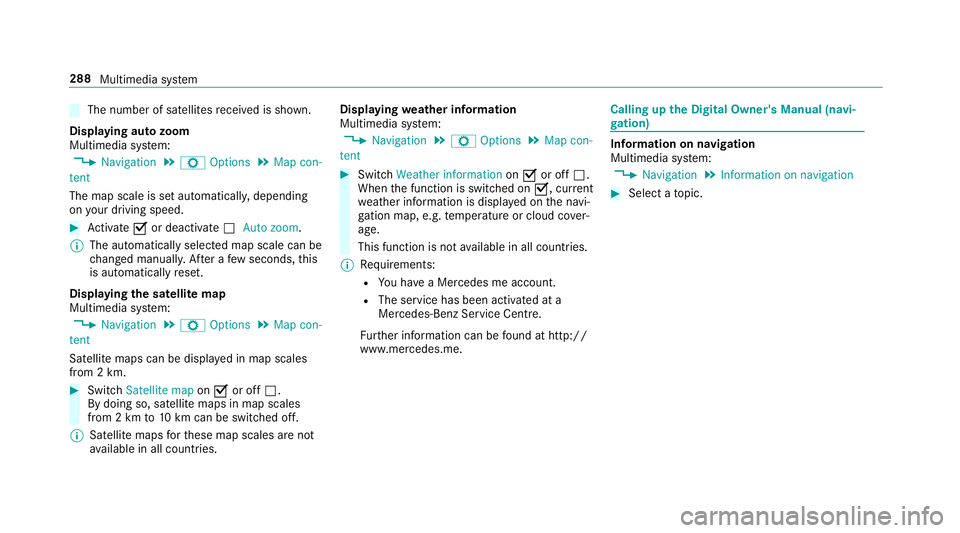
The number of satellites
recei ved is shown.
Displaying auto zoom
Multimedia sy stem:
, Navigation .
Z Options .
Map con-
tent
The map scale is set automaticall y,depending
on your driving speed. #
Activate Oor deacti vate ª Auto zoom .
% The au tomatical lyselected map scale can be
ch anged manuall y.After a few seconds, this
is automatically reset.
Displaying the satellite map
Multimedia sy stem:
, Navigation .
Z Options .
Map con-
tent
Satellite maps can be displa yed in map scales
from 2 km. #
Switch Satellite map onO or off ª.
By doing so, satellite maps in map scales
from 2 km to10 km can be switched off.
% Satelli temaps forth ese map scales are not
av ailable in all countries. Displ
aying weather information
Multimedia sy stem:
, Navigation .
Z Options .
Map con-
tent #
Switch Weather information onO or off ª.
When the function is switched on O, current
we ather information is displa yed on the navi‐
ga tion map, e.g. temp erature or cloud co ver‐
age.
This function is not available in all countries.
% Requirements:
R You ha vea Mercedes me account.
R The service has been activated at a
Mercedes-Benz Service Cent re.
Fu rther information can be found at http://
www.mercedes.me. Calling up
the Digital Owner's Manual (navi‐
ga tion) In
fo rm ation on navigation
Multimedia sy stem:
, Navigation .
Information on navigation #
Select a topic. 288
Multimedia sy stem
Page 293 of 521
This could also cause
youto lose control of
th eve hicle.
Only operate this equipment when theve hi‐
cle is stationar y. Yo
u must obse rveth e legal requ irements forthe
country in whi chyou are cur rently driving when
operating mobile communication equipment in
th eve hicle.
Te lephony is possible via:
R the Blue tooth®
inter face
R thete lephone module with Blue tooth®
(SAP
profile) Blue
tooth ®
profile overview Blue
tooth ®
profile
of the mobile phone Fu
nction
PBAP (Phone Book
Access Profile) Contacts are auto‐
matically displa
yed in
th e multimedia sys‐
tem
MAP (Message
Access Profile) Message functions
can be used Fu
rther information can be obtained from a
Mercedes-Benz service centre or at: http://
www.mercedes-benz.com/connect.
HD Voice ®
R Toimpr ove vo icequalit y,the multimedia sys‐
te m supports telephone calls in HD Voice ®
.
R In order touse this function, the mobile
phones and the mobile phone network pro‐
vider of the person you are calling must sup‐
port HD Voice ®
.
Depending on thequ ality of the connection, the
vo ice quality may fluctuate. The
following situations can lead tothe call
being disconnected while theve hicle is in
motion:
R there is insuf ficient network co verage inthe
area
R you mo vefrom one GSM or UMTS transmit‐
te r/receiver area (cell) into ano ther and no
communication channels are free
R the SIM card used is not compatible with the
network available
R a mobile phone with "Twincard" is logged into
th e network with the second SIM card at the
same time
Connecting a mobile phone (authorising)
Re quirements:
Blue tooth ®
is activated on the mobile phone (see
th e manufacturer's operating instructions).
Blue tooth ®
is activated on the multimedia sys‐
te m (→ page 259). 290
Multimedia sy stem
Page 300 of 521
Yo
u can obtain fur ther information about set‐
tings and suppor ted functions of Blue tooth®
-
capable mobile phones from a Mercedes-Benz
service centre or at: http://www.mercedes-
benz.com/connect
Some mobile phones require fur ther settings
af te r being connected tothe multimedia sy stem
(see manufacturer's Owner's Manual).
New messages are identified bythe1 symbol
in the multimedia sy stem's display and an audi‐
ble signal.
R The multimedia sy stem displa ys the100
ne we sttext messa ges.
R The ú symbol is displa yed when the
mobile phone's messa gememory is full.
Confi guring thete xt messages displa yed
Multimedia sy stem:
, Telephone .
Z Options .
Call up
messages #
Select ¥.
A menu with thefo llowing options is shown:
R All messages R
New and unread messages
R New messages
R Off (The text messa ges are not displa yed
automaticall y.) #
Select an option.
Re ading text messages
Multimedia sy stem:
, Telephone .
i Text message
Re ading a text message #
Select a text messa ge.
The message text is displ ayed.
Using there ad-aloud function #
Highlight thete xt messa ge. #
Select ¥. #
Select +Read aloud .
The text messa geisread aloud.
Composing and sending a text message
Multimedia sy stem:
, Telephone .
i Text message #
Navigate tothe left twice. #
Select Write new text message.
Ad ding a recipient #
Select Press to add recipient. #
Select the conta ct.
Dictating text #
Select Press to dictate.
The App forth e dictation function is loaded.
If th ere was no prior Internet connection, a
connection is now es tablished. #
Tostart the dictation function: press the con‐
troller or touchpad. #
Dictate your message.
The dic tation ends au tomatical lyafte ryou
ha ve finished speaking.
Af terth evo ice message has been processed,
it is shown as text.
Editing text #
Select thewo rd. Multimedia sy
stem 297
Page 306 of 521
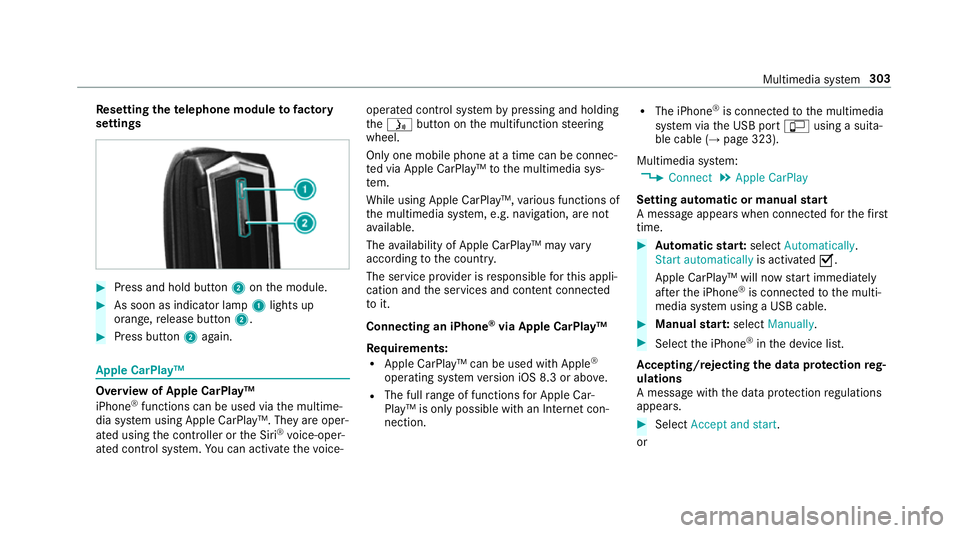
Re
setting thete lephone module to factory
settings #
Press and hold button 2onthe module. #
As soon as indicator lamp 1lights up
orange, release button 2. #
Press button 2again. Apple CarPlay™
Overview of Apple CarPlay™
iPhone
®
functions can be used via the multime‐
dia sy stem using Apple CarPlay™. They are oper‐
ated using the controller or the Siri ®
vo ice-oper‐
ated control sy stem. You can activate thevo ice- operated control sy
stem bypressing and holding
th eó button on the multifunction steering
wheel.
Only one mobile phone at a time can be connec‐
te d via Apple CarPlay™ tothe multimedia sys‐
te m.
While using Apple CarPlay™, various functions of
th e multimedia sy stem, e.g. navigation, are not
av ailable.
The availability of Apple CarPlay™ may vary
according tothe count ry.
The service pr ovider is responsible forth is appli‐
cation and the services and conte nt connected
to it.
Connecting an iPhone ®
via Apple CarPlay™
Re quirements:
R Apple CarPlay™ can be used with Apple ®
operating sy stem version iOS 8.3 or abo ve.
R The full range of functions for Apple Car‐
Play™ is only possible with an Internet con‐
nection. R
The iPhone ®
is connected tothe multimedia
sy stem via the USB port çusing a suita‐
ble cable (→ page 323).
Multimedia sy stem:
, Connect .
Apple CarPlay
Setting automatic or manual start
A messa geappears when connec tedfo rth efirst
time. #
Automatic star t:select Automatically.
Start automatically is activatedO.
Apple CarPlay™ will now start immediately
af te rth e iPhone ®
is connected tothe multi‐
media sy stem using a USB cable. #
Manual star t:select Manually . #
Select the iPhone ®
in the device list.
Ac cepting/rejecting the data pr otection reg‐
ulations
A message with the data pr otection regulations
appears. #
Select Accept and start.
or Multimedia sy
stem 303