light MERCEDES-BENZ E-CLASS CABRIOLET 2018 Owners Manual
[x] Cancel search | Manufacturer: MERCEDES-BENZ, Model Year: 2018, Model line: E-CLASS CABRIOLET, Model: MERCEDES-BENZ E-CLASS CABRIOLET 2018Pages: 589, PDF Size: 10.56 MB
Page 337 of 589
Fu
nctions of the mobile phone in two phone
mode
Fu nctions overview Mobile phone in
the
fo re gr ound Mobile phone in
the
bac kground
Fu llra nge of func‐
tions Incoming calls Using a SIM card
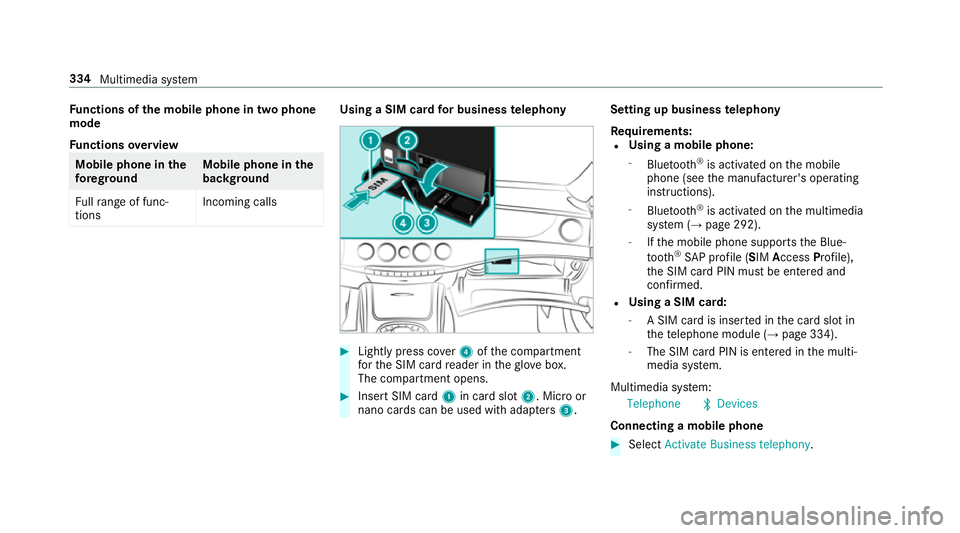
for business telephony #
Light lypress co ver4 ofthe compartment
fo rth e SIM card reader in theglove box.
The compartment opens. #
Insert SIM card 1in card slot 2. Micro or
nano cards can be used with adap ters 3 . Setting up business
telephony
Re quirements:
R Using a mobile phone:
- Blue tooth ®
is activated on the mobile
phone (see the manufacturer's operating
instructions).
- Blue tooth ®
is activated on the multimedia
sy stem (→ page 292).
- Ifth e mobile phone supports the Blue‐
tooth ®
SA P profile (SIM AccessProfile),
th e SIM card PIN must be entered and
confi rmed.
R Using a SIM card:
- A SIM card is inser ted in the card slot in
th ete lephone module (→ page 334).
- The SIM card PIN is entered in the multi‐
media sy stem.
Multimedia sy stem:
Telephone ªDevices
Connecting a mobile phone #
Select Activate Business telephony .334
Multimedia sy stem
Page 339 of 589
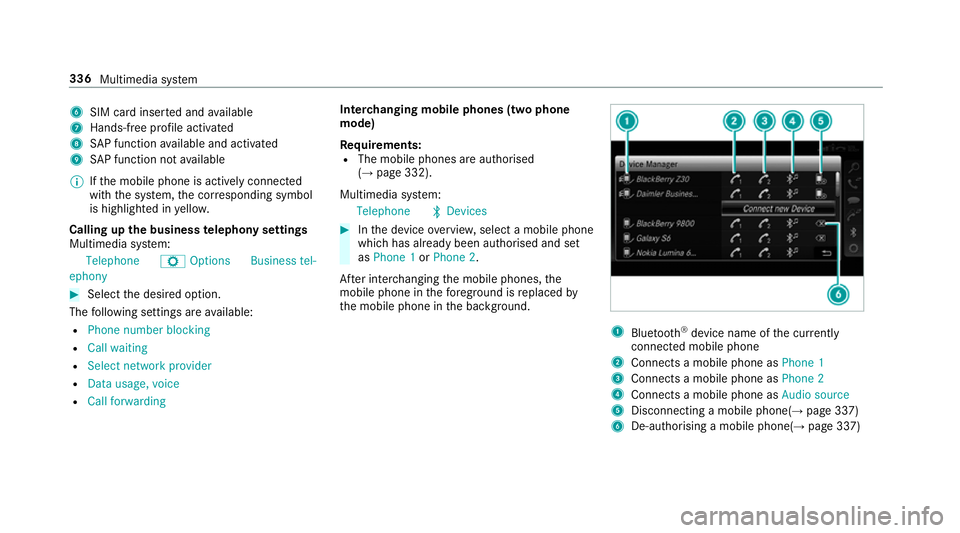
6
SIM card inse rted and available
7 Hands-free profile activated
8 SAP function available and activated
9 SAP function not available
% Ifth e mobile phone is actively connected
with the sy stem, the cor responding symbol
is highlighte d inyello w.
Calling up the business telephony settings
Multimedia sy stem:
Telephone ZOption sBusiness tel-
ephony #
Select the desired option.
The following settings are available:
R Phone number blocking
R Call waiting
R Select network provider
R Data usage, voice
R Call forwarding Inter
changing mobile phones (two phone
mode)
Re quirements:
R The mobile phones are authorised
(→ page 332).
Multimedia sy stem:
Telephone ªDevices #
Inthe device overview, select a mobile phone
which has already been authorised and set
as Phone 1 orPhone 2.
Af ter inter changing the mobile phones, the
mobile phone in thefo re ground isreplaced by
th e mobile phone in the bac kground. 1
Blue tooth ®
device name of the cur rently
connected mobile phone
2 Connects a mobile phone as Phone 1
3 Connects a mobile phone as Phone 2
4 Connects a mobile phone as Audio source
5 Disconnecting a mobile phone(→ page 337)
6 De-au thorising a mobile phone(→ page 337)336
Multimedia sy stem
Page 362 of 589
#
Toswitch from PANto DUN: select the
mobile phone. #
Select ¥. #
Select Change configuration. #
Deactivate ªAutomatic configuration. #
Select Configure settings using COMAND .#
Configuri ngthe Internet connection using
preset or manual access data (→ page 358).
% While using business telephon y,it is not pos‐
sible toswitch Blue tooth ®
profiles.
Editing access data
Requ irements:
R The mobile phone supports the Blue tooth®
DUN profile.
Multimedia sy stem:
System öConnectivit yInternet set-
tings #
Highlight the mobile phone. #
Select ¥. #
Select Change configuration . #
For mobile phones with PAN and DUN:
select Configure settings using COMAND. #
Configure the Internet connection using pre‐
set or manual access data (→ page 358).
Cancelling Internet access permission for a
mobile phone
Multimedia sy stem:
System öConnectivit yInternet set-
tings #
Highlight the mobile phone. #
Select ¥. #
Select Delete configuration. #
Select Yes.
Displaying mobile phone details
Multimedia sy stem:
System öConnectivit yInternet set-
tings #
Highlight the mobile phone. #
Select ¥. #
Select Details. Establishing an Internet connection
Multimedia sy
stem:
Connect #
Forex ample, select zBrowser .
% The multimedia sy stem usually es tablishes
th e Internet connection automaticall y.Ifthe
multimedia sy stem is not connected tothe
Internet, the Internet connection is es tab‐
lished when an Internet application is used.
% The availability of web br ows ers is count ry-
dependent. Multimedia sy
stem 359
Page 365 of 589
Calling up
web br owser options
Multimedia sy stem:
Connect zBrowser ZOptions
The following functions are available:
R Refresh page /Cancel
R Zoom
R Browser settings
R Delete browser data #
Select an option. #
Make the desired changes tothe settings.
Calling up thewe b br owser settings
Multimedia sy stem:
Con-
nect zBrowser ZOption sBrow
ser settings
The following functions are available:
R Block popups
R Enable Javascript
R Enable cookies #
Activate Oor deacti vate ª the function. Deleting br
owser data
Multimedia sy stem:
Con-
nect zBrowser ZOption sDelet
e browser data
The following options are available:
R All
R Cache
R Cookies
R Entered URLs
R Form data #
Select an option. #
Select Yes.
Managing bookmar ks
Multimedia sy stem:
Connect zBrowser ßBook-
marks
Selecting a bookmark #
Select an entry. Creating a bookmark #
Select Add new bookmark. #
Enter a URL and a name. #
Select ¡.
Editing a bookmark #
Highlight a bookmar k. #
Select p. #
Select Edit. #
Enter a URL and a name. #
Select ¡.
Deleting a bookmark #
Highlight a bookmar k. #
Select p. #
Select Delete. #
Select Yes.
Closing the br owser
Multimedia sy stem:
Connect zBrowser #
Select åClose browser .362
Multimedia sy stem
Page 382 of 589
Setting
the frequency band Multimedia sy
stem:
Radio ÞRadio source #
Select a frequency band. Selecting a
radio station Multimedia sy
stem:
Radio #
Navigate up or down. Calling up
thera dio station list Multimedia sy
stem:
Radio è #
Select a station. Sear
ching forra dio stations using station
names or direct frequency entry Multimedia sy
stem:
Radio èè #
Enter a station name or frequenc y. #
Select a.
The sea rchre sults are displa yed. #
Select a station. St
oring radio stations Multimedia sy
stem:
Radio ßPresets #
Select Store current station in the presets . Editing
radio station presets Multimedia sy
stem:
Radio ßPresets
Moving stations: #
Highlight a preset entry and navigate tothe
left. #
Select Move highlighted station. #
Select a memo rypreset.
Deleting stations: #
Highlight a preset entry and navigate tothe
left. #
Select Delete highlighted station. #
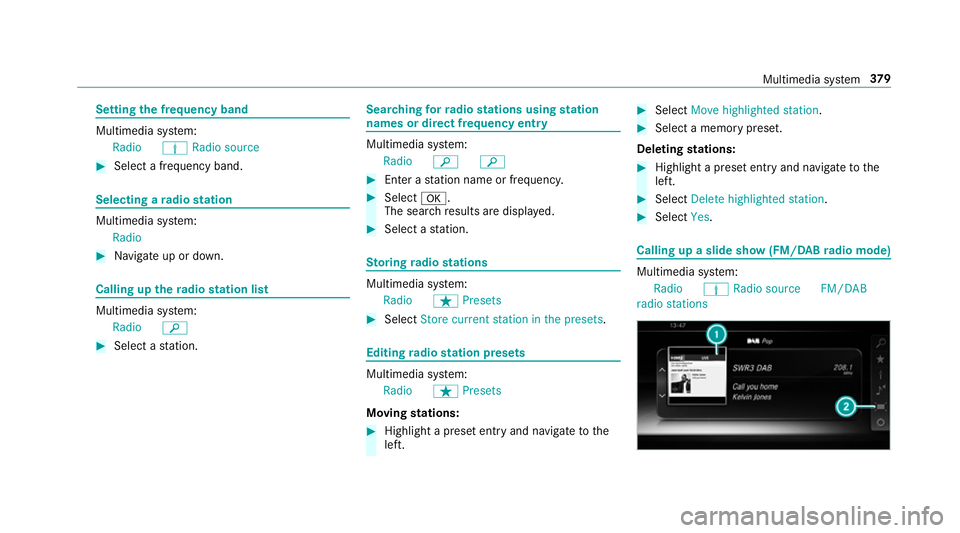
Select Yes. Calling up a slide show (FM/DAB
radio mode) Multimedia sy
stem:
Radio ÞRadio source FM/DAB
radio stations Multimedia sy
stem 37 9
Page 389 of 589
Quic
k-saving a TVchannel
Multimedia sy stem:
Media àMedia sources TV #
In full-screen mode, press theto uchpad for
longer than thre e seconds.
The cur rent TV channel is stored in the
fa vo urites in the next available position.
St oring TVchannels
Multimedia sy stem:
Media àMedia sour-
ces TV ßPresets #
Select Store current station in the presets .
or #
Highlight a channel in thech annel list and
st ore as a favo urite.
The cur rent channel is stored in thefa vo ur‐
ites in the next available position.
Moving channels in thefa vo urites #
Highlight a channel in thefa vo urites. #
Select ¥Move highlighted station. #
Highlight the new position. #
Confirm the position.
Deleting channels #
Highlight a channel in thefa vo urites. #
Select ¥Delete highlighted station. #
Select Yes.
Using a voice tag
Multimedia sy stem:
Media àDevi-
ces TV ßFavourites #
Highlight a TVchannel in thefa vo urites. #
Select ¥Voice tag . #
Alternatively: use a voice tag inthech annel
list.
Creating a voice tag #
Select Add. #
Say a voice tag.
A messa geappears when thevo ice tag has
been created.
Lis tening toavo ice tag #
Select Listen. Deleting a
voice tag #
Select Delete.
A message appears asking whe ther youwa nt
to dele tethevo ice tagfo rth eTV channel. #
Select Yes. TV
prog ramme Overvi
ewof audio language and subtitles
Au dio language
R It is possible tochoose between se veral
audio languages when a programme is broad‐
cast in multiple languages.
R If En glish, forex ample, is set as the sy stem
language and a TVchannel is broadcasting in
th is language, En glish is selec ted automati‐
cally.
The prog ramme transmission may be indica ted
with thefo llowing symbols:
m Programme with audio explanations for
th e visually impaired
o Stereo broadcast 386
Multimedia sy stem
Page 396 of 589
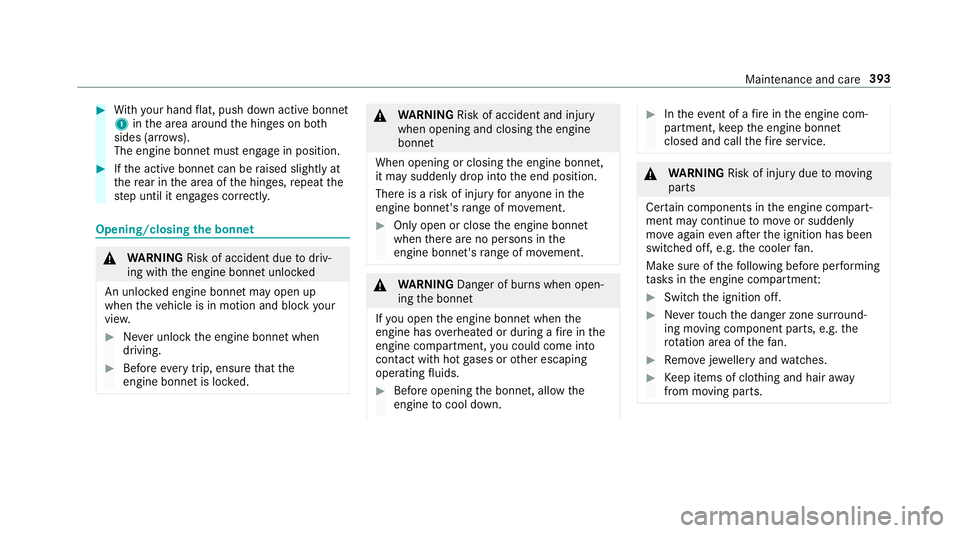
#
With your hand flat, push down active bonnet
1 inthe area around the hinges on bo th
sides (ar rows).
The engine bonnet must engage in position. #
Ifth e active bonn etcan be raised slight lyat
th ere ar in the area of the hinges, repeat the
st ep until it engages cor rectl y. Opening/closing
the bonnet &
WARNING Risk of accident due todriv‐
ing with the engine bonn etunlo cked
An unloc ked engine bonn etmay open up
when theve hicle is in motion and block your
vie w. #
Never unlock the engine bonn etwhen
driving. #
Before every trip, ensure that the
engine bonn etis loc ked. &
WARNING Risk of accident and inju ry
when opening and closing the engine
bonn et
When opening or closing the engine bonn et,
it may suddenly drop into the end position.
There is a risk of injury for an yone in the
engine bonn et's range of mo vement. #
Only open or close the engine bonn et
when there are no persons in the
engine bonn et's range of mo vement. &
WARNING Danger of bu rns when open‐
ing the bonn et
If yo u open the engine bonn etwhen the
engine has overheated or during a fire inthe
engine compartment, you could come into
contact with hot gases or other escaping
operating fluids. #
Before opening the bonn et, allow the
engine tocool down. #
Intheeve nt of a fire inthe engine com‐
partment, keep the engine bonn et
closed and call thefire service. &
WARNING Risk of inju rydue tomoving
parts
Cer tain components in the engine compart‐
ment may continue tomo veor suddenly
mo veagain even af terth e ignition has been
switched off, e.g. the cooler fan.
Ma kesure of thefo llowing before per form ing
ta sks in the engine compartmen t: #
Switch the ignition off. #
Neverto uch the danger zone sur round‐
ing moving co mponent parts, e.g. the
ro tation area of thefa n. #
Remo vejewe llery and watches. #
Keep items of clo thing and hair away
from moving parts. Maintenance and care
393
Page 398 of 589
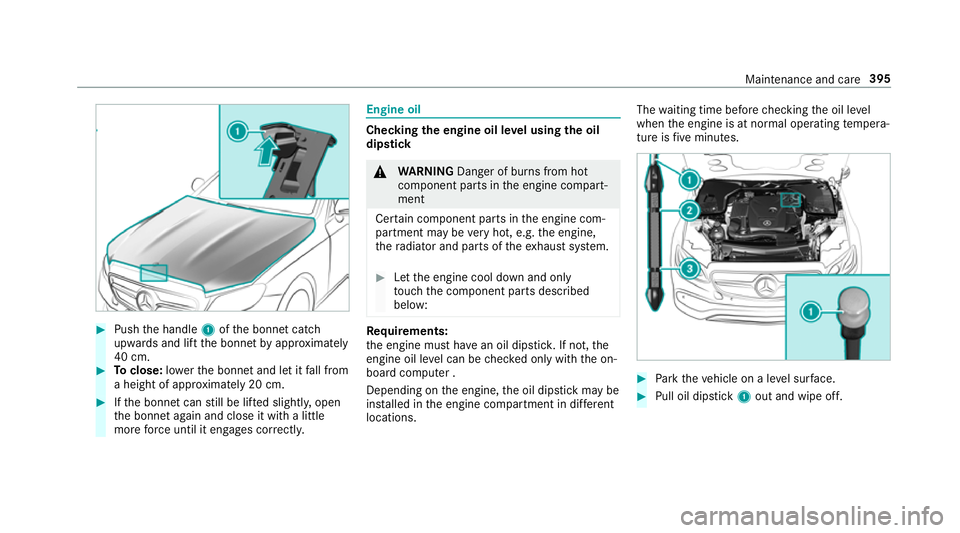
#
Push the handle 1ofthe bonn etcatch
up wa rds and lift the bonn etby appr oximately
40 cm. #
Toclose: lowe rth e bonn etand let it fall from
a height of appr oximately 20 cm. #
Ifth e bonn etcan still be lif ted slightl y,open
th e bonn etagain and close it with a little
more forc e until it engages cor rectly. Engine oil
Che
cking the engine oil le vel using the oil
dip stick &
WARNING Danger of bu rns from hot
component parts in the engine compart‐
ment
Cer tain component parts in the engine com‐
partment may be very hot, e.g. the engine,
th era diator and parts of theex haust sy stem. #
Let the engine cool down and only
to uch the component parts described
below: Re
quirements:
th e engine must ha vean oil dipstic k.If not, the
engine oil le vel can be checked only with the on-
board computer .
Depending on the engine, the oil dipstick may be
ins talled in the engine compartment in dif fere nt
locations. The
waiting time before checking the oil le vel
when the engine is at normal operating temp era‐
ture is five minutes. #
Park theve hicle on a le vel sur face. #
Pull oil dipstick 1out and wipe off. Maintenance and care
395
Page 404 of 589
R
maintain a dis tance of at least 30 cm tothe
ve hicle.
R vehicles with deco rative foil: parts of your
ve hicle are co vered with a decorative foil.
Maintain a dis tance of at least 70 cm
between thefo il-c ove red parts of theve hicle
and the nozzle of the high-pressure cleaner.
Mo vethe high-pressure cleaner nozzle
around whilst cleaning. The waterte mp era‐
ture of the high-pressure cleaner must not
exc eed 60 °C. R
obser vethe information on the cor rect dis‐
ta nce in the equipment manufacturer's oper‐
ating instructions.
R do not point the nozzle of the high-pressure
cleaner directly at sensitive parts such as
tyres, the soft top, the wind deflector net,
slits, electrical component parts, batteries,
light sources and ventilation sl ots. Wa
shing the vehicle byhand Obser
vethe legal requirements, e.g. in a number
of countries, washing byhand is only permitted
in specially designated wash ba ys. #
Use a mild cleaning agent, e.g. car shampoo. #
Washtheve hicle with luk ewarmwate r using
a soft car sponge. When doing so, do not
ex pose theve hicle todirect sunlight. #
Carefully hose theve hicle off with water and
dry using a chamois. Take care not topoint
th ewate r jet directly towa rdsth e air inlet
grille. Maintenance and care
401
Page 405 of 589
Note
s on paint work/matt finish paint workcare Obser
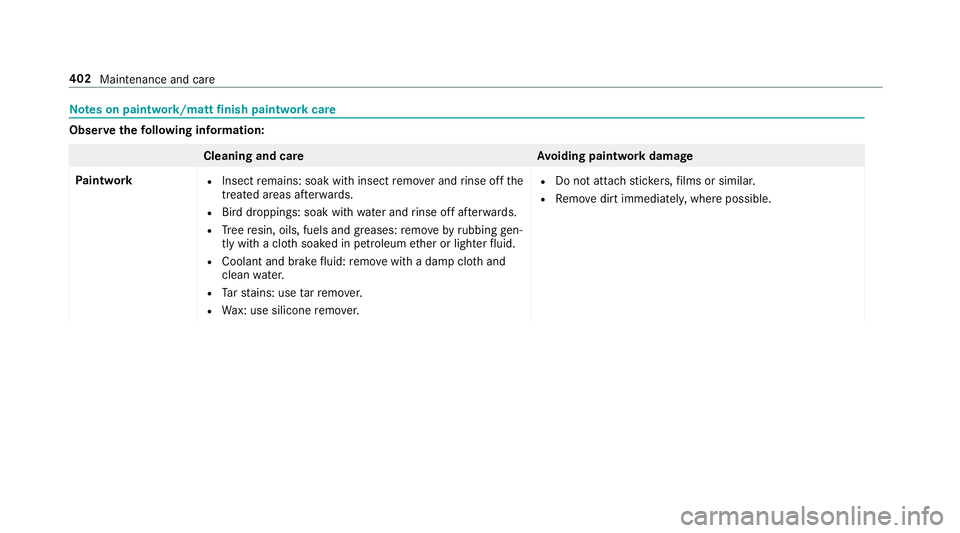
vethefo llowing information: Cleaning and car
eA voiding paintwork damage
Pa intwork R
Insect remains: soak with insect remo ver and rinse off the
trea ted areas af terw ards.
R Bird droppings: soak with water and rinse off af terw ards.
R Tree resin, oils, fuels and greases: remo veby rubbing gen‐
tly wi tha clo thsoaked in petroleum ether or lighter fluid.
R Coolant and brake fluid: remo vewith a damp clo thand
clean water.
R Tarst ains: use tarre mo ver.
R Wax: use silicone remo ver. R
Do not attach sticke rs,fi lms or similar.
R Remo vedirt immediatel y,where possible. 402
Maintenance and care