ad blue MERCEDES-BENZ E-Class COUPE 2010 C212 Comand Manual
[x] Cancel search | Manufacturer: MERCEDES-BENZ, Model Year: 2010, Model line: E-Class COUPE, Model: MERCEDES-BENZ E-Class COUPE 2010 C212Pages: 224, PDF Size: 7.4 MB
Page 85 of 224
Traffic Lane Recommendations
On multi-lane roads, COMAND may display
traffic lane recommendations. For this there
must be corresponding data available on the
digital map.
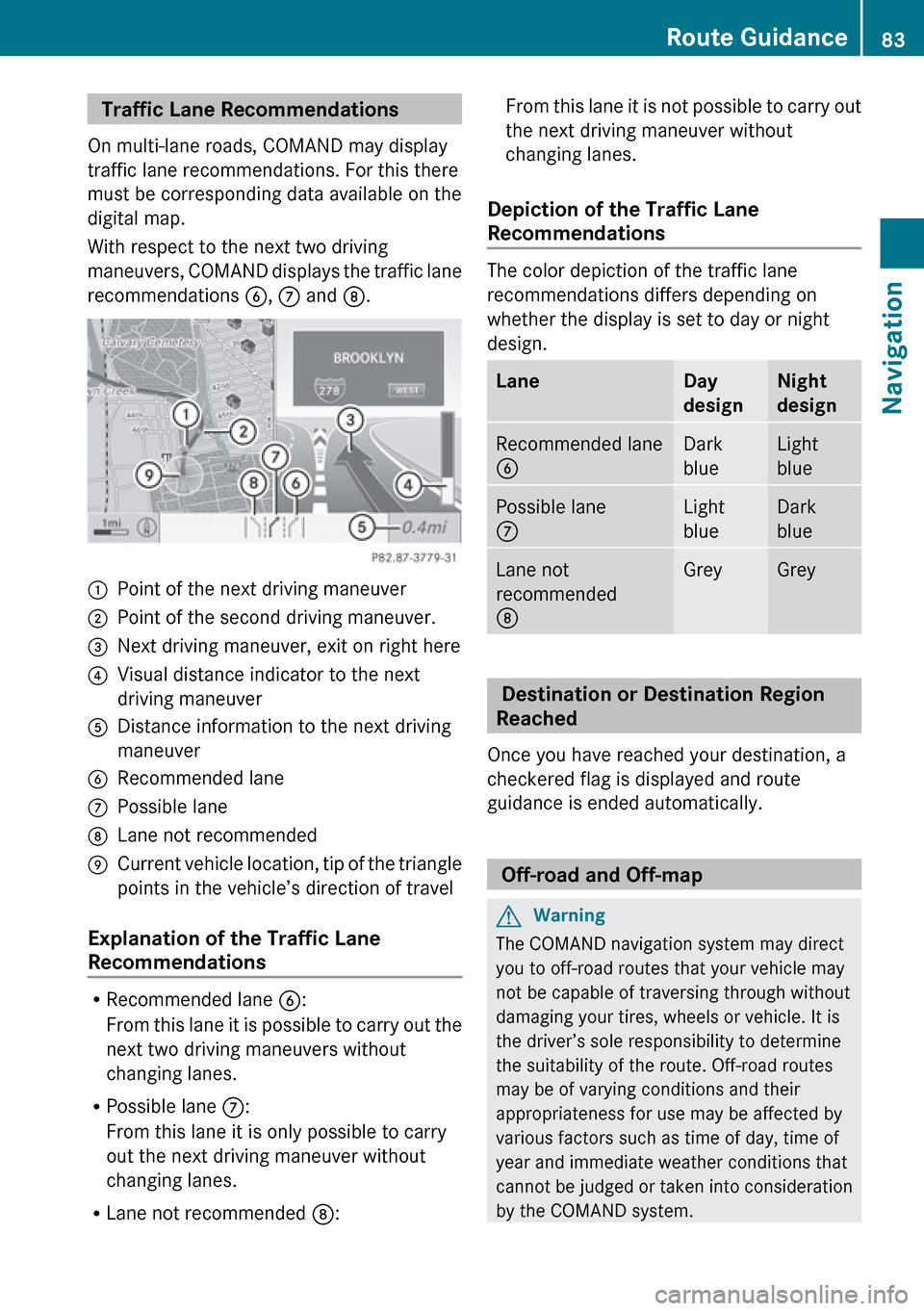
With respect to the next two driving
maneuvers, COMAND displays the traffic lane
recommendations 6, 7 and 8.1Point of the next driving maneuver2Point of the second driving maneuver.3Next driving maneuver, exit on right here4Visual distance indicator to the next
driving maneuver5Distance information to the next driving
maneuver6Recommended lane7Possible lane8Lane not recommended9Current vehicle location, tip of the triangle
points in the vehicle’s direction of travel
Explanation of the Traffic Lane
Recommendations
R Recommended lane 6:
From this lane it is possible to carry out the
next two driving maneuvers without
changing lanes.
R Possible lane 7:
From this lane it is only possible to carry
out the next driving maneuver without
changing lanes.
R Lane not recommended 8:
From this lane it is not possible to carry out
the next driving maneuver without
changing lanes.
Depiction of the Traffic Lane
Recommendations
The color depiction of the traffic lane
recommendations differs depending on
whether the display is set to day or night
design.
LaneDay
designNight
designRecommended lane
6Dark
blueLight
bluePossible lane
7Light
blueDark
blueLane not
recommended
8GreyGrey
Destination or Destination Region
Reached
Once you have reached your destination, a
checkered flag is displayed and route
guidance is ended automatically.
Off-road and Off-map
GWarning
The COMAND navigation system may direct
you to off-road routes that your vehicle may
not be capable of traversing through without
damaging your tires, wheels or vehicle. It is
the driver’s sole responsibility to determine
the suitability of the route. Off-road routes
may be of varying conditions and their
appropriateness for use may be affected by
various factors such as time of day, time of
year and immediate weather conditions that
cannot be judged or taken into consideration
by the COMAND system.
Route Guidance83NavigationZ
Page 86 of 224
Route Guidance to an Off-road
Destination
COMAND can also guide you to destinations
that are within the area covered by the digital
map, but are not themselves included on the
map. Such destinations are off-road
destinations, which you can enter, for
example, by entering the destination via the
map.
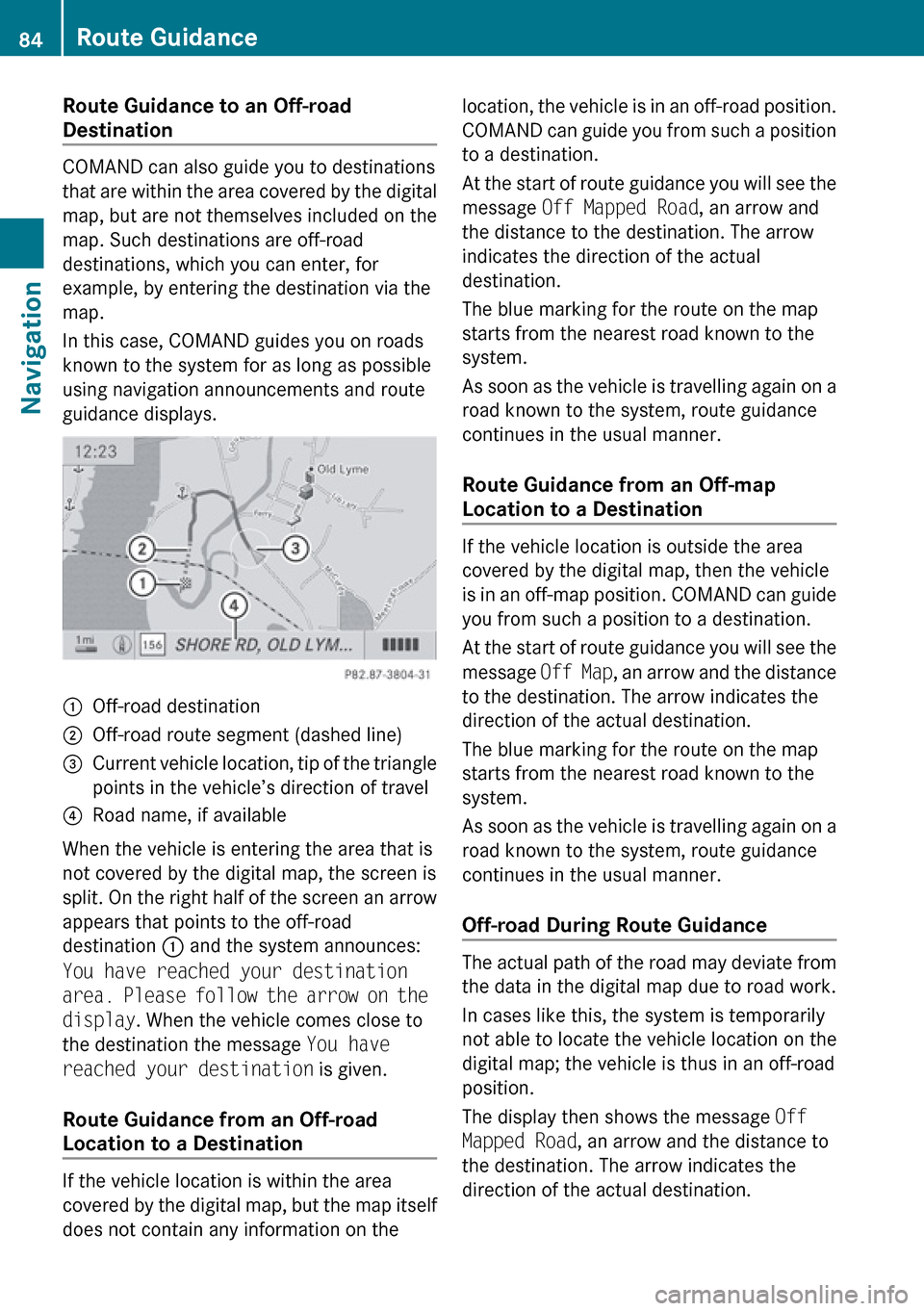
In this case, COMAND guides you on roads
known to the system for as long as possible
using navigation announcements and route
guidance displays.
1Off-road destination2Off-road route segment (dashed line)3Current vehicle location, tip of the triangle
points in the vehicle’s direction of travel4Road name, if available
When the vehicle is entering the area that is
not covered by the digital map, the screen is
split. On the right half of the screen an arrow
appears that points to the off-road
destination 1 and the system announces:
You have reached your destination
area. Please follow the arrow on the
display . When the vehicle comes close to
the destination the message You have
reached your destination is given.
Route Guidance from an Off-road
Location to a Destination
If the vehicle location is within the area
covered by the digital map, but the map itself
does not contain any information on the
location, the vehicle is in an off-road position.
COMAND can guide you from such a position
to a destination.
At the start of route guidance you will see the
message Off Mapped Road , an arrow and
the distance to the destination. The arrow
indicates the direction of the actual
destination.
The blue marking for the route on the map
starts from the nearest road known to the
system.
As soon as the vehicle is travelling again on a
road known to the system, route guidance
continues in the usual manner.
Route Guidance from an Off-map
Location to a Destination
If the vehicle location is outside the area
covered by the digital map, then the vehicle
is in an off-map position. COMAND can guide
you from such a position to a destination.
At the start of route guidance you will see the
message Off Map, an arrow and the distance
to the destination. The arrow indicates the
direction of the actual destination.
The blue marking for the route on the map
starts from the nearest road known to the
system.
As soon as the vehicle is travelling again on a
road known to the system, route guidance
continues in the usual manner.
Off-road During Route Guidance
The actual path of the road may deviate from
the data in the digital map due to road work.
In cases like this, the system is temporarily
not able to locate the vehicle location on the
digital map; the vehicle is thus in an off-road
position.
The display then shows the message Off
Mapped Road , an arrow and the distance to
the destination. The arrow indicates the
direction of the actual destination.
84Route GuidanceNavigation
Page 88 of 224
segment and the route segment to which
the block goes.XTo cancel the function: Select Back.XTo start route calculation: Select Start,
see also ( Y page 70).XTo delete block: In map view with the
menu system displayed, select Route
£ Detour £Delete .
Alternative Route
i You can have other routes calculated for
the original route guidance using the
Alternative Route function.
XIn the map display with the menu system
displayed ( Y page 54) select Route
£ Alternative Route .
The display is split into two halves. On the
left is the map, which displays one or more
alternative routes between the start and
the destination. The current route is
highlighted in dark blue, other alternative
routes are light blue (day mode). If the
display is in night mode, the representation
is inverse.
The right side of the display shows
information on the active alternative route,
e.g. length of the segment and the
estimated time of arrival.XTo select next or previous alternative
route: Select Next or Previous .
The selected route is now highlighted in
dark blue.XTo return to the original route guidance:
Select Back.XTo start route guidance with the
selected alternative route guidance:
Select Start.
Route Browser
i The route browser provides an overview
of the route. You can move along the route
segment by segment using the route
browser and view information and details
about the route segments.XIn the map display with the menu system
displayed, select Route£Route
Browser .
The route browser is in the display.
The top of the display shows information on
the highlighted route segment, e.g. the
road name or number and the segment
length of the road to be driven.
The highlighted route segment is identified
on the map by its white color and red edge.XTo display next or previous route
segment: Select Next or Previous .XTo enlarge or reduce the map display:
Select ; or :.XTo close route browser: Select Back.
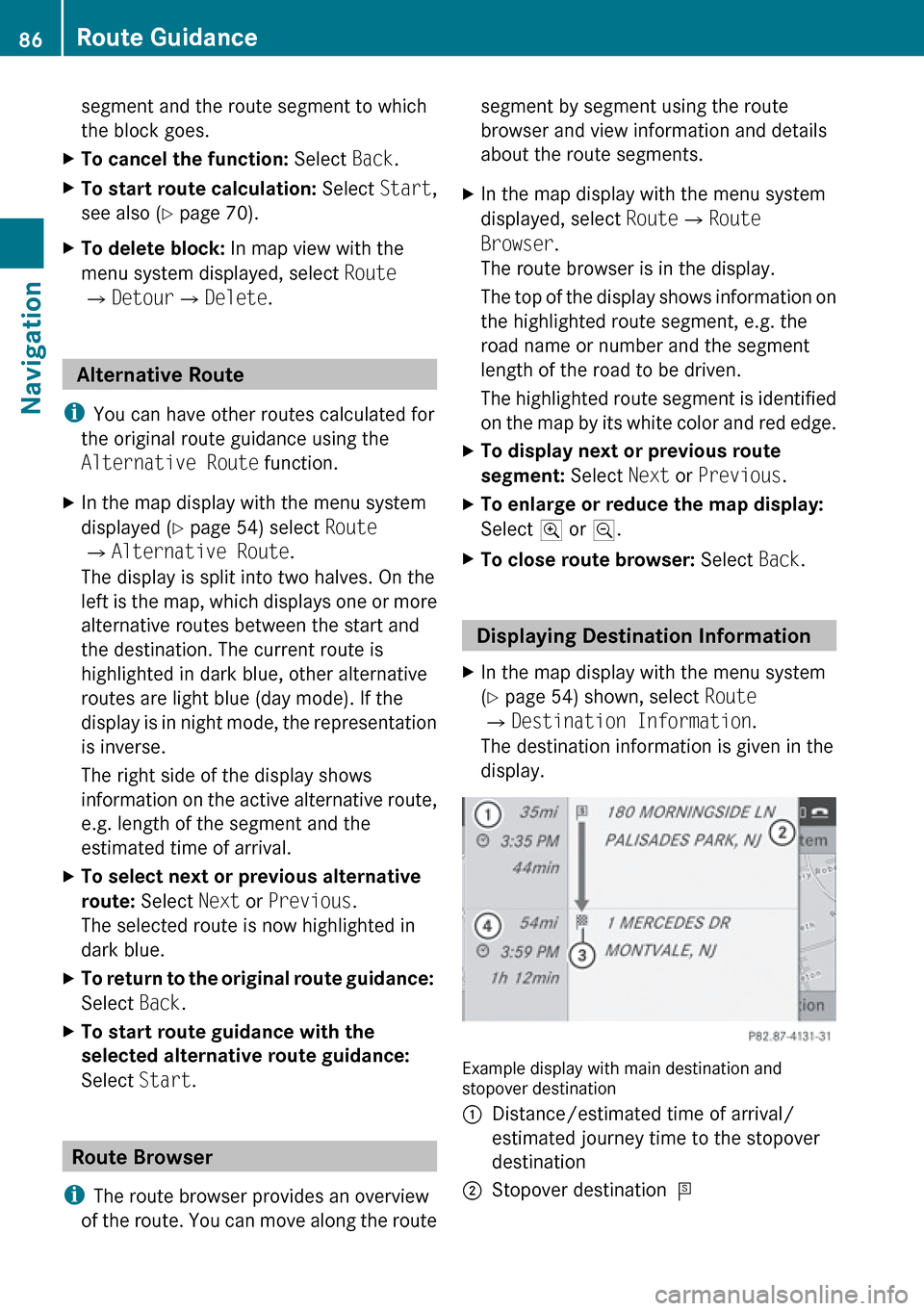
Displaying Destination Information
XIn the map display with the menu system
( Y page 54) shown, select Route
£ Destination Information .
The destination information is given in the
display.
Example display with main destination and
stopover destination
1Distance/estimated time of arrival/
estimated journey time to the stopover
destination2Stopover destination =86Route GuidanceNavigation
Page 100 of 224
Safety PrecautionsGWarning
Some jurisdictions prohibit the driver from
using a cellular telephone while driving.
Whether or not prohibited by law, for safety
reasons, the driver should not use the cellular
telephone while the vehicle is in motion. Stop
the vehicle in a safe location before placing or
answering a call.
If you nonetheless choose to use the mobile
phone while driving, please use the handsfree
feature and be sure to pay attention to the
traffic situation at all times. Use the mobile
phone only when road, weather and traffic
conditions permit. Otherwise, you may not be
able to observe traffic conditions and could
endanger yourself and others.
Bear in mind that at a speed of just 30 mph
(approximately 50 km/h), your vehicle is
covering a distance of 44 feet (approximately
14 m) every second.
GWarning
You and others may damage your health due
to excessive electromagnetic radiation. By
using an external antenna, the possible health
risks of electromagnetic fields, which are
under discussion among the scientific
community, should be largely prevented.
General Information
Vehicle Equipment
i This Operator’s Manual describes all
features, standard or optional, potentially
available for your vehicle at the time of
purchase. Please be aware that your
vehicle might not be equipped with all
features described in this manual.
Making Calls via Bluetooth ®
Interface
The telephone function via the Bluetooth ®
interface is available in conjunction with a
Bluetooth-enabled mobile phone.
With a suitable mobile phone, you can use
COMAND’s hands-free feature to download
contacts from your mobile phone (Phone
Book Access profile) and electronic business
cards (vCards) via the Bluetooth ®
interface.
Suitable Mobile Phones
Further information on suitable mobile
phones and connecting Bluetooth-enabled
mobile phones to COMAND is available via
the Internet at www.mbusa-mobile.com. Or
call the Mercedes-Benz Customer Assistance
Center at 1-800-FOR-MERCedes
(1-800-367-6372) (US), or Customer
Relations at 1-800-387-0100 (Canada).
Interruptions to the Connection
While Driving
Interruptions to the connection may occur if
R there is inadequate network coverage in
certain regions
R you are switching from one transmitting/
receiving station (cell) to another and there
is no voice channel available in this cell
R you are using a SIM card that is not
compatible with the available network
R when using a mobile phone with
“Twincard”, the mobile phone is
simultaneously logged into the network
with the second SIM card.
Operating Options
If the mobile phone is connected with
COMAND via the Bluetooth ®
interface, you
can operate the phone using the following
devices:
98General InformationTelephone
Page 101 of 224
RKeypad on the COMAND control unit
R Multifunction steering wheel
R Voice Control
The explanations in this section assume that
the mobile phone is connected to COMAND
via the Bluetooth ®
interface. Exceptions are
explicitly described.
Functional Restrictions
Under the following circumstances, the
phone may not yet be useable:
R If it is not yet logged into a network. The
phone will try independently to log into a
network. If no network is available, you will
not be able to make “911” emergency calls.
If you try to make an outgoing call, the
message No Service appears briefly.
Activating the Mobile Phone
Mobile Phone With Bluetooth ®
Interface
Prerequisites for the Mobile Phone
For making calls using COMAND via the
Bluetooth ®
interface, you will need a
Bluetooth-enabled mobile phone.
i Not all mobile phones available on the
market are comparably suitable. Further
information on suitable mobile phones and
connecting Bluetooth-enabled mobile
phones to COMAND is available via the
Internet at www.mbusa-mobile.com. Or
call the Mercedes-Benz Customer
Assistance Center at 1-800-FOR-
MERCedes (1-800-367-6372) (US), or
Customer Relations at 1-800-387-0100
(Canada).
Activating Bluetooth ®
Before you begin activation of your mobile
phone connection via the Bluetooth ®
interface please ensure it is compatible with
Bluetooth ®
handsfree profile 1.0 or higher
( Y mobile phone operating guide):XSwitch on the mobile phone and enter the
PIN, if applicable ( Y mobile phone
operating guide).XActivate Bluetooth ®
connection on the
mobile phone ( Y mobile phone operating
guide).
i On certain mobile phones, not only do you
have to activate the Bluetooth ®
function
but the device must also be made “visible”
for other devices.
Each Bluetooth ®
device has a Bluetooth ®
device name. It is recommended to give the
device a personal name, by which you can
clearly recognize your mobile phone.
i If the Bluetooth ®
function on the
COMAND is switched off, the message
Bluetooth not activated in system
settings . appears.
XActivate Bluetooth ®
connection on
COMAND ( Y page 45).
Registering a Mobile Phone
(Authorizing)
When you use your mobile phone in
conjunction with COMAND for the first time,
you must register (authorize) it.
It is possible to register several mobile
phones. The connection is always established
to the mobile phone that was activated last.
When you authorize a new mobile phone, it is
activated automatically. You can switch
between the authorized mobile phones
( Y page 101).
Searching for a Mobile Phone
XIn the phone submenu select Phone
£ Bluetooth Phones £Update .
COMAND searches for suitable
Bluetooth ®
phones within range and enters
them in the phone list.Activating the Mobile Phone99TelephoneZ
Page 102 of 224
iThe duration of the search procedure
depends on the number and type of
Bluetooth ®
phones. The search may take a
few minutes.
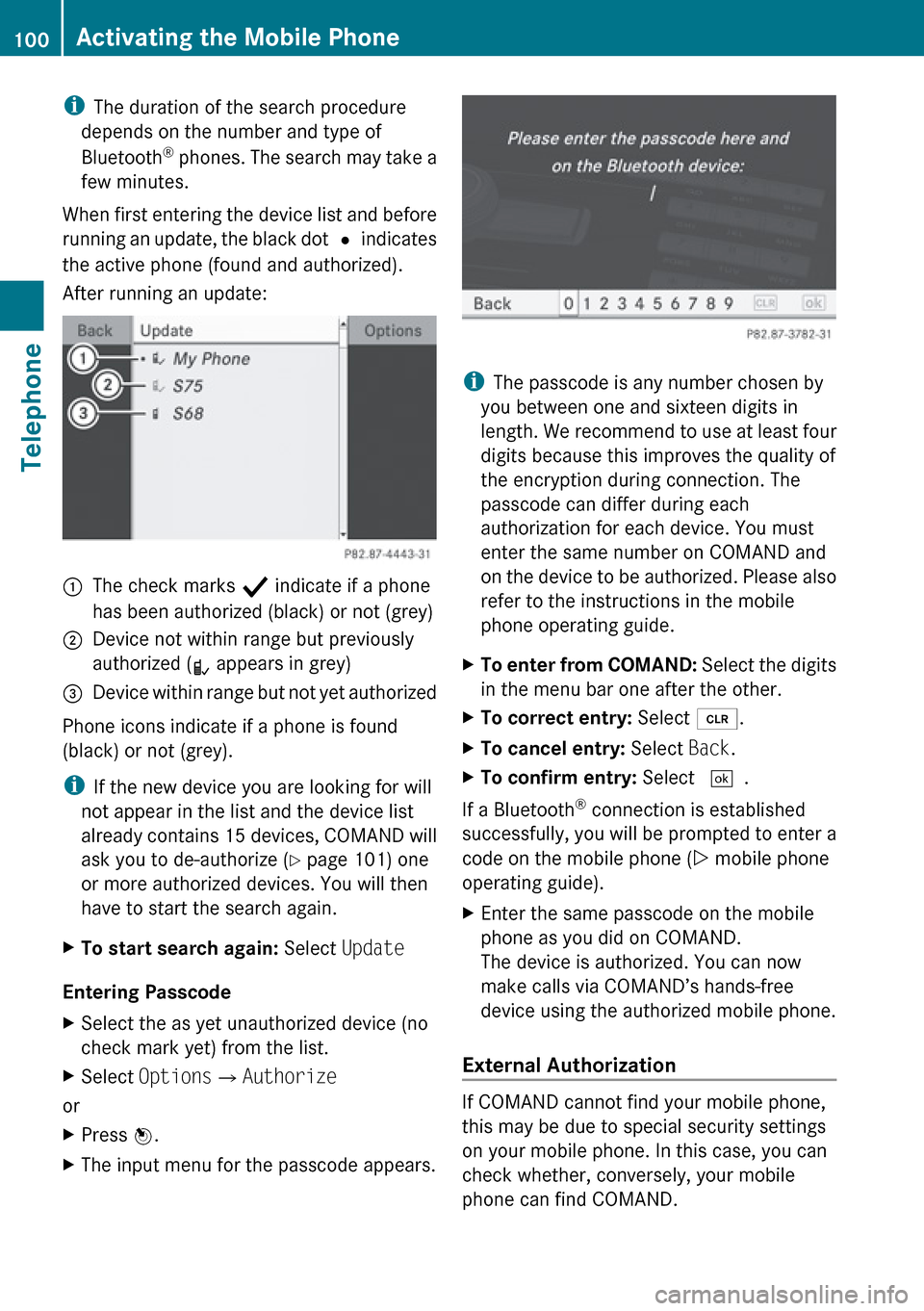
When first entering the device list and before
running an update, the black dot R indicates
the active phone (found and authorized).
After running an update:1The check marks Ò indicate if a phone
has been authorized (black) or not (grey)2Device not within range but previously
authorized ( ¿ appears in grey)3Device within range but not yet authorized
Phone icons indicate if a phone is found
(black) or not (grey).
i If the new device you are looking for will
not appear in the list and the device list
already contains 15 devices, COMAND will
ask you to de-authorize ( Y page 101) one
or more authorized devices. You will then
have to start the search again.
XTo start search again: Select Update
Entering Passcode
XSelect the as yet unauthorized device (no
check mark yet) from the list.XSelect Options £Authorize
or
XPress n.XThe input menu for the passcode appears.
i
The passcode is any number chosen by
you between one and sixteen digits in
length. We recommend to use at least four
digits because this improves the quality of
the encryption during connection. The
passcode can differ during each
authorization for each device. You must
enter the same number on COMAND and
on the device to be authorized. Please also
refer to the instructions in the mobile
phone operating guide.
XTo enter from COMAND: Select the digits
in the menu bar one after the other.XTo correct entry: Select õ.XTo cancel entry: Select Back.XTo confirm entry: Select ¬.
If a Bluetooth ®
connection is established
successfully, you will be prompted to enter a
code on the mobile phone ( Y mobile phone
operating guide).
XEnter the same passcode on the mobile
phone as you did on COMAND.
The device is authorized. You can now
make calls via COMAND’s hands-free
device using the authorized mobile phone.
External Authorization
If COMAND cannot find your mobile phone,
this may be due to special security settings
on your mobile phone. In this case, you can
check whether, conversely, your mobile
phone can find COMAND.
100Activating the Mobile PhoneTelephone
Page 103 of 224
COMAND’s Bluetooth®
device name is “MB
Bluetooth”.XIn the phone submenu select Phone
£ Bluetooth Phones £Update
£ Options £External
Authorization .XStart the Bluetooth ®
search on the mobile
phone ( Y mobile phone operator's guide).XSelect COMAND (“MB Bluetooth”) on the
mobile phone.XWhen prompted to do so, enter the
passcode on the mobile phone and on
COMAND.
i After you have entered the passkey on
COMAND and on the mobile phone, you
have to trigger a connection to COMAND
manually on some mobile phones.
Displaying Details on a Mobile Phone
XIn the phone submenu select Phone
£ Bluetooth Phones .XSelect the mobile phone from the list.XSelect Options £Details .
The details screen for the device is
displayed.XTo close the details screen: Rotate
y m z or slide om p.
or
XPress the n or the k button.
Deregistering (De-Authorizing) a
Mobile Phone
XIn the phone submenu select Phone
£ Bluetooth Phones .XSelect the authorized mobile phone.XSelect Options £De-Authorize .
You will be asked whether the device
should really be de-authorized.XSelect Yes or No.
If you select Yes, the authorization of the
device is withdrawn.i If the authorization of a device which had
been authorized in the past has been
withdrawn, the device list no longer
includes this device.
i If you de-authorize the mobile phone on
COMAND, you should also de-authorize
“MB Bluetooth” on the mobile phone.
Otherwise a future authorization may fail.
Activating Another Mobile Phone
If you have authorized several mobile phones,
you can switch between the individual mobile
phones.
When you authorize a new mobile phone, it is
activated automatically. Only one mobile
phone is active at a time.
XSelect Phone£Bluetooth Phones .XSelect the mobile phone from the list.XPress n.
The selected mobile phone is activated if
the selected mobile is within reception
range and its Bluetooth ®
function is
switched on. Any previously activated
phone is deactivated.
Setting Transmit and Receive Volume
i These settings should normally not be
changed as the factory settings are
matched to most mobile phones.
i Changes may result in significant
impairments to the transmission quality.
These settings may not be changed during
an active phone call.
XIn the phone submenu select Phone
£ Bluetooth Phones .XSelect the authorized mobile phone.XSelect Options £Reception Volume or
Transmission Volume .
i
Reception and Transmission volume only
appear for authorized devices.
Activating the Mobile Phone101TelephoneZ
Page 104 of 224
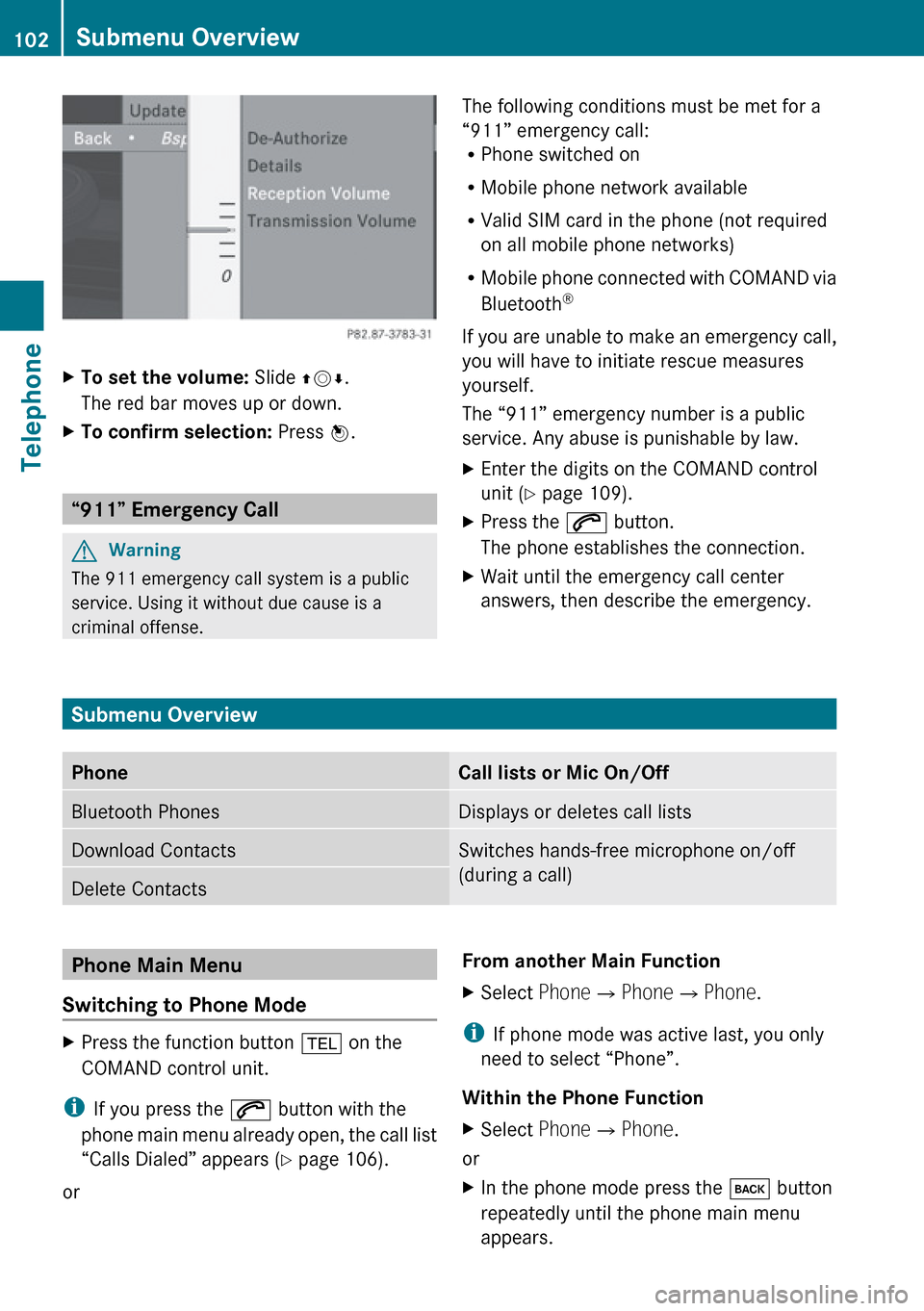
XTo set the volume: Slide qmr.
The red bar moves up or down.XTo confirm selection: Press n.
“911” Emergency Call
GWarning
The 911 emergency call system is a public
service. Using it without due cause is a
criminal offense.
The following conditions must be met for a
“911” emergency call:
R Phone switched on
R Mobile phone network available
R Valid SIM card in the phone (not required
on all mobile phone networks)
R Mobile phone connected with COMAND via
Bluetooth ®
If you are unable to make an emergency call,
you will have to initiate rescue measures
yourself.
The “911” emergency number is a public
service. Any abuse is punishable by law.XEnter the digits on the COMAND control
unit ( Y page 109).XPress the 6 button.
The phone establishes the connection.XWait until the emergency call center
answers, then describe the emergency.
Submenu Overview
PhoneCall lists or Mic On/OffBluetooth PhonesDisplays or deletes call listsDownload ContactsSwitches hands-free microphone on/off
(during a call)Delete ContactsPhone Main Menu
Switching to Phone ModeXPress the function button % on the
COMAND control unit.
i If you press the 6 button with the
phone main menu already open, the call list
“Calls Dialed” appears ( Y page 106).
or
From another Main FunctionXSelect Phone£Phone £Phone .
i
If phone mode was active last, you only
need to select “Phone”.
Within the Phone Function
XSelect Phone£Phone .
or
XIn the phone mode press the k button
repeatedly until the phone main menu
appears.102Submenu OverviewTelephone
Page 108 of 224
XSelect Yes or No.
If you select Yes, a selection list will appear
containing the five existing numbers.XSelect the number to be overwritten.
The input menu with the data field for
entering the new telephone number
appears.XTo enter digits: Select the required digits
in sequence from the input speller or use
the number keypad.XTo move the cursor in the data field:
Select Y or Z.XTo delete individual digits: Select õ
and briefly press the n button.
or
XPress the 2 button next to the
COMAND controller.
The digit to the left of the cursor is deleted.XTo delete an entire entry: Select õ
and press n until the entire entry has been
deleted.
or
XPress and hold down the 2 button next
to the COMAND controller until the entire
entry is deleted.XTo save entry: Select d.
Call Lists
i COMAND supports Bluetooth ®
PBAP
(Phone Book Access Profile).
How COMAND handles call lists depends
on the type of mobile phone connected:
R Bluetooth ®
phone with PBAP support:
COMAND downloads the call lists from
the mobile phone when the phone is
connected to COMAND
R Bluetooth ®
phone without PBAP support:
COMAND creates the call lists from calls
received (including missed calls) and
made during phone mode when a mobile
phone is connected to COMAND.
The particular menu item can only be
selected if calls have already been received
or made from COMAND.
The display of missed calls in the COMAND
display is not possible with all mobile
phones.
i The menu item Call lists is not active
if no mobile phone is connected to
COMAND.
i If the mobile phone does not support
PBAP, COMAND automatically deletes the
call lists if a mobile phone other than the
last used is connected.
i The instrument cluster control system
displays a list of the last dialed calls.
i For many operating functions you can
also use the buttons on the multifunction
steering wheel, e.g. the =, ; ,
9 , : , a , 6 or ~ buttons,
for selecting a menu, scrolling through lists
or initiating or ending a call ( Y page 25).
Calling up the List
XIn the phone main menu select Call
Lists .
A menu appears.XSelect Calls Received or Calls
Dialed .
The appropriate list appears.
or
XWhen the basic telephone menu is
displayed, press the 6 button on
COMAND.
A list of the last dialed calls appears.106Call ListsTelephone
Page 111 of 224
asking whether you wish to overwrite one
of the existing numbers.XSelect Yes or No.
If you select Yes, a selection list with the
five existing numbers is displayed.XSelect the number to be overwritten.
COMAND overwrites the selected number
with the new data.
Deleting Call Lists
This function is only available if you use a
Bluetooth ®
phone without PBAB support, that
is, if the call lists have been created by
COMAND.
XSelect Call Lists £Delete Call
Lists from the basic telephone menu.
A query appears asking if all call lists are to
be deleted.XSelect Yes or No.
The call lists will either be deleted or not,
depending on your selection.
i If you use a mobile phone with PBAP
support, you have to delete the call lists on
the mobile phone. Next time you reconnect
the mobile phone, COMAND downloads the
empty call lists.
Making Calls
Incoming Call
Rejecting or Accepting Calls
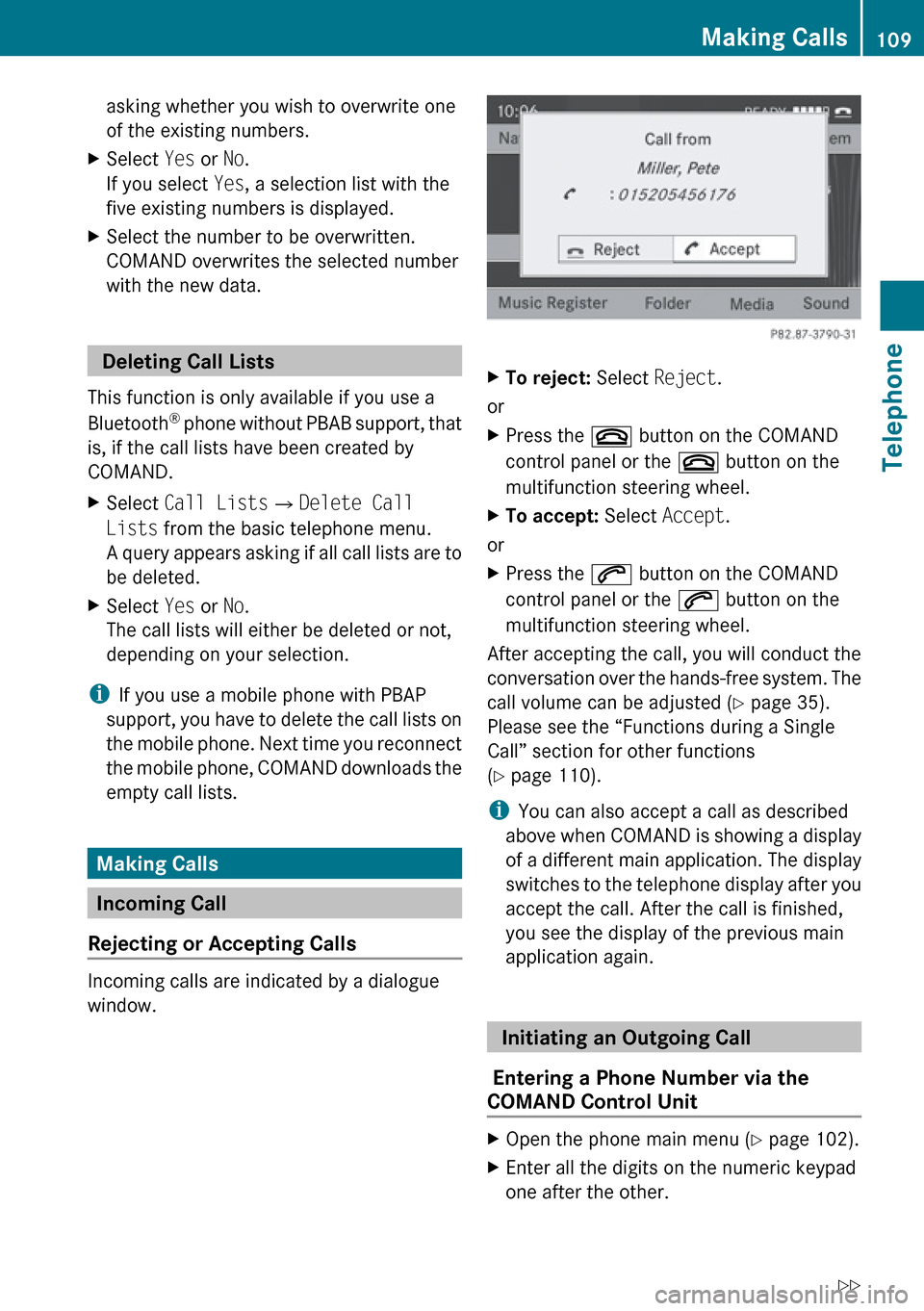
Incoming calls are indicated by a dialogue
window.
XTo reject: Select Reject.
or
XPress the ~ button on the COMAND
control panel or the ~ button on the
multifunction steering wheel.XTo accept: Select Accept.
or
XPress the 6 button on the COMAND
control panel or the 6 button on the
multifunction steering wheel.
After accepting the call, you will conduct the
conversation over the hands-free system. The
call volume can be adjusted ( Y page 35).
Please see the “Functions during a Single
Call” section for other functions
( Y page 110).
i You can also accept a call as described
above when COMAND is showing a display
of a different main application. The display
switches to the telephone display after you
accept the call. After the call is finished,
you see the display of the previous main
application again.
Initiating an Outgoing Call
Entering a Phone Number via the
COMAND Control Unit
XOpen the phone main menu ( Y page 102).XEnter all the digits on the numeric keypad
one after the other.Making Calls109TelephoneZ