sd card MERCEDES-BENZ E-Class COUPE 2010 C212 Comand Manual
[x] Cancel search | Manufacturer: MERCEDES-BENZ, Model Year: 2010, Model line: E-Class COUPE, Model: MERCEDES-BENZ E-Class COUPE 2010 C212Pages: 224, PDF Size: 7.4 MB
Page 38 of 224
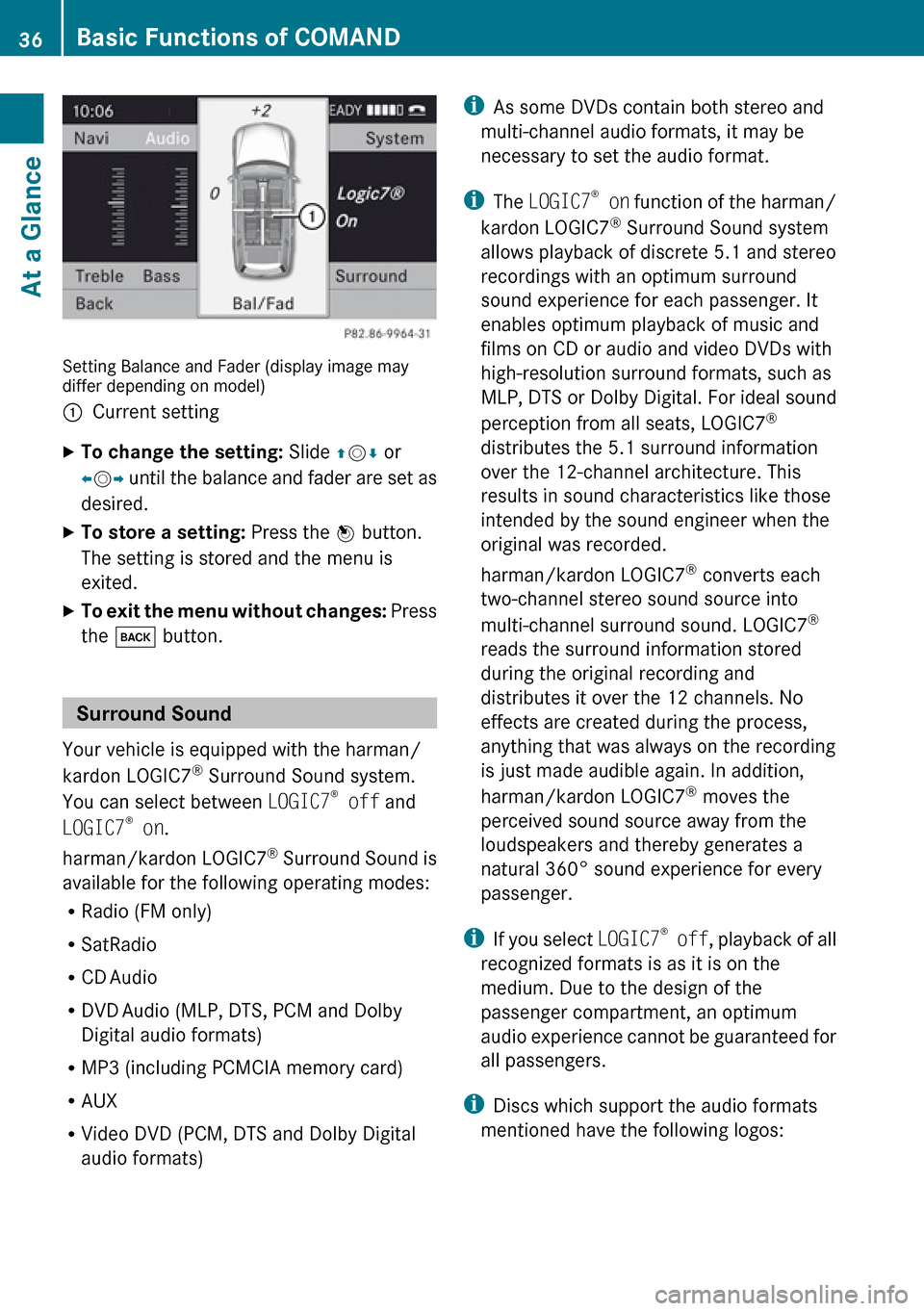
Setting Balance and Fader (display image may
differ depending on model)
1Current settingXTo change the setting: Slide qm r or
o m p until the balance and fader are set as
desired.XTo store a setting: Press the n button.
The setting is stored and the menu is
exited.XTo exit the menu without changes: Press
the k button.
Surround Sound
Your vehicle is equipped with the harman/
kardon LOGIC7 ®
Surround Sound system.
You can select between LOGIC7®
off and
LOGIC7 ®
on .
harman/kardon LOGIC7 ®
Surround Sound is
available for the following operating modes:
R Radio (FM only)
R SatRadio
R CD Audio
R DVD Audio (MLP, DTS, PCM and Dolby
Digital audio formats)
R MP3 (including PCMCIA memory card)
R AUX
R Video DVD (PCM, DTS and Dolby Digital
audio formats)
i As some DVDs contain both stereo and
multi-channel audio formats, it may be
necessary to set the audio format.
i The LOGIC7 ®
on function of the harman/
kardon LOGIC7 ®
Surround Sound system
allows playback of discrete 5.1 and stereo
recordings with an optimum surround
sound experience for each passenger. It
enables optimum playback of music and
films on CD or audio and video DVDs with
high-resolution surround formats, such as
MLP, DTS or Dolby Digital. For ideal sound
perception from all seats, LOGIC7 ®
distributes the 5.1 surround information
over the 12-channel architecture. This
results in sound characteristics like those
intended by the sound engineer when the
original was recorded.
harman/kardon LOGIC7 ®
converts each
two-channel stereo sound source into
multi-channel surround sound. LOGIC7 ®
reads the surround information stored
during the original recording and
distributes it over the 12 channels. No
effects are created during the process,
anything that was always on the recording
is just made audible again. In addition,
harman/kardon LOGIC7 ®
moves the
perceived sound source away from the
loudspeakers and thereby generates a
natural 360° sound experience for every
passenger.
i If you select LOGIC7®
off , playback of all
recognized formats is as it is on the
medium. Due to the design of the
passenger compartment, an optimum
audio experience cannot be guaranteed for
all passengers.
i Discs which support the audio formats
mentioned have the following logos:36Basic Functions of COMANDAt a Glance
Page 46 of 224
Language Setting
This function allows you to determine the
language for the menu displays and the
navigation messages. The language selection
affects the input options in the editing and
smart speller.XSelect System £Setting £Language .
The list of languages appears. The R dot
indicates the current setting.XTo select a language: Rotate ym z or slide
q m r.
The selection moves up and down.XTo confirm the language selection:
Press n.
COMAND loads the selected language and
sets it.
Rear View Camera
COMAND shows the camera picture on the
display when
R the function is switched on in the System
Settings menu and
R the vehicle is shifted into reverse gear
As soon as you shift out of reverse gear, the
previous display is shown.
i In vehicles equipped with a rear view
camera, the Video Aux connection cannot
be used for external video sources.
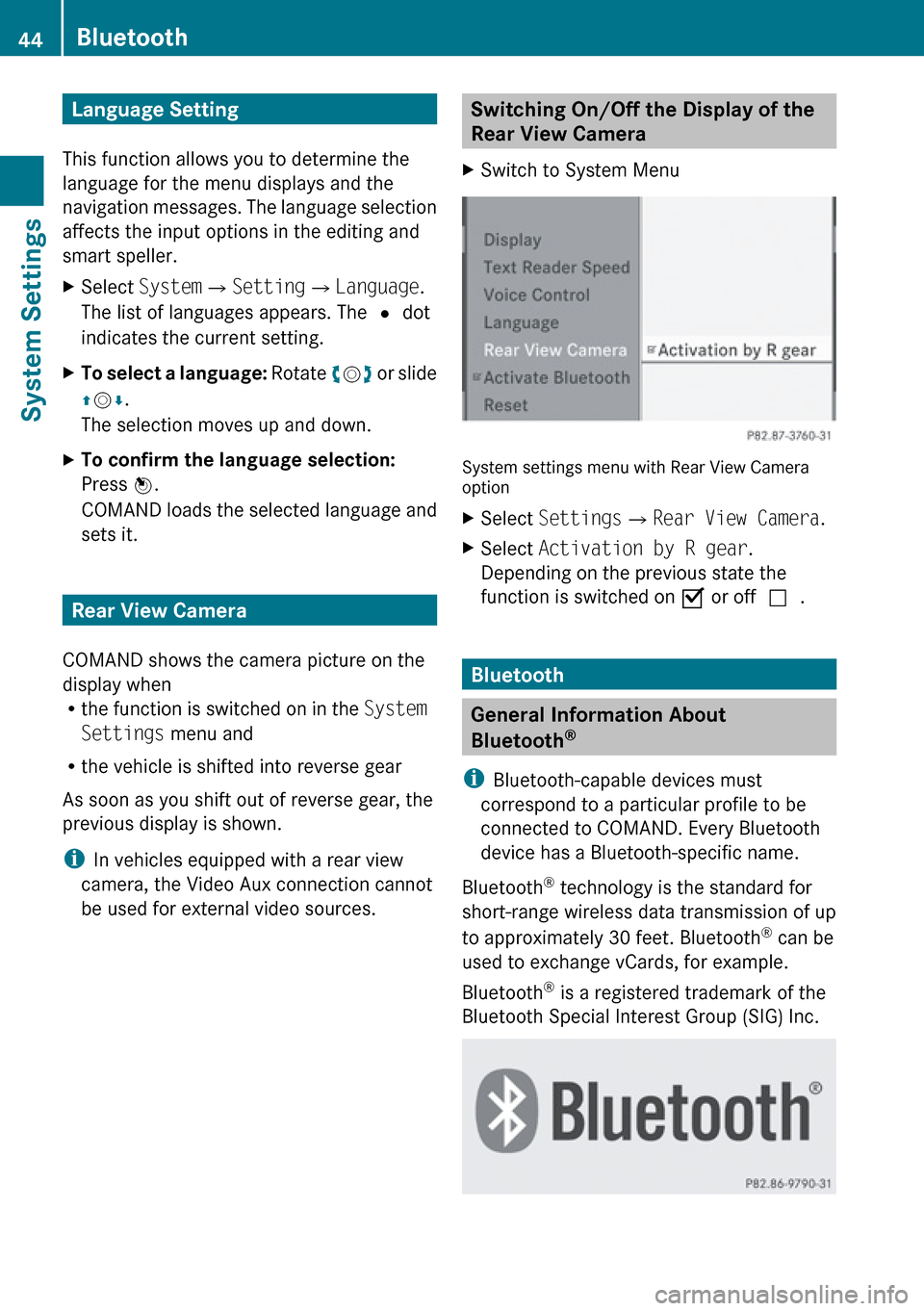
Switching On/Off the Display of the
Rear View Camera XSwitch to System Menu
System settings menu with Rear View Camera
option
XSelect Settings £Rear View Camera .XSelect Activation by R gear .
Depending on the previous state the
function is switched on Ç or off c.
Bluetooth
General Information About
Bluetooth ®
i Bluetooth-capable devices must
correspond to a particular profile to be
connected to COMAND. Every Bluetooth
device has a Bluetooth-specific name.
Bluetooth ®
technology is the standard for
short-range wireless data transmission of up
to approximately 30 feet. Bluetooth ®
can be
used to exchange vCards, for example.
Bluetooth ®
is a registered trademark of the
Bluetooth Special Interest Group (SIG) Inc.
44BluetoothSystem Settings
Page 64 of 224
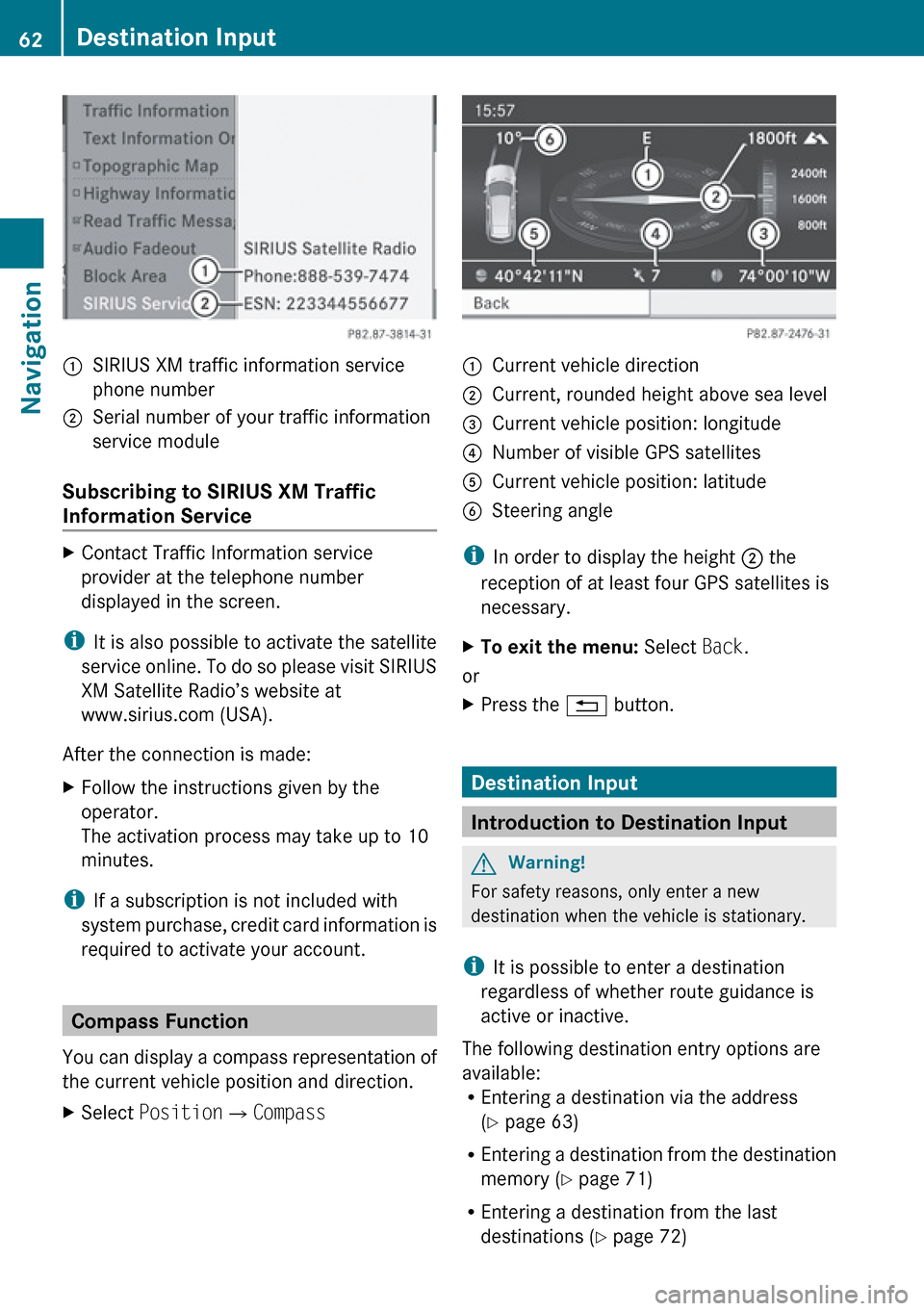
:SIRIUS XM traffic information service
phone number;Serial number of your traffic information
service module
Subscribing to SIRIUS XM Traffic
Information Service
XContact Traffic Information service
provider at the telephone number
displayed in the screen.
i It is also possible to activate the satellite
service online. To do so please visit SIRIUS
XM Satellite Radio’s website at
www.sirius.com (USA).
After the connection is made:
XFollow the instructions given by the
operator.
The activation process may take up to 10
minutes.
i If a subscription is not included with
system purchase, credit card information is
required to activate your account.
Compass Function
You can display a compass representation of
the current vehicle position and direction.
XSelect Position £Compass:Current vehicle direction;Current, rounded height above sea level=Current vehicle position: longitude?Number of visible GPS satellitesACurrent vehicle position: latitudeBSteering angle
i
In order to display the height ; the
reception of at least four GPS satellites is
necessary.
XTo exit the menu: Select Back.
or
XPress the % button.
Destination Input
Introduction to Destination Input
GWarning!
For safety reasons, only enter a new
destination when the vehicle is stationary.
i It is possible to enter a destination
regardless of whether route guidance is
active or inactive.
The following destination entry options are
available:
R Entering a destination via the address
( Y page 63)
R Entering a destination from the destination
memory ( Y page 71)
R Entering a destination from the last
destinations ( Y page 72)
62Destination InputNavigation
Page 81 of 224
iIn the predictive speller 3 you can only
select characters that are currently
available. The set of characters that is
available depends on those already entered
and the data included in the digital map.
For the steps of
R Entering characters
R Deleting an entry
R Accepting first list entry
R Canceling an entry
proceed as described under “Main category
list with predictive speller” ( Y page 76).
Selecting a POI
To accept first list entry:XPress and hold n until the list appears
without speller.
or
If COMAND can match the characters
entered definitively to one entry, the list is
displayed without predictive speller with the
matching entry highlighted.( Y page 78).
You can switch to the list at any point while
entering characters.
XSlide qm repeatedly until the list appears
without the speller.
or
XSelect d and press n.XTo display the full address of the POI:
Select ? and press n.XTo cancel selection: Press the k
button.
or
XSelect Back.
The POI list appears.XTo start route calculation: Select Start.
ZAGAT ®
Rating Service
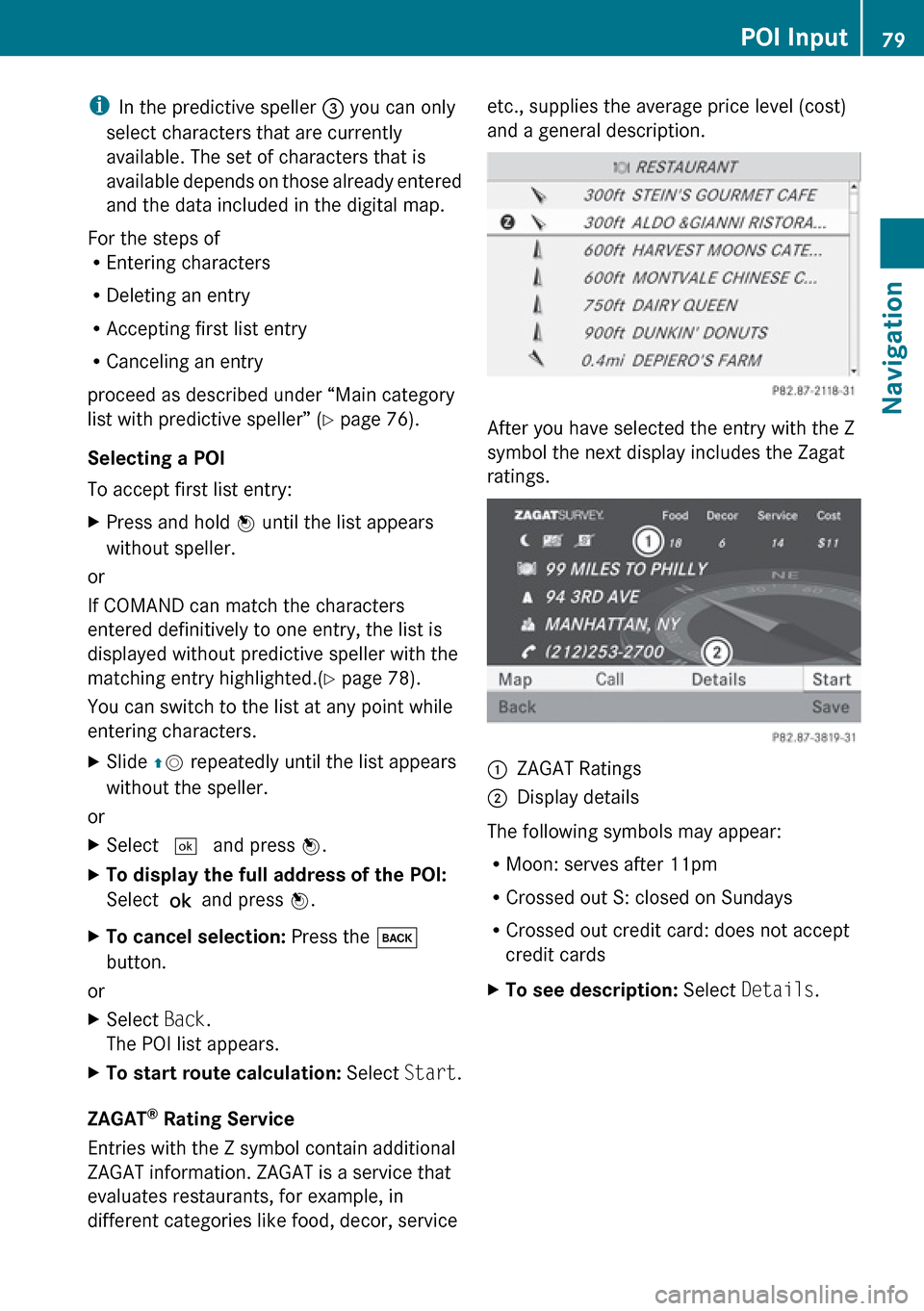
Entries with the Z symbol contain additional
ZAGAT information. ZAGAT is a service that
evaluates restaurants, for example, in
different categories like food, decor, service
etc., supplies the average price level (cost)
and a general description.
After you have selected the entry with the Z
symbol the next display includes the Zagat
ratings.
1ZAGAT Ratings2Display details
The following symbols may appear:
R Moon: serves after 11pm
R Crossed out S: closed on Sundays
R Crossed out credit card: does not accept
credit cards
XTo see description: Select Details .POI Input79NavigationZ
Page 100 of 224
Safety PrecautionsGWarning
Some jurisdictions prohibit the driver from
using a cellular telephone while driving.
Whether or not prohibited by law, for safety
reasons, the driver should not use the cellular
telephone while the vehicle is in motion. Stop
the vehicle in a safe location before placing or
answering a call.
If you nonetheless choose to use the mobile
phone while driving, please use the handsfree
feature and be sure to pay attention to the
traffic situation at all times. Use the mobile
phone only when road, weather and traffic
conditions permit. Otherwise, you may not be
able to observe traffic conditions and could
endanger yourself and others.
Bear in mind that at a speed of just 30 mph
(approximately 50 km/h), your vehicle is
covering a distance of 44 feet (approximately
14 m) every second.
GWarning
You and others may damage your health due
to excessive electromagnetic radiation. By
using an external antenna, the possible health
risks of electromagnetic fields, which are
under discussion among the scientific
community, should be largely prevented.
General Information
Vehicle Equipment
i This Operator’s Manual describes all
features, standard or optional, potentially
available for your vehicle at the time of
purchase. Please be aware that your
vehicle might not be equipped with all
features described in this manual.
Making Calls via Bluetooth ®
Interface
The telephone function via the Bluetooth ®
interface is available in conjunction with a
Bluetooth-enabled mobile phone.
With a suitable mobile phone, you can use
COMAND’s hands-free feature to download
contacts from your mobile phone (Phone
Book Access profile) and electronic business
cards (vCards) via the Bluetooth ®
interface.
Suitable Mobile Phones
Further information on suitable mobile
phones and connecting Bluetooth-enabled
mobile phones to COMAND is available via
the Internet at www.mbusa-mobile.com. Or
call the Mercedes-Benz Customer Assistance
Center at 1-800-FOR-MERCedes
(1-800-367-6372) (US), or Customer
Relations at 1-800-387-0100 (Canada).
Interruptions to the Connection
While Driving
Interruptions to the connection may occur if
R there is inadequate network coverage in
certain regions
R you are switching from one transmitting/
receiving station (cell) to another and there
is no voice channel available in this cell
R you are using a SIM card that is not
compatible with the available network
R when using a mobile phone with
“Twincard”, the mobile phone is
simultaneously logged into the network
with the second SIM card.
Operating Options
If the mobile phone is connected with
COMAND via the Bluetooth ®
interface, you
can operate the phone using the following
devices:
98General InformationTelephone
Page 104 of 224
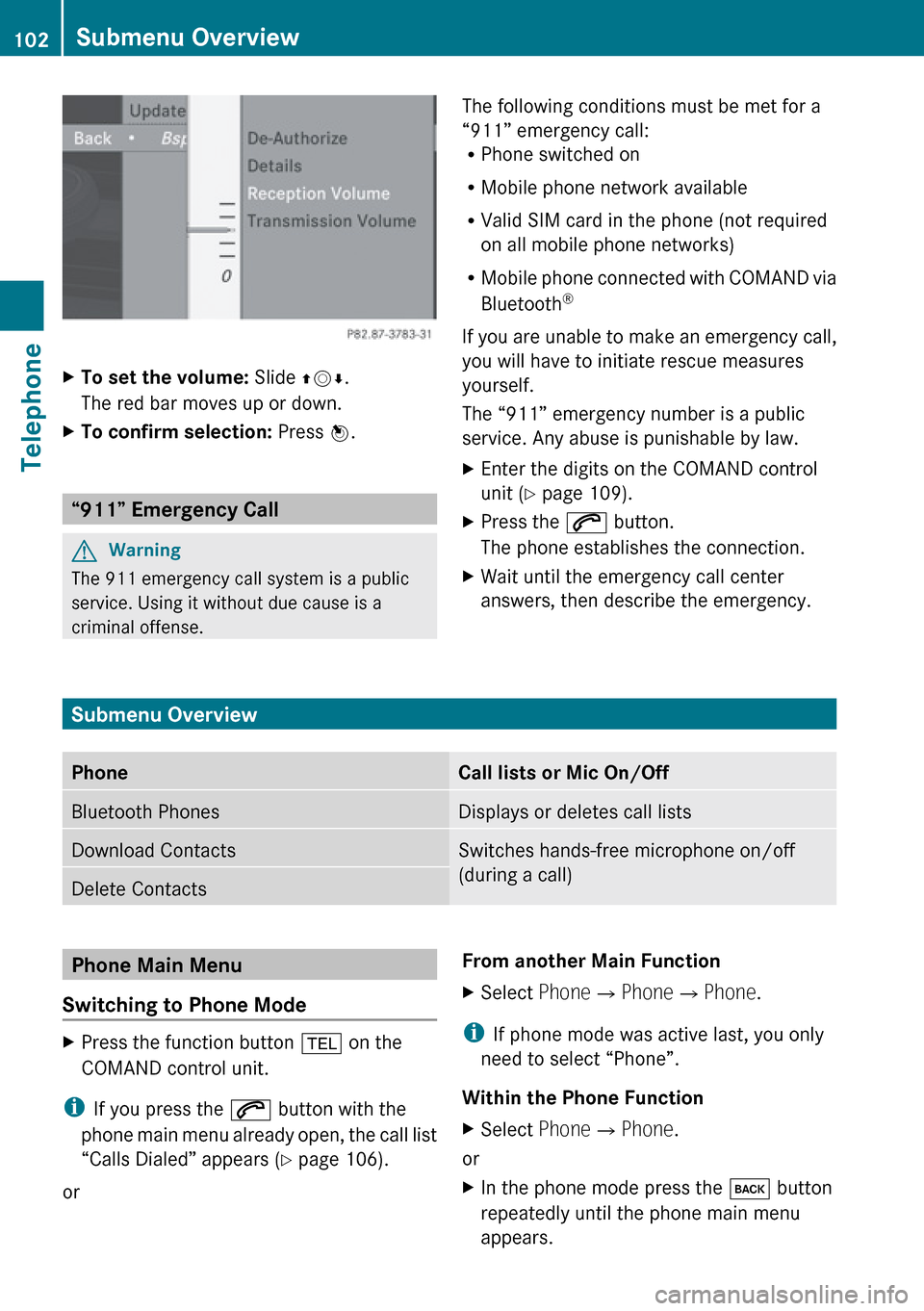
XTo set the volume: Slide qmr.
The red bar moves up or down.XTo confirm selection: Press n.
“911” Emergency Call
GWarning
The 911 emergency call system is a public
service. Using it without due cause is a
criminal offense.
The following conditions must be met for a
“911” emergency call:
R Phone switched on
R Mobile phone network available
R Valid SIM card in the phone (not required
on all mobile phone networks)
R Mobile phone connected with COMAND via
Bluetooth ®
If you are unable to make an emergency call,
you will have to initiate rescue measures
yourself.
The “911” emergency number is a public
service. Any abuse is punishable by law.XEnter the digits on the COMAND control
unit ( Y page 109).XPress the 6 button.
The phone establishes the connection.XWait until the emergency call center
answers, then describe the emergency.
Submenu Overview
PhoneCall lists or Mic On/OffBluetooth PhonesDisplays or deletes call listsDownload ContactsSwitches hands-free microphone on/off
(during a call)Delete ContactsPhone Main Menu
Switching to Phone ModeXPress the function button % on the
COMAND control unit.
i If you press the 6 button with the
phone main menu already open, the call list
“Calls Dialed” appears ( Y page 106).
or
From another Main FunctionXSelect Phone£Phone £Phone .
i
If phone mode was active last, you only
need to select “Phone”.
Within the Phone Function
XSelect Phone£Phone .
or
XIn the phone mode press the k button
repeatedly until the phone main menu
appears.102Submenu OverviewTelephone
Page 114 of 224
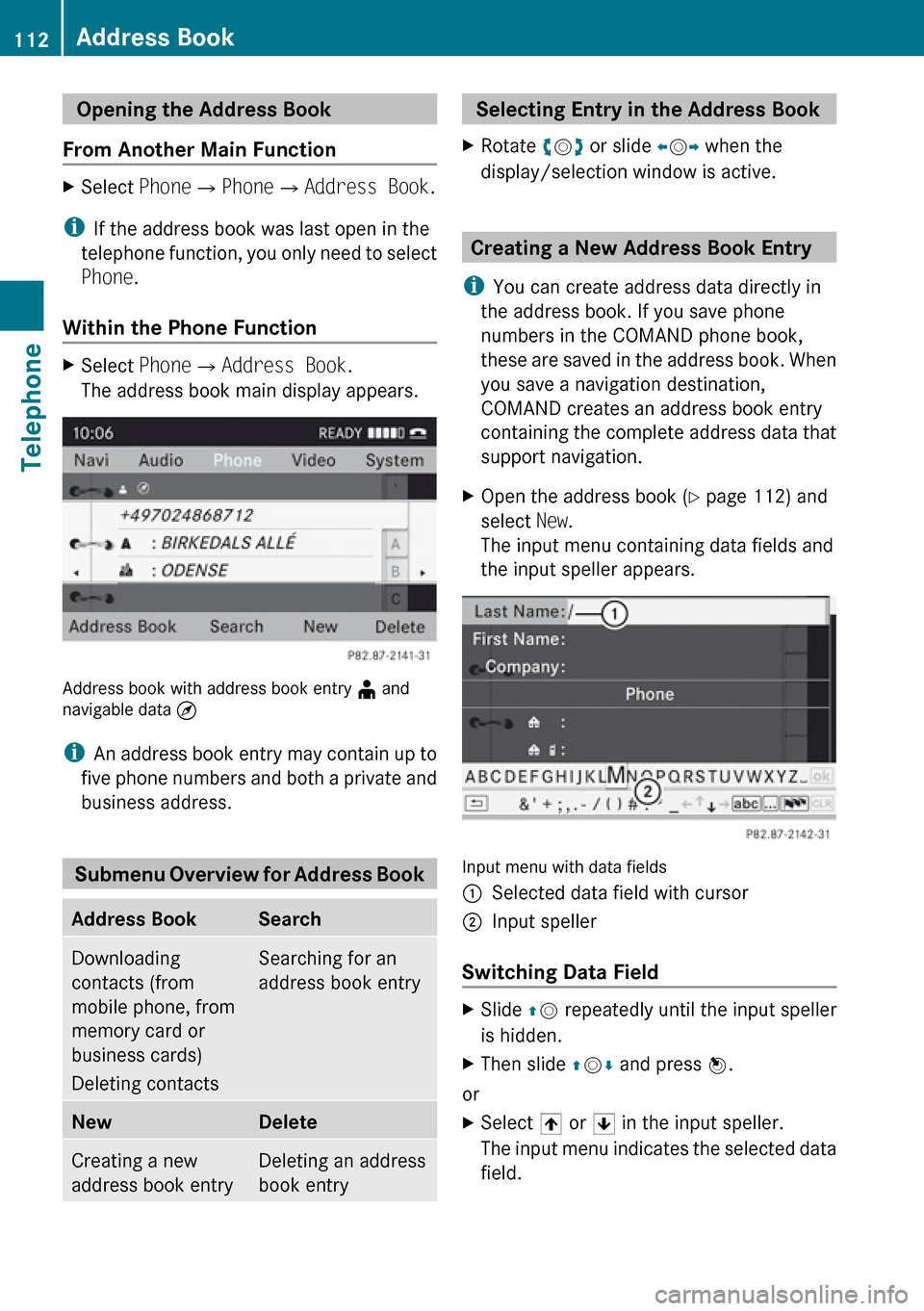
Opening the Address Book
From Another Main FunctionXSelect Phone£Phone £Address Book .
i
If the address book was last open in the
telephone function, you only need to select
Phone .
Within the Phone Function
XSelect Phone£Address Book .
The address book main display appears.
Address book with address book entry ¥ and
navigable data ¤
i An address book entry may contain up to
five phone numbers and both a private and
business address.
Submenu Overview for Address Book
Address BookSearchDownloading
contacts (from
mobile phone, from
memory card or
business cards)
Deleting contactsSearching for an
address book entryNewDeleteCreating a new
address book entryDeleting an address
book entry Selecting Entry in the Address Book XRotate ym z or slide om p when the
display/selection window is active.
Creating a New Address Book Entry
i You can create address data directly in
the address book. If you save phone
numbers in the COMAND phone book,
these are saved in the address book. When
you save a navigation destination,
COMAND creates an address book entry
containing the complete address data that
support navigation.
XOpen the address book ( Y page 112) and
select New.
The input menu containing data fields and
the input speller appears.
Input menu with data fields
1Selected data field with cursor2Input speller
Switching Data Field
XSlide qm repeatedly until the input speller
is hidden.XThen slide qm r and press n.
or
XSelect [ or ] in the input speller.
The input menu indicates the selected data
field.112Address BookTelephone
Page 119 of 224
Deleting Voice NameXSearch for the address book entry with a
voice entry ( Y page 113).XSelect Options £Voice Name
£ Delete .
A deletion prompt appears.XSelect Yes or No.
COMAND deletes the voice entry
depending on your selection.
Listening to Voice Name
XSearch for the address book entry with a
voice entry ( Y page 113).XSelect Options £Voice Name
£ Listen .
You will hear the voice name.
Downloading Contacts
You can download contacts from the mobile
phone or from the memory card into the
address book or receive vCards from an
external Bluetooth ®
device.
The à icon in the address book indicates
phone book entries which have been
downloaded from the mobile phone.
i Depending on the mobile phone used, this
function imports only the phone book
entries in the mobile phone or the phone
book entries in the SIM card.
Entries imported from the PCMCIA memory
card have the ÆÂ icons. Received
vCards are identified by the Æ icon and
BT .
Depending on the source of the contact data,
different requirements apply:
Mobile phone with Bluetooth ®
profile PBAP
R Bluetooth ®
must be activated in COMAND
and on the mobile phone (see the mobile
phone operating instructions).
R The mobile phone is connected to
COMAND ( Y page 99).
PCMCIA memory card
R The PCMCIA memory card is inserted
( Y page 136) and contains importable
contact data.
External Bluetooth ®
device
R Bluetooth ®
is activated in COMAND and on
the Bluetooth ®
device ( N operating
instructions of the device).
R The Bluetooth ®
device can send vCards via
Bluetooth ®
(N operating instructions of the
device).
R The Bluetooth ®
device in the vehicle is
switched on.
It is not necessary to authorize the device in
COMAND to receive vCards.
Downloading from a Mobile Phone with
PBAP SupportXSelect Address Book or, if the phone main
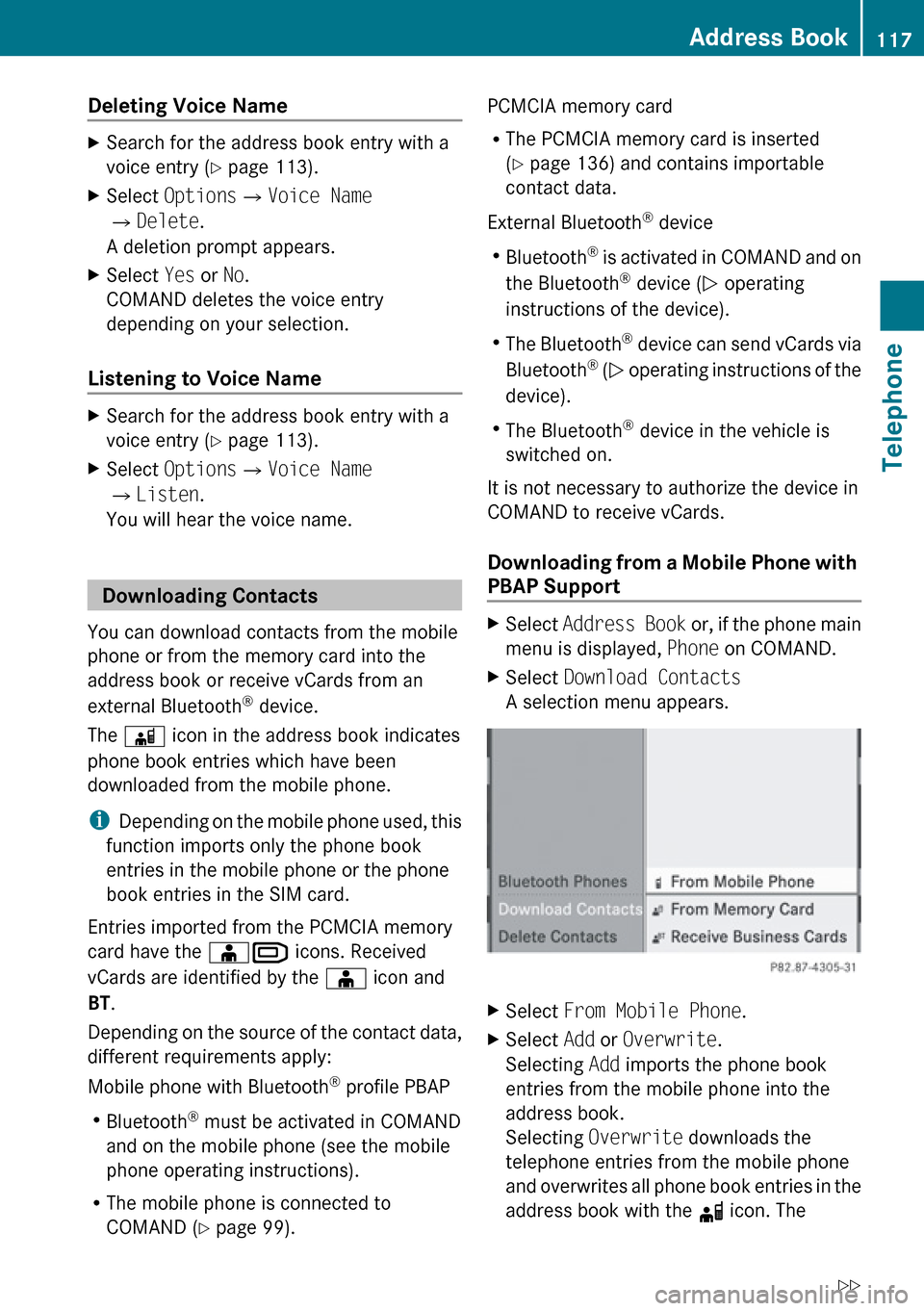
menu is displayed, Phone on COMAND.XSelect Download Contacts
A selection menu appears.XSelect From Mobile Phone .XSelect Add or Overwrite .
Selecting Add imports the phone book
entries from the mobile phone into the
address book.
Selecting Overwrite downloads the
telephone entries from the mobile phone
and overwrites all phone book entries in the
address book with the d icon. TheAddress Book117TelephoneZ
Page 120 of 224
previous phone book entries are then no
longer available.
After successfully downloading the contact
data you see a corresponding message.
The address book or the phone main menu
is displayed.
i You can select the Overwrite menu item
if the address book already contains such
entries. If the address book is full, you see
a corresponding message.
Downloading from the Memory Card
XSelect Address Book or, if the phone main
menu is displayed, Phone.XSelect Download Contacts .
A selection menu appears.XSelect From Memory Card .XSelect Add or Overwrite .
Selecting Add imports the entries from the
PCMCIA memory card into the address
book.
Selecting Overwrite imports the entries
from the PCMCIA memory card and
overwrites all entries in the address book
with the ¥Â icons. The previous entries
are then no longer available.
After successfully importing the contact
data you see a corresponding message.
The address book or the phone main menu
is displayed.
i You can select the Overwrite menu item
if the address book already contains such
entries. If the address book is full, you see
a corresponding message.
Downloading vCards via Bluetooth ®
You can receive vCards from devices (such as
a PC) which support the transmission of
vCards via Bluetooth ®
.
It is not necessary to authorize the device in
COMAND to do so.
Received vCards are imported into the
address book.
i If you switch to another main function,
e.g. navigation, while receiving vCards, the
reception of vCards will be terminated.XSelect Address Book or, if the phone main
menu is displayed, Phone.XSelect Download Contacts .
A selection menu appears.XSelect Receive Business Cards .
This interrupts the Bluetooth connection
between COMAND and your active mobile
phone. COMAND is ready to receive vCards
from another Bluetooth ®
device.XStart data transfer on the external
Bluetooth device ( N operating instructions
of the device).
The data on the vCards is automatically
transferred to the address book. The
number of vCards received is displayed.XTo cancel the transfer: Press W.
or
XPress the % button.
Deleting Data
XIf the address book is displayed, select
Address Book QDelete Contacts .
or
XIf the phone main menu is displayed, select
Phone QDelete Contacts .
A selection menu appears.118Address BookTelephone
Page 121 of 224
XSelect Internal Contacts or From
Mobile Phone or From Memory Card or
Received Business Cards or Delete
All .
A prompt corresponding to your selection
appears.XSelect Yes or No.XPress the W button.
If you confirm by selecting Yes, the
contacts you have selected are deleted.Address Book119TelephoneZ