service MERCEDES-BENZ E-Class COUPE 2010 C212 Comand Manual
[x] Cancel search | Manufacturer: MERCEDES-BENZ, Model Year: 2010, Model line: E-Class COUPE, Model: MERCEDES-BENZ E-Class COUPE 2010 C212Pages: 224, PDF Size: 7.4 MB
Page 64 of 224
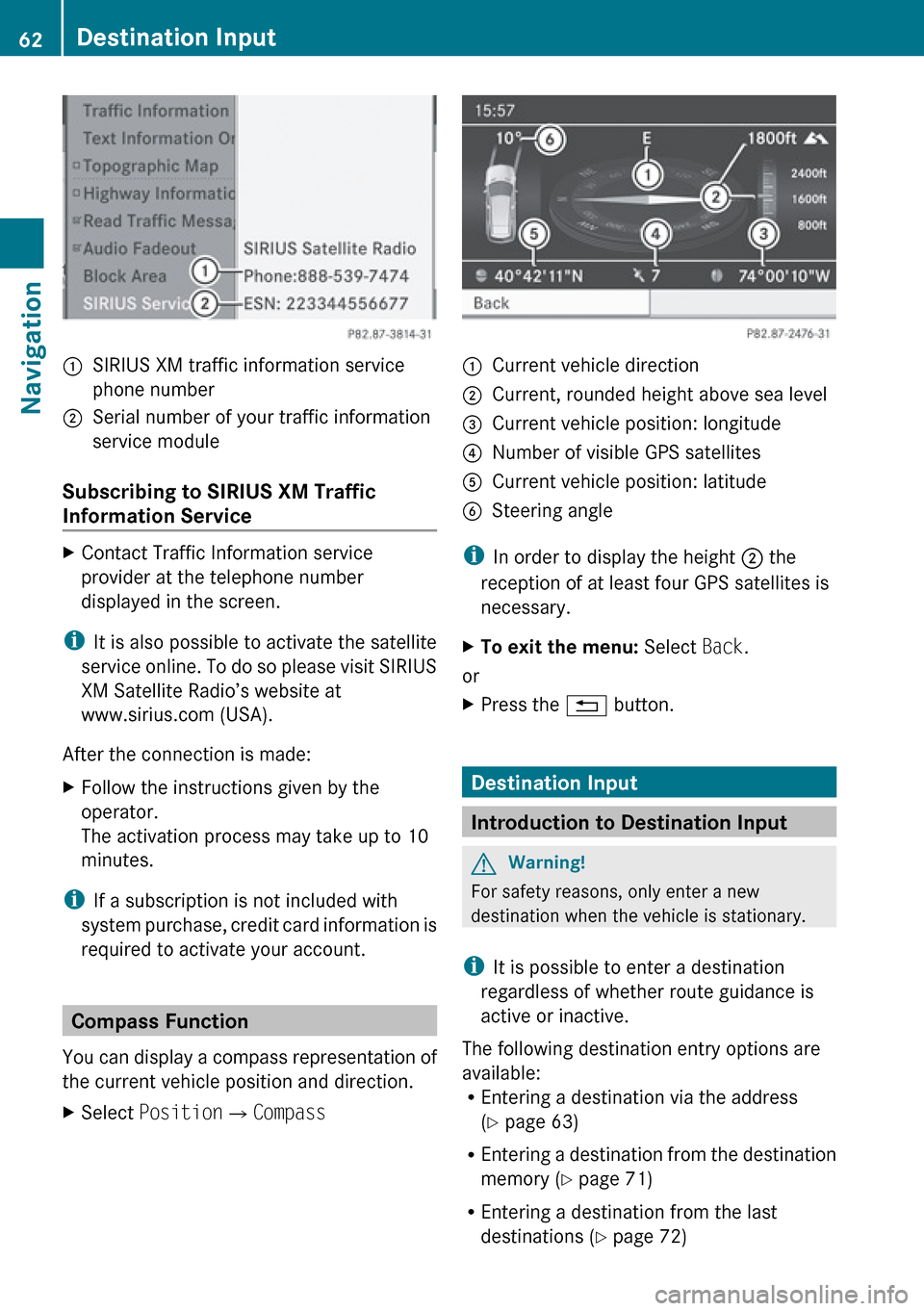
:SIRIUS XM traffic information service
phone number;Serial number of your traffic information
service module
Subscribing to SIRIUS XM Traffic
Information Service
XContact Traffic Information service
provider at the telephone number
displayed in the screen.
i It is also possible to activate the satellite
service online. To do so please visit SIRIUS
XM Satellite Radio’s website at
www.sirius.com (USA).
After the connection is made:
XFollow the instructions given by the
operator.
The activation process may take up to 10
minutes.
i If a subscription is not included with
system purchase, credit card information is
required to activate your account.
Compass Function
You can display a compass representation of
the current vehicle position and direction.
XSelect Position £Compass:Current vehicle direction;Current, rounded height above sea level=Current vehicle position: longitude?Number of visible GPS satellitesACurrent vehicle position: latitudeBSteering angle
i
In order to display the height ; the
reception of at least four GPS satellites is
necessary.
XTo exit the menu: Select Back.
or
XPress the % button.
Destination Input
Introduction to Destination Input
GWarning!
For safety reasons, only enter a new
destination when the vehicle is stationary.
i It is possible to enter a destination
regardless of whether route guidance is
active or inactive.
The following destination entry options are
available:
R Entering a destination via the address
( Y page 63)
R Entering a destination from the destination
memory ( Y page 71)
R Entering a destination from the last
destinations ( Y page 72)
62Destination InputNavigation
Page 81 of 224
iIn the predictive speller 3 you can only
select characters that are currently
available. The set of characters that is
available depends on those already entered
and the data included in the digital map.
For the steps of
R Entering characters
R Deleting an entry
R Accepting first list entry
R Canceling an entry
proceed as described under “Main category
list with predictive speller” ( Y page 76).
Selecting a POI
To accept first list entry:XPress and hold n until the list appears
without speller.
or
If COMAND can match the characters
entered definitively to one entry, the list is
displayed without predictive speller with the
matching entry highlighted.( Y page 78).
You can switch to the list at any point while
entering characters.
XSlide qm repeatedly until the list appears
without the speller.
or
XSelect d and press n.XTo display the full address of the POI:
Select ? and press n.XTo cancel selection: Press the k
button.
or
XSelect Back.
The POI list appears.XTo start route calculation: Select Start.
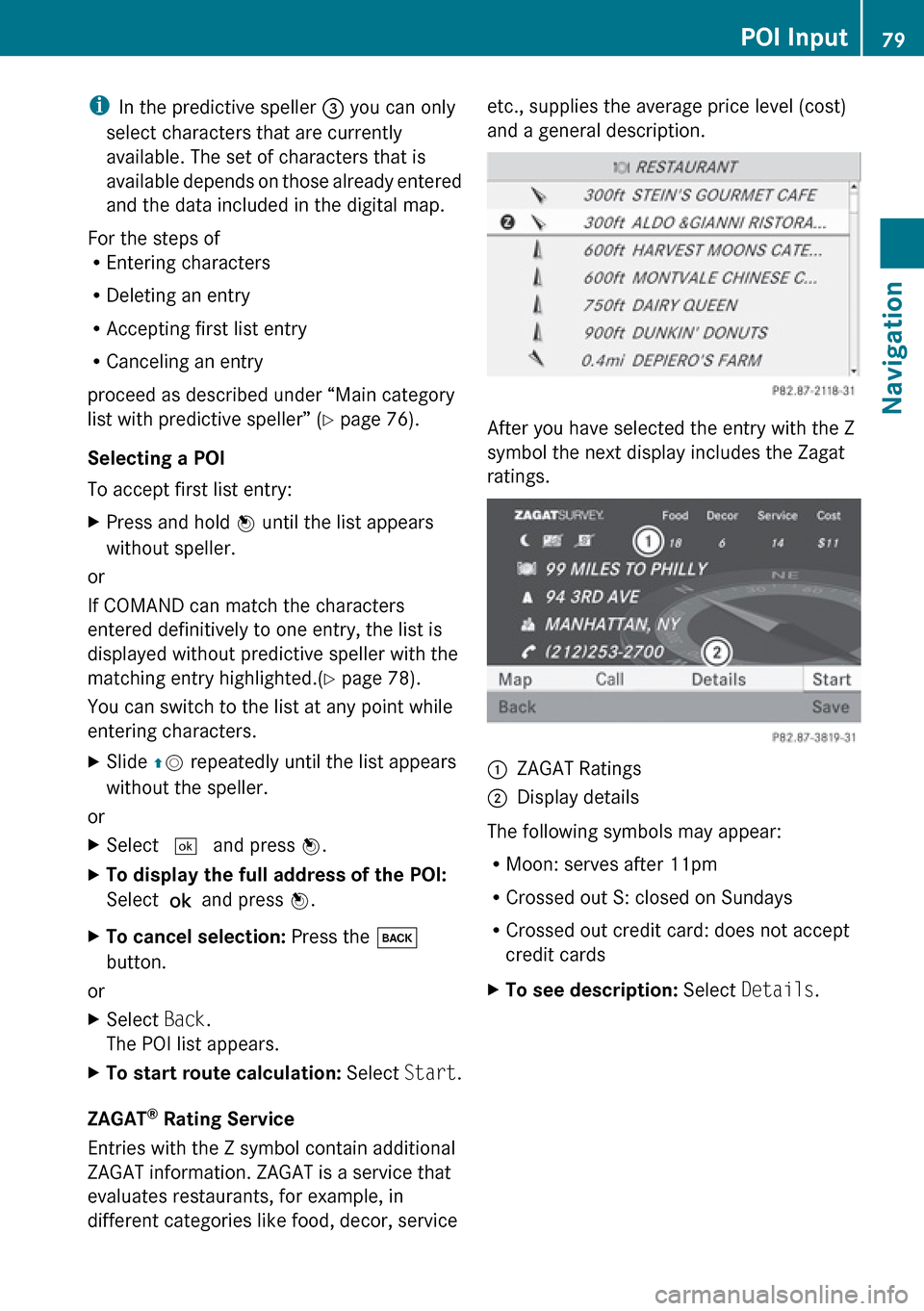
ZAGAT ®
Rating Service
Entries with the Z symbol contain additional
ZAGAT information. ZAGAT is a service that
evaluates restaurants, for example, in
different categories like food, decor, service
etc., supplies the average price level (cost)
and a general description.
After you have selected the entry with the Z
symbol the next display includes the Zagat
ratings.
1ZAGAT Ratings2Display details
The following symbols may appear:
R Moon: serves after 11pm
R Crossed out S: closed on Sundays
R Crossed out credit card: does not accept
credit cards
XTo see description: Select Details .POI Input79NavigationZ
Page 89 of 224
3Main destination4Distance/estimated time of arrival/
estimated journey time to the main
destination <
i
When calculating the estimated time of
arrival, COMAND uses the time set on the
COMAND as its basis. For this reason, the
time on COMAND must be set correctly
( Y page 41). The calculation of the
estimated time of arrival does not
specifically take into consideration
whether it is summer time or standard time
at the destination. It is not taken into
consideration whether or not the
destination is in a different time zone. The
distance to the destination, the estimated
time of arrival and the estimated remaining
journey time 1, 4 are not displayed until
the route calculation is complete.
XTo close the destination information:
Slide om p.
or
XPress the k button.
Traffic Messages
i Optional satellite radio equipment and a
subscription to SIRIUS XM Satellite Radio
service provider are required for the
satellite radio reception referred to here.
You can find more information on SatRadio
in chapter “Satellite Radio” ( Y page 127).
COMAND can receive and incorporate traffic
messages via satellite radio into the
navigation system. Traffic report messages
and map symbols can then be viewed in the
COMAND display.
Real-Time Traffic Notifications in the
Map
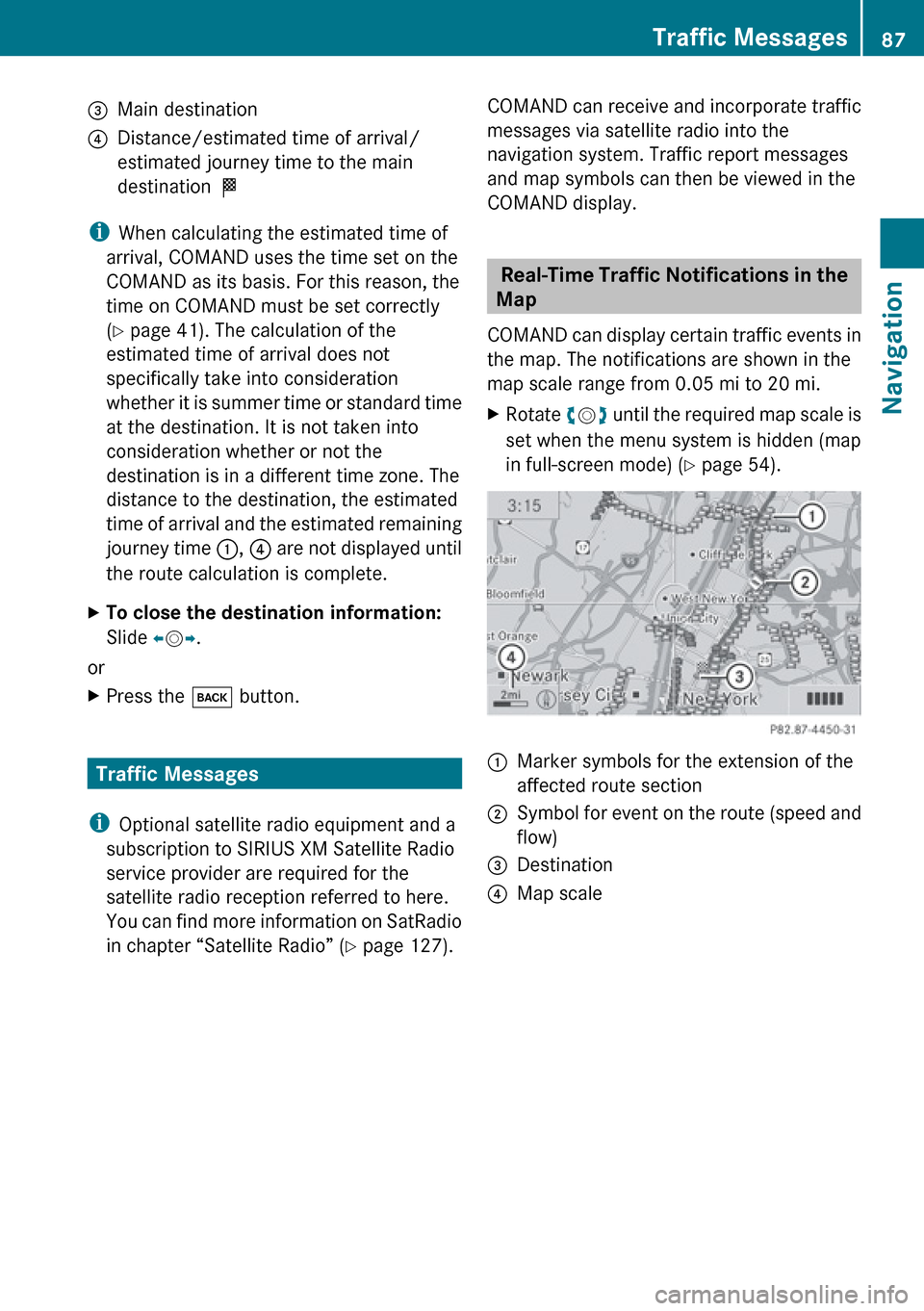
COMAND can display certain traffic events in
the map. The notifications are shown in the
map scale range from 0.05 mi to 20 mi.
XRotate ym z until the required map scale is
set when the menu system is hidden (map
in full-screen mode) ( Y page 54).1Marker symbols for the extension of the
affected route section2Symbol for event on the route (speed and
flow)3Destination4Map scaleTraffic Messages87NavigationZ
Page 101 of 224
RKeypad on the COMAND control unit
R Multifunction steering wheel
R Voice Control
The explanations in this section assume that
the mobile phone is connected to COMAND
via the Bluetooth ®
interface. Exceptions are
explicitly described.
Functional Restrictions
Under the following circumstances, the
phone may not yet be useable:
R If it is not yet logged into a network. The
phone will try independently to log into a
network. If no network is available, you will
not be able to make “911” emergency calls.
If you try to make an outgoing call, the
message No Service appears briefly.
Activating the Mobile Phone
Mobile Phone With Bluetooth ®
Interface
Prerequisites for the Mobile Phone
For making calls using COMAND via the
Bluetooth ®
interface, you will need a
Bluetooth-enabled mobile phone.
i Not all mobile phones available on the
market are comparably suitable. Further
information on suitable mobile phones and
connecting Bluetooth-enabled mobile
phones to COMAND is available via the
Internet at www.mbusa-mobile.com. Or
call the Mercedes-Benz Customer
Assistance Center at 1-800-FOR-
MERCedes (1-800-367-6372) (US), or
Customer Relations at 1-800-387-0100
(Canada).
Activating Bluetooth ®
Before you begin activation of your mobile
phone connection via the Bluetooth ®
interface please ensure it is compatible with
Bluetooth ®
handsfree profile 1.0 or higher
( Y mobile phone operating guide):XSwitch on the mobile phone and enter the
PIN, if applicable ( Y mobile phone
operating guide).XActivate Bluetooth ®
connection on the
mobile phone ( Y mobile phone operating
guide).
i On certain mobile phones, not only do you
have to activate the Bluetooth ®
function
but the device must also be made “visible”
for other devices.
Each Bluetooth ®
device has a Bluetooth ®
device name. It is recommended to give the
device a personal name, by which you can
clearly recognize your mobile phone.
i If the Bluetooth ®
function on the
COMAND is switched off, the message
Bluetooth not activated in system
settings . appears.
XActivate Bluetooth ®
connection on
COMAND ( Y page 45).
Registering a Mobile Phone
(Authorizing)
When you use your mobile phone in
conjunction with COMAND for the first time,
you must register (authorize) it.
It is possible to register several mobile
phones. The connection is always established
to the mobile phone that was activated last.
When you authorize a new mobile phone, it is
activated automatically. You can switch
between the authorized mobile phones
( Y page 101).
Searching for a Mobile Phone
XIn the phone submenu select Phone
£ Bluetooth Phones £Update .
COMAND searches for suitable
Bluetooth ®
phones within range and enters
them in the phone list.Activating the Mobile Phone99TelephoneZ
Page 104 of 224
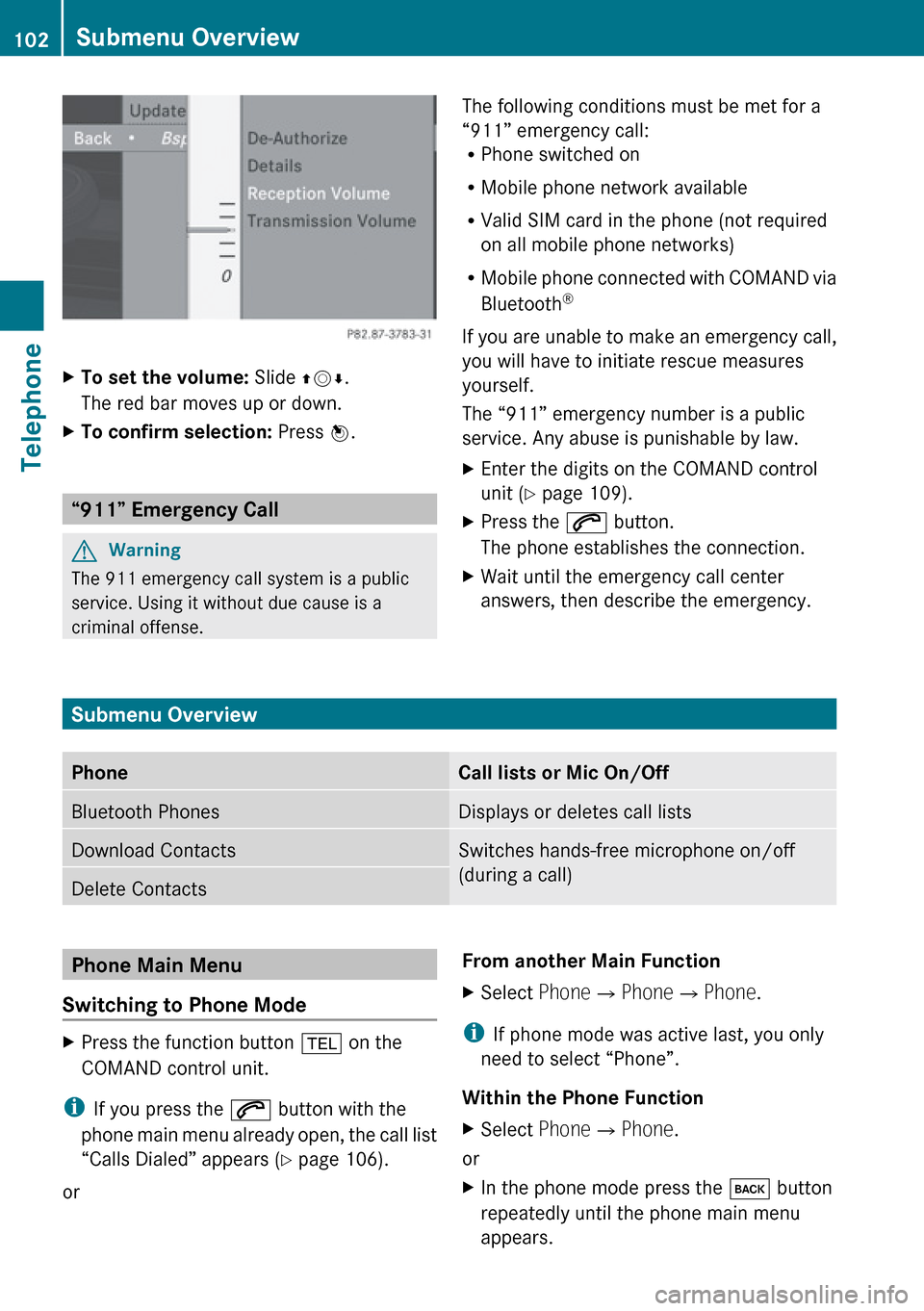
XTo set the volume: Slide qmr.
The red bar moves up or down.XTo confirm selection: Press n.
“911” Emergency Call
GWarning
The 911 emergency call system is a public
service. Using it without due cause is a
criminal offense.
The following conditions must be met for a
“911” emergency call:
R Phone switched on
R Mobile phone network available
R Valid SIM card in the phone (not required
on all mobile phone networks)
R Mobile phone connected with COMAND via
Bluetooth ®
If you are unable to make an emergency call,
you will have to initiate rescue measures
yourself.
The “911” emergency number is a public
service. Any abuse is punishable by law.XEnter the digits on the COMAND control
unit ( Y page 109).XPress the 6 button.
The phone establishes the connection.XWait until the emergency call center
answers, then describe the emergency.
Submenu Overview
PhoneCall lists or Mic On/OffBluetooth PhonesDisplays or deletes call listsDownload ContactsSwitches hands-free microphone on/off
(during a call)Delete ContactsPhone Main Menu
Switching to Phone ModeXPress the function button % on the
COMAND control unit.
i If you press the 6 button with the
phone main menu already open, the call list
“Calls Dialed” appears ( Y page 106).
or
From another Main FunctionXSelect Phone£Phone £Phone .
i
If phone mode was active last, you only
need to select “Phone”.
Within the Phone Function
XSelect Phone£Phone .
or
XIn the phone mode press the k button
repeatedly until the phone main menu
appears.102Submenu OverviewTelephone
Page 105 of 224
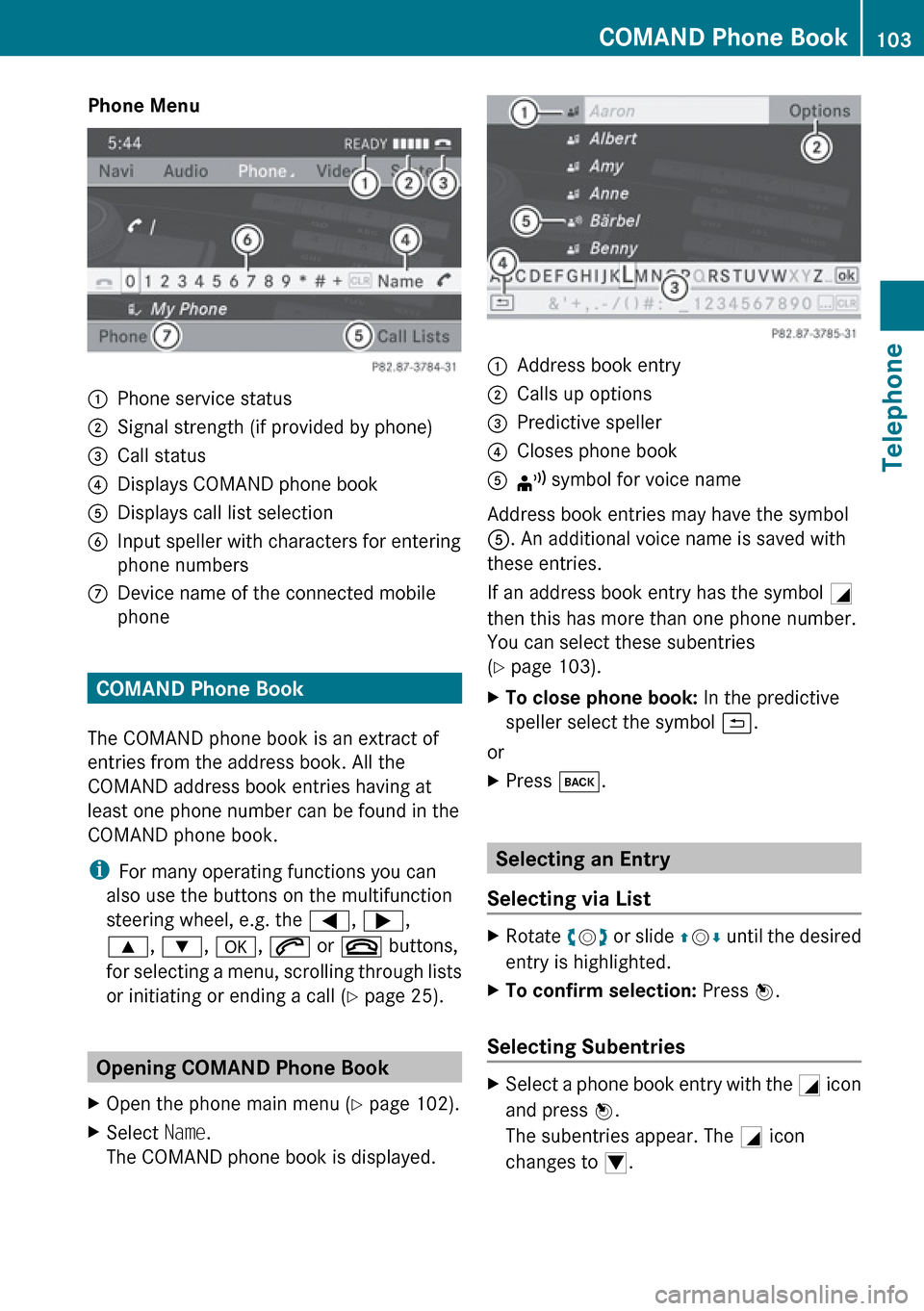
Phone Menu1Phone service status2Signal strength (if provided by phone)3Call status4Displays COMAND phone book5Displays call list selection6Input speller with characters for entering
phone numbers7Device name of the connected mobile
phone
COMAND Phone Book
The COMAND phone book is an extract of
entries from the address book. All the
COMAND address book entries having at
least one phone number can be found in the
COMAND phone book.
i For many operating functions you can
also use the buttons on the multifunction
steering wheel, e.g. the =, ; ,
9 , : , a , 6 or ~ buttons,
for selecting a menu, scrolling through lists
or initiating or ending a call ( Y page 25).
Opening COMAND Phone Book
XOpen the phone main menu ( Y page 102).XSelect Name.
The COMAND phone book is displayed.1Address book entry2Calls up options3Predictive speller4Closes phone book5¦ symbol for voice name
Address book entries may have the symbol
5 . An additional voice name is saved with
these entries.
If an address book entry has the symbol +
then this has more than one phone number.
You can select these subentries
( Y page 103).
XTo close phone book: In the predictive
speller select the symbol á.
or
XPress k.
Selecting an Entry
Selecting via List
XRotate ym z or slide qm r until the desired
entry is highlighted.XTo confirm selection: Press n.
Selecting Subentries
XSelect a phone book entry with the + icon
and press n.
The subentries appear. The + icon
changes to /.COMAND Phone Book103TelephoneZ
Page 125 of 224
Radio
Switching to the Radio
From the COMAND Control Unit
XPress the $ function button.
or
XSelect Audio£Audio £FM/AM Radio in
the display.
i Press the button repeatedly to switch
wavebands in the sequence FM, AM, WB
and SatRadio mode. Pressing again will
switch back to FM radio mode.
Within the Audio Function
XSelect Audio£FM/AM Radio .
The radio display appears. The last selected
station in the last selected waveband is
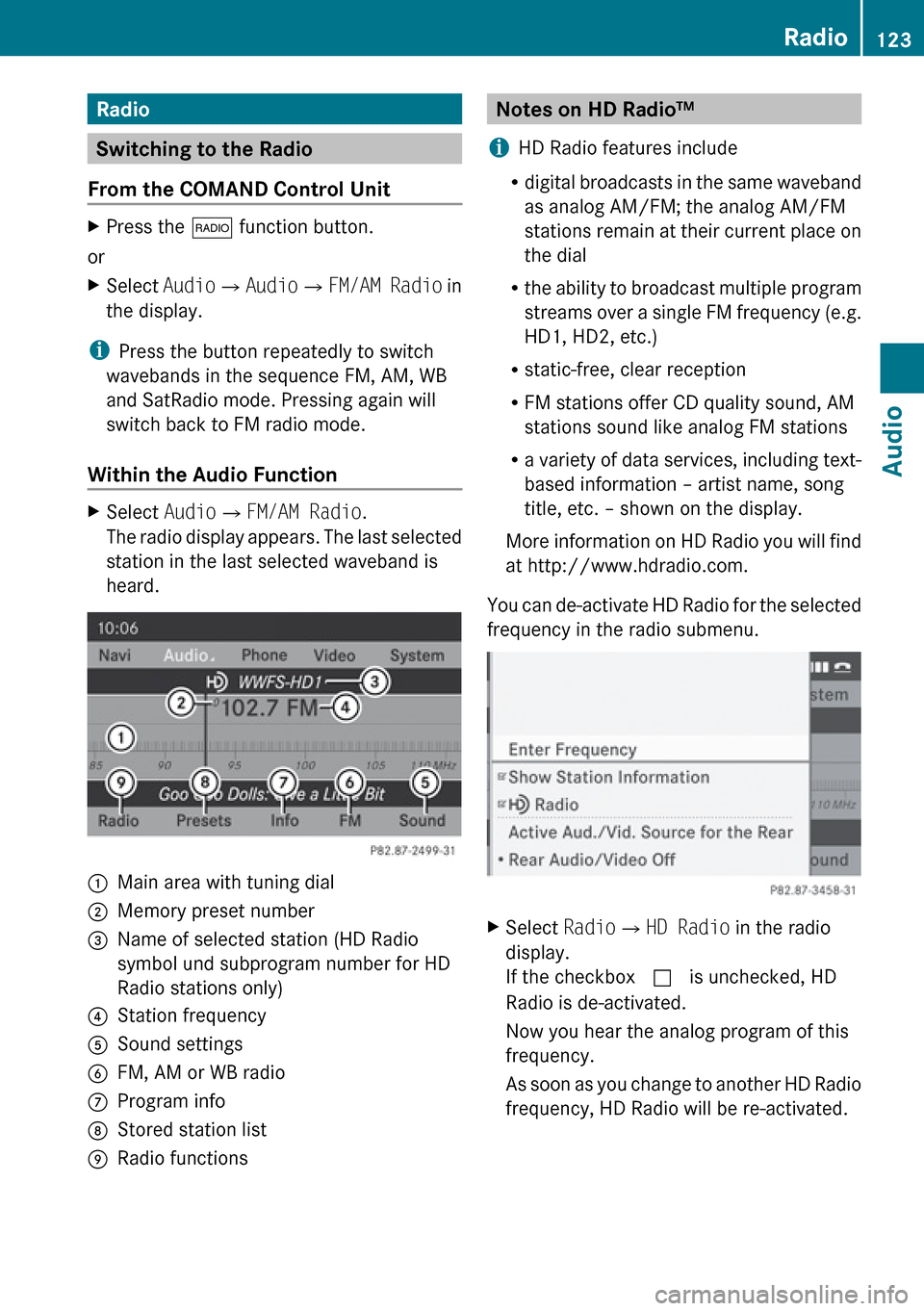
heard.1Main area with tuning dial2Memory preset number3Name of selected station (HD Radio
symbol und subprogram number for HD
Radio stations only)4Station frequency5Sound settings6FM, AM or WB radio7Program info8Stored station list9Radio functionsNotes on HD Radio™
i HD Radio features include
R digital broadcasts in the same waveband
as analog AM/FM; the analog AM/FM
stations remain at their current place on
the dial
R the ability to broadcast multiple program
streams over a single FM frequency (e.g.
HD1, HD2, etc.)
R static-free, clear reception
R FM stations offer CD quality sound, AM
stations sound like analog FM stations
R a variety of data services, including text-
based information – artist name, song
title, etc. – shown on the display.
More information on HD Radio you will find
at http://www.hdradio.com.
You can de-activate HD Radio for the selected
frequency in the radio submenu.XSelect Radio£HD Radio in the radio
display.
If the checkbox c is unchecked, HD
Radio is de-activated.
Now you hear the analog program of this
frequency.
As soon as you change to another HD Radio
frequency, HD Radio will be re-activated.Radio123AudioZ
Page 129 of 224
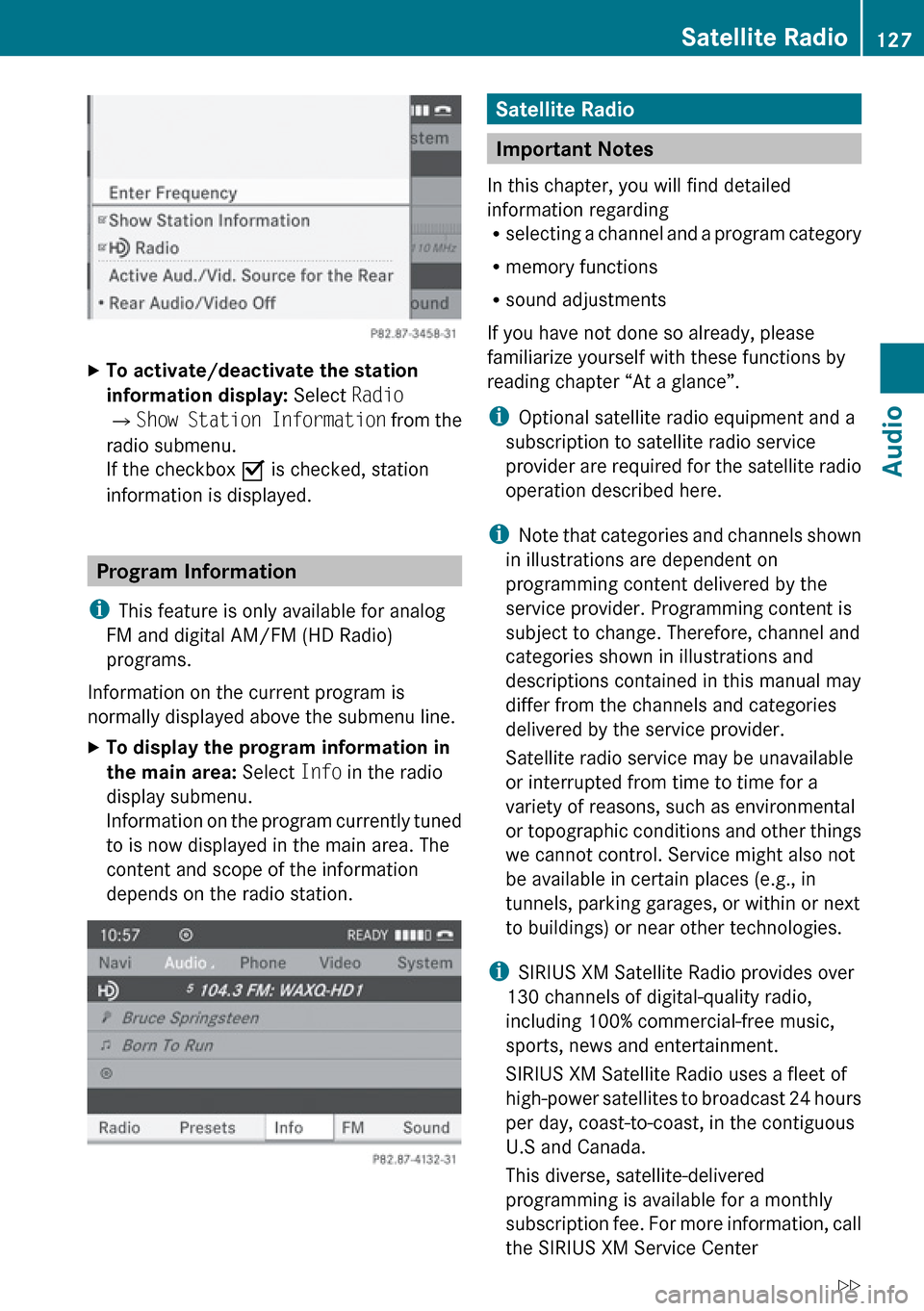
XTo activate/deactivate the station
information display: Select Radio
£ Show Station Information from the
radio submenu.
If the checkbox O is checked, station
information is displayed.
Program Information
i This feature is only available for analog
FM and digital AM/FM (HD Radio)
programs.
Information on the current program is
normally displayed above the submenu line.
XTo display the program information in
the main area: Select Info in the radio
display submenu.
Information on the program currently tuned
to is now displayed in the main area. The
content and scope of the information
depends on the radio station.Satellite Radio
Important Notes
In this chapter, you will find detailed
information regarding
R selecting a channel and a program category
R memory functions
R sound adjustments
If you have not done so already, please
familiarize yourself with these functions by
reading chapter “At a glance”.
i Optional satellite radio equipment and a
subscription to satellite radio service
provider are required for the satellite radio
operation described here.
i Note that categories and channels shown
in illustrations are dependent on
programming content delivered by the
service provider. Programming content is
subject to change. Therefore, channel and
categories shown in illustrations and
descriptions contained in this manual may
differ from the channels and categories
delivered by the service provider.
Satellite radio service may be unavailable
or interrupted from time to time for a
variety of reasons, such as environmental
or topographic conditions and other things
we cannot control. Service might also not
be available in certain places (e.g., in
tunnels, parking garages, or within or next
to buildings) or near other technologies.
i SIRIUS XM Satellite Radio provides over
130 channels of digital-quality radio,
including 100% commercial-free music,
sports, news and entertainment.
SIRIUS XM Satellite Radio uses a fleet of
high-power satellites to broadcast 24 hours
per day, coast-to-coast, in the contiguous
U.S and Canada.
This diverse, satellite-delivered
programming is available for a monthly
subscription fee. For more information, call
the SIRIUS XM Service Center
Satellite Radio127AudioZ
Page 130 of 224
(Y page 131) or contact www.sirius.com
(USA) or www.siriuscanada.com (Canada).
Subscribing
Subscribing to Satellite Radio
To switch to satellite radio operation:
XFrom another main function: Select
Audio £Audio £SatRadio .
i
If radio mode was active last, you only
need to select Audio.
XWithin the audio function: Select Audio
£ SatRadio .
If the satellite radio service is not activated,
the Satellite radio main menu appears and
displays the Weather channel. You cannot
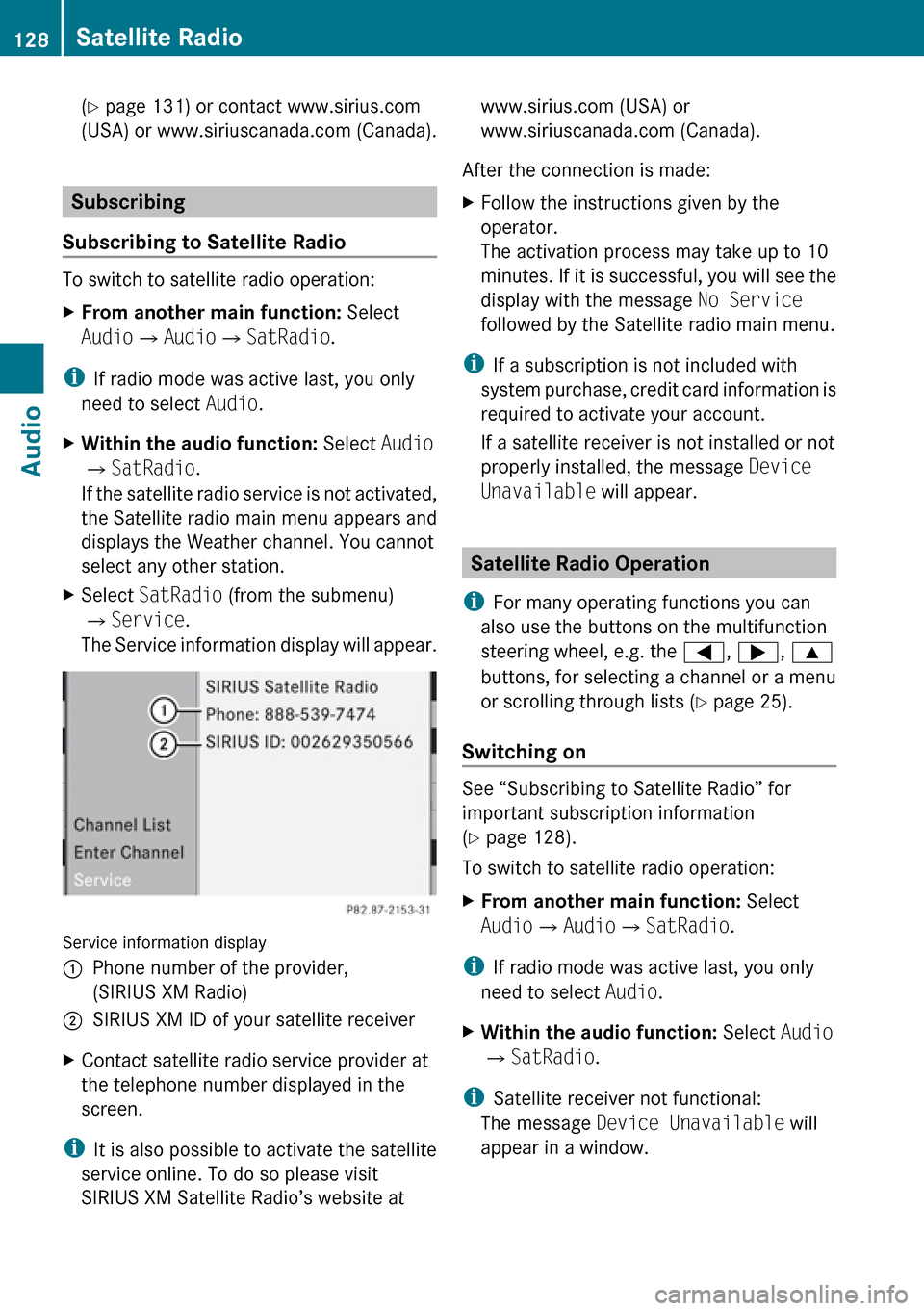
select any other station.XSelect SatRadio (from the submenu)
£ Service .
The Service information display will appear.
Service information display
1Phone number of the provider,
(SIRIUS XM Radio)2SIRIUS XM ID of your satellite receiverXContact satellite radio service provider at
the telephone number displayed in the
screen.
i It is also possible to activate the satellite
service online. To do so please visit
SIRIUS XM Satellite Radio’s website at
www.sirius.com (USA) or
www.siriuscanada.com (Canada).
After the connection is made:XFollow the instructions given by the
operator.
The activation process may take up to 10
minutes. If it is successful, you will see the
display with the message No Service
followed by the Satellite radio main menu.
i If a subscription is not included with
system purchase, credit card information is
required to activate your account.
If a satellite receiver is not installed or not
properly installed, the message Device
Unavailable will appear.
Satellite Radio Operation
i For many operating functions you can
also use the buttons on the multifunction
steering wheel, e.g. the =, ; , 9
buttons, for selecting a channel or a menu
or scrolling through lists ( Y page 25).
Switching on
See “Subscribing to Satellite Radio” for
important subscription information
( Y page 128).
To switch to satellite radio operation:
XFrom another main function: Select
Audio £Audio £SatRadio .
i
If radio mode was active last, you only
need to select Audio.
XWithin the audio function: Select Audio
£ SatRadio .
i
Satellite receiver not functional:
The message Device Unavailable will
appear in a window.
128Satellite RadioAudio
Page 131 of 224
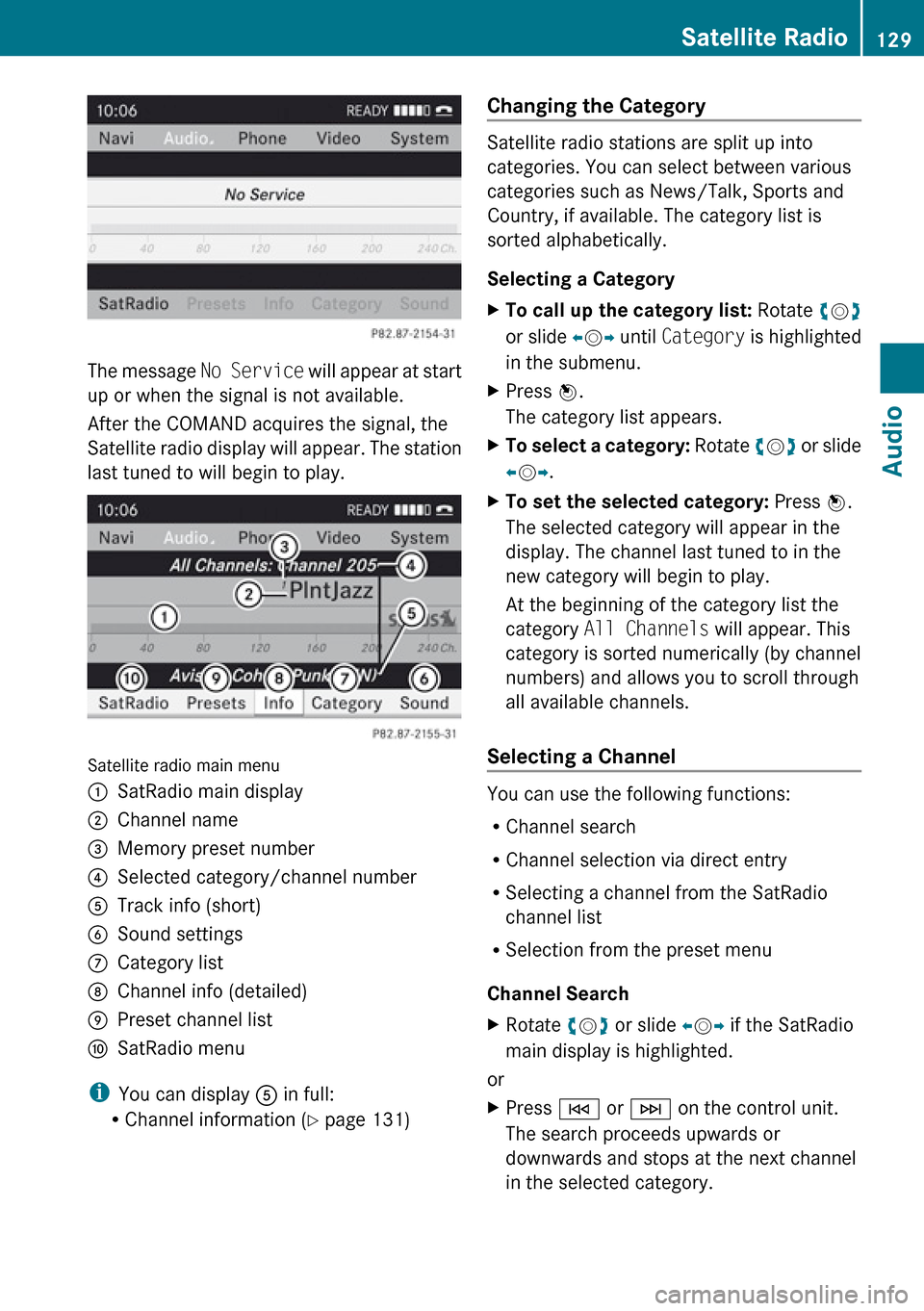
The message No Service will appear at start
up or when the signal is not available.
After the COMAND acquires the signal, the
Satellite radio display will appear. The station
last tuned to will begin to play.
Satellite radio main menu
1SatRadio main display2Channel name3Memory preset number4Selected category/channel number5Track info (short)6Sound settings7Category list8Channel info (detailed)9Preset channel listaSatRadio menu
i You can display 5 in full:
R Channel information ( Y page 131)
Changing the Category
Satellite radio stations are split up into
categories. You can select between various
categories such as News/Talk, Sports and
Country, if available. The category list is
sorted alphabetically.
Selecting a Category
XTo call up the category list: Rotate ym z
or slide om p until Category is highlighted
in the submenu.XPress n.
The category list appears.XTo select a category: Rotate ym z or slide
o m p.XTo set the selected category: Press n.
The selected category will appear in the
display. The channel last tuned to in the
new category will begin to play.
At the beginning of the category list the
category All Channels will appear. This
category is sorted numerically (by channel
numbers) and allows you to scroll through
all available channels.
Selecting a Channel
You can use the following functions:
R Channel search
R Channel selection via direct entry
R Selecting a channel from the SatRadio
channel list
R Selection from the preset menu
Channel Search
XRotate ym z or slide om p if the SatRadio
main display is highlighted.
or
XPress E or F on the control unit.
The search proceeds upwards or
downwards and stops at the next channel
in the selected category.Satellite Radio129AudioZ