warning MERCEDES-BENZ E-Class COUPE 2010 C212 Comand Manual
[x] Cancel search | Manufacturer: MERCEDES-BENZ, Model Year: 2010, Model line: E-Class COUPE, Model: MERCEDES-BENZ E-Class COUPE 2010 C212Pages: 224, PDF Size: 7.4 MB
Page 85 of 224
Traffic Lane Recommendations
On multi-lane roads, COMAND may display
traffic lane recommendations. For this there
must be corresponding data available on the
digital map.
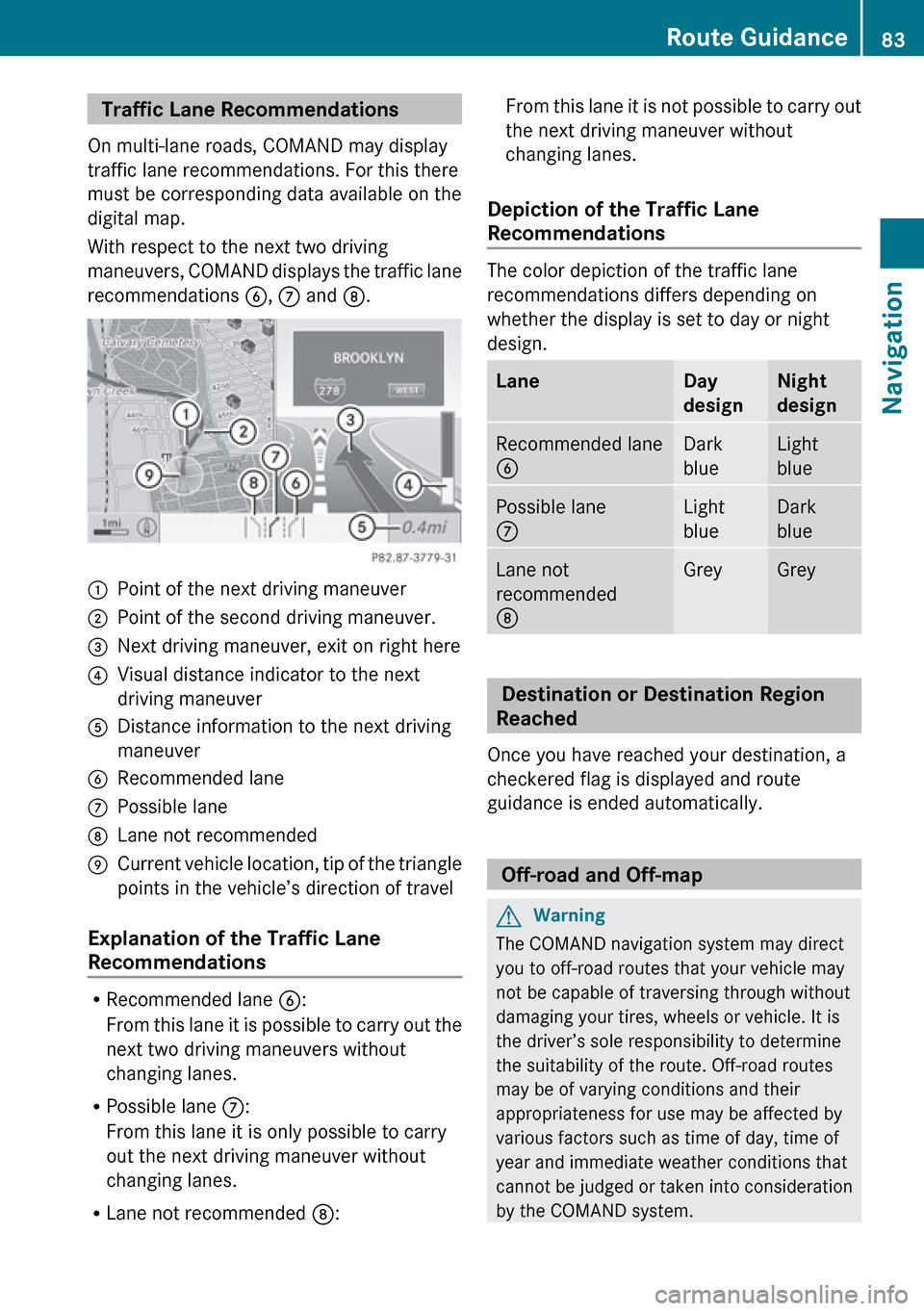
With respect to the next two driving
maneuvers, COMAND displays the traffic lane
recommendations 6, 7 and 8.1Point of the next driving maneuver2Point of the second driving maneuver.3Next driving maneuver, exit on right here4Visual distance indicator to the next
driving maneuver5Distance information to the next driving
maneuver6Recommended lane7Possible lane8Lane not recommended9Current vehicle location, tip of the triangle
points in the vehicle’s direction of travel
Explanation of the Traffic Lane
Recommendations
R Recommended lane 6:
From this lane it is possible to carry out the
next two driving maneuvers without
changing lanes.
R Possible lane 7:
From this lane it is only possible to carry
out the next driving maneuver without
changing lanes.
R Lane not recommended 8:
From this lane it is not possible to carry out
the next driving maneuver without
changing lanes.
Depiction of the Traffic Lane
Recommendations
The color depiction of the traffic lane
recommendations differs depending on
whether the display is set to day or night
design.
LaneDay
designNight
designRecommended lane
6Dark
blueLight
bluePossible lane
7Light
blueDark
blueLane not
recommended
8GreyGrey
Destination or Destination Region
Reached
Once you have reached your destination, a
checkered flag is displayed and route
guidance is ended automatically.
Off-road and Off-map
GWarning
The COMAND navigation system may direct
you to off-road routes that your vehicle may
not be capable of traversing through without
damaging your tires, wheels or vehicle. It is
the driver’s sole responsibility to determine
the suitability of the route. Off-road routes
may be of varying conditions and their
appropriateness for use may be affected by
various factors such as time of day, time of
year and immediate weather conditions that
cannot be judged or taken into consideration
by the COMAND system.
Route Guidance83NavigationZ
Page 87 of 224
As soon as the vehicle location is found again,
route guidance continues in the usual
manner.
Navigation Announcements
GWarning
Navigation announcements are intended to
direct you while driving without diverting your
attention from the road and driving.
Please always use this feature instead of
consulting the map display for directions.
Consulting the symbols or map display for
directions may cause you to divert your
attention from driving and increase your risk
of an accident.
i During an active telephone call, the
navigation announcements are
suppressed.
If you have missed an announcement, you can
call up the current announcement at any
time.
XTo request current announcement: In
map view with the menu system
( Y page 54) displayed, select RPT.XTo switch off navigation
announcements: During the
announcement, press the B button.
You will briefly see the message: The
driving instructions have been
muted .XTo switch navigation announcements
back on manually: In map view with the
menu system (Y page 54) displayed, select
RPT .
or
XStart a new route calculation ( Y page 70).
or
XIf COMAND is switched on again or the
engine is restarted.XTo set the volume of the
announcements: Set the volume during
the automatic announcement ( Y page 35).
or
XCall up an announcement manually by
selecting RPT in map view with the menu
system displayed.XAdjust the volume.
Audio Fadeout
The Audio Fadeout function, if activated,
lowers the volume of the current audio source
when a navigation announcement is issued.
As soon as the navigation announcement has
ended, the audio source will be played with
the previous volume ( Y page 60).
Canceling Route Guidance
XIn the map display with the menu system
displayed ( Y page 54) select Destination
£ Cancel Route Guidance .
Resuming Route Guidance
XSelect Destination £Continue Route
Guidance in map view with the menu
system displayed.
COMAND calculates the route.
Detour Function
i The Detour function blocks a route
segment ahead. You can set the length of
the block. COMAND calculates a detour
route if possible.
XSelect Route£Detour in map view with
the menu system displayed.XTo set the length of block: Select
Longer or Shorter repeatedly until the
required length is set.
The blocked segment is highlighted in red/
white on the map. Shown at the top of the
display is the length of the blockedRoute Guidance85NavigationZ
Page 90 of 224
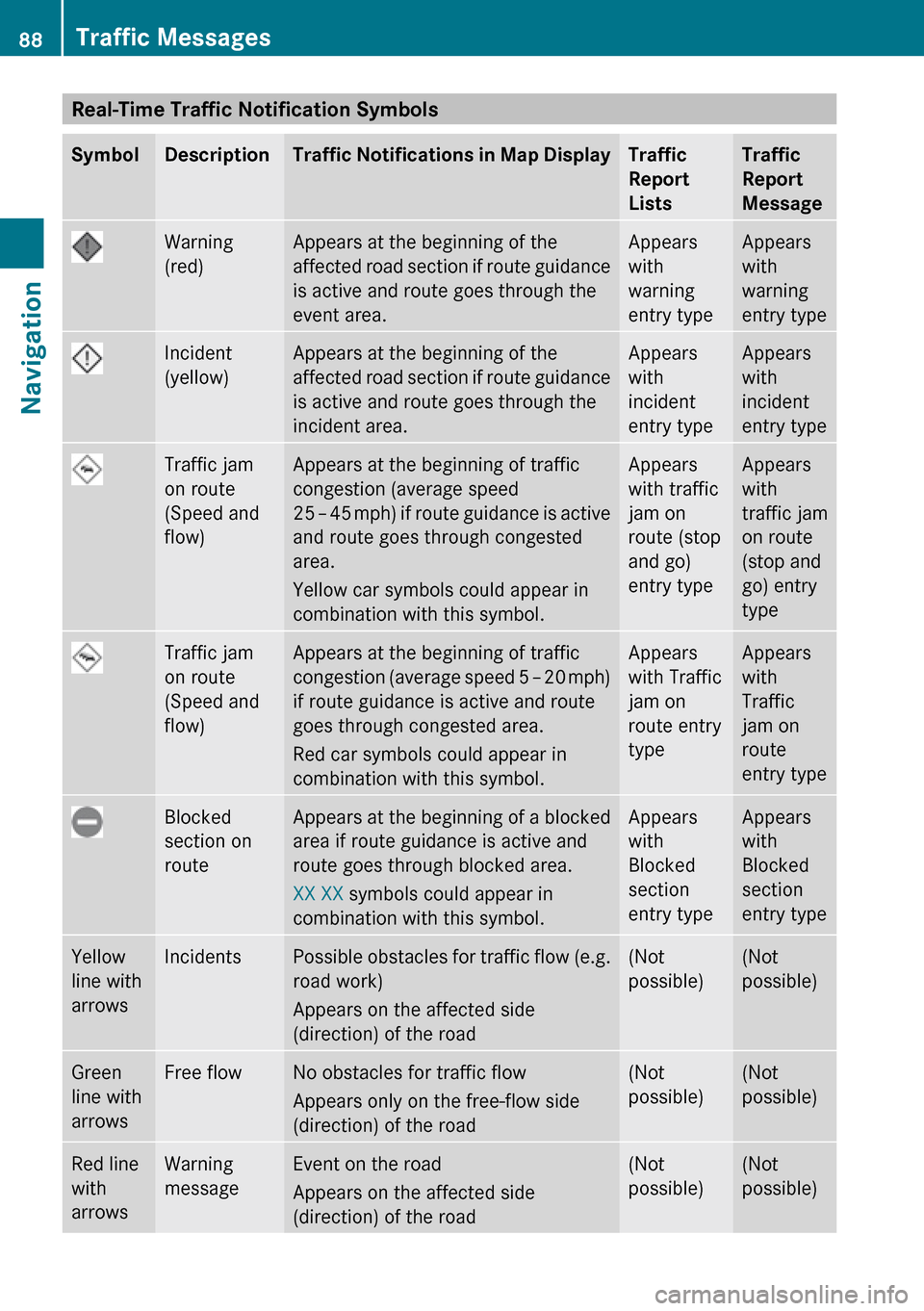
Real-Time Traffic Notification SymbolsSymbolDescriptionTraffic Notifications in Map DisplayTraffic
Report
ListsTraffic
Report
MessageWarning
(red)Appears at the beginning of the
affected road section if route guidance
is active and route goes through the
event area.Appears
with
warning
entry typeAppears
with
warning
entry typeIncident
(yellow)Appears at the beginning of the
affected road section if route guidance
is active and route goes through the
incident area.Appears
with
incident
entry typeAppears
with
incident
entry typeTraffic jam
on route
(Speed and
flow)Appears at the beginning of traffic
congestion (average speed
25 – 45 mph ) if route guidance is active
and route goes through congested
area.
Yellow car symbols could appear in
combination with this symbol.Appears
with traffic
jam on
route (stop
and go)
entry typeAppears
with
traffic jam
on route
(stop and
go) entry
typeTraffic jam
on route
(Speed and
flow)Appears at the beginning of traffic
congestion (average speed 5 – 20 mph)
if route guidance is active and route
goes through congested area.
Red car symbols could appear in
combination with this symbol.Appears
with Traffic
jam on
route entry
typeAppears
with
Traffic
jam on
route
entry typeBlocked
section on
routeAppears at the beginning of a blocked
area if route guidance is active and
route goes through blocked area.
XX XX symbols could appear in
combination with this symbol.Appears
with
Blocked
section
entry typeAppears
with
Blocked
section
entry typeYellow
line with
arrowsIncidentsPossible obstacles for traffic flow (e.g.
road work)
Appears on the affected side
(direction) of the road(Not
possible)(Not
possible)Green
line with
arrowsFree flowNo obstacles for traffic flow
Appears only on the free-flow side
(direction) of the road(Not
possible)(Not
possible)Red line
with
arrowsWarning
messageEvent on the road
Appears on the affected side
(direction) of the road(Not
possible)(Not
possible)88Traffic MessagesNavigation
Page 100 of 224
Safety PrecautionsGWarning
Some jurisdictions prohibit the driver from
using a cellular telephone while driving.
Whether or not prohibited by law, for safety
reasons, the driver should not use the cellular
telephone while the vehicle is in motion. Stop
the vehicle in a safe location before placing or
answering a call.
If you nonetheless choose to use the mobile
phone while driving, please use the handsfree
feature and be sure to pay attention to the
traffic situation at all times. Use the mobile
phone only when road, weather and traffic
conditions permit. Otherwise, you may not be
able to observe traffic conditions and could
endanger yourself and others.
Bear in mind that at a speed of just 30 mph
(approximately 50 km/h), your vehicle is
covering a distance of 44 feet (approximately
14 m) every second.
GWarning
You and others may damage your health due
to excessive electromagnetic radiation. By
using an external antenna, the possible health
risks of electromagnetic fields, which are
under discussion among the scientific
community, should be largely prevented.
General Information
Vehicle Equipment
i This Operator’s Manual describes all
features, standard or optional, potentially
available for your vehicle at the time of
purchase. Please be aware that your
vehicle might not be equipped with all
features described in this manual.
Making Calls via Bluetooth ®
Interface
The telephone function via the Bluetooth ®
interface is available in conjunction with a
Bluetooth-enabled mobile phone.
With a suitable mobile phone, you can use
COMAND’s hands-free feature to download
contacts from your mobile phone (Phone
Book Access profile) and electronic business
cards (vCards) via the Bluetooth ®
interface.
Suitable Mobile Phones
Further information on suitable mobile
phones and connecting Bluetooth-enabled
mobile phones to COMAND is available via
the Internet at www.mbusa-mobile.com. Or
call the Mercedes-Benz Customer Assistance
Center at 1-800-FOR-MERCedes
(1-800-367-6372) (US), or Customer
Relations at 1-800-387-0100 (Canada).
Interruptions to the Connection
While Driving
Interruptions to the connection may occur if
R there is inadequate network coverage in
certain regions
R you are switching from one transmitting/
receiving station (cell) to another and there
is no voice channel available in this cell
R you are using a SIM card that is not
compatible with the available network
R when using a mobile phone with
“Twincard”, the mobile phone is
simultaneously logged into the network
with the second SIM card.
Operating Options
If the mobile phone is connected with
COMAND via the Bluetooth ®
interface, you
can operate the phone using the following
devices:
98General InformationTelephone
Page 104 of 224
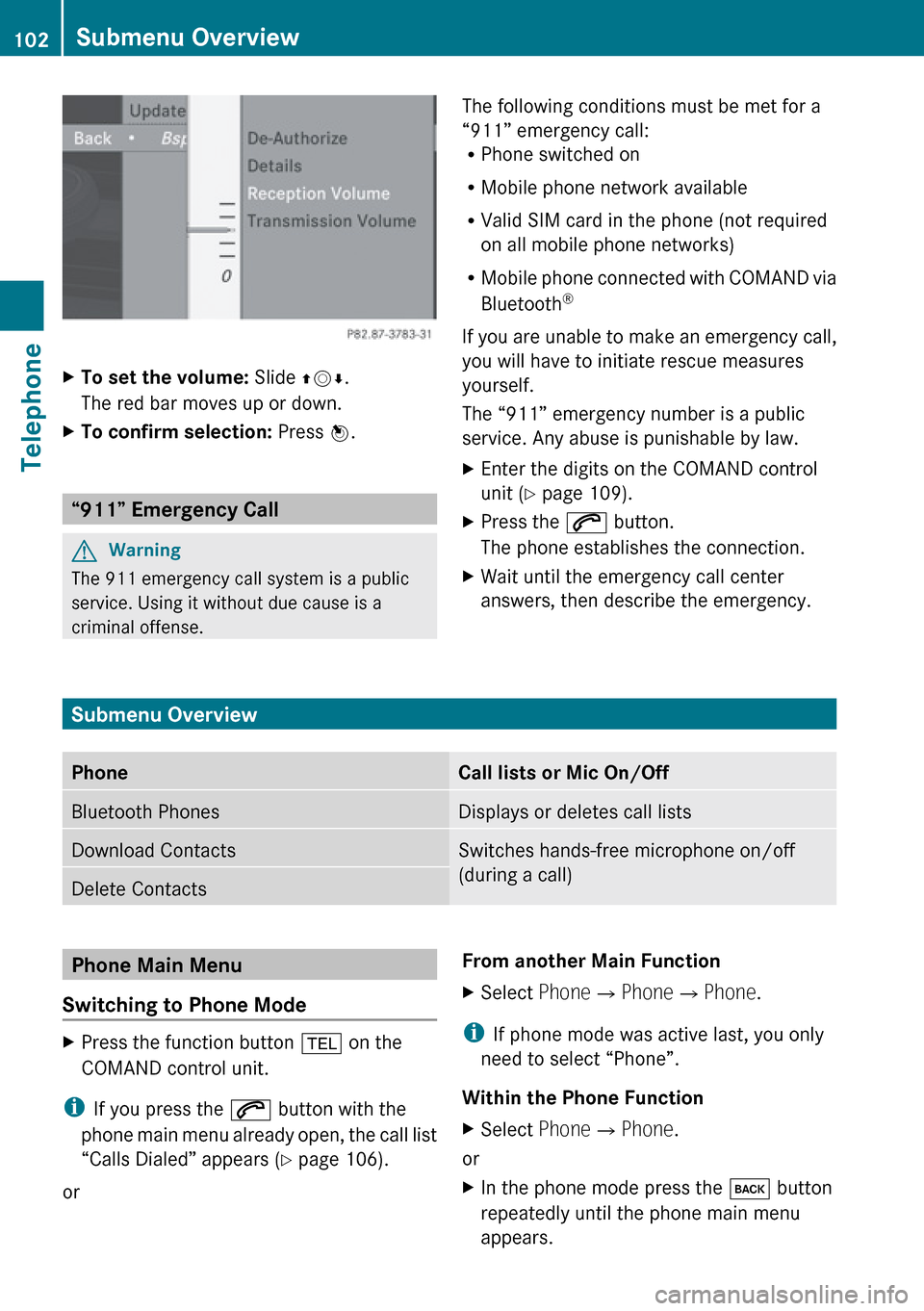
XTo set the volume: Slide qmr.
The red bar moves up or down.XTo confirm selection: Press n.
“911” Emergency Call
GWarning
The 911 emergency call system is a public
service. Using it without due cause is a
criminal offense.
The following conditions must be met for a
“911” emergency call:
R Phone switched on
R Mobile phone network available
R Valid SIM card in the phone (not required
on all mobile phone networks)
R Mobile phone connected with COMAND via
Bluetooth ®
If you are unable to make an emergency call,
you will have to initiate rescue measures
yourself.
The “911” emergency number is a public
service. Any abuse is punishable by law.XEnter the digits on the COMAND control
unit ( Y page 109).XPress the 6 button.
The phone establishes the connection.XWait until the emergency call center
answers, then describe the emergency.
Submenu Overview
PhoneCall lists or Mic On/OffBluetooth PhonesDisplays or deletes call listsDownload ContactsSwitches hands-free microphone on/off
(during a call)Delete ContactsPhone Main Menu
Switching to Phone ModeXPress the function button % on the
COMAND control unit.
i If you press the 6 button with the
phone main menu already open, the call list
“Calls Dialed” appears ( Y page 106).
or
From another Main FunctionXSelect Phone£Phone £Phone .
i
If phone mode was active last, you only
need to select “Phone”.
Within the Phone Function
XSelect Phone£Phone .
or
XIn the phone mode press the k button
repeatedly until the phone main menu
appears.102Submenu OverviewTelephone
Page 113 of 224
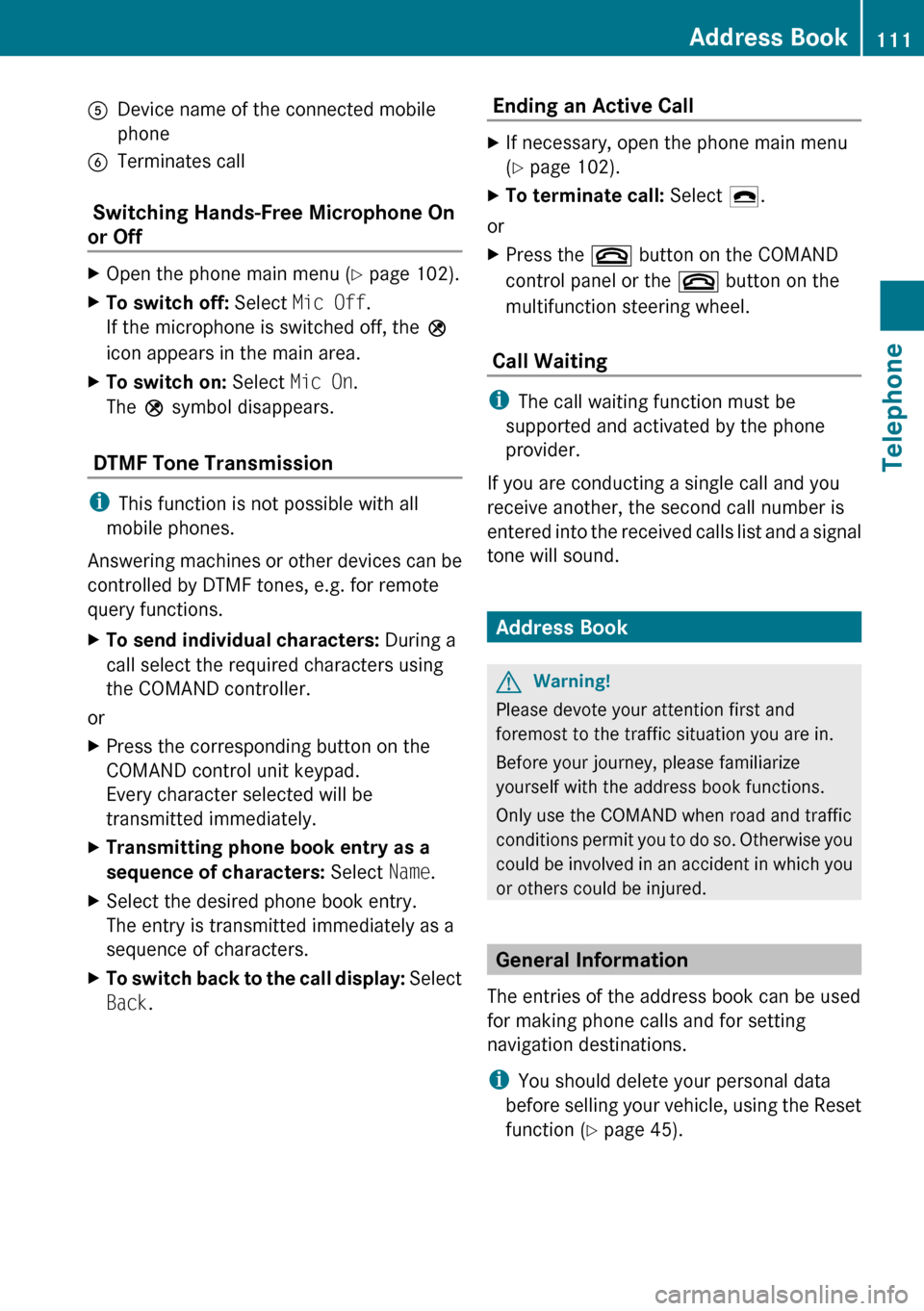
5Device name of the connected mobile
phone6Terminates call
Switching Hands-Free Microphone On
or Off
XOpen the phone main menu ( Y page 102).XTo switch off: Select Mic Off .
If the microphone is switched off, the >
icon appears in the main area.XTo switch on: Select Mic On.
The > symbol disappears.
DTMF Tone Transmission
i
This function is not possible with all
mobile phones.
Answering machines or other devices can be
controlled by DTMF tones, e.g. for remote
query functions.
XTo send individual characters: During a
call select the required characters using
the COMAND controller.
or
XPress the corresponding button on the
COMAND control unit keypad.
Every character selected will be
transmitted immediately.XTransmitting phone book entry as a
sequence of characters: Select Name.XSelect the desired phone book entry.
The entry is transmitted immediately as a
sequence of characters.XTo switch back to the call display: Select
Back . Ending an Active Call XIf necessary, open the phone main menu
( Y page 102).XTo terminate call: Select 4.
or
XPress the ~ button on the COMAND
control panel or the ~ button on the
multifunction steering wheel.
Call Waiting
i The call waiting function must be
supported and activated by the phone
provider.
If you are conducting a single call and you
receive another, the second call number is
entered into the received calls list and a signal
tone will sound.
Address Book
GWarning!
Please devote your attention first and
foremost to the traffic situation you are in.
Before your journey, please familiarize
yourself with the address book functions.
Only use the COMAND when road and traffic
conditions permit you to do so. Otherwise you
could be involved in an accident in which you
or others could be injured.
General Information
The entries of the address book can be used
for making phone calls and for setting
navigation destinations.
i You should delete your personal data
before selling your vehicle, using the Reset
function ( Y page 45).
Address Book111TelephoneZ
Page 133 of 224

Press n.
or
XPress a number key, e. g. 4 on the control
unit.
Displaying Information
XIn the submenu rotate ym z or slide om p
until Info is highlighted.XPress n.
Information about the current program
appears.1Category2Channel3Artist4Song title
You will see (if available)
R the full name
R additional information
XTo switch back to the SatRadio main
display: Slide om p.
Displaying Service Information
You can call the provider service center for
questions or releases whenever you need.
XSelect SatRadio £Service in the
SatRadio submenu.
The service information appears.1Phone number of the provider, (SIRIUS
XM) or Call Service Provider2SIRIUS XM ID of your satellite receiverXTo switch back to the SatRadio main
display: Slide om p.
Channel List Updates
While receiving a new channel list the
message Updating Channels will appear.
The channel last tuned to will be muted until
the update is completed. You cannot operate
the satellite radio.
After completion of the update, the Satellite
radio main menu will appear. The channel last
tuned to will begin to play if available in the
new channel list.
Sound Settings
Refer to chapter “At a glance” on how to
adjust sound settings.
R Volume ( Y page 35)
R Balance and fader control ( Y page 35)
R Bass and treble control ( Y page 35)
R Surround sound ( Y page 36)
CD Audio/DVD Audio/MP3
Safety Instructions
GWarning
COMAND is classified as a Class 1 laser
product. You must not open the casing. There
CD Audio/DVD Audio/MP3131AudioZ
Page 134 of 224
is a risk of exposure to invisible laser radiation
if you open the casing, or if the casing is faulty
or damaged.
COMAND does not contain any parts that you
are able to maintain yourself. For safety
reasons, all maintenance work must be
exclusively carried out by qualified
technicians.GWarning
Only carry out the following when the vehicle
is stationary:
R Inserting a disc
R Ejecting a disc
There is a risk of accident by being distracted
from road and traffic conditions if you load a
CD/DVD while the vehicle is in motion.
Notes on MP3 Mode
Permissible Storage Media
R CD-R and CD-RW
R DVD+R and DVD+RW
R DVD-R and DVD-RW
R PCMCIA memory card
Permissible File Systems
R ISO9660/Joliet for CD storage media
R UDF for DVDs
R FAT16 or FAT32 for PCMCIA memory card
with storage medium
Multisession CDs
On multisession CDs, the content of the first
session determines how COMAND handles
the CD.
If the first session, for example, contains data
in CD Audio format and the second session
contains MP3 tracks, COMAND handles the
CD as a conventional Audio CD. This means
that the MP3 tracks cannot be accessed.
Similarly, if the first session contains MP3
tracks and the second session contains data
in CD Audio format, COMAND handles the CD
as an MP3 CD. Only the MP3 tracks can be
accessed.
File Structure of Storage Medium
When creating an MP3 storage medium, you
can organize MP3 tracks into folders. A folder
can also contain additional folders. A storage
medium may have a maximum of 255 folders
in total. A maximum of 255 tracks and 255
folders are permissible per folder. A
maximum of 4000 tracks in total are
permissible per storage medium.
Track Names and Folder Names
When creating an MP3 storage medium, you
can assign names to the MP3 tracks and to
the folders.
COMAND uses these names in MP3 mode for
the corresponding display. Empty folders or
folders containing data other than MP3 tracks
will not be displayed by COMAND.
If MP3 files are stored in the root directory
itself, the root directory also counts as a
folder. COMAND will then display the root
directory name as a folder name.
Please note the following when assigning
track names:
R Track names must contain at least one
character.
R Track names must have the extension
“mp3”.
R A period must appear between the track
name and the extension.
i COMAND does not support ID3 tags.
Permissible Formats
COMAND supports the following formats:
R MPEG1 audio layer 3 format
132CD Audio/DVD Audio/MP3Audio
Page 136 of 224
There may be playback problems with
userburned CDs with a storage capacity of
more than 700 MB. These CDs do not meet
current valid standards.
i When playing a DVD Audio, it may be the
case with numerous albums that the last
track does not contain any music and
COMAND switches to the next track. This
is due to the production method and does
not imply a fault with the unit.
! Do not attach stickers or labels of any
kind to discs. They may come loose and
damage COMAND.
COMAND has been designed for discs
meeting the requirements of standard
EN 60908. Therefore, only discs with a
maximum thickness of 1.3 mm can be
used.
If a thicker disc is inserted, e.g. one which
stores data on both sides, (DVD on one
side, audio data on the other side), this
cannot be ejected and COMAND will be
damaged.
Do not use 8 cm diameter discs, not even
with an adapter. Only use round discs with
a diameter of 12 cm.
i COMAND can play CD Audio with the high
resolution surround format.
Notes on the Care of CD/DVD Discs
R Only touch the discs at the edges.
R Handle discs with care in order to prevent
malfunctions during playback.
R Avoid scratching, leaving fingerprints and
dust on the discs.
R Clean the discs occasionally with a
commercially available cleaning cloth.
Always wipe in a straight line from the
inside outwards, never in a circular motion.
R The discs must only be labelled using pens
specially designed for this purpose.
R After use, put the discs back into the box.
R Protect the discs from heat and direct
sunlight.
Loading CDs and DVDs
GWarning
Only load a CD or DVD when the vehicle is
stationary. There is a risk of accident by being
distracted from road and traffic conditions if
you load a CD/DVD while the vehicle is in
motion.
Bear in mind that at a speed of just 30 mph
(appr. 50 km/h), your vehicle is covering a
distance of 44 feet (appr. 14 m) every second.
i If the CD/DVD is printed on one side, this
side must face upwards when loaded. If
neither side is printed, the side to be played
must face downwards.
The system may not be able to play copy-
protected CDs/DVDs.
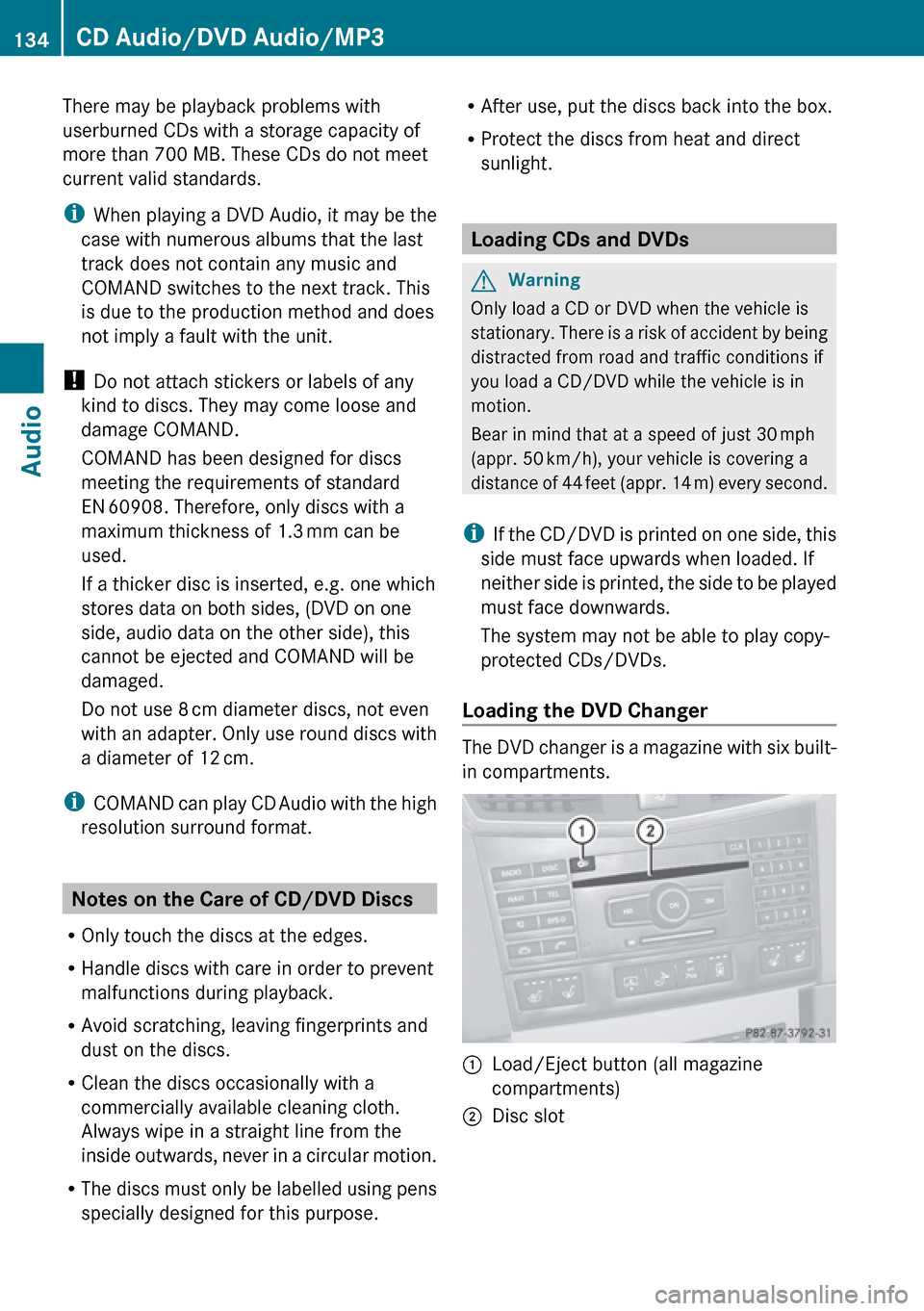
Loading the DVD Changer
The DVD changer is a magazine with six built-
in compartments.
1Load/Eject button (all magazine
compartments)2Disc slot134CD Audio/DVD Audio/MP3Audio
Page 138 of 224
number or, if the magazine is empty,
compartment 1 is marked.XSelect Fill Empty Slots .
The message Please insert disc
will be displayed.
i Only insert a CD after COMAND has
prompted you to do so with this message.
Only insert one CD per magazine
compartment.
XInsert a disc into the slot with the printed
side facing upwards.
You see the Please wait... message.
Once the disc is loaded, the DVD changer
switches to the next empty compartment.
You see these messages: Please wait
and then Please insert disc
loaded.
The DVD changer plays the last disc you
loaded if it has been inserted correctly and
if it is a permissible type.
If loading is not completed, COMAND plays
the first disc inserted.XTo end loading procedure: Press the Load
V button again.
or
XSelect Back.
or
XPress the k button next to the
COMAND controller.
Loading PCMCIA Memory Card
GWarning
Only load a memory card when the vehicle is
stationary. There is a risk of accident by being
distracted from road and traffic conditions if
you load a memory card while the vehicle is
in motion.
Bear in mind that at a speed of just 30 mph
(appr. 50 km/h), your vehicle is covering a
distance of 44 feet (appr. 14 m) every second.
COMAND supports 16-bit full-size type I and II
PCMCIA memory cards.
i COMAND supports commercially
available PCMCIA cards or PCMCIA card
adapters with storage media that may not
be designed for the temperatures which
occur in the vehicle. You should therefore
remove the PCMCIA card from the vehicle
when not in use since extreme
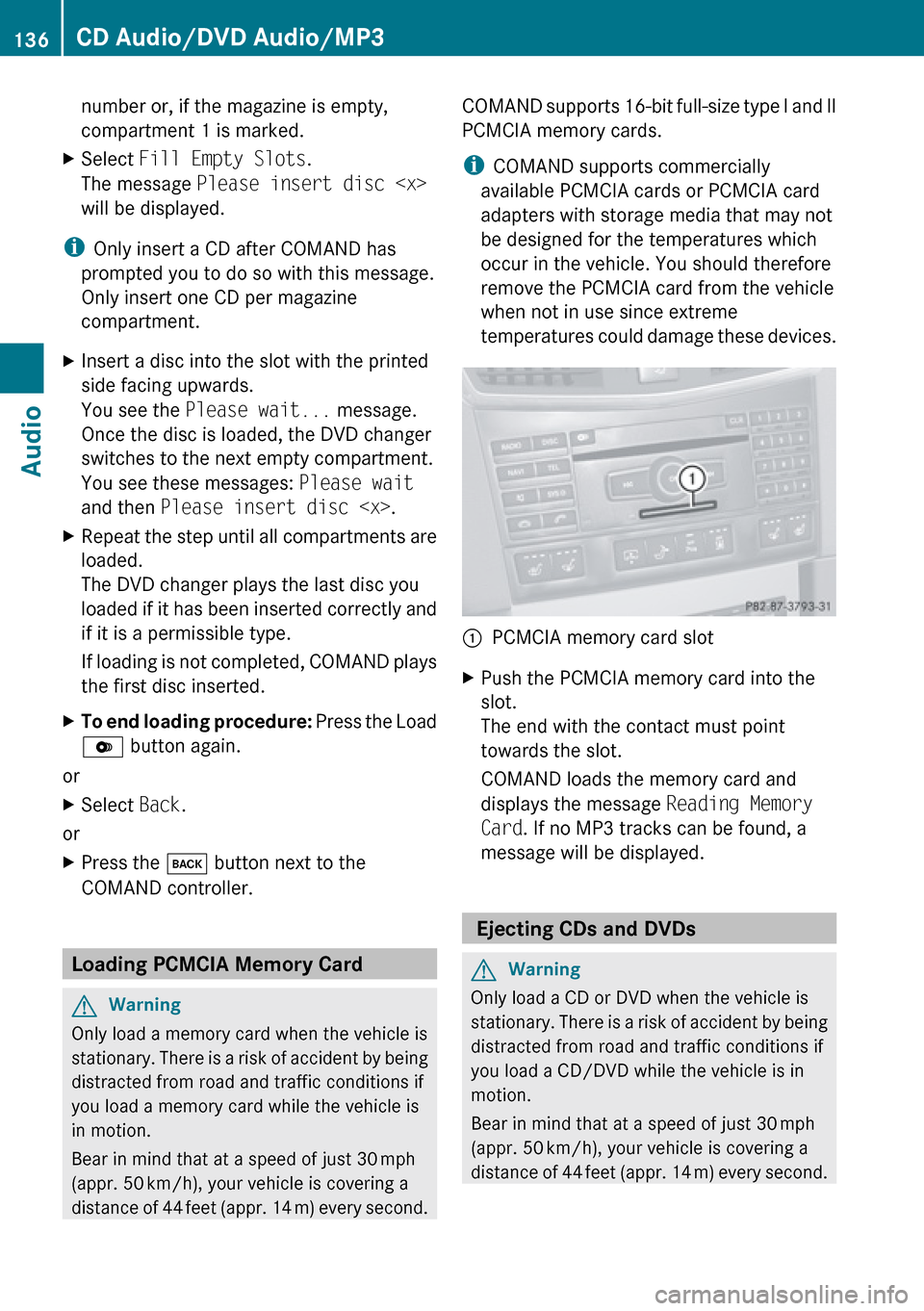
temperatures could damage these devices.1PCMCIA memory card slotXPush the PCMCIA memory card into the
slot.
The end with the contact must point
towards the slot.
COMAND loads the memory card and
displays the message Reading Memory
Card . If no MP3 tracks can be found, a
message will be displayed.
Ejecting CDs and DVDs
GWarning
Only load a CD or DVD when the vehicle is
stationary. There is a risk of accident by being
distracted from road and traffic conditions if
you load a CD/DVD while the vehicle is in
motion.
Bear in mind that at a speed of just 30 mph
(appr. 50 km/h), your vehicle is covering a
distance of 44 feet (appr. 14 m) every second.
136CD Audio/DVD Audio/MP3Audio