warning MERCEDES-BENZ E-Class COUPE 2010 C212 Comand Manual
[x] Cancel search | Manufacturer: MERCEDES-BENZ, Model Year: 2010, Model line: E-Class COUPE, Model: MERCEDES-BENZ E-Class COUPE 2010 C212Pages: 224, PDF Size: 7.4 MB
Page 199 of 224
RDistance to destination
R Remaining driving time
R Expected arrival time
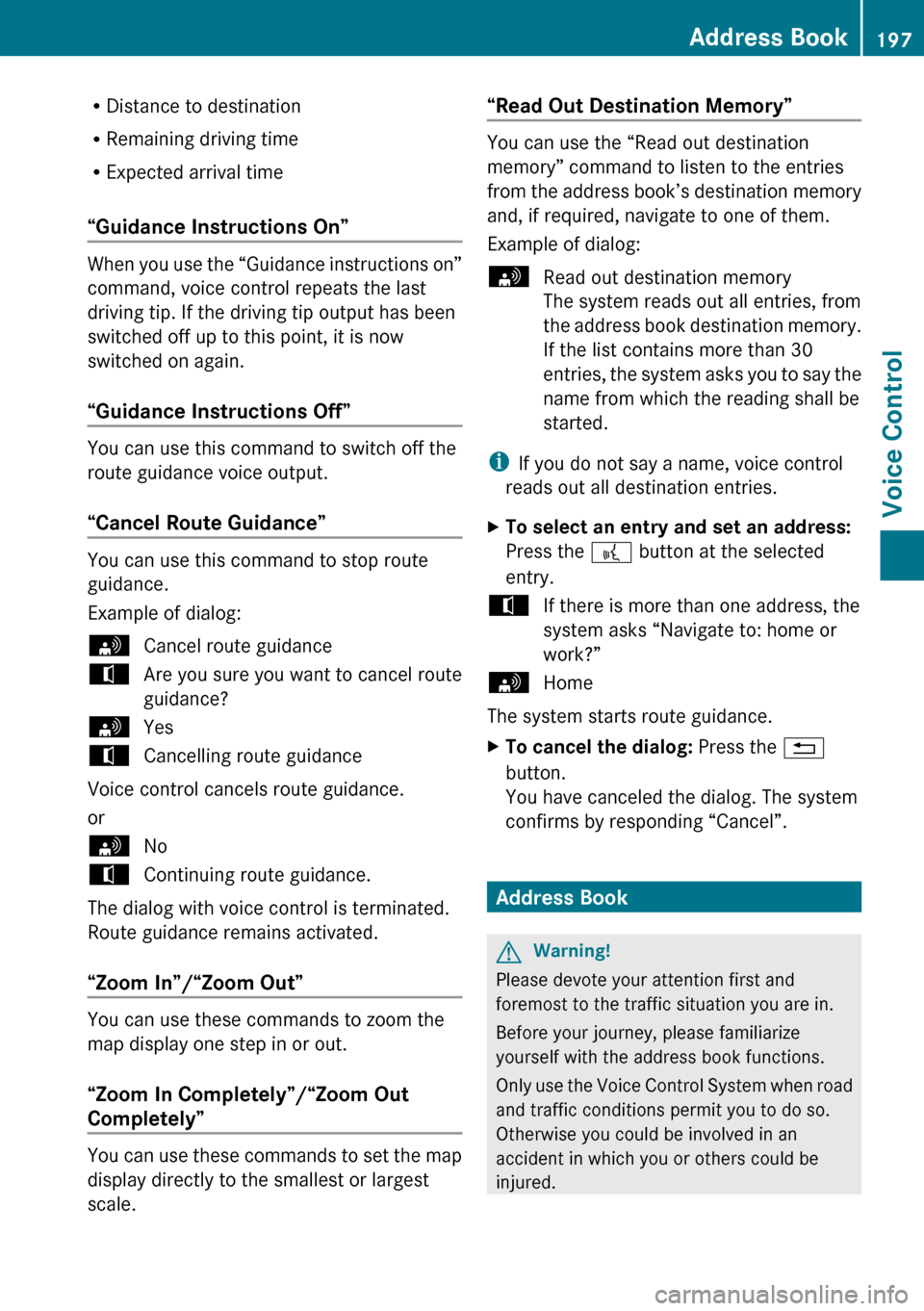
“Guidance Instructions On”
When you use the “Guidance instructions on”
command, voice control repeats the last
driving tip. If the driving tip output has been
switched off up to this point, it is now
switched on again.
“Guidance Instructions Off”
You can use this command to switch off the
route guidance voice output.
“Cancel Route Guidance”
You can use this command to stop route
guidance.
Example of dialog:
sCancel route guidancetAre you sure you want to cancel route
guidance?sYestCancelling route guidance
Voice control cancels route guidance.
or
sNotContinuing route guidance.
The dialog with voice control is terminated.
Route guidance remains activated.
“Zoom In”/“Zoom Out”
You can use these commands to zoom the
map display one step in or out.
“Zoom In Completely”/“Zoom Out
Completely”
You can use these commands to set the map
display directly to the smallest or largest
scale.
“Read Out Destination Memory”
You can use the “Read out destination
memory” command to listen to the entries
from the address book’s destination memory
and, if required, navigate to one of them.
Example of dialog:
sRead out destination memory
The system reads out all entries, from
the address book destination memory.
If the list contains more than 30
entries, the system asks you to say the
name from which the reading shall be
started.
i If you do not say a name, voice control
reads out all destination entries.
XTo select an entry and set an address:
Press the ? button at the selected
entry.tIf there is more than one address, the
system asks “Navigate to: home or
work?”sHome
The system starts route guidance.
XTo cancel the dialog: Press the %
button.
You have canceled the dialog. The system
confirms by responding “Cancel”.
Address Book
GWarning!
Please devote your attention first and
foremost to the traffic situation you are in.
Before your journey, please familiarize
yourself with the address book functions.
Only use the Voice Control System when road
and traffic conditions permit you to do so.
Otherwise you could be involved in an
accident in which you or others could be
injured.
Address Book197Voice ControlZ
Page 203 of 224
You can use the “Correction” command to
spell the name again.
Radio and Satellite Radio
GWarning!
Please devote your attention first and
foremost to the traffic situation you are in.
Before your journey, please familiarize
yourself with the radio functions.
Only use the Voice Control System when road
and traffic conditions permit you to do so.
Otherwise you could be involved in an
accident in which you or others could be
injured.
Operation
You can use voice control to:
R select the waveband
R find a station
R select a frequency (FM, AM)
R select a category (Satellite radio)
R listen to the station list
R save a voice name for a station
R delete a station list (voice names only)
R delete a station (voice name only)
R select a channel number (Satellite radio)
The names of all received and stored stations
are available for voice recognition. To
improve voice recognition, you can store a
voice name for a specific speaker.
XTo select the radio or satellite radio
application: Press the ? button on the
multifunction steering wheel.XSay the command Radio or Satellite
Radio .XPress the ? button.XSay one of the radio or satellite radio
commands explained below.Commands
You can always give the commands for the
radio when you are listening to the radio, even
if a different application is shown on the
display.
“Help Radio”
Using the “Help Radio” command, you can
have all the commands for the radio read out.
“Help Satellite Radio”
Using the “Help Satellite Radio” command,
you can have all the commands for the
satellite radio read out.
Selecting a Waveband
You can set the waveband with the following
commands:
R “FM”
R “AM”
“Next Station”/“Previous Station”
You can start manual tuning and set the next
station using the following commands:
R “Next station”
R “Previous station”
“Next Category”/“Previous Category”
You can use the following commands to
change the category on satellite radio:
R “Next category”
R “Previous category”
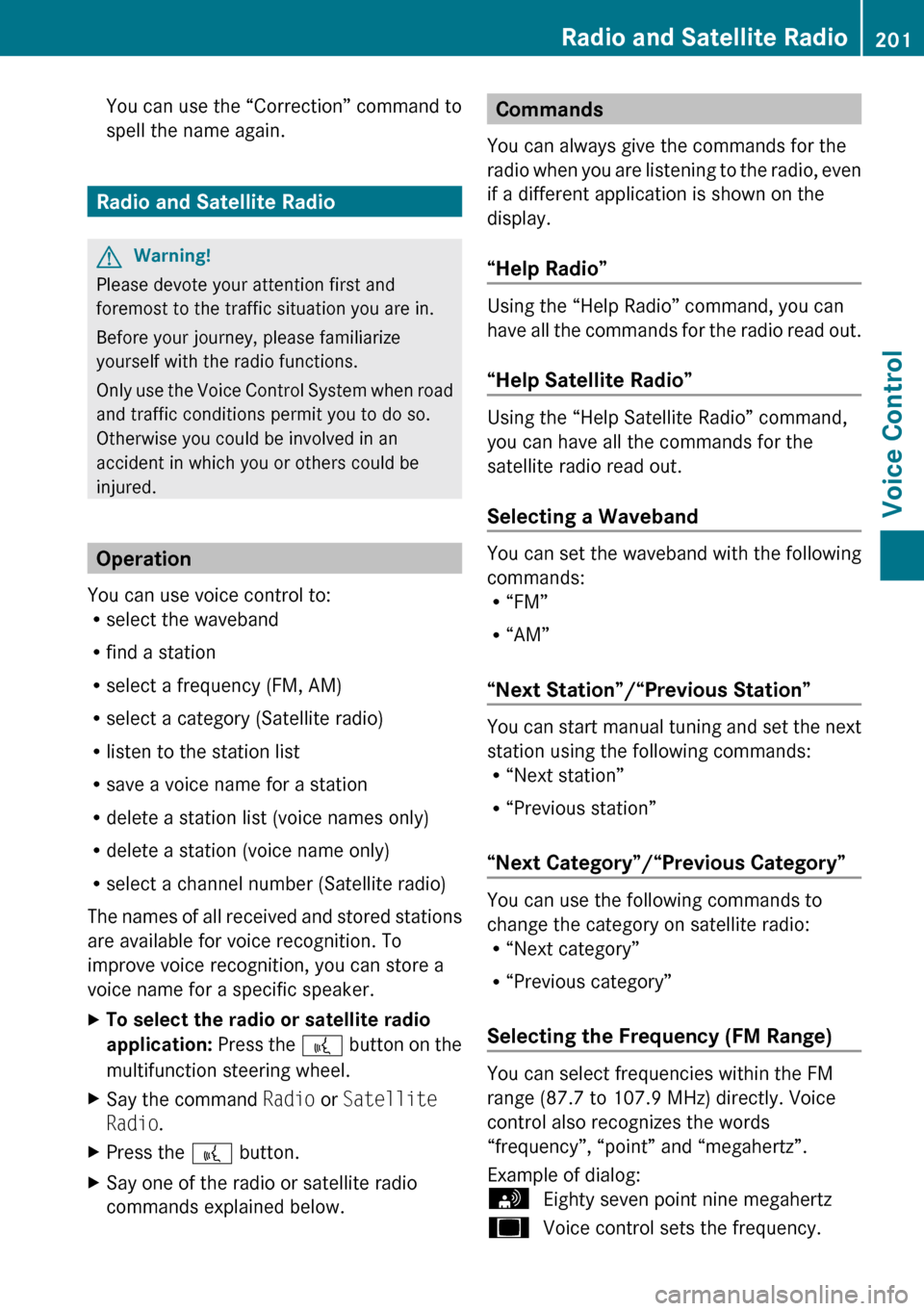
Selecting the Frequency (FM Range)
You can select frequencies within the FM
range (87.7 to 107.9 MHz) directly. Voice
control also recognizes the words
“frequency”, “point” and “megahertz”.
Example of dialog:
sEighty seven point nine megahertzuVoice control sets the frequency.Radio and Satellite Radio201Voice ControlZ
Page 205 of 224
If the station you require is read out:XPress the ? button.
The system sets the corresponding
frequency.XTo cancel the dialog: Press the %
button.
You have cancelled the dialog. The system
confirms by responding “Cancel”.
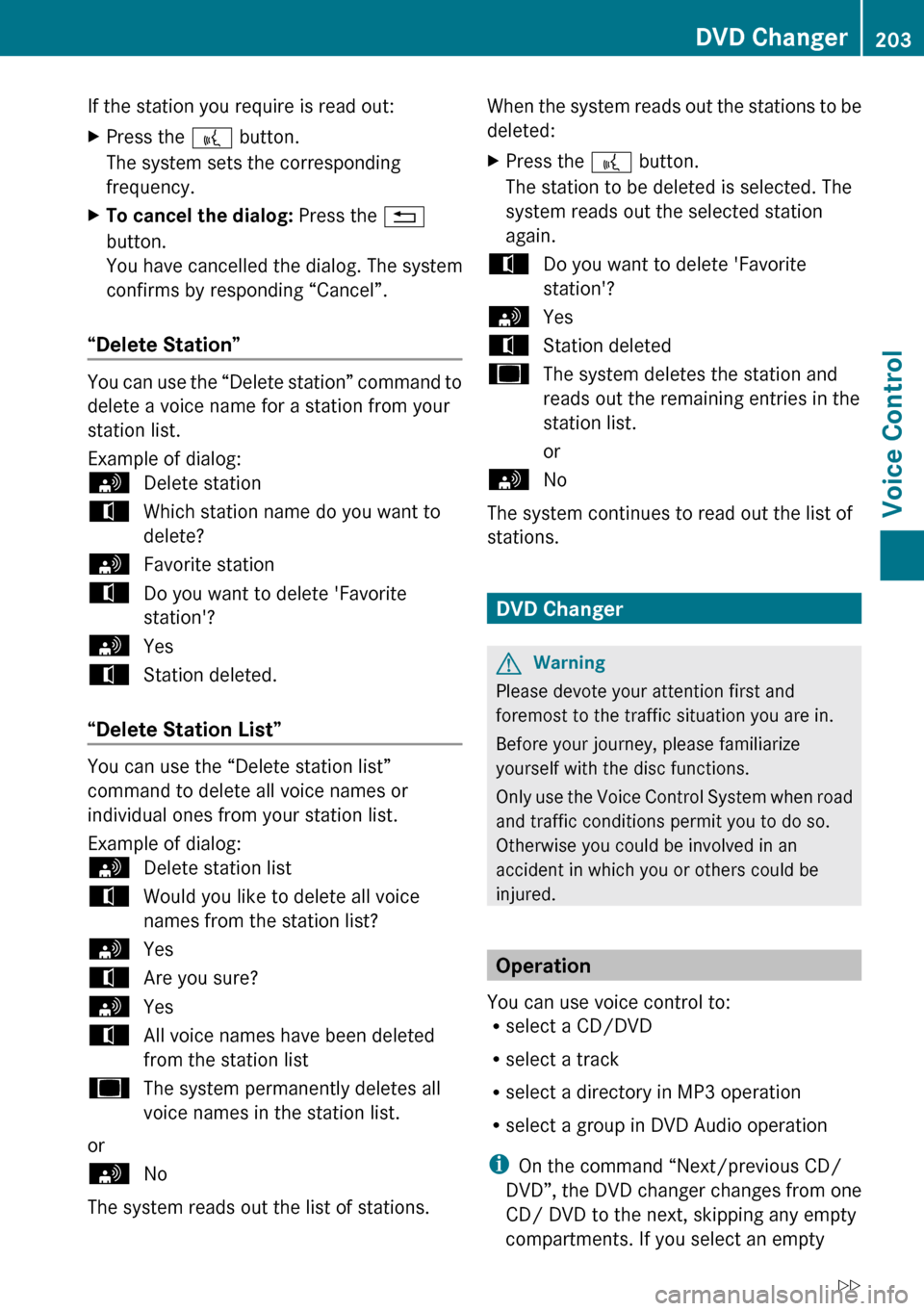
“Delete Station”
You can use the “Delete station” command to
delete a voice name for a station from your
station list.
Example of dialog:
sDelete stationtWhich station name do you want to
delete?sFavorite stationtDo you want to delete 'Favorite
station'?sYestStation deleted.
“Delete Station List”
You can use the “Delete station list”
command to delete all voice names or
individual ones from your station list.
Example of dialog:
sDelete station listtWould you like to delete all voice
names from the station list?sYestAre you sure?sYestAll voice names have been deleted
from the station listuThe system permanently deletes all
voice names in the station list.
or
sNo
The system reads out the list of stations.
When the system reads out the stations to be
deleted:XPress the ? button.
The station to be deleted is selected. The
system reads out the selected station
again.tDo you want to delete 'Favorite
station'?sYestStation deleteduThe system deletes the station and
reads out the remaining entries in the
station list.
orsNo
The system continues to read out the list of
stations.
DVD Changer
GWarning
Please devote your attention first and
foremost to the traffic situation you are in.
Before your journey, please familiarize
yourself with the disc functions.
Only use the Voice Control System when road
and traffic conditions permit you to do so.
Otherwise you could be involved in an
accident in which you or others could be
injured.
Operation
You can use voice control to:
R select a CD/DVD
R select a track
R select a directory in MP3 operation
R select a group in DVD Audio operation
i On the command “Next/previous CD/
DVD”, the DVD changer changes from one
CD/ DVD to the next, skipping any empty
compartments. If you select an empty
DVD Changer203Voice ControlZ