AUX MERCEDES-BENZ E-Class COUPE 2010 C212 Comand Manual
[x] Cancel search | Manufacturer: MERCEDES-BENZ, Model Year: 2010, Model line: E-Class COUPE, Model: MERCEDES-BENZ E-Class COUPE 2010 C212Pages: 224, PDF Size: 7.4 MB
Page 173 of 224
In Aux mode you can play external video
sources that are connected either to the
display screens or to the CD/DVD drive. In
addition you can play the active audio or
video source of COMAND ( Y page 181).
With the system settings menu you can set
display design and language for each screen
separately ( Y page 172).
Wireless Headset Operation
i Vehicles sold in the US are equipped with
wireless headsets. Vehicles sold in Canada
and elsewhere are equipped with wired
headsets.
You can use the wireless headset and/or two
wired headsets connected to the display
screens ( Y page 168).
XSwitch on the wireless headset
( Y page 169).XSet the volume of the headset
( Y page 169).XSelect the display screen for the headset
( Y page 169).
Main Loudspeaker Operation
i This function is available in connection
with COMAND.
The sound of a medium which is played in the
RSE disc drive can also be heard over the
vehicle loudspeakers. For this, at least on one
of the display screens the operating mode
Disc has to be active.
XSwitching to Audio menu: Select Audio
£ Audio in COMAND.XSelect Rear.
The volume control of the headsets has no
impact on the volume of the loudspeakers.
Setting Treble and Bass XSwitch to the menu of the respective
operating mode
R CD Audio ( Y page 174)
R DVD Audio ( Y page 174)
R MP3 ( Y page 174)
R DVD Video ( Y page 177)
R Aux ( Y page 182)XSelect Treble or Bass .
A setting scale appears.XTo change the value: Press the n or
ý button on the remote control.XTo confirm the setting: Press the 9
button on the remote control.
Multiuser Operation
The two display screens can be operated
almost entirely independent from each other.
For some menus, however, there can arise
conflicts if the two display screens are used
simultaneously.
Simultaneous Use of the Rear-
Compartment Disc Drive
If on both display screens the disc drive is
used, the selection of certain settings on one
screen will have an impact on the other
screen as well.
The following functions affect both screens:
R Changing the playback options
R Selecting a track (from track list or folder)
R Using the Play, Stop or Pause function.
R Using the fast forward/rewind function
R Switching to DVD menu and and navigating
through it
R Setting language, subtitle and camera
angle
R Calling up interactive DVD content
Basic Functions171Rear Seat EntertainmentZ
Page 183 of 224
You will see the 7 icon in the display as
an indicator.
Back to MovieXPress % on the remote control
repeatedly until you see the film.
or
XSelect the corresponding menu item in the
DVD menu.
or
XSelect any menu item from the DVD menu.XSelect the Back (To the Movie) menu
item from the selection menu.
i Depending on the DVD, the Back (To
the Movie) menu item may not function
in general or may not function at certain
points in the DVD menu. You will see the
7 icon in the display as an indicator.
Setting the Language
i This function is not available on all DVDs.
If it is available, you can set the audio
language or the audio format. The number
of settings is determined by the DVD
content. The settings may also be
accessible in the DVD menu ( Y page 180).
XDisplay the menu system if necessary
( Y page 178).XSelect DVD-V £ DVD Functions .XSelect Audio Language .
A selection menu appears after a short
while. The R dot in front of an entry
indicates the currently selected language.XTo change a setting: Press n or ý
until the desired setting has been reached.XTo save setting: Press 9.XTo exit the menu without changes:
Press . or , .Subtitles and Camera Angle
i These functions are not available on all
DVDs. The number of subtitle languages
and camera angles available depends on
the content of the DVD. The settings may
also be accessible in the DVD menu.XDisplay the menu system if necessary
( Y page 178).XSelect DVD-V £ DVD functions .XSelect Subtitles or Camera angle .
Both of these will call up a selection menu
after a few seconds. The R dot in front of
an entry indicates the current setting.XTo change a setting: Press n or ý
until the desired setting has been attained.XTo save setting: Press 9.XTo exit the menu without changes:
Press . or , .
Interactive content
DVDs can also contain interactive content
(e.g. a video game). In a video game, you may
be able to influence events by selecting and
triggering actions. The type and number of
actions depend on the DVD.
XTo select an action: Press n,
ý , . or , on the remote control.XTo trigger an action: Press 9 on the
remote control.
A menu appears and the first entry,
Select , is highlighted.XPress 9 on the remote control.
Aux Operation
i You can connect two external video
sources to the display screens (Display
Aux) and additionally one video source to
the DVD drive (Drive Aux).
Aux Operation181Rear Seat EntertainmentZ
Page 184 of 224
For further information on external video
sources please refer to the operating guide
of the device.
Connecting an Aux Source
Drive Aux
The Aux connectors of the drive are beside
the Eject button on the front panel of the DVD
drive ( Y page 168).
Display Aux
The display Aux jacks are located on the side
of the screen ( Y page 167).
Connecting an Audio or Video Source
XInsert the audio jacks for the left and the
right signal into the respective connectors
labeled L and R.XInsert the video jack (yellow) into the
connector with the V label.
Switching to AUX Mode
Disc Drive Aux
XSelect Aux.
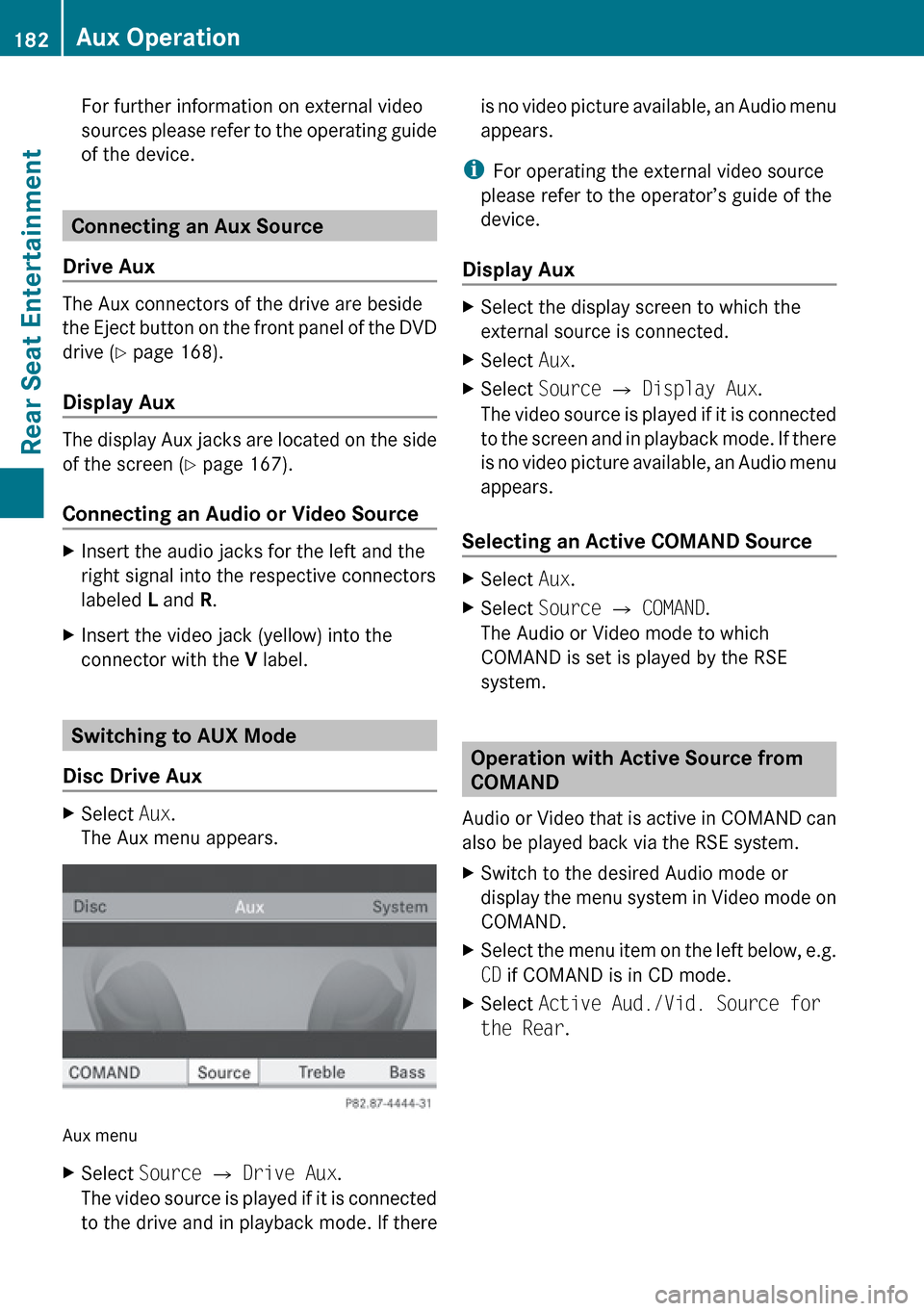
The Aux menu appears.
Aux menu
XSelect Source £ Drive Aux .
The video source is played if it is connected
to the drive and in playback mode. If thereis no video picture available, an Audio menu
appears.
i For operating the external video source
please refer to the operator’s guide of the
device.
Display Aux
XSelect the display screen to which the
external source is connected.XSelect Aux.XSelect Source £ Display Aux .
The video source is played if it is connected
to the screen and in playback mode. If there
is no video picture available, an Audio menu
appears.
Selecting an Active COMAND Source
XSelect Aux.XSelect Source £ COMAND .
The Audio or Video mode to which
COMAND is set is played by the RSE
system.
Operation with Active Source from
COMAND
Audio or Video that is active in COMAND can
also be played back via the RSE system.
XSwitch to the desired Audio mode or
display the menu system in Video mode on
COMAND.XSelect the menu item on the left below, e.g.
CD if COMAND is in CD mode.XSelect Active Aud./Vid. Source for
the Rear .182Aux OperationRear Seat Entertainment
Page 185 of 224
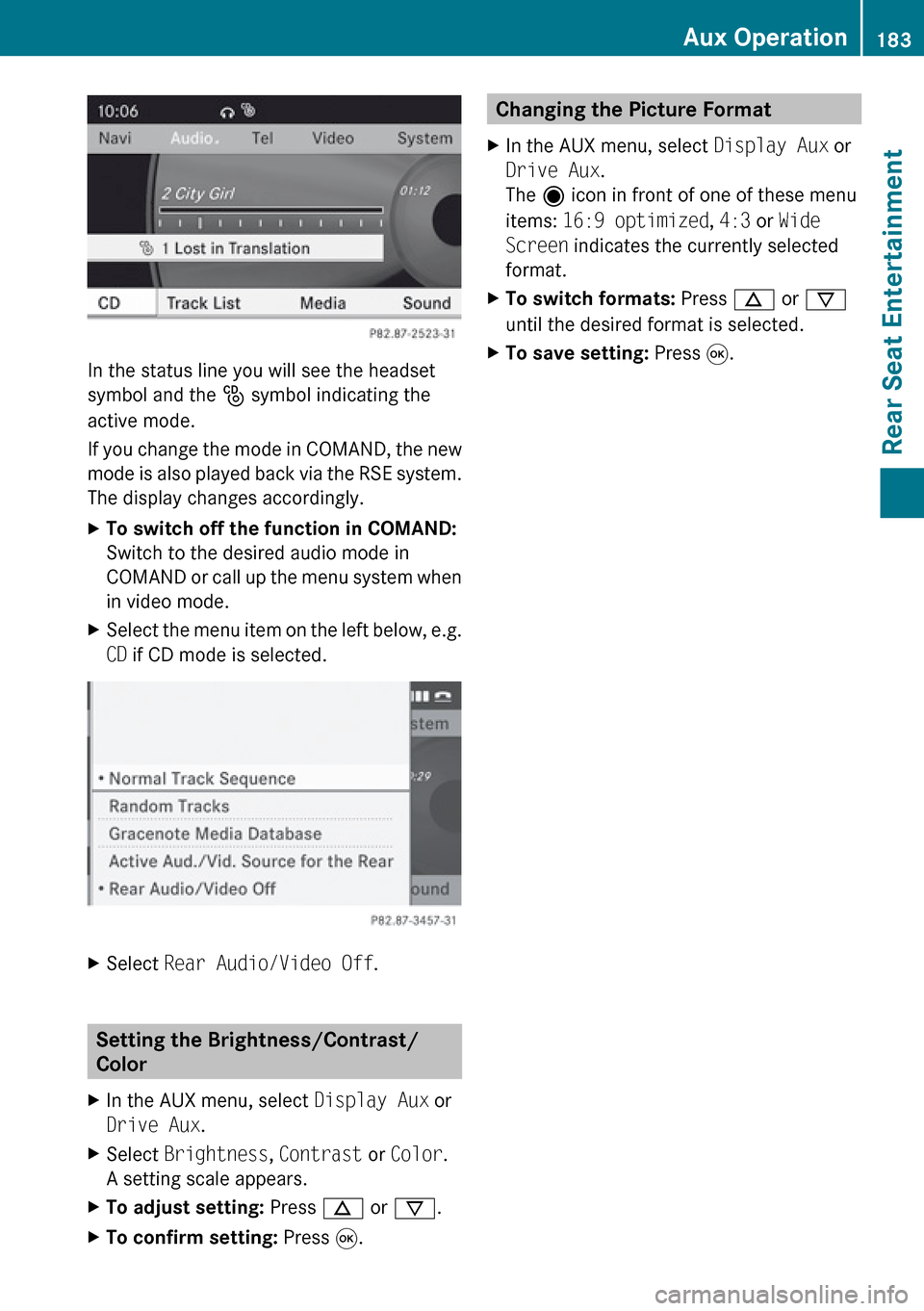
In the status line you will see the headset
symbol and the _ symbol indicating the
active mode.
If you change the mode in COMAND, the new
mode is also played back via the RSE system.
The display changes accordingly.
XTo switch off the function in COMAND:
Switch to the desired audio mode in
COMAND or call up the menu system when
in video mode.XSelect the menu item on the left below, e.g.
CD if CD mode is selected.XSelect Rear Audio/Video Off .
Setting the Brightness/Contrast/
Color
XIn the AUX menu, select Display Aux or
Drive Aux .XSelect Brightness , Contrast or Color .
A setting scale appears.XTo adjust setting: Press n or ý .XTo confirm setting: Press 9.Changing the Picture Format XIn the AUX menu, select Display Aux or
Drive Aux .
The ä icon in front of one of these menu
items: 16:9 optimized , 4:3 or Wide
Screen indicates the currently selected
format.XTo switch formats: Press n or ý
until the desired format is selected.XTo save setting: Press 9.Aux Operation183Rear Seat EntertainmentZ
Page 187 of 224
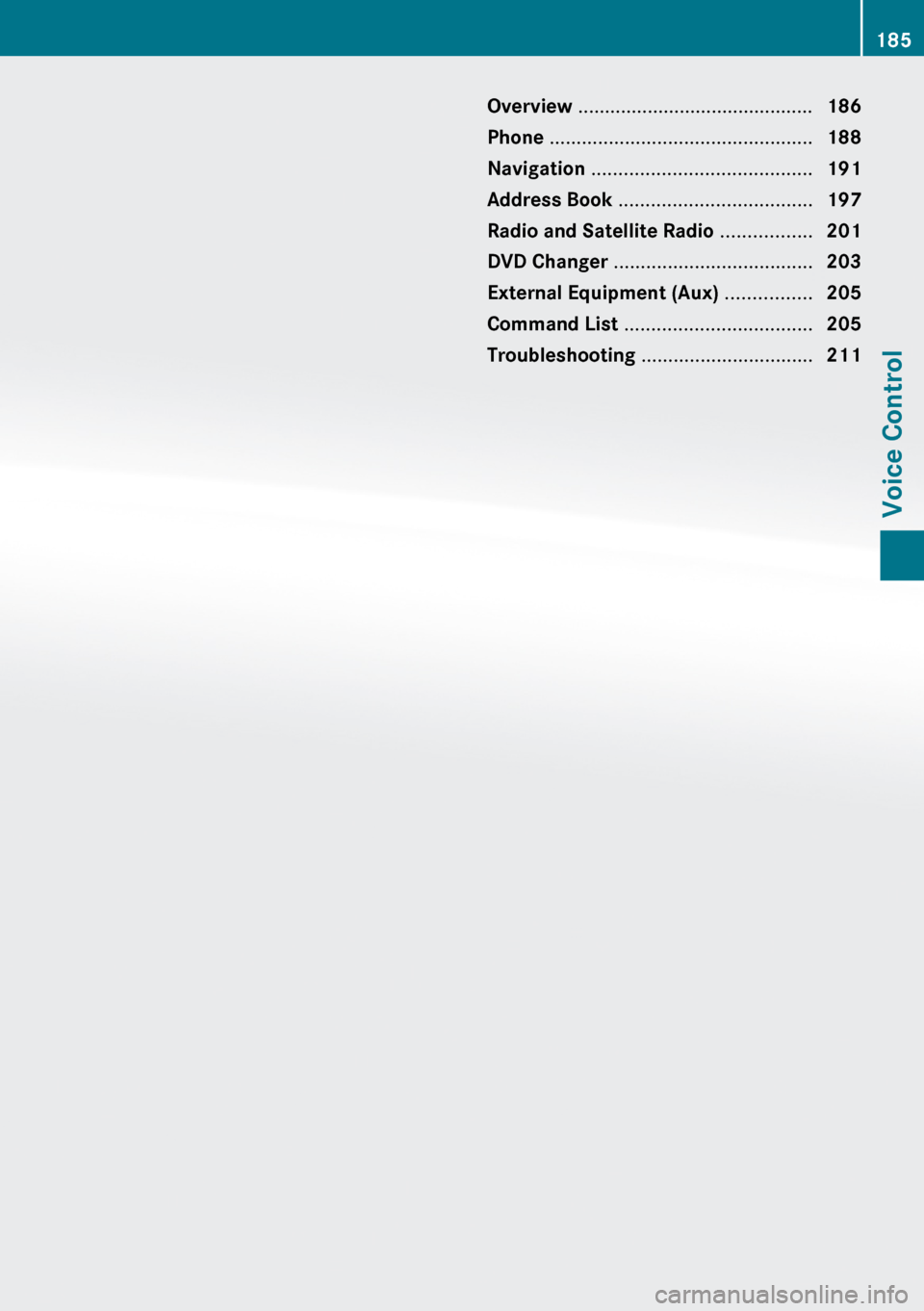
Overview ............................................ 186
Phone ................................................. 188
Navigation ......................................... 191
Address Book .................................... 197
Radio and Satellite Radio .................201
DVD Changer ..................................... 203
External Equipment (Aux) ................205
Command List ................................... 205
Troubleshooting ................................ 211185Voice Control
Page 207 of 224
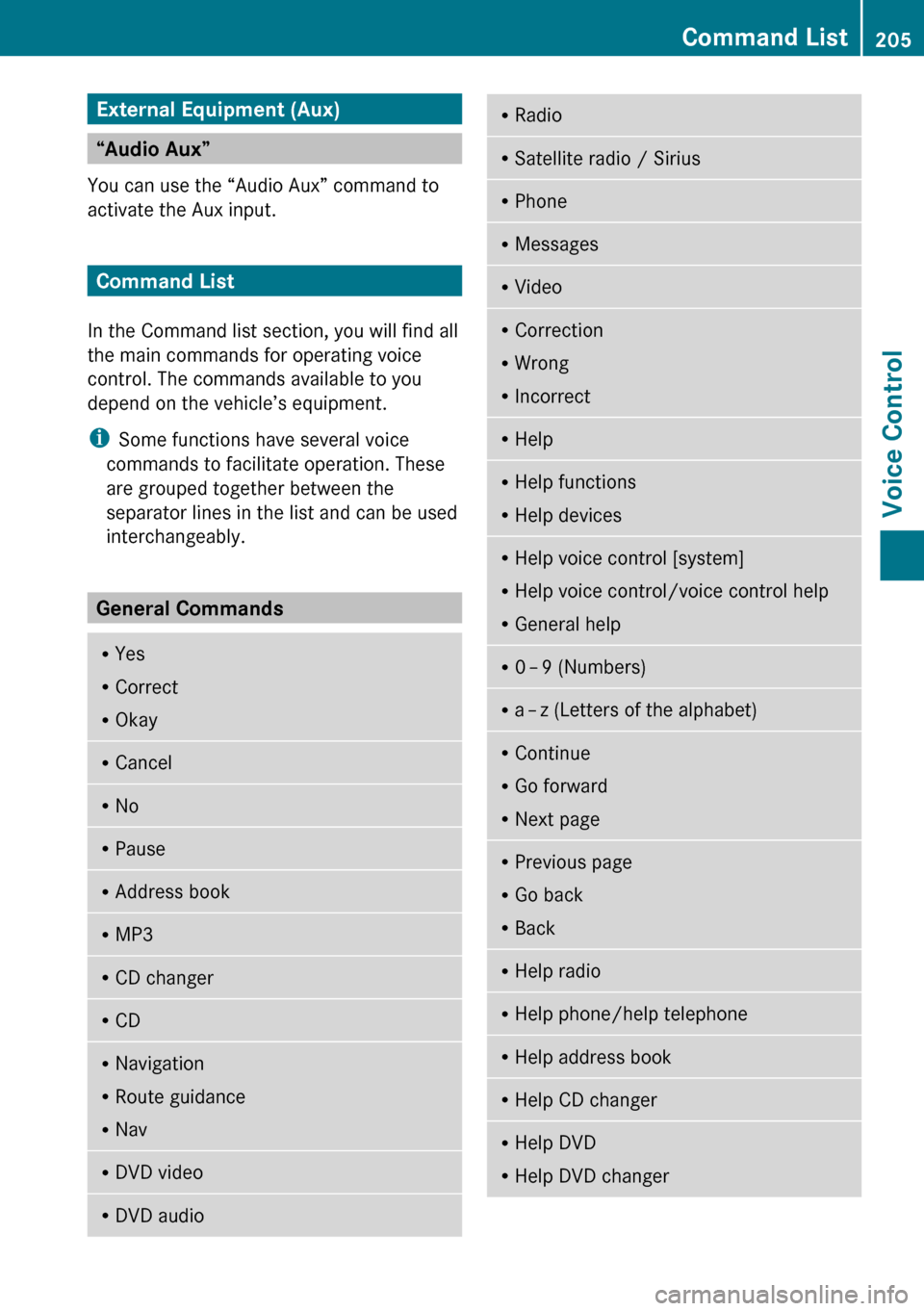
External Equipment (Aux)
“Audio Aux”
You can use the “Audio Aux” command to
activate the Aux input.
Command List
In the Command list section, you will find all
the main commands for operating voice
control. The commands available to you
depend on the vehicle’s equipment.
i Some functions have several voice
commands to facilitate operation. These
are grouped together between the
separator lines in the list and can be used
interchangeably.
General Commands
R Yes
R Correct
R OkayRCancelRNoRPauseRAddress bookRMP3RCD changerRCDRNavigation
R Route guidance
R NavRDVD videoRDVD audioRRadioRSatellite radio / SiriusRPhoneRMessagesRVideoRCorrection
R Wrong
R IncorrectRHelpRHelp functions
R Help devicesRHelp voice control [system]
R Help voice control/voice control help
R General helpR0 – 9 (Numbers)R
a – z (Letters of the alphabet)R
Continue
R Go forward
R Next pageRPrevious page
R Go back
R BackRHelp radioRHelp phone/help telephoneRHelp address bookRHelp CD changerRHelp DVD
R Help DVD changerCommand List205Voice ControlZ
Page 213 of 224
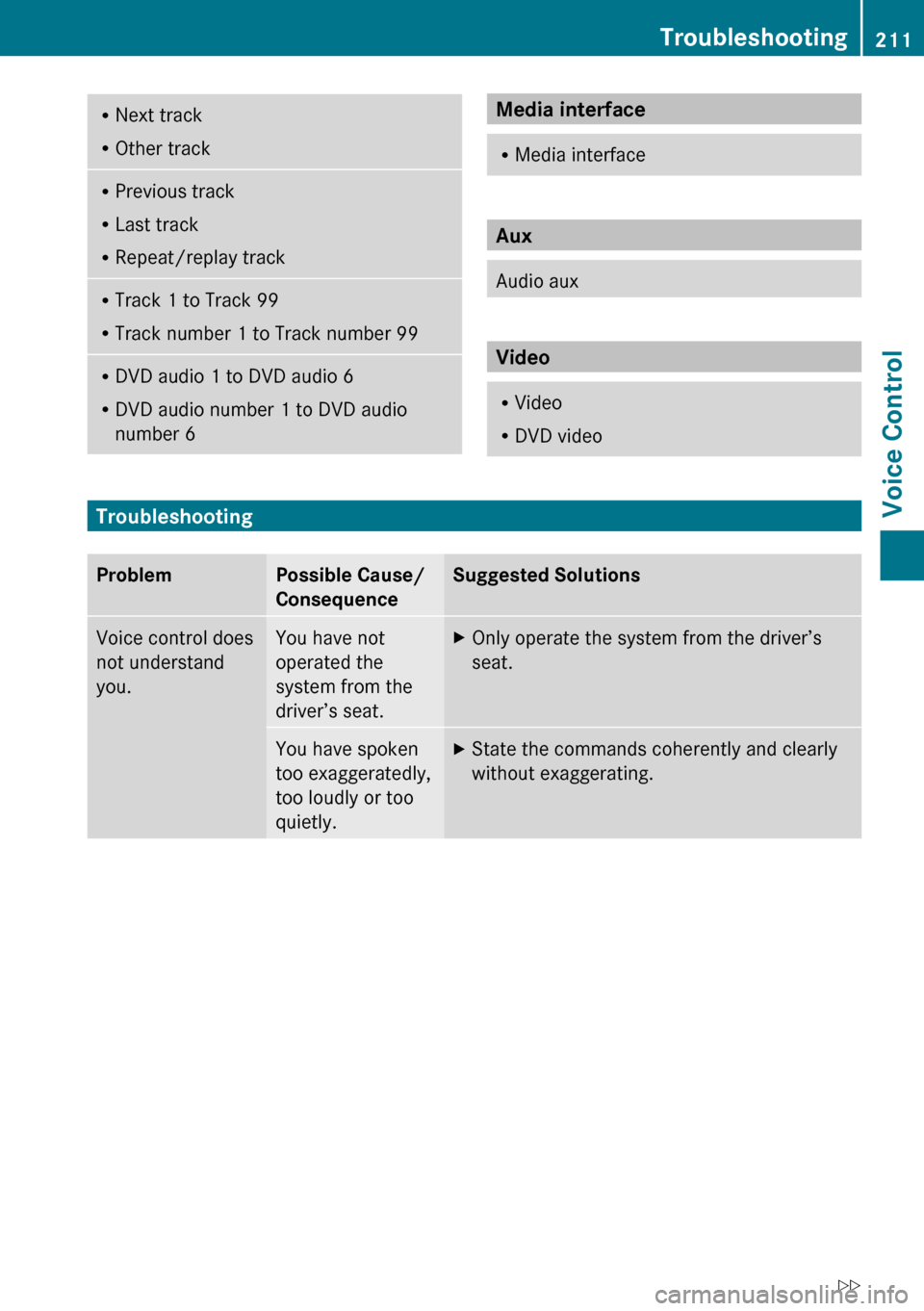
RNext track
R Other trackRPrevious track
R Last track
R Repeat/replay trackRTrack 1 to Track 99
R Track number 1 to Track number 99RDVD audio 1 to DVD audio 6
R DVD audio number 1 to DVD audio
number 6Media interface R Media interface
Aux
Audio aux
Video
RVideo
R DVD video
Troubleshooting
ProblemPossible Cause/
ConsequenceSuggested SolutionsVoice control does
not understand
you.You have not
operated the
system from the
driver’s seat.XOnly operate the system from the driver’s
seat.You have spoken
too exaggeratedly,
too loudly or too
quietly.XState the commands coherently and clearly
without exaggerating.Troubleshooting211Voice ControlZ