phone MERCEDES-BENZ E-Class COUPE 2010 C212 Comand Manual
[x] Cancel search | Manufacturer: MERCEDES-BENZ, Model Year: 2010, Model line: E-Class COUPE, Model: MERCEDES-BENZ E-Class COUPE 2010 C212Pages: 224, PDF Size: 7.4 MB
Page 120 of 224
previous phone book entries are then no
longer available.
After successfully downloading the contact
data you see a corresponding message.
The address book or the phone main menu
is displayed.
i You can select the Overwrite menu item
if the address book already contains such
entries. If the address book is full, you see
a corresponding message.
Downloading from the Memory Card
XSelect Address Book or, if the phone main
menu is displayed, Phone.XSelect Download Contacts .
A selection menu appears.XSelect From Memory Card .XSelect Add or Overwrite .
Selecting Add imports the entries from the
PCMCIA memory card into the address
book.
Selecting Overwrite imports the entries
from the PCMCIA memory card and
overwrites all entries in the address book
with the ¥Â icons. The previous entries
are then no longer available.
After successfully importing the contact
data you see a corresponding message.
The address book or the phone main menu
is displayed.
i You can select the Overwrite menu item
if the address book already contains such
entries. If the address book is full, you see
a corresponding message.
Downloading vCards via Bluetooth ®
You can receive vCards from devices (such as
a PC) which support the transmission of
vCards via Bluetooth ®
.
It is not necessary to authorize the device in
COMAND to do so.
Received vCards are imported into the
address book.
i If you switch to another main function,
e.g. navigation, while receiving vCards, the
reception of vCards will be terminated.XSelect Address Book or, if the phone main
menu is displayed, Phone.XSelect Download Contacts .
A selection menu appears.XSelect Receive Business Cards .
This interrupts the Bluetooth connection
between COMAND and your active mobile
phone. COMAND is ready to receive vCards
from another Bluetooth ®
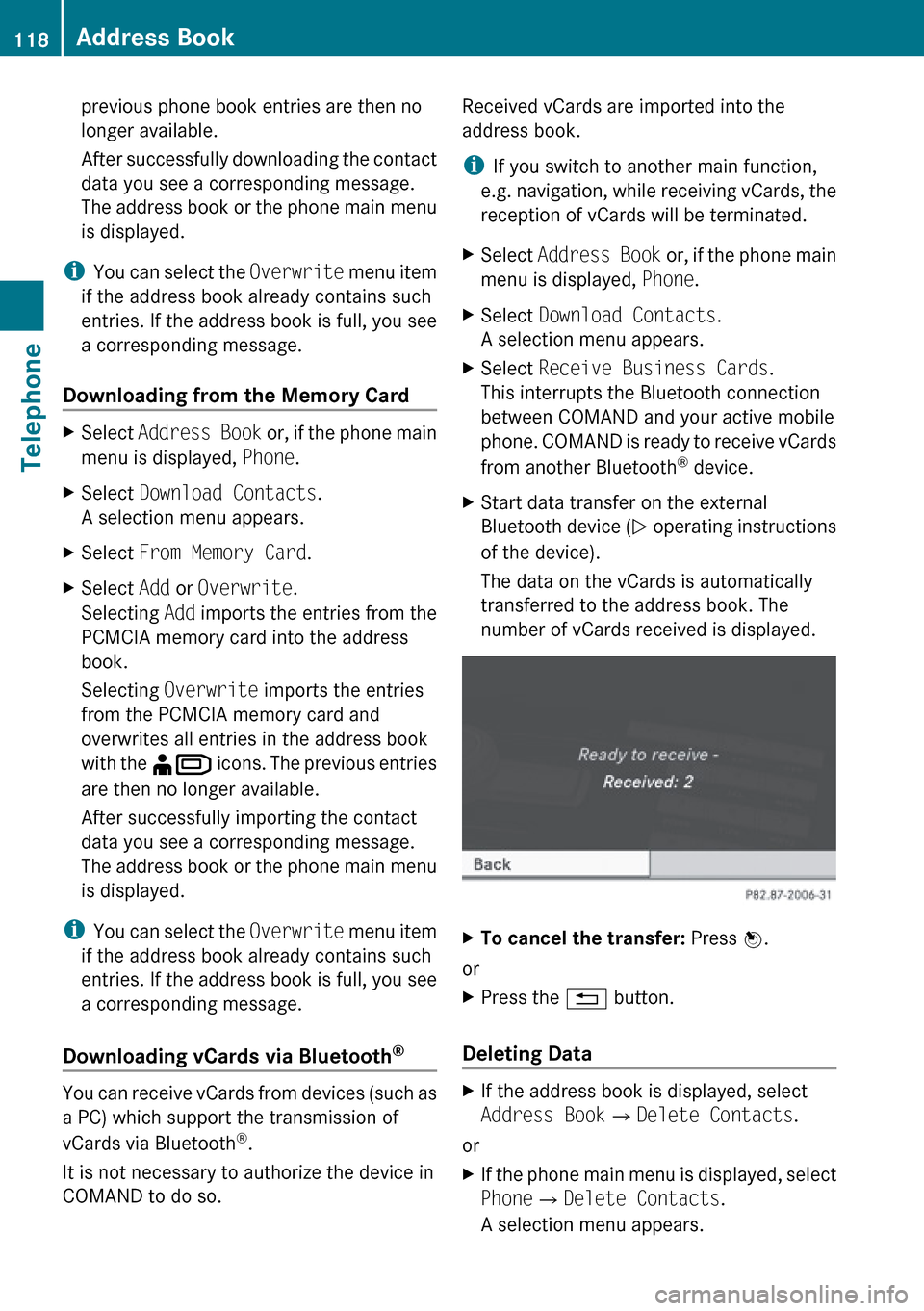
device.XStart data transfer on the external
Bluetooth device ( N operating instructions
of the device).
The data on the vCards is automatically
transferred to the address book. The
number of vCards received is displayed.XTo cancel the transfer: Press W.
or
XPress the % button.
Deleting Data
XIf the address book is displayed, select
Address Book QDelete Contacts .
or
XIf the phone main menu is displayed, select
Phone QDelete Contacts .
A selection menu appears.118Address BookTelephone
Page 121 of 224
XSelect Internal Contacts or From
Mobile Phone or From Memory Card or
Received Business Cards or Delete
All .
A prompt corresponding to your selection
appears.XSelect Yes or No.XPress the W button.
If you confirm by selecting Yes, the
contacts you have selected are deleted.Address Book119TelephoneZ
Page 130 of 224
(Y page 131) or contact www.sirius.com
(USA) or www.siriuscanada.com (Canada).
Subscribing
Subscribing to Satellite Radio
To switch to satellite radio operation:
XFrom another main function: Select
Audio £Audio £SatRadio .
i
If radio mode was active last, you only
need to select Audio.
XWithin the audio function: Select Audio
£ SatRadio .
If the satellite radio service is not activated,
the Satellite radio main menu appears and
displays the Weather channel. You cannot
select any other station.XSelect SatRadio (from the submenu)
£ Service .
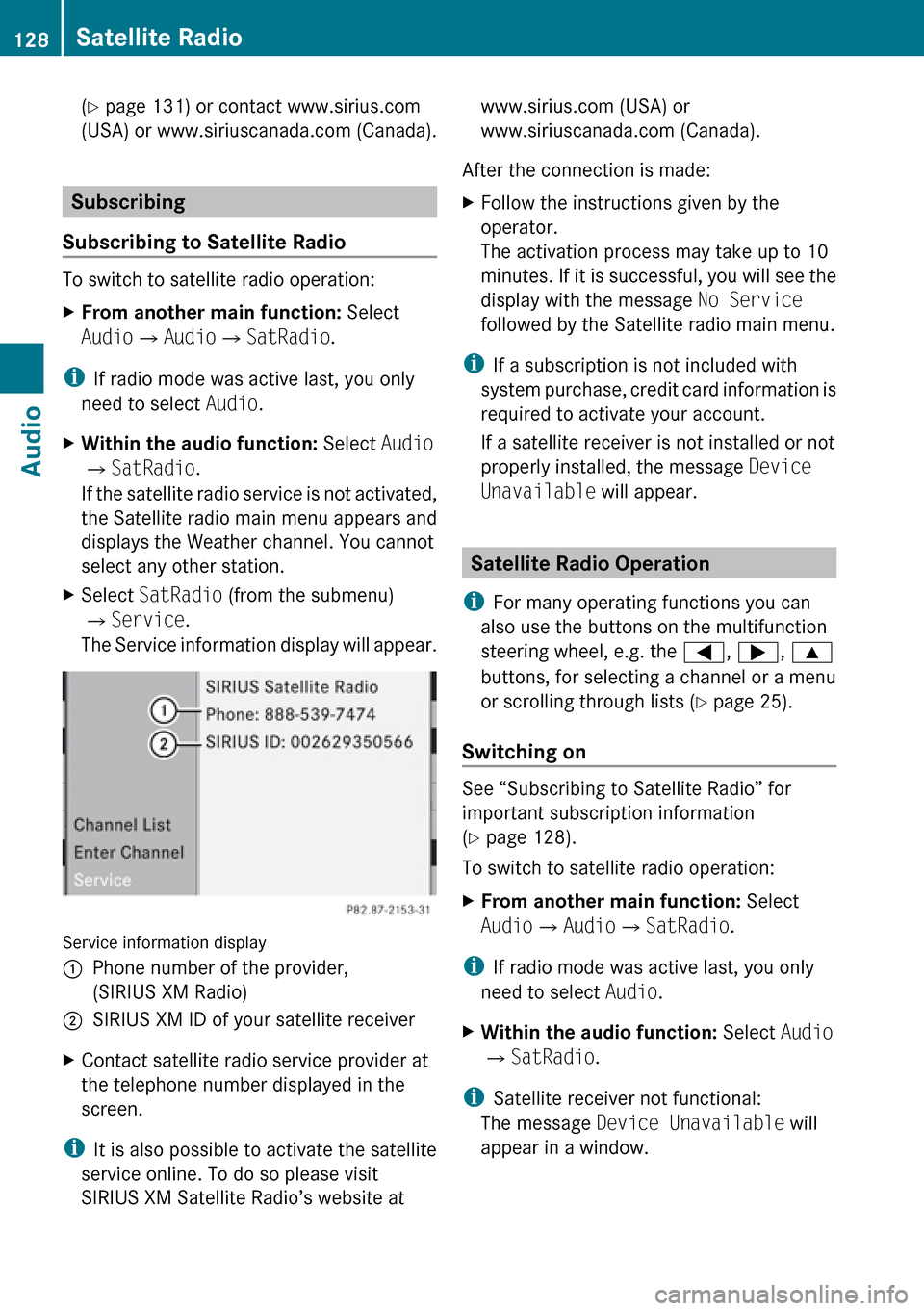
The Service information display will appear.
Service information display
1Phone number of the provider,
(SIRIUS XM Radio)2SIRIUS XM ID of your satellite receiverXContact satellite radio service provider at
the telephone number displayed in the
screen.
i It is also possible to activate the satellite
service online. To do so please visit
SIRIUS XM Satellite Radio’s website at
www.sirius.com (USA) or
www.siriuscanada.com (Canada).
After the connection is made:XFollow the instructions given by the
operator.
The activation process may take up to 10
minutes. If it is successful, you will see the
display with the message No Service
followed by the Satellite radio main menu.
i If a subscription is not included with
system purchase, credit card information is
required to activate your account.
If a satellite receiver is not installed or not
properly installed, the message Device
Unavailable will appear.
Satellite Radio Operation
i For many operating functions you can
also use the buttons on the multifunction
steering wheel, e.g. the =, ; , 9
buttons, for selecting a channel or a menu
or scrolling through lists ( Y page 25).
Switching on
See “Subscribing to Satellite Radio” for
important subscription information
( Y page 128).
To switch to satellite radio operation:
XFrom another main function: Select
Audio £Audio £SatRadio .
i
If radio mode was active last, you only
need to select Audio.
XWithin the audio function: Select Audio
£ SatRadio .
i
Satellite receiver not functional:
The message Device Unavailable will
appear in a window.
128Satellite RadioAudio
Page 133 of 224

Press n.
or
XPress a number key, e. g. 4 on the control
unit.
Displaying Information
XIn the submenu rotate ym z or slide om p
until Info is highlighted.XPress n.
Information about the current program
appears.1Category2Channel3Artist4Song title
You will see (if available)
R the full name
R additional information
XTo switch back to the SatRadio main
display: Slide om p.
Displaying Service Information
You can call the provider service center for
questions or releases whenever you need.
XSelect SatRadio £Service in the
SatRadio submenu.
The service information appears.1Phone number of the provider, (SIRIUS
XM) or Call Service Provider2SIRIUS XM ID of your satellite receiverXTo switch back to the SatRadio main
display: Slide om p.
Channel List Updates
While receiving a new channel list the
message Updating Channels will appear.
The channel last tuned to will be muted until
the update is completed. You cannot operate
the satellite radio.
After completion of the update, the Satellite
radio main menu will appear. The channel last
tuned to will begin to play if available in the
new channel list.
Sound Settings
Refer to chapter “At a glance” on how to
adjust sound settings.
R Volume ( Y page 35)
R Balance and fader control ( Y page 35)
R Bass and treble control ( Y page 35)
R Surround sound ( Y page 36)
CD Audio/DVD Audio/MP3
Safety Instructions
GWarning
COMAND is classified as a Class 1 laser
product. You must not open the casing. There
CD Audio/DVD Audio/MP3131AudioZ
Page 172 of 224
Remote Control Batteries
The remote control contains two batteries of
size AAA, 1.5 V.
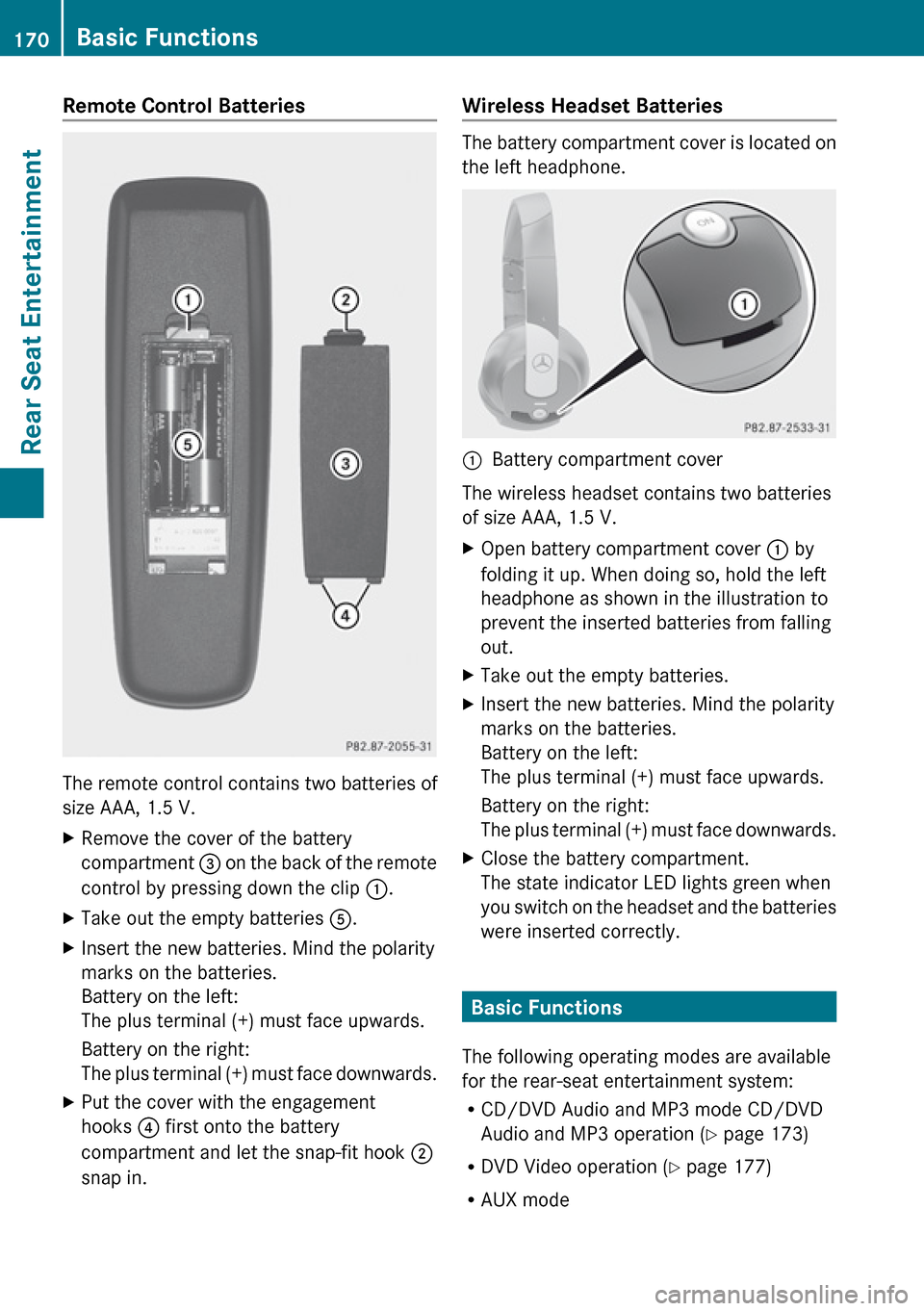
XRemove the cover of the battery
compartment 3 on the back of the remote
control by pressing down the clip :.XTake out the empty batteries 5.XInsert the new batteries. Mind the polarity
marks on the batteries.
Battery on the left:
The plus terminal (+) must face upwards.
Battery on the right:
The plus terminal (+) must face downwards.XPut the cover with the engagement
hooks ? first onto the battery
compartment and let the snap-fit hook 2
snap in.Wireless Headset Batteries
The battery compartment cover is located on
the left headphone.
1Battery compartment cover
The wireless headset contains two batteries
of size AAA, 1.5 V.
XOpen battery compartment cover : by
folding it up. When doing so, hold the left
headphone as shown in the illustration to
prevent the inserted batteries from falling
out.XTake out the empty batteries.XInsert the new batteries. Mind the polarity
marks on the batteries.
Battery on the left:
The plus terminal (+) must face upwards.
Battery on the right:
The plus terminal (+) must face downwards.XClose the battery compartment.
The state indicator LED lights green when
you switch on the headset and the batteries
were inserted correctly.
Basic Functions
The following operating modes are available
for the rear-seat entertainment system:
R CD/DVD Audio and MP3 mode CD/DVD
Audio and MP3 operation ( Y page 173)
R DVD Video operation ( Y page 177)
R AUX mode
170Basic FunctionsRear Seat Entertainment
Page 187 of 224
Overview ............................................ 186
Phone ................................................. 188
Navigation ......................................... 191
Address Book .................................... 197
Radio and Satellite Radio .................201
DVD Changer ..................................... 203
External Equipment (Aux) ................205
Command List ................................... 205
Troubleshooting ................................ 211185Voice Control
Page 188 of 224
Overview
Operating Safety
GWarning!
Please devote your attention first and
foremost to the traffic situation you are in.
While the system permits hands-free phone
operation, attention to traffic may be diverted
not only by physical operation of a phone, but
also by the distraction of a phone
conversation while driving. As such, for safety
reasons, we encourage the driver to stop the
vehicle in a safe place before answering or
placing a phone call.
For safety reasons, you should only select a
destination when the vehicle is stationary.
While the navigation system provides
directional assistance, the driver must remain
focused on safe driving behavior, especially
pay attention to traffic and street signs, and
should utilize the system’s audio cues while
driving.
The navigation system does not supply any
information on stop signs, yield signs, traffic
regulations or traffic safety rules. Their
observance always remains in the driver’s
personal responsibility. DVD maps do not
cover all areas nor all routes within an area.
Traffic regulations always have priority over
any route recommendations given.
Bear in mind that at a speed of just 30 mph
(approximately 50 km/h), your vehicle is
covering a distance of 44 feet (approximately
14 m) every second.
GWarning
Navigation announcements are intended to
direct you while driving without diverting your
attention from the road and driving.
Please always use this feature instead of
consulting the map display for directions.
Consulting the symbols or map display for
directions may cause you to divert your
attention from driving and increase your risk
of an accident.
GWarning!
Please do not use the Voice Control System
in an emergency, as the tone of your voice
may change in a stressful situation. This could
cause a delay in completing your phone call
in a timely manner. This could distract you in
an emergency situation and cause you to be
involved in an accident.
Vehicle Equipment
i This Operator’s Manual describes all
features, standard or optional, potentially
available for your vehicle at the time of
purchase. Please be aware that your
vehicle might not be equipped with all
features described in this manual.
Symbols Only Used in this Chapter
The following symbols indicate:
sthat you have to say somethingtthat there is a voice output from the
voice controluthat the system shows information on
the display.
Usage
You can use the voice control system to
operate the following systems depending on
the equipment in your vehicle:
R Phone
R Navigation
R Address book
R Audio (radio, satellite radio, DVD changer,
memory card, music register, media
interface)
Say the commands without pausing between
individual words. If you enter a command that
does not exist or is incorrect, the voice
control system asks you for a new command
with Please repeat or Please repeat
186OverviewVoice Control
Page 189 of 224
your entry!. The voice control confirms
important commands to you and gives you
instructions in the event of incorrect entries.
Command Types
Voice control distinguishes between the
following types of command:
R Global commands:
These are commands which can be called
up at any time (e.g. help, navigation or
phone commands).
R Local commands:
These are commands which are only
available for the active application (e.g.
“Save”).
Active Application
The local commands refer to the application
currently shown on the display and to the
audio source you are currently listening to.
For example, if you are listening to the radio
while the navigation application is active on
the display, you can operate both
applications using voice control.
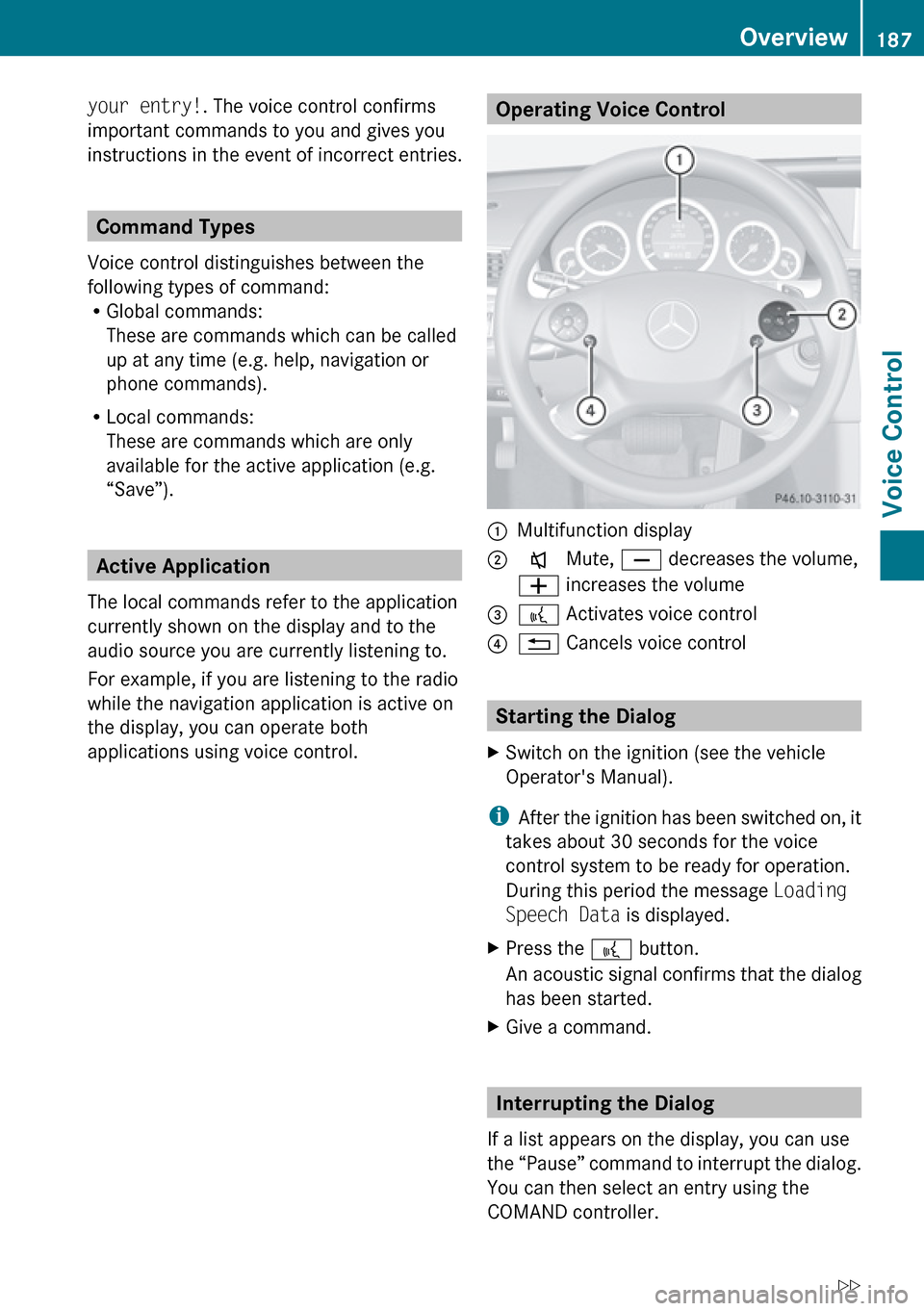
Operating Voice Control 1Multifunction display2x Mute, X decreases the volume,
W increases the volume3? Activates voice control?% Cancels voice control
Starting the Dialog
XSwitch on the ignition (see the vehicle
Operator's Manual).
i After the ignition has been switched on, it
takes about 30 seconds for the voice
control system to be ready for operation.
During this period the message Loading
Speech Data is displayed.
XPress the ? button.
An acoustic signal confirms that the dialog
has been started.XGive a command.
Interrupting the Dialog
If a list appears on the display, you can use
the “Pause” command to interrupt the dialog.
You can then select an entry using the
COMAND controller.
Overview187Voice ControlZ
Page 190 of 224
To resume the dialog with voice control, press
the ? button on the multifunction steering
wheel.
Canceling the Dialog
XPress the % button.
or
XSay the command Cancel (except when
creating and storing voice tags, navigation
entries or during individualization).
or
XPress any button on COMAND.
Adjusting the Volume
XStart the dialog.XGive a command, e.g. Help.XPress the W or X button.
The volume increases or decreases during
voice output.
or
XSet the volume for the voice output on the
volume control for COMAND.
Display Messages
The audible help function can be
supplemented by visual help on the display
( Y page 42). If the help function is switched
on, the most important commands that are
currently possible appear in the display when
you start the dialog.
In the address book and navigation system, a
selection list is shown in the display if voice
control requires additional information from
you.
Entering Numbers
R Digits from “zero” to “nine” are permitted.
R Say the phone number in groups of three
to five digits.
Spell
R The letters of the alphabet and the numbers
0 to 9 are permitted.
R Say the letters in groups of five to seven
letters.
R Say each individual letter clearly.
i Using individualization, you can fine-tune
voice control to your own voice and thus
improve voice recognition. The process of
individualization is described in chapter
“System Settings” ( Y page 42).
i If you use individualization, it may impair
recognition of other users. Switch off
individualization if it makes recognition of
other users worse.
Phone
GWarning
Some jurisdictions prohibit the driver from
using a cellular telephone while driving.
Whether or not prohibited by law, for safety
reasons, the driver should not use the cellular
telephone while the vehicle is in motion. Stop
the vehicle in a safe location before placing or
answering a call.
If you nonetheless choose to use the mobile
phone while driving, please use the handsfree
feature and be sure to pay attention to the
traffic situation at all times. Use the mobile
phone only when road, weather and traffic
conditions permit. Otherwise, you may not be
able to observe traffic conditions and could
endanger yourself and others.
Bear in mind that at a speed of just 30 mph
(approximately 50 km/h), your vehicle is
covering a distance of 44 feet (approximately
14 m) every second.
188PhoneVoice Control
Page 191 of 224

Operation
You can use voice control to:
R place a call by using your voice to input a
phone number
R store names and numbers in the address
book
R dial a number from the address book
R dial a number from the received calls or
latest calls list
R listen to the phone book
R retrieve and manage your voice mail and
recorded announcement services
R redial
Voice control recognizes whether:
R your phone is switched on
R your phone is connected via Bluetooth ®
R the car phone is registered with the
relevant mobile phone network
R it is possible to dial
If it is not possible to dial, voice control issues
a message to this effect.
i You can still operate your phone using the
keypad.
Commands
“Phone”
Use the “Phone” command to select the
phone application. Use this command if you
wish the digits entered to be shown on the
display.
“Help Phone”
Voice control has an extensive help function.
Using the “Help Phone” command, you can
have all the essential commands for the
phone read out ( Y page 206).
“Dial number”
You can use the “Dial number” command to
dial a phone number.
The digits 0 to 9 and the word “Plus” are
permitted.
“ Plus” replaces the international dialing code,
e.g. “00”.
Say the phone number in the form of a
continuous string of digits or as blocks of
digits, e.g. three to five digits.
Voice control repeats the digits it recognizes
after each block of digits (with a pause of
about half a second between each block of
digits) and waits for you to continue speaking.
Example of dialog:
sDial numbertPlease say the numbersZero one three zerotZero one three zerosFive zero zero fivetFive zero zero fivesOkaytDialing number
i You can also dial the specified number if
you press the 6 button on the multi-
function steering wheel instead of the
concluding command “Okay”.
“Confirm”
While you are entering a number, you can use
the “Confirm” command to have all the
spoken digits repeated by voice control.
Voice control will then prompt you to
continue with the entry.
Example of dialog:
sDial numbertPlease say the numbersZero one three zerotZero one three zerosConfirmtZero one three zero. Please continue.Phone189Voice ControlZ