phone MERCEDES-BENZ E-Class COUPE 2010 C212 Comand Manual
[x] Cancel search | Manufacturer: MERCEDES-BENZ, Model Year: 2010, Model line: E-Class COUPE, Model: MERCEDES-BENZ E-Class COUPE 2010 C212Pages: 224, PDF Size: 7.4 MB
Page 32 of 224
multifunction display. The name also
appears, provided it is stored in the phone
book. The selected number is stored in the
CALLS DIALED list in COMAND
( Y page 106).
If a call is connected, the phone book entry
appears in the multifunction display.
or
XIf there is more than one number for a
particular name: Press 6 or a to
display the numbers.XPress : or 9 to select the number
you want to dial.XPress 6 or a to start dialing.
The message Connecting Call... and
the selected number appear in the
multifunction display. The name also
appears, provided it is stored in the phone
book. The selected number is stored in the
CALLS DIALED list in COMAND.
If a call is connected, the phone book entry
appears in the multifunction display.
i To exit the phone book without making a
call, press the ~ button. Phone READY
appears in the multifunction display.
i If you press and hold the : or 9
button for more than one second, a rapid
scroll begins. After four seconds, the rapid
scroll speeds up. The rapid scroll stops
when you release the button or reach the
end of the list.
Redialing
COMAND saves the most recently dialed
names and numbers from the mobile phone.
This means that you do not have to search
through the entire phone book.
XSelect the Tel menu.
The multifunction display shows
Phone READY .XPress 6 to go to the most recently
dialed number or name in the
CALLS DIALED menu.XPress : or 9 to select the number
or name you are looking for.XPress 6 or a to start dialing.
Operating COMAND
Opening Menu of a Main Function
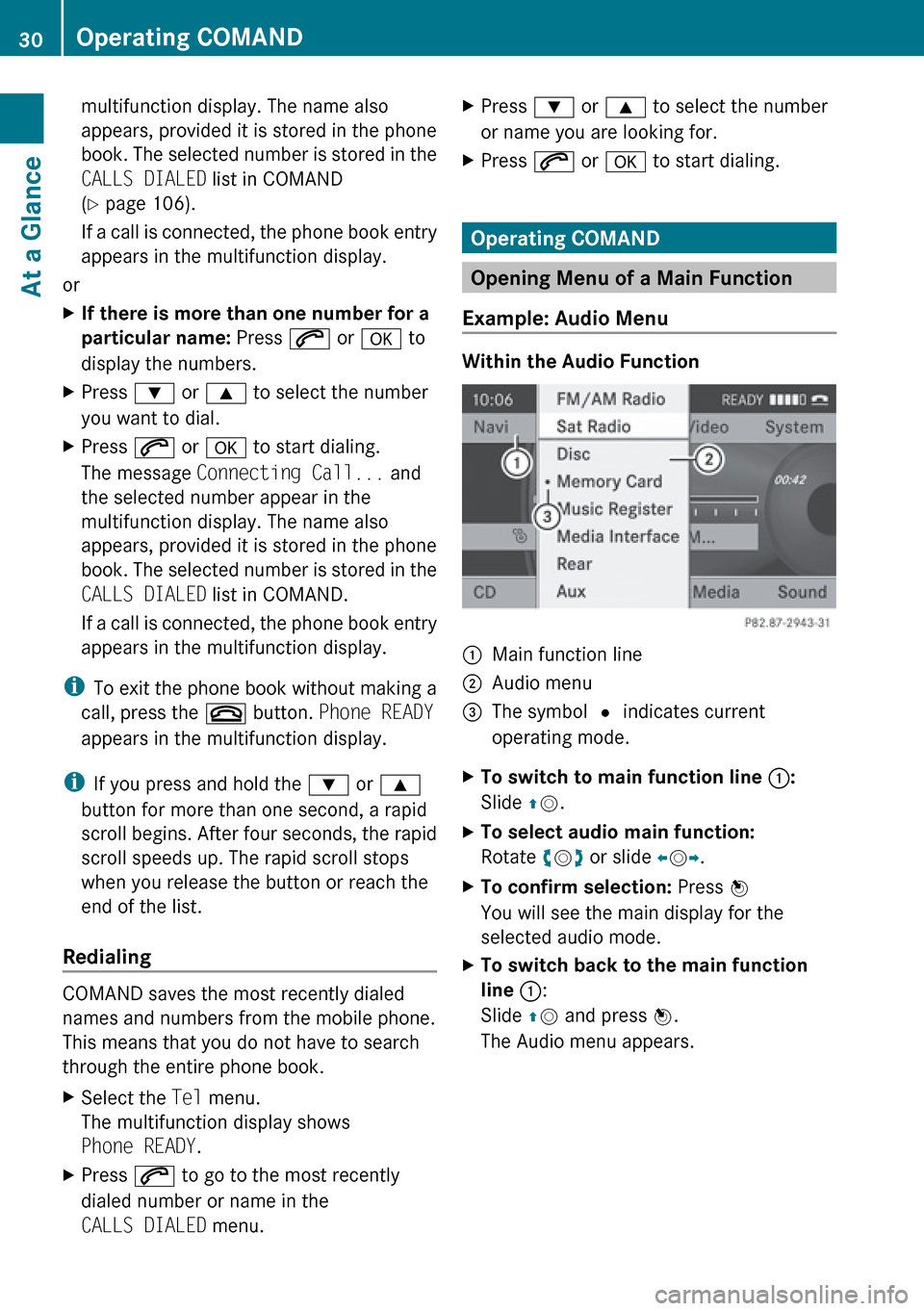
Example: Audio Menu
Within the Audio Function
1Main function line2Audio menu3The symbol R indicates current
operating mode.XTo switch to main function line 1:
Slide qm .XTo select audio main function:
Rotate ym z or slide om p.XTo confirm selection: Press n
You will see the main display for the
selected audio mode.XTo switch back to the main function
line 1 :
Slide qm and press n.
The Audio menu appears.30Operating COMANDAt a Glance
Page 35 of 224
XSlide qm repeatedly until the list appears
without the speller.
i Without the speller entering characters
using the number keypad is not possible.
XTo re-open the speller: Press the k
button.
or
XSelect d and press n.
COMAND will complete your entry if the
name is unambiguous. In this case, it is not
necessary to switch to the list. The Enter
Destination menu will appear
automatically.
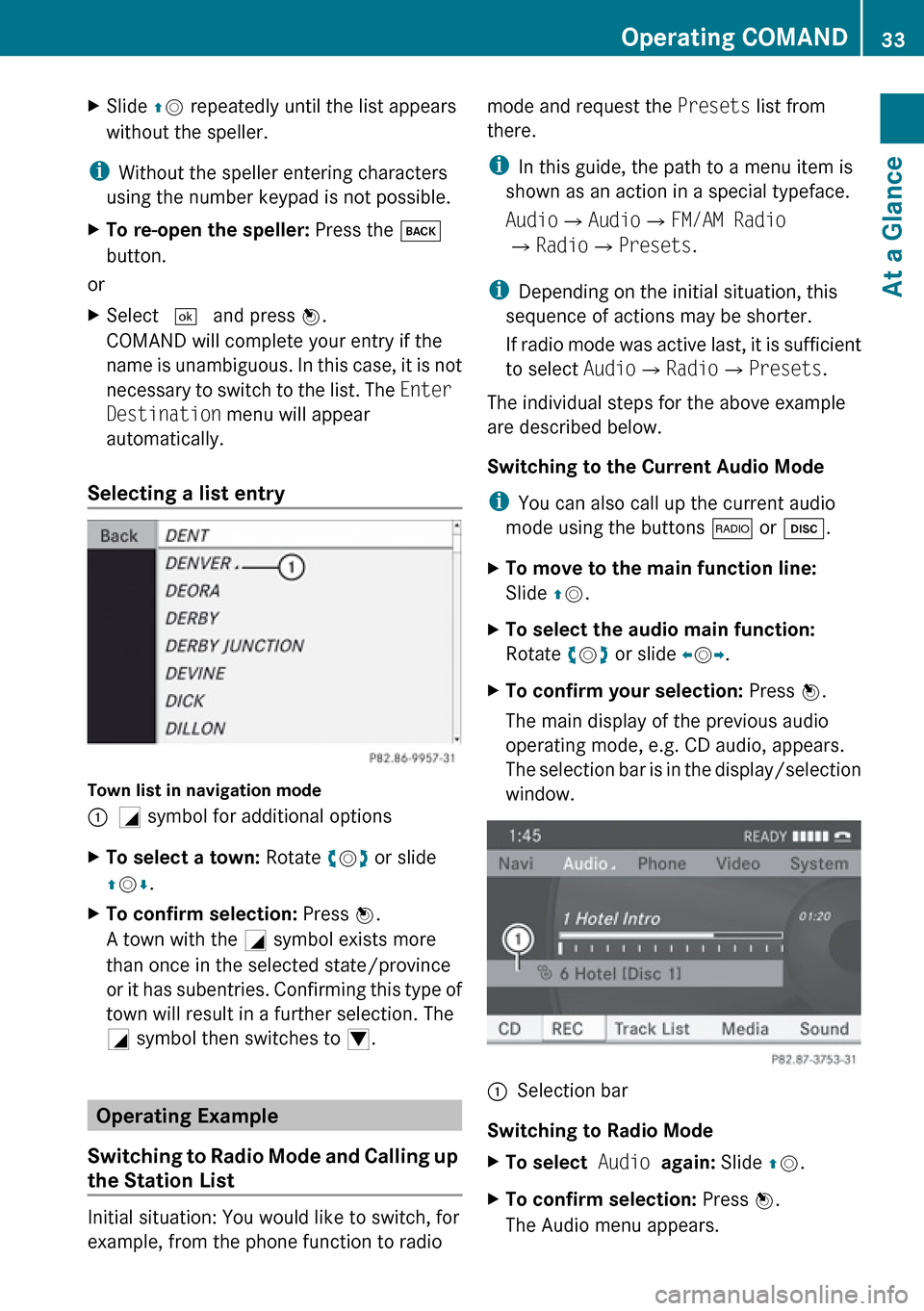
Selecting a list entry
Town list in navigation mode
:G symbol for additional optionsXTo select a town: Rotate ym z or slide
q m r.XTo confirm selection: Press n.
A town with the G symbol exists more
than once in the selected state/province
or it has subentries. Confirming this type of
town will result in a further selection. The
G symbol then switches to I.
Operating Example
Switching to Radio Mode and Calling up
the Station List
Initial situation: You would like to switch, for
example, from the phone function to radio
mode and request the Presets list from
there.
i In this guide, the path to a menu item is
shown as an action in a special typeface.
Audio £Audio £FM/AM Radio
£ Radio £Presets .
i Depending on the initial situation, this
sequence of actions may be shorter.
If radio mode was active last, it is sufficient
to select Audio£Radio £Presets .
The individual steps for the above example
are described below.
Switching to the Current Audio Mode
i You can also call up the current audio
mode using the buttons $ or h .XTo move to the main function line:
Slide qm .XTo select the audio main function:
Rotate ym z or slide om p.XTo confirm your selection: Press n.
The main display of the previous audio
operating mode, e.g. CD audio, appears.
The selection bar is in the display/selection
window.1Selection bar
Switching to Radio Mode
XTo select Audio again: Slide qm .XTo confirm selection: Press n.
The Audio menu appears.Operating COMAND33At a GlanceZ
Page 37 of 224
Volume of Navigation Announcements
You can set the volume for navigation
announcements independently of the volume
for the active audio or video source.
During a navigation announcement:
XTurn the q rotary/push button.
or
XPress the W or X button on the multi-
function steering wheel.
Audio Fadeout
The Audio Fadeout function, if activated,
lowers the volume of the current audio source
when a navigation announcement is issued.
As soon as the navigation announcement has
ended, the audio source will be played at the
previous volume ( Y page 60).
Setting Volume for Phone Calls
You can adjust the volume for hands-free
mode during a telephone call.
During a telephone call:
XTurn the q rotary/push button.
or
XPress the W or X button on the multi-
function steering wheel.
Sound Settings
You can select different sound settings for
each audio and video source. The sound
menu can be opened from the submenu of the
desired operating mode.
Examples:
R Audio £ FM/AM Radio £Sound
R Audio £Disc £Sound
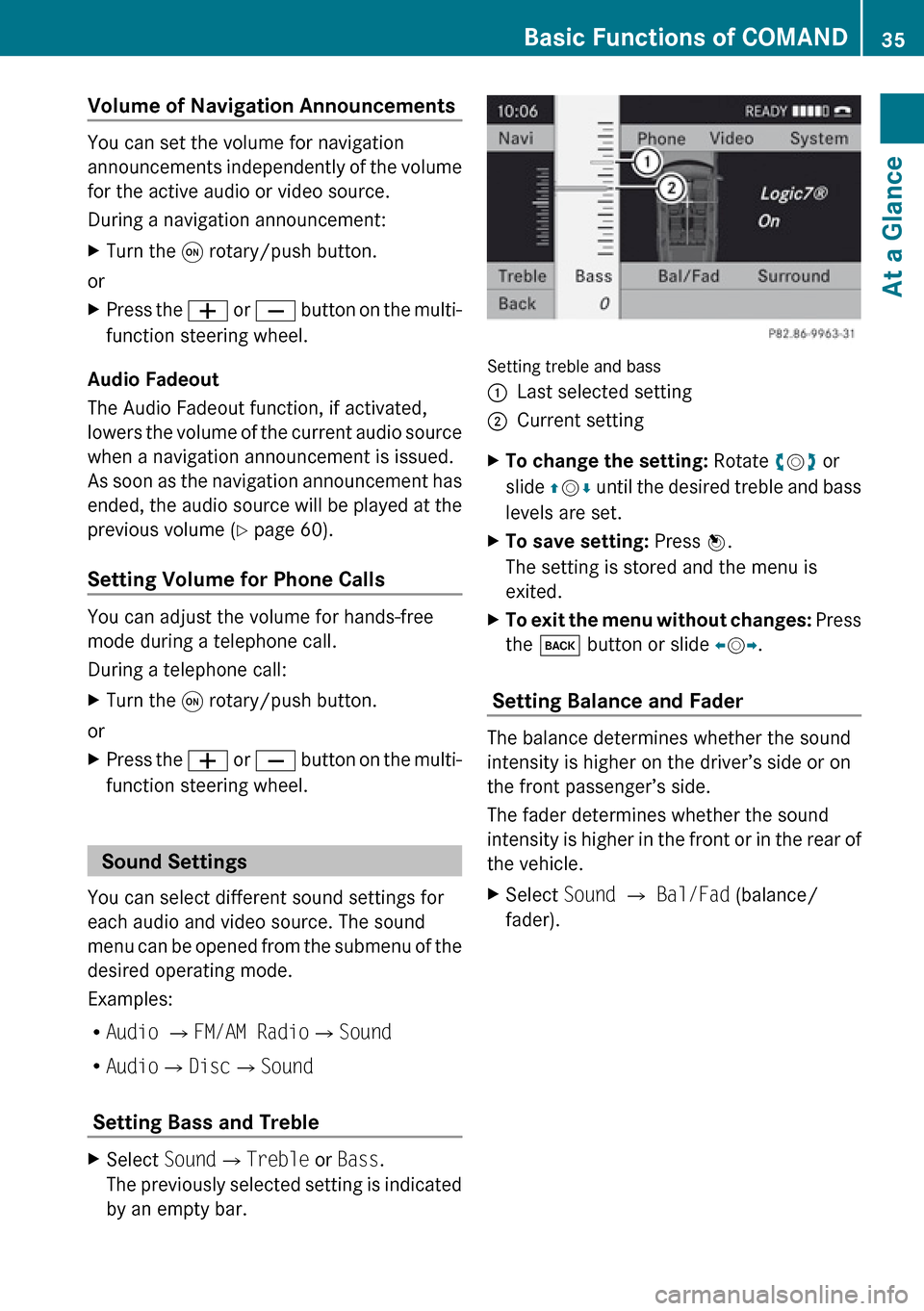
Setting Bass and Treble
XSelect Sound£Treble or Bass .
The previously selected setting is indicated
by an empty bar.
Setting treble and bass
1Last selected setting2Current settingXTo change the setting: Rotate ym z or
slide qm r until the desired treble and bass
levels are set.XTo save setting: Press n.
The setting is stored and the menu is
exited.XTo exit the menu without changes: Press
the k button or slide om p.
Setting Balance and Fader
The balance determines whether the sound
intensity is higher on the driver’s side or on
the front passenger’s side.
The fader determines whether the sound
intensity is higher in the front or in the rear of
the vehicle.
XSelect Sound £ Bal/Fad (balance/
fader).Basic Functions of COMAND35At a GlanceZ
Page 64 of 224
:SIRIUS XM traffic information service
phone number;Serial number of your traffic information
service module
Subscribing to SIRIUS XM Traffic
Information Service
XContact Traffic Information service
provider at the telephone number
displayed in the screen.
i It is also possible to activate the satellite
service online. To do so please visit SIRIUS
XM Satellite Radio’s website at
www.sirius.com (USA).
After the connection is made:
XFollow the instructions given by the
operator.
The activation process may take up to 10
minutes.
i If a subscription is not included with
system purchase, credit card information is
required to activate your account.
Compass Function
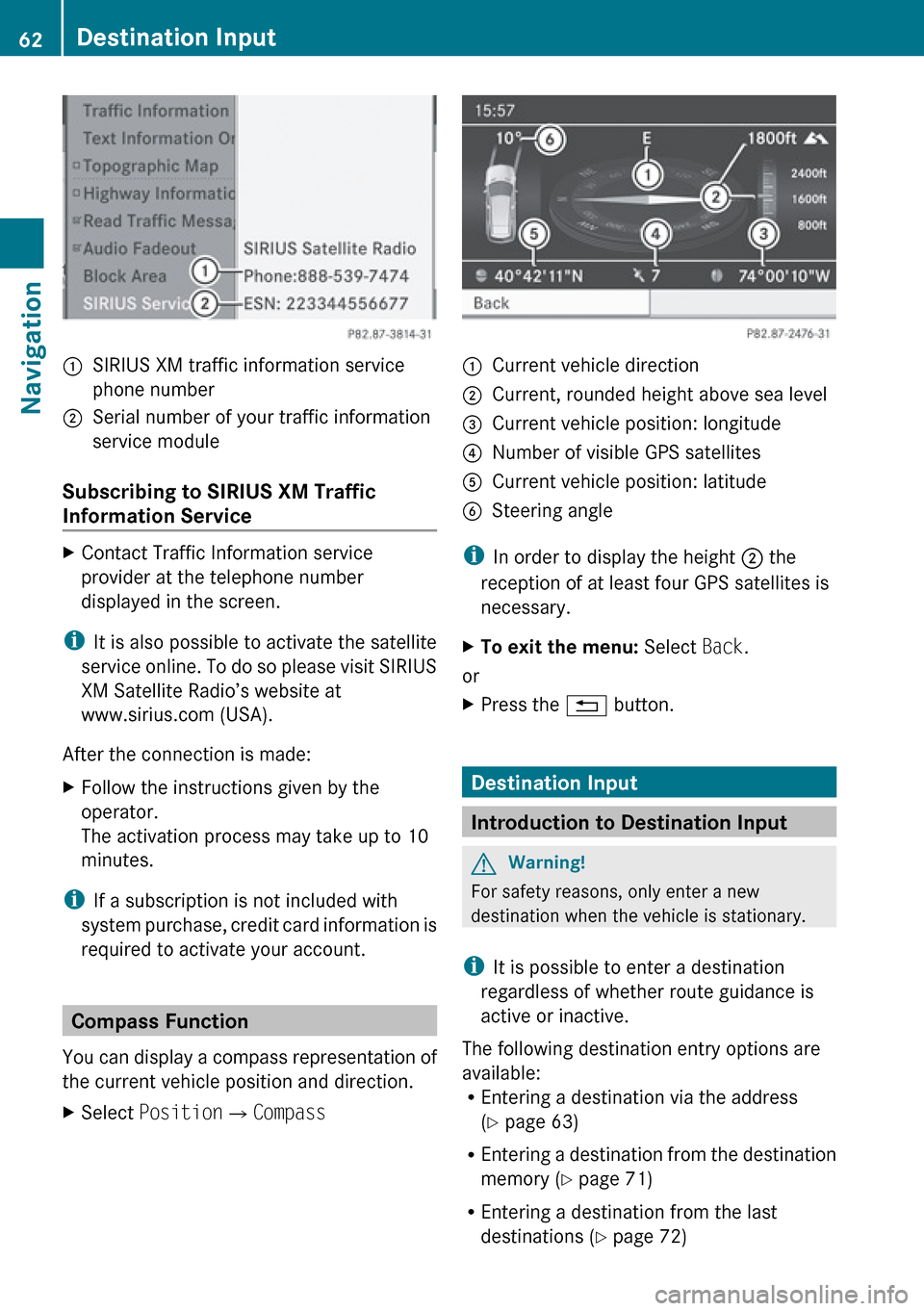
You can display a compass representation of
the current vehicle position and direction.
XSelect Position £Compass:Current vehicle direction;Current, rounded height above sea level=Current vehicle position: longitude?Number of visible GPS satellitesACurrent vehicle position: latitudeBSteering angle
i
In order to display the height ; the
reception of at least four GPS satellites is
necessary.
XTo exit the menu: Select Back.
or
XPress the % button.
Destination Input
Introduction to Destination Input
GWarning!
For safety reasons, only enter a new
destination when the vehicle is stationary.
i It is possible to enter a destination
regardless of whether route guidance is
active or inactive.
The following destination entry options are
available:
R Entering a destination via the address
( Y page 63)
R Entering a destination from the destination
memory ( Y page 71)
R Entering a destination from the last
destinations ( Y page 72)
62Destination InputNavigation
Page 77 of 224
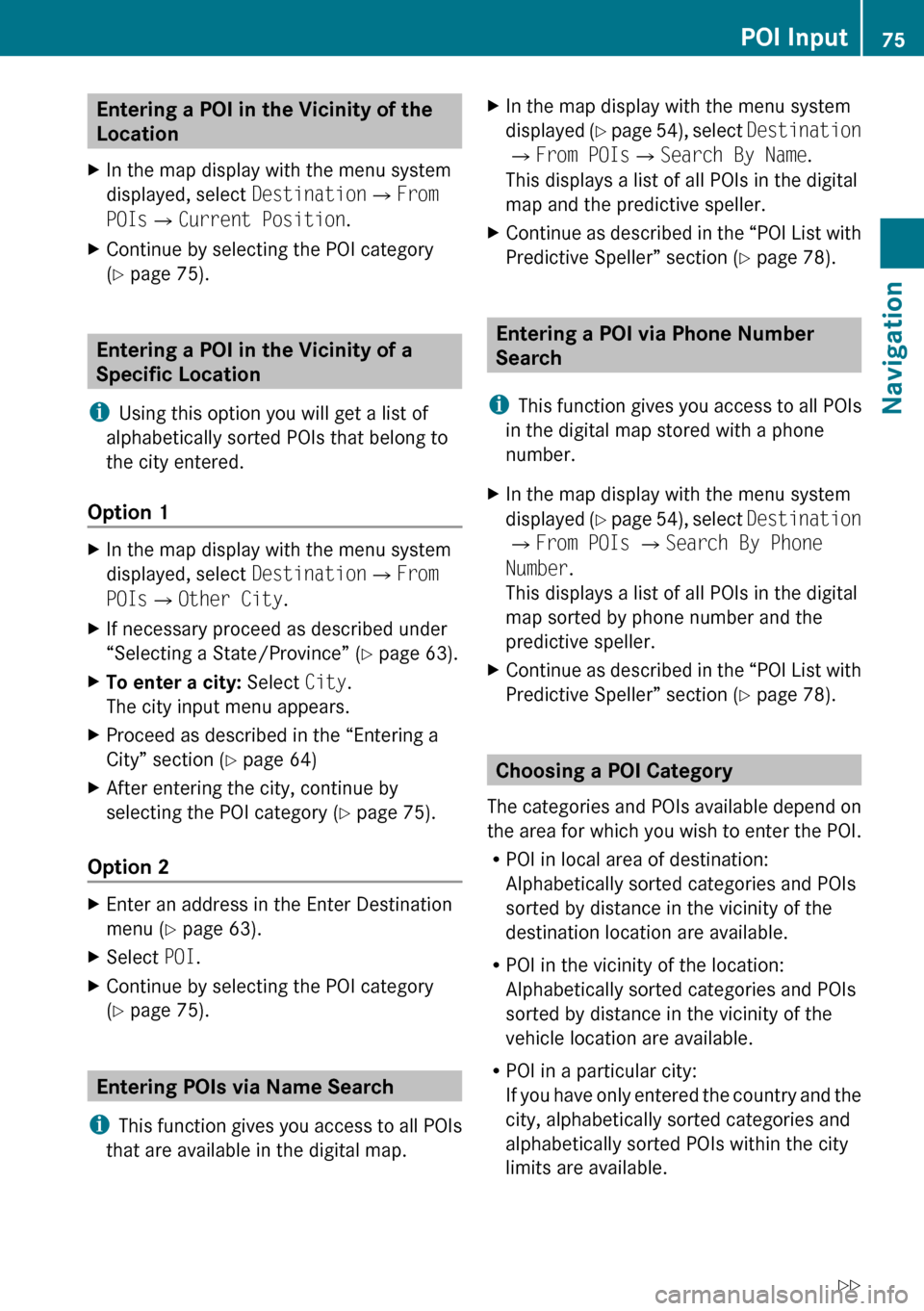
Entering a POI in the Vicinity of the
Location XIn the map display with the menu system
displayed, select Destination£From
POIs £Current Position .XContinue by selecting the POI category
( Y page 75).
Entering a POI in the Vicinity of a
Specific Location
i Using this option you will get a list of
alphabetically sorted POIs that belong to
the city entered.
Option 1
XIn the map display with the menu system
displayed, select Destination£From
POIs £Other City .XIf necessary proceed as described under
“Selecting a State/Province” ( Y page 63).XTo enter a city: Select City.
The city input menu appears.XProceed as described in the “Entering a
City” section ( Y page 64)XAfter entering the city, continue by
selecting the POI category ( Y page 75).
Option 2
XEnter an address in the Enter Destination
menu ( Y page 63).XSelect POI.XContinue by selecting the POI category
( Y page 75).
Entering POIs via Name Search
i This function gives you access to all POIs
that are available in the digital map.
XIn the map display with the menu system
displayed (Y page 54), select Destination
£ From POIs £Search By Name .
This displays a list of all POIs in the digital
map and the predictive speller.XContinue as described in the “POI List with
Predictive Speller” section ( Y page 78).
Entering a POI via Phone Number
Search
i This function gives you access to all POIs
in the digital map stored with a phone
number.
XIn the map display with the menu system
displayed (Y page 54), select Destination
£ From POIs £ Search By Phone
Number .
This displays a list of all POIs in the digital
map sorted by phone number and the
predictive speller.XContinue as described in the “POI List with
Predictive Speller” section ( Y page 78).
Choosing a POI Category
The categories and POIs available depend on
the area for which you wish to enter the POI.
R POI in local area of destination:
Alphabetically sorted categories and POIs
sorted by distance in the vicinity of the
destination location are available.
R POI in the vicinity of the location:
Alphabetically sorted categories and POIs
sorted by distance in the vicinity of the
vehicle location are available.
R POI in a particular city:
If you have only entered the country and the
city, alphabetically sorted categories and
alphabetically sorted POIs within the city
limits are available.
POI Input75NavigationZ
Page 78 of 224
If you have entered more than the country
and the city, alphabetically sorted
categories and POIs sorted by distance in
the vicinity of the address entered are
available.
R POI via name search:
An alphabetically sorted list of all POIs is
available.
R POIs via phone number:
A numerically sorted list is available.
Selecting a Category
Depending on the number of available
categories, the main category list is displayed
either with or without predictive speller
( Y page 77).
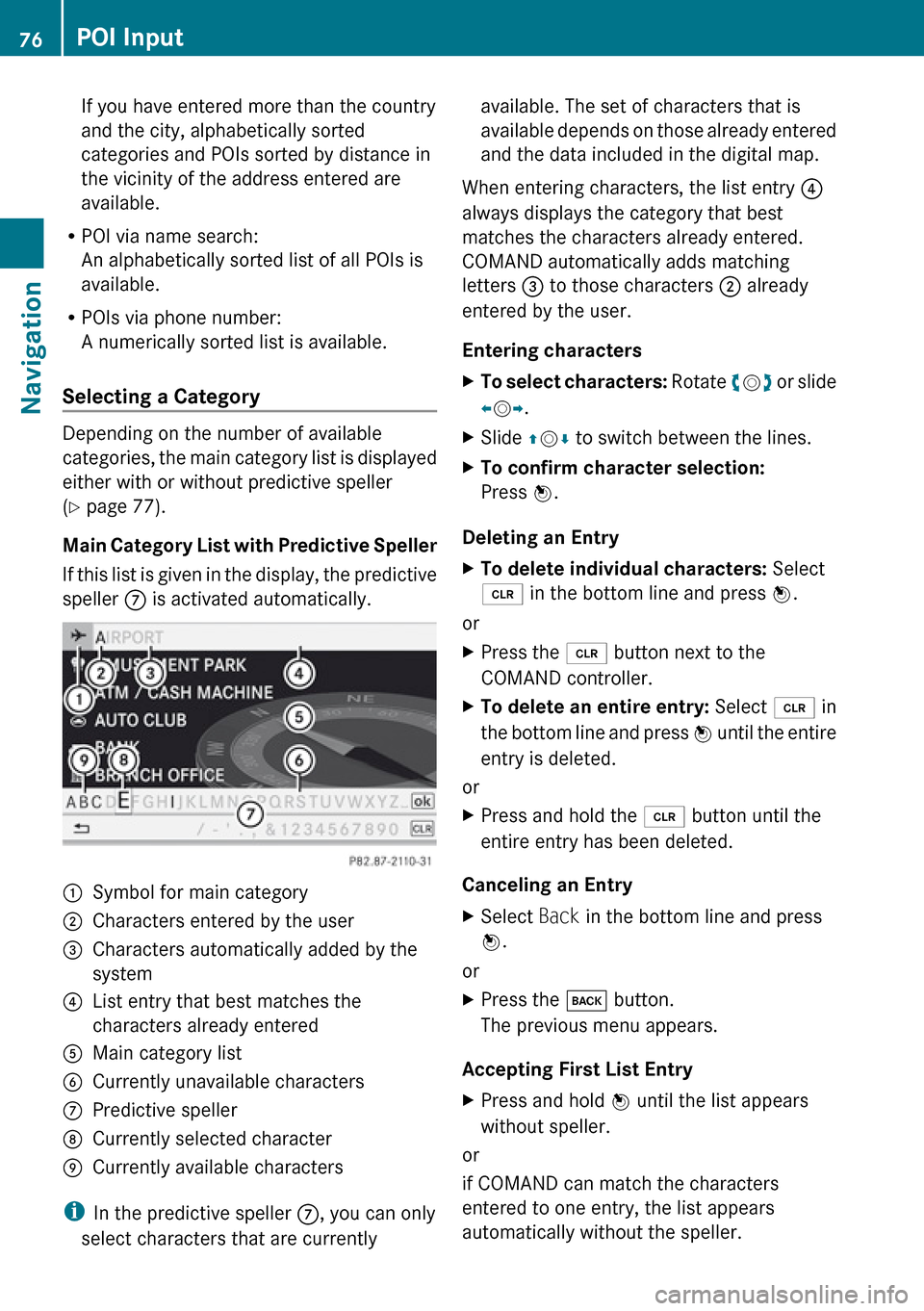
Main Category List with Predictive Speller
If this list is given in the display, the predictive
speller 7 is activated automatically.
1Symbol for main category2Characters entered by the user3Characters automatically added by the
system4List entry that best matches the
characters already entered5Main category list6Currently unavailable characters7Predictive speller8Currently selected character9Currently available characters
i In the predictive speller 7, you can only
select characters that are currently
available. The set of characters that is
available depends on those already entered
and the data included in the digital map.
When entering characters, the list entry 4
always displays the category that best
matches the characters already entered.
COMAND automatically adds matching
letters 3 to those characters 2 already
entered by the user.
Entering charactersXTo select characters: Rotate ym z or slide
o m p.XSlide qm r to switch between the lines.XTo confirm character selection:
Press n.
Deleting an Entry
XTo delete individual characters: Select
õ in the bottom line and press n.
or
XPress the 2 button next to the
COMAND controller.XTo delete an entire entry: Select õ in
the bottom line and press n until the entire
entry is deleted.
or
XPress and hold the 2 button until the
entire entry has been deleted.
Canceling an Entry
XSelect Back in the bottom line and press
n .
or
XPress the k button.
The previous menu appears.
Accepting First List Entry
XPress and hold n until the list appears
without speller.
or
if COMAND can match the characters
entered to one entry, the list appears
automatically without the speller.
76POI InputNavigation
Page 80 of 224
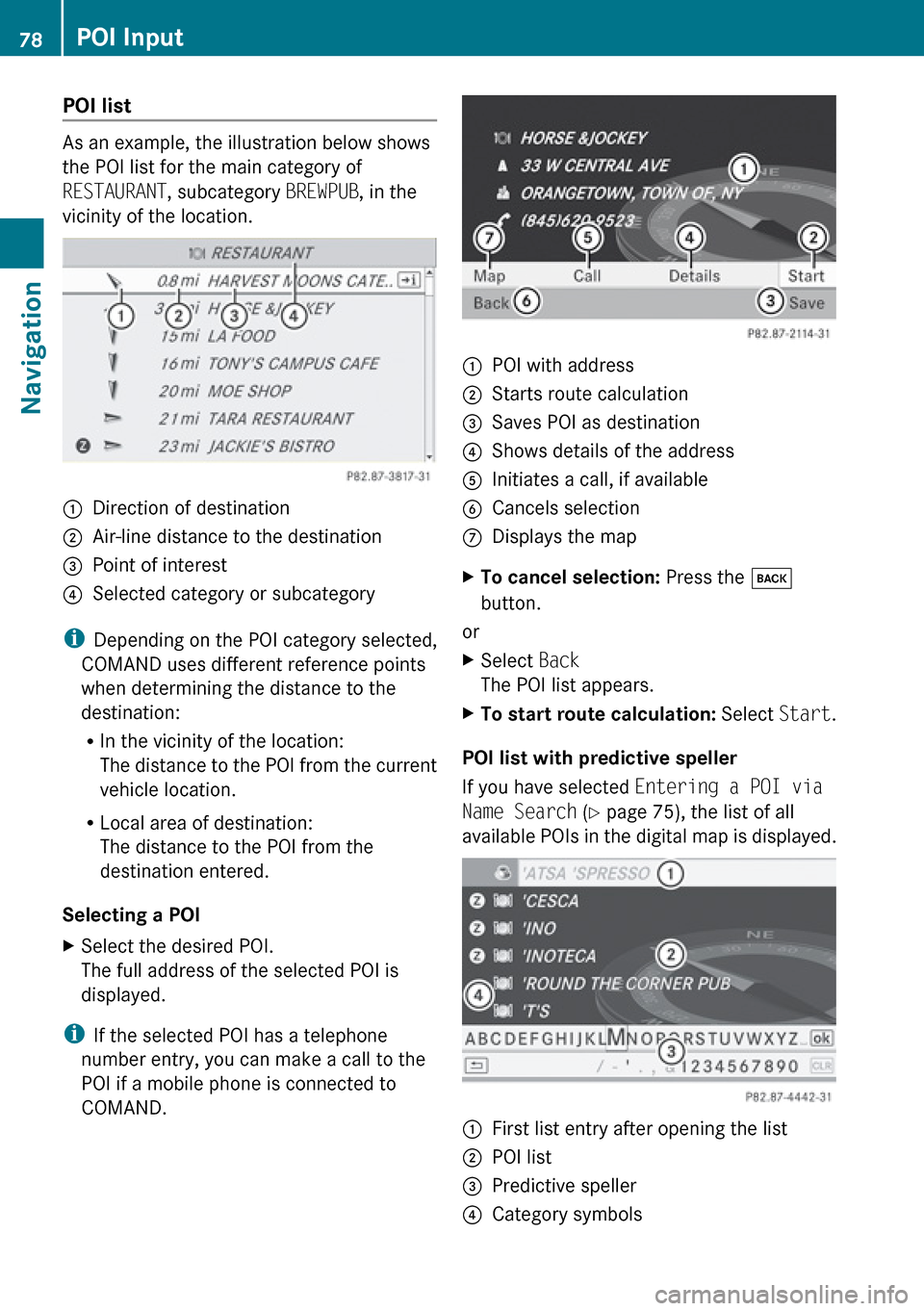
POI list
As an example, the illustration below shows
the POI list for the main category of
RESTAURANT , subcategory BREWPUB, in the
vicinity of the location.
1Direction of destination2Air-line distance to the destination3Point of interest4Selected category or subcategory
i Depending on the POI category selected,
COMAND uses different reference points
when determining the distance to the
destination:
R In the vicinity of the location:
The distance to the POI from the current
vehicle location.
R Local area of destination:
The distance to the POI from the
destination entered.
Selecting a POI
XSelect the desired POI.
The full address of the selected POI is
displayed.
i If the selected POI has a telephone
number entry, you can make a call to the
POI if a mobile phone is connected to
COMAND.
1POI with address2Starts route calculation3Saves POI as destination4Shows details of the address5Initiates a call, if available6Cancels selection7Displays the mapXTo cancel selection: Press the k
button.
or
XSelect Back
The POI list appears.XTo start route calculation: Select Start.
POI list with predictive speller
If you have selected Entering a POI via
Name Search (Y page 75), the list of all
available POIs in the digital map is displayed.
1First list entry after opening the list2POI list3Predictive speller4Category symbols78POI InputNavigation
Page 87 of 224
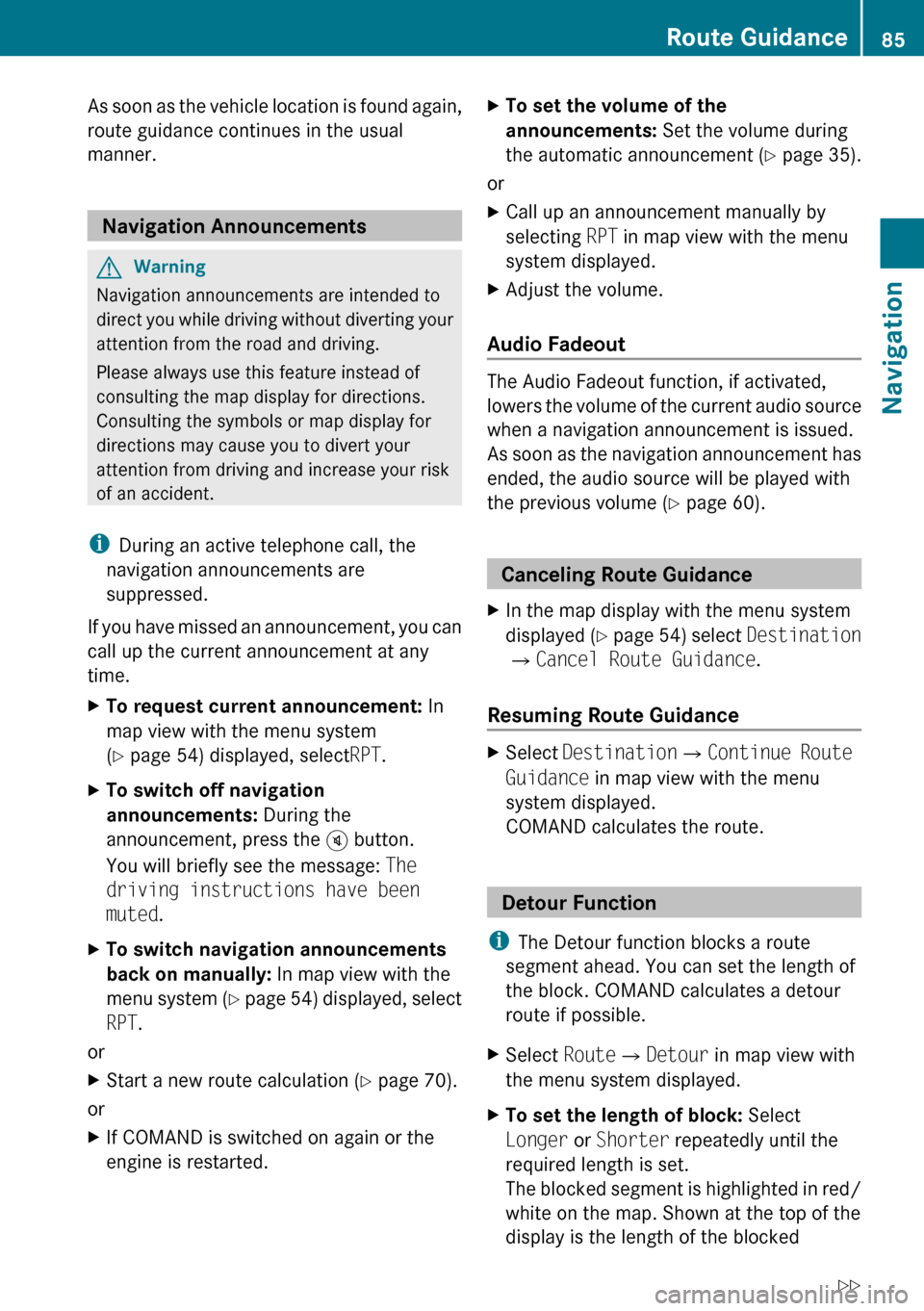
As soon as the vehicle location is found again,
route guidance continues in the usual
manner.
Navigation Announcements
GWarning
Navigation announcements are intended to
direct you while driving without diverting your
attention from the road and driving.
Please always use this feature instead of
consulting the map display for directions.
Consulting the symbols or map display for
directions may cause you to divert your
attention from driving and increase your risk
of an accident.
i During an active telephone call, the
navigation announcements are
suppressed.
If you have missed an announcement, you can
call up the current announcement at any
time.
XTo request current announcement: In
map view with the menu system
( Y page 54) displayed, select RPT.XTo switch off navigation
announcements: During the
announcement, press the B button.
You will briefly see the message: The
driving instructions have been
muted .XTo switch navigation announcements
back on manually: In map view with the
menu system (Y page 54) displayed, select
RPT .
or
XStart a new route calculation ( Y page 70).
or
XIf COMAND is switched on again or the
engine is restarted.XTo set the volume of the
announcements: Set the volume during
the automatic announcement ( Y page 35).
or
XCall up an announcement manually by
selecting RPT in map view with the menu
system displayed.XAdjust the volume.
Audio Fadeout
The Audio Fadeout function, if activated,
lowers the volume of the current audio source
when a navigation announcement is issued.
As soon as the navigation announcement has
ended, the audio source will be played with
the previous volume ( Y page 60).
Canceling Route Guidance
XIn the map display with the menu system
displayed ( Y page 54) select Destination
£ Cancel Route Guidance .
Resuming Route Guidance
XSelect Destination £Continue Route
Guidance in map view with the menu
system displayed.
COMAND calculates the route.
Detour Function
i The Detour function blocks a route
segment ahead. You can set the length of
the block. COMAND calculates a detour
route if possible.
XSelect Route£Detour in map view with
the menu system displayed.XTo set the length of block: Select
Longer or Shorter repeatedly until the
required length is set.
The blocked segment is highlighted in red/
white on the map. Shown at the top of the
display is the length of the blockedRoute Guidance85NavigationZ
Page 97 of 224
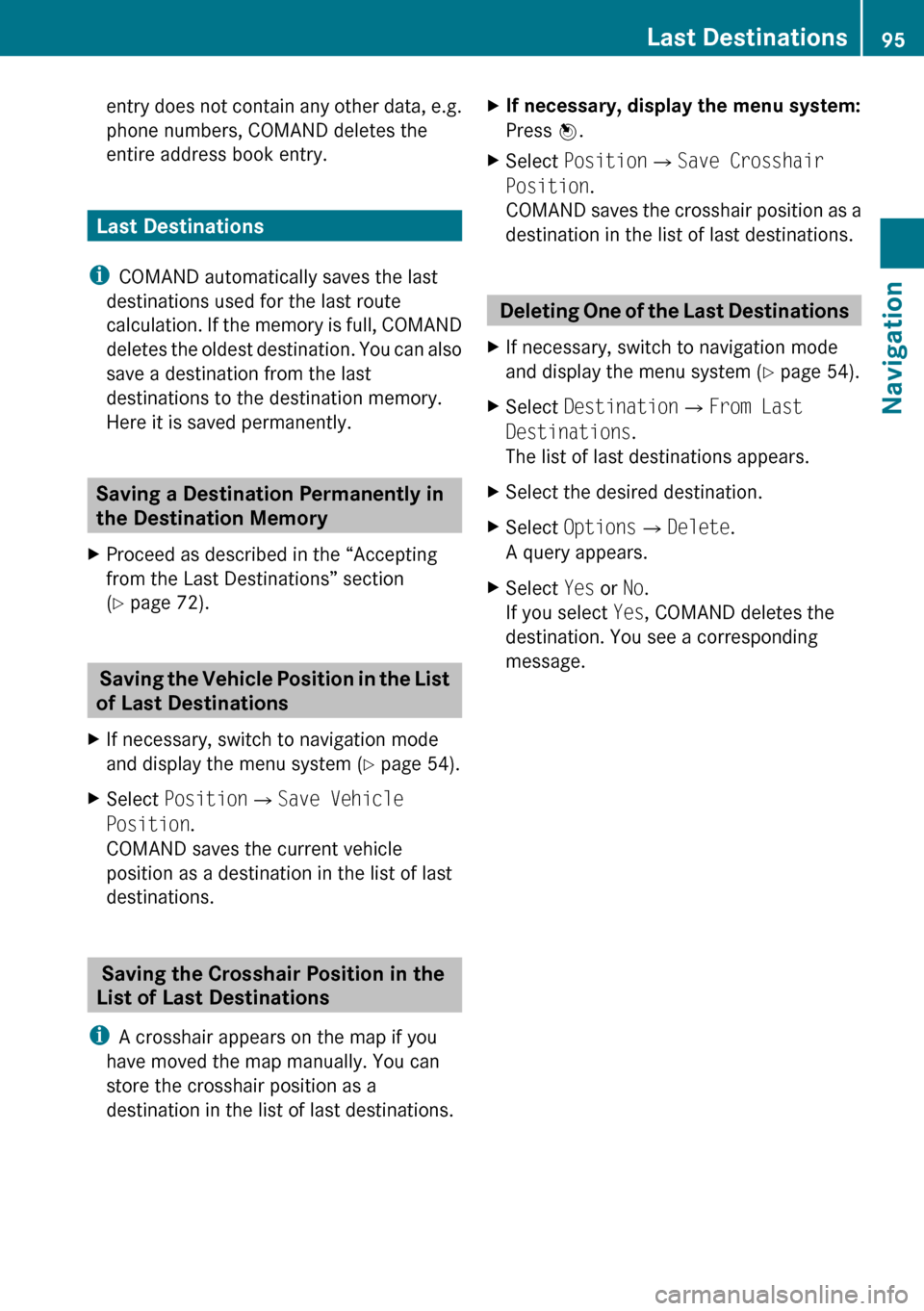
entry does not contain any other data, e.g.
phone numbers, COMAND deletes the
entire address book entry.
Last Destinations
i COMAND automatically saves the last
destinations used for the last route
calculation. If the memory is full, COMAND
deletes the oldest destination. You can also
save a destination from the last
destinations to the destination memory.
Here it is saved permanently.
Saving a Destination Permanently in
the Destination Memory
XProceed as described in the “Accepting
from the Last Destinations” section
( Y page 72).
Saving the Vehicle Position in the List
of Last Destinations
XIf necessary, switch to navigation mode
and display the menu system ( Y page 54).XSelect Position £Save Vehicle
Position .
COMAND saves the current vehicle
position as a destination in the list of last
destinations.
Saving the Crosshair Position in the
List of Last Destinations
i A crosshair appears on the map if you
have moved the map manually. You can
store the crosshair position as a
destination in the list of last destinations.
XIf necessary, display the menu system:
Press n.XSelect Position £Save Crosshair
Position .
COMAND saves the crosshair position as a
destination in the list of last destinations.
Deleting One of the Last Destinations
XIf necessary, switch to navigation mode
and display the menu system ( Y page 54).XSelect Destination £From Last
Destinations .
The list of last destinations appears.XSelect the desired destination.XSelect Options £Delete .
A query appears.XSelect Yes or No.
If you select Yes, COMAND deletes the
destination. You see a corresponding
message.Last Destinations95NavigationZ
Page 99 of 224
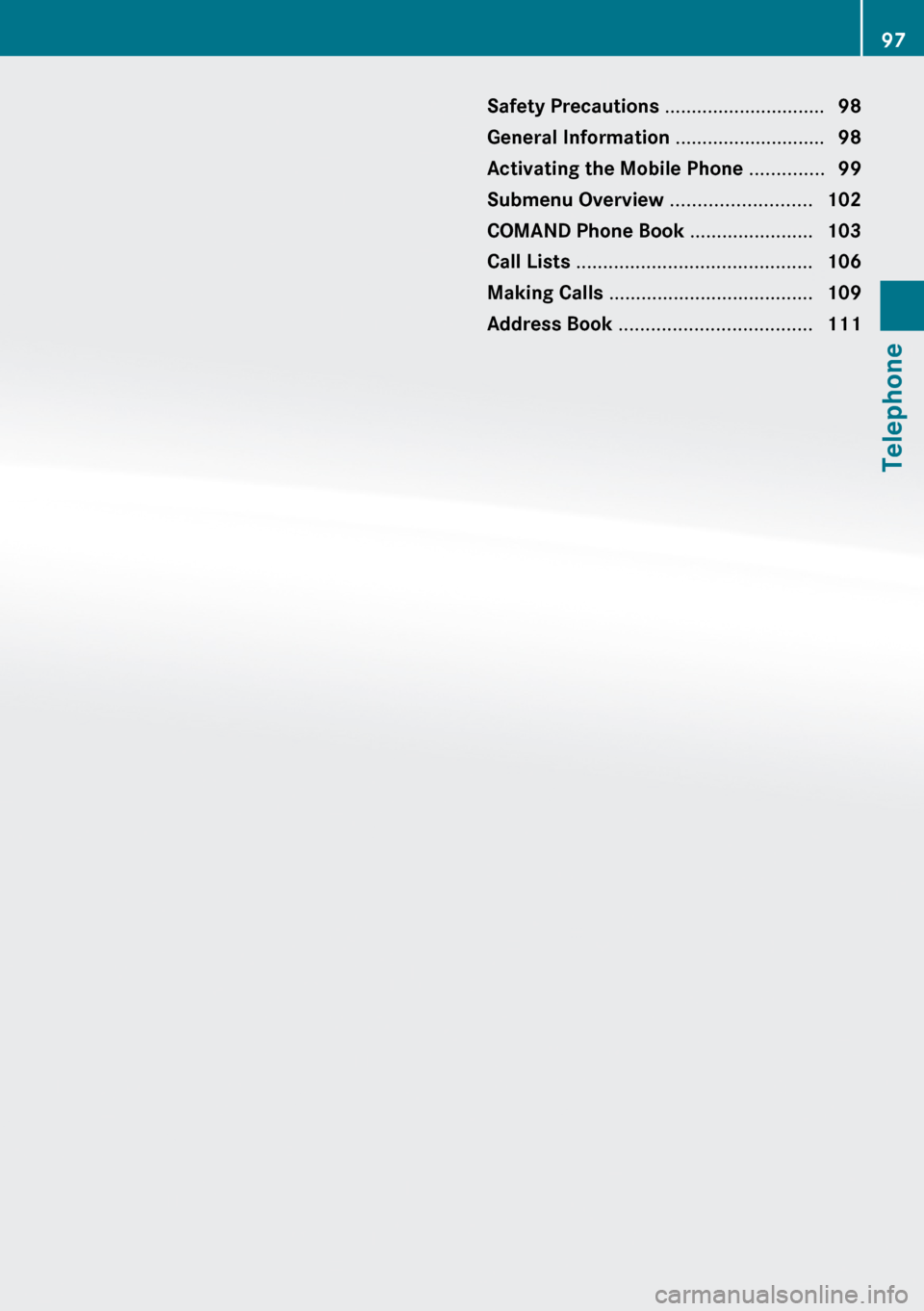
Safety Precautions ..............................98
General Information ............................98
Activating the Mobile Phone ..............99
Submenu Overview ..........................102
COMAND Phone Book .......................103
Call Lists ............................................ 106
Making Calls ...................................... 109
Address Book .................................... 11197Telephone