audio MERCEDES-BENZ E-Class COUPE 2010 C212 Comand Manual
[x] Cancel search | Manufacturer: MERCEDES-BENZ, Model Year: 2010, Model line: E-Class COUPE, Model: MERCEDES-BENZ E-Class COUPE 2010 C212Pages: 224, PDF Size: 7.4 MB
Page 155 of 224
Audio Aux
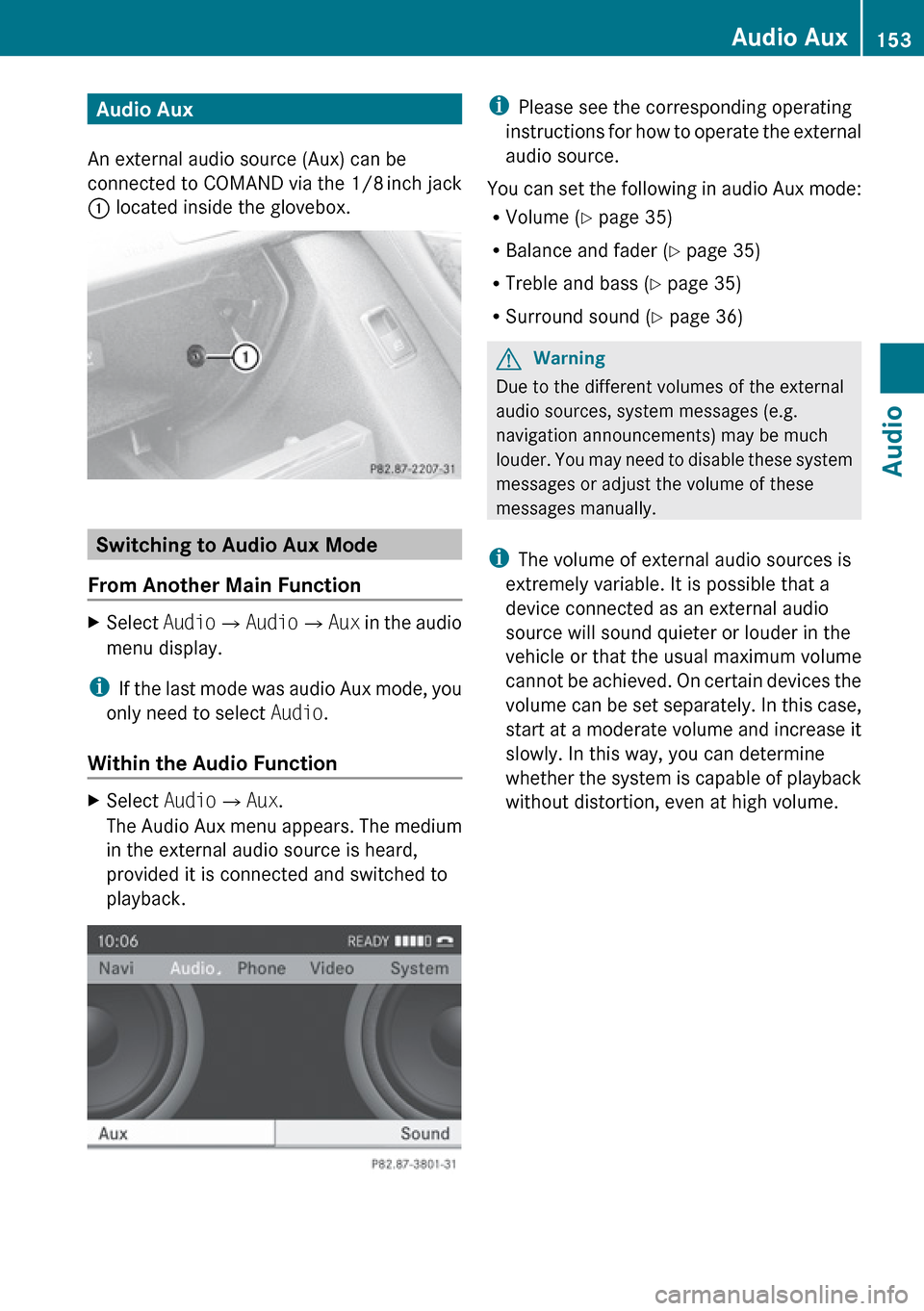
An external audio source (Aux) can be
connected to COMAND via the 1/8 inch jack
1 located inside the glovebox.
Switching to Audio Aux Mode
From Another Main Function
XSelect Audio£Audio £Aux in the audio
menu display.
i If the last mode was audio Aux mode, you
only need to select Audio.
Within the Audio Function
XSelect Audio£Aux .
The Audio Aux menu appears. The medium
in the external audio source is heard,
provided it is connected and switched to
playback.i Please see the corresponding operating
instructions for how to operate the external
audio source.
You can set the following in audio Aux mode:
R Volume ( Y page 35)
R Balance and fader ( Y page 35)
R Treble and bass ( Y page 35)
R Surround sound ( Y page 36)GWarning
Due to the different volumes of the external
audio sources, system messages (e.g.
navigation announcements) may be much
louder. You may need to disable these system
messages or adjust the volume of these
messages manually.
i The volume of external audio sources is
extremely variable. It is possible that a
device connected as an external audio
source will sound quieter or louder in the
vehicle or that the usual maximum volume
cannot be achieved. On certain devices the
volume can be set separately. In this case,
start at a moderate volume and increase it
slowly. In this way, you can determine
whether the system is capable of playback
without distortion, even at high volume.
Audio Aux153AudioZ
Page 158 of 224
General Information
Safety Notes
GWarning
COMAND is classified as a Class 1 laser
product. You must not open the casing. There
is a risk of exposure to invisible laser radiation
if you open the casing, or if the casing is faulty
or damaged.
COMAND does not contain any parts that you
are able to maintain yourself. For safety
reasons, all maintenance work must be
exclusively carried out by qualified
technicians.
GWarning
Only carry out the following when the vehicle
is stationary:
R Inserting a disc
R Ejecting a disc
There is a risk of accident by being distracted
from road and traffic conditions if you load a
CD/DVD while the vehicle is in motion.
Vehicle Equipment
i This Operator’s Manual describes all
features, standard or optional, potentially
available for your vehicle at the time of
purchase. Please be aware that your
vehicle might not be equipped with all
features described in this manual.
Automatic Picture Switch-off
The video picture is only displayed if the
gearshift lever is in “P” position.
When the gearshift lever is moved out of the
“P” position, the following message is
displayed: In order not to distract
you from the traffic situation, the
picture is faded out while the
vehicle is in motion.
When the gearshift lever is moved back into
the “P” position, the picture switches back
on.
Notes on Storage Media
i When playing copied discs, problems may
occur with the playback. A wide variety of
disc-writing software and writers are
available. Due to this variety we cannot
guarantee that the system will be able to
play discs that you have written/copied
yourself.
! Do not affix stickers or labels to the discs,
as they could peel off and damage
COMAND. Stickers can cause the disc to
bend, which can result in read errors and
disc recognition problems.
! COMAND is designed to hold discs which
comply with the EN 60908 standard. You
can therefore only use discs with a
maximum thickness of 1.3 mm.
If you insert thicker discs, e.g. those that
contain data on both sides (DVD on one
side and audio data on the other), they
cannot be ejected and can damage
COMAND.
Do not use discs with a diameter of 8 cm,
even with an adapter. Only use round discs
with a diameter of 12 cm.
Notes on the Care of Discs
R Only hold discs by the edge.
R Handle discs with care in order to prevent
malfunctions during playback.
R Avoid scratching, leaving fingerprints and
dust on the discs.
R Clean the discs occasionally with a
commercially available cleaning cloth.
Always wipe in a straight line from the
inside outwards, never in a circular motion.
156General InformationVideo
Page 160 of 224
DVD-Video«/X±MediaSoundActive Aud./Vid.
Source for the RearRear Audio/Video
OffDVD Video
Switching to DVD Video
From the Control Panel
XInsert a DVD Video ( Y page 134).
COMAND loads the medium inserted and
starts playing it.
or
XFrom another main function: Press the
h function button.
The function button takes you directly to
the last active disc mode (CD Audio , DVD
Audio , MP3 CD, Media Interface or DVD
Video). COMAND accesses all discs in the
DVD changer.
If you previously selected DVD Video mode,
it will now be switched on.
If you have another disc mode activated:XSelect Media.
The media list appears.XSelect a DVD Video ( Y page 159).
Via COMAND Controller
XSelect Video from the main function line.
Displaying/Hiding Control Menu
XTo show: Slide qm r.XTo hide: Slide qm r.
or
XWait approximately eight seconds.
Control menu displayed
1Disc type2Current title3Current scene4Elapsed title time5Display menu system
Displaying/Hiding Menu System
XTo show: Press n.
or
XWhen the control menu is shown, select
Menu .XTo hide: Slide qm and select Full
screen .158DVD VideoVideo
Page 161 of 224
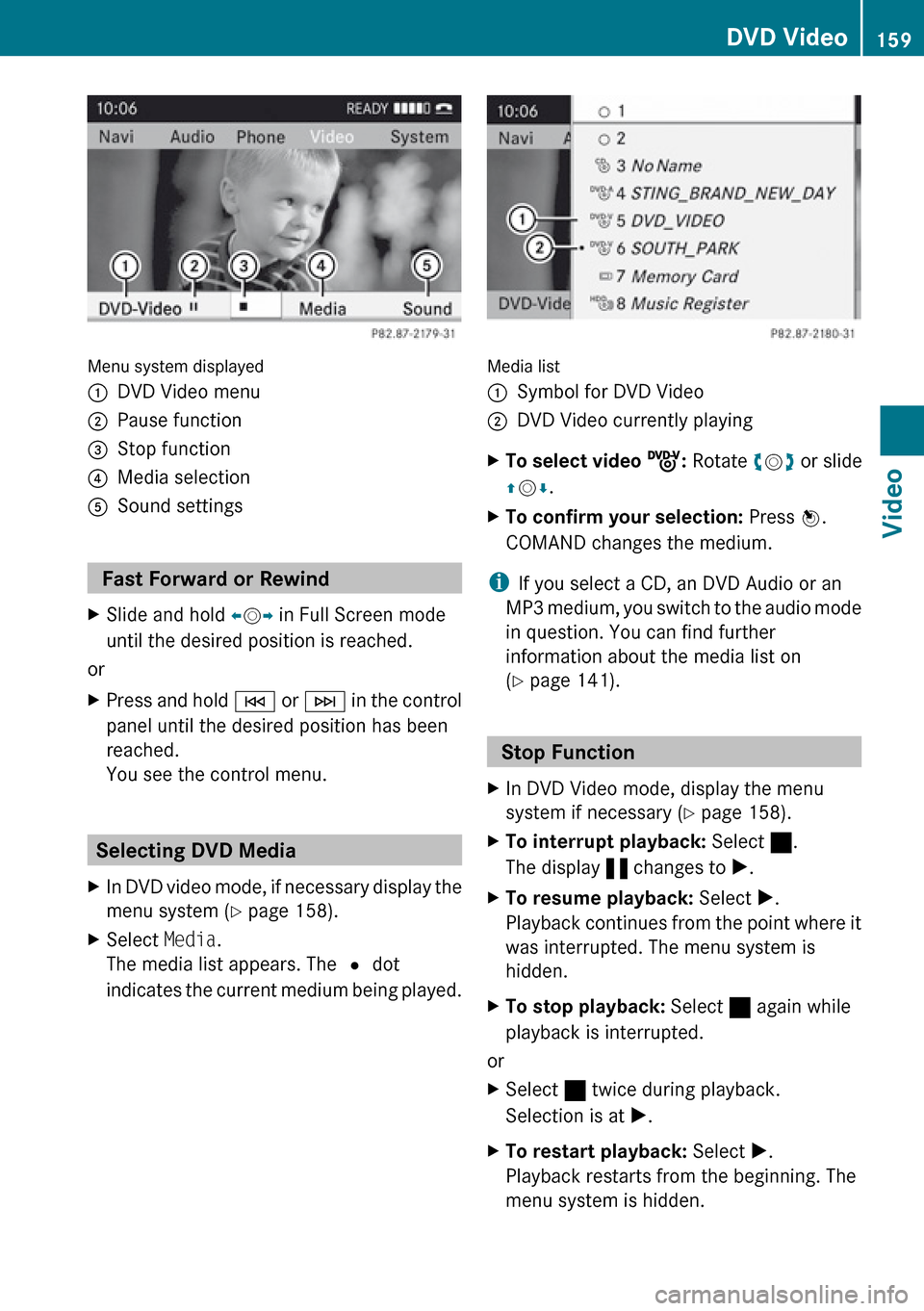
Menu system displayed
1DVD Video menu2Pause function3Stop function4Media selection5Sound settings
Fast Forward or Rewind
XSlide and hold om p in Full Screen mode
until the desired position is reached.
or
XPress and hold E or F in the control
panel until the desired position has been
reached.
You see the control menu.
Selecting DVD Media
XIn DVD video mode, if necessary display the
menu system ( Y page 158).XSelect Media.
The media list appears. The R dot
indicates the current medium being played.
Media list
1Symbol for DVD Video2DVD Video currently playingXTo select video ý: Rotate ym z or slide
q m r.XTo confirm your selection: Press n.
COMAND changes the medium.
i If you select a CD, an DVD Audio or an
MP3 medium, you switch to the audio mode
in question. You can find further
information about the media list on
( Y page 141).
Stop Function
XIn DVD Video mode, display the menu
system if necessary ( Y page 158).XTo interrupt playback: Select ±.
The display « changes to X.XTo resume playback: Select X.
Playback continues from the point where it
was interrupted. The menu system is
hidden.XTo stop playback: Select ± again while
playback is interrupted.
or
XSelect ± twice during playback.
Selection is at X.XTo restart playback: Select X.
Playback restarts from the beginning. The
menu system is hidden.DVD Video159VideoZ
Page 164 of 224
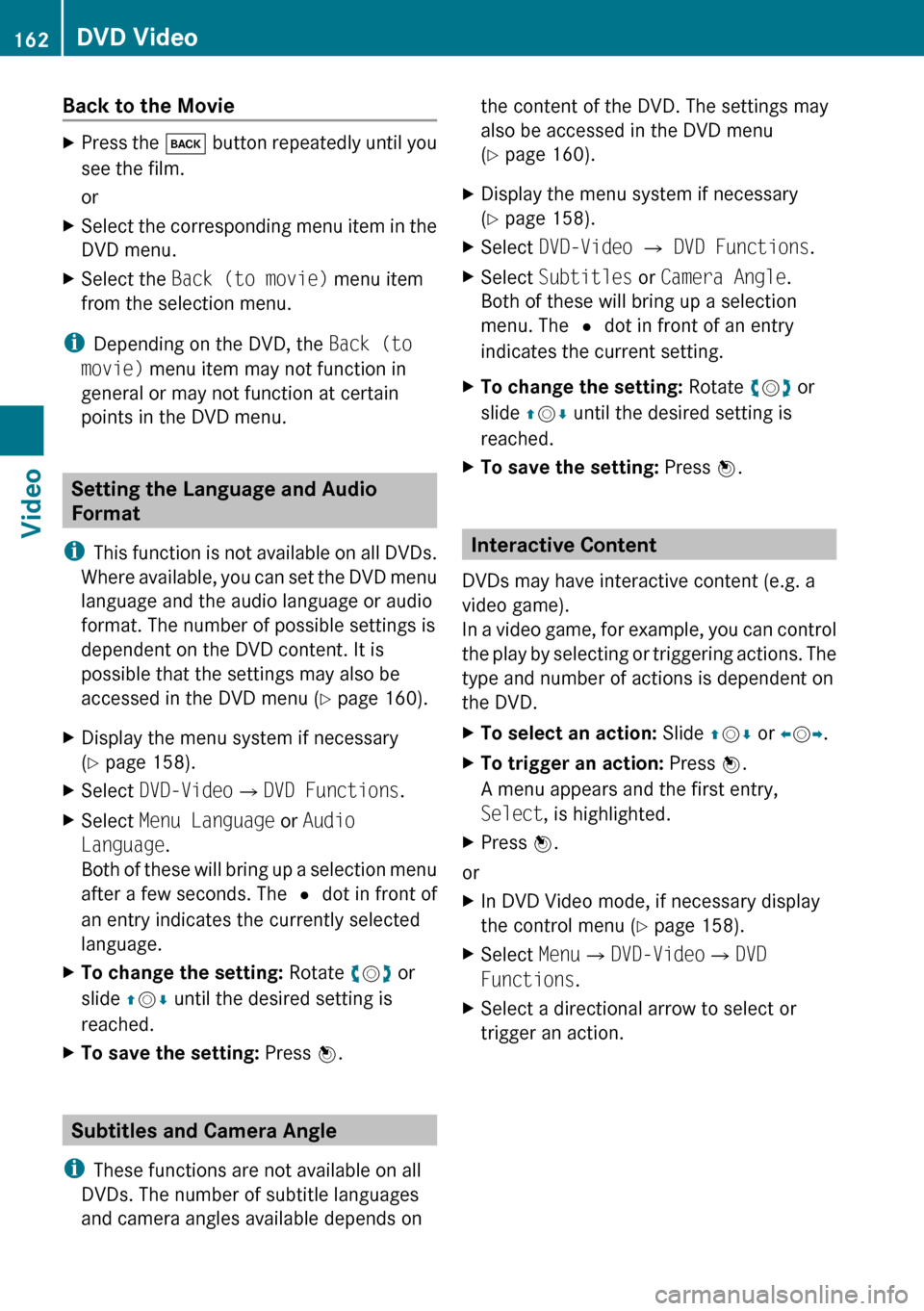
Back to the MovieXPress the k button repeatedly until you
see the film.
orXSelect the corresponding menu item in the
DVD menu.XSelect the Back (to movie) menu item
from the selection menu.
i Depending on the DVD, the Back (to
movie) menu item may not function in
general or may not function at certain
points in the DVD menu.
Setting the Language and Audio
Format
i This function is not available on all DVDs.
Where available, you can set the DVD menu
language and the audio language or audio
format. The number of possible settings is
dependent on the DVD content. It is
possible that the settings may also be
accessed in the DVD menu ( Y page 160).
XDisplay the menu system if necessary
( Y page 158).XSelect DVD-Video £DVD Functions .XSelect Menu Language or Audio
Language .
Both of these will bring up a selection menu
after a few seconds. The R dot in front of
an entry indicates the currently selected
language.XTo change the setting: Rotate ym z or
slide qm r until the desired setting is
reached.XTo save the setting: Press n.
Subtitles and Camera Angle
i These functions are not available on all
DVDs. The number of subtitle languages
and camera angles available depends on
the content of the DVD. The settings may
also be accessed in the DVD menu
( Y page 160).XDisplay the menu system if necessary
( Y page 158).XSelect DVD-Video £ DVD Functions .XSelect Subtitles or Camera Angle .
Both of these will bring up a selection
menu. The R dot in front of an entry
indicates the current setting.XTo change the setting: Rotate ym z or
slide qm r until the desired setting is
reached.XTo save the setting: Press n.
Interactive Content
DVDs may have interactive content (e.g. a
video game).
In a video game, for example, you can control
the play by selecting or triggering actions. The
type and number of actions is dependent on
the DVD.
XTo select an action: Slide qm r or om p.XTo trigger an action: Press n.
A menu appears and the first entry,
Select , is highlighted.XPress n.
or
XIn DVD Video mode, if necessary display
the control menu ( Y page 158).XSelect Menu£DVD-Video £DVD
Functions .XSelect a directional arrow to select or
trigger an action.162DVD VideoVideo
Page 165 of 224
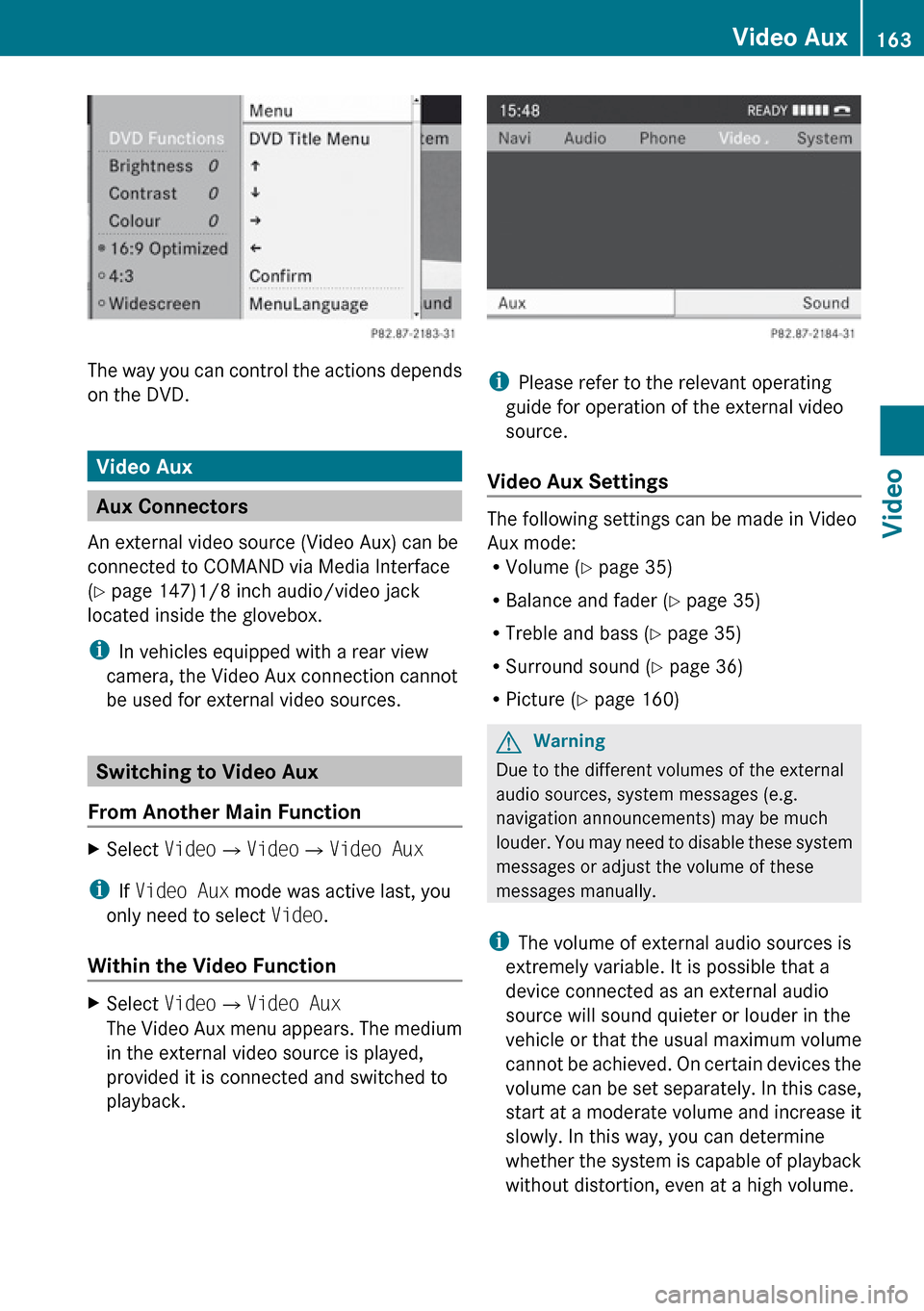
The way you can control the actions depends
on the DVD.
Video Aux
Aux Connectors
An external video source (Video Aux) can be
connected to COMAND via Media Interface
( Y page 147)1/8 inch audio/video jack
located inside the glovebox.
i In vehicles equipped with a rear view
camera, the Video Aux connection cannot
be used for external video sources.
Switching to Video Aux
From Another Main Function
XSelect Video£Video £Video Aux
i
If Video Aux mode was active last, you
only need to select Video.
Within the Video Function
XSelect Video£Video Aux
The Video Aux menu appears. The medium
in the external video source is played,
provided it is connected and switched to
playback.
i Please refer to the relevant operating
guide for operation of the external video
source.
Video Aux Settings
The following settings can be made in Video
Aux mode:
R Volume ( Y page 35)
R Balance and fader ( Y page 35)
R Treble and bass ( Y page 35)
R Surround sound ( Y page 36)
R Picture ( Y page 160)
GWarning
Due to the different volumes of the external
audio sources, system messages (e.g.
navigation announcements) may be much
louder. You may need to disable these system
messages or adjust the volume of these
messages manually.
i The volume of external audio sources is
extremely variable. It is possible that a
device connected as an external audio
source will sound quieter or louder in the
vehicle or that the usual maximum volume
cannot be achieved. On certain devices the
volume can be set separately. In this case,
start at a moderate volume and increase it
slowly. In this way, you can determine
whether the system is capable of playback
without distortion, even at a high volume.
Video Aux163VideoZ
Page 167 of 224
General Information .........................166
Basic Functions ................................. 170
System Settings ................................ 172
CD/DVD Audio and MP3 Operation .173
DVD Video Operation ........................177
Aux Operation ................................... 181165Rear Seat Entertainment
Page 168 of 224
General Information
Vehicle Equipment
i This Operator’s Manual describes all
features, standard or optional, potentially
available for your vehicle at the time of
purchase. Please be aware that your
vehicle might not be equipped with all
features described in this manual.
Overview
This chapter describes the RSE (Rear Seat
Entertainment) system:
R Basic functions ( Y page 170)
R System settings ( Y page 172)
R CD/DVD audio and MP3 operation
( Y page 173)
R DVD Video operation ( Y page 177)
R Aux operation ( Y page 181)
Safety Instructions
GWarning
The RSE CD/DVD player is a Class 1 laser
product. There is a danger of invisible laser
radiation when you open or damage the cover.
Do not remove the cover. The RSE CD/DVD
player does not contain any parts which can
be serviced by the user. For safety reasons,
have any necessary service work performed
by qualified personnel.
GWarning
The driver should not wear a Rear Seat
Entertainment headset while operating the
vehicle under any circumstances. The use of
a headset while driving the vehicle could
drastically impair the ability to react to audible
traffic conditions (e.g. emergency sirens from
police/fire/ambulance, another car’s horn,
etc.).GWarning
When not in use, headsets or external video
sources should be stored in a safe location
(e.g. one of the vehicle’s storage
compartments) so that they are not loose
within the passenger compartment during
braking, vehicle maneuvers or a traffic
accident. Objects moving within the
passenger compartment could cause serious
personal injury to vehicle occupants.
GWarning
Due to a potential choking hazard, wired
headset usage by children should only occur
with adult supervision.
Rear Seat Entertainment
Components
The rear-seat entertainment system consists
of:
R two display screens behind the head rests
of front-seats
R remote control(s)
R a CD/DVD drive
R Aux connectors on the drive and display
screens for connecting external devices
R two headsets (wireless headsets only
available in the US)
166General InformationRear Seat Entertainment
Page 170 of 224
XPoint the remote control to the active
screen and press the On/Off : button on
the remote control.
The display screen is switched on or off.
i Switching on with the remote control is
only possible if the ignition is on.
Muting the Audio Playback (Only Wired
Headset)
XPress the button B on the remote control.
Depending on the previous state the sound
is switched on or off.
Selecting a Menu Item and Confirming the
Selection
XSelecting the menu item: Press the arrow
buttons ? on the remote control.XConfirming the selection: Press the OK
button A.
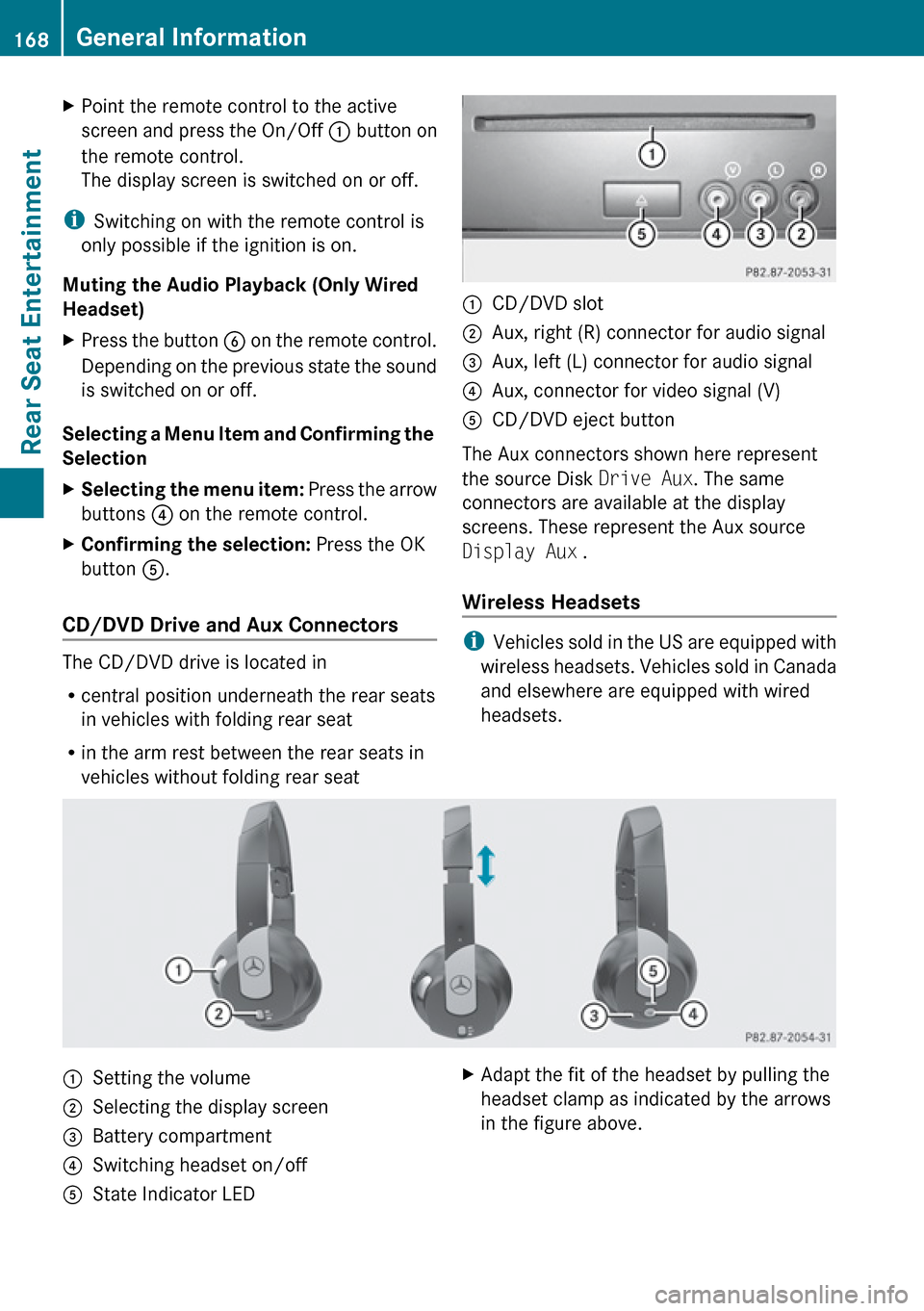
CD/DVD Drive and Aux Connectors
The CD/DVD drive is located in
R central position underneath the rear seats
in vehicles with folding rear seat
R in the arm rest between the rear seats in
vehicles without folding rear seat
:CD/DVD slot;Aux, right (R) connector for audio signal=Aux, left (L) connector for audio signal?Aux, connector for video signal (V)ACD/DVD eject button
The Aux connectors shown here represent
the source Disk Drive Aux. The same
connectors are available at the display
screens. These represent the Aux source
Display Aux .
Wireless Headsets
i Vehicles sold in the US are equipped with
wireless headsets. Vehicles sold in Canada
and elsewhere are equipped with wired
headsets.
:Setting the volume;Selecting the display screen=Battery compartment?Switching headset on/offAState Indicator LEDXAdapt the fit of the headset by pulling the
headset clamp as indicated by the arrows
in the figure above.168General InformationRear Seat Entertainment
Page 172 of 224
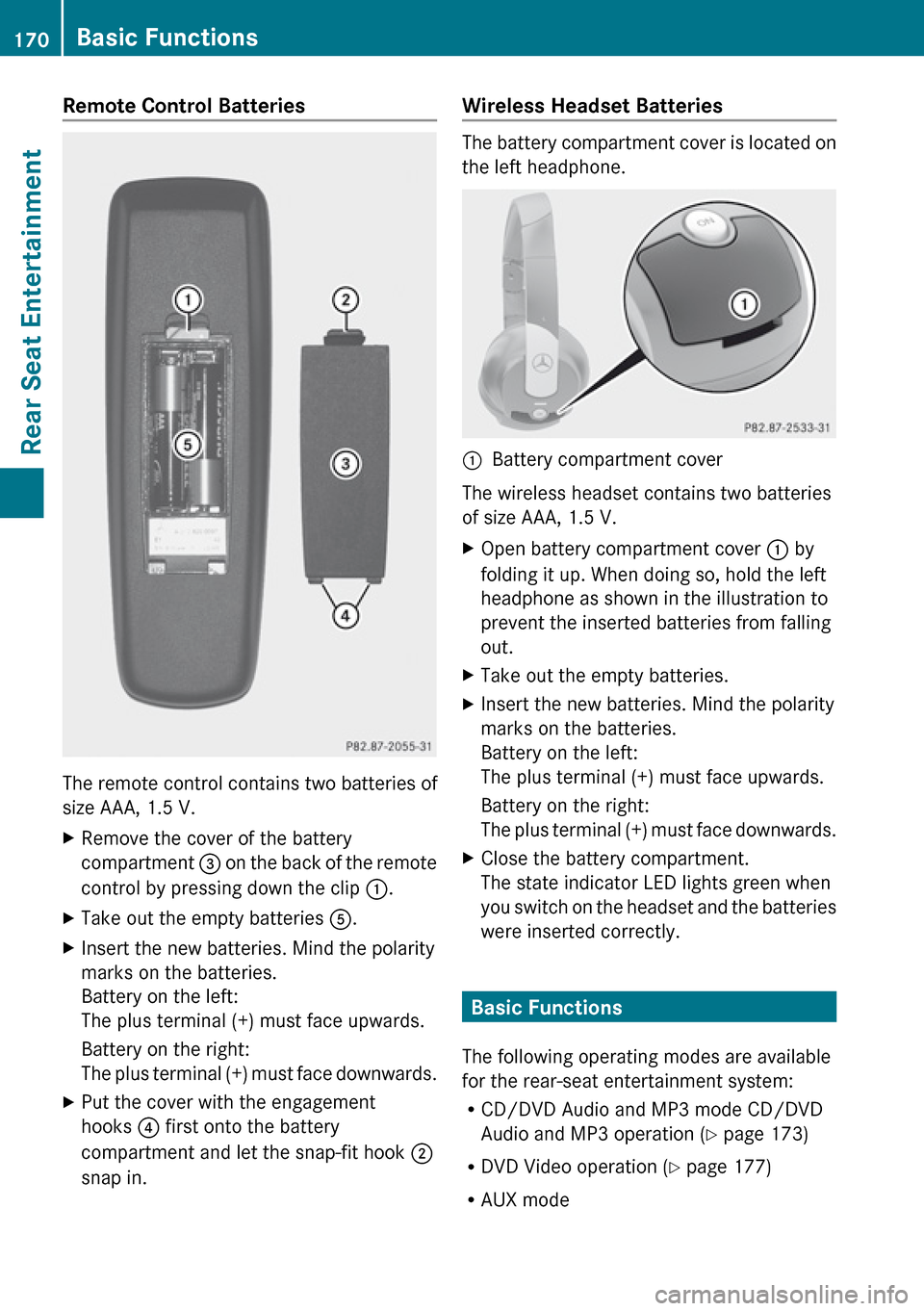
Remote Control Batteries
The remote control contains two batteries of
size AAA, 1.5 V.
XRemove the cover of the battery
compartment 3 on the back of the remote
control by pressing down the clip :.XTake out the empty batteries 5.XInsert the new batteries. Mind the polarity
marks on the batteries.
Battery on the left:
The plus terminal (+) must face upwards.
Battery on the right:
The plus terminal (+) must face downwards.XPut the cover with the engagement
hooks ? first onto the battery
compartment and let the snap-fit hook 2
snap in.Wireless Headset Batteries
The battery compartment cover is located on
the left headphone.
1Battery compartment cover
The wireless headset contains two batteries
of size AAA, 1.5 V.
XOpen battery compartment cover : by
folding it up. When doing so, hold the left
headphone as shown in the illustration to
prevent the inserted batteries from falling
out.XTake out the empty batteries.XInsert the new batteries. Mind the polarity
marks on the batteries.
Battery on the left:
The plus terminal (+) must face upwards.
Battery on the right:
The plus terminal (+) must face downwards.XClose the battery compartment.
The state indicator LED lights green when
you switch on the headset and the batteries
were inserted correctly.
Basic Functions
The following operating modes are available
for the rear-seat entertainment system:
R CD/DVD Audio and MP3 mode CD/DVD
Audio and MP3 operation ( Y page 173)
R DVD Video operation ( Y page 177)
R AUX mode
170Basic FunctionsRear Seat Entertainment