ad blue MERCEDES-BENZ E-Class COUPE 2011 C207 Comand Manual
[x] Cancel search | Manufacturer: MERCEDES-BENZ, Model Year: 2011, Model line: E-Class COUPE, Model: MERCEDES-BENZ E-Class COUPE 2011 C207Pages: 194, PDF Size: 6.42 MB
Page 104 of 194

COMAN
Dfea tures
Thes eOper atingIn st ruc tions desc ribeall
st andar dand optionalequipm enta vail able
for you rCOMAND systematthe time of
purcha se.Cou ntry-specifi cdeviation sare
possible. Pleasenotethat your COMAND
system maynotbeequipped withallthe
features described. General
information Introd
uction
Telephony viaBluetoot h®
int erface, in
con junc tion with aBluetoot h®
-c apable
mobile phone, enables youtophone viathe
Bluetoot h®
int erface.
With asuitable mobilephone, youcan usethe
hands- freesystem viathe Bluetoot h®
int erface, importcontact sfrom themobile
phone viaPBA P(Phone BookAccess Profile)
and receive vCards.
You canobtain moredetailed information
about suitable mobilephones andabout
con nectingBluetoot h®
-c apable mobile
phones toCOMAND onthe Internet 3
at
htt p://ww w.mbu sa-mobile.com. Orcall
the Mercedes- BenzCustomer Assistance
Center on
1-8 00-FOR-ME RCedes(1-80 0-367-637 2)for
the USA oron 1-8 00-387 -0100for Canada. Safet
ynotes G
WARN
ING
A driver's attentiontothe road must alway s
be his/her primary focuswhendriving. For
your safety andthesafety ofother s,we
recom mendthatyoupull over toasafe
location andstop before placing ortakin ga
telephon ecall. Ifyou choose touse themobile
phone whiledriving, pleaseusethehandsfr ee device
andonly usethemobile phonewhen
weather, road,andtrafficcon ditions permit.
Some jurisdict ionsprohibit thedriver from
using acellular mobilephonewhiledriving a
vehicle.
Bear inmind thatataspeed ofjust 30mph
(approximat ely50km/ h),your vehicle is
cover ingadistanc eof 44 feet (approximat ely
14 m)every second. G
WARN
ING
Ex cessive electromagnet icradiation may
con stitute ahealth hazard toyourself and
other s.
There isscien tificdiscussion surroundingthe
possible healthrisksposed by
electr omagnet icfields. Youcanreduce this
risk byusing anext erior aerial.
Therefor e,only usemobile communication
equipment ifit is con nect edtothe exterior
aerial ofthe vehicle. Call
disconnection whilethevehicle is
in motion
Ac allmay bedisc onnected if:
R there isins ufficie ntnetwo rkcover age in
cer tain areas .
R you mov efrom onetrans mitter/ rec eive r
area (cell)int oano ther and nochann elsare
fr ee.
R you useaSI M car dwhic his no tcompatible
with thenetwork available.
R you areusing amobile phonewith
"Twincard" andthemobile phonewiththe
second SIMcard isalready loggedintothe
network . Operat
ingoptions
You canoperate thetelephone by:
R using theCOMAND controller:
turn cVd.
3 Only valid forUSA. 102
General
informationTelephone
Page 105 of 194
slide
XVY orZVÆ.
press W.
R pressing the6 or~ button and
using thetelephone keypadonCOMAND
R pressing the6 or~ button onthe
multifunction steeringwheel
R using Voice Control (seetheseparate Voice
Control operating instructions)
Unless statedotherwise, thedescriptions and
illu strations inthis section refertoCOMAND. Function
restrictions
The telephone isnot ready foruse inthe
followi ngsituations:
R the telephone automaticall ytries tolog on
to anetwork. Ifno network isavail able, you
will notbeable tomake a"911" emergency
call. Ifyou attempt tomake anoutgoing
call, theNoService message
willappea r
for ashort while. 911
emergency call G
WARNING
The 911 emergency callsystem isapubli c
service. Usingitwithout duecause isa
criminal offense.
The followi ngrequirements mustbefulfill ed
for a911 emergency call:
R the mobile phonemustbeswitched on.
R anetwork mustbeavail able.
R avalid andoperational SIMcard must be
inserted inthe mobile phone.
R the mobile phoneisconn ected toCOMAND
via Bluetooth ®
.
If you cannot makeanemergency call,you
must arrange rescuemeasures yourself. X
Ent ernumbers onCOMAND (Ypage 108).
X Press the6 button.
The telephone makestheconn ection.
X Wait forthe emergency callcent erto
respond andthen describe theemergency. Telephony
viathe Bluetooth ®
interface Condition
s
On the mobile phone For
telephony viaCOMAND's Bluetooth®
interface, aBluetooth ®
-capable mobile
phone isrequired.
i Not allmobile phones available onthe
market areequa llysuitabl e.More detailed
information onsuitabl emobile phones and
on conn ecting Bluetooth ®
-capable mobile
phones withCOMAND canbefound onthe
Intern etat
htt p://www .mbusa-mobile.com.O rcall
th eMer cedes-Ben zCustome rAssistance
Center at
1-80 0-FOR-ME RCedes(1-800- 367-6372)
(for theUSA) orCustomer Relations at
1-80 0-387-0100(for Canada ).
The battery ofthe mobile phoneshould
alwa ysbe kept sufficiently chargedinorder
to prevent malfunctions.
In preparation fortelephoning viathe
Bluetooth ®
interface, youshould checkthe
followi ngitems onyour mobile phone(seethe
mobile phoneoperating instructions):
X Hands-Fr eeProfile
The mobile phonemustsupport Hands-
Free Profile 1.0orabove.
i Some displays(e.g. thesignal strengt h)
depend onthe supported versionofthe
Hands-Fr eeProfile.
X Bluetooth ®
visibil ity
On certain mobilephones, thedevice itself
must bemade "visible"for other devices,
as well asactivating theBluetooth ® Telephony
viathe Bluetooth ®
interface 103Telephone Z
Page 106 of 194

function
(seethemobi lephone operating
instructio ns).
X Blue tooth ®
devi cename
Every Bluetooth ®
devi cehas itsown
Blue tooth ®
devi cename. Thisdevicename
is freel ydefi nabl e,but can beidentical for
al ldevi cesfrom thesame manufa cturer.It
is therefore recommende dthat youchange
this name sothat youcan easilyrecognize
you rmobile phone (seethemobile phone
operating instructions).
X Switch onthe mobile phoneandenter the
PIN when prompted todo so(see the
mobile phoneoperating instructions).
X Act ivate Bluetooth ®
funct ionsand, where
necessary, Bluetooth®
visibility onthe
mobile phone(seethemobile phone
operating instructions).
On COMAND X
Act ivate theBluetooth ®
funct ionin
COMAND (Ypage 47). Connec
tingamobile phone
Gener alinfor mation Bef
ore usin gyour mobilephon ewith
COMA NDforthefir st tim e,you willneedto
con nectit.
When youauth orizeanew mobi lephon e,itis
con nectedautom atically.
Conn ecting com prises:
R sear ching for aBluet ooth®
-c apable mobile
phon e
R subse quentlyauth orizing it
You canconnectupto ten mobile phones.
Search ingforam obile phone X
Pres sth e% function butt onon
COMA ND.
X Sele ctPho ne in
thete lepho nebasic menu
by slidin gVÆ andturnin gcVd the COMA
NDcontroller andpres sW to
con firm.
X Sele ctBlu etooth Pho
nes and
pres sW to
con firm.
X Sele ctUpd ate and
pres sW tocon firm.
COMA NDsear chesfor Bluet ooth®
te lepho neswith inran geand adds them to
th eBluet ooth®
telepho nelist.
The durat ionofthesearc hdepends onthe
number ofBluetoot h®
telephon eswithin
range andtheir charact eristics. Ex
ample ofdisplay: Bluetoot h®
telephon eslist
: Current lycon nected #and authoriz ed
mobile phoneY
; Mobile phonenotwithin rangebut
previously authorized(L appears ingray)
= Newly detectedmobile phonewithin
range butnot yetauthoriz ed(no icon yet
Y)
The Bluetoot h®
telephon eslist shows all
mobile phones withinrangeandallpreviously
authoriz edmobile phones, whether ornot
they areinrange.
i Ifthe Bluetoot h®
telephon eslist isfull,
you willberequested tode-author izea
mobile phone(Y page 106).IfCOMAND
does notfind your mobile phone, external
authoriz ation(Ypage 105)may be
nec essary.
i When called upagain, thetelephon elist
may nolonger showallmobile phones
because, forexample, amobile phonehas
been removed fromthevehicle inthe 104
Telephony viatheBluet ooth®
interf aceTelephone
Page 107 of 194
meantime.
Inthis case, startanew search
to upd ate the Blue tooth ®
teleph onelist.
Authorizin g(regi stering )am obile
ph one X
In theBluet ooth®
te lepho neslist,selec tthe
not yetauthorized mobilephonebyturning
cVd theCOMAND controller.
X Select Options by
sliding VYthe
COMAND controller andpress Wto
confirm .
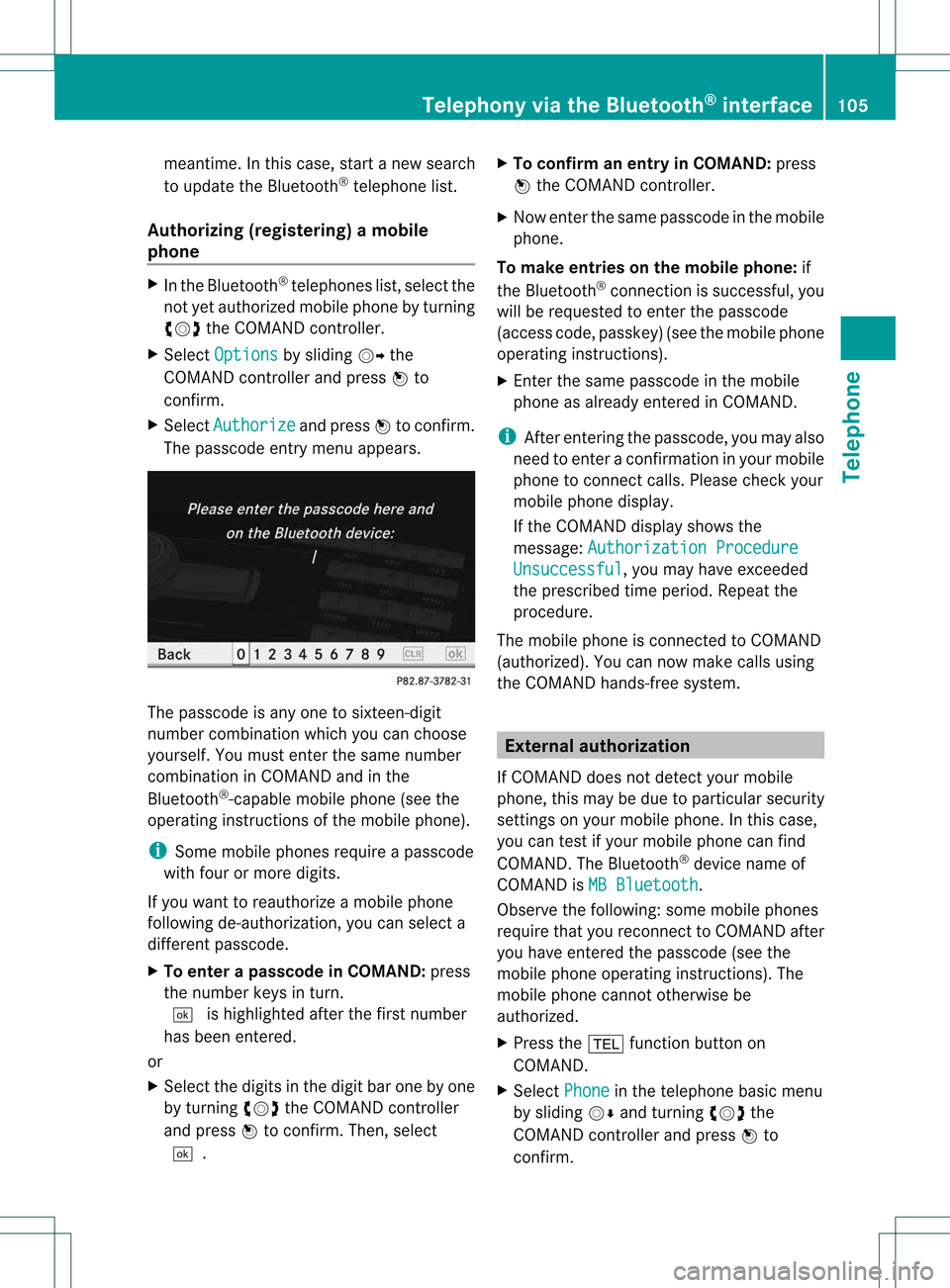
X Select Authorize and
press Wtoconfirm .
The passcode entrymenu appears. The
passcode isany one tosixteen- digit
number combination whichyoucan choose
yourself. Youmust enter thesame number
combination inCOMAND andinthe
Bluetooth ®
-capable mobilephone(seethe
operating instructionsofthe mobile phone).
i Some mobile phones requireapasscode
with fourormore digits.
If you want toreauthorize amobile phone
following <0004000500250001001500140008000F00120009001C000100140009000F000E
0032V youcan select a
different passcode.
X To enter apassc odeinCOMA ND:press
the numbe rkeys inturn.
¬ ishigh lighted after thefirst numbe r
has beenentere d.
or
X Sel ect the digits inthe digitb aroneby one
by turnin gcVd theCOMA NDcontroll er
and pres sW toconfirm .Then ,selec t
¬. X
To confir man ent ryinCOMAN D:pres s
W theCOMA NDcontroll er.
X Now enterthe same passcode inthe mobile
phone.
To make entries onthe mobile phone:if
the Bluetooth ®
conn ection issuccessful, you
will berequested toenter thepasscode
(access code,passkey) (seethemobile phone
operating instructions).
X Ent erthe same passcode inthe mobile
phone asalready entered inCOMAND.
i Afterenterin gthe passcode, youmay also
need toenter aconfirm ationinyour mobile
phone toconn ectcalls. Please checkyour
mobile phonedisplay.
If the COMAND displayshows the
message: Authorization Procedure Unsuccessful ,
you may have exceeded
the prescribed timeperiod. Repeatthe
procedure.
The mobile phoneisconn ected toCOMAND
(authorized). Youcannow make callsusing
the COMAND hands-free system. External
authorizat ion
If COMAND doesnotdetect yourmobile
phone, thismay bedue toparticular security
settin gson your mobile phone. Inthis case,
you can test ifyour mobile phonecanfind
COMAND. TheBluetooth ®
device nameof
COMAND isMB Bluetooth .
Observe thefollowing: somemobile phones
require thatyoureconn ecttoCOMAND after
you have entered thepasscode (seethe
mobile phoneoperating instructions).The
mobile phonecannot otherwise be
authorized.
X Press the% functionbutton on
COMAND.
X Select Phone in
the telephone basicmenu
by sliding VÆandturning cVdthe
COMAND controller andpress Wto
confirm . Telephony
viathe Bluetooth ®
interface 105Telephone Z
Page 108 of 194

X
Sel ect Blu etooth Pho
nes and
pressW to
confi rm.
X Sel ect Update .
X Sel ect Options by
sliding VY the
CO MAND controllera nd pre ssing W to
confi rm.
X Sel ect ExternalAuthorization and
pre ssW toconfi rm.
X Star tthe Bluetoo th®
sea rch onthe mob ile
ph one (see the mob ile ph one opera ting
ins tructio ns).
X Sel ect COMAND (MB Bluetooth )
on the
mob ile ph one .
X Enter thepassco deon the mob ile ph one
wh en req uested toand then enteritin
COMA ND. Connect
inganot hermob ilephone
If you have authorizedmor eth an onemob ile
phon e,you can swit chbet ween theind ivid ual
phon es.
i You canonlyswit chtoano ther auth orized
phon eif you arenotcurr ently mak ingacall .
X Se lec tthe mobile phoneinthe Bluetooth ®
telephones listbyturning cVdthe
COMAND controller andpress Wto
confirm .
The selected mobilephoneissearched for
and conn ected ifit is within Bluetooth ®
range andifBluetooth ®
is activated.
Only onemobile phonecanbeconn ected
at any one time. Thecurrent lyconn ected
mobile phoneisindicated bythe #dot in
the Bluetooth ®
telephones list
(Y page 104). Displaying
details
X Press the% functionbutton on
COMAND.
X Select Phone in
the telephone basicmenu
by sliding VÆandturning cVdthe COMAND
controller andpress Wto
confirm .
X Select Bluetooth Phones and
press Wto
confirm .
X Select thedesired mobilephoneinthe
Bluetooth ®
telephones list.
X Select Options by
sliding VYandpress
W toconfirm .
X Select Details and
press Wtoconfirm .
The following information concerning the
selected mobilephoneisshown:
R Bluetooth ®
name
R Bluetooth ®
address
R availa bilitystatus (isshown afteranew
search)
R authorization status
X To close thedetailed view:turncVd or
slide XVY theCOMAND controller. De-registering
(de-authorizing) a
mobile phone
Mercedes-Ben zUSA, LLCrecommen dsde-
authorization onboth COMAND andonthe
mobile phone. Subsequent authorization may
otherwise fail.
X Press the% functionbutton on
COMAND.
X Select Phone in
the telephone basicmenu
by sliding VÆandturning cVdthe
COMAND controller andpress Wto
confirm .
X Select Bluetooth Phones and
press Wto
confirm .
X Select thedesired mobilephoneinthe
Bluetooth ®
telephones list.106
Telephony viathe Bluetooth ®
interfaceTelephone
Page 109 of 194
X
Sel ect Option s by
sliding VY andpress
W toconfi rm.
X Sel ect De-Aut horize and
pressW to
confi rm.
Ap rompt appears asking whethe ryou
really wishtode-authorize thisdevice.
X Select Yes or
No .
If you select Yes ,
the device willbedeleted
from theBluetooth ®
telephones list.
If you select No ,
the process willbeaborted.
i Before re-authoriz ingthe mobile phone,
you should alsodelete thedevice nameMB Bluetooth from
yourmobile phone's
Bluetooth ®
list. Telephone
basicmenu (Bluetooth ®
interfa ce)
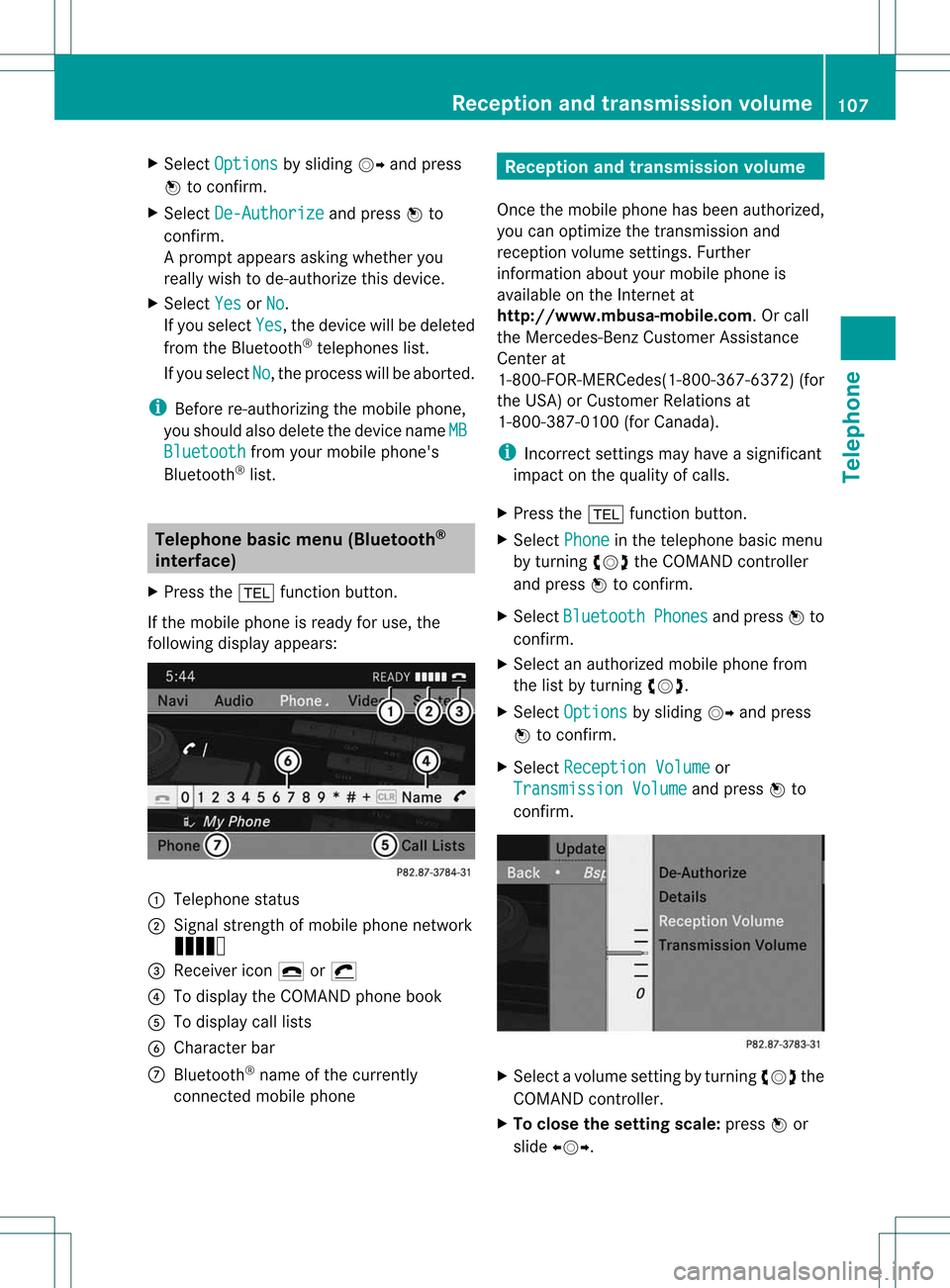
X Press the% functionbutton .
If the mobile phoneisready foruse, the
following displayappears: :
Telephone status
; Signal strengthofmobile phonenetwork
Ä
= Receiver icon¢or¡
? Todisplay theCOMAND phonebook
A Todisplay calllists
B Character bar
C Bluetooth ®
name ofthe current ly
conn ected mobile phone Reception
andtransmission volume
Once themobile phonehasbeen authorized,
you can optimize thetrans mission and
reception volumesettings. Further
informat ionabout yourmobile phoneis
availa bleonthe Internet at
htt p://www.mbusa- mobile.com.Orcall
the Mercedes-B enzCustomer Assistance
Center at
1-8 00-FOR-ME RCedes(1-800- 367-6372 )(for
the USA )or Custom erRelation sat
1- 800 -387- 010 0(for Canada).
i Incorrec tsett ings may have asignif icant
impact onthe quality ofcalls.
X Press the% function button.
X Selec tPhone in
the teleph onebasic menu
by turn ingcVd theCOMAN Dcon troller
and press Wtocon firm .
X Selec tBluet ooth Phone
s and
press Wto
con firm .
X Selec tana uth orizedmob ilephon efrom
th elist byturnin gcVd .
X Se lec tOpt ions by
slidi ngVY andpress
W toconfirm .
X Se lec tRec eption Volume or
Tra nsmission Volume and
pressW to
co nfirm . X
Se lec tavo lumesetting byturning cVdthe
COMAND controller.
X To clo sethe setting scale:press Wor
sli de XVY. Rece
ption andtransmissio nvol ume
107Telephone Z
Page 115 of 194
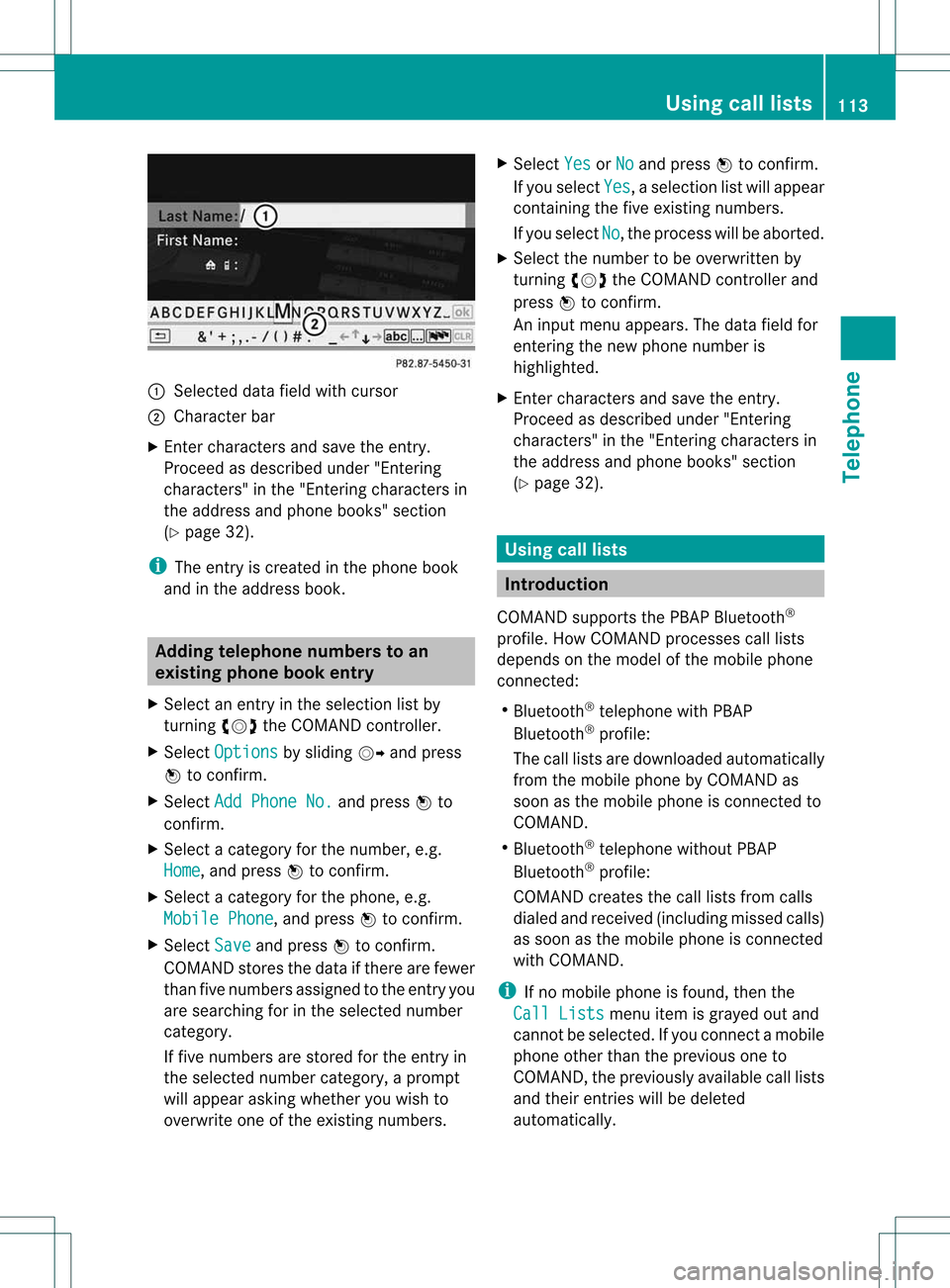
:
Selected data fieldwith curs or
; Chara cter bar
X Enter characte rsand save the entry .
Pro cee das descri bedund er"Ente ring
cha racte rs"inthe "Ente ringcharacte rsin
the addre ssand phoneboo ks" secti on
(Y page 32).
i The entry iscrea tedinthe phoneboo k
and inthe addre ssboo k. Addi
ngtelepho nenumb erstoan
ex istin gphon ebo ok entry
X Sel ect anentry inthe selecti onlist by
turni ngcVd theCOMAND controller.
X Sel ect Option s by
sliding VY andpress
W toconfi rm.
X Sel ect Add PhoneNo. and
pressW to
confi rm.
X Sel ect acate goryfor the numb er,e.g.
Hom e ,
and pressW toconfi rm.
X Sel ect acate goryfor the phone,e.g.
Mob ile Phone ,
and pressW toconfi rm.
X Sel ect Save and
pressW toconfi rm.
CO MAND storesthe data ifthere arefewer
tha nfive numb ersassign edtothe entryyou
are searc hingforinthe selec tednumb er
cat egory.
If five numb ersare stored forthe entryin
the selec tednumb ercat egory, aprom pt
will appear askingwhet heryou wish to
over writeone ofthe exis tingnumb ers. X
Selec tYes or
No and
press Wtocon firm .
If you selec tYes ,
a selec tionlistwill appear
con tain ingthe five existingnumb ers.
If you selec tNo ,
the proc esswillbeabort ed.
X Selec tthe numb erto be over written by
tur nin gcVd theCOMA NDcontroller and
press Wtocon firm .
An input menuappears. Thedata fieldfor
ent erin gthe new phon enumb eris
highligh ted.
X En ter char acters and save theentry.
Proc eedasdesc ribed under "Entering
char acters" inthe "Entering char acters in
the address andphon ebook s"sect ion
(Y page 32). Using
calllists Intr
odu ction
COMA NDsupport sthe PBA PBluet ooth®
prof ile.How COMA NDproc esses calllists
depen dson the model ofthe mobile phone
con nected:
R Bluet ooth®
telep honewith PBAP
Bluet ooth®
prof ile:
The calllistsare downlo adedautom atically
fro mt hemobile phonebyCOMAND as
soon asthe mobile phoneisconn ected to
COMAND.
R Bluetooth ®
telephone withoutPBAP
Bluetooth ®
profile:
COMAND createsthecall lists from calls
diale dand received (including missedcalls)
as soon asthe mobile phoneisconn ected
with COMAND.
i Ifno mobile phoneisfound, thenthe
Call Lists menu
itemisgrayed outand
cannot beselected. Ifyou conn ectamobile
phone otherthantheprevious oneto
COMAND, thepreviously availablecall lists
and their entrieswill bedeleted
automatically . Using
calllists
113Telephone Z
Page 118 of 194
If
you select No ,
the process willbe aborted .
X Select thenumber tobe overwri tteninthe
list byturning cVdtheCOMAND controller
and press Wtoconfirm.
COMAND overwritesthe selected number
with thenew data. De
letin gcall lists
This function isavai lablewhen thecall lists
are generated andmanage dby COMAND, i.e.
when youareusing aBluetooth ®
telepho ne
withou tthe support ofthe PBAP Bluetooth ®
profile.
X Select CallLists in
the telephone basic
menu byturning cVdtheCOMAND
cont roller andpress Wtoconfirm .
X Select Delete CallLists and
press W
to confirm .
Ap rompt appears asking whethe ryou wish
to delete allcall lists.
X Select Yes or
No and
press Wtoconf irm.
If you select Yes ,
the call lists aredeleted.
If you select No ,
the process willbeaborted. Using
theaddress book Introdu
ction G
WARNIN
G
Please devote youratten tionfirst and
foremost tothe traffic situation youarein.
Before yourjourney, pleasefamiliarize
yourself withtheaddress bookfunctions.
Only usetheCOMAND whenroadandtraffic
condit ionspermit youtodo so. Otherwise you
could beinvolved inan accident inwhich you
or others couldbeinjured.
The address bookorganizes andstores
entr ieswhich areenter edfrom different
sources (mobilephone,memory card,
COMAND telephone book,navigation
system). You
canusethese entriestomake telephone
calls andfornavigation.
i Address bookentriesremain storedwhen
the mobile phoneisdisconn ected.
Therefore, youshould deleteyourpersonal
data using thereset functionbefore selling
your vehicle, forexample (Ypage 47). Calling
upthe address book
X Press the% functionbutton .
You seethetelephone basicmenu orthe
address bookifit was open previously.
X With thetelephone basicmenu shown,
select Phone by
sliding VZtheCOMAND
cont roller andpress Wtoconf irm.
X Select Address Book from
themenu and
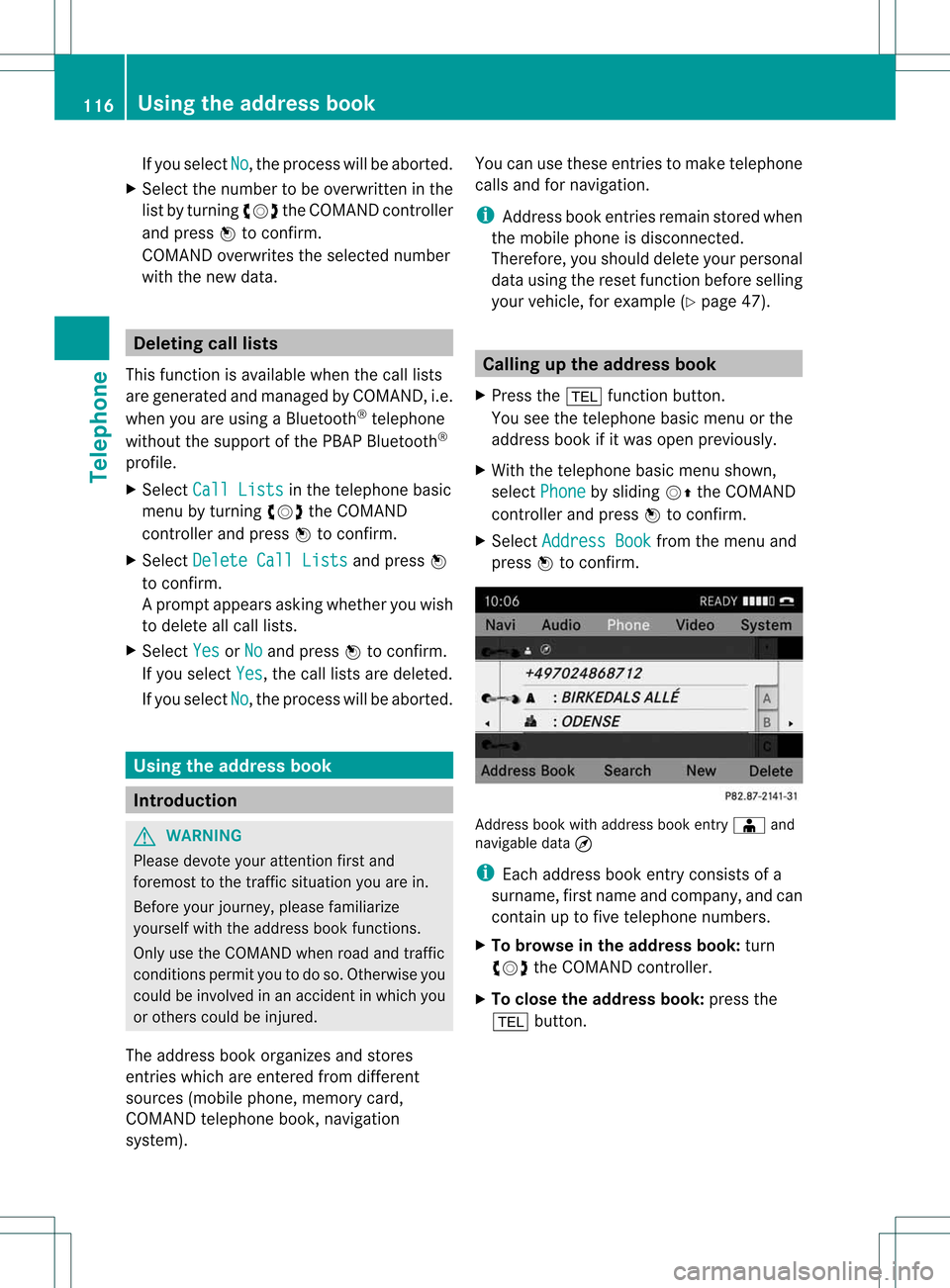
press Wtoconf irm. Address
bookwithaddress bookentryÆ and
navigable data¤
i Each address bookentryconsist sof a
surname, firstname andcompany, andcan
cont ainuptofive telephone numbers.
X To browse inthe address book: turn
cVd theCOMAND controller.
X To close theaddress book: pressthe
% button . 116
Using
theaddress bookTelephone
Page 121 of 194

X
Sel ect Change Category and
pressW to
confi rm.
X Sel ect anumb ercate gory,e.g. Home .
X Sel ect atel ephone category,e.g. Mobile Pho
ne .
X Ifde sired ,sel ect Preferred and
pressW
to confi rm.
Depe nding on the previous statu s,yo u
sw itch theoptionon O oroff ª.T he
phone number isdispla yedasthe first
number inthe phone bookandcanbe
diale dimmediately.
X Select Save and
press Wtoconfirm .
The new category isstored. Calling
anumber storedinan entry
Co nditio ns The
mobi lephone mustbeconnected viathe
Blue tooth ®
interface .
Option 1 X
Displ aying detai lsfor anadd ress book
entry (Ypag e118).
X Select thephone numbe rdata fieldby
tur nin gcVd theCOMA NDcontroll erand
pres sW toconfirm .
The telepho nemak esthecall. Thedispl ay
swit ches totelepho nemod e.
Opt ion 2 X
Dis play details foranaddre ssbook entry
X Sel ect thephon enum berdatafiel dby
tur nin gcVd theCOMA NDcontroll er.
X Sel ect Option s by
slidin gVY the
COMA NDcontroll erand pres singW to
co nfirm .
X Sel ect Call and
pres sW toconfirm .
The telepho nemak esthecall. St
artin grou teguid ance toan ent ry
Not e This
function isavailabl eas soon asyou have
st ore dadest inationinthed estin ation
memory (Ypage 84).COMAND alsosaves
destin ations inthe address booktogether
with allthe data required forroute guidance.
Opt ion 1 X
Searc hfor anaddress bookentry
(Y page 117)with the ¤symbol andselec t
it fro mthe list.
X Disp laying details foranaddress book
ent ry(Y page 118).
X Selec tthe address datafieldbyturning
cVd theCOMAND controller andpress
W toconfirm .
Option 2 X
Search foranaddress bookentry
(Y page 117)withthe¤symbol andselect
it from thelist.
X Select Options by
sliding VYthe
COMAND controller andpressing Wto
confirm .
X Select Navigate and
press Wtoconfirm .
If the address dataiscomplete andit
matches thedigital map,route guidance
starts irrespective ofthe option chosen.
Subsequent operationwilldepend onhow
complete theaddress dataitems areand
whether theycorrespond withthedata in
the digital mapinthe navigation system.
They donot correspond, forexample, if
they arenot written inthe same wayasthe
destination entry. Using
theaddress book
119Telephone Z
Page 122 of 194

Voi
cetags
Addi ngorcha ngingav oice tag You
canentervoic etag svia theVoic eCont rol
Syst em(see thesepar ateoper ating
ins truct ions).Onceyou have assign edavoic e
tag toan addre ssbook entry,you can callup
th is ent rywith avoic ecom man dand diala
phon enum ber,forexam ple.You canadd one
voic etag per addre ssbook entry.
X Sear chfor anaddre ssbook entrywith or
with outavoic etag (\ symbo l)
(Y page 117).
X Sele ctOpt ions by
slidin gVY the
COMA NDcontroller andpres singW to
con firm.
X Sele ctVoi ceName and
pres sW to
con firm.
X Sele ctAdd or
Cha nge and
pres sW to
con firm.
Subs equen toperation isvoice- controlled.
The Voice ControlSyst emguides you
thr ough thedialogs.
Deleting avoice tag X
Sear chfor anaddre ssbook entrywith a
voic etag (Ypage 117).
X Sele ctOpt ions by
slidin gVY the
COMA NDcontroller andpres singW to
con firm.
X Sele ctVoi ceName and
pres sW to
con firm.
X Sele ctDel ete and
pres sW tocon firm.
Ad eletion prompt appears.
X Select Yes or
No and
press Wtocon firm.
If you select Yes ,
COMAND deletesthe
voice tag.
If you select No ,
the process willbeaborted. Listening
toav oice tag X
Sear chfor anaddre ssbook entrywith a
voic etag (Ypage 117).
X Sele ctOpt ions by
slidin gVY the
COMA NDcontroller andpres singW to
con firm.
X Sele ctVoi ceName and
pres sW to
con firm.
X Sele ctLis ten and
pres sW tocon firm.
You hear thevoic etag . Imp
orting conta cts
Infor mation andrequiremen ts You
canimpo rtcon tactsfrom themobil e
phon eand themem orycardint oth eaddre ss
book ,or rec eive vCard svia Bluet ooth®
.
De pen ding onthesour ceofthecon tactdata,
diff ere ntrequi rements apply: Sour
ce Cond
itions Mobil
e
phon ewit h
PBA P
Blue tooth®
pro file Blue
tooth®
must be
act ivat edinCOMA NDand
on themob ilephon e(see
th emob ilephon eoper ating
ins truct ions).
The mob ilephon eis
co nn ect edtoCOMA ND
(Y page 104). Mem
orycard The
mem orycardmust be
ins erted (Ypage 136)and
must contain impo rtable
co ntact data. Cond
itions forrecei vingvCards
You canreceive vCardsfrom devi ces(e.g.
fr om aPC) whic hsuppo rtthesen dingof
vCar dsvia Blue toot h®
.
It is no tn ecessary toauthoriz ethe device in
COMAND todo so. 120
Using
theadd ress bookTelephone