light MERCEDES-BENZ E-CLASS COUPE 2017 Owners Manual
[x] Cancel search | Manufacturer: MERCEDES-BENZ, Model Year: 2017, Model line: E-CLASS COUPE, Model: MERCEDES-BENZ E-CLASS COUPE 2017Pages: 541, PDF Size: 10.71 MB
Page 272 of 541
#
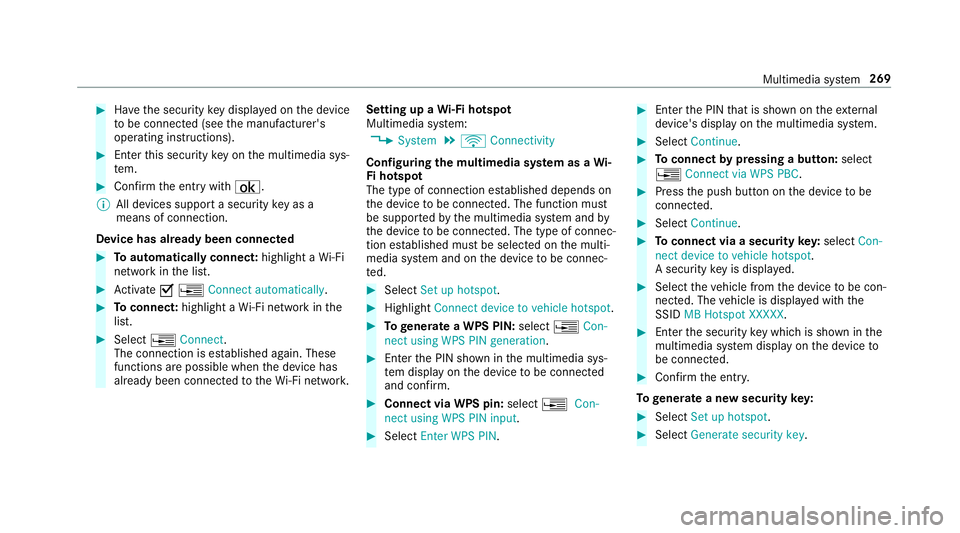
Have the security key displa yed on the device
to be connec ted (see the manufacturer's
operating instructions). #
Ente rth is security key on the multimedia sys‐
te m. #
Confirm the entry with¡.
% All devices support a security key as a
means of connection.
Device has already been connec ted#
Toautomatically connect: highlight aWi-Fi
network in the list. #
Activate O¥ Connect automatically. #
Toconnect: highlight a Wi-Fi network in the
list. #
Select ¥Connect.
The connection is es tablished again. These
functions are possible when the device has
already been connected totheWi -Fi networ k.Setting up a
Wi-Fi hotspot
Multimedia sy stem:
, System .
ö Connectivity
Configuring the multimedia sy stem as a Wi-
Fi hotspot
The type of connection es tablished depends on
th e device tobe connec ted. The function must
be suppor tedby the multimedia sy stem and by
th e device tobe connec ted. The type of connec‐
tion es tablished must be selected on the multi‐
media sy stem and on the device tobe connec‐
te d. #
Select Set up hotspot. #
Highlight Connect device to vehicle hotspot. #
Togenerate a WPS PIN: select¥Con-
nect using WPS PIN generation. #
Ente rth e PIN shown in the multimedia sys‐
te m display on the device tobe connec ted
and con firm. #
Connect via WPS pin: select¥Con-
nect using WPS PIN input. #
Select Enter WPS PIN. #
Enterth e PIN that is shown on theex tern al
device's display on the multimedia sy stem. #
Select Continue. #
Toconnect bypressing a button: select
¥ Connect via WPS PBC . #
Press the push button on the device tobe
connec ted. #
Select Continue. #
Toconnect via a security key:select Con-
nect device to vehicle hotspot.
A security key is displa yed. #
Select theve hicle from the device tobe con‐
nec ted. The vehicle is displa yed with the
SSID MB Hotspot XXXXX . #
Enter the security key which is shown in the
multimedia sy stem display on the device to
be connec ted. #
Confirm the entry.
To generate a new security key: #
Select Set up hotspot . #
Select Generate security key . Multimedia sy
stem 269
Page 275 of 541
Ac
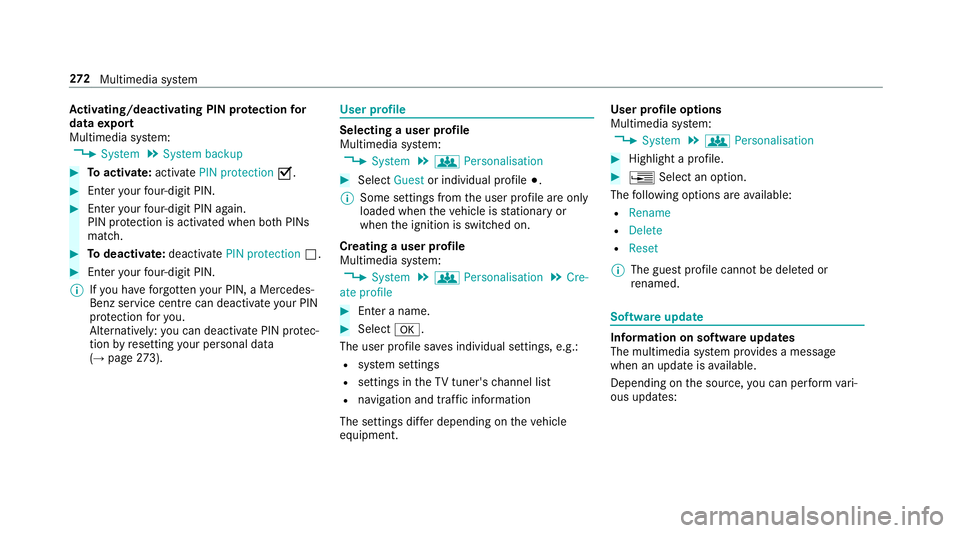
tivating/deactivating PIN pr otection for
data export
Multimedia sy stem:
, System .
System backup #
Toactivate: activatePIN protection O.#
Enter your four-digit PIN. #
Enteryo ur four-digit PIN again.
PIN pr otection is activated when bo thPINs
match. #
Todeactivate: deactivatePIN protection ª.#
Enter your four-digit PIN.
% Ifyo u ha veforg ottenyo ur PIN, a Mercedes-
Benz service centre can deactivate your PIN
pr otection foryo u.
Alternatively: you can deactivate PIN pr otec‐
tion byresetting your personal data
(→ page 273). User profile
Selecting a user profile
Multimedia sy stem:
, System .
g Personalisation #
Select Guestor individual profile #.
% Some settings from the user profile are only
loaded when theve hicle is stationary or
when the ignition is switched on.
Creating a user profile
Multimedia sy stem:
, System .
g Personalisation .
Cre-
ate profile #
Ente r a name. #
Select a.
The user profile sa ves individual settings, e.g.:
R system settings
R settings in theTV tuner's channel list
R navigation and traf fic information
The settings di ffer depending on theve hicle
equipment. User profile options
Multimedia sy
stem:
, System .
g Personalisation #
Highlight a profile. #
¥ Select an option.
The following options are available:
R Rename
R Delete
R Reset
% The guest profile cannot be dele ted or
re named. So
ftwa reupdate Information on software updates
The multimedia sy
stem pr ovides a message
when an update is available.
Depending on the source, you can per form vari‐
ous updates: 272
Multimedia sy stem
Page 279 of 541
#
Ifth eto p line of thech aracter bar is highligh‐
te d, navigate upwards. #
Select a destination in the list. #
Toadopt a destination: selectAdopt desti-
nation7.
If th ere are se veral listings for a destination,
a list appears. #
Select the destination.
The destination address is shown.
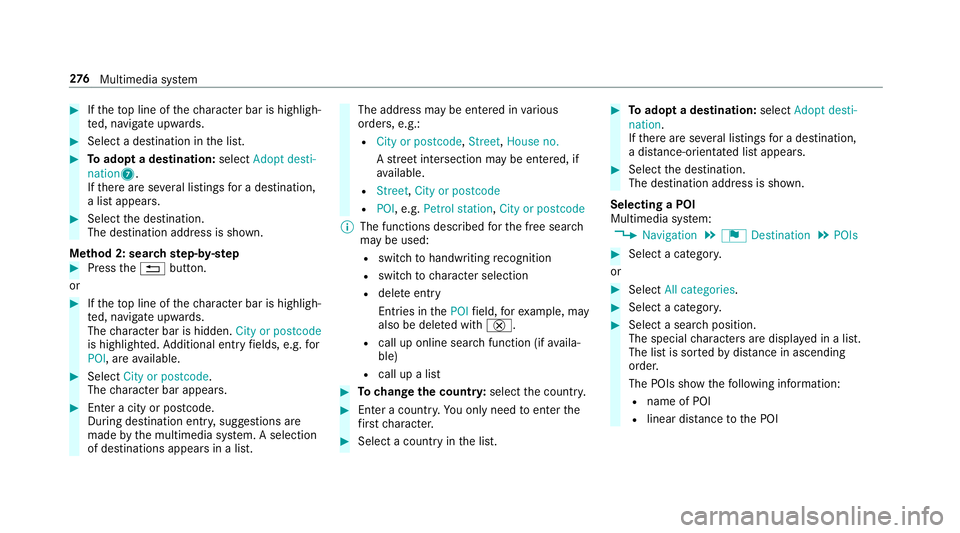
Me thod 2: sear chstep- by-step #
Press the% button.
or #
Ifth eto p line of thech aracter bar is highligh‐
te d, navigate upwards.
The character bar is hidden. City or postcode
is highlighted. Additional ent ryfields, e.g. for
POI, are available. #
Select City or postcode.
The character bar appears. #
Enter a city or postcode.
During destination entr y,suggestions are
made bythe multimedia sy stem. A selection
of destinations appears in a list. The address may be entered in
various
orders, e.g.:
R City or postcode, Street,House no.
A stre et intersection may be entered, if
av ailable.
R Street, City or postcode
R POI , e.g. Petrol station, City or postcode
% The functions desc ribed forth e free sear ch
may be used:
R switch tohandwriting recognition
R switch tocharacter selection
R dele teentry
Entries in thePOI field, forex ample, may
also be dele ted with £.
R call up online sear chfunction (if availa‐
ble)
R call up a list #
Tochange the count ry:select the count ry. #
Enter a countr y.Yo u on lyneed toenter the
fi rs tch aracter. #
Select a country in the list. #
Toadopt a destination: selectAdopt desti-
nation.
If th ere are se veral listings for a destination,
a dis tance-o rientated list appears. #
Select the destination.
The destination address is shown.
Selecting a POI
Multimedia sy stem:
, Navigation .
¬ Destination .
POIs #
Select a categor y.
or #
Select All categories. #
Select a categor y. #
Select a sea rch position.
The special characters are displa yed in a list.
The list is sor tedby distance in ascending
orde r.
The POIs show thefo llowing information:
R name of POI
R linear dis tance tothe POI 276
Multimedia sy stem
Page 280 of 541
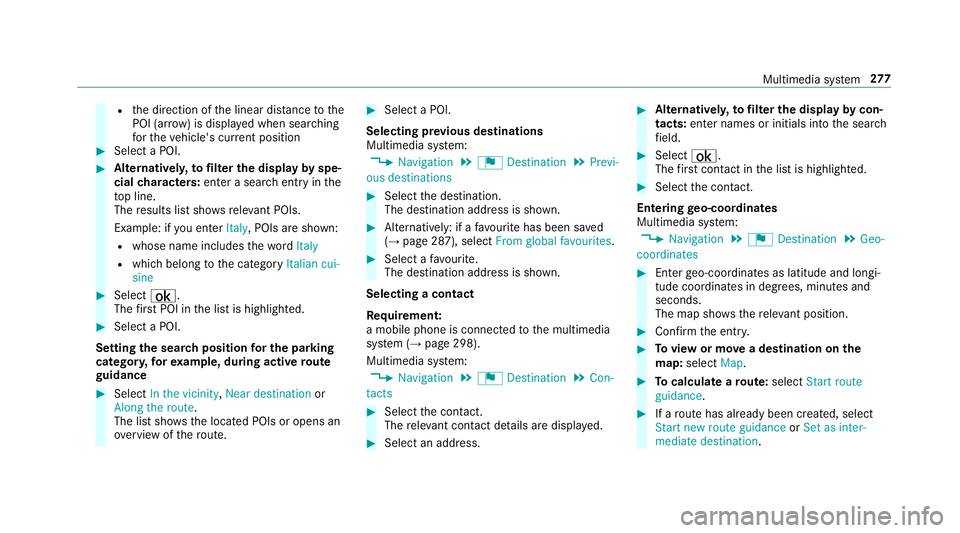
R
the direction of the linear dis tance tothe
POI (ar row) is displa yed when sear ching
fo rth eve hicle's cur rent position #
Select a POI. #
Altern ativel y,to filter the display byspe‐
cial characters: enter a sea rch entry in the
to p line.
The results list sho wsreleva nt POIs.
Example: if you en terItaly, POIs are shown:
R whose name includes thewo rdItaly
R which belong tothe category Italian cui-
sine #
Select ¡.
The firs t POI in the list is highlighted. #
Select a POI.
Setting the sear chposition for the parking
ca tegor y,forex ample, during active route
guidance #
Select In the vicinity ,Near destination or
Along the route.
The list sho ws the located POIs or opens an
ove rview of thero ute. #
Select a POI.
Selecting pr evious destinations
Multimedia sy stem:
, Navigation .
¬ Destination .
Previ-
ous destinations #
Select the destination.
The destination address is shown. #
Alternatively: if a favo urite has been sa ved
( → page 287), select From global favourites . #
Select a favo urite.
The destination address is shown.
Selecting a contact
Re quirement:
a mobile phone is connec tedto the multimedia
sy stem (→ page 298).
Multimedia sy stem:
, Navigation .
¬ Destination .
Con-
tacts #
Select the conta ct.
The releva nt contact de tails are displa yed. #
Select an address. #
Alternativel y,to filter the display bycon‐
tacts: enter names or initials into the sear ch
fi eld. #
Select ¡.
The firs t contact in the list is highlighted. #
Select the conta ct.
En tering geo-coordina tes
Multimedia sy stem:
, Navigation .
¬ Destination .
Geo-
coordinates #
Ente rge o-coordinates as latitude and longi‐
tude coordinates in degrees, minutes and
seconds.
The map sho ws there leva nt position. #
Confirm the entry. #
Toview or mo vea destination on the
map: select Map. #
Tocalculate a route: select Start route
guidance. #
If a route has already been created, select
Start new route guidance orSet as inter-
mediate destination . Multimedia sy
stem 277
Page 281 of 541
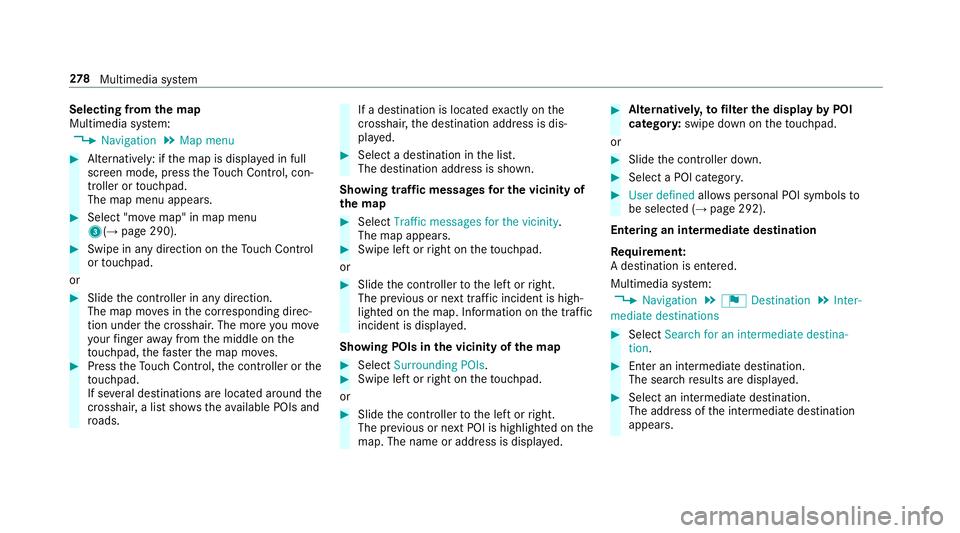
Selecting from
the map
Multimedia sy stem:
, Navigation .
Map menu #
Alternatively: if the map is displa yed in full
screen mode, press theTo uch Control, con‐
troller or touchpad.
The map menu appears. #
Select "mo vemap" in map menu
3(→ page 290). #
Swipe in any direction on theTo uch Control
or touchpad.
or #
Slide the controller in any direction.
The map mo ves in the cor responding direc‐
tion under the crosshair. The more you mo ve
yo ur finger away from the middle on the
to uchpad, thefast erthe map mo ves. #
Press theTo uch Control, the controller or the
to uchpad.
If se veral destinations are located around the
crosshair, a li stsho wstheav ailable POIs and
ro ads. If a destination is located
exact ly on the
crosshair, the destination address is dis‐
pla yed. #
Select a destination in the list.
The destination address is shown.
Showing traf fic messages for the vicinity of
the map #
Select Traffic messages for the vicinity.
The map appears. #
Swipe le ftor right on theto uchpad.
or #
Slide the controller tothe left or right.
The pr evious or next traf fic incident is high‐
lighted on the map. Information on the tra ffic
incident is displa yed.
Showing POIs in the vicinity of the map #
Select Surrounding POIs . #
Swipe left or right on theto uchpad.
or #
Slide the controller tothe left or right.
The pr evious or next POI is highligh ted on the
map. The name or addre ss is displayed. #
Alternativel y,to filter the display byPOI
categor y:swipe down on theto uchpad.
or #
Slide the controller down. #
Select a POI categor y. #
User defined allowspersonal POI symbols to
be selected (→ page 292).
Entering an intermedia tedestination
Re quirement:
A destination is entered.
Multimedia sy stem:
, Navigation .
¬ Destination .
Inter-
mediate destinations #
Select Search for an intermediate destina-
tion . #
Ente r an intermedia tedestination.
The sear chresults are displa yed. #
Select an intermediate destination.
The address of the intermediate destination
appears. 278
Multimedia sy stem
Page 282 of 541
#
Select Set as destination .
The intermedia tedestination is set. #
Alternatively: select an intermediate destina‐
tion via ¬Destination duringroute guid‐
ance. #
Select Enter destination. #
Select Set as next intermediate destination
af te r entering the destination.
Calculating a route with intermediate desti‐
nations
Re quirement:
En terth e destination and at least one intermedi‐
ate destination.
Multimedia sy stem:
, Navigation .
¬ Destination .
Inter-
mediate destinations #
Select Start new route guidance.
The route is calculated with the set inter‐
mediate destinations.
Editing intermedia tedestinations
Re quirement:
A destination is entered. Multimedia sy
stem:
, Navigation .
¬ Destination .
Inter-
mediate destinations
Changing the order of the destinations #
Highlight the destination or intermediate des‐
tination. #
Select ¥Move. #
Movethe intermediate destination tothe
desired position. #
Press theTo uch Control, the controller or the
to uchpad.
Deleting a destination #
Highlight the destination or intermediate des‐
tination. #
Select ¥Delete.
St arting an automatic filling station sear ch
Re quirements:
The automatic filling station sear chis activated
O (→page 282).
Ro ute guidance is active. The fuel le vel in the
fuel tank reaches there ser vefuel le vel. The
Fuel tank reserve level Do you want to start
the search for filling stations? message is
shown. #
Select Yes.
The automatic filling station sear chbegins.
The available filling stations along thero ute
or in the vicinity of theve hicle's cur rent posi‐
tion are displ ayed. #
Select thefilling station.
The address of thefilling station is displa yed. #
Variant 1: if a route has not been calculated,
select Start route guidance.
The selected filling station is set as the desti‐
nation. Route guidance begins. #
Variant 2: if a route has been calculated,
select Start new route guidance orSet as
next intermediate destination.
Start new route guidance: the selected filling
st ation is set as a new destination. The pr evi‐
ous destinations and intermediate destina‐
tions are dele ted. Ro ute guidance tothefill‐
ing station begins. Multimedia sy
stem 279
Page 286 of 541
The
route may dif fer from the ideal route due to
th efo llowing:
R roadwor ks
R incomple tedigital map data
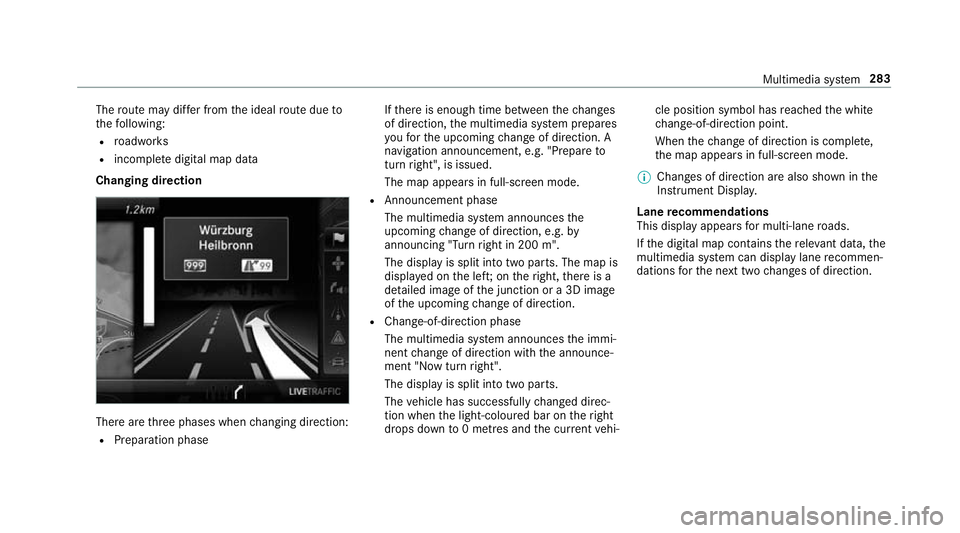
Changing direction There are
thre e phases when changing direction:
R Preparation phase If
th ere is enough time between thech anges
of direction, the multimedia sy stem prepares
yo ufo rth e upcoming change of direction. A
navigation announcement, e.g. "Prepare to
turn right", is issued.
The map appears in full-screen mode.
R Announcement phase
The multimedia sy stem announces the
upcoming change of direction, e.g. by
announcing "Turn right in 200 m".
The display is split into two parts. The map is
displa yed on the lef t;on theright, there is a
de tailed image of the junction or a 3D image
of the upcoming change of direction.
R Chan ge-of-direction phase
The multimedia sy stem announces the immi‐
nent change of direction with the announce‐
ment "Now turn right".
The display is split into two parts.
The vehicle has successfully changed direc‐
tion when the light-coloured bar on theright
drops down to0 metres and the cur rent vehi‐ cle position symbol has
reached the white
ch ange-of-direction point.
When thech ange of direction is comple te,
th e map appears in full-screen mode.
% Changes of direction are also shown in the
Instrument Displa y.
Lane recommendations
This display appears for multi-lane roads.
If th e digital map conta insthere leva nt da ta,the
multimedia sy stem can display lane recommen‐
dations forth e next two changes of direction. Multimedia sy
stem 283
Page 290 of 541
#
Select a position on the map.
A list appears if there are se veral map posi‐
tions. #
Highlight a map position. #
Select ¥Store in "Previous destinations".
The map position is sa vedto the "Last desti‐
nations" memor y.
Editing the last destinations
Multimedia sy stem:
, Navigation .
¬ Destination .
Previ-
ous destinations #
Highlight one of the last destinations. #
Tosave as a favo urite: select ¥Save as
global favourite . #
Tosave as "Home" address: select¥
Save as "Home" address .#
Tosave as "Work" address: select¥
Save as "Work" address .#
Todel ete a single or all destinations:
select ¥Delete orDelete all.
A prom ptappears. #
Select Yes. #
Todispl aydestination information: select
¥ Details. Ro
ute guidance with cur rent traf fic re ports Tr
af fic information overview
% The services are not available in everycoun‐
tr y.
Tr af fic re ports can be recei ved with thefo llowing
services:
R Live Traf fic Information
R FM RDS-TMC
It is not possible touse bo thservices simul‐
ta neously.
Live Traf fic Information or FM RDS-TMC is
displ ayed with a symbol.
% Hazard alerts can be recei ved using the Car-
to -X service.
% Theremay be dif fere nces between the traf fic
re ports recei ved and the actual road and
traf fic conditions. Impor
tant information on Live Traf fic Informa‐
tion:
R Current tra ffic reports are recei ved via the
Internet connection or via data roaming (for
selec ted European count ries).
R The tra ffic situation is updated at short, regu‐
lar inter vals.
R In selec ted European count ries, the subscrip‐
tion service is available free of charge for a
period of thre eye ars from the manufacturing
date.
The status of the subscription can be dis‐
pla yed (→ page 288).
Re gis tering Live Traf fic Information:
R This service is enabled forth re e months af ter
th eve hicle hando ver.
R The service must be regis tered
( → page 288):
- upon vehicle hando ver
- within thre e months
R This secures the full free-of- charge period of
th re eye ars. Multimedia sy
stem 287
Page 296 of 541
Displaying traf
fic signs on the map
Re quirement:
The vehicle is equipped with Traf fic Sign Assi st.
Multimedia sy stem:
, Navigation .
Z Options #
Switch Traffic signs onO or off ª.
If th e function is switched on Oyou will see
th e traf fic signs recognised byTraf fic Sign
Assi st.
The following traf fic signs are displ ayed:
R speed limitations
R overtaking restrictions
R traf fic signs wi thare striction indicated
by an additional sign (e.g. in wet condi‐
tions)
Displ aying the map version
Multimedia sy stem:
, Navigation .
Z Options #
Select Map version . #
Select Details. %
Information about new versions of the digital
map can be obtained from a Mercedes-Benz
service cent re.
Av oiding an area
Yo u can define areas along a route that you
wo uld like toavoid.
Av oiding a new area
Multimedia sy stem:
, Navigation .
À Route .
Avoid
options .
Areas #
Select Avoid new area. #
Variant 1: select Using map. #
Movethe map. #
Variant 2: select Address entry. #
Enterth e address. #
Select Adopt destination.
The map appears. #
Todispl ayan area: presstheTo uch Control,
th eto uchpad or the controller.
A redre ctangle appea rs. This designates the
area that should be avoided. #
Tochange the size of the area: swipe up or
down on theTo uch Control or theto uchpad.
or #
Slide the controller up or down.
The map scale is enlar ged or reduced and
ch anges the size of the area. #
Toset the area: presstheTo uch Control,
th e controller or theto uchpad.
The area is en tere d into the list.
Changing an area
Multimedia sy stem:
, Navigation .
À Route .
Avoid
options .
Areas #
Highlight an area in the list. #
Select ¥Edit.
Moving the area on the map #
Swipe in any direction on theTo uch Control
or touchpad.
or #
Slide the controller in any direction. Multimedia sy
stem 293
Page 297 of 541
Changing
the size of the area #
Press theTo uch Control, theto uchpad or the
controller. #
Swipe up or down on theTo uch Control or
th eto uchpad.
or #
Slide the controller up or down. #
Press theTo uch Control, theto uchpad or the
controller.
Ta king the area for the route into account #
Avoid Oor do not avoid ªan area in the
list.
Ro ute guidance active: a new route is calcu‐
lated.
No route has been created: the setting is car‐
ri ed ove rto the next route guidance.
The route can include an area that is tobe
av oided in thefo llowing cases:
R the destination is located in an area that
is to be avo ided
R there is no sensible alternative route Deleting one or all areas
Multimedia sy
stem:
, Navigation .
À Route .
Avoid
options .
Areas #
Highlight an area in the list. #
Select ¥Delete or¥ Delete all. #
Confirm the prom ptwith Yes.
One or all areas are dele ted.
Up dating the map data
Up dating at the Mercedes-Benz se rvice
centre
The digital maps generated bythe map software
become outdated in the same way as co nven‐
tional road maps. Optimal route guidance can
on ly be pr ovided bythe navigation sy stem in
conjunction with the most up-to-date map data.
Information about new versions of the digital
map can be obtained from a Mercedes-Benz
service cent re. The reyou can recei veupdates to
th e digital map. Online map update
% The online map update service is not availa‐
ble in all countries.
The online map update service from Mercedes
me connect can be used toupdate map data.
The update is per form ed:
R for one region (automatic map update)
R for se veral or all regions (manual map
update)
The service must be activated at a Mercedes-
Benz service centre in ordertouse automatic
updates.
Fu rther information on the online map update
http://www.mercedes.me.
Fu rther information on updates http://
manuals.daimle r.com/baix/cars/connectme/
de_DE/index.html.
Map data
Yo ur vehicle is supplied with map data at thefa c‐
to ry. Depending on the count ry, map data for
yo ur region is either pre-ins talled or the map
data is supplied on a data storage medium. Yo u294
Multimedia sy stem