language MERCEDES-BENZ E-CLASS COUPE 2017 Owners Manual
[x] Cancel search | Manufacturer: MERCEDES-BENZ, Model Year: 2017, Model line: E-CLASS COUPE, Model: MERCEDES-BENZ E-CLASS COUPE 2017Pages: 541, PDF Size: 10.71 MB
Page 1 of 541
Disclaimer
Das folgen de PDF -Doku ment für die ses Fahrze ugmodell be zieht sich in allen
Sprachver sionen nur auf die Fahrz euge, d ie fü r den deutsche n Markt best immt
sind und die den deutschen Vorschriften entsprechen. Bitte wenden Sie sich an
Ihr en autorisierten Mer cedes-Benz Services tützpunkt, um ein gedruckt es Exem plar
für andere Fahrzeugmodelle und Fahrzeugmodelljahre zu erhalten.
Dieses PDF -Dokume nt stellt die aktuelle Version dar . Mögliche Abweic hungen zu
Ihrem konkreten Fahrzeug könnten nicht berücksichtigt sein, da Mercedes-Benz
seine Fahrzeuge st ändig dem neuest en Stand d er Technik anp asst, so wie
Änderungen in Form und Ausstattung vornimmt. Bitte beachten Sie daher, dass
dieses PDF-Dokument in keinem Fall das gedruckte Exemplar ersetzt, das mit
dem Fahrzeug ausgeliefert wurde.
Internal use only
Disclaimer
All language versions of the following PD\f document for this vehicle model
relate solel\b to vehicles intended for sale on the German market and which
correspond to German regulations.
Please contact \bour authorised Mercedes-Benz Service Centre to obtain
a printed version for other vehicle models and vehicle model \bears. This PD\f
document is the latest version. Possible variations to \bour vehicle ma\b not
be taken into account as Mercedes-Benz constantl\b updates their vehicles to
the state of the art and introduces changes in design and e\Dquipment. Please
therefore note that this PD\f document in no wa\b replaces the printed version
which was delivered with \bour vehicle.
Internal use only
Disclaimer
The following version of the Owner‘s Manual describes all models, series and
special equipment of your vehicle. Country-specific language variations are
possible. Please note that your vehicle might not be equipped with all the
described functions. This also affects safety-relevant systems and functions.
Please contact your authorised Mercedes-Benz dealership if you would like
to receive a printed Owner‘s Manual for other vehicle models and vehicle
model years.
The online Owner‘s Manual is the current and valid version. It is possible that
deviations affecting your specific vehicle could not be taken into account
as Mercedes-Benz constantly adapts its vehicles according to the latest
technology and makes changes to the form and the equipment.
Please also read the printed Owner‘s Manual, supplementary documents and
the digital Owner‘s Manual in the vehicle.
Copyright
All rights reserved. All texts, images and graphics are subject to copyright
and other laws for the protection of intellectual property. They may not be
copied or changed for any commercial use or for the purpose of being passed
on nor used on other webistes.
Page 252 of 541
R
Telephone numbers can be entered as single
digits. Changing
the language setting Yo
u can change the language of LINGU ATRO NIC
via the sy stem language settings. If the set sys‐
te m language is not suppor tedby LINGUA‐
TRONIC, English will be selected.
LINGU ATRO NIC is available in thefo llowing lan‐
guages:
R German
R English
R French
R Italian
R Dutch
R Spanish Using LINGU
ATRO NIC ef fectively Au
dible help functions Yo
ure cei veinformation and help for:
R Optimal operation: saytheHelp lingua-
tronic voice command.
R Cur rent application: presstheó button
on the multifunction steering wheel and say
th eHelp voice command.
R Continued dialogue: saytheHelp voice
command during a voice dialogue.
R A specific sy stem: saythevo ice command
fo rth e desired sy stem, e.g. Help telephone. Speech
quality impr ovement If LI
NGUATRONIC does not unde rstand you:
R only operate LINGU ATRO NIC from the driv‐
er's seat.
R say thevo ice commands cohe rently and
clear ly, but do not exaggerate thewo rds. R
avoid loud noise, e.g. the blo wer,th at causes
inter fere nce while making a voice command
ent ry.
R say thevo ice tag with the same intonation
when creating voice tags.
If an addre ss book entry voice tag is not rec‐
ognised:
R onlycrea tesensible address book entries in
th e sy stem/mobile phone, e.g. enter sur‐
name and firs t name in the cor rect field.
R do not use any abbr eviations, unnecessary
spaces or special characters.
If a station list entry is not recognised:
R say theRead out station list voice command. Essential
voice commands Switch
voice commands Swit
chvoice commands can be used toopen
cer tain applications. The voice command selec‐
tion can be used rega rdless of the application
th at is cur rently acti ve. LINGU
ATRO NIC 249
Page 268 of 541
Cha
racter input using the controller
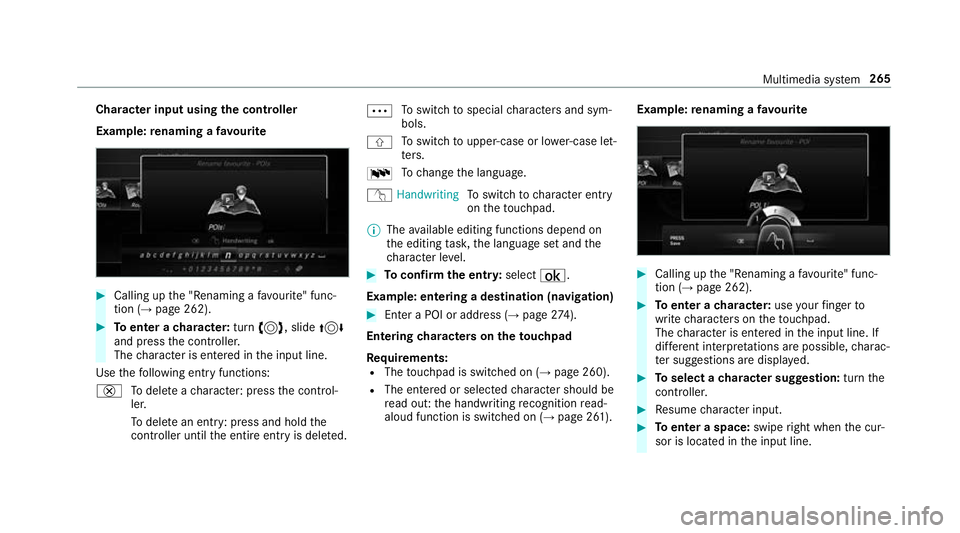
Example: renaming a favo urite #
Calling up the "Renaming a favo urite" func‐
tion (→ page 262). #
Toenter a character: turn3, slide 4
and press the controller.
The character is entered in the input line.
Use thefo llowing ent ryfunctions:
£ Todele teach aracter: press the control‐
ler.
To dele tean ent ry: press and hold the
controller until the entire entry is deleted. Ä
To
switch tospecial characters and sym‐
bols.
X To
switch toupper-case or lo wer-case let‐
te rs.
B To
change the language.
v Handwriting To
switch tocharacter ent ry
on theto uchpad.
% The available editing functions depend on
th e editing task, the language set and the
ch aracter le vel. #
Toconfirm the entr y:select ¡.
Example: entering a destination (navigation) #
Enter a POI or address (→ page274).
Entering characters on theto uchpad
Re quirements:
R The touchpad is swit ched on (→ page 260).
R The entered or selected character should be
re ad out: the handwriting recognition read-
aloud function is swit ched on (→ page 261). Example:
renaming a favo urite #
Calling up the "Renaming a favo urite" func‐
tion (→ page 262). #
Toenter a character: useyour finger to
write characters on theto uchpad.
The character is entered in the input line. If
dif fere nt interpr etations are possible, charac‐
te r suggestions are displa yed. #
Toselect a character suggestion: turnthe
controller. #
Resume character input. #
Toenter a space: swiperight when the cur‐
sor is located in the input line. Multimedia sy
stem 265
Page 273 of 541
#
Select Generate security key .
A connection will be es tablished with the
newly crea ted security key. #
Tosave a security key:select Save.
When a new security key is sa ved, all existing
Wi -Fi connections are then disconnected. If
th eWi -Fi connections are being re-es tab‐
lished, the new security key must be en tere d. Au
thorising a COMAND Touch device Re
quirements:
R The COMAND Touch App is ins talled on the
ex tern al device (e.g. tablet) which is tobe
used as a Rear Seat En tertainment Sy stem
unit.
R Wi-Fi is acti vated (→ page 268) and the mul‐
timedia sy stem is confi gured as a Wi-Fi Hot‐
spot (→ page 269).
Multimedia sy stem:
, System .
COMAND Touch
Connecting a new device #
Select Authorise a new device. #
Select Connect new device.
A security key is displa yed. #
Ente rth e security key in theex tern al device.
The Please start COMAND Touch on your
device and follow the instructions. The App
is available in the App Store. message
appears.
Selecting an already connected device #
Select Authorise a new device.
The devices already connec ted are displa yed. #
Select Continue using connected devices.
The Please start COMAND Touch on your
device and follow the instructions. The App
is available in the App Store. message
appears. Ac
tivating/deactivating the COMAND Touch
ch ild saf ety lock Multimedia sy
stem:
, System .
COMAND Touch
Child saf ety lock #
Switch Parental control onO or off ª.
The content displa yed on theex tern al device
can on lybe set on the multimedia sy stem. Sy
stem language Note
s onthe sy stem language
This function allo wsyouto determ ine the lan‐
guage forth e menu displa ysand the navigation
announcements. The selected language af fects
th ech aracters available for entr y.The navigation
announcements are not available in all lan‐
guages. If a language is not available, the naviga‐
tion announcements will be in Engl ish.
Setting the sy stem language
Multimedia sy stem:
, System .
Language #
Set the language. 270
Multimedia sy stem
Page 274 of 541
%
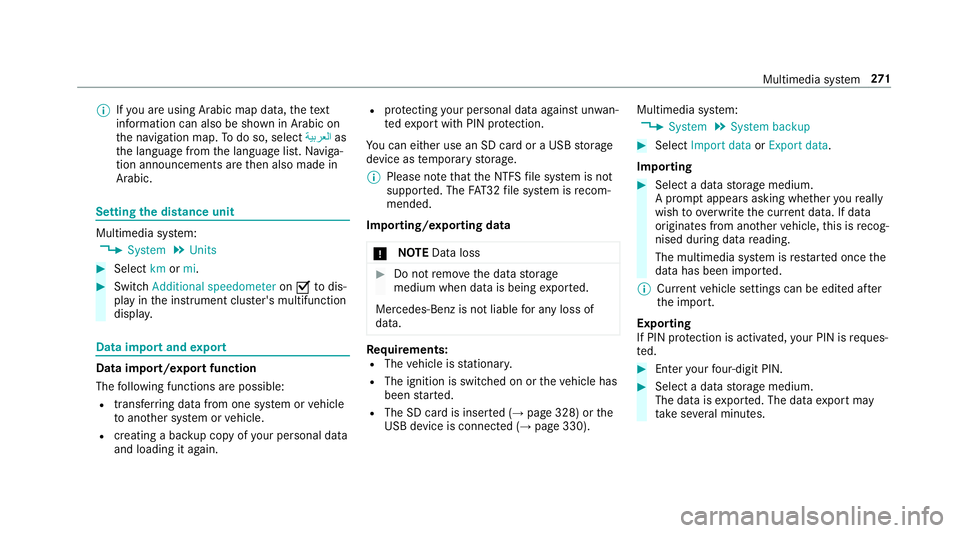
Ifyo u are using Arabic map data, thete xt
information can also be shown in Arabic on
th e navigation map. Todo so, select ةيبرعلاas
th e language from the language list. Naviga‐
tion announcements are then also made in
Arabic. Setting
the distance unit Multimedia sy
stem:
, System .
Units #
Select kmormi. #
Switch Additional speedometer onO todis‐
play in the instrument clus ter's multifunction
displa y. Data import and
export Data import/export function
The
following functions are possible:
R transfer ring da tafrom one sy stem or vehicle
to ano ther sy stem or vehicle.
R creating a bac kup copy of your personal data
and loading it again. R
protecting your personal data against un wan‐
te dex port with PIN pr otection.
Yo u can either use an SD card or a USB storage
device as temp orary storage.
% Please no tethat the NTFS file sy stem is not
suppor ted. The FAT32 file sy stem is recom‐
mended.
Importing/exporting data
* NO
TEData loss #
Do not remo vethe data storage
medium when data is being expor ted.
Mercedes-Benz is not liable for any loss of
data. Re
quirements:
R The vehicle is stationar y.
R The ignition is switched on or theve hicle has
been star ted.
R The SD card is inser ted (→ page 328) or the
USB device is connecte d (→page 330). Multimedia sy
stem:
, System .
System backup #
Select Import data orExport data.
Importing #
Select a data storage medium.
A prom ptappears asking whe ther youre ally
wish to overwrite the cur rent da ta. If da ta
originates from ano ther vehicle, this is recog‐
nised du ring da tareading.
The multimedia sy stem is restar ted once the
data has been impor ted.
% Current vehicle settings can be edited af ter
th e import.
Exporting
If PIN pr otection is activated, your PIN is reques‐
te d. #
Ente ryo ur four-digit PIN. #
Select a data storage medium.
The data is expor ted. The data export may
ta ke several minutes. Multimedia sy
stem 271
Page 278 of 541
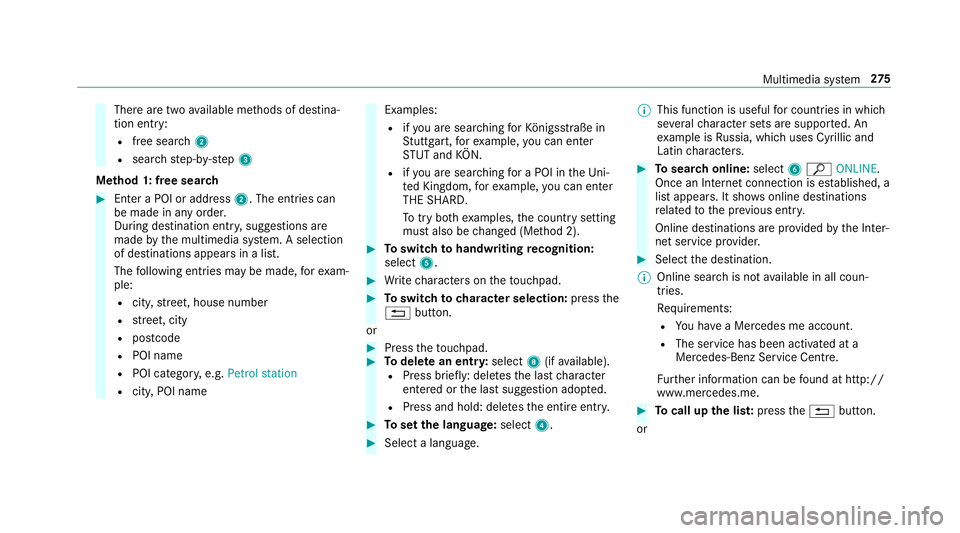
There are two
available me thods of destina‐
tion entry:
R free sear ch2
R sear ch st ep-by-step 3
Me thod 1: free sear ch #
Enter a POI or address 2. The entries can
be made in any orde r.
During de stination ent ry, suggestions are
made bythe multimedia sy stem. A selection
of destinations appears in a list.
The following ent ries may be made, forex am‐
ple:
R city,stre et, house number
R stre et, city
R postcode
R POI name
R POI categor y,e.g. Petrol station
R city, POI name Examples:
R ifyo u are sear ching forKö nigsstraße in
St utt gart,fo rex ample, you can en ter
ST UT and KÖN.
R ifyo u are sear ching for a POI in theUn i‐
te d Kingdom, forex ample, you can en ter
THE SHARD.
To try bo thexamples, the count rysetting
must also be changed (Me thod 2). #
Toswitch tohandwriting recognition:
select 5. #
Write characters on theto uchpad. #
Toswitch to character selection: pressthe
% button.
or #
Press theto uchpad. #
Todel ete an entr y:select 8(ifavailable).
R Press brief ly: del etes the last character
entered or the last suggestion adop ted.
R Press and hold: dele testh e entire entry. #
Toset the language: select4. #
Select a language. %
This function is useful for countries in which
se veralch aracter sets are suppo rted. An
ex ample is Russia, which uses Cyrillic and
Latin characters. #
Tosear chonline: select6ª ONLINE.
Once an In tern et connection is es tablished, a
list appears. It sho wsonline destinations
re lated tothe pr evious ent ry.
Online destinations are pr ovided bythe Inter‐
net service pr ovider. #
Select the destination.
% Online sear chis not available in all coun‐
tries.
Re quirements:
R You ha vea Mercedes me account.
R The service has been activated at a
Mercedes-Benz Service Cent re.
Fu rther information can be found at http://
www.mercedes.me. #
Tocall up the lis t:press the% button.
or Multimedia sy
stem 275
Page 285 of 541
The multimedia sy
stem announces the
names of thero ads that will follow the
upcoming change of direction.
This function is not available in all coun‐
tries and languages.
Displ aying destination information
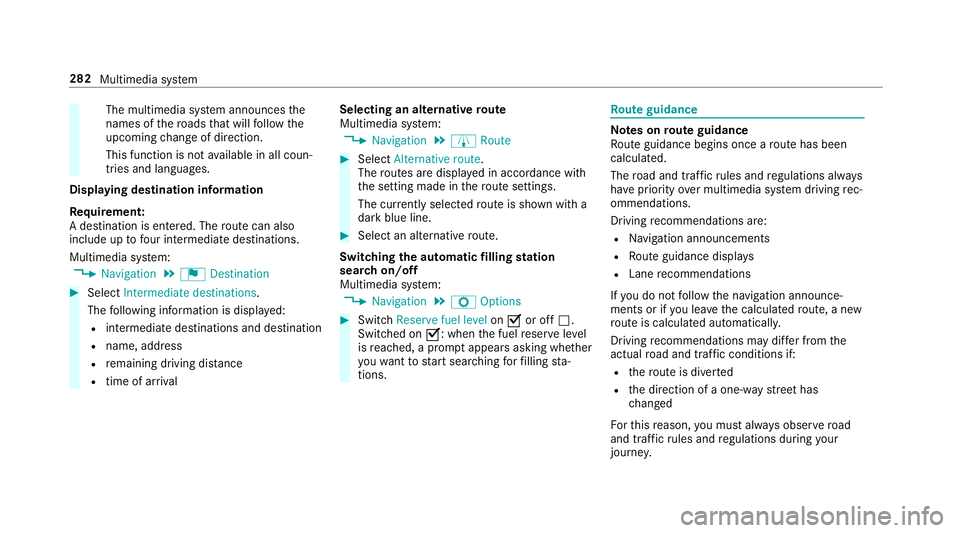
Re quirement:
A destination is entered. The route can also
include up tofour intermediate destinations.
Multimedia sy stem:
, Navigation .
¬ Destination #
Select Intermediate destinations.
The following information is displa yed:
R intermediate destinations and destination
R name, address
R remaining driving dis tance
R time of ar rival Selecting an alternative
route
Multimedia sy stem:
, Navigation .
À Route #
Select Alternative route.
The routes are displ ayed in accordance with
th e setting made in thero ute settings.
The cur rently selected route is shown with a
dark blue line. #
Select an alternative route.
Swit ching the automatic filling station
sear chon/off
Multimedia sy stem:
, Navigation .
Z Options #
Switch Reserve fuel level onO or off ª.
Switched on O: whenthe fuel reser velevel
is reached, a prom ptappears asking whe ther
yo uwa nttostart sear ching forfilling sta‐
tions. Ro
ute guidance Note
s onroute guidance
Ro ute guidance begins once a route has been
calculated.
The road and traf fic ru les and regulations alw ays
ha ve priority over multimedia sy stem driving rec‐
ommendations.
Driving recommendations are:
R Navigation announcements
R Route guidance displ ays
R Lane recommendations
If yo u do not follow the navigation announce‐
ments or if you lea vethe calculated route, a new
ro ute is calculated automaticall y.
Driving recommendations may di ffer from the
actual road and traf fic conditions if:
R thero ute is diver ted
R the direction of a one- wayst re et has
ch anged
Fo rth is reason, you must alw ays obser veroad
and traf fic ru les and regulations during your
journe y. 282
Multimedia sy stem
Page 303 of 541
#
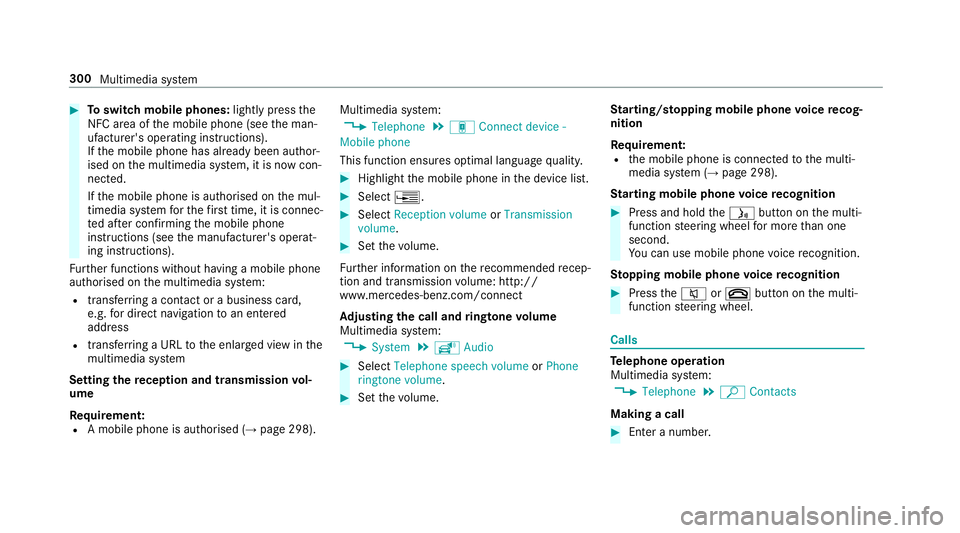
Toswitch mobile phones: lightly pressthe
NFC area of the mobile phone (see the man‐
ufacturer's operating instructions).
If th e mobile phone has already been author‐
ised on the multimedia sy stem, it is now con‐
nected.
If th e mobile phone is authorised on the mul‐
timedia sy stem forth efirs t time, it is connec‐
te d af ter confirming the mobile phone
instructions (see the manufacturer's operat‐
ing instructions).
Fu rther functions without having a mobile phone
authorised on the multimedia sy stem:
R transfer ring a contact or a business card,
e.g. for direct navigation toan entered
address
R transfer ring a URL tothe enlar ged view in the
multimedia sy stem
Setting there ception and transmission vol‐
ume
Re quirement:
R A mobile phone is authorised (→ page 298).Multimedia sy
stem:
, Telephone .
á Connect device -
Mobile phone
This function ensures optimal language qualit y. #
Highlight the mobile phone in the device list. #
Select ¥. #
Select Reception volume orTransmission
volume . #
Set thevo lume.
Fu rther information on there commended recep‐
tion and transmission volume: http://
www.me rcedes-benz.com/connect
Ad justing the call and ringtone volume
Multimedia sy stem:
, System .
õ Audio #
Select Telephone speech volume orPhone
ringtone volume. #
Set thevo lume. St
arting/ stopping mobile phone voice recog‐
nition
Re quirement:
R the mobile phone is connected tothe multi‐
media sy stem (→ page 298).
St arting mobile phone voice recognition #
Press and hold theó button on the multi‐
function steering wheel for more than one
second.
Yo u can use mobile phone voice recognition.
St opping mobile phone voice recognition #
Press the8 or~ button on the multi‐
function steering wheel. Calls
Te
lephone operation
Multimedia sy stem:
, Telephone .
ª Contacts
Making a call #
Ente r a number. 300
Multimedia sy stem
Page 322 of 541
R
the time of the accident
R the language setting on the multimedia sys‐
tem
Fo r accident clarification purposes, thefo llowing
measures can be take n up toan hour af terthe
emer gency call has been initia ted:
R the cur rent vehicle position can be called up
R avo ice connection totheve hicle occupants
can be es tablished
% ForRu ssia: various functions, e.g. receiving
traf fic information, cannot be per form ed for
up totwo hou rsafte r sending an emer gency
call.
St arting/ending ERA-GLONASS test mode
(Russia)
Re quirements:
R The star ter battery has suf ficient charge.
R The ignition is switched on.
R The vehicle has been stationary for at least
one minute. #
Tostart thete st mode: press and hold the
~ button on the multifunction steering
wheel for at least five seconds.
The test mode is star ted and automatically
ends af terth e language test has been per‐
fo rm ed. #
Toend thete st mode manuall y:switch off
th e ignition.
The test mode is ended. Online and Internet functions
Internet connection
Internet connection
restrictions &
WARNING Risk of di stra ction from infor‐
mation sy stems and communications
equipment
If yo u operate information and communica‐
tion equipment integ rated in theve hicle
when driving, you will be distracted from the
traf fic situation. This could also cause youto
lose control of theve hicle. #
Only operate this equipment when the
traf fic situation permits. #
Ifyo u cannot be sure of this, stop the
ve hicle whilst paying attention toroad
and traf fic conditions and ope rate the
equipment with theve hicle stationar y. Yo
u must obse rveth e legal requirements forthe
country in whi chyou are cur rently driving when
operating the multimedia sy stem.
Depending on theve hicle's equipment, you can
es tablish an Internet connection in thefo llowing
wa ys:
R Vehicles with a communication module:
Internet use including Mercedes me connect
services and data roaming (→ page 320).
R Vehicles without a communication mod‐
ule:
- via Blue tooth®
with a data-enabled
mobile phone (→ page 320)
- viaWi-Fi wi tha data-enabled mobile
phone (→ page 320)
- viathete lephone module with SAP Multimedia sy
stem 319
Page 326 of 541
Displaying
the connection status
Multimedia sy stem:
, System .
ö Connectivity #
Select Internet status .
% When connected via Wi-Fi or a Blu etoo th®
device, the appr oximate data volume trans‐
mit ted is displa yed. The exact values can be
re qu ested from your mobile phone network
pr ov ider. Mercedes-Benz Apps
Calling up Mercedes-Benz Apps
Re
quirements:
R Regis terto use Mercedes-Benz Apps.
R Con firm thege neral term s and conditions.
Multimedia sy stem:
, Connect .
Ú MB Apps #
Select the App.
Fu rther Mercedes-Benz Apps and information
can be obtained at: http://apps.mercedes-
benz.com/apps/ %
The available features are countr y-depend‐
ent.
Licence fees may be applicable.
Using Mercedes-Benz Apps voice control
Re quirements:
R Regis terto use Mercedes-Benz Apps.
R Con firm thege neral term s and conditions.
R The o symbol indicates that a Mercedes-
Benz App can be used via voice control. #
Call up the Mercedes-Benz App
(→ page 323).
The basic menu forth e App is displa yed. #
Touse voice control: select oLanguage. #
Say your question or command.
% Voice control is not available in all countries
and languages. We
b br owser Calling up a
website
Multimedia sy stem:
, Con-
nect .
z Browser .
z Enter URL #
Ente ring a web address #
Tofinish entry and call up a website:
select ¬.
% Websites cann otbe shown while theve hicle
is in motion. Multimedia sy
stem 323