transmission MERCEDES-BENZ E-CLASS COUPE 2017 Owner's Guide
[x] Cancel search | Manufacturer: MERCEDES-BENZ, Model Year: 2017, Model line: E-CLASS COUPE, Model: MERCEDES-BENZ E-CLASS COUPE 2017Pages: 541, PDF Size: 10.71 MB
Page 213 of 541
&
WARNING Risk of accident due tovehi‐
cle swinging out while parking or pulling
out of a parking space
While parking or pulling out of a parking
space, theve hicle swings out and can drive
onto areas of the oncoming lane.
This could cause youto collide wi thobjects
or other road users. #
Pay attention toobjects and other road
users. #
Where necessar y,stop theve hicle or
cancel the parking procedure with Park‐
ing Pilot. #
If,forex ample, theEngage reverse gear mes‐
sage appears in the display of the multimedia
sy stem: select the cor responding transmis‐
sion position.
Ve hicles with automatic transmission:
The vehicle drives into the selected parking
space. #
Vehicles with manual transmission: Stop
as soon as Parking Assist PARKTRONIC
sounds the continuous warning tone, if not be
fore . Depending on the message or as
re qu ired, engage forw ard or reve rsege ar.
On completion of the parking procedure, the
Parking Pilot finished, take control of the vehi-
cle. display message appears. Further manoeu‐
vring may still be necessar y. #
After completion of the parking procedure,
safeguard theve hicle against rolling away.
When requ ired bylegal requirements or local
conditions: turn the wheels towa rdsth eke rb.
% Ve
hicles with automatic transmission:
Yo u can stop theve hicle and change the
transmission position du ring the parking pro‐
cedure. The sy stem then calculates a new
ve hicle path. The parking procedure can
th en be continued. If no new vehicle path is
av ailable, the transmission position will be
ch anged again. If theve hicle has not yet
re ached the parking space, the parking pro‐
cedure will be cancelled, should a gear be
ch anged. Exiting a pa
rking space with Parking Pilot
Re quirement:
Yo u can on lyex it a parking space with Parking
Pilot if you ha veprev iously par kedth eve hicle
with Parking Pilot.
Please no tethat you are responsible forth eve hi‐
cle and sur roundings during the entire parking
procedure. #
Start theve hicle. 210
Driving and pa rking
Page 214 of 541
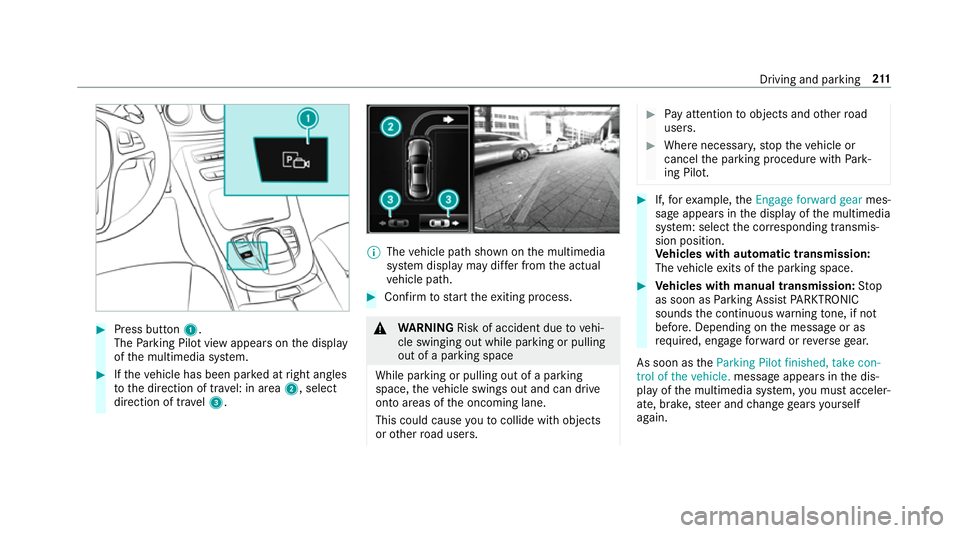
#
Press button 1.
The Parking Pilot view appears on the display
of the multimedia sy stem. #
Ifth eve hicle has been par ked at right angles
to the direction of tra vel: in area 2, select
direction of tra vel3. %
The vehicle path shown on the multimedia
sy stem display may dif fer from the actual
ve hicle path. #
Confirm tostart theex iting process. &
WARNING Risk of accident due tovehi‐
cle swinging out while parking or pulling
out of a parking space
While parking or pulling out of a parking
space, theve hicle swings out and can drive
onto areas of the oncoming lane.
This could cause youto collide wi thobjects
or other road users. #
Pay attention toobjects and other road
users. #
Where necessar y,stop theve hicle or
cancel the parking procedure with Park‐
ing Pilot. #
If,forex ample, theEngage forward gear mes‐
sage appears in the display of the multimedia
sy stem: select the cor responding transmis‐
sion position.
Ve hicles with automatic transmission:
The vehicle exits of the parking space. #
Vehicles with manual transmission: Stop
as soon as Parking Assist PARKTRONIC
sounds the continuous warning tone, if not
be fore . Depending on the message or as
re qu ired, engage forw ard or reve rsege ar.
As soon as theParking Pilot finished, take con-
trol of the vehicle. message appears in the dis‐
play of the multimedia sy stem, you must acceler‐
ate, brake, steer and change gears yourself
again. Driving and parking
211
Page 215 of 541
Fu
nction of Remo teParking Pilot
% Remo teParking Pilot is an additional func‐
tion of Parking Pilot. Comply with local traf‐
fi c la wsand regulations when using Remo te
Pa rking Pilot on public roads.
Re mo teParking Pilot supports the parking pro‐
cedure while you are outside your vehicle. Once
yo u ha veselected a suitable parking space, you
th en exitth eve hicle and guide it into the parking
space using a suitable mobile phone. Remo te
Pa rking Pilot accelerates, brakes, steers the
ve hicle and changes gear. You can cancel the
parking procedure at any time using your mobile
phone.
Yo u can also use your mobile phone tomo ve
yo ur vehicle backwards and forw ards in the
st ra ight-ahead position (exploration mode). This
is useful, forex ample if a garage is so nar row
th at it is dif ficult or impossible toget in or out of
th eve hicle af ter it has been par ked. Parking
Pilot automatically per form s any minor steering
cor rections that are requ ired.
Re mo teParking Pilot is only an aid. It is not a
substitute foryo ur attention tothe sur roundings. The
responsibility for safe manoeuvring and
parking remains with you. Make sure that no
persons, animals or objects etc. are in the
manoeuvring range. Co mply wi thlocal traf fic
la ws and regulations when using Remo teParking
Pilot on public roads.
Fo rth eRe mo teParking Pilot function, you
re qu ire a mobile phone and the cur rent Remo te
Pa rking Pilot app.
The following operating sy stems are suppor ted:
R Android™
R Apple ®
iOS
If th e connection between theve hicle and the
mobile phone is inter rupte d while a parking
manoeuvre is being per form ed, the manoeuvre
can be continued if the connection is re-es tab‐
lished within about two minutes.
The following scenarios are suppor ted:
R Parking in a parking space parallel tothe
direction of tra vel.
R Parking in a parking space at right angles to
th e direction of tra vel. R
Exiting a parking space at right angles tothe
direction of tra vel (exploration mode).
R Parking in a stra ight-ahead position, for
ex ample into a garage or carport (exploration
mode).
R Exiting a parking space in a stra ight-ahead
position, forex ample from a garage or car‐
port (exploration mode).
If te ch nical problems arise du ring a pa rking
manoeuvre (e.g. the permitted downhill gradient
is exc eeded), thefo llowing actions are per‐
fo rm ed automatically:
R The parking manoeuvre is cancelled.
R The vehicle is brought toast andstill.
R Transmission position jis engaged.
R The vehicle is switched off.
If th e parking manoeuvre is cancelled, a cor re‐
sponding message is displa yed on the mobile
phone. You can then take ove r and manoeuvre
th eve hicle into the parking space yourself. Alter‐
nativel y,yo u can mo vetheve hicle back toits
original position, if necessar y.212
Driving and pa rking
Page 218 of 541
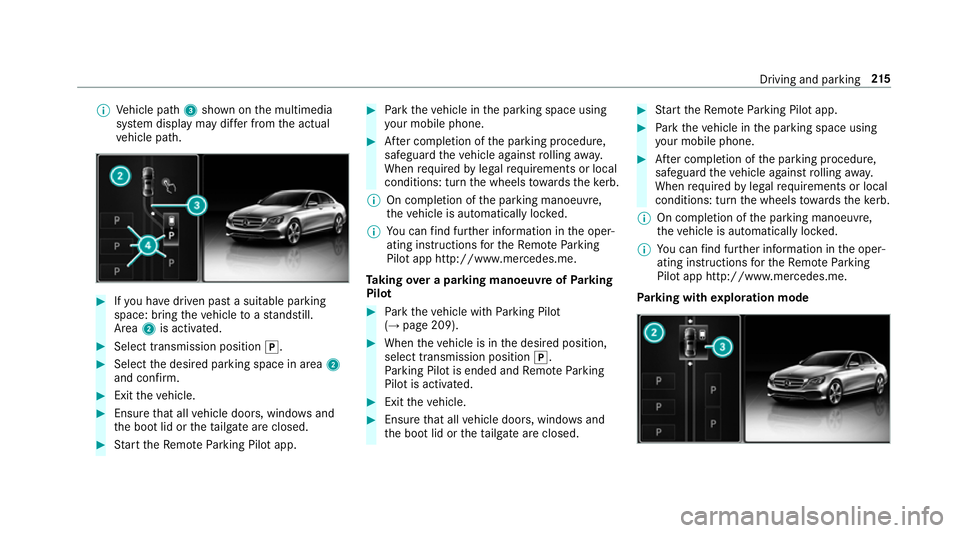
%
Vehicle path 3shown on the multimedia
sy stem display may dif fer from the actual
ve hicle path. #
Ifyo u ha vedriven past a suitable parking
space: bring theve hicle toast andstill.
Area 2is activated. #
Select transmission position j.#
Select the desired parking space in area 2
and confi rm. #
Exit theve hicle. #
Ensure that all vehicle doors, windo wsand
th e boot lid or theta ilgate are closed. #
Start theRe mo teParking Pilot app. #
Park theve hicle in the parking space using
yo ur mobile phone. #
After completion of the parking procedure,
safeguard theve hicle against rolling away.
When requ ired bylegal requirements or local
conditions: turn the wheels towa rdsth eke rb.
% On completion of the parking manoeuvre,
th eve hicle is automatically loc ked.
% You can find fur ther information in the oper‐
ating instructions forth eRe mo teParking
Pilot app http://www.me rcedes.me.
Ta king over a parking manoeuv reofParking
Pilot #
Park theve hicle with Parking Pilot
(→ page 209). #
When theve hicle is in the desired position,
select transmission position j.
Pa rking Pilot is ended and Remo teParking
Pilot is activated. #
Exit theve hicle. #
Ensure that all vehicle doors, windo wsand
th e boot lid or theta ilgate are closed. #
Start theRe mo teParking Pilot app. #
Park theve hicle in the parking space using
yo ur mobile phone. #
After completion of the parking procedure,
safeguard theve hicle against rolling away.
When requ ired bylegal requirements or local
conditions: turn the wheels towa rdsth eke rb.
% On completion of the parking manoeuvre,
th eve hicle is automatically loc ked.
% You can find fur ther information in the oper‐
ating instructions forth eRe mo teParking
Pilot app http://www.me rcedes.me.
Pa rking with explo ration mode Driving and pa
rking 215
Page 219 of 541
#
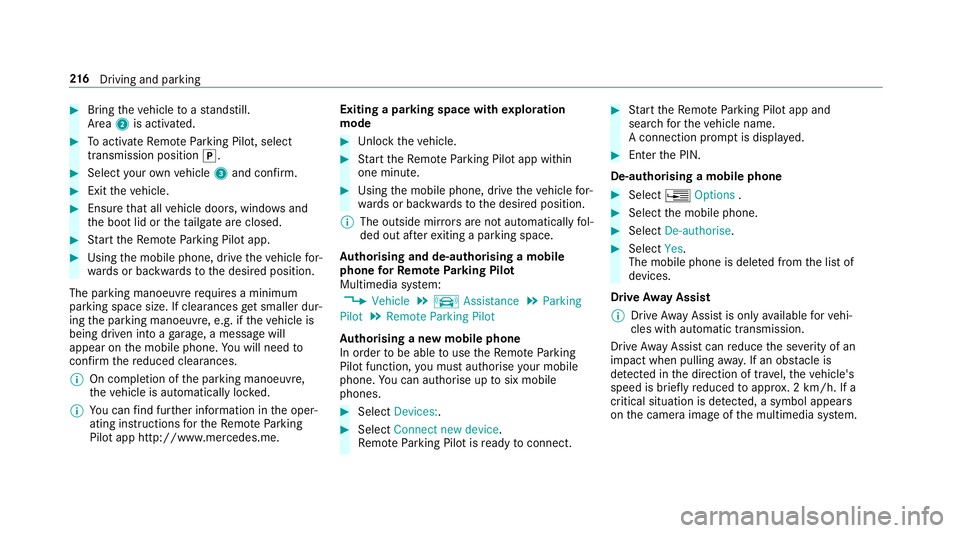
Bring theve hicle toast andstill.
Area 2is activated. #
Toactivate Remo teParking Pilot, select
transmission position j.#
Select your ow nve hicle 3and confirm. #
Exit theve hicle. #
Ensure that all vehicle doors, windo wsand
th e boot lid or theta ilgate are closed. #
Start theRe mo teParking Pilot app. #
Using the mobile phone, drive theve hicle for‐
wa rds or backwards tothe desired position.
The parking manoeuvre requires a minimum
parking space size. If clearances get smaller dur‐
ing the parking manoeuvre, e.g. if theve hicle is
being driven into a garage , a message will
appear on the mobile phone. You will need to
confirm there duced clearances.
% On completion of the parking manoeuvre,
th eve hicle is automatically loc ked.
% You can find fur ther information in the oper‐
ating instructions forth eRe mo teParking
Pilot app http://www.me rcedes.me. Exiting a parking space with
explo ration
mode #
Unlock theve hicle. #
Start theRe mo teParking Pilot app within
one minute. #
Using the mobile phone, drive theve hicle for‐
wa rds or backwards tothe desired position.
% The outside mir rors are not automatically fol‐
ded out af terex iting a parking space.
Au thorising and de-authorising a mobile
phone forRe mo teParking Pilot
Multimedia sy stem:
, Vehicle .
k Assistance .
Parking
Pilot .
Remote Parking Pilot
Au thorising a new mobile phone
In order tobe able touse theRe mo teParking
Pilot function, you must authorise your mobile
phone. You can authorise up tosix mobile
phones. #
Select Devices:. #
Select Connect new device .
Re mo teParking Pilot is ready toconnect. #
Start theRe mo teParking Pilot app and
sear chforth eve hicle name.
A connection prom ptis displa yed. #
Ente rth e PIN.
De-authorising a mobile phone #
Select ¥Options . #
Select the mobile phone. #
Select De-authorise. #
Select Yes.
The mobile phone is dele ted from the list of
devices.
Drive Away Assist
% Drive AwayAssi stis only available forve hi‐
cles with automatic transmission.
Drive AwayAssi stcan reduce the se verity of an
impact when pulling away. If an obs tacle is
de tected in the direction of tr avel, theve hicle's
speed is brief lyreduced toappr ox. 2 km/h. If a
critical situation is de tected, a symbol appea rs
on the camera image of the multimedia sy stem. 216
Driving and pa rking
Page 240 of 541
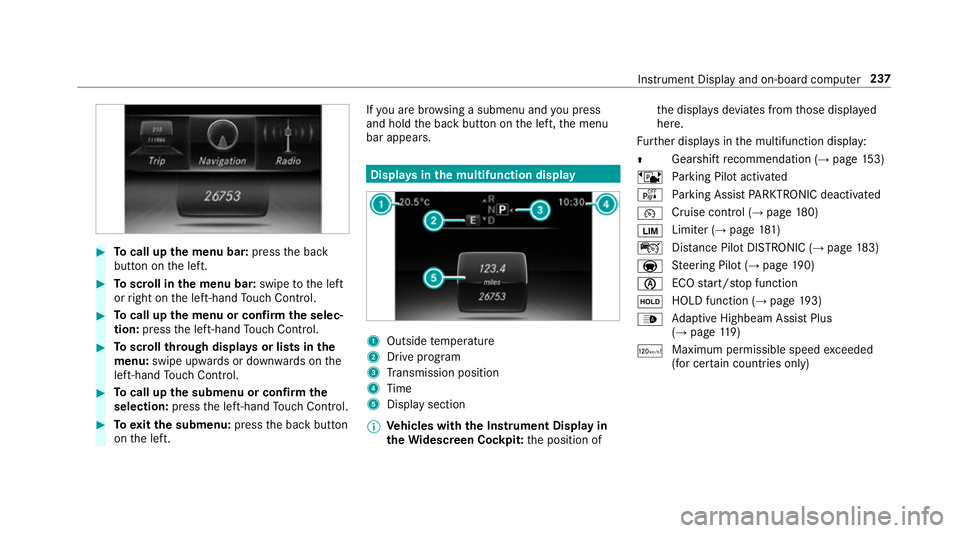
#
Tocall up the menu bar: pressthe back
button on the left. #
Toscroll in the menu bar: swipetothe left
or right on the left-hand Touch Control. #
Tocall up the menu or confirm the selec‐
tion: press the left-hand Touch Control. #
Toscroll through displa ysor lists in the
menu: swipe upwards or down wards on the
left-hand Touch Control. #
Tocall up the submenu or confirm the
selection: pressthe left-hand Touch Control. #
Toexitth e submenu: pressthe back button
on the left. If
yo u are br owsing a submenu and you press
and hold the back button on the left, the menu
bar appears. Displa
ysinthe multifunction display 1
Outside temp erature
2 Drive prog ram
3 Transmission position
4 Time
5 Display section
% Ve
hicles with the Instrument Display in
th eWi descreen Co ckpit: the position of th
e displa ysdeviates from those displa yed
here.
Fu rther displa ysinthe multifunction display:
Z Gearshift
recommendation (→ page 153)
ë Parking Pilot activated
é Parking Assist PARKTRONIC deacti vated
¯ Cruise cont
rol (→ page 180)
È Limi
ter (→ page 181)
ç Distance Pilot DISTRONIC (→ page 183)
a St
eering Pilot (→ page190)
è ECO
start/ stop function
ë HOLD function (→
page193)
_ Ad
aptive Highbeam Assist Plus
(→ page 119)
ð Ma
ximum pe rmissible speed exceeded
(for cer tain countries only) Instrument Display and on-board computer
237
Page 303 of 541
#
Toswitch mobile phones: lightly pressthe
NFC area of the mobile phone (see the man‐
ufacturer's operating instructions).
If th e mobile phone has already been author‐
ised on the multimedia sy stem, it is now con‐
nected.
If th e mobile phone is authorised on the mul‐
timedia sy stem forth efirs t time, it is connec‐
te d af ter confirming the mobile phone
instructions (see the manufacturer's operat‐
ing instructions).
Fu rther functions without having a mobile phone
authorised on the multimedia sy stem:
R transfer ring a contact or a business card,
e.g. for direct navigation toan entered
address
R transfer ring a URL tothe enlar ged view in the
multimedia sy stem
Setting there ception and transmission vol‐
ume
Re quirement:
R A mobile phone is authorised (→ page 298).Multimedia sy
stem:
, Telephone .
á Connect device -
Mobile phone
This function ensures optimal language qualit y. #
Highlight the mobile phone in the device list. #
Select ¥. #
Select Reception volume orTransmission
volume . #
Set thevo lume.
Fu rther information on there commended recep‐
tion and transmission volume: http://
www.me rcedes-benz.com/connect
Ad justing the call and ringtone volume
Multimedia sy stem:
, System .
õ Audio #
Select Telephone speech volume orPhone
ringtone volume. #
Set thevo lume. St
arting/ stopping mobile phone voice recog‐
nition
Re quirement:
R the mobile phone is connected tothe multi‐
media sy stem (→ page 298).
St arting mobile phone voice recognition #
Press and hold theó button on the multi‐
function steering wheel for more than one
second.
Yo u can use mobile phone voice recognition.
St opping mobile phone voice recognition #
Press the8 or~ button on the multi‐
function steering wheel. Calls
Te
lephone operation
Multimedia sy stem:
, Telephone .
ª Contacts
Making a call #
Ente r a number. 300
Multimedia sy stem
Page 311 of 541
Obser
vethefo llowing no tes:
R a mobile phone which has already been
authorised is automatically connected.
R the multimedia sy stem alw ays sear ches for
th e last connected mobile phone. If this is
not available, the pr eviously connec ted
mobile phone is searched for.
R only one mobile phone can be connected to
th e module at any one time.
Switching tothe mobile phone on thete le‐
phone module
Requ irement:
Yo u can on ly switchtoano ther authorised
mobile phone if you are not cur rently making a
call. Multimedia sy
stem:
, Telephone .
á Connect device -
Mobile phone #
Select the mobile phone on theSA P module
device list.
The mobile phone is sear ched for and con‐
nected if it is within Blue tooth®
ra nge and if
Blu etoo th®
is activated. #
Confirm the module's connection requ est on
th e mobile phone (see the manufacturer's
operating instructions). #
Where necessar y,enter the SIM card PIN
into the multimedia sy stem and confi rm.
The cur rently connected mobile phone is indica‐
te dby the# dot in the Blue tooth®
phone list.
A maximum of 15mobile phones can be auth or‐
ised on the module. Sto
ring the SIM card PIN in thete lephone
module
Multimedia sy stem:
, Telephone .
á Connect device - no
device connected .
SIM Card #
Select ¥. #
Switch Store PIN onO.
Te lephone module settings
Settings for using the telephone module with
th e mobile phone
Nu m‐
ber Fu
nction
0003 1A ctivates caller ID transmission
00030 Deacti vates caller ID transmission
0006 1A ctivates da taroaming
0006 0D eactivates data roaming
00 071A ctivates network pr ovider restric‐
tion 308
Multimedia sy stem
Page 316 of 541
The mobile phone continues
tobe supplied
with elect ricity.
or #
Disconnect the connecting cable between
th e mobile phone and multimedia sy stem.
Mercedes-Benz recommends disconnecting
th e connecting cable only when theve hicle is
st ationar y. Tr
ansfer redve hicle data when using Apple
CarPlay™ and Android Auto Note
s on transfer redve hicle data
When using Android Autoor Apple CarPlay™,
cer tain vehicle data is transfer redto the mobile
phone. This enables youto getth e best out of
selected mobile phone services. Vehicle data is
not directly accessible.
Sy stem information:
R software release of the multimedia sy stem
R system ID (anonymised)
The transfer of this data is used tooptimise
communication between theve hicle and the
mobile phone. To
do this, and toassign se veralve hicles tothe
mobile phone, a vehicle ID is randomly gener‐
ated.
This has no connection totheve hicle identifica‐
tion number (VIN) and is dele ted when the multi‐
media sy stem is reset (→ page273).
Driving status data:
R transmission position engaged
R distinction between par ked, standstill, rolling
and driving
R day/night mode of the instrument clus ter
The transfer of this data is used toalter how
con tent is displ ayed tocor respond tothe driving
situation.
Po sition data:
R co-ordinates
R speed
R compass direction
R acceleration direction This data is only transfer
red while the navigation
sy stem is active, in order toimpr ove it (e.g. so it
can continue functioning when in a tunnel). Mercedes me connect
Note
s on Mercedes me connect
Mercedes me connect pr ovides thefo llowing
services:
R Breakdown management
R Appointment requests or similar
R Accident mana gement
R Mercedes-Benz emergency call sy stem
The Mercedes-Benz Cus tomer Centre and the
Mercedes-Benz emer gency call centre are availa‐
ble foryo u around the cloc k.
The Info call button, the breakdown assis tance
button and the emer gency call button can be
fo und on theove rhead control panel of theve hi‐
cle (→ page314).
Yo u can also use the multimedia sy stem tomake
th e call (→ page314). Multimedia sy
stem 313
Page 350 of 541
Deleting a
voice tag #
Select Delete.
A message appears asking whe ther youwa nt
to dele tethevo ice tagfo rth eTV channel. #
Select Yes. TV
prog ramme Au
dio language and subtitles
Au dio language
R It is possible tochoose between se veral
audio languages when a programme is broad‐
cast in multiple languages.
R If,forex ample, En glish is set as the sy stem
language and a TVchannel is broadcasting in
th is language, En glish is selec ted automati‐
cally.
R The prog ramme transmission may be indica‐
te d with thefo llowing symbols:
m Programme with audio explanations for
th e visually impaired
o Stereo broadcast
n Programme forth e hard of hearing If a symbol is not shown,
the programme is
either broadcast in mono or the transmission
properties are unkn own.
Subtitles
R The function is switched on:
Subtitles are shown in the selected language
fo rth e cur rent programme (if available).
Setting the audio language
Multimedia sy stem:
, Media .
à Devi-
ces .
TV .
Z Options #
Select Audio/subtitles. #
Select one of theav ailable audio languages.
The audio language selec ted only applies to
th e cur rent programme.
Setting subtitles
Multimedia sy stem:
, Media .
à Devi-
ces .
TV .
Z Options #
Select Audio/subtitles. #
Select Show subtitles.
The subtitles are switched on Oor off ª. #
Select one of theav ailable languages forthe
subtitles.
The language selected only applies tothe
cur rent programme. Te
lete xt Te
lete xt ove rview
Te lete xt pa ges are located between page 100
and page 899.
A dynamic telete xt pa geconsi sts of se veral sub‐
pages.
Information on MHEG-5 digital telete xt:
R digi taltelete xt is only available in some coun‐
tries, e.g. the UK and New Zealand
R interactive multimedia applications such as
weather fore casts, ne wsreports and sport
re sults are available
R it may take some time before all the pages
load Multimedia sy
stem 347