wheel MERCEDES-BENZ E-CLASS COUPE 2017 Workshop Manual
[x] Cancel search | Manufacturer: MERCEDES-BENZ, Model Year: 2017, Model line: E-CLASS COUPE, Model: MERCEDES-BENZ E-CLASS COUPE 2017Pages: 541, PDF Size: 10.71 MB
Page 251 of 541
Vo
ice prom pting #
Tostart or continue a dialogue: pressthe
ó button on the multifunction steering
wheel.
Yo u can say a voice command af ter an
acou stic signal. #
Tocor rect an ent ry:say theCorrection
vo ice command. #
Toselect an entry from the selection lis t:
say the line number or the conte nts. #
Tobrows eth e selection lis t:say theCon-
tinue orBack voice command. #
Tointer rupt the dialogue: saythePause
vo ice command. #
Tocancel the dialogue: saytheCancel
vo ice command. Operable functions
Yo
u can use the LINGU ATRO NIC voice control
sy stem tooperate thefo llowing equipment
re ga rdless of thefe atures:
R Telephone R
Text messa ges
R Navigation
R Address book
R Radio
R Audio (memory card, Media Inter face, USB
and Blu etoo th®
audio)
R TV
R Vehicle Ty
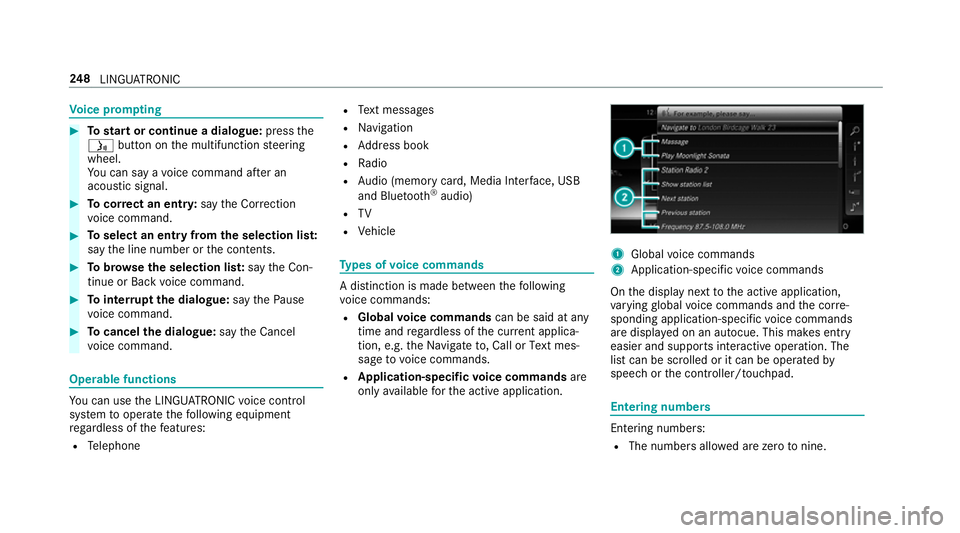
pes of voice commands A distinction is made between
thefo llowing
vo ice commands:
R Global voice commands can be said at any
time and rega rdless of the cur rent applica‐
tion, e.g. theNavigate to, CallorText mes-
sage to voice commands.
R Application-specific voice commands are
only available forth e active application. 1
Global voice commands
2 Application-specific voice commands
On the display next tothe active application,
va rying global voice commands and the cor re‐
sponding application-specific voice commands
are displa yed on an autocue. This makes ent ry
easier and supports interactive operation. The
list can be scrolled or it can be operated by
speech or the controller/touchpad. Entering numbers
Ente
ring numbe rs:
R The numbers allo wed are zerotonine . 248
LINGU ATRO NIC
Page 252 of 541
R
Telephone numbers can be entered as single
digits. Changing
the language setting Yo
u can change the language of LINGU ATRO NIC
via the sy stem language settings. If the set sys‐
te m language is not suppor tedby LINGUA‐
TRONIC, English will be selected.
LINGU ATRO NIC is available in thefo llowing lan‐
guages:
R German
R English
R French
R Italian
R Dutch
R Spanish Using LINGU
ATRO NIC ef fectively Au
dible help functions Yo
ure cei veinformation and help for:
R Optimal operation: saytheHelp lingua-
tronic voice command.
R Cur rent application: presstheó button
on the multifunction steering wheel and say
th eHelp voice command.
R Continued dialogue: saytheHelp voice
command during a voice dialogue.
R A specific sy stem: saythevo ice command
fo rth e desired sy stem, e.g. Help telephone. Speech
quality impr ovement If LI
NGUATRONIC does not unde rstand you:
R only operate LINGU ATRO NIC from the driv‐
er's seat.
R say thevo ice commands cohe rently and
clear ly, but do not exaggerate thewo rds. R
avoid loud noise, e.g. the blo wer,th at causes
inter fere nce while making a voice command
ent ry.
R say thevo ice tag with the same intonation
when creating voice tags.
If an addre ss book entry voice tag is not rec‐
ognised:
R onlycrea tesensible address book entries in
th e sy stem/mobile phone, e.g. enter sur‐
name and firs t name in the cor rect field.
R do not use any abbr eviations, unnecessary
spaces or special characters.
If a station list entry is not recognised:
R say theRead out station list voice command. Essential
voice commands Switch
voice commands Swit
chvoice commands can be used toopen
cer tain applications. The voice command selec‐
tion can be used rega rdless of the application
th at is cur rently acti ve. LINGU
ATRO NIC 249
Page 287 of 541
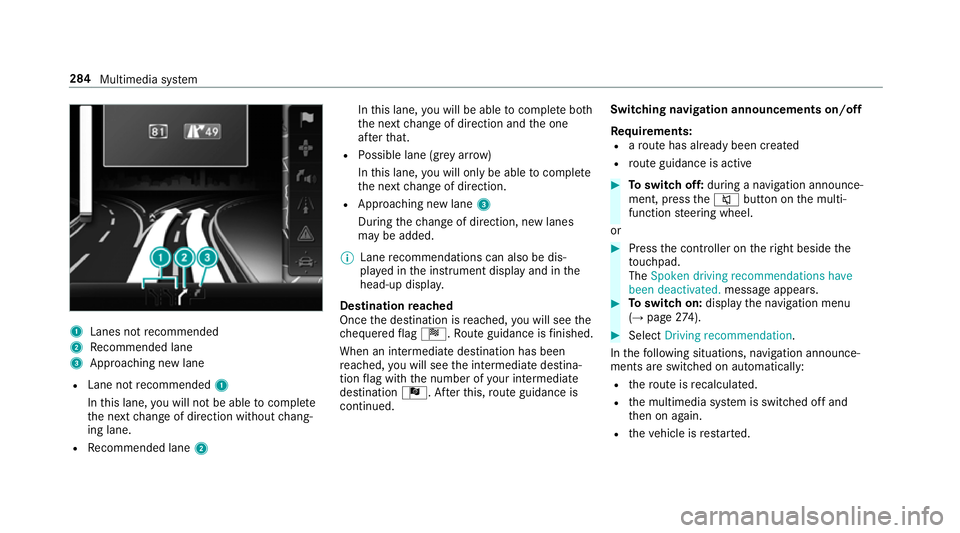
1
Lanes not recommended
2 Recommended lane
3 Approa ching new lane
R Lane not recommended 1
In this lane, you will not be able tocompl ete
th e next change of direction without chang‐
ing lane.
R Recommended lane 2 In
this lane, you will be able tocompl ete bo th
th e next change of direction and the one
af te rth at.
R Possible lane (gr eyarro w)
In this lane, you will on ly beabletocompl ete
th e next change of direction.
R App roaching new lane 3
During thech ange of direction, new lanes
may be added.
% Lane recommendations can also be dis‐
pl ay ed in the instrument display and in the
head-up displa y.
Destination reached
Once the destination is reached, you will see the
ch equered flag Í. Route guidance is finished.
When an intermedia tedestination has been
re ached, you will see the intermediate destina‐
tion flag with the number of your intermediate
destination Î. Afterth is, route guidance is
continued. Swit
ching navigation announcements on/off
Re quirements:
R aro ute has already been created
R route guidance is active #
Toswitch off: during a navigation announce‐
ment, press the8 button on the multi‐
function steering wheel.
or #
Press the controller on theright beside the
to uchpad.
The Spoken driving recommendations have
been deactivated. message appears. #
Toswitch on: displaythe navigation menu
(→ page 274). #
Select Driving recommendation .
In thefo llowing situations, navigation announce‐
ments are switched on automatically:
R thero ute is recalculated.
R the multimedia sy stem is switched off and
th en on again.
R theve hicle is restar ted. 284
Multimedia sy stem
Page 288 of 541
%
You can access and add this function as a
fa vo urite under Spoken driving recommenda-
tions on/off.
Swit ching navigation announcements on/off
during a phone call #
Select System. #
Select õAudio. #
Swit chDriving recommendations during
phone call onO or off ª.
Ad justing the volume of navigation
announcements
Re quirements:
R aro ute has already been created
R route guidance is active #
Press theW orX button on the multi‐
function steering wheel during a navigation
announcement.
or #
Turn the controller on theright beside the
to uchpad. %
When youstart theve hicle, thevo lume is set
to the lo west setting. #
Alternativel y:select System. #
Select õAudio. #
Select Driving recommendation volume . #
Set thevo lume.
Switching audio fadeout on/o ffduring navi‐
ga tion announcements #
Select System . #
Select õAudio. #
Switch Audio fadeout during driving recom-
mendation onO or off ª.
Re peating navigation announcements
Re quirements:
R aro ute has already been created
R route guidance is active Multimedia sy
stem:
, Navigation #
Select Driving recommendation .
The cur rent navigation announcement is
re peated.
% You can access and add this function as a
fa vo urite under Repeat spoken driving rec-
ommendation .
Cancelling route guidance
Re quirements:
R Aro ute has already been created.
R Route guidance is active.
Multimedia sy stem:
, Navigation .
¬ Destination #
Select Cancel route guidance .
Re suming route guidance
Re quirements:
R aro ute has already been created
R route guidance is inter rupted Multimedia sy
stem 285
Page 303 of 541
#
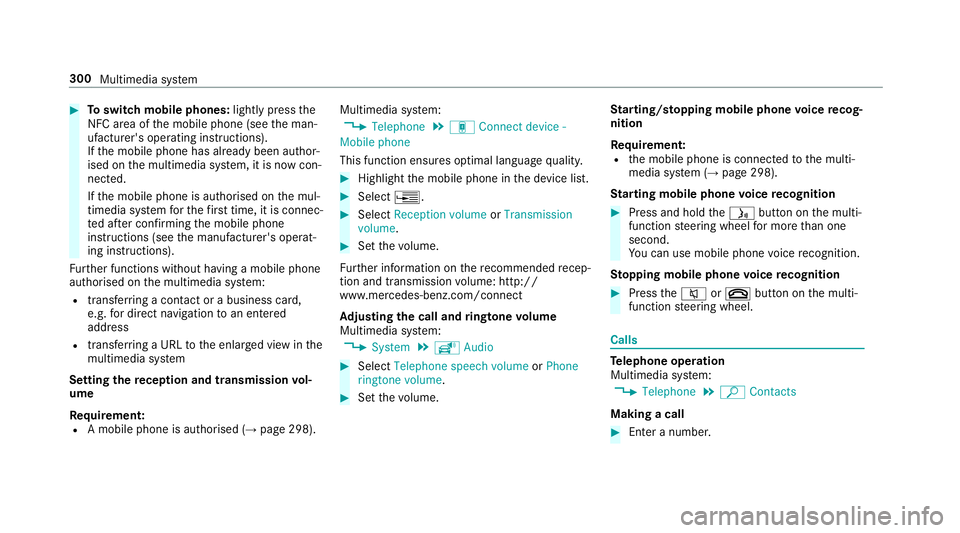
Toswitch mobile phones: lightly pressthe
NFC area of the mobile phone (see the man‐
ufacturer's operating instructions).
If th e mobile phone has already been author‐
ised on the multimedia sy stem, it is now con‐
nected.
If th e mobile phone is authorised on the mul‐
timedia sy stem forth efirs t time, it is connec‐
te d af ter confirming the mobile phone
instructions (see the manufacturer's operat‐
ing instructions).
Fu rther functions without having a mobile phone
authorised on the multimedia sy stem:
R transfer ring a contact or a business card,
e.g. for direct navigation toan entered
address
R transfer ring a URL tothe enlar ged view in the
multimedia sy stem
Setting there ception and transmission vol‐
ume
Re quirement:
R A mobile phone is authorised (→ page 298).Multimedia sy
stem:
, Telephone .
á Connect device -
Mobile phone
This function ensures optimal language qualit y. #
Highlight the mobile phone in the device list. #
Select ¥. #
Select Reception volume orTransmission
volume . #
Set thevo lume.
Fu rther information on there commended recep‐
tion and transmission volume: http://
www.me rcedes-benz.com/connect
Ad justing the call and ringtone volume
Multimedia sy stem:
, System .
õ Audio #
Select Telephone speech volume orPhone
ringtone volume. #
Set thevo lume. St
arting/ stopping mobile phone voice recog‐
nition
Re quirement:
R the mobile phone is connected tothe multi‐
media sy stem (→ page 298).
St arting mobile phone voice recognition #
Press and hold theó button on the multi‐
function steering wheel for more than one
second.
Yo u can use mobile phone voice recognition.
St opping mobile phone voice recognition #
Press the8 or~ button on the multi‐
function steering wheel. Calls
Te
lephone operation
Multimedia sy stem:
, Telephone .
ª Contacts
Making a call #
Ente r a number. 300
Multimedia sy stem
Page 321 of 541
If an emergency call has been initiated:
R remain in theve hicle, if thero ad and traf fic
conditions permit youto do so, until a voice
connection is es tablished with the emer‐
ge ncy call centre operator.
R onthe basis of the call, the operator decides
whe ther it is necessary todeploy rescue
te ams and/or the police tothe accident site.
R if no vehicle occupant answers, an ambu‐
lance is sent totheve hicle immediatel y.
Manual emer gency call #
Ifth eve hicle has an SOS button in theove r‐
head control panel: press and hold the but‐
to nfo r at least one second.
The emer gency call has been made:
R avo ice connection is made tothe Mercedes-
Benz emer gency call centre.
R remain in theve hicle, if thero ad and traf fic
conditions permit youto do so, until a voice
connection is es tablished with the emer‐
ge ncy call centre operator. R
onthe basis of the call, the operator decides
whe ther it is necessary todeploy rescue
te ams and/or the police tothe accident site.
R a message with accident data is transmit ted
to the Mercedes-Benz emer gency call centre.
The Mercedes-Benz eme rgency call cent re
can transmit theve hicle position data toone
of the public emer gency services call cen‐
tres.
R in cer tain situations additional data is trans‐
mit tedto the Mercedes-Benz emer gency call
centre.
This allo wsmeasu resfo rre scue, reco very or
to wing toa Mercedes-Benz service centre to
be initiated quickl y.
If th e Mercedes-Benz emer gency call sy stem
cann otconnect tothe Mercedes-Benz emer‐
ge ncy call centre, the emer gency call is au tomat‐
ically sent tothe public emer gency services call
centre.
If no connection can be made tothe public
emer gency services, a releva nt messa ge
appears in the displa y. #
Dial the emer gency call number 999 or 11 2
on your mobile phone.
Ending an unin tentional emer gency call #
Select ~onthe multifunction steering
wheel.
Tr ansmitted data with th e Mercedes-Benz
emer gency call sy stem
The following data is transmitte dto the
Mercedes-Benz emer gency call centre:
R theve hicle's GPS position data
R the last GPS position data on thero ute (a few
hundred metres before the incident)
R direction of tr avel
R vehicle identification number
R theve hicle drive type
R the estimated number of people in theve hi‐
cle
R whe ther Mercedes me connect is available or
not
R whe ther the emer gency call was initiated
manually or automatically 318
Multimedia sy stem
Page 322 of 541
R
the time of the accident
R the language setting on the multimedia sys‐
tem
Fo r accident clarification purposes, thefo llowing
measures can be take n up toan hour af terthe
emer gency call has been initia ted:
R the cur rent vehicle position can be called up
R avo ice connection totheve hicle occupants
can be es tablished
% ForRu ssia: various functions, e.g. receiving
traf fic information, cannot be per form ed for
up totwo hou rsafte r sending an emer gency
call.
St arting/ending ERA-GLONASS test mode
(Russia)
Re quirements:
R The star ter battery has suf ficient charge.
R The ignition is switched on.
R The vehicle has been stationary for at least
one minute. #
Tostart thete st mode: press and hold the
~ button on the multifunction steering
wheel for at least five seconds.
The test mode is star ted and automatically
ends af terth e language test has been per‐
fo rm ed. #
Toend thete st mode manuall y:switch off
th e ignition.
The test mode is ended. Online and Internet functions
Internet connection
Internet connection
restrictions &
WARNING Risk of di stra ction from infor‐
mation sy stems and communications
equipment
If yo u operate information and communica‐
tion equipment integ rated in theve hicle
when driving, you will be distracted from the
traf fic situation. This could also cause youto
lose control of theve hicle. #
Only operate this equipment when the
traf fic situation permits. #
Ifyo u cannot be sure of this, stop the
ve hicle whilst paying attention toroad
and traf fic conditions and ope rate the
equipment with theve hicle stationar y. Yo
u must obse rveth e legal requirements forthe
country in whi chyou are cur rently driving when
operating the multimedia sy stem.
Depending on theve hicle's equipment, you can
es tablish an Internet connection in thefo llowing
wa ys:
R Vehicles with a communication module:
Internet use including Mercedes me connect
services and data roaming (→ page 320).
R Vehicles without a communication mod‐
ule:
- via Blue tooth®
with a data-enabled
mobile phone (→ page 320)
- viaWi-Fi wi tha data-enabled mobile
phone (→ page 320)
- viathete lephone module with SAP Multimedia sy
stem 319
Page 344 of 541
Slide show
1displ ays additional information
pr ov ided bythest ation as an image. This can
include logos, album co vers, music trac ks, pro‐
grammes, ne wsor service information, forex am‐
ple. The additional information is shown in full-
sc reen mode byselecting 2. #
Toactivate full-screen mode: select#
Full screen. #
Todeactivate full-sc reen mode: select
%. Fr
equency fix function Multimedia sy
stem:
, Radio .
Z Options .
Frequency fix #
Activate Oor deacti vate ª the function.
If th e function is activated, the set frequency
is ke pt eve n ifthere ception is poo r. Ta
gging music trac ks Multimedia sy
stem:
, Radio .
Z Options
If ra dio stations pr ovide there leva nt information,
th is function allo wsyouto trans fer information
on the music track cur rently pl aying toan
Apple ®
device. You can then pur chase the audio
fi le from theiTunes Store ®
. #
Select Tag this song.
The track information is sa ved. Switching traf
fic announcements on/off Multimedia sy
stem:
, System .
õ Audio .
Traffic
announcements #
Switch the function on Oor off ª.
or #
Hold the8 button on the multifunction
st eering wheel. Setting
the traf fic information service vol‐
ume increase #
Select Traffic announcements volume
increase. #
Select No increase or avalue. Ac
tivating/deactivating radio text Multimedia sy
stem:
, Radio .
Z Options .
Display radio
text information #
Activate Oor deacti vate ª the function. TV
Information on
TVmode Ubiquito
usDTCP-MOST
Copyright ®
20 15 Ubiquitous Corp.
The TVtuner enables reception of digital chan‐
nels according tothefo llowing standards:
R DVB-T
R DVB-T2 Multimedia sy
stem 341
Page 355 of 541
ASS
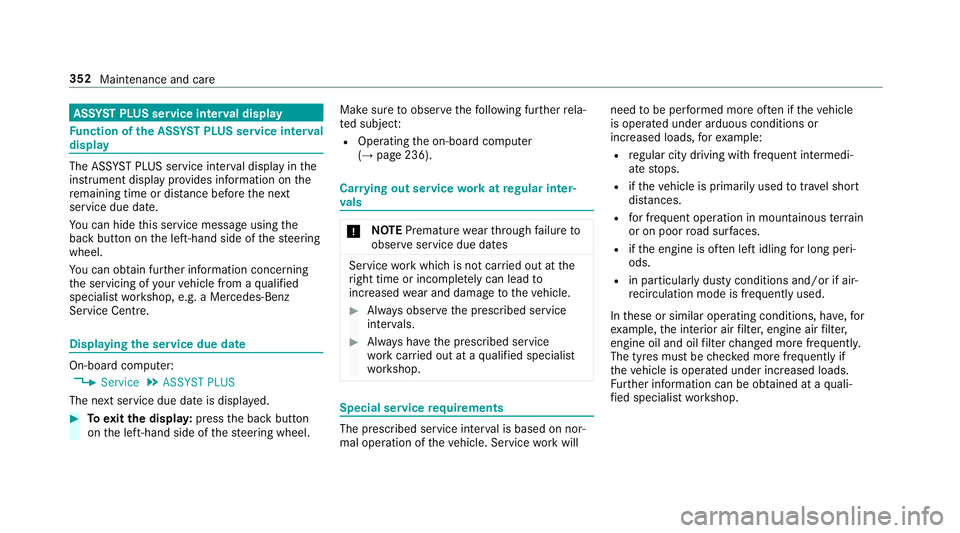
YST PLUS se rvice inter val display Fu
nction of the ASS YST PLUS se rvice inter val
displ ay The ASS
YST PLUS service inter val display in the
instrument display pr ovides information on the
re maining time or dis tance be fore the next
service due date.
Yo u can hide this service message using the
back button on the left-hand side of thesteering
wheel.
Yo u can obtain fur ther information concerning
th e servicing of your vehicle from a qualified
specialist workshop, e.g. a Mercedes-Benz
Service Centre. Displaying
the service due da teOn-board computer:
, Service .
ASSYST PLUS
The next service due date is displa yed. #
Toexitth e displa y:press the back button
on the left-hand side of thesteering wheel. Make sure
toobser vethefo llowing fur ther rela‐
te d subjec t:
R Operating the on-board computer
(→ page 236). Car
rying out service workatregular inter‐
va ls *
NO
TEPremature wearthro ugh failure to
obser veservice due dates Service
workwhich is not car ried out at the
ri ght time or incomple tely can lead to
inc reased wear and damage totheve hicle. #
Alw ays obser vethe prescribed service
inter vals. #
Alw ays ha vethe prescribed service
wo rkcar ried out at a qualified specialist
wo rkshop. Special service
requ irements The prescribed service inter
val is based on nor‐
mal operation of theve hicle. Service workwill need
tobe per form ed more of ten if theve hicle
is operated under arduous conditions or
increased loads, forex ample:
R regular city driving with frequent intermedi‐
ate stops.
R ifth eve hicle is primarily used totrave l short
dis tances.
R for frequent operation in mountainous terrain
or on poor road sur faces.
R ifth e engine is of ten le ftidling for long peri‐
ods.
R in particula rly dusty conditions and/or if air-
re circulation mode is frequently used.
In these or similar operating conditions, ha ve,for
ex ample, the interior air filter, engine air filter,
engine oil and oil filter changed more frequent ly.
The tyres must be checked more frequently if
th eve hicle is operated under increased loads.
Fu rther information can be obtained at a quali‐
fi ed specialist workshop. 352
Maintenance and care
Page 365 of 541
Note
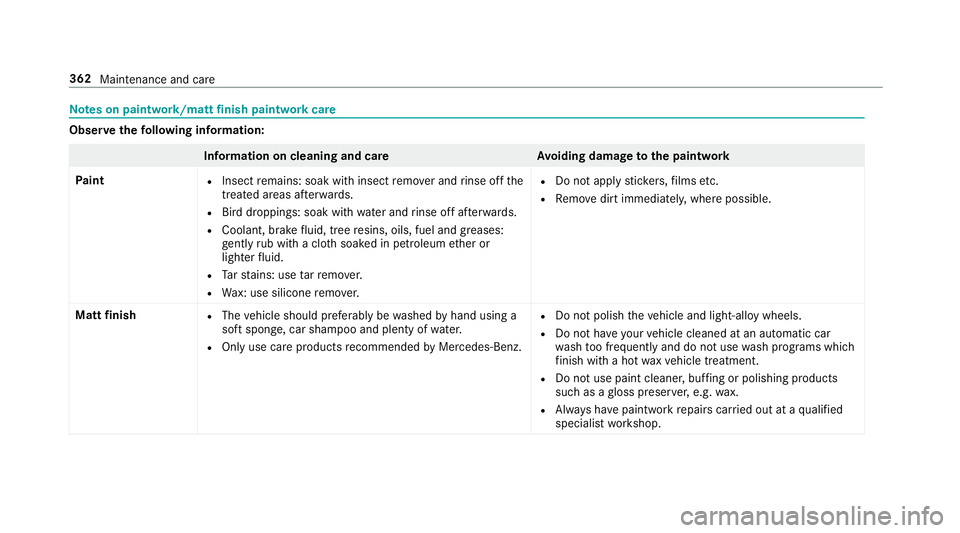
s on paint work/matt finish paint workcare Obser
vethefo llowing information: Information on cleaning and car
eAvoiding damage tothe paintwork
Pa int R
Insect remains: soak with insect remo ver and rinse off the
trea ted areas af terw ards.
R Bird droppings: soak with water and rinse off af terw ards.
R Coolant, brake fluid, tree resins, oils, fuel and greases:
ge ntly rub with a clo thsoaked in petroleum ether or
lighter fluid.
R Tarst ains: use tarre mo ver.
R Wax: use silicone remo ver. R
Do not apply sticke rs,fi lms etc.
R Remo vedirt immediately, where possible.
Matt finish R
The vehicle should preferably be washed byhand using a
soft sponge, car shampoo and plenty of water.
R Only use care products recommended byMercedes-Benz. R
Do not polish theve hicle and light-alloy wheels.
R Do not ha veyour vehicle cleaned at an automatic car
wa sh too frequently and do not use wash programs which
fi nish wi tha hot waxve hicle treatment.
R Do not use paint cleaner, buf fing or polishing products
su ch as a gloss preser ver,e.g. wax.
R Alw ays ha vepaintwork repairs car ried out at a qualified
specialist workshop. 362
Maintenance and care