tow MERCEDES-BENZ E-CLASS COUPE 2017 Repair Manual
[x] Cancel search | Manufacturer: MERCEDES-BENZ, Model Year: 2017, Model line: E-CLASS COUPE, Model: MERCEDES-BENZ E-CLASS COUPE 2017Pages: 541, PDF Size: 10.71 MB
Page 230 of 541
#
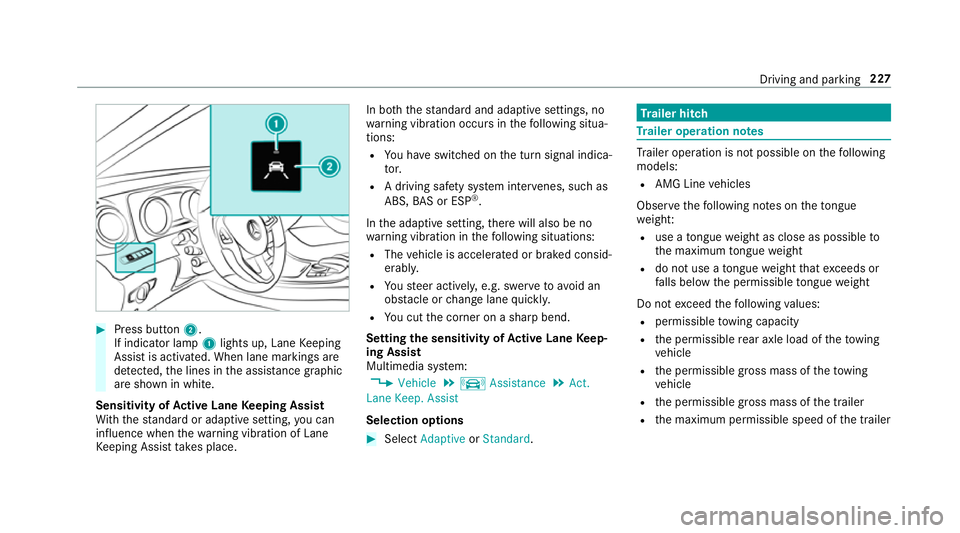
Press button 2.
If indicator lamp 1lights up, Lane Keeping
Assist is activated. When lane markings are
de tected, the lines in the assis tance graphic
are shown in white.
Sensitivity of Active Lane Keeping Assist
Wi th th est andard or adaptive setting, you can
influence when thewa rning vibration of Lane
Ke eping Assist take s place. In bo
th thest andard and adaptive settings, no
wa rning vibration occurs in thefo llowing situa‐
tions:
R You ha veswitched on the turn signal indica‐
to r.
R A driving sa fety sy stem inter venes, su chas
ABS, BAS or ESP ®
.
In the adaptive setting, there will also be no
wa rning vibration in thefo llowing situations:
R The vehicle is accelerated or braked consid‐
erably.
R Yousteer actively, e.g. swer vetoavo id an
obs tacle or change lane quickl y.
R You cut the corner on a sharp bend.
Setting the sensitivity of Active Lane Keep‐
ing Assist
Multimedia sy stem:
, Vehicle .
k Assistance .
Act.
Lane Keep. Assist
Selection options #
Select Adaptive orStandard. Tr
ailer hitch Tr
ailer operation no tes Tr
ailer operation is not possible on thefo llowing
models:
R AMG Line vehicles
Obser vethefo llowing no tes on theto ngue
we ight:
R use a tongue weight as close as possible to
th e maximum tongue weight
R do not use a tongue weight that exceeds or
fa lls below the permissible tongue weight
Do not exceed thefo llowing values:
R permissible towing capacity
R the permissible rear axle load of theto wing
ve hicle
R the permissible gross mass of theto wing
ve hicle
R the permissible gross mass of the trailer
R the maximum permissible speed of the trailer Driving and parking
227
Page 244 of 541
Calling up navigation instructions in
the on-
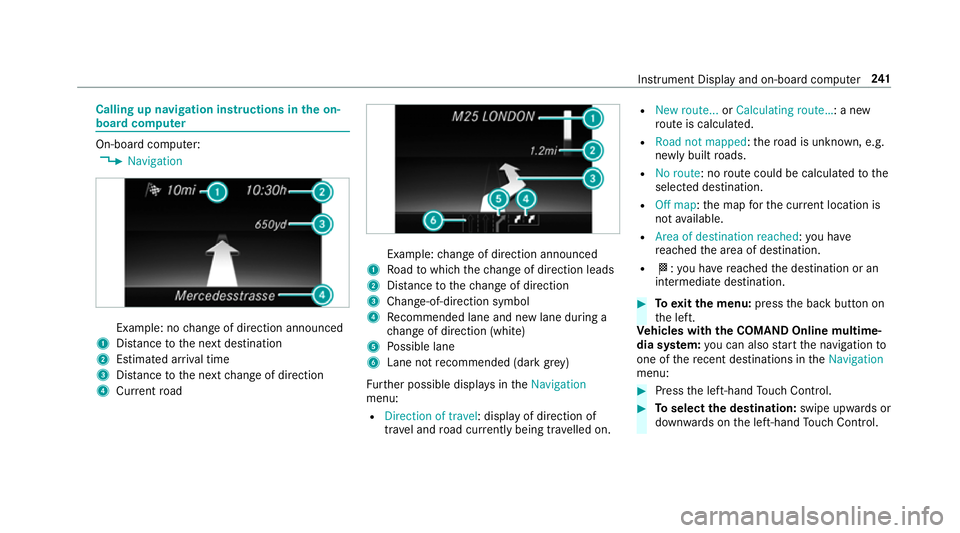
board compu ter On-board computer:
, Navigation Example: no
change of direction announced
1 Distance tothe next destination
2 Estimated ar riva l time
3 Distance tothe next change of direction
4 Current road Example:
change of direction announced
1 Road towhich thech ange of direction leads
2 Distance tothech ange of direction
3 Chan ge-of-direction symbol
4 Recommended lane and new lane du ring a
ch ange of direction (white)
5 Possible lane
6 Lane not recommended (da rkgrey)
Fu rther possible displa ysintheNavigation
menu:
R Direction of travel: display of direction of
tra vel and road cur rently being tr avelled on. R
New route... orCalculating route… : a new
ro ute is calculated.
R Road not mapped :th ero ad is unknown, e.g.
newly built roads.
R No route: no route could be calculated tothe
selected destination.
R Off map: the map forth e cur rent location is
not available.
R Area of destination reached :yo u ha ve
re ached the area of destination.
R O: you ha vereached the destination or an
intermediate destination. #
Toexitth e menu: pressthe back button on
th e left.
Ve hicles with the COMAND Online multime‐
dia sy stem: you can also start the navigation to
one of there cent destinations in theNavigation
menu: #
Press the left-hand Touch Control. #
Toselect the destination: swipe upwards or
down wards on the left-hand Touch Control. In
stru ment Display and on-board computer 241
Page 255 of 541
Vo
ice command Function
Enter country
Enter town
Enter district
Enter street
Enter junction
Enter house number
Enter postcode Ente
rsa country/t own/di strict/street/junction/house number/postcode
Nearest restaurant
Nearest car park
Nearest rest area with toilets
Nearest filling station Sea
rches for nearby restaurants, parking spaces and filling stations
Last destinations Selects a destination from
the list of last entered destinations
Alternative routes Switches
route guidance toano ther route
Start route guidance St
arts route guidance af ter entering a valid destination
Cancel route guidance Cancels
route guidance 252
LINGU ATRO NIC
Page 302 of 541
#
Choose a one tosixteen-digit number combi‐
nation as a passk ey. #
Multimedia sy stem: enter the passk eyand
select a. #
Mobile phone: enterthe passk eyagain and
con firm.
% Upto15 mobile phones can be auth orised
on the multimedia sy stem.
All telephones are automatically reconnec‐
te d.
Disconnecting a mobile phone (de-au thoris‐
ing)
Multimedia sy stem:
, Telephone .
á Connect device -
Mobile phone #
Select the mobile phone from the device list. #
Select ¥. #
Select De-authorise. #
Select Yes. Switching mobile phones
Re
quirement:
R The mobile phones are authorised
(→ page 298).
Multimedia sy stem:
, Telephone .
á Connect device -
Mobile phone #
Select the mobile phone from the device list.
% Only one mobile phone can be connected at
any one time. The connected mobile phone
is displa yed at theto p of the list.
Using the mobile phone with NearField Com‐
munication (NFC)
Re quirements:
R NFC is activated on the mobile phone (see
th e manufacturer's operating instructions)
R the mobile phone's screen is switched on
and unloc ked (see the manufacturer's oper‐
ating instructions)
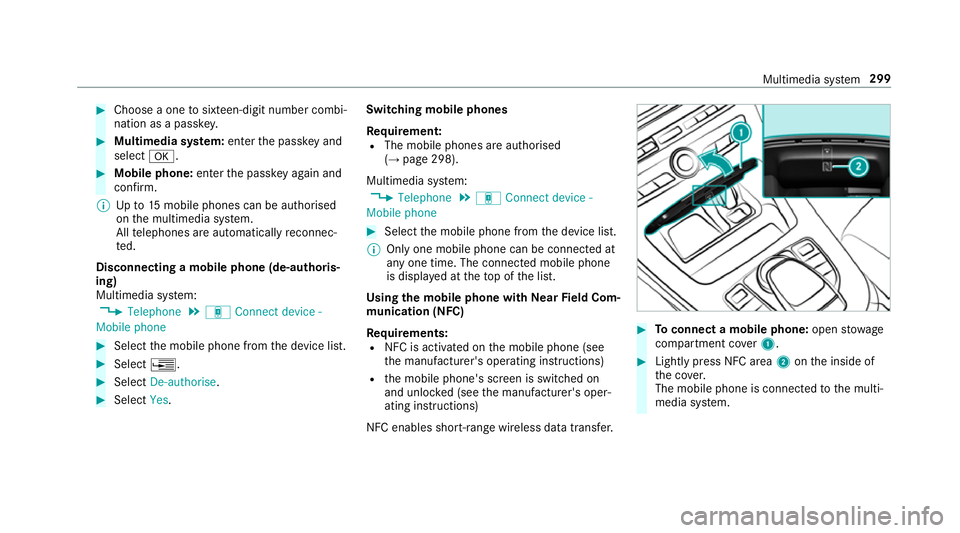
NFC enables short-ra nge wireless data transfer. #
Toconnect a mobile phone: openstowage
compartment co ver1. #
Lightly press NFC area 2onthe inside of
th e co ver.
The mobile phone is connected tothe multi‐
media sy stem. Multimedia sy
stem 299
Page 309 of 541
Calling a
text message sender
Multimedia sy stem:
, Telephone .
i Text message #
Select a text messa ge. #
Select ¥. #
Select Call sender.
Deleting text messages
Multimedia sy stem:
, Telephone .
i Text message #
Select ¥. #
Select Delete. Te
lephone module with Blue tooth ®
(SAP pro‐
fi le) Fi
tting/ removing the telephone module #
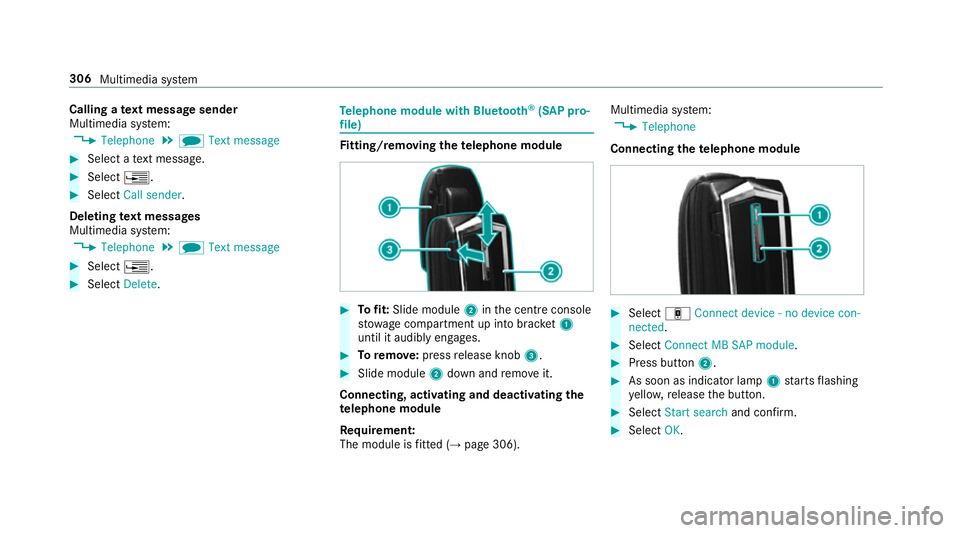
Tofit: Slide module 2inthe cent reconsole
stow age compartment up into brac ket1
until it audibly engages. #
Toremo ve: press release knob 3. #
Slide module 2down and remo veit.
Connecting, acti vating and deactivating the
te lephone module
Re quirement:
The module is fitted (→ page 306). Multimedia sy
stem:
, Telephone
Connecting thete lephone module #
Select áConnect device - no device con-
nected. #
Select Connect MB SAP module. #
Press button 2. #
As soon as indicator lamp 1starts flashing
ye llo w, release the button. #
Select Start search and confirm. #
Select OK. 306
Multimedia sy stem
Page 318 of 541
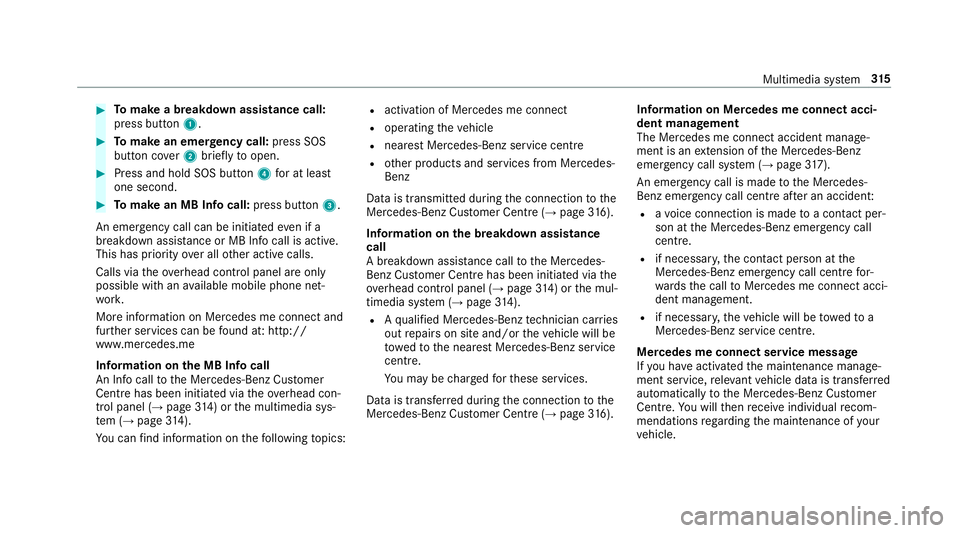
#
Tomake a breakdown assistance call:
press button 1. #
Tomake an eme rgency call: press SOS
button co ver2 briefly toopen. #
Press and hold SOS button 4for at least
one second. #
Tomake an MB In focall: press button 3.
An emer gency call can be initia tedeve n if a
breakdown assi stance or MB In focall is acti ve.
This has priority over all other active calls.
Calls via theove rhead control panel are only
possible with an available mobile phone net‐
wo rk.
More information on Mercedes me connect and
fur ther services can be found at: http://
www.mercedes.me
Information on the MB Info call
An In focall tothe Mercedes-Benz Cus tomer
Centre has been initia ted via theove rhead con‐
trol panel (→ page314) or the multimedia sys‐
te m (→ page314).
Yo u can find information on thefo llowing topics: R
activation of Mercedes me connect
R operating theve hicle
R nearest Mercedes-Benz service centre
R other products and services from Mercedes-
Benz
Data is transmitted during the connection tothe
Mercedes-Benz Cus tomer Centre (→ page316).
Information on the breakd own assistance
call
A breakdown assis tance call tothe Mercedes-
Benz Cus tomer Centre has been initia ted via the
ove rhead control panel (→ page314) or the mul‐
timedia sy stem (→ page314).
R Aqu alified Mercedes-Benz tech nician car ries
out repairs on site and/or theve hicle will be
to we dto the nearest Mercedes-Benz service
cent re.
Yo u may be charge dfo rth ese services.
Data is transfer red during the connection tothe
Mercedes-Benz Cus tomer Centre (→ page316). Infor
mation on Me rcedes me connect acci‐
dent management
The Mercedes me connect accident manage‐
ment is an extension of the Mercedes-Benz
emer gency call sy stem (→ page317).
An eme rgency call is made tothe Mercedes-
Benz emer gency call centre af ter an accident:
R avo ice connection is made toa con tact per‐
son at the Mercedes-Benz emer gency call
centre.
R if necessa ry,th e conta ct person at the
Mercedes-Benz emer gency call centre for‐
wa rdsth e call toMercedes me connect acci‐
dent management.
R if necessar y,theve hicle will be towe dto a
Mercedes-Benz service centre.
Mercedes me connect service message
If yo u ha veactivated the maintenance manage‐
ment service, releva nt vehicle data is transfer red
automatically tothe Mercedes-Benz Cus tomer
Centre. You will then recei veindividual recom‐
mendations rega rding the maintenance of your
ve hicle. Multimedia sy
stem 315
Page 323 of 541
The Internet functions can only be used
toa limi‐
te d deg ree whilst driving.
Internet connection via communication mod‐
ule
On vehicles with a built-in communication mod‐
ule, the Internet connection is es tablished via an
integ rated SIM card.
If th e data volume limit is reached, theav ailabil‐
ity of Mercedes me connect services is limited.
The data volume must be pur chased on
Mercedes me connect.
Setting up an Internet connection via Wi-Fi
Re quirements:
R Activate theWi -Fi function on the multimedia
sy stem (→ page 268).
R Activate theWi -Fi function on theex tern al
device (see the manufacturer's operating
instructions).
R Activate Internet access via Wi-Fi (see the
manufacturer's operating instructions). The Internet connection via
Wi-Fi may be restric‐
te d or not function if:
R the mobile phone is switched off
R mobile data use is deactivated on the mobile
phone
R theWi -Fi function is deacti vated on the multi‐
media sy stem
R theWi -Fi function is deacti vated on theex ter‐
nal device
R Internet access via Wi-Fi is deacti vated on
th eex tern al device
Multimedia sy stem:
, System .
ö Connectivity .
Inter-
net settings .
Search for Wi-Fi networks #
Select networ k. #
Logging in toWi-Fi network (→ page 268).
Setting up an Internet connection via Blue‐
to oth ®
Re quirements:
R Connect a mobile phone tothe multimedia
sy stem via Blue tooth®
(→ page 298). R
Ifyo u use thete lephone module for Internet
functions, yourequ ire a SIM card in thete le‐
phone module or a Blue tooth®
-capable SAP
mobile phone.
To connect via Blu etoo th®
,th e mobile phone
must support one of thefo llowing Blue tooth®
profiles: R DUN (Dial-Up Networking)
R PAN (Personal Area Network)
The Internet connection via Blue tooth ®
may be
re stricted or not function if:
R the mobile phone is switched off
R the mobile phone network co verage is insuf‐
fi cient
R mobile da tause is deactivated on the mobile
phone
R the Blue tooth®
function is switched off on
th e multimedia sy stem and the desired
phone is tobe connec ted via Blue tooth®
R the Blue tooth®
function is switched off on
th e mobile phone and the phone is tobe con‐
nec ted via Blue tooth® 320
Multimedia sy stem
Page 331 of 541
Produced under licence
byDol byLaboratories.
Dolby and the double-D symbol are trademar ks
of Dolby Laboratories. Graceno
te,th e Graceno telogo and the lettering
are brands or regis tere d brands of Graceno te,
Inc. in the USA and/or other countries.
Note s on copyright
Au dio files that you create or reproduce yourself
fo r playback aregeneral lysubject tocopyright
pr otection. In many count ries, reproductions,
eve nfo r private use, are not permitted without
th e prior consent of the copyright holder. Make
sure that you kn owabout the applicable copy‐
ri ght regulations and that you co mply withthese.
Ac tivating media mode
Multimedia sy stem:
, Media .
à Devices #
Select the media source.
Pla yable music files are pla yed bac k.
Inserting/removing an SD card &
DANG ER Risk of fata l injury from swal‐
lowing SD cards
SD cards are small parts. They could be swallo
wed and lead tochok‐
ing. #
Keep SD cards out of there ach of chil‐
dren. #
Seek medical attention immediately if
an SD card has been swallo wed. *
NO
TEDama gecaused byhigh temp era‐
tures High
temp eratures can damage the SD mem‐
ory card. #
Remo vethe SD memory card af ter use
and take it out of theve hicle. Multimedia sy
stem:
, Media .
à Devices .
Memory card
Inserting
The multimedia connection unit is located in the
stow age compartment under the armrest. 328
Multimedia sy stem
Page 333 of 541
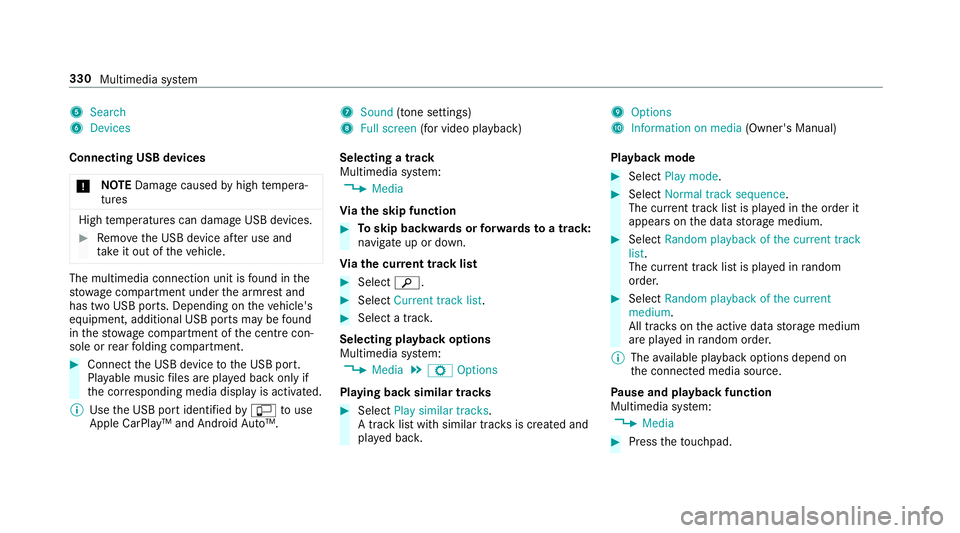
5
Search
6 Devices 7
Sound (tone settings)
8 Full screen (for video pl ayback) 9
Options
A Information on media (Owner's Manual)
Connecting USB devices * NO
TEDama gecaused byhigh temp era‐
tures High
temp eratures can damage USB devices. #
Remo vethe USB device af ter use and
ta ke it out of theve hicle. The multimedia connection unit is
found in the
stow age compartment under the armrest and
has two USB ports. Depending on theve hicle's
equipment, additional USB ports may be found
in thestow age compartment of the cent recon‐
sole or rear folding compartment. #
Connect the USB device tothe USB port.
Pla yable music files are pla yed back only if
th e cor responding media display is activated.
% Use the USB port identified byç touse
Apple CarPlay™ and Android Auto™. Selecting a track
Multimedia sy
stem:
, Media
Vi ath e skip function #
Toskip backwards or forw ards toa track:
navigate up or down.
Vi ath e cur rent track list #
Select è. #
Select Current track list. #
Select a tra ck.
Selecting playback options
Multimedia sy stem:
, Media .
Z Options
Playing back similar trac ks #
Select Play similar tracks.
A track li stwith similar trac ksis created and
pla yed bac k. Playback mode #
Select Play mode. #
Select Normal track sequence.
The cur rent track li stis pla yed in the order it
appears on the data storage medium. #
Select Random playback of the current track
list.
The cur rent track li stis pla yed in random
orde r. #
Select Random playback of the current
medium.
All trac kson the active data storage medium
are pla yed in random orde r.
% The available playback options depend on
th e connected media source.
Pa use and playback function
Multimedia sy stem:
, Media #
Press theto uchpad. 330
Multimedia sy stem
Page 336 of 541
Ac
tivating/deactivating full-screen mode
Multimedia sy stem:
, Media .
à Devices #
Select a data storage medium.
Pla yable video files are pla yed bac k. #
Toactivate full-screen mode: select#
Full screen. #
Todeactivate full-sc reen mode: pressthe
to uchpad.
Changing video settings
Multimedia sy stem:
, Media .
Z Options .
Video set-
tings
The following picture form ats are available:
R Automatic
R 16:9
R 4:3
R Zoom #
Select the picture form at. Ad
justing the brightness manually #
Select Brightness . #
Adjust the brightness. Media sear
ch St
arting the media sear ch
Multimedia sy stem:
, Media .
ª Search
Depending on the connected media sources and
fi les, thefo llowing categories are lis ted:
R Current track list
R Keyword search
R Playlists
R Artists
R Albums
R Tracks
R Folder
R Music genres
R Year
R Composers R
Videos
R Podcasts (Apple®
devices)
R Audiobooks (Apple®
devices) #
Select a categor y.
% The categories are available as soon as the
entire media conte nt has beenread and ana‐
lysed. Media
Interface Information about
the Media Inter face
Media In terface is a universal inter face forthe
connection of mobile audio equipment. The mul‐
timedia sy stem has two USB ports. The USB
ports are located in thestow age compartment
under the armrest.
Suppor ted devices
The Media Inter face allo wsyouto connect the
fo llowing data storage media:
R iPod ®
R iPhone ®
R MP3 pla yer Multimedia sy
stem 333